
Python (365)
The Find and Replace feature in Word offers a reliable and efficient solution for updating text within your documents. It eliminates the need for exhaustive manual searching and editing by automatically locating and replacing the desired text throughout the entire document. This not only saves time but also guarantees that every instance of the targeted text is updated consistently. In this article, we will demonstrate how to find and replace text in a Word document in Python using Spire.Doc for Python.
- Find Text and Replace All Its Instances with New Text
- Find Text and Replace Its First Instance with New Text
- Find and Replace Text Using a Regular Expression
- Find and Replace Text with an Image
Install Spire.Doc for Python
This scenario requires Spire.Doc for Python and plum-dispatch v1.7.4. They can be easily installed in your Windows through the following pip command.
pip install Spire.Doc
If you are unsure how to install, please refer to this tutorial: How to Install Spire.Doc for Python on Windows
Find Text and Replace All Its Instances with New Text
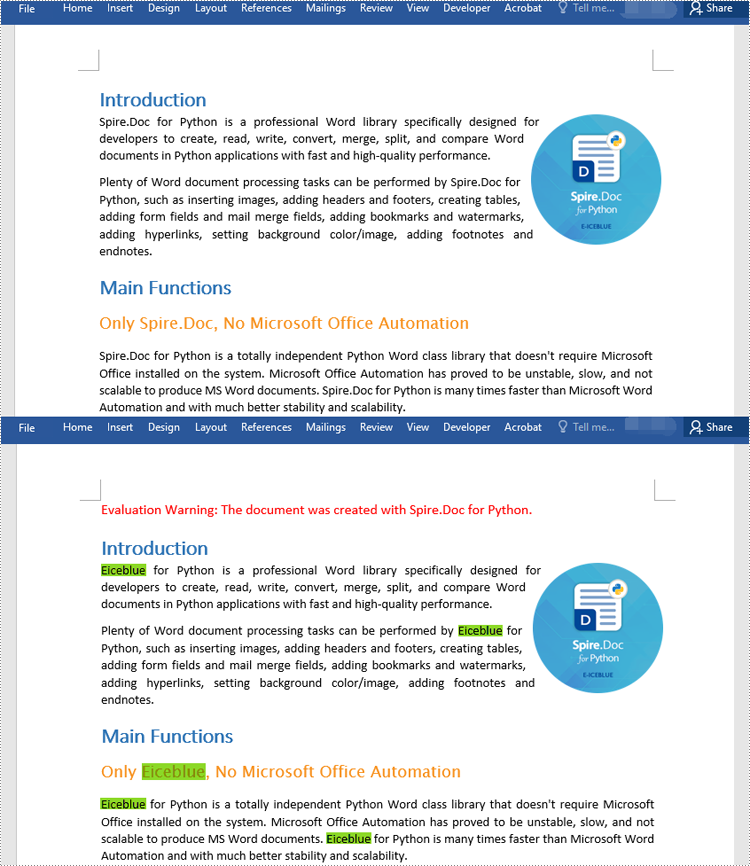
You can find a text and replace all its instances with another text easily using the Document.Replace() method. The detailed steps are as follows:
- Create a Document object.
- Load a Word document using Document.LoadFromFile() method.
- Find a specific text and replace all its instances with another text using Document.Replace() method.
- Save the resulting document using Document.SaveToFile() method.
- Python
from spire.doc import *
from spire.doc.common import *

# Create a Document object
document = Document()
# Load a Word document
document.LoadFromFile("Sample.docx")

# Find a specific text and replace all its instances with another text
document.Replace("Spire.Doc", "Eiceblue", False, True)

# Save the resulting document
document.SaveToFile("ReplaceAllOccurrencesOfText.docx", FileFormat.Docx2016)
document.Close()
Find Text and Replace Its First Instance with New Text
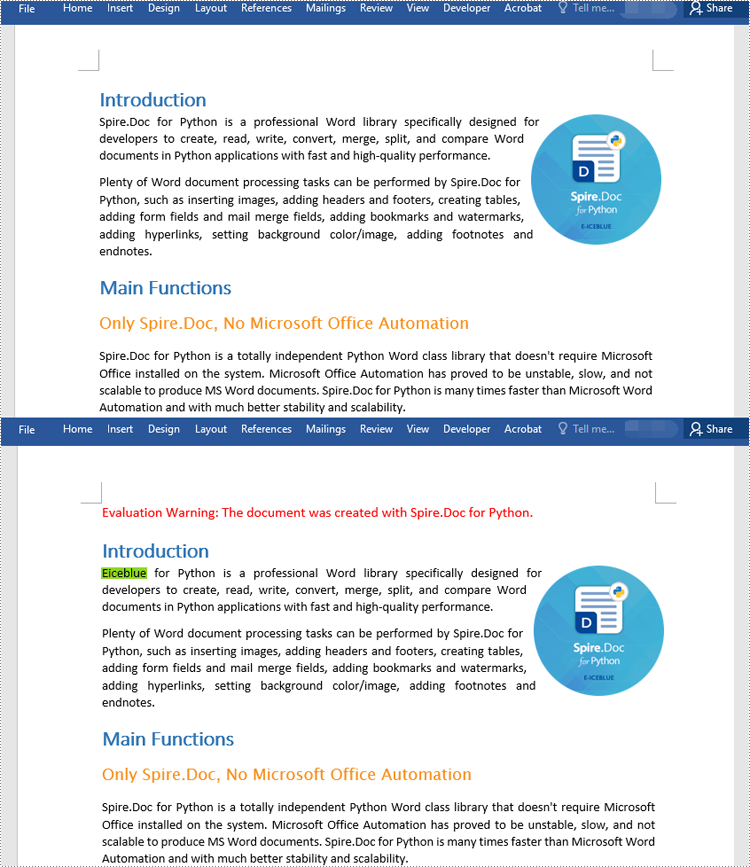
Spire.Doc for Python provides the Document.ReplaceFirst property which enables you to change the replacement mode from replacing all instances to replacing the first instance. The following steps explain how to find a text and replace its first instance in a Word document:
- Create a Document object.
- Load a Word document using Document.LoadFromFile() method.
- Change the replacement mode to replace the first instance by setting the Document.ReplaceFirst property as True.
- Replace the first instance of a text with another text using Document.Replace() method.
- Save the resulting document using Document.SaveToFile() method.
- Python
from spire.doc import *
from spire.doc.common import *

# Create a Document object
document = Document()
# Load a Word document
document.LoadFromFile("Sample.docx")

# Change the replacement mode to replace the first match
document.ReplaceFirst = True

# Replace the first instance of a text with another text
document.Replace("Spire.Doc", "Eiceblue", False, True)

# Save the resulting document
document.SaveToFile("ReplaceFirstOccurrenceOfText.docx", FileFormat.Docx2016)
document.Close()
Find and Replace Text Using a Regular Expression
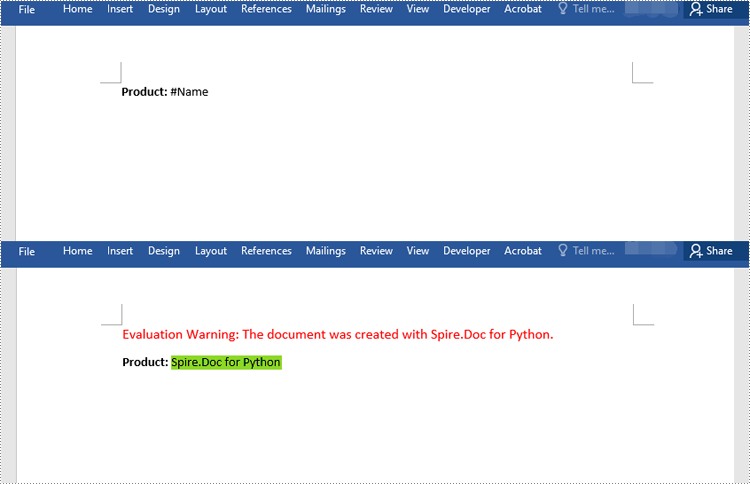
You can replace a text matching a regular expression with new text by passing a Regex object and the new text to the Document.Replace() method as parameters. The detailed steps are as follows:
- Create a Document object.
- Load a Word document using Document.LoadFromFile() method.
- Create a Regex object to match the specific text.
- Replace the text matching the regex with another text using Document.Replace() method.
- Save the resulting document using Document.SaveToFile() method.
- Python
from spire.doc import *
from spire.doc.common import *

# Create a Document object
document = Document()
# Load a Word document
document.LoadFromFile("Sample1.docx")

# Create a regex to match the text that starts with #
regex = Regex("""\\#\\w+\\b""")

# Find the text matching the regex and replace it with another text
document.Replace(regex, "Spire.Doc for Python")

#save the document
document.SaveToFile("ReplaceTextUsingRegex.docx", FileFormat.Docx2016)
document.Close()
Find and Replace Text with an Image
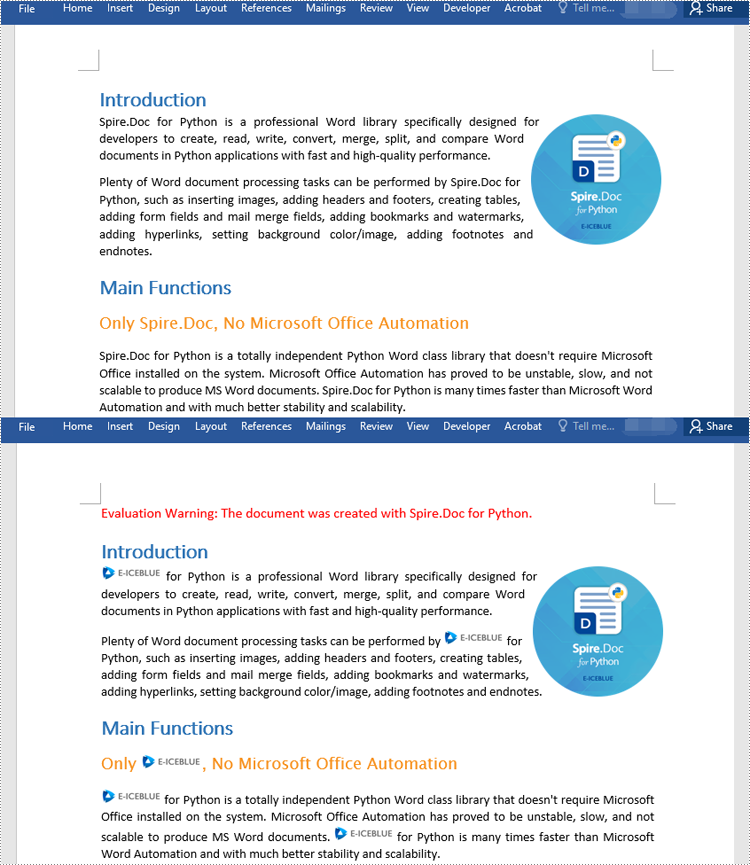
Spire.Doc for Python doesn't offer a direct method to replace text with image, but you can achieve this by inserting the image at the position of the text and then removing the text from the document. The detailed steps are as follows:
- Create a Document object.
- Load a Word document using Document.LoadFromFile() method.
- Find a specific text in the document using Document.FindAllString() method.
- Loop through the found results.
- Create a DocPicture object and load an image using DocPicture.LoadImage() method.
- Get the found text as a single text range and then get the index of the text range in its owner paragraph.
- Insert an image at the position of the text range and then remove the text range from the document.
- Save the resulting document using Document.SaveToFile() method.
- Python
from spire.doc import *
from spire.doc.common import *

# Create a Document object
document = Document()
# Load a Word document
document.LoadFromFile("Sample.docx")

# Find a specific text in the document
selections = document.FindAllString("Spire.Doc", True, True)
index = 0
testRange = None

# Loop through the found results
for selection in selections:
    # Load an image
    pic = DocPicture(document)
    pic.LoadImage("logo.png")
    # Get the found text as a single text range
    testRange = selection.GetAsOneRange()
    # Get the index of the text range in its owner paragraph
    index = testRange.OwnerParagraph.ChildObjects.IndexOf(testRange)
    # Insert an image at the index
    testRange.OwnerParagraph.ChildObjects.Insert(index, pic)
    # Remove the text range
    testRange.OwnerParagraph.ChildObjects.Remove(testRange)

# Save the resulting document
document.SaveToFile("ReplaceTextWithImage.docx", FileFormat.Docx2016)
document.Close()
Apply for a Temporary License
If you'd like to remove the evaluation message from the generated documents, or to get rid of the function limitations, please request a 30-day trial license for yourself.
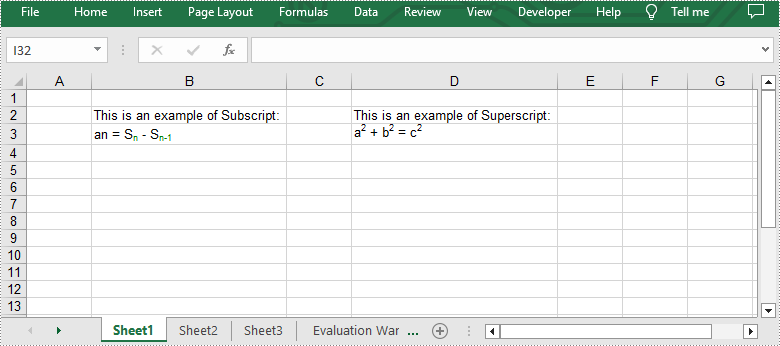
Superscript and subscript are formatting styles used in typography and writing to position characters or numbers above or below the normal line of text. Superscript is a smaller-sized text or symbol that is raised above the baseline. It is commonly used for mathematical exponents, footnotes, and ordinal indicators. Subscript, on the other hand, is a smaller-sized text or symbol that is positioned below the baseline. It is often used for chemical formulas, mathematical expressions and some linguistic notations. These formatting styles can help users distinguish specific elements within text and convey information more effectively. In this article, we will show you how to apply superscript and subscript in Excel by using Spire.XLS for Python.
Install Spire.XLS for Python
This scenario requires Spire.XLS for Python and plum-dispatch v1.7.4. They can be easily installed in your Windows through the following pip command.
pip install Spire.XLS
If you are unsure how to install, please refer to this tutorial: How to Install Spire.XLS for Python on Windows
Apply Superscript and Subscript in Excel
To apply the superscript or subscript style to specific characters in excel, you need to create a custom font first and set the superscript or subscript property of it. And then assign the font to the specific characters within the cell using CellRange.RichText.SetFont() method provided by Spire.XLS for Python. The detailed steps are as follows:
- Create an object of Workbook class.
- Get the first worksheet of it using Workbook.Worksheets[int index] property.
- Get the specific cells using Worksheet.Range[string name] property and add desired text to them.
- Get a cell by using Worksheet.Range[string name] property and add rich text to it by CellRange.RichText.Text property.
- Create a custom font using Workbook.CreateFont() method.
- Enable the subscript property of the font by setting ExcelFont.IsSubscript property to true.
- Assign the font to specific characters of the added rich text in the cell by calling CellRange.RichText.SetFont() method.
- Likewise, get another cell using Worksheet.Range[string name] property and add rich text to it by CellRange.RichText.Text property.
- Create a custom font using Workbook.CreateFont() method.
- Enable the superscript property of the font by setting ExcelFont.IsSuperscript property to true.
- Assign the font to specific characters of the added rich text in the cell by calling CellRange.RichText.SetFont() method.
- Automatically adjust column widths to fit text length using Worksheet.AllocatedRange.AutoFitColumns() method.
- Save the result file using Workbook.SaveToFile() method.
- Python
from spire.xls import *
from spire.xls.common import *

outputFile = "ApplySubscriptAndSuperscript.xlsx"

# Create an object of Workbook class
workbook = Workbook()

# Get the first worksheet
sheet = workbook.Worksheets[0]

# Add text to the specific cells
sheet.Range["B2"].Text = "This is an example of Subscript:"
sheet.Range["D2"].Text = "This is an example of Superscript:"

# Add rich text to a specific cell
range = sheet.Range["B3"]
range.RichText.Text = "an = Sn - Sn-1"

# Create a custom font
font = workbook.CreateFont()

# Enable the subscript property of the font by setting the IsSubscript property to "true"
font.IsSubscript = True

# Set the font color
font.Color = Color.get_Green()

# Assign the font to specific characters of the added rich text
range.RichText.SetFont(6, 6, font)
range.RichText.SetFont(11, 13, font)

# Add rich text to another cell
range = sheet.Range["D3"]
range.RichText.Text = "a2 + b2 = c2"

# Create a custom font
font = workbook.CreateFont()

# Enable the superscript property of the font by setting the IsSuperscript property to "true"
font.IsSuperscript = True

# Assign the font to specific characters of the added rich text
range.RichText.SetFont(1, 1, font)
range.RichText.SetFont(6, 6, font)
range.RichText.SetFont(11, 11, font)

# Autofit the column widths
sheet.AllocatedRange.AutoFitColumns()

# Save the result file
workbook.SaveToFile(outputFile, ExcelVersion.Version2013)
workbook.Dispose()
Apply for a Temporary License
If you'd like to remove the evaluation message from the generated documents, or to get rid of the function limitations, please request a 30-day trial license for yourself.
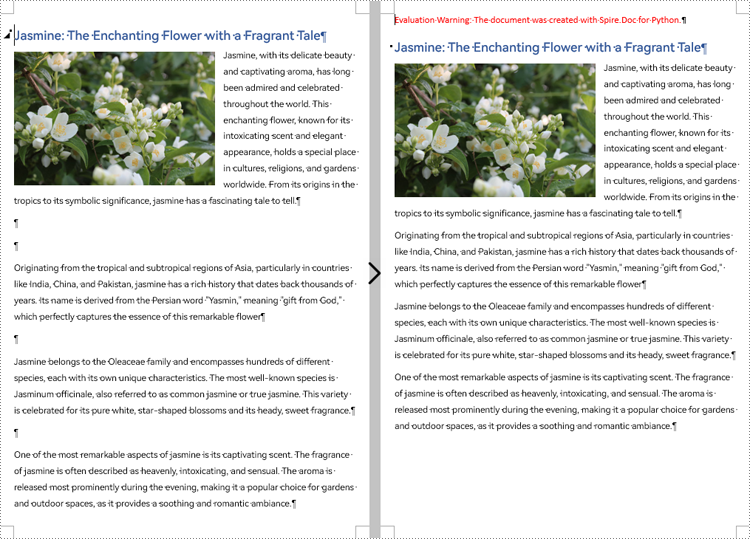
During the process of document creation, it is common to encounter numerous blank lines. These empty spaces can disrupt the flow of the content, clutter the layout, and undermine the overall aesthetic presentation of the document. In order to optimize the reading experience and ensure a well-structured document, it becomes crucial to eliminate the blank lines. This article will demonstrate how to delete blank lines from Word documents through Python programs using Spire.Doc for Python.
Install Spire.Doc for Python
This scenario requires Spire.Doc for Python and plum-dispatch v1.7.4. They can be easily installed in your Windows through the following pip command.
pip install Spire.Doc
If you are unsure how to install, please refer to this tutorial: How to Install Spire.Doc for Python on Windows
Remove Blank Lines from Word Documents
Blank lines in a Word document appear as blank paragraphs, which are child objects of sections. Therefore, removing blank lines simply requires iterating through the sections, identifying and deleting empty paragraphs within them. The detailed steps are as follows:
- Create an object of Document class.
- Load a Word document using Document.LoadFromFile() method.
- Iterate through each section and each child object of the sections.
- First, check if a child object is of paragraph type. If it is, continue to check if the sub-object is an instance of the "Paragraph" class. If it is, further check if the paragraph has no text. If there is no text, delete the paragraph using Section.Body.ChildObjects.Remove() method.
- Save the document using Document.SaveToFile() method.
- Python
from spire.doc import *
from spire.doc.common import *

# Create an object of the Document class
doc = Document()

# Load a Word document
doc.LoadFromFile("Sample.docx")

# Iterate through each section in the document
for i in range(doc.Sections.Count):
    section = doc.Sections.get_Item(i)
    j = 0
    # Iterate through each child object in the section
    while j < section.Body.ChildObjects.Count:
        # Check if the child object is of type Paragraph
        if section.Body.ChildObjects[j].DocumentObjectType == DocumentObjectType.Paragraph:
            objItem = section.Body.ChildObjects[j]
            # Check if the child object is an instance of the Paragraph class
            if isinstance(objItem, Paragraph):
                paraObj = Paragraph(objItem)
                # Check if the paragraph text is empty
                if len(paraObj.Text) == 0:
                    # If the paragraph text is empty, remove the object from the section's child objects list
                    section.Body.ChildObjects.Remove(objItem)
                    j -= 1
        j += 1

# Save the document
doc.SaveToFile("output/RemoveBlankLines.docx")
Apply for a Temporary License
If you'd like to remove the evaluation message from the generated documents, or to get rid of the function limitations, please request a 30-day trial license for yourself.
Hyperlinks are an essential component of creating dynamic and interactive Word documents. By linking specific text or objects to other documents, web pages, email addresses, or specific locations within the same document, hyperlinks allow users to navigate through information seamlessly. In this article, you will learn how to add or remove hyperlinks in a Word document in Python using Spire.Doc for Python.
Install Spire.Doc for Python
This scenario requires Spire.Doc for Python and plum-dispatch v1.7.4. They can be easily installed in your Windows through the following pip command.
pip install Spire.Doc
If you are unsure how to install, please refer to this tutorial: How to Install Spire.Doc for Python on Windows
Add Hyperlinks to Word in Python
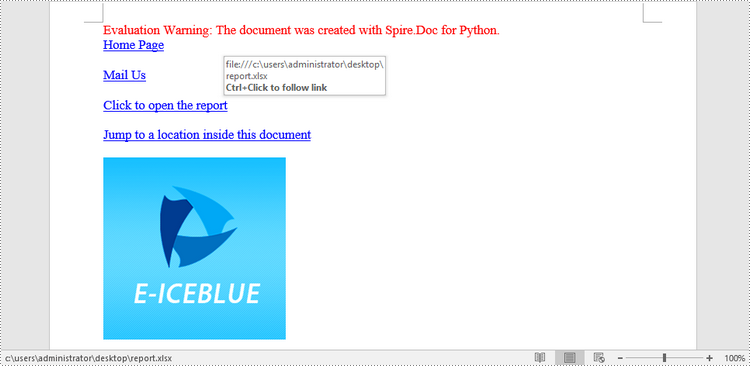
Spire.Doc for Python offers the Paragraph.AppendHyperlink() method to add a web link, an email link, a file link, or a bookmark link to a piece of text or an image inside a paragraph. The following are the detailed steps.
- Create a Document object.
- Add a section and a paragraph to it.
- Insert a hyperlink based on text using Paragraph.AppendHyerplink(link: str, text: str, type: HyperlinkType) method.
- Add an image to the paragraph using Paragraph.AppendPicture() method.
- Insert a hyperlink based on the image using Paragraph.AppendHyerplink(link: str, picture: DocPicture, type: HyperlinkType) method.
- Save the result document using Document.SaveToFile() method.
- Python
from spire.doc import *
from spire.doc.common import *

# Create a Word document
doc = Document()

# Add a section
section = doc.AddSection()

# Add a paragraph
paragraph = section.AddParagraph()
paragraph.AppendHyperlink("https://www-iceblue.com/", "Home Page", HyperlinkType.WebLink)

# Append line breaks
paragraph.AppendBreak(BreakType.LineBreak)
paragraph.AppendBreak(BreakType.LineBreak)

# Add an email link
paragraph.AppendHyperlink("mailto:support@e-iceblue.com", "Mail Us", HyperlinkType.EMailLink)

# Append line breaks
paragraph.AppendBreak(BreakType.LineBreak)
paragraph.AppendBreak(BreakType.LineBreak)

# Add a file link
filePath = "C:\\Users\\Administrator\\Desktop\\report.xlsx"
paragraph.AppendHyperlink(filePath, "Click to open the report", HyperlinkType.FileLink)

# Append line breaks
paragraph.AppendBreak(BreakType.LineBreak)
paragraph.AppendBreak(BreakType.LineBreak)

# Add another section and create a bookmark
section2 = doc.AddSection()
bookmarkParagrapg = section2.AddParagraph()
bookmarkParagrapg.AppendText("Here is a bookmark")
start = bookmarkParagrapg.AppendBookmarkStart("myBookmark")
bookmarkParagrapg.Items.Insert(0, start)
bookmarkParagrapg.AppendBookmarkEnd("myBookmark")

# Link to the bookmark
paragraph.AppendHyperlink("myBookmark", "Jump to a location inside this document", HyperlinkType.Bookmark)

# Append line breaks
paragraph.AppendBreak(BreakType.LineBreak)
paragraph.AppendBreak(BreakType.LineBreak)

# Add an image link
image = "C:\\Users\\Administrator\\Desktop\\logo.png"
picture = paragraph.AppendPicture(image)
paragraph.AppendHyperlink("https://www.e-iceblue.com/", picture, HyperlinkType.WebLink)

# Save to file
doc.SaveToFile("output/CreateHyperlinks.docx", FileFormat.Docx2019);
doc.Dispose()
Remove Hyperlinks from Word in Python
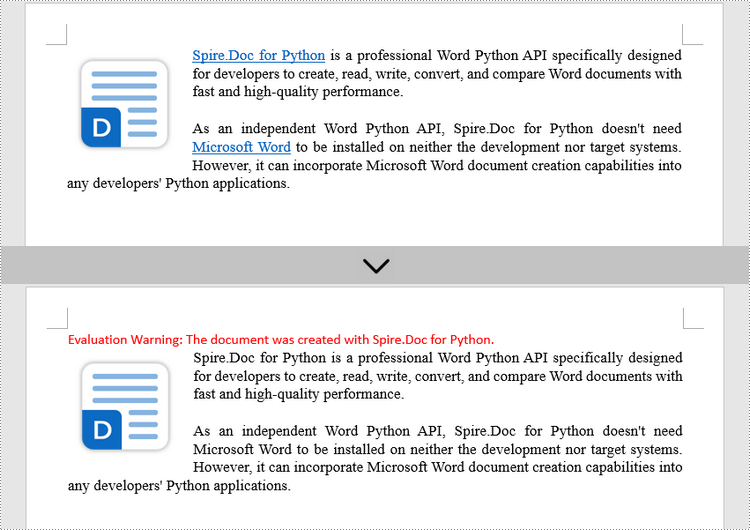
To delete all hyperlinks in a Word document at once, you'll need to find all the hyperlinks in the document and then create a custom method FlattenHyperlinks() to flatten them. The following are the detailed steps.
- Create a Document object.
- Load a sample Word document using Document.LoadFromFile() method.
- Find all the hyperlinks in the document using custom method FindAllHyperlinks().
- Loop through the hyperlinks and flatten all of them using custom method FlattenHyperlinks().
- Save the result document using Document.SaveToFile() method.
- Python
from spire.doc import *
from spire.doc.common import *

# Find all the hyperlinks in a document
def FindAllHyperlinks(document):
    hyperlinks = []
    for i in range(document.Sections.Count):
        section = document.Sections.get_Item(i)
        for j in range(section.Body.ChildObjects.Count):
            sec = section.Body.ChildObjects.get_Item(j)
            if sec.DocumentObjectType == DocumentObjectType.Paragraph:
                for k in range((sec if isinstance(sec, Paragraph) else None).ChildObjects.Count):
                    para = (sec if isinstance(sec, Paragraph)
                            else None).ChildObjects.get_Item(k)
                    if para.DocumentObjectType == DocumentObjectType.Field:
                        field = para if isinstance(para, Field) else None
                        if field.Type == FieldType.FieldHyperlink:
                            hyperlinks.append(field)
    return hyperlinks

# Flatten the hyperlink fields
def FlattenHyperlinks(field):
    ownerParaIndex = field.OwnerParagraph.OwnerTextBody.ChildObjects.IndexOf(
        field.OwnerParagraph)
    fieldIndex = field.OwnerParagraph.ChildObjects.IndexOf(field)
    sepOwnerPara = field.Separator.OwnerParagraph
    sepOwnerParaIndex = field.Separator.OwnerParagraph.OwnerTextBody.ChildObjects.IndexOf(
        field.Separator.OwnerParagraph)
    sepIndex = field.Separator.OwnerParagraph.ChildObjects.IndexOf(
        field.Separator)
    endIndex = field.End.OwnerParagraph.ChildObjects.IndexOf(field.End)
    endOwnerParaIndex = field.End.OwnerParagraph.OwnerTextBody.ChildObjects.IndexOf(
        field.End.OwnerParagraph)

    FormatFieldResultText(field.Separator.OwnerParagraph.OwnerTextBody,
                           sepOwnerParaIndex, endOwnerParaIndex, sepIndex, endIndex)

    field.End.OwnerParagraph.ChildObjects.RemoveAt(endIndex)

    for i in range(sepOwnerParaIndex, ownerParaIndex - 1, -1):
        if i == sepOwnerParaIndex and i == ownerParaIndex:
            for j in range(sepIndex, fieldIndex - 1, -1):
                field.OwnerParagraph.ChildObjects.RemoveAt(j)

        elif i == ownerParaIndex:
            for j in range(field.OwnerParagraph.ChildObjects.Count - 1, fieldIndex - 1, -1):
                field.OwnerParagraph.ChildObjects.RemoveAt(j)

        elif i == sepOwnerParaIndex:
            for j in range(sepIndex, -1, -1):
                sepOwnerPara.ChildObjects.RemoveAt(j)
        else:
            field.OwnerParagraph.OwnerTextBody.ChildObjects.RemoveAt(i)

# Convert fields to text range and clear the text formatting
def FormatFieldResultText(ownerBody, sepOwnerParaIndex, endOwnerParaIndex, sepIndex, endIndex):
    for i in range(sepOwnerParaIndex, endOwnerParaIndex + 1):
        para = ownerBody.ChildObjects[i] if isinstance(
            ownerBody.ChildObjects[i], Paragraph) else None
        if i == sepOwnerParaIndex and i == endOwnerParaIndex:
            for j in range(sepIndex + 1, endIndex):
               if isinstance(para.ChildObjects[j], TextRange):
                 FormatText(para.ChildObjects[j])

        elif i == sepOwnerParaIndex:
            for j in range(sepIndex + 1, para.ChildObjects.Count):
                if isinstance(para.ChildObjects[j], TextRange):
                  FormatText(para.ChildObjects[j])
        elif i == endOwnerParaIndex:
            for j in range(0, endIndex):
               if isinstance(para.ChildObjects[j], TextRange):
                 FormatText(para.ChildObjects[j])
        else:
            for j, unusedItem in enumerate(para.ChildObjects):
                if isinstance(para.ChildObjects[j], TextRange):
                  FormatText(para.ChildObjects[j])

# Format text
def FormatText(tr):
    tr.CharacterFormat.TextColor = Color.get_Black()
    tr.CharacterFormat.UnderlineStyle = UnderlineStyle.none

# Create a Document object
doc = Document()

# Load a Word file
doc.LoadFromFile("C:\\Users\\Administrator\\Desktop\\test.docx")

# Get all hyperlinks
hyperlinks = FindAllHyperlinks(doc)

# Flatten all hyperlinks
for i in range(len(hyperlinks) - 1, -1, -1):
    FlattenHyperlinks(hyperlinks[i])

# Save to a different file
doc.SaveToFile("output/RemoveHyperlinks.docx", FileFormat.Docx)
doc.Close()
Apply for a Temporary License
If you'd like to remove the evaluation message from the generated documents, or to get rid of the function limitations, please request a 30-day trial license for yourself.
Applying a background color or image to a PDF can be an effective way to enhance its visual appeal, create a professional look, or reinforce branding elements. By adding a background, you can customize the overall appearance of your PDF document and make it more engaging for readers. Whether you want to use a solid color or incorporate a captivating image, this feature allows you to personalize your PDFs and make them stand out. In this article, you will learn how to set a background color or image for a PDF document in Python using Spire.PDF for Python.
Install Spire.PDF for Python
This scenario requires Spire.PDF for Python and plum-dispatch v1.7.4. They can be easily installed in your Windows through the following pip command.
pip install Spire.PDF
If you are unsure how to install, please refer to this tutorial: How to Install Spire.PDF for Python on Windows
Set a Background Color for PDF in Python
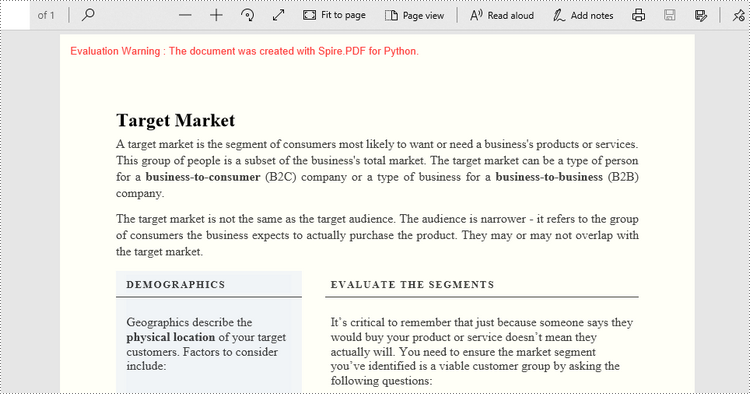
Spire.PDF for Python offers the PdfPageBase.BackgroundColor property to get or set the background color of a certain page. To add a solid color to the background of each page in the document, follow the steps below.
- Create a PdfDocument object.
- Load a PDF file using PdfDocument.LoadFromFile() method.
- Traverse through the pages in the document, and get a specific page through PdfDocument.Pages[index] property.
- Apply a solid color to the background through PdfPageBase.BackgroundColor property.
- Save the document to a different PDF file using PdfDocument.SaveToFile() method.
- Python
from spire.pdf.common import *
from spire.pdf import *

# Create a PdfDocument object
doc = PdfDocument()

# Load a PDF file
doc.LoadFromFile("C:\\Users\\Administrator\\Desktop\\input.pdf")

# Loop through the pages in the document
for i in range(doc.Pages.Count):

    # Get a particular page
    page = doc.Pages.get_Item(i)

    # Set background color
    page.BackgroundColor = Color.get_LightYellow()

# Save the document to a different file
doc.SaveToFile("output/SetBackgroundColor.pdf")
Set a Background Image for PDF in Python
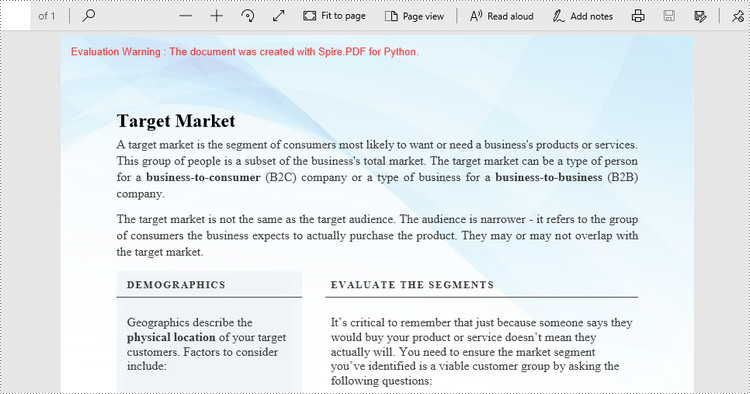
Likewise, an image can be applied to the background of a specific page via PdfPageBase.BackgroundImage property. The steps to set an image background for the entire document are as follows.
- Create a PdfDocument object.
- Load a PDF file using PdfDocument.LoadFromFile() method.
- Traverse through the pages in the document, and get a specific page through PdfDocument.Pages[index] property.
- Apply an image to the background through PdfPageBase.BackgroundImage property.
- Save the document to a different PDF file using PdfDocument.SaveToFile() method.
- Python
from spire.pdf.common import *
from spire.pdf import *

# Create a PdfDocument object
doc = PdfDocument()

# Load a PDF file
doc.LoadFromFile("C:\\Users\\Administrator\\Desktop\\input.pdf")

# Loop through the pages in the document
for i in range(doc.Pages.Count):

    # Get a particular page
    page = doc.Pages.get_Item(i)

    # Set background image
    page.BackgroundImage = Stream("C:\\Users\\Administrator\\Desktop\\img.jpg")

# Save the document to a different file
doc.SaveToFile("output/SetBackgroundImage.pdf")
Apply for a Temporary License
If you'd like to remove the evaluation message from the generated documents, or to get rid of the function limitations, please request a 30-day trial license for yourself.
If you receive or download a PDF file and find that some of the pages are displayed in the wrong orientation (e.g., sideways or upside down), rotating the PDF file allows you to correct the page orientation for easier reading and viewing. This article will demonstrate how to programmatically rotate PDF pages using Spire.PDF for Python.
Install Spire.PDF for Python
This scenario requires Spire.PDF for Python and plum-dispatch v1.7.4. They can be easily installed in your Windows through the following pip command.
pip install Spire.PDF
If you are unsure how to install, please refer to this tutorial: How to Install Spire.PDF for Python on Windows
Rotate a Specific Page in PDF in Python
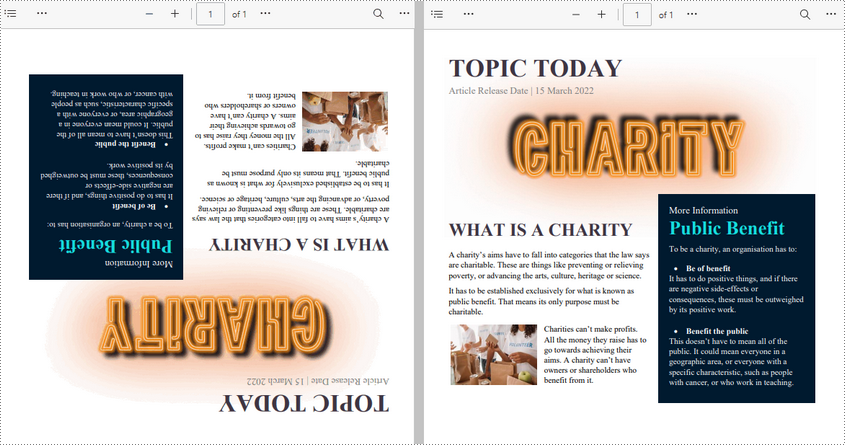
Rotation is based on 90-degree increments. You can rotate a PDF page by 0/90/180/270 degrees. The following are the steps to rotate a PDF page:
- Create a PdfDocument object.
- Load a PDF document using PdfDocument.LoadFromFile() method.
- Get a specified page using PdfDocument.Pages[pageIndex] property.
- Get the original rotation angle of the page using PdfPageBase.Rotation.value property.
- Increase the original rotation angle by desired degrees.
- Apply the new rotation angle to the page using PdfPageBase.Rotation property
- Save the result document using PdfDocument.SaveToFile() method.
- Python
from spire.pdf.common import *
from spire.pdf import *

# Create a PdfDocument object
pdf = PdfDocument()

# Load a PDF document
pdf.LoadFromFile("Sample.pdf")

# Get the first page
page = doc.Pages.get_Item(0)

# Get the original rotation angle of the page
rotation = int(page.Rotation.value)

# Rotate the page 180 degrees clockwise based on the original rotation angle
rotation += int(PdfPageRotateAngle.RotateAngle180.value)
page.Rotation = PdfPageRotateAngle(rotation)

# Save the result document
pdf.SaveToFile("RotatePDFPage.pdf")
pdf.Close()
Rotate All Pages in PDF in Python
Spire.PDF for Python also allows you to loop through each page in a PDF file and then rotate them all. The following are the detailed steps.
- Create a PdfDocument object.
- Load a PDF document using PdfDocument.LoadFromFile() method.
- Loop through each page in the document.
- Get the original rotation angle of the page using PdfPageBase.Rotation.value property.
- Increase the original rotation angle by desired degrees.
- Apply the new rotation angle to the page using PdfPageBase.Rotation property.
- Save the result document using PdfDocument.SaveToFile() method.
- Python
from spire.pdf.common import *
from spire.pdf import *

# Create a PdfDocument object
pdf = PdfDocument()

# Load a PDF document
pdf.LoadFromFile("Input.pdf")

# Loop through each page in the document
for i in range(pdf.Pages.Count):
    page = pdf.Pages.get_Item(i)

    # Get the original rotation angle of the page
    rotation = int(page.Rotation.value)

    # Rotate the page 180 degrees clockwise based on the original rotation angle
    rotation += int(PdfPageRotateAngle.RotateAngle180.value)
    page.Rotation = PdfPageRotateAngle(rotation)

# Save the result document
pdf.SaveToFile("RotatePDF.pdf")
pdf.Close()
Apply for a Temporary License
If you'd like to remove the evaluation message from the generated documents, or to get rid of the function limitations, please request a 30-day trial license for yourself.
Convert PDF to Images in Python (PNG, JPG, BMP, SVG, TIFF)
2023-09-18 01:16:01 Written by Administrator
Converting PDF files to images in Python is a common need for developers and professionals working with digital documents. Whether you want to generate thumbnails, create previews, extract specific content areas, or prepare files for printing, transforming a PDF into image formats gives you flexibility and compatibility across platforms.
This comprehensive guide demonstrates how to convert PDF files into popular image formats—such as PNG, JPG, BMP, SVG, and TIFF—in Python, using practical, easy-to-follow code examples.
Table of Contents
- Why Convert PDF to Image
- Python PDF-to-Image Converter Library
- Simple PDF to PNG, JPG, and BMP Conversion
- Advanced Conversion Options
- Generate Multi-Page TIFF from PDF
- Export PDF as SVG
- Conclusion
- FAQs
Why Convert PDF to Image?
Converting PDF to image formats offers several benefits:
- Cross-platform compatibility: Images are easier to embed in web pages, mobile apps, or presentations.
- Preview and thumbnail generation: Quickly create page snapshots without rendering the full PDF.
- Selective content extraction: Save specific areas of a PDF as images for focused analysis or reuse.
- Simplified sharing: Images can be easily emailed, uploaded, or displayed without special PDF readers.
Python PDF-to-Image Converter Library
Spire.PDF for Python is a powerful and easy-to-use library designed for handling PDF files. It enables developers to convert PDF pages into multiple image formats like PNG, JPG, BMP, SVG, and TIFF with excellent quality and performance.
Installation
You can easily install the library using pip. Simply open your terminal and run the following command:
pip install Spire.PDF
Simple PDF to PNG, JPG, and BMP Conversion
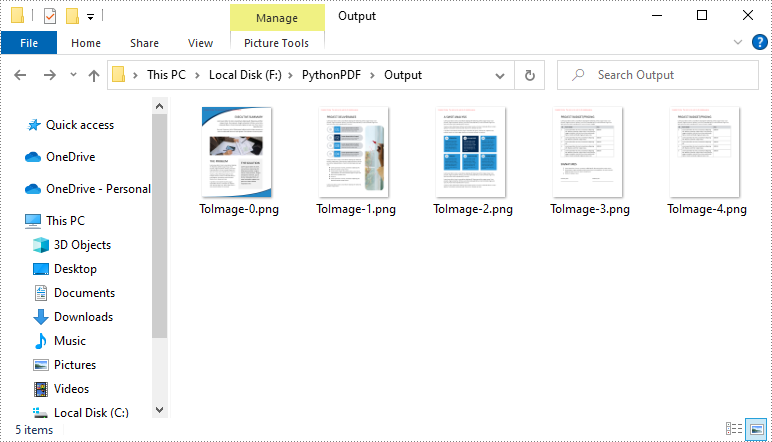
The SaveAsImage method of the PdfDocument class allows you to render each page of a PDF into an image format of your choice.
The code example below demonstrates how to load a PDF file, iterate through its pages, and save each one as a PNG image. You can easily adjust the file format to JPG or BMP by changing the file extension.
from spire.pdf import *

# Load the PDF file
pdf = PdfDocument()
pdf.LoadFromFile("template.pdf")

# Loop through pages and save as images
for i in range(pdf.Pages.Count):
    # Convert each page to image
    with pdf.SaveAsImage(i) as image:

        # Save in different formats as needed
        image.Save(f"Output/ToImage_{i}.png")
        # image.Save(f"Output/ToImage_{i}.jpg")
        # image.Save(f"Output/ToImage_{i}.bmp")

# Close the PDF document
pdf.Close()
Advanced Conversion Options
Enable Transparent Image Background
Transparent backgrounds help integrate images seamlessly into designs, avoiding unwanted borders or background colors.
To enable a transparent background during PDF-to-image conversion in Python, use the SetPdfToImageOptions() method with an alpha value of 0. This setting ensures that the background of the output image is fully transparent.
The following example demonstrates how to export each PDF page as a transparent PNG image.
from spire.pdf import *

# Load PDF document from file
pdf = PdfDocument()
pdf.LoadFromFile("template.pdf")

# Set the transparent value of the image's background to 0
pdf.ConvertOptions.SetPdfToImageOptions(0)

# Loop through all pages and save each as an image
for i in range(pdf.Pages.Count):
    # Convert each page to an image
    with pdf.SaveAsImage(i) as image:
        # Save the image to the output directory
        image.Save(f"Output/ToImage_{i}_transparent.png")

# Close the PDF document
pdf.Close()
Note: Transparency is supported in PNG but not in JPG or BMP formats.
Crop Specific PDF Areas to Image
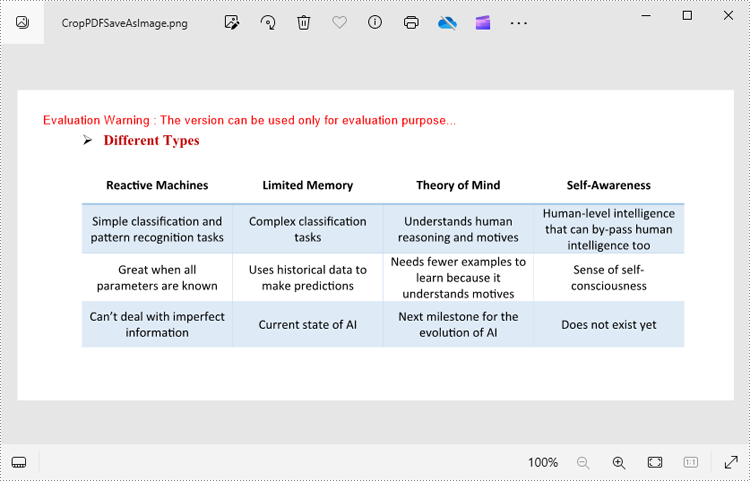
In some cases, you may only need to export a specific area of a PDF page—such as a chart, table, or block of text. This can be done by adjusting the page’s CropBox before rendering.
The CropBox property defines the visible region of the page used for display and printing. By setting it to a specific RectangleF(x, y, width, height) value, you can isolate and export only the desired portion of the content.
The example below demonstrates how to crop a rectangular area on the first page of a PDF and save that section as a PNG image.
from spire.pdf import *

# Load the PDF document from file
pdf = PdfDocument()
pdf.LoadFromFile("Sample.pdf")

# Access the first page of the PDF
page = doc.Pages.get_Item(0)

# Define the crop area of the page using a rectangle (x, y, width, height)
page.CropBox = RectangleF(0.0, 300.0, 600.0, 260.0)

# Convert the cropped page to an image
with pdf.SaveAsImage(0) as image:
    # Save the image to a PNG file
    image.Save("Output/CropPDFSaveAsImage.png")

# Close the PDF document
pdf.Close()
Note: You need to adjust the coordinates based on the location of your target content. Coordinates start from the top-left corner of the page.
Generate Multi-Page TIFF from PDF
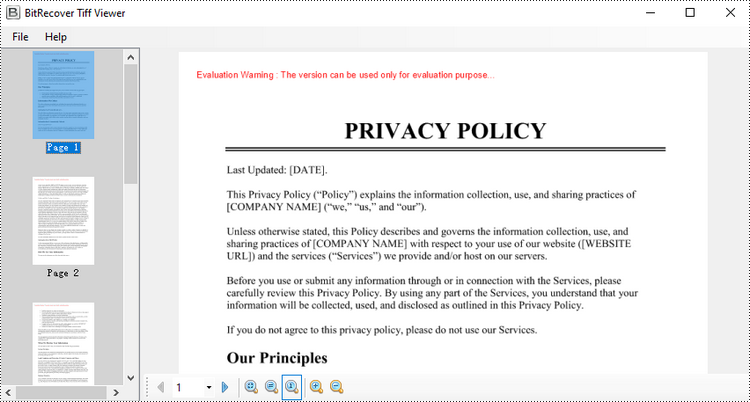
The TIFF format supports multi-page documents, making it a popular choice for archival and printing purposes. Although Spire.PDF for Python doesn't natively create multi-page TIFFs, you can render individual pages as images and then use the Pillow library to merge them into one .tiff file.
Before proceeding, ensure Pillow is installed by running:
pip install Pillow
The following example illustrates how to:
- Load a PDF
- Convert each page to an image
- Combine all images into a single multi-page TIFF
from spire.pdf import *

from PIL import Image
from io import BytesIO

# Load the PDF document from file
pdf = PdfDocument()
pdf.LoadFromFile("Input.pdf")

# Create an empty list to store PIL Images
images = []

# Iterate through all pages in the document
for i in range(pdf.Pages.Count):

    # Convert a specific page to an image stream
    with pdf.SaveAsImage(i) as imageData:

        # Open the image stream as a PIL image
        img = Image.open(BytesIO(imageData.ToArray()))

        # Append the PIL image to list
        images.append(img)

# Save the PIL Images as a multi-page TIFF file
images[0].save("Output/ToTIFF.tiff", save_all=True, append_images=images[1:])

# Dispose resources
pdf.Dispose()
It’s also possible to convert TIFF files back to PDF. For detailed instructions on it, please refer to the tutorial: Python: Convert PDF to TIFF and TIFF to PDF.
Export PDF as SVG
SVG (Scalable Vector Graphics) is an ideal format for content that requires scaling without quality loss, such as charts, vector illustrations, and technical diagrams.
By using the SaveToFile() method with the FileFormat.SVG option, you can export PDF pages as SVG files. This conversion preserves the vector characteristics of the content, making it well-suited for web embedding, responsive design, and further editing in vector graphic tools.
The following example demonstrates how to export an entire PDF document to SVG format.
from spire.pdf import *

# Load the PDF document from file
pdf = PdfDocument()
pdf.LoadFromFile("Example.pdf")

# Save each page of the file to a separate SVG file
pdf.SaveToFile("PdfToSVG/ToSVG.svg", FileFormat.SVG)

# Close the PdfDocument object
pdf.Close()
Note: Each page in the PDF will be saved as a separate SVG file named ToSVG_i.svg, where i is the page number (1-based).
To export specific pages or customize the SVG output size, please refer to our detailed guide: Python: Convert PDF to SVG.
Conclusion
Converting PDF to images in formats like PNG, JPG, BMP, SVG, and TIFF provides flexibility for sharing, displaying, and processing digital documents. With Spire.PDF for Python, you can:
- Export high-quality images from PDFs in various formats
- Crop specific regions for focused content extraction
- Generate multi-page TIFF files for archival purposes
- Create scalable SVG vector graphics for diagrams and charts
By automating PDF to image conversion in Python, you can seamlessly integrate image export into your applications and workflows.
FAQs
Q1: Can I convert a range of pages from a PDF to images?
A1: Yes. You can convert specific pages by specifying their indices in a loop. For example, to export pages 1 to 3:
# Convert only pages 1-3
for i in range(0, 3):  # 0-based index
    with pdf.SaveAsImage(i) as img:
        img.Save(f"page_{i}.png")
Q2: Can I batch convert multiple PDF files to images?
A2: Yes, batch conversion is supported. You can iterate through a list of PDF file paths and convert each one within a loop.
pdf_files = ["a.pdf", "b.pdf", "c.pdf"]
for file in pdf_files:
    pdf = PdfDocument()
    pdf.LoadFromFile(file)
    for i in range(pdf.Pages.Count):
        with pdf.SaveAsImage(i) as img:
            img.Save(f"{file}_page_{i}.png")
Q3: Is it possible to convert password-protected PDFs to images?
A3: Yes, you can convert secured PDFs to images as long as you provide the correct password when loading the PDF document.
pdf = PdfDocument()
pdf.LoadFromFile("protected.pdf", "password")
Q4: Is it possible to extract embedded images from a PDF instead of rendering pages?
A4: Yes. Aside from rendering entire pages, the library also supports extracting images directly from the PDF.
Get a Free License
To fully experience the capabilities of Spire.PDF for Python without any evaluation limitations, you can request a free 30-day trial license.
Text wrapping and unwrapping are powerful formatting options in Microsoft Excel that offer flexibility in displaying text within cells. When text wrapping is enabled, long text is automatically wrapped into multiple lines within a cell, which ensures that the entire content is visible without truncation. This feature is particularly useful for presenting lengthy descriptions, notes, or paragraphs within a confined cell space. On the other hand, text unwrapping allows you to remove line breaks and display the text in a single line within the cell. This can be beneficial in scenarios where you need to fit the text into a specific layout or when exporting data to other applications or file formats that may not handle wrapped text correctly. In this article, we will demonstrate how to wrap or unwrap text in Excel cells in Python using Spire.XLS for Python.
Install Spire.XLS for Python
This scenario requires Spire.XLS for Python and plum-dispatch v1.7.4. They can be easily installed in your Windows through the following pip command.
pip install Spire.XLS
If you are unsure how to install, please refer to this tutorial: How to Install Spire.XLS for Python on Windows
Wrap or Unwrap Text in Excel Cells in Python
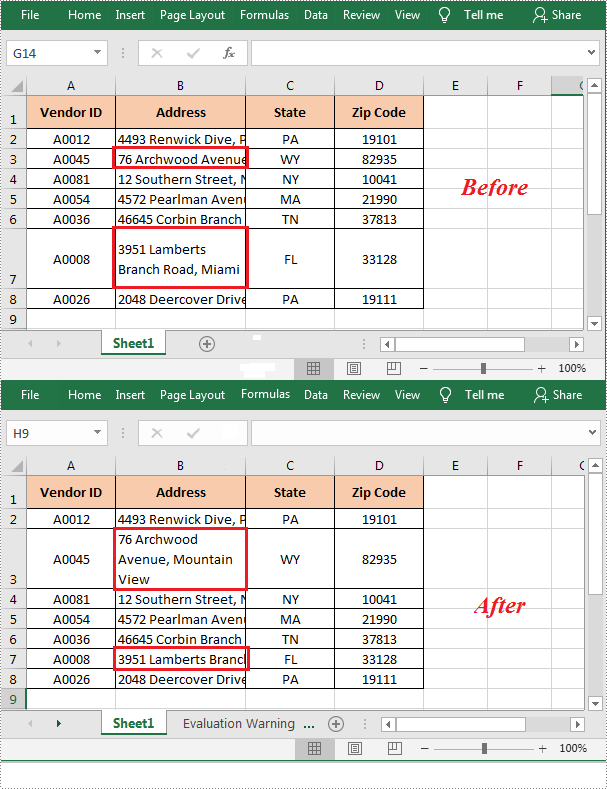
Spire.XLS for Python provides the CellStyle.WrapText property to control whether the text should be wrapped or unwrapped within a cell. If you want to wrap text in a cell, you can set the property as True. Conversely, if you want to unwrap text in a cell, you can set the property as False.
The following steps explain how to wrap or unwrap text in an Excel cell using Spire.XLS for Python:
- Create a Workbook object.
- Load a sample Excel file using Workbook.LoadFromFile() method.
- Get a specified worksheet using Workbook.Worksheets[] property.
- Get a specified cell using Worksheet.Range[] property.
- Get the style of the specified cell using CellRange.Style property.
- Wrap the text in the cell by setting the CellStyle.WrapText property to True. Or unwrapping the text in the cell by setting the CellStyle.WrapText property to False.
- Save the resulting file using Workbook.SaveToFile() method.
- Python
from spire.xls import *
from spire.xls.common import *

# Create a Workbook object
workbook = Workbook()
# Load a sample Excel file
workbook.LoadFromFile("Sample.xlsx")

# Get the first worksheet of the file
sheet = workbook.Worksheets[0]

# Wrap the text in cell B3
sheet.Range["B3"].Style.WrapText = True

# Unwrap the text in cell B7
sheet.Range["B7"].Style.WrapText = False

#Save the resulting file
workbook.SaveToFile("WrapOrUnwrapTextInCells.xlsx", ExcelVersion.Version2013)
workbook.Dispose()
Apply for a Temporary License
If you'd like to remove the evaluation message from the generated documents, or to get rid of the function limitations, please request a 30-day trial license for yourself.
Adding or removing rows and columns in a Word table allows you to adjust the table's structure to accommodate your data effectively. By adding rows and columns, you can effortlessly expand the table as your data grows, ensuring that all relevant information is captured and displayed in a comprehensive manner. On the other hand, removing unnecessary rows and columns allows you to streamline the table, eliminating any redundant or extraneous data that may clutter the document. In this article, we will demonstrate how to add or delete table rows and columns in Word in Python using Spire.Doc for Python.
- Add or Insert a Row into a Word Table in Python
- Add or Insert a Column into a Word Table in Python
- Delete a Row from a Word Table in Python
- Delete a Column from a Word Table in Python
Install Spire.Doc for Python
This scenario requires Spire.Doc for Python and plum-dispatch v1.7.4. They can be easily installed in your Windows through the following pip command.
pip install Spire.Doc
If you are unsure how to install, please refer to this tutorial: How to Install Spire.Doc for Python on Windows
Add or Insert a Row into a Word Table in Python
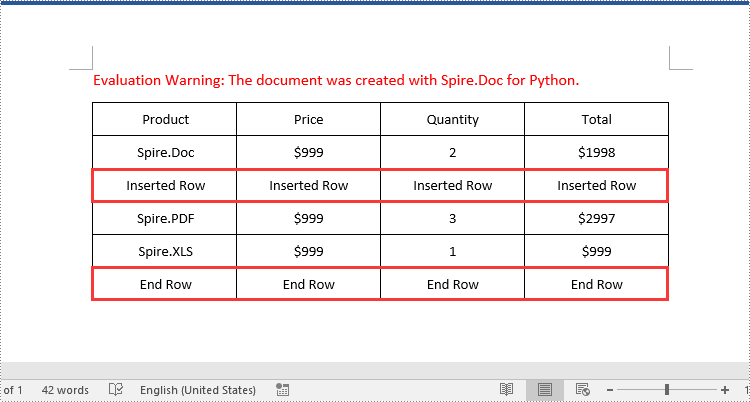
You can add a row to the end of a Word table or insert a row at a specific location of a Word table using the Table.AddRow() or Table.InsertRow() method. The following are the detailed steps:
- Create a Document object.
- Load a Word document using Document.LoadFromFile() method.
- Get the first section of the document using Document.Sections[] property.
- Get the first table of the section using Section.Tables[] property.
- Insert a row at a specific location of the table using Table.Rows.Insert() method.
- Add data to the newly inserted row.
- Add a row to the end of the table using Table.AddRow() method.
- Add data to the newly added row.
- Save the resulting document using Document.SaveToFile() method.
- Python
from spire.doc import *
from spire.doc.common import *

# Create a Document object
document = Document()
# Load a Word document
document.LoadFromFile("Table1.docx")

# Get the first section of the document
section = document.Sections.get_Item(0)

# Get the first table of the first section
table = section.Tables.get_Item(0) if isinstance(section.Tables.get_Item(0), Table) else None

# Insert a row into the table as the third row
table.Rows.Insert(2, table.AddRow())
# Get the inserted row
insertedRow = table.Rows[2]
# Add data to the row
for i in range(insertedRow.Cells.Count):
    cell = insertedRow.Cells[i]
    paragraph = cell.AddParagraph()
    paragraph.AppendText("Inserted Row")
    paragraph.Format.HorizontalAlignment = HorizontalAlignment.Center
    cell.CellFormat.VerticalAlignment = VerticalAlignment.Middle

# Add a row at the end of the table
addedRow = table.AddRow()
# Add data to the row
for i in range(addedRow.Cells.Count):
    cell = addedRow.Cells[i]
    paragraph = cell.AddParagraph()
    paragraph.AppendText("End Row")
    paragraph.Format.HorizontalAlignment = HorizontalAlignment.Center
    cell.CellFormat.VerticalAlignment = VerticalAlignment.Middle

# Save the resulting document
document.SaveToFile("AddRows.docx", FileFormat.Docx2016)
document.Close()
Add or Insert a Column into a Word Table in Python
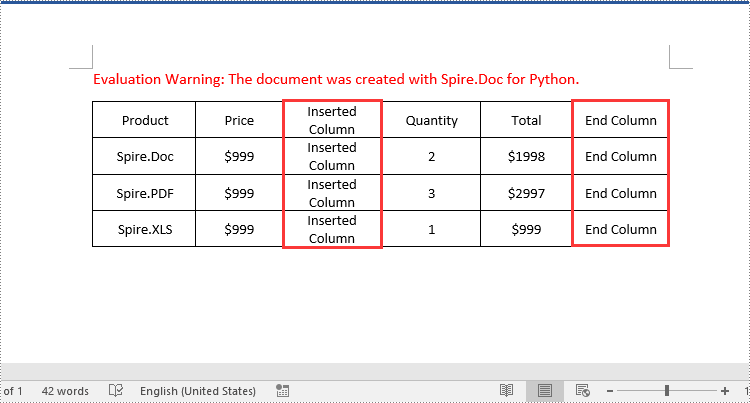
Spire.Doc for Python doesn't offer a direct method to add or insert a column into a Word table. But you can achieve this by adding or inserting cells at a specific location of each table row using TableRow.Cells.Add() or TableRow.Cells.Insert() method. The detailed steps are as follows:
- Create a Document object.
- Load a Word document using Document.LoadFromFile() method.
- Get the first section of the document using Document.Sections[] property.
- Get the first table of the section using Section.Tables[] property.
- Loop through each row of the table.
- Create a TableCell object, then insert it at a specific location of each row using TableRow.Cells.Insert() method and set cell width.
- Add data to the cell and set text alignment.
- Add a cell to the end of each row using TableRow.AddCell() method and set cell width.
- Add data to the cell and set text alignment.
- Save the resulting document using Document.SaveToFile() method.
- Python
from spire.doc import *
from spire.doc.common import *

# Create a Document object
document = Document()
# Load a Word document
document.LoadFromFile("Table1.docx")

# Get the first section of the document
section = document.Sections.get_Item(0)

# Get the first table of the first section
table = section.Tables.get_Item(0) if isinstance(section.Tables.get_Item(0), Table) else None

# Loop through the rows of the table
for i in range(table.Rows.Count):
    row = table.Rows.get_Item(i)
    # Create a TableCell object
    cell = TableCell(document)
    # Insert the cell as the third cell of the row and set cell width
    row.Cells.Insert(2, cell)
    cell.Width = row.Cells[0].Width
    # Add data to the cell
    paragraph = cell.AddParagraph()
    paragraph.AppendText("Inserted Column")
    # Set text alignment
    paragraph.Format.HorizontalAlignment = HorizontalAlignment.Center
    cell.CellFormat.VerticalAlignment = VerticalAlignment.Middle

    # Add a cell to the end of the row and set cell width
    cell = row.AddCell()
    cell.Width = row.Cells[1].Width
    # Add data to the cell
    paragraph = cell.AddParagraph()
    paragraph.AppendText("End Column")
    # Set text alignment
    paragraph.Format.HorizontalAlignment = HorizontalAlignment.Center
    cell.CellFormat.VerticalAlignment = VerticalAlignment.Middle

# Save the resulting document
document.SaveToFile("AddColumns.docx", FileFormat.Docx2016)
document.Close()
Delete a Row from a Word Table in Python
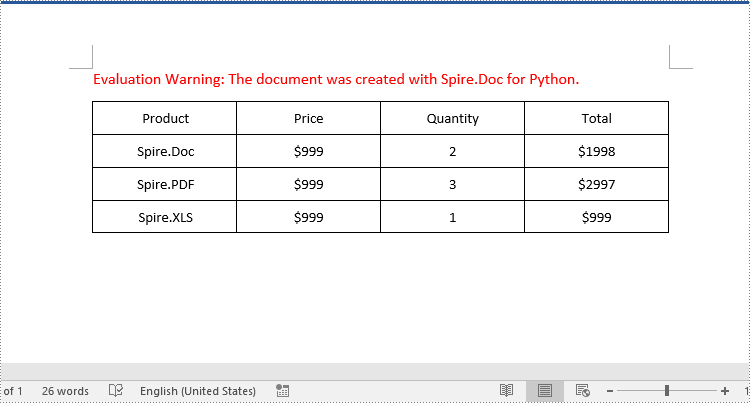
To delete a specific row from a Word table, you can use the Table.Rows.RemoveAt() method. The detailed steps are as follows:
- Create a Document object.
- Load a Word document using Document.LoadFromFile() method.
- Get the first section of the document using Document.Sections[] property.
- Get the first table of the section using Section.Tables[] property.
- Remove a specific row from the table using Table.Rows.RemoveAt() method.
- Save the resulting document using Document.SaveToFile() method.
- Python
from spire.doc import *
from spire.doc.common import *

# Create a Document object
document = Document()
# Load a Word document
document.LoadFromFile("AddRows.docx")

# Get the first section of the document
section = document.Sections.get_Item(0)

# Get the first table of the first section
table = section.Tables.get_Item(0) if isinstance(section.Tables.get_Item(0), Table) else None

# Remove the third row
table.Rows.RemoveAt(2)
# Remove the last row
table.Rows.RemoveAt(table.Rows.Count - 1)

# Save the resulting document
document.SaveToFile("RemoveRows.docx", FileFormat.Docx2016)
document.Close()
Delete a Column from a Word Table in Python
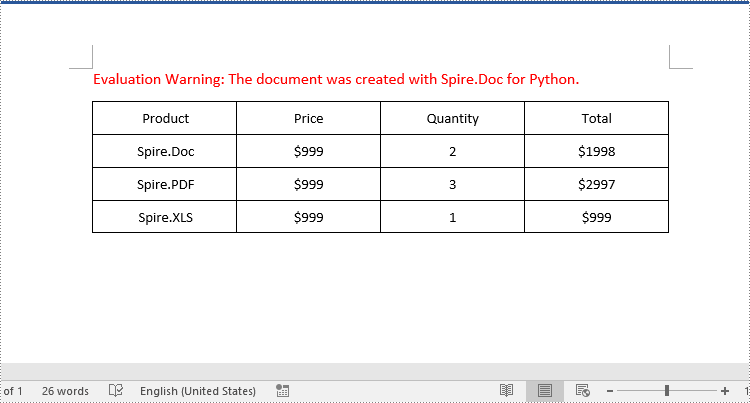
To delete a specific column from a Word table, you need to remove the corresponding cell from each table row using the TableRow.Cells.RemoveAt() method. The detailed steps are as follows:
- Create a Document object.
- Load a Word document using Document.LoadFromFile() method.
- Get the first section of the document using Document.Sections[] property.
- Get the first table of the section using Section.Tables[] property.
- Loop through each row of the table.
- Remove a specific cell from each row using TableRow.Cells.RemoveAt() method.
- Save the resulting document using Document.SaveToFile() method.
- Python
from spire.doc import *
from spire.doc.common import *

# Create a Document object
document = Document()
# Load a Word document
document.LoadFromFile("AddColumns.docx")

# Get the first section of the document
section = document.Sections.get_Item(0)

# Get the first table of the first section
table = section.Tables.get_Item(0) if isinstance(section.Tables.get_Item(0), Table) else None

# Loop through the rows of the table
for i in range(table.Rows.Count):
    row = table.Rows.get_Item(i)
    # Remove the third cell from the row
    row.Cells.RemoveAt(2)
    # Remove the last cell from the row
    row.Cells.RemoveAt(row.Cells.Count - 1)

# Save the resulting document
document.SaveToFile("RemoveColumns.docx", FileFormat.Docx2016)
document.Close()
Apply for a Temporary License
If you'd like to remove the evaluation message from the generated documents, or to get rid of the function limitations, please request a 30-day trial license for yourself.
The Excel workbook is a powerful spreadsheet that enables the creation, manipulation, and analysis of data in a variety of ways. One of the useful features that workbooks offer is the ability to hide or unhide worksheets in a workbook. Hiding worksheets can help protect sensitive or confidential information, reduce clutter, or organize data more efficiently. And when users need to re-display the hidden worksheets, they can also unhide them with simple operations. This article is going to explain how to hide or unhide worksheets in Excel workbooks through Python programs using Sprie.XLS for Python.
Install Spire.XLS for Python
This scenario requires Spire.XLS for Python and plum-dispatch v1.7.4. They can be easily installed in your Windows through the following pip command.
pip install Spire.XLS
If you are unsure how to install, please refer to this tutorial: How to Install Spire.XLS for Python on Windows
Hide Excel Worksheets in Python
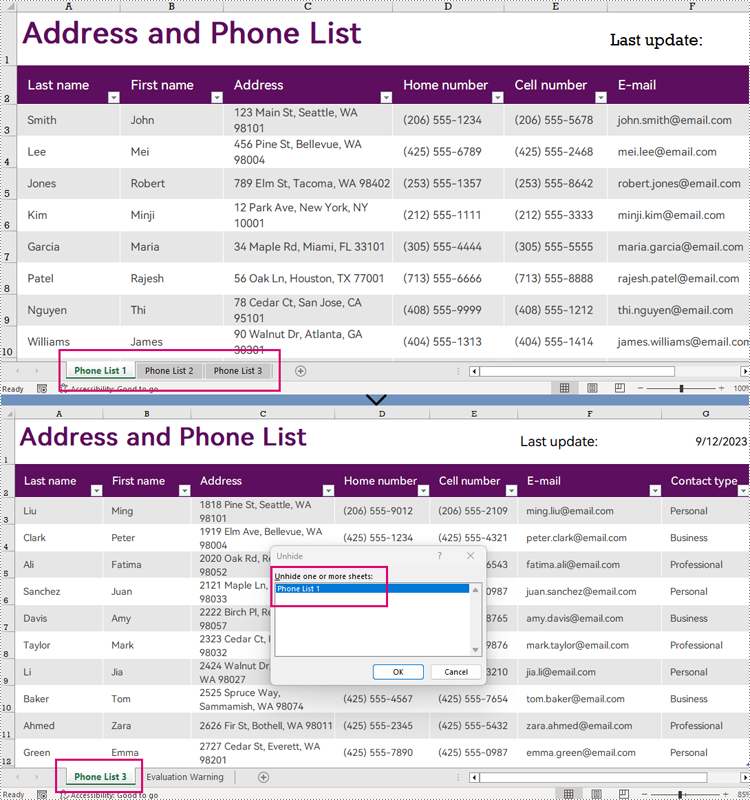
The Worksheet.Visibility property in Spire.XLS for Python can be used to set the visibility of a worksheet. By assigning WorksheetVisibility.Hidden or WorksheetVisibility.StrongHidden to this property, users can change the visibility of a worksheet to hidden or very hidden (completely not shown in Excel and can only be unhidden through code).
The detailed steps for hiding worksheets are as follows:
- Create an object of Workbook class.
- Load a workbook using Workbook.LoadFromFile() method.
- Change the status of the first worksheet to hidden by assigning WorksheetVisibility.Hidden to the Workbook.Worksheets[].Visibility property.
- Change the status of the second worksheet to very hidden by assigning WorksheetVisibility.StrongHidden to the Workbook.Worksheets[].Visibility property.
- Save the workbook using Workbook.SaveToFile() method.
- Python
from spire.xls import *

# Create an object of Workbook
workbook = Workbook()

# Load an Excel workbook
workbook.LoadFromFile("Sample.xlsx")

# Hide the first worksheet
workbook.Worksheets[0].Visibility = WorksheetVisibility.Hidden

# Change the second worksheet to very hidden
workbook.Worksheets[1].Visibility = WorksheetVisibility.StrongHidden

# Save the workbook
workbook.SaveToFile("output/HideWorksheets.xlsx")
Unhide Excel Worksheets in Python
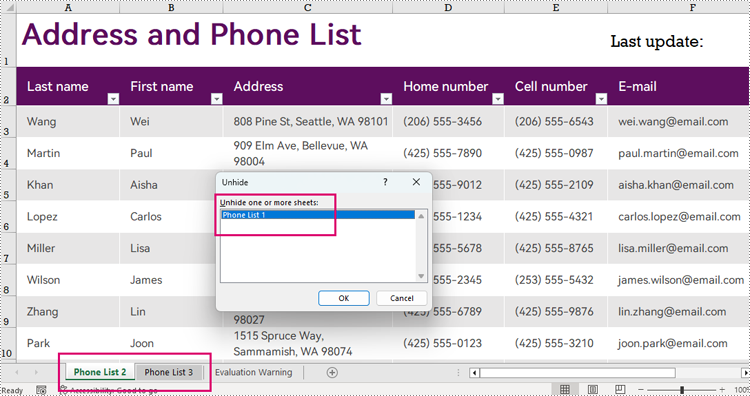
Unhiding a worksheet can be done by assigning WorksheetVisibility.Visible to the Workbook.Worksheets[].Visibility property. The detailed steps are as follows:
- Create an object of Workbook class.
- Load a workbook using Workbook.LoadFromFile() method.
- Unhide the very hidden worksheet by assigning WorksheetVisibility.Visible to the Workbook.Worksheets[].Visibility property.
- Save the workbook using Workbook.SaveToFile() method.
- Python
from spire.xls import *

# Create an object of Workbook
workbook = Workbook()

# Load an Excel workbook
workbook.LoadFromFile("output/HideWorksheets.xlsx")

# Unhide the second worksheet
workbook.Worksheets[0].Visibility = WorksheetVisibility.Visible

# Save the workbook
workbook.SaveToFile("output/UnhideWorksheet.xlsx")
Apply for a Temporary License
If you'd like to remove the evaluation message from the generated documents, or to get rid of the function limitations, please request a 30-day trial license for yourself.
