
Word reports often need data from Excel, such as sales figures, survey results, financial records, or project data. Recreating these tables in Word takes time and can easily lead to formatting or data-entry errors. Instead, you can insert the Excel data directly into Word, either by inserting the data as a table or embedding the entire workbook.
This guide explains four practical methods to insert Excel into Word, covering different ways to transfer tables, embed Excel files, and automate the process with Python.
Method 1: Copy and Paste an Excel Worksheet into Word
The quickest way to insert an Excel table into Word is to copy the cells directly from Excel. This method works well when you only need to import a small amount of data and do not need to control how it appears in the document.
- Step 1: Open the Excel workbook and select the cells you want to insert.
- Step 2: Press Ctrl + C to copy the selected cells.
- Step 3: Open the Word document and press Ctrl + V to paste the Excel data.
You may like: The Ultimate Guide to Exporting Tables from Word to Excel
Method 2: Paste an Excel Table into Word Using Paste Special
Regular paste is convenient, but it may not present the result you need. Paste Special lets you choose how Excel data appears in Word. For example, you can paste the data as a Word table, plain text, an image, or an Excel worksheet object. This is useful when you want to keep a particular format or insert the data in a different form.
- Step 1: Open the Excel workbook and select the cells you want to insert.
- Step 2: Press Ctrl + C to copy the selected range.
- Step 3: Open the Word document and place the cursor where you want to insert the Excel data.
- Step 4: On the Home tab, click the Paste dropdown and select Paste Special.
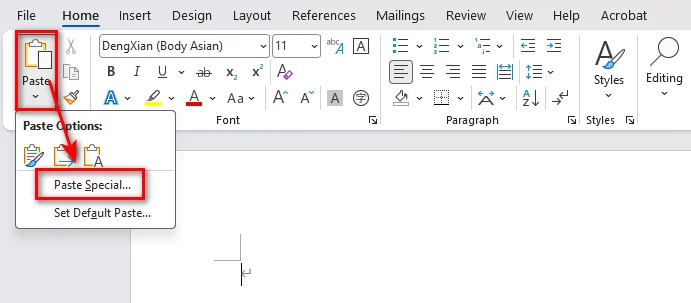
- Step 5: Select the format that best matches your needs, and click OK to insert the content.
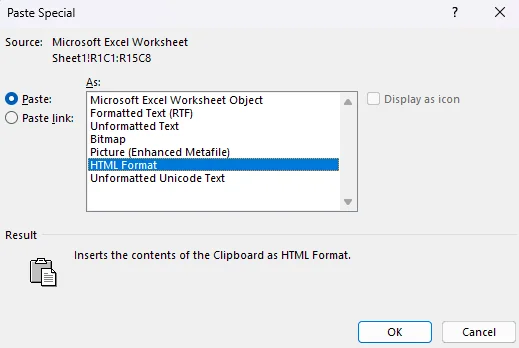
Common Paste Special options and their results:
| Paste option | Result |
|---|---|
| Formatted Text (RTF) | Inserts the data as a Word table while retaining some formatting |
| Unformatted Text | Inserts the cell contents as plain text |
| Picture | Inserts the table as an image |
| Microsoft Excel Worksheet Object | Inserts the Excel content as an Excel object |
If you need to edit the data as a Word table, a formatted text option is usually more suitable. If you only need to display the table, you can paste it as a picture to preserve its appearance.
Method 3: Insert an Excel File into Word as an Object
In the previous section, we mentioned that Paste Special can insert Excel content as a Microsoft Excel Worksheet Object. In this section, we'll introduce another way to embed an Excel file as an object in Word and show you how to display it as an icon.
Word uses OLE (Object Linking and Embedding) to handle embedded files. The Excel workbook remains an Excel object within the Word document rather than becoming a regular Word table. You can double-click the embedded object to open and edit the workbook in Excel.
- Step 1: Open the Word document and place the cursor where you want to insert the Excel file.
- Step 2: Go to Insert > Object.
- Step 3: Select Create from File.
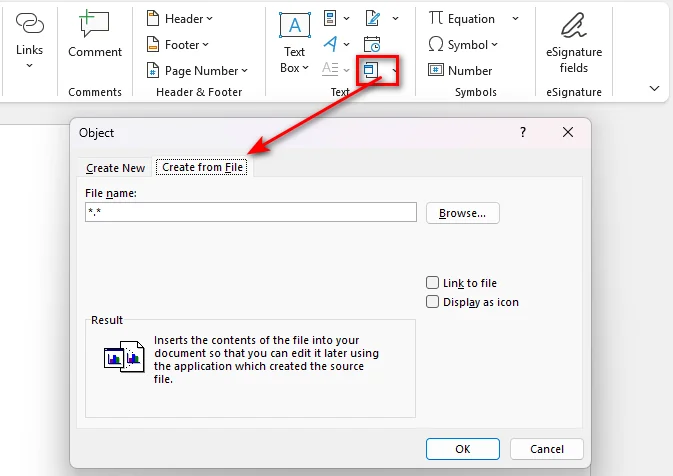
- Step 4: Click Browse and select the Excel workbook.
- Step 5: To display the workbook as an icon, check Display as icon. Otherwise, leave it unchecked to show a worksheet preview.
- Step 6: Click OK to insert the workbook.
Note: Embedding an Excel file as an object can increase the Word document's file size. If you only need to let readers access the workbook, you can insert a hyperlink to the Excel file instead of embedding it.
Method 4: Insert Excel into Word with Python
Manual methods work well for occasional tasks, but they become less convenient when you need to process many Excel files. In the meanwhile, Python helps you to automate the process, making it easier to export data from Excel to Word in a consistent way.
In this example, we use Free Spire.XLS for Python, a Python library for reading and processing Excel workbooks, and Free Spire.Doc for Python, a library for creating and editing Word documents. The two libraries work together to provide two approaches: converting Excel data into a native Word table or embedding the original Excel workbook as an OLE object.
Install the Required Libraries
Before running the examples, install Free Spire.XLS for Python and Free Spire.Doc for Python using pip. Open a terminal and run the following command:
- pip install Spire.Xls.Free
- pip install Spire.Doc.Free
Convert Excel Data into a Word Table
The code example will first load the Excel workbook and retrieve the used range from the first worksheet. Then, it will create a Word table with section.AddTable() and use table.ResetCells() to set the same number of rows and columns as the Excel data. It will loop through the Excel cells and write each value into the corresponding Word table cell.
from spire.xls import Workbook
from spire.doc import Document, FileFormat, AutoFitBehaviorType, DefaultTableStyle

# Input and output files
excel_file = "sample.xlsx"
word_file = "ExcelToWord_Table.docx"

# Load the Excel workbook
workbook = Workbook()
workbook.LoadFromFile(excel_file)

# Get the first worksheet
sheet = workbook.Worksheets.get_Item(0)
used_range = sheet.AllocatedRange

# Create a Word document
doc = Document()
section = doc.AddSection()

# Create a table in Word
table = section.AddTable()
table.ResetCells(used_range.RowCount, used_range.ColumnCount)

# Copy cell data from Excel to Word
for row in range(used_range.RowCount):
    for col in range(used_range.ColumnCount):
        word_cell = table.Rows.get_Item(row).Cells.get_Item(col)
        paragraph = word_cell.AddParagraph()

        cell_value = used_range.get_Item(row + 1, col + 1).NumberText
        paragraph.AppendText(cell_value)

# Adjust the table layout
table.AutoFit(AutoFitBehaviorType.AutoFitToWindow)
table.ApplyStyle(DefaultTableStyle.GridTable1LightAccent6)

# Save the Word document
doc.SaveToFile(word_file, FileFormat.Docx2019)

# Release resources
doc.Dispose()
workbook.Dispose()
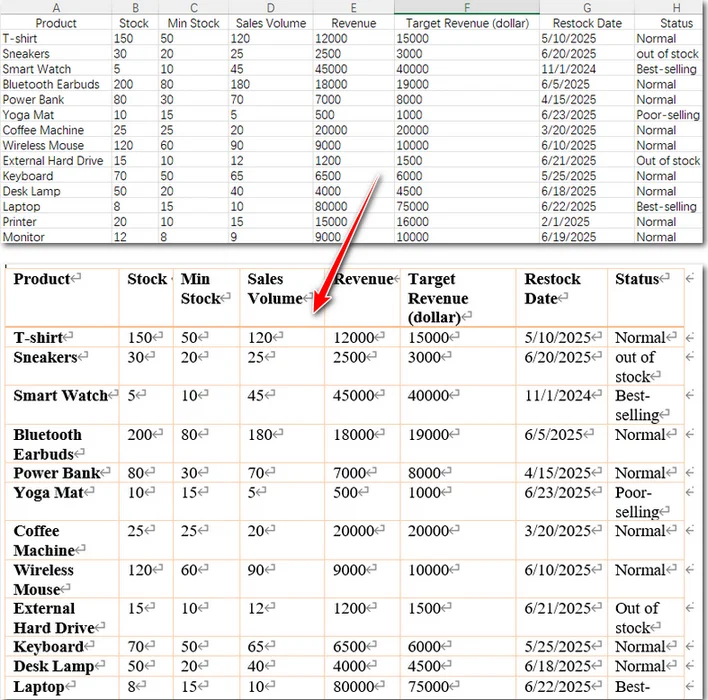
Embed an Excel Workbook as an OLE Object
The code first loads the Excel workbook and converts the first worksheet into a preview image using sheet.ToImage(). It then creates a Word document, loads the preview image, and passes it along with the Excel file path to paragraph.AppendOleObject() to embed the workbook as an OLE object. Finally, it sets ole.DisplayAsIcon = False to display the worksheet preview.
from spire.doc import Document, DocPicture, FileFormat, OleObjectType
from spire.xls import Workbook

# Input and output files
excel_file = "sample.xlsx"
word_file = "ExcelToWord_OLE.docx"
image_file = "excel.png"

# Load the Excel workbook
workbook = Workbook()
workbook.LoadFromFile(excel_file)

# Get the first worksheet
sheet = workbook.Worksheets.get_Item(0)

# Save the worksheet as an image for preview
sheet.ToImage(1, 1, sheet.LastRow, sheet.LastColumn).Save(image_file)

# Create a Word document
doc = Document()
section = doc.AddSection()
paragraph = section.AddParagraph()

# Load the worksheet preview image
picture = DocPicture(doc)
picture.LoadImage(image_file)

# Set the preview image width
picture.Width = (
    section.PageSetup.PageSize.Width
    - section.PageSetup.Margins.Left
    - section.PageSetup.Margins.Right
)

# Insert the Excel file as an OLE object
ole = paragraph.AppendOleObject(
    excel_file,
    picture,
    OleObjectType.ExcelWorksheet
)

# Display the embedded worksheet as a preview instead of an icon
ole.DisplayAsIcon = False

# Save the Word document
doc.SaveToFile(word_file, FileFormat.Docx2019)

# Release resources
workbook.Dispose()
doc.Dispose()
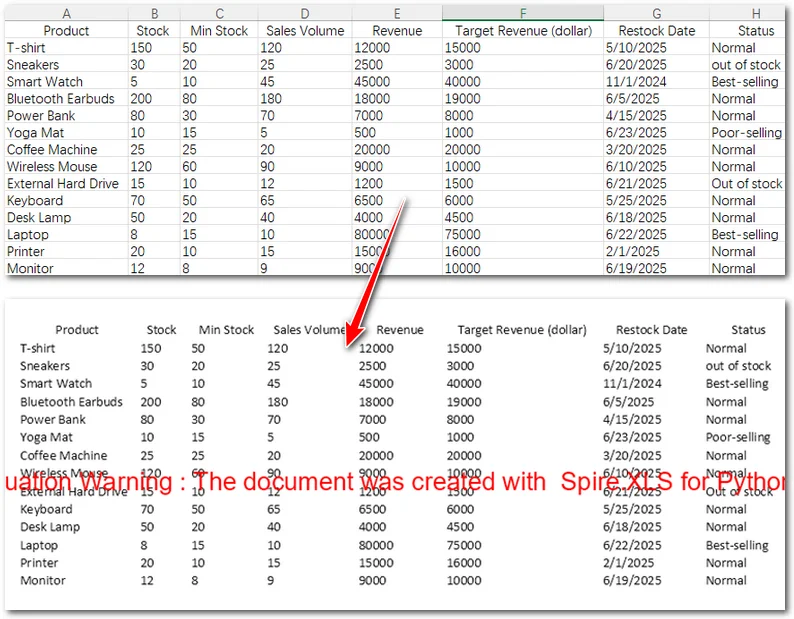
Tip: If you want the object to appear as an icon, set DisplayAsIcon to True:
ole.DisplayAsIcon = True
Conclusion
The best way to insert Excel into Word depends on what you need from the result. Copy and Paste is the simplest option for moving a table, while Paste Special offers more ways to present Excel data in Word. If you want to keep the Excel workbook inside the Word document, you can insert it as an OLE object and display it as a worksheet preview or an icon. For automated workflows, Free Spire.XLS for Python and Free Spire.Doc for Python can work together to transfer Excel data into Word tables or embed entire workbooks programmatically. If you regularly handle Excel-to-Word tasks in bulk, you can use these libraries and adapt the examples in this article to your needs.