If you've entered a formula to calculate the total for the first row of a sales report, you don't need to type it again for every remaining row.
In this guide, you'll learn how to copy formulas in Excel using six practical methods, including how to keep cell references unchanged and preserve destination cell formatting.
Quick Comparison: Which Method Should You Use?
The best method depends on where you want to copy your formulas and how you want Excel to handle cell formatting and references. Use the table below to find the right method for your needs.
| Your Scenario | Method | Preserves Destination Formatting? | Adjusts References? |
|---|---|---|---|
| Quickly fill adjacent cells | Fill Handle | Depends on Auto Fill Options | Yes (relative) |
| Fill a large range down or to the right | Keyboard Shortcuts (Ctrl+D / Ctrl+R) | No | Yes (relative) |
| Copy formulas to non-adjacent cells, other sheets, or workbooks | Copy and Paste | Depends on Paste Options | Yes (relative) |
| Copy formulas without changing cell references | Absolute References, Formula Bar, or Find and Replace | Yes, with the appropriate paste option | No (fixed references or exact copies) |
| Automatically apply formulas to new data rows | Excel Tables | Follows table formatting | Adapts to each row |
| Copy formulas in multiple Excel files at once | Python (Free Spire.XLS for Python) | Yes, with direct formula assignment | Configurable |
The following steps use Excel 2024 for Windows. Menu options and keyboard shortcuts may vary depending on your Excel version and operating system.
Copy a Formula with the Fill Handle
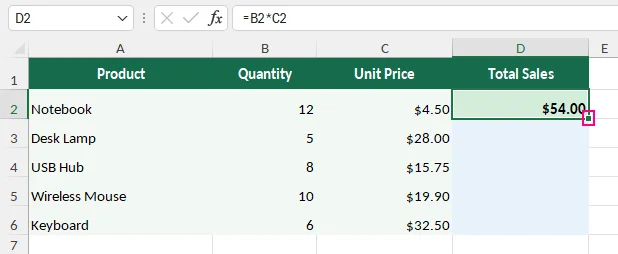
The fill handle is the small square at the bottom-right corner of a selected cell. It's one of the quickest ways to copy a formula into adjacent cells.
-
Select the cell containing the formula you want to copy.
-
Move your pointer over the fill handle until it changes to a small black cross.
-
Drag the fill handle down or across the cells where you want to copy the formula, then release the mouse button.
-
To preserve the destination cells' formatting, click the Auto Fill Options button and select Fill Without Formatting (optional).
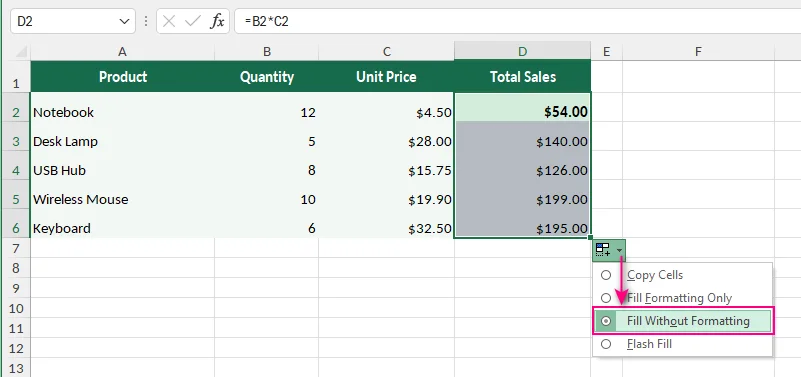
Excel automatically adjusts relative cell references as it fills the formula. For example, if you copy =B2*C2 down one row, Excel changes it to =B3*C3.
Tip: If the adjacent column contains continuous data, double-click the fill handle instead of dragging it. Excel automatically fills the formula down alongside the neighboring data.
Copy a Formula with Keyboard Shortcuts (Ctrl+D / Ctrl+R)
Excel's Ctrl+D and Ctrl+R shortcuts let you copy formulas down a column or across a row without dragging the fill handle. They're particularly useful when you need to fill a large range.
Copy a Formula Down a Column (Ctrl+D)
- Select the cell containing the formula and the cells below it where you want to copy the formula.
- Press Ctrl+D.
For example, if cell D2 contains =B2*C2, select D2:D6 and press Ctrl+D. Excel copies the formula to the remaining cells, adjusting the relative references for each row.
Copy a Formula Across a Row (Ctrl+R)
- Select the cell containing the formula and the cells to its right where you want to copy the formula.
- Press Ctrl+R.
Excel copies the formula across the selected range, adjusting relative column references.
Both shortcuts copy the source cell's contents and formatting. You can also find the Down and Right commands under Home > Editing > Fill.
Tip: To fill a large range without scrolling, enter its address (such as D2:D1000) in the Name Box, press Enter, and then press Ctrl+D.
Copy Formulas Using Copy and Paste
Copy and paste is useful when you want to copy formulas to non-adjacent cells, other worksheets, or separate Excel workbooks. You can use regular paste to copy both formulas and cell formatting, or Paste Special to copy only the formulas.
Option 1: Use Regular Paste
- Select the cell or range containing the formulas you want to copy.
- Press Ctrl+C.
- Select the destination cell or range. If you're copying to another worksheet or workbook, switch to it first.
- Press Ctrl+V.
To copy a formula to several non-adjacent cells, repeat the paste operation at each destination.
Option 2: Use Paste Special (Without Copying Formatting)
To copy formulas while preserving the destination cells' existing colors, borders, and number formats:
-
Select the cells containing the formulas and press Ctrl+C.
-
Select the destination cell or range.
-
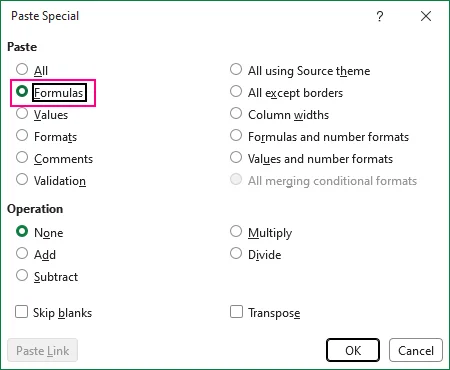
Go to Home > Paste > Paste Special or press Ctrl+Alt+V to open the Paste Special dialog.
-
Select Formulas and click OK.
Note: When copying formulas between worksheets or workbooks using either paste option, pay attention to cell references:
-
Between worksheets: Cell references without worksheet names, such as
B2, refer to cells on the destination worksheet. To reference a specific worksheet in the same workbook, include its name in the formula, such as=Sales!B2*Sales!C2. -
Between workbooks: Formulas that reference other worksheets in the source workbook may retain external links to that file (e.g.,
='[Sales.xlsx]January'!$B$2).
After pasting, view the copied formulas to ensure they reference the intended data.
If you need to copy formatting rather than formulas, see how to copy cell formatting in Excel without changing existing formulas or values.
Copy Formulas Without Changing Cell References
By default, Excel adjusts relative cell references when you copy a formula (e.g., =B2*C2 becomes =B3*C3 when copied one row down). You can convert relative references to absolute references to keep specific references fixed, or copy formulas exactly as written using the formula bar (for a single formula) or Find and Replace (for multiple formulas).
Option 1: Convert Relative References to Absolute References
You can convert a relative reference to an absolute reference by adding dollar signs ($) before both the column letter and row number:
-
Double-click the cell containing the formula.
-
Select the cell reference you want to convert (e.g.,
B2). -
Press F4 to add dollar signs (
$B$2).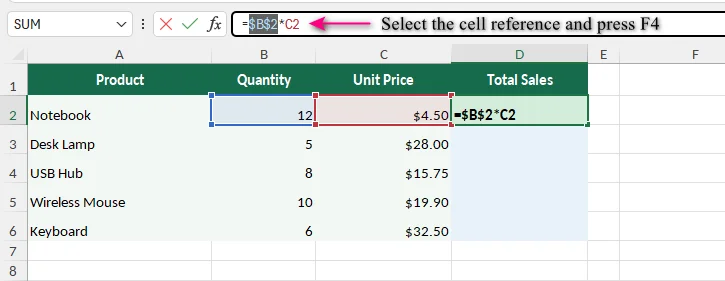
-
Press Enter, then copy the formula as usual.
Option 2: Use the Formula Bar (for a Single Formula)
To copy a formula exactly as written without adding dollar signs:
-
Select the cell containing the formula.
-
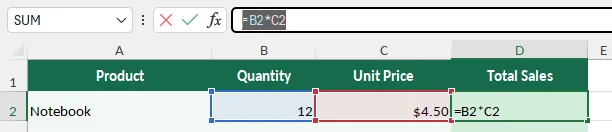
Click inside the formula bar and select the entire formula, including the equal sign (
=).
-
Press Ctrl+C, then press Esc to exit editing mode.
-
Select the destination cell, click inside the formula bar, and select all existing content, if any.
-
Press Ctrl+V, then press Enter.
Note: If you paste the formula text into another worksheet, ordinary cell references without worksheet names will refer to cells on the destination worksheet.
Option 3: Use Find and Replace (for Multiple Formulas)
To copy a range of formulas exactly as written, temporarily convert them to text using Find and Replace so Excel does not adjust their references during copying.
-
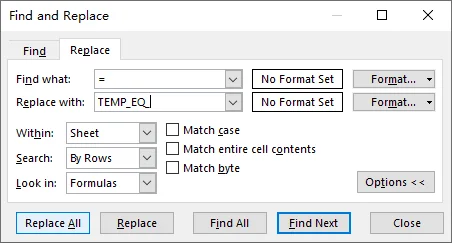
Select the range of formulas you want to copy and press Ctrl+H.
-
Enter
=in the Find what field and a unique placeholder, such asTEMP_EQ_, in the Replace with field. -
Click Options, make sure Within is set to Sheet and Match entire cell contents is unchecked, then click Replace All. Close the dialog when finished.
-
Copy the resulting text and paste it into a non-overlapping destination range using Paste Special > Values.
-
Select the original and destination ranges separately and use Find and Replace again to replace
TEMP_EQ_with=.
After restoring the formulas, verify that both ranges contain identical formula expressions.
Note:
- Back up your workbook before proceeding, as this method temporarily modifies the original formulas and may affect dependent calculations.
- Select only the formulas you want to copy, choose a placeholder that does not appear in them, and restrict each replacement to the selected range.
- Make sure neither the source nor the destination cells are formatted as Text.
- Avoid using this method for dynamic array formulas, legacy array formulas, or calculated columns in Excel tables.
Copy Formulas Automatically Using Excel Tables
If you frequently add new rows to a dataset, convert your data range into an Excel table. With calculated columns in a table, you don't need to copy formulas manually whenever new rows are added.
-
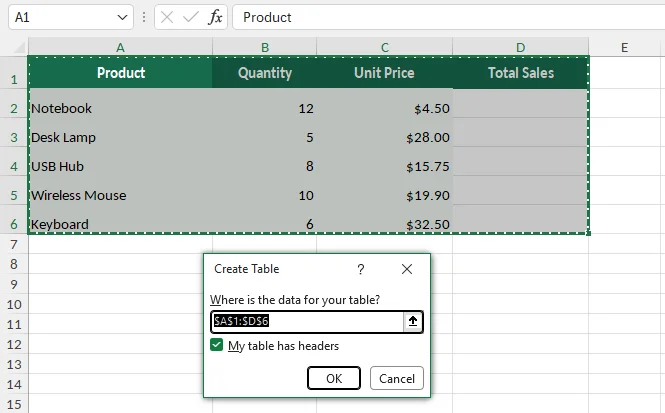
Select your data range, including the column headers and the column where you want to fill the formulas.
-
Press Ctrl+T to open the Create Table dialog.
-
Check My table has headers if your data includes headers, then click OK.
-
Enter a formula in the first data cell of an empty table column and press Enter.
For example, in a sales table containing Quantity and Unit Price columns, enter the following formula in the empty Total Sales column:
=[@Quantity]*[@[Unit Price]]
Excel automatically fills the entire column with the formula and extends it to new rows as they are added to the table.
Tip: If formulas do not fill automatically, go to File > Options > Proofing > AutoCorrect Options > AutoFormat As You Type and enable Fill formulas in tables to create calculated columns.
Troubleshooting Common Formula Copying Issues
If your copied formulas don't work as expected, check these common issues:
- Formula appears as text instead of a result: Check whether Show Formulas is enabled under the Formulas tab. If so, turn it off. If only certain cells display formulas as text, change their number format to General if needed, remove any unintended leading apostrophe, and press F2 followed by Enter.
-
Copied formulas return the same result: Check the cell references in the Formula Bar. If references are unintentionally fixed, remove the unnecessary dollar signs (
$) from the original formula and copy it again. If the references are correct but the results have not updated, go to Formulas > Calculation Options and select Automatic. -
Copied formula returns a
#REF!error: Check whether a relative reference has shifted outside the worksheet or whether a referenced cell or range has been deleted. Edit the formula and replace the invalid reference with the correct cell or range reference. -
Copied formula returns a
#VALUE!error: Check whether the formula refers to the intended cells and whether those cells contain compatible data types, such as numbers rather than text.
Advanced: Copy Excel Formulas Programmatically with Python
If you need to copy formulas in multiple Excel files with the same layout, use Free Spire.XLS for Python to automate the process and control whether cell references change, without installing Microsoft Excel.
Step 1: Install the Required Library
Run the following command in your terminal:
pip install Spire.Xls.Free
Step 2: Copy Formulas Across Multiple Excel Files
Place your .xlsx files in an input folder in your current working directory. Each workbook should contain the formula =B2*C2 in cell D2 on the first worksheet.
The following code copies the formula to D3:D6 with adjusted relative references and to F2 without changing its references. The updated files are saved in a separate output folder.
from pathlib import Path
from spire.xls import *

input_dir = Path("input")
output_dir = Path("output")
output_dir.mkdir(exist_ok=True)

for file in input_dir.glob("*.xlsx"):
    if file.name.startswith("~$"):
        continue

    workbook = Workbook()

    try:
        workbook.LoadFromFile(str(file))
        sheet = workbook.Worksheets[0]
        source = sheet.Range["D2"]

        # Copy the formula with adjusted relative references
        for row in range(3, 7):
            sheet.Range[f"D{row}"].FormulaR1C1 = source.FormulaR1C1

        # Copy the formula without changing cell references
        sheet.Range["F2"].Formula = source.Formula

        workbook.SaveToFile(str(output_dir / file.name), ExcelVersion.Version2016)

    finally:
        workbook.Dispose()
The difference lies in the two properties used to copy formulas:
-
FormulaR1C1: Uses R1C1 notation to preserve relative offsets, so the formula in D3 becomes=B3*C3. -
Formula: Uses A1 notation to copy the formula exactly as written, so the formula in F2 remains=B2*C2.
Both approaches preserve the destination cells' existing formatting.
Frequently Asked Questions
How Do I Fill Non-Adjacent Cells with a Formula in Excel?
Hold Ctrl while selecting the destination cells, enter the formula based on the active cell, and press Ctrl+Enter. Excel fills the selected cells with the formula, adjusting relative references for each location.
How Do I Copy Formula Results Instead of Formulas in Excel?
Copy the cells containing the formulas, select the destination, and choose Home > Paste > Values to paste the calculated values instead of formulas.
What Is the Difference Between Copying and Moving a Formula in Excel?
When you copy a formula using Ctrl+C and Ctrl+V, Excel adjusts its relative references. When you move a formula using Ctrl+X and Ctrl+V within the same worksheet, its cell references remain unchanged.