
Knowledgebase (2370)
Children categories
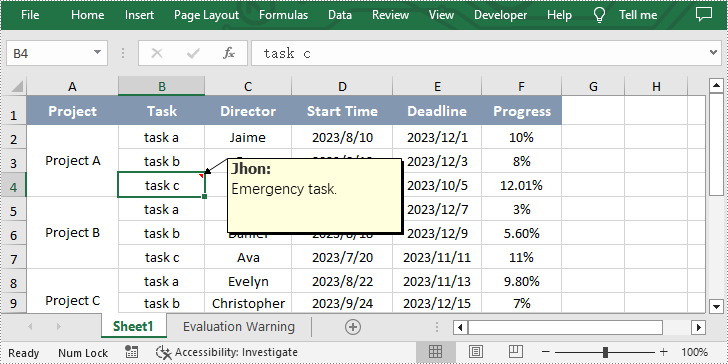
Comment in Excel is a function that allows users to add extra details or remarks as explanatory notes. Comments can be in the form of text or images. It enables users to provide additional information to explain or supplement the data in specified cells. After adding a comment, users can view the content of the comment by hovering the mouse over the cell with the comment. This feature enhances the readability and comprehensibility of the document, helping readers better understand and handle the data in Excel. In this article, we will show you how to add comments in Excel by using Spire.XLS for Python.
Install Spire.XLS for Python
This scenario requires Spire.XLS for Python and plum-dispatch v1.7.4. They can be easily installed in your Windows through the following pip command.
pip install Spire.XLS
If you are unsure how to install, please refer to this tutorial: How to Install Spire.XLS for Python on Windows
Add Comment with Text in Excel
Spire.XLS for Python allows users to add comment with text in Excel by calling CellRange.AddComment() method. The following are detailed steps.
- Create an object of Workbook class.
- Load an Excel file using Workbook.LoadFromFile() method.
- Get the first worksheet of this file using Workbook.Worksheets[] property.
- Get the specified cell by using Worksheet.Range[] property.
- Set the author and content of the comment and add them to the obtained cell using CellRange.AddComment() method.
- Set the font of the comment.
- Save the result file using Workbook.SaveToFile() method.
- Python
from spire.xls import *
from spire.xls.common import *

inputFile = "sample.xlsx"
outputFile = "CommentWithAuthor.xlsx"

#Create an object of Workbook class
workbook = Workbook()

#Load the sample file from disk
workbook.LoadFromFile(inputFile)

#Get the first worksheet
sheet = workbook.Worksheets[0]

#Get the specified cell
range = sheet.Range["B4"]

#Set the author and content of the comment
author = "Jhon"
text = "Emergency task."

#Add comment to the obtained cell
comment = range.AddComment()
comment.Width = 200
comment.Visible = True
comment.Text = author + ":\n" + text

#Set the font of the comment
font = workbook.CreateFont()
font.FontName = "Tahoma"
font.KnownColor = ExcelColors.Black
font.IsBold = True
comment.RichText.SetFont(0, len(author), font)

#Save the result file
workbook.SaveToFile(outputFile, ExcelVersion.Version2013)
workbook.Dispose()
Add Comment with Picture in Excel
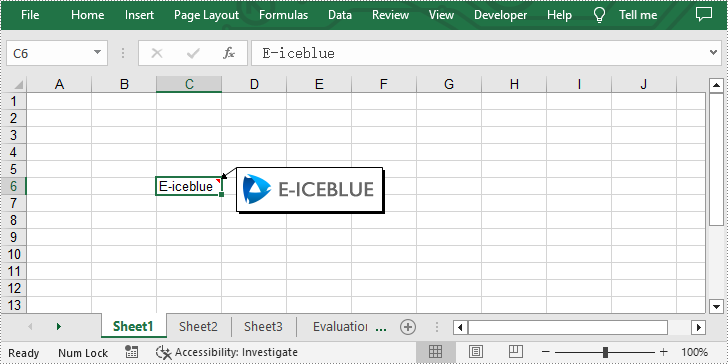
Additionally, Spire.XLS for Python also enable users to add comment with picture to the specified cell in Excel by using CellRange.AddComment() and ExcelCommentObject.Fill.CustomPicture() methods. The following are detailed steps.
- Create an object of Workbook class.
- Get the first worksheet using Workbook.Worksheets[] property.
- Get the specified cell by using Worksheet.Range[] property and set text for it.
- Add comment to the obtained cell by using CellRange.AddComment() method.
- Load an image and fill the comment with it by calling ExcelCommentObject.Fill.CustomPicture() method.
- Set the height and width of the comment.
- Save the result file using Workbook.SaveToFile() method.
- Python
from spire.xls import *
from spire.xls.common import *

inputFile = "logo.png"
outputFile = "CommentWithPicture.xlsx"

#Create an object of Workbook class
workbook = Workbook()

#Get the first worksheet
sheet = workbook.Worksheets[0]

#Get the specified cell and set text for it
range = sheet.Range["C6"]
range.Text = "E-iceblue"

#Add comment to the obtained cell
comment = range["C6"].AddComment()

#Load an image file and fill the comment with it
image = Image.FromFile(inputFile)
comment.Fill.CustomPicture(image, "logo.png")

#Set the height and width of the comment
comment.Height = image.Height
comment.Width = image.Width
comment.Visible = True

#Save the result file
workbook.SaveToFile(outputFile, ExcelVersion.Version2010)
workbook.Dispose()
Apply for a Temporary License
If you'd like to remove the evaluation message from the generated documents, or to get rid of the function limitations, please request a 30-day trial license for yourself.
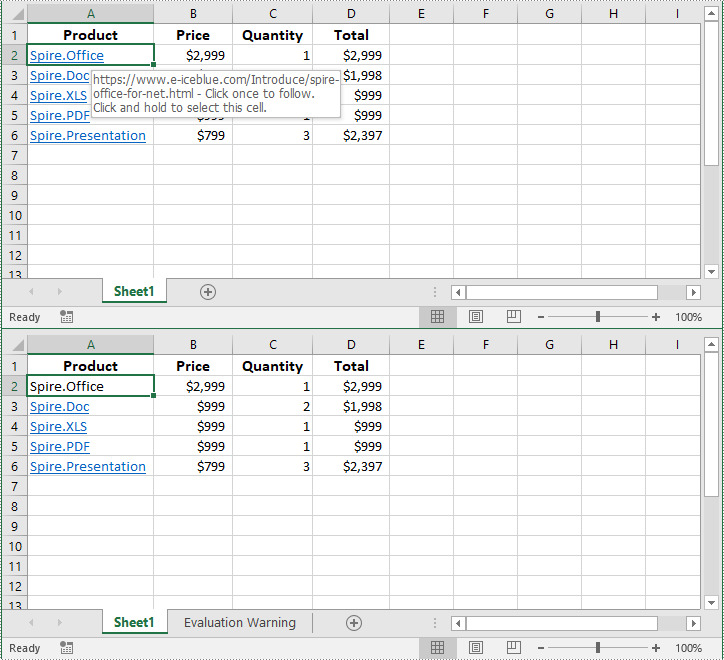
Hyperlinks are a commonly used tool in Excel that facilitates navigation between different sheets, workbooks, websites, or even specific cells within a worksheet. There are instances where you may need to manage hyperlinks in Excel files, such as extracting hyperlinks for further analysis, modifying existing links, or removing them entirely. In this article, we will introduce how to extract, modify, and remove hyperlinks in Excel in Python using Spire.XLS for Python.
- Extract Hyperlinks from Excel in Python
- Modify Hyperlinks in Excel in Python
- Remove Hyperlinks from Excel in Python
Install Spire.XLS for Python
This scenario requires Spire.XLS for Python and plum-dispatch v1.7.4. They can be easily installed in your Windows through the following pip command.
pip install Spire.XLS
If you are unsure how to install, please refer to this tutorial: How to Install Spire.XLS for Python on Windows
Extract Hyperlinks from Excel in Python
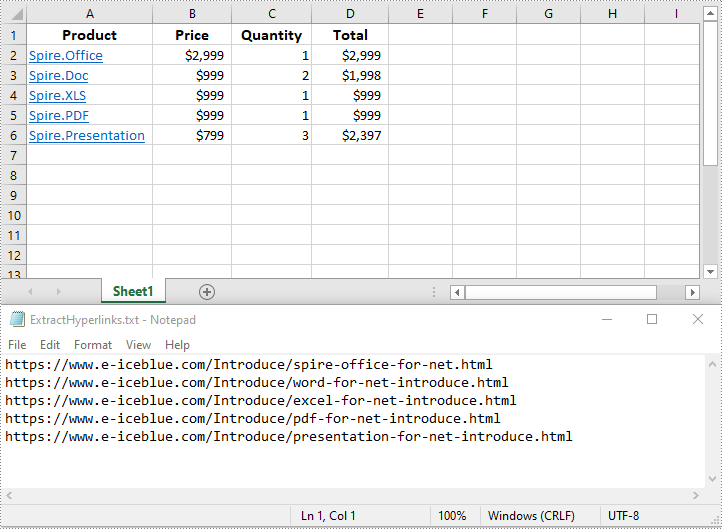
Extracting hyperlinks from an Excel worksheet can be beneficial when you need to analyze or export the link data for further processing.
The following steps demonstrate how to extract hyperlinks from an Excel worksheet in Python using Spire.XLS for Python:
- Create a Workbook object.
- Load an Excel file using Workbook.LoadFromFile() method.
- Get a specific worksheet using Workbook.Worksheets[] property.
- Get the collection of all hyperlinks in the worksheet using Worksheet.HyperLinks property.
- Create an empty list to store the extracted hyperlink information.
- Loop through the hyperlinks in the hyperlink collection.
- Get the address of each hyperlink using XlsHyperlink.Address property and append the address to the list.
- Write the addresses in the list into a text file.
- Python
from spire.xls import *
from spire.xls.common import *

# Create a Workbook object
workbook = Workbook()
# Load an Excel file
workbook.LoadFromFile("Hyperlinks.xlsx")

# Get the first worksheet of the file
sheet = workbook.Worksheets[0]

# Get the hyperlink collection of the worksheet
links = sheet.HyperLinks

# Create an empty list to store the extracted hyperlinks
list = []

# Loop through the hyperlinks in the hyperlink collection
for link in links:
    # Get the address of each hyperlink
    address = link.Address
    # Append the address to the list
    list.append(address)

# Write the extracted hyperlink addresses to a text file
with open("ExtractHyperlinks.txt", "w", encoding = "utf-8") as file:
    for item in list:
        file.write(item + "\n")

workbook.Dispose()
Modify Hyperlinks in Excel in Python
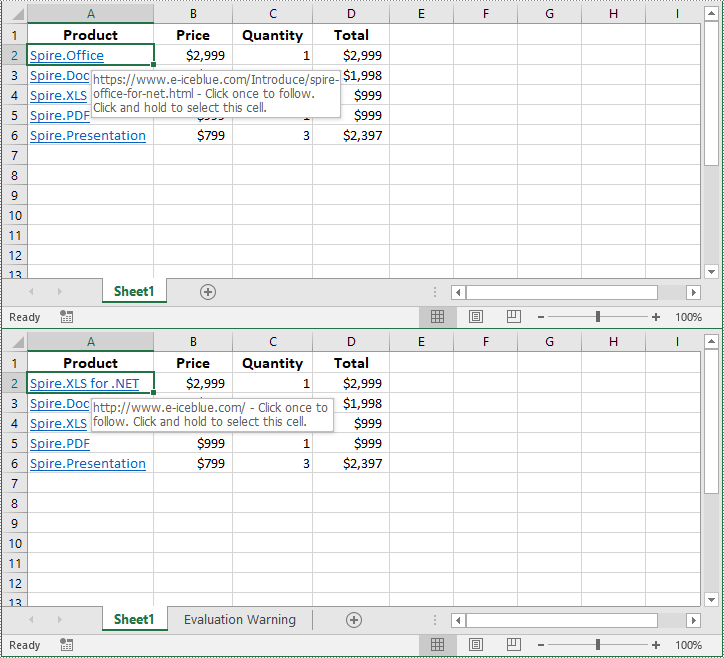
Modifying hyperlinks allows you to update URLs or alter the display text to suit your needs.
The following steps demonstrate how to modify an existing hyperlink in an Excel worksheet in Python using Spire.XLS for Python:
- Create a Workbook object.
- Load an Excel file using Workbook.LoadFromFile() method.
- Get a specific worksheet using Workbook.Worksheets[] property.
- Get a specific hyperlink in the worksheet using Worksheet.HyperLinks[] property.
- Modify the display text and address of the hyperlink using XlsHyperlink.TextToDisplay and XlsHyperlink.Address properties.
- Save the resulting file using Workbook.SaveToFile() method.
- Python
from spire.xls import *
from spire.xls.common import *

# Create a Workbook object
workbook = Workbook()
# Load an Excel file
workbook.LoadFromFile("Hyperlinks.xlsx")

# Get the first worksheet of the file
sheet = workbook.Worksheets[0]

# Get the first hyperlink in the worksheet
link = sheet.HyperLinks[0]

# Change the display text of the hyperlink
link.TextToDisplay = "Spire.XLS for .NET"
# Change the address of the hyperlink
link.Address = "http://www.e-iceblue.com"

# Save the resulting file
workbook.SaveToFile("ModifyHyperlink.xlsx", ExcelVersion.Version2016)

workbook.Dispose()
Remove Hyperlinks from Excel in Python
Removing hyperlinks can help eliminate unnecessary links and clean up your spreadsheet.
The following steps demonstrate how to remove a specific hyperlink from an Excel worksheet in Python using Spire.XLS for Python:
- Create a Workbook object.
- Load an Excel file using Workbook.LoadFromFile() method.
- Get a specific worksheet using Workbook.Worksheets[] property.
- Remove a specific hyperlink from the worksheet using Worksheet.Hyperlinks.RemoveAt() method.
- Save the resulting file using Workbook.SaveToFile() method.
- Python
from spire.xls import *
from spire.xls.common import *

# Create a Workbook object
workbook = Workbook()
# Load an Excel file
workbook.LoadFromFile("Hyperlinks.xlsx")

# Get the first worksheet of the file
sheet = workbook.Worksheets[0]

# Remove the first hyperlink and keep its display text
sheet.HyperLinks.RemoveAt(0)

# Save the resulting file
workbook.SaveToFile("RemoveHyperlink.xlsx", ExcelVersion.Version2016)

workbook.Dispose()
Apply for a Temporary License
If you'd like to remove the evaluation message from the generated documents, or to get rid of the function limitations, please request a 30-day trial license for yourself.
By extracting text from Word documents, you can effortlessly obtain the written information contained within them. This allows for easier manipulation, analysis, and organization of textual content, enabling tasks such as text mining, sentiment analysis, and natural language processing. Extracting images, on the other hand, provides access to visual elements embedded within Word documents, which can be crucial for tasks like image recognition, content extraction, or creating image databases. In this article, you will learn how to extract text and images from a Word document in Python using Spire.Doc for Python.
- Extract Text from a Specific Paragraph in Python
- Extract Text from an Entire Word Document in Python
- Extract Images from an Entire Word Document in Python
Install Spire.Doc for Python
This scenario requires Spire.Doc for Python and plum-dispatch v1.7.4. They can be easily installed in your Windows through the following pip command.
pip install Spire.Doc
If you are unsure how to install, please refer to this tutorial: How to Install Spire.Doc for Python on Windows
Extract Text from a Specific Paragraph in Python
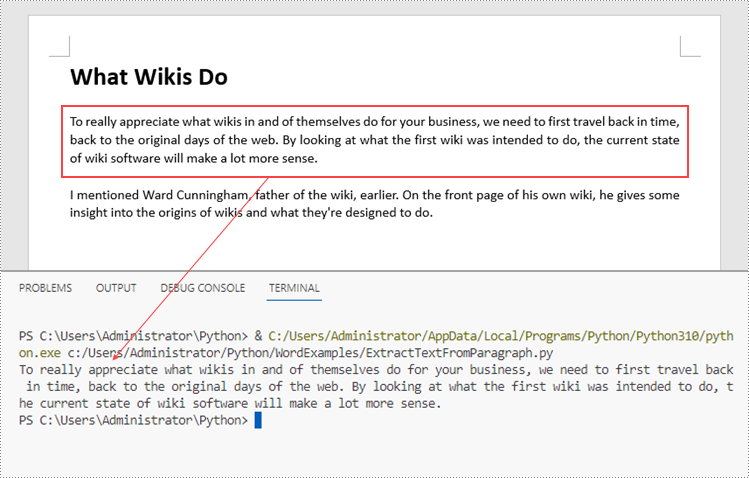
To get a certain paragraph from a section, use Section.Paragraphs[index] property. Then, you can get the text of the paragraph through Paragraph.Text property. The detailed steps are as follows.
- Create a Document object.
- Load a Word file using Document.LoadFromFile() method.
- Get a specific section through Document.Sections[index] property.
- Get a specific paragraph through Section.Paragraphs[index] property.
- Get text from the paragraph through Paragraph.Text property.
- Python
from spire.doc import *
from spire.doc.common import *

# Create a Document object
doc = Document()

# Load a Word document
doc.LoadFromFile("C:\\Users\\Administrator\\Desktop\\input.docx")

# Get a specific section
section = doc.Sections.get_Item(0)

# Get a specific paragraph
paragraph = section.Paragraphs.get_Item(2)

# Get text from the paragraph
str = paragraph.Text

# Print result
print(str)
Extract Text from an Entire Word Document in Python
If you want to get text from a whole document, you can simply use Document.GetText() method. Below are the steps.
- Create a Document object.
- Load a Word file using Document.LoadFromFile() method.
- Get text from the document using Document.GetText() method.
- Python
from spire.doc import *
from spire.doc.common import *

# Create a Document object
doc = Document()

# Load a Word file
doc.LoadFromFile("C:\\Users\\Administrator\\Desktop\\input.docx")

# Get text from the entire document
str = doc.GetText()

# Print result
print(str)

Extract Images from an Entire Word Document in Python
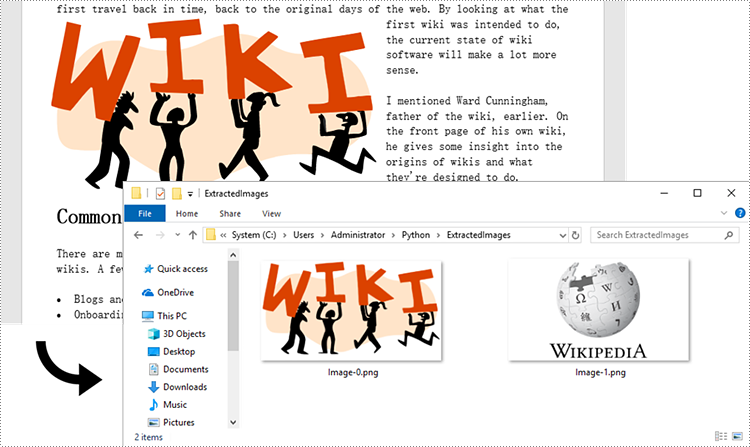
Spire.Doc for Python does not provide a straightforward method to get images from a Word document. You need to iterate through the child objects in the document, and determine if a certain a child object is a DocPicture. If yes, you get the image data using DocPicture.ImageBytes property and then save it as a popular image format file. The main steps are as follows.
- Create a Document object.
- Load a Word file using Document.LoadFromFile() method.
- Loop through the child objects in the document.
- Determine if a specific child object is a DocPicture. If yes, get the image data through DocPicture.ImageBytes property.
- Write the image data as a PNG file.
- Python
import queue
from spire.doc import *
from spire.doc.common import *

# Create a Document object
doc = Document()

# Load a Word file
doc.LoadFromFile("C:\\Users\\Administrator\\Desktop\\input.docx")

# Create a Queue object
nodes = queue.Queue()
nodes.put(doc)

# Create a list
images = []

while nodes.qsize() > 0:
    node = nodes.get()

    # Loop through the child objects in the document
    for i in range(node.ChildObjects.Count):
        child = node.ChildObjects.get_Item(i)

        # Determine if a child object is a picture
        if child.DocumentObjectType == DocumentObjectType.Picture:
            picture = child if isinstance(child, DocPicture) else None
            dataBytes = picture.ImageBytes

            # Add the image data to the list
            images.append(dataBytes)

        elif isinstance(child, ICompositeObject):
            nodes.put(child if isinstance(child, ICompositeObject) else None)

# Loop through the images in the list
for i, item in enumerate(images):
    fileName = "Image-{}.png".format(i)
    with open("ExtractedImages/"+fileName,'wb') as imageFile:

        # Write the image to a specified path
        imageFile.write(item)
doc.Close()
Apply for a Temporary License
If you'd like to remove the evaluation message from the generated documents, or to get rid of the function limitations, please request a 30-day trial license for yourself.
