
Knowledgebase (2370)
Children categories
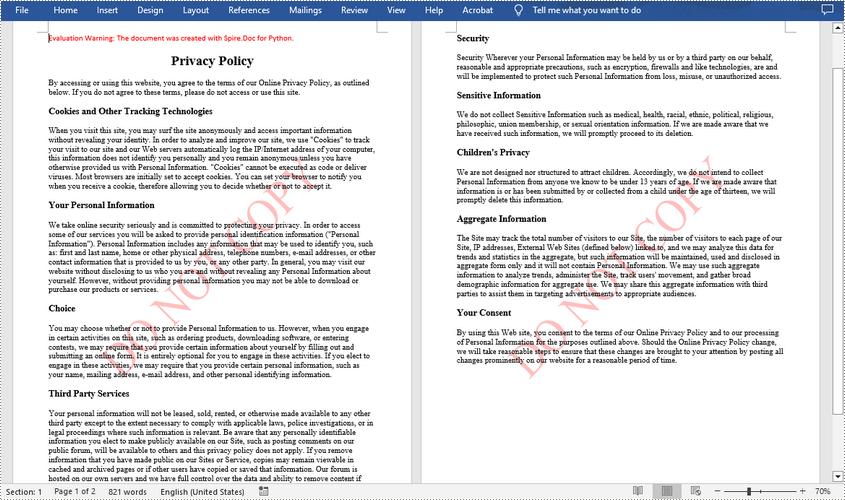
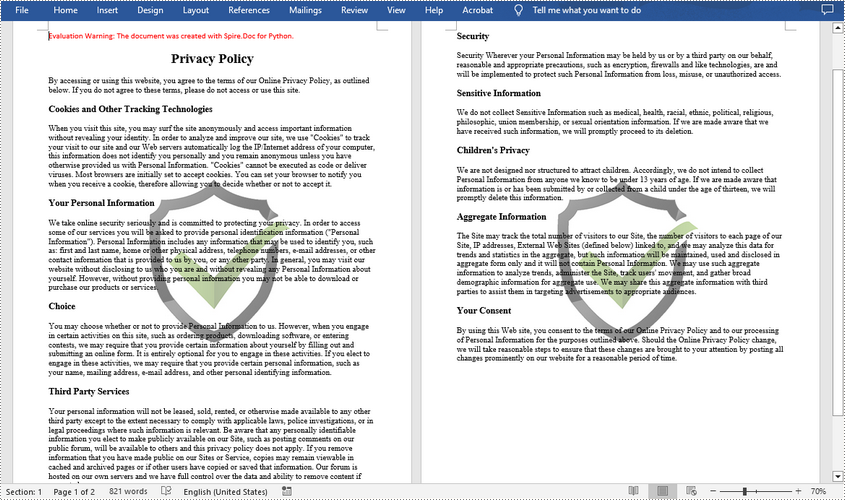
A watermark is a semitransparent text or an image placed behind the content of a document. In Word, you can add a watermark to protect the intellectual property of the document, for example to include a copyright symbol, author's name or company logo. Or you can use it to indicate the status of a document, such as "Draft", "Confidential", or "Final". This article will demonstrate how to add text watermarks and image watermarks to Word in Python using Spire.Doc for Python.
Install Spire.Doc for Python
This scenario requires Spire.Doc for Python and plum-dispatch v1.7.4. They can be easily installed in your Windows through the following pip commands.
pip install Spire.Doc
If you are unsure how to install, please refer to this tutorial: How to Install Spire.Doc for Python on Windows
Add a Text Watermark to a Word Document in Python
Spire.Doc for Python provides the TextWatermark class to set a text watermark, and then you can add it to Word document through Document.Watermark property. The following are the detailed steps.
- Create a Document object.
- Load a sample Word document using Document.LoadFromFile() method.
- Create an instance of TextWatermark class.
- Set the text, font size, color and layout of the text watermark using the methods of TextWatermark class.
- Add the text watermark to the Word document using Document.Watermark property.
- Save the result document using Document.SaveToFile() method.
- Python
from spire.doc import *
from spire.doc.common import *

# Create a Document object
document = Document()

# Load a Word document
document.LoadFromFile("test.docx")

# Create a TextWatermark object
txtWatermark = TextWatermark()

# Set the format of the text watermark
txtWatermark.Text = "DO NOT COPY"
txtWatermark.FontSize = 65
txtWatermark.Color = Color.get_Red()
txtWatermark.Layout = WatermarkLayout.Diagonal

# Add the text watermark to document
document.Watermark = txtWatermark

#Save the result document
document.SaveToFile("Output/TextWatermark.docx", FileFormat.Docx)
document.Close()
Add an Image Watermark in a Word Document in Python
To set the image watermark, you can use the methods of PictureWatermark class. The following are the detailed steps.
- Create a Document object.
- Load a sample Word document using Document.LoadFromFile() method.
- Create an instance of PictureWatermark class.
- Load an image as the image watermark using PictureWatermark.SetPicture() method, and then set scaling as well as washout property of the image watermark.
- Add the image watermark to the Word document using Document.Watermark property.
- Save the result document using Document.SaveToFile() method.
- Python
from spire.doc import *
from spire.doc.common import *

# Create a Document object
document = Document()

# Load a Word document
document.LoadFromFile("test.docx")

# Create a PictureWatermark object
picture = PictureWatermark()

# Set the format of the picture watermark
picture.SetPicture("logo.png")
picture.Scaling = 100
picture.IsWashout = False

# Add the image watermark to document
document.Watermark = picture

#Save the result document
document.SaveToFile("Output/ImageWatermark.docx", FileFormat.Docx)
document.Close()
Apply for a Temporary License
If you'd like to remove the evaluation message from the generated documents, or to get rid of the function limitations, please request a 30-day trial license for yourself.
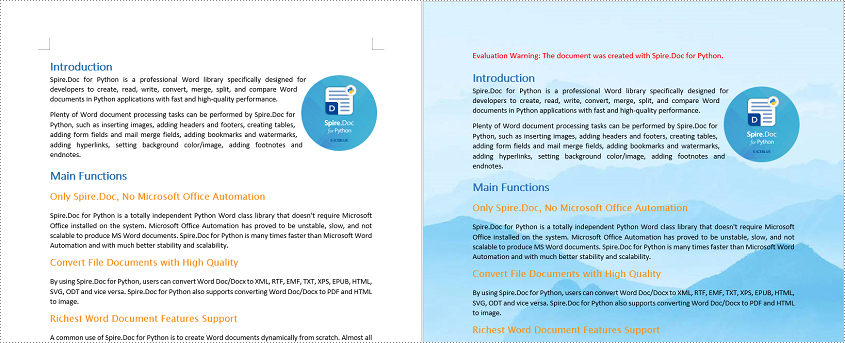
Adding background colors or pictures to your Word documents is a powerful way to enhance their visual appeal and captivate your audience. Whether you're creating a professional report, a creative flyer, or a personal invitation, incorporating a well-chosen background color or image can transform an ordinary document into a visually captivating piece. In this article, we will demonstrate how to add a background color or picture to a Word document in Python using Spire.Doc for Python.
- Add a Background Color to Word in Python
- Add a Gradient Background to Word in Python
- Add a Background Picture to Word in Python
Install Spire.Doc for Python
This scenario requires Spire.Doc for Python and plum-dispatch v1.7.4. They can be easily installed in your Windows through the following pip command.
pip install Spire.Doc
If you are unsure how to install, please refer to this tutorial: How to Install Spire.Doc for Python on Windows
Add a Background Color to Word in Python
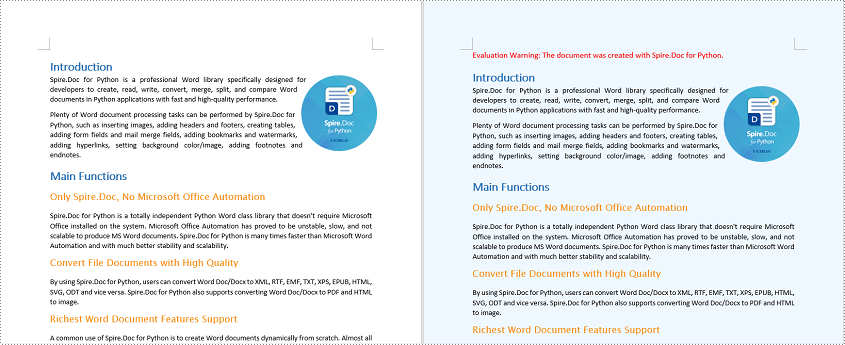
You can set a background color for a Word document by changing its background type to "Color" and then selecting a color as the background. The detailed steps are as follows.
- Create a Document object.
- Load a Word document using Document.LoadFromFile() method.
- Get the background of the document using Document.Background property.
- Set the background type as Color using Background.Type property.
- Set a color as the background using Background.Color property.
- Save the resulting document using Document.SaveToFile() method.
- Python
from spire.doc import *
from spire.doc.common import *

# Create a Document object
document = Document()
# Load a Word document
document.LoadFromFile("Sample.docx")

# Get the document's background
background = document.Background

# Set the background type as Color
background.Type = BackgroundType.Color
# Set the background color
background.Color = Color.get_AliceBlue()

#save the resulting document
document.SaveToFile("AddBackgroundColor.docx", FileFormat.Docx2016)
document.Close()
Add a Gradient Background to Word in Python
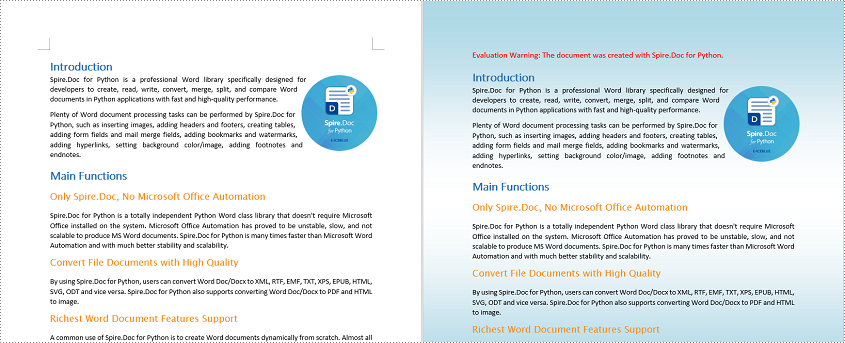
A gradient background refers to a background style that transitions smoothly between two or more colors. To add a gradient background, you need to change the background type as "Gradient", specify the gradient colors and then set the gradient shading variant and style. The detailed steps are as follows.
- Create a Document object.
- Load a Word document using Document.LoadFromFile() method.
- Get the background of the document using Document.Background property.
- Set the background type as Gradient using Background.Type property.
- Set two gradient colors using Background.Gradient.Color1 and Background.Gradient.Color2 properties.
- Set gradient shading variant and style using Background.Gradient.ShadingVariant and Background.Gradient.ShadingStyle properties.
- Save the resulting document using Document.SaveToFile() method.
- Python
from spire.doc import *
from spire.doc.common import *

# Create a Document object
document = Document()
# Load a Word document
document.LoadFromFile("Sample.docx")

# Get the document's background
background = document.Background

# Set the background type as Gradient
background.Type = BackgroundType.Gradient

# Set two gradient colors
background.Gradient.Color1 = Color.get_White()
background.Gradient.Color2 = Color.get_LightBlue()

# Set gradient shading variant and style
background.Gradient.ShadingVariant = GradientShadingVariant.ShadingDown
background.Gradient.ShadingStyle = GradientShadingStyle.Horizontal

#Save the resulting document
document.SaveToFile("AddGradientBackground.docx", FileFormat.Docx2016)
document.Close()
Add a Background Picture to Word in Python
To add a background picture to a Word document, you need to change the background type as "Picture", and then set a picture as the background. The detailed steps are as follows.
- Create a Document object.
- Load a Word document using Document.LoadFromFile() method.
- Get the background of the document using Document.Background property.
- Set the background type as Picture using Background.Type property.
- Set a picture as the background using Background.SetPicture() method.
- Save the resulting document using Document.SaveToFile() method.
- Python
from spire.doc import *
from spire.doc.common import *

# Create a Document object
document = Document()
# Load a Word document
document.LoadFromFile("Sample.docx")

# Get the document's background
background = document.Background

# Set the background type as Picture
background.Type = BackgroundType.Picture

# Set the background picture
background.SetPicture("background.jpg")

#save the resulting document
document.SaveToFile("AddBackgroundPicture.docx", FileFormat.Docx2016)
document.Close()
Apply for a Temporary License
If you'd like to remove the evaluation message from the generated documents, or to get rid of the function limitations, please request a 30-day trial license for yourself.
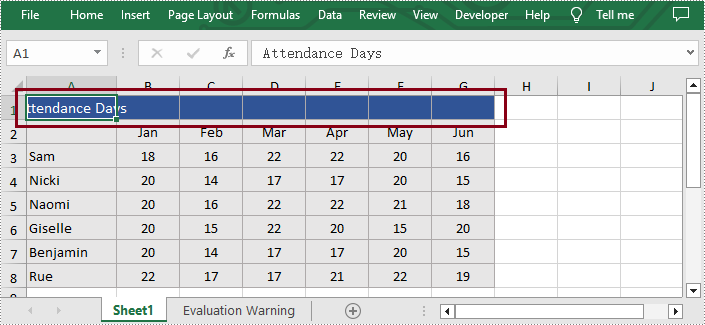
Merging cells means combining multiple adjacent cells into a larger one. The merged cell will inherit all the properties and contents of the original cells. This feature is particularly useful when you need to create a larger cell to accommodate more content or create a header row. Unmerging cells, on the other hand, involves reverting the merged cells back to the original multiple cells. The unmerged cells will revert back to their original independent state, and you can input different content into each individual cell. Merging and unmerging cells are common operations in spreadsheet software, allowing you to adjust the layout and structure of a table as needed, making the data clearer and easier to understand. In this article, you will learn how to merge or unmerge cells in Excel in Python by using Spire.XLS for Python.
- Merge the Cells of the Specified Row or Column
- Merge Ranges of Cells
- Unmerge the Cells of the Specified Row or Column
- Unmerge Ranges of Cells
Install Spire.XLS for Python
This scenario requires Spire.XLS for Python and plum-dispatch v1.7.4. They can be easily installed in your Windows through the following pip command.
pip install Spire.XLS
If you are unsure how to install, please refer to this tutorial: How to Install Spire.XLS for Python on Windows
Merge the Cells of the Specified Row or Column
With Spire.XLS for Python, users are able to effortlessly merge the cells of the specific column or row in Excel, thereby enhancing their data manipulation capabilities. The following are the detailed steps.
- Create an object of Workbook class.
- Load a sample Excel file using Workbook.LoadFromFile() method.
- Get the desired worksheet by using Workbook.Worksheets[] property.
- Access the cells of the specific column or row and merge them by calling Worksheet.Columns[].Merge() or Worksheet.Rows[].Merge() methods.
- Save the result file using Workbook.SaveToFile() method.
- Python
from spire.xls import *
from spire.xls.common import *

inputFile = "Sample.xlsx"
outputFile = "MergeRowColumn.xlsx"

#Create an object of Workbook class
workbook = Workbook()

#Load a sample Excel file from disk
workbook.LoadFromFile(inputFile)

#Get the first worksheet of this file
sheet = workbook.Worksheets[0]

#Merge the first column in Excel
#sheet.Columns[0].Merge()

#Merge the first row in Excel
sheet.Rows[0].Merge()

#Save the result file
workbook.SaveToFile(outputFile, ExcelVersion.Version2013)
workbook.Dispose()

Merge Ranges of Cells
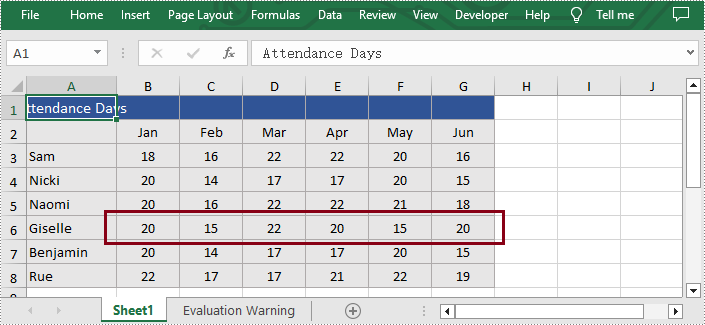
In addition to merging the specific column or row, Spire.XLS for Python also supports users to merge the specified cell ranges. The following are the detailed steps.
- Create an object of Workbook class.
- Load a sample Excel file using Workbook.LoadFromFile() method.
- Get the desired worksheet by using Workbook.Worksheets[] property.
- Access the specific range of cells and merge them together by calling Worksheet.Range[].Merge() method.
- Save the result file using Workbook.SaveToFile() method.
- Python
from spire.xls import *
from spire.xls.common import *

inputFile = "Sample.xlsx"
outputFile = "MergeCellRange.xlsx"

#Create an object of Workbook class
workbook = Workbook()

#Load a sample Excel file from disk
workbook.LoadFromFile(inputFile)

#Get the first worksheet of this file
sheet = workbook.Worksheets[0]

#Merge the particular cell range in Excel
sheet.Range["B6:G6"].Merge()

#Save the result file
workbook.SaveToFile(outputFile, ExcelVersion.Version2013)
workbook.Dispose()

Unmerge the Cells of the Specified Row or Column
Additionally, users are also allowed to unmerge the merged cells of the specific column or row at any time with Spire.XLS for Python. The following are the detailed steps.
- Create an object of Workbook class.
- Load a sample Excel file using Workbook.LoadFromFile() method.
- Get the desired worksheet by using Workbook.Worksheets[] property.
- Access the merged cells of the specific column or row and unmerge them by calling Worksheet.Columns[].UnMerge() and Worksheet.Rows[].UnMerge() methods.
- Save the result file using Workbook.SaveToFile() method.
- Python
from spire.xls import *
from spire.xls.common import *

inputFile = "MergeRowColumn.xlsx"
outputFile = "UnmergeRowColumn.xlsx"

#Create an object of Workbook class
workbook = Workbook()

#Load a sample file from disk
workbook.LoadFromFile(inputFile)

#Get the first worksheet of this file
sheet = workbook.Worksheets[0]

#Unmerge the first column in Excel
#sheet.Columns[0].UnMerge()

#Unmerge the first column in Excel
sheet.Rows[0].UnMerge()

#Save to file.
workbook.SaveToFile(outputFile, ExcelVersion.Version2013)
workbook.Dispose()
Unmerge Ranges of Cells
What's more, users are also able to unmerge the specified cell ranges using Spire.XLS for Python. The following are the detailed steps.
- Create an object of Workbook class.
- Load a sample Excel file using Workbook.LoadFromFile() method.
- Get the desired worksheet by using Workbook.Worksheets[] property.
- Access the specific cell ranges and unmerge them by calling Worksheet.Range[].UnMerge() method.
- Save the result file using Workbook.SaveToFile() method.
- Python
from spire.xls import *
from spire.xls.common import *

inputFile = "MergeCellRange.xlsx"
outputFile = "UnmergeCellRange.xlsx"

#Create an object of Workbook class
workbook = Workbook()

#Load a sample file from disk
workbook.LoadFromFile(inputFile)

#Get the first worksheet of this file
sheet = workbook.Worksheets[0]

#Unmerge the particular cell range in Excel
sheet.Range["B6:G6"].UnMerge()

#Save to file.
workbook.SaveToFile(outputFile, ExcelVersion.Version2013)
workbook.Dispose()
Apply for a Temporary License
If you'd like to remove the evaluation message from the generated documents, or to get rid of the function limitations, please request a 30-day trial license for yourself.
