
Knowledgebase (2370)
Children categories
A footer is text or other content located at the bottom of a page, usually including page numbers, dates, authors, and other information. Footers contribute to the overall professional appearance of the document by maintaining a consistent layout across all pages. By incorporating footers, PDF documents become more professional, user-friendly, and compliant with legal requirements. This article demonstrates how to add a footer to an existing PDF document in Java using Spire.PDF for Java.
Install Spire.PDF for Java
First of all, you're required to add the Spire.Pdf.jar file as a dependency in your Java program. The JAR file can be downloaded from this link. If you use Maven, you can easily import the JAR file in your application by adding the following code to your project's pom.xml file.
<repositories>
    <repository>
        <id>com.e-iceblue</id>
        <name>e-iceblue</name>
        <url>https://repo.e-iceblue.com/nexus/content/groups/public/</url>
    </repository>
</repositories>
<dependencies>
    <dependency>
        <groupId>e-iceblue</groupId>
        <artifactId>spire.pdf</artifactId>
        <version>12.7.0</version>
    </dependency>
</dependencies>
Background Knowledge
When using Spire.PDF for Java to process an existing PDF document, the origin of the coordinate system is located at the top left corner of the page, with the x-axis extending to the right and the y-axis extending downward. Adding a footer to a page means adding content, such as text, images, automatic fields and shapes, to a specified location in the bottom blank area of the page.
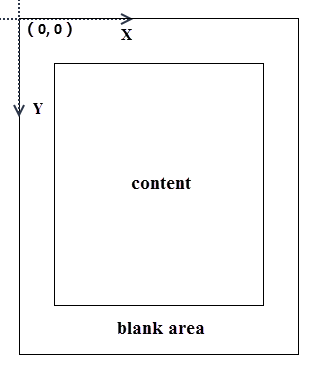
If the blank area is not large enough to accommodate the content you want to add, you can consider increasing the PDF page margins.
Add a Footer to an Existing PDF Document in Java
Spire.PDF for Java offers the PdfCanvas.drawString() method, PdfCanvas.drawImage() method, PdfCanvas.drawLine() method and its similar methods, allowing users to draw text, images and shapes on a PDF page at the specified location. To add dynamic data to the footer, such as page numbers, sections, dates, you need to use the automatic fields. Spire.PDF for Java provides the PdfPageNumberField class, PdfPageCountField calss, PdfSectionNumberField class etc. to achieve the addition of dynamic information.
The following are the steps to add a footer consisting of an image and page number to a PDF document using Spire.PDF for Java.
- Create a PdfDocument object.
- Load a PDF document using PdfDocument.loadFromFile() method.
- Load an image using PdfImage.fromFile() method.
- Draw the image on the bottom blank area of a page using PdfPageBase.getCanvas().drawImage() method.
- Create a PdfPageNumberField object, a PdfPageCountField object, and combine them in a PdfCompositefield object to return the string "Page X of Y".
- Draw page number on the bottom blank area of a page using PdfCompositeField.draw() method.
- Save the document to another PDF file using PdfDocument.saveToFile() method.
- Java
import com.spire.pdf.PdfDocument;
import com.spire.pdf.PdfPageBase;
import com.spire.pdf.automaticfields.PdfCompositeField;
import com.spire.pdf.automaticfields.PdfPageCountField;
import com.spire.pdf.automaticfields.PdfPageNumberField;
import com.spire.pdf.graphics.PdfBrush;
import com.spire.pdf.graphics.PdfBrushes;
import com.spire.pdf.graphics.PdfImage;
import com.spire.pdf.graphics.PdfTrueTypeFont;

import java.awt.*;
import java.awt.geom.Dimension2D;
import java.awt.geom.Point2D;

public class AddFooterToPdf {

    public static void main(String[] args) {

        //Create a PdfDocument object
        PdfDocument doc = new PdfDocument();

        //Load a PDF file
        doc.loadFromFile("C:\\Users\\Administrator\\Desktop\\sample.pdf");

        //Load an image
        PdfImage footerImage = PdfImage.fromFile("C:\\Users\\Administrator\\Desktop\\bg.jpg");

        //Create a true type font
        PdfTrueTypeFont font = new PdfTrueTypeFont(new Font("Times New Roman", Font.BOLD, 12),true);

        //Create a brush
        PdfBrush brush = PdfBrushes.getWhite();

        //Create a page number field
        PdfPageNumberField pageNumberField = new PdfPageNumberField();

        //Create a page count field
        PdfPageCountField pageCountField = new PdfPageCountField();

        //Create a composite field to combine page count field and page number field in a single string
        PdfCompositeField compositeField = new PdfCompositeField(font, brush, "Page {0} of {1}", pageNumberField, pageCountField);

        //Get the text size
        Dimension2D fontSize = font.measureString(compositeField.getText());

        //Get the page size
        Dimension2D pageSize = doc.getPages().get(0).getSize();

        //Set the position of the composite field
        compositeField.setLocation(new Point2D.Double((pageSize.getWidth() - fontSize.getWidth())/2,  pageSize.getHeight() - 45));

        //Loop through the pages in the document
        for (int i = 0; i < doc.getPages().getCount(); i++)
        {
            //Get a specific page
            PdfPageBase page = doc.getPages().get(i);

            //Draw the image on the bottom blank area
            page.getCanvas().drawImage(footerImage, 55, pageSize.getHeight() - 65, pageSize.getWidth() - 110, 50);

            //Draw the composite field on the bottom blank area
            compositeField.draw(page.getCanvas());
        }

        //Save to file
        doc.saveToFile("output/AddFooter.pdf");
        doc.dispose();
    }
}

Apply for a Temporary License
If you'd like to remove the evaluation message from the generated documents, or to get rid of the function limitations, please request a 30-day trial license for yourself.
Hyperlinks in PDF documents allow users to jump to pages or open documents, making PDF files more interactive and easier to use. However, if the target site of the link has been changed or the link points to the wrong page, it may cause trouble or misunderstanding to the document users. Therefore, it is very important to change or remove wrong or invalid hyperlinks in PDF documents to ensure the accuracy and usability of the hyperlinks, so as to provide a better reading experience for users. This article will introduce how to change or remove hyperlinks in PDF documents through .NET programs using Spire.PDF for .NET.
Install Spire.PDF for .NET
To begin with, you need to add the DLL files included in the Spire.PDF for.NET package as references in your .NET project. The DLL files can be either downloaded from this link or installed via NuGet.
PM> Install-Package Spire.PDF
Change the URL of a Hyperlink in PDF
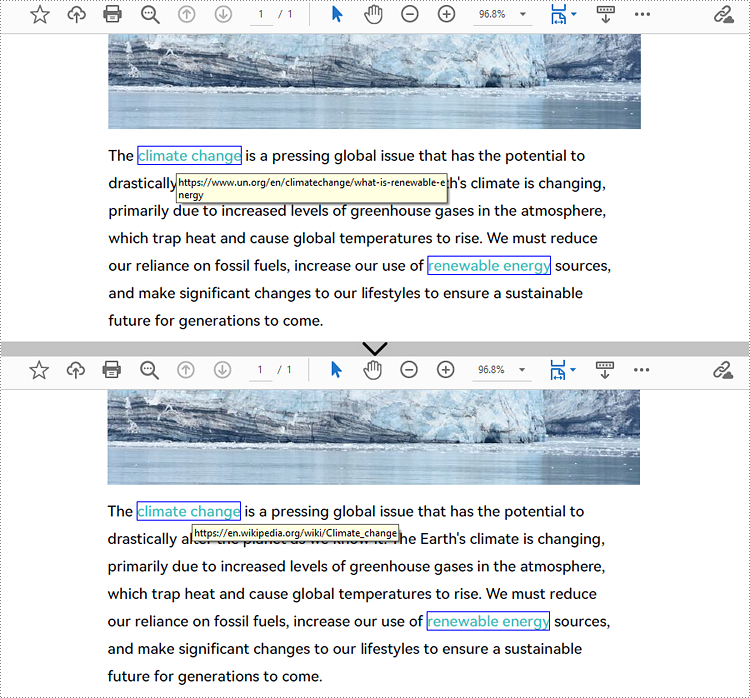
To change the URL of a hyperlink on a PDF page, it is necessary to get the hyperlink annotation widget and use the PdfUriAnnotationWidget.Uri property to reset the URL. The detailed steps are as follows:
- Create an object of PdfDocument class.
- Load a PDF file using PdfDocument.LoadFromFIle() method.
- Get the first page of the document using PdfDocument.Pages[] property.
- Get the first hyperlink widget on the page using PdfPageBase.AnnotationsWidget[] property.
- Reset the URL of the hyperlink using PdfUriAnnotationWidget.Uri property.
- Save the document using PdfDocument.SaveToFile() method.
- C#
- VB.NET
using Spire.Pdf;
using Spire.Pdf.Annotations;
using System;

namespace ChangeHyperlink
{
    internal class Program
    {
        static void Main(string[] args)
        {
            //Cretae an object of PdfDocument
            PdfDocument pdf = new PdfDocument();

            //Load a PDF file
            pdf.LoadFromFile("Sample.pdf");

            //Get the first page
            PdfPageBase page = pdf.Pages[0];

            //Get the first hyperlink
            PdfUriAnnotationWidget url = (PdfUriAnnotationWidget)page.Annotations[0];

            //Reset the url of the hyperlink
            url.Uri = "https://en.wikipedia.org/wiki/Climate_change";

            //Save the PDF file
            pdf.SaveToFile("ChangeHyperlink.pdf");
            pdf.Dispose();
        }
    }
}
Remove Hyperlinks from PDF
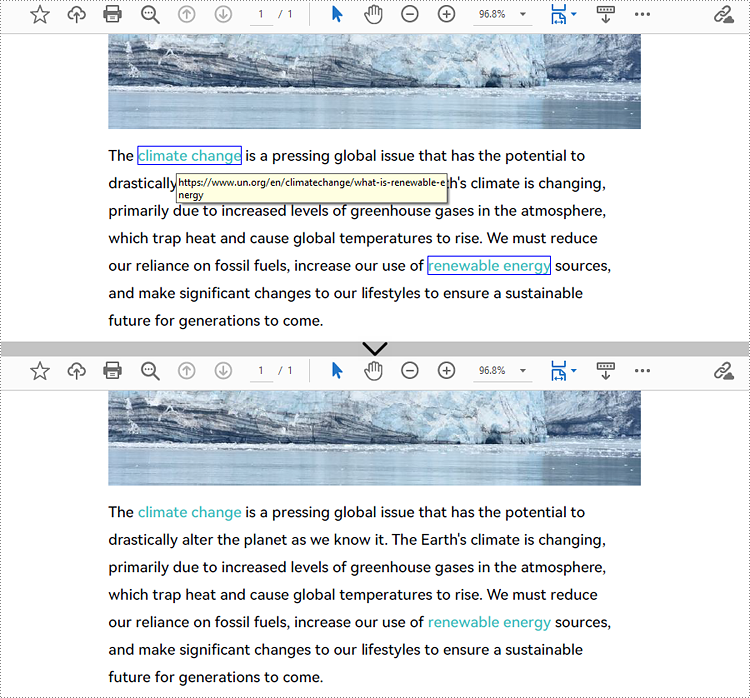
Spire.PDF for .NET provides the PdfPageBase.AnnotationsWidget.RemoveAt() method to remove a hyperlink on a PDF page by its index. Eliminating all hyperlinks from a PDF document requires iterating through the pages, obtaining the annotation widgets of each page, verifying whether an annotation is an instance of the PdfUriAnnotationWidget class, and deleting the annotation if it is. The following are the detailed steps:
- Create an object of PdfDocument class.
- Load a PDF document using PdfDocument.LoadFromFIle() method.
- To remove a specific hyperlink, get the page containing the hyperlink and remove the hyperlink by its index using PdfPageBase.AnnotationsWidget.RemoveAt() method.
- To remove all hyperlinks, loop through the pages in the document to get the annotation collection of each page using PdfPageBase.AnnotationsWidget property.
- Check if an annotation widget is an instance of PdfUriAnnotationWidget class and remove the annotation widget using PdfAnnotationCollection.Remove(PdfUriAnnotationWidget) method if it is.
- Save the document using PdfDocument.SaveToFIle() method.
- C#
- VB.NET
using Spire.Pdf;
using Spire.Pdf.Annotations;
using System;
using System.Dynamic;

namespace DeleteHyperlink
{
    internal class Program
    {
        static void Main(string[] args)
        {
            //Cretae an object of PdfDocument
            PdfDocument pdf = new PdfDocument();

            //Load a PDF file
            pdf.LoadFromFile("Sample.pdf");

            //Remove the second hyperlink in the fisrt page
            //PdfPageBase page = pdf.Pages[0];
            //page.AnnotationsWidget.RemoveAt(1);

            //Remove all hyperlinks in the document
            //Loop through pages in the document
            foreach (PdfPageBase page in pdf.Pages)
            {
                //Get the annotation collection of a page
                PdfAnnotationCollection collection = page.Annotations;
                for (int i = collection.Count - 1; i >= 0; i--)
                {
                    PdfAnnotation annotation = collection[i];
                    //Check if an annotation is an instance of PdfUriAnnotationWidget
                    if (annotation is PdfUriAnnotationWidget)
                    {
                        PdfUriAnnotationWidget url = (PdfUriAnnotationWidget)annotation;
                        //Remove the hyperlink
                        collection.Remove(url);
                    }
                }
            }

            //Save the document
            pdf.SaveToFile("DeleteHyperlink.pdf");
            pdf.Dispose();
        }
    }
}
Apply for a Temporary License
If you'd like to remove the evaluation message from the generated documents, or to get rid of the function limitations, please request a 30-day trial license for yourself.
Charts in Word documents are a valuable tool for presenting and analyzing data in a visually appealing and understandable format. They help summarize key trends, patterns, or relationships within the data, which is especially useful when you are creating company reports, business proposals or research papers. In this article, you will learn how to programmatically add a line chart to a Word document using Spire.Doc for .NET.
Install Spire.Doc for .NET
To begin with, you need to add the DLL files included in the Spire.Doc for.NET package as references in your .NET project. The DLL files can be either downloaded from this link or installed via NuGet.
PM> Install-Package Spire.Doc
Create a Line Chart in Word in C# and VB.NET
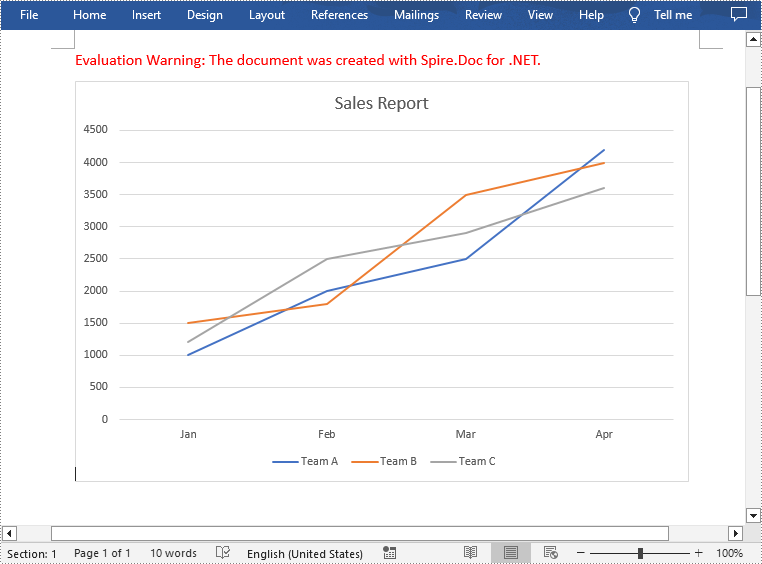
A line chart is a common type of chart that connects a series of data points with a continuous line. To add a line chart in Word, Spire.Doc for .NET offers the Paragraph.AppendChart(ChartType.Line, float width, float height) method. The following are the detailed steps.
- Create a Document object.
- Add a section and then add a paragraph to the section.
- Add a line chart with specified size to the paragraph using Paragraph.AppendChart(ChartType.Line, float width, float height) method.
- Get the chart and then set the chart title using Chart.Tilte.Text property.
- Add a custom series to the chart using Chart.Series.Add(string seriesName, string[] categories, double[] values) method.
- Set the legend position using Chart.Legend.Position property.
- Save the result document using Document.SaveToFile() method.
- C#
- VB.NET
using Spire.Doc;
using Spire.Doc.Documents;
using Spire.Doc.Fields.Shapes.Charts;
using Spire.Doc.Fields;

namespace WordLineChart
{
    class Program
    {
        static void Main(string[] args)
        {
            //Create a Document object
            Document document = new Document();

            //Add a section
            Section section = document.AddSection();

            //Add a paragraph to the section
            Paragraph newPara = section.AddParagraph();

            //Add a line chart with specified size to the paragraph
            ShapeObject shape = newPara.AppendChart(ChartType.Line, 460, 300);

            //Get the chart
            Chart chart = shape.Chart;

            //Set chart title
            chart.Title.Text = "Sales Report";

            //Clear the default series data of the chart
            chart.Series.Clear();

            //Add three custom series with specified series names, category names, and series values to chart
            string[] categories = { "Jan", "Feb", "Mar", "Apr"};
            chart.Series.Add("Team A", categories, new double[] { 1000, 2000, 2500, 4200 });
            chart.Series.Add("Team B", categories, new double[] { 1500, 1800, 3500, 4000 });
            chart.Series.Add("Team C", categories, new double[] { 1200, 2500, 2900, 3600 });

            //Set the legend position
            chart.Legend.Position = LegendPosition.Bottom;

            //Save the result document
            document.SaveToFile("AppendLineChart.docx", FileFormat.Docx);
        }
    }
}
Apply for a Temporary License
If you'd like to remove the evaluation message from the generated documents, or to get rid of the function limitations, please request a 30-day trial license for yourself.
