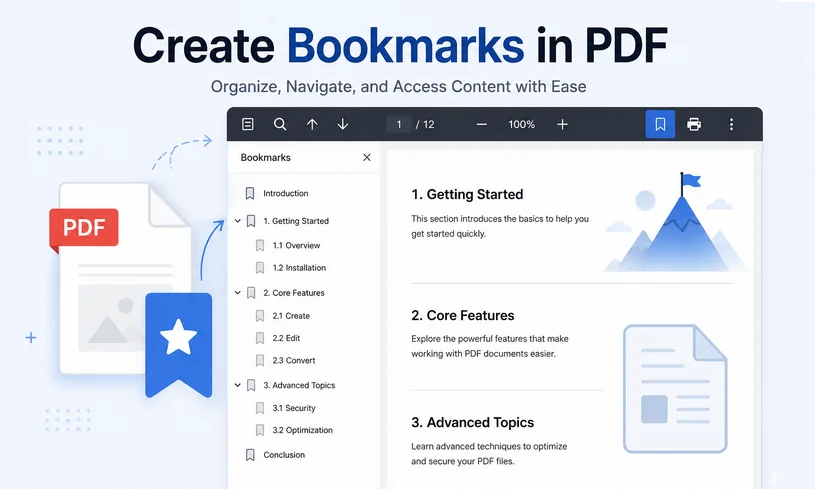
Long‑form PDF files such as e‑books, technical manuals, reports and whitepapers can become difficult to navigate. Scrolling through hundreds of pages to find specific chapters wastes time for you and your readers. That is exactly why PDF bookmarks matter.
PDF bookmarks act as interactive clickable navigation points. They let users jump instantly to chapters, sections, figures, or important pages without endless scrolling. Whether you work with business reports, academic papers, or technical documentation, knowing how to create bookmarks in PDF will greatly improve your document experience.
In this article, we will cover manual workflows for regular users and code‑based approaches for developers to add PDF bookmarks effectively.
- What Exactly Are PDF Bookmarks?
- Manually Create PDF Bookmarks in Adobe Acrobat Pro
- Programmatically Create Bookmarks in PDF for Developers
- Generate PDF Bookmarks Directly from Microsoft Word
- Frequently Asked Questions (FAQs)
What Exactly Are PDF Bookmarks?
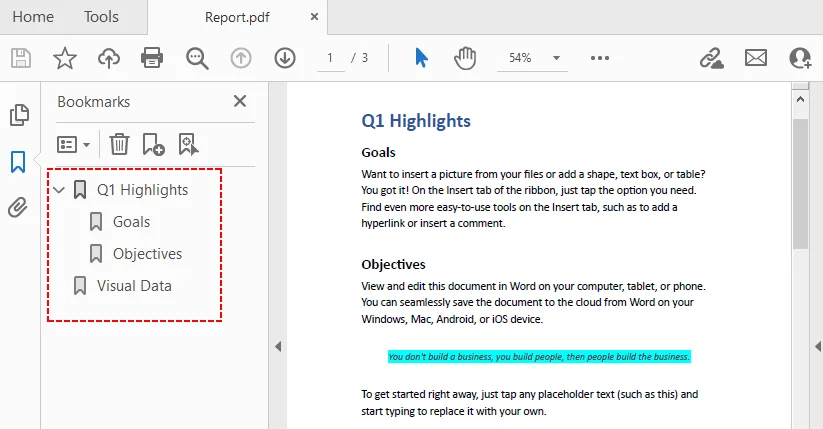
PDF bookmarks (also called outlines) are an interactive outline tree stored within the PDF file itself. Each bookmark links to a target page, position, or view setting. Bookmarks support hierarchical nesting, allowing main chapters to contain multiple sub-section child bookmarks.
Benefits of PDF bookmarks:
- Fast one‑click navigation across large documents
- Keep document structure visible in sidebar panel
- Support nested multi‑level outlines for complex content
- Work across most PDF readers on desktop and mobile
- No extra external files required; all data lives inside the PDF
Manually Create PDF Bookmarks in Adobe Acrobat Pro
Adobe Acrobat Pro is the industry standard for PDF editing and offers robust bookmarking features.
How to Add Bookmarks in Adobe:
- Open your PDF in Adobe Acrobat Pro.
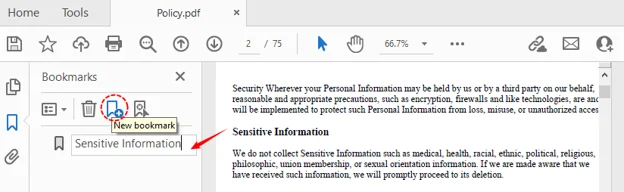
- Display the Bookmarks panel by clicking the “Bookmark” icon (looks like a ribbon) on the right-hand side.
- Navigate to the page or section you want to bookmark.
- Create a new bookmark by clicking the “New Bookmark” icon (page with a plus sign) at the top of the panel.
- Type a clear, descriptive name for the bookmark and press Enter.
Pro Tip for Acrobat Users:
If you highlight text before creating a bookmark, Acrobat will automatically use the highlighted words as the bookmark title. This saves time and ensures consistency with your document’s headings.
While bookmarks serve as a hidden navigation backbone for the sidebar, generating a visible Table of Contents allows you to extract your bookmark titles and corresponding page numbers into a dedicated in-text page.
Programmatically Create Bookmarks in PDF for Developers
Manually adding bookmarks to PDFs becomes inefficient if you need to process hundreds of PDF files or automate document generation pipelines. Developers can insert bookmarks via code when building or processing PDF documents.
Recommended Solution: Free Spire.PDF for .NET
Free Spire.PDF for .NET is a standalone .NET library that enables developers to create, write, edit, convert, and read PDF files across any .NET application. It supports adding and modifying bookmarks programmatically.
Here's how to insert bookmarks in PDF using C#:
1. Install Free Spire.PDF for .NET
First, add the free library to your .NET project via NuGet Package Manager
PM> Install-Package FreeSpire.PDF
2. Add the Required Namespaces
These imports give you access to the graphics primitives, action triggers, and bookmark collection objects.
using System.Drawing;
using Spire.Pdf;
using Spire.Pdf.Graphics;
using Spire.Pdf.Actions;
using Spire.Pdf.Bookmarks;
using Spire.Pdf.General;
3. Write the Code to Add Bookmarks
Let's expand on the example. The following code demonstrates how to:
- Load an existing PDF
- Add top-level parent bookmarks
- Add nested child sub-bookmarks
- Define target page positions, bookmark text color, and font styles
- Export the modified PDF output
namespace AddBookmark
{
    class Program
    {
        static void Main(string[] args)
        {
            // Create a PdfDocument object
            PdfDocument pdf = new PdfDocument();

            // Load the source PDF file
            pdf.LoadFromFile("template.pdf");

            // Get the first page
            PdfPageBase page1 = pdf.Pages[0];

            // Add a parent bookmark at (290, 70)
            PdfBookmark execSummary = pdf.Bookmarks.Add("Executive Summary");
            PdfDestination dest1 = new PdfDestination(page1, new PointF(290, 70));
            execSummary.Action = new PdfGoToAction(dest1);
            execSummary.Color = new PdfRGBColor(Color.Black);
            execSummary.DisplayStyle = PdfTextStyle.Bold;

            // Adds two child bookmarks at specified location
            PdfBookmark problem = execSummary.Add("The Problem");
            PdfDestination destProb = new PdfDestination(page1, new PointF(70, 465));
            problem.Action = new PdfGoToAction(destProb);
            problem.Color = new PdfRGBColor(Color.Brown);
            problem.DisplayStyle = PdfTextStyle.Italic;

            PdfBookmark solution = execSummary.Add("The Solution");
            PdfDestination destSol = new PdfDestination(page1, new PointF(345, 480));
            solution.Action = new PdfGoToAction(destSol);
            solution.Color = new PdfRGBColor(Color.Brown);
            solution.DisplayStyle = PdfTextStyle.Italic;

            // Get the second page
            PdfPageBase page2 = pdf.Pages[1];

            // Add a parent bookmark at (70, 75)
            PdfBookmark deliverables = pdf.Bookmarks.Add("Project Deliverables");
            PdfDestination dest2 = new PdfDestination(page2, new PointF(60, 75));
            deliverables.Action = new PdfGoToAction(dest2);
            deliverables.Color = new PdfRGBColor(Color.Black);
            deliverables.DisplayStyle = PdfTextStyle.Bold;

            // Save the updated document
            pdf.SaveToFile("AddPdfBookmarks.pdf");
            pdf.Dispose();
        }
    }
}
Key API Reference:
-
pdf.Bookmarks.Add(): Adds a parent bookmark to the document -
bookmark.Add(): Adds a sub-bookmark to an existing parent bookmark -
new PdfDestination(page, location): Defines the target page and position -
new PdfGoToAction(destination): Creates a "go to" action that jumps to the specified destination
Pro Tip: To determine exact text positions in PDF, Free Spire.PDF allows you to get coordinates of text or images within the document.
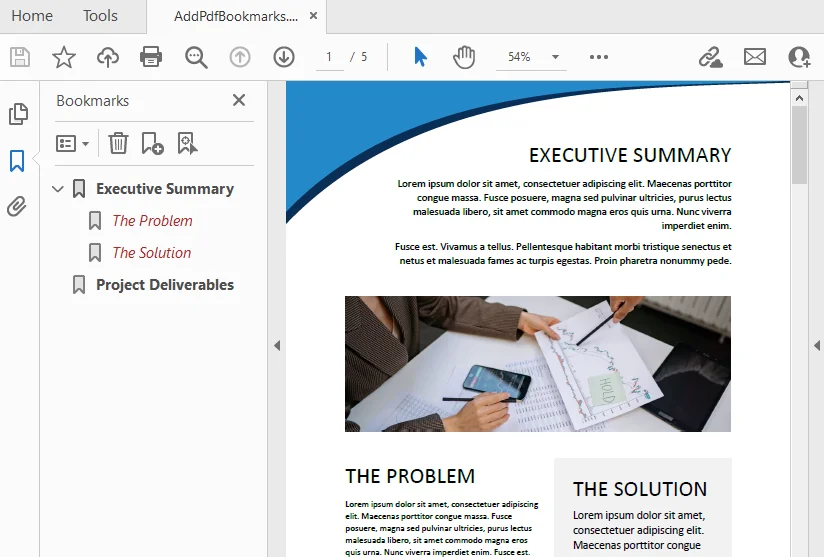
The added PDF bookmarks:
Why Choose Free Spire.PDF for Programmatic Bookmarking?
- Automation: Perfect for batch processing hundreds of PDFs
- Flexibility: Add bookmarks to existing documents or create new PDFs from scratch with bookmarks
- Full Control: Set destinations, colors, styles, and nested hierarchies programmatically
- Free for Commercial Use: No licensing fees, even for business applications
- Cross-Platform: Works on any .NET application, including ASP.NET and .NET Core
Generate PDF Bookmarks Directly from Microsoft Word
If you’re creating a document from scratch, you can generate bookmarks automatically during the PDF export process.
How it Works
When Word generates a PDF, it analyzes your document's style definitions. It maps the built-in Heading Styles (Heading 1, Heading 2, Heading 3) to hierarchical bookmarks:
- Heading 1 → Top-level (Level 1) bookmarks.
- Heading 2 → Nested child (Level 2) bookmarks.
- Heading 3 → Grandchild (Level 3) bookmarks.
Steps:
- Format your Word content with built‑in heading styles.
- Go to “File > Save As” and select PDF.
- Before saving, click “Options” and check “Create bookmarks using headings”.
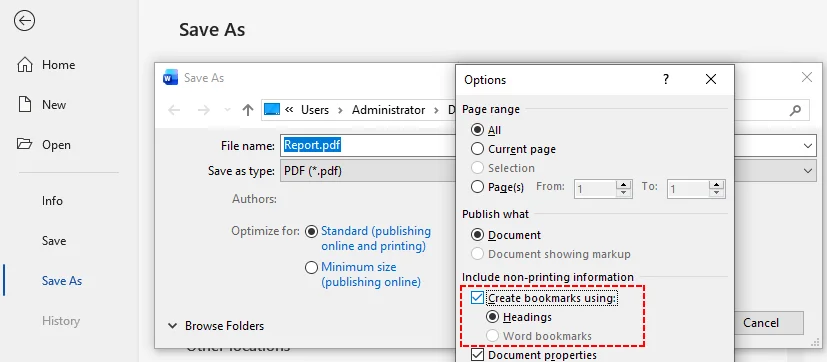
- Save the file. Your exported PDF will contain auto‑generated bookmarks mapped to your Word headings.
Conclusion
PDF bookmarks convert cumbersome documents into polished, easily navigable resources. Choose the approach that fits your workflow:
- Adobe Acrobat Pro for manual, visual control
- Programmatic approaches (like Free Spire.PDF for .NET) for automation and batch processing
- Microsoft Word for automatic generation during export
Whichever you select, you’ll significantly enhance document usability and reader satisfaction. Well-structured bookmarks signal professionalism and attention to detail. Invest the time to add them, and your audience will appreciate the difference.
Frequently Asked Questions (FAQs)
Q: Are bookmarks the same as hyperlinks?
A: No. Hyperlinks in PDF are typically embedded directly within the text body (inline) and are often underlined. Bookmarks reside in a dedicated side-panel outline tree. While both navigate the user, bookmarks provide a persistent structural map, whereas hyperlinks offer contextual inline jumps.
Q: Do bookmarks work on all PDF readers?
A: Absolutely. PDF bookmarks are a standard PDF feature supported by all major readers, including Adobe Acrobat, Foxit, Preview (Mac), and mobile PDF viewers.
Q: Do bookmarks increase the file size of my PDF significantly?
A: No. Bookmarks are extremely lightweight. They are essentially a small text-based index containing titles, page pointers, and action attributes. Even with thousands of nested entries, the impact on overall file size is negligible compared to images or embedded fonts.
Q: Can I edit or delete existing bookmarks from a PDF without Adobe Acrobat?
A: Yes. The Free Spire.PDF library allows you to access the pdf.Bookmarks collection. You can call bookmarks.RemoveAt(index) or bookmarks.Clear() to delete them programmatically without purchasing expensive desktop software.