Adobe Acrobat has long been a popular choice for managing PDF documents, but its subscription cost and desktop software requirements may not be ideal for everyone. Fortunately, you can sign a PDF without Adobe using several simpler alternatives.
This guide walks you through three practical approaches: signing a PDF with an online tool, adding a signature locally with built-in desktop apps, and applying a certificate-based digital signature with Python. Each method includes step-by-step instructions so you can choose the option that best fits your needs.
- Understanding PDF Signatures: Electronic vs. Digital
- How to Sign a PDF without Adobe Using iLovePDF
- How to Sign a PDF Free Using Built-in Desktop Tools
- How to Digitally Sign a PDF without Adobe Using Python (Batch Processing)
- Choosing Your PDF Signing Solution
Understanding PDF Signatures: Electronic vs. Digital
Before choosing a tool, it helps to understand what happens when you sign a PDF file.
- Electronic Signatures (e-Signatures): An electronic signature can be represented by a typed name, drawn signature, uploaded image, or other electronic signing data added to a document.
- Digital Signatures: A PDF digital signature uses a digital certificate and cryptographic algorithms to authenticate the signer and detect changes made to the document after signing.
PDF digital signatures can be invisible, meaning the cryptographic signature is stored in the PDF without a visible signature appearance, or visible, meaning the cryptographic signature is accompanied by a visual signature appearance on the page.
How to Sign a PDF without Adobe Using iLovePDF
For occasional signing tasks, browser-based PDF editors offer a convenient option without requiring additional software. Platforms like iLovePDF allow you to upload a PDF, create a signature by drawing, typing, or uploading an image, and export the signed document directly from your browser. For free or basic use, online signing tools typically focus on electronic signatures, while certificate-based digital signing may require a paid plan.
Here are the steps to sign on PDF using iLovePDF:
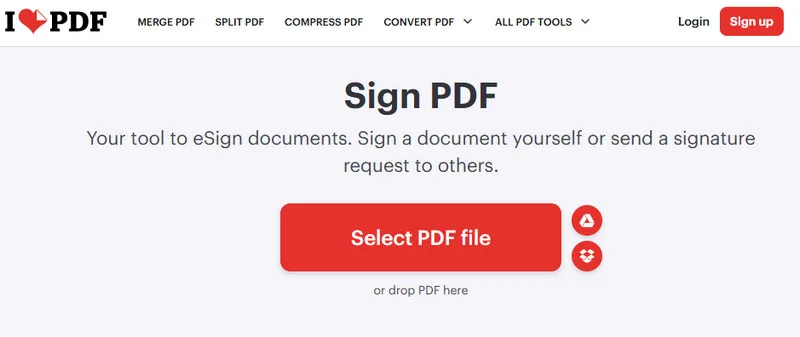
- Step 1: Navigate to iLovePDF's Sign PDF tool in a web browser and click Select PDF file to upload a PDF document.
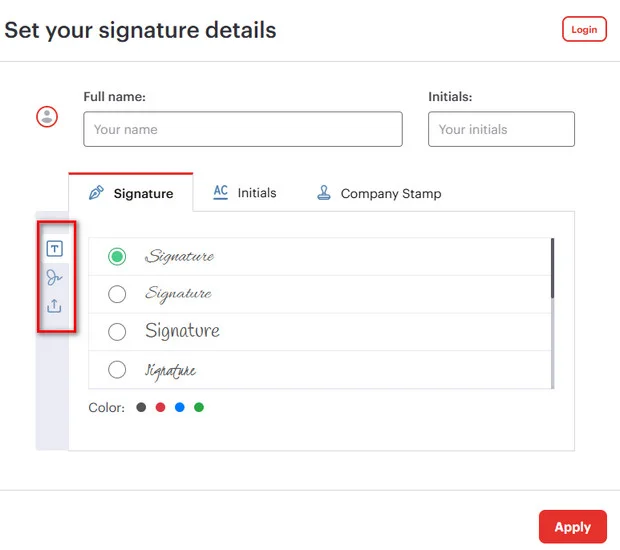
- Step 2: Choose your signer type (e.g., "Only me") and create your signature by drawing it, typing your name, or uploading a PNG image of your physical signature.
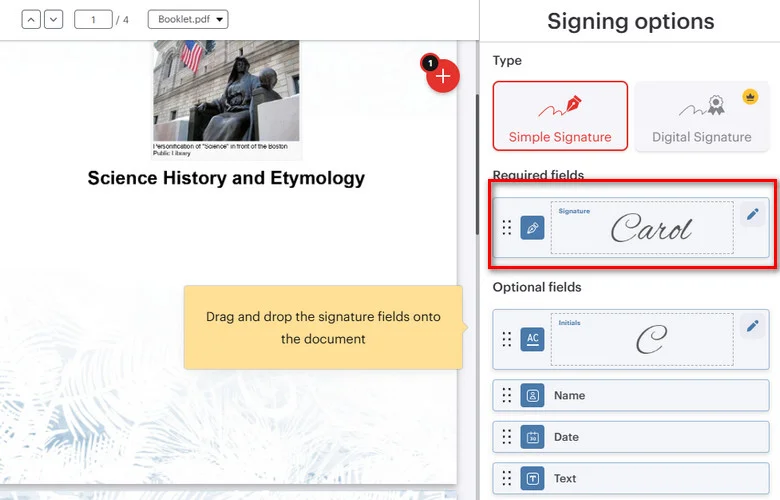
- Step 3: Drag and drop your signature field onto the target location on the PDF page.
- Step 4: Click Sign and download the signed document.
Limitations: Web tools only generate basic visual e-signatures, and uploading files to third-party cloud servers carries data leakage risks.
How to Sign a PDF Free Using Built-in Desktop Tools
If you prefer to keep your files on your computer, built-in desktop tools provide another option. Microsoft Edge on Windows lets you annotate PDFs with a handwritten signature, while macOS Preview provides a built-in Sign tool for adding electronic signatures locally.
Windows Microsoft Edge
Microsoft Edge includes PDF markup tools that allow you to draw a handwritten signature directly on a PDF. This adds a visual annotation layer rather than a certificate-based digital signature.
- Step 1: Right-click a PDF document and select Open with > Microsoft Edge.
- Step 2: Click the Draw icon (pen symbol) in the top toolbar.
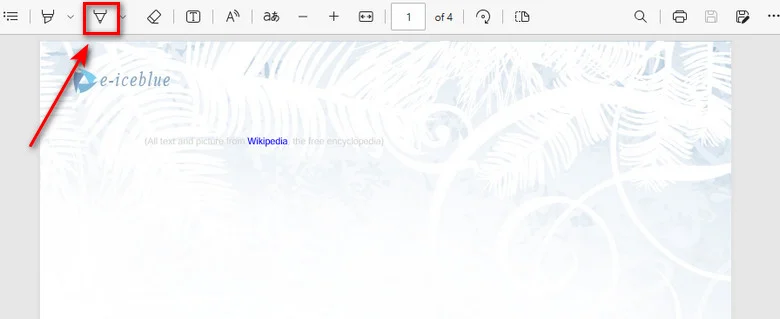
- Step 3: Use your mouse, touchpad, or stylus to draw your signature directly on the document.
- Step 4: Click the Save button to save the annotated PDF.
macOS Preview
macOS Preview provides a built-in Sign tool that lets you create and add a handwritten signature to a PDF locally.
- Step 1: Double-click your PDF file to open it in macOS Preview.
- Step 2: Click the Markup Toolbar button (pen icon) in the top menu, then select the Sign tool.
- Step 3: Create a signature using your trackpad by scanning a paper signature with your Mac camera or by writing on a connected iPhone/iPad.
- Step 4: Click the saved signature to insert it, drag it to the correct line, and save the PDF using File > Save or Cmd + S.
Limitations: These built-in tools do not create certificate-based digital signatures. Microsoft Edge mainly provides PDF markup features, while macOS Preview adds electronic signature elements. Both methods require manual, one-file-at-a-time processing, making them unsuitable for batch signing or automated workflows.
How to Digitally Sign a PDF without Adobe Using Python (Batch Processing)
When building web backends, automated invoicing systems, or enterprise microservices, manual drag-and-drop tools fall short. Developers need a solution that can digitally sign PDFs without Adobe while maintaining data privacy and full backend control.
Free Spire.PDF for Python is a standalone, lightweight library that enables developers to process and sign PDF documents without relying on Adobe Acrobat. It supports digital certificates stored in PKCS#12 (.pfx or .p12) files.
Adding an Invisible Digital Signature to a PDF
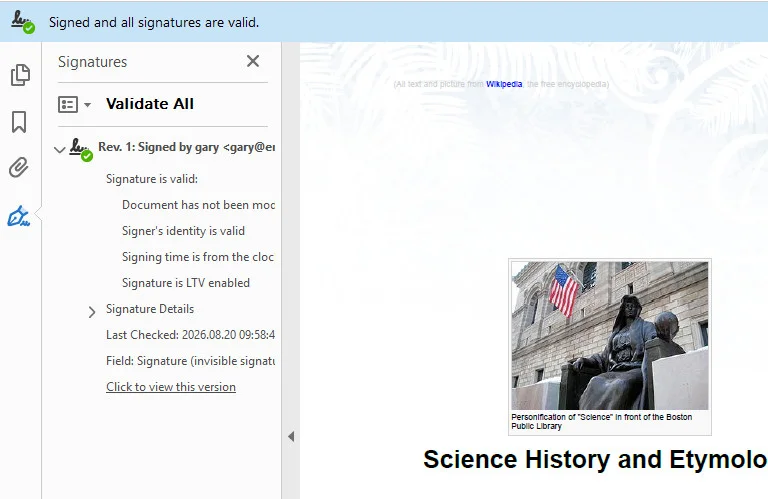
An invisible digital signature applies a cryptographic signature to a PDF without displaying a signature appearance on the page. With Free Spire.PDF for Python, you can use PdfOrdinarySignatureMaker to load a PKCS#12 certificate (.pfx or .p12) and apply the signature to the document.
In the following example, the certificate path and password are passed to PdfOrdinarySignatureMaker, which creates the digital signature without adding a visible signature appearance.
from spire.pdf.common import *
from spire.pdf import *

# Create a new PdfDocument instance
doc = PdfDocument()
# Load a PDF document
doc.LoadFromFile("/input/Booklet.pdf")

# Create a PdfOrdinarySignatureMaker instance
signatureMaker = PdfOrdinarySignatureMaker(doc, "/gary.pfx", "e-iceblue")

# Add an invisible digital signature to the document
signatureMaker.MakeSignature("Signature")

# Save the signed PDF document
doc.SaveToFile("/output/invisible signature.pdf")
doc.Close()
Adding a Visible Digital Signature to a PDF
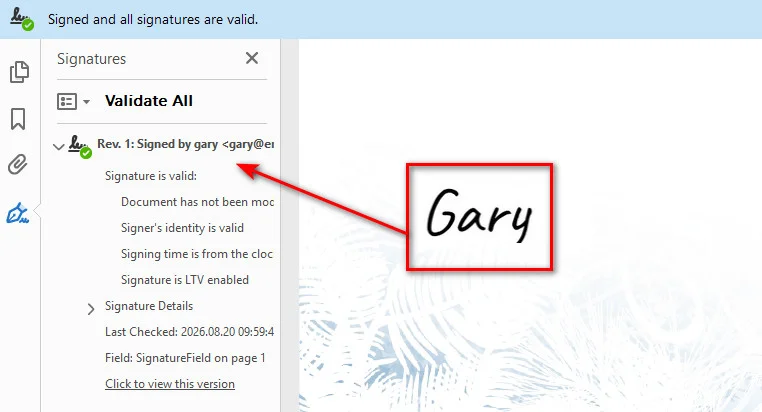
A visible digital signature combines an on-page graphic stamp (like an official seal or signature image) with a PKI cryptographic seal. The visual appearance is configured with PdfSignatureAppearance, while SignatureImage specifies the signature image and MakeSignature() defines the page and position of the visible signature.
from spire.pdf import *

# Step 1: Load the target PDF document
doc = PdfDocument()
doc.LoadFromFile("/input/Booklet.pdf")

# Step 2: Initialize signature maker with certificate path and password
signatureMaker = PdfOrdinarySignatureMaker(doc, "/gary.pfx", "e-iceblue")

# Step 3: Configure signature metadata
signature = signatureMaker.Signature
signature.Name = "Finance Department"
signature.ContactInfo = "finance@company.com"
signature.Reason = "Approved for Payment"

# Step 4: Configure visual appearance and attach stamp image
appearance = PdfSignatureAppearance(signature)
appearance.SignatureImage = PdfImage.FromFile("/gary sign.png")
appearance.GraphicMode = GraphicMode.SignImageOnly

# Step 5: Apply the signature to page 1 at target coordinates (X, Y, Width, Height)
page = doc.Pages[0]
signatureMaker.MakeSignature("SignatureField", page, 100.0, 600.0, 180.0, 60.0, appearance)

# Step 6: Save the signed PDF document
doc.SaveToFile("/output/signed_visible.pdf")
doc.Close()
Note: After signing a PDF, you may also need to verify the signature or extract signature information for auditing and document validation. See Python: Verify and Extract Digital Signatures in PDF for a programmatic approach.
Choosing Your PDF Signing Solution
Choosing the right PDF signing method depends on your privacy requirements, technical skills, and workflow scale. Compare the key features below to find the approach that best fits your setup:
| Feature | iLovePDF (Web Tool) | macOS Preview / Edge (OS Native) | Free Spire.PDF for Python (SDK) |
|---|---|---|---|
| Signature Type | Electronic Signature(Basic) | Electronic Signature | Certificate-based Digital Signature |
| Ease of Use | Instant (Browser) | High (Pre-installed) | Medium (Developer skills) |
| Data Privacy | Lower (Cloud upload) | High (Local execution) | High (Local/server execution) |
| Automation | Low (Manual) | Low (Manual) | High (Automated workflows) |
| Security | Depends on signing method | Basic electronic signing | Certificate-based cryptographic signing |
Conclusion
You do not need Adobe Acrobat to add a signature to a PDF. For a quick electronic signature, an online tool or a built-in desktop application is usually sufficient. If you need a certificate-based digital signature or automated processing, a Python PDF library provides greater control over the signing workflow.
The right approach depends on how you plan to use the signed document. Choose a local tool when document privacy is important, an online service when convenience matters most, or a Python-based solution when signing needs to be integrated into an automated application.