Как проверить, содержит ли ячейка определенный текст в Excel [6 способов]
Содержание
- Проверка с помощью SEARCH и ISNUMBER
- Поиск с учётом регистра с помощью FIND и ISNUMBER
- SEARCH против FIND
- Проверка с помощью COUNTIF и подстановочных знаков
- Проверка нескольких ключевых слов с логикой OR
- Выделение ячеек с помощью условного форматирования
- Автоматическая проверка с помощью Python
- Распространённые ошибки и FAQ
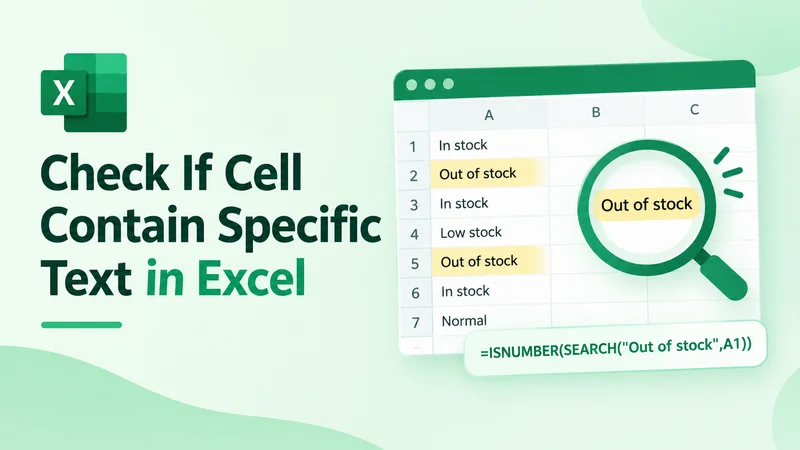
При работе с данными Excel может потребоваться проверить, содержит ли ячейка определённый текст, чтобы найти ключевые слова, отфильтровать записи или классифицировать информацию. Например, можно определить товары, помеченные как отсутствующие на складе, или выделить ячейки, содержащие определённые термины.
Это руководство объясняет, как проверить, содержит ли ячейка определённый текст в Excel, используя SEARCH, FIND, COUNTIF, условное форматирование и автоматизацию на Python с помощью Free Spire.XLS for Python.
Проверка, содержат ли ячейки определённый текст, с помощью SEARCH и ISNUMBER
В Excel комбинация SEARCH и ISNUMBER — распространённый способ проверить, содержит ли ячейка определённый текст. Эта формула оценивает по одной ячейке за раз, поэтому её нужно применить к вспомогательному столбцу и протянуть вниз.
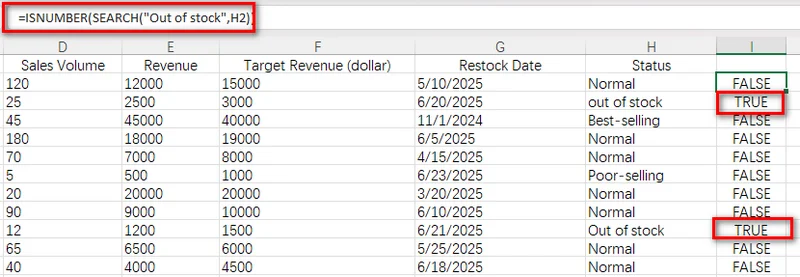
Например, если описания товаров хранятся в столбце H, введите формулу в I2:
=ISNUMBER(SEARCH("Out of stock",H2))
Затем скопируйте формулу вниз, чтобы применить ту же проверку к остальным строкам диапазона.
Формула возвращает TRUE для строк, где соответствующая ячейка содержит out of stock, и FALSE для строк без этого ключевого слова.
Зачем использовать SEARCH вместе с ISNUMBER?
Функция SEARCH находит позицию определённого текста внутри ячейки. Когда она находит совпадение, она возвращает начальную позицию текста. Например, =SEARCH("stock","Out of stock") возвращает 9, потому что stock начинается с девятого символа.
Если искомый текст отсутствует, SEARCH возвращает ошибку #VALUE!. Объединив её с ISNUMBER, вы можете преобразовать этот результат в простое значение TRUE/FALSE:
- Когда SEARCH возвращает число, ISNUMBER возвращает TRUE.
- Когда SEARCH возвращает ошибку, ISNUMBER возвращает FALSE.
Этот метод хорошо работает, когда нужен понятный результат совпадения для каждой строки, например для создания фильтров, добавления условного форматирования или пометки записей для дальнейшей обработки.
Поиск с учётом регистра с помощью FIND и ISNUMBER
В некоторых ситуациях важны заглавные и строчные буквы. Это часто встречается при работе с кодами товаров, внутренними идентификаторами или категориями, где разный регистр представляет разные значения.
Функция FIND работает аналогично SEARCH, но выполняет поиск с учётом регистра. Объединив FIND с ISNUMBER, вы можете проверить, содержит ли ячейка определённый текст, сохраняя различия в регистре.
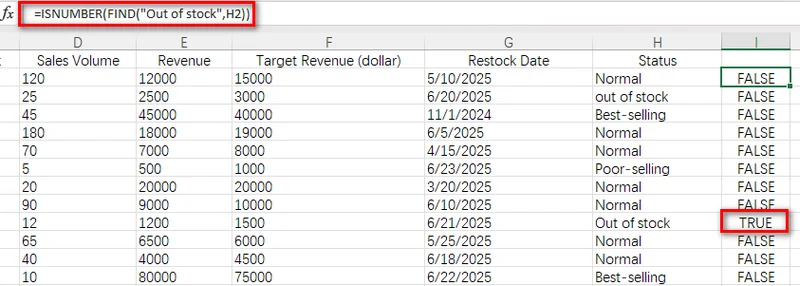
Например, предположим, что столбец статуса товара содержит значения, такие как "out of stock" и "Out of stock". Если вы хотите определить только ячейки с точным написанием Out of stock, можно использовать следующую формулу во вспомогательном столбце и применить её ко всему диапазону данных:
=ISNUMBER(FIND("Out of stock",H2))
Эта формула возвращает TRUE, когда соответствующая ячейка содержит "Out of stock", и FALSE, когда она содержит "out of stock" или другой текст. В отличие от SEARCH, FIND различает заглавные и строчные буквы, что делает её подходящей для проверок текста с учётом регистра.
SEARCH против FIND
| Метод | С учётом регистра | Поддерживает подстановочные знаки | Лучше всего использовать для |
|---|---|---|---|
| ISNUMBER(SEARCH(...)) | Нет | Да | Общий поиск по ключевым словам |
| ISNUMBER(FIND(...)) | Да | Нет | Поиск с учётом регистра |
Проверка, содержит ли ячейка определённый текст, с помощью COUNTIF и подстановочных знаков в Excel
Если вы предпочитаете более короткую формулу, COUNTIF предоставляет простой способ проверить, содержит ли ячейка определённый текст. Этот метод полезен, когда вы уже знакомы с формулами критериев Excel и хотите избежать объединения нескольких функций.
В отличие от SEARCH, COUNTIF может использовать подстановочные знаки, такие как *, для сопоставления текстовых шаблонов. Это делает его удобным для простых проверок по ключевым словам.
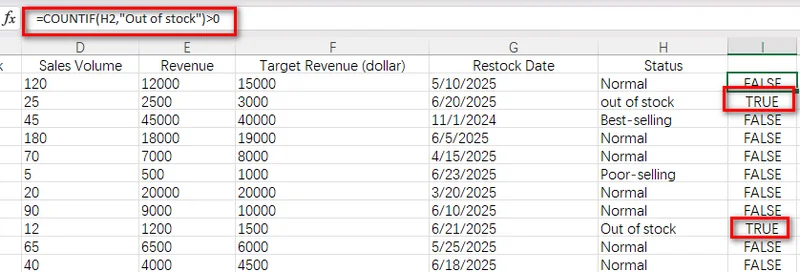
Введите следующую формулу в ячейку вспомогательного столбца:
=COUNTIF(H2,"Out of stock")>0
Формула возвращает TRUE, когда ячейка содержит "out of stock", и FALSE, когда указанный текст не найден.
Как работает звёздочка (*)
В COUNTIF звёздочка (*) — это подстановочный знак, представляющий любое количество символов. Разместив звёздочку до и после искомого текста, вы позволяете Excel сопоставить ключевое слово в любом месте внутри ячейки.
Например, использование stock в качестве шаблона поиска совпадёт с ячейками, содержащими только stock, а также с более длинными фразами, такими как "out of stock" или "low stock warning". Это происходит потому, что подстановочные знаки позволяют любому тексту появляться до или после ключевого слова.
Совет: если вам нужно подсчитать ячейки, содержащие текст, а не просто проверить совпадение, см. наше руководство по подсчёту ячеек с текстом в Excel.
Проверка нескольких ключевых слов с логикой OR в Excel
В некоторых случаях может потребоваться проверить, содержит ли ячейка одно из нескольких ключевых слов. Например, при анализе статусов товаров вы можете захотеть определить позиции, которые либо отсутствуют на складе, либо имеют плохие показатели продаж. Функция OR позволяет объединить несколько проверок текста в одной формуле. Аналогично предыдущим методам.
Введите следующую формулу в ячейку вспомогательного столбца:
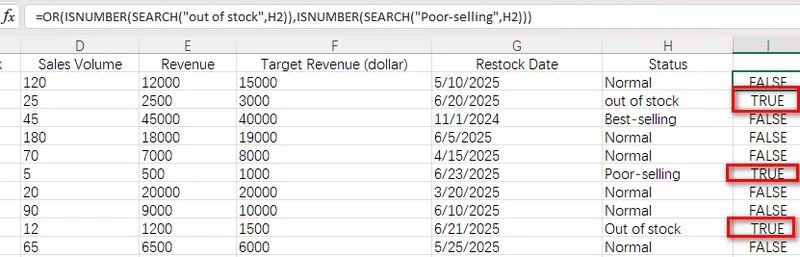
=OR(ISNUMBER(SEARCH("out of stock",H2)),ISNUMBER(SEARCH("Poor-selling",H2)))
Формула возвращает TRUE, когда соответствующий статус содержит либо "out of stock", либо "Poor-selling". Она возвращает FALSE для обычных статусов или других значений.
Выделение ячеек, содержащих определённый текст, с помощью условного форматирования
Использование вспомогательного столбца — практичный способ проверить, содержат ли ячейки определённый текст, но для отображения результатов требуется дополнительный столбец. Если вы хотите сделать совпадающие записи более заметными без изменения структуры данных, условное форматирование — лучший вариант.
С помощью условного форматирования Excel может автоматически выделять ячейки, соответствующие определённому правилу. Используя формулу на основе SEARCH, вы можете выделять совпадающие ячейки при каждом изменении данных.
Выполните следующие шаги, чтобы применить условное форматирование:
- Шаг 1: Выберите целевой диапазон, например H2:H15.
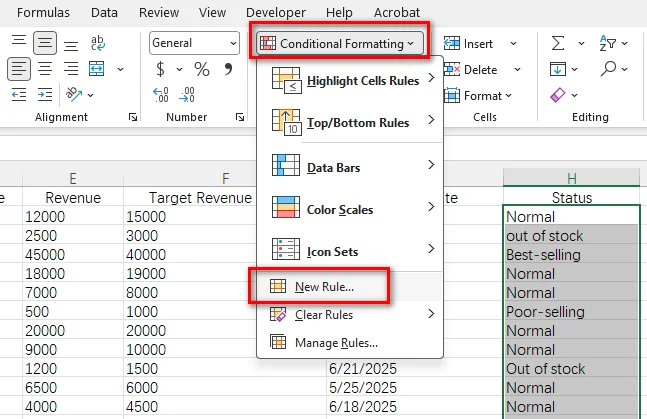
- Шаг 2: Перейдите в Главная > Условное форматирование > Создать правило.
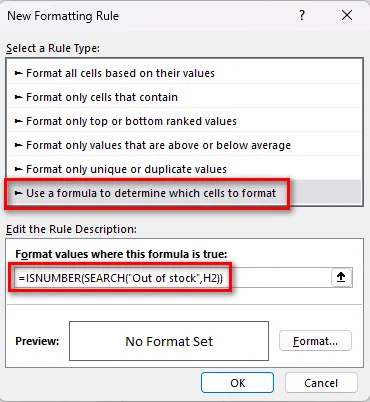
- Шаг 3: Выберите Использовать формулу для определения форматируемых ячеек.
- Шаг 4: Введите формулу =ISNUMBER(SEARCH("Out of stock",H2)).
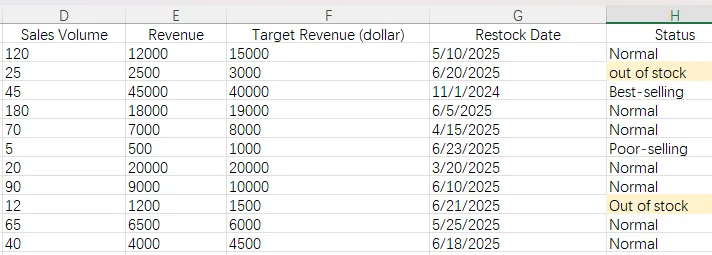
- Шаг 5: Нажмите Формат..., выберите стиль форматирования и затем нажмите ОК, чтобы применить правило.
Автоматическая проверка, содержит ли ячейка определённый текст, с помощью Python
Методы на основе формул хорошо работают при обработке отдельных электронных таблиц, но ручное добавление формул или правил форматирования может стать неэффективным при работе с повторяющимися отчётами или большим количеством файлов Excel.
В автоматизированных рабочих процессах разработчики могут использовать Python для программного применения той же логики проверки текста. С помощью Free Spire.XLS for Python вы можете создавать, редактировать и форматировать книги Excel, не полагаясь на Microsoft Excel.
Что такое Free Spire.XLS for Python?
Free Spire.XLS for Python — это библиотека Python для работы с книгами Excel. Она поддерживает распространённые операции с электронными таблицами, такие как создание файлов, чтение и редактирование листов, применение формул, добавление условного форматирования и преобразование документов Excel.
Используя эту библиотеку, разработчики могут автоматизировать повторяющиеся задачи с электронными таблицами, такие как применение правил форматирования на основе текста к нескольким отчётам.
Пошаговая реализация на Python
Следующий пример показывает, как загрузить книгу Excel и автоматически применить правило условного форматирования на основе того, содержат ли ячейки определённую фразу.
Шаг 1: Установка библиотеки
Установите пакет с помощью pip:
pip install Spire.Xls.Free
Шаг 2: Применение условного форматирования с помощью Python
Следующий скрипт загружает файл Excel и выделяет ячейки, содержащие out of stock.
from spire.xls import Workbook, Color

file_path = "input/sales report.xlsx"
output_path = "output/Highlighted.xlsx"

# Load the Excel workbook
workbook = Workbook()
workbook.LoadFromFile(file_path)
sheet = workbook.Worksheets[0]

# Target the desired cell range
range_data = sheet.Range["H2:H15"]

# Add an expression-based conditional formatting rule
rule = range_data.ConditionalFormats.AddCondition()
rule.FormatType = ConditionalFormatType.Formula
rule.FirstFormula = '=ISNUMBER(SEARCH("Out of stock", H2))'

# Apply background color for matching cells
rule.BackColor = Color.get_LightPink()

# Save output and release resources
workbook.SaveToFile(output_path)
workbook.Dispose()
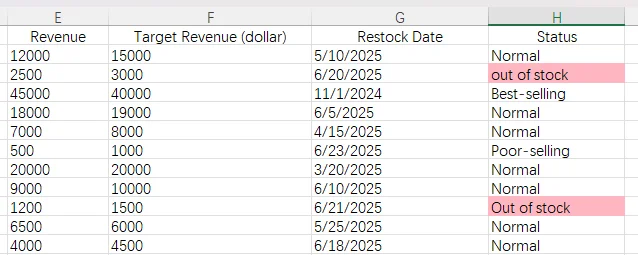
Распространённые ошибки и FAQ
Вопрос 1: Почему моя формула возвращает ошибку #VALUE!?
Если вы используете SEARCH или FIND отдельно, и указанный текст отсутствует в ячейке, Excel возвращает ошибку #VALUE!. Если вам нужно определить, существует ли текст, используйте ISNUMBER, чтобы преобразовать результат поиска в TRUE или FALSE.
Вопрос 2: В чём разница между проверкой определённого текста и ISTEXT()?
Функция ISTEXT проверяет, содержит ли ячейка текстовые данные, поэтому она помогает отличить текстовые значения от чисел, дат и других типов данных. Например, =ISTEXT(A1) возвращает TRUE, когда ячейка содержит текст, и FALSE, когда она содержит число или другой тип данных.
Однако ISTEXT не может проверить, содержит ли ячейка определённый текст. Если вам нужно искать конкретное слово или фразу, используйте вместо этого SEARCH, FIND или COUNTIF.
Вопрос 3: Как проверить, содержит ли ячейка частичный текст?
Чтобы проверить, содержит ли ячейка часть более длинной текстовой строки, используйте SEARCH с ISNUMBER или COUNTIF с подстановочными знаками. Например, =ISNUMBER(SEARCH("stock",A1)) возвращает TRUE, когда ячейка содержит stock в любом месте своего текста, включая фразы, такие как "out of stock" или "low stock". Вы также можете использовать =COUNTIF(A1,"stock")>0 для более короткой формулы на основе подстановочных знаков.
Подводя итог
Проверка того, содержит ли ячейка определённый текст, — распространённая задача при обработке данных в Excel. В большинстве случаев ISNUMBER(SEARCH()) обеспечивает гибкое решение, тогда как FIND() полезна, когда нужно различать заглавные и строчные буквы. Если вы предпочитаете более короткую формулу, COUNTIF() предлагает простой подход на основе подстановочных знаков.
Для повторяющихся рабочих процессов с электронными таблицами автоматизация на Python с помощью Free Spire.XLS for Python может помочь программно применять те же правила проверки текста и форматирования, снижая объём повторяющейся ручной работы.
Читайте также:
How to Check If a Cell Contains Specific Text in Excel [6 Ways]
Table of Contents
When working with Excel data, you may need to check if a cell contains specific text to find keywords, filter records, or categorize information. For example, you can identify products marked as out of stock or highlight cells containing specific terms.
This guide explains how to check whether a cell contains specific text in Excel using SEARCH, FIND, COUNTIF, conditional formatting, and Python automation with Free Spire.XLS for Python.
Check If Cells Contain Specific Text with SEARCH and ISNUMBER
In Excel, the combination of SEARCH and ISNUMBER is a common way to check whether a cell contains specific text. This formula evaluates one cell at a time, so you need to apply it to a helper column and filling the formula down.
For example, if product descriptions are stored in column H, enter the formula in I2:
=ISNUMBER(SEARCH("Out of stock",H2))
Then copy the formula down to apply the same check to the remaining rows in the range.
The formula returns TRUE for rows where the corresponding cell contains out of stock and FALSE for rows without the keyword.
Why Use SEARCH with ISNUMBER?
The SEARCH function finds the position of specific text inside a cell. When it finds a match, it returns the starting position of the text. For example, =SEARCH("stock","Out of stock") returns 9 because stock starts at the ninth character.
If the target text does not exist, SEARCH returns a #VALUE! error. By combining it with ISNUMBER, you can convert this result into a simple TRUE/FALSE value:
- When SEARCH returns a number, ISNUMBER returns TRUE.
- When SEARCH returns an error, ISNUMBER returns FALSE.
This method works well when you need a clear matching result for each row, such as creating filters, adding conditional formatting, or marking records for further processing.
Case-Sensitive Search with FIND and ISNUMBER
In some situations, uppercase and lowercase letters are important. This is common when working with product codes, internal identifiers, or categories where different capitalization represents different values.
The FIND function works similarly to SEARCH, but it performs a case-sensitive search. By combining FIND with ISNUMBER, you can check whether a cell contains specific text while preserving capitalization differences.
For example, suppose a product status column contains values such as "out of stock" and "Out of stock". If you only want to identify cells that use the exact capitalization Out of stock, you can use the following formula in a helper column and apply it to the entire data range:
=ISNUMBER(FIND("Out of stock",H2))
This formula returns TRUE when the corresponding cell contains "Out of stock" and FALSE when it contains "out of stock" or other text. Unlike SEARCH, FIND distinguishes uppercase and lowercase letters, making it suitable for case-sensitive text checks.
SEARCH vs FIND
| Method | Case-Sensitive | Supports Wildcards | Best Used For |
|---|---|---|---|
| ISNUMBER(SEARCH(...)) | No | Yes | General keyword searches |
| ISNUMBER(FIND(...)) | Yes | No | Case-sensitive searches |
Check If Cell Contains Certain Text with COUNTIF and Wildcards in Excel
If you prefer a shorter formula, COUNTIF provides a simple way to check whether a cell contains specific text. This method is useful when you are already familiar with Excel criteria formulas and want to avoid combining multiple functions.
Unlike SEARCH, COUNTIF can use wildcard characters such as * to match text patterns. This makes it convenient for basic keyword checks.
Enter the following formula into a cell in the helper column:
=COUNTIF(H2,"Out of stock")>0
The formula returns TRUE when the cell contains "out of stock" and FALSE when the specified text is not found.
How the Asterisk (*) Works
In COUNTIF, the asterisk (*) is a wildcard that represents any number of characters. By placing an asterisk before and after the target text, you allow Excel to match the keyword wherever it appears inside a cell.
For example, using stock as the search pattern will match cells containing only stock as well as longer phrases such as "out of stock" or "low stock warning". This is because the wildcard characters allow any text to appear before or after the keyword.
Tip: If you need to count cells containing text rather than simply check for a match, see our guide on counting cells with text in Excel.
Check Multiple Keywords with OR Logic in Excel
In some cases, you may need to check whether a cell contains one of several keywords. For example, when analyzing product statuses, you may want to identify items that are either out of stock or have poor sales performance. The OR function allows you to combine multiple text checks in one formula. Similar to the previous methods.
Enter the following formula in a cell of a helper column:
=OR(ISNUMBER(SEARCH("out of stock",H2)),ISNUMBER(SEARCH("Poor-selling",H2)))
The formula returns TRUE when the corresponding status contains either "out of stock" or "Poor-selling". It returns FALSE for normal statuses or other values.
Highlight Cells That Contain Specific Text with Conditional Formatting
Using a helper column is a practical way to check whether cells contain specific text, but it requires an additional column to display the results. If you want to make matching records more visible without changing your data structure, Conditional Formatting is a better option.
With conditional formatting, Excel can automatically highlight cells that meet a specific rule. By using a formula based on SEARCH, you can highlight matching cells whenever the data changes.
Follow these steps to apply conditional formatting:
- Step 1: Select the target range, such as H2:H15.
- Step 2: Go to Home > Conditional Formatting > New Rule.
- Step 3: Select Use a formula to determine which cells to format.
- Step 4: Enter the formula =ISNUMBER(SEARCH("Out of stock",H2)).
- Step 5: Click Format..., choose a formatting style, and then click OK to apply the rule.
Automatically Checking if a Cell Contains Certain Text with Python
Formula-based methods work well when processing individual spreadsheets, but manually adding formulas or formatting rules can become inefficient when handling recurring reports or large numbers of Excel files.
In automated workflows, developers can use Python to apply the same text-checking logic programmatically. With Free Spire.XLS for Python, you can create, edit, and format Excel workbooks without relying on Microsoft Excel.
What Is Free Spire.XLS for Python?
Free Spire.XLS for Python is a Python library for working with Excel workbooks. It supports common spreadsheet operations such as creating files, reading and editing worksheets, applying formulas, adding conditional formatting, and converting Excel documents.
Using this library, developers can automate repetitive spreadsheet tasks, such as applying text-based formatting rules across multiple reports.
Step-by-Step Python Implementation
The following example shows how to load an Excel workbook and automatically apply a conditional formatting rule based on whether cells contain a specific phrase.
Step 1: Install the Library
Install the package using pip:
pip install Spire.Xls.Free
Step 2: Apply Conditional Formatting with Python
The following script loads an Excel file and highlights cells containing out of stock.
from spire.xls import Workbook, Color

file_path = "input/sales report.xlsx"
output_path = "output/Highlighted.xlsx"

# Load the Excel workbook
workbook = Workbook()
workbook.LoadFromFile(file_path)
sheet = workbook.Worksheets[0]

# Target the desired cell range
range_data = sheet.Range["H2:H15"]

# Add an expression-based conditional formatting rule
rule = range_data.ConditionalFormats.AddCondition()
rule.FormatType = ConditionalFormatType.Formula
rule.FirstFormula = '=ISNUMBER(SEARCH("Out of stock", H2))'

# Apply background color for matching cells
rule.BackColor = Color.get_LightPink()

# Save output and release resources
workbook.SaveToFile(output_path)
workbook.Dispose()
Common Pitfalls & FAQ
Q1: Why Does My Formula Return a #VALUE! Error?
If you use SEARCH or FIND by itself and the specified text does not exist in the cell, Excel returns a #VALUE! error. If you need to determine whether the text exists, use ISNUMBER to convert the search result into TRUE or FALSE.
Q2: What Is the Difference Between Checking Specific Text and ISTEXT()?
The ISTEXT function checks whether a cell contains text data, so it can help distinguish text values from numbers, dates, and other data types. For example, =ISTEXT(A1) returns TRUE when the cell contains text and FALSE when it contains a number or another data type.
However, ISTEXT cannot check whether a cell contains specific text. If you need to search for a particular word or phrase, use SEARCH, FIND, or COUNTIF instead.
Q3: How Can I Check If a Cell Contains Partial Text?
To check whether a cell contains part of a longer text string, use SEARCH with ISNUMBER or COUNTIF with wildcards. For example, =ISNUMBER(SEARCH("stock",A1)) returns TRUE when the cell contains stock anywhere in its text, including phrases such as "out of stock" or "low stock". You can also use =COUNTIF(A1,"stock")>0 for a shorter wildcard-based formula.
To Wrap Up
Checking whether a cell contains specific text is a common task in Excel data processing. For most cases, ISNUMBER(SEARCH()) provides a flexible solution, while FIND() is useful when uppercase and lowercase letters need to be distinguished. If you prefer a shorter formula, COUNTIF() provides a simple wildcard-based approach.
For recurring spreadsheet workflows, Python automation with Free Spire.XLS for Python can help apply the same text-checking and formatting rules programmatically, reducing repetitive manual work.
Also Read:
Como Adicionar um Comentário no Excel: Do Manual à Automação
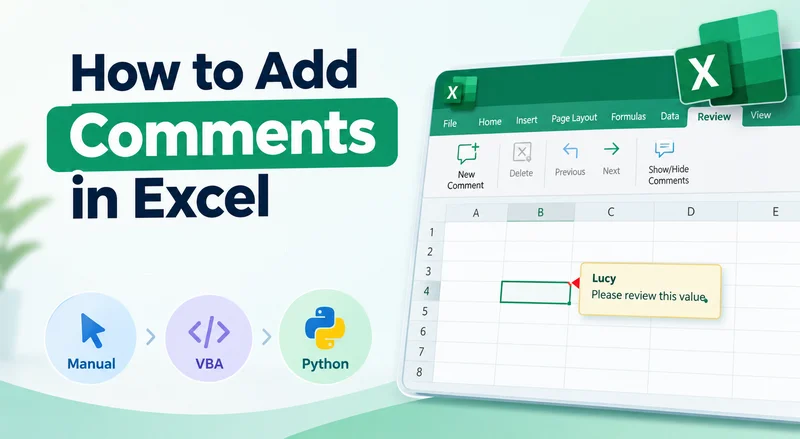
Os comentários são úteis quando você precisa explicar um valor, deixar um feedback ou discutir uma célula com outras pessoas. No Excel, você pode adicionar um comentário diretamente na planilha, automatizar o processo com VBA ou usar Python para trabalhar com comentários em arquivos do Excel de forma programática. Este guia aborda várias maneiras de adicionar comentários no Excel, desde um método manual rápido até o processamento automatizado com o Free Spire.XLS para Python.
- Como Adicionar um Comentário no Excel Diretamente
- Como Adicionar Comentários ao Excel com VBA
- Como Adicionar Comentários ao Excel com Python
- Perguntas Frequentes
Como Adicionar um Comentário no Excel Diretamente
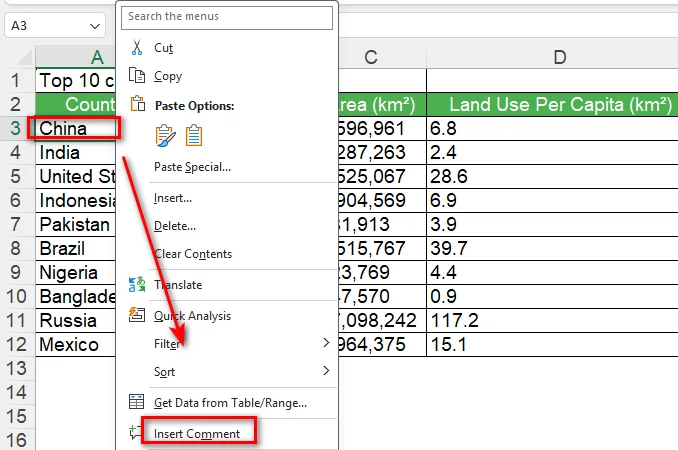
Se você só precisa adicionar alguns comentários, o próprio Excel oferece uma maneira rápida de fazer isso. Você pode adicionar um comentário diretamente pelo menu de contexto de uma célula ou usar a guia Revisão. Esses métodos são adequados quando você está trabalhando com uma pasta de trabalho manualmente e não precisa processar um grande número de células.
1. Adicionar um Comentário pelo Menu do Botão Direito
- Etapa 1: Selecione a célula onde deseja adicionar um comentário.
- Etapa 2: Clique com o botão direito na célula.
- Etapa 3: Selecione Inserir Comentário.
- Etapa 4: Digite seu comentário na caixa de comentário.
- Etapa 5: Clique em qualquer lugar fora da caixa de comentário para finalizar.
O Excel adiciona o comentário à célula selecionada. Se você estiver trabalhando com outras pessoas, elas poderão responder ao comentário e continuar a discussão na mesma conversa.
2. Inserir um Comentário pela Guia Revisão
Você também pode inserir um comentário pela faixa de opções do Excel. Isso é útil quando você já está trabalhando com as ferramentas na guia Revisão.
- Etapa 1: Selecione a célula que deseja comentar.
- Etapa 2: Abra a guia Revisão.
- Etapa 3: Selecione Novo Comentário.
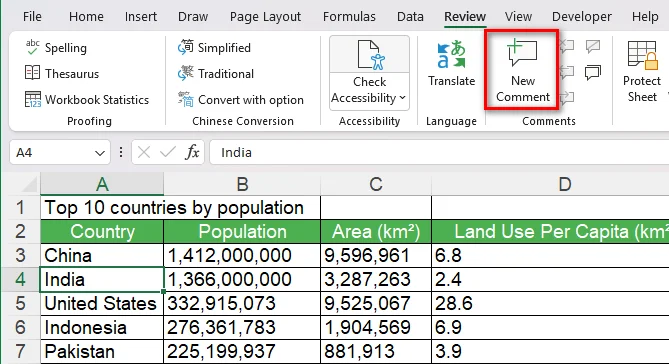
- Etapa 4: Digite os comentários na caixa de comentário.
- Etapa 5: Clique em qualquer lugar fora da caixa de comentário para finalizar.
Essa abordagem proporciona o mesmo resultado básico que usar o menu do botão direito, então você pode usar o fluxo de trabalho que achar mais conveniente.
Dica: Se você também deseja melhorar a aparência geral da sua planilha, pode usar os recursos de formatação integrados do Excel para ajustar rapidamente células, tabelas e outros elementos. Consulte nosso guia sobre Formatação Automática no Excel para mais detalhes.
Como Adicionar Comentários ao Excel com VBA
Os comentários manuais funcionam bem para planilhas pequenas, mas podem se tornar repetitivos quando você precisa adicionar comentários semelhantes a várias células. O VBA permite automatizar esse trabalho diretamente dentro do Excel.
Antes de escrever a macro, você precisa abrir o editor VBA do Excel e criar um módulo. Quando o módulo estiver pronto, você pode colar o código e executá-lo a partir do Excel.
1. Abrir o Editor VBA
- Etapa 1: Abra a pasta de trabalho do Excel que deseja editar.
- Etapa 2: Pressione Alt + F11 para abrir o editor Microsoft Visual Basic for Applications.
- Etapa 3: No editor VBA, selecione Inserir > Módulo.
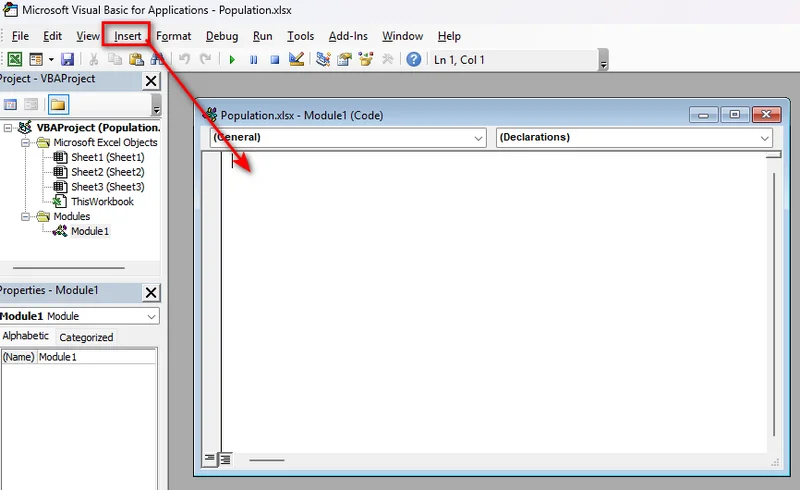
- Etapa 4: Cole o código VBA no novo módulo.
2. Adicionar um Comentário a uma Célula
Você pode usar VBA para adicionar um comentário a uma célula específica no Excel:
Sub AddComment()

    Range("B4").AddComment "Please review this value."

End Sub
Execute a macro e o Excel adicionará o comentário especificado à célula B4.
3. Adicionar Comentários a Várias Células
Se várias células precisarem de comentários, você pode usar um loop:
Sub AddComments()

    Dim cell As Range

    For Each cell In Range("B4:B8")
        cell.AddComment "Please review this value."
    Next cell

End Sub
Essa abordagem é útil quando o mesmo tipo de comentário precisa ser adicionado em um intervalo.
Observação: O método VBA AddComment está associado ao modelo de comentários mais antigo do Excel. Nas versões atuais do Microsoft 365, o comando mais recente Novo Comentário cria comentários encadeados, enquanto os comentários mais antigos são chamados de anotações.
Como Adicionar Comentários ao Excel com Python
O Python é mais adequado quando a criação de comentários faz parte de um fluxo de trabalho maior de processamento do Excel. Por exemplo, você pode precisar adicionar comentários a arquivos gerados por outro sistema ou processar pastas de trabalho do Excel automaticamente.
Free Spire.XLS para Python fornece APIs para trabalhar com arquivos do Excel sem instalar o Microsoft Excel. Você pode carregar uma pasta de trabalho, acessar uma célula, adicionar um comentário, personalizar sua aparência e salvar o resultado.
1. Instalar o Free Spire.XLS para Python
Instale a biblioteca com o pip:
pip install Spire.Xls.Free
Depois de instalada, você pode usá-la para ler e modificar pastas de trabalho do Excel a partir do Python.
2. Adicionar um Comentário a uma Célula
O exemplo a seguir carrega uma pasta de trabalho existente e adiciona um comentário à célula B4.
from spire.xls import *
from spire.xls.common import *

inputFile = "sample.xlsx"
outputFile = "CommentWithAuthor.xlsx"

# Create a Workbook object
workbook = Workbook()

# Load the Excel workbook
workbook.LoadFromFile(inputFile)

# Get the first worksheet
sheet = workbook.Worksheets[0]

# Get the cell where the comment will be added
cell = sheet.Range["B4"]

# Set the comment author and content
author = "Lucy"
text = "Test comment with author"

# Add a comment to the cell
comment = cell.AddComment()
comment.Text = author + ":\n" + text

# Save the result
workbook.SaveToFile(outputFile, ExcelVersion.Version2013)
workbook.Dispose()
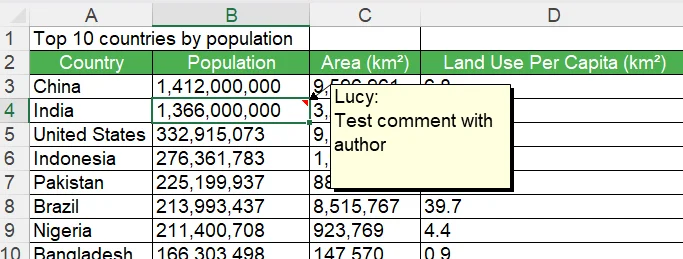
O código primeiro cria um objeto Workbook e carrega o arquivo Excel de origem com LoadFromFile(). Em seguida, obtém a primeira planilha por meio de workbook.Worksheets[0] e usa sheet.Range["B4"] para acessar a célula de destino. Por fim, AddComment() cria um comentário para essa célula, enquanto comment.Text define seu conteúdo antes de a pasta de trabalho modificada ser salva.
3. Personalizar o Comentário
Além de adicionar texto simples na caixa de comentário, você também pode controlar sua aparência. Por exemplo, você pode alterar sua largura e visibilidade e aplicar formatação a parte do texto do comentário.
# Set the comment size and visibility
comment.Width = 200
comment.Visible = True

# Create a font for the author name
font = workbook.CreateFont()
font.FontName = "Segoe Script"
font.KnownColor = ExcelColors.Blue
font.IsBold = True

# Apply the font to the author name
comment.RichText.SetFont(0, len(author), font)
A imagem abaixo mostra o comentário adicionado com este código. Como você pode ver, a caixa de comentário usa uma fonte e uma cor de texto diferentes do formato padrão mostrado na etapa anterior:
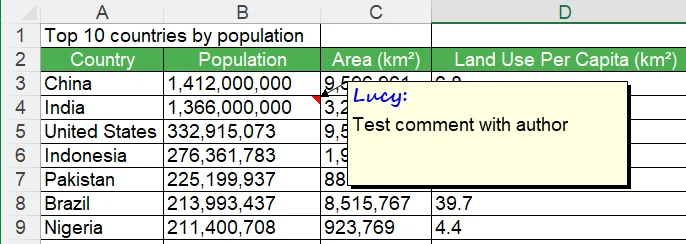
Neste pequeno script, Width controla a largura da caixa de comentário, enquanto Visible determina se o comentário é exibido. O objeto RichText permite formatar parte do texto do comentário, como deixar o nome do autor em negrito.
Dica: Depois de saber como adicionar e personalizar comentários com Python, você também pode precisar atualizar ou remover comentários existentes. Consulte nosso guia sobre Editar ou Remover Comentários no Excel para mais detalhes.
Conclusão
Adicionar um comentário no Excel pode ser tão simples quanto selecionar uma célula e escolher Novo Comentário. Se você precisar automatizar tarefas repetitivas de comentários dentro do Excel, o VBA também pode ajudar. Quando você precisa de uma maneira mais eficiente de adicionar comentários de forma programática, o Free Spire.XLS para Python é uma escolha prática. Ele permite adicionar comentários a várias células e personalizar sua aparência com apenas algumas linhas de código. Escolha o método que melhor atende às suas necessidades!
Perguntas Frequentes
Posso Adicionar um Comentário a uma Célula Específica no Excel?
Sim. Selecione a célula, clique com o botão direito nela e escolha Novo Comentário. Você também pode adicionar um comentário pela guia Revisão.
Posso Adicionar Comentários a Várias Células de Uma Só Vez?
Sim. Recomenda-se usar VBA ou Python para automatizar o processo quando várias células precisarem de comentários semelhantes.
Posso Personalizar a Aparência de um Comentário do Excel?
Sim. Com o Free Spire.XLS para Python, você pode ajustar propriedades como a largura e a visibilidade do comentário e aplicar formatação de rich text ao texto do comentário.
Qual É a Diferença Entre um Comentário e uma Anotação no Excel?
No Excel atual, os comentários encadeados são destinados a discussões e respostas, enquanto as anotações são usadas para anotações simples. As anotações eram chamadas de comentários em versões anteriores do Excel.
Leia Também:
Excel에서 댓글 추가하는 방법: 수동부터 자동화까지
댓글은 값을 설명하거나, 피드백을 남기거나, 다른 사람과 셀에 대해 논의해야 할 때 유용합니다. Excel에서는 워크시트에서 직접 댓글을 추가하거나, VBA로 프로세스를 자동화하거나, Python을 사용하여 Excel 파일의 댓글을 프로그래밍 방식으로 처리할 수 있습니다. 이 가이드에서는 빠른 수동 방법부터 Free Spire.XLS for Python을 사용한 자동 처리까지, Excel에 댓글을 추가하는 여러 방법을 다룹니다.
Excel에서 직접 댓글을 추가하는 방법
몇 개의 댓글만 추가하면 되는 경우 Excel 자체에서 빠르게 추가할 수 있습니다. 셀의 상황에 맞는 메뉴에서 직접 댓글을 추가하거나 검토 탭을 사용할 수 있습니다. 이러한 방법은 통합 문서를 수동으로 작업하고 많은 셀을 처리할 필요가 없을 때 적합합니다.
1. 마우스 오른쪽 버튼 메뉴에서 댓글 추가
- 1단계: 댓글을 추가할 셀을 선택합니다.
- 2단계: 셀을 마우스 오른쪽 버튼으로 클릭합니다.
- 3단계: 댓글 삽입을 선택합니다.
- 4단계: 댓글 상자에 댓글을 입력합니다.
- 5단계: 완료하려면 댓글 상자 바깥 아무 곳이나 클릭합니다.
Excel은 선택한 셀에 댓글을 추가합니다. 다른 사람과 함께 작업하는 경우, 그들은 댓글에 답장하고 같은 스레드에서 논의를 계속할 수 있습니다.
2. 검토 탭에서 댓글 삽입
Excel 리본에서도 댓글을 삽입할 수 있습니다. 이미 검토 탭의 도구를 사용 중일 때 유용합니다.
- 1단계: 댓글을 달 셀을 선택합니다.
- 2단계: 검토 탭을 엽니다.
- 3단계: 새 댓글을 선택합니다.
- 4단계: 댓글 상자에 댓글을 입력합니다.
- 5단계: 완료하려면 댓글 상자 바깥 아무 곳이나 클릭합니다.
이 방법은 마우스 오른쪽 버튼 메뉴를 사용하는 것과 동일한 기본 결과를 제공하므로, 더 편리하게 느껴지는 워크플로를 사용하면 됩니다.
팁: 워크시트의 전반적인 모양도 개선하고 싶다면 Excel의 기본 제공 서식 기능을 사용하여 셀, 표 및 기타 요소를 빠르게 조정할 수 있습니다. 자세한 내용은 Excel의 자동 서식 가이드를 참조하세요.
VBA로 Excel에 댓글을 추가하는 방법
수동 댓글은 작은 워크시트에서는 잘 작동하지만, 여러 셀에 비슷한 댓글을 추가해야 할 때는 반복적일 수 있습니다. VBA를 사용하면 Excel 내부에서 이 작업을 직접 자동화할 수 있습니다.
매크로를 작성하기 전에 Excel의 VBA 편집기를 열고 모듈을 만들어야 합니다. 모듈이 준비되면 코드를 붙여넣고 Excel에서 실행할 수 있습니다.
1. VBA 편집기 열기
- 1단계: 편집할 Excel 통합 문서를 엽니다.
- 2단계: Alt + F11을 눌러 Microsoft Visual Basic for Applications 편집기를 엽니다.
- 3단계: VBA 편집기에서 삽입 > 모듈을 선택합니다.
- 4단계: 새 모듈에 VBA 코드를 붙여넣습니다.
2. 셀에 댓글 추가
VBA를 사용하여 Excel의 특정 셀에 댓글을 추가할 수 있습니다:
Sub AddComment()

    Range("B4").AddComment "Please review this value."

End Sub
매크로를 실행하면 Excel이 지정된 댓글을 B4 셀에 추가합니다.
3. 여러 셀에 댓글 추가
여러 셀에 댓글이 필요하면 루프를 사용할 수 있습니다:
Sub AddComments()

    Dim cell As Range

    For Each cell In Range("B4:B8")
        cell.AddComment "Please review this value."
    Next cell

End Sub
이 방법은 동일한 유형의 댓글을 범위 전체에 추가해야 할 때 유용합니다.
참고: VBA AddComment 메서드는 Excel의 이전 댓글 모델과 연결되어 있습니다. 현재 Microsoft 365 버전에서는 최신 새 댓글 명령이 스레드된 댓글을 만들며, 이전 댓글은 메모라고 합니다.
Python으로 Excel에 댓글을 추가하는 방법
댓글 생성이 더 큰 Excel 처리 워크플로의 일부인 경우 Python이 더 적합합니다. 예를 들어, 다른 시스템에서 생성된 파일에 댓글을 추가하거나 Excel 통합 문서를 자동으로 처리해야 할 수 있습니다.
Free Spire.XLS for Python은 Microsoft Excel을 설치하지 않고도 Excel 파일로 작업할 수 있는 API를 제공합니다. 통합 문서를 로드하고, 셀에 액세스하고, 댓글을 추가하고, 모양을 사용자 지정하고, 결과를 저장할 수 있습니다.
1. Free Spire.XLS for Python 설치
pip로 라이브러리를 설치합니다:
pip install Spire.Xls.Free
설치가 완료되면 Python에서 Excel 통합 문서를 읽고 수정하는 데 사용할 수 있습니다.
2. 셀에 댓글 추가
다음 예제에서는 기존 통합 문서를 로드하고 B4 셀에 댓글을 추가합니다.
from spire.xls import *
from spire.xls.common import *

inputFile = "sample.xlsx"
outputFile = "CommentWithAuthor.xlsx"

# Create a Workbook object
workbook = Workbook()

# Load the Excel workbook
workbook.LoadFromFile(inputFile)

# Get the first worksheet
sheet = workbook.Worksheets[0]

# Get the cell where the comment will be added
cell = sheet.Range["B4"]

# Set the comment author and content
author = "Lucy"
text = "Test comment with author"

# Add a comment to the cell
comment = cell.AddComment()
comment.Text = author + ":\n" + text

# Save the result
workbook.SaveToFile(outputFile, ExcelVersion.Version2013)
workbook.Dispose()
코드는 먼저 Workbook 개체를 만들고 LoadFromFile()로 원본 Excel 파일을 로드합니다. 그런 다음 workbook.Worksheets[0]을 통해 첫 번째 워크시트를 가져오고 sheet.Range["B4"]를 사용하여 대상 셀에 액세스합니다. 마지막으로 AddComment()가 해당 셀에 대한 댓글을 만들고, comment.Text가 수정된 통합 문서를 저장하기 전에 내용을 설정합니다.
3. 댓글 사용자 지정
댓글 상자에 일반 텍스트를 추가하는 것 외에도 모양을 제어할 수 있습니다. 예를 들어 너비와 표시 여부를 변경하고 댓글 텍스트의 일부에 서식을 적용할 수 있습니다.
# Set the comment size and visibility
comment.Width = 200
comment.Visible = True

# Create a font for the author name
font = workbook.CreateFont()
font.FontName = "Segoe Script"
font.KnownColor = ExcelColors.Blue
font.IsBold = True

# Apply the font to the author name
comment.RichText.SetFont(0, len(author), font)
아래 이미지는 이 코드로 추가된 댓글을 보여 줍니다. 보시다시피 댓글 상자는 이전 단계에 표시된 기본 서식과 다른 글꼴과 텍스트 색을 사용합니다:
이 짧은 스크립트에서 Width는 댓글 상자 너비를 제어하고, Visible은 댓글이 표시되는지 여부를 결정합니다. RichText 개체를 사용하면 작성자 이름을 굵게 표시하는 등 댓글 텍스트의 일부에 서식을 지정할 수 있습니다.
팁: Python으로 댓글을 추가하고 사용자 지정하는 방법을 알게 되면 기존 댓글을 업데이트하거나 제거해야 할 수도 있습니다. 자세한 내용은 Excel에서 댓글 편집 또는 제거 가이드를 참조하세요.
결론
Excel에서 댓글을 추가하는 것은 셀을 선택하고 새 댓글을 선택하는 것만큼 간단할 수 있습니다. Excel 내에서 반복적인 댓글 작업을 자동화해야 한다면 VBA도 도움이 될 수 있습니다. 프로그래밍 방식으로 댓글을 추가하는 더 효율적인 방법이 필요할 때 Free Spire.XLS for Python은 실용적인 선택입니다. 몇 줄의 코드만으로 여러 셀에 댓글을 추가하고 모양을 사용자 지정할 수 있습니다. 필요에 가장 잘 맞는 방법을 선택하세요!
자주 묻는 질문
Excel의 특정 셀에 댓글을 추가할 수 있나요?
예. 셀을 선택하고 마우스 오른쪽 버튼으로 클릭한 다음 새 댓글을 선택합니다. 검토 탭을 통해 댓글을 추가할 수도 있습니다.
여러 셀에 한 번에 댓글을 추가할 수 있나요?
예. 여러 셀에 비슷한 댓글이 필요할 때는 VBA 또는 Python을 사용하여 프로세스를 자동화하는 것이 좋습니다.
Excel 댓글의 모양을 사용자 지정할 수 있나요?
예. Free Spire.XLS for Python을 사용하면 댓글 너비와 표시 여부 같은 속성을 조정하고 댓글 텍스트에 서식 있는 텍스트 서식을 적용할 수 있습니다.
Excel 댓글과 메모의 차이점은 무엇인가요?
현재 Excel에서 스레드된 댓글은 토론과 답장을 위한 것이고, 메모는 간단한 주석에 사용됩니다. 메모는 이전 버전의 Excel에서 댓글이라고 불렸습니다.
함께 읽기:
Come aggiungere un commento in Excel: dal manuale all'automazione
I commenti sono utili quando devi spiegare un valore, lasciare un feedback o discutere di una cella con altri. In Excel, puoi aggiungere un commento direttamente dal foglio di lavoro, automatizzare il processo con VBA oppure usare Python per gestire i commenti nei file Excel a livello di programmazione. Questa guida illustra diversi modi per aggiungere commenti in Excel, dal metodo manuale rapido all'elaborazione automatizzata con Free Spire.XLS per Python.
- Come aggiungere un commento in Excel direttamente
- Come aggiungere commenti a Excel con VBA
- Come aggiungere commenti a Excel con Python
- Domande frequenti
Come aggiungere un commento in Excel direttamente
Se devi aggiungere solo pochi commenti, Excel stesso offre un modo rapido per farlo. Puoi aggiungere un commento direttamente dal menu contestuale di una cella oppure utilizzare la scheda Revisione. Questi metodi sono adatti quando lavori su una cartella di lavoro manualmente e non devi elaborare un gran numero di celle.
1. Aggiungere un commento dal menu del clic destro
- Passaggio 1: Seleziona la cella in cui desideri aggiungere un commento.
- Passaggio 2: Fai clic destro sulla cella.
- Passaggio 3: Seleziona Inserisci commento.
- Passaggio 4: Digita il tuo commento nella casella del commento.
- Passaggio 5: Fai clic in un punto qualsiasi all'esterno della casella del commento per terminare.
Excel aggiunge il commento alla cella selezionata. Se stai lavorando con altre persone, possono rispondere al commento e continuare la discussione nello stesso thread.
2. Inserire un commento dalla scheda Revisione
Puoi anche inserire un commento dalla barra multifunzione di Excel. Questo è utile quando stai già lavorando con gli strumenti presenti nella scheda Revisione.
- Passaggio 1: Seleziona la cella che vuoi commentare.
- Passaggio 2: Apri la scheda Revisione.
- Passaggio 3: Seleziona Nuovo commento.
- Passaggio 4: Digita i commenti nella casella del commento.
- Passaggio 5: Fai clic in un punto qualsiasi all'esterno della casella del commento per terminare.
Questo approccio fornisce lo stesso risultato di base dell'utilizzo del menu del clic destro, quindi puoi usare il flusso di lavoro che ti risulta più comodo.
Suggerimento: se desideri anche migliorare l'aspetto generale del tuo foglio di lavoro, puoi utilizzare le funzionalità di formattazione integrate di Excel per regolare rapidamente celle, tabelle e altri elementi. Consulta la nostra guida sulla Formattazione automatica in Excel per maggiori dettagli.
Come aggiungere commenti a Excel con VBA
I commenti manuali funzionano bene per fogli di lavoro di piccole dimensioni, ma possono diventare ripetitivi quando devi aggiungere commenti simili a diverse celle. VBA ti consente di automatizzare questo lavoro direttamente all'interno di Excel.
Prima di scrivere la macro, devi aprire l'editor VBA di Excel e creare un modulo. Una volta che il modulo è pronto, puoi incollare il codice ed eseguirlo da Excel.
1. Aprire l'editor VBA
- Passaggio 1: Apri la cartella di lavoro di Excel che vuoi modificare.
- Passaggio 2: Premi Alt + F11 per aprire l'editor Microsoft Visual Basic for Applications.
- Passaggio 3: Nell'editor VBA, seleziona Inserisci > Modulo.
- Passaggio 4: Incolla il codice VBA nel nuovo modulo.
2. Aggiungere un commento a una cella
Puoi usare VBA per aggiungere un commento a una cella specifica in Excel:
Sub AddComment()

    Range("B4").AddComment "Please review this value."

End Sub
Esegui la macro e Excel aggiunge il commento specificato alla cella B4.
3. Aggiungere commenti a più celle
Se diverse celle necessitano di commenti, puoi usare un ciclo:
Sub AddComments()

    Dim cell As Range

    For Each cell In Range("B4:B8")
        cell.AddComment "Please review this value."
    Next cell

End Sub
Questo approccio è utile quando lo stesso tipo di commento deve essere aggiunto in un intervallo.
Nota: Il metodo VBA AddComment è associato al modello di commenti più vecchio di Excel. Nelle versioni attuali di Microsoft 365, il comando più recente Nuovo commento crea commenti con thread, mentre i commenti più vecchi sono indicati come note.
Come aggiungere commenti a Excel con Python
Python è più adatto quando la creazione di commenti fa parte di un flusso di lavoro più ampio di elaborazione di Excel. Ad esempio, potresti dover aggiungere commenti a file generati da un altro sistema o elaborare automaticamente cartelle di lavoro di Excel.
Free Spire.XLS per Python fornisce API per lavorare con file Excel senza installare Microsoft Excel. Puoi caricare una cartella di lavoro, accedere a una cella, aggiungere un commento, personalizzarne l'aspetto e salvare il risultato.
1. Installare Free Spire.XLS per Python
Installa la libreria con pip:
pip install Spire.Xls.Free
Una volta installata, puoi usarla per leggere e modificare cartelle di lavoro di Excel da Python.
2. Aggiungere un commento a una cella
L'esempio seguente carica una cartella di lavoro esistente e aggiunge un commento alla cella B4.
from spire.xls import *
from spire.xls.common import *

inputFile = "sample.xlsx"
outputFile = "CommentWithAuthor.xlsx"

# Create a Workbook object
workbook = Workbook()

# Load the Excel workbook
workbook.LoadFromFile(inputFile)

# Get the first worksheet
sheet = workbook.Worksheets[0]

# Get the cell where the comment will be added
cell = sheet.Range["B4"]

# Set the comment author and content
author = "Lucy"
text = "Test comment with author"

# Add a comment to the cell
comment = cell.AddComment()
comment.Text = author + ":\n" + text

# Save the result
workbook.SaveToFile(outputFile, ExcelVersion.Version2013)
workbook.Dispose()
Il codice crea prima un oggetto Workbook e carica il file Excel di origine con LoadFromFile(). Poi ottiene il primo foglio di lavoro tramite workbook.Worksheets[0] e usa sheet.Range["B4"] per accedere alla cella di destinazione. Infine, AddComment() crea un commento per quella cella, mentre comment.Text ne imposta il contenuto prima che la cartella di lavoro modificata venga salvata.
3. Personalizzare il commento
Oltre ad aggiungere testo semplice nella casella del commento, puoi anche controllarne l'aspetto. Ad esempio, puoi modificarne la larghezza e la visibilità e applicare la formattazione a una parte del testo del commento.
# Set the comment size and visibility
comment.Width = 200
comment.Visible = True

# Create a font for the author name
font = workbook.CreateFont()
font.FontName = "Segoe Script"
font.KnownColor = ExcelColors.Blue
font.IsBold = True

# Apply the font to the author name
comment.RichText.SetFont(0, len(author), font)
L'immagine sottostante mostra il commento aggiunto con questo codice. Come puoi vedere, la casella del commento utilizza un carattere e un colore del testo diversi dal formato predefinito mostrato nel passaggio precedente:
In questo breve script, Width controlla la larghezza della casella del commento, mentre Visible determina se il commento viene visualizzato. L'oggetto RichText ti consente di formattare parte del testo del commento, ad esempio rendendo in grassetto il nome dell'autore.
Suggerimento: una volta che sai come aggiungere e personalizzare i commenti con Python, potresti anche aver bisogno di aggiornare o rimuovere i commenti esistenti. Consulta la nostra guida su Modificare o rimuovere commenti in Excel per maggiori dettagli.
Conclusione
Aggiungere un commento in Excel può essere semplice come selezionare una cella e scegliere Nuovo commento. Se devi automatizzare attività ripetitive sui commenti all'interno di Excel, anche VBA può aiutarti. Quando hai bisogno di un modo più efficiente per aggiungere commenti a livello di programmazione, Free Spire.XLS per Python è una scelta pratica. Ti consente di aggiungere commenti a più celle e personalizzarne l'aspetto con poche righe di codice. Scegli il metodo più adatto alle tue esigenze!
Domande frequenti
Posso aggiungere un commento a una cella specifica in Excel?
Sì. Seleziona la cella, fai clic destro su di essa e scegli Nuovo commento. Puoi anche aggiungere un commento tramite la scheda Revisione.
Posso aggiungere commenti a più celle contemporaneamente?
Sì. Si consiglia di utilizzare VBA o Python per automatizzare il processo quando diverse celle necessitano di commenti simili.
Posso personalizzare l'aspetto di un commento di Excel?
Sì. Con Free Spire.XLS per Python, puoi regolare proprietà come la larghezza e la visibilità del commento e applicare la formattazione rich text al testo del commento.
Qual è la differenza tra un commento di Excel e una nota?
Nell'Excel attuale, i commenti con thread sono progettati per discussioni e risposte, mentre le note sono usate per semplici annotazioni. Le note erano chiamate commenti nelle versioni precedenti di Excel.
Leggi anche:
Comment ajouter un commentaire dans Excel : du manuel à l'automatisation
Les commentaires sont utiles lorsque vous devez expliquer une valeur, laisser un retour ou discuter d'une cellule avec d'autres personnes. Dans Excel, vous pouvez ajouter un commentaire directement depuis la feuille de calcul, automatiser le processus avec VBA ou utiliser Python pour travailler avec les commentaires dans les fichiers Excel par programmation. Ce guide présente plusieurs façons d'ajouter des commentaires dans Excel, d'une méthode manuelle rapide au traitement automatisé avec Free Spire.XLS for Python.
- Comment ajouter un commentaire dans Excel directement
- Comment ajouter des commentaires à Excel avec VBA
- Comment ajouter des commentaires à Excel avec Python
- FAQ
Comment ajouter un commentaire dans Excel directement
Si vous avez seulement besoin d'ajouter quelques commentaires, Excel propose lui-même un moyen rapide de le faire. Vous pouvez ajouter un commentaire directement depuis le menu contextuel d'une cellule ou utiliser l'onglet Révision. Ces méthodes conviennent lorsque vous travaillez sur un classeur manuellement et que vous n'avez pas besoin de traiter un grand nombre de cellules.
1. Ajouter un commentaire depuis le menu contextuel
- Étape 1 : Sélectionnez la cellule à laquelle vous souhaitez ajouter un commentaire.
- Étape 2 : Cliquez avec le bouton droit sur la cellule.
- Étape 3 : Sélectionnez Insérer un commentaire.
- Étape 4 : Saisissez votre commentaire dans la zone de commentaire.
- Étape 5 : Cliquez n'importe où en dehors de la zone de commentaire pour terminer.
Excel ajoute le commentaire à la cellule sélectionnée. Si vous travaillez avec d'autres personnes, elles peuvent répondre au commentaire et poursuivre la discussion dans le même fil.
2. Insérer un commentaire depuis l'onglet Révision
Vous pouvez également insérer un commentaire depuis le ruban Excel. Cela est utile lorsque vous travaillez déjà avec les outils de l'onglet Révision.
- Étape 1 : Sélectionnez la cellule que vous souhaitez commenter.
- Étape 2 : Ouvrez l'onglet Révision.
- Étape 3 : Sélectionnez Nouveau commentaire.
- Étape 4 : Saisissez vos commentaires dans la zone de commentaire.
- Étape 5 : Cliquez n'importe où en dehors de la zone de commentaire pour terminer.
Cette approche produit le même résultat de base que l'utilisation du menu contextuel, vous pouvez donc utiliser le flux de travail qui vous semble le plus pratique.
Astuce : Si vous souhaitez également améliorer l'apparence globale de votre feuille de calcul, vous pouvez utiliser les fonctionnalités de mise en forme intégrées d'Excel pour ajuster rapidement les cellules, les tableaux et d'autres éléments. Consultez notre guide sur la Mise en forme automatique dans Excel pour plus de détails.
Comment ajouter des commentaires à Excel avec VBA
Les commentaires manuels fonctionnent bien pour les petites feuilles de calcul, mais ils peuvent devenir répétitifs lorsque vous devez ajouter des commentaires similaires à plusieurs cellules. VBA vous permet d'automatiser ce travail directement dans Excel.
Avant d'écrire la macro, vous devez ouvrir l'éditeur VBA d'Excel et créer un module. Une fois le module prêt, vous pouvez coller le code et l'exécuter depuis Excel.
1. Ouvrir l'éditeur VBA
- Étape 1 : Ouvrez le classeur Excel que vous souhaitez modifier.
- Étape 2 : Appuyez sur Alt + F11 pour ouvrir l'éditeur Microsoft Visual Basic for Applications.
- Étape 3 : Dans l'éditeur VBA, sélectionnez Insertion > Module.
- Étape 4 : Collez le code VBA dans le nouveau module.
2. Ajouter un commentaire à une cellule
Vous pouvez utiliser VBA pour ajouter un commentaire à une cellule spécifique dans Excel :
Sub AddComment()

    Range("B4").AddComment "Please review this value."

End Sub
Exécutez la macro et Excel ajoute le commentaire spécifié à la cellule B4.
3. Ajouter des commentaires à plusieurs cellules
Si plusieurs cellules nécessitent des commentaires, vous pouvez utiliser une boucle :
Sub AddComments()

    Dim cell As Range

    For Each cell In Range("B4:B8")
        cell.AddComment "Please review this value."
    Next cell

End Sub
Cette approche est utile lorsqu'un même type de commentaire doit être ajouté sur une plage de cellules.
Remarque : La méthode VBA AddComment est associée à l'ancien modèle de commentaires d'Excel. Dans les versions actuelles de Microsoft 365, la nouvelle commande Nouveau commentaire crée des commentaires en fil de discussion, tandis que les anciens commentaires sont appelés notes.
Comment ajouter des commentaires à Excel avec Python
Python est plus adapté lorsque la création de commentaires fait partie d'un flux de travail plus large de traitement Excel. Par exemple, vous pouvez avoir besoin d'ajouter des commentaires à des fichiers générés par un autre système ou de traiter automatiquement des classeurs Excel.
Free Spire.XLS for Python fournit des API pour travailler avec des fichiers Excel sans installer Microsoft Excel. Vous pouvez charger un classeur, accéder à une cellule, ajouter un commentaire, personnaliser son apparence et enregistrer le résultat.
1. Installer Free Spire.XLS for Python
Installez la bibliothèque avec pip :
pip install Spire.Xls.Free
Une fois installée, vous pouvez l'utiliser pour lire et modifier des classeurs Excel depuis Python.
2. Ajouter un commentaire à une cellule
L'exemple suivant charge un classeur existant et ajoute un commentaire à la cellule B4.
from spire.xls import *
from spire.xls.common import *

inputFile = "sample.xlsx"
outputFile = "CommentWithAuthor.xlsx"

# Create a Workbook object
workbook = Workbook()

# Load the Excel workbook
workbook.LoadFromFile(inputFile)

# Get the first worksheet
sheet = workbook.Worksheets[0]

# Get the cell where the comment will be added
cell = sheet.Range["B4"]

# Set the comment author and content
author = "Lucy"
text = "Test comment with author"

# Add a comment to the cell
comment = cell.AddComment()
comment.Text = author + ":\n" + text

# Save the result
workbook.SaveToFile(outputFile, ExcelVersion.Version2013)
workbook.Dispose()
Le code crée d'abord un objet Workbook et charge le fichier Excel source avec LoadFromFile(). Il récupère ensuite la première feuille de calcul via workbook.Worksheets[0] et utilise sheet.Range["B4"] pour accéder à la cellule cible. Enfin, AddComment() crée un commentaire pour cette cellule, tandis que comment.Text définit son contenu avant l'enregistrement du classeur modifié.
3. Personnaliser le commentaire
Outre l'ajout de texte brut dans la zone de commentaire, vous pouvez également contrôler son apparence. Par exemple, vous pouvez modifier sa largeur et sa visibilité et appliquer une mise en forme à une partie du texte du commentaire.
# Set the comment size and visibility
comment.Width = 200
comment.Visible = True

# Create a font for the author name
font = workbook.CreateFont()
font.FontName = "Segoe Script"
font.KnownColor = ExcelColors.Blue
font.IsBold = True

# Apply the font to the author name
comment.RichText.SetFont(0, len(author), font)
L'image ci-dessous montre le commentaire ajouté avec ce code. Comme vous pouvez le constater, la zone de commentaire utilise une police et une couleur de texte différentes du format par défaut présenté à l'étape précédente :
Dans ce court script, Width contrôle la largeur de la zone de commentaire, tandis que Visible détermine si le commentaire est affiché. L'objet RichText vous permet de mettre en forme une partie du texte du commentaire, par exemple en mettant le nom de l'auteur en gras.
Astuce : Une fois que vous savez comment ajouter et personnaliser des commentaires avec Python, vous pouvez également avoir besoin de mettre à jour ou de supprimer des commentaires existants. Consultez notre guide sur Modifier ou supprimer des commentaires dans Excel pour plus de détails.
Conclusion
Ajouter un commentaire dans Excel peut être aussi simple que de sélectionner une cellule et de choisir Nouveau commentaire. Si vous devez automatiser des tâches de commentaires répétitives dans Excel, VBA peut également vous aider. Lorsque vous avez besoin d'un moyen plus efficace d'ajouter des commentaires par programmation, Free Spire.XLS for Python est un choix pratique. Il vous permet d'ajouter des commentaires à plusieurs cellules et de personnaliser leur apparence en quelques lignes de code seulement. Choisissez la méthode qui correspond le mieux à vos besoins !
FAQ
Puis-je ajouter un commentaire à une cellule spécifique dans Excel ?
Oui. Sélectionnez la cellule, cliquez dessus avec le bouton droit et choisissez Nouveau commentaire. Vous pouvez également ajouter un commentaire via l'onglet Révision.
Puis-je ajouter des commentaires à plusieurs cellules à la fois ?
Oui. Il est recommandé d'utiliser VBA ou Python pour automatiser le processus lorsque plusieurs cellules nécessitent des commentaires similaires.
Puis-je personnaliser l'apparence d'un commentaire Excel ?
Oui. Avec Free Spire.XLS for Python, vous pouvez ajuster des propriétés telles que la largeur et la visibilité du commentaire et appliquer une mise en forme de texte enrichi au texte du commentaire.
Quelle est la différence entre un commentaire Excel et une note ?
Dans Excel actuel, les commentaires en fil de discussion sont conçus pour les discussions et les réponses, tandis que les notes servent à de simples annotations. Les notes étaient appelées commentaires dans les versions antérieures d'Excel.
À lire également :
Cómo agregar un comentario en Excel: de lo manual a la automatización
Tabla de Contenidos
Los comentarios son útiles cuando necesitas explicar un valor, dejar comentarios o discutir una celda con otros. En Excel, puedes añadir un comentario directamente desde la hoja de cálculo, automatizar el proceso con VBA, o usar Python para trabajar con comentarios en archivos de Excel mediante programación. Esta guía cubre varias formas de añadir comentarios en Excel, desde un método manual rápido hasta el procesamiento automatizado con Free Spire.XLS for Python.
- Cómo Añadir un Comentario en Excel Directamente
- Cómo Añadir Comentarios a Excel con VBA
- Cómo Añadir Comentarios a Excel con Python
- Preguntas Frecuentes
Cómo Añadir un Comentario en Excel Directamente
Si solo necesitas añadir unos pocos comentarios, Excel proporciona una forma rápida de hacerlo. Puedes añadir un comentario directamente desde el menú contextual de una celda o usar la pestaña Revisar. Estos métodos son adecuados cuando trabajas con un libro de trabajo manualmente y no necesitas procesar una gran cantidad de celdas.
1. Añadir un Comentario desde el Menú del Clic Derecho
- Paso 1: Selecciona la celda donde quieres añadir un comentario.
- Paso 2: Haz clic derecho en la celda.
- Paso 3: Selecciona Insertar Comentario.
- Paso 4: Escribe tu comentario en el cuadro de comentario.
- Paso 5: Haz clic en cualquier lugar fuera del cuadro de comentario para finalizar.
Excel añade el comentario a la celda seleccionada. Si estás trabajando con otras personas, pueden responder al comentario y continuar la discusión en el mismo hilo.
2. Insertar un Comentario desde la Pestaña Revisar
También puedes insertar un comentario desde la cinta de opciones de Excel. Esto es útil cuando ya estás trabajando con las herramientas de la pestaña Revisar.
- Paso 1: Selecciona la celda sobre la que quieres comentar.
- Paso 2: Abre la pestaña Revisar.
- Paso 3: Selecciona Nuevo Comentario.
- Paso 4: Escribe comentarios en el cuadro de comentario.
- Paso 5: Haz clic en cualquier lugar fuera del cuadro de comentario para finalizar.
Este enfoque proporciona el mismo resultado básico que usar el menú del clic derecho, así que puedes usar el flujo de trabajo que te resulte más conveniente.
Consejo: Si también quieres mejorar la apariencia general de tu hoja de cálculo, puedes usar las funciones de formato integradas de Excel para ajustar rápidamente celdas, tablas y otros elementos. Consulta nuestra guía sobre Formato Automático en Excel para más detalles.
Cómo Añadir Comentarios a Excel con VBA
Los comentarios manuales funcionan bien para hojas de cálculo pequeñas, pero pueden volverse repetitivos cuando necesitas añadir comentarios similares a varias celdas. VBA te permite automatizar este trabajo directamente dentro de Excel.
Antes de escribir la macro, necesitas abrir el editor de VBA de Excel y crear un módulo. Una vez que el módulo esté listo, puedes pegar el código y ejecutarlo desde Excel.
1. Abrir el Editor de VBA
- Paso 1: Abre el libro de Excel que quieres editar.
- Paso 2: Pulsa Alt + F11 para abrir el editor Microsoft Visual Basic for Applications.
- Paso 3: En el editor de VBA, selecciona Insertar > Módulo.
- Paso 4: Pega el código de VBA en el nuevo módulo.
2. Añadir un Comentario a una Celda
Puedes usar VBA para añadir un comentario a una celda específica en Excel:
Sub AddComment()

    Range("B4").AddComment "Please review this value."

End Sub
Ejecuta la macro y Excel añade el comentario especificado a la celda B4.
3. Añadir Comentarios a Varias Celdas
Si varias celdas necesitan comentarios, puedes usar un bucle:
Sub AddComments()

    Dim cell As Range

    For Each cell In Range("B4:B8")
        cell.AddComment "Please review this value."
    Next cell

End Sub
Este enfoque es útil cuando se necesita añadir el mismo tipo de comentario en un rango.
Nota: El método AddComment de VBA está asociado con el modelo de comentarios antiguo de Excel. En las versiones actuales de Microsoft 365, el comando más reciente Nuevo Comentario crea comentarios en hilo, mientras que los comentarios antiguos se denominan notas.
Cómo Añadir Comentarios a Excel con Python
Python es una mejor opción cuando la creación de comentarios forma parte de un flujo de trabajo de procesamiento de Excel más amplio. Por ejemplo, puede que necesites añadir comentarios a archivos generados por otro sistema o procesar libros de Excel automáticamente.
Free Spire.XLS for Python proporciona API para trabajar con archivos de Excel sin instalar Microsoft Excel. Puedes cargar un libro de trabajo, acceder a una celda, añadir un comentario, personalizar su apariencia y guardar el resultado.
1. Instalar Free Spire.XLS for Python
Instala la biblioteca con pip:
pip install Spire.Xls.Free
Una vez instalada, puedes usarla para leer y modificar libros de Excel desde Python.
2. Añadir un Comentario a una Celda
El siguiente ejemplo carga un libro de trabajo existente y añade un comentario a la celda B4.
from spire.xls import *
from spire.xls.common import *

inputFile = "sample.xlsx"
outputFile = "CommentWithAuthor.xlsx"

# Create a Workbook object
workbook = Workbook()

# Load the Excel workbook
workbook.LoadFromFile(inputFile)

# Get the first worksheet
sheet = workbook.Worksheets[0]

# Get the cell where the comment will be added
cell = sheet.Range["B4"]

# Set the comment author and content
author = "Lucy"
text = "Test comment with author"

# Add a comment to the cell
comment = cell.AddComment()
comment.Text = author + ":\n" + text

# Save the result
workbook.SaveToFile(outputFile, ExcelVersion.Version2013)
workbook.Dispose()
El código primero crea un objeto Workbook y carga el archivo de Excel de origen con LoadFromFile(). Luego obtiene la primera hoja de cálculo mediante workbook.Worksheets[0] y usa sheet.Range["B4"] para acceder a la celda objetivo. Finalmente, AddComment() crea un comentario para esa celda, mientras que comment.Text establece su contenido antes de que se guarde el libro de trabajo modificado.
3. Personalizar el Comentario
Además de añadir texto sin formato en el cuadro de comentario, también puedes controlar su apariencia. Por ejemplo, puedes cambiar su ancho y visibilidad y aplicar formato a parte del texto del comentario.
# Set the comment size and visibility
comment.Width = 200
comment.Visible = True

# Create a font for the author name
font = workbook.CreateFont()
font.FontName = "Segoe Script"
font.KnownColor = ExcelColors.Blue
font.IsBold = True

# Apply the font to the author name
comment.RichText.SetFont(0, len(author), font)
La siguiente imagen muestra el comentario añadido con este código. Como puedes ver, el cuadro de comentario usa una fuente y un color de texto diferentes del formato predeterminado mostrado en el paso anterior:
En este breve script, Width controla el ancho del cuadro de comentario, mientras que Visible determina si se muestra el comentario. El objeto RichText te permite dar formato a parte del texto del comentario, como poner en negrita el nombre del autor.
Consejo: Una vez que sepas cómo añadir y personalizar comentarios con Python, es posible que también necesites actualizar o eliminar comentarios existentes. Consulta nuestra guía sobre Editar o Eliminar Comentarios en Excel para más detalles.
Conclusión
Añadir un comentario en Excel puede ser tan sencillo como seleccionar una celda y elegir Nuevo Comentario. Si necesitas automatizar tareas repetitivas de comentarios dentro de Excel, VBA también puede ayudarte. Cuando necesitas una forma más eficiente de añadir comentarios mediante programación, Free Spire.XLS for Python es una opción práctica. Te permite añadir comentarios a varias celdas y personalizar su apariencia con solo unas pocas líneas de código. ¡Elige el método que mejor se adapte a tus necesidades!
Preguntas Frecuentes
¿Puedo Añadir un Comentario a una Celda Específica en Excel?
Sí. Selecciona la celda, haz clic derecho sobre ella y elige Nuevo Comentario. También puedes añadir un comentario a través de la pestaña Revisar.
¿Puedo Añadir Comentarios a Varias Celdas a la Vez?
Sí. Se recomienda usar VBA o Python para automatizar el proceso cuando varias celdas necesitan comentarios similares.
¿Puedo Personalizar la Apariencia de un Comentario de Excel?
Sí. Con Free Spire.XLS for Python, puedes ajustar propiedades como el ancho y la visibilidad del comentario y aplicar formato de texto enriquecido al texto del comentario.
¿Cuál es la Diferencia entre un Comentario de Excel y una Nota?
En el Excel actual, los comentarios en hilo están diseñados para discusiones y respuestas, mientras que las notas se usan para anotaciones simples. Las notas se llamaban comentarios en versiones anteriores de Excel.
También Lee:
So fügen Sie einen Kommentar in Excel hinzu: Von manuell bis automatisiert
Kommentare sind nützlich, wenn Sie einen Wert erklären, Feedback hinterlassen oder eine Zelle mit anderen besprechen möchten. In Excel können Sie einen Kommentar direkt aus dem Arbeitsblatt hinzufügen, den Vorgang mit VBA automatisieren oder Python verwenden, um programmgesteuert mit Kommentaren in Excel-Dateien zu arbeiten. Dieser Leitfaden behandelt mehrere Möglichkeiten, Kommentare in Excel hinzuzufügen, von einer schnellen manuellen Methode bis hin zur automatisierten Verarbeitung mit Free Spire.XLS for Python.
- Wie man einen Kommentar direkt in Excel hinzufügt
- Wie man Kommentare mit VBA zu Excel hinzufügt
- Wie man Kommentare mit Python zu Excel hinzufügt
- Häufig gestellte Fragen
Wie man einen Kommentar direkt in Excel hinzufügt
Wenn Sie nur ein paar Kommentare hinzufügen müssen, bietet Excel selbst eine schnelle Möglichkeit dafür. Sie können einen Kommentar direkt über das Kontextmenü einer Zelle hinzufügen oder die Registerkarte Überprüfen verwenden. Diese Methoden eignen sich, wenn Sie eine Arbeitsmappe manuell bearbeiten und nicht eine große Anzahl von Zellen verarbeiten müssen.
1. Einen Kommentar über das Kontextmenü hinzufügen
- Schritt 1: Wählen Sie die Zelle aus, der Sie einen Kommentar hinzufügen möchten.
- Schritt 2: Klicken Sie mit der rechten Maustaste auf die Zelle.
- Schritt 3: Wählen Sie Kommentar einfügen.
- Schritt 4: Geben Sie Ihren Kommentar in das Kommentarfeld ein.
- Schritt 5: Klicken Sie außerhalb des Kommentarfelds, um den Vorgang abzuschließen.
Excel fügt den Kommentar zur ausgewählten Zelle hinzu. Wenn Sie mit anderen Personen zusammenarbeiten, können diese auf den Kommentar antworten und die Diskussion im selben Thread fortsetzen.
2. Einen Kommentar über die Registerkarte „Überprüfen“ einfügen
Sie können einen Kommentar auch über das Excel-Menüband einfügen. Dies ist nützlich, wenn Sie bereits mit den Werkzeugen auf der Registerkarte Überprüfen arbeiten.
- Schritt 1: Wählen Sie die Zelle aus, die Sie kommentieren möchten.
- Schritt 2: Öffnen Sie die Registerkarte Überprüfen.
- Schritt 3: Wählen Sie Neuer Kommentar.
- Schritt 4: Geben Sie Kommentare in das Kommentarfeld ein.
- Schritt 5: Klicken Sie außerhalb des Kommentarfelds, um den Vorgang abzuschließen.
Diese Vorgehensweise liefert das gleiche grundlegende Ergebnis wie die Verwendung des Kontextmenüs, sodass Sie den Arbeitsablauf wählen können, der Ihnen bequemer erscheint.
Tipp: Wenn Sie auch das allgemeine Erscheinungsbild Ihres Arbeitsblatts verbessern möchten, können Sie die integrierten Formatierungsfunktionen von Excel nutzen, um Zellen, Tabellen und andere Elemente schnell anzupassen. Weitere Einzelheiten finden Sie in unserem Leitfaden zur Autoformatierung in Excel.
Wie man Kommentare mit VBA zu Excel hinzufügt
Manuelle Kommentare funktionieren gut für kleine Arbeitsblätter, können jedoch repetitiv werden, wenn Sie ähnliche Kommentare zu mehreren Zellen hinzufügen müssen. Mit VBA können Sie diese Arbeit direkt in Excel automatisieren.
Bevor Sie das Makro schreiben, müssen Sie den VBA-Editor von Excel öffnen und ein Modul erstellen. Sobald das Modul bereit ist, können Sie den Code einfügen und ihn von Excel aus ausführen.
1. Den VBA-Editor öffnen
- Schritt 1: Öffnen Sie die Excel-Arbeitsmappe, die Sie bearbeiten möchten.
- Schritt 2: Drücken Sie Alt + F11, um den Editor Microsoft Visual Basic for Applications zu öffnen.
- Schritt 3: Wählen Sie im VBA-Editor Einfügen > Modul.
- Schritt 4: Fügen Sie den VBA-Code in das neue Modul ein.
2. Einen Kommentar zu einer Zelle hinzufügen
Sie können VBA verwenden, um einen Kommentar zu einer bestimmten Zelle in Excel hinzuzufügen:
Sub AddComment()

    Range("B4").AddComment "Please review this value."

End Sub
Führen Sie das Makro aus, und Excel fügt den angegebenen Kommentar zur Zelle B4 hinzu.
3. Kommentare zu mehreren Zellen hinzufügen
Wenn mehrere Zellen Kommentare benötigen, können Sie eine Schleife verwenden:
Sub AddComments()

    Dim cell As Range

    For Each cell In Range("B4:B8")
        cell.AddComment "Please review this value."
    Next cell

End Sub
Diese Vorgehensweise ist nützlich, wenn derselbe Kommentartyp über einen Bereich hinweg hinzugefügt werden soll.
Hinweis: Die VBA-Methode AddComment ist mit dem älteren Kommentarmodell von Excel verbunden. In aktuellen Microsoft 365-Versionen erstellt der neuere Befehl Neuer Kommentar Thread-Kommentare, während ältere Kommentare als Notizen bezeichnet werden.
Wie man Kommentare mit Python zu Excel hinzufügt
Python ist besser geeignet, wenn die Erstellung von Kommentaren Teil eines größeren Excel-Verarbeitungsablaufs ist. Beispielsweise müssen Sie möglicherweise Kommentare zu Dateien hinzufügen, die von einem anderen System generiert wurden, oder Excel-Arbeitsmappen automatisch verarbeiten.
Free Spire.XLS for Python bietet APIs für die Arbeit mit Excel-Dateien, ohne Microsoft Excel installieren zu müssen. Sie können eine Arbeitsmappe laden, auf eine Zelle zugreifen, einen Kommentar hinzufügen, dessen Erscheinungsbild anpassen und das Ergebnis speichern.
1. Free Spire.XLS for Python installieren
Installieren Sie die Bibliothek mit pip:
pip install Spire.Xls.Free
Nach der Installation können Sie sie verwenden, um Excel-Arbeitsmappen aus Python zu lesen und zu ändern.
2. Einen Kommentar zu einer Zelle hinzufügen
Das folgende Beispiel lädt eine vorhandene Arbeitsmappe und fügt einen Kommentar zur Zelle B4 hinzu.
from spire.xls import *
from spire.xls.common import *

inputFile = "sample.xlsx"
outputFile = "CommentWithAuthor.xlsx"

# Create a Workbook object
workbook = Workbook()

# Load the Excel workbook
workbook.LoadFromFile(inputFile)

# Get the first worksheet
sheet = workbook.Worksheets[0]

# Get the cell where the comment will be added
cell = sheet.Range["B4"]

# Set the comment author and content
author = "Lucy"
text = "Test comment with author"

# Add a comment to the cell
comment = cell.AddComment()
comment.Text = author + ":\n" + text

# Save the result
workbook.SaveToFile(outputFile, ExcelVersion.Version2013)
workbook.Dispose()
Der Code erstellt zunächst ein Workbook-Objekt und lädt die Excel-Quelldatei mit LoadFromFile(). Danach ruft er das erste Arbeitsblatt über workbook.Worksheets[0] ab und verwendet sheet.Range["B4"], um auf die Zielzelle zuzugreifen. Schließlich erstellt AddComment() einen Kommentar für diese Zelle, während comment.Text dessen Inhalt festlegt, bevor die geänderte Arbeitsmappe gespeichert wird.
3. Den Kommentar anpassen
Neben dem Hinzufügen von reinem Text in das Kommentarfeld können Sie auch dessen Erscheinungsbild steuern. Sie können beispielsweise dessen Breite und Sichtbarkeit ändern und eine Formatierung auf einen Teil des Kommentartexts anwenden.
# Set the comment size and visibility
comment.Width = 200
comment.Visible = True

# Create a font for the author name
font = workbook.CreateFont()
font.FontName = "Segoe Script"
font.KnownColor = ExcelColors.Blue
font.IsBold = True

# Apply the font to the author name
comment.RichText.SetFont(0, len(author), font)
Das folgende Bild zeigt den mit diesem Code hinzugefügten Kommentar. Wie Sie sehen können, verwendet das Kommentarfeld eine andere Schriftart und Textfarbe als das im vorherigen Schritt gezeigte Standardformat:
In diesem kurzen Skript steuert Width die Breite des Kommentarfelds, während Visible bestimmt, ob der Kommentar angezeigt wird. Das RichText-Objekt ermöglicht es Ihnen, einen Teil des Kommentartexts zu formatieren, beispielsweise den Autorennamen fett zu machen.
Tipp: Sobald Sie wissen, wie Sie Kommentare mit Python hinzufügen und anpassen, müssen Sie möglicherweise auch vorhandene Kommentare aktualisieren oder entfernen. Weitere Einzelheiten finden Sie in unserem Leitfaden zum Bearbeiten oder Entfernen von Kommentaren in Excel.
Fazit
Das Hinzufügen eines Kommentars in Excel kann so einfach sein wie das Auswählen einer Zelle und das Anklicken von „Neuer Kommentar“. Wenn Sie repetitive Kommentaraufgaben innerhalb von Excel automatisieren müssen, kann auch VBA helfen. Wenn Sie eine effizientere Möglichkeit benötigen, Kommentare programmgesteuert hinzuzufügen, ist Free Spire.XLS for Python eine praktische Wahl. Es ermöglicht Ihnen, mit nur wenigen Codezeilen Kommentare zu mehreren Zellen hinzuzufügen und deren Erscheinungsbild anzupassen. Wählen Sie die Methode, die am besten zu Ihren Anforderungen passt!
Häufig gestellte Fragen
Kann ich einen Kommentar zu einer bestimmten Zelle in Excel hinzufügen?
Ja. Wählen Sie die Zelle aus, klicken Sie mit der rechten Maustaste darauf und wählen Sie Neuer Kommentar. Sie können einen Kommentar auch über die Registerkarte Überprüfen hinzufügen.
Kann ich Kommentare zu mehreren Zellen gleichzeitig hinzufügen?
Ja. Es wird empfohlen, VBA oder Python zu verwenden, um den Vorgang zu automatisieren, wenn mehrere Zellen ähnliche Kommentare benötigen.
Kann ich das Erscheinungsbild eines Excel-Kommentars anpassen?
Ja. Mit Free Spire.XLS for Python können Sie Eigenschaften wie die Kommentarbreite und -sichtbarkeit anpassen und eine Rich-Text-Formatierung auf den Kommentartext anwenden.
Was ist der Unterschied zwischen einem Excel-Kommentar und einer Notiz?
In der aktuellen Version von Excel sind Thread-Kommentare für Diskussionen und Antworten gedacht, während Notizen für einfache Anmerkungen verwendet werden. Notizen wurden in früheren Excel-Versionen als Kommentare bezeichnet.
Lesen Sie auch:
Как добавить комментарий в Excel: от ручного метода к автоматизации
Комментарии полезны, когда нужно пояснить значение, оставить отзыв или обсудить ячейку с другими. В Excel можно добавить комментарий прямо из рабочего листа, автоматизировать процесс с помощью VBA или использовать Python для программной работы с комментариями в файлах Excel. В этом руководстве описано несколько способов добавления комментариев в Excel — от быстрого ручного метода до автоматизированной обработки с помощью Free Spire.XLS for Python.
- Как добавить комментарий в Excel напрямую
- Как добавить комментарии в Excel с помощью VBA
- Как добавить комментарии в Excel с помощью Python
- Часто задаваемые вопросы
Как добавить комментарий в Excel напрямую
Если вам нужно добавить всего несколько комментариев, сам Excel предоставляет для этого быстрый способ. Вы можете добавить комментарий прямо из контекстного меню ячейки или воспользоваться вкладкой Рецензирование. Эти методы подходят, когда вы работаете с книгой вручную и не нужно обрабатывать большое количество ячеек.
1. Добавление комментария из контекстного меню
- Шаг 1: Выберите ячейку, в которую нужно добавить комментарий.
- Шаг 2: Щёлкните ячейку правой кнопкой мыши.
- Шаг 3: Выберите Вставить комментарий.
- Шаг 4: Введите свой комментарий в поле комментария.
- Шаг 5: Щёлкните в любом месте за пределами поля комментария, чтобы завершить.
Excel добавляет комментарий к выбранной ячейке. Если вы работаете с другими людьми, они могут ответить на комментарий и продолжить обсуждение в той же ветке.
2. Вставка комментария с вкладки «Рецензирование»
Вставить комментарий можно также с ленты Excel. Это удобно, когда вы уже работаете с инструментами на вкладке Рецензирование.
- Шаг 1: Выберите ячейку, которую хотите прокомментировать.
- Шаг 2: Откройте вкладку Рецензирование.
- Шаг 3: Выберите Создать комментарий.
- Шаг 4: Введите комментарий в поле комментария.
- Шаг 5: Щёлкните в любом месте за пределами поля комментария, чтобы завершить.
Этот подход даёт тот же базовый результат, что и использование контекстного меню, поэтому вы можете выбрать тот способ работы, который кажется вам более удобным.
Совет: Если вы также хотите улучшить общий вид рабочего листа, можно использовать встроенные средства форматирования Excel, чтобы быстро настроить ячейки, таблицы и другие элементы. Подробнее см. в нашем руководстве Автоформат в Excel.
Как добавить комментарии в Excel с помощью VBA
Ручные комментарии хорошо подходят для небольших рабочих листов, но они могут стать утомительными, когда нужно добавить однотипные комментарии к нескольким ячейкам. VBA позволяет автоматизировать эту работу прямо в Excel.
Прежде чем писать макрос, нужно открыть редактор VBA в Excel и создать модуль. Когда модуль будет готов, можно вставить код и запустить его из Excel.
1. Откройте редактор VBA
- Шаг 1: Откройте книгу Excel, которую хотите изменить.
- Шаг 2: Нажмите Alt + F11, чтобы открыть редактор Microsoft Visual Basic for Applications.
- Шаг 3: В редакторе VBA выберите Insert > Module.
- Шаг 4: Вставьте код VBA в новый модуль.
2. Добавление комментария к ячейке
С помощью VBA можно добавить комментарий к определённой ячейке в Excel:
Sub AddComment()

    Range("B4").AddComment "Please review this value."

End Sub
Запустите макрос, и Excel добавит указанный комментарий в ячейку B4.
3. Добавление комментариев к нескольким ячейкам
Если комментарии нужны нескольким ячейкам, можно использовать цикл:
Sub AddComments()

    Dim cell As Range

    For Each cell In Range("B4:B8")
        cell.AddComment "Please review this value."
    Next cell

End Sub
Этот подход удобен, когда один и тот же тип комментария нужно добавить к диапазону.
Примечание: Метод VBA AddComment связан со старой моделью комментариев Excel. В текущих версиях Microsoft 365 более новая команда Создать комментарий создаёт цепочки комментариев, тогда как прежние комментарии называются примечаниями.
Как добавить комментарии в Excel с помощью Python
Python лучше подходит, когда создание комментариев является частью более широкого процесса обработки Excel. Например, может потребоваться добавить комментарии к файлам, созданным другой системой, или обрабатывать книги Excel автоматически.
Free Spire.XLS for Python предоставляет API для работы с файлами Excel без установки Microsoft Excel. Вы можете загрузить книгу, получить доступ к ячейке, добавить комментарий, настроить его внешний вид и сохранить результат.
1. Установка Free Spire.XLS for Python
Установите библиотеку с помощью pip:
pip install Spire.Xls.Free
После установки её можно использовать для чтения и изменения книг Excel из Python.
2. Добавление комментария к ячейке
В следующем примере загружается существующая книга и добавляется комментарий в ячейку B4.
from spire.xls import *
from spire.xls.common import *

inputFile = "sample.xlsx"
outputFile = "CommentWithAuthor.xlsx"

# Create a Workbook object
workbook = Workbook()

# Load the Excel workbook
workbook.LoadFromFile(inputFile)

# Get the first worksheet
sheet = workbook.Worksheets[0]

# Get the cell where the comment will be added
cell = sheet.Range["B4"]

# Set the comment author and content
author = "Lucy"
text = "Test comment with author"

# Add a comment to the cell
comment = cell.AddComment()
comment.Text = author + ":\n" + text

# Save the result
workbook.SaveToFile(outputFile, ExcelVersion.Version2013)
workbook.Dispose()
Код сначала создаёт объект Workbook и загружает исходный файл Excel с помощью LoadFromFile(). Затем он получает первый рабочий лист через workbook.Worksheets[0] и использует sheet.Range["B4"] для доступа к целевой ячейке. Наконец, AddComment() создаёт комментарий для этой ячейки, а comment.Text задаёт его содержимое перед сохранением изменённой книги.
3. Настройка комментария
Помимо добавления простого текста в поле комментария, вы также можете управлять его внешним видом. Например, можно изменить его ширину и видимость и применить форматирование к части текста комментария.
# Set the comment size and visibility
comment.Width = 200
comment.Visible = True

# Create a font for the author name
font = workbook.CreateFont()
font.FontName = "Segoe Script"
font.KnownColor = ExcelColors.Blue
font.IsBold = True

# Apply the font to the author name
comment.RichText.SetFont(0, len(author), font)
На изображении ниже показан комментарий, добавленный с помощью этого кода. Как видите, в поле комментария используется другой шрифт и цвет текста по сравнению с форматом по умолчанию, показанным на предыдущем шаге:
В этом коротком скрипте Width управляет шириной поля комментария, а Visible определяет, отображается ли комментарий. Объект RichText позволяет форматировать часть текста комментария, например сделать имя автора полужирным.
Совет: Когда вы узнаете, как добавлять и настраивать комментарии с помощью Python, вам может также потребоваться обновить или удалить существующие комментарии. Подробнее см. в нашем руководстве Редактирование и удаление комментариев в Excel.
Заключение
Добавить комментарий в Excel может быть так же просто, как выбрать ячейку и выбрать «Создать комментарий». Если нужно автоматизировать повторяющиеся задачи с комментариями в Excel, VBA также может помочь. Когда требуется более эффективный способ добавления комментариев программно, Free Spire.XLS for Python — практичный выбор. Он позволяет добавлять комментарии к нескольким ячейкам и настраивать их внешний вид всего несколькими строками кода. Выберите метод, который лучше всего подходит вашим задачам!
Часто задаваемые вопросы
Можно ли добавить комментарий к определённой ячейке в Excel?
Да. Выберите ячейку, щёлкните её правой кнопкой мыши и выберите Создать комментарий. Также можно добавить комментарий через вкладку Рецензирование.
Можно ли добавить комментарии сразу к нескольким ячейкам?
Да. Если комментарии одного типа нужны нескольким ячейкам, рекомендуется автоматизировать процесс с помощью VBA или Python.
Можно ли настроить внешний вид комментария Excel?
Да. С помощью Free Spire.XLS for Python можно изменять такие свойства, как ширина и видимость комментария, а также применять форматирование форматированного текста к тексту комментария.
В чём разница между комментарием Excel и примечанием?
В современном Excel цепочки комментариев предназначены для обсуждений и ответов, тогда как примечания используются для простых аннотаций. В более ранних версиях Excel примечания назывались комментариями.
Читайте также:
How to Add a Comment in Excel: From Manual to Automation
Table of Contents
Comments are useful when you need to explain a value, leave feedback, or discuss a cell with others. In Excel, you can add a comment directly from the worksheet, automate the process with VBA, or use Python to work with comments in Excel files programmatically. This guide covers several ways to add comments in Excel, from a quick manual method to automated processing with Free Spire.XLS for Python.
- How to Add a Comment in Excel Directly
- How to Add Comments to Excel with VBA
- How to Add Comments to Excel with Python
- FAQs
How to Add a Comment in Excel Directly
If you only need to add a few comments, Excel itself provides a quick way to do it. You can add a comment directly from a cell's context menu or use the Review tab. These methods are suitable when you are working with a workbook manually and do not need to process a large number of cells.
1. Add a Comment from the Right-Click Menu
- Step 1: Select the cell where you want to add a comment.
- Step 2: Right-click the cell.
- Step 3: Select Insert Comment.
- Step 4: Type your comment in the comment box.
- Step 5: Click anywhere outside the comment box to finish.
Excel adds the comment to the selected cell. If you are working with other people, they can reply to the comment and continue the discussion in the same thread.
2. Insert a Comment from the Review Tab
You can also insert a comment from the Excel ribbon. This is useful when you are already working with the tools on the Review tab.
- Step 1: Select the cell that you want to comment on.
- Step 2: Open the Review tab.
- Step 3: Select New Comment.
- Step 4: Type comments in the comment box.
- Step 5: Click anywhere outside the comment box to finish.
This approach provides the same basic result as using the right-click menu, so you can use whichever workflow feels more convenient.
Tip: If you also want to improve the overall appearance of your worksheet, you can use Excel’s built-in formatting features to quickly adjust cells, tables, and other elements. See our guide to Auto Format in Excel for more details.
How to Add Comments to Excel with VBA
Manual comments work well for small worksheets, but they can become repetitive when you need to add similar comments to several cells. VBA lets you automate this work directly inside Excel.
Before writing the macro, you need to open Excel's VBA editor and create a module. Once the module is ready, you can paste the code and run it from Excel.
1. Open the VBA Editor
- Step 1: Open the Excel workbook you want to edit.
- Step 2: Press Alt + F11 to open the Microsoft Visual Basic for Applications editor.
- Step 3: In the VBA editor, select Insert > Module.
- Step 4: Paste the VBA code into the new module.
2. Add a Comment to a Cell
You can use VBA to add a comment to a specific cell in Excel:
Sub AddComment()

    Range("B4").AddComment "Please review this value."

End Sub
Run the macro, and Excel adds the specified comment to cell B4.
3. Add Comments to Multiple Cells
If several cells need comments, you can use a loop:
Sub AddComments()

    Dim cell As Range

    For Each cell In Range("B4:B8")
        cell.AddComment "Please review this value."
    Next cell

End Sub
This approach is useful when the same type of comment needs to be added across a range.
Note: The VBA AddComment method is associated with Excel's older comment model. In current Microsoft 365 versions, the newer New Comment command creates threaded comments, while older comments are referred to as notes.
How to Add Comments to Excel with Python
Python is a better fit when comment creation is part of a larger Excel-processing workflow. For example, you may need to add comments to files generated by another system or process Excel workbooks automatically.
Free Spire.XLS for Python provides APIs for working with Excel files without installing Microsoft Excel. You can load a workbook, access a cell, add a comment, customize its appearance, and save the result.
1. Install Free Spire.XLS for Python
Install the library with pip:
pip install Spire.Xls.Free
Once installed, you can use it to read and modify Excel workbooks from Python.
2. Add a Comment to a Cell
The following example loads an existing workbook and adds a comment to cell B4.
from spire.xls import *
from spire.xls.common import *

inputFile = "sample.xlsx"
outputFile = "CommentWithAuthor.xlsx"

# Create a Workbook object
workbook = Workbook()

# Load the Excel workbook
workbook.LoadFromFile(inputFile)

# Get the first worksheet
sheet = workbook.Worksheets[0]

# Get the cell where the comment will be added
cell = sheet.Range["B4"]

# Set the comment author and content
author = "Lucy"
text = "Test comment with author"

# Add a comment to the cell
comment = cell.AddComment()
comment.Text = author + ":\n" + text

# Save the result
workbook.SaveToFile(outputFile, ExcelVersion.Version2013)
workbook.Dispose()
The code first creates a Workbook object and loads the source Excel file with LoadFromFile(). It then gets the first worksheet through workbook.Worksheets[0] and uses sheet.Range["B4"] to access the target cell. Finally, AddComment() creates a comment for that cell, while comment.Text sets its content before the modified workbook is saved.
3. Customize the Comment
Besides adding plain text in comment box, you can also control the appearance of it. For example, you can change its width and visibility and apply formatting to part of the comment text.
# Set the comment size and visibility
comment.Width = 200
comment.Visible = True

# Create a font for the author name
font = workbook.CreateFont()
font.FontName = "Segoe Script"
font.KnownColor = ExcelColors.Blue
font.IsBold = True

# Apply the font to the author name
comment.RichText.SetFont(0, len(author), font)
The image below shows the comment added with this code. As you can see, the comment box uses a different font and text color from the default format shown in the previous step:
In this short script, Width controls the comment box width, while Visible determines whether the comment is displayed. The RichText object lets you format part of the comment text, such as making the author name bold.
Tip: Once you know how to add and customize comments with Python, you may also need to update or remove existing comments. See our guide on Edit or Remove Comments in Excel for more details.
Conclusion
Adding a comment in Excel can be as simple as selecting a cell and choosing New Comment. If you need to automate repetitive comment tasks within Excel, VBA can also help. When you need a more efficient way to add comments programmatically, Free Spire.XLS for Python is a practical choice. It lets you add comments to multiple cells and customize their appearance with just a few lines of code. Choose the method that best fits your needs!
FAQs
Can I Add a Comment to a Specific Cell in Excel?
Yes. Select the cell, right-click it, and choose New Comment. You can also add a comment through the Review tab.
Can I Add Comments to Multiple Cells at Once?
Yes. It is recommended to use VBA or Python to automate the process when several cells need similar comments.
Can I Customize the Appearance of an Excel Comment?
Yes. With Free Spire.XLS for Python, you can adjust properties such as the comment width and visibility and apply rich-text formatting to the comment text.
What Is the Difference Between an Excel Comment and a Note?
In current Excel, threaded comments are designed for discussions and replies, while notes are used for simple annotations. Notes were called comments in earlier versions of Excel.