Como adicionar uma caixa de texto a um PDF: 3 métodos fáceis
Adicionar uma caixa de texto a um PDF é útil quando você precisa colocar texto adicional, notas ou áreas de entrada em uma página. Embora a tarefa seja simples, nem todos sabem como adicionar uma caixa de texto a um PDF. Este guia aborda três maneiras de fazer isso: Adobe Acrobat para edição no desktop, Google Docs como uma alternativa gratuita e Free Spire.PDF for Python para criação em lote de formulários PDF.
- Adicionar uma caixa de texto a um PDF com Adobe Acrobat
- Adicionar uma caixa de texto a um PDF com Google Docs
- Adicionar uma caixa de texto interativa a um PDF com Python
- Qual método você deve escolher?
- Perguntas frequentes
Adicionar uma caixa de texto a um PDF com Adobe Acrobat
O Adobe Acrobat oferece várias maneiras de adicionar texto a um PDF. Você pode usar a ferramenta Editar para colocar novo texto diretamente na página ou usar as ferramentas de Comentário para adicionar uma anotação de caixa de texto sem alterar o conteúdo original do PDF. Escolha a opção que corresponde a como você deseja que a caixa de texto funcione.
Adicionar texto diretamente a um PDF
Se você quiser que o texto se torne parte do conteúdo do PDF, use a ferramenta Editar:
- Etapa 1: Abra seu arquivo PDF no Adobe Acrobat.
- Etapa 2: Clique em Editar PDF no painel lateral para exibir a barra de ferramentas de edição superior.
- Etapa 3: Selecione Adicionar texto na barra de ferramentas e, em seguida, clique e arraste na página para desenhar uma caixa de texto.
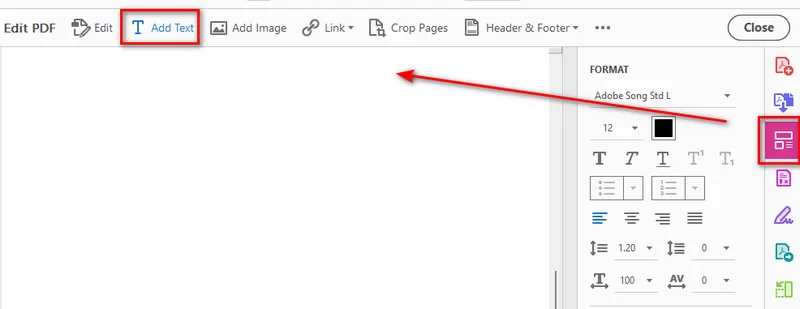
- Etapa 4: Digite o conteúdo que deseja adicionar dentro da caixa.
- Etapa 5: Use o painel à direita para ajustar fonte, tamanho, alinhamento e outras propriedades conforme necessário.
Adicionar uma caixa de texto como comentário
Se você deseja adicionar uma caixa de texto sem alterar o conteúdo original do PDF, pode usar as ferramentas de Comentário do Acrobat. Isso adiciona a caixa de texto como uma anotação que pode ser editada ou removida separadamente do conteúdo do documento.
- Etapa 1: Abra seu arquivo PDF no Adobe Acrobat.
- Etapa 2: Selecione Comentário na barra de ferramentas.
- Etapa 3: Escolha Adicionar caixa de texto na ferramenta Comentário.
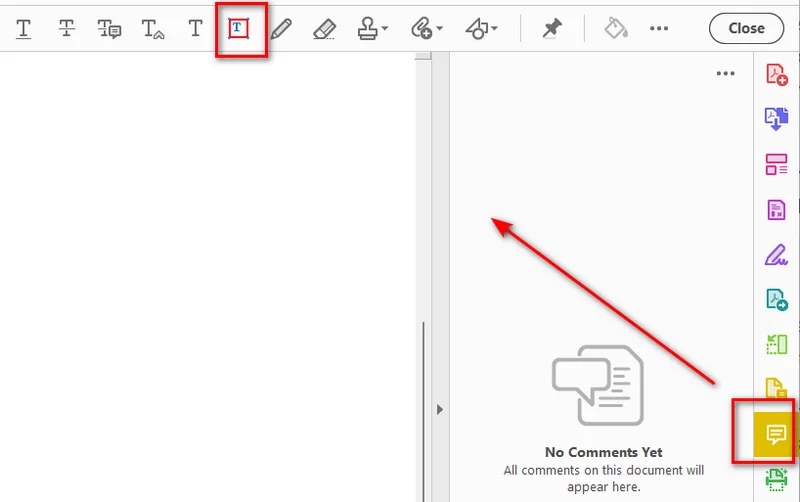
- Etapa 4: Clique na página para inserir a caixa de texto.
- Etapa 5: Insira seu texto e ajuste as propriedades da caixa de texto conforme necessário.
Observação: Lembre-se de que as anotações de caixa de texto flutuam acima da camada do documento, o que pode bloquear o texto ao redor.
Dica: Se você precisa adicionar texto normal a arquivos PDF programaticamente, pode usar Python para adicionar texto a arquivos PDF em vez de editá-los manualmente.
Adicionar uma caixa de texto a um PDF com Google Docs
Se você prefere uma solução online rápida, pode usar o Google Docs para realizar a tarefa diretamente no navegador. Essa abordagem envolve duas partes simples: primeiro, enviar seu PDF para o Google Drive e convertê-lo em Google Docs; segundo, usar a ferramenta Desenho integrada para inserir sua caixa de texto antes de exportar o arquivo de volta para PDF. Aqui estão as etapas detalhadas.
Converter o PDF em Google Docs
- Etapa 1: Abra o Google Drive no seu navegador e envie um arquivo PDF para o seu drive.
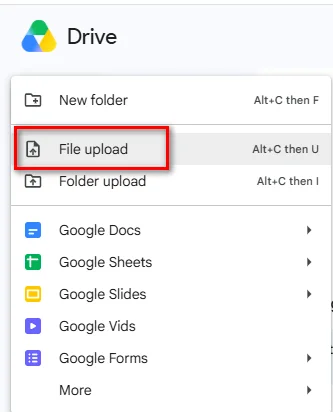
- Etapa 2: Clique com o botão direito no PDF enviado, selecione Abrir com e escolha Google Docs.
Criar e exportar a caixa de texto
Depois que o conteúdo do PDF for convertido para o Google Docs, você pode criar uma caixa de texto por meio da ferramenta Desenho:
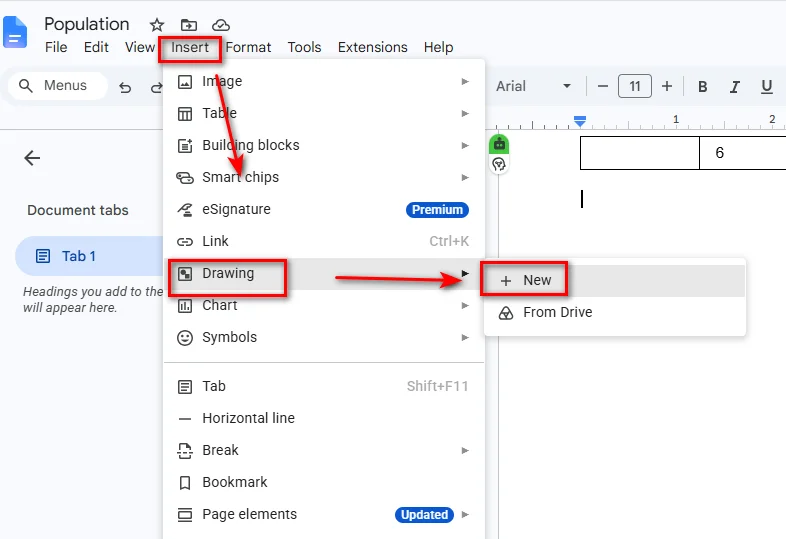
- Etapa 1: Coloque o cursor onde deseja que a caixa de texto apareça e selecione Inserir > Desenho > + Novo.
- Etapa 2: Clique no ícone Caixa de texto na barra de ferramentas superior da janela Desenho.
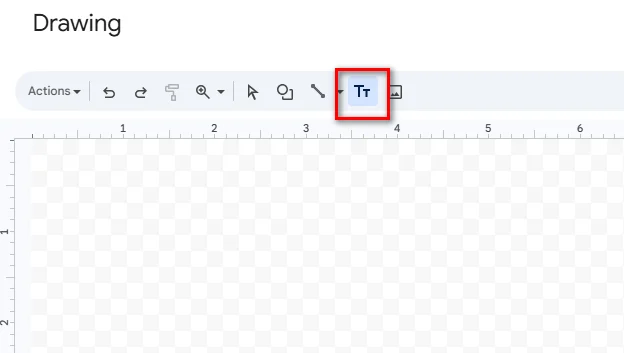
- Etapa 3: Clique e arraste na tela para desenhar a caixa e insira seu texto dentro dela.
- Etapa 4: Clique em Salvar e fechar no canto superior direito para inserir a caixa de texto no seu documento do Google Docs.
- Etapa 5: Selecione Arquivo > Fazer download > Documento PDF (.pdf) para salvar o documento editado de volta no seu computador.
Dica: O Google Docs é uma opção prática para PDFs simples e com muito texto. Se o arquivo original contiver layouts complexos, tabelas de várias colunas ou gráficos posicionados com precisão, verifique cuidadosamente o documento convertido antes de exportá-lo de volta para PDF.
Adicionar uma caixa de texto interativa a um PDF com Python
Se você precisa adicionar campos de texto programaticamente ou incorporar a criação de formulários PDF em um fluxo de trabalho automatizado, uma biblioteca PDF pode eliminar a edição manual repetitiva. Com Python, você pode criar uma caixa de texto interativa que os usuários podem clicar e preencher com um leitor de PDF.
Instalar o Free Spire.PDF for Python
Free Spire.PDF for Python é uma biblioteca PDF que permite aos desenvolvedores criar, ler, editar e converter documentos PDF programaticamente. Ela também oferece suporte a campos de formulário PDF, incluindo campos de texto interativos por meio da classe PdfTextBoxField.
Instale o pacote com:
pip install Spire.Pdf.Free
Criar um campo de caixa de texto interativo
O exemplo a seguir cria um novo documento PDF, adiciona um campo de caixa de texto interativo à sua primeira página, configura sua aparência e salva o arquivo.
import spire.pdf as pdf

# Create a new PDF document
doc = pdf.PdfDocument()

# Add a new blank page
page = doc.Pages.Add()

# Allow form fields to be created in the PDF
doc.AllowCreateForm = True

# Create an interactive text box field
text_box = pdf.PdfTextBoxField(page, "user_input_field")

# Set the location and dimensions
text_box.Bounds = pdf.RectangleF(50.0, 50.0, 300.0, 40.0)

# Set default text
text_box.Text = "Click here to enter your text..."

# Configure the font and border
font = pdf.PdfTrueTypeFont(
    "Arial",
    12.0,
    pdf.PdfFontStyle.Regular,
    True
)
text_box.Font = font
text_box.BorderWidth = 1.0
text_box.BorderStyle = pdf.PdfBorderStyle.Solid

# Allow multiple lines of text
text_box.Multiline = True

# Add the text field to the PDF form
doc.Form.Fields.Add(text_box)

# Save the generated PDF
doc.SaveToFile("/output/output_textbox.pdf", pdf.FileFormat.PDF)
doc.Close()
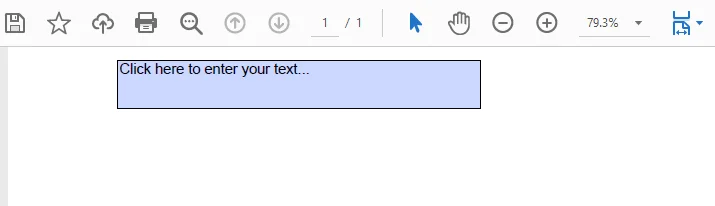
PdfTextBoxField cria um campo de formulário interativo, permitindo que os usuários abram o PDF resultante em um visualizador de PDF e cliquem diretamente para inserir ou editar conteúdo dentro da caixa.
A abordagem programática é particularmente útil ao criar fluxos de trabalho automatizados de geração de documentos que exigem a criação de formulários dinâmicos, faturas ou modelos de inscrição do zero.
Qual método você deve escolher?
O método correto depende de como você deseja adicionar e usar a caixa de texto.
| Solução | Melhor para | Prós | Contras |
|---|---|---|---|
| Adobe Acrobat | Edição no desktop e anotações em PDF | Controles precisos de posicionamento e formatação | Alguns recursos de edição e formulário exigem um plano pago |
| Google Docs | Alternativas simples e gratuitas para edição de PDF | Gratuito e não requer um editor de PDF para desktop | O layout do PDF pode mudar durante a conversão |
| Free Spire.PDF for Python | Desenvolvedores e fluxos de trabalho automatizados | Controle programático e suporte a formulários PDF interativos | Requer conhecimento básico de programação em Python |
Escolha o Adobe Acrobat quando precisar adicionar uma caixa de texto manualmente e quiser controle preciso sobre sua posição e aparência. Use o Google Docs quando precisar de uma solução gratuita para um documento relativamente simples e puder aceitar possíveis alterações de layout. Para aplicativos que precisam criar ou modificar campos PDF interativos programaticamente, o Free Spire.PDF for Python oferece uma abordagem baseada em código.
Você pode gostar: Como criar um PDF preenchível – 3 maneiras de tornar o PDF editável
Perguntas frequentes
P1: Posso adicionar uma caixa de texto a um PDF gratuitamente usando o Google Docs?
Sim. Você pode enviar um PDF para o Google Drive, abri-lo com o Google Docs e usar Inserir > Desenho > Caixa de texto para adicionar texto. Depois, você pode baixar o documento editado como PDF.
P2: Por que não consigo editar o texto em uma caixa de texto de PDF depois de salvar?
Uma caixa de texto pode ser adicionada como conteúdo regular do PDF, uma anotação ou um campo de formulário interativo. Se o texto foi adicionado como conteúdo regular ou achatado durante a exportação, ele não é mais um campo de formulário editável. Para permitir que os leitores de PDF insiram ou alterem o texto, você precisa criar um campo de texto de formulário interativo.
P3: Preciso ter o Adobe Acrobat instalado para executar scripts do Free Spire.PDF for Python?
Não. O Free Spire.PDF funciona independentemente do Adobe Acrobat. Você pode usar a biblioteca Python para criar e modificar documentos PDF sem instalar o Adobe Acrobat.
Conclusão
Adicionar uma caixa de texto a um PDF é simples depois que você escolhe o método certo. O Adobe Acrobat é adequado para adicionar caixas de texto manualmente, enquanto o Google Docs fornece uma alternativa online para documentos mais simples. Se você precisa de campos de texto interativos em um fluxo de trabalho automatizado de PDF, o Free Spire.PDF for Python permite criá-los programaticamente.
Leia também:
PDF에 텍스트 상자 추가하는 방법: 3가지 쉬운 방법
PDF에 텍스트 상자를 추가하는 것은 페이지에 추가 텍스트, 메모 또는 입력 영역을 배치해야 할 때 유용합니다. 작업 자체는 간단하지만, PDF에 텍스트 상자를 추가하는 방법을 아는 사람은 많지 않습니다. 이 가이드에서는 세 가지 방법을 다룹니다. 데스크톱 편집을 위한 Adobe Acrobat, 무료 대안인 Google Docs, 그리고 일괄 PDF 양식 생성을 위한 Python용 Free Spire.PDF입니다.
- Adobe Acrobat으로 PDF에 텍스트 상자 추가하기
- Google Docs로 PDF에 텍스트 상자 추가하기
- Python으로 PDF에 대화형 텍스트 상자 추가하기
- 어떤 방법을 선택해야 할까요?
- 자주 묻는 질문
Adobe Acrobat으로 PDF에 텍스트 상자 추가하기
Adobe Acrobat은 PDF에 텍스트를 추가하는 여러 가지 방법을 제공합니다. 편집 도구를 사용하여 페이지에 직접 새 텍스트를 배치하거나, 댓글 도구를 사용하여 원본 PDF 내용을 변경하지 않고 텍스트 상자 주석을 추가할 수 있습니다. 텍스트 상자가 작동하기를 원하는 방식에 맞는 옵션을 선택하세요.
PDF에 텍스트 직접 추가하기
텍스트가 PDF 콘텐츠의 일부가 되기를 원한다면 편집 도구를 사용하세요:
- 1단계: Adobe Acrobat에서 PDF 파일을 엽니다.
- 2단계: 측면 패널에서 PDF 편집을 클릭하여 상단 편집 도구 모음을 표시합니다.
- 3단계: 도구 모음에서 텍스트 추가를 선택한 다음, 페이지에서 클릭하고 드래그하여 텍스트 상자를 그립니다.
- 4단계: 상자 안에 추가하려는 내용을 입력합니다.
- 5단계: 오른쪽 패널을 사용하여 필요에 따라 글꼴, 크기, 정렬 및 기타 속성을 조정합니다.
댓글로 텍스트 상자 추가하기
원본 PDF 내용을 변경하지 않고 텍스트 상자를 추가하려면 Acrobat의 댓글 도구를 사용할 수 있습니다. 이렇게 하면 문서 내용과 별도로 편집하거나 제거할 수 있는 주석으로 텍스트 상자가 추가됩니다.
- 1단계: Adobe Acrobat에서 PDF 파일을 엽니다.
- 2단계: 도구 모음에서 댓글을 선택합니다.
- 3단계: 댓글 도구에서 텍스트 상자 추가를 선택합니다.
- 4단계: 페이지를 클릭하여 텍스트 상자를 삽입합니다.
- 5단계: 텍스트를 입력하고 필요에 따라 텍스트 상자 속성을 조정합니다.
참고: 텍스트 상자 주석은 문서 레이어 위에 떠 있으므로 주변 텍스트를 가릴 수 있다는 점을 명심하세요.
팁: PDF 파일에 일반 텍스트를 프로그래밍 방식으로 추가해야 하는 경우, 수동으로 편집하는 대신 Python을 사용하여 PDF 파일에 텍스트를 추가할 수 있습니다.
Google Docs로 PDF에 텍스트 상자 추가하기
빠른 온라인 솔루션을 선호한다면 웹 브라우저에서 바로 Google Docs를 사용하여 작업을 완료할 수 있습니다. 이 방법은 두 가지 간단한 단계로 구성됩니다. 먼저 PDF를 Google Drive에 업로드하여 Google Docs로 변환한 다음, 내장된 그리기 도구를 사용하여 텍스트 상자를 삽입하고 파일을 다시 PDF로 내보내는 것입니다. 자세한 단계는 다음과 같습니다.
PDF를 Google Docs로 변환하기
- 1단계: 웹 브라우저에서 Google Drive를 열고 드라이브에 PDF 파일을 업로드합니다.
- 2단계: 업로드한 PDF를 마우스 오른쪽 버튼으로 클릭하고 연결 프로그램을 선택한 다음 Google Docs를 선택합니다.
텍스트 상자 만들기 및 내보내기
PDF 콘텐츠가 Google Docs로 변환되면 그리기 도구를 통해 텍스트 상자를 만들 수 있습니다:
- 1단계: 텍스트 상자를 표시하려는 위치에 커서를 놓은 다음 삽입 > 그리기 > + 새로 만들기를 선택합니다.
- 2단계: 그리기 창 상단 도구 모음에서 텍스트 상자 아이콘을 클릭합니다.
- 3단계: 캔버스에서 클릭하고 드래그하여 상자를 그린 다음 그 안에 텍스트를 입력합니다.
- 4단계: 오른쪽 상단 모서리에서 저장 및 닫기를 클릭하여 Google Docs 문서에 텍스트 상자를 삽입합니다.
- 5단계: 파일 > 다운로드 > PDF 문서(.pdf)를 선택하여 편집한 문서를 컴퓨터에 다시 저장합니다.
팁: Google Docs는 간단하고 텍스트가 많은 PDF에 실용적인 옵션입니다. 원본 파일에 복잡한 레이아웃, 다단 표 또는 정밀하게 배치된 그래픽이 포함된 경우, PDF로 다시 내보내기 전에 변환된 문서를 주의 깊게 확인하세요.
Python으로 PDF에 대화형 텍스트 상자 추가하기
텍스트 필드를 프로그래밍 방식으로 추가하거나 PDF 양식 생성을 자동화된 워크플로에 통합해야 하는 경우, PDF 라이브러리를 사용하면 반복적인 수동 편집을 없앨 수 있습니다. Python을 사용하면 사용자가 PDF 리더에서 클릭하여 채울 수 있는 대화형 텍스트 상자를 만들 수 있습니다.
Python용 Free Spire.PDF 설치하기
Python용 Free Spire.PDF는 개발자가 프로그래밍 방식으로 PDF 문서를 생성, 읽기, 편집 및 변환할 수 있게 해주는 PDF 라이브러리입니다. 또한 PdfTextBoxField 클래스를 통한 대화형 텍스트 필드를 포함하여 PDF 양식 필드에 대한 지원도 제공합니다.
다음 명령으로 패키지를 설치하세요:
pip install Spire.Pdf.Free
대화형 텍스트 상자 필드 만들기
다음 예제는 새 PDF 문서를 만들고, 첫 번째 페이지에 대화형 텍스트 상자 필드를 추가하고, 모양을 구성한 다음 파일을 저장합니다.
import spire.pdf as pdf

# Create a new PDF document
doc = pdf.PdfDocument()

# Add a new blank page
page = doc.Pages.Add()

# Allow form fields to be created in the PDF
doc.AllowCreateForm = True

# Create an interactive text box field
text_box = pdf.PdfTextBoxField(page, "user_input_field")

# Set the location and dimensions
text_box.Bounds = pdf.RectangleF(50.0, 50.0, 300.0, 40.0)

# Set default text
text_box.Text = "Click here to enter your text..."

# Configure the font and border
font = pdf.PdfTrueTypeFont(
    "Arial",
    12.0,
    pdf.PdfFontStyle.Regular,
    True
)
text_box.Font = font
text_box.BorderWidth = 1.0
text_box.BorderStyle = pdf.PdfBorderStyle.Solid

# Allow multiple lines of text
text_box.Multiline = True

# Add the text field to the PDF form
doc.Form.Fields.Add(text_box)

# Save the generated PDF
doc.SaveToFile("/output/output_textbox.pdf", pdf.FileFormat.PDF)
doc.Close()
PdfTextBoxField는 대화형 양식 필드를 생성하여 사용자가 결과 PDF를 PDF 뷰어에서 열고 상자 안의 내용을 직접 클릭하여 입력하거나 편집할 수 있게 해줍니다.
프로그래밍 방식은 동적 양식, 인보이스 또는 신청서 템플릿을 처음부터 만들어야 하는 자동화된 문서 생성 워크플로를 구축할 때 특히 유용합니다.
어떤 방법을 선택해야 할까요?
올바른 방법은 텍스트 상자를 추가하고 사용하려는 방식에 따라 달라집니다.
| 솔루션 | 적합한 용도 | 장점 | 단점 |
|---|---|---|---|
| Adobe Acrobat | 데스크톱 편집 및 PDF 주석 | 정밀한 위치 지정 및 서식 제어 | 일부 편집 및 양식 기능은 유료 플랜 필요 |
| Google Docs | 간단하고 무료인 PDF 편집 대안 | 무료이며 데스크톱 PDF 편집기가 필요 없음 | 변환 중 PDF 레이아웃이 변경될 수 있음 |
| Python용 Free Spire.PDF | 개발자 및 자동화된 워크플로 | 프로그래밍 방식 제어 및 대화형 PDF 양식 지원 | 기본적인 Python 프로그래밍 지식 필요 |
텍스트 상자를 수동으로 추가하고 위치와 모양을 정밀하게 제어하려면 Adobe Acrobat을 선택하세요. 비교적 간단한 문서에 무료 솔루션이 필요하고 레이아웃 변경을 감수할 수 있다면 Google Docs를 사용하세요. 대화형 PDF 필드를 프로그래밍 방식으로 생성하거나 수정해야 하는 애플리케이션에는 Python용 Free Spire.PDF가 코드 기반 접근 방식을 제공합니다.
추천 글: 채울 수 있는 PDF 만드는 방법 – PDF를 편집 가능하게 만드는 3가지 방법
자주 묻는 질문
Q1: Google Docs를 사용하여 무료로 PDF에 텍스트 상자를 추가할 수 있나요?
네. PDF를 Google Drive에 업로드하고 Google Docs로 연 다음, 삽입 > 그리기 > 텍스트 상자를 사용하여 텍스트를 추가할 수 있습니다. 그런 다음 편집한 문서를 PDF로 다운로드할 수 있습니다.
Q2: 저장 후 PDF 텍스트 상자의 텍스트를 편집할 수 없는 이유는 무엇인가요?
텍스트 상자는 일반 PDF 콘텐츠, 주석 또는 대화형 양식 필드로 추가할 수 있습니다. 텍스트가 일반 콘텐츠로 추가되었거나 내보내기 중에 병합되었다면 더 이상 편집 가능한 양식 필드가 아닙니다. PDF 리더에서 텍스트를 입력하거나 변경할 수 있게 하려면 대화형 양식 텍스트 필드를 만들어야 합니다.
Q3: Python용 Free Spire.PDF 스크립트를 실행하려면 Adobe Acrobat이 설치되어 있어야 하나요?
아니요. Free Spire.PDF는 Adobe Acrobat과 독립적으로 작동합니다. Adobe Acrobat을 설치하지 않고도 Python 라이브러리를 사용하여 PDF 문서를 생성하고 수정할 수 있습니다.
결론
올바른 방법을 선택하기만 하면 PDF에 텍스트 상자를 추가하는 것은 간단합니다. Adobe Acrobat은 수동으로 텍스트 상자를 추가하는 데 적합하며, Google Docs는 더 간단한 문서를 위한 온라인 대안을 제공합니다. 자동화된 PDF 워크플로에서 대화형 텍스트 필드가 필요하다면 Python용 Free Spire.PDF를 사용하여 프로그래밍 방식으로 만들 수 있습니다.
함께 읽기:
Come aggiungere una casella di testo a un PDF: 3 metodi semplici
Indice dei contenuti
Aggiungere una casella di testo a un PDF è utile quando devi inserire testo aggiuntivo, note o aree di input in una pagina. Sebbene l'operazione sia semplice, non tutti sanno come aggiungere una casella di testo a un PDF. Questa guida illustra tre modi per farlo: Adobe Acrobat per la modifica su desktop, Google Docs come soluzione gratuita alternativa e Free Spire.PDF per Python per la creazione in batch di moduli PDF.
- Aggiungere una casella di testo a un PDF con Adobe Acrobat
- Aggiungere una casella di testo a un PDF con Google Docs
- Aggiungere una casella di testo interattiva a un PDF con Python
- Quale metodo dovresti scegliere?
- Domande frequenti
Aggiungere una casella di testo a un PDF con Adobe Acrobat
Adobe Acrobat offre diversi modi per aggiungere testo a un PDF. Puoi usare lo strumento Modifica per inserire nuovo testo direttamente nella pagina, oppure usare gli strumenti Commento per aggiungere un'annotazione a casella di testo senza modificare il contenuto originale del PDF. Scegli l'opzione che corrisponde a come vuoi che funzioni la casella di testo.
Aggiungere testo direttamente a un PDF
Se vuoi che il testo diventi parte del contenuto del PDF, usa lo strumento Modifica:
- Passaggio 1: Apri il tuo file PDF in Adobe Acrobat.
- Passaggio 2: Fai clic su Modifica PDF nel pannello laterale per visualizzare la barra degli strumenti di modifica in alto.
- Passaggio 3: Seleziona Aggiungi testo dalla barra degli strumenti, quindi fai clic e trascina sulla pagina per disegnare una casella di testo.
- Passaggio 4: Digita il contenuto che vuoi aggiungere all'interno della casella.
- Passaggio 5: Usa il pannello a destra per regolare il carattere, la dimensione, l'allineamento e altre proprietà secondo necessità.
Aggiungere una casella di testo come commento
Se vuoi aggiungere una casella di testo senza modificare il contenuto originale del PDF, puoi usare gli strumenti Commento di Acrobat. In questo modo la casella di testo viene aggiunta come annotazione che può essere modificata o rimossa separatamente dal contenuto del documento.
- Passaggio 1: Apri il tuo file PDF in Adobe Acrobat.
- Passaggio 2: Seleziona Commento dalla barra degli strumenti.
- Passaggio 3: Scegli Aggiungi casella di testo dallo strumento Commento.
- Passaggio 4: Fai clic sulla pagina per inserire la casella di testo.
- Passaggio 5: Inserisci il testo e regola le proprietà della casella di testo secondo necessità.
Nota: Tieni presente che le annotazioni a casella di testo fluttuano sopra il livello del documento, il che potrebbe bloccare il testo circostante.
Suggerimento: Se devi aggiungere testo normale ai file PDF a livello di programmazione, puoi usare Python per aggiungere testo ai file PDF invece di modificarli manualmente.
Aggiungere una casella di testo a un PDF con Google Docs
Se preferisci una soluzione online rapida, puoi usare Google Docs per completare l'operazione direttamente nel tuo browser web. Questo approccio prevede due semplici parti: prima, caricare il PDF su Google Drive e convertirlo in Google Docs, e poi, usare lo strumento Disegno integrato per inserire la casella di testo prima di esportare nuovamente il file in PDF. Ecco i passaggi dettagliati.
Convertire il PDF in Google Docs
- Passaggio 1: Apri Google Drive nel tuo browser web e carica un file PDF nel tuo drive.
- Passaggio 2: Fai clic con il pulsante destro del mouse sul PDF caricato, seleziona Apri con e scegli Google Docs.
Creare ed esportare la casella di testo
Una volta che il contenuto del PDF è stato convertito in Google Docs, puoi creare una casella di testo tramite lo strumento Disegno:
- Passaggio 1: Posiziona il cursore dove vuoi che appaia la casella di testo, quindi seleziona Inserisci > Disegno > + Nuovo.
- Passaggio 2: Fai clic sull'icona Casella di testo nella barra degli strumenti in alto della finestra Disegno.
- Passaggio 3: Fai clic e trascina sulla tela per disegnare la casella, quindi inserisci il testo all'interno.
- Passaggio 4: Fai clic su Salva e chiudi nell'angolo in alto a destra per inserire la casella di testo nel tuo documento Google Docs.
- Passaggio 5: Seleziona File > Scarica > Documento PDF (.pdf) per salvare il documento modificato sul tuo computer.
Suggerimento: Google Docs è un'opzione pratica per PDF semplici e ricchi di testo. Se il file originale contiene layout complessi, tabelle a più colonne o grafici posizionati con precisione, controlla attentamente il documento convertito prima di esportarlo nuovamente in PDF.
Aggiungere una casella di testo interattiva a un PDF con Python
Se devi aggiungere campi di testo a livello di programmazione o integrare la creazione di moduli PDF in un flusso di lavoro automatizzato, una libreria PDF può eliminare le ripetitive modifiche manuali. Con Python, puoi creare una casella di testo interattiva che gli utenti possono cliccare e compilare con un lettore PDF.
Installare Free Spire.PDF per Python
Free Spire.PDF per Python è una libreria PDF che consente agli sviluppatori di creare, leggere, modificare e convertire documenti PDF a livello di programmazione. Offre anche supporto per i campi modulo PDF, inclusi i campi di testo interattivi tramite la classe PdfTextBoxField.
Installa il pacchetto con:
pip install Spire.Pdf.Free
Creare un campo casella di testo interattiva
L'esempio seguente crea un nuovo documento PDF, aggiunge un campo casella di testo interattiva alla sua prima pagina, ne configura l'aspetto e salva il file.
import spire.pdf as pdf

# Create a new PDF document
doc = pdf.PdfDocument()

# Add a new blank page
page = doc.Pages.Add()

# Allow form fields to be created in the PDF
doc.AllowCreateForm = True

# Create an interactive text box field
text_box = pdf.PdfTextBoxField(page, "user_input_field")

# Set the location and dimensions
text_box.Bounds = pdf.RectangleF(50.0, 50.0, 300.0, 40.0)

# Set default text
text_box.Text = "Click here to enter your text..."

# Configure the font and border
font = pdf.PdfTrueTypeFont(
    "Arial",
    12.0,
    pdf.PdfFontStyle.Regular,
    True
)
text_box.Font = font
text_box.BorderWidth = 1.0
text_box.BorderStyle = pdf.PdfBorderStyle.Solid

# Allow multiple lines of text
text_box.Multiline = True

# Add the text field to the PDF form
doc.Form.Fields.Add(text_box)

# Save the generated PDF
doc.SaveToFile("/output/output_textbox.pdf", pdf.FileFormat.PDF)
doc.Close()
PdfTextBoxField crea un campo modulo interattivo, consentendo agli utenti di aprire il PDF risultante in un visualizzatore PDF e fare clic direttamente per inserire o modificare il contenuto all'interno della casella.
L'approccio programmatico è particolarmente utile quando si creano flussi di lavoro automatizzati di generazione di documenti che richiedono la creazione di moduli dinamici, fatture o modelli di domanda da zero.
Quale metodo dovresti scegliere?
Il metodo giusto dipende da come vuoi aggiungere e utilizzare la casella di testo.
| Soluzione | Ideale per | Pro | Contro |
|---|---|---|---|
| Adobe Acrobat | Modifica su desktop e annotazioni PDF | Posizionamento e controlli di formattazione precisi | Alcune funzionalità di modifica e moduli richiedono un piano a pagamento |
| Google Docs | Soluzioni alternative semplici e gratuite per la modifica di PDF | Gratuito e non richiede un editor PDF da desktop | Il layout del PDF potrebbe cambiare durante la conversione |
| Free Spire.PDF per Python | Sviluppatori e flussi di lavoro automatizzati | Controllo programmatico e supporto per moduli PDF interattivi | Richiede conoscenze di base di programmazione Python |
Scegli Adobe Acrobat quando devi aggiungere una casella di testo manualmente e desideri un controllo preciso sulla sua posizione e sul suo aspetto. Usa Google Docs quando hai bisogno di una soluzione gratuita per un documento relativamente semplice e puoi accettare possibili cambiamenti di layout. Per le applicazioni che devono creare o modificare campi PDF interattivi a livello di programmazione, Free Spire.PDF per Python offre un approccio basato sul codice.
Potrebbe interessarti: Come creare un PDF compilabile – 3 modi per rendere modificabile un PDF
Domande frequenti
D1: Posso aggiungere una casella di testo a un PDF gratuitamente usando Google Docs?
Sì. Puoi caricare un PDF su Google Drive, aprirlo con Google Docs e usare Inserisci > Disegno > Casella di testo per aggiungere testo. Puoi quindi scaricare il documento modificato come PDF.
D2: Perché non riesco a modificare il testo in una casella di testo PDF dopo il salvataggio?
Una casella di testo può essere aggiunta come contenuto PDF normale, come annotazione o come campo modulo interattivo. Se il testo è stato aggiunto come contenuto normale o appiattito durante l'esportazione, non è più un campo modulo modificabile. Per consentire ai lettori PDF di inserire o modificare il testo, devi creare un campo di testo modulo interattivo.
D3: Devo avere Adobe Acrobat installato per eseguire gli script di Free Spire.PDF per Python?
No. Free Spire.PDF funziona indipendentemente da Adobe Acrobat. Puoi usare la libreria Python per creare e modificare documenti PDF senza installare Adobe Acrobat.
Conclusione
Aggiungere una casella di testo a un PDF è semplice una volta scelto il metodo giusto. Adobe Acrobat è adatto per aggiungere caselle di testo manualmente, mentre Google Docs offre una soluzione online alternativa per documenti più semplici. Se hai bisogno di campi di testo interattivi in un flusso di lavoro PDF automatizzato, Free Spire.PDF per Python ti consente di crearli a livello di programmazione.
Leggi anche:
Comment ajouter une zone de texte à un PDF : 3 méthodes faciles
L'ajout d'une zone de texte à un PDF est utile lorsque vous devez placer du texte supplémentaire, des notes ou des zones de saisie sur une page. Bien que la tâche soit simple, tout le monde ne sait pas comment ajouter une zone de texte à un PDF. Ce guide couvre trois méthodes pour y parvenir : Adobe Acrobat pour l'édition sur ordinateur, Google Docs comme solution gratuite, et Free Spire.PDF pour Python pour la création de formulaires PDF en lot.
- Ajouter une zone de texte à un PDF avec Adobe Acrobat
- Ajouter une zone de texte à un PDF avec Google Docs
- Ajouter une zone de texte interactive à un PDF avec Python
- Quelle méthode choisir ?
- FAQ
Ajouter une zone de texte à un PDF avec Adobe Acrobat
Adobe Acrobat propose plusieurs façons d'ajouter du texte à un PDF. Vous pouvez utiliser l'outil Modifier pour placer du nouveau texte directement sur la page, ou utiliser les outils Commentaire pour ajouter une annotation de zone de texte sans modifier le contenu original du PDF. Choisissez l'option qui correspond à l'utilisation souhaitée de la zone de texte.
Ajouter du texte directement à un PDF
Si vous souhaitez que le texte fasse partie du contenu du PDF, utilisez l'outil Modifier :
- Étape 1 : Ouvrez votre fichier PDF dans Adobe Acrobat.
- Étape 2 : Cliquez sur Modifier le PDF dans le panneau latéral pour afficher la barre d'outils d'édition supérieure.
- Étape 3 : Sélectionnez Ajouter du texte dans la barre d'outils, puis cliquez et faites glisser sur la page pour dessiner une zone de texte.
- Étape 4 : Saisissez le contenu que vous souhaitez ajouter dans la zone.
- Étape 5 : Utilisez le panneau de droite pour ajuster la police, la taille, l'alignement et d'autres propriétés si nécessaire.
Ajouter une zone de texte en tant que commentaire
Si vous souhaitez ajouter une zone de texte sans modifier le contenu original du PDF, vous pouvez utiliser les outils Commentaire d'Acrobat. Cela ajoute la zone de texte en tant qu'annotation pouvant être modifiée ou supprimée indépendamment du contenu du document.
- Étape 1 : Ouvrez votre fichier PDF dans Adobe Acrobat.
- Étape 2 : Sélectionnez Commentaire dans la barre d'outils.
- Étape 3 : Choisissez Ajouter une zone de texte dans l'outil Commentaire.
- Étape 4 : Cliquez sur la page pour insérer la zone de texte.
- Étape 5 : Saisissez votre texte et ajustez les propriétés de la zone de texte si nécessaire.
Remarque : Gardez à l'esprit que les annotations de zone de texte flottent au-dessus de la couche du document, ce qui peut masquer le texte environnant.
Astuce : Si vous devez ajouter du texte standard à des fichiers PDF par programmation, vous pouvez utiliser Python pour ajouter du texte aux fichiers PDF au lieu de les modifier manuellement.
Ajouter une zone de texte à un PDF avec Google Docs
Si vous préférez une solution en ligne rapide, vous pouvez utiliser Google Docs pour effectuer le travail directement dans votre navigateur web. Cette approche comporte deux parties simples : premièrement, télécharger votre PDF sur Google Drive et le convertir en Google Docs, et deuxièmement, utiliser l'outil Dessin intégré pour insérer votre zone de texte avant d'exporter le fichier à nouveau au format PDF. Voici les étapes détaillées.
Convertir le PDF en Google Docs
- Étape 1 : Ouvrez Google Drive dans votre navigateur web et téléchargez un fichier PDF sur votre drive.
- Étape 2 : Cliquez avec le bouton droit sur le PDF téléchargé, sélectionnez Ouvrir avec, puis choisissez Google Docs.
Créer et exporter la zone de texte
Une fois le contenu du PDF converti en Google Docs, vous pouvez créer une zone de texte via l'outil Dessin :
- Étape 1 : Placez votre curseur à l'endroit où vous souhaitez que la zone de texte apparaisse, puis sélectionnez Insertion > Dessin > + Nouveau.
- Étape 2 : Cliquez sur l'icône Zone de texte dans la barre d'outils supérieure de la fenêtre Dessin.
- Étape 3 : Cliquez et faites glisser sur le canevas pour dessiner la zone, puis saisissez votre texte à l'intérieur.
- Étape 4 : Cliquez sur Enregistrer et fermer dans le coin supérieur droit pour insérer la zone de texte dans votre document Google Docs.
- Étape 5 : Sélectionnez Fichier > Télécharger > Document PDF (.pdf) pour enregistrer le document modifié sur votre ordinateur.
Astuce : Google Docs est une option pratique pour les PDF simples et riches en texte. Si le fichier original contient des mises en page complexes, des tableaux à plusieurs colonnes ou des graphiques positionnés avec précision, vérifiez attentivement le document converti avant de l'exporter à nouveau au format PDF.
Ajouter une zone de texte interactive à un PDF avec Python
Si vous devez ajouter des champs de texte par programmation ou intégrer la création de formulaires PDF dans un flux de travail automatisé, une bibliothèque PDF peut éliminer les modifications manuelles répétitives. Avec Python, vous pouvez créer une zone de texte interactive que les utilisateurs peuvent cliquer et remplir avec un lecteur PDF.
Installer Free Spire.PDF pour Python
Free Spire.PDF pour Python est une bibliothèque PDF qui permet aux développeurs de créer, lire, modifier et convertir des documents PDF par programmation. Elle offre également un support pour les champs de formulaire PDF, y compris les champs de texte interactifs via la classe PdfTextBoxField.
Installez le package avec :
pip install Spire.Pdf.Free
Créer un champ de zone de texte interactive
L'exemple suivant crée un nouveau document PDF, ajoute un champ de zone de texte interactive à sa première page, configure son apparence et enregistre le fichier.
import spire.pdf as pdf

# Create a new PDF document
doc = pdf.PdfDocument()

# Add a new blank page
page = doc.Pages.Add()

# Allow form fields to be created in the PDF
doc.AllowCreateForm = True

# Create an interactive text box field
text_box = pdf.PdfTextBoxField(page, "user_input_field")

# Set the location and dimensions
text_box.Bounds = pdf.RectangleF(50.0, 50.0, 300.0, 40.0)

# Set default text
text_box.Text = "Click here to enter your text..."

# Configure the font and border
font = pdf.PdfTrueTypeFont(
    "Arial",
    12.0,
    pdf.PdfFontStyle.Regular,
    True
)
text_box.Font = font
text_box.BorderWidth = 1.0
text_box.BorderStyle = pdf.PdfBorderStyle.Solid

# Allow multiple lines of text
text_box.Multiline = True

# Add the text field to the PDF form
doc.Form.Fields.Add(text_box)

# Save the generated PDF
doc.SaveToFile("/output/output_textbox.pdf", pdf.FileFormat.PDF)
doc.Close()
PdfTextBoxField crée un champ de formulaire interactif, permettant aux utilisateurs d'ouvrir le PDF résultant dans un lecteur PDF et de cliquer directement pour saisir ou modifier le contenu dans la zone.
L'approche programmatique est particulièrement utile lors de la création de flux de travail automatisés de génération de documents qui nécessitent la création de formulaires dynamiques, de factures ou de modèles de candidature à partir de zéro.
Quelle méthode choisir ?
La bonne méthode dépend de la façon dont vous souhaitez ajouter et utiliser la zone de texte.
| Solution | Idéal pour | Avantages | Inconvénients |
|---|---|---|---|
| Adobe Acrobat | Édition de bureau et annotations PDF | Contrôle précis du positionnement et du formatage | Certaines fonctions d'édition et de formulaire nécessitent un plan payant |
| Google Docs | Solutions simples et gratuites pour modifier des PDF | Gratuit et ne nécessite pas d'éditeur PDF de bureau | La mise en page du PDF peut changer lors de la conversion |
| Free Spire.PDF pour Python | Développeurs et flux de travail automatisés | Contrôle programmatique et prise en charge des formulaires PDF interactifs | Nécessite des connaissances de base en programmation Python |
Choisissez Adobe Acrobat lorsque vous devez ajouter une zone de texte manuellement et souhaitez un contrôle précis de sa position et de son apparence. Utilisez Google Docs lorsque vous avez besoin d'une solution gratuite pour un document relativement simple et que vous pouvez accepter d'éventuels changements de mise en page. Pour les applications qui doivent créer ou modifier des champs PDF interactifs par programmation, Free Spire.PDF pour Python offre une approche basée sur le code.
Vous aimerez peut-être : Comment créer un PDF remplissable – 3 façons de rendre un PDF modifiable
Questions fréquentes
Q1 : Puis-je ajouter une zone de texte à un PDF gratuitement avec Google Docs ?
Oui. Vous pouvez télécharger un PDF sur Google Drive, l'ouvrir avec Google Docs et utiliser Insertion > Dessin > Zone de texte pour ajouter du texte. Vous pouvez ensuite télécharger le document modifié au format PDF.
Q2 : Pourquoi ne puis-je pas modifier le texte dans une zone de texte PDF après l'enregistrement ?
Une zone de texte peut être ajoutée en tant que contenu PDF standard, annotation ou champ de formulaire interactif. Si le texte a été ajouté en tant que contenu standard ou aplati lors de l'exportation, il ne s'agit plus d'un champ de formulaire modifiable. Pour permettre aux lecteurs PDF de saisir ou de modifier le texte, vous devez créer un champ de texte de formulaire interactif.
Q3 : Dois-je installer Adobe Acrobat pour exécuter les scripts Free Spire.PDF pour Python ?
Non. Free Spire.PDF fonctionne indépendamment d'Adobe Acrobat. Vous pouvez utiliser la bibliothèque Python pour créer et modifier des documents PDF sans installer Adobe Acrobat.
Conclusion
L'ajout d'une zone de texte à un PDF est simple une fois que vous avez choisi la bonne méthode. Adobe Acrobat convient pour ajouter des zones de texte manuellement, tandis que Google Docs offre une solution en ligne pour les documents plus simples. Si vous avez besoin de champs de texte interactifs dans un flux de travail PDF automatisé, Free Spire.PDF pour Python vous permet de les créer par programmation.
À lire aussi :
Cómo agregar un cuadro de texto a un PDF: 3 métodos fáciles
Tabla de contenido
Agregar un cuadro de texto a un PDF es útil cuando necesitas colocar texto adicional, notas o áreas de entrada en una página. Aunque la tarea es sencilla, no todos saben cómo agregar un cuadro de texto a un PDF. Esta guía cubre tres formas de hacerlo: Adobe Acrobat para edición de escritorio, Google Docs como solución gratuita y Free Spire.PDF for Python para la creación de formularios PDF por lotes.
- Agregar un cuadro de texto a un PDF con Adobe Acrobat
- Agregar un cuadro de texto a un PDF con Google Docs
- Agregar un cuadro de texto interactivo a un PDF con Python
- ¿Qué método deberías elegir?
- Preguntas frecuentes
Agregar un cuadro de texto a un PDF con Adobe Acrobat
Adobe Acrobat ofrece varias formas de agregar texto a un PDF. Puedes usar la herramienta Editar para colocar texto nuevo directamente en la página, o usar las herramientas de Comentario para agregar una anotación de cuadro de texto sin cambiar el contenido original del PDF. Elige la opción que se adapte a cómo quieres que funcione el cuadro de texto.
Agregar texto directamente a un PDF
Si quieres que el texto forme parte del contenido del PDF, usa la herramienta Editar:
- Paso 1: Abre tu archivo PDF en Adobe Acrobat.
- Paso 2: Haz clic en Editar PDF en el panel lateral para mostrar la barra de herramientas de edición superior.
- Paso 3: Selecciona Agregar texto en la barra de herramientas, luego haz clic y arrastra en la página para dibujar un cuadro de texto.
- Paso 4: Escribe el contenido que quieres agregar dentro del cuadro.
- Paso 5: Usa el panel derecho para ajustar la fuente, el tamaño, la alineación y otras propiedades según sea necesario.
Agregar un cuadro de texto como comentario
Si quieres agregar un cuadro de texto sin cambiar el contenido original del PDF, puedes usar las herramientas de Comentario de Acrobat. Esto agrega el cuadro de texto como una anotación que se puede editar o eliminar por separado del contenido del documento.
- Paso 1: Abre tu archivo PDF en Adobe Acrobat.
- Paso 2: Selecciona Comentario en la barra de herramientas.
- Paso 3: Elige Agregar cuadro de texto en la herramienta Comentario.
- Paso 4: Haz clic en la página para insertar el cuadro de texto.
- Paso 5: Ingresa tu texto y ajusta las propiedades del cuadro de texto según sea necesario.
Nota: Ten en cuenta que las anotaciones de cuadro de texto flotan sobre la capa del documento, lo que podría bloquear el texto circundante.
Consejo: Si necesitas agregar texto normal a archivos PDF de forma programática, puedes usar Python para agregar texto a archivos PDF en lugar de editarlos manualmente.
Agregar un cuadro de texto a un PDF con Google Docs
Si prefieres una solución en línea rápida, puedes usar Google Docs para hacer el trabajo directamente en tu navegador web. Este enfoque implica dos partes simples: primero, subir tu PDF a Google Drive y convertirlo a Google Docs, y segundo, usar la herramienta Dibujo integrada para insertar tu cuadro de texto antes de exportar el archivo de nuevo a PDF. Aquí están los pasos detallados.
Convertir el PDF a Google Docs
- Paso 1: Abre Google Drive en tu navegador web y sube un archivo PDF a tu unidad.
- Paso 2: Haz clic derecho en el PDF subido, selecciona Abrir con y elige Google Docs.
Crear y exportar el cuadro de texto
Una vez que el contenido del PDF se haya convertido a Google Docs, puedes crear un cuadro de texto a través de la herramienta Dibujo:
- Paso 1: Coloca el cursor donde quieres que aparezca el cuadro de texto, luego selecciona Insertar > Dibujo > + Nuevo.
- Paso 2: Haz clic en el icono Cuadro de texto en la barra de herramientas superior de la ventana de Dibujo.
- Paso 3: Haz clic y arrastra en el lienzo para dibujar el cuadro, luego ingresa tu texto dentro.
- Paso 4: Haz clic en Guardar y cerrar en la esquina superior derecha para insertar el cuadro de texto en tu documento de Google Docs.
- Paso 5: Selecciona Archivo > Descargar > Documento PDF (.pdf) para guardar el documento editado de nuevo en tu computadora.
Consejo: Google Docs es una opción práctica para PDF simples con mucho texto. Si el archivo original contiene diseños complejos, tablas de varias columnas o gráficos posicionados con precisión, revisa el documento convertido con cuidado antes de exportarlo de nuevo a PDF.
Agregar un cuadro de texto interactivo a un PDF con Python
Si necesitas agregar campos de texto de forma programática o incorporar la creación de formularios PDF en un flujo de trabajo automatizado, una biblioteca PDF puede eliminar la edición manual repetitiva. Con Python, puedes crear un cuadro de texto interactivo que los usuarios pueden hacer clic y completar con un lector de PDF.
Instalar Free Spire.PDF for Python
Free Spire.PDF for Python es una biblioteca PDF que permite a los desarrolladores crear, leer, editar y convertir documentos PDF de forma programática. También proporciona soporte para campos de formulario PDF, incluidos campos de texto interactivos a través de la clase PdfTextBoxField.
Instala el paquete con:
pip install Spire.Pdf.Free
Crear un campo de cuadro de texto interactivo
El siguiente ejemplo crea un nuevo documento PDF, agrega un campo de cuadro de texto interactivo a su primera página, configura su apariencia y guarda el archivo.
import spire.pdf as pdf

# Create a new PDF document
doc = pdf.PdfDocument()

# Add a new blank page
page = doc.Pages.Add()

# Allow form fields to be created in the PDF
doc.AllowCreateForm = True

# Create an interactive text box field
text_box = pdf.PdfTextBoxField(page, "user_input_field")

# Set the location and dimensions
text_box.Bounds = pdf.RectangleF(50.0, 50.0, 300.0, 40.0)

# Set default text
text_box.Text = "Click here to enter your text..."

# Configure the font and border
font = pdf.PdfTrueTypeFont(
    "Arial",
    12.0,
    pdf.PdfFontStyle.Regular,
    True
)
text_box.Font = font
text_box.BorderWidth = 1.0
text_box.BorderStyle = pdf.PdfBorderStyle.Solid

# Allow multiple lines of text
text_box.Multiline = True

# Add the text field to the PDF form
doc.Form.Fields.Add(text_box)

# Save the generated PDF
doc.SaveToFile("/output/output_textbox.pdf", pdf.FileFormat.PDF)
doc.Close()
PdfTextBoxField crea un campo de formulario interactivo, lo que permite a los usuarios abrir el PDF resultante en un visor de PDF y hacer clic directamente para ingresar o editar contenido dentro del cuadro.
El enfoque programático es particularmente útil cuando se construyen flujos de trabajo automatizados de generación de documentos que requieren crear formularios dinámicos, facturas o plantillas de solicitud desde cero.
¿Qué método deberías elegir?
El método adecuado depende de cómo quieras agregar y usar el cuadro de texto.
| Solución | Ideal para | Ventajas | Desventajas |
|---|---|---|---|
| Adobe Acrobat | Edición de escritorio y anotaciones en PDF | Controles precisos de posicionamiento y formato | Algunas funciones de edición y formularios requieren un plan de pago |
| Google Docs | Soluciones gratuitas y simples para editar PDF | Gratuito y no requiere un editor de PDF de escritorio | El diseño del PDF puede cambiar durante la conversión |
| Free Spire.PDF for Python | Desarrolladores y flujos de trabajo automatizados | Control programático y soporte de formularios PDF interactivos | Requiere conocimientos básicos de programación en Python |
Elige Adobe Acrobat cuando necesites agregar un cuadro de texto manualmente y quieras un control preciso sobre su posición y apariencia. Usa Google Docs cuando necesites una solución gratuita para un documento relativamente simple y puedas aceptar posibles cambios de diseño. Para aplicaciones que necesiten crear o modificar campos PDF interactivos de forma programática, Free Spire.PDF for Python proporciona un enfoque basado en código.
Te puede gustar: Cómo crear un PDF rellenable – 3 formas de hacer un PDF editable
Preguntas frecuentes
P1: ¿Puedo agregar un cuadro de texto a un PDF gratis usando Google Docs?
Sí. Puedes subir un PDF a Google Drive, abrirlo con Google Docs y usar Insertar > Dibujo > Cuadro de texto para agregar texto. Luego puedes descargar el documento editado como PDF.
P2: ¿Por qué no puedo editar el texto en un cuadro de texto de PDF después de guardar?
Un cuadro de texto se puede agregar como contenido normal del PDF, una anotación o un campo de formulario interactivo. Si el texto se agregó como contenido normal o se acopló durante la exportación, ya no es un campo de formulario editable. Para permitir que los lectores de PDF ingresen o cambien el texto, necesitas crear un campo de texto de formulario interactivo.
P3: ¿Necesito tener Adobe Acrobat instalado para ejecutar scripts de Free Spire.PDF for Python?
No. Free Spire.PDF funciona independientemente de Adobe Acrobat. Puedes usar la biblioteca de Python para crear y modificar documentos PDF sin instalar Adobe Acrobat.
Conclusión
Agregar un cuadro de texto a un PDF es sencillo una vez que eliges el método adecuado. Adobe Acrobat es adecuado para agregar cuadros de texto manualmente, mientras que Google Docs proporciona una solución en línea para documentos más simples. Si necesitas campos de texto interactivos en un flujo de trabajo PDF automatizado, Free Spire.PDF for Python te permite crearlos de forma programática.
Leer también:
So fügen Sie ein Textfeld zu einem PDF hinzu: 3 einfache Methoden
Inhaltsverzeichnis
Das Hinzufügen eines Textfelds zu einem PDF ist nützlich, wenn Sie zusätzlichen Text, Notizen oder Eingabebereiche auf einer Seite platzieren müssen. Die Aufgabe ist zwar unkompliziert, aber nicht jeder weiß, wie man ein Textfeld zu einem PDF hinzufügt. Dieser Leitfaden behandelt drei Möglichkeiten: Adobe Acrobat für die Bearbeitung am Desktop, Google Docs als kostenlose Alternative und Free Spire.PDF für Python zur Batch-Erstellung von PDF-Formularen.
- Ein Textfeld zu einem PDF mit Adobe Acrobat hinzufügen
- Ein Textfeld zu einem PDF mit Google Docs hinzufügen
- Ein interaktives Textfeld zu einem PDF mit Python hinzufügen
- Welche Methode sollten Sie wählen?
- Häufig gestellte Fragen
Ein Textfeld zu einem PDF mit Adobe Acrobat hinzufügen
Adobe Acrobat bietet mehrere Möglichkeiten, Text zu einem PDF hinzuzufügen. Sie können das Werkzeug Bearbeiten verwenden, um neuen Text direkt auf der Seite zu platzieren, oder die Kommentar-Werkzeuge nutzen, um eine Textfeld-Anmerkung hinzuzufügen, ohne den ursprünglichen PDF-Inhalt zu verändern. Wählen Sie die Option, die zu der gewünschten Funktionsweise des Textfelds passt.
Text direkt zu einem PDF hinzufügen
Wenn der Text Teil des PDF-Inhalts werden soll, verwenden Sie das Werkzeug Bearbeiten:
- Schritt 1: Öffnen Sie Ihre PDF-Datei in Adobe Acrobat.
- Schritt 2: Klicken Sie im Seitenbereich auf PDF bearbeiten, um die obere Bearbeitungssymbolleiste einzublenden.
- Schritt 3: Wählen Sie Text hinzufügen in der Symbolleiste aus, klicken Sie dann auf die Seite und ziehen Sie, um ein Textfeld zu zeichnen.
- Schritt 4: Geben Sie den Inhalt ein, den Sie im Feld hinzufügen möchten.
- Schritt 5: Passen Sie im rechten Bereich bei Bedarf Schriftart, Größe, Ausrichtung und andere Eigenschaften an.
Ein Textfeld als Kommentar hinzufügen
Wenn Sie ein Textfeld hinzufügen möchten, ohne den ursprünglichen PDF-Inhalt zu verändern, können Sie die Kommentar-Werkzeuge von Acrobat verwenden. Dadurch wird das Textfeld als Anmerkung hinzugefügt, die unabhängig vom Dokumentinhalt bearbeitet oder entfernt werden kann.
- Schritt 1: Öffnen Sie Ihre PDF-Datei in Adobe Acrobat.
- Schritt 2: Wählen Sie Kommentar in der Symbolleiste aus.
- Schritt 3: Wählen Sie Textfeld hinzufügen im Kommentar-Werkzeug.
- Schritt 4: Klicken Sie auf die Seite, um das Textfeld einzufügen.
- Schritt 5: Geben Sie Ihren Text ein und passen Sie die Eigenschaften des Textfelds nach Bedarf an.
Hinweis: Beachten Sie, dass Textfeld-Anmerkungen über der Dokumentebene schweben und umgebenden Text verdecken können.
Tipp: Wenn Sie regelmäßig Text programmgesteuert zu PDF-Dateien hinzufügen müssen, können Sie mit Python Text zu PDF-Dateien hinzufügen, anstatt sie manuell zu bearbeiten.
Ein Textfeld zu einem PDF mit Google Docs hinzufügen
Wenn Sie eine schnelle Online-Lösung bevorzugen, können Sie Google Docs verwenden, um die Aufgabe direkt in Ihrem Webbrowser zu erledigen. Dieser Ansatz umfasst zwei einfache Teile: Erstens das Hochladen Ihres PDFs in Google Drive und die Konvertierung in Google Docs, und zweitens die Verwendung des integrierten Werkzeugs Zeichnung, um Ihr Textfeld einzufügen, bevor die Datei wieder als PDF exportiert wird. Hier sind die detaillierten Schritte.
Das PDF in Google Docs konvertieren
- Schritt 1: Öffnen Sie Google Drive in Ihrem Webbrowser und laden Sie eine PDF-Datei in Ihr Laufwerk hoch.
- Schritt 2: Klicken Sie mit der rechten Maustaste auf das hochgeladene PDF, wählen Sie Öffnen mit und dann Google Docs.
Das Textfeld erstellen und exportieren
Sobald der PDF-Inhalt in Google Docs konvertiert wurde, können Sie über das Zeichnungs-Werkzeug ein Textfeld erstellen:
- Schritt 1: Platzieren Sie den Cursor an der Stelle, an der das Textfeld erscheinen soll, und wählen Sie dann Einfügen > Zeichnung > + Neu.
- Schritt 2: Klicken Sie auf das Symbol Textfeld in der oberen Symbolleiste des Zeichnungsfensters.
- Schritt 3: Klicken Sie auf die Arbeitsfläche und ziehen Sie, um das Feld zu zeichnen, und geben Sie dann Ihren Text darin ein.
- Schritt 4: Klicken Sie oben rechts auf Speichern und schließen, um das Textfeld in Ihr Google Docs-Dokument einzufügen.
- Schritt 5: Wählen Sie Datei > Herunterladen > PDF-Dokument (.pdf), um das bearbeitete Dokument wieder auf Ihrem Computer zu speichern.
Tipp: Google Docs ist eine praktische Option für einfache, textlastige PDFs. Wenn die Originaldatei komplexe Layouts, mehrspaltige Tabellen oder präzise positionierte Grafiken enthält, prüfen Sie das konvertierte Dokument sorgfältig, bevor Sie es wieder als PDF exportieren.
Ein interaktives Textfeld zu einem PDF mit Python hinzufügen
Wenn Sie Textfelder programmgesteuert hinzufügen oder die Erstellung von PDF-Formularen in einen automatisierten Arbeitsablauf integrieren müssen, kann eine PDF-Bibliothek wiederholte manuelle Bearbeitung überflüssig machen. Mit Python können Sie ein interaktives Textfeld erstellen, das Benutzer mit einem PDF-Reader anklicken und ausfüllen können.
Free Spire.PDF für Python installieren
Free Spire.PDF für Python ist eine PDF-Bibliothek, mit der Entwickler PDF-Dokumente programmgesteuert erstellen, lesen, bearbeiten und konvertieren können. Sie bietet außerdem Unterstützung für PDF-Formularfelder, einschließlich interaktiver Textfelder über die Klasse PdfTextBoxField.
Installieren Sie das Paket mit:
pip install Spire.Pdf.Free
Ein interaktives Textfeld erstellen
Das folgende Beispiel erstellt ein neues PDF-Dokument, fügt ein interaktives Textfeld zu dessen erster Seite hinzu, konfiguriert dessen Erscheinungsbild und speichert die Datei.
import spire.pdf as pdf

# Create a new PDF document
doc = pdf.PdfDocument()

# Add a new blank page
page = doc.Pages.Add()

# Allow form fields to be created in the PDF
doc.AllowCreateForm = True

# Create an interactive text box field
text_box = pdf.PdfTextBoxField(page, "user_input_field")

# Set the location and dimensions
text_box.Bounds = pdf.RectangleF(50.0, 50.0, 300.0, 40.0)

# Set default text
text_box.Text = "Click here to enter your text..."

# Configure the font and border
font = pdf.PdfTrueTypeFont(
    "Arial",
    12.0,
    pdf.PdfFontStyle.Regular,
    True
)
text_box.Font = font
text_box.BorderWidth = 1.0
text_box.BorderStyle = pdf.PdfBorderStyle.Solid

# Allow multiple lines of text
text_box.Multiline = True

# Add the text field to the PDF form
doc.Form.Fields.Add(text_box)

# Save the generated PDF
doc.SaveToFile("/output/output_textbox.pdf", pdf.FileFormat.PDF)
doc.Close()
PdfTextBoxField erstellt ein interaktives Formularfeld, sodass Benutzer das resultierende PDF in einem PDF-Viewer öffnen und direkt klicken können, um Inhalte im Feld einzugeben oder zu bearbeiten.
Der programmgesteuerte Ansatz ist besonders nützlich beim Aufbau automatisierter Dokumentgenerierungs-Workflows, die das Erstellen dynamischer Formulare, Rechnungen oder Antragsvorlagen von Grund auf erfordern.
Welche Methode sollten Sie wählen?
Die richtige Methode hängt davon ab, wie Sie das Textfeld hinzufügen und verwenden möchten.
| Lösung | Am besten geeignet für | Vorteile | Nachteile |
|---|---|---|---|
| Adobe Acrobat | Bearbeitung am Desktop und PDF-Anmerkungen | Präzise Positionierung und Formatierungskontrolle | Einige Bearbeitungs- und Formularfunktionen erfordern einen kostenpflichtigen Plan |
| Google Docs | Einfache, kostenlose PDF-Bearbeitungs-Workarounds | Kostenlos und kein Desktop-PDF-Editor erforderlich | Das PDF-Layout kann sich während der Konvertierung ändern |
| Free Spire.PDF für Python | Entwickler und automatisierte Workflows | Programmgesteuerte Kontrolle und Unterstützung für interaktive PDF-Formulare | Erfordert grundlegende Python-Programmierkenntnisse |
Wählen Sie Adobe Acrobat, wenn Sie ein Textfeld manuell hinzufügen und präzise Kontrolle über dessen Position und Erscheinungsbild wünschen. Verwenden Sie Google Docs, wenn Sie eine kostenlose Lösung für ein relativ einfaches Dokument benötigen und mögliche Layoutänderungen akzeptieren können. Für Anwendungen, die interaktive PDF-Felder programmgesteuert erstellen oder ändern müssen, bietet Free Spire.PDF für Python einen codebasierten Ansatz.
Das könnte Ihnen gefallen: How to Create a Fillable PDF – 3 Ways to Make PDF Editable
Häufig gestellte Fragen
F1: Kann ich mit Google Docs kostenlos ein Textfeld zu einem PDF hinzufügen?
Ja. Sie können ein PDF in Google Drive hochladen, es mit Google Docs öffnen und Einfügen > Zeichnung > Textfeld verwenden, um Text hinzuzufügen. Anschließend können Sie das bearbeitete Dokument als PDF herunterladen.
F2: Warum kann ich den Text in einem PDF-Textfeld nach dem Speichern nicht mehr bearbeiten?
Ein Textfeld kann als regulärer PDF-Inhalt, als Anmerkung oder als interaktives Formularfeld hinzugefügt werden. Wenn Text als regulärer Inhalt hinzugefügt oder beim Export reduziert wurde, ist er kein bearbeitbares Formularfeld mehr. Damit PDF-Reader den Text eingeben oder ändern können, müssen Sie ein interaktives Formulartextfeld erstellen.
F3: Muss Adobe Acrobat installiert sein, um Free Spire.PDF für Python-Skripte auszuführen?
Nein. Free Spire.PDF funktioniert unabhängig von Adobe Acrobat. Sie können die Python-Bibliothek verwenden, um PDF-Dokumente zu erstellen und zu ändern, ohne Adobe Acrobat zu installieren.
Fazit
Das Hinzufügen eines Textfelds zu einem PDF ist unkompliziert, sobald Sie die richtige Methode gewählt haben. Adobe Acrobat eignet sich zum manuellen Hinzufügen von Textfeldern, während Google Docs einen Online-Workaround für einfachere Dokumente bietet. Wenn Sie interaktive Textfelder in einem automatisierten PDF-Workflow benötigen, können Sie diese mit Free Spire.PDF für Python programmgesteuert erstellen.
Auch lesen:
Как добавить текстовое поле в PDF: 3 простых способа
Добавление текстового поля в PDF полезно, когда вам нужно разместить на странице дополнительный текст, заметки или области для ввода. Хотя задача несложная, не все знают, как добавить текстовое поле в PDF. В этом руководстве описаны три способа сделать это: Adobe Acrobat для редактирования на компьютере, Google Docs как бесплатное обходное решение и Free Spire.PDF для Python для пакетного создания PDF-форм.
- Добавление текстового поля в PDF с помощью Adobe Acrobat
- Добавление текстового поля в PDF с помощью Google Docs
- Добавление интерактивного текстового поля в PDF с помощью Python
- Какой метод выбрать?
- Часто задаваемые вопросы
Добавление текстового поля в PDF с помощью Adobe Acrobat
Adobe Acrobat предлагает несколько способов добавления текста в PDF. Вы можете использовать инструмент Редактировать, чтобы разместить новый текст непосредственно на странице, или инструменты Комментарий, чтобы добавить аннотацию текстового поля, не изменяя исходное содержимое PDF. Выберите вариант, соответствующий вашим целям.
Добавление текста непосредственно в PDF
Если вы хотите, чтобы текст стал частью содержимого PDF, используйте инструмент «Редактировать»:
- Шаг 1: Откройте файл PDF в Adobe Acrobat.
- Шаг 2: Нажмите Редактировать PDF на боковой панели, чтобы открыть верхнюю панель инструментов редактирования.
- Шаг 3: Выберите Добавить текст на панели инструментов, затем щёлкните и перетащите на странице, чтобы нарисовать текстовое поле.
- Шаг 4: Введите содержимое, которое хотите добавить, внутри поля.
- Шаг 5: Используйте панель справа, чтобы настроить шрифт, размер, выравнивание и другие свойства по мере необходимости.
Добавление текстового поля в качестве комментария
Если вы хотите добавить текстовое поле, не изменяя исходное содержимое PDF, можно использовать инструменты комментирования Acrobat. Это добавляет текстовое поле в качестве аннотации, которую можно редактировать или удалять отдельно от содержимого документа.
- Шаг 1: Откройте файл PDF в Adobe Acrobat.
- Шаг 2: Выберите Комментарий на панели инструментов.
- Шаг 3: Выберите Добавить текстовое поле в инструменте комментариев.
- Шаг 4: Щёлкните на странице, чтобы вставить текстовое поле.
- Шаг 5: Введите текст и настройте свойства текстового поля по мере необходимости.
Примечание: Имейте в виду, что аннотации текстовых полей плавают над слоем документа, что может блокировать окружающий текст.
Совет: Если вам нужно программно добавить обычный текст в PDF-файлы, вы можете использовать Python, чтобы добавить текст в PDF-файлы вместо их ручного редактирования.
Добавление текстового поля в PDF с помощью Google Docs
Если вы предпочитаете быстрое онлайн-решение, вы можете использовать Google Docs, чтобы выполнить задачу прямо в веб-браузере. Этот подход включает две простые части: во-первых, загрузку PDF на Google Диск и преобразование его в Google Docs, и во-вторых, использование встроенного инструмента Рисование для вставки текстового поля перед экспортом файла обратно в PDF. Вот подробные шаги.
Преобразование PDF в Google Docs
- Шаг 1: Откройте Google Диск в веб-браузере и загрузите PDF-файл на свой диск.
- Шаг 2: Щёлкните правой кнопкой мыши на загруженном PDF, выберите Открыть с помощью и выберите Google Docs.
Создание и экспорт текстового поля
После того как содержимое PDF преобразовано в Google Docs, вы можете создать текстовое поле с помощью инструмента «Рисование»:
- Шаг 1: Установите курсор там, где хотите разместить текстовое поле, затем выберите Вставка > Рисунок > + Новый.
- Шаг 2: Нажмите значок Текстовое поле на верхней панели инструментов окна «Рисование».
- Шаг 3: Щёлкните и перетащите на холсте, чтобы нарисовать поле, затем введите текст внутри.
- Шаг 4: Нажмите Сохранить и закрыть в правом верхнем углу, чтобы вставить текстовое поле в документ Google Docs.
- Шаг 5: Выберите Файл > Скачать > Документ PDF (.pdf), чтобы сохранить отредактированный документ на компьютер.
Совет: Google Docs — практичный вариант для простых PDF с большим объёмом текста. Если исходный файл содержит сложные макеты, многоколоночные таблицы или точно позиционированную графику, внимательно проверьте преобразованный документ перед экспортом обратно в PDF.
Добавление интерактивного текстового поля в PDF с помощью Python
Если вам нужно программно добавить текстовые поля или включить создание PDF-форм в автоматизированный рабочий процесс, библиотека PDF может избавить от повторяющегося ручного редактирования. С помощью Python вы можете создать интерактивное текстовое поле, которое пользователи смогут заполнить в программе просмотра PDF.
Установка Free Spire.PDF для Python
Free Spire.PDF для Python — это библиотека PDF, позволяющая разработчикам создавать, читать, редактировать и преобразовывать PDF-документы программно. Она также поддерживает поля PDF-форм, включая интерактивные текстовые поля через класс PdfTextBoxField.
Установите пакет с помощью:
pip install Spire.Pdf.Free
Создание интерактивного поля текстового поля
Следующий пример создаёт новый PDF-документ, добавляет интерактивное поле текстового поля на первую страницу, настраивает его внешний вид и сохраняет файл.
import spire.pdf as pdf

# Create a new PDF document
doc = pdf.PdfDocument()

# Add a new blank page
page = doc.Pages.Add()

# Allow form fields to be created in the PDF
doc.AllowCreateForm = True

# Create an interactive text box field
text_box = pdf.PdfTextBoxField(page, "user_input_field")

# Set the location and dimensions
text_box.Bounds = pdf.RectangleF(50.0, 50.0, 300.0, 40.0)

# Set default text
text_box.Text = "Click here to enter your text..."

# Configure the font and border
font = pdf.PdfTrueTypeFont(
    "Arial",
    12.0,
    pdf.PdfFontStyle.Regular,
    True
)
text_box.Font = font
text_box.BorderWidth = 1.0
text_box.BorderStyle = pdf.PdfBorderStyle.Solid

# Allow multiple lines of text
text_box.Multiline = True

# Add the text field to the PDF form
doc.Form.Fields.Add(text_box)

# Save the generated PDF
doc.SaveToFile("/output/output_textbox.pdf", pdf.FileFormat.PDF)
doc.Close()
PdfTextBoxField создаёт интерактивное поле формы, позволяя пользователям открыть полученный PDF в программе просмотра PDF и непосредственно щёлкнуть, чтобы ввести или отредактировать содержимое внутри поля.
Программный подход особенно полезен при построении автоматизированных рабочих процессов создания документов, требующих создания динамических форм, счетов или шаблонов заявлений с нуля.
Какой метод выбрать?
Правильный метод зависит от того, как вы хотите добавить и использовать текстовое поле.
| Решение | Лучше всего подходит для | Плюсы | Минусы |
|---|---|---|---|
| Adobe Acrobat | Редактирование на компьютере и аннотации PDF | Точное позиционирование и управление форматированием | Некоторые функции редактирования и форм требуют платного плана |
| Google Docs | Простые бесплатные обходные решения для редактирования PDF | Бесплатно и не требует настольного редактора PDF | Макет PDF может измениться во время преобразования |
| Free Spire.PDF для Python | Разработчики и автоматизированные рабочие процессы | Программное управление и поддержка интерактивных PDF-форм | Требуются базовые знания программирования на Python |
Выбирайте Adobe Acrobat, когда вам нужно добавить текстовое поле вручную и требуется точный контроль над его положением и внешним видом. Используйте Google Docs, когда вам нужно бесплатное решение для относительно простого документа и вы можете принять возможные изменения макета. Для приложений, которым нужно программно создавать или изменять интерактивные поля PDF, Free Spire.PDF для Python предлагает подход на основе кода.
Вам может понравиться: Как создать заполняемый PDF – 3 способа сделать PDF редактируемым
Часто задаваемые вопросы
Вопрос 1: Могу ли я добавить текстовое поле в PDF бесплатно с помощью Google Docs?
Да. Вы можете загрузить PDF на Google Диск, открыть его с помощью Google Docs и использовать Вставка > Рисунок > Текстовое поле, чтобы добавить текст. Затем вы можете скачать отредактированный документ в формате PDF.
Вопрос 2: Почему я не могу редактировать текст в текстовом поле PDF после сохранения?
Текстовое поле может быть добавлено как обычное содержимое PDF, аннотация или интерактивное поле формы. Если текст был добавлен как обычное содержимое или сплющен во время экспорта, он больше не является редактируемым полем формы. Чтобы позволить программам просмотра PDF вводить или изменять текст, вам нужно создать интерактивное текстовое поле формы.
Вопрос 3: Нужно ли устанавливать Adobe Acrobat для запуска скриптов Free Spire.PDF для Python?
Нет. Free Spire.PDF работает независимо от Adobe Acrobat. Вы можете использовать библиотеку Python для создания и изменения PDF-документов без установки Adobe Acrobat.
Заключение
Добавление текстового поля в PDF становится простым, как только вы выберете правильный метод. Adobe Acrobat подходит для добавления текстовых полей вручную, а Google Docs предлагает онлайн-обходной путь для более простых документов. Если вам нужны интерактивные текстовые поля в автоматизированном рабочем процессе PDF, Free Spire.PDF для Python позволяет создавать их программно.
Читайте также:
How to Add a Text Box to a PDF: 3 Easy Methods
Adding a text box to a PDF is useful when you need to place additional text, notes, or input areas on a page. While the task is straightforward, not everyone knows how to add a text box to a PDF. This guide covers three ways to do it: Adobe Acrobat for desktop editing, Google Docs as a free workaround, and Free Spire.PDF for Python for batch PDF form creation.
- Add a Text Box to a PDF with Adobe Acrobat
- Add a Text Box to a PDF with Google Docs
- Add an Interactive Text Box to a PDF with Python
- Which Method Should You Choose?
- FAQs
Add a Text Box to a PDF with Adobe Acrobat
Adobe Acrobat provides several ways to add text to a PDF. You can use the Edit tool to place new text directly on the page, or use the Comment tools to add a text box annotation without changing the original PDF content. Choose the option that matches how you want the text box to work.
Add Text Directly to a PDF
If you want the text to become part of the PDF content, use the Edit tool:
- Step 1: Open your PDF file in Adobe Acrobat.
- Step 2: Click Edit PDF in the side panel to reveal the top editing toolbar.
- Step 3: Select Add Text from the toolbar, then click and drag on the page to draw a text box.
- Step 4: Type the content you want to add inside the box.
- Step 5: Use the right-hand panel to adjust font, size, alignment, and other properties as needed.
Add a Text Box as a Comment
If you want to add a text box without changing the original PDF content, you can use Acrobat’s Comment tools. This adds the text box as an annotation that can be edited or removed separately from the document content.
- Step 1: Open your PDF file in Adobe Acrobat.
- Step 2: Select Comment from the toolbar.
- Step 3: Choose Add text box from the Comment tool.
- Step 4: Click on the page to insert the text box.
- Step 5: Enter your text and adjust the text box properties as needed.
Note: Keep in mind that text box annotations float above the document layer, which might block surrounding text.
Tip: If you need to add regular text to PDF files programmatically, you can use Python to add text to PDF files instead of editing them manually.
Add a Text Box to a PDF with Google Docs
If you prefer a quick online solution, you can use Google Docs to get the job done directly in your web browser. This approach involves two simple parts: first, uploading your PDF to Google Drive and converting it to Google Docs, and second, using the built-in Drawing tool to insert your text box before exporting the file back to PDF. Here are the detailed steps.
Convert the PDF to Google Docs
- Step 1: Open Google Drive in your web browser and upload a PDF file into your drive.
- Step 2: Right-click the uploaded PDF, select Open with, and choose Google Docs.
Create and Export the Text Box
Once the PDF content has been converted to Google Docs, you can create a text box through the Drawing tool:
- Step 1: Place your cursor where you want the text box to appear, then select Insert > Drawing > + New.
- Step 2: Click the Text Box icon in the top toolbar of the Drawing window.
- Step 3: Click and drag on the canvas to draw the box, then enter your text inside.
- Step 4: Click Save and Close in the top right corner to insert the text box into your Google Docs document.
- Step 5: Select File > Download > PDF Document (.pdf) to save the edited document back to your computer.
Tip: Google Docs is a practical option for simple, text-heavy PDFs. If the original file contains complex layouts, multi-column tables, or precisely positioned graphics, check the converted document carefully before exporting it back to PDF.
Add an Interactive Text Box to a PDF with Python
If you need to add text fields programmatically or incorporate PDF form creation into an automated workflow, a PDF library can eliminate repetitive manual editing. With Python, you can create an interactive text box that users can click and fill in with a PDF reader.
Install Free Spire.PDF for Python
Free Spire.PDF for Python is a PDF library that allows developers to create, read, edit, and convert PDF documents programmatically. It also provides support for PDF form fields, including interactive text fields through the PdfTextBoxField class.
Install the package with:
pip install Spire.Pdf.Free
Create an Interactive Text Box Field
The following example creates a new PDF document, adds an interactive text box field to its first page, configures its appearance, and saves the file.
import spire.pdf as pdf

# Create a new PDF document
doc = pdf.PdfDocument()

# Add a new blank page
page = doc.Pages.Add()

# Allow form fields to be created in the PDF
doc.AllowCreateForm = True

# Create an interactive text box field
text_box = pdf.PdfTextBoxField(page, "user_input_field")

# Set the location and dimensions
text_box.Bounds = pdf.RectangleF(50.0, 50.0, 300.0, 40.0)

# Set default text
text_box.Text = "Click here to enter your text..."

# Configure the font and border
font = pdf.PdfTrueTypeFont(
    "Arial",
    12.0,
    pdf.PdfFontStyle.Regular,
    True
)
text_box.Font = font
text_box.BorderWidth = 1.0
text_box.BorderStyle = pdf.PdfBorderStyle.Solid

# Allow multiple lines of text
text_box.Multiline = True

# Add the text field to the PDF form
doc.Form.Fields.Add(text_box)

# Save the generated PDF
doc.SaveToFile("/output/output_textbox.pdf", pdf.FileFormat.PDF)
doc.Close()
PdfTextBoxField creates an interactive form field, allowing users to open the resulting PDF in a PDF viewer and directly click to enter or edit content inside the box.
The programmatic approach is particularly useful when building automated document-generation workflows that require creating dynamic forms, invoices, or application templates from scratch.
Which Method Should You Choose?
The right method depends on how you want to add and use the text box.
| Solution | Best For | Pros | Cons |
|---|---|---|---|
| Adobe Acrobat | Desktop editing and PDF annotations | Precise positioning and formatting controls | Some editing and form features require a paid plan |
| Google Docs | Simple, free PDF editing workarounds | Free and requires no desktop PDF editor | PDF layout may change during conversion |
| Free Spire.PDF for Python | Developers and automated workflows | Programmatic control and interactive PDF form support | Requires basic Python programming knowledge |
Choose Adobe Acrobat when you need to add a text box manually and want precise control over its position and appearance. Use Google Docs when you need a free solution for a relatively simple document and can accept possible layout changes. For applications that need to create or modify interactive PDF fields programmatically, Free Spire.PDF for Python provides a code-based approach.
You may like: How to Create a Fillable PDF – 3 Ways to Make PDF Editable
Frequently Asked Questions
Q1: Can I add a text box to a PDF for free using Google Docs?
Yes. You can upload a PDF to Google Drive, open it with Google Docs, and use Insert > Drawing > Text Box to add text. You can then download the edited document as a PDF.
Q2: Why can't I edit text in a PDF text box after saving?
A text box can be added as regular PDF content, an annotation, or an interactive form field. If text was added as regular content or flattened during export, it is no longer an editable form field. To let PDF readers enter or change the text, you need to create an interactive form text field.
Q3: Do I need Adobe Acrobat installed to run Free Spire.PDF for Python scripts?
No. Free Spire.PDF works independently of Adobe Acrobat. You can use the Python library to create and modify PDF documents without installing Adobe Acrobat.
Conclusion
Adding a text box to a PDF is straightforward once you choose the right method. Adobe Acrobat is suitable for adding text boxes manually, while Google Docs provides an online workaround for simpler documents. If you need interactive text fields in an automated PDF workflow, Free Spire.PDF for Python lets you create them programmatically.
Also Read:
How to Cite a PDF in MLA Format: Step-by-Step Guide
Citing a PDF in MLA requires more than simply adding “PDF” to a reference. The citation format depends on what the PDF contains, such as a book, journal article, or report, and where you accessed it. Once the citation is prepared, it must also be formatted correctly in the Works Cited list.
This guide explains how to cite a PDF in MLA, how to format the citation in Microsoft Word, and how to automate the formatting of multiple entries with Python.
- MLA Citation Requirements for PDF Documents
- Format a PDF Citation in MLA Quickly with Microsoft Word
- Format Multiple MLA PDF Citations with Python
- Get MLA Citation Information with Google Scholar or MyBib
- FAQs
MLA Citation Requirements for PDF Documents
MLA does not use one fixed citation format for every PDF. Instead, cite the work according to its type and include the relevant publication and access information.
Depending on the source, an MLA citation may include:
- Author
- Title
- Container, such as a journal, website, or database
- Publisher
- Publication date
- Page range, when applicable
- DOI or URL, when applicable
The ninth edition of the MLA Handbook, published in 2021, provides the current MLA documentation guidelines.
MLA PDF Citation Examples
- For a standalone book available as a PDF, the citation may follow the standard book format:
Chomsky, Noam. Media Control: The Spectacular Achievements of Propaganda. Seven Stories Press, 1997.
- For a journal article available as a PDF:
Rawls, John. “Kantian Constructivism in Moral Theory.” The Journal of Philosophy, vol. 77, no. 9, 1980, pp. 515–572.
A PDF downloaded from a website may require additional information about the website or the PDF version. MLA allows the description PDF download when it helps clarify the format of the source.
The exact citation should therefore be checked against the original source before formatting the final Works Cited entry.
How to Format a PDF Citation in MLA Quickly with Microsoft Word
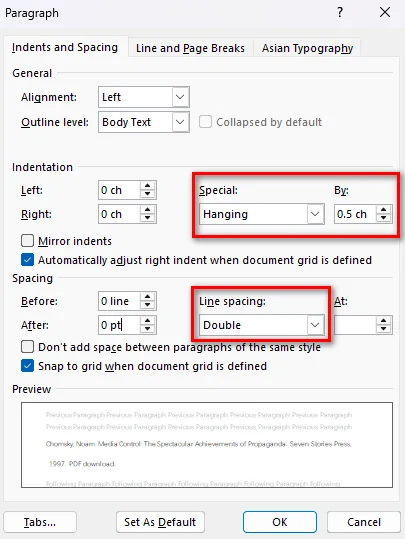
After preparing your citation, you can use Microsoft Word to apply the formatting required for a Works Cited list. MLA recommends a 0.5-inch hanging indent and double spacing.
Follow these steps:
- Step 1: Select the citation entries in your Works Cited list.
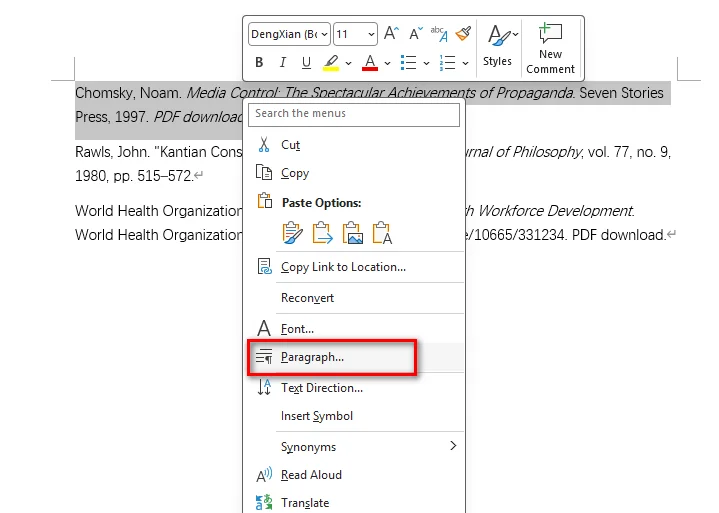
- Step 2: Right-click the selection, choose Paragraph.
- Step 3: Under Indentation, set Special to Hanging and By to 0.5 inches. And under Spacing, set Before and After to 0 pt, set Line spacing to Double, and click OK.
You can also press Ctrl + T on Windows or Command + T on Mac to apply a hanging indent quickly.
Avoid using spaces, tabs, or manual line breaks to create the indent. Paragraph formatting keeps the entries aligned when you edit the citation text.
Note: If you also need to place the original PDF in a Word document, see How to Insert a PDF into Word for methods to insert PDF content while preserving its layout and editability.
How to Format Multiple MLA PDF Citations with Python
Microsoft Word is convenient when you only need to format a few citations. For applications that generate reports, process user-submitted documents, or create large Works Cited lists, formatting citation entries programmatically can be more efficient.
Free Spire.Doc for Python is a standalone Python library for creating, editing, formatting, and converting Word documents without requiring Microsoft Word. It provides paragraph-formatting properties that can be used to create the hanging indent required for MLA citations.
You can combine LeftIndent with a negative FirstLineIndent. For a 0.5-inch hanging indent, set both values to 36 points in opposite directions.
The following example creates multiple MLA citation entries and applies the required formatting automatically:
from spire.doc import *
from spire.doc.common import *

# Create a document and section
doc = Document()
section = doc.AddSection()

# Sample MLA citation entries
citations = [
    "Chomsky, Noam. Media Control: The Spectacular Achievements of Propaganda. Seven Stories Press, 1997.",
    'Rawls, John. "Kantian Constructivism in Moral Theory." The Journal of Philosophy, vol. 77, no. 9, 1980, pp. 515–572.'
]

# Add and format each citation
for citation in citations:
    paragraph = section.AddParagraph()
    paragraph.AppendText(citation)

    # Apply a 0.5-inch hanging indent
    paragraph.Format.LeftIndent = 36.0
    paragraph.Format.FirstLineIndent = -36.0

    # Apply double spacing and remove paragraph spacing
    paragraph.Format.LineSpacingRule = LineSpacingRule.Multiple
    paragraph.Format.LineSpacing = 24.0
    paragraph.Format.BeforeSpacing = 0.0
    paragraph.Format.AfterSpacing = 0.0

# Save the document
doc.SaveToFile("MLA_PDF_Citations.docx", FileFormat.Docx2013)
doc.Close()

In the example, LeftIndent = 36.0 moves the paragraph content 0.5 inches to the right, while FirstLineIndent = -36.0 moves the first line back to the left margin. Together, they create a hanging indent.
The code also sets BeforeSpacing and AfterSpacing to 0.0 and uses LineSpacingRule.Multiple with LineSpacing = 24.0 to produce double spacing in this Free Spire.Doc configuration.
This approach is useful when you already have citation strings and need to generate a consistently formatted Word document from many entries.
Get MLA Citation Information with Google Scholar or MyBib
If you need help collecting citation information, tools such as Google Scholar and MyBib can provide a useful starting point.
Google Scholar provides a Cite option for many search results, while MyBib can generate MLA-style citations from available source information.
However, generated citations should still be checked against the original source. A citation tool may not always identify the source type, publication details, or PDF access method correctly.
A practical workflow is:
- Identify the type of work contained in the PDF.
- Collect the required publication information.
- Generate or prepare the MLA citation.
- Check the citation against the original source.
- Format the completed entries manually in Word or automatically with Python.
Frequently Asked Questions
Do I need to add “PDF download” to every MLA citation?
No. PDF download is not required for every PDF citation. It can be used as a description when you want to clarify that you consulted a PDF version of the source.
Does MLA use the same format for every PDF?
No. The citation depends on the type of work and how you accessed it. A book, journal article, and report downloaded from a website may require different citation information.
How do I format a PDF citation in an MLA Works Cited list?
Use a 0.5-inch hanging indent and double spacing for the citation entries. In Microsoft Word, you can apply the formatting through the Paragraph settings or use Ctrl + T on Windows.
Can I format multiple MLA PDF citations with Python?
Yes. If the citation text is already prepared, Free Spire.Doc for Python can create Word documents and apply consistent paragraph formatting to multiple citation entries. Properties such as LeftIndent and FirstLineIndent can be combined to create a hanging indent.
Conclusion
Citing a PDF in MLA becomes easier when you separate the process into two parts: preparing the citation based on the source and formatting the finished entry correctly. For a few citations, Microsoft Word provides a quick way to apply the required hanging indent and double spacing. When you need to format many entries consistently, Free Spire.Doc for Python can automate the process and generate a ready-to-use Word document.
Also Read:
How to Convert Table to Text in Word: Step-by-Step Guide
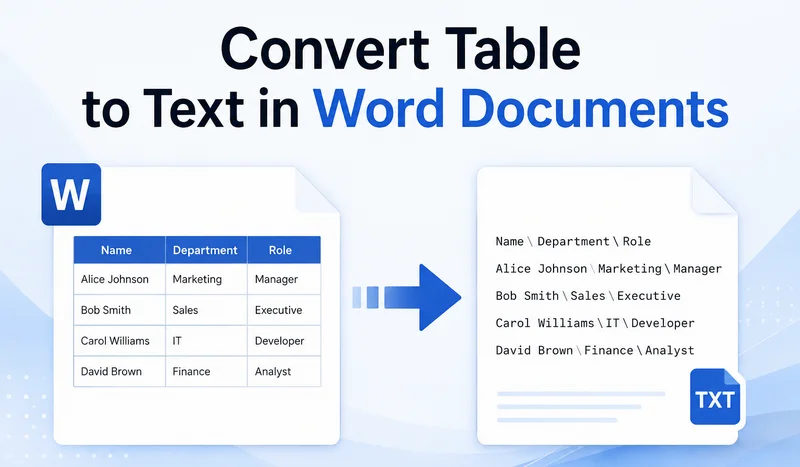
Word tables are useful for organizing data, but they can become inconvenient when you need to edit their contents as regular text. If you no longer need the table structure, you can convert a table to text using Word's built-in tool or automate the process with Python. This guide covers detailed steps for both methods, let's check them out.
- Convert Table to Text in Word with a Built-in Tool
- Convert Word Tables to Text with Python
- Export Table Data to an External TXT File
- FAQs
Convert Table to Text in Word with a Built-in Tool
Microsoft Word provides a built-in tool for converting tables to text. If you only need to convert one or two tables, the built-in tool is usually the quickest option. It removes the table structure and converts the cell contents into regular text.
How to change a table to text in MS Word:
- Step 1: Click anywhere inside the table to reveal the contextual Table Layout tab on the top ribbon.
- Step 2: Go to the Table Layout tab at the top menu, and click the Convert to Text button in the Data group.
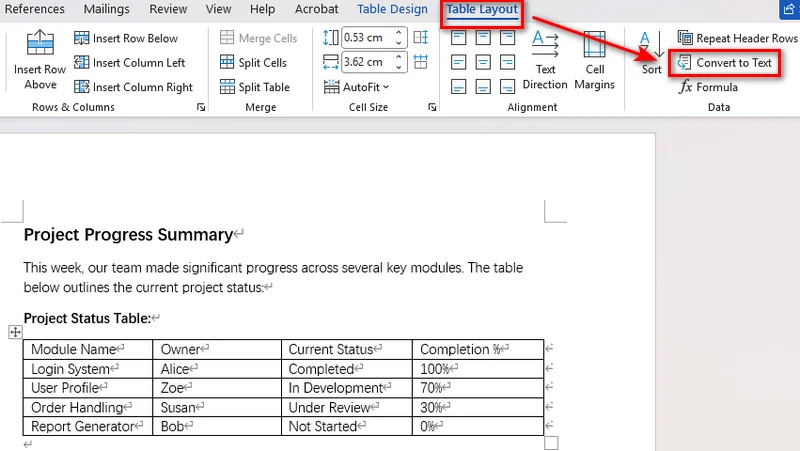
- Step 3: Select your preferred delimiter (tabs, commas, paragraph marks, or a custom character) to separate column values.
- Step 4: Click OK to transform the table into regular text paragraphs instantly.
Converting to Text vs. Hiding Borders
Hiding table borders only changes how the table looks. The cells, columns, and table structure remain in place, so the content is still constrained by the table layout.
Converting the table to text removes the table structure and turns the cell contents into regular paragraphs. You can then edit and format the content without the table layout.
Convert Word Tables to Text with Python
Word's built-in tool is convenient for converting individual tables, but it becomes less practical when you need to process many documents or tables. For Python developers, Free Spire.Doc for Python provides a way to automate table-to-text conversion without requiring Microsoft Word to be installed.
Converting a Table to Text
The script reads the text from each cell, joins cells in the same row with tab characters, inserts the resulting paragraphs where the table was located, and then removes the original table.
from spire.doc import *
from spire.doc.documents import *

# Initialize Document instance and load the target file
doc = Document()
doc.LoadFromFile("input.docx")

# Get the first section and target table
section = doc.Sections[0]
if section.Tables.Count > 0:
    table = section.Tables[0]

    # Extract text from cells line by line
    text_lines = []
    for j in range(table.Rows.Count):
        row = table.Rows.get_Item(j)
        row_cells_text = []
        for k in range(row.Cells.Count):
            cell = row.Cells.get_Item(k)

            # Extract text from cell paragraphs
            cell_text_pieces = []
            for p in range(cell.Paragraphs.Count):
                para_obj = cell.Paragraphs.get_Item(p)
                if para_obj.Text:
                    cell_text_pieces.append(para_obj.Text.strip())

            row_cells_text.append(" ".join(cell_text_pieces))

        # Join cell text using Tab separators
        text_lines.append("\t".join(row_cells_text))

    # Locate the table inside its parent block
    owner_block = table.OwnerTextBody
    table_index = owner_block.ChildObjects.IndexOf(table)

    # Insert new text paragraphs at the exact table position
    for line in reversed(text_lines):
        temp_para = section.AddParagraph()
        temp_para.Text = line
        section.Paragraphs.Remove(temp_para)
        owner_block.ChildObjects.Insert(table_index, temp_para)

    # Completely remove the table structure from the document structure
    owner_block.ChildObjects.Remove(table)

# Save the updated document
doc.SaveToFile("1st table to text.docx", FileFormat.Docx2016)
doc.Close()
Note: Multiple paragraphs within the same cell are combined into a single line separated by spaces.
Batch Processing All Tables
To convert all tables in a document into text, reuse the conversion logic from the previous example and apply it to every table in every section. Since each table is removed after conversion, tables should be processed in reverse order. Otherwise, deleting a table shifts the indices of the remaining tables, which may cause tables to be skipped or result in index errors.
from spire.doc import *
from spire.doc.documents import *

# Create a Document object and load a Word file
doc = Document()
doc.LoadFromFile("input.docx")

# Iterate through every section in the document
for s_idx in range(doc.Sections.Count):
    section = doc.Sections[s_idx]

    # Iterate backwards through tables to avoid index shifting issues
    table_count = section.Tables.Count
    for t_idx in range(table_count - 1, -1, -1):
        table = section.Tables.get_Item(t_idx)

        # Collect text from all rows and cells
        text_lines = []
        for j in range(table.Rows.Count):
            row = table.Rows.get_Item(j)
            row_cells_text = []
            for k in range(row.Cells.Count):
                cell = row.Cells.get_Item(k)
                cell_text_pieces = []
                for p in range(cell.Paragraphs.Count):
                    para_obj = cell.Paragraphs.get_Item(p)
                    if para_obj.Text:
                        cell_text_pieces.append(para_obj.Text.strip())
                row_cells_text.append(" ".join(cell_text_pieces))
            text_lines.append("\t".join(row_cells_text))

        # Replace the table node with plain paragraphs in-place
        owner_block = table.OwnerTextBody
        table_index = owner_block.ChildObjects.IndexOf(table)

        for line in reversed(text_lines):
            temp_para = section.AddParagraph()
            temp_para.Text = line
            section.Paragraphs.Remove(temp_para)
            owner_block.ChildObjects.Insert(table_index, temp_para)

        # Safely remove the current table
        owner_block.ChildObjects.Remove(table)

# Save the final file
doc.SaveToFile("all tables to text.docx", FileFormat.Docx2016)
doc.Close()
Tip: Export Table Data to an External TXT File
In many data pipeline workflows, the goal is to get information rather than modify original layout files. If you only need tabular text for database ingestion, logging, or plain text archiving, It is even easier. You can quickly extract raw cell contents and write them straight into an external text file with Free Spire.Doc.
Code Example
from spire.doc import *
from spire.doc.common import *

# Create a Document instance
doc = Document()

# Load a Word document
doc.LoadFromFile("input.docx")

# Get the first table
table = doc.Sections[0].Tables[0]

# Extract table text
tableData = ''
for j in range(table.Rows.Count):
    row = table.Rows.get_Item(j)

    for k in range(row.Cells.Count):
        cell = row.Cells.get_Item(k)

        for p in range(cell.Paragraphs.Count):
            tableData += cell.Paragraphs.get_Item(p).Text + ' '

        if k < row.Cells.Count - 1:
            tableData += '\t'

    tableData += '\n'

# Save the extracted text to a TXT file
with open("/table_text.txt", "w", encoding="utf-8") as f:
    f.write(tableData)

doc.Close()
Tip: For structured tabular data, you can also convert Word tables to CSV for use in spreadsheets, databases, and other data-processing workflows.
Frequently Asked Questions
Q1: What should I do if the converted text looks misaligned?
Using tabs (\t) preserves structural spacing best. If column alignment still looks uneven in Word, select the converted paragraphs and adjust the Tab Stops on the horizontal ruler.
Q2: How can I convert text back into a table in Word?
To reverse the process, highlight your text, go to Insert > Table, and click Convert Text to Table. Select the matching delimiter (e.g., tabs or commas) to rebuild your table.
Q3: What is the shortcut key for converting a table to text in Word?
Microsoft Word does not provide a dedicated keyboard shortcut for Convert to Text. You can access the command through the Ribbon or customize a shortcut through Word's keyboard settings.
Summary
This article introduced two ways to convert tables in Word documents to text. Word's built-in tool works well for individual tables or a small number of documents, while Free Spire.Doc for Python is better suited to automated processing of multiple tables. You can also extract table contents to a TXT file for plain-text storage or further processing.