Come rimuovere il testo da un PDF (con o senza Adobe)
Devi correggere un refuso, rimuovere informazioni obsolete o eliminare contenuti indesiderati da un PDF? Esistono diversi modi per rimuovere testo da un PDF, a seconda di quanto contenuto devi modificare e se preferisci la modifica manuale, l'automazione o uno strumento online.
Questa guida illustra tre metodi principali usando Adobe Acrobat, Python e un editor PDF online, più un approccio alternativo per modificare il testo in Word prima di riconvertire il documento in PDF.
Come rimuovere testo da PDF con Adobe Acrobat
Adobe Acrobat è uno degli strumenti PDF più conosciuti, quindi è spesso una delle prime opzioni che le persone considerano quando devono modificare un PDF. Ti consente di modificare direttamente il testo PDF esistente, rendendolo una scelta pratica per rimuovere alcune parole, correggere piccole sezioni o aggiornare informazioni obsolete senza ricostruire l'intero documento.
- Passaggio 1: apri il PDF in Adobe Acrobat. Fai clic su Modifica PDF nella barra laterale destra oppure vai su Modifica > Modifica testo e immagini nella barra degli strumenti.
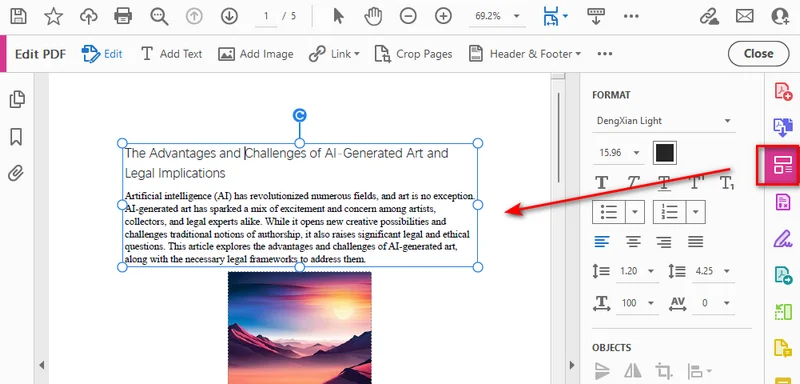
- Passaggio 2: seleziona il testo o la casella di testo che vuoi rimuovere, quindi premi Backspace su Windows o Delete su macOS.
Nota: la modifica del testo esistente in Adobe Acrobat richiede un abbonamento a pagamento. Se devi rimuovere informazioni riservate in modo permanente, usa lo strumento Redazione invece di limitarti a eliminare il testo.
Come eliminare testo da PDF usando Python
Se devi rimuovere lo stesso testo da più PDF o ripetere l'operazione regolarmente, Python può automatizzare il processo. Free Spire.PDF for Python è una libreria PDF gratuita che consente agli sviluppatori di creare, leggere, modificare e salvare documenti PDF tramite codice Python. Fornisce API per lavorare con testo, pagine, immagini e altri elementi dei documenti PDF, il che la rende utile per automatizzare attività PDF comuni. In questo esempio, useremo la sua classe PdfTextReplacer per trovare un testo specifico e sostituirlo con una stringa vuota, così puoi rimuovere testo indesiderato da un PDF senza modificare manualmente ogni occorrenza.
Passaggio 1: installare Free Spire.PDF per Python
Per prima cosa, installa Free Spire.PDF per Python nel tuo ambiente Python. Puoi usare pip per installare il pacchetto:
pip install Spire.Pdf.Free
Poi importa la libreria nel tuo script Python:
from spire.pdf import *
Con la libreria installata, puoi caricare un PDF, elaborarne le pagine e salvare il risultato a livello di programmazione.
Passaggio 2: caricare il PDF e rimuovere il testo di destinazione
La classe PdfTextReplacer fornisce il metodo ReplaceAllText() per sostituire il testo corrispondente in una pagina. L'esempio seguente rimuove ogni occorrenza corrispondente del testo di destinazione dalle pagine PDF.
from spire.pdf import *

# Define the input file, output file, and target text.
input_file = "input.pdf"
output_file = "output.pdf"
target_text = "AI-Generated"

# Load the source PDF.
pdf = PdfDocument()
pdf.LoadFromFile(input_file)

# Find and remove the target text on each page.
for i in range(pdf.Pages.Count):
    page = pdf.Pages.get_Item(i)
    replacer = PdfTextReplacer(page)
    replacer.ReplaceAllText(target_text, "")

# Save the modified PDF and release resources.
pdf.SaveToFile(output_file)
pdf.Close()
Ecco l'anteprima del file PDF modificato:
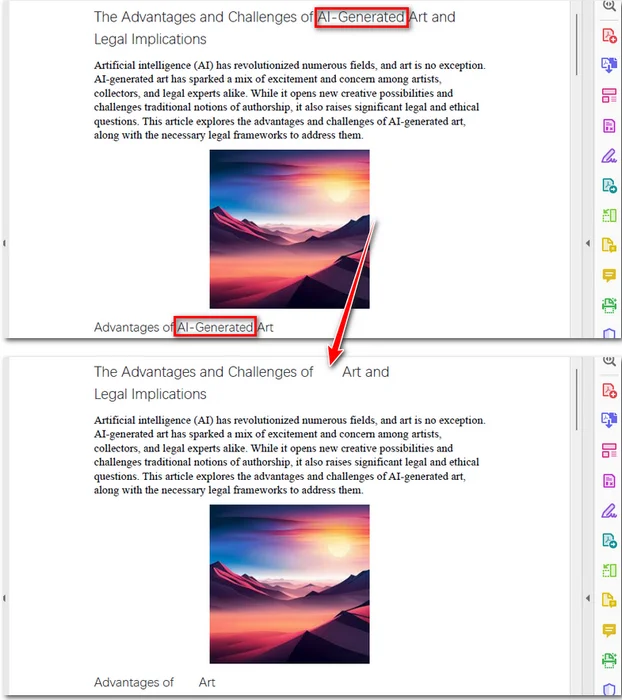
Il metodo ReplaceAllText() usa una stringa vuota ("") per sostituire ogni occorrenza corrispondente del testo di destinazione in una pagina. Questo ti consente di rimuovere rapidamente testo ripetuto, come una parola o una frase specifica, in tutto un PDF. Tuttavia, le pagine PDF usano un layout fisso, quindi rimuovere testo non rifluisce automaticamente il contenuto circostante. Il testo originale può scomparire, ma lo spazio che occupava può rimanere vuoto.
Per impostazione predefinita, l'esempio distingue maiuscole e minuscole nel testo di destinazione. Ad esempio, "AI-Generated" e "ai-generated" possono essere considerati corrispondenze diverse. Per rendere la sostituzione senza distinzione tra maiuscole e minuscole, imposta l'opzione ReplaceType su ReplaceActionType.IgnoreCase prima di chiamare ReplaceAllText():
replacer.Options.ReplaceType = ReplaceActionType.IgnoreCase
replacer.ReplaceAllText(target_text, "")
Come rimuovere testo da PDF online
Se vuoi rimuovere testo da un PDF senza installare software, un editor PDF online è un'opzione comoda. Lo strumento Modifica PDF di iLovePDF ti consente di modificare o eliminare testo esistente direttamente nel browser, rendendolo utile per correzioni rapide e per rimuovere contenuti indesiderati.
- Passaggio 1: vai allo strumento Modifica PDF di iLovePDF e carica il tuo file PDF.
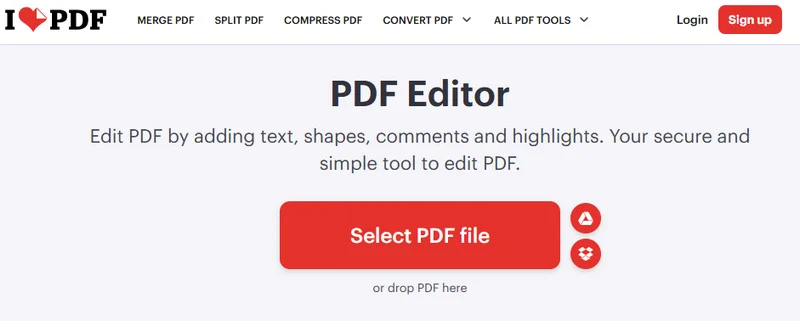
- Passaggio 2: fai clic sull'icona Modifica nella barra degli strumenti per abilitare la modifica. Seleziona il testo che vuoi rimuovere, quindi elimina il contenuto indesiderato.
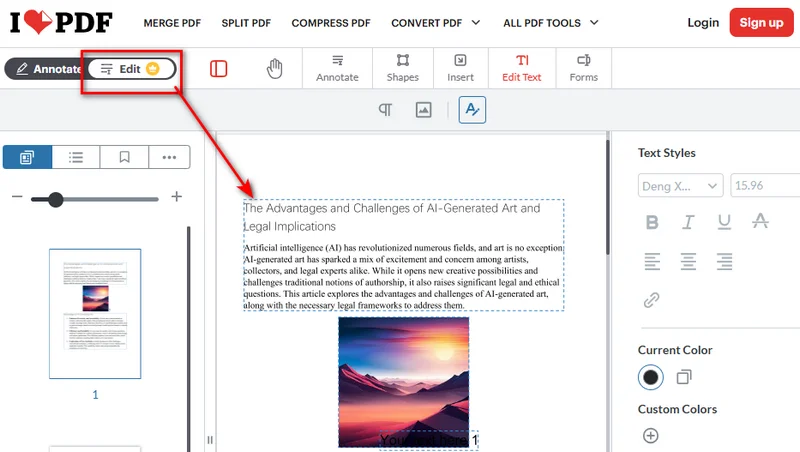
- Passaggio 3: controlla le modifiche e fai clic su Modifica PDF per elaborare il file. Scarica il PDF modificato sul tuo dispositivo.
Gli strumenti di modifica online sono comodi per rimuovere testo ordinario, correggere errori e aggiornare il contenuto di un documento. Tuttavia, limitarsi a eliminare testo in un editor non equivale a oscurare in modo sicuro informazioni sensibili. Se devi rimuovere dati riservati in modo permanente, usa uno strumento di redazione dedicato e verifica che il testo originale non possa più essere cercato, copiato o estratto. Prima di caricare un documento privato, controlla l'informativa sulla privacy del servizio.
Alternativa: convertire PDF in Word per rimuovere testo
Se devi modificare sezioni di testo più estese, convertire il PDF in Word può essere un'altra opzione. Apri il documento convertito in Microsoft Word, elimina il testo indesiderato e salvalo di nuovo come PDF.
Tuttavia, la conversione può influire sul layout originale, specialmente nei documenti con formattazione complessa, tabelle o immagini. Controlla attentamente il documento convertito prima di esportarlo di nuovo in PDF.
Ideale per: modificare passaggi più lunghi o apportare più modifiche al contenuto di un PDF.
Quale metodo scegliere?
Ogni metodo ha i suoi punti di forza e limiti. La scelta migliore dipende da quanto testo devi rimuovere, con che frequenza elabori PDF e come preferisci lavorare. La tabella seguente confronta le opzioni disponibili per aiutarti a scegliere quella giusta.
| Metodo | Caso d'uso ideale | Limitazione principale |
|---|---|---|
| Adobe Acrobat | Eliminazione manuale del testo o piccole correzioni | La modifica del testo esistente richiede un abbonamento a pagamento |
| Free Spire.PDF for Python | Automazione della sostituzione del testo su più PDF | Può lasciare spazi vuoti dove è stato rimosso il testo |
| iLovePDF Modifica PDF | Apportare modifiche rapide online senza installare software | Richiede il caricamento del PDF su un servizio online |
| Conversione da PDF a Word | Modificare passaggi più lunghi o apportare modifiche estese | Può influire sul layout originale durante la conversione |
Domande frequenti
1. Come estrarre testo da un PDF?
Estrarre testo è diverso da rimuoverlo. Se il PDF contiene testo selezionabile, spesso puoi copiarlo direttamente o usare uno strumento di estrazione testo PDF. Per i PDF scansionati, potresti aver bisogno del riconoscimento ottico dei caratteri (OCR) per riconoscere il testo nelle immagini delle pagine.
2. Perché non riesco a eliminare una casella di testo in un PDF?
Questi PDF possono contenere contenuto appiattito, immagini di pagine scansionate o testo convertito in contorni. Se il testo fa parte di un'immagine, avrai bisogno di OCR o di un approccio di modifica delle immagini invece della normale modifica del testo PDF.
3. Come posso rimuovere testo da un PDF senza rimuovere lo sfondo?
Di solito puoi eliminare il testo direttamente con un editor PDF senza influire sullo sfondo. Tuttavia, coprire il testo con un rettangolo bianco o nero può anche coprire motivi di sfondo o immagini.
4. Come posso far scomparire definitivamente il testo in un PDF?
Usa un editor PDF per eliminare il testo dal documento. Se lo copri solo con un rettangolo bianco o nero, il testo originale potrebbe essere ancora recuperabile. Per informazioni sensibili, usa uno strumento di redazione per rimuovere definitivamente il contenuto.
Conclusione
Puoi rimuovere testo da un PDF usando un editor desktop, Python o uno strumento online. Adobe Acrobat e iLovePDF sono comodi per modifiche rapide, mentre Free Spire.PDF è utile per automatizzare la sostituzione ripetuta del testo. Se devi apportare modifiche estese, convertire il PDF in Word può essere un'altra opzione, anche se il layout originale potrebbe non essere completamente preservato. Scegli il metodo adatto al tuo flusso di lavoro e rendi la modifica dei PDF più rapida ed efficiente.
Leggi anche:
Comment supprimer du texte d'un PDF (avec ou sans Adobe)
Table des matières
Besoin de corriger une faute de frappe, de supprimer des informations obsolètes ou de supprimer du contenu indésirable d'un PDF ? Il existe plusieurs façons de supprimer du texte d'un PDF, selon la quantité de contenu à modifier et selon que vous préférez l'édition manuelle, l'automatisation ou un outil en ligne.
Ce guide couvre trois méthodes principales utilisant Adobe Acrobat, Python et un éditeur PDF en ligne, ainsi qu'une approche alternative pour modifier le texte dans Word avant de reconvertir le document au format PDF.
Comment supprimer du texte d'un PDF avec Adobe Acrobat
Adobe Acrobat est l'un des outils PDF les plus connus, c'est donc souvent l'une des premières options envisagées lorsqu'il faut modifier un PDF. Il permet de modifier directement le texte existant d'un PDF, ce qui en fait un choix pratique pour supprimer quelques mots, corriger de petites sections ou mettre à jour des informations obsolètes sans reconstruire tout le document.
- Étape 1 : Ouvrez le PDF dans Adobe Acrobat. Cliquez sur Modifier le PDF dans la barre latérale droite, ou allez dans Modifier > Modifier le texte et les images dans la barre d'outils.
- Étape 2 : Sélectionnez le texte ou la zone de texte à supprimer, puis appuyez sur Retour arrière sous Windows ou sur Supprimer sous macOS.
Remarque : La modification du texte existant dans Adobe Acrobat nécessite un abonnement payant. Si vous devez supprimer définitivement des informations confidentielles, utilisez l'outil Masquer plutôt que de simplement supprimer le texte.
Comment supprimer du texte d'un PDF avec Python
Si vous devez supprimer le même texte de plusieurs PDF ou répéter régulièrement cette tâche, Python peut automatiser le processus. Free Spire.PDF for Python est une bibliothèque PDF gratuite qui permet aux développeurs de créer, lire, modifier et enregistrer des documents PDF via du code Python. Elle fournit des API pour travailler avec le texte, les pages, les images et d'autres éléments de document PDF, ce qui la rend utile pour automatiser les tâches PDF courantes. Dans cet exemple, nous utiliserons sa classe PdfTextReplacer pour rechercher un texte spécifique et le remplacer par une chaîne vide, afin de pouvoir supprimer le texte indésirable d'un PDF sans modifier manuellement chaque occurrence.
Étape 1 : installer Free Spire.PDF for Python
Tout d'abord, installez Free Spire.PDF for Python dans votre environnement Python. Vous pouvez utiliser pip pour installer le package :
pip install Spire.Pdf.Free
Importez ensuite la bibliothèque dans votre script Python :
from spire.pdf import *
Une fois la bibliothèque installée, vous pouvez charger un PDF, traiter ses pages et enregistrer le résultat par programmation.
Étape 2 : charger le PDF et supprimer le texte cible
La classe PdfTextReplacer fournit la méthode ReplaceAllText() pour remplacer le texte correspondant sur une page. L'exemple suivant supprime chaque occurrence correspondante du texte cible dans les pages du PDF.
from spire.pdf import *

# Define the input file, output file, and target text.
input_file = "input.pdf"
output_file = "output.pdf"
target_text = "AI-Generated"

# Load the source PDF.
pdf = PdfDocument()
pdf.LoadFromFile(input_file)

# Find and remove the target text on each page.
for i in range(pdf.Pages.Count):
    page = pdf.Pages.get_Item(i)
    replacer = PdfTextReplacer(page)
    replacer.ReplaceAllText(target_text, "")

# Save the modified PDF and release resources.
pdf.SaveToFile(output_file)
pdf.Close()
Voici un aperçu du fichier PDF modifié :
La méthode ReplaceAllText() utilise une chaîne vide ("") pour remplacer chaque occurrence correspondante du texte cible sur une page. Cela vous permet de supprimer rapidement du texte répété, comme un mot ou une expression spécifique, dans l'ensemble d'un PDF. Toutefois, les pages PDF utilisent une mise en page fixe, donc la suppression du texte ne réajuste pas automatiquement le contenu environnant. Le texte d'origine peut disparaître, mais l'espace qu'il occupait peut rester vide.
Par défaut, l'exemple respecte la casse du texte cible. Par exemple, "AI-Generated" et "ai-generated" peuvent être traités comme des correspondances différentes. Pour rendre le remplacement insensible à la casse, définissez l'option ReplaceType sur ReplaceActionType.IgnoreCase avant d'appeler ReplaceAllText() :
replacer.Options.ReplaceType = ReplaceActionType.IgnoreCase
replacer.ReplaceAllText(target_text, "")
Comment supprimer du texte d'un PDF en ligne
Si vous souhaitez supprimer du texte d'un PDF sans installer de logiciel, un éditeur PDF en ligne est une option pratique. L'outil Modifier le PDF d'iLovePDF vous permet de modifier ou de supprimer directement le texte existant dans votre navigateur, ce qui est utile pour les corrections rapides et la suppression de contenu indésirable.
- Étape 1 : Rendez-vous sur l'outil Modifier le PDF d'iLovePDF et téléchargez votre fichier PDF.
- Étape 2 : Cliquez sur l'icône Modifier dans la barre d'outils pour activer l'édition. Sélectionnez le texte à supprimer, puis supprimez le contenu indésirable.
- Étape 3 : Vérifiez vos modifications et cliquez sur Modifier le PDF pour traiter le fichier. Téléchargez le PDF modifié sur votre appareil.
Les outils d'édition en ligne sont pratiques pour supprimer du texte ordinaire, corriger des erreurs et mettre à jour le contenu d'un document. Toutefois, supprimer simplement du texte dans un éditeur n'équivaut pas à masquer de manière sécurisée des informations sensibles. Si vous devez supprimer définitivement des données confidentielles, utilisez un outil de masquage dédié et vérifiez que le texte d'origine ne peut plus être recherché, copié ou extrait. Avant de téléverser un document privé, consultez la politique de confidentialité du service.
Alternative : convertir un PDF en Word pour supprimer du texte
Si vous devez modifier de plus grandes sections de texte, convertir le PDF en Word peut être une autre option. Ouvrez le document converti dans Microsoft Word, supprimez le texte indésirable et enregistrez-le à nouveau au format PDF.
Cependant, la conversion peut affecter la mise en page d'origine, en particulier dans les documents avec une mise en forme complexe, des tableaux ou des images. Vérifiez attentivement le document converti avant de l'exporter à nouveau au format PDF.
Idéal pour : modifier de longs passages ou apporter plusieurs modifications au contenu d'un PDF.
Quelle méthode choisir ?
Chaque méthode a ses propres atouts et limites. Le meilleur choix dépend de la quantité de texte à supprimer, de la fréquence à laquelle vous traitez des PDF et de votre façon de travailler. Le tableau ci-dessous compare les options disponibles pour vous aider à choisir celle qui convient.
| Méthode | Meilleur cas d'utilisation | Principale limite |
|---|---|---|
| Adobe Acrobat | Supprimer manuellement du texte ou apporter de petites corrections | La modification du texte existant nécessite un abonnement payant |
| Free Spire.PDF for Python | Automatiser le remplacement de texte sur plusieurs PDF | Peut laisser des espaces vides là où le texte a été supprimé |
| iLovePDF Modifier le PDF | Effectuer des modifications rapides en ligne sans installer de logiciel | Nécessite de téléverser le PDF vers un service en ligne |
| Conversion PDF vers Word | Modifier de longs passages ou apporter des changements importants | Peut affecter la mise en page d'origine lors de la conversion |
FAQ
1. Comment extraire du texte d'un PDF ?
L'extraction de texte est différente de sa suppression. Si le PDF contient du texte sélectionnable, vous pouvez souvent le copier directement ou utiliser un outil d'extraction de texte PDF. Pour les PDF numérisés, vous pouvez avoir besoin de la reconnaissance optique de caractères (OCR) pour reconnaître le texte dans les images des pages.
2. Pourquoi ne puis-je pas supprimer une zone de texte dans un PDF ?
Ces PDF peuvent contenir du contenu aplati, des images de pages numérisées ou du texte converti en contours. Si le texte fait partie d'une image, vous aurez besoin de l'OCR ou d'une approche d'édition d'image plutôt que d'une édition de texte PDF ordinaire.
3. Comment supprimer du texte d'un PDF sans supprimer l'arrière-plan ?
Vous pouvez généralement supprimer le texte directement avec un éditeur PDF sans affecter l'arrière-plan. Toutefois, masquer le texte avec un rectangle blanc ou noir peut aussi masquer les motifs ou les images d'arrière-plan.
4. Comment faire disparaître définitivement du texte dans un PDF ?
Utilisez un éditeur PDF pour supprimer le texte du document. Si vous le masquez seulement avec un rectangle blanc ou noir, le texte d'origine peut encore être récupérable. Pour les informations sensibles, utilisez un outil de masquage pour supprimer définitivement le contenu.
Conclusion
Vous pouvez supprimer du texte d'un PDF à l'aide d'un éditeur de bureau, de Python ou d'un outil en ligne. Adobe Acrobat et iLovePDF sont pratiques pour des modifications rapides, tandis que Free Spire.PDF est utile pour automatiser le remplacement répété de texte. Si vous devez apporter des changements importants, convertir le PDF en Word peut être une autre option, bien que la mise en page d'origine puisse ne pas être entièrement préservée. Choisissez la méthode adaptée à votre flux de travail et rendez l'édition PDF plus rapide et plus efficace.
À lire également :
Cómo eliminar texto de un PDF (con o sin Adobe)
Tabla de contenido
¿Necesitas corregir una errata, eliminar información desactualizada o borrar contenido no deseado de un PDF? Hay varias formas de eliminar texto de un PDF, según cuánto contenido necesites cambiar y si prefieres la edición manual, la automatización o una herramienta en línea.
Esta guía cubre tres métodos principales usando Adobe Acrobat, Python y un editor de PDF en línea, además de un enfoque alternativo para editar texto en Word antes de convertir el documento de nuevo a PDF.
Cómo eliminar texto de un PDF con Adobe Acrobat
Adobe Acrobat es una de las herramientas PDF más conocidas, por lo que suele ser una de las primeras opciones que la gente considera cuando necesita editar un PDF. Permite editar texto PDF existente directamente, lo que lo convierte en una opción práctica para eliminar algunas palabras, corregir pequeñas secciones o actualizar información desactualizada sin reconstruir todo el documento.
- Paso 1: Abre el PDF en Adobe Acrobat. Haz clic en Editar PDF en la barra lateral derecha, o ve a Editar > Editar texto e imágenes en la barra de herramientas.
- Paso 2: Selecciona el texto o el cuadro de texto que quieres eliminar y, a continuación, pulsa Retroceso en Windows o Suprimir en macOS.
Nota: La edición de texto existente en Adobe Acrobat requiere una suscripción de pago. Si necesitas eliminar información confidencial de forma permanente, usa la herramienta Censurar en lugar de simplemente eliminar el texto.
Cómo eliminar texto de un PDF usando Python
Si necesitas eliminar el mismo texto de varios PDF o repetir la tarea con regularidad, Python puede automatizar el proceso. Free Spire.PDF for Python es una biblioteca PDF gratuita que permite a los desarrolladores crear, leer, editar y guardar documentos PDF mediante código Python. Proporciona API para trabajar con texto, páginas, imágenes y otros elementos de documentos PDF, lo que la hace útil para automatizar tareas comunes con PDF. En este ejemplo, usaremos su clase PdfTextReplacer para encontrar texto específico y reemplazarlo con una cadena vacía, de modo que puedas eliminar texto no deseado de un PDF sin editar manualmente cada aparición.
Paso 1: Instalar Free Spire.PDF for Python
Primero, instala Free Spire.PDF for Python en tu entorno de Python. Puedes usar pip para instalar el paquete:
pip install Spire.Pdf.Free
Luego, importa la biblioteca en tu script de Python:
from spire.pdf import *
Con la biblioteca instalada, puedes cargar un PDF, procesar sus páginas y guardar el resultado mediante programación.
Paso 2: Cargar el PDF y eliminar el texto objetivo
La clase PdfTextReplacer proporciona el método ReplaceAllText() para reemplazar texto coincidente en una página. El siguiente ejemplo elimina cada aparición coincidente del texto objetivo de las páginas del PDF.
from spire.pdf import *

# Define the input file, output file, and target text.
input_file = "input.pdf"
output_file = "output.pdf"
target_text = "AI-Generated"

# Load the source PDF.
pdf = PdfDocument()
pdf.LoadFromFile(input_file)

# Find and remove the target text on each page.
for i in range(pdf.Pages.Count):
    page = pdf.Pages.get_Item(i)
    replacer = PdfTextReplacer(page)
    replacer.ReplaceAllText(target_text, "")

# Save the modified PDF and release resources.
pdf.SaveToFile(output_file)
pdf.Close()
Aquí tienes la vista previa del archivo PDF modificado:
El método ReplaceAllText() usa una cadena vacía ("") para reemplazar cada aparición coincidente del texto objetivo en una página. Esto te permite eliminar rápidamente texto repetido, como una palabra o frase específica, en todo un PDF. Sin embargo, las páginas PDF usan un diseño fijo, por lo que eliminar texto no redistribuye automáticamente el contenido circundante. El texto original puede desaparecer, pero el espacio que ocupaba puede quedar en blanco.
De forma predeterminada, el ejemplo distingue entre mayúsculas y minúsculas en el texto objetivo. Por ejemplo, "AI-Generated" y "ai-generated" pueden tratarse como coincidencias diferentes. Para que el reemplazo no distinga entre mayúsculas y minúsculas, establece la opción ReplaceType en ReplaceActionType.IgnoreCase antes de llamar a ReplaceAllText():
replacer.Options.ReplaceType = ReplaceActionType.IgnoreCase
replacer.ReplaceAllText(target_text, "")
Cómo eliminar texto de un PDF en línea
Si quieres eliminar texto de un PDF sin instalar software, un editor de PDF en línea es una opción conveniente. La herramienta Editar PDF de iLovePDF te permite modificar o eliminar texto existente directamente en tu navegador, lo que resulta útil para correcciones rápidas y para eliminar contenido no deseado.
- Paso 1: Ve a la herramienta Editar PDF de iLovePDF y sube tu archivo PDF.
- Paso 2: Haz clic en el icono Editar de la barra de herramientas para habilitar la edición. Selecciona el texto que quieres eliminar y borra el contenido no deseado.
- Paso 3: Revisa los cambios y haz clic en Editar PDF para procesar el archivo. Descarga el PDF editado en tu dispositivo.
Las herramientas de edición en línea son convenientes para eliminar texto normal, corregir errores y actualizar el contenido de documentos. Sin embargo, simplemente eliminar texto en un editor no es lo mismo que censurar de forma segura información confidencial. Si necesitas eliminar datos confidenciales de forma permanente, usa una herramienta de censura dedicada y verifica que el texto original ya no se pueda buscar, copiar o extraer. Antes de subir un documento privado, consulta la política de privacidad del servicio.
Alternativa: Convertir PDF a Word para eliminar texto
Si necesitas editar secciones de texto más extensas, convertir el PDF a Word puede ser otra opción. Abre el documento convertido en Microsoft Word, elimina el texto no deseado y guárdalo de nuevo como PDF.
Sin embargo, la conversión puede afectar el diseño original, especialmente en documentos con formato complejo, tablas o imágenes. Revisa cuidadosamente el documento convertido antes de exportarlo de nuevo a PDF.
Ideal para: Editar pasajes más largos o hacer múltiples cambios en el contenido de un PDF.
¿Qué método deberías elegir?
Cada método tiene sus propias ventajas y limitaciones. La mejor opción depende de cuánto texto necesites eliminar, con qué frecuencia procesas PDF y cómo prefieres trabajar. La siguiente tabla compara las opciones disponibles para ayudarte a elegir la adecuada.
| Método | Mejor caso de uso | Limitación principal |
|---|---|---|
| Adobe Acrobat | Eliminar texto manualmente o hacer pequeñas correcciones | La edición de texto existente requiere una suscripción de pago |
| Free Spire.PDF for Python | Automatizar el reemplazo de texto en varios PDF | Puede dejar espacios en blanco donde se eliminó el texto |
| iLovePDF Editar PDF | Hacer ediciones rápidas en línea sin instalar software | Requiere subir el PDF a un servicio en línea |
| Conversión de PDF a Word | Editar pasajes más largos o hacer cambios extensos | Puede afectar el diseño original durante la conversión |
Preguntas frecuentes
1. ¿Cómo extraigo texto de un PDF?
Extraer texto es diferente de eliminarlo. Si el PDF contiene texto seleccionable, a menudo puedes copiarlo directamente o usar una herramienta de extracción de texto de PDF. Para PDF escaneados, es posible que necesites reconocimiento óptico de caracteres (OCR) para reconocer el texto en las imágenes de las páginas.
2. ¿Por qué no puedo eliminar un cuadro de texto en un PDF?
Es posible que estos PDF contengan contenido acoplado, imágenes de páginas escaneadas o texto convertido en contornos. Si el texto forma parte de una imagen, necesitarás OCR o un enfoque de edición de imágenes en lugar de la edición de texto PDF normal.
3. ¿Cómo puedo eliminar texto de un PDF sin eliminar el fondo?
Por lo general, puedes eliminar texto directamente con un editor de PDF sin afectar el fondo. Sin embargo, cubrir el texto con un rectángulo blanco o negro también puede cubrir patrones de fondo o imágenes.
4. ¿Cómo puedo hacer que el texto desaparezca permanentemente en un PDF?
Usa un editor de PDF para eliminar el texto del documento. Si solo lo cubres con un rectángulo blanco o negro, es posible que el texto original aún se pueda recuperar. Para información confidencial, usa una herramienta de censura para eliminar el contenido de forma permanente.
Conclusión
Puedes eliminar texto de un PDF usando un editor de escritorio, Python o una herramienta en línea. Adobe Acrobat e iLovePDF son convenientes para ediciones rápidas, mientras que Free Spire.PDF es útil para automatizar el reemplazo repetido de texto. Si necesitas hacer cambios extensos, convertir el PDF a Word puede ser otra opción, aunque es posible que el diseño original no se conserve por completo. Elige el método que se adapte a tu flujo de trabajo y haz que la edición de PDF sea más rápida y eficiente.
También puedes leer:
Text aus PDF entfernen (mit oder ohne Adobe)
Inhaltsverzeichnis
Müssen Sie einen Tippfehler korrigieren, veraltete Informationen entfernen oder unerwünschte Inhalte aus einem PDF löschen? Es gibt mehrere Möglichkeiten, Text aus einem PDF zu entfernen, je nachdem, wie viel Inhalt Sie ändern müssen und ob Sie manuelle Bearbeitung, Automatisierung oder ein Online-Tool bevorzugen.
Diese Anleitung behandelt drei Hauptmethoden mit Adobe Acrobat, Python und einem Online-PDF-Editor sowie einen alternativen Ansatz zum Bearbeiten von Text in Word, bevor das Dokument wieder in PDF konvertiert wird.
So entfernen Sie Text mit Adobe Acrobat aus PDF
Adobe Acrobat ist eines der bekanntesten PDF-Tools und daher oft eine der ersten Optionen, die Menschen in Betracht ziehen, wenn sie ein PDF bearbeiten müssen. Es ermöglicht Ihnen, vorhandenen PDF-Text direkt zu bearbeiten, was es zu einer praktischen Wahl macht, um ein paar Wörter zu entfernen, kleine Abschnitte zu korrigieren oder veraltete Informationen zu aktualisieren, ohne das gesamte Dokument neu zu erstellen.
- Schritt 1: Öffnen Sie das PDF in Adobe Acrobat. Klicken Sie in der rechten Seitenleiste auf PDF bearbeiten oder gehen Sie in der Symbolleiste zu Bearbeiten > Text & Bilder bearbeiten.
- Schritt 2: Wählen Sie den Text oder das Textfeld aus, das Sie entfernen möchten, und drücken Sie dann unter Windows Backspace oder unter macOS Delete.
Hinweis: Das Bearbeiten vorhandenen Texts in Adobe Acrobat erfordert ein kostenpflichtiges Abonnement. Wenn Sie vertrauliche Informationen dauerhaft entfernen müssen, verwenden Sie das Schwärzen-Tool, anstatt Text einfach zu löschen.
So löschen Sie Text mit Python aus PDF
Wenn Sie denselben Text aus mehreren PDFs entfernen oder die Aufgabe regelmäßig wiederholen müssen, kann Python den Prozess automatisieren. Free Spire.PDF for Python ist eine kostenlose PDF-Bibliothek, mit der Entwickler PDF-Dokumente über Python-Code erstellen, lesen, bearbeiten und speichern können. Sie bietet APIs für die Arbeit mit PDF-Text, Seiten, Bildern und anderen Dokumentelementen und ist damit nützlich für die Automatisierung häufiger PDF-Aufgaben. In diesem Beispiel verwenden wir ihre PdfTextReplacer-Klasse, um bestimmten Text zu finden und durch eine leere Zeichenfolge zu ersetzen, sodass Sie unerwünschten Text aus einem PDF entfernen können, ohne jedes Vorkommen manuell bearbeiten zu müssen.
Schritt 1: Free Spire.PDF for Python installieren
Installieren Sie zunächst Free Spire.PDF for Python in Ihrer Python-Umgebung. Sie können pip verwenden, um das Paket zu installieren:
pip install Spire.Pdf.Free
Importieren Sie dann die Bibliothek in Ihr Python-Skript:
from spire.pdf import *
Nach der Installation der Bibliothek können Sie ein PDF laden, seine Seiten verarbeiten und das Ergebnis programmgesteuert speichern.
Schritt 2: PDF laden und Zieltext entfernen
Die PdfTextReplacer-Klasse bietet die ReplaceAllText()-Methode zum Ersetzen von übereinstimmendem Text auf einer Seite. Das folgende Beispiel entfernt jedes übereinstimmende Vorkommen des Zieltexts aus den PDF-Seiten.
from spire.pdf import *

# Define the input file, output file, and target text.
input_file = "input.pdf"
output_file = "output.pdf"
target_text = "AI-Generated"

# Load the source PDF.
pdf = PdfDocument()
pdf.LoadFromFile(input_file)

# Find and remove the target text on each page.
for i in range(pdf.Pages.Count):
    page = pdf.Pages.get_Item(i)
    replacer = PdfTextReplacer(page)
    replacer.ReplaceAllText(target_text, "")

# Save the modified PDF and release resources.
pdf.SaveToFile(output_file)
pdf.Close()
Hier ist die Vorschau der geänderten PDF-Datei:
Die ReplaceAllText()-Methode verwendet eine leere Zeichenfolge (""), um jedes übereinstimmende Vorkommen des Zieltexts auf einer Seite zu ersetzen. Dadurch können Sie wiederholten Text wie ein bestimmtes Wort oder eine Phrase in einem PDF schnell entfernen. PDF-Seiten verwenden jedoch ein festes Layout, sodass das Entfernen von Text den umgebenden Inhalt nicht automatisch neu umbricht. Der ursprüngliche Text kann verschwinden, aber der von ihm eingenommene Platz kann leer bleiben.
Standardmäßig berücksichtigt das Beispiel die Groß-/Kleinschreibung des Zieltexts. Zum Beispiel können "AI-Generated" und "ai-generated" als unterschiedliche Übereinstimmungen behandelt werden. Um die Ersetzung unabhängig von der Groß-/Kleinschreibung zu machen, legen Sie die Option ReplaceType auf ReplaceActionType.IgnoreCase fest, bevor Sie ReplaceAllText() aufrufen:
replacer.Options.ReplaceType = ReplaceActionType.IgnoreCase
replacer.ReplaceAllText(target_text, "")
So entfernen Sie Text online aus PDF
Wenn Sie Text aus einem PDF entfernen möchten, ohne Software zu installieren, ist ein Online-PDF-Editor eine praktische Option. Das Tool PDF bearbeiten von iLovePDF ermöglicht es Ihnen, vorhandenen Text direkt im Browser zu ändern oder zu löschen, was es für schnelle Korrekturen und das Entfernen unerwünschter Inhalte nützlich macht.
- Schritt 1: Gehen Sie zum Tool zum Bearbeiten von PDFs von iLovePDF und laden Sie Ihre PDF-Datei hoch.
- Schritt 2: Klicken Sie in der Symbolleiste auf das Bearbeiten-Symbol, um die Bearbeitung zu aktivieren. Wählen Sie den Text aus, den Sie entfernen möchten, und löschen Sie dann den unerwünschten Inhalt.
- Schritt 3: Überprüfen Sie Ihre Änderungen und klicken Sie auf PDF bearbeiten, um die Datei zu verarbeiten. Laden Sie das bearbeitete PDF auf Ihr Gerät herunter.
Online-Bearbeitungstools sind praktisch, um normalen Text zu entfernen, Fehler zu korrigieren und Dokumentinhalte zu aktualisieren. Das einfache Löschen von Text in einem Editor ist jedoch nicht dasselbe wie das sichere Schwärzen sensibler Informationen. Wenn Sie vertrauliche Daten dauerhaft entfernen müssen, verwenden Sie ein spezielles Schwärzungstool und stellen Sie sicher, dass der ursprüngliche Text nicht mehr durchsucht, kopiert oder extrahiert werden kann. Bevor Sie ein privates Dokument hochladen, prüfen Sie die Datenschutzrichtlinie des Dienstes.
Alternative: PDF in Word konvertieren, um Text zu entfernen
Wenn Sie größere Textabschnitte bearbeiten müssen, kann das Konvertieren des PDFs in Word eine weitere Option sein. Öffnen Sie das konvertierte Dokument in Microsoft Word, löschen Sie den unerwünschten Text und speichern Sie es wieder als PDF.
Die Konvertierung kann jedoch das ursprüngliche Layout beeinträchtigen, insbesondere bei Dokumenten mit komplexer Formatierung, Tabellen oder Bildern. Überprüfen Sie das konvertierte Dokument sorgfältig, bevor Sie es wieder als PDF exportieren.
Am besten geeignet für: Bearbeiten längerer Passagen oder mehrere Änderungen am Inhalt eines PDFs.
Welche Methode sollten Sie wählen?
Jede Methode hat ihre eigenen Stärken und Einschränkungen. Die beste Wahl hängt davon ab, wie viel Text Sie entfernen müssen, wie oft Sie PDFs verarbeiten und wie Sie am liebsten arbeiten. Die folgende Tabelle vergleicht die verfügbaren Optionen, um Ihnen bei der Wahl der richtigen Methode zu helfen.
| Methode | Bester Anwendungsfall | Hauptbeschränkung |
|---|---|---|
| Adobe Acrobat | Manuelles Löschen von Text oder kleine Korrekturen | Das Bearbeiten vorhandenen Texts erfordert ein kostenpflichtiges Abonnement |
| Free Spire.PDF for Python | Automatisieren der Textersetzung über mehrere PDFs hinweg | Kann leere Stellen hinterlassen, an denen Text entfernt wurde |
| iLovePDF PDF bearbeiten | Schnelle Online-Bearbeitungen ohne Installation von Software | Erfordert das Hochladen des PDFs zu einem Online-Dienst |
| PDF-zu-Word-Konvertierung | Bearbeiten längerer Passagen oder umfangreicher Änderungen | Kann das ursprüngliche Layout während der Konvertierung beeinträchtigen |
Häufig gestellte Fragen (FAQs)
1. Wie extrahiere ich Text aus einem PDF?
Das Extrahieren von Text unterscheidet sich vom Entfernen. Wenn das PDF auswählbaren Text enthält, können Sie ihn oft direkt kopieren oder ein PDF-Textextraktionstool verwenden. Bei gescannten PDFs benötigen Sie möglicherweise optische Zeichenerkennung (OCR), um Text in Seitenbildern zu erkennen.
2. Warum kann ich ein Textfeld in einem PDF nicht löschen?
Diese PDFs können abgeflachten Inhalt, gescannte Seitenbilder oder in Konturen umgewandelten Text enthalten. Wenn der Text Teil eines Bildes ist, benötigen Sie OCR oder einen Ansatz zur Bildbearbeitung statt der gewöhnlichen PDF-Textbearbeitung.
3. Wie kann ich Text aus einem PDF entfernen, ohne den Hintergrund zu entfernen?
Normalerweise können Sie Text mit einem PDF-Editor direkt löschen, ohne den Hintergrund zu beeinträchtigen. Das Abdecken von Text mit einem weißen oder schwarzen Rechteck kann jedoch auch Hintergrundmuster oder Bilder verdecken.
4. Wie kann ich Text in einem PDF dauerhaft verschwinden lassen?
Verwenden Sie einen PDF-Editor, um den Text aus dem Dokument zu löschen. Wenn Sie ihn nur mit einem weißen oder schwarzen Rechteck abdecken, kann der ursprüngliche Text möglicherweise noch wiederhergestellt werden. Verwenden Sie für sensible Informationen ein Schwärzungstool, um den Inhalt dauerhaft zu entfernen.
Fazit
Sie können Text mithilfe eines Desktop-Editors, Python oder eines Online-Tools aus einem PDF entfernen. Adobe Acrobat und iLovePDF sind praktisch für schnelle Bearbeitungen, während Free Spire.PDF nützlich ist, um wiederholte Textersetzungen zu automatisieren. Wenn Sie umfangreiche Änderungen vornehmen müssen, kann das Konvertieren des PDFs in Word eine weitere Option sein, obwohl das ursprüngliche Layout möglicherweise nicht vollständig erhalten bleibt. Wählen Sie die Methode, die zu Ihrem Workflow passt, und gestalten Sie die PDF-Bearbeitung schneller und effizienter.
Lesen Sie auch:
Как удалить текст из PDF (с Adobe или без него)
Нужно исправить опечатку, удалить устаревшую информацию или ненужное содержимое из PDF? Существует несколько способов удалить текст из PDF, в зависимости от того, сколько содержимого нужно изменить и что вы предпочитаете: ручное редактирование, автоматизацию или онлайн-инструмент.
В этом руководстве рассматриваются три основных метода с использованием Adobe Acrobat, Python и онлайн-редактора PDF, а также альтернативный подход: редактирование текста в Word перед обратным преобразованием документа в PDF.
Как удалить текст из PDF с помощью Adobe Acrobat
Adobe Acrobat — один из самых известных инструментов для работы с PDF, поэтому его часто рассматривают в первую очередь, когда нужно отредактировать PDF. Он позволяет напрямую редактировать существующий текст PDF, что делает его практичным выбором для удаления нескольких слов, исправления небольших фрагментов или обновления устаревшей информации без пересоздания всего документа.
- Шаг 1: Откройте PDF в Adobe Acrobat. Нажмите Редактировать PDF на правой боковой панели или перейдите в Редактировать > Редактировать текст & изображения на панели инструментов.
- Шаг 2: Выделите текст или текстовое поле, которое хотите удалить, затем нажмите Backspace в Windows или Delete в macOS.
Примечание: Для редактирования существующего текста в Adobe Acrobat требуется платная подписка. Если необходимо навсегда удалить конфиденциальную информацию, используйте инструмент Redact вместо простого удаления текста.
Как удалить текст из PDF с помощью Python
Если нужно удалить один и тот же текст из нескольких PDF или регулярно повторять эту задачу, Python позволяет автоматизировать процесс. Free Spire.PDF for Python — это бесплатная библиотека для PDF, которая позволяет разработчикам создавать, читать, редактировать и сохранять PDF-документы с помощью кода Python. Она предоставляет API для работы с текстом PDF, страницами, изображениями и другими элементами документа, что делает её полезной для автоматизации типичных задач с PDF. В этом примере мы используем её класс PdfTextReplacer, чтобы найти определённый текст и заменить его пустой строкой, что позволит удалить ненужный текст из PDF без ручного редактирования каждого вхождения.
Шаг 1: Установите Free Spire.PDF for Python
Сначала установите Free Spire.PDF for Python в вашей среде Python. Для установки пакета можно использовать pip:
pip install Spire.Pdf.Free
Затем импортируйте библиотеку в ваш скрипт Python:
from spire.pdf import *
После установки библиотеки вы можете загрузить PDF, обработать его страницы и сохранить результат программно.
Шаг 2: Загрузите PDF и удалите целевой текст
Класс PdfTextReplacer предоставляет метод ReplaceAllText() для замены совпадающего текста на странице. В следующем примере удаляются все совпадающие вхождения целевого текста со страниц PDF.
from spire.pdf import *

# Define the input file, output file, and target text.
input_file = "input.pdf"
output_file = "output.pdf"
target_text = "AI-Generated"

# Load the source PDF.
pdf = PdfDocument()
pdf.LoadFromFile(input_file)

# Find and remove the target text on each page.
for i in range(pdf.Pages.Count):
    page = pdf.Pages.get_Item(i)
    replacer = PdfTextReplacer(page)
    replacer.ReplaceAllText(target_text, "")

# Save the modified PDF and release resources.
pdf.SaveToFile(output_file)
pdf.Close()
Вот предварительный просмотр изменённого PDF-файла:
Метод ReplaceAllText() использует пустую строку ("") для замены каждого совпадающего вхождения целевого текста на странице. Это позволяет быстро удалить повторяющийся текст, например определённое слово или фразу, во всём PDF. Однако страницы PDF имеют фиксированную компоновку, поэтому удаление текста не приводит к автоматическому переформатированию окружающего содержимого. Исходный текст может исчезнуть, но занимаемое им место может остаться пустым.
По умолчанию в примере учитывается регистр целевого текста. Например, "AI-Generated" и "ai-generated" могут считаться разными совпадениями. Чтобы сделать замену нечувствительной к регистру, установите для параметра ReplaceType значение ReplaceActionType.IgnoreCase перед вызовом ReplaceAllText():
replacer.Options.ReplaceType = ReplaceActionType.IgnoreCase
replacer.ReplaceAllText(target_text, "")
Как удалить текст из PDF онлайн
Если вы хотите удалить текст из PDF без установки программного обеспечения, онлайн-редактор PDF — удобный вариант. Инструмент Редактировать PDF от iLovePDF позволяет изменять или удалять существующий текст прямо в браузере, что делает его полезным для быстрого исправления и удаления ненужного содержимого.
- Шаг 1: Перейдите к инструменту Редактировать PDF от iLovePDF и загрузите ваш PDF-файл.
- Шаг 2: Нажмите значок Редактировать на панели инструментов, чтобы включить редактирование. Выделите текст, который хотите удалить, затем удалите ненужное содержимое.
- Шаг 3: Проверьте изменения и нажмите Редактировать PDF, чтобы обработать файл. Скачайте отредактированный PDF на своё устройство.
Онлайн-инструменты редактирования удобны для удаления обычного текста, исправления ошибок и обновления содержимого документа. Однако простое удаление текста в редакторе не равнозначно безопасному затиранию конфиденциальной информации. Если нужно навсегда удалить конфиденциальные данные, используйте специальный инструмент затирания и убедитесь, что исходный текст больше нельзя найти, скопировать или извлечь. Перед загрузкой приватного документа проверьте политику конфиденциальности сервиса.
Альтернатива: конвертируйте PDF в Word, чтобы удалить текст
Если нужно отредактировать большие фрагменты текста, конвертация PDF в Word может стать ещё одним вариантом. Откройте преобразованный документ в Microsoft Word, удалите ненужный текст и сохраните его обратно в формате PDF.
Однако конвертация может повлиять на исходную компоновку, особенно в документах со сложным форматированием, таблицами или изображениями. Внимательно проверьте преобразованный документ перед экспортом обратно в PDF.
Лучше всего подходит для: редактирования длинных фрагментов или внесения множества изменений в содержимое PDF.
Какой метод выбрать?
У каждого метода есть свои преимущества и ограничения. Лучший выбор зависит от того, сколько текста нужно удалить, как часто вы работаете с PDF и какой способ работы предпочитаете. В таблице ниже сравниваются доступные варианты, чтобы помочь вам выбрать подходящий.
| Метод | Лучший сценарий использования | Основное ограничение |
|---|---|---|
| Adobe Acrobat | Ручное удаление текста или внесение небольших исправлений | Для редактирования существующего текста требуется платная подписка |
| Free Spire.PDF for Python | Автоматизация замены текста в нескольких PDF | Может оставлять пустые пробелы там, где был удалён текст |
| iLovePDF: редактирование PDF | Быстрое редактирование онлайн без установки программного обеспечения | Требует загрузки PDF в онлайн-сервис |
| Конвертация PDF в Word | Редактирование длинных фрагментов или внесение обширных изменений | Может повлиять на исходную компоновку во время конвертации |
Часто задаваемые вопросы
1. Как извлечь текст из PDF?
Извлечение текста отличается от его удаления. Если PDF содержит текст, доступный для выделения, вы часто можете скопировать его напрямую или воспользоваться инструментом извлечения текста из PDF. Для отсканированных PDF может потребоваться оптическое распознавание символов (OCR), чтобы распознать текст на изображениях страниц.
2. Почему я не могу удалить текстовое поле в PDF?
Такие PDF могут содержать сведённое содержимое, отсканированные изображения страниц или текст, преобразованный в контуры. Если текст является частью изображения, вам потребуется OCR или подход с редактированием изображения, а не обычное редактирование текста PDF.
3. Как удалить текст из PDF, не удаляя фон?
Обычно можно удалить текст напрямую с помощью редактора PDF, не затрагивая фон. Однако закрытие текста белым или чёрным прямоугольником может также закрыть фоновые узоры или изображения.
4. Как сделать текст в PDF невидимым навсегда?
Используйте редактор PDF, чтобы удалить текст из документа. Если вы просто закроете его белым или чёрным прямоугольником, исходный текст всё ещё может быть восстановлен. Для конфиденциальной информации используйте инструмент затирания, чтобы навсегда удалить содержимое.
Заключение
Вы можете удалить текст из PDF с помощью настольного редактора, Python или онлайн-инструмента. Adobe Acrobat и iLovePDF удобны для быстрого редактирования, а Free Spire.PDF полезен для автоматизации повторяющейся замены текста. Если нужно внести обширные изменения, конвертация PDF в Word может стать ещё одним вариантом, хотя исходная компоновка может быть сохранена не полностью. Выберите метод, который подходит вашему рабочему процессу, и сделайте редактирование PDF быстрее и эффективнее.
Читайте также:
How to Remove Text from PDF (With or Without Adobe)
Need to fix a typo, remove outdated information, or delete unwanted content from a PDF? There are several ways to remove text from a PDF, depending on how much content you need to change and whether you prefer manual editing, automation, or an online tool.
This guide covers three main methods using Adobe Acrobat, Python, and an online PDF editor, plus an alternative approach for editing text in Word before converting the document back to PDF.
How to Remove Text from PDF with Adobe Acrobat
Adobe Acrobat is one of the best-known PDF tools, so it's often one of the first options people consider when they need to edit a PDF. It lets you edit existing PDF text directly, making it a practical choice for removing a few words, correcting small sections, or updating outdated information without rebuilding the entire document.
- Step 1: Open the PDF in Adobe Acrobat. Click Edit PDF in the right-hand sidebar, or go to Edit > Edit Text & Images in the toolbar.
- Step 2: Select the text or text box you want to remove, then press Backspace on Windows or Delete on macOS.
Note: Editing existing text in Adobe Acrobat requires a paid subscription. If you need to remove confidential information permanently, use the Redact tool instead of simply deleting text.
How to Delete Text from PDF Using Python
If you need to remove the same text from multiple PDFs or repeat the task regularly, Python can automate the process. Free Spire.PDF for Python is a free PDF library that allows developers to create, read, edit, and save PDF documents through Python code. It provides APIs for working with PDF text, pages, images, and other document elements, making it useful for automating common PDF tasks. In this example, we'll use its PdfTextReplacer class to find specific text and replace it with an empty string, so you can remove unwanted text from a PDF without editing each occurrence manually.
Step 1: Install Free Spire.PDF for Python
First, install Free Spire.PDF for Python in your Python environment. You can use pip to install the package:
pip install Spire.Pdf.Free
Then import the library in your Python script:
from spire.pdf import *
With the library installed, you can load a PDF, process its pages, and save the result programmatically.
Step 2: Load the PDF and Remove the Target Text
The PdfTextReplacer class provides the ReplaceAllText() method for replacing matching text on a page. The following example removes every matching occurrence of the target text from the PDF pages.
from spire.pdf import *

# Define the input file, output file, and target text.
input_file = "input.pdf"
output_file = "output.pdf"
target_text = "AI-Generated"

# Load the source PDF.
pdf = PdfDocument()
pdf.LoadFromFile(input_file)

# Find and remove the target text on each page.
for i in range(pdf.Pages.Count):
    page = pdf.Pages.get_Item(i)
    replacer = PdfTextReplacer(page)
    replacer.ReplaceAllText(target_text, "")

# Save the modified PDF and release resources.
pdf.SaveToFile(output_file)
pdf.Close()
Here's the preview of the modified PDF file:
The ReplaceAllText() method uses an empty string ("") to replace every matching occurrence of the target text on a page. This allows you to quickly remove repeated text, such as a specific word or phrase, throughout a PDF. However, PDF pages use a fixed layout, so removing text does not automatically reflow the surrounding content. The original text may disappear, but the space it occupied can remain blank.
By default, the example matches the target text's capitalization. For example, "AI-Generated" and "ai-generated" may be treated as different matches. To make the replacement case-insensitive, set the ReplaceType option to ReplaceActionType.IgnoreCase before calling ReplaceAllText():
replacer.Options.ReplaceType = ReplaceActionType.IgnoreCase
replacer.ReplaceAllText(target_text, "")
How to Remove Text from PDF Online
If you want to remove text from a PDF without installing software, an online PDF editor is a convenient option. iLovePDF's Edit PDF tool lets you modify or delete existing text directly in your browser, making it useful for quick corrections and removing unwanted content.
- Step 1: Go to iLovePDF's Edit PDF tool and upload your PDF file.
- Step 2: Click the Edit icon in the toolbar to enable editing. Select the text you want to remove, then delete the unwanted content.
- Step 3: Review your changes and click Edit PDF to process the file. Download the edited PDF to your device.
Online editing tools are convenient for removing ordinary text, correcting errors, and updating document content. However, simply deleting text in an editor is not the same as securely redacting sensitive information. If you need to remove confidential data permanently, use a dedicated redaction tool and verify that the original text can no longer be searched, copied, or extracted. Before uploading a private document, check the service's privacy policy.
Alternative: Convert PDF to Word to Remove Text
If you need to edit larger sections of text, converting the PDF to Word can be another option. Open the converted document in Microsoft Word, delete the unwanted text, and save it back as a PDF.
However, conversion may affect the original layout, especially in documents with complex formatting, tables, or images. Check the converted document carefully before exporting it back to PDF.
Best for: Editing longer passages or making multiple changes to a PDF's content.
Which Method Should You Choose?
Each method has its own strengths and limitations. The best choice depends on how much text you need to remove, how often you process PDFs, and how you prefer to work. The table below compares the available options to help you choose the right one.
| Method | Best use case | Main limitation |
|---|---|---|
| Adobe Acrobat | Manually deleting text or making small corrections | Editing existing text requires a paid subscription |
| Free Spire.PDF for Python | Automating text replacement across multiple PDFs | May leave blank spaces where text was removed |
| iLovePDF Edit PDF | Making quick edits online without installing software | Requires uploading the PDF to an online service |
| PDF-to-Word conversion | Editing longer passages or making extensive changes | May affect the original layout during conversion |
FAQs
1. How Do I Extract Text from a PDF?
Extracting text is different from removing it. If the PDF contains selectable text, you can often copy it directly or use a PDF text extraction tool. For scanned PDFs, you may need optical character recognition (OCR) to recognize text in page images.
2. Why Can't I Delete a Text Box in a PDF?
These PDFs may contain flattened content, scanned page images, or text converted into outlines. If the text is part of an image, you will need OCR or an image-editing approach rather than ordinary PDF text editing.
3. How Can I Remove Text from a PDF Without Removing the Background?
You can usually delete text directly with a PDF editor without affecting the background. However, covering text with a white or black rectangle may also cover background patterns or images.
4. How Can I Make Text Disappear Permanently in a PDF?
Use a PDF editor to delete the text from the document. If you only cover it with a white or black rectangle, the original text may still be recoverable. For sensitive information, use a redaction tool to permanently remove the content.
Conclusion
You can remove text from a PDF using a desktop editor, Python, or an online tool. Adobe Acrobat and iLovePDF are convenient for quick edits, while Free Spire.PDF is useful for automating repeated text replacement. If you need to make extensive changes, converting the PDF to Word may be another option, although the original layout may not be fully preserved. Choose the method that fits your workflow and make PDF editing faster and more efficient.
Also Read:
Destacar células em branco no Excel: métodos manuais e em Python
Células em branco podem passar despercebidas facilmente, especialmente em planilhas grandes. Realçá-las torna os dados ausentes mais fáceis de identificar e ajuda você a revisar uma planilha com mais rapidez. Neste guia, você verá como realçar células em branco no Excel com formatação condicional, usar fórmulas para definir células em branco e automatizar a tarefa com Python e Free Spire.XLS.
Realçar Células em Branco com Formatação Condicional
A formatação condicional funciona com regras. Você cria uma regra que define quando a formatação deve ser aplicada, e o Excel verifica automaticamente as células e atualiza a formatação quando a condição é atendida. O Excel fornece uma regra integrada para células em branco, mas você também pode criar uma regra personalizada com uma fórmula.
1. Use a Regra Integrada de Células em Branco do Excel
Se você simplesmente deseja realçar células que estão vazias, o Excel já fornece uma regra integrada. Esta é a opção mais rápida quando você não precisa de uma condição personalizada.
- Etapa 1: Selecione o intervalo que deseja verificar.
- Etapa 2: Vá para Página Inicial > Formatação Condicional > Nova Regra.
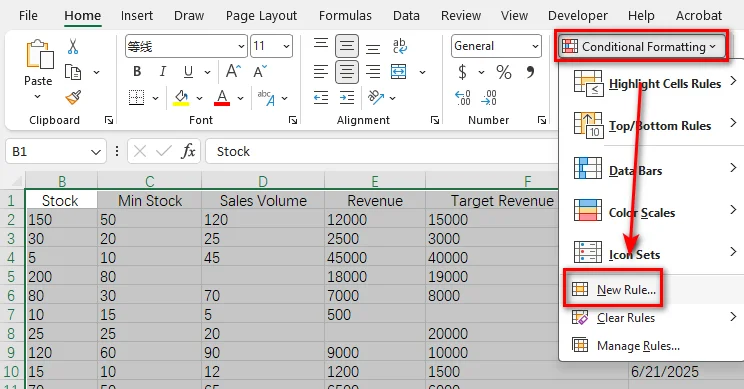
- Etapa 3: Selecione Formatar apenas células que contenham.
- Etapa 4: Na descrição da regra, selecione Células em branco.
- Etapa 5: Clique em Formatar, abra a guia Preenchimento e escolha uma cor de fundo.
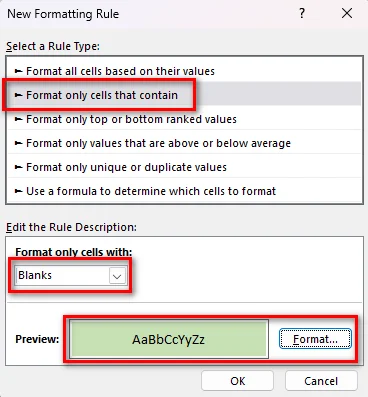
- Etapa 6: Clique em OK para aplicar a regra.
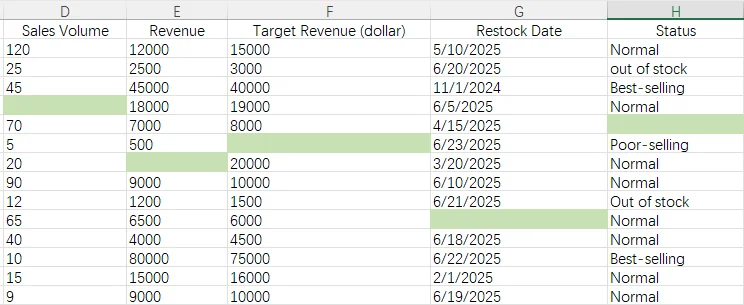
2. Use uma Fórmula para Realçar Células em Branco
A regra integrada é suficiente para a maioria dos casos. Se você quiser definir sua própria condição para células em branco, pode criar uma regra de formatação condicional baseada em fórmula.
Por exemplo, você pode aplicar a função ISBLANK para verificar se uma célula está vazia:
=ISBLANK(A1)
Ela retorna VERDADEIRO para uma célula vazia e FALSO se a célula contiver qualquer valor ou uma fórmula.
- Etapa 1: Selecione o intervalo que deseja formatar.
- Etapa 2: Vá para Página Inicial > Formatação Condicional > Nova Regra.
- Etapa 3: Selecione Usar uma fórmula para determinar quais células devem ser formatadas.
- Etapa 4: Insira a fórmula =ISBLANK(A1)
- Etapa 5: Clique em Formatar, escolha uma cor de preenchimento e clique em OK.
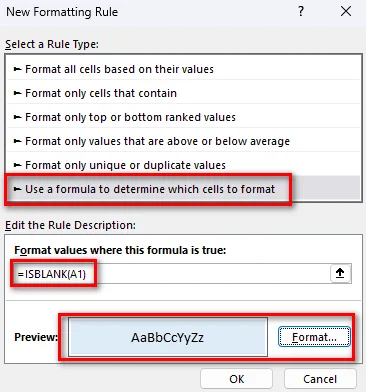
- Etapa 6: Clique em OK novamente para criar a regra.
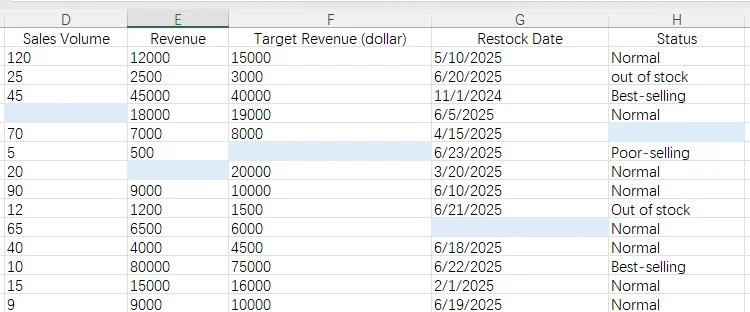
Você também pode usar =A1="". Esta fórmula verifica se uma célula retorna uma cadeia de caracteres vazia (""). É útil quando uma célula contém uma fórmula que não exibe valor, mas não está realmente vazia.
Por exemplo:
| Conteúdo da célula | ISBLANK(A1) | A1="" |
|---|---|---|
| Célula vazia | VERDADEIRO | VERDADEIRO |
| Fórmula que retorna "" | FALSO | VERDADEIRO |
| Valor de texto | FALSO | FALSO |
| Valor numérico | FALSO | FALSO |
Escolha a fórmula com base no que você deseja que o Excel trate como "em branco".
Você pode gostar: Como Inserir Fórmulas no Excel: Seis Métodos Fáceis
Realçar Células em Branco no Excel com Python
A formatação condicional é uma maneira conveniente de realçar células em branco quando você está trabalhando diretamente no Excel. Se você precisar aplicar a mesma operação a várias pastas de trabalho, o Python pode automatizar o processo para você. Free Spire.XLS for Python fornece APIs para carregar pastas de trabalho, ler valores de células e aplicar formatação de células. Instale-o com o seguinte comando pip:
pip install Spire.Xls.Free
1. Carregar a Pasta de Trabalho do Excel
Comece importando a biblioteca e carregando a pasta de trabalho que deseja processar.
from spire.xls import *
from spire.xls.common import *

# Create a Workbook object
workbook = Workbook()

# Load the Excel workbook
workbook.LoadFromFile("sales report.xlsx")

# Get the first worksheet
worksheet = workbook.Worksheets[0]
O método LoadFromFile() carrega um arquivo Excel existente, enquanto Worksheets[0] dá acesso à primeira planilha.
2. Encontrar Células em Branco
Em seguida, especifique o intervalo a verificar e examine o valor de cada célula.
# Check cells in the cell range A1:H15
for row in range(1, 16):
    for column in range(1, 9):
        cell = worksheet.Range[row, column]
Neste exemplo, o loop verifica as células de A1 a H15. A propriedade Value é usada para ler o valor de cada célula.
3. Realçar as Células em Branco
Quando uma célula em branco for encontrada, defina sua cor de fundo por meio do estilo da célula.
Por exemplo:
if cell.Value is None or cell.Value == "":
    cell.Style.Color = Color.FromRgb(255, 255, 153)
Free Spire.XLS usa a propriedade Style.Color para definir a cor de fundo de um intervalo de células, para que você possa aplicar um realce diretamente à célula correspondente.
4. O exemplo de código completo
Por fim, salve a pasta de trabalho modificada em um novo arquivo.
Aqui está o exemplo completo:
from spire.xls import *
from spire.xls.common import *

# Create a Workbook object
workbook = Workbook()

# Load the Excel workbook
workbook.LoadFromFile("/input/sales report.xlsx")

# Get the first worksheet
worksheet = workbook.Worksheets[0]

# Check cells in the specified range A1:H15
for row in range(1, 16):
    for column in range(1, 9):
        cell = worksheet.Range[row, column]

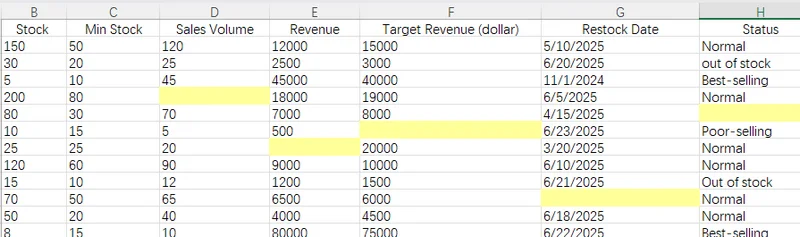
        # Highlight blank cells with a light yellow background
        if cell.Value is None or cell.Value == "":
            cell.Style.Color = Color.FromRgb(255, 255, 153)

# Save the modified workbook
workbook.SaveToFile(
    "/highlighted_blank_cells.xlsx",
    FileFormat.Version2016
)

# Release resources
workbook.Dispose()
Aqui está uma prévia do arquivo Excel após executar o código:
Perguntas Frequentes Sobre Como Realçar Células em Branco no Excel
1. Como Faço para Realçar Células em Branco Sem Usar uma Fórmula?
A condição integrada Células em branco do Excel pode identificar células vazias. Selecione o intervalo desejado, crie uma nova regra de formatação condicional, escolha Formatar apenas células que contenham e selecione Células em branco. Depois, escolha a cor de preenchimento que deseja.
2. Por Que a Formatação Condicional Realça as Células Erradas?
Às vezes, a formatação condicional pode realçar células inesperadas mesmo quando a fórmula parece correta. Isso pode acontecer quando a planilha já contém regras existentes, configurações de formatação ou outros elementos que afetam como o Excel aplica a regra.
Primeiro, verifique o intervalo Aplica-se a em Formatação Condicional > Gerenciar Regras e certifique-se de que ele abrange as células corretas. A referência da fórmula deve corresponder à primeira célula do intervalo selecionado. Por exemplo, se você aplicar a regra a A1:H15, a fórmula deve ser =ISBLANK(A1).
Se o problema ainda existir, siga as etapas para remover as regras de formatação condicional existentes: Página Inicial → Formatação Condicional → Limpar Regras → Limpar Regras das Células Selecionadas, e depois crie uma nova.
Se o resultado ainda for inesperado, tente copiar os dados para uma nova planilha usando Colar Somente Valores. Isso removerá formatações ocultas e outras configurações da planilha que podem afetar o resultado.
3. Por Que o ISBLANK Não Realça Células Que Parecem Vazias?
Uma célula pode parecer vazia enquanto ainda contém uma fórmula que não exibe nada. Por exemplo, uma célula com a fórmula ="" não exibe nada, mas não está realmente em branco, então ISBLANK retorna FALSO.
Se você quiser tratar células que retornam uma cadeia de caracteres vazia como em branco, use =A1="" em vez disso. Isso verifica se a célula é avaliada como uma cadeia de caracteres vazia.
4. Posso Realçar Células em Branco Automaticamente Quando Novos Dados São Adicionados?
Sim, desde que as novas células estejam incluídas no intervalo Aplica-se a da regra de Formatação Condicional. Se você espera que a planilha cresça, verifique o intervalo Aplica-se a e estenda-o quando necessário.
Conclusão
Realçar células em branco torna os dados ausentes mais fáceis de identificar no Excel. Para uma solução rápida, use a regra integrada Células em branco na formatação condicional. Se você precisar de uma condição personalizada, use uma fórmula como ISBLANK(A1) ou A1="". Para processamento automatizado, o Free Spire.XLS pode verificar valores de células e aplicar uma cor de fundo programaticamente. Experimente esses métodos em sua própria planilha e veja qual deles se adapta melhor ao seu fluxo de trabalho.
Leia Também:
Excel에서 빈 셀 강조하기: 수동 및 Python 방법
빈 셀은 특히 큰 워크시트에서 놓치기 쉽습니다. 빈 셀을 강조 표시하면 누락된 데이터를 더 쉽게 찾을 수 있고 스프레드시트를 더 빠르게 검토하는 데 도움이 됩니다. 이 가이드에서는 조건부 서식을 사용하여 Excel에서 빈 셀을 강조 표시하는 방법, 수식으로 빈 셀을 정의하는 방법, Python 및 Free Spire.XLS로 작업을 자동화하는 방법을 살펴봅니다.
조건부 서식으로 빈 셀 강조 표시
조건부 서식은 규칙에 따라 작동합니다. 서식을 적용해야 하는 시점을 정의하는 규칙을 만들면 Excel에서 셀을 자동으로 확인하고 조건이 충족되면 서식을 업데이트합니다. Excel에서는 빈 셀에 대한 기본 제공 규칙을 제공하지만, 수식으로 사용자 지정 규칙을 만들 수도 있습니다.
1. Excel의 기본 제공 빈 셀 규칙 사용
단순히 비어 있는 셀을 강조 표시하려는 경우 Excel에는 이미 기본 제공 규칙이 있습니다. 사용자 지정 조건이 필요하지 않을 때 가장 빠른 옵션입니다.
- 1단계: 확인할 범위를 선택합니다.
- 2단계: 홈 > 조건부 서식 > 새 규칙으로 이동합니다.
- 3단계: 다음을 포함하는 셀만 서식 지정을 선택합니다.
- 4단계: 규칙 설명에서 빈 셀을 선택합니다.
- 5단계: 서식을 클릭하고 채우기 탭을 연 다음 배경색을 선택합니다.
- 6단계: 확인을 클릭하여 규칙을 적용합니다.
2. 수식을 사용하여 빈 셀 강조 표시
기본 제공 규칙은 대부분의 경우 충분합니다. 빈 셀에 대한 고유한 조건을 정의하려면 수식 기반 조건부 서식 규칙을 만들 수 있습니다.
예를 들어 ISBLANK 함수를 적용하여 셀이 비어 있는지 확인할 수 있습니다:
=ISBLANK(A1)
빈 셀에는 TRUE를 반환하고, 셀에 값이나 수식이 있으면 FALSE를 반환합니다.
- 1단계: 서식을 지정할 범위를 선택합니다.
- 2단계: 홈 > 조건부 서식 > 새 규칙으로 이동합니다.
- 3단계: 수식을 사용하여 서식을 지정할 셀 결정을 선택합니다.
- 4단계: =ISBLANK(A1) 수식을 입력합니다.
- 5단계: 서식을 클릭하고 채우기 색을 선택한 다음 확인을 클릭합니다.
- 6단계: 확인을 다시 클릭하여 규칙을 만듭니다.
=A1=""를 사용할 수도 있습니다. 이 수식은 셀이 빈 문자열("")을 반환하는지 확인합니다. 셀에 값이 표시되지 않는 수식이 포함되어 있지만 실제로 비어 있지는 않은 경우 유용합니다.
예를 들어:
| 셀 내용 | ISBLANK(A1) | A1="" |
|---|---|---|
| 빈 셀 | TRUE | TRUE |
| ""를 반환하는 수식 | FALSE | TRUE |
| 텍스트 값 | FALSE | FALSE |
| 숫자 값 | FALSE | FALSE |
Excel에서 무엇을 "빈 셀"로 처리할지에 따라 수식을 선택하세요.
추천 글: Excel에 수식을 삽입하는 방법: 6가지 쉬운 방법
Python을 사용하여 Excel에서 빈 셀 강조 표시
조건부 서식은 Excel에서 직접 작업할 때 빈 셀을 강조 표시하는 편리한 방법입니다. 동일한 작업을 여러 통합 문서에 적용해야 하는 경우 Python으로 프로세스를 자동화할 수 있습니다. Free Spire.XLS for Python은 통합 문서 로드, 셀 값 읽기, 셀 서식 적용을 위한 API를 제공합니다. 다음 pip 명령으로 설치하세요:
pip install Spire.Xls.Free
1. Excel 통합 문서 로드
처리하려는 통합 문서를 로드하고 라이브러리를 가져오는 것으로 시작합니다.
from spire.xls import *
from spire.xls.common import *

# Create a Workbook object
workbook = Workbook()

# Load the Excel workbook
workbook.LoadFromFile("sales report.xlsx")

# Get the first worksheet
worksheet = workbook.Worksheets[0]
LoadFromFile() 메서드는 기존 Excel 파일을 로드하고, Worksheets[0]은 첫 번째 워크시트에 액세스할 수 있게 해줍니다.
2. 빈 셀 찾기
다음으로 확인할 범위를 지정하고 각 셀의 값을 검사합니다.
# Check cells in the cell range A1:H15
for row in range(1, 16):
    for column in range(1, 9):
        cell = worksheet.Range[row, column]
이 예에서는 루프가 A1부터 H15까지의 셀을 확인합니다. Value 속성은 각 셀의 값을 읽는 데 사용됩니다.
3. 빈 셀 강조 표시
빈 셀이 발견되면 셀의 스타일을 통해 배경색을 설정합니다.
예를 들어:
if cell.Value is None or cell.Value == "":
    cell.Style.Color = Color.FromRgb(255, 255, 153)
Free Spire.XLS는 Style.Color 속성을 사용하여 셀 범위의 배경색을 설정하므로, 일치하는 셀에 직접 강조 표시를 적용할 수 있습니다.
4. 전체 코드 예제
마지막으로 수정된 통합 문서를 새 파일로 저장합니다.
다음은 전체 예제입니다:
from spire.xls import *
from spire.xls.common import *

# Create a Workbook object
workbook = Workbook()

# Load the Excel workbook
workbook.LoadFromFile("/input/sales report.xlsx")

# Get the first worksheet
worksheet = workbook.Worksheets[0]

# Check cells in the specified range A1:H15
for row in range(1, 16):
    for column in range(1, 9):
        cell = worksheet.Range[row, column]

        # Highlight blank cells with a light yellow background
        if cell.Value is None or cell.Value == "":
            cell.Style.Color = Color.FromRgb(255, 255, 153)

# Save the modified workbook
workbook.SaveToFile(
    "/highlighted_blank_cells.xlsx",
    FileFormat.Version2016
)

# Release resources
workbook.Dispose()
코드를 실행한 후 Excel 파일의 미리 보기는 다음과 같습니다:
Excel에서 빈 셀 강조 표시에 관한 자주 묻는 질문
1. 수식을 사용하지 않고 빈 셀을 강조 표시하려면 어떻게 하나요?
Excel의 기본 제공 빈 셀 조건은 빈 셀을 식별할 수 있습니다. 대상 범위를 선택하고 새 조건부 서식 규칙을 만든 다음 다음을 포함하는 셀만 서식 지정을 선택하고 빈 셀을 선택합니다. 그런 다음 원하는 채우기 색을 선택합니다.
2. 조건부 서식이 잘못된 셀을 강조 표시하는 이유는 무엇인가요?
때로는 수식이 올바르게 보여도 조건부 서식이 예상치 못한 셀을 강조 표시할 수 있습니다. 이는 워크시트에 이미 기존 규칙, 서식 설정 또는 Excel이 규칙을 적용하는 방식에 영향을 주는 다른 요소가 포함되어 있을 때 발생할 수 있습니다.
먼저 조건부 서식 > 규칙 관리에서 적용 대상 범위를 확인하고 올바른 셀을 포함하는지 확인합니다. 수식 참조는 선택한 범위의 첫 번째 셀과 일치해야 합니다. 예를 들어 A1:H15에 규칙을 적용하는 경우 수식은 =ISBLANK(A1)이어야 합니다.
문제가 계속되면 기존 조건부 서식 규칙을 제거하는 단계를 따르세요: 홈 → 조건부 서식 → 규칙 지우기 → 선택한 셀의 규칙 지우기 그런 다음 새 규칙을 만듭니다.
결과가 여전히 예상과 다르면 값만 붙여넣기를 사용하여 데이터를 새 워크시트에 복사해 보세요. 그러면 결과에 영향을 줄 수 있는 숨겨진 서식 및 기타 워크시트 설정이 제거됩니다.
3. ISBLANK가 비어 보이는 셀을 강조 표시하지 않는 이유는 무엇인가요?
셀이 비어 보여도 아무것도 표시하지 않는 수식을 포함하고 있을 수 있습니다. 예를 들어 ="" 수식이 있는 셀은 아무것도 표시하지 않지만 실제로 빈 셀이 아니므로 ISBLANK는 FALSE를 반환합니다.
빈 문자열을 반환하는 셀을 빈 셀로 처리하려면 대신 =A1=""를 사용하세요. 이는 셀이 빈 문자열로 평가되는지 확인합니다.
4. 새 데이터가 추가될 때 빈 셀을 자동으로 강조 표시할 수 있나요?
예, 새 셀이 조건부 서식 규칙의 적용 대상 범위에 포함되어 있으면 가능합니다. 워크시트가 확장될 것으로 예상되면 적용 대상 범위를 확인하고 필요할 때 확장하세요.
결론
빈 셀을 강조 표시하면 Excel에서 누락된 데이터를 더 쉽게 찾을 수 있습니다. 빠른 해결 방법으로 조건부 서식의 기본 제공 빈 셀 규칙을 사용하세요. 사용자 지정 조건이 필요하면 ISBLANK(A1) 또는 A1=""와 같은 수식을 사용하세요. 자동 처리의 경우 Free Spire.XLS가 셀 값을 확인하고 프로그래밍 방식으로 배경색을 적용할 수 있습니다. 자신의 워크시트에서 이러한 방법을 사용해 보고 워크플로에 가장 적합한 방법을 확인하세요.
함께 읽기:
Evidenziare celle vuote in Excel: metodi manuali e con Python
Indice dei contenuti
Le celle vuote possono passare facilmente inosservate, soprattutto in fogli di lavoro di grandi dimensioni. Evidenziarle rende più semplice individuare i dati mancanti e aiuta a rivedere un foglio di calcolo più rapidamente. In questa guida vedrai come evidenziare le celle vuote in Excel con la formattazione condizionale, come usare le formule per definire le celle vuote e come automatizzare l'attività con Python e Free Spire.XLS.
Evidenziare le celle vuote con la formattazione condizionale
La formattazione condizionale funziona tramite regole. Crei una regola che definisce quando applicare la formattazione e Excel controlla automaticamente le celle e aggiorna la formattazione quando la condizione è soddisfatta. Excel fornisce una regola integrata per le celle vuote, ma puoi anche creare una regola personalizzata con una formula.
1. Usare la regola integrata di Excel per le celle vuote
Se vuoi semplicemente evidenziare le celle vuote, Excel fornisce già una regola integrata. Questa è l'opzione più rapida quando non hai bisogno di una condizione personalizzata.
- Passaggio 1: Seleziona l'intervallo che vuoi controllare.
- Passaggio 2: Vai a Home > Formattazione condizionale > Nuova regola.
- Passaggio 3: Seleziona Formatta solo le celle che contengono.
- Passaggio 4: Nella descrizione della regola, seleziona Celle vuote.
- Passaggio 5: Fai clic su Formato, apri la scheda Riempimento e scegli un colore di sfondo.
- Passaggio 6: Fai clic su OK per applicare la regola.
2. Usare una formula per evidenziare le celle vuote
La regola integrata è sufficiente nella maggior parte dei casi. Se vuoi definire una tua condizione per le celle vuote, puoi creare una regola di formattazione condizionale basata su una formula.
Ad esempio, puoi applicare la funzione ISBLANK per verificare se una cella è vuota:
=ISBLANK(A1)
Restituisce TRUE per una cella vuota e FALSE se la cella contiene un valore o una formula.
- Passaggio 1: Seleziona l'intervallo che vuoi formattare.
- Passaggio 2: Vai a Home > Formattazione condizionale > Nuova regola.
- Passaggio 3: Seleziona Usa una formula per determinare quali celle formattare.
- Passaggio 4: Inserisci la formula =ISBLANK(A1)
- Passaggio 5: Fai clic su Formato, scegli un colore di riempimento e fai clic su OK.
- Passaggio 6: Fai nuovamente clic su OK per creare la regola.
Puoi anche usare =A1="". Questa formula verifica se una cella restituisce una stringa vuota (""). È utile quando una cella contiene una formula che non mostra alcun valore ma non è realmente vuota.
Ad esempio:
| Contenuto della cella | ISBLANK(A1) | A1="" |
|---|---|---|
| Cella vuota | TRUE | TRUE |
| Formula che restituisce "" | FALSE | TRUE |
| Valore di testo | FALSE | FALSE |
| Valore numerico | FALSE | FALSE |
Scegli la formula in base a ciò che vuoi che Excel consideri "vuoto".
Potrebbe interessarti: Come inserire formule in Excel: sei metodi semplici
Evidenziare le celle vuote in Excel con Python
La formattazione condizionale è un modo comodo per evidenziare le celle vuote quando lavori direttamente in Excel. Se devi applicare la stessa operazione a più cartelle di lavoro, Python può automatizzare il processo per te. Free Spire.XLS for Python fornisce API per caricare cartelle di lavoro, leggere i valori delle celle e applicare la formattazione delle celle. Installalo con il seguente comando pip:
pip install Spire.Xls.Free
1. Caricare la cartella di lavoro di Excel
Inizia importando la libreria e caricando la cartella di lavoro che vuoi elaborare.
from spire.xls import *
from spire.xls.common import *

# Create a Workbook object
workbook = Workbook()

# Load the Excel workbook
workbook.LoadFromFile("sales report.xlsx")

# Get the first worksheet
worksheet = workbook.Worksheets[0]
Il metodo LoadFromFile() carica un file Excel esistente, mentre Worksheets[0] ti dà accesso al primo foglio di lavoro.
2. Trovare le celle vuote
Successivamente, specifica l'intervallo da controllare ed esamina il valore di ogni cella.
# Check cells in the cell range A1:H15
for row in range(1, 16):
    for column in range(1, 9):
        cell = worksheet.Range[row, column]
In questo esempio, il ciclo controlla le celle da A1 a H15. La proprietà Value viene utilizzata per leggere il valore di ogni cella.
3. Evidenziare le celle vuote
Una volta trovata una cella vuota, imposta il suo colore di sfondo tramite lo stile della cella.
Ad esempio:
if cell.Value is None or cell.Value == "":
    cell.Style.Color = Color.FromRgb(255, 255, 153)
Free Spire.XLS utilizza la proprietà Style.Color per impostare il colore di sfondo di un intervallo di celle, così puoi applicare un'evidenziazione direttamente alla cella corrispondente.
4. L'esempio di codice completo
Infine, salva la cartella di lavoro modificata in un nuovo file.
Ecco l'esempio completo:
from spire.xls import *
from spire.xls.common import *

# Create a Workbook object
workbook = Workbook()

# Load the Excel workbook
workbook.LoadFromFile("/input/sales report.xlsx")

# Get the first worksheet
worksheet = workbook.Worksheets[0]

# Check cells in the specified range A1:H15
for row in range(1, 16):
    for column in range(1, 9):
        cell = worksheet.Range[row, column]

        # Highlight blank cells with a light yellow background
        if cell.Value is None or cell.Value == "":
            cell.Style.Color = Color.FromRgb(255, 255, 153)

# Save the modified workbook
workbook.SaveToFile(
    "/highlighted_blank_cells.xlsx",
    FileFormat.Version2016
)

# Release resources
workbook.Dispose()
Ecco un'anteprima del file Excel dopo l'esecuzione del codice:
Domande frequenti sull'evidenziazione delle celle vuote in Excel
1. Come posso evidenziare le celle vuote senza usare una formula?
La condizione integrata Celle vuote di Excel può identificare le celle vuote. Seleziona l'intervallo di destinazione, crea una nuova regola di formattazione condizionale, scegli Formatta solo le celle che contengono e seleziona Celle vuote. Poi scegli il colore di riempimento desiderato.
2. Perché la formattazione condizionale evidenzia le celle sbagliate?
A volte la formattazione condizionale può evidenziare celle inaspettate anche quando la formula sembra corretta. Questo può accadere quando il foglio di lavoro contiene già regole esistenti, impostazioni di formattazione o altri elementi che influiscono su come Excel applica la regola.
Innanzitutto, controlla l'intervallo Si applica a in Formattazione condizionale > Gestisci regole e assicurati che copra le celle corrette. Il riferimento della formula deve corrispondere alla prima cella dell'intervallo selezionato. Ad esempio, se applichi la regola a A1:H15, la formula deve essere =ISBLANK(A1).
Se il problema persiste, segui i passaggi per rimuovere le regole di formattazione condizionale esistenti: Home → Formattazione condizionale → Cancella regole → Cancella regole dalle celle selezionate, quindi creane una nuova.
Se il risultato è ancora inaspettato, prova a copiare i dati in un nuovo foglio di lavoro usando Incolla solo valori. In questo modo verranno rimossi la formattazione nascosta e altre impostazioni del foglio di lavoro che potrebbero influire sul risultato.
3. Perché ISBLANK non evidenzia le celle che sembrano vuote?
Una cella può sembrare vuota pur contenendo una formula che non mostra nulla. Ad esempio, una cella con la formula ="" non mostra nulla, ma non è realmente vuota, quindi ISBLANK restituisce FALSE.
Se vuoi considerare vuote le celle che restituiscono una stringa vuota, usa invece =A1="". Questa verifica se la cella restituisce una stringa vuota.
4. Posso evidenziare automaticamente le celle vuote quando vengono aggiunti nuovi dati?
Sì, purché le nuove celle siano incluse nell'intervallo Si applica a della regola di formattazione condizionale. Se prevedi che il foglio di lavoro si espanda, controlla l'intervallo Si applica a ed estendilo quando necessario.
Conclusione
Evidenziare le celle vuote rende più facile individuare i dati mancanti in Excel. Per una soluzione rapida, usa la regola integrata Celle vuote nella formattazione condizionale. Se hai bisogno di una condizione personalizzata, usa una formula come ISBLANK(A1) o A1="". Per l'elaborazione automatizzata, Free Spire.XLS può controllare i valori delle celle e applicare un colore di sfondo a livello di codice. Prova questi metodi sul tuo foglio di lavoro e scopri quale si adatta meglio al tuo flusso di lavoro.
Leggi anche:
Mettre en évidence les cellules vides dans Excel : méthodes manuelles et Python
Table des matières
Les cellules vides peuvent être faciles à manquer, surtout dans les grandes feuilles de calcul. Les mettre en surbrillance permet de repérer plus facilement les données manquantes et vous aide à examiner une feuille de calcul plus rapidement. Dans ce guide, vous découvrirez comment mettre en surbrillance les cellules vides dans Excel avec la mise en forme conditionnelle, utiliser des formules pour définir les cellules vides et automatiser la tâche avec Python et Free Spire.XLS.
Mettre en surbrillance les cellules vides avec la mise en forme conditionnelle
La mise en forme conditionnelle fonctionne avec des règles. Vous créez une règle qui définit quand la mise en forme doit être appliquée, et Excel vérifie automatiquement les cellules et met à jour la mise en forme lorsque la condition est remplie. Excel fournit une règle intégrée pour les cellules vides, mais vous pouvez également créer une règle personnalisée avec une formule.
1. Utiliser la règle intégrée des cellules vides d'Excel
Si vous souhaitez simplement mettre en surbrillance les cellules qui sont vides, Excel fournit déjà une règle intégrée. C'est l'option la plus rapide lorsque vous n'avez pas besoin d'une condition personnalisée.
- Étape 1 : Sélectionnez la plage que vous souhaitez vérifier.
- Étape 2 : Accédez à Accueil > Mise en forme conditionnelle > Nouvelle règle.
- Étape 3 : Sélectionnez Format uniquement les cellules qui contiennent.
- Étape 4 : Dans la description de la règle, sélectionnez Vides.
- Étape 5 : Cliquez sur Format, ouvrez l'onglet Remplissage et choisissez une couleur d'arrière-plan.
- Étape 6 : Cliquez sur OK pour appliquer la règle.
2. Utiliser une formule pour mettre en surbrillance les cellules vides
La règle intégrée suffit dans la plupart des cas. Si vous souhaitez définir votre propre condition pour les cellules vides, vous pouvez créer une règle de mise en forme conditionnelle basée sur une formule.
Par exemple, vous pouvez appliquer la fonction ISBLANK pour vérifier si une cellule est vide :
=ISBLANK(A1)
Elle renvoie TRUE pour une cellule vide et FALSE si la cellule contient une valeur ou une formule.
- Étape 1 : Sélectionnez la plage que vous souhaitez mettre en forme.
- Étape 2 : Accédez à Accueil > Mise en forme conditionnelle > Nouvelle règle.
- Étape 3 : Sélectionnez Utiliser une formule pour déterminer les cellules à mettre en forme.
- Étape 4 : Saisissez la formule =ISBLANK(A1)
- Étape 5 : Cliquez sur Format, choisissez une couleur de remplissage, puis cliquez sur OK.
- Étape 6 : Cliquez à nouveau sur OK pour créer la règle.
Vous pouvez également utiliser =A1="". Cette formule vérifie si une cellule renvoie une chaîne vide (""). Elle est utile lorsqu'une cellule contient une formule qui n'affiche aucune valeur mais n'est pas réellement vide.
Par exemple :
| Contenu de la cellule | ISBLANK(A1) | A1="" |
|---|---|---|
| Cellule vide | TRUE | TRUE |
| Formule renvoyant "" | FALSE | TRUE |
| Valeur texte | FALSE | FALSE |
| Valeur numérique | FALSE | FALSE |
Choisissez la formule en fonction de ce que vous souhaitez qu'Excel considère comme « vide ».
Vous aimerez peut-être : Comment insérer des formules dans Excel : six méthodes faciles
Mettre en surbrillance les cellules vides dans Excel avec Python
La mise en forme conditionnelle est un moyen pratique de mettre en surbrillance les cellules vides lorsque vous travaillez directement dans Excel. Si vous devez appliquer la même opération à plusieurs classeurs, Python peut automatiser le processus pour vous. Free Spire.XLS for Python fournit des API pour charger des classeurs, lire les valeurs des cellules et appliquer la mise en forme des cellules. Installez-le avec la commande pip suivante :
pip install Spire.Xls.Free
1. Charger le classeur Excel
Commencez par importer la bibliothèque et charger le classeur que vous souhaitez traiter.
from spire.xls import *
from spire.xls.common import *

# Create a Workbook object
workbook = Workbook()

# Load the Excel workbook
workbook.LoadFromFile("sales report.xlsx")

# Get the first worksheet
worksheet = workbook.Worksheets[0]
La méthode LoadFromFile() charge un fichier Excel existant, tandis que Worksheets[0] vous donne accès à la première feuille de calcul.
2. Rechercher les cellules vides
Ensuite, spécifiez la plage à vérifier et examinez la valeur de chaque cellule.
# Check cells in the cell range A1:H15
for row in range(1, 16):
    for column in range(1, 9):
        cell = worksheet.Range[row, column]
Dans cet exemple, la boucle vérifie les cellules de A1 à H15. La propriété Value est utilisée pour lire la valeur de chaque cellule.
3. Mettre en surbrillance les cellules vides
Une fois qu'une cellule vide est trouvée, définissez sa couleur d'arrière-plan via le style de la cellule.
Par exemple :
if cell.Value is None or cell.Value == "":
    cell.Style.Color = Color.FromRgb(255, 255, 153)
Free Spire.XLS utilise la propriété Style.Color pour définir la couleur d'arrière-plan d'une plage de cellules, vous pouvez donc appliquer une surbrillance directement à la cellule correspondante.
4. L'exemple de code complet
Enfin, enregistrez le classeur modifié dans un nouveau fichier.
Voici l'exemple complet :
from spire.xls import *
from spire.xls.common import *

# Create a Workbook object
workbook = Workbook()

# Load the Excel workbook
workbook.LoadFromFile("/input/sales report.xlsx")

# Get the first worksheet
worksheet = workbook.Worksheets[0]

# Check cells in the specified range A1:H15
for row in range(1, 16):
    for column in range(1, 9):
        cell = worksheet.Range[row, column]

        # Highlight blank cells with a light yellow background
        if cell.Value is None or cell.Value == "":
            cell.Style.Color = Color.FromRgb(255, 255, 153)

# Save the modified workbook
workbook.SaveToFile(
    "/highlighted_blank_cells.xlsx",
    FileFormat.Version2016
)

# Release resources
workbook.Dispose()
Voici un aperçu du fichier Excel après l'exécution du code :
Questions fréquentes sur la mise en surbrillance des cellules vides dans Excel
1. Comment mettre en surbrillance les cellules vides sans utiliser de formule ?
La condition intégrée Vides d'Excel peut identifier les cellules vides. Sélectionnez la plage cible, créez une nouvelle règle de mise en forme conditionnelle, choisissez Format uniquement les cellules qui contiennent, puis sélectionnez Vides. Ensuite, choisissez la couleur de remplissage souhaitée.
2. Pourquoi la mise en forme conditionnelle met-elle en surbrillance les mauvaises cellules ?
Parfois, la mise en forme conditionnelle peut mettre en surbrillance des cellules inattendues même lorsque la formule semble correcte. Cela peut se produire lorsque la feuille de calcul contient déjà des règles existantes, des paramètres de mise en forme ou d'autres éléments qui affectent la façon dont Excel applique la règle.
Tout d'abord, vérifiez la plage S'applique à dans Mise en forme conditionnelle > Gérer les règles et assurez-vous qu'elle couvre les bonnes cellules. La référence de la formule doit correspondre à la première cellule de la plage sélectionnée. Par exemple, si vous appliquez la règle à A1:H15, la formule doit être =ISBLANK(A1).
Si le problème persiste, suivez les étapes pour supprimer les règles de mise en forme conditionnelle existantes : Accueil → Mise en forme conditionnelle → Effacer les règles → Effacer les règles des cellules sélectionnées, puis créez-en une nouvelle.
Si le résultat est toujours inattendu, essayez de copier les données dans une nouvelle feuille de calcul à l'aide de Coller uniquement les valeurs. Cela supprimera la mise en forme masquée et d'autres paramètres de feuille de calcul susceptibles d'affecter le résultat.
3. Pourquoi ISBLANK ne met-il pas en surbrillance les cellules qui semblent vides ?
Une cellule peut sembler vide tout en contenant une formule qui n'affiche rien. Par exemple, une cellule avec la formule ="" n'affiche rien, mais elle n'est pas réellement vide, donc ISBLANK renvoie FALSE.
Si vous souhaitez traiter les cellules qui renvoient une chaîne vide comme vides, utilisez plutôt =A1="". Cela vérifie si la cellule est évaluée à une chaîne vide.
4. Puis-je mettre automatiquement en surbrillance les cellules vides lorsque de nouvelles données sont ajoutées ?
Oui, tant que les nouvelles cellules sont incluses dans la plage S'applique à de la règle de mise en forme conditionnelle. Si vous prévoyez que la feuille de calcul s'agrandisse, vérifiez la plage S'applique à et étendez-la si nécessaire.
Conclusion
La mise en surbrillance des cellules vides facilite le repérage des données manquantes dans Excel. Pour une solution rapide, utilisez la règle intégrée Vides dans la mise en forme conditionnelle. Si vous avez besoin d'une condition personnalisée, utilisez une formule telle que ISBLANK(A1) ou A1="". Pour un traitement automatisé, Free Spire.XLS peut vérifier les valeurs des cellules et appliquer une couleur d'arrière-plan par programmation. Essayez ces méthodes sur votre propre feuille de calcul et voyez celle qui correspond le mieux à votre flux de travail.
À lire aussi :
- Comment vérifier si une cellule contient un texte spécifique dans Excel [6 méthodes]
- Comment masquer les formules Excel : 5 façons de protéger les formules dans Excel
- Compter les cellules colorées dans Excel : 3 méthodes faciles (manuelle/automatisation)
- Comment compter les cellules avec du texte dans Excel : un guide complet