Hiding cell contents in Excel is useful when you want to keep certain values out of view without deleting them. For example, you may want to hide helper data, temporary values, or information that is not relevant to a report. Although Excel does not provide a built-in feature to hide individual cells, there are several ways to achieve this.
This article covers three methods to hide cells in Excel, including custom number formats, hiding rows or columns, and using Python to automate the process. Whether you need to hide a single cell or multiple cells, you can find a suitable solution here.
How to Hide Cells in Excel Manually
Excel provides several ways to hide cell contents, depending on what you want to achieve. If you only need to hide specific values, a custom number format is the simplest option. You can also hide entire rows or columns when you want to remove a larger area from view.
1.1 How to Hide a Single Cell or a Range of Cells in Excel
Excel allows you to hide the contents of a single cell or a range of cells without deleting the underlying values. You can do this by applying a custom number format to the selected cells.
Follow these steps:
- Step 1: Select the cell or range of cells you want to hide. To select multiple non-adjacent cells or ranges, hold down Ctrl while making your selections.
- Step 2: Press Ctrl + 1 to open the Format Cells dialog box.
- Step 3: Go to the Number tab and select Custom from the Category list.
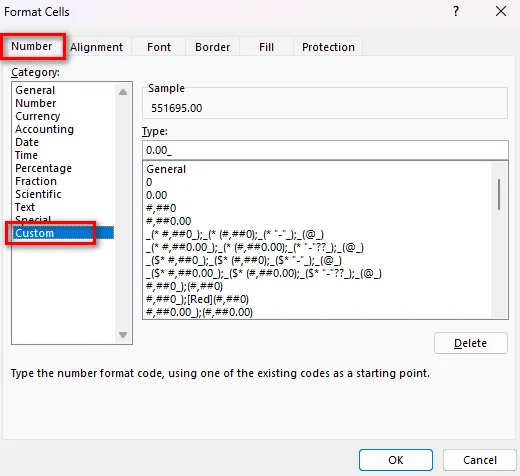
- Step 4: Enter ;;; in the Type field.
- Step 5: Click OK to apply the format.
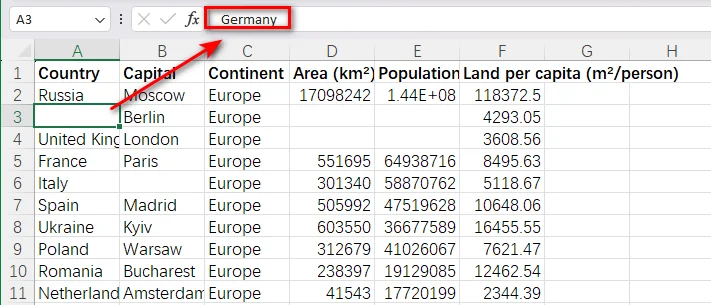
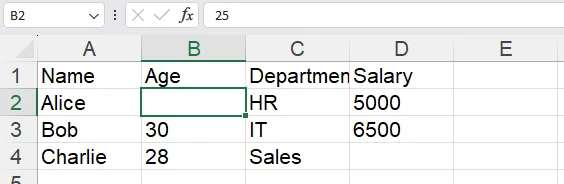
As shown in the image below, the selected cell appears blank, while its value remains unchanged. If you select the cell, you can still see the original value in the formula bar.
Tip: To show the value again, open Format Cells and change the number format to General or another suitable format.
1.2 Hide Cells by Hiding Rows or Columns
You can also hide cells in Excel by hiding the rows or columns that contain them. This method is useful when you want to hide multiple cells at once. Unlike custom number formatting, there are no blank spaces left in the worksheet. The data remains intact and can be restored at any time by unhiding the corresponding rows or columns.
Option 1: Use keyboard shortcuts
- To hide selected rows, press Ctrl + 9.
- To hide selected columns, press Ctrl + 0.
Option 2: Use the Excel ribbon
- Step 1: Select the rows or columns you want to hide.
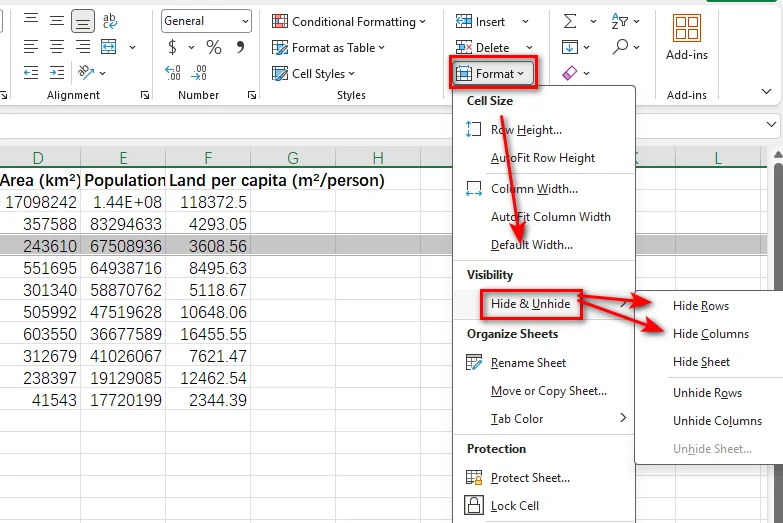
- Step 2: Go to Home > Format in the ribbon.
- Step 3: Select Hide & Unhide.
- Step 4: Choose Hide Rows or Hide Columns.
You may like: Automatically Hide or Unhide Rows and Columns in Excel with Python
How to Hide Cells in Excel Automatically with Python
Manual formatting works well for occasional edits, but it will slow down the work when you need to process multiple cells or workbooks. In this case, Python offers a more efficient approach.
Free Spire.XLS for Python provides simple APIs for reading, editing, and formatting Excel files. You can use its NumberFormat property to apply the same ";;;" custom format programmatically, hiding cell contents without removing the original values.
You can install the library with a pip command:
pip install Spire.Xls.Free
2.1 Hide a Single Cell in Excel with Python
To hide cell contents with Python, set the cell's NumberFormat property to ;;;. The following example creates a workbook with sample data and uses this property to hide the contents of cells B2 and D4.
from spire.xls import *
from spire.xls.common import *

# Create a workbook
workbook = Workbook()
sheet = workbook.Worksheets[0]

# Add sample data
data = [
    ["Name", "Age", "Department", "Salary"],
    ["Alice", "25", "HR", "5000"],
    ["Bob", "30", "IT", "6500"],
    ["Charlie", "28", "Sales", "5800"],
]

for row in range(len(data)):
    for col in range(len(data[row])):
        sheet[row + 1, col + 1].Text = data[row][col]

# Hide the contents of specific cells
sheet["B2"].NumberFormat = ";;;"
sheet["D4"].NumberFormat = ";;;"

# Save the workbook
workbook.SaveToFile("HideSpecificCells.xlsx", ExcelVersion.Version2016)
workbook.Dispose()
Tip: You can also use the same approach with an existing workbook by loading it with LoadFromFile() before accessing the target cell.
2.2 Hide Multiple Cells or a Range of Cells in Excel with Python
Hiding multiple adjacent or non-adjacent cells is where automation with Free Spire.XLS for Python becomes especially useful. Instead of selecting cells manually, you can simply specify the target cell range or cell references in your code.
from spire.xls import *
from spire.xls.common import *

# Load an existing Excel workbook
workbook = Workbook()
workbook.LoadFromFile("Sample.xlsx")

# Get the first worksheet
sheet = workbook.Worksheets[0]

# Hide a continuous range of cells
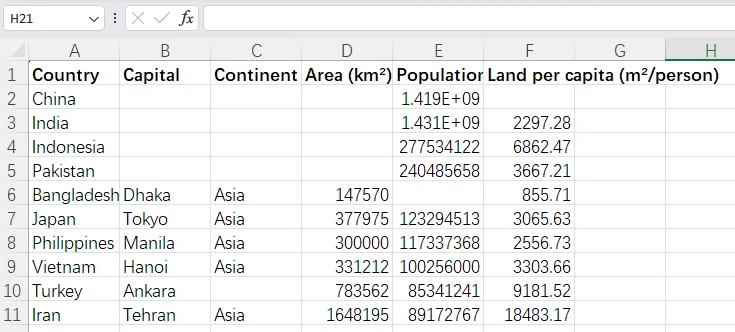
sheet.Range["B2:D5"].NumberFormat = ";;;"

# Hide multiple non-adjacent cells
cells = ["F2", "E6", "C10"]

for cell_ref in cells:
    sheet[cell_ref].NumberFormat = ";;;"

# Save the changes
workbook.SaveToFile("HideMultipleCells.xlsx", ExcelVersion.Version2016)
workbook.Dispose()
The result of hiding multiple cells with Python is shown below:
FAQs about Hiding Cells in Excel
1. Can I Hide a Single Cell in Excel?
Yes. Apply the custom number format ;;; to the selected cell. Its contents will appear blank without affecting other cells.
2. How Do I Hide Multiple Rows or Columns in Excel?
Select the rows or columns and press Ctrl + 9 to hide rows or Ctrl + 0 to hide columns.
3. Can I Hide Cell Formulas in Excel?
Yes, you can hide formulas in Excel easily. Select the formula cells, enable Hidden under Format Cells > Protection, and then protect the worksheet. The formulas will no longer appear in the formula bar.
4. Can I Hide All Cells in Excel?
Yes. Select the entire worksheet with Ctrl + A and apply the custom number format ;;; to hide all cell contents. You can also hide the entire worksheet through its sheet tab menu.
Conclusion
Knowing how to hide cells in Excel can make it easier to organize spreadsheets and keep unnecessary information out of view. Among the three methods in this article, custom number formats are useful for hiding specific cell contents, while hiding rows or columns works better for larger sections of data. If you frequently work with Excel files or need to apply these changes in batches, give Free Spire.XLS for Python a try and automate cell formatting with just a few lines of code.