
Knowledgebase (2416)
Children categories

TL;DR: Learn how to convert Markdown files and strings into HTML directly inside the browser using JavaScript and Spire.Doc WebAssembly (WASM) in React. No server-side processing required.
Markdown is commonly used for README files, documentation, technical articles, and other structured content. However, some applications need the content as an actual HTML file—for example, to publish it as a web page or pass it to another HTML-based workflow.
This article shows how to convert Markdown to HTML with JavaScript in a React application using Spire.Doc for JavaScript. It covers two common scenarios:
Prerequisites & Project Setup
Step 1: Install Spire.Doc for JavaScript
Open a terminal in the root directory of your React project and install the Spire.Doc package through NPM:
npm i spire.office
Step 2: Copy the Runtime Resources
After installation, copy the following runtime resources from node_modules/spire.office to the public directory of your React project:
- _framework
- spire.doc.js
- Spire.Doc.Wasm.zip
- spire.common.js
- Spire.Common.Wasm.zip
The examples also use CALIBRI.ttf for text rendering. Place the font file under public/static/font/.
For the file-based example, place the source Markdown document in public/static/data/MarkdownExample.md.
For detailed setup instructions, see How to Integrate Spire.Doc for JavaScript in a React Project.
Note: The examples use
process.env.PUBLIC_URL, which follows the Create React App convention. If your project uses Vite or another build tool, adjust the public asset paths accordingly.
Convert a Markdown File to HTML with JavaScript in React
If the Markdown content already exists as a .md file, it can be loaded into the WebAssembly virtual file system (VFS) and opened directly with Document.LoadFromFile(). The document can then be exported as HTML using Document.SaveToFile().
The file-based conversion follows four main stages:
- Module Initialization: Load and initialize the Spire.Doc WebAssembly module when the React component mounts.
- Input Loading: Add the required font and source Markdown file to the VFS using
FetchFileToVFS(). - Document Conversion: Load the
.mdfile withFileFormat.Markdownand save it withFileFormat.Html. - Output Handling: Read the generated HTML from the VFS and download it in the browser.
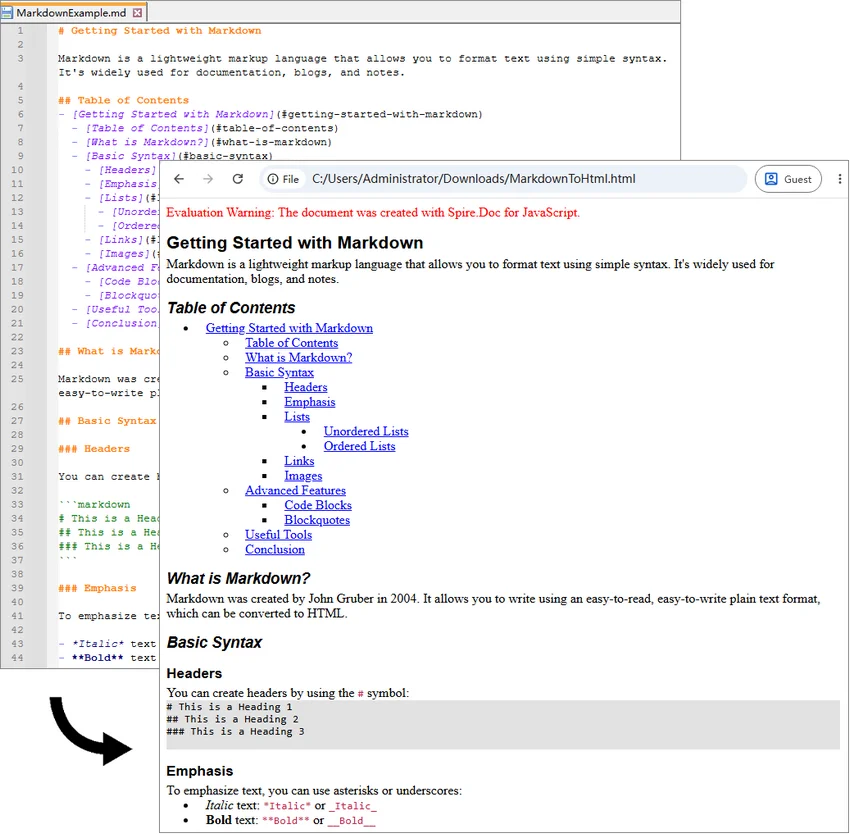
The following example converts MarkdownExample.md to MarkdownToHtml.html.
import React, { useState, useEffect } from 'react';

function App() {
  const [wasmModule, setWasmModule] = useState(null);

  // Load Spire.Doc
  useEffect(() => {
    (async () => {
      try {
        const publicUrl = process.env.PUBLIC_URL || '';

        const spireModule = await import(
          /* webpackIgnore: true */
          `${publicUrl}/spire.doc.js`
        );

        const rawModule = spireModule.default || spireModule;

        window.wasmModule =
          typeof rawModule === 'function'
            ? await rawModule({
                locateFile: (path) =>
                  path.endsWith('.wasm')
                    ? `${publicUrl}/${path}`
                    : path
              })
            : rawModule;

        setWasmModule(window.wasmModule);
      } catch (error) {
        console.error(
          'Failed to load spire.doc.js WASM module:',
          error
        );
      }
    })();
  }, []);

  // Convert Markdown file to HTML
  const convertMarkdownFileToHtml = async () => {
    const wasmModule = window.wasmModule?.spiredoc;

    if (!wasmModule) return;

    // Load the required font into the VFS
    await window.spire.FetchFileToVFS(
      'CALIBRI.ttf',
      '/Library/Fonts/',
      `${process.env.PUBLIC_URL}/static/font/`
    );

    // Load the Markdown file into the VFS
    const inputFileName = 'MarkdownExample.md';

    await window.spire.FetchFileToVFS(
      inputFileName,
      '',
      `${process.env.PUBLIC_URL}/static/data/`
    );

    // Create a Document instance
    const doc = new wasmModule.Document();

    try {
      // Load the Markdown document
      doc.LoadFromFile({
        fileName: inputFileName,
        fileFormat: wasmModule.FileFormat.Markdown
      });

      // Set HTML export options
      doc.HtmlExportOptions.CssStyleSheetType = wasmModule.CssStyleSheetType.Internal;
      doc.HtmlExportOptions.ImageEmbedded = true;

      // Save the document as HTML
      const outputFileName = 'MarkdownToHtml.html';

      doc.SaveToFile({
        fileName: outputFileName,
        fileFormat: wasmModule.FileFormat.Html
      });

      // Read the generated HTML from the VFS
      const htmlBytes =
        window.dotnetRuntime.Module.FS.readFile(
          outputFileName
        );

      // Download the HTML file
      const blob = new Blob(
        [htmlBytes],
        { type: 'text/html;charset=utf-8' }
      );

      const url = URL.createObjectURL(blob);
      const link = document.createElement('a');

      link.href = url;
      link.download = outputFileName;

      document.body.appendChild(link);
      link.click();
      document.body.removeChild(link);

      URL.revokeObjectURL(url);
    } finally {
      doc.Dispose();
    }
  };

  return (
    <div style={{ textAlign: 'center', height: '300px' }}>
      <h1>Convert Markdown File to HTML</h1>

      <button
        onClick={convertMarkdownFileToHtml}
        disabled={!wasmModule}
      >
        Convert and Download
      </button>
    </div>
  );
}

export default App;
Once the WebAssembly module has loaded, click Convert and Download. The application loads MarkdownExample.md from public/static/data/, converts it to HTML, and downloads the generated MarkdownToHtml.html file.
Here, FetchFileToVFS() loads the source Markdown file into the WebAssembly virtual file system, and Document.LoadFromFile() reads the file from the VFS. CssStyleSheetType.Internal and ImageEmbedded embed styles and images directly in the HTML, while Document.SaveToFile() exports the document as HTML.
Output:
Convert a Markdown String to HTML with JavaScript in React
Markdown is also frequently generated or edited directly inside an application. Content returned by an API or CMS, for example, may already be available as a JavaScript string rather than an existing .md file.
Since Document.LoadFromFile() works with files available in the WebAssembly virtual file system, a Markdown string can first be written to a temporary .md file with FS.writeFile(). The temporary file can then be processed in the same way as a regular Markdown document.
The string-based conversion follows five main steps:
- Module Initialization: Load and initialize the Spire.Doc WebAssembly module.
- Content Preparation: Define or retrieve the Markdown string.
- VFS Creation: Write the Markdown string to a temporary
.mdfile usingFS.writeFile(). - Document Conversion: Load the virtual Markdown file and save it as HTML.
- Output Handling: Read the HTML file from the VFS and download or process it as needed.
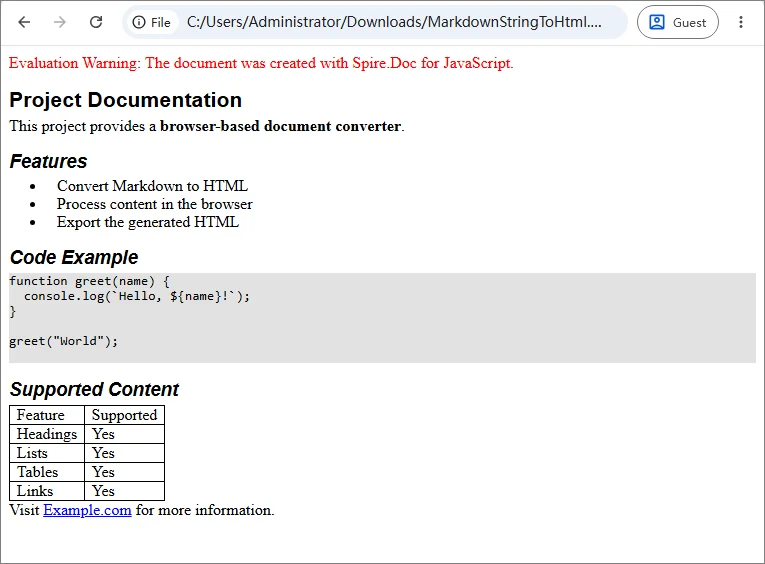
The following example converts a Markdown string containing headings, lists, code, links, and a table.
import React, { useState, useEffect } from 'react';

function App() {
  const [wasmModule, setWasmModule] = useState(null);

  // Load Spire.Doc
  useEffect(() => {
    (async () => {
      try {
        const publicUrl = process.env.PUBLIC_URL || '';

        const spireModule = await import(
          /* webpackIgnore: true */
          `${publicUrl}/spire.doc.js`
        );

        const rawModule = spireModule.default || spireModule;

        window.wasmModule =
          typeof rawModule === 'function'
            ? await rawModule({
                locateFile: (path) =>
                  path.endsWith('.wasm')
                    ? `${publicUrl}/${path}`
                    : path
              })
            : rawModule;

        setWasmModule(window.wasmModule);
      } catch (error) {
        console.error(
          'Failed to load spire.doc.js WASM module:',
          error
        );
      }
    })();
  }, []);

  // Convert Markdown string to HTML
  const convertMarkdownStringToHtml = async () => {
    const wasmModule = window.wasmModule?.spiredoc;

    if (!wasmModule) return;

    // Load the required font into the VFS
    await window.spire.FetchFileToVFS(
      'CALIBRI.ttf',
      '/Library/Fonts/',
      `${process.env.PUBLIC_URL}/static/font/`
    );

    // Define the Markdown string
    const markdownString = `# Project Documentation

This project provides a **browser-based document converter**.

## Features

- Convert Markdown to HTML
- Process content in the browser
- Export the generated HTML

## Code Example

\`\`\`javascript
function greet(name) {
  console.log(\`Hello, \${name}!\`);
}

greet("World");
\`\`\`

## Supported Content

| Feature | Supported |
|---------|-----------|
| Headings | Yes |
| Lists | Yes |
| Tables | Yes |
| Links | Yes |

Visit [Example.com](https://example.com) for more information.
`;

    const inputFileName = 'MarkdownString.md';
    const outputFileName = 'MarkdownStringToHtml.html';

    // Write the Markdown string to the VFS
    window.dotnetRuntime.Module.FS.writeFile(
      inputFileName,
      markdownString,
      { encoding: 'utf8' }
    );

    // Create a Document instance
    const doc = new wasmModule.Document();

    try {
      // Load the Markdown document
      doc.LoadFromFile({
        fileName: inputFileName,
        fileFormat: wasmModule.FileFormat.Markdown
      });

      // Set HTML export options
      doc.HtmlExportOptions.CssStyleSheetType = wasmModule.CssStyleSheetType.Internal;
      doc.HtmlExportOptions.ImageEmbedded = true;

      // Save the document as HTML
      doc.SaveToFile({
        fileName: outputFileName,
        fileFormat: wasmModule.FileFormat.Html
      });

      // Read the generated HTML from the VFS
      const htmlBytes =
        window.dotnetRuntime.Module.FS.readFile(
          outputFileName
        );

      // Download the HTML file
      const blob = new Blob(
        [htmlBytes],
        { type: 'text/html;charset=utf-8' }
      );

      const url = URL.createObjectURL(blob);
      const link = document.createElement('a');

      link.href = url;
      link.download = outputFileName;

      document.body.appendChild(link);
      link.click();
      document.body.removeChild(link);

      URL.revokeObjectURL(url);
    } finally {
      doc.Dispose();
    }
  };

  return (
    <div style={{ textAlign: 'center', height: '300px' }}>
      <h1>Convert Markdown String to HTML</h1>

      <button
        onClick={convertMarkdownStringToHtml}
        disabled={!wasmModule}
      >
        Convert and Download
      </button>
    </div>
  );
}

export default App;
Unlike the previous example, there is no source .md file to load. The Markdown content is written directly to the VFS with FS.writeFile().
window.dotnetRuntime.Module.FS.writeFile(
  inputFileName,
  markdownString,
  { encoding: 'utf8' }
);
This approach also works with Markdown returned from an API, database, CMS, or text editor. Instead of defining markdownString directly in the code, pass the retrieved Markdown content to FS.writeFile().
Output:
Troubleshooting Common MD to HTML Issues
Most conversion problems in a React JavaScript project relate to WebAssembly initialization, public asset paths, or files not loaded into the VFS correctly. The table below lists the most common issues and what to check first.
| Issue | Possible Cause | What to Check |
|---|---|---|
spiredoc is undefined |
The conversion starts before WASM initialization finishes | Keep the conversion button disabled until wasmModule is available |
| 404 when loading runtime files | One or more Spire.Doc assets are missing or the public path is incorrect | Check spire.doc.js, _framework/, WASM resources, and the browser Network panel |
MarkdownExample.md cannot be loaded |
The source file path passed to FetchFileToVFS() is incorrect |
Verify that the file is available under public/static/data/ |
| Font loading fails | CALIBRI.ttf is missing or the font path is incorrect |
Confirm that the font is accessible under public/static/font/ |
| Conversion works locally but fails after deployment | The deployed application uses a different public base path | Verify the generated URLs and adjust process.env.PUBLIC_URL or the equivalent build-tool setting |
| Browser memory increases after repeated conversions | Document objects are not released | Call doc.Dispose() after each conversion, preferably in a finally block |
FAQs
Q: How do I convert a user-selected Markdown file to HTML?
A: A file selected through <input type="file"> is different from a Markdown file stored in the application's public assets.
Read the selected file with the browser File API:
const markdownString = await file.text();
Then write the string to the VFS with FS.writeFile() and use the same conversion process shown in the Markdown string example.
Q: Can I preview the generated HTML instead of downloading it?
A: Yes. Read the generated HTML from the VFS and decode the returned bytes:
const htmlBytes = window.dotnetRuntime.Module.FS.readFile(outputFileName);
const html = new TextDecoder('utf-8').decode(htmlBytes);
The resulting string can then be displayed with an iframe:
<iframe
  title="HTML Preview"
  srcDoc={html}
/>
Security Note: If the Markdown comes from untrusted users or external sources, treat the generated HTML as untrusted content as well and sanitize or isolate it before rendering it in a production application.
Q: Does Markdown-to-HTML conversion require a backend?
A: No. In the examples above, document processing runs through WebAssembly in the browser. The source Markdown and generated HTML are handled through the client-side virtual file system.
A backend may still be needed if your application needs to store the generated file, retrieve protected source content, or perform other server-side operations.
Conclusion
This article showed how to convert Markdown to HTML with JavaScript in React, covering both Markdown files and Markdown strings. By running the conversion through WebAssembly in the browser, content from files, editors, APIs, or CMS platforms can be turned into HTML for download, preview, or further processing. The same core conversion logic can be reused across different Markdown sources.
Create, Filter, and Update Excel Pivot Tables with JavaScript in React
2026-09-01 06:41:05 Written by Lisa LiA pivot table (PivotTable) is a core tool in Excel for quickly summarizing and analyzing large amounts of data. By dragging and dropping fields, you can easily perform data statistics and comparisons. Spire.XLS for JavaScript is based on WebAssembly and can create, filter, and update pivot tables directly in the browser. It manages input and output files through a virtual file system (VFS), so no backend services are required.
This article covers three core features:
For installation and project configuration, please refer to How to Integrate Spire.XLS for JavaScript in a React Project. The examples below assume that Spire.XLS is installed and the WebAssembly module has been initialized.
Create a Pivot Table
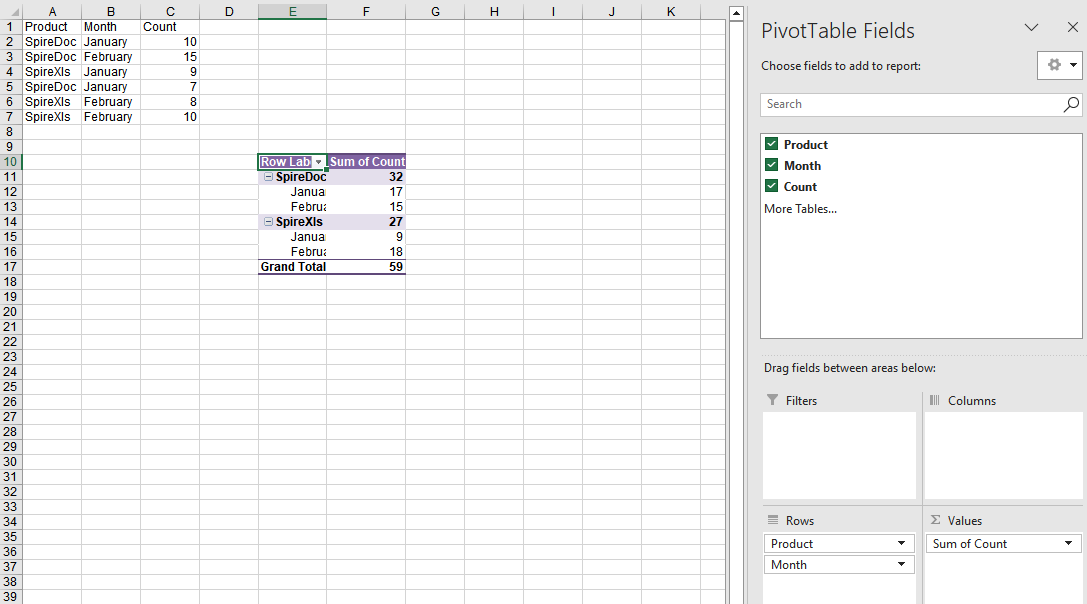
Creating a pivot table usually involves four steps: preparing the source data, adding a pivot table, laying out the fields, and calculating the data. The following example writes a product sales record into the first worksheet, creates a cache based on the data range using the PivotCaches.Add method, adds a pivot table to the worksheet using the PivotTables.Add method, and finally drags fields into the row area and the data area to complete the layout.
function App() {
  const createPivotTable = async () => {
    // Get the Spire.XLS WASM module
    const xlsModule = window.wasmModule?.spirexls;

    // Check if the module is ready
    if (!xlsModule) {
      alert('Spire.Xls is not ready yet');
      return;
    }

    // Load the font into the VFS
    await window.spire.FetchFileToVFS('ARIAL.TTF', '/Library/Fonts/', `${process.env.PUBLIC_URL}/font/`);

    // Create a new workbook
    const workbook = new xlsModule.Workbook();

    // Get the first worksheet
    const sheet = workbook.Worksheets.get(0);

    // Write source data to cells
    sheet.Range.get('A1').Value = 'Product';
    sheet.Range.get('B1').Value = 'Month';
    sheet.Range.get('C1').Value = 'Count';

    sheet.Range.get('A2').Value = 'SpireDoc';
    sheet.Range.get('A3').Value = 'SpireDoc';
    sheet.Range.get('A4').Value = 'SpireXls';
    sheet.Range.get('A5').Value = 'SpireDoc';
    sheet.Range.get('A6').Value = 'SpireXls';
    sheet.Range.get('A7').Value = 'SpireXls';

    sheet.Range.get('B2').Value = 'January';
    sheet.Range.get('B3').Value = 'February';
    sheet.Range.get('B4').Value = 'January';
    sheet.Range.get('B5').Value = 'January';
    sheet.Range.get('B6').Value = 'February';
    sheet.Range.get('B7').Value = 'February';

    sheet.Range.get('C2').Value = '10';
    sheet.Range.get('C3').Value = '15';
    sheet.Range.get('C4').Value = '9';
    sheet.Range.get('C5').Value = '7';
    sheet.Range.get('C6').Value = '8';
    sheet.Range.get('C7').Value = '10';

    // Create a pivot table cache based on the data range
    const dataRange = sheet.Range.get('A1:C7');
    const cache = workbook.PivotCaches.Add({ range: dataRange });

    // Add a pivot table
    const pt = sheet.PivotTables.Add('Pivot Table', sheet.Range.get({ row: 10, column: 5 }), cache);

    // Drag fields into the row area
    const pf1 = pt.PivotFields.get_Item('Product');
    pf1.Axis = xlsModule.AxisTypes.Row;
    const pf2 = pt.PivotFields.get_Item('Month');
    pf2.Axis = xlsModule.AxisTypes.Row;

    // Drag fields into the data area
    pt.DataFields.Add(pt.PivotFields.get_Item('Count'), 'Sum of Count', xlsModule.SubtotalTypes.Sum);

    // Set the pivot table style
    pt.BuiltInStyle = xlsModule.PivotBuiltInStyles.PivotStyleMedium12;

    // Calculate the pivot table data
    pt.CalculateData();
    sheet.AutoFitColumn(5);
    sheet.AutoFitColumn(6);

    // Save the workbook
    const outputFileName = 'CreatePivotTable_output.xlsx';
    workbook.SaveToFile({ fileName: outputFileName, version: xlsModule.ExcelVersion.Version2010 });

    // Release resources
    workbook.Dispose();

    // Read the generated file from the VFS and trigger the download
    const fileArray = window.dotnetRuntime.Module.FS.readFile(outputFileName);
    const blob = new Blob([fileArray], { type: 'application/vnd.openxmlformats-officedocument.spreadsheetml.sheet' });
    const url = URL.createObjectURL(blob);
    const a = document.createElement('a');
    a.href = url;
    a.download = outputFileName;
    a.click();
    URL.revokeObjectURL(url);
  };

  return (
    <div style={{ textAlign: 'center', height: '300px' }}>
      <h1>Create Pivot Table</h1>
      <button onClick={createPivotTable}>Start</button>
    </div>
  );
}

export default App;
After calculating with the CalculateData method, the pivot table summarizes the total count of each product by product and month, displayed with the set PivotStyleMedium12 style.
Filter a Pivot Table
When a pivot table contains a lot of data, you can add filters to the row fields to keep only the data rows that meet the conditions.
function App() {
  const filterPivotTable = async () => {
    // Get the Spire.XLS WASM module
    const xlsModule = window.wasmModule?.spirexls;

    // Check if the module is ready
    if (!xlsModule) {
      alert('Spire.Xls is not ready yet');
      return;
    }

    // Load the font and the Excel file into the VFS
    await window.spire.FetchFileToVFS('ARIAL.TTF', '/Library/Fonts/', `${process.env.PUBLIC_URL}/font/`);
    const inputFileName = 'PivotTableExample.xlsx';
    await window.spire.FetchFileToVFS(inputFileName, '', `${process.env.PUBLIC_URL}data/`);

    // Load the workbook
    const workbook = new xlsModule.Workbook();
    workbook.LoadFromFile({ fileName: inputFileName, version: xlsModule.ExcelVersion.Version2010 });

    // Get the first pivot table in the second worksheet (PivotTable)
    const pt = workbook.Worksheets.get(1).PivotTables.get(0);

    // Get the first row field of the pivot table
    const rowField = pt.RowFields.get(0);

    // Add a value filter to the row field: values of the first data field less than 5300000
    rowField.AddValueFilter(xlsModule.PivotValueFilterType.LessThan, pt.DataFields.get(0), window.spire.Double.Create(5300000), new window.spire.SpireObject(0));

    // Recalculate the pivot table data
    pt.CalculateData();

    // Save the workbook
    const outputFileName = 'FilterPivotTable_output.xlsx';
    workbook.SaveToFile({ fileName: outputFileName, version: xlsModule.ExcelVersion.Version2010 });

    // Release resources
    workbook.Dispose();

    // Read the generated file from the VFS and trigger the download
    const fileArray = window.dotnetRuntime.Module.FS.readFile(outputFileName);
    const blob = new Blob([fileArray], { type: 'application/vnd.openxmlformats-officedocument.spreadsheetml.sheet' });
    const url = URL.createObjectURL(blob);
    const a = document.createElement('a');
    a.href = url;
    a.download = outputFileName;
    a.click();
    URL.revokeObjectURL(url);
  };

  return (
    <div style={{ textAlign: 'center', height: '300px' }}>
      <h1>Filter Pivot Table</h1>
      <button onClick={filterPivotTable}>Start</button>
    </div>
  );
}

export default App;
Original pivot table data 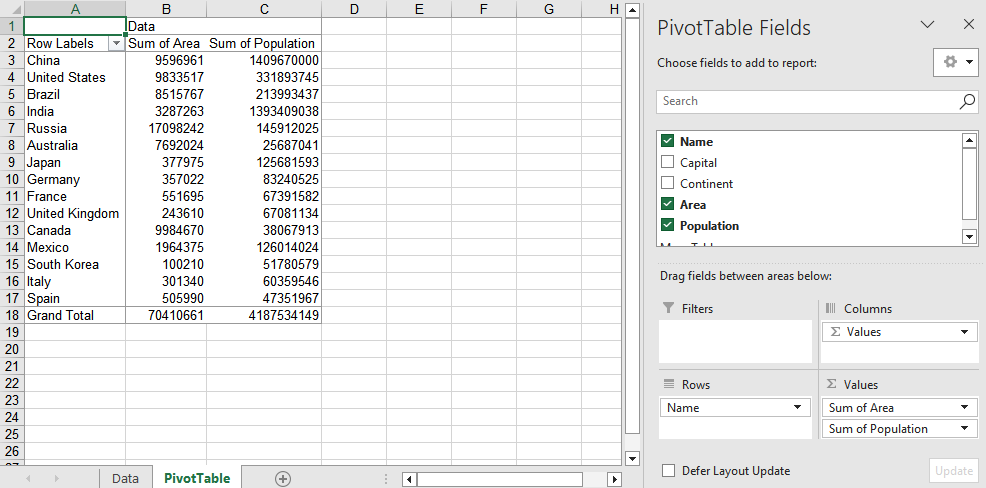
After filtering, the row area of the pivot table keeps only the data that meets the filter conditions, making it easy to focus on analyzing data in a specific range. 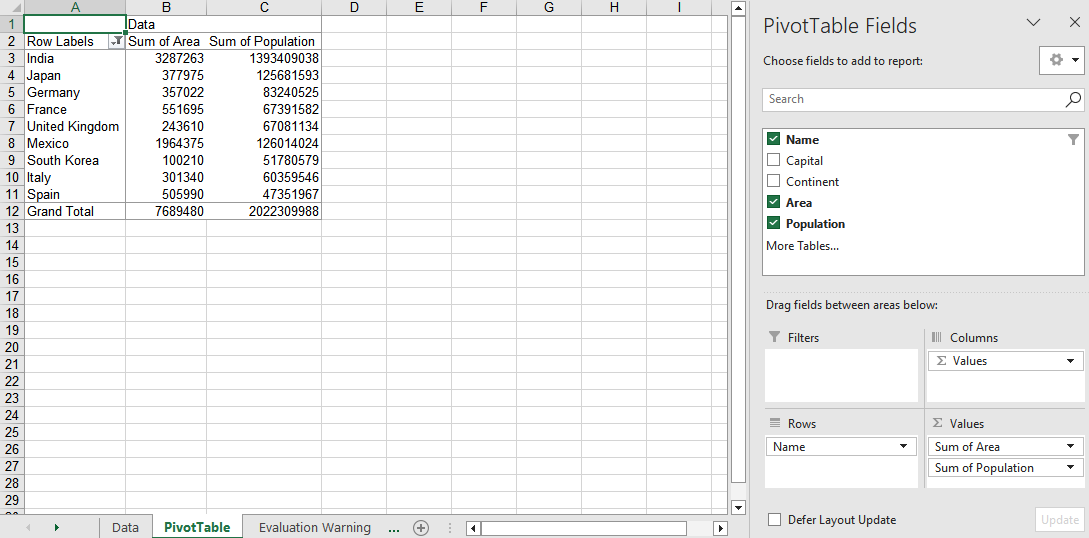
Update the Data Source and Refresh the Pivot Table
When the underlying data of a pivot table changes, you need to update the data source and refresh the pivot table cache so that the pivot table reflects the latest summary results.
function App() {
  const updateDataSource = async () => {
    // Get the Spire.XLS WASM module
    const xlsModule = window.wasmModule?.spirexls;

    // Check if the module is ready
    if (!xlsModule) {
      alert('Spire.Xls is not ready yet');
      return;
    }

    // Load the font and the Excel file into the VFS
    await window.spire.FetchFileToVFS('ARIAL.TTF', '/Library/Fonts/', `${process.env.PUBLIC_URL}/font/`);
    const inputFileName = 'PivotTableExample.xlsx';
    await window.spire.FetchFileToVFS(inputFileName, '', `${process.env.PUBLIC_URL}data/`);

    // Load the workbook
    const workbook = new xlsModule.Workbook();
    workbook.LoadFromFile({ fileName: inputFileName, version: xlsModule.ExcelVersion.Version2010 });

    // Get the data source worksheet and modify the cell values in it
    const data = workbook.Worksheets.get('Data');
    data.Range.get('A2').Text = 'NewValue';
    data.Range.get('D2').NumberValue = 28000;

    // Get the worksheet that contains the pivot table
    const sheet = workbook.Worksheets.get({ sheetName: 'PivotTable' });

    // Get the first pivot table on the worksheet
    const pt = sheet.PivotTables.get(0);

    // Refresh the pivot table cache
    pt.Cache.IsRefreshOnLoad = true;

    // Calculate and update the pivot table data
    pt.CalculateData();

    // Save the workbook
    const outputFileName = 'UpdateDataSource_output.xlsx';
    workbook.SaveToFile({ fileName: outputFileName, version: xlsModule.ExcelVersion.Version2010 });

    // Release resources
    workbook.Dispose();

    // Read the generated file from the VFS and trigger the download
    const fileArray = window.dotnetRuntime.Module.FS.readFile(outputFileName);
    const blob = new Blob([fileArray], { type: 'application/vnd.openxmlformats-officedocument.spreadsheetml.sheet' });
    const url = URL.createObjectURL(blob);
    const a = document.createElement('a');
    a.href = url;
    a.download = outputFileName;
    a.click();
    URL.revokeObjectURL(url);
  };

  return (
    <div style={{ textAlign: 'center', height: '300px' }}>
      <h1>Update Pivot Table Data Source</h1>
      <button onClick={updateDataSource}>Start</button>
    </div>
  );
}

export default App;
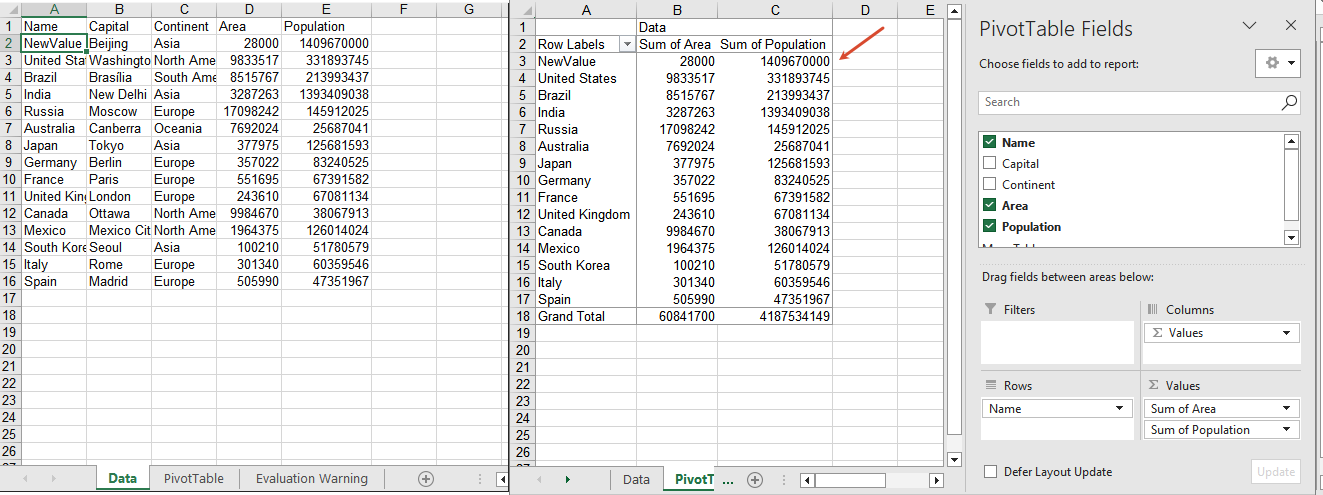
After the data source is updated and refreshed, the corresponding summary results in the pivot table are updated synchronously.
Frequently Asked Questions
No summary data is displayed after creating a pivot table
Cause: The CalculateData method is not called after adding fields to the pivot table, or the data fields are not correctly added to the data area.
Solution: Call pt.CalculateData() to recalculate the pivot table after completing the field layout, and make sure the numeric fields are added to the data area through the DataFields.Add method.
The pivot table data does not change after adding a filter
Cause: The CalculateData method is not called to recalculate after adding a label or value filter, or the filter is added to the wrong field.
Solution: Call pt.CalculateData() to recalculate the pivot table, and confirm that you use a property such as pt.RowFields.get(0) to get the correct field before adding the filter.
The pivot table data does not change after updating the data source
Cause: The pivot table cache is not refreshed after modifying the data source, so the pivot table still retains the old data.
Solution: After modifying the data source, set pt.Cache.IsRefreshOnLoad to true and call pt.CalculateData(), so that the pivot table is recalculated based on the latest data source.
Get a Free License
If you want to remove the evaluation message from the result document or get rid of the feature limitations, please contact sales to get a 30-day temporary license.
Add, Get, and Remove Excel Data Validation with JavaScript in React
2026-08-27 08:46:45 Written by Lisa LiData validation is an effective way to control the input content of Excel cells. It can intercept incorrect input at the data entry stage, ensuring that data is standardized and accurate. Spire.XLS for JavaScript uses WebAssembly to add, read, and remove data validation directly in the browser, managing input and output files through a virtual file system (VFS) — no backend server required.
This article covers three core features:
For installation and project configuration, refer to Integrating Spire.XLS for JavaScript in a React Project. The examples below assume Spire.XLS is installed and the WebAssembly module is initialized.
Add Data Validation
In daily forms and reports, we often need to restrict the input of cells, for example only allowing numbers or dates within a certain range, or limiting the text length. Spire.XLS for JavaScript sets validation rules through the DataValidation property of a cell, supporting multiple validation types such as Decimal, Whole Number, Date, Time, Text Length, and List.
function App() {
  const sheetToSVG = async () => {
    // Get the Spire.XLS WASM module
    const xlsModule = window.wasmModule?.spirexls;

    // Check if the module is ready
    if (!xlsModule) {
      alert('Spire.Xls is not ready yet');
      return;
    }

    // Load the font into VFS
    await window.spire.FetchFileToVFS('ARIAL.TTF', '/Library/Fonts/', `${process.env.PUBLIC_URL}/font/`);

    // Create a new workbook
    const workbook = new xlsModule.Workbook();

    // Get the first worksheet
    const sheet = workbook.Worksheets.get(0);

    // Add a decimal validation: cell B12 can only accept numbers between 3 and 6
    sheet.Range.get("B11").Text = "Input Number(3-6):";
    let rangeNumber = sheet.Range.get("B12");
    rangeNumber.DataValidation.CompareOperator = xlsModule.ValidationComparisonOperator.Between;
    rangeNumber.DataValidation.Formula1 = "3";
    rangeNumber.DataValidation.Formula2 = "6";
    rangeNumber.DataValidation.AllowType = xlsModule.CellDataType.Decimal;
    rangeNumber.DataValidation.ErrorMessage = "Please input correct number!";
    rangeNumber.DataValidation.ShowError = true;
    rangeNumber.Style.KnownColor = xlsModule.ExcelColors.Gray25Percent;

    // Add a date validation: cell B15 can only accept dates within the year 2024
    sheet.Range.get("B14").Text = "Input Date: 1/1/2024";
    let rangeDate = sheet.Range.get("B15");
    rangeDate.DataValidation.AllowType = xlsModule.CellDataType.Date;
    rangeDate.DataValidation.CompareOperator = xlsModule.ValidationComparisonOperator.Between;
    rangeDate.DataValidation.Formula1 = "1/1/2024";
    rangeDate.DataValidation.Formula2 = "12/31/2024";
    rangeDate.DataValidation.ErrorMessage = "Please input correct date!";
    rangeDate.DataValidation.ShowError = true;
    // Supports setting AlertStyleType.Warning; AlertStyleType.Info; AlertStyleType.Stop
    rangeDate.DataValidation.AlertStyle = xlsModule.AlertStyleType.Warning;
    rangeDate.Style.KnownColor = xlsModule.ExcelColors.Gray25Percent;

    // Add a text length validation: the text length in cell B18 cannot exceed 5 characters
    sheet.Range.get("B17").Text = "Input Text:";
    let rangeTextLength = sheet.Range.get("B18");
    rangeTextLength.DataValidation.AllowType = xlsModule.CellDataType.TextLength;
    rangeTextLength.DataValidation.CompareOperator = xlsModule.ValidationComparisonOperator.LessOrEqual;
    rangeTextLength.DataValidation.Formula1 = "5";
    rangeTextLength.DataValidation.ErrorMessage = "Enter a Valid String!";
    rangeTextLength.DataValidation.ShowError = true;
    rangeTextLength.DataValidation.AlertStyle = xlsModule.AlertStyleType.Stop;
    rangeTextLength.Style.KnownColor = xlsModule.ExcelColors.Gray25Percent;

    // Auto-fit the width of column 2
    sheet.AutoFitColumn(2);

    const outputFileName = "DataValidation_out.xlsx";
    workbook.SaveToFile({ fileName: outputFileName, version: xlsModule.ExcelVersion.Version2010 });

    // Release the workbook object to free resources
    workbook.Dispose();

    // Read the converted file from VFS and trigger the download
    const fileArray = window.dotnetRuntime.Module.FS.readFile(outputFileName);
    const blob = new Blob([fileArray], { type: "application/vnd.openxmlformats-officedocument.spreadsheetml.sheet" });
    const url = URL.createObjectURL(blob);
    const a = document.createElement('a');
    a.href = url;
    a.download = outputFileName;
    a.click();
    URL.revokeObjectURL(url);
  };

  return (
    <div style={{ textAlign: 'center', height: '300px' }}>
      <h1>Add Data Validation</h1>
      <button onClick={sheetToSVG}>
        Start
      </button>
    </div>
  );
}

export default App;
Add data validation 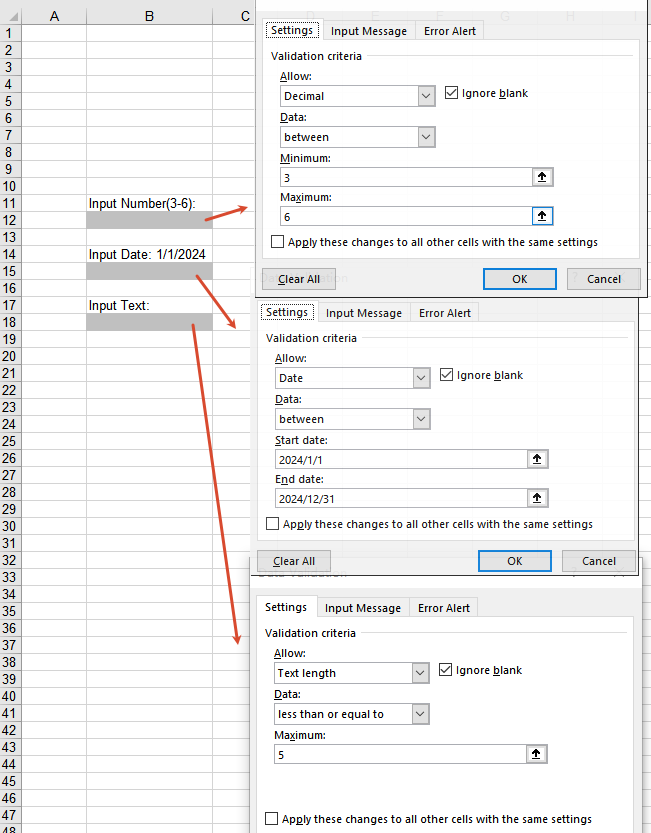
Get Data Validation Settings
When processing an Excel document that already has data validation, you may sometimes need to read the validation rules to understand the input constraints of a cell. Through the DataValidation property of a cell, you can obtain the validation object and then read settings such as AllowType (validation type), CompareOperator (comparison operator), Formula1 (minimum/lower limit), Formula2 (maximum/upper limit), and IgnoreBlank (whether blank values are ignored).
function App() {
  const sheetToSVG = async () => {
    // Get the Spire.XLS WASM module
    const xlsModule = window.wasmModule?.spirexls;

    // Check if the module is ready
    if (!xlsModule) {
      alert('Spire.Xls is not ready yet');
      return;
    }

    // Load the font and Excel file into VFS
    await window.spire.FetchFileToVFS('ARIAL.TTF', '/Library/Fonts/', `${process.env.PUBLIC_URL}/font/`);
    const inputFileName = 'GetSettingsOfDataValidation.xlsx';
    await window.spire.FetchFileToVFS(inputFileName, '', `${process.env.PUBLIC_URL}/static/data/`);

    // Load the workbook
    const workbook = new xlsModule.Workbook();
    workbook.LoadFromFile({ fileName: inputFileName });

    // Get the first worksheet
    const worksheet = workbook.Worksheets.get(0);

    // Cell B4 has a decimal validation set
    const cell = worksheet.Range.get("B4");

    // Get the data validation object of this cell
    const validation = cell.DataValidation;

    // Get the validation settings
    let allowType = validation.AllowType.toString();
    let data = validation.CompareOperator.toString();
    let minimum = validation.Formula1.toString();
    let maximum = validation.Formula2.toString();
    let ignoreBlank = validation.IgnoreBlank.toString();

    // Concatenate the result into a string
    let result = `Settings of Validation: \r\nAllow Type: ${allowType}\r\nData: ${data}\r\nMinimum: ${minimum}\r\nMaximum: ${maximum}\r\nIgnoreBlank: ${ignoreBlank}`;

    const outputFileName = 'GetSettingsOfDataValidation-out.txt';

    // Write the result to a txt file
    window.dotnetRuntime.Module.FS.writeFile(outputFileName, result);

    // Release the workbook object to free resources
    workbook.Dispose();

    // Read the converted file from VFS and trigger the download
    const fileArray = window.dotnetRuntime.Module.FS.readFile(outputFileName);
    const blob = new Blob([fileArray], { type: 'text/plain' });
    const url = URL.createObjectURL(blob);
    const a = document.createElement('a');
    a.href = url;
    a.download = outputFileName;
    a.click();
    URL.revokeObjectURL(url);
  };

  return (
    <div style={{ textAlign: 'center', height: '300px' }}>
      <h1>Get Data Validation Settings</h1>
      <button onClick={sheetToSVG}>
        Start
      </button>
    </div>
  );
}

export default App;
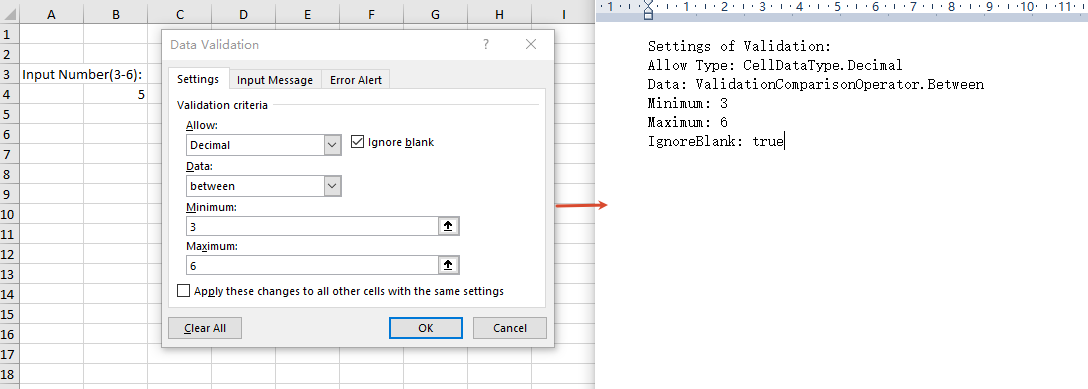
Remove Data Validation
When the validation rules are no longer needed, you can remove data validation in bulk by cell range through the Remove method of the worksheet's DVTable. When removing, you need to pass in an array composed of rectangles, which are used to locate the ranges in the worksheet where the validations should be removed.
function App() {
  const sheetToSVG = async () => {
    // Get the Spire.XLS WASM module
    const xlsModule = window.wasmModule?.spirexls;

    // Check if the module is ready
    if (!xlsModule) {
      alert('Spire.Xls is not ready yet');
      return;
    }

    // Load the font and Excel file into VFS
    await window.spire.FetchFileToVFS('ARIAL.TTF', '/Library/Fonts/', `${process.env.PUBLIC_URL}/font/`);
    const inputFileName = 'RemoveDataValidation.xlsx';
    await window.spire.FetchFileToVFS(inputFileName, '', `${process.env.PUBLIC_URL}/static/data/`);

    // Load the workbook
    const workbook = new xlsModule.Workbook();
    workbook.LoadFromFile({ fileName: inputFileName });

    // Create an array of rectangles, which is used to locate the ranges in the worksheet
    let rectangles = [];

    // Add a rectangle to the array. This rectangle specifies the cells from A1 to B3.
    rectangles.push(xlsModule.Rectangle.FromLTRB(0, 0, 1, 2));

    // Remove the validations in the ranges represented by the rectangles
    workbook.Worksheets.get(0).DVTable.Remove(rectangles);

    const outputFileName = 'RemoveDataValidation-out.xlsx';
    workbook.SaveToFile({ fileName: outputFileName, version: xlsModule.ExcelVersion.Version2010 });

    // Release the workbook object to free resources
    workbook.Dispose();

    // Read the converted file from VFS and trigger the download
    const fileArray = window.dotnetRuntime.Module.FS.readFile(outputFileName);
    const blob = new Blob([fileArray], { type: "application/vnd.openxmlformats-officedocument.spreadsheetml.sheet" });
    const url = URL.createObjectURL(blob);
    const a = document.createElement('a');
    a.href = url;
    a.download = outputFileName;
    a.click();
    URL.revokeObjectURL(url);
  };

  return (
    <div style={{ textAlign: 'center', height: '300px' }}>
      <h1>Remove Data Validation</h1>
      <button onClick={sheetToSVG}>
        Start
      </button>
    </div>
  );
}

export default App;
Remove data validation 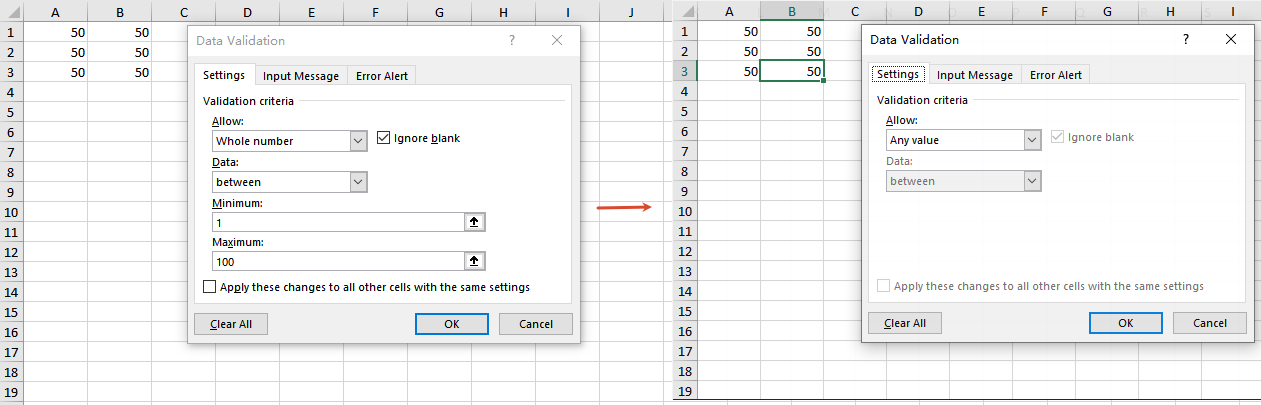
Frequently Asked Questions
The added data validation does not take effect
Cause: Other validation rules already exist on the target cell, or the validation type or comparison operator does not match the requirement.
Solution: Make sure the validation rule is applied to the correct cell range, and check whether the values of properties such as AllowType, CompareOperator, Formula1, and Formula2 meet the expectation.
The result is empty when getting data validation settings
Cause: No data validation is set on the target cell, or the cell range being read does not match the location of the validation.
Solution: Make sure the cell has data validation set, and check whether the cell address referenced by the Range.get method is correct.
Data validation still exists after removal
Cause: The rectangle range passed to the DVTable.Remove method does not cover the actual validation area.
Solution: Adjust the coordinates in the Rectangle.FromLTRB method according to the cell range covered by the validations, ensuring that the rectangle range includes all the cells whose validations need to be removed.
Get a Free License
If you want to remove the evaluation messages in the output documents, or get rid of the feature limitations, please contact our sales team to obtain a free 30-day temporary license.
