
Knowledgebase (2370)
Children categories
If you need to display or interact with the contents of an Excel spreadsheet on a web page, converting Excel to HTML is a good choice. This conversion allows users to view and manipulate the table data directly on the web page without having to download the Excel file, providing a more convenient way to share and display the data. When needed, you can also convert the HTML file back to Excel format for better data editing. In this article, we will show you how to convert Excel to HTML and HTML to Excel in Python by using Spire.XLS for Python.
- Convert Excel to HTML in Python
- Convert Excel to HTML with Images Embedded in Python
- Convert HTML to Excel in Python
Install Spire.XLS for Python
This scenario requires Spire.XLS for Python and plum-dispatch v1.7.4. They can be easily installed in your Windows through the following pip commands.
pip install Spire.XLS
If you are unsure how to install, please refer to this tutorial: How to Install Spire.XLS for Python on Windows
Convert Excel to HTML in Python
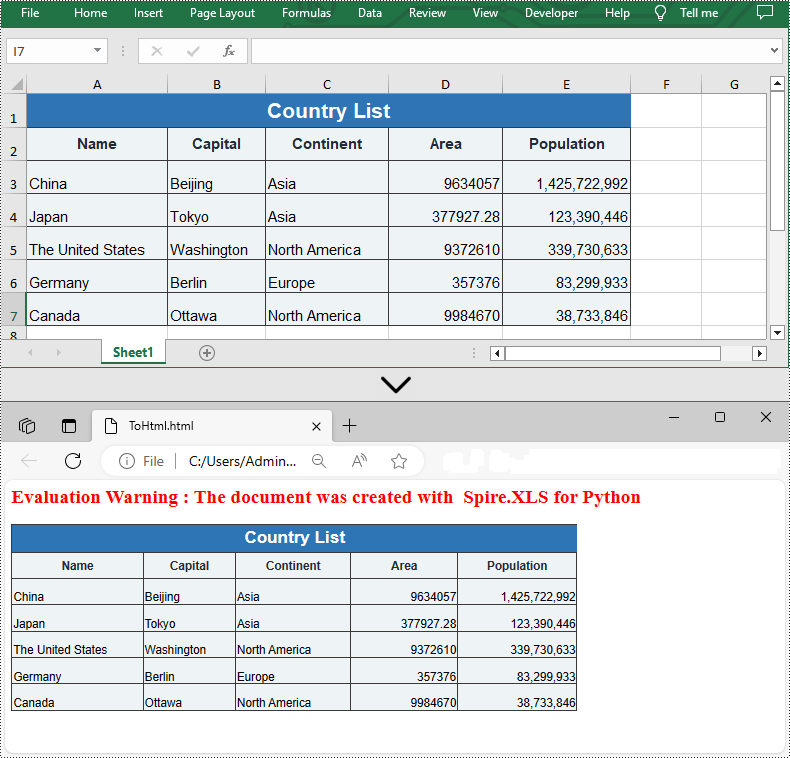
Spire.XLS for Python supports converting a specific Excel worksheet to HTML using Worksheet.SaveToHtml() method. Detailed steps are listed below.
- Create a Workbook instance.
- Load a sample Excel file using Workbook.LoadFromFile() method.
- Get a specific worksheet using Workbook.Worksheets[] property.
- Save the worksheet as an HTML file using Worksheet.SaveToHtml() method.
- Python
from spire.xls import *
from spire.xls.common import *

inputFile = "C:/Users/Administrator/Desktop/Sample_1.xlsx"
outputFile = "C:/Users/Administrator/Desktop/ToHtml.html"

# Create a Workbook instance
workbook = Workbook()

# Load a sample Excel file
workbook.LoadFromFile(inputFile)

# Get the first sheet of this file
sheet = workbook.Worksheets[0]

# Save the worksheet to HTML
sheet.SaveToHtml(outputFile)
workbook.Dispose()
Convert Excel to HTML with Images Embedded in Python
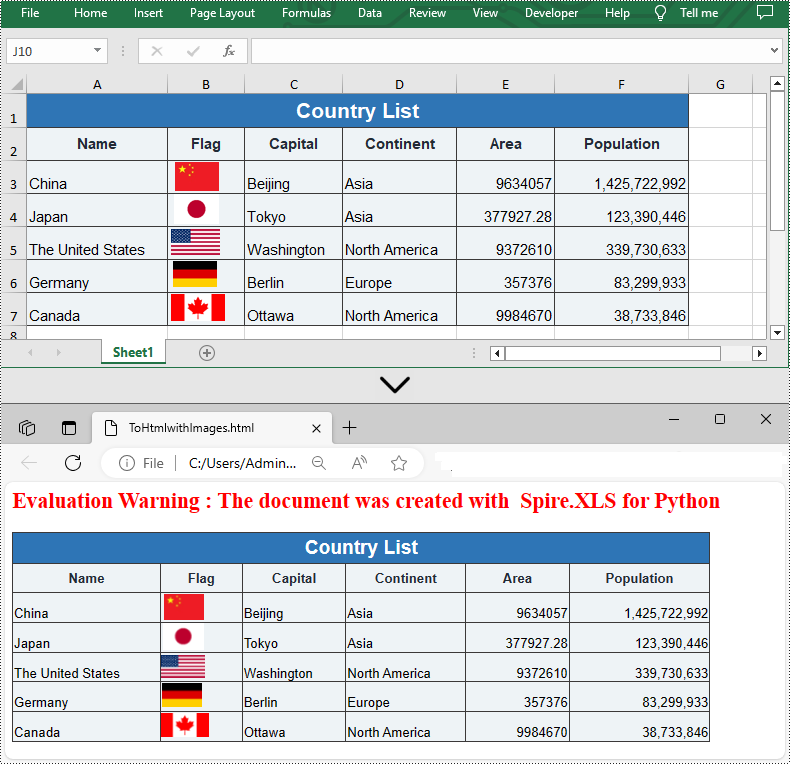
If the Excel file you want to convert contains images, you can embed the images into the HTML file by setting the ImageEmbedded property to "True". Detailed steps are listed below.
- Create a Workbook instance.
- Load a sample Excel file using Workbook.LoadFromFile() method.
- Get a specific worksheet using Workbook.Worksheets[] property.
- Create an HTMLOptions instance.
- Set the ImageEmbedded as “True” to embed images to HTML.
- Save the worksheet as an HTML file using Worksheet.SaveToHtml() method.
- Python
from spire.xls import *
from spire.xls.common import *

inputFile = "C:/Users/Administrator/Desktop/Sample_2.xlsx"
outputFile = "C:/Users/Administrator/Desktop/ToHtmlwithImages.html"

# Create a Workbook instance
workbook = Workbook()

# Load a sample Excel file
workbook.LoadFromFile(inputFile)

# Get the first sheet of this file
sheet = workbook.Worksheets[0]

# Create an HTMLOptions instance
options = HTMLOptions()

# Embed images to HTML
options.ImageEmbedded = True

# Save the worksheet to HTML
sheet.SaveToHtml(outputFile, options)
workbook.Dispose()
Convert HTML to Excel in Python
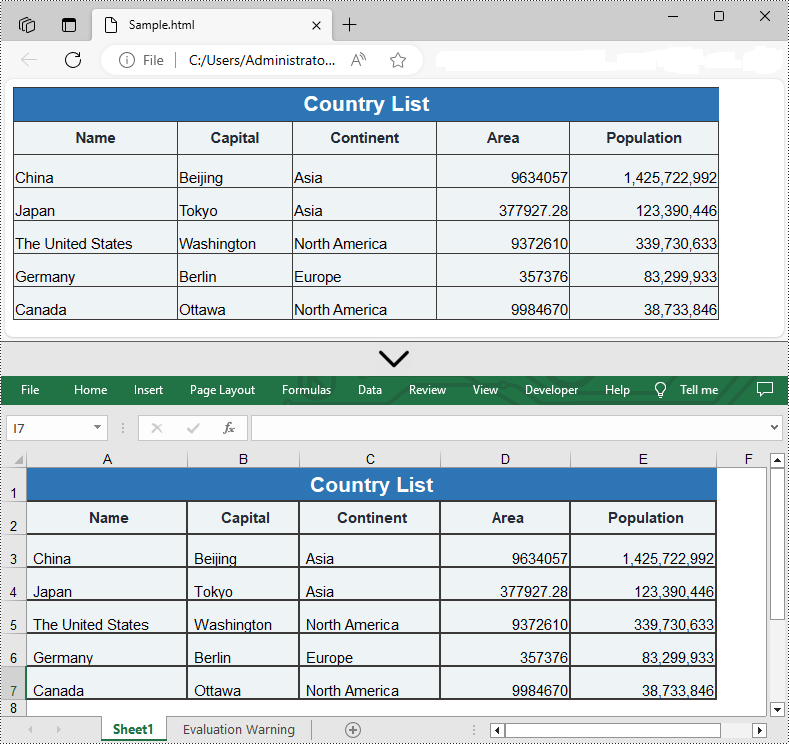
You are also allowed to convert an HTML back to an Excel file by calling the Workbook.SaveToFile() method provided by Spire.XLS for Python. Detailed steps are listed below.
- Create a Workbook instance.
- Load an HTML file from disk using Workbook.LoadFromFile() method.
- Save the HTML file to an Excel file by using Workbook.SaveToFile() method.
- Python
from spire.xls import *
from spire.xls.common import *

inputFile = "C:/Users/Administrator/Desktop/Sample.html"
outputFile = "C:/Users/Administrator/Desktop/ToExcel.xlsx"

# Create a Workbook instance
workbook = Workbook()

# Load an HTML file from disk
workbook.LoadFromHtml(inputFile)

# Save the HTML file to an Excel file
workbook.SaveToFile(outputFile, ExcelVersion.Version2013)
workbook.Dispose()
Apply for a Temporary License
If you'd like to remove the evaluation message from the generated documents, or to get rid of the function limitations, please request a 30-day trial license for yourself.
Hiding or unhiding rows and columns in Excel gives you precise control over the visibility of specific data within a worksheet. By hiding rows or columns, you can temporarily remove irrelevant information from view, reducing visual clutter and creating a cleaner workspace. This makes it easier to work with the data that truly matters and enhances your productivity. On the other hand, unhiding rows or columns allows you to restore visibility and regain access to previously hidden information whenever you need it. This is advantageous when you have hidden data that requires further review, modification, or analysis. In this article, we will explain how to hide or unhide rows and columns in Excel in Python using Spire.XLS for Python.
- Hide Specific Rows and Columns in Excel in Python
- Unhide Specific Hidden Rows and Columns in Excel in Python
- Hide Multiple Rows and Columns at Once in Excel in Python
- Unhide All Hidden Rows and Columns in Excel in Python
Install Spire.XLS for Python
This scenario requires Spire.XLS for Python and plum-dispatch v1.7.4. They can be easily installed in your Windows through the following pip command.
pip install Spire.XLS
If you are unsure how to install, please refer to this tutorial: How to Install Spire.XLS for Python on Windows
Hide Specific Rows and Columns in Excel in Python
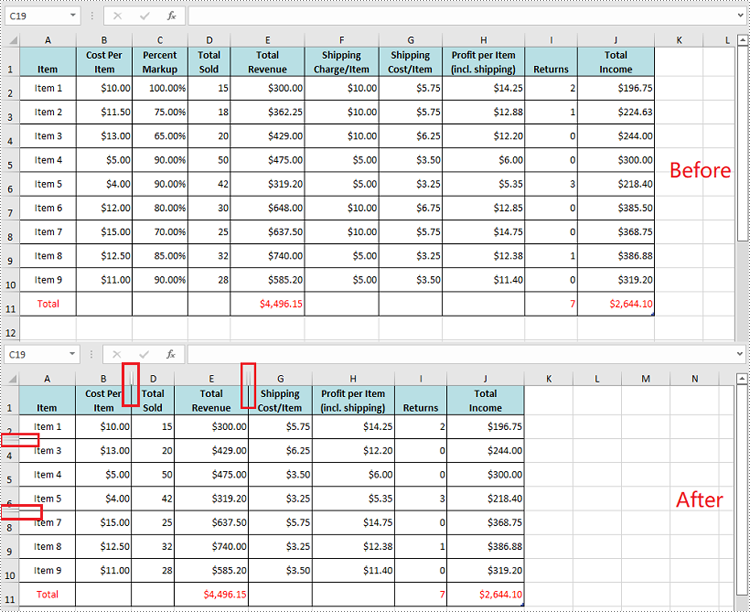
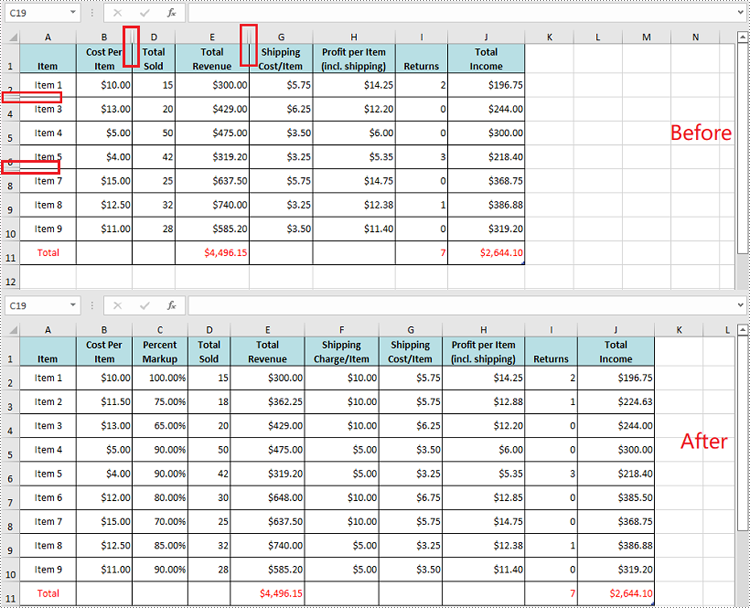
Spire.XLS for Python offers the Worksheet.HideRow(rowIndex) and Worksheet.HideColumn(columnIndex) methods to hide a specific row and column in an Excel worksheet. The detailed steps are as follows.
- Create an object of the Workbook class.
- Load an Excel file using Workbook.LoadFromFile() method.
- Get a specific worksheet through Workbook.Worksheets[sheetIndex] property.
- Hide specific rows in the worksheet using Worksheet.HideRow(rowIndex) method.
- Hide Specific columns in the worksheet using Worksheet.HideColumn(columnIndex) method.
- Save the result file using Workbook.SaveToFile() method.
- Python
from spire.xls import *
from spire.xls.common import *

# Create a Workbook object
workbook = Workbook()
# Load an Excel file
workbook.LoadFromFile("Input.xlsx")

# Get the first worksheet
sheet = workbook.Worksheets[0]

# Hide the 3rd and the 7th rows
sheet.HideRow(3)
sheet.HideRow(7)

# Hide the 3rd and the 6th columns
sheet.HideColumn(3)
sheet.HideColumn(6)

# Save the result file
workbook.SaveToFile("HideRowsAndColumns.xlsx", ExcelVersion.Version2016)
workbook.Dispose()
Unhide Specific Hidden Rows and Columns in Excel in Python
You can use the Worksheet.ShowRow(rowIndex) and Worksheet.ShowColumn(columnIndex) methods to unhide a specific hidden row and column. The detailed steps are as follows.
- Create an object of the Workbook class.
- Load an Excel file using Workbook.LoadFromFile() method.
- Get a specific worksheet through Workbook.Worksheets[sheetIndex] property.
- Unhide specific hidden rows in the worksheet using Worksheet.ShowRow(rowIndex) method.
- Unhide specific hidden columns in the worksheet using Worksheet.ShowColumn(columnIndex) method.
- Save the result file using Workbook.SaveToFile() method.
- Python
from spire.xls import *
from spire.xls.common import *

# Create a Workbook object
workbook = Workbook()
# Load an Excel file
workbook.LoadFromFile("HideRowsAndColumns.xlsx")

# Get the first worksheet
sheet = workbook.Worksheets[0]

# Unhide the 3rd and the 7th rows
sheet.ShowRow(3)
sheet.ShowRow(7)

# Unhide the 3rd and the 6th columns
sheet.ShowColumn(3)
sheet.ShowColumn(6)

# Save the result file
workbook.SaveToFile("ShowRowsAndColumns.xlsx", ExcelVersion.Version2016)
workbook.Dispose()
Hide Multiple Rows and Columns at Once in Excel in Python
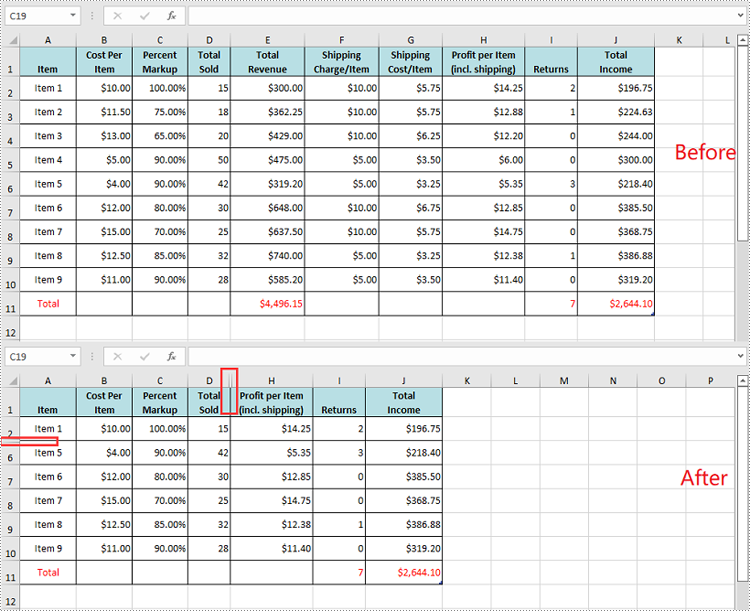
To hide multiple rows and columns at once, you can use the Worksheet.HideRows(startRowIndex, rowCount) and Worksheet.HideColumns(startColumnIndex, columnCount) methods. The detailed steps are as follows.
- Create an object of the Workbook class.
- Load an Excel file using Workbook.LoadFromFile() method.
- Get a specific worksheet through Workbook.Worksheets[sheetIndex] property.
- Hide multiple rows in the worksheet using the Worksheet.HideRows(startRowIndex, rowCount) method.
- Hide multiple columns in the worksheet using Worksheet.HideColumns(startColumnIndex, columnCount) method.
- Save the result file using Workbook.SaveToFile() method.
- Python
from spire.xls import *
from spire.xls.common import *

# Create a Workbook object
workbook = Workbook()
# Load an Excel file
workbook.LoadFromFile("Input.xlsx")

# Get the first worksheet
sheet = workbook.Worksheets[0]

# Hide 3, 4 and 5 rows
sheet.HideRows(3, 3)

# Hide 5, 6 and 7 columns
sheet.HideColumns(5, 3)

# Save the result file
workbook.SaveToFile("HideMultipleRowsAndColumns.xlsx", ExcelVersion.Version2016)
workbook.Dispose()
Unhide All Hidden Rows and Columns in Excel in Python
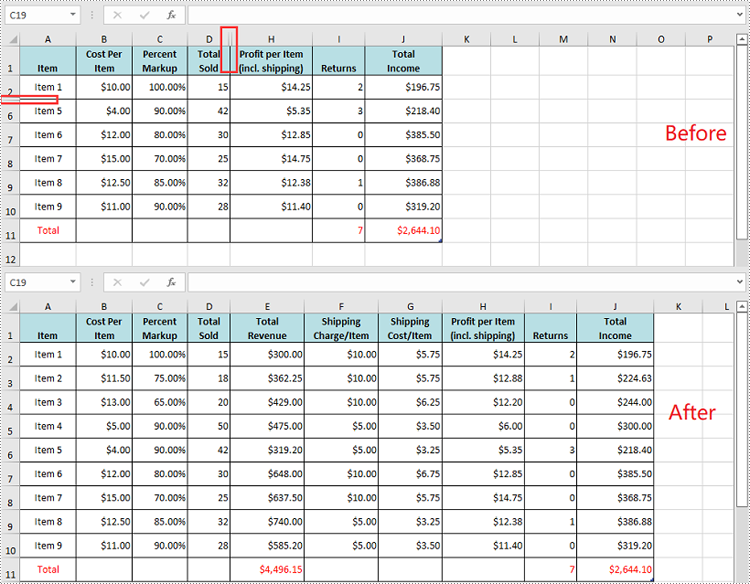
To unhide all hidden rows and columns, you first need to loop through the used rows and columns in the worksheet. Next, find the hidden rows and columns using Worksheet.GetRowIsHide(rowIndex) and Worksheet.GetColumnIsHide(columnIndex) methods, and then unhide them using Worksheet.ShowRow(rowIndex) and Worksheet.ShowColumn(columnIndex) methods. The detailed steps are as follows.
- Create an object of the Workbook class.
- Load an Excel file using Workbook.LoadFromFile() method.
- Get a specific worksheet through Workbook.Worksheets[sheetIndex] property.
- Iterate through the used rows in the worksheet and find the hidden rows using Worksheet.GetRowIsHide(rowIndex) method.
- Unhide every hidden row using Worksheet.ShowRow(rowIndex) method.
- Iterate through the used columns in the worksheet and find the hidden columns using Worksheet.GetColumnIsHide(columnIndex) method.
- Unhide every hidden column using Worksheet.ShowColumn(columnIndex) method.
- Save the result file using Workbook.SaveToFile() method.
- Python
from spire.xls import *
from spire.xls.common import *

# Create a Workbook object
workbook = Workbook()
# Load an Excel file
workbook.LoadFromFile("HideMultipleRowsAndColumns.xlsx")

# Get the first worksheet
sheet = workbook.Worksheets[0]

# Iterate through the used rows in the worksheet
for i in range(1, sheet.LastRow + 1):
    # Check if the current row is hidden
    if sheet.GetRowIsHide(i):
        # Unhide the hidden row
        sheet.ShowRow(i)

# Iterate through the used columns in the worksheet
for j in range(1, sheet.LastColumn + 1):
    # Check if the current column is hidden
    if sheet.GetColumnIsHide(j):
        # Unhide the hidden column
        sheet.ShowColumn(j)

# Save the result file
workbook.SaveToFile("ShowAllHiddenRowsAndColumns.xlsx", ExcelVersion.Version2016)
workbook.Dispose()
Apply for a Temporary License
If you'd like to remove the evaluation message from the generated documents, or to get rid of the function limitations, please request a 30-day trial license for yourself.
Hyperlinks are a useful tool for connecting and navigating between different sections of your document or external resources such as websites or files. However, there may be instances where you need to modify the hyperlinks in your Word document. For example, you may need to update the text or URL of a hyperlink to ensure accuracy, or change the appearance of a hyperlink to improve visibility. In this article, you will learn how to update or change hyperlinks in a Word document in Python using Spire.Doc for Python.
- Update a Hyperlink in a Word Document in Python
- Change the Appearance of a Hyperlink in a Word Document in Python
Install Spire.Doc for Python
This scenario requires Spire.Doc for Python and plum-dispatch v1.7.4. They can be easily installed in your Windows through the following pip command.
pip install Spire.Doc
If you are unsure how to install, please refer to this tutorial: How to Install Spire.Doc for Python on Windows
Update a Hyperlink in a Word Document in Python
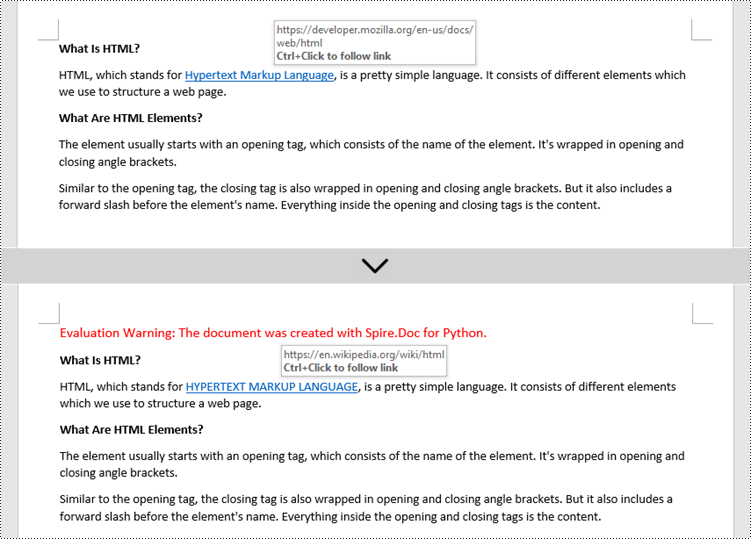
A hyperlink is recognized as a FormField object by Spire.Doc for Python. In order to modify a specific hyperlink, we need to retrieve all hyperlinks in the document and get the desired one by its index. The display text and URL of a hyperlink can be reset by the FormField.Text property and the FormField.Code property. The following are the steps to update a hyperlink in a Word document using Spire.Doc for Python.
- Create a Document object.
- Load a Word file using Document.LoadFromFile() method.
- Loop through the elements in the document to find all hyperlinks.
- Get a specific hyperlink from the hyperlink collection.
- Update the display text of the hyperlink through FormField.FieldText property.
- Update the URL of the hyperlink through FormField.Code property.
- Save the document to a different Word file using Document.SaveToFile() method.
- Python
from spire.doc import *
from spire.doc.common import *

# Create a Document object
doc = Document()

# Load a Word file
doc.LoadFromFile("C:/Users/Administrator/Desktop/input.docx")

# Find all hyperlinks in the document
hyperlinks = []
for i in range(doc.Sections.Count):
    section = doc.Sections.get_Item(i)
    for j in range(section.Body.ChildObjects.Count):
        sec = section.Body.ChildObjects.get_Item(j)
        if sec.DocumentObjectType == DocumentObjectType.Paragraph:
            for k in range((sec if isinstance(sec, Paragraph) else None).ChildObjects.Count):
                para = (sec if isinstance(sec, Paragraph)
                        else None).ChildObjects.get_Item(k)
                if para.DocumentObjectType == DocumentObjectType.Field:
                    field = para if isinstance(para, Field) else None
                    if field.Type == FieldType.FieldHyperlink:
                        hyperlinks.append(field)

# Get a specific hyperlink
hyperlink = hyperlinks[0]

# Update the display text of the hyperlink
hyperlink.FieldText = "HYPERTEXT MARKUP LANGUAGE"

# Update the URL of the hyperlink
hyperlink.Code ="HYPERLINK \"" + "https://en.wikipedia.org/wiki/HTML" + "\""

# Save the document to a docx file
doc.SaveToFile("output/UpdateHyperlink.docx", FileFormat.Docx)
doc.Close()
Change the Appearance of a Hyperlink in a Word Document in Python
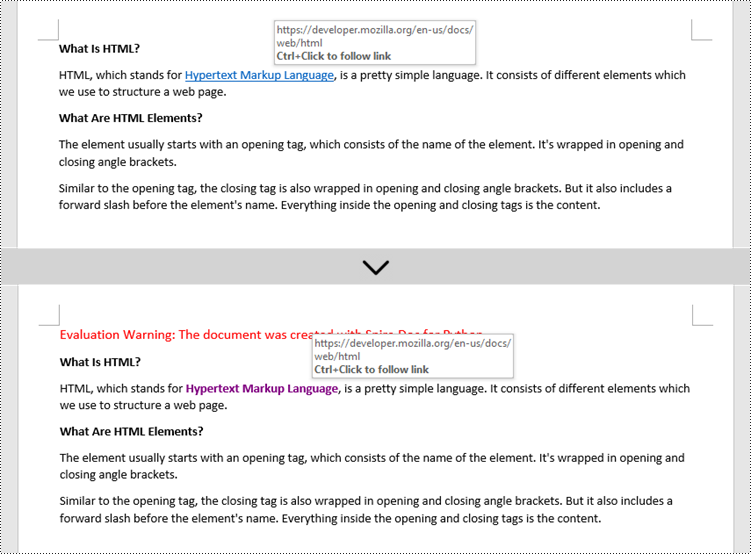
After a hyperlink is obtained, it's easy to change the appearance of it through the FormField.CharacterFormat object. Specifically, the CharacterFormat object offers the properties such as TextColor, FontName, FontSize, UnderlineStyle to change the style of the characters of a hyperlink. The following are the detailed steps.
- Create a Document object.
- Load a Word file using Document.LoadFromFile() method.
- Loop through the elements in the document to find all hyperlinks.
- Get a specific hyperlink from the hyperlink collection.
- Change the appearance of the hyperlink through the properties under FormField.CharacterFormat object.
- Save the document to a different Word file using Document.SaveToFile() method.
- Python
from spire.doc import *
from spire.doc.common import *

# Create a Document object
doc = Document()

# Load a Word file
doc.LoadFromFile("C:/Users/Administrator/Desktop/input.docx")

# Find all hyperlinks in the Word document
hyperlinks = []
for i in range(doc.Sections.Count):
    section = doc.Sections.get_Item(i)
    for j in range(section.Body.ChildObjects.Count):
        sec = section.Body.ChildObjects.get_Item(j)
        if sec.DocumentObjectType == DocumentObjectType.Paragraph:
            for k in range((sec if isinstance(sec, Paragraph) else None).ChildObjects.Count):
                para = (sec if isinstance(sec, Paragraph)
                        else None).ChildObjects.get_Item(k)
                if para.DocumentObjectType == DocumentObjectType.Field:
                    field = para if isinstance(para, Field) else None
                    if field.Type == FieldType.FieldHyperlink:
                        hyperlinks.append(field)

# Get a specific hyperlink
hyperlink = hyperlinks[0]

# Change the appearance of the hyperlink
hyperlink.CharacterFormat.UnderlineStyle = UnderlineStyle.none
hyperlink.CharacterFormat.TextColor = Color.get_Purple()
hyperlink.CharacterFormat.Bold = True

# Save the document to a docx file
doc.SaveToFile("output/ChangeAppearance.docx", FileFormat.Docx)
doc.Close()
Apply for a Temporary License
If you'd like to remove the evaluation message from the generated documents, or to get rid of the function limitations, please request a 30-day trial license for yourself.
