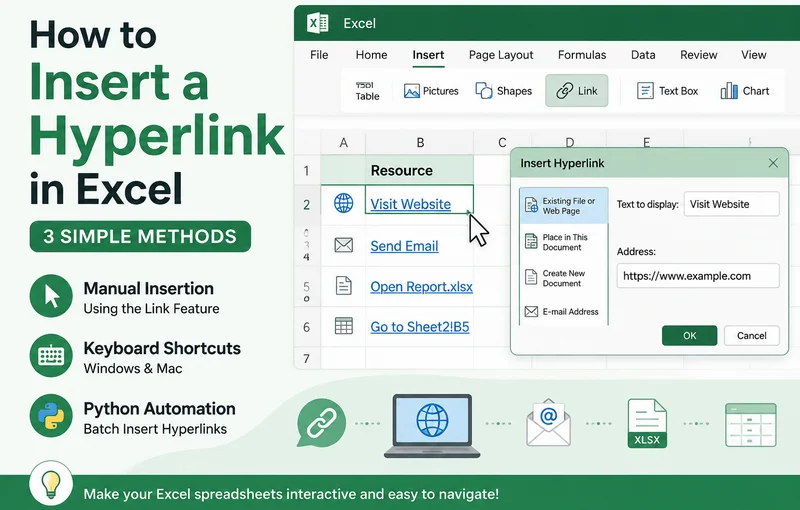
Adding hyperlinks in Excel is simple when you only need to link one or two cells. However, manually managing dozens or hundreds of links can become time-consuming, especially when working with external files, websites, or large workbooks.
This guide explains three ways to add a hyperlink in Excel, including manual insertion, keyboard shortcuts, and Python-based automation for batch processing.
- Insert a Hyperlink with the Link Feature
- Insert a Hyperlink Using the HYPERLINK Function
- Batch Insert Hyperlinks Using Free Spire.XLS for Python
- Tips for Managing Hyperlinks in Excel
- FAQs
Insert a Hyperlink in Excel Manually with the Link Feature
The most direct way to insert a hyperlink in Excel is by using its built-in Link feature. It is suitable for users who only need to add a small number of hyperlinks manually. With this method, you can easily connect cells to external web pages, local files, or specific worksheets in just a few clicks.
Follow these simple steps to insert hyperlinks manually:
- Step 1: Select the target cell where you want the link to appear.
- Step 2: Go to the Insert tab at the top ribbon and click Link. Or right-click the cell and select Link from the context menu.
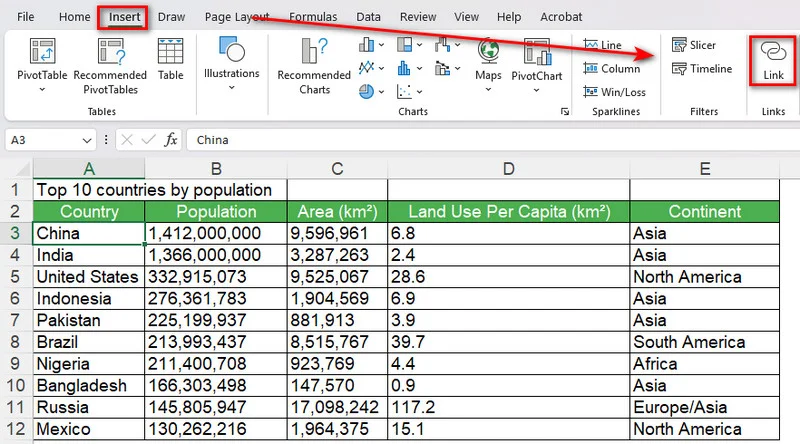
- Step 3: In the popup dialog box, choose your link destination from the left panel (e.g., Existing File or Web Page).
- Step 4: Enter the web URL or file path into the Address bar.
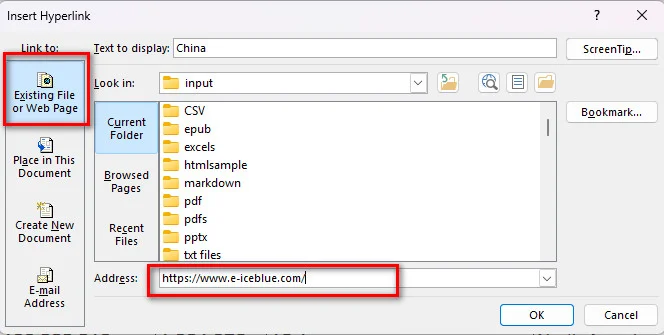
- Step 5: Click OK to apply the link.
Tip: Use a Keyboard Shortcut to Insert a Hyperlink in Excel
If you frequently add hyperlinks, you can open the Link dialog box directly with a keyboard shortcut instead of navigating through the Insert tab.
- On Windows, select the target cell and press Ctrl + K.
- On Mac, select the target cell and press Cmd + K.
The shortcut opens the same Link dialog box, where you can enter a URL, select a local file, or link to another location in the workbook. This provides a quick way to insert a hyperlink in Excel on Mac or Windows without opening the Insert tab each time.
Insert a Hyperlink in Excel Using the HYPERLINK Function
If you need to create hyperlinks from existing data, Excel's HYPERLINK function provides a convenient alternative to inserting links manually. It lets you specify both the link destination and the text displayed in the cell. This is especially useful when you need to generate multiple hyperlinks based on URLs stored in a worksheet.
The basic syntax is
=HYPERLINK(link_location, [friendly_name])
Here, link_location specifies the destination of the hyperlink, while the optional friendly_name determines the text displayed in the cell.
How to Create a Hyperlink with the HYPERLINK Function
- Step 1: Select the cell where you want to display the hyperlink.
- Step 2: Enter the HYPERLINK formula with the destination URL and display text. For example:
=HYPERLINK("https://www.e-iceblue.com/","Visit Website")
- Step 3: Press Enter. Excel will display Visit Website as a clickable hyperlink.
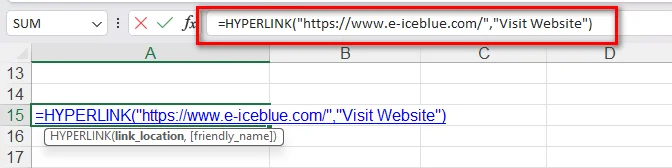
- Step 4: If the URL and display text are stored in separate cells, reference those cells in the formula. For example, if the URL is in "A2" and the display text is in "B2", enter:
=HYPERLINK(A2,B2)
- Step 5: Drag the formula down to apply it to other rows and create multiple hyperlinks automatically.
This approach is useful for creating link lists, navigation tables, resource directories, and other Excel reports containing many URLs.
How to Batch Insert Hyperlinks in Excel Using Free Spire.XLS for Python
While the manual and shortcut methods covered above are simple and convenient, they are only suitable for adding a few hyperlinks at a time. If you need to process hundreds of links or insert a mix of different types, such as web URLs, local files, email addresses, and internal sheet references, manual entry quickly becomes inefficient and error-prone.
In such cases, programmatic automation can be a more efficient approach. By utilizing Free Spire.XLS for Python, you can dynamically generate and format hyperlinked Excel files with a few lines of code. What's more, this library can automate hyperlink generation without requiring Microsoft Excel to be installed on the machine or server.
Step 1: Install the Library
Open your terminal or command prompt and run:
pip install Spire.Xls.Free
Step 2: Run the Python Script
The following Python script demonstrates how to batch insert hyperlinks in Excel, including web links, email addresses, external file links, and internal sheet references:
from spire.xls import *
from spire.xls.common import *

# Initialize a new workbook object
workbook = Workbook()

# Get the first worksheet
sheet = workbook.Worksheets[0]

# Add a hyperlink to a Website
cell_web = sheet.Range["B3"]
url_link = sheet.HyperLinks.Add(cell_web)
url_link.Type = HyperLinkType.Url
url_link.TextToDisplay = "Visit Website"
url_link.Address = "https://www.e-iceblue.com/"

# Add an Email hyperlink
cell_email = sheet.Range["E3"]
mail_link = sheet.HyperLinks.Add(cell_email)
mail_link.Type = HyperLinkType.Url
mail_link.TextToDisplay = "Send Email Support"
mail_link.Address = "mailto:example@outlook.com"

# Add a link to an External Local File
cell_file = sheet.Range["B7"]
file_link = sheet.HyperLinks.Add(cell_file)
file_link.Type = HyperLinkType.File
file_link.TextToDisplay = "Open a local file"
file_link.Address = "/sales report.xlsx"

# Add an internal link to another Sheet
cell_sheet = sheet.Range["E7"]
sheet_link = sheet.HyperLinks.Add(cell_sheet)
sheet_link.Type = HyperLinkType.Workbook
sheet_link.TextToDisplay = "Jump to Sheet2 Cell B5"
sheet_link.Address = "Sheet2!B5"

# Auto-fit columns for better presentation
sheet.AutoFitColumn(2)
sheet.AutoFitColumn(5)

# Save the workbook to an Excel file
workbook.SaveToFile("/output/AddHyperlinks.xlsx", ExcelVersion.Version2016)
workbook.Dispose()
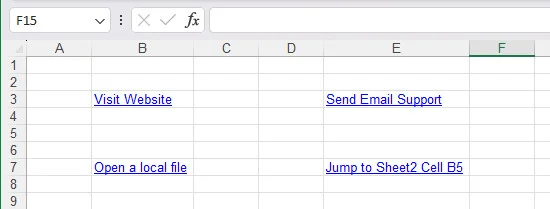
Below is a preview of the generated Excel file with hyperlinks:
Why use Python for Excel hyperlinks?
- Batch processing: Add multiple hyperlinks in Excel files automatically.
- Dynamic reporting: Generate financial statements or data exports with interactive links dynamically.
Tip: If you need to embed files directly into an Excel workbook instead of creating clickable links, see our guide on How to Insert Objects in Excel: Embedding and Linking Files.
Tips for Managing Hyperlinks in Excel
Adding hyperlinks in Excel is straightforward, but managing them when worksheets grow requires a few extra tricks.
How to Edit or Remove a Hyperlink
- To Edit: Right-click the hyperlinked cell and choose Edit Hyperlink to change the destination address.
- To Remove: Right-click the cell and click Remove Hyperlink. The text will remain, but the clickable link will be deleted.
How to Link to Another Sheet in the Same Workbook
To navigate within the same spreadsheet:
- Step 1: Press Ctrl + K.
- Step 2: Click Place in This Document on the left menu.
-
Step 3: Select your target worksheet from the list. You can also specify a cell reference like
B5at the top. - Step 4: Click OK.
FAQs
What is the shortcut to insert a hyperlink in Excel for Windows and Mac?
The default shortcut on Windows is Ctrl + K. On macOS, use Cmd + K.
How do I remove multiple hyperlinks in Excel at once?
Highlight all the cells containing hyperlinks, right-click anywhere inside the selected area, and click Remove Hyperlinks.
Can I add hyperlinks to Excel files without Microsoft Office?
Yes. Python libraries like Free Spire.XLS for Python allow you to insert and modify hyperlinks programmatically without having Microsoft Office or Excel installed on your machine.
Conclusion
Mastering how to insert hyperlinks in Excel helps you create more interactive and organized spreadsheets. For occasional edits, manual insertion or keyboard shortcuts are usually enough. When working with large numbers of links, Python automation provides a more efficient approach. Choose the method that best matches your workflow and project requirements.