Splitting a report into one file per chapter, combining several weekly reports into one, deleting a redundant cover page from a template — all of these look like operations "by page". In the Word document model, however, there is no object called a page: a page is a product of layout, and the same paragraph ends up in different places under different paper sizes, fonts and margins. What a program can operate on reliably are section breaks, page breaks and paragraphs.
This article uses Spire.Doc for JavaScript to carry out the three kinds of operation in the browser. The whole process runs on WebAssembly on the client side: no Office installation and no backend are required, and the document is read and written locally through a virtual file system — the library itself never sends the file to a server.
The article covers four core features:
- Split a Word Document by Section
- Merge Multiple Word Documents
- Remove the Content of a Word Page by Page Break
- Remove a Word Page by Section
Before you start, distinguish the three kinds of marker you can operate on in a document:
| Marker | Object | Purpose |
|---|---|---|
| Section break | Section |
Divides page setup, headers and footers; the natural boundary for splitting |
| Page break | Break (BreakType.PageBreak) |
Forces a new page; usable as the anchor for removing a page |
| Paragraph | Paragraph |
Carries the body content; a page break usually hangs on some paragraph |
For installation and project setup, refer to Integrating Spire.Doc for JavaScript in a React Project. The examples below assume that Spire.Doc is installed and the WebAssembly module is initialized; the sample document is a five-page, three-section annual market report, MarketReport.docx.
Split a Word Document by Section
Splitting by section is the most stable approach: each section carries its own page setup and headers and footers, Section.Clone() returns a complete copy of that section, and saving the copy in a new document on its own produces a standalone docx.
| Usage | Effect |
|---|---|
section.Clone() |
Copies the section's content, page setup, headers and footers |
document.Sections.Add(section) |
Adds the copied section to the new document |
document.SaveToFile(...) |
Saves the new document as its own file |
The steps are as follows:
- Get the Spire.Doc WASM module and confirm that it is ready.
- Read in the sample document, create a
Documentobject and load the file. - Walk the
Sectionscollection, clone each section withSection.Clone()and add it to a new document. - Save each section as its own docx with
SaveToFile(). - Read the generated files from the VFS, pack them and trigger a browser download.
The code to split a Word document by section is as follows:
import JSZip from 'jszip';

function App() {
  const splitBySections = async () => {
    // Get the Spire.Doc WASM module
    const docModule = window.wasmModule?.spiredoc;

    // Check if the module is ready
    if (!docModule) {
      alert('Spire.Doc is not ready yet');
      return;
    }

    // Load the sample document
    await window.spire.FetchFileToVFS('MarketReport.docx', '', `${process.env.PUBLIC_URL}/data/`);

    // Create a Document instance and load the document
    const doc = new docModule.Document();
    doc.LoadFromFile('MarketReport.docx');

    const zip = new JSZip();
    const sectionCount = doc.Sections.Count;

    // Clone each section into a new document and save it as its own file
    for (let i = 0; i < sectionCount; i++) {
      const partDoc = new docModule.Document();
      partDoc.Sections.Add(doc.Sections.get_Item(i).Clone());

      const fileName = `Part-${String(i + 1).padStart(2, '0')}.docx`;
      partDoc.SaveToFile({ fileName, fileFormat: docModule.FileFormat.Docx2013 });
      partDoc.Dispose();

      // Read the generated file from the VFS and add it to the zip
      const bytes = window.dotnetRuntime.Module.FS.readFile(fileName);
      zip.file(fileName, new Uint8Array(bytes));
    }

    doc.Dispose();

    // Pack and download
    const blob = await zip.generateAsync({ type: 'blob' });
    const url = URL.createObjectURL(blob);
    const a = document.createElement('a');
    a.href = url;
    a.download = 'MarketReport-Parts.zip';
    a.click();
    URL.revokeObjectURL(url);
  };

  return (
    <div style={{ textAlign: 'center', height: '300px' }}>
      <h1>Split a Word Document by Section</h1>
      <button onClick={splitBySections}>Split</button>
    </div>
  );
}

export default App;
The sample uses JSZip to pack the several docx files into a single zip; install it in the project before running: npm install jszip.
The three documents after splitting by section:

Are all styles kept after splitting
Cloning a section brings over the styles that the section's content actually references, but does not copy the whole style table. In the sample the source document's style table has 165 entries; after splitting, the body part keeps only 8, including the custom styles that section actually uses, while styles that are not referenced do not enter the new document.
If the split document will keep applying other custom styles, apply the relevant styles to the content before splitting, or re-create the style definitions in the target document; you can also switch to direct formatting such as font, size and color, and avoid depending on document-level styles.
What is the difference between splitting by section and splitting by page
A section is document structure; a page is a layout result. If a document has only one section and its chapters are separated by page breaks, splitting by section returns a single file. In that case you first have to locate the chapter boundaries by page break, reorganize the content into separate sections, and only then split by section.
Merge Multiple Word Documents
Merging works in the opposite direction from splitting: create an empty document as the target, import the content of each source document in turn, and save once at the end. The second parameter of ImportContent() controls whether the styles used in the source document are imported as well; when merging documents from different sources it should usually be set to true.
| Parameter | Purpose |
|---|---|
source |
The source document to import |
true |
Import the styles used in the source document as well |
The steps are as follows:
- Get the Spire.Doc WASM module and confirm that it is ready.
- Read in all source documents.
- Create an empty document as the merge target, load each source document in turn and call
ImportContent(). - Save the merged result with
SaveToFile(). - Read the result file from the VFS and trigger a browser download.
The code to merge multiple Word documents is as follows:
function App() {
  const mergeDocuments = async () => {
    // Get the Spire.Doc WASM module
    const docModule = window.wasmModule?.spiredoc;

    // Check if the module is ready
    if (!docModule) {
      alert('Spire.Doc is not ready yet');
      return;
    }

    // Load all source documents
    const sources = ['Week-1.docx', 'Week-2.docx', 'Week-3.docx'];
    for (const fileName of sources) {
      await window.spire.FetchFileToVFS(fileName, '', `${process.env.PUBLIC_URL}/data/`);
    }

    // Create an empty document as the merge target
    const target = new docModule.Document();

    for (const fileName of sources) {
      const source = new docModule.Document();
      source.LoadFromFile(fileName);

      // The second parameter is true: import the styles used in the source document as well
      target.ImportContent(source, true);
      source.Dispose();
    }

    // Save the merged result
    const outputFileName = 'WeeklyReport.docx';
    target.SaveToFile({ fileName: outputFileName, fileFormat: docModule.FileFormat.Docx2013 });
    target.Dispose();

    // Read the generated file from the VFS and trigger the download
    const fileArray = window.dotnetRuntime.Module.FS.readFile(outputFileName);
    const blob = new Blob([fileArray], { type: 'application/vnd.openxmlformats-officedocument.wordprocessingml.document' });
    const url = URL.createObjectURL(blob);
    const a = document.createElement('a');
    a.href = url;
    a.download = outputFileName;
    a.click();
    URL.revokeObjectURL(url);
  };

  return (
    <div style={{ textAlign: 'center', height: '300px' }}>
      <h1>Merge Multiple Word Documents</h1>
      <button onClick={mergeDocuments}>Merge</button>
    </div>
  );
}
export default App;
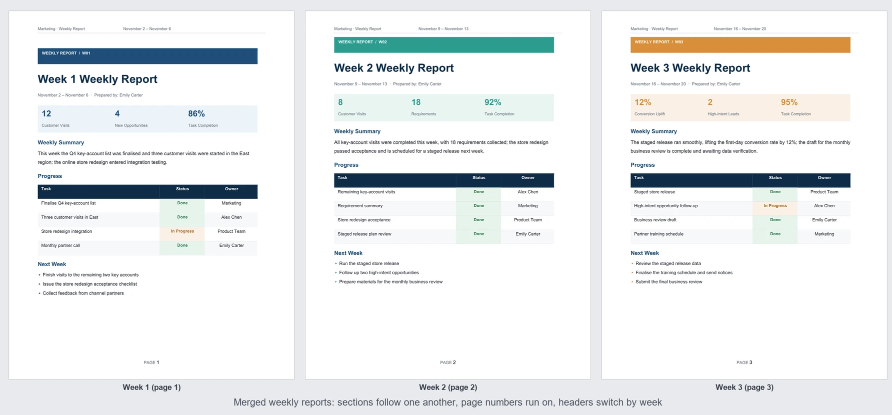
The document after merging the three weekly reports:
Why does every document start on a new page after merging
ImportContent() imports a source document section by section. Each of the three weekly reports in the sample contains one section, so the target document ends up with three sections; by default the start type between sections is "next page", so each weekly report starts on a new page.
If you want the content to run on, set the BreakCode of the imported sections to NoBreak before saving:
// Change every merged section to continuous, so it no longer forces a new page
for (let i = 0; i < target.Sections.Count; i++) {
  target.Sections.get_Item(i).BreakCode = docModule.SectionBreakType.NoBreak;
}
Continuous changes only how sections break, not the total height of the content; in the sample the three weekly reports still add up to more than one page, so the page count stays the same.
Headers, footers and page numbers after merging
Each source document's headers and footers enter the target document with its own section. In the sample the three merged pages show the header of each week in turn, and the page numbers run continuously from page 1 to page 3, with no repeats or gaps.
If a source document's section already has page-number settings of its own (renumbering, for example), those settings are kept with the section as well. After merging, check the headers, footers and page numbers page by page, and adjust the starting page number of each section where necessary.
Remove the Content of a Word Page by Page Break
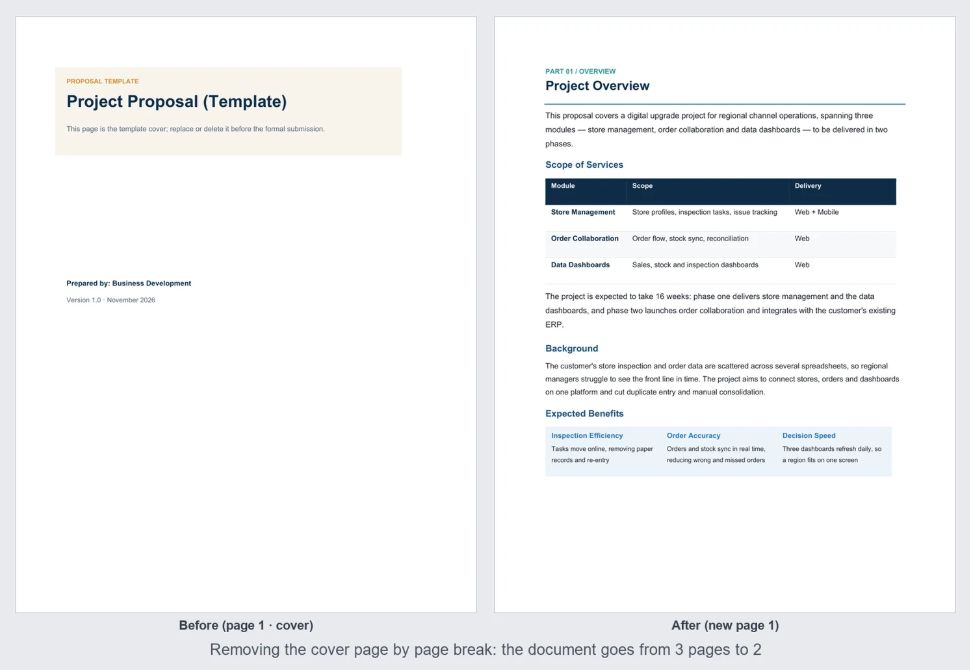
Removing page content by page break essentially means deleting the body objects that sit before a page break (or between two page breaks). There are two ways to locate them: find the target page break and delete the paragraphs and tables before it (or between the two breaks); or delete the whole section along its boundary (see the next section).
The steps are as follows:
- Get the Spire.Doc WASM module and confirm that it is ready.
- Read in the sample template, create a
Documentobject and load the file. - Walk the
Body.ChildObjectsof the first section and find the paragraph that holds the first page break. - Delete everything before that paragraph, and handle the paragraph that holds the page break.
- Save the result file, read it from the VFS and trigger a browser download.
The code to remove the content of a Word page by page break is as follows:
function App() {
  const removeFirstPage = async () => {
    // Get the Spire.Doc WASM module
    const docModule = window.wasmModule?.spiredoc;

    // Check if the module is ready
    if (!docModule) {
      alert('Spire.Doc is not ready yet');
      return;
    }

    // Load the sample template
    await window.spire.FetchFileToVFS('ProposalTemplate.docx', '', `${process.env.PUBLIC_URL}/data/`);

    // Create a Document instance and load the document
    const doc = new docModule.Document();
    doc.LoadFromFile('ProposalTemplate.docx');

    const body = doc.Sections.get_Item(0).Body;
    let paragraphIndex = -1;
    let breakIndex = -1;

    // Find the first page break in the first section
    for (let i = 0; i < body.ChildObjects.Count; i++) {
      const obj = body.ChildObjects.get_Item(i);
      if (obj.DocumentObjectType !== docModule.DocumentObjectType.Paragraph) continue;

      for (let k = 0; k < obj.ChildObjects.Count; k++) {
        const child = obj.ChildObjects.get_Item(k);
        if (
          child.DocumentObjectType === docModule.DocumentObjectType.Break &&
          child.BreakType === docModule.BreakType.PageBreak
        ) {
          paragraphIndex = i;
          breakIndex = k;
          break;
        }
      }

      if (paragraphIndex >= 0) break;
    }

    if (paragraphIndex >= 0) {
      const paragraph = body.ChildObjects.get_Item(paragraphIndex);

      // If there is still text after the break, that paragraph belongs to the next page
      let textAfterBreak = '';
      for (let k = breakIndex + 1; k < paragraph.ChildObjects.Count; k++) {
        const child = paragraph.ChildObjects.get_Item(k);
        if (child.Text) textAfterBreak += child.Text;
      }

      // Delete everything before the paragraph that holds the page break (the cover page in this sample)
      for (let i = paragraphIndex - 1; i >= 0; i--) {
        body.ChildObjects.RemoveAt(i);
      }

      if (textAfterBreak.trim()) {
        // Remove only the page break and keep the text in the paragraph
        paragraph.ChildObjects.RemoveAt(breakIndex);
      } else {
        // The page break sits at the end of the paragraph, so delete the whole paragraph
        body.ChildObjects.RemoveAt(0);
      }
    } else {
      alert('No page break found');
    }

    // Save the result file
    const outputFileName = 'ProposalNoCover.docx';
    doc.SaveToFile({ fileName: outputFileName, fileFormat: docModule.FileFormat.Docx2013 });
    doc.Dispose();

    // Read the generated file from the VFS and trigger the download
    const fileArray = window.dotnetRuntime.Module.FS.readFile(outputFileName);
    const blob = new Blob([fileArray], { type: 'application/vnd.openxmlformats-officedocument.wordprocessingml.document' });
    const url = URL.createObjectURL(blob);
    const a = document.createElement('a');
    a.href = url;
    a.download = outputFileName;
    a.click();
    URL.revokeObjectURL(url);
  };

  return (
    <div style={{ textAlign: 'center', height: '300px' }}>
      <h1>Remove the Content of a Word Page by Page Break</h1>
      <button onClick={removeFirstPage}>Remove the Cover Page</button>
    </div>
  );
}

export default App;
A comparison before and after removing the cover page:
Why is a page break often not in a paragraph of its own
When you insert a page break with Ctrl+Enter in Word, the break usually attaches to the paragraph the cursor is in: it may sit at the start or at the end of the paragraph instead of occupying one on its own. If you delete the whole paragraph without distinguishing the cases, a break at the start takes the first paragraph of the next page with it; if you delete only the break object and leave the paragraph at the end untouched, the last line of the previous page stays on the next page.
The code above decides by whether there is still text after the break: if there is text, the break is at the start of the paragraph, so only the break object is removed and the paragraph is kept; if there is no text, the break is at the end of the paragraph or forms a paragraph on its own, so the whole paragraph is deleted. If the break sits in the middle of a paragraph, with text on both sides, split that paragraph into two in Word first and then delete, so the content of the neighbouring pages is not damaged.
Why does the page count change after removing page content
A Word document has no page objects, so after page content is removed the remaining content is laid out again and the page count may change. A page break is only a marker that forces a new page; removing it does not remove a page as such — what is actually deleted are the paragraphs, tables and pictures before (or between) the page breaks.
Remove a Word Page by Section
Removing by section suits content that forms a whole chapter or a whole appendix. Sections.RemoveAt(index) removes the specified section in order, with the index starting at 0; once removed, that section's page setup, headers and footers and body content are removed together, and the other sections are unaffected.
The steps are as follows:
- Get the Spire.Doc WASM module and confirm that it is ready.
- Read in the sample document, create a
Documentobject and load the file. - Confirm the index of the target section and call
Sections.RemoveAt(index)to remove it. - Save the result file with
SaveToFile(). - Read the result file from the VFS and trigger a browser download.
The code to remove a Word page by section is as follows:
function App() {
  const removeAppendix = async () => {
    // Get the Spire.Doc WASM module
    const docModule = window.wasmModule?.spiredoc;

    // Check if the module is ready
    if (!docModule) {
      alert('Spire.Doc is not ready yet');
      return;
    }

    // Load the sample document
    await window.spire.FetchFileToVFS('MarketReport.docx', '', `${process.env.PUBLIC_URL}/data/`);

    // Create a Document instance and load the document
    const doc = new docModule.Document();
    doc.LoadFromFile('MarketReport.docx');

    // Remove section 3 (index 2): the landscape appendix
    const sectionIndex = 2;
    if (sectionIndex >= 0 && sectionIndex < doc.Sections.Count) {
      doc.Sections.RemoveAt(sectionIndex);
    }

    // Save the result file
    const outputFileName = 'MarketNoAppendix.docx';
    doc.SaveToFile({ fileName: outputFileName, fileFormat: docModule.FileFormat.Docx2013 });
    doc.Dispose();

    // Read the generated file from the VFS and trigger the download
    const fileArray = window.dotnetRuntime.Module.FS.readFile(outputFileName);
    const blob = new Blob([fileArray], { type: 'application/vnd.openxmlformats-officedocument.wordprocessingml.document' });
    const url = URL.createObjectURL(blob);
    const a = document.createElement('a');
    a.href = url;
    a.download = outputFileName;
    a.click();
    URL.revokeObjectURL(url);
  };

  return (
    <div style={{ textAlign: 'center', height: '300px' }}>
      <h1>Remove a Word Page by Section</h1>
      <button onClick={removeAppendix}>Remove the Appendix Section</button>
    </div>
  );
}

export default App;
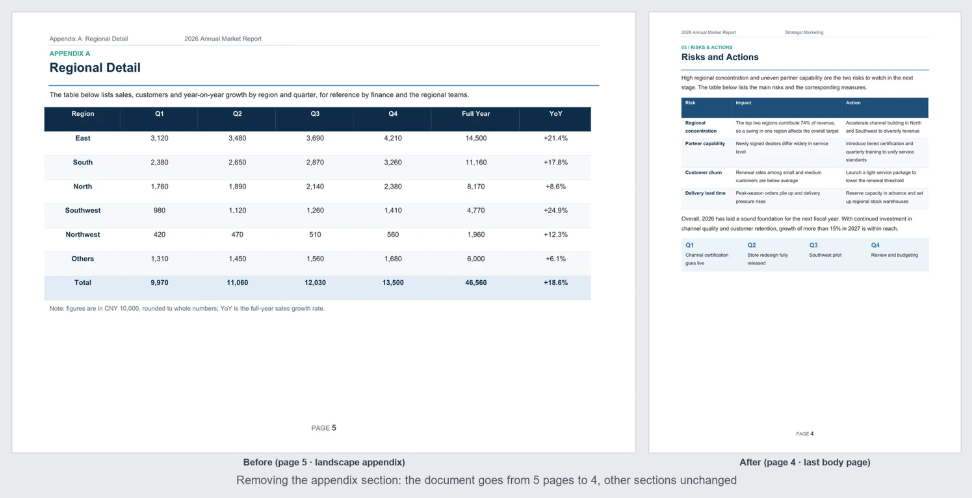
A comparison before and after removing the landscape appendix section:
What settings go with a deleted section
Deleting a section removes its page orientation, paper size, margins, headers and footers along with it. Section 3 in the sample is the landscape appendix; after deletion the document is back to 4 pages, and the portrait pages and headers of the first two sections are unchanged. Before deleting, confirm that the section holds nothing you need to keep, and check that the index points at the target section.
Comparison of the four features
| Requirement | Object to operate on | Key point |
|---|---|---|
| Split by chapter | Section.Clone() + Sections.Add() |
Confirm that chapters correspond to sections before splitting |
| Merge documents | ImportContent() |
Sections start on a new page by default; page numbers usually run on |
| Remove page content | The body objects before (or between) page breaks | A page break may hang on a paragraph |
| Delete a whole chapter | Sections.RemoveAt() |
Page setup, headers and footers are removed along with it |
FAQ
Why does a split document have fewer styles
Cause: Section.Clone() copies the content of the section, and styles come into the new document to the extent that the content actually references them; document-level styles that are not referenced are not copied along. The sample source document has 165 styles, and the body part after splitting keeps only 8.
Solution: If the split document will keep applying other styles, apply those styles to the content before splitting, or re-create the style definitions in the target document; you can also switch to direct formatting such as font, size and color and reduce the dependence on document-level styles.
Why does every document start on a new page after merging
Cause: ImportContent() imports section by section, and by default the start type between sections is "next page", so each source document starts on a new page.
Solution: If you want the content to run on, set the BreakCode of each section to NoBreak before saving:
for (let i = 0; i < target.Sections.Count; i++) {
  target.Sections.get_Item(i).BreakCode = docModule.SectionBreakType.NoBreak;
}
Continuous changes only how sections break, not the total height of the content, so the page count may stay the same.
Why does the first line of the next page disappear when I delete the paragraph that holds the page break
Cause: The page break may hang at the start of the first paragraph of the next page instead of forming a paragraph on its own. Deleting the whole paragraph takes the text of that first paragraph with it.
Solution: Before deleting, check whether there is still text after the page break. If there is, remove only the break object and keep the paragraph; if there is not, the break is at the end of the paragraph or forms a paragraph on its own, so the whole paragraph can be deleted:
// paragraph, breakIndex and textAfterBreak come from the locating logic in "Remove the Content of a Word Page by Page Break" above
if (textAfterBreak.trim()) {
  paragraph.ChildObjects.RemoveAt(breakIndex);
} else {
  body.ChildObjects.RemoveAt(0);
}
If the break sits in the middle of a paragraph, with text on both sides, split that paragraph into two in Word first and then delete.
What is the difference between removing a page and removing a whole section
Removing page content handles only the body objects between page breaks; the section itself and its page setup remain, and the remaining content is laid out again. Removing a whole section removes the section's content, page setup, headers and footers through Sections.RemoveAt(), while the other sections stay as they are. The former suits removing a page, the latter removing a whole chapter or a whole appendix.
Can I split directly by a page range such as "pages 2 to 4"
There are no page objects in the Word document model; page numbers are a layout result and change with paper size, fonts and margins. Using the rendered page numbers as indexes directly is not stable. A workable approach is to confirm the section breaks or page breaks that correspond to the target content first and then split by those boundaries; if you need to work by rendered page, export to PDF first and split the PDF by its page objects.
Get a Free License
Spire.Doc for JavaScript offers a 30-day full-featured free trial license with no functional limitations. Apply here to evaluate before purchasing.
