Combinar vários arquivos CSV em um único Excel (planilhas separadas)
Índice
Ao trabalhar com relatórios exportados de diferentes sistemas, é comum acabar com dezenas de arquivos CSV. Por exemplo, cada departamento, loja ou mês pode gerar seu próprio relatório CSV. Embora isso torne a coleta de dados simples, gerenciar um grande número de arquivos separados rapidamente se torna inconveniente.
Uma solução prática é combinar todos os arquivos CSV em uma única pasta de trabalho do Excel, mantendo cada CSV como uma planilha separada. Isso preserva a estrutura original do arquivo, facilita a navegação e permite que você compartilhe uma única pasta de trabalho em vez de vários arquivos individuais.
Neste artigo, apresentaremos três métodos práticos — desde uma abordagem manual simples até a automação do Excel com VBA e uma solução totalmente programática em Python.
Métodos abordados:
- Método 1. Copiar e colar arquivos CSV em planilhas separadas
- Método 2. Usar uma macro VBA para importar vários arquivos CSV
- Método 3. Mesclar vários arquivos CSV em Python usando Spire.XLS
Método 1. Copiar e colar arquivos CSV em planilhas separadas
Se você tiver apenas alguns arquivos CSV para mesclar, a solução mais simples é copiar seus conteúdos para diferentes planilhas manualmente.
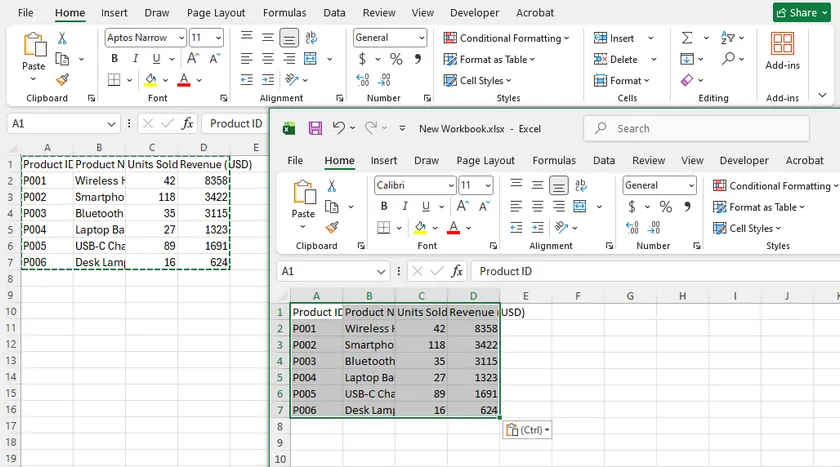
Um detalhe importante é que você deve abrir cada arquivo CSV com o Microsoft Excel em vez de um editor de texto como o Bloco de Notas. Quando um CSV é aberto no Excel, suas linhas e colunas são analisadas corretamente com base no delimitador. Se você copiar o texto diretamente do Bloco de Notas, o Excel poderá colar tudo em uma única coluna em vez de separar os valores automaticamente.
Passos
- Abra o Microsoft Excel e crie uma nova pasta de trabalho.
- Abra o primeiro arquivo CSV usando o Excel.
- Selecione todos os dados (Ctrl + A) e copie-os (Ctrl + C).
- Retorne à nova pasta de trabalho e cole os dados na primeira planilha.
- Renomeie a planilha, se necessário.
- Repita o processo para cada arquivo CSV restante, criando uma nova planilha a cada vez.
- Salve a pasta de trabalho como um arquivo .xlsx.
Prós
- Não requer programação.
- Funciona em qualquer instalação do Excel.
- Preserva um CSV por planilha.
- Ideal para tarefas ocasionais envolvendo apenas alguns arquivos.
Contras
- Demorado ao processar muitos arquivos.
- Totalmente manual.
- Fácil de cometer erros ao lidar com dezenas de arquivos CSV.
Método 2. Usar uma macro VBA para importar vários arquivos CSV
Se você realiza essa tarefa frequentemente dentro do Excel, uma macro VBA pode automatizar todo o processo. A macro verifica uma pasta, abre cada arquivo CSV, copia sua planilha para a pasta de trabalho atual e nomeia a planilha com o nome do arquivo CSV.
Passo 1. Criar uma pasta de trabalho em branco
Abra o Excel e crie uma nova pasta de trabalho. Esta pasta de trabalho será o destino que armazenará todas as planilhas importadas.
Passo 2. Abrir o Editor VBA
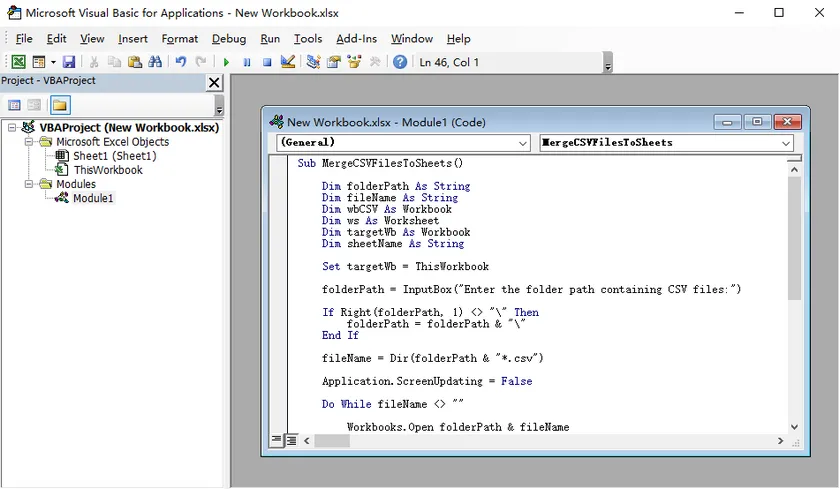
Pressione Alt + F11 para abrir o Editor do Visual Basic.
Escolha Inserir > Módulo e cole o código a seguir no novo módulo.
Sub MergeCSVFilesToSheets()

    Dim folderPath As String
    Dim fileName As String
    Dim wbCSV As Workbook
    Dim ws As Worksheet
    Dim targetWb As Workbook
    Dim sheetName As String

    Set targetWb = ThisWorkbook

    folderPath = InputBox("Digite o caminho da pasta contendo os arquivos CSV:")

    If Right(folderPath, 1) <> "\" Then
        folderPath = folderPath & "\"
    End If

    fileName = Dir(folderPath & "*.csv")

    Application.ScreenUpdating = False

    Do While fileName <> ""

        Workbooks.Open folderPath & fileName
        Set wbCSV = ActiveWorkbook

        sheetName = Left(fileName, InStrRev(fileName, ".") - 1)

        wbCSV.Worksheets(1).Copy After:=targetWb.Sheets(targetWb.Sheets.Count)
        Set ws = targetWb.Sheets(targetWb.Sheets.Count)

        On Error Resume Next
        ws.Name = Left(sheetName, 31)
        On Error GoTo 0

        wbCSV.Close SaveChanges:=False

        fileName = Dir
    Loop

    Application.ScreenUpdating = True

    MsgBox "Arquivos CSV foram mesclados com sucesso."

End Sub
Passo 3. Executar a macro
Pressione F5, insira a pasta que contém seus arquivos CSV e a macro importará automaticamente cada CSV para sua própria planilha.
Prós
- Muito mais rápido do que copiar manualmente.
- Executado inteiramente dentro do Microsoft Excel.
- Cria automaticamente uma planilha para cada arquivo CSV.
- Adequado para usuários que trabalham regularmente com o Excel.
Contras
- Requer pastas de trabalho habilitadas para macro.
- Os usuários devem habilitar macros VBA.
- Menos adequado para automação autônoma ou no lado do servidor.
Método 3. Mesclar vários arquivos CSV em Python usando Spire.XLS
Para fluxos de trabalho recorrentes, tarefas agendadas ou aplicações empresariais, a automação programática é frequentemente a solução mais eficiente.
Muitos desenvolvedores pensam imediatamente no Pandas para processamento de CSV. O Pandas é uma excelente biblioteca para ler, analisar e transformar dados tabulares. No entanto, seu foco principal é a análise de dados, não a geração de documentos.
Se o seu fluxo de trabalho vai além da simples importação de arquivos CSV — por exemplo, formatar planilhas, aplicar estilos, inserir gráficos, proteger pastas de trabalho ou exportar a pasta de trabalho final para PDF — uma biblioteca de planilhas como o Free Spire.XLS for Python oferece uma solução mais completa.
Primeiro, instale a biblioteca:
pip install Spire.XLS
Em seguida, use o código a seguir para mesclar cada arquivo CSV em uma pasta em uma única pasta de trabalho do Excel, com cada CSV se tornando uma planilha separada.
import os
from spire.xls import Workbook, WorksheetCopyType, FileFormat

input_folder = "input"
output_folder = "output"

# Criar a pasta de trabalho de destino
merged_workbook = Workbook()
merged_workbook.Worksheets.Clear()

# Processar cada arquivo CSV
for csv_file in os.listdir(input_folder):
    if csv_file.endswith(".csv"):

        input_path = os.path.join(input_folder, csv_file)

        workbook = Workbook()
        workbook.LoadFromFile(input_path, ",", 1, 1)

        sheet = workbook.Worksheets[0]
        merged_workbook.Worksheets.AddCopy(
            sheet,
            WorksheetCopyType.CopyAll
        )

merged_workbook.SaveToFile(
    os.path.join(output_folder, "Merged.xlsx"),
    FileFormat.Version2013
)
Saída:
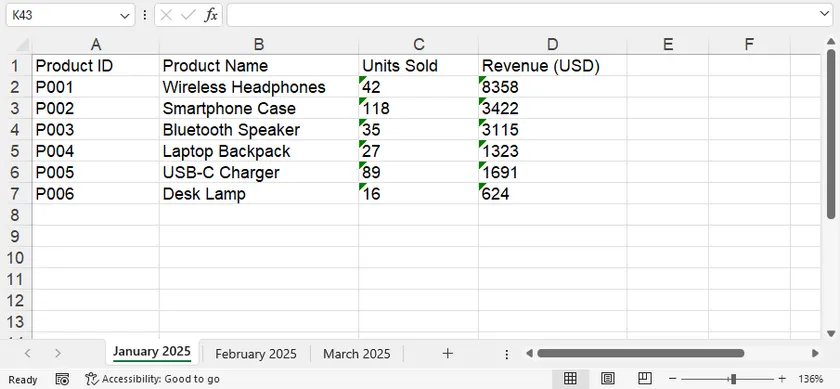
Comparado com métodos manuais ou VBA, esta abordagem é muito mais fácil de integrar em fluxos de trabalho automatizados. Após gerar a pasta de trabalho, você pode continuar processando-a com o Spire.XLS — por exemplo:
- Aplicar fontes, cores, bordas e formatos numéricos.
- Congelar painéis ou ajustar larguras de coluna automaticamente.
- Criar gráficos e tabelas dinâmicas.
- Proteger planilhas ou a pasta de trabalho.
- Exportar a pasta de trabalho concluída para PDF ou outros formatos.
Essas capacidades a tornam adequada não apenas para mesclagem de CSV, mas também para pipelines de geração de relatórios de ponta a ponta.
Comparação dos três métodos
| Método | Programação necessária | Processamento em lote | Melhor para |
|---|---|---|---|
| Copiar e colar | Não | Limitado | Tarefas únicas com apenas alguns arquivos CSV |
| Macro VBA | VBA básico | Sim | Usuários de Excel que importam arquivos CSV regularmente |
| Python + Free Spire.XLS | Python | Excelente | Fluxos de trabalho automatizados, aplicações empresariais e processamento em lote |
Conclusão
O melhor método depende da frequência com que você precisa realizar a tarefa.
Se você só precisa combinar alguns arquivos CSV ocasionalmente, copiar e colar os dados manualmente em planilhas separadas é a solução mais rápida.
Se você trabalha principalmente no Excel e realiza essa tarefa regularmente, uma macro VBA pode automatizar o processo com esforço mínimo.
Para desenvolvedores que criam fluxos de trabalho repetíveis ou integram o processamento de CSV em aplicações, o Python com Spire.XLS oferece a maior flexibilidade. Além de mesclar arquivos CSV, ele permite manipulação avançada de planilhas e geração de documentos, tornando-o adequado para uma ampla gama de cenários de automação.
Perguntas frequentes (FAQs)
Posso mesclar centenas de arquivos CSV em uma única pasta de trabalho do Excel?
Sim. O VBA pode lidar com muitos arquivos, mas para lotes muito grandes ou fluxos de trabalho automatizados, uma solução em Python é geralmente mais confiável e escalável.
Cada arquivo CSV se tornará sua própria planilha?
Sim. Todos os três métodos descritos neste artigo preservam cada CSV como uma planilha separada, em vez de combinar todos os dados em uma única planilha.
Os nomes das planilhas podem ser baseados nos nomes dos arquivos CSV?
Sim. Tanto a macro VBA quanto o exemplo em Python usam automaticamente o nome do arquivo CSV (sem a extensão) como o nome da planilha.
E se meus arquivos CSV usarem UTF-8 ou outras codificações?
A maioria dos arquivos CSV pode ser importada sem problemas. Se seus arquivos usarem uma codificação ou delimitador diferente, ajuste as configurações de importação adequadamente antes de processar.
Posso continuar editando a pasta de trabalho após mesclar os arquivos CSV?
Com certeza. Após a criação da pasta de trabalho, você pode formatar planilhas, inserir gráficos, adicionar fórmulas, proteger a pasta de trabalho ou exportá-la para PDF como qualquer outro arquivo do Excel.
Veja também
여러 CSV 파일을 하나의 엑셀 파일로 병합 (별도 시트)
서로 다른 시스템에서 내보낸 보고서를 작업하다 보면 수십 개의 CSV 파일이 생기는 경우가 흔합니다. 예를 들어, 각 부서, 매장 또는 월별로 자체 CSV 보고서를 생성할 수 있습니다. 이는 데이터 수집을 간편하게 만들지만, 별도의 파일이 많아지면 관리하기가 매우 번거로워집니다.
실용적인 해결책은 모든 CSV 파일을 하나의 Excel 통합 문서로 결합하면서 각 CSV를 별도의 워크시트로 유지하는 것입니다. 이렇게 하면 원래 파일 구조가 보존되고, 탐색이 쉬워지며, 여러 개의 개별 파일 대신 하나의 통합 문서를 공유할 수 있습니다.
이 기사에서는 간단한 수동 방식부터 VBA를 이용한 Excel 자동화, 그리고 완전한 프로그래밍 방식인 Python 솔루션까지 세 가지 실용적인 방법을 소개합니다.
다루는 방법:
- 방법 1. CSV 파일을 별도의 워크시트로 복사 및 붙여넣기
- 방법 2. VBA 매크로를 사용하여 여러 CSV 파일 가져오기
- 방법 3. Spire.XLS를 사용하여 Python에서 여러 CSV 파일 병합하기
방법 1. CSV 파일을 별도의 워크시트로 복사 및 붙여넣기
병합할 CSV 파일이 몇 개뿐이라면, 내용을 수동으로 다른 워크시트에 복사하는 것이 가장 간단한 해결책입니다.
한 가지 중요한 점은 메모장과 같은 텍스트 편집기가 아닌 Microsoft Excel로 각 CSV 파일을 열어야 한다는 것입니다. CSV를 Excel에서 열면 구분 기호를 기준으로 행과 열이 올바르게 파싱됩니다. 메모장에서 텍스트를 직접 복사하면, Excel이 값을 자동으로 구분하지 않고 모든 내용을 단일 열에 붙여넣을 수 있습니다.
단계
- Microsoft Excel을 열고 새 통합 문서를 만듭니다.
- Excel을 사용하여 첫 번째 CSV 파일을 엽니다.
- 모든 데이터(Ctrl + A)를 선택하고 복사(Ctrl + C)합니다.
- 새 통합 문서로 돌아와 첫 번째 워크시트에 데이터를 붙여넣습니다.
- 필요한 경우 워크시트 이름을 바꿉니다.
- 나머지 각 CSV 파일에 대해 이 과정을 반복하며 매번 새 워크시트를 만듭니다.
- 통합 문서를 .xlsx 파일로 저장합니다.
장점
- 프로그래밍이 필요 없음.
- 모든 Excel 설치 환경에서 작동.
- 워크시트당 하나의 CSV 유지.
- 파일 수가 적은 가끔 발생하는 작업에 이상적.
단점
- 많은 파일을 처리할 때 시간이 많이 소요됨.
- 전적으로 수동 작업.
- 수십 개의 CSV 파일을 다룰 때 실수하기 쉬움.
방법 2. VBA 매크로를 사용하여 여러 CSV 파일 가져오기
Excel 내에서 이 작업을 자주 수행한다면, VBA 매크로를 통해 전체 과정을 자동화할 수 있습니다. 매크로는 폴더를 스캔하고, 모든 CSV 파일을 열어 현재 통합 문서로 워크시트를 복사한 다음, CSV 파일 이름으로 워크시트 이름을 지정합니다.
1단계. 빈 통합 문서 만들기
Excel을 열고 새 통합 문서를 만듭니다. 이 통합 문서는 가져온 모든 워크시트를 저장할 대상 통합 문서가 됩니다.
2단계. VBA 편집기 열기
Alt + F11을 눌러 Visual Basic 편집기를 엽니다.
삽입(Insert) > 모듈(Module)을 선택한 다음, 새 모듈에 다음 코드를 붙여넣습니다.
Sub MergeCSVFilesToSheets()

    Dim folderPath As String
    Dim fileName As String
    Dim wbCSV As Workbook
    Dim ws As Worksheet
    Dim targetWb As Workbook
    Dim sheetName As String

    Set targetWb = ThisWorkbook

    folderPath = InputBox("CSV 파일이 포함된 폴더 경로를 입력하세요:")

    If Right(folderPath, 1) <> "\" Then
        folderPath = folderPath & "\"
    End If

    fileName = Dir(folderPath & "*.csv")

    Application.ScreenUpdating = False

    Do While fileName <> ""

        Workbooks.Open folderPath & fileName
        Set wbCSV = ActiveWorkbook

        sheetName = Left(fileName, InStrRev(fileName, ".") - 1)

        wbCSV.Worksheets(1).Copy After:=targetWb.Sheets(targetWb.Sheets.Count)
        Set ws = targetWb.Sheets(targetWb.Sheets.Count)

        On Error Resume Next
        ws.Name = Left(sheetName, 31)
        On Error GoTo 0

        wbCSV.Close SaveChanges:=False

        fileName = Dir
    Loop

    Application.ScreenUpdating = True

    MsgBox "CSV 파일이 성공적으로 병합되었습니다."

End Sub
3단계. 매크로 실행
F5를 누르고 CSV 파일이 있는 폴더를 입력하면 매크로가 자동으로 모든 CSV를 각각의 워크시트로 가져옵니다.
장점
- 수동 복사보다 훨씬 빠름.
- Microsoft Excel 내에서 완전히 실행됨.
- 각 CSV 파일에 대해 자동으로 워크시트 생성.
- Excel을 정기적으로 사용하는 사용자에게 적합.
단점
- 매크로 사용 통합 문서가 필요함.
- 사용자가 VBA 매크로를 활성화해야 함.
- 무인 자동화나 서버 측 자동화에는 덜 적합함.
방법 3. Spire.XLS를 사용하여 Python에서 여러 CSV 파일 병합하기
반복되는 워크플로우, 예약된 작업 또는 비즈니스 애플리케이션의 경우 프로그래밍 방식의 자동화가 가장 효율적인 솔루션인 경우가 많습니다.
많은 개발자가 CSV 처리를 위해 Pandas를 즉시 떠올립니다. Pandas는 표 형식의 데이터를 읽고, 분석하고, 변환하는 데 탁월한 라이브러리입니다. 그러나 주된 초점은 문서 생성보다는 데이터 분석에 있습니다.
단순히 CSV 파일을 가져오는 것을 넘어 워크시트 서식 지정, 스타일 적용, 차트 삽입, 통합 문서 보호 또는 최종 통합 문서를 PDF로 내보내기와 같은 작업이 필요하다면 Free Spire.XLS for Python과 같은 스프레드시트 라이브러리가 더 완벽한 솔루션을 제공합니다.
먼저 라이브러리를 설치합니다:
pip install Spire.XLS
그런 다음 아래 코드를 사용하여 폴더 내의 모든 CSV 파일을 하나의 Excel 통합 문서로 병합하고, 각 CSV를 별도의 워크시트로 만듭니다.
import os
from spire.xls import Workbook, WorksheetCopyType, FileFormat

input_folder = "input"
output_folder = "output"

# 대상 통합 문서 생성
merged_workbook = Workbook()
merged_workbook.Worksheets.Clear()

# 모든 CSV 파일 처리
for csv_file in os.listdir(input_folder):
    if csv_file.endswith(".csv"):

        input_path = os.path.join(input_folder, csv_file)

        workbook = Workbook()
        workbook.LoadFromFile(input_path, ",", 1, 1)

        sheet = workbook.Worksheets[0]
        merged_workbook.Worksheets.AddCopy(
            sheet,
            WorksheetCopyType.CopyAll
        )

merged_workbook.SaveToFile(
    os.path.join(output_folder, "Merged.xlsx"),
    FileFormat.Version2013
)
출력:
수동 방식이나 VBA와 비교했을 때, 이 방식은 자동화된 워크플로우에 통합하기가 훨씬 쉽습니다. 통합 문서를 생성한 후 Spire.XLS를 사용하여 다음과 같은 작업을 계속할 수 있습니다:
- 글꼴, 색상, 테두리 및 숫자 형식 적용.
- 틀 고정 또는 열 너비 자동 조정.
- 차트 및 피벗 테이블 생성.
- 워크시트 또는 통합 문서 보호.
- 완성된 통합 문서를 PDF 또는 기타 형식으로 내보내기.
이러한 기능 덕분에 CSV 병합뿐만 아니라 엔드투엔드 보고서 생성 파이프라인에도 적합합니다.
세 가지 방법 비교
| 방법 | 프로그래밍 필요 여부 | 일괄 처리 | 최적의 용도 |
|---|---|---|---|
| 복사 및 붙여넣기 | 아니요 | 제한적 | CSV 파일이 몇 개뿐인 일회성 작업 |
| VBA 매크로 | 기본 VBA | 예 | CSV 파일을 정기적으로 가져오는 Excel 사용자 |
| Python + Free Spire.XLS | Python | 우수함 | 자동화된 워크플로우, 비즈니스 애플리케이션 및 일괄 처리 |
결론
가장 좋은 방법은 해당 작업을 얼마나 자주 수행해야 하는지에 따라 다릅니다.
가끔 몇 개의 CSV 파일만 결합하면 된다면, 데이터를 수동으로 복사하여 별도의 워크시트에 붙여넣는 것이 가장 빠른 해결책입니다.
주로 Excel에서 작업하며 이 작업을 정기적으로 수행한다면, VBA 매크로를 통해 최소한의 노력으로 프로세스를 자동화할 수 있습니다.
반복 가능한 워크플로우를 구축하거나 애플리케이션에 CSV 처리를 통합하는 개발자에게는 Spire.XLS를 사용하는 Python이 가장 큰 유연성을 제공합니다. CSV 파일 병합을 넘어 고급 스프레드시트 조작 및 문서 생성이 가능하므로 다양한 자동화 시나리오에 적합합니다.
자주 묻는 질문(FAQ)
수백 개의 CSV 파일을 하나의 Excel 통합 문서로 병합할 수 있나요?
네. VBA도 많은 파일을 처리할 수 있지만, 매우 큰 일괄 작업이나 자동화된 워크플로우의 경우 Python 솔루션이 일반적으로 더 안정적이고 확장성이 뛰어납니다.
각 CSV 파일이 고유한 워크시트가 되나요?
네. 이 기사에서 설명한 세 가지 방법 모두 모든 데이터를 단일 시트로 결합하는 대신 각 CSV를 별도의 워크시트로 보존합니다.
워크시트 이름을 CSV 파일 이름으로 지정할 수 있나요?
네. VBA 매크로와 Python 예제 모두 자동으로 CSV 파일 이름(확장자 제외)을 워크시트 이름으로 사용합니다.
CSV 파일이 UTF-8 또는 다른 인코딩을 사용하는 경우는 어떻게 하나요?
대부분의 CSV 파일은 문제없이 가져올 수 있습니다. 파일이 다른 인코딩이나 구분 기호를 사용하는 경우, 처리하기 전에 가져오기 설정을 적절히 조정하십시오.
CSV 파일을 병합한 후에도 통합 문서를 계속 편집할 수 있나요?
물론입니다. 통합 문서가 생성된 후에는 다른 Excel 파일과 마찬가지로 워크시트 서식 지정, 차트 삽입, 수식 추가, 통합 문서 보호 또는 PDF로 내보내기가 가능합니다.
참고 항목
Unire più file CSV in un unico file Excel (fogli separati)
Indice
Quando si lavora con report esportati da sistemi diversi, è comune ritrovarsi con decine di file CSV. Ad esempio, ogni reparto, negozio o mese può generare il proprio report CSV. Sebbene ciò renda semplice la raccolta dei dati, gestire un gran numero di file separati diventa rapidamente scomodo.
Una soluzione pratica consiste nel combinare tutti i file CSV in un'unica cartella di lavoro Excel, mantenendo ogni CSV come foglio di lavoro separato. Questo preserva la struttura originale del file, facilita la navigazione e consente di condividere un'unica cartella di lavoro invece di più file individuali.
In questo articolo, presenteremo tre metodi pratici: da un semplice approccio manuale all'automazione di Excel con VBA fino a una soluzione Python completamente programmabile.
Metodi trattati:
- Metodo 1. Copiare e incollare i file CSV in fogli di lavoro separati
- Metodo 2. Utilizzare una macro VBA per importare più file CSV
- Metodo 3. Unire più file CSV in Python utilizzando Spire.XLS
Metodo 1. Copiare e incollare i file CSV in fogli di lavoro separati
Se hai solo pochi file CSV da unire, la soluzione più semplice è copiare manualmente i loro contenuti in fogli di lavoro diversi.
Un dettaglio importante è che dovresti aprire ogni file CSV con Microsoft Excel invece di un editor di testo come il Blocco note. Quando un CSV viene aperto in Excel, le sue righe e colonne vengono analizzate correttamente in base al delimitatore. Se copi il testo direttamente dal Blocco note, Excel potrebbe incollare tutto in un'unica colonna invece di separare automaticamente i valori.
Passaggi
- Apri Microsoft Excel e crea una nuova cartella di lavoro.
- Apri il primo file CSV utilizzando Excel.
- Seleziona tutti i dati (Ctrl + A) e copiali (Ctrl + C).
- Torna alla nuova cartella di lavoro e incolla i dati nel primo foglio di lavoro.
- Rinomina il foglio di lavoro se necessario.
- Ripeti il processo per ogni file CSV rimanente, creando un nuovo foglio di lavoro ogni volta.
- Salva la cartella di lavoro come file .xlsx.
Pro
- Nessuna programmazione richiesta.
- Funziona in ogni installazione di Excel.
- Preserva un CSV per foglio di lavoro.
- Ideale per attività occasionali che coinvolgono solo pochi file.
Contro
- Richiede molto tempo quando si elaborano molti file.
- Interamente manuale.
- Facile commettere errori quando si gestiscono decine di file CSV.
Metodo 2. Utilizzare una macro VBA per importare più file CSV
Se esegui spesso questa attività in Excel, una macro VBA può automatizzare l'intero processo. La macro scansiona una cartella, apre ogni file CSV, copia il suo foglio di lavoro nella cartella di lavoro corrente e assegna al foglio di lavoro il nome del file CSV.
Passaggio 1. Creare una cartella di lavoro vuota
Apri Excel e crea una nuova cartella di lavoro. Questa diventerà la cartella di lavoro di destinazione che memorizzerà tutti i fogli di lavoro importati.
Passaggio 2. Aprire l'editor VBA
Premi Alt + F11 per aprire l'editor di Visual Basic.
Scegli Inserisci > Modulo, quindi incolla il seguente codice nel nuovo modulo.
Sub MergeCSVFilesToSheets()

    Dim folderPath As String
    Dim fileName As String
    Dim wbCSV As Workbook
    Dim ws As Worksheet
    Dim targetWb As Workbook
    Dim sheetName As String

    Set targetWb = ThisWorkbook

    folderPath = InputBox("Inserisci il percorso della cartella contenente i file CSV:")

    If Right(folderPath, 1) <> "\" Then
        folderPath = folderPath & "\"
    End If

    fileName = Dir(folderPath & "*.csv")

    Application.ScreenUpdating = False

    Do While fileName <> ""

        Workbooks.Open folderPath & fileName
        Set wbCSV = ActiveWorkbook

        sheetName = Left(fileName, InStrRev(fileName, ".") - 1)

        wbCSV.Worksheets(1).Copy After:=targetWb.Sheets(targetWb.Sheets.Count)
        Set ws = targetWb.Sheets(targetWb.Sheets.Count)

        On Error Resume Next
        ws.Name = Left(sheetName, 31)
        On Error GoTo 0

        wbCSV.Close SaveChanges:=False

        fileName = Dir
    Loop

    Application.ScreenUpdating = True

    MsgBox "I file CSV sono stati uniti correttamente."

End Sub
Passaggio 3. Eseguire la macro
Premi F5, inserisci la cartella contenente i tuoi file CSV e la macro importerà automaticamente ogni CSV nel proprio foglio di lavoro.
Pro
- Molto più veloce della copia manuale.
- Viene eseguita interamente all'interno di Microsoft Excel.
- Crea automaticamente un foglio di lavoro per ogni file CSV.
- Adatto agli utenti che lavorano regolarmente con Excel.
Contro
- Richiede cartelle di lavoro con attivazione macro.
- Gli utenti devono abilitare le macro VBA.
- Meno adatto per l'automazione non presidiata o lato server.
Metodo 3. Unire più file CSV in Python utilizzando Spire.XLS
Per flussi di lavoro ricorrenti, processi pianificati o applicazioni aziendali, l'automazione programmatica è spesso la soluzione più efficiente.
Molti sviluppatori pensano immediatamente a Pandas per l'elaborazione di CSV. Pandas è un'ottima libreria per leggere, analizzare e trasformare dati tabulari. Tuttavia, il suo obiettivo principale è l'analisi dei dati piuttosto che la generazione di documenti.
Se il tuo flusso di lavoro va oltre la semplice importazione di file CSV (ad esempio, formattazione di fogli di lavoro, applicazione di stili, inserimento di grafici, protezione di cartelle di lavoro o esportazione della cartella di lavoro finale in PDF), una libreria di fogli di calcolo come Free Spire.XLS for Python fornisce una soluzione più completa.
Per prima cosa, installa la libreria:
pip install Spire.XLS
Quindi utilizza il seguente codice per unire ogni file CSV in una cartella in un'unica cartella di lavoro Excel, con ogni CSV che diventa un foglio di lavoro separato.
import os
from spire.xls import Workbook, WorksheetCopyType, FileFormat

input_folder = "input"
output_folder = "output"

# Crea la cartella di lavoro di destinazione
merged_workbook = Workbook()
merged_workbook.Worksheets.Clear()

# Elabora ogni file CSV
for csv_file in os.listdir(input_folder):
    if csv_file.endswith(".csv"):

        input_path = os.path.join(input_folder, csv_file)

        workbook = Workbook()
        workbook.LoadFromFile(input_path, ",", 1, 1)

        sheet = workbook.Worksheets[0]
        merged_workbook.Worksheets.AddCopy(
            sheet,
            WorksheetCopyType.CopyAll
        )

merged_workbook.SaveToFile(
    os.path.join(output_folder, "Merged.xlsx"),
    FileFormat.Version2013
)
Output:
Rispetto ai metodi manuali o VBA, questo approccio è molto più facile da integrare in flussi di lavoro automatizzati. Dopo aver generato la cartella di lavoro, puoi continuare a elaborarla con Spire.XLS, ad esempio:
- Applicare caratteri, colori, bordi e formati numerici.
- Bloccare i riquadri o regolare automaticamente la larghezza delle colonne.
- Creare grafici e tabelle pivot.
- Proteggere fogli di lavoro o la cartella di lavoro.
- Esportare la cartella di lavoro completata in PDF o altri formati.
Queste funzionalità la rendono adatta non solo per l'unione di CSV, ma anche per pipeline di generazione di report end-to-end.
Confronto dei tre metodi
| Metodo | Programmazione richiesta | Elaborazione batch | Ideale per |
|---|---|---|---|
| Copia e incolla | No | Limitata | Attività una tantum con pochi file CSV |
| Macro VBA | VBA di base | Sì | Utenti Excel che importano regolarmente file CSV |
| Python + Free Spire.XLS | Python | Eccellente | Flussi di lavoro automatizzati, applicazioni aziendali ed elaborazione batch |
Conclusione
Il metodo migliore dipende da quanto spesso devi eseguire l'attività.
Se devi solo combinare pochi file CSV occasionalmente, copiare e incollare manualmente i dati in fogli di lavoro separati è la soluzione più rapida.
Se lavori principalmente in Excel ed esegui questa attività regolarmente, una macro VBA può automatizzare il processo con il minimo sforzo.
Per gli sviluppatori che creano flussi di lavoro ripetibili o integrano l'elaborazione CSV nelle applicazioni, Python con Spire.XLS offre la massima flessibilità. Oltre all'unione di file CSV, consente una manipolazione avanzata dei fogli di calcolo e la generazione di documenti, rendendolo adatto a una vasta gamma di scenari di automazione.
Domande frequenti (FAQ)
Posso unire centinaia di file CSV in un'unica cartella di lavoro Excel?
Sì. VBA può gestire molti file, ma per batch molto grandi o flussi di lavoro automatizzati, una soluzione Python è generalmente più affidabile e scalabile.
Ogni file CSV diventerà il proprio foglio di lavoro?
Sì. Tutti e tre i metodi descritti in questo articolo preservano ogni CSV come foglio di lavoro separato invece di combinare tutti i dati in un unico foglio.
I nomi dei fogli di lavoro possono essere basati sui nomi dei file CSV?
Sì. Sia la macro VBA che l'esempio Python utilizzano automaticamente il nome del file CSV (senza estensione) come nome del foglio di lavoro.
Cosa succede se i miei file CSV utilizzano UTF-8 o altre codifiche?
La maggior parte dei file CSV può essere importata senza problemi. Se i tuoi file utilizzano una codifica o un delimitatore diverso, regola le impostazioni di importazione di conseguenza prima dell'elaborazione.
Posso continuare a modificare la cartella di lavoro dopo aver unito i file CSV?
Assolutamente sì. Dopo aver creato la cartella di lavoro, puoi formattare i fogli di lavoro, inserire grafici, aggiungere formule, proteggere la cartella di lavoro o esportarla in PDF proprio come qualsiasi altro file Excel.
Vedi anche
Fusionner plusieurs fichiers CSV en un seul fichier Excel (feuilles séparées)
Table des matières
Lorsque vous travaillez avec des rapports exportés depuis différents systèmes, il est courant de se retrouver avec des dizaines de fichiers CSV. Par exemple, chaque département, magasin ou mois peut générer son propre rapport CSV. Bien que cela facilite la collecte de données, la gestion d'un grand nombre de fichiers séparés devient rapidement fastidieuse.
Une solution pratique consiste à combiner tous les fichiers CSV dans un seul classeur Excel, tout en conservant chaque CSV dans une feuille de calcul distincte. Cela préserve la structure originale des fichiers, facilite la navigation et vous permet de partager un seul classeur au lieu de plusieurs fichiers individuels.
Dans cet article, nous présenterons trois méthodes pratiques, allant d'une approche manuelle simple à l'automatisation Excel avec VBA et une solution entièrement programmatique en Python.
Méthodes couvertes :
- Méthode 1. Copier et coller des fichiers CSV dans des feuilles de calcul distinctes
- Méthode 2. Utiliser une macro VBA pour importer plusieurs fichiers CSV
- Méthode 3. Fusionner plusieurs fichiers CSV en Python avec Spire.XLS
Méthode 1. Copier et coller des fichiers CSV dans des feuilles de calcul distinctes
Si vous n'avez que quelques fichiers CSV à fusionner, la solution la plus simple consiste à copier manuellement leur contenu dans différentes feuilles de calcul.
Un détail important est que vous devez ouvrir chaque fichier CSV avec Microsoft Excel plutôt qu'avec un éditeur de texte tel que le Bloc-notes. Lorsqu'un CSV est ouvert dans Excel, ses lignes et colonnes sont analysées correctement en fonction du délimiteur. Si vous copiez le texte directement depuis le Bloc-notes, Excel risque de coller tout le contenu dans une seule colonne au lieu de séparer les valeurs automatiquement.
Étapes
- Ouvrez Microsoft Excel et créez un nouveau classeur.
- Ouvrez le premier fichier CSV en utilisant Excel.
- Sélectionnez toutes les données (Ctrl + A) et copiez-les (Ctrl + C).
- Revenez au nouveau classeur et collez les données dans la première feuille de calcul.
- Renommez la feuille de calcul si nécessaire.
- Répétez le processus pour chaque fichier CSV restant, en créant une nouvelle feuille de calcul à chaque fois.
- Enregistrez le classeur en tant que fichier .xlsx.
Avantages
- Aucune programmation requise.
- Fonctionne sur toutes les installations d'Excel.
- Préserve un CSV par feuille de calcul.
- Idéal pour les tâches occasionnelles impliquant seulement quelques fichiers.
Inconvénients
- Chronophage lors du traitement de nombreux fichiers.
- Entièrement manuel.
- Risque d'erreurs lors de la manipulation de dizaines de fichiers CSV.
Méthode 2. Utiliser une macro VBA pour importer plusieurs fichiers CSV
Si vous effectuez fréquemment cette tâche dans Excel, une macro VBA peut automatiser l'ensemble du processus. La macro analyse un dossier, ouvre chaque fichier CSV, copie sa feuille de calcul dans le classeur actuel et nomme la feuille d'après le nom du fichier CSV.
Étape 1. Créer un classeur vierge
Ouvrez Excel et créez un nouveau classeur. Ce classeur deviendra le classeur de destination qui stockera toutes les feuilles de calcul importées.
Étape 2. Ouvrir l'éditeur VBA
Appuyez sur Alt + F11 pour ouvrir l'éditeur Visual Basic.
Choisissez Insertion > Module, puis collez le code suivant dans le nouveau module.
Sub MergeCSVFilesToSheets()

    Dim folderPath As String
    Dim fileName As String
    Dim wbCSV As Workbook
    Dim ws As Worksheet
    Dim targetWb As Workbook
    Dim sheetName As String

    Set targetWb = ThisWorkbook

    folderPath = InputBox("Entrez le chemin du dossier contenant les fichiers CSV :")

    If Right(folderPath, 1) <> "\" Then
        folderPath = folderPath & "\"
    End If

    fileName = Dir(folderPath & "*.csv")

    Application.ScreenUpdating = False

    Do While fileName <> ""

        Workbooks.Open folderPath & fileName
        Set wbCSV = ActiveWorkbook

        sheetName = Left(fileName, InStrRev(fileName, ".") - 1)

        wbCSV.Worksheets(1).Copy After:=targetWb.Sheets(targetWb.Sheets.Count)
        Set ws = targetWb.Sheets(targetWb.Sheets.Count)

        On Error Resume Next
        ws.Name = Left(sheetName, 31)
        On Error GoTo 0

        wbCSV.Close SaveChanges:=False

        fileName = Dir
    Loop

    Application.ScreenUpdating = True

    MsgBox "Les fichiers CSV ont été fusionnés avec succès."

End Sub
Étape 3. Exécuter la macro
Appuyez sur F5, entrez le dossier contenant vos fichiers CSV, et la macro importera automatiquement chaque CSV dans sa propre feuille de calcul.
Avantages
- Beaucoup plus rapide que la copie manuelle.
- S'exécute entièrement dans Microsoft Excel.
- Crée automatiquement une feuille de calcul pour chaque fichier CSV.
- Adapté aux utilisateurs qui travaillent régulièrement avec Excel.
Inconvénients
- Nécessite des classeurs prenant en charge les macros.
- Les utilisateurs doivent activer les macros VBA.
- Moins adapté à une automatisation sans surveillance ou côté serveur.
Méthode 3. Fusionner plusieurs fichiers CSV en Python avec Spire.XLS
Pour les flux de travail récurrents, les tâches planifiées ou les applications métier, l'automatisation par programmation est souvent la solution la plus efficace.
De nombreux développeurs pensent immédiatement à Pandas pour le traitement CSV. Pandas est une excellente bibliothèque pour lire, analyser et transformer des données tabulaires. Cependant, son objectif principal est l'analyse de données plutôt que la génération de documents.
Si votre flux de travail va au-delà de la simple importation de fichiers CSV — par exemple, le formatage des feuilles de calcul, l'application de styles, l'insertion de graphiques, la protection des classeurs ou l'exportation du classeur final en PDF — une bibliothèque de feuilles de calcul telle que Free Spire.XLS for Python offre une solution plus complète.
Tout d'abord, installez la bibliothèque :
pip install Spire.XLS
Utilisez ensuite le code suivant pour fusionner chaque fichier CSV d'un dossier dans un seul classeur Excel, chaque CSV devenant une feuille de calcul distincte.
import os
from spire.xls import Workbook, WorksheetCopyType, FileFormat

input_folder = "input"
output_folder = "output"

# Créer le classeur de destination
merged_workbook = Workbook()
merged_workbook.Worksheets.Clear()

# Traiter chaque fichier CSV
for csv_file in os.listdir(input_folder):
    if csv_file.endswith(".csv"):

        input_path = os.path.join(input_folder, csv_file)

        workbook = Workbook()
        workbook.LoadFromFile(input_path, ",", 1, 1)

        sheet = workbook.Worksheets[0]
        merged_workbook.Worksheets.AddCopy(
            sheet,
            WorksheetCopyType.CopyAll
        )

merged_workbook.SaveToFile(
    os.path.join(output_folder, "Merged.xlsx"),
    FileFormat.Version2013
)
Résultat :
Comparée aux méthodes manuelles ou VBA, cette approche est beaucoup plus facile à intégrer dans des flux de travail automatisés. Après avoir généré le classeur, vous pouvez continuer à le traiter avec Spire.XLS — par exemple :
- Appliquer des polices, des couleurs, des bordures et des formats numériques.
- Figer les volets ou ajuster automatiquement la largeur des colonnes.
- Créer des graphiques et des tableaux croisés dynamiques.
- Protéger les feuilles de calcul ou le classeur.
- Exporter le classeur terminé en PDF ou dans d'autres formats.
Ces capacités le rendent adapté non seulement à la fusion de CSV, mais aussi aux pipelines de génération de rapports de bout en bout.
Comparaison des trois méthodes
| Méthode | Programmation requise | Traitement par lots | Idéal pour |
|---|---|---|---|
| Copier-coller | Non | Limité | Tâches ponctuelles avec seulement quelques fichiers CSV |
| Macro VBA | VBA de base | Oui | Utilisateurs Excel qui importent régulièrement des fichiers CSV |
| Python + Free Spire.XLS | Python | Excellent | Flux de travail automatisés, applications métier et traitement par lots |
Conclusion
La meilleure méthode dépend de la fréquence à laquelle vous devez effectuer la tâche.
Si vous n'avez besoin de combiner que quelques fichiers CSV occasionnellement, copier et coller manuellement les données dans des feuilles de calcul distinctes est la solution la plus rapide.
Si vous travaillez principalement dans Excel et effectuez cette tâche régulièrement, une macro VBA peut automatiser le processus avec un effort minimal.
Pour les développeurs qui construisent des flux de travail répétables ou qui intègrent le traitement CSV dans des applications, Python avec Spire.XLS offre la plus grande flexibilité. Au-delà de la fusion de fichiers CSV, il permet une manipulation avancée des feuilles de calcul et une génération de documents, ce qui le rend adapté à un large éventail de scénarios d'automatisation.
FAQ
Puis-je fusionner des centaines de fichiers CSV dans un seul classeur Excel ?
Oui. VBA peut gérer de nombreux fichiers, mais pour de très grands lots ou des flux de travail automatisés, une solution Python est généralement plus fiable et évolutive.
Chaque fichier CSV deviendra-t-il sa propre feuille de calcul ?
Oui. Les trois méthodes décrites dans cet article conservent chaque CSV comme une feuille de calcul distincte au lieu de combiner toutes les données dans une seule feuille.
Les noms des feuilles de calcul peuvent-ils être basés sur les noms des fichiers CSV ?
Oui. La macro VBA et l'exemple Python utilisent automatiquement le nom du fichier CSV (sans l'extension) comme nom de feuille de calcul.
Que faire si mes fichiers CSV utilisent l'encodage UTF-8 ou d'autres encodages ?
La plupart des fichiers CSV peuvent être importés sans problème. Si vos fichiers utilisent un encodage ou un délimiteur différent, ajustez les paramètres d'importation en conséquence avant le traitement.
Puis-je continuer à modifier le classeur après avoir fusionné les fichiers CSV ?
Absolument. Une fois le classeur créé, vous pouvez formater les feuilles de calcul, insérer des graphiques, ajouter des formules, protéger le classeur ou l'exporter en PDF comme n'importe quel autre fichier Excel.
Voir aussi
Combinar varios archivos CSV en un solo Excel (hojas separadas)
Tabla de contenidos
Al trabajar con informes exportados desde diferentes sistemas, es común terminar con docenas de archivos CSV. Por ejemplo, cada departamento, tienda o mes puede generar su propio informe CSV. Si bien esto facilita la recopilación de datos, gestionar una gran cantidad de archivos separados se vuelve inconveniente rápidamente.
Una solución práctica es combinar todos los archivos CSV en un solo libro de Excel, manteniendo cada CSV como una hoja de cálculo separada. Esto preserva la estructura original del archivo, facilita la navegación y le permite compartir un solo libro en lugar de múltiples archivos individuales.
En este artículo, presentaremos tres métodos prácticos, desde un enfoque manual sencillo hasta la automatización de Excel con VBA y una solución totalmente programática en Python.
Métodos cubiertos:
- Método 1. Copiar y pegar archivos CSV en hojas de cálculo separadas
- Método 2. Usar una macro de VBA para importar múltiples archivos CSV
- Método 3. Combinar múltiples archivos CSV en Python usando Spire.XLS
Método 1. Copiar y pegar archivos CSV en hojas de cálculo separadas
Si solo tiene unos pocos archivos CSV para combinar, la solución más sencilla es copiar su contenido en diferentes hojas de cálculo manualmente.
Un detalle importante es que debe abrir cada archivo CSV con Microsoft Excel en lugar de un editor de texto como el Bloc de notas. Cuando un CSV se abre en Excel, sus filas y columnas se analizan correctamente según el delimitador. Si copia el texto directamente desde el Bloc de notas, Excel puede pegar todo en una sola columna en lugar de separar los valores automáticamente.
Pasos
- Abra Microsoft Excel y cree un nuevo libro.
- Abra el primer archivo CSV usando Excel.
- Seleccione todos los datos (Ctrl + A) y cópielos (Ctrl + C).
- Regrese al nuevo libro y pegue los datos en la primera hoja de cálculo.
- Cambie el nombre de la hoja de cálculo si es necesario.
- Repita el proceso para cada archivo CSV restante, creando una nueva hoja de cálculo cada vez.
- Guarde el libro como un archivo .xlsx.
Ventajas
- No requiere programación.
- Funciona en todas las instalaciones de Excel.
- Preserva un CSV por hoja de cálculo.
- Ideal para tareas ocasionales que involucran solo unos pocos archivos.
Desventajas
- Consume mucho tiempo al procesar muchos archivos.
- Completamente manual.
- Es fácil cometer errores al manejar docenas de archivos CSV.
Método 2. Usar una macro de VBA para importar múltiples archivos CSV
Si realiza esta tarea con frecuencia dentro de Excel, una macro de VBA puede automatizar todo el proceso. La macro escanea una carpeta, abre cada archivo CSV, copia su hoja de cálculo en el libro actual y nombra la hoja según el archivo CSV.
Paso 1. Crear un libro en blanco
Abra Excel y cree un nuevo libro. Este libro se convertirá en el libro de destino que almacena todas las hojas de cálculo importadas.
Paso 2. Abrir el editor de VBA
Presione Alt + F11 para abrir el Editor de Visual Basic.
Elija Insertar > Módulo y luego pegue el siguiente código en el nuevo módulo.
Sub MergeCSVFilesToSheets()

    Dim folderPath As String
    Dim fileName As String
    Dim wbCSV As Workbook
    Dim ws As Worksheet
    Dim targetWb As Workbook
    Dim sheetName As String

    Set targetWb = ThisWorkbook

    folderPath = InputBox("Ingrese la ruta de la carpeta que contiene los archivos CSV:")

    If Right(folderPath, 1) <> "\" Then
        folderPath = folderPath & "\"
    End If

    fileName = Dir(folderPath & "*.csv")

    Application.ScreenUpdating = False

    Do While fileName <> ""

        Workbooks.Open folderPath & fileName
        Set wbCSV = ActiveWorkbook

        sheetName = Left(fileName, InStrRev(fileName, ".") - 1)

        wbCSV.Worksheets(1).Copy After:=targetWb.Sheets(targetWb.Sheets.Count)
        Set ws = targetWb.Sheets(targetWb.Sheets.Count)

        On Error Resume Next
        ws.Name = Left(sheetName, 31)
        On Error GoTo 0

        wbCSV.Close SaveChanges:=False

        fileName = Dir
    Loop

    Application.ScreenUpdating = True

    MsgBox "Los archivos CSV se han combinado correctamente."

End Sub
Paso 3. Ejecutar la macro
Presione F5, ingrese la carpeta que contiene sus archivos CSV y la macro importará automáticamente cada CSV en su propia hoja de cálculo.
Ventajas
- Mucho más rápido que copiar manualmente.
- Se ejecuta completamente dentro de Microsoft Excel.
- Crea automáticamente una hoja de cálculo para cada archivo CSV.
- Adecuado para usuarios que trabajan regularmente con Excel.
Desventajas
- Requiere libros habilitados para macros.
- Los usuarios deben habilitar las macros de VBA.
- Menos adecuado para la automatización desatendida o del lado del servidor.
Método 3. Combinar múltiples archivos CSV en Python usando Spire.XLS
Para flujos de trabajo recurrentes, trabajos programados o aplicaciones empresariales, la automatización programática suele ser la solución más eficiente.
Muchos desarrolladores piensan inmediatamente en Pandas para el procesamiento de CSV. Pandas es una excelente biblioteca para leer, analizar y transformar datos tabulares. Sin embargo, su enfoque principal es el análisis de datos más que la generación de documentos.
Si su flujo de trabajo va más allá de simplemente importar archivos CSV (por ejemplo, dar formato a hojas de cálculo, aplicar estilos, insertar gráficos, proteger libros o exportar el libro final a PDF), una biblioteca de hojas de cálculo como Free Spire.XLS for Python ofrece una solución más completa.
Primero, instale la biblioteca:
pip install Spire.XLS
Luego, use el siguiente código para combinar cada archivo CSV en una carpeta en un solo libro de Excel, donde cada CSV se convierte en una hoja de cálculo separada.
import os
from spire.xls import Workbook, WorksheetCopyType, FileFormat

input_folder = "input"
output_folder = "output"

# Crear el libro de destino
merged_workbook = Workbook()
merged_workbook.Worksheets.Clear()

# Procesar cada archivo CSV
for csv_file in os.listdir(input_folder):
    if csv_file.endswith(".csv"):

        input_path = os.path.join(input_folder, csv_file)

        workbook = Workbook()
        workbook.LoadFromFile(input_path, ",", 1, 1)

        sheet = workbook.Worksheets[0]
        merged_workbook.Worksheets.AddCopy(
            sheet,
            WorksheetCopyType.CopyAll
        )

merged_workbook.SaveToFile(
    os.path.join(output_folder, "Merged.xlsx"),
    FileFormat.Version2013
)
Salida:
En comparación con los métodos manuales o VBA, este enfoque es mucho más fácil de integrar en flujos de trabajo automatizados. Después de generar el libro, puede continuar procesándolo con Spire.XLS, por ejemplo:
- Aplicar fuentes, colores, bordes y formatos numéricos.
- Inmovilizar paneles o ajustar el ancho de las columnas automáticamente.
- Crear gráficos y tablas dinámicas.
- Proteger hojas de cálculo o el libro.
- Exportar el libro completado a PDF u otros formatos.
Estas capacidades lo hacen adecuado no solo para combinar CSV, sino también para canales de generación de informes de extremo a extremo.
Comparación de los tres métodos
| Método | Requiere programación | Procesamiento por lotes | Mejor para |
|---|---|---|---|
| Copiar y pegar | No | Limitado | Tareas únicas con solo unos pocos archivos CSV |
| Macro de VBA | VBA básico | Sí | Usuarios de Excel que importan archivos CSV regularmente |
| Python + Free Spire.XLS | Python | Excelente | Flujos de trabajo automatizados, aplicaciones empresariales y procesamiento por lotes |
Conclusión
El mejor método depende de la frecuencia con la que necesite realizar la tarea.
Si solo necesita combinar unos pocos archivos CSV ocasionalmente, copiar y pegar manualmente los datos en hojas de cálculo separadas es la solución más rápida.
Si trabaja principalmente en Excel y realiza esta tarea regularmente, una macro de VBA puede automatizar el proceso con un esfuerzo mínimo.
Para los desarrolladores que crean flujos de trabajo repetibles o integran el procesamiento de CSV en aplicaciones, Python con Spire.XLS ofrece la mayor flexibilidad. Más allá de combinar archivos CSV, permite una manipulación avanzada de hojas de cálculo y la generación de documentos, lo que lo hace adecuado para una amplia gama de escenarios de automatización.
Preguntas frecuentes
¿Puedo combinar cientos de archivos CSV en un solo libro de Excel?
Sí. VBA puede manejar muchos archivos, pero para lotes muy grandes o flujos de trabajo automatizados, una solución en Python es generalmente más confiable y escalable.
¿Cada archivo CSV se convertirá en su propia hoja de cálculo?
Sí. Los tres métodos descritos en este artículo preservan cada CSV como una hoja de cálculo separada en lugar de combinar todos los datos en una sola hoja.
¿Pueden los nombres de las hojas de cálculo basarse en los nombres de los archivos CSV?
Sí. Tanto la macro de VBA como el ejemplo de Python utilizan automáticamente el nombre del archivo CSV (sin la extensión) como nombre de la hoja de cálculo.
¿Qué pasa si mis archivos CSV usan UTF-8 u otras codificaciones?
La mayoría de los archivos CSV se pueden importar sin problemas. Si sus archivos usan una codificación o un delimitador diferente, ajuste la configuración de importación en consecuencia antes de procesarlos.
¿Puedo seguir editando el libro después de combinar los archivos CSV?
Absolutamente. Una vez creado el libro, puede dar formato a las hojas de cálculo, insertar gráficos, agregar fórmulas, proteger el libro o exportarlo a PDF como cualquier otro archivo de Excel.
Ver también
Mehrere CSV-Dateien in einer Excel-Datei zusammenführen (separate Tabellenblätter)
Inhaltsverzeichnis
Wenn Sie mit Berichten arbeiten, die aus verschiedenen Systemen exportiert wurden, haben Sie es häufig mit Dutzenden von CSV-Dateien zu tun. Beispielsweise kann jede Abteilung, jede Filiale oder jeder Monat einen eigenen CSV-Bericht generieren. Während dies die Datenerfassung vereinfacht, wird die Verwaltung einer großen Anzahl separater Dateien schnell unhandlich.
Eine praktische Lösung besteht darin, alle CSV-Dateien in einer Excel-Arbeitsmappe zu kombinieren, wobei jede CSV-Datei als separates Arbeitsblatt erhalten bleibt. Dies bewahrt die ursprüngliche Dateistruktur, erleichtert die Navigation und ermöglicht es Ihnen, eine einzige Arbeitsmappe anstelle vieler einzelner Dateien weiterzugeben.
In diesem Artikel stellen wir drei praktische Methoden vor – von einem einfachen manuellen Ansatz über die Excel-Automatisierung mit VBA bis hin zu einer vollständig programmatischen Python-Lösung.
Behandelte Methoden:
- Methode 1. CSV-Dateien kopieren und in separate Arbeitsblätter einfügen
- Methode 2. Verwendung eines VBA-Makros zum Importieren mehrerer CSV-Dateien
- Methode 3. Zusammenführen mehrerer CSV-Dateien in Python mit Spire.XLS
Methode 1. CSV-Dateien kopieren und in separate Arbeitsblätter einfügen
Wenn Sie nur wenige CSV-Dateien zusammenführen müssen, ist die einfachste Lösung, deren Inhalte manuell in verschiedene Arbeitsblätter zu kopieren.
Ein wichtiges Detail ist, dass Sie jede CSV-Datei mit Microsoft Excel öffnen sollten, anstatt mit einem Texteditor wie Notepad. Wenn eine CSV-Datei in Excel geöffnet wird, werden ihre Zeilen und Spalten basierend auf dem Trennzeichen korrekt analysiert. Wenn Sie den Text direkt aus Notepad kopieren, fügt Excel möglicherweise alles in eine einzige Spalte ein, anstatt die Werte automatisch zu trennen.
Schritte
- Öffnen Sie Microsoft Excel und erstellen Sie eine neue Arbeitsmappe.
- Öffnen Sie die erste CSV-Datei mit Excel.
- Markieren Sie alle Daten (Strg + A) und kopieren Sie diese (Strg + C).
- Kehren Sie zur neuen Arbeitsmappe zurück und fügen Sie die Daten in das erste Arbeitsblatt ein.
- Benennen Sie das Arbeitsblatt bei Bedarf um.
- Wiederholen Sie den Vorgang für jede weitere CSV-Datei und erstellen Sie jedes Mal ein neues Arbeitsblatt.
- Speichern Sie die Arbeitsmappe als .xlsx-Datei.
Vorteile
- Keine Programmierung erforderlich.
- Funktioniert in jeder Excel-Installation.
- Behält eine CSV-Datei pro Arbeitsblatt bei.
- Ideal für gelegentliche Aufgaben mit nur wenigen Dateien.
Nachteile
- Zeitaufwendig bei der Verarbeitung vieler Dateien.
- Rein manuell.
- Fehleranfällig bei der Handhabung von Dutzenden von CSV-Dateien.
Methode 2. Verwendung eines VBA-Makros zum Importieren mehrerer CSV-Dateien
Wenn Sie diese Aufgabe häufig in Excel ausführen, kann ein VBA-Makro den gesamten Prozess automatisieren. Das Makro durchsucht einen Ordner, öffnet jede CSV-Datei, kopiert deren Arbeitsblatt in die aktuelle Arbeitsmappe und benennt das Arbeitsblatt nach der CSV-Datei.
Schritt 1. Eine leere Arbeitsmappe erstellen
Öffnen Sie Excel und erstellen Sie eine neue Arbeitsmappe. Diese Arbeitsmappe dient als Ziel-Arbeitsmappe, in der alle importierten Arbeitsblätter gespeichert werden.
Schritt 2. Den VBA-Editor öffnen
Drücken Sie Alt + F11, um den Visual Basic-Editor zu öffnen.
Wählen Sie Einfügen > Modul und fügen Sie den folgenden Code in das neue Modul ein.
Sub MergeCSVFilesToSheets()

    Dim folderPath As String
    Dim fileName As String
    Dim wbCSV As Workbook
    Dim ws As Worksheet
    Dim targetWb As Workbook
    Dim sheetName As String

    Set targetWb = ThisWorkbook

    folderPath = InputBox("Geben Sie den Ordnerpfad mit den CSV-Dateien ein:")

    If Right(folderPath, 1) <> "\" Then
        folderPath = folderPath & "\"
    End If

    fileName = Dir(folderPath & "*.csv")

    Application.ScreenUpdating = False

    Do While fileName <> ""

        Workbooks.Open folderPath & fileName
        Set wbCSV = ActiveWorkbook

        sheetName = Left(fileName, InStrRev(fileName, ".") - 1)

        wbCSV.Worksheets(1).Copy After:=targetWb.Sheets(targetWb.Sheets.Count)
        Set ws = targetWb.Sheets(targetWb.Sheets.Count)

        On Error Resume Next
        ws.Name = Left(sheetName, 31)
        On Error GoTo 0

        wbCSV.Close SaveChanges:=False

        fileName = Dir
    Loop

    Application.ScreenUpdating = True

    MsgBox "CSV-Dateien wurden erfolgreich zusammengeführt."

End Sub
Schritt 3. Das Makro ausführen
Drücken Sie F5, geben Sie den Ordner mit Ihren CSV-Dateien ein, und das Makro importiert automatisch jede CSV-Datei in ein eigenes Arbeitsblatt.
Vorteile
- Viel schneller als manuelles Kopieren.
- Läuft vollständig innerhalb von Microsoft Excel.
- Erstellt automatisch ein Arbeitsblatt für jede CSV-Datei.
- Geeignet für Benutzer, die regelmäßig mit Excel arbeiten.
Nachteile
- Erfordert makrofähige Arbeitsmappen.
- Benutzer müssen VBA-Makros aktivieren.
- Weniger geeignet für unbeaufsichtigte oder serverseitige Automatisierung.
Methode 3. Zusammenführen mehrerer CSV-Dateien in Python mit Spire.XLS
Für wiederkehrende Arbeitsabläufe, geplante Aufgaben oder Geschäftsanwendungen ist die programmatische Automatisierung oft die effizienteste Lösung.
Viele Entwickler denken bei der CSV-Verarbeitung sofort an Pandas. Pandas ist eine hervorragende Bibliothek zum Lesen, Analysieren und Transformieren tabellarischer Daten. Ihr Hauptfokus liegt jedoch auf der Datenanalyse und nicht auf der Dokumentenerstellung.
Wenn Ihr Arbeitsablauf über das bloße Importieren von CSV-Dateien hinausgeht – zum Beispiel Arbeitsblätter formatieren, Stile anwenden, Diagramme einfügen, Arbeitsmappen schützen oder die fertige Arbeitsmappe als PDF exportieren –, bietet eine Tabellenkalkulationsbibliothek wie Free Spire.XLS for Python eine vollständigere Lösung.
Installieren Sie zunächst die Bibliothek:
pip install Spire.XLS
Verwenden Sie dann den folgenden Code, um jede CSV-Datei in einem Ordner in einer einzigen Excel-Arbeitsmappe zusammenzuführen, wobei jede CSV-Datei zu einem separaten Arbeitsblatt wird.
import os
from spire.xls import Workbook, WorksheetCopyType, FileFormat

input_folder = "input"
output_folder = "output"

# Ziel-Arbeitsmappe erstellen
merged_workbook = Workbook()
merged_workbook.Worksheets.Clear()

# Jede CSV-Datei verarbeiten
for csv_file in os.listdir(input_folder):
    if csv_file.endswith(".csv"):

        input_path = os.path.join(input_folder, csv_file)

        workbook = Workbook()
        workbook.LoadFromFile(input_path, ",", 1, 1)

        sheet = workbook.Worksheets[0]
        merged_workbook.Worksheets.AddCopy(
            sheet,
            WorksheetCopyType.CopyAll
        )

merged_workbook.SaveToFile(
    os.path.join(output_folder, "Merged.xlsx"),
    FileFormat.Version2013
)
Ausgabe:
Im Vergleich zu manuellen Methoden oder VBA lässt sich dieser Ansatz viel einfacher in automatisierte Arbeitsabläufe integrieren. Nach dem Generieren der Arbeitsmappe können Sie diese mit Spire.XLS weiterverarbeiten – zum Beispiel:
- Schriftarten, Farben, Rahmen und Zahlenformate anwenden.
- Fenster fixieren oder Spaltenbreiten automatisch anpassen.
- Diagramme und Pivot-Tabellen erstellen.
- Arbeitsblätter oder die Arbeitsmappe schützen.
- Die fertige Arbeitsmappe in PDF oder andere Formate exportieren.
Diese Funktionen machen es nicht nur für das Zusammenführen von CSV-Dateien geeignet, sondern auch für End-to-End-Berichterstellungspipelines.
Vergleich der drei Methoden
| Methode | Programmierung erforderlich | Stapelverarbeitung | Am besten geeignet für |
|---|---|---|---|
| Kopieren und Einfügen | Nein | Begrenzt | Einmalige Aufgaben mit nur wenigen CSV-Dateien |
| VBA-Makro | Grundlegendes VBA | Ja | Excel-Benutzer, die regelmäßig CSV-Dateien importieren |
| Python + Free Spire.XLS | Python | Hervorragend | Automatisierte Arbeitsabläufe, Geschäftsanwendungen und Stapelverarbeitung |
Fazit
Die beste Methode hängt davon ab, wie oft Sie die Aufgabe ausführen müssen.
Wenn Sie nur gelegentlich einige CSV-Dateien kombinieren müssen, ist das manuelle Kopieren und Einfügen der Daten in separate Arbeitsblätter die schnellste Lösung.
Wenn Sie hauptsächlich in Excel arbeiten und diese Aufgabe regelmäßig ausführen, kann ein VBA-Makro den Prozess mit minimalem Aufwand automatisieren.
Für Entwickler, die wiederholbare Arbeitsabläufe erstellen oder die CSV-Verarbeitung in Anwendungen integrieren, bietet Python mit Spire.XLS die größte Flexibilität. Über das Zusammenführen von CSV-Dateien hinaus ermöglicht es eine erweiterte Tabellenkalkulationsbearbeitung und Dokumentenerstellung, was es für eine Vielzahl von Automatisierungsszenarien geeignet macht.
Häufig gestellte Fragen (FAQs)
Kann ich Hunderte von CSV-Dateien in einer Excel-Arbeitsmappe zusammenführen?
Ja. VBA kann viele Dateien verarbeiten, aber für sehr große Stapel oder automatisierte Arbeitsabläufe ist eine Python-Lösung im Allgemeinen zuverlässiger und skalierbarer.
Wird jede CSV-Datei zu einem eigenen Arbeitsblatt?
Ja. Alle drei in diesem Artikel beschriebenen Methoden bewahren jede CSV-Datei als separates Arbeitsblatt, anstatt alle Daten in einem einzigen Blatt zu kombinieren.
Können die Namen der Arbeitsblätter auf den CSV-Dateinamen basieren?
Ja. Sowohl das VBA-Makro als auch das Python-Beispiel verwenden automatisch den CSV-Dateinamen (ohne Erweiterung) als Namen für das Arbeitsblatt.
Was ist, wenn meine CSV-Dateien UTF-8 oder andere Kodierungen verwenden?
Die meisten CSV-Dateien können problemlos importiert werden. Wenn Ihre Dateien eine andere Kodierung oder ein anderes Trennzeichen verwenden, passen Sie die Importeinstellungen vor der Verarbeitung entsprechend an.
Kann ich die Arbeitsmappe nach dem Zusammenführen der CSV-Dateien weiter bearbeiten?
Absolut. Nachdem die Arbeitsmappe erstellt wurde, können Sie Arbeitsblätter formatieren, Diagramme einfügen, Formeln hinzufügen, die Arbeitsmappe schützen oder sie wie jede andere Excel-Datei als PDF exportieren.
Siehe auch
Объединение нескольких CSV-файлов в один Excel (отдельные листы)
Оглавление
При работе с отчетами, выгруженными из различных систем, часто приходится иметь дело с десятками CSV-файлов. Например, каждый отдел, магазин или месяц может генерировать свой собственный CSV-отчет. Хотя это упрощает сбор данных, управление большим количеством отдельных файлов быстро становится неудобным.
Практичное решение — объединить все CSV-файлы в одну книгу Excel, сохранив каждый CSV на отдельном листе. Это позволяет сохранить структуру исходных файлов, упрощает навигацию и дает возможность делиться одним файлом книги вместо множества отдельных документов.
В этой статье мы представим три практических метода: от простого ручного подхода до автоматизации Excel с помощью VBA и полноценного программного решения на Python.
Рассматриваемые методы:
- Способ 1. Копирование и вставка CSV-файлов на отдельные листы
- Способ 2. Использование VBA-макроса для импорта нескольких CSV-файлов
- Способ 3. Объединение нескольких CSV-файлов на Python с помощью Spire.XLS
Способ 1. Копирование и вставка CSV-файлов на отдельные листы
Если вам нужно объединить всего несколько CSV-файлов, самое простое решение — скопировать их содержимое на разные листы вручную.
Важная деталь: открывайте каждый CSV-файл через Microsoft Excel, а не через текстовый редактор, такой как Блокнот. Когда CSV открывается в Excel, строки и столбцы правильно распознаются на основе разделителя. Если вы скопируете текст напрямую из Блокнота, Excel может вставить всё в один столбец вместо автоматического разделения значений.
Шаги
- Откройте Microsoft Excel и создайте новую книгу.
- Откройте первый CSV-файл с помощью Excel.
- Выделите все данные (Ctrl + A) и скопируйте их (Ctrl + C).
- Вернитесь в новую книгу и вставьте данные на первый лист.
- При необходимости переименуйте лист.
- Повторите процесс для каждого оставшегося CSV-файла, каждый раз создавая новый лист.
- Сохраните книгу как файл .xlsx.
Плюсы
- Не требуется программирование.
- Работает в любой версии Excel.
- Сохраняет один CSV на лист.
- Идеально подходит для разовых задач с небольшим количеством файлов.
Минусы
- Занимает много времени при обработке большого количества файлов.
- Полностью ручной процесс.
- Легко допустить ошибку при работе с десятками CSV-файлов.
Способ 2. Использование VBA-макроса для импорта нескольких CSV-файлов
Если вы часто выполняете эту задачу в Excel, VBA-макрос может автоматизировать весь процесс. Макрос сканирует папку, открывает каждый CSV-файл, копирует его лист в текущую книгу и называет лист в соответствии с именем CSV-файла.
Шаг 1. Создание пустой книги
Откройте Excel и создайте новую книгу. Эта книга станет целевой, в которой будут храниться все импортированные листы.
Шаг 2. Открытие редактора VBA
Нажмите Alt + F11, чтобы открыть редактор Visual Basic.
Выберите Insert > Module, затем вставьте следующий код в новый модуль.
Sub MergeCSVFilesToSheets()

    Dim folderPath As String
    Dim fileName As String
    Dim wbCSV As Workbook
    Dim ws As Worksheet
    Dim targetWb As Workbook
    Dim sheetName As String

    Set targetWb = ThisWorkbook

    folderPath = InputBox("Введите путь к папке с CSV-файлами:")

    If Right(folderPath, 1) <> "\" Then
        folderPath = folderPath & "\"
    End If

    fileName = Dir(folderPath & "*.csv")

    Application.ScreenUpdating = False

    Do While fileName <> ""

        Workbooks.Open folderPath & fileName
        Set wbCSV = ActiveWorkbook

        sheetName = Left(fileName, InStrRev(fileName, ".") - 1)

        wbCSV.Worksheets(1).Copy After:=targetWb.Sheets(targetWb.Sheets.Count)
        Set ws = targetWb.Sheets(targetWb.Sheets.Count)

        On Error Resume Next
        ws.Name = Left(sheetName, 31)
        On Error GoTo 0

        wbCSV.Close SaveChanges:=False

        fileName = Dir
    Loop

    Application.ScreenUpdating = True

    MsgBox "CSV-файлы успешно объединены."

End Sub
Шаг 3. Запуск макроса
Нажмите F5, введите путь к папке с вашими CSV-файлами, и макрос автоматически импортирует каждый CSV на отдельный лист.
Плюсы
- Намного быстрее ручного копирования.
- Работает полностью внутри Microsoft Excel.
- Автоматически создает отдельный лист для каждого CSV-файла.
- Подходит для пользователей, регулярно работающих с Excel.
Минусы
- Требует использования книг с поддержкой макросов.
- Пользователи должны разрешить выполнение VBA-макросов.
- Менее подходит для автоматизации без участия пользователя или на стороне сервера.
Способ 3. Объединение нескольких CSV-файлов на Python с помощью Spire.XLS
Для повторяющихся рабочих процессов, запланированных задач или бизнес-приложений программная автоматизация часто является наиболее эффективным решением.
Многие разработчики сразу вспоминают о Pandas для обработки CSV. Pandas — отличная библиотека для чтения, анализа и преобразования табличных данных. Однако её основная цель — анализ данных, а не создание документов.
Если ваш рабочий процесс выходит за рамки простого импорта CSV-файлов — например, включает форматирование листов, применение стилей, вставку диаграмм, защиту книг или экспорт итоговой книги в PDF — библиотека для работы с электронными таблицами, такая как Free Spire.XLS for Python, предлагает более полное решение.
Сначала установите библиотеку:
pip install Spire.XLS
Затем используйте следующий код для объединения всех CSV-файлов из папки в одну книгу Excel, где каждый CSV станет отдельным листом.
import os
from spire.xls import Workbook, WorksheetCopyType, FileFormat

input_folder = "input"
output_folder = "output"

# Создание целевой книги
merged_workbook = Workbook()
merged_workbook.Worksheets.Clear()

# Обработка каждого CSV-файла
for csv_file in os.listdir(input_folder):
    if csv_file.endswith(".csv"):

        input_path = os.path.join(input_folder, csv_file)

        workbook = Workbook()
        workbook.LoadFromFile(input_path, ",", 1, 1)

        sheet = workbook.Worksheets[0]
        merged_workbook.Worksheets.AddCopy(
            sheet,
            WorksheetCopyType.CopyAll
        )

merged_workbook.SaveToFile(
    os.path.join(output_folder, "Merged.xlsx"),
    FileFormat.Version2013
)
Результат:
По сравнению с ручными методами или VBA, этот подход гораздо проще интегрировать в автоматизированные рабочие процессы. После создания книги вы можете продолжить обработку с помощью Spire.XLS, например:
- Применять шрифты, цвета, границы и форматы чисел.
- Закреплять области или автоматически настраивать ширину столбцов.
- Создавать диаграммы и сводные таблицы.
- Защищать листы или всю книгу.
- Экспортировать готовую книгу в PDF или другие форматы.
Эти возможности делают библиотеку подходящей не только для объединения CSV, но и для полноценных конвейеров генерации отчетов.
Сравнение трех способов
| Способ | Требуется программирование | Пакетная обработка | Лучше всего подходит для |
|---|---|---|---|
| Копирование и вставка | Нет | Ограниченно | Разовые задачи с небольшим количеством CSV-файлов |
| VBA-макрос | Базовый VBA | Да | Пользователей Excel, регулярно импортирующих CSV-файлы |
| Python + Free Spire.XLS | Python | Отлично | Автоматизированных рабочих процессов, бизнес-приложений и пакетной обработки |
Заключение
Выбор лучшего метода зависит от того, как часто вам нужно выполнять эту задачу.
Если вам нужно объединить всего несколько CSV-файлов время от времени, ручное копирование и вставка данных на отдельные листы — самое быстрое решение.
Если вы работаете преимущественно в Excel и выполняете эту задачу регулярно, VBA-макрос поможет автоматизировать процесс с минимальными усилиями.
Для разработчиков, создающих повторяющиеся рабочие процессы или интегрирующих обработку CSV в приложения, Python со Spire.XLS предлагает наибольшую гибкость. Помимо объединения CSV-файлов, это позволяет выполнять расширенное манипулирование электронными таблицами и генерацию документов, что делает его пригодным для широкого спектра сценариев автоматизации.
Часто задаваемые вопросы
Можно ли объединить сотни CSV-файлов в одну книгу Excel?
Да. VBA может справиться со многими файлами, но для очень больших пакетов или автоматизированных рабочих процессов решение на Python, как правило, более надежно и масштабируемо.
Станет ли каждый CSV-файл отдельным листом?
Да. Все три метода, описанные в этой статье, сохраняют каждый CSV как отдельный лист, а не объединяют все данные на один лист.
Могут ли названия листов основываться на именах CSV-файлов?
Да. И VBA-макрос, и пример на Python автоматически используют имя CSV-файла (без расширения) в качестве названия листа.
Что делать, если мои CSV-файлы используют кодировку UTF-8 или другую?
Большинство CSV-файлов можно импортировать без проблем. Если ваши файлы используют другую кодировку или разделитель, настройте параметры импорта перед обработкой.
Можно ли продолжать редактирование книги после объединения CSV-файлов?
Безусловно. После создания книги вы можете форматировать листы, вставлять диаграммы, добавлять формулы, защищать книгу или экспортировать ее в PDF, как и любой другой файл Excel.
Смотрите также
Como adicionar uma página a um PDF – Ferramentas online e para desktop
Índice
- Por que você pode precisar adicionar páginas a um PDF
- Método 1: Adicionar páginas a um PDF usando o Adobe Acrobat Pro
- Método 2: Alternativa para desktop - PDF24 Creator
- Método 3: Ferramentas gratuitas para adicionar páginas a um PDF online
- Método 4: Soluções de programação via C#
- Tabela comparativa: Qual método você deve escolher?
- Perguntas frequentes (FAQs)
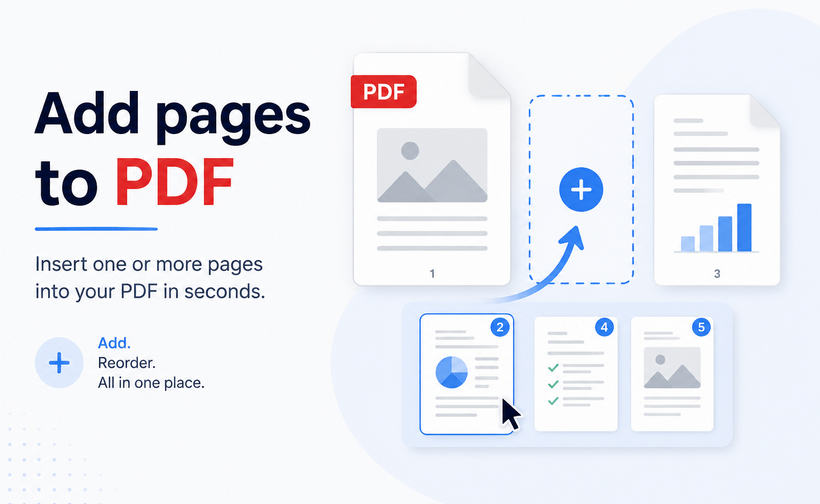
Qualquer pessoa que trabalhe com documentos digitais provavelmente já se deparou com este cenário comum: um PDF finalizado acaba faltando apenas uma página crítica. Como os PDFs são projetados para preservar a formatação em todos os dispositivos e plataformas, eles não suportam as edições rápidas e casuais nativas dos processadores de texto — e é precisamente por isso que saber como adicionar uma página a um PDF é uma habilidade prática tão essencial.
Nas seções a seguir, abordaremos métodos práticos passo a passo para inserir páginas em um PDF, desde ferramentas rápidas baseadas em navegador e aplicativos de desktop offline até uma biblioteca amigável para desenvolvedores para processamento em lote automatizado.
Visão geral do conteúdo:
- Por que você pode precisar adicionar páginas a um PDF
- Método 1: Adicionar páginas a um PDF usando o Adobe Acrobat Pro
- Método 2: Alternativa para desktop - PDF24 Creator
- Método 3: Ferramentas gratuitas para adicionar páginas a um PDF online
- Método 4: Soluções de programação via C#
- Tabela comparativa: Qual método você deve escolher?
- Perguntas frequentes (FAQs)
Por que você pode precisar adicionar páginas a um PDF
Os PDFs estão em toda parte nos negócios, na educação e na administração pessoal. Cenários comuns em que você precisará adicionar páginas a um PDF incluem:
- Adicionar assinaturas ou notas manuscritas – Insira uma página em branco no PDF para assinaturas digitais
- Incluir anexos esquecidos – Adicione recibos, formulários ou imagens que você esqueceu
- Criar divisores de seção – Use páginas em branco para separar capítulos ou seções
- Mesclar vários PDFs – Combine vários documentos em um arquivo completo
- Inserir conteúdo atualizado – Substitua ou adicione páginas corrigidas sem recriar o documento inteiro
Método 1: Adicionar páginas a um PDF usando o Adobe Acrobat Pro
O Adobe Acrobat Pro é o padrão da indústria para edição de PDF. Ele oferece controle preciso sobre a inserção de páginas, incluindo a capacidade de extrair páginas de outros arquivos, inserir páginas em branco e até mesmo importar conteúdo de scanners ou páginas da web.
Passo a passo: Adicionar página no Adobe Acrobat
Passo 1: Abra seu PDF no Adobe Acrobat.
Passo 2: Clique em "Todas as ferramentas" e selecione "Organizar páginas". Isso exibirá todas as páginas como miniaturas para edição visual.
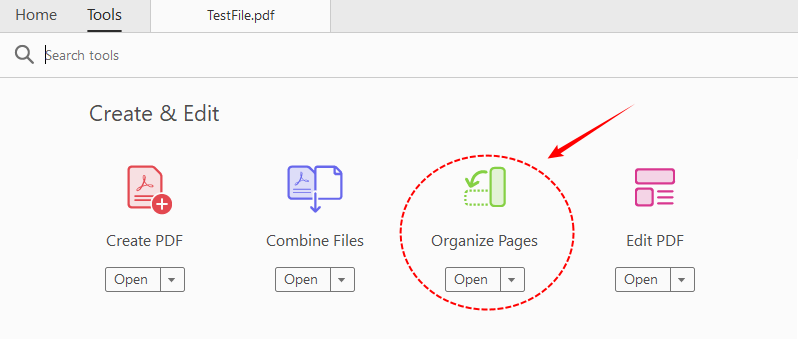
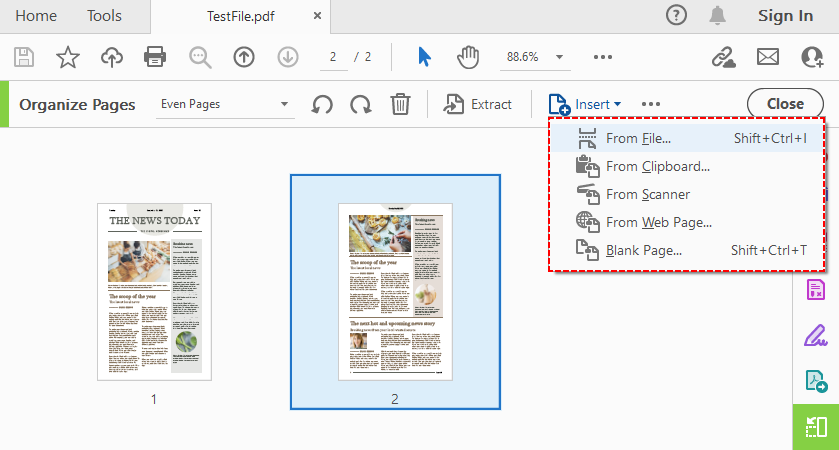
Passo 3: Clique no botão "Inserir" para ver suas opções de inserção:
- De arquivo: Insira páginas de outro PDF ou documento
- Da área de transferência: Cole o conteúdo copiado como uma nova página
- Do scanner: Adicione páginas digitalizadas diretamente
- Da página da web: Insira uma página da web como uma página PDF
- Página em branco: Adicione uma página em branco ao PDF
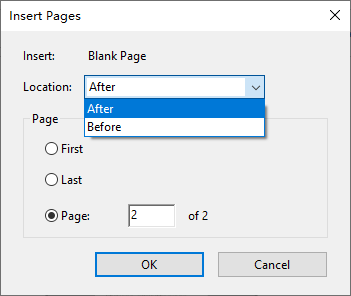
Passo 4: Na caixa de diálogo “Inserir páginas”, escolha o local: Antes ou Depois da primeira página, da última página ou de um número de página específico.
Passo 5: Clique em “OK” e as páginas serão inseridas.
Dica rápida: Você também pode passar o mouse entre as miniaturas das páginas até que uma barra azul apareça e, em seguida, clicar nela para inserir páginas diretamente.
Depois de adicionar as páginas, você pode facilmente reorganizar as páginas do PDF para refinar a estrutura do seu documento até que cada seção flua logicamente.
Método 2: Alternativa para desktop - PDF24 Creator
Se você está procurando um aplicativo de desktop poderoso que seja totalmente gratuito e funcione offline, o PDF24 Creator é uma excelente opção. É um aplicativo baseado em Windows que funciona como uma impressora PDF virtual, um conversor de arquivos e um editor de PDF completo.
Adicionar páginas a um PDF gratuitamente usando o PDF24 Creator:
- Abra a caixa de ferramentas do PDF24 e clique em “Organizar PDFs”.
- Carregue seu arquivo PDF arrastando e soltando ou usando o navegador de arquivos.
- Na visualização da página, clique com o botão direito na miniatura da página onde você deseja adicionar uma nova página no PDF.
- No menu de contexto, selecione “Inserir página em branco antes” ou “Inserir página em branco depois” para adicionar uma página vazia nessa posição.
- Quando terminar, salve seu PDF editado.
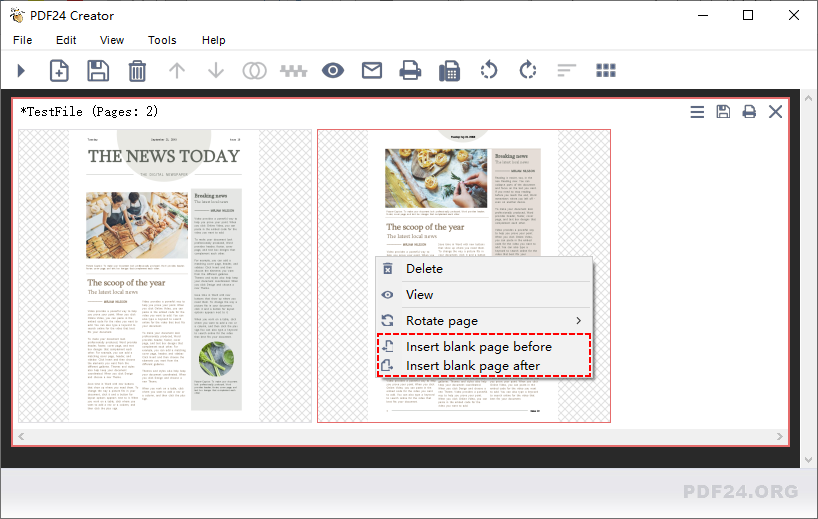
Para inserir páginas de outro arquivo PDF, abra ambos os documentos na caixa de ferramentas, selecione as páginas desejadas do arquivo de origem e arraste-as para a posição exata no seu documento de destino.
Método 3: Ferramentas gratuitas para adicionar páginas a um PDF online
Os editores de PDF online são a maneira mais fácil de inserir páginas em um PDF. Eles não exigem instalação de software, funcionam em qualquer dispositivo com um navegador da web e a maioria dos recursos básicos está disponível gratuitamente.
Exemplo de adição de páginas a um PDF via iLovePDF:
- Vá para a ferramenta Organizar PDF no site do iLovePDF.
- Envie seu PDF principal do seu computador, Google Drive ou Dropbox.
- Para inserir uma página em branco: Passe o mouse sobre uma página e clique no ícone "+" para adicionar uma página em branco depois dela.
- Para adicionar páginas de outro arquivo: Clique no botão vermelho "+" no canto superior direito e envie o segundo arquivo PDF.
- Clique em “Organizar” e, em seguida, baixe o arquivo para salvar seu PDF atualizado.

Nota de privacidade: Sempre leia a política de dados de uma ferramenta antes de enviar documentos confidenciais. A maioria dos serviços respeitáveis exclui arquivos dentro de 1 a 2 horas. Para trabalhos sensíveis, prefira softwares de desktop offline.
Método 4: Soluções de programação via C#
Para desenvolvedores que precisam automatizar a manipulação de PDF em massa ou integrá-la a fluxos de trabalho corporativos, usar uma biblioteca dedicada é o caminho mais eficiente. O Free Spire.PDF for .NET é uma biblioteca poderosa que permite adicionar e remover páginas de um PDF em C# sem a necessidade de ter o Adobe Acrobat instalado.
Inserir páginas em branco em um PDF com código C#
O código C# a seguir carrega um PDF existente, insere uma página em branco em um índice específico e adiciona uma segunda página em branco ao final do documento:
using Spire.Pdf;

namespace InsertPage
{
    class Program
    {
        static void Main(string[] args)
        {
            // Criar uma instância PdfDocument e carregar o arquivo existente
            PdfDocument pdf = new PdfDocument();
            pdf.LoadFromFile("TestFile.pdf");

            // Inserir uma página em branco como a segunda página
            // O índice 1 significa que a página se tornará a nova segunda página.
            pdf.Pages.Insert(1);

            // Adicionar uma página em branco ao final do documento
            pdf.Pages.Add();

            // Salvar o documento modificado em um novo arquivo
            pdf.SaveToFile("AddPages.pdf");
            pdf.Close();
        }
    }
}
Explicação dos métodos principais
- pdf.Pages.Add(): Adiciona uma página em branco ao final do seu PDF.
- pdf.Pages.Insert(1): Insere uma página em branco no índice 1 (que é a segunda página, já que os índices começam em zero). Todas as páginas subsequentes são deslocadas para a direita.
Resultado:
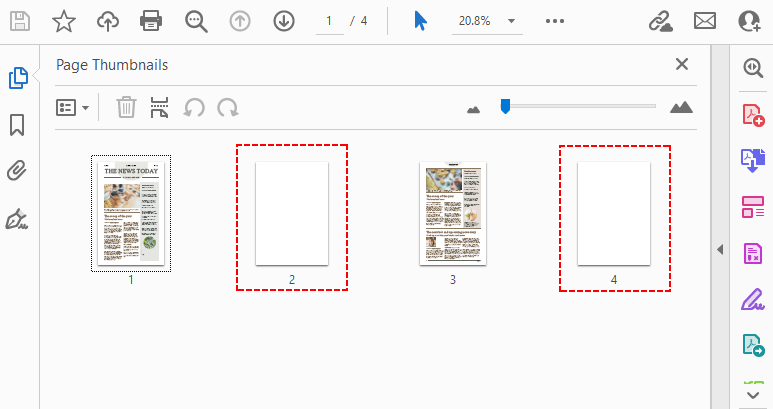
Tabela comparativa: Qual método você deve escolher?
| Método | Melhor para | Custo | Plataforma | Privacidade | Facilidade de uso |
|---|---|---|---|---|---|
| Adobe Acrobat Desktop | Edições profissionais e complexas | Pago | Win/Mac | Alta | Moderada |
| PDF24 Creator | Ferramenta gratuita e offline para Windows | Gratuito | Windows | Alta | Fácil |
| iLovePDF | Múltiplas ferramentas, integração na nuvem | Gratuito | Navegador | Média | Muito fácil |
| Free Spire.PDF | Automação, desenvolvedores .NET | Gratuito (limite de 10 páginas) | .NET (Multiplataforma) | Alta | Avançado |
Considerações finais
Adicionar uma página a um PDF não requer conhecimento especializado. Para edições rápidas e ocasionais com arquivos não confidenciais, uma ferramenta online gratuita fará o trabalho em segundos. Para trabalhos profissionais regulares, especialmente com documentos confidenciais, um editor de desktop como o Adobe Acrobat Pro ou o PDF24 Creator oferece maior privacidade e recursos mais robustos.
Para desenvolvedores e equipes de operações que gerenciam documentos em escala, uma biblioteca programática como o Free Spire.PDF for .NET elimina o trabalho manual completamente. A melhor solução é sempre aquela que se adapta ao seu fluxo de trabalho, às suas necessidades de privacidade e ao seu orçamento. Comece com o método que parecer mais natural e mantenha as alternativas à mão para quando seus requisitos mudarem.
Perguntas frequentes (FAQs)
P: Posso adicionar páginas a um PDF sem o Adobe?
Sim. Editores de PDF online gratuitos como o iLovePDF permitem que você envie seu PDF e insira páginas em branco ou adicione páginas de outro arquivo sem nenhuma instalação de software. Alternativas de desktop como o PDF24 Creator e métodos de programação com o Free Spire.PDF também oferecem funcionalidade completa gratuitamente.
P: Posso inserir uma página em branco no meio de um documento?
Com certeza. Todas as ferramentas mencionadas neste guia permitem que você escolha o ponto de inserção exato — antes ou depois de qualquer página específica no seu documento. Na maioria das ferramentas, basta clicar entre as miniaturas das páginas ou especificar o número da página.
P: Posso adicionar páginas a um PDF no Mac gratuitamente?
Sim. Os usuários de Mac podem usar o aplicativo Pré-visualização (Preview) integrado para inserir páginas através do menu Visualizar > Miniaturas, ou usar qualquer ferramenta de PDF online baseada em navegador sem instalar software adicional.
P: Posso adicionar uma imagem como uma nova página a um PDF?
Sim. A maioria dos editores de desktop e ferramentas online permite converter uma imagem em uma página PDF e inseri-la. No Adobe Acrobat, use Inserir > De arquivo e selecione sua imagem. Com bibliotecas de programação como o Spire.PDF, você pode desenhar imagens em uma página em branco programaticamente.
Veja também
PDF에 페이지를 추가하는 방법 - 온라인 및 데스크톱 도구
디지털 문서를 다루는 사람이라면 누구나 한 번쯤 겪어봤을 법한 상황이 있습니다. 바로 완성된 PDF에서 중요한 페이지 하나가 빠져 있는 경우입니다. PDF는 모든 기기와 플랫폼에서 서식을 유지하도록 설계되었기 때문에 워드 프로세서처럼 빠르고 간편한 편집을 지원하지 않습니다. 바로 이것이 PDF에 페이지를 추가하는 방법을 익히는 것이 필수적인 실용 기술인 이유입니다.
이어지는 섹션에서는 브라우저 기반의 빠른 도구와 오프라인 데스크톱 앱부터 자동화된 일괄 처리를 위한 개발자용 라이브러리에 이르기까지, PDF에 페이지를 삽입하는 실용적이고 단계별 방법을 다룹니다.
콘텐츠 개요:
- PDF에 페이지를 추가해야 하는 이유
- 방법 1: Adobe Acrobat Pro를 사용하여 PDF 페이지 추가하기
- 방법 2: 데스크톱 대안 - PDF24 Creator
- 방법 3: 온라인에서 무료로 PDF에 페이지를 추가하는 도구
- 방법 4: C#을 이용한 프로그래밍 방식
- 비교표: 어떤 방법을 선택해야 할까요?
- 자주 묻는 질문(FAQ)
PDF에 페이지를 추가해야 하는 이유
PDF는 비즈니스, 교육 및 개인 업무 전반에서 널리 사용됩니다. PDF에 페이지를 추가해야 하는 일반적인 상황은 다음과 같습니다:
- 서명 또는 자필 메모 추가 – 디지털 서명을 위해 PDF에 빈 페이지 삽입
- 누락된 첨부 파일 포함 – 빠뜨린 영수증, 양식 또는 이미지 추가
- 섹션 구분 만들기 – 챕터나 섹션을 구분하기 위해 빈 페이지 사용
- 여러 PDF 병합 – 여러 문서를 하나의 완전한 파일로 결합
- 업데이트된 콘텐츠 삽입 – 전체 문서를 다시 만들지 않고 수정된 페이지를 교체하거나 추가
방법 1: Adobe Acrobat Pro를 사용하여 PDF 페이지 추가하기
Adobe Acrobat Pro는 PDF 편집의 업계 표준입니다. 다른 파일에서 페이지를 가져오거나, 빈 페이지를 삽입하거나, 스캐너 또는 웹 페이지에서 콘텐츠를 가져오는 등 페이지 삽입에 대한 정밀한 제어를 제공합니다.
단계별 안내: Adobe Acrobat에서 페이지 추가하기
1단계: Adobe Acrobat에서 PDF를 엽니다.
2단계: "모든 도구"를 클릭하고 "페이지 구성"을 선택합니다. 시각적 편집을 위해 모든 페이지가 썸네일로 표시됩니다.
3단계: "삽입" 버튼을 클릭하여 삽입 옵션을 확인합니다:
- 파일에서: 다른 PDF나 문서에서 페이지 삽입
- 클립보드에서: 복사한 콘텐츠를 새 페이지로 붙여넣기
- 스캐너에서: 스캔한 페이지를 직접 추가
- 웹 페이지에서: 웹 페이지를 PDF 페이지로 삽입
- 빈 페이지: PDF에 빈 페이지 추가
4단계: "페이지 삽입" 대화 상자에서 위치(첫 페이지 앞/뒤, 마지막 페이지 앞/뒤 또는 특정 페이지 번호)를 선택합니다.
5단계: "확인"을 클릭하면 페이지가 삽입됩니다.
빠른 팁: 페이지 썸네일 사이로 마우스를 가져가 파란색 막대가 나타나면 클릭하여 페이지를 직접 삽입할 수도 있습니다.
페이지를 추가한 후에는 PDF 페이지 재정렬을 통해 문서 구조가 논리적으로 흐르도록 쉽게 다듬을 수 있습니다.
방법 2: 데스크톱 대안 - PDF24 Creator
완전 무료이며 오프라인에서 작동하는 강력한 데스크톱 애플리케이션을 찾고 있다면 PDF24 Creator가 훌륭한 선택입니다. 이는 가상 PDF 프린터, 파일 변환기 및 모든 기능을 갖춘 PDF 편집기로 작동하는 Windows 기반 애플리케이션입니다.
PDF24 Creator를 사용하여 무료로 PDF에 페이지 추가하기:
- PDF24 툴박스를 열고 "PDF 구성"을 클릭합니다.
- 드래그 앤 드롭 또는 파일 브라우저를 사용하여 PDF 파일을 불러옵니다.
- 페이지 미리보기에서 새 페이지를 추가할 위치의 페이지 썸네일을 마우스 오른쪽 버튼으로 클릭합니다.
- 컨텍스트 메뉴에서 "앞에 빈 페이지 삽입" 또는 "뒤에 빈 페이지 삽입"을 선택하여 해당 위치에 빈 페이지를 추가합니다.
- 완료되면 편집된 PDF를 저장합니다.
다른 PDF 파일에서 페이지를 삽입하려면, 툴박스에서 두 문서를 모두 열고 원본 파일에서 원하는 페이지를 선택한 다음 대상 문서의 정확한 위치로 드래그 앤 드롭하세요.
방법 3: 온라인에서 무료로 PDF에 페이지를 추가하는 도구
온라인 PDF 편집기는 PDF에 페이지를 삽입하는 가장 쉬운 방법입니다. 소프트웨어 설치가 필요 없고 웹 브라우저가 있는 모든 기기에서 작동하며, 대부분의 기본 기능을 무료로 사용할 수 있습니다.
iLovePDF를 통해 PDF에 페이지를 추가하는 예시:
- iLovePDF 웹사이트의 PDF 구성 도구로 이동합니다.
- 컴퓨터, Google Drive 또는 Dropbox에서 메인 PDF를 업로드합니다.
- 빈 페이지 삽입: 페이지 위에 마우스를 올리고 "+" 아이콘을 클릭하여 뒤에 빈 페이지를 추가합니다.
- 다른 파일에서 페이지 추가: 오른쪽 상단의 빨간색 "+" 버튼을 클릭하고 두 번째 PDF 파일을 업로드합니다.
- "구성"을 클릭한 다음 파일을 다운로드하여 업데이트된 PDF를 저장합니다.
개인정보 보호 참고: 기밀 문서를 업로드하기 전에 항상 도구의 데이터 정책을 읽어보세요. 대부분의 신뢰할 수 있는 서비스는 1~2시간 내에 파일을 삭제합니다. 민감한 작업의 경우 오프라인 데스크톱 소프트웨어를 사용하는 것이 좋습니다.
방법 4: C#을 이용한 프로그래밍 방식
대량으로 PDF 조작을 자동화하거나 엔터프라이즈 워크플로에 통합해야 하는 개발자에게는 전용 라이브러리를 사용하는 것이 가장 효율적입니다. Free Spire.PDF for .NET은 Adobe Acrobat을 설치하지 않고도 C#에서 PDF 페이지를 추가 및 삭제할 수 있게 해주는 강력한 라이브러리입니다.
C# 코드로 PDF에 빈 페이지 삽입하기
다음 C# 코드는 기존 PDF를 로드하고, 특정 인덱스에 빈 페이지를 삽입하며, 문서 끝에 두 번째 빈 페이지를 추가합니다:
using Spire.Pdf;

namespace InsertPage
{
    class Program
    {
        static void Main(string[] args)
        {
            // PdfDocument 인스턴스를 생성하고 기존 파일 로드
            PdfDocument pdf = new PdfDocument();
            pdf.LoadFromFile("TestFile.pdf");

            // 두 번째 페이지로 빈 페이지 삽입
            // 인덱스 1은 해당 페이지가 새로운 두 번째 페이지가 됨을 의미합니다.
            pdf.Pages.Insert(1);

            // 문서 끝에 빈 페이지 추가
            pdf.Pages.Add();

            // 수정된 문서를 새 파일로 저장
            pdf.SaveToFile("AddPages.pdf");
            pdf.Close();
        }
    }
}
주요 메서드 설명
- pdf.Pages.Add(): PDF 끝에 빈 페이지를 추가합니다.
- pdf.Pages.Insert(1): 인덱스 1(0부터 시작하므로 두 번째 페이지)에 빈 페이지를 삽입합니다. 이후의 모든 페이지는 오른쪽으로 밀려납니다.
출력:
비교표: 어떤 방법을 선택해야 할까요?
| 방법 | 용도 | 비용 | 플랫폼 | 개인정보 보호 | 사용 편의성 |
|---|---|---|---|---|---|
| Adobe Acrobat Desktop | 전문적이고 복잡한 편집 | 유료 | Win/Mac | 높음 | 보통 |
| PDF24 Creator | 무료, 오프라인 Windows 도구 | 무료 | Windows | 높음 | 쉬움 |
| iLovePDF | 다양한 도구, 클라우드 통합 | 무료 | 브라우저 | 보통 | 매우 쉬움 |
| Free Spire.PDF | 자동화, .NET 개발자 | 무료 (10페이지 제한) | .NET (크로스 플랫폼) | 높음 | 고급 |
마치며
PDF에 페이지를 추가하는 데 전문적인 지식이 필요한 것은 아닙니다. 민감하지 않은 파일에 대한 가끔의 빠른 편집은 무료 온라인 도구로 몇 초 만에 해결할 수 있습니다. 정기적인 전문 작업, 특히 기밀 문서의 경우 Adobe Acrobat Pro나 PDF24 Creator와 같은 데스크톱 편집기가 더 강력한 개인정보 보호와 더 많은 기능을 제공합니다.
대규모 문서를 관리하는 개발자 및 운영 팀에게는 Free Spire.PDF for .NET과 같은 프로그래밍 라이브러리가 수동 작업을 완전히 제거해 줍니다. 가장 좋은 솔루션은 항상 귀하의 워크플로, 개인정보 보호 요구 사항 및 예산에 맞는 것입니다. 가장 자연스럽게 느껴지는 방법부터 시작하고, 요구 사항이 변경될 경우를 대비해 다른 대안들을 알아두세요.
자주 묻는 질문(FAQ)
Q: Adobe 없이 PDF에 페이지를 추가할 수 있나요?
네. iLovePDF와 같은 무료 온라인 PDF 편집기를 사용하면 소프트웨어 설치 없이 PDF를 업로드하고 빈 페이지를 삽입하거나 다른 파일의 페이지를 추가할 수 있습니다. PDF24 Creator와 같은 데스크톱 대안이나 Free Spire.PDF를 이용한 프로그래밍 방식도 무료로 모든 기능을 제공합니다.
Q: 문서 중간에 빈 페이지를 삽입할 수 있나요?
물론입니다. 이 가이드에 언급된 모든 도구를 사용하면 문서 내 특정 페이지 앞이나 뒤 등 정확한 삽입 지점을 선택할 수 있습니다. 대부분의 도구에서는 페이지 썸네일 사이를 클릭하거나 페이지 번호를 지정하기만 하면 됩니다.
Q: Mac에서 무료로 PDF에 페이지를 추가할 수 있나요?
네. Mac 사용자는 기본 제공되는 '미리보기(Preview)' 앱에서 보기 > 썸네일 메뉴를 통해 페이지를 삽입하거나, 추가 소프트웨어 설치 없이 브라우저 기반의 온라인 PDF 도구를 사용할 수 있습니다.
Q: 이미지를 PDF의 새 페이지로 추가할 수 있나요?
네. 대부분의 데스크톱 편집기 및 온라인 도구는 이미지를 PDF 페이지로 변환하여 삽입할 수 있게 해줍니다. Adobe Acrobat에서는 *삽입 > 파일에서를 선택하고 이미지를 선택하세요. Spire.PDF와 같은 프로그래밍 라이브러리를 사용하면 프로그래밍 방식으로 빈 페이지에 이미지를 그릴 수 있습니다.
참고 항목
Come aggiungere una pagina a un PDF – Strumenti online e desktop
Indice
- Perché potresti aver bisogno di aggiungere pagine a un PDF
- Metodo 1: Aggiungere pagine PDF usando Adobe Acrobat Pro
- Metodo 2: Alternativa desktop - PDF24 Creator
- Metodo 3: Strumenti gratuiti per aggiungere pagine a un PDF online
- Metodo 4: Soluzioni di programmazione tramite C#
- Tabella comparativa: quale metodo scegliere?
- Domande frequenti (FAQ)
Chiunque lavori con documenti digitali si è probabilmente imbattuto in questo scenario comune: a un PDF finalizzato manca proprio una pagina fondamentale. Poiché i PDF sono progettati per preservare la formattazione su ogni dispositivo e piattaforma, non supportano le modifiche rapide e semplici tipiche dei word processor; ecco perché sapere come aggiungere una pagina a un PDF è una competenza pratica essenziale.
Nelle sezioni seguenti, illustreremo metodi pratici passo dopo passo per inserire pagine in un PDF, dagli strumenti rapidi basati su browser e app desktop offline, fino a una libreria adatta agli sviluppatori per l'elaborazione automatizzata in batch.
Panoramica dei contenuti:
- Perché potresti aver bisogno di aggiungere pagine a un PDF
- Metodo 1: Aggiungere pagine PDF usando Adobe Acrobat Pro
- Metodo 2: Alternativa desktop - PDF24 Creator
- Metodo 3: Strumenti gratuiti per aggiungere pagine a un PDF online
- Metodo 4: Soluzioni di programmazione tramite C#
- Tabella comparativa: quale metodo scegliere?
- Domande frequenti (FAQ)
Perché potresti aver bisogno di aggiungere pagine a un PDF
I PDF sono ovunque nel mondo del lavoro, dell'istruzione e dell'amministrazione personale. Gli scenari comuni in cui è necessario aggiungere pagine a un PDF includono:
- Aggiunta di firme o note scritte a mano – Inserire una pagina vuota nel PDF per firme digitali
- Inclusione di allegati dimenticati – Aggiungere ricevute, moduli o immagini che avevi tralasciato
- Creazione di divisori di sezione – Usare pagine vuote per separare capitoli o sezioni
- Unione di più PDF – Combinare diversi documenti in un unico file completo
- Inserimento di contenuti aggiornati – Sostituire o aggiungere pagine corrette senza dover ricreare l'intero documento
Metodo 1: Aggiungere pagine PDF usando Adobe Acrobat Pro
Adobe Acrobat Pro è lo standard del settore per l'editing di PDF. Offre un controllo preciso sull'inserimento delle pagine, inclusa la possibilità di estrarre pagine da altri file, inserire pagine vuote e persino importare contenuti da scanner o pagine web.
Passo dopo passo: Aggiungere una pagina in Adobe Acrobat
Passo 1: Apri il tuo PDF in Adobe Acrobat.
Passo 2: Clicca su "Tutti gli strumenti" e seleziona "Organizza pagine". Questo mostrerà tutte le pagine come miniature per una modifica visiva.
Passo 3: Clicca sul pulsante "Inserisci" per visualizzare le opzioni di inserimento:
- Da file: Inserisci pagine da un altro PDF o documento
- Da appunti: Incolla contenuti copiati come nuova pagina
- Da scanner: Aggiungi pagine scansionate direttamente
- Da pagina web: Inserisci una pagina web come pagina PDF
- Pagina vuota: Aggiungi una pagina vuota al PDF
Passo 4: Nella finestra di dialogo "Inserisci pagine", scegli la posizione: prima o dopo la prima pagina, l'ultima pagina o un numero di pagina specifico.
Passo 5: Clicca su "OK" e le pagine verranno inserite.
Consiglio rapido: Puoi anche passare il mouse tra le miniature delle pagine finché non appare una barra blu, quindi cliccarci sopra per inserire le pagine direttamente.
Una volta aggiunte le pagine, puoi facilmente riordinare le pagine del PDF per perfezionare la struttura del documento finché ogni sezione non scorre in modo logico.
Metodo 2: Alternativa desktop - PDF24 Creator
Se cerchi un'applicazione desktop potente, completamente gratuita e che funzioni offline, PDF24 Creator è un'opzione eccellente. È un'applicazione basata su Windows che funge da stampante PDF virtuale, convertitore di file ed editor PDF completo.
Aggiungere pagine a un PDF gratuitamente usando PDF24 Creator:
- Apri la Toolbox di PDF24 e clicca su "Organizza PDF".
- Carica il tuo file PDF trascinandolo o usando il browser dei file.
- Nell'anteprima delle pagine, fai clic con il tasto destro sulla miniatura della pagina in cui desideri aggiungere una nuova pagina nel PDF.
- Dal menu contestuale, seleziona "Inserisci pagina vuota prima" o "Inserisci pagina vuota dopo" per aggiungere una pagina vuota in quella posizione.
- Una volta terminato, salva il tuo PDF modificato.
Per inserire pagine da un altro file PDF, apri entrambi i documenti nella toolbox, seleziona le pagine che desideri dal file sorgente e trascinale nella posizione esatta nel documento di destinazione.
Metodo 3: Strumenti gratuiti per aggiungere pagine a un PDF online
Gli editor PDF online sono il modo più semplice per inserire pagine in un PDF. Non richiedono l'installazione di software, funzionano su qualsiasi dispositivo dotato di browser web e la maggior parte delle funzioni di base è disponibile gratuitamente.
Esempio di aggiunta di pagine a un PDF tramite iLovePDF:
- Vai allo strumento Organizza PDF sul sito web di iLovePDF.
- Carica il tuo PDF principale dal computer, Google Drive o Dropbox.
- Per inserire una pagina vuota: Passa il mouse sopra una pagina e clicca sull'icona "+" per aggiungere una pagina vuota dopo di essa.
- Per aggiungere pagine da un altro file: Clicca sul pulsante rosso "+" in alto a destra e carica il secondo file PDF.
- Clicca su "Organizza", quindi scarica il file per salvare il tuo PDF aggiornato.
Nota sulla privacy: Leggi sempre la politica sui dati di uno strumento prima di caricare documenti riservati. La maggior parte dei servizi affidabili elimina i file entro 1-2 ore. Per lavori sensibili, preferisci software desktop offline.
Metodo 4: Soluzioni di programmazione tramite C#
Per gli sviluppatori che devono automatizzare la manipolazione di PDF in blocco o integrarla in flussi di lavoro aziendali, l'utilizzo di una libreria dedicata è la strada più efficiente. Free Spire.PDF for .NET è una libreria potente che ti consente di aggiungere e rimuovere pagine da un PDF in C# senza bisogno di avere Adobe Acrobat installato.
Inserire pagine vuote in un PDF con codice C#
Il seguente codice C# carica un PDF esistente, inserisce una pagina vuota a un indice specifico e aggiunge una seconda pagina vuota alla fine del documento:
using Spire.Pdf;

namespace InsertPage
{
    class Program
    {
        static void Main(string[] args)
        {
            // Crea un'istanza di PdfDocument e carica il file esistente
            PdfDocument pdf = new PdfDocument();
            pdf.LoadFromFile("TestFile.pdf");

            // Inserisci una pagina vuota come seconda pagina
            // L'indice 1 significa che la pagina diventerà la nuova seconda pagina.
            pdf.Pages.Insert(1);

            // Aggiungi una pagina vuota alla fine del documento
            pdf.Pages.Add();

            // Salva il documento modificato in un nuovo file
            pdf.SaveToFile("AddPages.pdf");
            pdf.Close();
        }
    }
}
Spiegazione dei metodi chiave
- pdf.Pages.Add(): Aggiunge una pagina vuota alla fine del tuo PDF.
- pdf.Pages.Insert(1): Inserisce una pagina vuota all'indice 1 (che è la seconda pagina, poiché gli indici partono da zero). Tutte le pagine successive vengono spostate a destra.
Output:
Tabella comparativa: quale metodo scegliere?
| Metodo | Ideale per | Costo | Piattaforma | Privacy | Facilità d'uso |
|---|---|---|---|---|---|
| Adobe Acrobat Desktop | Modifiche professionali e complesse | A pagamento | Win/Mac | Alta | Moderata |
| PDF24 Creator | Strumento Windows gratuito e offline | Gratuito | Windows | Alta | Facile |
| iLovePDF | Strumenti multipli, integrazione cloud | Gratuito | Browser | Media | Molto facile |
| Free Spire.PDF | Automazione, sviluppatori .NET | Gratuito (limite di 10 pagine) | .NET (Multipiattaforma) | Alta | Avanzato |
Considerazioni finali
Aggiungere una pagina a un PDF non richiede competenze specialistiche. Per modifiche occasionali e rapide su file non sensibili, uno strumento online gratuito farà il lavoro in pochi secondi. Per il lavoro professionale regolare, specialmente con documenti riservati, un editor desktop come Adobe Acrobat Pro o PDF24 Creator offre una maggiore privacy e funzionalità più robuste.
Per gli sviluppatori e i team operativi che gestiscono documenti su larga scala, una libreria programmatica come Free Spire.PDF for .NET elimina completamente il lavoro manuale. La soluzione migliore è sempre quella che si adatta al tuo flusso di lavoro, alle tue esigenze di privacy e al tuo budget. Inizia con il metodo che ti sembra più naturale e tieni le alternative a portata di mano per quando le tue esigenze cambieranno.
Domande frequenti (FAQ)
D: Posso aggiungere pagine a un PDF senza Adobe?
Sì. Gli editor PDF online gratuiti come iLovePDF ti consentono di caricare il tuo PDF e inserire pagine vuote o aggiungere pagine da un altro file senza alcuna installazione di software. Anche le alternative desktop come PDF24 Creator e i metodi di programmazione con Free Spire.PDF offrono funzionalità complete gratuitamente.
D: Posso inserire una pagina vuota nel mezzo di un documento?
Assolutamente sì. Tutti gli strumenti menzionati in questa guida ti consentono di scegliere il punto di inserimento esatto, prima o dopo qualsiasi pagina specifica del tuo documento. Nella maggior parte degli strumenti, basta cliccare tra le miniature delle pagine o specificare il numero di pagina.
D: Posso aggiungere pagine a un PDF su Mac gratuitamente?
Sì. Gli utenti Mac possono utilizzare l'app Anteprima integrata per inserire pagine tramite il menu Vista > Miniature, oppure utilizzare qualsiasi strumento PDF online basato su browser senza installare software aggiuntivo.
D: Posso aggiungere un'immagine come nuova pagina a un PDF?
Sì. La maggior parte degli editor desktop e degli strumenti online ti consente di convertire un'immagine in una pagina PDF e inserirla. In Adobe Acrobat, usa Inserisci > Da file e seleziona la tua immagine. Con librerie di programmazione come Spire.PDF, puoi disegnare immagini su una pagina vuota a livello di codice.
Vedi anche
- Come controllare le dimensioni delle pagine PDF: 4 metodi semplici e gratuiti
- Rimuovere le autorizzazioni da un PDF – Online, Offline e via codice
- 4 modi per salvare una singola pagina di un PDF (Windows, Mac e Python)
- Java: Aggiungere o eliminare pagine in documenti PDF
- Python: Aggiungere o eliminare pagine in un PDF