Convertir EPUB a Word DOCX de 3 formas sencillas [Guía definitiva]

El formato EPUB es ideal para leer libros electrónicos, pero no está diseñado para la edición. Si desea revisar contenido, citar un capítulo o reutilizar texto en Microsoft Word, primero deberá convertir el EPUB a Word, ya que Word no admite archivos EPUB de forma nativa. Afortunadamente, existen varias formas de hacerlo. Dependiendo de si necesita un conversor en línea rápido, una aplicación de escritorio o una solución automatizada por lotes, esta guía le mostrará tres métodos prácticos utilizando herramientas en línea, Calibre y Python.
- Convertir EPUB a Word en línea rápidamente
- Convertir EPUB a DOCX sin conexión con Calibre de forma segura
- Conversión por lotes de EPUB a Word usando Python
- ¿Qué método debería elegir?
- Preguntas frecuentes
Convertir EPUB a Word en línea rápidamente
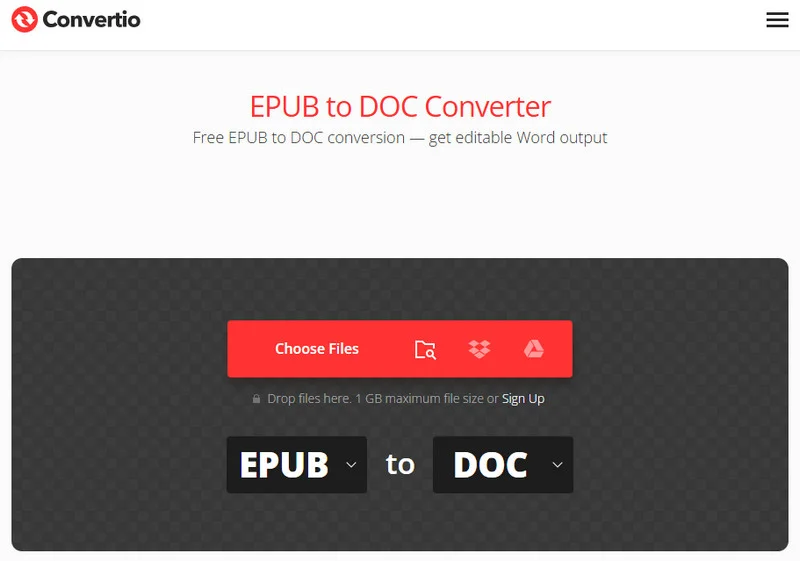
Si solo tiene uno o dos libros electrónicos cortos para convertir, los conversores de EPUB a Word en línea son ideales para usuarios que solo necesitan conversiones ocasionales directamente desde su navegador web.
Dos de las plataformas basadas en web más fiables para esta tarea son Convertio y FreeConvert. Convertio ofrece una interfaz fácil de usar y genera archivos .docx limpios, aunque limita las subidas gratuitas a 100 MB. FreeConvert, por otro lado, permite archivos más grandes y ofrece un control avanzado sobre la configuración de conversión individual.
Consejo: Si solo desea ver o compartir un libro electrónico en lugar de editar su contenido, convertirlo a PDF puede ser una mejor opción. Consulte nuestra guía sobre cómo convertir EPUB a PDF para conocer varios métodos rápidos y fiables.
Pasos para convertir EPUB a documentos de Word con herramientas en línea
- Paso 1: Suba los archivos EPUB al panel de control del sitio web.
- Paso 2: Elija DOCX o DOC como formato de destino.
- Paso 3: Haga clic en el botón de convertir y espere a que el servidor en la nube procese los documentos.
- Paso 4: Guarde el documento de Word convertido directamente en su dispositivo.
Pros y contras
- Pros: No requiere instalación; es completamente gratuito y rápido para archivos individuales.
- Contras: Riesgos potenciales de privacidad al subir archivos a un servidor de terceros; límites estrictos de tamaño de archivo; formato inestable si el libro tiene un diseño complejo.
Cuando se trata de datos confidenciales o materiales corporativos, es posible que prefiera evitar las aplicaciones web para eludir riesgos de privacidad. En su lugar, veamos cómo convertir de EPUB a Word utilizando un flujo de trabajo privado basado en escritorio.
Convertir EPUB a DOCX sin conexión con Calibre de forma segura
Cuando las herramientas web no logran manejar libros pesados o estilos complejos, puede recurrir a Calibre. Calibre es una herramienta de gestión de libros electrónicos de código abierto que también admite la conversión de formatos.
Debido a que se ejecuta completamente en su máquina local, sus datos permanecen 100% privados. Cuenta con un motor de diseño robusto que analiza el código subyacente de un libro electrónico, lo que lo convierte en una herramienta increíblemente precisa para convertir contenido EPUB a DOCX mientras conserva la mayor parte del formato original.
Guía paso a paso para escritorio
- Paso 1: Abra Calibre y haga clic en el botón Añadir libros en la esquina superior izquierda para cargar su archivo EPUB.
- Paso 2: Seleccione su libro de la lista principal de la biblioteca y haga clic en el icono Convertir libros en la barra de herramientas superior.
- Paso 3: En la ventana emergente, mire en la esquina superior derecha y cambie el Formato de salida a DOCX.
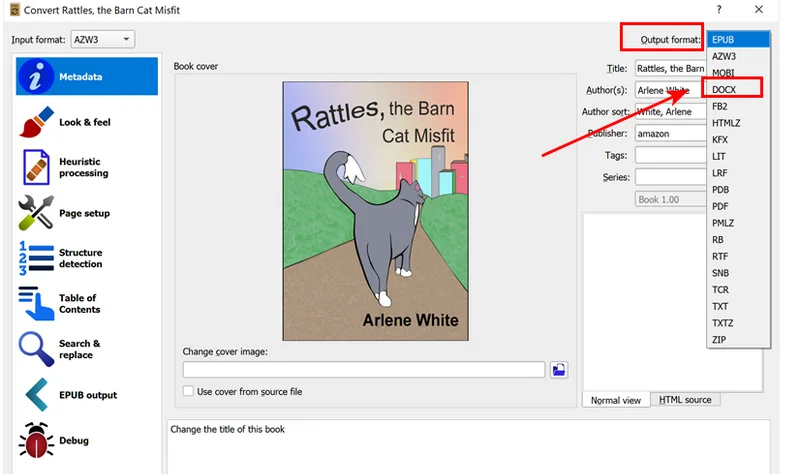
- Paso 4: En el menú de la izquierda, navegue hasta Procesamiento heurístico y marque la casilla para activar el procesamiento heurístico. Esta función integrada escanea y corrige automáticamente líneas de párrafo rotas, guiones no deseados y espacios incorrectos.
- Paso 5: Haga clic en Aceptar en la parte inferior derecha. Una vez que el indicador de tareas llegue a cero, haga clic en Guardar en disco para exportar su documento de Word pulido.
Consejo:
Si prefiere usar su terminal en lugar de una interfaz de usuario, Calibre instala una utilidad de línea de comandos nativa directamente en la ruta de su sistema. Abra su terminal o PowerShell y ejecute este comando para convertir instantáneamente un archivo EPUB:
ebook-convert input.epub output.docx
Aunque Calibre es excelente para la gestión manual, todavía requiere muchos clics o scripts de shell personalizados. Si está integrando la conversión de EPUB en su propia aplicación o necesita automatizar archivos EPUB masivos, escribir un script de Python personalizado es más eficiente.
Conversión por lotes de EPUB a Word usando Python
Hacer clic manualmente en botones en páginas web o aplicaciones de escritorio se vuelve ineficiente cuando tiene cientos de libros electrónicos que necesitan ser convertidos. Para desarrolladores y profesionales de TI, crear un script para convertir archivos EPUB a documentos de Word en grandes lotes ahorra horas de trabajo repetitivo.
Para automatizar el proceso de conversión, utilizaremos Free Spire.Doc for Python. La biblioteca proporciona soporte nativo para documentos EPUB y puede integrarse en aplicaciones de Python para la conversión automatizada de documentos. También admite la conversión de documentos de Word a EPUB, lo que la convierte en una opción práctica para la conversión de documentos en ambos sentidos.
Implementación de código en Python
Convertir un solo archivo con Free Spire.Doc toma solo dos pasos: cargar el EPUB y guardarlo como DOCX. Sin embargo, para manejar una biblioteca completa, necesitamos un bucle rápido en Python para escanear el directorio.
Antes de ejecutar el script, asegúrese de instalar la biblioteca en su entorno:
pip install Spire.Doc.Free
El siguiente ejemplo convierte cada archivo EPUB en una carpeta a DOCX:
import os
from spire.doc import Document, FileFormat

# Definir directorios de origen y destino
input_dir = "/input/epub/"
output_dir = "/output/epubtoword/"

# Asegurarse de que el directorio de salida exista
if not os.path.exists(output_dir):
    os.makedirs(output_dir)

# Escanear la carpeta y convertir por lotes todos los archivos EPUB
for file_name in os.listdir(input_dir):
    if file_name.lower().endswith('.epub'):
        # Crear un objeto Document
        document = Document()

        # Cargar el archivo EPUB de forma nativa
        document.LoadFromFile(os.path.join(input_dir, file_name))

        # Guardar el documento EPUB como un archivo Word DOCX
        base_name = os.path.splitext(file_name)[0]
        document.SaveToFile(os.path.join(output_dir, f"{base_name}.docx"), FileFormat.Docx)

        # Cerrar el documento para liberar recursos
        document.Close()
Aquí tiene una vista previa de los documentos de Word convertidos por lotes: 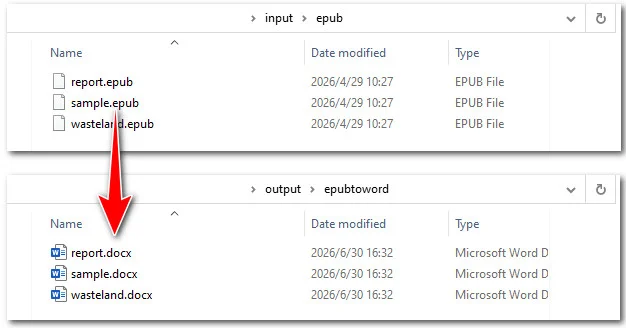
Quizás le interese: Los 5 mejores conversores de EPUB a TXT (en línea y mediante programación)
¿Qué método debería elegir?
Elegir la herramienta perfecta depende de cuántos archivos tenga, su experiencia técnica y sus estándares de privacidad. Aquí tiene un desglose claro para ayudarle a decidir qué enfoque tomar:
| Característica / Métrica | Herramientas en línea | Calibre | Automatización con Python |
|---|---|---|---|
| Público objetivo | Usuarios ocasionales con tareas rápidas | Lectores ávidos y coleccionistas de libros | Desarrolladores y administradores de sistemas |
| Privacidad de datos | Baja | Alta | Alta |
| Límite de tamaño de archivo | Sí | Ninguno | Ninguno |
| Procesamiento por lotes | Promedio | Bueno | El mejor |
| Retención de diseño | Promedio | Muy bueno | Excelente |
Conclusión
Elegir la solución adecuada depende de su carga de trabajo. Si solo tiene uno o dos archivos públicos y desea una solución rápida sin instalar nada, los conversores en línea como Convertio son excelentes. Para un archivo personal más grande donde necesita privacidad y control de diseño complejo, Calibre es una mejor opción. Finalmente, si necesita manejar conversiones masivas o integrarlas en un flujo de trabajo de fondo, usar un script de Python con Free Spire.Doc es la mejor opción.
Preguntas frecuentes sobre la conversión de EPUB a documentos de Word
P1: ¿Por qué mi documento de Word convertido perdió su formato o imágenes?
Debido a que los EPUB utilizan diseños web flexibles mientras que Word depende de dimensiones de página fijas, sus reglas de formato no siempre coinciden. Cuando se convierten elementos complejos como barras laterales, Word a menudo no puede asignar sus posiciones exactas, por lo que los elimina o los mueve a una nueva página. Para mejorar los resultados de la conversión, active el procesamiento heurístico de Calibre antes de exportar o ajuste el script de Free Spire.Doc para manejar márgenes de elementos específicos.
P2: ¿Puedo convertir archivos EPUB protegidos por DRM a Word?
Los archivos EPUB protegidos por DRM no se pueden convertir directamente. Si lo permiten el editor y las leyes locales aplicables, elimine la protección DRM antes de convertir el archivo.
P3: ¿Es posible convertir de EPUB a Word sin perder la Tabla de Contenidos (TOC) interactiva?
¡Sí! Las utilidades avanzadas como Calibre y Free Spire.Doc traducen automáticamente el índice de compilación nativo del libro electrónico al sistema de hipervínculos interactivos predeterminado de Word.
Lea también:
EPUB in Word DOCX konvertieren: 3 einfache Wege [Ultimativer Leitfaden]
EPUB ist ideal zum Lesen von eBooks, aber nicht für die Bearbeitung konzipiert. Wenn Sie Inhalte überarbeiten, ein Kapitel zitieren oder Text in Microsoft Word wiederverwenden möchten, müssen Sie zuerst EPUB in Word konvertieren, da Word EPUB-Dateien nicht nativ unterstützt. Glücklicherweise gibt es mehrere Möglichkeiten, dies zu tun. Je nachdem, ob Sie einen schnellen Online-Konverter, eine Desktop-Anwendung oder eine automatisierte Stapellösung benötigen, führt Sie dieser Leitfaden durch drei praktische Methoden mit Online-Tools, Calibre und Python.
- EPUB schnell online in Word konvertieren
- EPUB sicher offline mit Calibre in DOCX konvertieren
- EPUB-Stapelverarbeitung in Word mit Python
- Welche Methode sollten Sie wählen?
- FAQs
EPUB schnell online in Word konvertieren
Wenn Sie nur ein oder zwei kurze eBooks konvertieren müssen, sind Online-EPUB-zu-Word-Konverter ideal für Benutzer, die nur gelegentlich Konvertierungen direkt in ihrem Webbrowser benötigen.
Zwei der zuverlässigsten webbasierten Plattformen für diese Aufgabe sind Convertio und FreeConvert. Convertio bietet eine benutzerfreundliche Oberfläche und erstellt saubere .docx-Dateien, begrenzt jedoch kostenlose Uploads auf 100 MB. FreeConvert hingegen erlaubt größere Dateien und bietet eine erweiterte Kontrolle über individuelle Konvertierungseinstellungen.
Tipp: Wenn Sie ein eBook nur ansehen oder teilen möchten, anstatt dessen Inhalte zu bearbeiten, ist die Konvertierung in PDF möglicherweise die bessere Wahl. Lesen Sie unseren Leitfaden dazu, wie man EPUB in PDF konvertiert, für verschiedene schnelle und zuverlässige Methoden.
Schritte zur Konvertierung von EPUB in Word-Dokumente mit Online-Tools
- Schritt 1: Laden Sie EPUB-Dateien auf das Dashboard der Website hoch.
- Schritt 2: Wählen Sie DOCX oder DOC als Zielformat.
- Schritt 3: Klicken Sie auf die Schaltfläche „Konvertieren“ und warten Sie, bis der Cloud-Server die Dokumente verarbeitet hat.
- Schritt 4: Speichern Sie das konvertierte Word-Dokument direkt auf Ihrem Gerät.
Vor- und Nachteile
- Vorteile: Keine Installation erforderlich; völlig kostenlos und schnell für einzelne Dateien.
- Nachteile: Potenzielle Datenschutzrisiken, da Sie Dateien auf einen Server eines Drittanbieters hochladen; strenge Dateigrößenbeschränkungen; instabile Formatierung bei komplexem Layout des Buches.
Wenn es um sensible Daten oder vertrauliche Unternehmensunterlagen geht, sollten Sie die Web-Apps möglicherweise meiden, um Datenschutzrisiken zu vermeiden. Schauen wir uns stattdessen an, wie man EPUB mit einem privaten, desktopbasierten Workflow in Word konvertiert.
EPUB sicher offline mit Calibre in DOCX konvertieren
Wenn Web-Tools bei umfangreichen Büchern oder komplexen Formatierungen versagen, können Sie auf Calibre zurückgreifen. Calibre ist ein Open-Source-eBook-Verwaltungstool, das auch die Formatkonvertierung unterstützt.
Da es vollständig auf Ihrem lokalen Computer läuft, bleiben Ihre Daten zu 100 % privat. Es verfügt über eine robuste Layout-Engine, die den zugrunde liegenden Code eines eBooks analysiert, was es zu einem unglaublich präzisen Werkzeug macht, um EPUB-Inhalte in DOCX zu konvertieren und dabei den Großteil der ursprünglichen Formatierung beizubehalten.
Schritt-für-Schritt-Anleitung für den Desktop
- Schritt 1: Öffnen Sie Calibre und klicken Sie oben links auf die Schaltfläche Bücher hinzufügen, um Ihre EPUB-Datei zu laden.
- Schritt 2: Markieren Sie Ihr Buch in der Hauptbibliotheksliste und klicken Sie in der oberen Symbolleiste auf das Symbol Bücher konvertieren.
- Schritt 3: Suchen Sie im Popup-Fenster in der oberen rechten Ecke nach dem Ausgabeformat und ändern Sie es auf DOCX.
- Schritt 4: Navigieren Sie im linken Menü zu Heuristische Verarbeitung und aktivieren Sie das Kontrollkästchen Heuristische Verarbeitung aktivieren. Diese integrierte Funktion scannt und korrigiert automatisch fehlerhafte Absatzzeilen, unerwünschte Silbentrennungen und schlechte Abstände.
- Schritt 5: Klicken Sie unten rechts auf OK. Sobald der Aufgaben-Spinner auf Null steht, klicken Sie auf Auf Festplatte speichern, um Ihr poliertes Word-Dokument zu exportieren.
Tipp:
Wenn Sie Ihr Terminal einer Benutzeroberfläche vorziehen, installiert Calibre ein natives Befehlszeilen-Dienstprogramm direkt in Ihren Systempfad. Öffnen Sie Ihr Terminal oder PowerShell und führen Sie diesen Befehl aus, um eine EPUB-Datei sofort zu konvertieren:
ebook-convert input.epub output.docx
Während Calibre hervorragend für die manuelle Verwaltung geeignet ist, erfordert es dennoch viele Klicks oder benutzerdefinierte Shell-Skripte. Wenn Sie die EPUB-Konvertierung in Ihre eigene Anwendung integrieren oder riesige EPUB-Dateien automatisieren müssen, ist das Schreiben eines benutzerdefinierten Python-Skripts effizienter.
EPUB-Stapelverarbeitung in Word mit Python
Das manuelle Klicken auf Schaltflächen auf Webseiten oder Desktop-Apps wird ineffizient, wenn Sie Hunderte von eBooks konvertieren müssen. Für Entwickler und IT-Profis spart das Erstellen eines Skripts zur Stapelkonvertierung von EPUB-Dateien in Word-Dokumente Stunden an repetitiver Arbeit.
Um den Konvertierungsprozess zu automatisieren, verwenden wir Free Spire.Doc for Python. Die Bibliothek bietet native Unterstützung für EPUB-Dokumente und kann für die automatisierte Dokumentenkonvertierung in Python-Anwendungen integriert werden. Sie unterstützt auch das Konvertieren von Word-Dokumenten zurück in EPUB, was sie zu einer praktischen Wahl für die bidirektionale Dokumentenkonvertierung macht.
Implementierung mit Python-Code
Die Konvertierung einer einzelnen Datei mit Free Spire.Doc erfordert nur zwei Schritte: das Laden des EPUBs und das Speichern als DOCX. Um jedoch eine ganze Bibliothek zu verarbeiten, benötigen wir eine schnelle Python-Schleife, um das Verzeichnis zu scannen.
Stellen Sie vor dem Ausführen des Skripts sicher, dass Sie die Bibliothek in Ihrer Umgebung installieren:
pip install Spire.Doc.Free
Das folgende Beispiel konvertiert jede EPUB-Datei in einem Ordner in DOCX:
import os
from spire.doc import Document, FileFormat

# Quell- und Zielverzeichnisse definieren
input_dir = "/input/epub/"
output_dir = "/output/epubtoword/"

# Sicherstellen, dass das Ausgabeverzeichnis existiert
if not os.path.exists(output_dir):
    os.makedirs(output_dir)

# Ordner scannen und alle EPUB-Dateien stapelweise konvertieren
for file_name in os.listdir(input_dir):
    if file_name.lower().endswith('.epub'):
        # Ein Document-Objekt erstellen
        document = Document()

        # Die EPUB-Datei nativ laden
        document.LoadFromFile(os.path.join(input_dir, file_name))

        # Das EPUB-Dokument als Word DOCX-Datei speichern
        base_name = os.path.splitext(file_name)[0]
        document.SaveToFile(os.path.join(output_dir, f"{base_name}.docx"), FileFormat.Docx)

        # Das Dokument schließen, um Ressourcen freizugeben
        document.Close()
Hier ist die Vorschau der stapelweise konvertierten Word-Dokumente:
Das könnte Ihnen auch gefallen: Die 5 besten EPUB-zu-TXT-Konverter (Online & Programmierung)
Welche Methode sollten Sie wählen?
Die Wahl des perfekten Tools hängt davon ab, wie viele Dateien Sie haben, welchen technischen Hintergrund Sie besitzen und welche Datenschutzstandards Sie einhalten müssen. Hier ist eine klare Aufschlüsselung, die Ihnen bei der Entscheidung hilft:
| Funktion / Metrik | Online-Tools | Calibre | Python-Automatisierung |
|---|---|---|---|
| Zielgruppe | Gelegenheitsnutzer mit schnellen Aufgaben | Viel-Leser und Büchersammler | Entwickler und Systemadministratoren |
| Datenschutz | Niedrig | Hoch | Hoch |
| Dateigrößenlimit | Ja | Keines | Keines |
| Stapelverarbeitung | Durchschnittlich | Gut | Am besten |
| Layout-Erhaltung | Durchschnittlich | Sehr gut | Exzellent |
Fazit
Die Wahl der richtigen Lösung hängt von Ihrem Arbeitsaufwand ab. Wenn Sie nur ein oder zwei öffentliche Dateien haben und eine schnelle Lösung ohne Installation suchen, sind Online-Konverter wie Convertio großartig. Für eine größere persönliche Datei, bei der Sie Privatsphäre und komplexe Layout-Kontrolle benötigen, ist Calibre die bessere Wahl. Wenn Sie schließlich Massenkonvertierungen durchführen oder diese in einen Hintergrund-Workflow integrieren müssen, ist die Verwendung eines Python-Skripts mit Free Spire.Doc die beste Option.
FAQs zur Konvertierung von EPUB in Word-Dokumente
F1: Warum hat mein konvertiertes Word-Dokument seine Formatierung oder Bilder verloren?
Da EPUBs flexible Web-Layouts verwenden, während Word auf feste Seitendimensionen angewiesen ist, stimmen ihre Formatierungsregeln nicht immer überein. Wenn komplexe Elemente wie Seitenleisten konvertiert werden, kann Word ihre genauen Positionen oft nicht zuordnen, sodass sie gelöscht oder auf eine neue Seite verschoben werden. Um die Konvertierungsergebnisse zu verbessern, aktivieren Sie vor dem Exportieren die heuristische Verarbeitung von Calibre oder passen Sie das Free Spire.Doc-Skript an, um spezifische Elementränder zu handhaben.
F2: Kann ich DRM-geschützte EPUB-Dateien in Word konvertieren?
DRM-geschützte EPUB-Dateien können nicht direkt konvertiert werden. Wenn dies vom Herausgeber und den geltenden lokalen Gesetzen erlaubt ist, entfernen Sie den DRM-Schutz, bevor Sie die Datei konvertieren.
F3: Ist es möglich, EPUB in Word zu konvertieren, ohne das anklickbare Inhaltsverzeichnis (TOC) zu verlieren?
Ja! Fortschrittliche Dienstprogramme wie Calibre und Free Spire.Doc übersetzen den nativen eBook-Kompilierungsindex automatisch in das standardmäßige interaktive Hyperlink-System von Word.
Ebenfalls lesen:
Конвертация EPUB в Word DOCX 3 простыми способами [Полное руководство]
Формат EPUB идеально подходит для чтения электронных книг, но он не предназначен для редактирования. Если вам нужно изменить содержимое, процитировать главу или использовать текст повторно в Microsoft Word, вам сначала потребуется преобразовать EPUB в Word, так как Word не поддерживает файлы EPUB напрямую. К счастью, существует несколько способов сделать это. В зависимости от того, нужен ли вам быстрый онлайн-конвертер, настольное приложение или автоматизированное пакетное решение, это руководство познакомит вас с тремя практическими методами с использованием онлайн-инструментов, программы Calibre и языка Python.
- Быстрое преобразование EPUB в Word онлайн
- Безопасное преобразование EPUB в DOCX офлайн с помощью Calibre
- Пакетное преобразование EPUB в Word с использованием Python
- Какой метод выбрать
- Часто задаваемые вопросы
Быстрое преобразование EPUB в Word онлайн
Если вам нужно конвертировать всего одну или две небольшие электронные книги, онлайн-конвертеры EPUB в Word станут идеальным решением для пользователей, которым требуется эпизодическое преобразование прямо в браузере.
Двумя наиболее надежными веб-платформами для этой задачи являются Convertio и FreeConvert. Convertio предлагает простой интерфейс и создает чистые файлы .docx, хотя ограничивает размер бесплатных загрузок до 100 МБ. FreeConvert, с другой стороны, поддерживает файлы большего размера и предоставляет расширенные настройки для индивидуального преобразования.
Совет: Если вы хотите просто просмотреть или поделиться электронной книгой, а не редактировать её содержимое, преобразование в PDF может быть лучшим выбором. Ознакомьтесь с нашим руководством о том, как преобразовать EPUB в PDF, где описано несколько быстрых и надежных методов.
Шаги для преобразования EPUB в документы Word с помощью онлайн-инструментов
- Шаг 1: Загрузите файлы EPUB на панель управления сайта.
- Шаг 2: Выберите DOCX или DOC в качестве целевого формата.
- Шаг 3: Нажмите кнопку преобразования и дождитесь обработки документов облачным сервером.
- Шаг 4: Сохраните преобразованный документ Word прямо на свое устройство.
Плюсы и минусы
- Плюсы: Не требуется установка; полностью бесплатно и быстро для отдельных файлов.
- Минусы: Потенциальные риски конфиденциальности, так как вы загружаете файлы на сторонний сервер; строгие ограничения по размеру файлов; нестабильное форматирование, если книга имеет сложную верстку.
Если речь идет о конфиденциальных данных или корпоративных материалах, возможно, стоит отказаться от веб-приложений, чтобы избежать рисков для безопасности. Вместо этого давайте рассмотрим, как преобразовать EPUB в Word с помощью локального рабочего процесса на компьютере.
Безопасное преобразование EPUB в DOCX офлайн с помощью Calibre
Когда веб-инструменты не справляются с объемными книгами или сложным оформлением, можно обратиться к Calibre. Calibre — это инструмент с открытым исходным кодом для управления электронными книгами, который также поддерживает преобразование форматов.
Поскольку программа работает полностью на вашем локальном компьютере, ваши данные остаются на 100% конфиденциальными. Она оснащена мощным механизмом верстки, который анализирует исходный код электронной книги, что делает её невероятно точным инструментом для преобразования EPUB в DOCX с сохранением большей части исходного форматирования.
Пошаговое руководство для настольного ПК
- Шаг 1: Откройте Calibre и нажмите кнопку Добавить книги в левом верхнем углу, чтобы загрузить файл EPUB.
- Шаг 2: Выделите нужную книгу в списке основной библиотеки и нажмите значок Преобразовать книги на верхней панели инструментов.
- Шаг 3: В появившемся окне в правом верхнем углу измените Выходной формат на DOCX.
- Шаг 4: В левом меню перейдите к разделу Эвристическая обработка и установите флажок Включить эвристическую обработку. Эта встроенная функция автоматически сканирует и исправляет разорванные строки абзацев, нежелательные переносы и неправильные интервалы.
- Шаг 5: Нажмите ОК в правом нижнем углу. Как только индикатор задач достигнет нуля, нажмите Сохранить на диск, чтобы экспортировать готовый документ Word.
Совет:
Если вы предпочитаете использовать терминал вместо графического интерфейса, Calibre устанавливает собственную утилиту командной строки прямо в системный путь. Откройте терминал или PowerShell и выполните эту команду для мгновенного преобразования файла EPUB:
ebook-convert input.epub output.docx
Хотя Calibre отлично подходит для ручного управления, он все равно требует множества кликов или написания пользовательских скриптов. Если вы интегрируете преобразование EPUB в собственное приложение или вам нужно автоматизировать обработку огромного количества файлов EPUB, написание скрипта на Python будет более эффективным.
Пакетное преобразование EPUB в Word с использованием Python
Ручное нажатие кнопок на веб-страницах или в настольных приложениях становится неэффективным, когда нужно преобразовать сотни электронных книг. Для разработчиков и ИТ-специалистов создание скрипта для пакетного преобразования файлов EPUB в документы Word экономит часы рутинной работы.
Для автоматизации процесса преобразования мы будем использовать Free Spire.Doc for Python. Эта библиотека обеспечивает встроенную поддержку документов EPUB и может быть интегрирована в приложения на Python для автоматизированного преобразования документов. Она также поддерживает преобразование документов Word обратно в EPUB, что делает её практичным выбором для двустороннего преобразования документов.
Реализация кода на Python
Преобразование одного файла с помощью Free Spire.Doc занимает всего два шага: загрузка EPUB и сохранение его в формате DOCX. Однако для обработки целой библиотеки нам понадобится цикл Python для сканирования каталога.
Перед запуском скрипта убедитесь, что вы установили библиотеку в своей среде:
pip install Spire.Doc.Free
Следующий пример преобразует каждый файл EPUB в папке в формат DOCX:
import os
from spire.doc import Document, FileFormat

# Укажите исходную и целевую директории
input_dir = "/input/epub/"
output_dir = "/output/epubtoword/"

# Убедитесь, что выходная директория существует
if not os.path.exists(output_dir):
    os.makedirs(output_dir)

# Сканирование папки и пакетное преобразование всех файлов EPUB
for file_name in os.listdir(input_dir):
    if file_name.lower().endswith('.epub'):
        # Создание объекта Document
        document = Document()

        # Загрузка файла EPUB
        document.LoadFromFile(os.path.join(input_dir, file_name))

        # Сохранение документа EPUB как файла Word DOCX
        base_name = os.path.splitext(file_name)[0]
        document.SaveToFile(os.path.join(output_dir, f"{base_name}.docx"), FileFormat.Docx)

        # Закрытие документа для освобождения ресурсов
        document.Close()
Вот предварительный просмотр пакетно преобразованных документов Word:
Вам может быть интересно: 5 лучших конвертеров EPUB в TXT (онлайн и программные способы)
Какой метод выбрать?
Выбор идеального инструмента зависит от количества файлов, вашего технического уровня и требований к конфиденциальности. Ниже приведено четкое сравнение, которое поможет вам принять решение:
| Характеристика / Метрика | Онлайн-инструменты | Calibre | Автоматизация на Python |
|---|---|---|---|
| Целевая аудитория | Обычные пользователи (разовые задачи) | Заядлые читатели и коллекционеры книг | Разработчики и системные администраторы |
| Конфиденциальность данных | Низкая | Высокая | Высокая |
| Ограничение размера файла | Есть | Нет | Нет |
| Пакетная обработка | Средняя | Хорошая | Лучшая |
| Сохранение верстки | Среднее | Очень хорошее | Отличное |
Заключение
Выбор правильного решения зависит от вашего объема работы. Если у вас всего один или два публичных файла и вам нужно быстрое решение без установки чего-либо, онлайн-конвертеры вроде Convertio отлично подойдут. Для больших личных архивов, где важна конфиденциальность и контроль над сложной версткой, Calibre — лучший выбор. Наконец, если вам нужно выполнять массовые преобразования или интегрировать процесс в автоматизированный рабочий поток, использование скрипта на Python с Free Spire.Doc является оптимальным вариантом.
Часто задаваемые вопросы о преобразовании EPUB в документы Word
В1: Почему в преобразованном документе Word пропало форматирование или изображения?
Поскольку EPUB использует гибкую веб-верстку, а Word опирается на фиксированные размеры страниц, их правила форматирования не всегда совпадают. При преобразовании сложных элементов, таких как боковые панели, Word часто не может точно определить их положение, поэтому удаляет их или переносит на новую страницу. Чтобы улучшить результаты преобразования, включите эвристическую обработку в Calibre перед экспортом или настройте скрипт Free Spire.Doc для обработки полей конкретных элементов.
В2: Можно ли преобразовать защищенные DRM файлы EPUB в Word?
Файлы EPUB, защищенные DRM, нельзя преобразовать напрямую. Если это разрешено издателем и применимым местным законодательством, удалите защиту DRM перед преобразованием файла.
В3: Можно ли преобразовать EPUB в Word без потери кликабельного оглавления (TOC)?
Да! Продвинутые утилиты, такие как Calibre и Free Spire.Doc, автоматически преобразуют встроенный индекс электронной книги в стандартную систему интерактивных гиперссылок Word.
Читайте также:
Como adicionar subtotais no Excel: fórmula, tabela dinâmica e Python
Índice
- A Ferramenta de Subtotal Integrada (A maneira mais rápida).
- A Função SUBTOTAL do Excel (Para cálculos dinâmicos).
- A Tabela Dinâmica (A alternativa moderna).
- A Automação com Python (Para processamento em lote).
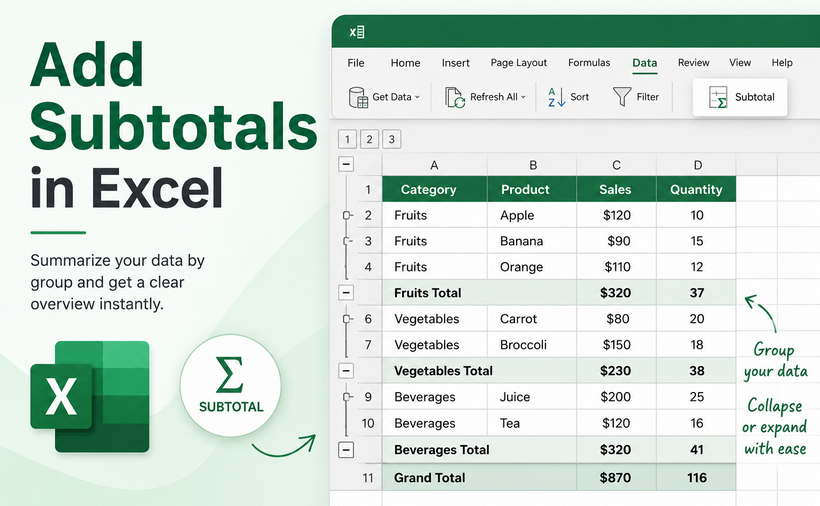
Uma planilha com milhares de linhas pode rapidamente se tornar ilegível sem resumos estruturais. Para uma organização de dados eficaz no Excel, o recurso de Subtotal destaca-se como uma das ferramentas mais poderosas e de alto impacto disponíveis.
Seja você um contador equilibrando livros-razão, um gerente de vendas analisando o desempenho regional ou um profissional de marketing rastreando métricas de campanha, aprender como adicionar subtotais no Excel pode economizar horas de trabalho manual.
Neste guia, exploraremos quatro métodos distintos para criar subtotais no Excel:
- A Ferramenta de Subtotal Integrada (A maneira mais rápida).
- A Função SUBTOTAL do Excel (Para cálculos dinâmicos).
- A Tabela Dinâmica (A alternativa moderna).
- A Automação com Python (Para processamento em lote).
O que são Subtotais no Excel?
Subtotais são cálculos de resumo inseridos entre grupos de dados relacionados em uma planilha. Eles permitem que você:
- Divida grandes conjuntos de dados desorganizados em categorias lógicas e legíveis
- Visualize somas, médias, contagens e outras agregações rapidamente
- Expanda ou recolha grupos para focar em seções específicas
- Mantenha dados de nível de detalhe e de nível de resumo em uma única planilha
Método 1: Usar a Ferramenta de Subtotal Integrada
O recurso de Subtotal no Excel é a maneira mais rápida de adicionar subtotais para a maioria das necessidades básicas de relatório. Ele insere automaticamente linhas de resumo e cria uma visualização de tópicos, permitindo que você recolha e expanda seus dados para diferentes níveis de detalhe.
Passo 1: Classifique seus dados
Como os subtotais agrupam dados com base em mudanças de valor em uma coluna específica, você deve classificar essa coluna primeiro.
- Clique na coluna pela qual deseja agrupar (por exemplo, "Região").
- Vá para a guia Dados e clique em Classificar de A a Z ou Classificar de Z a A.

Passo 2: Abrir a ferramenta de Subtotal
- Selecione qualquer célula dentro do seu conjunto de dados
- Navegue até a guia Dados novamente e clique em Subtotal (no grupo Estrutura de Tópicos)
Passo 3: Configurar as definições de Subtotal
Uma caixa de diálogo de Subtotal aparecerá com três opções cruciais:
- A cada alteração em: Selecione a coluna pela qual você classificou (por exemplo, "Região")
- Usar função: Escolha seu cálculo — Soma, Contagem, Média, Máx, Mín, etc.
- Adicionar subtotal a: Marque a caixa para a(s) coluna(s) numérica(s) que deseja resumir
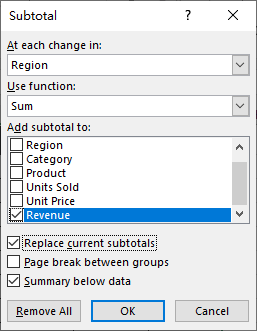
Clique em OK. O Excel inserirá imediatamente uma linha de "Total" após cada grupo, além de uma linha de "Total Geral" na parte inferior do conjunto de dados.
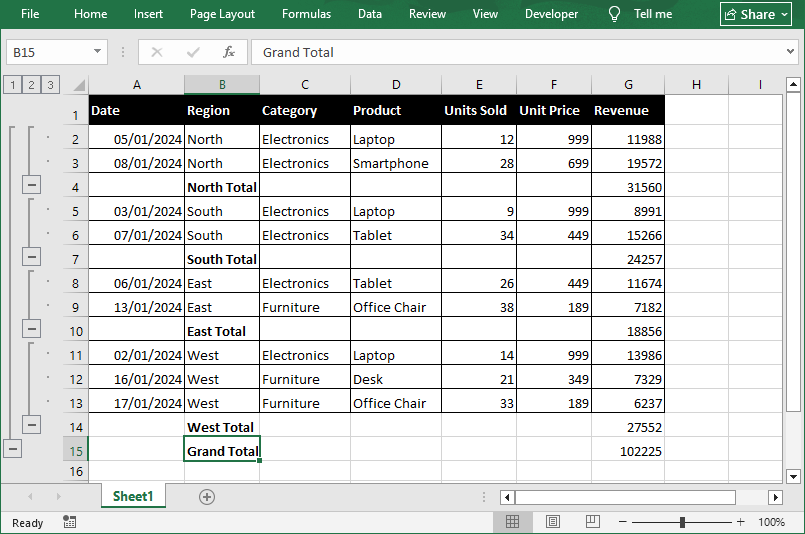
Dica Pro: Trabalhe com níveis de estrutura de tópicos
Olhe para a borda esquerda da planilha, você verá botões de estrutura de tópicos (1, 2, 3). Você pode:
- Clicar em 1 para mostrar apenas o total geral
- Clicar em 2 para mostrar subtotais de grupo e o total geral
- Clicar em 3 para mostrar todas as linhas de detalhes mais os subtotais
- Usar os botões + / - para expandir ou recolher grupos individuais
⚠️ Nota: O botão Subtotal na guia Dados não funciona dentro de tabelas formatadas do Excel. Use a função SUBTOTAL em uma linha de totais (Design da Tabela → Linha de Totais) ou converta a tabela em um intervalo primeiro.
Método 2: Usar a função SUBTOTAL do Excel
Enquanto a ferramenta integrada é estática, a função SUBTOTAL é uma fórmula dinâmica que recalcula em tempo real à medida que seus dados mudam. Ela é muito utilizada por analistas financeiros que criam modelos reutilizados mês após mês.
A Sintaxe:
=SUBTOTAL(núm_função, ref1, [ref2], ...)
- núm_função (Obrigatório): Um código numérico que diz ao Excel exatamente qual operação matemática realizar.
- Códigos básicos (incluem linhas ocultas manualmente): 1 = MÉDIA, 2 = CONT.NÚM, 4 = MÁX, 5 = MÍN, 9 = SOMA (mais comumente usado)
- Adicione 100 ao código base para ignorar linhas ocultas manualmente (por exemplo, 109 = SOMA que exclui linhas ocultas manualmente)
- ref1 (Obrigatório): O intervalo de células para o subtotal
- [ref2] (Opcional): Intervalos adicionais que você pode adicionar se seus dados não forem contíguos.
Exemplo de fórmula de Subtotal
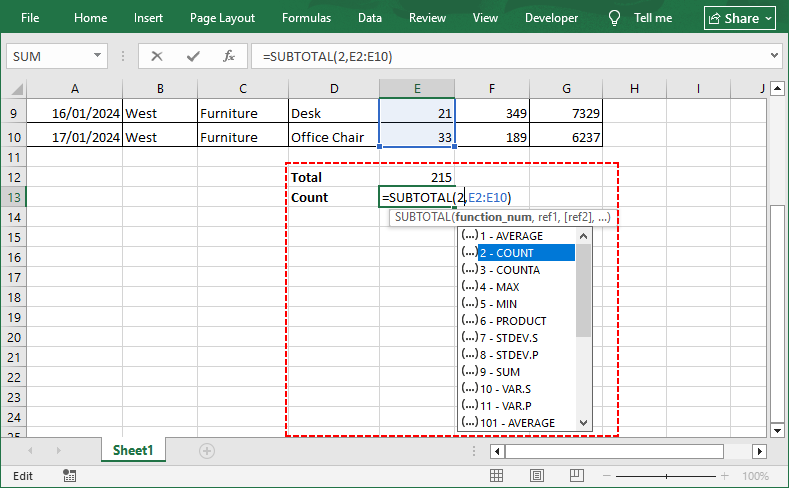
Se você tem dados nas células E2:E10:
- Para somar valores em uma lista filtrada, use =SUBTOTAL(9, E2:E10).
- Para contar entradas, use =SUBTOTAL(2, E2:E10).
Por que usar SUBTOTAL em vez de SOMA?
A principal vantagem é que o SUBTOTAL ignora automaticamente outros resultados de SUBTOTAL dentro do intervalo, evitando a contagem dupla. Ele também respeita os filtros do Excel — quando você filtra dados, apenas as linhas visíveis são incluídas no cálculo.
Método 3: A alternativa moderna - Tabelas Dinâmicas
Tabelas Dinâmicas são essencialmente motores de resumo dinâmicos que criam uma nova tabela (separada dos seus dados brutos) para exibir resumos. Elas são especialmente úteis quando você precisa de mais flexibilidade do que a ferramenta de Subtotal oferece.
Como criar uma tabela dinâmica no Excel:
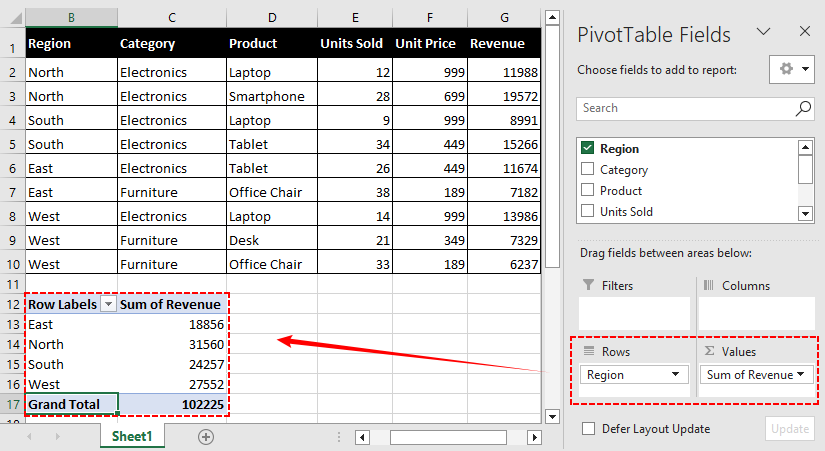
- Selecione seu conjunto de dados completo.
- Vá para a guia Inserir e clique em Tabela Dinâmica.
- Arraste sua categoria (por exemplo, "Região") para o campo Linhas.
- Arraste seu valor numérico (por exemplo, "Receita") para o campo Valores.
O Excel usa "Soma" por padrão para campos numéricos e "Contagem" para campos de texto.
Personalizar o comportamento do Subtotal
Por padrão, as Tabelas Dinâmicas mostram um Subtotal para cada campo de Linha de nível superior. No entanto, você tem controle granular:
- Clique com o botão direito no rótulo da Linha (por exemplo, "Região").
- Selecione Configurações de Campo.
- Em "Subtotais", você pode escolher:
- Automático: Mostra subtotais padrão.
- Personalizado: Permite selecionar funções específicas (por exemplo, mostrar tanto Soma quanto Média para o mesmo campo).
- Nenhum: Remove os subtotais completamente se você quiser apenas o total geral.
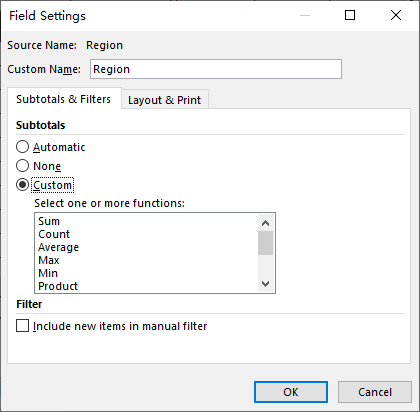
✅ Vantagem: Ao contrário da ferramenta de Subtotal tradicional, as Tabelas Dinâmicas não exigem que você classifique os dados no Excel primeiro. Elas também são atualizadas automaticamente quando seus dados de origem são alterados, e você pode adicionar facilmente várias camadas de agrupamento e tipos de cálculo sem reescrever fórmulas.
Método 4: Adicionar subtotais programaticamente com Python
Para usuários que precisam automatizar a geração de subtotais, por exemplo, em processamento em lote ou dentro de um pipeline de dados, a biblioteca Free Spire.XLS for Python oferece uma maneira poderosa de inserir subtotais programaticamente.
Este método replica o comportamento da ferramenta de Subtotal integrada (Método 1) inteiramente via código, permitindo que você processe centenas de arquivos sem abrir o Excel manualmente.
Pré-requisitos
Primeiro, certifique-se de ter o Python instalado (3.7 ou superior). Abra seu terminal ou prompt de comando e execute:
pip install Spire.Xls.Free
Código Python para inserir subtotais no Excel
O script a seguir carrega uma pasta de trabalho do Excel, aplica subtotais a um intervalo de dados especificado e salva o resultado como um novo arquivo:
from spire.xls import *
from spire.xls.common import *

# Criar um objeto Workbook e carregar o arquivo Excel
workbook = Workbook()
workbook.LoadFromFile("Regional.xlsx")
sheet = workbook.Worksheets[0]

# Definir o intervalo de dados para o cálculo do subtotal
# O intervalo cobre de B2 a E10 (apenas linhas de dados, excluindo cabeçalho)
data_range = sheet.Range["B2:E10"]

# Chamar o método Subtotal com parâmetros completos
sheet.Subtotal(data_range, 0, [3], SubtotalTypes.Sum, True, False, True)

# Salvar o arquivo de resultado
workbook.SaveToFile("AddSubtotals.xlsx", ExcelVersion.Version2016)
workbook.Dispose()
Saída: Dentro do intervalo B2:E10, aplicamos um subtotal de Soma agrupado pela primeira coluna ("Região") na quarta coluna ("Unidades Vendidas").
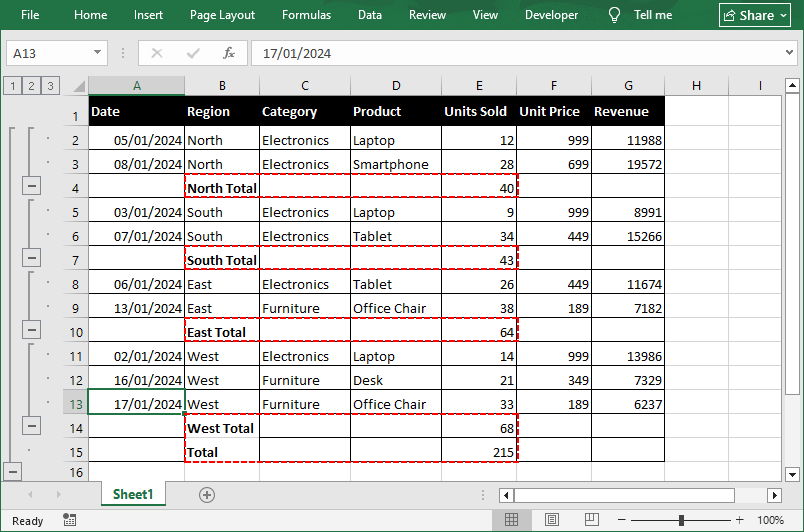
Detalhamento dos parâmetros
O método Subtotal() aceita sete parâmetros que lhe dão controle total sobre a saída:
| Parâmetro | Tipo | Descrição |
|---|---|---|
| range | IXLSRange | O intervalo de células contendo os dados de origem para o subtotal. |
| groupByIndex | int | Índice de coluna baseado em 0 dentro do intervalo selecionado usado para agrupar dados. |
| totalFields | int[] | Uma lista de índices de coluna baseados em 0 (dentro do intervalo) indicando para quais campos calcular subtotais. |
| subtotalType | SubtotalTypes | Tipo de cálculo: Soma, Média, Contagem, Máx, Mín, etc. |
| replace | bool | Se deve substituir os subtotais existentes no intervalo. |
| addPageBreak | bool | Se deve inserir uma quebra de página após cada grupo (útil para impressão). |
| addsummaryBelowData | bool | Se deve colocar a linha de subtotal abaixo dos detalhes do grupo. |
⚠️ Nota: Assim como na interface do Excel, seus dados de origem devem ser classificados pela coluna de agrupamento antes de chamar o Subtotal(). Dados não classificados gerarão uma linha de subtotal a cada mudança de valor, criando muitos grupos pequenos e não intencionais.
LEIA TAMBÉM: Agrupar ou Desagrupar Linhas e Colunas no Excel usando Python
Perguntas Frequentes (FAQs)
P: Posso adicionar vários subtotais à mesma coluna?
Sim, você pode aplicar mais de um cálculo (por exemplo, Soma e Média) à mesma coluna:
- Insira o primeiro subtotal normalmente
- Abra a caixa de diálogo de Subtotal novamente
- Escolha uma função diferente
- Desmarque "Substituir subtotais atuais"
- Clique em OK
Em Python, você chamaria o método Subtotal() duas vezes com replace=False na segunda chamada.
P: Qual é o atalho para subtotais no Excel?
Não existe um atalho de teclado direto, mas você pode usar Alt + A + B para abrir a caixa de diálogo de Subtotal.
P: Como remover Subtotais?
Se você cometer um erro ou quiser reverter para os dados brutos, volte para Dados > Subtotal. Na caixa de diálogo, clique no botão Remover Tudo no canto inferior esquerdo. Isso exclui instantaneamente todas as linhas de subtotal e símbolos de estrutura de tópicos, restaurando seus dados ao estado classificado original.
P: Posso copiar apenas os subtotais?
Sim. Se você clicar no botão de estrutura de tópicos 2 para mostrar apenas os totais, você pode pressionar Alt + ; (ponto e vírgula) para selecionar apenas as células visíveis e, em seguida, copiar/colar em uma nova planilha.
Considerações Finais
Aprender como adicionar subtotais no Excel é uma habilidade inegociável para análise de dados, e o método certo depende inteiramente do seu fluxo de trabalho. Para uma análise rápida e pontual, a ferramenta de Subtotal integrada funciona melhor. Enquanto a função SUBTOTAL suporta cálculos dinâmicos e amigáveis a filtros, e as Tabelas Dinâmicas se destacam em relatórios flexíveis e multidimensionais,
Quando você precisa automatizar tarefas repetitivas e processar arquivos em escala, o Python com Free Spire.XLS é uma opção ideal. Dominar todos os quatro métodos tornará você significativamente mais rápido e confiante ao trabalhar com grandes conjuntos de dados.
Veja Também
Excel에서 소계 추가하는 방법: 수식, 피벗 테이블 및 Python
목차
- 내장 부분합 도구 (가장 빠른 방법)
- Excel 부분합(SUBTOTAL) 함수 (동적 계산용)
- 피벗 테이블 (현대적인 대안)
- Python 자동화 (일괄 처리용)
수천 개의 행이 있는 스프레드시트는 구조적인 요약 없이는 읽기가 매우 어렵습니다. Excel에서 데이터를 효과적으로 정리하기 위해 부분합(Subtotal) 기능은 가장 강력하고 영향력 있는 도구 중 하나입니다.
회계 장부를 관리하는 회계사든, 지역별 실적을 분석하는 영업 관리자든, 캠페인 지표를 추적하는 마케터든, Excel에서 부분합을 추가하는 방법을 배우면 수동 작업 시간을 크게 단축할 수 있습니다.
이 가이드에서는 Excel에서 부분합을 만드는 네 가지 방법을 살펴봅니다:
- 내장 부분합 도구 (가장 빠른 방법)
- Excel 부분합(SUBTOTAL) 함수 (동적 계산용)
- 피벗 테이블 (현대적인 대안)
- Python 자동화 (일괄 처리용)
Excel의 부분합이란 무엇인가요?
부분합은 워크시트 내의 관련 데이터 그룹 사이에 삽입되는 요약 계산입니다. 이를 통해 다음을 수행할 수 있습니다:
- 크고 정리되지 않은 데이터 세트를 논리적이고 읽기 쉬운 범주로 분류
- 합계, 평균, 개수 및 기타 집계 값을 한눈에 확인
- 그룹을 확장하거나 축소하여 특정 섹션에 집중
- 상세 데이터와 요약 데이터를 한 시트에서 동시에 유지
방법 1: 내장 부분합 도구 사용
Excel의 부분합 기능은 기본적인 보고 요구 사항에 대해 부분합을 추가하는 가장 빠른 방법입니다. 자동으로 요약 행을 삽입하고 개요 보기를 생성하여 데이터 세부 수준에 따라 데이터를 축소하거나 확장할 수 있습니다.
1단계: 데이터 정렬
부분합은 특정 열의 값 변경을 기준으로 데이터를 그룹화하므로, 먼저 해당 열을 정렬해야 합니다.
- 그룹화할 열(예: "지역")을 클릭합니다.
- 데이터 탭으로 이동하여 텍스트 오름차순 정렬 또는 내림차순 정렬을 클릭합니다.
2단계: 부분합 도구 열기
- 데이터 세트 내의 아무 셀이나 선택합니다.
- 다시 데이터 탭으로 이동하여 부분합(개요 그룹 내)을 클릭합니다.
3단계: 부분합 설정 구성
세 가지 중요한 옵션이 포함된 부분합 대화 상자가 나타납니다:
- 그룹화할 항목: 정렬한 열(예: "지역")을 선택합니다.
- 사용할 함수: 합계, 개수, 평균, 최대값, 최소값 등 계산 방식을 선택합니다.
- 부분합 계산 항목: 요약하려는 숫자 열의 확인란을 선택합니다.
확인을 클릭합니다. Excel은 즉시 각 그룹 뒤에 "합계" 행을 삽입하고 데이터 세트 맨 아래에 "총합계" 행을 추가합니다.
전문가 팁: 개요 수준 작업
워크시트 왼쪽 가장자리를 보면 개요 버튼(1, 2, 3)이 있습니다. 다음을 수행할 수 있습니다:
- 1 클릭: 총합계만 표시
- 2 클릭: 그룹 부분합 및 총합계 표시
- 3 클릭: 모든 상세 행과 부분합 표시
- + / - 버튼 사용: 개별 그룹을 확장하거나 축소
⚠️ 참고: 데이터 탭의 부분합 버튼은 서식이 지정된 Excel 표 안에서는 작동하지 않습니다. 총계 행(표 디자인 → 요약 행)에서 SUBTOTAL 함수를 사용하거나, 먼저 표를 범위로 변환하십시오.
방법 2: Excel SUBTOTAL 함수 사용
내장 도구는 정적이지만, SUBTOTAL 함수는 데이터가 변경될 때 실시간으로 다시 계산되는 동적 수식입니다. 매달 재사용되는 템플릿을 만드는 재무 분석가들이 많이 사용합니다.
구문:
=SUBTOTAL(function_num, ref1, [ref2], ...)
- function_num (필수): Excel에 수행할 수학 연산을 정확히 알려주는 숫자 코드입니다.
- 기본 코드(수동으로 숨겨진 행 포함): 1 = AVERAGE, 2 = COUNT, 4 = MAX, 5 = MIN, 9 = SUM (가장 많이 사용됨)
- 기본 코드에 100을 더하면 수동으로 숨겨진 행을 무시합니다(예: 109 = 수동으로 숨겨진 행을 제외한 SUM).
- ref1 (필수): 부분합을 구할 셀 범위
- [ref2] (선택): 데이터가 연속적이지 않은 경우 추가할 수 있는 추가 범위
SUBTOTAL 수식 예시
E2:E10 셀에 데이터가 있는 경우:
- 필터링된 목록에서 값을 합산하려면 =SUBTOTAL(9, E2:E10)을 사용합니다.
- 항목 수를 계산하려면 =SUBTOTAL(2, E2:E10)을 사용합니다.
SUM 대신 SUBTOTAL을 사용하는 이유
가장 큰 장점은 SUBTOTAL이 범위 내의 다른 SUBTOTAL 결과를 자동으로 무시하여 이중 계산을 방지한다는 것입니다. 또한 Excel 필터를 준수하므로, 데이터를 필터링할 때 표시된 행만 계산에 포함됩니다.
방법 3: 현대적인 대안 - 피벗 테이블
피벗 테이블은 본질적으로 원본 데이터와 별도로 요약을 표시하는 새로운 테이블을 만드는 동적 요약 엔진입니다. 부분합 도구보다 더 많은 유연성이 필요할 때 특히 유용합니다.
Excel에서 피벗 테이블을 만드는 방법:
- 전체 데이터 세트를 선택합니다.
- 삽입 탭으로 이동하여 피벗 테이블을 클릭합니다.
- 범주(예: "지역")를 행 필드로 드래그합니다.
- 숫자 값(예: "매출")을 값 필드로 드래그합니다.
Excel은 숫자 필드에 대해 기본적으로 "합계"를, 텍스트 필드에 대해 "개수"를 설정합니다.
부분합 동작 사용자 지정
기본적으로 피벗 테이블은 모든 최상위 행 필드에 대해 부분합을 표시합니다. 하지만 세부적인 제어가 가능합니다:
- 행 레이블(예: "지역")을 마우스 오른쪽 버튼으로 클릭합니다.
- 필드 설정을 선택합니다.
- "부분합" 아래에서 다음을 선택할 수 있습니다:
- 자동: 기본 부분합을 표시합니다.
- 사용자 지정: 특정 함수를 선택할 수 있습니다(예: 동일한 필드에 대해 합계와 평균을 모두 표시).
- 없음: 총합계만 필요한 경우 부분합을 완전히 제거합니다.
✅ 장점: 기존 부분합 도구와 달리 피벗 테이블은 먼저 Excel에서 데이터를 정렬할 필요가 없습니다. 또한 원본 데이터가 업데이트되면 자동으로 새로 고침되며, 수식을 다시 작성할 필요 없이 여러 그룹화 계층과 계산 유형을 쉽게 추가할 수 있습니다.
방법 4: Python으로 프로그래밍 방식의 부분합 추가
일괄 처리나 데이터 파이프라인 내에서 부분합 생성을 자동화해야 하는 사용자를 위해, Free Spire.XLS for Python 라이브러리는 프로그래밍 방식으로 부분합을 삽입하는 강력한 방법을 제공합니다.
이 방법은 내장 부분합 도구(방법 1)의 동작을 코드를 통해 완전히 복제하므로, Excel을 수동으로 열지 않고도 수백 개의 파일을 처리할 수 있습니다.
사전 요구 사항
먼저 Python(3.7 이상)이 설치되어 있는지 확인하십시오. 터미널이나 명령 프롬프트를 열고 다음을 실행하십시오:
pip install Spire.Xls.Free
Excel에 부분합을 삽입하는 Python 코드
다음 스크립트는 Excel 통합 문서를 로드하고, 지정된 데이터 범위에 부분합을 적용하며, 결과를 새 파일로 저장합니다:
from spire.xls import *
from spire.xls.common import *

# Workbook 객체 생성 및 Excel 파일 로드
workbook = Workbook()
workbook.LoadFromFile("Regional.xlsx")
sheet = workbook.Worksheets[0]

# 부분합 계산을 위한 데이터 범위 정의
# 범위는 B2에서 E10까지 (헤더 제외, 데이터 행만)
data_range = sheet.Range["B2:E10"]

# 전체 매개변수로 Subtotal 메서드 호출
sheet.Subtotal(data_range, 0, [3], SubtotalTypes.Sum, True, False, True)

# 결과 파일 저장
workbook.SaveToFile("AddSubtotals.xlsx", ExcelVersion.Version2016)
workbook.Dispose()
출력: B2:E10 범위 내에서 첫 번째 열("지역")을 기준으로 그룹화하여 네 번째 열("판매 단위")에 합계 부분합을 적용합니다.
매개변수 분석
Subtotal() 메서드는 출력에 대한 완전한 제어를 제공하는 7개의 매개변수를 허용합니다:
| 매개변수 | 유형 | 설명 |
|---|---|---|
| range | IXLSRange | 부분합을 구할 원본 데이터가 포함된 셀 범위. |
| groupByIndex | int | 데이터를 그룹화하는 데 사용되는 선택된 범위 내의 0부터 시작하는 열 인덱스. |
| totalFields | int[] | 부분합을 계산할 필드를 나타내는 (범위 내의) 0부터 시작하는 열 인덱스 목록. |
| subtotalType | SubtotalTypes | 계산 유형: 합계, 평균, 개수, 최대값, 최소값 등. |
| replace | bool | 범위 내의 기존 부분합을 바꿀지 여부. |
| addPageBreak | bool | 각 그룹 뒤에 페이지 나누기를 삽입할지 여부(인쇄 시 유용). |
| addsummaryBelowData | bool | 그룹 세부 정보 아래에 부분합 행을 배치할지 여부. |
⚠️ 참고: Excel 인터페이스와 마찬가지로, Subtotal()을 호출하기 전에 원본 데이터가 그룹화 열을 기준으로 정렬되어 있어야 합니다. 정렬되지 않은 데이터는 값이 변경될 때마다 부분합 행을 생성하여 의도하지 않은 작은 그룹을 많이 만들게 됩니다.
참고 읽기: Python을 사용하여 Excel에서 행과 열 그룹화 또는 그룹 해제하기
자주 묻는 질문 (FAQ)
Q: 동일한 열에 여러 부분합을 추가할 수 있나요?
네, 동일한 열에 두 개 이상의 계산(예: 합계와 평균 모두)을 적용할 수 있습니다:
- 평소처럼 첫 번째 부분합을 삽입합니다.
- 부분합 대화 상자를 다시 엽니다.
- 다른 함수를 선택합니다.
- "현재 부분합 대치" 확인란을 선택 해제합니다.
- 확인을 클릭합니다.
Python에서는 두 번째 호출 시 replace=False로 설정하여 Subtotal() 메서드를 두 번 호출합니다.
Q: Excel에서 부분합을 위한 단축키는 무엇인가요?
직접적인 키보드 단축키는 없지만, Alt + A + B를 사용하여 부분합 대화 상자를 열 수 있습니다.
Q: 부분합을 제거하는 방법은 무엇인가요?
실수를 했거나 원본 데이터로 되돌리려면 데이터 > 부분합으로 돌아갑니다. 대화 상자 왼쪽 하단에 있는 모두 제거 버튼을 클릭합니다. 이렇게 하면 모든 부분합 행과 개요 기호가 즉시 삭제되어 데이터가 원래 정렬된 상태로 복원됩니다.
Q: 부분합만 복사할 수 있나요?
네. 개요 버튼 2를 클릭하여 합계만 표시한 다음, Alt + ; (세미콜론)을 눌러 표시된 셀만 선택하고 새 시트에 복사/붙여넣기 할 수 있습니다.
마치며
Excel에서 부분합을 추가하는 방법을 배우는 것은 데이터 분석을 위한 필수 기술이며, 올바른 방법은 전적으로 워크플로에 달려 있습니다. 빠르고 일회성인 분석에는 내장 부분합 도구가 가장 좋습니다. SUBTOTAL 함수는 동적이고 필터 친화적인 계산을 지원하며, 피벗 테이블은 유연하고 다차원적인 보고에 탁월합니다.
반복적인 작업을 자동화하고 대규모로 파일을 처리해야 할 때는 Free Spire.XLS를 사용하는 Python이 이상적인 옵션입니다. 이 네 가지 방법을 모두 마스터하면 대규모 데이터 세트로 작업할 때 훨씬 더 빠르고 자신감 있게 업무를 수행할 수 있습니다.
참고 항목
Come aggiungere subtotali in Excel: formula, tabella pivot e Python
Indice
- Lo strumento Subtotale integrato (Il metodo più rapido).
- La funzione SUBTOTAL di Excel (Per calcoli dinamici).
- La Tabella Pivot (L'alternativa moderna).
- L'automazione con Python (Per l'elaborazione in batch).
Un foglio di calcolo con migliaia di righe può diventare rapidamente illeggibile senza riepiloghi strutturali. Per un'efficace organizzazione dei dati in Excel, la funzione Subtotale si distingue come uno degli strumenti più potenti e di grande impatto a disposizione.
Che tu sia un contabile che bilancia i registri, un responsabile vendite che analizza le prestazioni regionali o un esperto di marketing che monitora le metriche delle campagne, imparare come aggiungere subtotali in Excel può farti risparmiare ore di lavoro manuale.
In questa guida, esploreremo quattro metodi distinti per creare subtotali in Excel:
- Lo strumento Subtotale integrato (Il metodo più rapido).
- La funzione SUBTOTAL di Excel (Per calcoli dinamici).
- La Tabella Pivot (L'alternativa moderna).
- L'automazione con Python (Per l'elaborazione in batch).
Cosa sono i subtotali in Excel?
I subtotali sono calcoli di riepilogo inseriti tra gruppi di dati correlati in un foglio di lavoro. Ti consentono di:
- Suddividere set di dati grandi e disorganizzati in categorie logiche e leggibili
- Visualizzare somme, medie, conteggi e altre aggregazioni a colpo d'occhio
- Espandere o comprimere gruppi per concentrarsi su sezioni specifiche
- Mantenere sia i dati di dettaglio che quelli di riepilogo in un unico foglio
Metodo 1: Utilizzare lo strumento Subtotale integrato
La funzione Subtotale in Excel è il modo più veloce per aggiungere subtotali per la maggior parte delle esigenze di reportistica di base. Inserisce automaticamente righe di riepilogo e crea una visualizzazione struttura, consentendoti di comprimere ed espandere i dati per diversi livelli di dettaglio.
Passaggio 1: Ordina i tuoi dati
Poiché i subtotali raggruppano i dati in base alle variazioni di valore in una colonna specifica, devi prima ordinare quella colonna.
- Fai clic sulla colonna in base alla quale vuoi raggruppare (es. "Regione").
- Vai alla scheda Dati e fai clic su Ordina dalla A alla Z o Ordina dalla Z alla A.
Passaggio 2: Apri lo strumento Subtotale
- Seleziona una cella qualsiasi all'interno del tuo set di dati
- Passa nuovamente alla scheda Dati e fai clic su Subtotale (nel gruppo Struttura)
Passaggio 3: Configura le impostazioni del subtotale
Si aprirà una finestra di dialogo Subtotale con tre opzioni cruciali:
- Ad ogni cambiamento in: Seleziona la colonna in base alla quale hai ordinato (es. "Regione")
- Usa funzione: Scegli il calcolo — Somma, Conteggio, Media, Max, Min, ecc.
- Aggiungi subtotale a: Seleziona la casella per la colonna o le colonne numeriche che desideri riepilogare
Fai clic su OK. Excel inserirà immediatamente una riga "Totale" dopo ogni gruppo, più una riga "Totale complessivo" in fondo al set di dati.
Suggerimento professionale: Lavorare con i livelli di struttura
Guarda il bordo sinistro del foglio di lavoro, vedrai i pulsanti della struttura (1, 2, 3). Puoi:
- Fare clic su 1 per mostrare solo il totale complessivo
- Fare clic su 2 per mostrare i subtotali di gruppo e il totale complessivo
- Fare clic su 3 per mostrare tutte le righe di dettaglio più i subtotali
- Usare i pulsanti + / - per espandere o comprimere singoli gruppi
⚠️ Nota: Il pulsante Subtotale nella scheda Dati non funziona all'interno delle tabelle Excel formattate. Usa la funzione SUBTOTAL in una riga totale (Progettazione tabella → Riga totale) o converti prima la tabella in un intervallo.
Metodo 2: Utilizzare la funzione SUBTOTAL di Excel
Mentre lo strumento integrato è statico, la funzione SUBTOTAL è una formula dinamica che si ricalcola in tempo reale man mano che i dati cambiano. È molto utilizzata dagli analisti finanziari che creano modelli riutilizzati mese dopo mese.
La sintassi:
=SUBTOTALE(num_funzione, rif1, [rif2], ...)
- num_funzione (Obbligatorio): Un codice numerico che indica a Excel esattamente quale operazione matematica eseguire.
- Codici base (includono righe nascoste manualmente): 1 = MEDIA, 2 = CONTA.NUMERI, 4 = MAX, 5 = MIN, 9 = SOMMA (il più comunemente usato)
- Aggiungi 100 al codice base per ignorare le righe nascoste manualmente (es. 109 = SOMMA che esclude le righe nascoste manualmente)
- rif1 (Obbligatorio): L'intervallo di celle di cui calcolare il subtotale
- [rif2] (Facoltativo): Intervalli aggiuntivi che puoi aggiungere se i tuoi dati non sono contigui.
Esempio di formula Subtotale
Se hai dati nelle celle E2:E10:
- Per sommare i valori in un elenco filtrato, usa =SUBTOTALE(9; E2:E10).
- Per contare le voci, usa =SUBTOTALE(2; E2:E10).
Perché usare SUBTOTAL invece di SOMMA?
Il vantaggio principale è che SUBTOTAL ignora automaticamente altri risultati di SUBTOTAL all'interno dell'intervallo, evitando il doppio conteggio. Rispetta anche i filtri di Excel: quando filtri i dati, solo le righe visibili vengono incluse nel calcolo.
Metodo 3: L'alternativa moderna - Tabelle Pivot
Le Tabelle Pivot sono essenzialmente motori di riepilogo dinamici che creano una tabella nuova di zecca (separata dai dati grezzi) per visualizzare i riepiloghi. Sono particolarmente utili quando hai bisogno di maggiore flessibilità rispetto a quella offerta dallo strumento Subtotale.
Come creare una tabella pivot in Excel:
- Seleziona l'intero set di dati.
- Vai alla scheda Inserisci e fai clic su Tabella pivot.
- Trascina la tua categoria (es. "Regione") nel campo Righe.
- Trascina il tuo valore numerico (es. "Entrate") nel campo Valori.
Excel imposta per impostazione predefinita "Somma" per i campi numerici e "Conteggio" per i campi di testo.
Personalizzare il comportamento del subtotale
Per impostazione predefinita, le Tabelle Pivot mostrano un subtotale per ogni campo Riga di primo livello. Tuttavia, hai un controllo granulare:
- Fai clic con il tasto destro sull'etichetta di riga (es. "Regione").
- Seleziona Impostazioni campo.
- Sotto "Subtotali", puoi scegliere:
- Automatico: Mostra i subtotali predefiniti.
- Personalizzato: Ti consente di selezionare funzioni specifiche (es. mostrare sia Somma che Media per lo stesso campo).
- Nessuno: Rimuove completamente i subtotali se desideri solo il totale complessivo.
✅ Vantaggio: A differenza dello strumento Subtotale tradizionale, le Tabelle Pivot non richiedono di ordinare i dati in Excel prima. Inoltre si aggiornano automaticamente quando i dati di origine vengono aggiornati e puoi aggiungere facilmente più livelli di raggruppamento e tipi di calcolo senza riscrivere le formule.
Metodo 4: Aggiungere subtotali a livello di programmazione con Python
Per gli utenti che hanno bisogno di automatizzare la generazione di subtotali, ad esempio nell'elaborazione in batch o all'interno di una pipeline di dati, la libreria Free Spire.XLS for Python fornisce un modo potente per inserire subtotali a livello di programmazione.
Questo metodo replica interamente il comportamento dello strumento Subtotale integrato (Metodo 1) tramite codice, consentendoti di elaborare centinaia di file senza aprire Excel manualmente.
Prerequisiti
Innanzitutto, assicurati di avere Python installato (3.7 o superiore). Apri il terminale o il prompt dei comandi ed esegui:
pip install Spire.Xls.Free
Codice Python per inserire subtotali in Excel
Il seguente script carica una cartella di lavoro Excel, applica subtotali a un intervallo di dati specificato e salva il risultato come un nuovo file:
from spire.xls import *
from spire.xls.common import *

# Crea un oggetto Workbook e carica il file Excel
workbook = Workbook()
workbook.LoadFromFile("Regional.xlsx")
sheet = workbook.Worksheets[0]

# Definisci l'intervallo di dati per il calcolo del subtotale
# L'intervallo copre da B2 a E10 (solo righe di dati, esclusa l'intestazione)
data_range = sheet.Range["B2:E10"]

# Chiama il metodo Subtotal con i parametri completi
sheet.Subtotal(data_range, 0, [3], SubtotalTypes.Sum, True, False, True)

# Salva il file risultante
workbook.SaveToFile("AddSubtotals.xlsx", ExcelVersion.Version2016)
workbook.Dispose()
Output: All'interno dell'intervallo B2:E10, applichiamo un subtotale di Somma raggruppato per la prima colonna ("Regione") sulla quarta colonna ("Unità vendute").
Analisi dei parametri
Il metodo Subtotal() accetta sette parametri che ti danno il controllo completo sull'output:
| Parametro | Tipo | Descrizione |
|---|---|---|
| range | IXLSRange | L'intervallo di celle contenente i dati di origine di cui calcolare il subtotale. |
| groupByIndex | int | Indice di colonna basato su 0 all'interno dell'intervallo selezionato utilizzato per raggruppare i dati. |
| totalFields | int[] | Un elenco di indici di colonna basati su 0 (all'interno dell'intervallo) che indica per quali campi calcolare i subtotali. |
| subtotalType | SubtotalTypes | Tipo di calcolo: Somma, Media, Conteggio, Max, Min, ecc. |
| replace | bool | Se sostituire o meno i subtotali esistenti nell'intervallo. |
| addPageBreak | bool | Se inserire o meno un'interruzione di pagina dopo ogni gruppo (utile per la stampa). |
| addsummaryBelowData | bool | Se posizionare o meno la riga del subtotale sotto i dettagli del gruppo. |
⚠️ Nota: Proprio come nell'interfaccia di Excel, i tuoi dati di origine devono essere ordinati in base alla colonna di raggruppamento prima di chiamare Subtotal(). I dati non ordinati genereranno una riga di subtotale ad ogni variazione di valore, creando molti piccoli gruppi non intenzionali.
LEGGI ANCHE: Raggruppare o separare righe e colonne in Excel usando Python
Domande frequenti (FAQ)
D: Posso aggiungere più subtotali alla stessa colonna?
Sì, puoi applicare più di un calcolo (es. sia Somma che Media) alla stessa colonna:
- Inserisci il primo subtotale come al solito
- Apri di nuovo la finestra di dialogo Subtotale
- Scegli una funzione diversa
- Deseleziona "Sostituisci subtotali correnti"
- Fai clic su OK
In Python, chiameresti il metodo Subtotal() due volte con replace=False nella seconda chiamata.
D: Qual è la scorciatoia per i subtotali in Excel?
Non esiste una scorciatoia da tastiera diretta, ma puoi usare Alt + A + B per aprire la finestra di dialogo Subtotale.
D: Come rimuovere i subtotali?
Se commetti un errore o vuoi tornare ai dati grezzi, torna a Dati > Subtotale. Nella finestra di dialogo, fai clic sul pulsante Rimuovi tutto in basso a sinistra. Questo elimina istantaneamente tutte le righe di subtotale e i simboli di struttura, ripristinando i dati al loro stato originale ordinato.
D: Posso copiare solo i subtotali?
Sì. Se fai clic sul pulsante struttura 2 per mostrare solo i totali, puoi premere Alt + ; (punto e virgola) per selezionare solo le celle visibili, quindi copiare/incollare in un nuovo foglio.
Considerazioni finali
Imparare come aggiungere subtotali in Excel è una competenza imprescindibile per l'analisi dei dati e il metodo giusto dipende interamente dal tuo flusso di lavoro. Per un'analisi rapida e una tantum, lo strumento Subtotale integrato funziona meglio. Mentre la funzione SUBTOTAL supporta calcoli dinamici e compatibili con i filtri, e le Tabelle Pivot eccellono nella reportistica flessibile e multidimensionale,
Quando hai bisogno di automatizzare attività ripetitive ed elaborare file su larga scala, Python con Free Spire.XLS è un'opzione ideale. Padroneggiare tutti e quattro i metodi ti renderà significativamente più veloce e sicuro quando lavori con set di dati di grandi dimensioni.
Vedi anche
Comment ajouter des sous-totaux dans Excel : formule, tableau croisé dynamique et Python
Table des matières
- L'outil Sous-total intégré (La méthode la plus rapide).
- La fonction SOUS.TOTAL d'Excel (Pour des calculs dynamiques).
- Le Tableau croisé dynamique (L'alternative moderne).
- L'automatisation avec Python (Pour le traitement par lots).
Une feuille de calcul contenant des milliers de lignes peut rapidement devenir illisible sans résumés structurels. Pour une organisation efficace des données dans Excel, la fonctionnalité Sous-total s'impose comme l'un des outils les plus puissants et les plus percutants disponibles.
Que vous soyez comptable en train d'équilibrer des grands livres, responsable commercial analysant les performances régionales ou marketeur suivant les indicateurs de campagne, apprendre comment ajouter des sous-totaux dans Excel peut vous faire gagner des heures de travail manuel.
Dans ce guide, nous explorerons quatre méthodes distinctes pour créer des sous-totaux dans Excel :
- L'outil Sous-total intégré (La méthode la plus rapide).
- La fonction SOUS.TOTAL d'Excel (Pour des calculs dynamiques).
- Le Tableau croisé dynamique (L'alternative moderne).
- L'automatisation avec Python (Pour le traitement par lots).
Que sont les sous-totaux dans Excel ?
Les sous-totaux sont des calculs récapitulatifs insérés entre des groupes de données connexes dans une feuille de calcul. Ils vous permettent de :
- Diviser de grands ensembles de données non organisés en catégories logiques et lisibles
- Visualiser en un coup d'œil les sommes, moyennes, nombres et autres agrégations
- Développer ou réduire des groupes pour vous concentrer sur des sections spécifiques
- Conserver à la fois les données détaillées et les données récapitulatives sur une seule feuille
Méthode 1 : Utiliser l'outil Sous-total intégré
La fonctionnalité Sous-total dans Excel est le moyen le plus rapide d'ajouter des sous-totaux pour la plupart des besoins de reporting de base. Elle insère automatiquement des lignes de résumé et crée une vue hiérarchique, vous permettant de réduire et de développer vos données pour différents niveaux de détail.
Étape 1 : Trier vos données
Étant donné que les sous-totaux regroupent les données en fonction des changements de valeur dans une colonne spécifique, vous devez d'abord trier cette colonne.
- Cliquez sur la colonne par laquelle vous souhaitez effectuer le regroupement (par exemple, "Région").
- Allez dans l'onglet Données et cliquez sur Trier de A à Z ou Trier de Z à A.
Étape 2 : Ouvrir l'outil Sous-total
- Sélectionnez n'importe quelle cellule de votre ensemble de données
- Accédez à nouveau à l'onglet Données et cliquez sur Sous-total (dans le groupe Plan)
Étape 3 : Configurer les paramètres de sous-total
Une boîte de dialogue Sous-total apparaîtra avec trois options cruciales :
- À chaque changement de : Sélectionnez la colonne par laquelle vous avez trié (par exemple, "Région")
- Utiliser la fonction : Choisissez votre calcul — Somme, Nombre, Moyenne, Max, Min, etc.
- Ajouter un sous-total à : Cochez la case de la ou des colonnes numériques que vous souhaitez résumer
Cliquez sur OK. Excel insérera immédiatement une ligne "Total" après chaque groupe, ainsi qu'une ligne "Total général" au bas de l'ensemble de données.
Conseil d'expert : Travailler avec les niveaux de plan
Regardez sur le bord gauche de la feuille de calcul, vous verrez des boutons de plan (1, 2, 3). Vous pouvez :
- Cliquer sur 1 pour afficher uniquement le total général
- Cliquer sur 2 pour afficher les sous-totaux de groupe et le total général
- Cliquer sur 3 pour afficher toutes les lignes de détail ainsi que les sous-totaux
- Utiliser les boutons + / - pour développer ou réduire des groupes individuels
⚠️ Remarque : Le bouton Sous-total de l'onglet Données ne fonctionne pas dans les tableaux Excel formatés. Utilisez la fonction SOUS.TOTAL dans une ligne de total (Création de tableau → Ligne de total) ou convertissez d'abord le tableau en plage.
Méthode 2 : Utiliser la fonction SOUS.TOTAL d'Excel
Alors que l'outil intégré est statique, la fonction SOUS.TOTAL est une formule dynamique qui se recalcule en temps réel à mesure que vos données changent. Elle est largement utilisée par les analystes financiers qui créent des modèles réutilisés mois après mois.
La syntaxe :
=SOUS.TOTAL(no_fonction, réf1, [réf2], ...)
- no_fonction (Requis) : Un code numérique qui indique à Excel exactement quelle opération mathématique effectuer.
- Codes de base (incluent les lignes masquées manuellement) : 1 = MOYENNE, 2 = NB, 4 = MAX, 5 = MIN, 9 = SOMME (le plus couramment utilisé)
- Ajoutez 100 au code de base pour ignorer les lignes masquées manuellement (par exemple, 109 = SOMME qui exclut les lignes masquées manuellement)
- réf1 (Requis) : La plage de cellules pour le sous-total
- [réf2] (Optionnel) : Plages supplémentaires que vous pouvez ajouter si vos données ne sont pas contiguës.
Exemple de formule de sous-total
Si vous avez des données dans les cellules E2:E10 :
- Pour sommer des valeurs dans une liste filtrée, utilisez =SOUS.TOTAL(9, E2:E10).
- Pour compter des entrées, utilisez =SOUS.TOTAL(2, E2:E10).
Pourquoi utiliser SOUS.TOTAL au lieu de SOMME ?
L'avantage clé est que SOUS.TOTAL ignore automatiquement les autres résultats de SOUS.TOTAL au sein de la plage, évitant ainsi le double comptage. Elle respecte également les filtres Excel : lorsque vous filtrez des données, seules les lignes visibles sont incluses dans le calcul.
Méthode 3 : L'alternative moderne - Tableaux croisés dynamiques
Les tableaux croisés dynamiques sont essentiellement des moteurs de synthèse dynamiques qui créent un tout nouveau tableau (distinct de vos données brutes) pour afficher des résumés. Ils sont particulièrement utiles lorsque vous avez besoin de plus de flexibilité que ce que l'outil Sous-total offre.
Comment créer un tableau croisé dynamique dans Excel :
- Sélectionnez votre ensemble de données complet.
- Allez dans l'onglet Insertion et cliquez sur Tableau croisé dynamique.
- Faites glisser votre catégorie (par exemple, "Région") dans le champ Lignes.
- Faites glisser votre valeur numérique (par exemple, "Revenu") dans le champ Valeurs.
Excel utilise par défaut "Somme" pour les champs numériques et "Nombre" pour les champs texte.
Personnaliser le comportement des sous-totaux
Par défaut, les tableaux croisés dynamiques affichent un sous-total pour chaque champ de ligne de niveau supérieur. Cependant, vous avez un contrôle granulaire :
- Faites un clic droit sur l'étiquette de ligne (par exemple, "Région").
- Sélectionnez Paramètres de champ.
- Sous "Sous-totaux", vous pouvez choisir :
- Automatique : Affiche les sous-totaux par défaut.
- Personnalisé : Permet de sélectionner des fonctions spécifiques (par exemple, afficher à la fois la Somme et la Moyenne pour le même champ).
- Aucun : Supprime complètement les sous-totaux si vous ne voulez que le total général.
✅ Avantage : Contrairement à l'outil Sous-total traditionnel, les tableaux croisés dynamiques ne nécessitent pas de trier les données dans Excel au préalable. Ils se rafraîchissent également automatiquement lorsque vos données sources sont mises à jour, et vous pouvez facilement ajouter plusieurs couches de regroupement et types de calcul sans réécrire de formules.
Méthode 4 : Ajouter des sous-totaux par programmation avec Python
Pour les utilisateurs qui ont besoin d'automatiser la génération de sous-totaux, par exemple dans le traitement par lots ou au sein d'un pipeline de données, la bibliothèque Free Spire.XLS for Python offre un moyen puissant d'insérer des sous-totaux par programmation.
Cette méthode reproduit entièrement le comportement de l'outil Sous-total intégré (Méthode 1) via du code, vous permettant de traiter des centaines de fichiers sans ouvrir Excel manuellement.
Prérequis
Tout d'abord, assurez-vous que Python est installé (3.7 ou supérieur). Ouvrez votre terminal ou invite de commande et exécutez :
pip install Spire.Xls.Free
Code Python pour insérer des sous-totaux dans Excel
Le script suivant charge un classeur Excel, applique des sous-totaux à une plage de données spécifiée et enregistre le résultat sous un nouveau fichier :
from spire.xls import *
from spire.xls.common import *

# Créer un objet Workbook et charger le fichier Excel
workbook = Workbook()
workbook.LoadFromFile("Regional.xlsx")
sheet = workbook.Worksheets[0]

# Définir la plage de données pour le calcul du sous-total
# La plage couvre de B2 à E10 (lignes de données uniquement, hors en-tête)
data_range = sheet.Range["B2:E10"]

# Appeler la méthode Subtotal avec tous les paramètres
sheet.Subtotal(data_range, 0, [3], SubtotalTypes.Sum, True, False, True)

# Enregistrer le fichier résultat
workbook.SaveToFile("AddSubtotals.xlsx", ExcelVersion.Version2016)
workbook.Dispose()
Résultat : Dans la plage B2:E10, nous appliquons un sous-total de type Somme regroupé par la première colonne ("Région") sur la quatrième colonne ("Unités vendues").
Détail des paramètres
La méthode Subtotal() accepte sept paramètres qui vous donnent un contrôle total sur le résultat :
| Paramètre | Type | Description |
|---|---|---|
| range | IXLSRange | La plage de cellules contenant les données sources pour le sous-total. |
| groupByIndex | int | Index de colonne basé sur 0 au sein de la plage sélectionnée utilisé pour regrouper les données. |
| totalFields | int[] | Une liste d'index de colonnes basés sur 0 (au sein de la plage) indiquant pour quels champs calculer les sous-totaux. |
| subtotalType | SubtotalTypes | Type de calcul : Somme, Moyenne, Nombre, Max, Min, etc. |
| replace | bool | Indique s'il faut remplacer les sous-totaux existants dans la plage. |
| addPageBreak | bool | Indique s'il faut insérer un saut de page après chaque groupe (utile pour l'impression). |
| addsummaryBelowData | bool | Indique s'il faut placer la ligne de sous-total sous les détails du groupe. |
⚠️ Remarque : Tout comme dans l'interface Excel, vos données sources doivent être triées par la colonne de regroupement avant d'appeler Subtotal(). Des données non triées généreront une ligne de sous-total à chaque changement de valeur, créant de nombreux petits groupes involontaires.
À LIRE ÉGALEMENT : Grouper ou dégrouper des lignes et des colonnes dans Excel avec Python
Foire aux questions (FAQ)
Q : Puis-je ajouter plusieurs sous-totaux à la même colonne ?
Oui, vous pouvez appliquer plus d'un calcul (par exemple, à la fois la Somme et la Moyenne) à la même colonne :
- Insérez le premier sous-total comme d'habitude
- Ouvrez à nouveau la boîte de dialogue Sous-total
- Choisissez une fonction différente
- Décochez "Remplacer les sous-totaux actuels"
- Cliquez sur OK
En Python, vous appelleriez la méthode Subtotal() deux fois avec replace=False lors du deuxième appel.
Q : Quel est le raccourci pour les sous-totaux dans Excel ?
Il n'y a pas de raccourci clavier direct, mais vous pouvez utiliser Alt + A + B pour ouvrir la boîte de dialogue Sous-total.
Q : Comment supprimer les sous-totaux ?
Si vous faites une erreur ou souhaitez revenir aux données brutes, retournez dans Données > Sous-total. Dans la boîte de dialogue, cliquez sur le bouton Supprimer tout en bas à gauche. Cela supprime instantanément toutes les lignes de sous-total et les symboles de plan, restaurant vos données dans leur état trié d'origine.
Q : Puis-je copier uniquement les sous-totaux ?
Oui. Si vous cliquez sur le bouton de plan 2 pour afficher uniquement les totaux, vous pouvez appuyer sur Alt + ; (point-virgule) pour sélectionner uniquement les cellules visibles, puis copier/coller vers une nouvelle feuille.
Réflexions finales
Apprendre comment ajouter des sous-totaux dans Excel est une compétence incontournable pour l'analyse de données, et la bonne méthode dépend entièrement de votre flux de travail. Pour une analyse rapide et ponctuelle, l'outil Sous-total intégré fonctionne le mieux. Alors que la fonction SOUS.TOTAL prend en charge des calculs dynamiques et conviviaux pour les filtres, et que les tableaux croisés dynamiques excellent dans les rapports flexibles et multidimensionnels,
Lorsque vous avez besoin d'automatiser des tâches répétitives et de traiter des fichiers à grande échelle, Python avec Free Spire.XLS est une option idéale. Maîtriser ces quatre méthodes vous rendra nettement plus rapide et plus confiant lorsque vous travaillerez avec de grands ensembles de données.
Voir aussi
- Compter les lignes dans les fichiers Excel — Avec ou sans les ouvrir
- Comment supprimer des colonnes en double dans Excel : 4 meilleures méthodes
- Comment insérer des formules dans Excel : Six méthodes simples
- Python : Créer ou utiliser des tableaux croisés dynamiques dans Excel
- C#/VB.NET : Grouper ou dégrouper des lignes et des colonnes dans Excel
Cómo añadir subtotales en Excel: fórmula, tabla dinámica y Python
Tabla de contenidos
- La herramienta integrada de subtotales (la forma más rápida).
- La función SUBTOTAL de Excel (para cálculos dinámicos).
- La Tabla dinámica (la alternativa moderna).
- La automatización con Python (para procesamiento por lotes).
Una hoja de cálculo con miles de filas puede volverse ilegible rápidamente sin resúmenes estructurales. Para una organización de datos efectiva en Excel, la función de Subtotales destaca como una de las herramientas más potentes y de mayor impacto disponibles.
Ya sea que usted sea un contador cuadrando libros mayores, un gerente de ventas analizando el rendimiento regional o un especialista en marketing rastreando métricas de campañas, aprender cómo añadir subtotales en Excel puede ahorrarle horas de trabajo manual.
En esta guía, exploraremos cuatro métodos distintos para crear subtotales en Excel:
- La herramienta integrada de subtotales (la forma más rápida).
- La función SUBTOTAL de Excel (para cálculos dinámicos).
- La Tabla dinámica (la alternativa moderna).
- La automatización con Python (para procesamiento por lotes).
¿Qué son los subtotales en Excel?
Los subtotales son cálculos de resumen insertados entre grupos de datos relacionados en una hoja de cálculo. Le permiten:
- Dividir conjuntos de datos grandes y desorganizados en categorías lógicas y legibles.
- Ver sumas, promedios, conteos y otras agregaciones de un vistazo.
- Expandir o contraer grupos para enfocarse en secciones específicas.
- Mantener datos tanto a nivel de detalle como de resumen en una sola hoja.
Método 1: Usar la herramienta integrada de subtotales
La función de Subtotales en Excel es la forma más rápida de añadir subtotales para la mayoría de las necesidades básicas de informes. Inserta automáticamente filas de resumen y crea una vista de esquema, permitiéndole contraer y expandir sus datos para diferentes niveles de detalle.
Paso 1: Ordenar sus datos
Dado que los subtotales agrupan los datos basándose en cambios de valor en una columna específica, primero debe ordenar esa columna.
- Haga clic en la columna por la que desea agrupar (por ejemplo, "Región").
- Vaya a la pestaña Datos y haga clic en Ordenar de A a Z o Ordenar de Z a A.
Paso 2: Abrir la herramienta de Subtotales
- Seleccione cualquier celda dentro de su conjunto de datos.
- Navegue de nuevo a la pestaña Datos y haga clic en Subtotal (en el grupo Esquema).
Paso 3: Configurar los ajustes de los subtotales
Aparecerá un cuadro de diálogo de Subtotal con tres opciones cruciales:
- Para cada cambio en: Seleccione la columna por la que ordenó (por ejemplo, "Región").
- Usar función: Elija su cálculo: Suma, Cuenta, Promedio, Máx, Mín, etc.
- Agregar subtotal a: Marque la casilla de la(s) columna(s) numérica(s) que desea resumir.
Haga clic en Aceptar. Excel insertará inmediatamente una fila de "Total" después de cada grupo, además de una fila de "Total general" al final del conjunto de datos.
Consejo profesional: Trabajar con niveles de esquema
Mire en el borde izquierdo de la hoja de cálculo; verá botones de esquema (1, 2, 3). Puede:
- Hacer clic en 1 para mostrar solo el total general.
- Hacer clic en 2 para mostrar los subtotales de grupo y el total general.
- Hacer clic en 3 para mostrar todas las filas de detalle más los subtotales.
- Usar los botones + / - para expandir o contraer grupos individuales.
⚠️ Nota: El botón Subtotal en la pestaña Datos no funciona dentro de las tablas de Excel con formato. Use la función SUBTOTAL en una fila de totales (Diseño de tabla → Fila de totales) o convierta la tabla en un rango primero.
Método 2: Usar la función SUBTOTAL de Excel
Mientras que la herramienta integrada es estática, la función SUBTOTAL es una fórmula dinámica que se recalcula en tiempo real a medida que cambian sus datos. Es muy utilizada por analistas financieros que crean plantillas que se reutilizan mes tras mes.
La sintaxis:
=SUBTOTAL(núm_función, ref1, [ref2], ...)
- núm_función (Obligatorio): Un código numérico que le indica a Excel exactamente qué operación matemática realizar.
- Códigos básicos (incluyen filas ocultas manualmente): 1 = PROMEDIO, 2 = CONTAR, 4 = MÁX, 5 = MÍN, 9 = SUMA (el más utilizado).
- Sume 100 al código base para ignorar las filas ocultas manualmente (por ejemplo, 109 = SUMA que excluye filas ocultas manualmente).
- ref1 (Obligatorio): El rango de celdas al que aplicar el subtotal.
- [ref2] (Opcional): Rangos adicionales que puede añadir si sus datos no son contiguos.
Ejemplo de fórmula de subtotal
Si tiene datos en las celdas E2:E10:
- Para sumar valores en una lista filtrada, use =SUBTOTAL(9, E2:E10).
- Para contar entradas, use =SUBTOTAL(2, E2:E10).
¿Por qué usar SUBTOTAL en lugar de SUMA?
La ventaja clave es que SUBTOTAL ignora automáticamente otros resultados de SUBTOTAL dentro del rango, evitando el doble conteo. También respeta los filtros de Excel: cuando filtra datos, solo las filas visibles se incluyen en el cálculo.
Método 3: La alternativa moderna - Tablas dinámicas
Las tablas dinámicas son esencialmente motores de resumen dinámicos que crean una tabla completamente nueva (separada de sus datos originales) para mostrar resúmenes. Son especialmente útiles cuando necesita más flexibilidad de la que ofrece la herramienta de Subtotales.
Cómo crear una tabla dinámica en Excel:
- Seleccione su conjunto de datos completo.
- Vaya a la pestaña Insertar y haga clic en Tabla dinámica.
- Arrastre su categoría (por ejemplo, "Región") al campo Filas.
- Arrastre su valor numérico (por ejemplo, "Ingresos") al campo Valores.
Excel utiliza por defecto "Suma" para campos numéricos y "Cuenta" para campos de texto.
Personalizar el comportamiento de los subtotales
Por defecto, las tablas dinámicas muestran un subtotal para cada campo de fila de nivel superior. Sin embargo, usted tiene control granular:
- Haga clic derecho en la etiqueta de Fila (por ejemplo, "Región").
- Seleccione Configuración de campo.
- En "Subtotales", puede elegir:
- Automático: Muestra los subtotales predeterminados.
- Personalizado: Permite seleccionar funciones específicas (por ejemplo, mostrar tanto Suma como Promedio para el mismo campo).
- Ninguno: Elimina los subtotales por completo si solo desea el total general.
✅ Ventaja: A diferencia de la herramienta de Subtotales tradicional, las tablas dinámicas no requieren que ordene los datos en Excel primero. También se actualizan automáticamente cuando cambian sus datos de origen, y puede añadir fácilmente múltiples capas de agrupación y tipos de cálculo sin reescribir fórmulas.
Método 4: Añadir subtotales mediante programación con Python
Para los usuarios que necesitan automatizar la generación de subtotales, por ejemplo, en el procesamiento por lotes o dentro de una canalización de datos, la biblioteca Free Spire.XLS for Python proporciona una forma potente de insertar subtotales mediante programación.
Este método replica el comportamiento de la herramienta de Subtotales integrada (Método 1) completamente mediante código, permitiéndole procesar cientos de archivos sin abrir Excel manualmente.
Requisitos previos
Primero, asegúrese de tener Python instalado (3.7 o superior). Abra su terminal o símbolo del sistema y ejecute:
pip install Spire.Xls.Free
Código de Python para insertar subtotales en Excel
El siguiente script carga un libro de Excel, aplica subtotales a un rango de datos especificado y guarda el resultado como un nuevo archivo:
from spire.xls import *
from spire.xls.common import *

# Crear un objeto Workbook y cargar el archivo de Excel
workbook = Workbook()
workbook.LoadFromFile("Regional.xlsx")
sheet = workbook.Worksheets[0]

# Definir el rango de datos para el cálculo del subtotal
# El rango cubre de B2 a E10 (solo filas de datos, excluyendo encabezado)
data_range = sheet.Range["B2:E10"]

# Llamar al método Subtotal con parámetros completos
sheet.Subtotal(data_range, 0, [3], SubtotalTypes.Sum, True, False, True)

# Guardar el archivo resultante
workbook.SaveToFile("AddSubtotals.xlsx", ExcelVersion.Version2016)
workbook.Dispose()
Resultado: Dentro del rango B2:E10, aplicamos un subtotal de Suma agrupado por la primera columna ("Región") en la cuarta columna ("Unidades vendidas").
Desglose de parámetros
El método Subtotal() acepta siete parámetros que le dan control total sobre el resultado:
| Parámetro | Tipo | Descripción |
|---|---|---|
| range | IXLSRange | El rango de celdas que contiene los datos de origen para el subtotal. |
| groupByIndex | int | Índice de columna basado en 0 dentro del rango seleccionado utilizado para agrupar datos. |
| totalFields | int[] | Una lista de índices de columna basados en 0 (dentro del rango) que indica para qué campos calcular subtotales. |
| subtotalType | SubtotalTypes | Tipo de cálculo: Suma, Promedio, Cuenta, Máx, Mín, etc. |
| replace | bool | Si se deben reemplazar los subtotales existentes en el rango. |
| addPageBreak | bool | Si se debe insertar un salto de página después de cada grupo (útil para imprimir). |
| addsummaryBelowData | bool | Si se debe colocar la fila de subtotal debajo de los detalles del grupo. |
⚠️ Nota: Al igual que en la interfaz de Excel, sus datos de origen deben estar ordenados por la columna de agrupación antes de llamar a Subtotal(). Los datos no ordenados generarán una fila de subtotal en cada cambio de valor, creando muchos grupos pequeños no deseados.
LEA TAMBIÉN: Agrupar o desagrupar filas y columnas en Excel usando Python
Preguntas frecuentes (FAQs)
P: ¿Puedo añadir múltiples subtotales a la misma columna?
Sí, puede aplicar más de un cálculo (por ejemplo, tanto Suma como Promedio) a la misma columna:
- Inserte el primer subtotal como de costumbre.
- Abra el cuadro de diálogo de Subtotal de nuevo.
- Elija una función diferente.
- Desmarque "Reemplazar subtotales actuales".
- Haga clic en Aceptar.
En Python, llamaría al método Subtotal() dos veces con replace=False en la segunda llamada.
P: ¿Cuál es el atajo para los subtotales en Excel?
No hay un atajo de teclado directo, pero puede usar Alt + A + B para abrir el cuadro de diálogo de Subtotal.
P: ¿Cómo eliminar los subtotales?
Si comete un error o desea volver a los datos originales, vuelva a Datos > Subtotal. En el cuadro de diálogo, haga clic en el botón Quitar todos en la parte inferior izquierda. Esto elimina instantáneamente todas las filas de subtotal y los símbolos de esquema, restaurando sus datos a su estado ordenado original.
P: ¿Puedo copiar solo los subtotales?
Sí. Si hace clic en el botón de esquema 2 para mostrar solo los totales, puede presionar Alt + ; (punto y coma) para seleccionar solo las celdas visibles y luego copiar/pegar en una nueva hoja.
Reflexiones finales
Aprender cómo añadir subtotales en Excel es una habilidad innegociable para el análisis de datos, y el método correcto depende totalmente de su flujo de trabajo. Para un análisis rápido y puntual, la herramienta de Subtotales integrada funciona mejor. Mientras que la función SUBTOTAL admite cálculos dinámicos y fáciles de filtrar, y las tablas dinámicas destacan en informes flexibles y multidimensionales.
Cuando necesita automatizar tareas repetitivas y procesar archivos a gran escala, Python con Free Spire.XLS es una opción ideal. Dominar los cuatro métodos le hará significativamente más rápido y seguro al trabajar con grandes conjuntos de datos.
Ver también
Zwischensummen in Excel hinzufügen: Formel, PivotTable & Python
Inhaltsverzeichnis
- Das integrierte Teilergebnis-Tool (Der schnellste Weg).
- Die Excel-TEILERGEBNIS-Funktion (Für dynamische Berechnungen).
- Die PivotTable (Die moderne Alternative).
- Die Python-Automatisierung (Für die Stapelverarbeitung).
Eine Tabelle mit Tausenden von Zeilen kann ohne strukturelle Zusammenfassungen schnell unübersichtlich werden. Für eine effektive Datenorganisation in Excel ist die Teilergebnis-Funktion eines der leistungsfähigsten und wirkungsvollsten Werkzeuge, die zur Verfügung stehen.
Egal, ob Sie Buchhalter sind, der Konten abstimmt, Vertriebsleiter, der die regionale Leistung analysiert, oder Marketingexperte, der Kampagnenkennzahlen verfolgt – wenn Sie lernen, wie man Teilergebnisse in Excel hinzufügt, können Sie Stunden manueller Arbeit sparen.
In diesem Leitfaden untersuchen wir vier verschiedene Methoden, um Teilergebnisse in Excel zu erstellen:
- Das integrierte Teilergebnis-Tool (Der schnellste Weg).
- Die Excel-TEILERGEBNIS-Funktion (Für dynamische Berechnungen).
- Die PivotTable (Die moderne Alternative).
- Die Python-Automatisierung (Für die Stapelverarbeitung).
Was sind Teilergebnisse in Excel?
Teilergebnisse sind Zusammenfassungsberechnungen, die zwischen Gruppen zusammengehöriger Daten in einem Arbeitsblatt eingefügt werden. Sie ermöglichen es Ihnen:
- Große, unorganisierte Datensätze in logische, lesbare Kategorien zu unterteilen
- Summen, Durchschnitte, Anzahlen und andere Aggregationen auf einen Blick zu sehen
- Gruppen zu erweitern oder auszublenden, um sich auf bestimmte Abschnitte zu konzentrieren
- Sowohl Detaildaten als auch Zusammenfassungsdaten in einem Blatt zu führen
Methode 1: Verwendung des integrierten Teilergebnis-Tools
Die Teilergebnis-Funktion in Excel ist der schnellste Weg, um Teilergebnisse für die meisten grundlegenden Berichtsanforderungen hinzuzufügen. Sie fügt automatisch Zusammenfassungszeilen ein und erstellt eine Gliederungsansicht, mit der Sie Ihre Daten für verschiedene Detailebenen ein- und ausblenden können.
Schritt 1: Sortieren Sie Ihre Daten
Da Teilergebnisse Daten basierend auf Wertänderungen in einer bestimmten Spalte gruppieren, müssen Sie diese Spalte zuerst sortieren.
- Klicken Sie auf die Spalte, nach der Sie gruppieren möchten (z. B. „Region“).
- Gehen Sie zur Registerkarte Daten und klicken Sie auf Von A bis Z sortieren oder Von Z bis A sortieren.
Schritt 2: Öffnen Sie das Teilergebnis-Tool
- Wählen Sie eine beliebige Zelle innerhalb Ihres Datensatzes aus
- Navigieren Sie erneut zur Registerkarte Daten und klicken Sie auf Teilergebnis (in der Gruppe Gliederung)
Schritt 3: Konfigurieren Sie die Teilergebnis-Einstellungen
Ein Teilergebnis-Dialogfeld wird mit drei entscheidenden Optionen angezeigt:
- Gruppieren pro: Wählen Sie die Spalte aus, nach der Sie sortiert haben (z. B. „Region“)
- Funktion verwenden: Wählen Sie Ihre Berechnung – Summe, Anzahl, Mittelwert, Max, Min usw.
- Teilergebnis addieren zu: Aktivieren Sie das Kontrollkästchen für die numerische(n) Spalte(n), die Sie zusammenfassen möchten
Klicken Sie auf OK. Excel fügt sofort nach jeder Gruppe eine „Ergebnis“-Zeile sowie eine „Gesamtergebnis“-Zeile am Ende des Datensatzes ein.
Profi-Tipp: Arbeiten mit Gliederungsebenen
Schauen Sie auf den linken Rand des Arbeitsblatts, dort sehen Sie Gliederungsschaltflächen (1, 2, 3). Sie können:
- Auf 1 klicken, um nur das Gesamtergebnis anzuzeigen
- Auf 2 klicken, um Gruppenteilergebnisse und das Gesamtergebnis anzuzeigen
- Auf 3 klicken, um alle Detailzeilen plus Teilergebnisse anzuzeigen
- Die + / - Schaltflächen verwenden, um einzelne Gruppen zu erweitern oder auszublenden
⚠️ Hinweis: Die Teilergebnis-Schaltfläche auf der Registerkarte „Daten“ funktioniert nicht innerhalb von formatierten Excel-Tabellen. Verwenden Sie die TEILERGEBNIS-Funktion in einer Ergebniszeile (Tabellenentwurf → Ergebniszeile) oder wandeln Sie die Tabelle zuerst in einen Bereich um.
Methode 2: Verwendung der Excel-TEILERGEBNIS-Funktion
Während das integrierte Tool statisch ist, ist die TEILERGEBNIS-Funktion eine dynamische Formel, die in Echtzeit neu berechnet wird, wenn sich Ihre Daten ändern. Sie wird häufig von Finanzanalysten verwendet, die Vorlagen erstellen, die Monat für Monat wiederverwendet werden.
Die Syntax:
=TEILERGEBNIS(Funktion; Bezug1; [Bezug2]; ...)
- Funktion (Erforderlich): Ein numerischer Code, der Excel genau sagt, welche mathematische Operation durchgeführt werden soll.
- Grundlegende Codes (beziehen manuell ausgeblendete Zeilen ein): 1 = MITTELWERT, 2 = ANZAHL, 4 = MAX, 5 = MIN, 9 = SUMME (am häufigsten verwendet)
- Addieren Sie 100 zum Basiscode, um manuell ausgeblendete Zeilen zu ignorieren (z. B. 109 = SUMME, die manuell ausgeblendete Zeilen ausschließt)
- Bezug1 (Erforderlich): Der Zellbereich für das Teilergebnis
- [Bezug2] (Optional): Zusätzliche Bereiche, die Sie hinzufügen können, wenn Ihre Daten nicht zusammenhängend sind.
Beispiel für eine Teilergebnis-Formel
Wenn Sie Daten in den Zellen E2:E10 haben:
- Um Werte in einer gefilterten Liste zu summieren, verwenden Sie =TEILERGEBNIS(9; E2:E10).
- Um Einträge zu zählen, verwenden Sie =TEILERGEBNIS(2; E2:E10).
Warum TEILERGEBNIS statt SUMME verwenden?
Der Hauptvorteil besteht darin, dass TEILERGEBNIS automatisch andere TEILERGEBNIS-Ergebnisse innerhalb des Bereichs ignoriert und so eine Doppelzählung verhindert. Es respektiert auch Excel-Filter – wenn Sie Daten filtern, werden nur sichtbare Zeilen in die Berechnung einbezogen.
Methode 3: Die moderne Alternative – PivotTables
PivotTables sind im Wesentlichen dynamische Zusammenfassungs-Engines, die eine brandneue Tabelle (getrennt von Ihren Rohdaten) erstellen, um Zusammenfassungen anzuzeigen. Sie sind besonders nützlich, wenn Sie mehr Flexibilität benötigen, als das Teilergebnis-Tool bietet.
So erstellen Sie eine PivotTable in Excel:
- Wählen Sie Ihren vollständigen Datensatz aus.
- Gehen Sie zur Registerkarte Einfügen und klicken Sie auf PivotTable.
- Ziehen Sie Ihre Kategorie (z. B. „Region“) in das Feld Zeilen.
- Ziehen Sie Ihren numerischen Wert (z. B. „Umsatz“) in das Feld Werte.
Excel verwendet standardmäßig „Summe“ für numerische Felder und „Anzahl“ für Textfelder.
Anpassen des Teilergebnis-Verhaltens
Standardmäßig zeigen PivotTables ein Teilergebnis für jedes Zeilenfeld der obersten Ebene an. Sie haben jedoch eine granulare Kontrolle:
- Rechtsklick auf das Zeilenlabel (z. B. „Region“).
- Wählen Sie Feldeinstellungen.
- Unter „Teilergebnisse“ können Sie wählen:
- Automatisch: Zeigt Standard-Teilergebnisse an.
- Benutzerdefiniert: Ermöglicht die Auswahl spezifischer Funktionen (z. B. Anzeige von Summe UND Mittelwert für dasselbe Feld).
- Keine: Entfernt Teilergebnisse vollständig, wenn Sie nur das Gesamtergebnis wünschen.
✅ Vorteil: Im Gegensatz zum herkömmlichen Teilergebnis-Tool müssen Sie bei PivotTables die Daten nicht zuerst in Excel sortieren. Sie aktualisieren sich auch automatisch, wenn Ihre Quelldaten aktualisiert werden, und Sie können problemlos mehrere Gruppierungsebenen und Berechnungstypen hinzufügen, ohne Formeln neu schreiben zu müssen.
Methode 4: Teilergebnisse programmgesteuert mit Python hinzufügen
Für Benutzer, die die Generierung von Teilergebnissen automatisieren müssen, zum Beispiel bei der Stapelverarbeitung oder innerhalb einer Daten-Pipeline, bietet die Bibliothek Free Spire.XLS for Python eine leistungsstarke Möglichkeit, Teilergebnisse programmgesteuert einzufügen.
Diese Methode repliziert das Verhalten des integrierten Teilergebnis-Tools (Methode 1) vollständig per Code, sodass Sie Hunderte von Dateien verarbeiten können, ohne Excel manuell öffnen zu müssen.
Voraussetzungen
Stellen Sie zunächst sicher, dass Python installiert ist (3.7 oder höher). Öffnen Sie Ihr Terminal oder Ihre Eingabeaufforderung und führen Sie aus:
pip install Spire.Xls.Free
Python-Code zum Einfügen von Teilergebnissen in Excel
Das folgende Skript lädt eine Excel-Arbeitsmappe, wendet Teilergebnisse auf einen angegebenen Datenbereich an und speichert das Ergebnis als neue Datei:
from spire.xls import *
from spire.xls.common import *

# Erstellen Sie ein Workbook-Objekt und laden Sie die Excel-Datei
workbook = Workbook()
workbook.LoadFromFile("Regional.xlsx")
sheet = workbook.Worksheets[0]

# Definieren Sie den Datenbereich für die Teilergebnisberechnung
# Bereich umfasst B2 bis E10 (nur Datenzeilen, ohne Kopfzeile)
data_range = sheet.Range["B2:E10"]

# Rufen Sie die Subtotal-Methode mit vollständigen Parametern auf
sheet.Subtotal(data_range, 0, [3], SubtotalTypes.Sum, True, False, True)

# Speichern Sie die Ergebnisdatei
workbook.SaveToFile("AddSubtotals.xlsx", ExcelVersion.Version2016)
workbook.Dispose()
Ausgabe: Innerhalb des Bereichs B2:E10 wenden wir ein Summen-Teilergebnis an, gruppiert nach der ersten Spalte („Region“) in der vierten Spalte („Verkaufte Einheiten“).
Parameter-Aufschlüsselung
Die Methode Subtotal() akzeptiert sieben Parameter, die Ihnen die volle Kontrolle über die Ausgabe geben:
| Parameter | Typ | Beschreibung |
|---|---|---|
| range | IXLSRange | Der Zellbereich, der die Quelldaten für das Teilergebnis enthält. |
| groupByIndex | int | 0-basierter Spaltenindex innerhalb des ausgewählten Bereichs, der zum Gruppieren der Daten verwendet wird. |
| totalFields | int[] | Eine Liste von 0-basierten Spaltenindizes (innerhalb des Bereichs), die angibt, für welche Felder Teilergebnisse berechnet werden sollen. |
| subtotalType | SubtotalTypes | Berechnungstyp: Summe, Mittelwert, Anzahl, Max, Min usw. |
| replace | bool | Ob vorhandene Teilergebnisse im Bereich ersetzt werden sollen. |
| addPageBreak | bool | Ob nach jeder Gruppe ein Seitenumbruch eingefügt werden soll (nützlich für den Druck). |
| addsummaryBelowData | bool | Ob die Teilergebniszeile unterhalb der Gruppendetails platziert werden soll. |
⚠️ Hinweis: Genau wie bei der Excel-Oberfläche müssen Ihre Quelldaten nach der Gruppierungsspalte sortiert sein, bevor Sie Subtotal() aufrufen. Unsortierte Daten erzeugen bei jeder Wertänderung eine Teilergebniszeile, was zu vielen kleinen, unbeabsichtigten Gruppen führt.
LESEN SIE AUCH: Zeilen und Spalten in Excel mit Python gruppieren oder Gruppierung aufheben
Häufig gestellte Fragen (FAQs)
F: Kann ich mehrere Teilergebnisse zur selben Spalte hinzufügen?
Ja, Sie können mehr als eine Berechnung (z. B. Summe UND Mittelwert) auf dieselbe Spalte anwenden:
- Fügen Sie das erste Teilergebnis wie gewohnt ein
- Öffnen Sie das Teilergebnis-Dialogfeld erneut
- Wählen Sie eine andere Funktion
- Deaktivieren Sie „Aktuelle Teilergebnisse ersetzen“
- Klicken Sie auf OK
In Python würden Sie die Methode Subtotal() zweimal aufrufen, wobei beim zweiten Aufruf replace=False gesetzt ist.
F: Was ist das Tastenkürzel für Teilergebnisse in Excel?
Es gibt kein direktes Tastenkürzel, aber Sie können Alt + A + B verwenden, um das Teilergebnis-Dialogfeld zu öffnen.
F: Wie entferne ich Teilergebnisse?
Wenn Sie einen Fehler machen oder zu den Rohdaten zurückkehren möchten, gehen Sie zurück zu Daten > Teilergebnis. Klicken Sie im Dialogfeld unten links auf die Schaltfläche Alle entfernen. Dadurch werden sofort alle Teilergebniszeilen und Gliederungssymbole gelöscht und Ihre Daten in ihren ursprünglichen sortierten Zustand zurückversetzt.
F: Kann ich nur Teilergebnisse kopieren?
Ja. Wenn Sie auf die Gliederungsschaltfläche 2 klicken, um nur die Ergebnisse anzuzeigen, können Sie Alt + ; (Semikolon) drücken, um nur sichtbare Zellen auszuwählen, und diese dann in ein neues Blatt kopieren/einfügen.
Abschließende Gedanken
Zu lernen, wie man Teilergebnisse in Excel hinzufügt, ist eine unverzichtbare Fähigkeit für die Datenanalyse, und die richtige Methode hängt vollständig von Ihrem Arbeitsablauf ab. Für eine schnelle, einmalige Analyse funktioniert das integrierte Teilergebnis-Tool am besten. Während die TEILERGEBNIS-Funktion dynamische, filterfreundliche Berechnungen unterstützt und PivotTables sich hervorragend für flexible, mehrdimensionale Berichte eignen,
ist Python mit Free Spire.XLS eine ideale Option, wenn Sie wiederkehrende Aufgaben automatisieren und Dateien in großem Maßstab verarbeiten müssen. Die Beherrschung aller vier Methoden wird Sie bei der Arbeit mit großen Datensätzen deutlich schneller und sicherer machen.
Siehe auch
- Zeilen in Excel-Dateien zählen – mit oder ohne sie zu öffnen
- So löschen Sie doppelte Spalten in Excel: 4 beste Wege
- So fügen Sie Formeln in Excel ein: Sechs einfache Methoden
- Python: Pivot-Tabellen in Excel erstellen oder bedienen
- C#/VB.NET: Zeilen und Spalten in Excel gruppieren oder Gruppierung aufheben
Как добавить промежуточные итоги в Excel: формула, сводная таблица и Python
Оглавление
- Встроенный инструмент «Промежуточные итоги» (самый быстрый способ).
- Функция ПРОМЕЖУТОЧНЫЕ.ИТОГИ (SUBTOTAL) (для динамических расчетов).
- Сводные таблицы (PivotTable) (современная альтернатива).
- Автоматизация на Python (для пакетной обработки).
Электронная таблица с тысячами строк может быстро стать нечитаемой без структурных сводок. Для эффективной организации данных в Excel функция «Промежуточные итоги» является одним из самых мощных и эффективных инструментов.
Независимо от того, являетесь ли вы бухгалтером, сводящим баланс, менеджером по продажам, анализирующим региональные показатели, или маркетологом, отслеживающим метрики кампаний, знание того, как добавить промежуточные итоги в Excel, поможет вам сэкономить часы ручной работы.
В этом руководстве мы рассмотрим четыре различных метода создания промежуточных итогов в Excel:
- Встроенный инструмент «Промежуточные итоги» (самый быстрый способ).
- Функция ПРОМЕЖУТОЧНЫЕ.ИТОГИ (SUBTOTAL) (для динамических расчетов).
- Сводные таблицы (PivotTable) (современная альтернатива).
- Автоматизация на Python (для пакетной обработки).
Что такое промежуточные итоги в Excel?
Промежуточные итоги — это итоговые вычисления, вставляемые между группами связанных данных на листе. Они позволяют:
- Разбивать большие, неорганизованные наборы данных на логические, читаемые категории.
- Мгновенно просматривать суммы, средние значения, количество и другие агрегаты.
- Разворачивать или сворачивать группы, чтобы сосредоточиться на конкретных разделах.
- Хранить как подробные, так и сводные данные на одном листе.
Метод 1: Использование встроенного инструмента «Промежуточные итоги»
Функция «Промежуточные итоги» в Excel — это самый быстрый способ добавить итоги для большинства базовых отчетов. Она автоматически вставляет итоговые строки и создает структуру, позволяя сворачивать и разворачивать данные для получения разного уровня детализации.
Шаг 1: Отсортируйте данные
Поскольку промежуточные итоги группируют данные на основе изменений значений в определенном столбце, сначала необходимо отсортировать этот столбец.
- Нажмите на столбец, по которому хотите выполнить группировку (например, «Регион»).
- Перейдите на вкладку Данные и нажмите Сортировка от А до Я или от Я до А.
Шаг 2: Откройте инструмент «Промежуточные итоги»
- Выберите любую ячейку в вашем наборе данных.
- Снова перейдите на вкладку Данные и нажмите Промежуточные итоги (в группе Структура).
Шаг 3: Настройте параметры промежуточных итогов
Появится диалоговое окно с тремя важными параметрами:
- При каждом изменении в: выберите столбец, по которому вы выполнили сортировку (например, «Регион»).
- Операция: выберите тип вычисления — Сумма, Количество, Среднее, Максимум, Минимум и т. д.
- Добавить итоги по: установите флажок для числового столбца (или столбцов), который нужно суммировать.
Нажмите ОК. Excel немедленно вставит строку «Итог» после каждой группы, а также строку «Общий итог» в конце набора данных.
Совет: работа со структурой
Посмотрите на левый край листа, вы увидите кнопки структуры (1, 2, 3). Вы можете:
- Нажать 1, чтобы показать только общий итог.
- Нажать 2, чтобы показать промежуточные итоги групп и общий итог.
- Нажать 3, чтобы показать все строки с данными и промежуточные итоги.
- Использовать кнопки + / -, чтобы разворачивать или сворачивать отдельные группы.
⚠️ Примечание: Кнопка «Промежуточные итоги» на вкладке «Данные» не работает внутри отформатированных таблиц Excel. Используйте функцию ПРОМЕЖУТОЧНЫЕ.ИТОГИ в строке итогов (Конструктор таблиц → Строка итогов) или сначала преобразуйте таблицу в диапазон.
Метод 2: Использование функции ПРОМЕЖУТОЧНЫЕ.ИТОГИ (SUBTOTAL)
В то время как встроенный инструмент является статичным, функция ПРОМЕЖУТОЧНЫЕ.ИТОГИ — это динамическая формула, которая пересчитывается в режиме реального времени при изменении данных. Она активно используется финансовыми аналитиками, создающими шаблоны, которые используются из месяца в месяц.
Синтаксис:
=ПРОМЕЖУТОЧНЫЕ.ИТОГИ(номер_функции, ссылка1, [ссылка2], ...)
- номер_функции (обязательно): числовой код, который указывает Excel, какую именно математическую операцию выполнить.
- Базовые коды (включают вручную скрытые строки): 1 = СРЗНАЧ, 2 = СЧЁТ, 4 = МАКС, 5 = МИН, 9 = СУММ (наиболее часто используемый).
- Добавьте 100 к базовому коду, чтобы игнорировать вручную скрытые строки (например, 109 = СУММ, которая исключает скрытые строки).
- ссылка1 (обязательно): диапазон ячеек для расчета.
- [ссылка2] (необязательно): дополнительные диапазоны, если данные расположены не подряд.
Пример формулы
Если у вас есть данные в ячейках E2:E10:
- Чтобы просуммировать значения в отфильтрованном списке, используйте =ПРОМЕЖУТОЧНЫЕ.ИТОГИ(9, E2:E10).
- Чтобы подсчитать количество записей, используйте =ПРОМЕЖУТОЧНЫЕ.ИТОГИ(2, E2:E10).
Почему стоит использовать ПРОМЕЖУТОЧНЫЕ.ИТОГИ вместо СУММ?
Ключевое преимущество заключается в том, что эта функция автоматически игнорирует другие результаты ПРОМЕЖУТОЧНЫЕ.ИТОГИ внутри диапазона, предотвращая двойной подсчет. Она также учитывает фильтры Excel — при фильтрации данных в расчет включаются только видимые строки.
Метод 3: Современная альтернатива — Сводные таблицы
Сводные таблицы — это, по сути, динамические механизмы обобщения, которые создают совершенно новую таблицу (отдельную от исходных данных) для отображения сводок. Они особенно полезны, когда требуется большая гибкость, чем может предложить инструмент «Промежуточные итоги».
Как создать сводную таблицу в Excel:
- Выберите весь набор данных.
- Перейдите на вкладку Вставка и нажмите Сводная таблица.
- Перетащите категорию (например, «Регион») в область Строки.
- Перетащите числовое значение (например, «Выручка») в область Значения.
Excel по умолчанию использует «Сумма» для числовых полей и «Количество» для текстовых.
Настройка поведения промежуточных итогов
По умолчанию сводные таблицы показывают промежуточный итог для каждого поля строки верхнего уровня. Однако вы можете управлять этим более детально:
- Щелкните правой кнопкой мыши на метке строки (например, «Регион»).
- Выберите Параметры полей.
- В разделе Промежуточные итоги вы можете выбрать:
- Автоматически: показывает итоги по умолчанию.
- Пользовательские: позволяет выбрать конкретные функции (например, показать одновременно Сумму и Среднее для одного поля).
- Нет: полностью удаляет промежуточные итоги, если вам нужен только общий итог.
✅ Преимущество: В отличие от традиционного инструмента, сводные таблицы не требуют предварительной сортировки данных. Они также обновляются автоматически при изменении исходных данных, и вы можете легко добавлять несколько уровней группировки и типов вычислений без переписывания формул.
Метод 4: Программное добавление итогов с помощью Python
Для пользователей, которым необходимо автоматизировать создание итогов (например, при пакетной обработке или в конвейерах данных), библиотека Free Spire.XLS for Python предоставляет мощный способ вставки промежуточных итогов программным путем.
Этот метод полностью воспроизводит поведение встроенного инструмента (Метод 1) с помощью кода, позволяя обрабатывать сотни файлов без ручного открытия Excel.
Предварительные требования
Сначала убедитесь, что у вас установлен Python (3.7 или выше). Откройте терминал или командную строку и выполните:
pip install Spire.Xls.Free
Код Python для вставки промежуточных итогов в Excel
Следующий скрипт загружает книгу Excel, применяет промежуточные итоги к указанному диапазону данных и сохраняет результат как новый файл:
from spire.xls import *
from spire.xls.common import *

# Создание объекта Workbook и загрузка файла Excel
workbook = Workbook()
workbook.LoadFromFile("Regional.xlsx")
sheet = workbook.Worksheets[0]

# Определение диапазона данных для расчета итогов
# Диапазон охватывает B2:E10 (только строки данных, без заголовка)
data_range = sheet.Range["B2:E10"]

# Вызов метода Subtotal с полным набором параметров
sheet.Subtotal(data_range, 0, [3], SubtotalTypes.Sum, True, False, True)

# Сохранение результирующего файла
workbook.SaveToFile("AddSubtotals.xlsx", ExcelVersion.Version2016)
workbook.Dispose()
Результат: В диапазоне B2:E10 мы применяем промежуточный итог «Сумма», сгруппированный по первому столбцу («Регион») для четвертого столбца («Продано единиц»).
Разбор параметров
Метод Subtotal() принимает семь параметров, которые дают полный контроль над выводом:
| Параметр | Тип | Описание |
|---|---|---|
| range | IXLSRange | Диапазон ячеек, содержащий исходные данные. |
| groupByIndex | int | Индекс столбца (начиная с 0) внутри выбранного диапазона для группировки. |
| totalFields | int[] | Список индексов столбцов (начиная с 0), для которых нужно рассчитать итоги. |
| subtotalType | SubtotalTypes | Тип вычисления: Сумма, Среднее, Количество и т. д. |
| replace | bool | Заменять ли существующие итоги в диапазоне. |
| addPageBreak | bool | Вставлять ли разрыв страницы после каждой группы (полезно для печати). |
| addsummaryBelowData | bool | Размещать ли строку итога под данными группы. |
⚠️ Примечание: Как и в интерфейсе Excel, ваши исходные данные должны быть отсортированы по столбцу группировки перед вызовом Subtotal(). Неотсортированные данные приведут к созданию строки итога при каждом изменении значения, что создаст множество мелких непреднамеренных групп.
ЧИТАЙТЕ ТАКЖЕ: Группировка и разгруппировка строк и столбцов в Excel с помощью Python
Часто задаваемые вопросы (FAQ)
В: Можно ли добавить несколько промежуточных итогов для одного столбца?
Да, вы можете применить более одного вычисления (например, и Сумму, и Среднее) к одному и тому же столбцу:
- Вставьте первый промежуточный итог как обычно.
- Снова откройте диалоговое окно «Промежуточные итоги».
- Выберите другую функцию.
- Снимите флажок «Заменить текущие итоги».
- Нажмите ОК.
В Python вы бы вызвали метод Subtotal() дважды с параметром replace=False при втором вызове.
В: Есть ли горячие клавиши для промежуточных итогов в Excel?
Прямой горячей клавиши нет, но можно использовать последовательность Alt + A + B, чтобы открыть диалоговое окно.
В: Как удалить промежуточные итоги?
Если вы допустили ошибку или хотите вернуться к исходным данным, перейдите в Данные > Промежуточные итоги. В диалоговом окне нажмите кнопку Удалить все в левом нижнем углу. Это мгновенно удалит все строки итогов и символы структуры, вернув данные в исходное состояние.
В: Можно ли скопировать только промежуточные итоги?
Да. Если вы нажмете кнопку структуры 2, чтобы показать только итоги, вы можете нажать Alt + ; (точка с запятой), чтобы выделить только видимые ячейки, а затем скопировать и вставить их на новый лист.
Заключение
Знание того, как добавить промежуточные итоги в Excel, является обязательным навыком для анализа данных, и выбор метода зависит от вашего рабочего процесса. Для быстрой разовой аналитики лучше всего подходит встроенный инструмент. Функция SUBTOTAL поддерживает динамические расчеты, а сводные таблицы незаменимы для гибкой многомерной отчетности.
Когда вам нужно автоматизировать повторяющиеся задачи и обрабатывать файлы в больших масштабах, Python с библиотекой Free Spire.XLS станет идеальным решением. Освоение всех четырех методов сделает вашу работу с большими наборами данных значительно быстрее и увереннее.