Cómo añadir una marca de agua en PowerPoint (guía detallada)
Tabla de contenidos

Al crear presentaciones, añadir marcas de agua, como el logotipo de una empresa, un eslogan o una etiqueta de "CONFIDENCIAL", es una forma eficaz de mantener un diseño coherente e indicar la propiedad del documento. Sin embargo, debido a que PowerPoint no tiene un botón integrado de marca de agua de un solo clic, muchos usuarios no están seguros de cómo añadir una marca de agua en presentaciones de PowerPoint.
Esta guía le explica varias formas prácticas de añadir marcas de agua en PowerPoint, desde soluciones manuales de Microsoft PowerPoint hasta el procesamiento por lotes con automatización en Python, ayudándole a crear presentaciones seguras y profesionales fácilmente.
- Insertar marca de agua en PowerPoint mediante el Patrón de diapositivas
- Poner marca de agua en PPT mediante código en el Patrón de diapositivas
- Añadir una marca de agua en diapositivas de PowerPoint individualmente
- Mejores prácticas
- Preguntas frecuentes
Cómo insertar una marca de agua en PowerPoint mediante el Patrón de diapositivas
Dado que MS PowerPoint carece de una herramienta de marca de agua, la forma más eficaz es añadir manualmente marcas de agua de texto o imagen directamente en el Patrón de diapositivas. Esto aplica la marca de agua a cada diapositiva automáticamente, ahorrando tiempo y manteniendo el formato coherente en toda la presentación.
Guía paso a paso
- Paso 1: Abra su presentación y navegue a Vista > Patrón de diapositivas en la cinta superior.
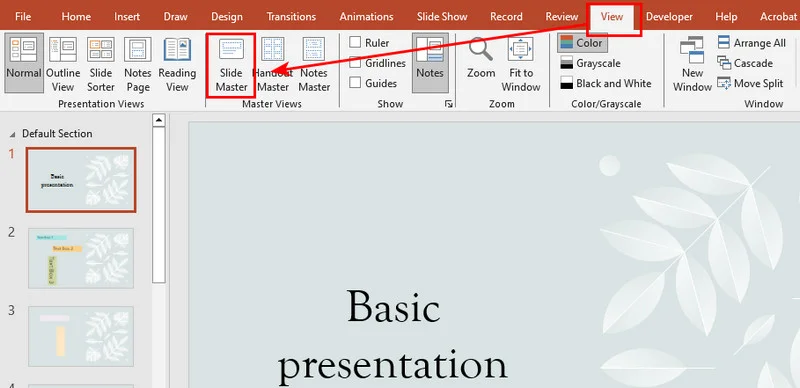
- Paso 2: Desplácese hasta la parte superior del panel de miniaturas de la izquierda y haga clic en el patrón de diapositivas principal (la miniatura más grande y superior).
- Paso 3: Vaya a la pestaña Insertar. Elija Cuadro de texto para una marca de agua de texto (por ejemplo, "CONFIDENCIAL") o haga clic en Imágenes para cargar un logotipo PNG de baja opacidad.
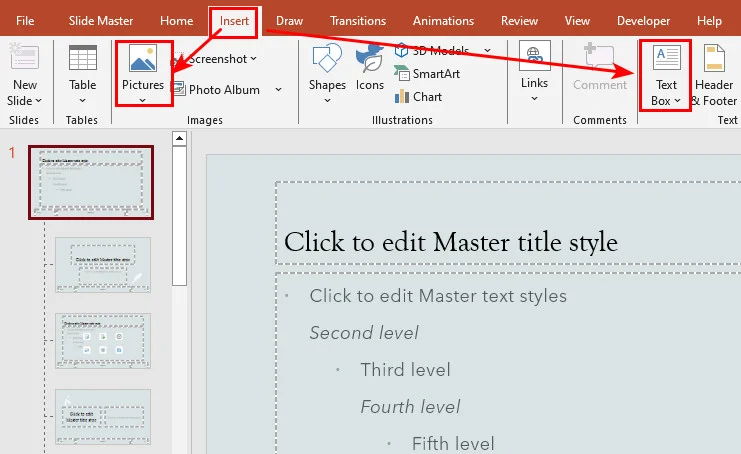
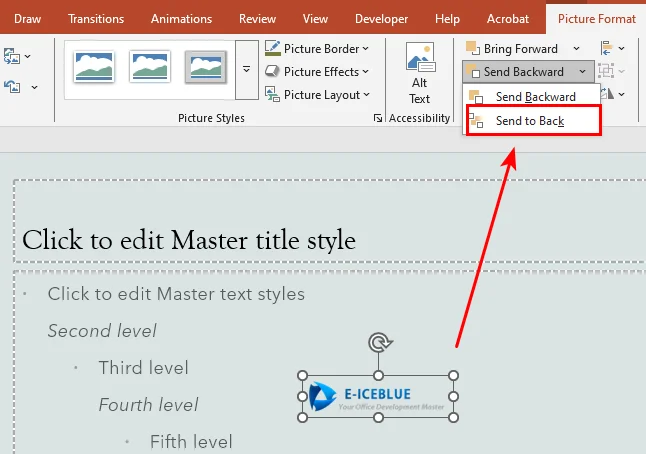
- Paso 4: Haga clic derecho en el texto o imagen insertada y seleccione Enviar al fondo. Esto mantiene su marca de agua debajo de los datos principales de la presentación.
- Paso 5: Haga clic en Cerrar vista patrón en la pestaña Patrón de diapositivas para volver al modo de edición normal.
Aunque este enfoque manual es perfecto para tareas de diseño únicas porque es altamente visual y no requiere conocimientos técnicos, se vuelve ineficiente cuando se trata de múltiples presentaciones. Depender de un trabajo manual repetitivo deja demasiado margen para el error humano. Para manejar el formato de documentos a gran escala de manera efectiva, debemos recurrir a la automatización programática.
Cómo poner una marca de agua en PPT mediante código en el Patrón de diapositivas
Cuando se trabaja con un gran lote de archivos de PowerPoint, automatizar el flujo de trabajo con código es la opción más eficiente. En esta sección, demostraremos cómo añadir automáticamente marcas de agua en presentaciones de PowerPoint utilizando Free Spire.Presentation for Python. Es una biblioteca gratuita e independiente que permite a los usuarios crear y editar presentaciones sin necesidad de tener instalado Microsoft PowerPoint.
Con la ayuda de Free Spire.Presentation, podemos poner marcas de agua en PPT insertando una imagen o texto en el Patrón de diapositivas para aplicar la marca de agua en toda la presentación.
Aquí está el ejemplo de código:
from spire.presentation.common import *
from spire.presentation import *

# Inicializar y cargar el archivo PPT
presentation = Presentation()
presentation.LoadFromFile("/input/pre1.pptx")

# Obtener el patrón de diapositivas de la primera diapositiva
master = presentation.Masters[0]

# Calcular las coordenadas para centrar la imagen de la marca de agua
img_width = 350.0
img_height = 110.0
left = (presentation.SlideSize.Size.Width - img_width) / 2
top = (presentation.SlideSize.Size.Height - img_height) / 2

# Definir las coordenadas usando la clase RectangleF
rect = RectangleF(left, top, img_width, img_height)

# Añadir la forma de imagen al patrón de diapositivas como marca de agua
image_shape = master.Shapes.AppendEmbedImageByPath(ShapeType.Rectangle, "/Logo1.png", rect)

# Optimizar la apariencia y enviar la forma al fondo
image_shape.Line.FillType = FillFormatType.none
image_shape.SetShapeArrange(ShapeArrange.SendToBack)

# Guardar la presentación
presentation.SaveToFile("/output/MasterImageWatermark.pptx", FileFormat.Pptx2010)
presentation.Dispose()
Aquí está la vista previa de la presentación de PowerPoint resultante:
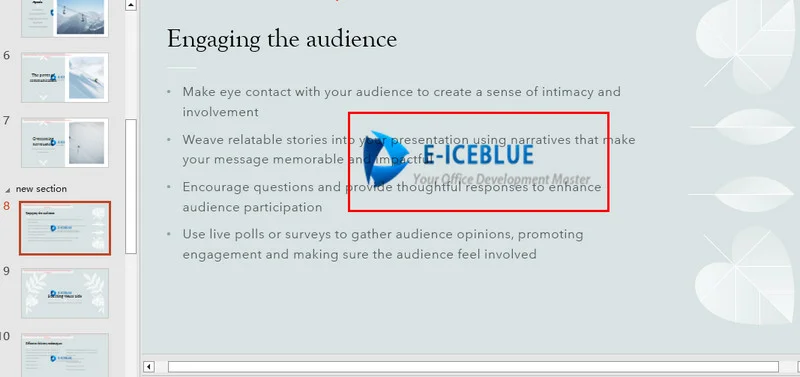
Como se ve en las miniaturas de la izquierda, la misma marca de agua de imagen se aplica ahora en todas las diapositivas.
Cómo añadir una marca de agua en diapositivas de PowerPoint individualmente
Aunque crear marcas de agua en el Patrón de diapositivas es ideal para proteger todo el documento, ciertos escenarios requieren una forma más precisa. Por ejemplo, es posible que desee estampar una marca de agua de texto "CONFIDENCIAL" solo en diapositivas de contenido específicas, dejando la página de portada y la diapositiva de cierre limpias y claras.
Añadir una marca de agua a una diapositiva específica es prácticamente igual al método del patrón de diapositivas. Sigue insertando formas rectangulares y añadiendo texto o imágenes. La única diferencia es que utiliza la propiedad presentation.Slides[index] para dirigirse a la diapositiva específica en lugar de a la plantilla global.
Aquí le mostramos cómo aplicar marcas de agua tanto de texto como de imagen a la octava diapositiva:
from spire.presentation.common import *
from spire.presentation import *

# Inicializar y cargar el archivo PPT
presentation = Presentation()
presentation.LoadFromFile("/input/pre1.pptx")

# Obtener las dimensiones de la presentación y dirigirse a la octava diapositiva
slide_size = presentation.SlideSize.Size
first_slide = presentation.Slides[7]

# Cargar el flujo del archivo de imagen
stream = Stream("/Logo1.png")
image = presentation.Images.AppendStream(stream)
stream.Close()

# Obtener el ancho y alto original de la imagen
img_width = float(image.Width)
img_height = float(image.Height)

# Calcular las coordenadas para centrar la imagen y definir el rectángulo delimitador
img_left = (slide_size.Width - img_width) / 2
img_top = (slide_size.Height - img_height) / 2
img_rect = RectangleF(img_left, img_top, img_width, img_height)

# Añadir una forma de rectángulo y rellenarla con la imagen
img_shape = first_slide.Shapes.AppendShape(ShapeType.Rectangle, img_rect)
img_shape.Line.FillType = FillFormatType.none
img_shape.Locking.SelectionProtection = True  # Habilitar bloqueo de selección para evitar modificaciones accidentales
img_shape.Fill.FillType = FillFormatType.Picture
img_shape.Fill.PictureFill.FillType = PictureFillType.Stretch
img_shape.Fill.PictureFill.Picture.EmbedImage = image


# Definir el ancho, alto y coordenadas de centrado para la marca de agua de texto
txt_width = 350.0
txt_height = 110.0
txt_left = (slide_size.Width - txt_width) / 2
txt_top = (slide_size.Height - txt_height) / 2
txt_rect = RectangleF(txt_left, txt_top, txt_width, txt_height)

# Añadir un contenedor de forma de rectángulo para el texto
txt_shape = first_slide.Shapes.AppendShape(ShapeType.Rectangle, txt_rect)
txt_shape.Fill.FillType = FillFormatType.none
txt_shape.ShapeStyle.LineColor.Color = Color.get_Transparent()
txt_shape.Line.FillType = FillFormatType.none
txt_shape.Rotation = -35                     # Rotar el texto -35 grados
txt_shape.Locking.SelectionProtection = True  # Habilitar bloqueo de selección para evitar modificaciones accidentales

# Configurar el contenido y formato del texto de la marca de agua
txt_shape.TextFrame.Text = "CONFIDENCIAL"
text_range = txt_shape.TextFrame.TextRange
text_range.Fill.FillType = FillFormatType.Solid
text_range.Fill.SolidColor.Color = Color.FromArgb(120, Color.get_Black().R, Color.get_HotPink().G, Color.get_HotPink().B)
text_range.FontHeight = 45
text_range.LatinFont = TextFont("Times New Roman")

# Enviar tanto las formas de imagen como de texto a la capa de fondo para evitar bloquear el contenido
img_shape.SetShapeArrange(ShapeArrange.SendToBack)
txt_shape.SetShapeArrange(ShapeArrange.SendToBack)

# Guardar el archivo de presentación
presentation.SaveToFile("/output/WatermarkinSpecificSlide.pptx", FileFormat.Pptx2013)
presentation.Dispose()

El truco de bloqueo de selección
Debido a que estas formas se añaden directamente sobre el lienzo principal de la diapositiva en lugar de en el Patrón de diapositivas, los usuarios podrían técnicamente hacer clic y moverlas. Para evitar esto, establecer shape.Locking.SelectionProtection = True tanto en las formas de imagen como de texto actúa como una salvaguarda adicional. Ayuda a prevenir ediciones accidentales.
Quizás le interese: 5 formas eficaces de proteger con contraseña archivos de PowerPoint
Mejores prácticas
Antes de ejecutar scripts o compartir presentaciones de PowerPoint, tenga en cuenta estos principios de diseño para mantener su presentación limpia y fácil de leer:
- La transparencia es clave: Se recomienda un nivel de opacidad del 15% al 20%. La marca de agua no debe cubrir el texto principal.
- Rotación estratégica: Incline su texto en un ángulo de -35° o -45°. Los bloques de texto diagonales hacen que las capturas de pantalla no autorizadas desde teléfonos inteligentes o fotos sean mucho más difíciles de recortar.
- Selección de color: Se sugieren colores neutros. Use grises claros para fondos de diapositivas claros y tonos pizarra profundos para temas de presentación oscuros. Evite colores llamativos y de alto contraste como el rojo puro o el negro.
Conclusión
Añadir marcas de agua a sus presentaciones de PowerPoint protege su marca y asegura datos confidenciales. Para un archivo único y rápido, la vista del Patrón de diapositivas manual funciona perfectamente. Sin embargo, la automatización con Python es más adecuada para el procesamiento a gran escala. Al utilizar Free Spire.Presentation for Python, puede crear fácilmente scripts tanto para actualizaciones maestras globales como para bloqueos específicos de página sin necesidad de tener instalado Microsoft PowerPoint. Elija el método que se ajuste a su necesidad actual y comience a proteger sus presentaciones hoy mismo.
Preguntas frecuentes sobre cómo añadir marcas de agua a PPT
P1: ¿Pueden los usuarios eliminar la marca de agua generada por Python?
No durante la edición normal. Una marca de agua añadida a través del Patrón de diapositivas no se puede hacer clic de forma nativa en la vista estándar. Sin embargo, los usuarios aún pueden abrir la vista Patrón de diapositivas para moverla o eliminarla manualmente. Si desea una seguridad absoluta e inamovible, exporte la presentación a un PDF.
P2: ¿Por qué mi imagen de marca de agua se ve pixelada?
La resolución de la imagen de origen es demasiado baja. Ya sea que la añada manualmente o mediante código, utilice siempre un archivo PNG de alta resolución con un fondo transparente.
P3: ¿La marca de agua permanecerá intacta al imprimir las diapositivas?
Sí. Las marcas de agua están incrustadas directamente en el patrón de diapositivas o en las coordenadas del lienzo bloqueado. Generalmente conservarán la opacidad y la posición al imprimir y exportar.
Lea también:
So fügen Sie ein Wasserzeichen in PowerPoint hinzu (ausführliche Anleitung)
Beim Erstellen von Präsentationen ist das Hinzufügen von Wasserzeichen, wie z. B. ein Firmenlogo, ein Slogan oder ein "VERTRAULICH"-Hinweis, eine effektive Methode, um ein einheitliches Design beizubehalten und das Eigentum an Dokumenten zu kennzeichnen. Da PowerPoint jedoch keine integrierte Ein-Klick-Schaltfläche für Wasserzeichen besitzt, sind sich viele Benutzer unsicher, wie man ein Wasserzeichen in PowerPoint-Präsentationen einfügt.
Dieser Leitfaden führt Sie durch verschiedene praktische Methoden zum Hinzufügen von Wasserzeichen in PowerPoint – von manuellen Microsoft PowerPoint-Workarounds bis hin zur Stapelverarbeitung mit Python-Automatisierung –, damit Sie mühelos sichere und professionelle Präsentationen erstellen können.
- Wasserzeichen in PowerPoint über den Folienmaster einfügen
- Wasserzeichen in PPT über Folienmaster-Code setzen
- Wasserzeichen individuell zu PowerPoint-Folien hinzufügen
- Bewährte Methoden
- FAQs
So fügen Sie ein Wasserzeichen in PowerPoint über den Folienmaster ein
Da MS PowerPoint über kein spezielles Wasserzeichen-Tool verfügt, ist die effektivste Methode das manuelle Hinzufügen von Text- oder Bildwasserzeichen direkt im Folienmaster. Dadurch wird das Wasserzeichen automatisch auf jede Folie angewendet, was Zeit spart und die Formatierung in der gesamten Präsentation konsistent hält.
Schritt-für-Schritt-Anleitung
- Schritt 1: Öffnen Sie Ihre Präsentation und navigieren Sie im oberen Menüband zu Ansicht > Folienmaster.
- Schritt 2: Scrollen Sie im linken Miniaturansichten-Bereich ganz nach oben und klicken Sie auf den primären Folienmaster (die größte, oberste Miniaturansicht).
- Schritt 3: Gehen Sie auf die Registerkarte Einfügen. Wählen Sie Textfeld für ein Textwasserzeichen (z. B. "VERTRAULICH") oder klicken Sie auf Bilder, um ein PNG-Logo mit geringer Deckkraft hochzuladen.
- Schritt 4: Klicken Sie mit der rechten Maustaste auf den eingefügten Text oder das Bild und wählen Sie In den Hintergrund. Dadurch bleibt Ihr Wasserzeichen hinter den Hauptinhalten der Präsentation.
- Schritt 5: Klicken Sie auf der Registerkarte „Folienmaster“ auf Masteransicht schließen, um zum normalen Bearbeitungsmodus zurückzukehren.
Während dieser manuelle Ansatz perfekt für einmalige Designaufgaben ist, da er sehr visuell ist und keine technischen Vorkenntnisse erfordert, wird er bei mehreren Präsentationen ineffizient. Sich auf wiederholte manuelle Arbeit zu verlassen, lässt zu viel Raum für menschliche Fehler. Um eine groß angelegte Dokumentenformatierung effektiv zu handhaben, sollten wir uns der programmatischen Automatisierung zuwenden.
So setzen Sie ein Wasserzeichen in PPT über Folienmaster-Code
Bei der Arbeit mit einer großen Anzahl von PowerPoint-Dateien ist die Automatisierung des Workflows mit Code die effizientere Wahl. In diesem Abschnitt zeigen wir Ihnen, wie Sie automatisch Wasserzeichen in PowerPoint-Präsentationen mit Free Spire.Presentation for Python hinzufügen können. Es handelt sich um eine kostenlose, eigenständige Bibliothek, mit der Benutzer Präsentationen erstellen und bearbeiten können, ohne dass Microsoft PowerPoint installiert sein muss.
Mit Hilfe von Free Spire.Presentation können wir weiterhin Wasserzeichen in PPT setzen, indem wir ein Bild oder einen Text in den Folienmaster einfügen, um das Wasserzeichen auf die gesamte Präsentation anzuwenden.
Hier ist das Codebeispiel:
from spire.presentation.common import *
from spire.presentation import *

# Initialisieren und Laden der PPT-Datei
presentation = Presentation()
presentation.LoadFromFile("/input/pre1.pptx")

# Den Folienmaster der ersten Folie abrufen
master = presentation.Masters[0]

# Koordinaten berechnen, um das Wasserzeichenbild zu zentrieren
img_width = 350.0
img_height = 110.0
left = (presentation.SlideSize.Size.Width - img_width) / 2
top = (presentation.SlideSize.Size.Height - img_height) / 2

# Koordinaten mit der Klasse RectangleF definieren
rect = RectangleF(left, top, img_width, img_height)

# Die Bildform als Wasserzeichen zum Folienmaster hinzufügen
image_shape = master.Shapes.AppendEmbedImageByPath(ShapeType.Rectangle, "/Logo1.png", rect)

# Erscheinungsbild optimieren und die Form in den Hintergrund senden
image_shape.Line.FillType = FillFormatType.none
image_shape.SetShapeArrange(ShapeArrange.SendToBack)

# Die Präsentation speichern
presentation.SaveToFile("/output/MasterImageWatermark.pptx", FileFormat.Pptx2010)
presentation.Dispose()
Hier ist die Vorschau der ausgegebenen PowerPoint-Präsentation:
Wie in den linken Miniaturansichten zu sehen ist, wird nun dasselbe Bildwasserzeichen auf alle Folien angewendet.
So fügen Sie ein Wasserzeichen individuell zu PowerPoint-Folien hinzu
Während das Erstellen von Wasserzeichen im Folienmaster ideal zum Schutz des gesamten Dokuments ist, erfordern bestimmte Szenarien eine präzisere Methode. Sie möchten beispielsweise ein "VERTRAULICH"-Textwasserzeichen nur auf bestimmten Inhaltsfolien anbringen, während das Deckblatt und die Abschlussfolie sauber und übersichtlich bleiben sollen.
Das Hinzufügen eines Wasserzeichens zu einer bestimmten Folie ist weitgehend identisch mit der Folienmaster-Methode. Sie fügen weiterhin Rechteckformen ein und fügen Text oder Bilder hinzu. Der einzige Unterschied besteht darin, dass Sie die Eigenschaft presentation.Slides[index] verwenden, um die spezifische Folie anstelle der globalen Vorlage anzusprechen.
Hier erfahren Sie, wie Sie sowohl Text- als auch Bildwasserzeichen auf die 8. Folie anwenden:
from spire.presentation.common import *
from spire.presentation import *

# Initialisieren und Laden der PPT-Datei
presentation = Presentation()
presentation.LoadFromFile("/input/pre1.pptx")

# Präsentationsabmessungen abrufen und die 8. Folie ansteuern
slide_size = presentation.SlideSize.Size
first_slide = presentation.Slides[7]

# Bilddateistream laden
stream = Stream("/Logo1.png")
image = presentation.Images.AppendStream(stream)
stream.Close()

# Ursprüngliche Breite und Höhe des Bildes abrufen
img_width = float(image.Width)
img_height = float(image.Height)

# Koordinaten berechnen, um das Bild zu zentrieren und das Begrenzungsrechteck definieren
img_left = (slide_size.Width - img_width) / 2
img_top = (slide_size.Height - img_height) / 2
img_rect = RectangleF(img_left, img_top, img_width, img_height)

# Eine Rechteckform hinzufügen und mit dem Bild füllen
img_shape = first_slide.Shapes.AppendShape(ShapeType.Rectangle, img_rect)
img_shape.Line.FillType = FillFormatType.none
img_shape.Locking.SelectionProtection = True  # Auswahl-Sperre aktivieren, um versehentliche Änderungen zu verhindern
img_shape.Fill.FillType = FillFormatType.Picture
img_shape.Fill.PictureFill.FillType = PictureFillType.Stretch
img_shape.Fill.PictureFill.Picture.EmbedImage = image


# Breite, Höhe und Zentrierkoordinaten für das Textwasserzeichen definieren
txt_width = 350.0
txt_height = 110.0
txt_left = (slide_size.Width - txt_width) / 2
txt_top = (slide_size.Height - txt_height) / 2
txt_rect = RectangleF(txt_left, txt_top, txt_width, txt_height)

# Einen Rechteckform-Container für den Text hinzufügen
txt_shape = first_slide.Shapes.AppendShape(ShapeType.Rectangle, txt_rect)
txt_shape.Fill.FillType = FillFormatType.none
txt_shape.ShapeStyle.LineColor.Color = Color.get_Transparent()
txt_shape.Line.FillType = FillFormatType.none
txt_shape.Rotation = -35                     # Den Text um -35 Grad drehen
txt_shape.Locking.SelectionProtection = True  # Auswahl-Sperre aktivieren, um versehentliche Änderungen zu verhindern

# Wasserzeichen-Textinhalt und Formatierung konfigurieren
txt_shape.TextFrame.Text = "VERTRAULICH"
text_range = txt_shape.TextFrame.TextRange
text_range.Fill.FillType = FillFormatType.Solid
text_range.Fill.SolidColor.Color = Color.FromArgb(120, Color.get_Black().R, Color.get_HotPink().G, Color.get_HotPink().B)
text_range.FontHeight = 45
text_range.LatinFont = TextFont("Times New Roman")

# Sowohl Bild- als auch Textformen in die Hintergrundebene senden, um das Blockieren von Inhalten zu verhindern
img_shape.SetShapeArrange(ShapeArrange.SendToBack)
txt_shape.SetShapeArrange(ShapeArrange.SendToBack)

# Die Präsentationsdatei speichern
presentation.SaveToFile("/output/WatermarkinSpecificSlide.pptx", FileFormat.Pptx2013)
presentation.Dispose()
Der „Auswahl-Sperre“-Hack
Da diese Formen direkt auf die Hauptfolienoberfläche und nicht auf den Folienmaster hinzugefügt werden, könnten Benutzer sie theoretisch anklicken und verschieben. Um dies zu verhindern, fungiert das Setzen von shape.Locking.SelectionProtection = True für sowohl Bild- als auch Textformen als zusätzliche Sicherheitsmaßnahme. Es hilft, versehentliche Bearbeitungen zu verhindern.
Das könnte Ihnen auch gefallen: 5 effektive Möglichkeiten, PowerPoint-Dateien mit einem Passwort zu schützen
Bewährte Methoden
Bevor Sie Skripte ausführen oder PowerPoint-Präsentationen teilen, beachten Sie diese Designprinzipien, um Ihre Präsentation sauber und leicht lesbar zu halten:
- Transparenz ist der Schlüssel: Ein Deckkraftwert von 15 % bis 20 % wird empfohlen. Das Wasserzeichen sollte den Haupttext nicht verdecken.
- Strategische Drehung: Neigen Sie Ihren Text in einem Winkel von -35° oder -45°. Diagonale Textblöcke machen es deutlich schwieriger, unbefugte Smartphone-Screenshots oder Foto-Leaks zuzuschneiden.
- Farbauswahl: Neutrale Farben werden empfohlen. Verwenden Sie helles Grau für helle Folienhintergründe und tiefe Schiefer-Töne für dunkle Präsentationsthemen. Vermeiden Sie laute, kontrastreiche Farben wie reines Rot oder Schwarz.
Fazit
Das Hinzufügen von Wasserzeichen zu Ihren PowerPoint-Präsentationen schützt Ihre Marke und sichert sensible Daten. Für eine schnelle, einmalige Datei funktioniert die manuelle Folienmaster-Ansicht perfekt. Python-Automatisierung ist jedoch besser für die groß angelegte Verarbeitung geeignet. Durch die Nutzung von Free Spire.Presentation for Python können Sie sowohl globale Master-Updates als auch seitenspezifische Sperren einfach skripten, ohne dass Microsoft PowerPoint installiert sein muss. Wählen Sie die Methode, die Ihren aktuellen Anforderungen entspricht, und beginnen Sie noch heute mit der Sicherung Ihrer Präsentationen.
FAQs zum Hinzufügen von Wasserzeichen zu PPT
F1: Können Benutzer das Python-generierte Wasserzeichen entfernen?
Nicht während der normalen Bearbeitung. Ein über den Folienmaster hinzugefügtes Wasserzeichen ist in der Standardansicht nativ nicht anklickbar. Benutzer können jedoch weiterhin die Folienmaster-Ansicht öffnen, um es manuell zu verschieben oder zu löschen. Wenn Sie absolute, nicht entfernbare Sicherheit wünschen, exportieren Sie die Präsentation als PDF.
F2: Warum sieht mein Wasserzeichenbild verpixelt aus?
Die Auflösung des Quellbildes ist zu niedrig. Egal, ob Sie es manuell oder per Code hinzufügen, verwenden Sie immer eine hochauflösende PNG-Datei mit transparentem Hintergrund.
F3: Bleibt das Wasserzeichen beim Drucken der Folien erhalten?
Ja. Wasserzeichen werden direkt in den Folienmaster oder die gesperrten Leinwandkoordinaten eingebettet. Sie behalten beim Drucken und Exportieren im Allgemeinen die Deckkraft und Position bei.
Ebenfalls lesen:
Как добавить водяной знак в PowerPoint (подробное руководство)
Оглавление
При создании презентаций добавление водяных знаков, таких как логотип компании, слоган или пометка «КОНФИДЕНЦИАЛЬНО», является эффективным способом поддержания единого дизайна и указания авторства документа. Однако, поскольку в PowerPoint нет встроенной кнопки для добавления водяного знака в один клик, многие пользователи не знают, как добавить водяной знак в презентации PowerPoint.
В этом руководстве описаны несколько практических способов добавления водяных знаков в PowerPoint: от ручных методов в Microsoft PowerPoint до пакетной обработки с помощью автоматизации на Python, что поможет вам легко создавать защищенные и профессиональные презентации.
- Вставка водяного знака в PowerPoint через образец слайдов
- Добавление водяного знака в PPT с помощью кода в образце слайдов
- Добавление водяного знака на отдельные слайды PowerPoint
- Рекомендации
- Часто задаваемые вопросы
Как вставить водяной знак в PowerPoint через образец слайдов
Поскольку в MS PowerPoint отсутствует специальный инструмент для водяных знаков, наиболее эффективным способом является ручное добавление текстовых или графических водяных знаков непосредственно в образец слайдов. Это автоматически применяет водяной знак ко всем слайдам, экономя время и сохраняя единообразие форматирования во всей презентации.
Пошаговое руководство
- Шаг 1: Откройте презентацию и перейдите на вкладку Вид > Образец слайдов на верхней ленте.
- Шаг 2: Прокрутите панель эскизов слева до самого верха и выберите главный образец слайдов (самый большой эскиз в самом верху).
- Шаг 3: Перейдите на вкладку Вставка. Выберите Надпись для текстового водяного знака (например, «КОНФИДЕНЦИАЛЬНО») или нажмите Рисунки, чтобы загрузить логотип в формате PNG с низкой непрозрачностью.
- Шаг 4: Щелкните правой кнопкой мыши по вставленному тексту или изображению и выберите На задний план. Это позволит разместить водяной знак под основным содержимым презентации.
- Шаг 5: Нажмите Закрыть режим образца на вкладке «Образец слайдов», чтобы вернуться в обычный режим редактирования.
Хотя этот ручной подход идеально подходит для разовых задач, так как он нагляден и не требует технических навыков, он становится неэффективным при работе с множеством презентаций. Повторяющаяся ручная работа повышает риск человеческой ошибки. Для эффективного форматирования документов в больших масштабах стоит обратиться к программной автоматизации.
Как добавить водяной знак в PPT с помощью кода в образце слайдов
При работе с большим количеством файлов PowerPoint автоматизация рабочего процесса с помощью кода является более эффективным выбором. В этом разделе мы покажем, как автоматически добавлять водяные знаки в презентации PowerPoint с помощью Free Spire.Presentation for Python. Это бесплатная автономная библиотека, которая позволяет пользователям создавать и редактировать презентации без необходимости установки Microsoft PowerPoint.
С помощью Free Spire.Presentation мы можем добавлять водяные знаки в PPT, вставляя изображение или текст в образец слайдов, чтобы применить водяной знак ко всей презентации.
Пример кода:
from spire.presentation.common import *
from spire.presentation import *

# Инициализация и загрузка PPT файла
presentation = Presentation()
presentation.LoadFromFile("/input/pre1.pptx")

# Получение образца слайдов первого слайда
master = presentation.Masters[0]

# Расчет координат для центрирования изображения водяного знака
img_width = 350.0
img_height = 110.0
left = (presentation.SlideSize.Size.Width - img_width) / 2
top = (presentation.SlideSize.Size.Height - img_height) / 2

# Определение координат с помощью класса RectangleF
rect = RectangleF(left, top, img_width, img_height)

# Добавление фигуры изображения в образец слайдов в качестве водяного знака
image_shape = master.Shapes.AppendEmbedImageByPath(ShapeType.Rectangle, "/Logo1.png", rect)

# Оптимизация внешнего вида и перемещение фигуры на задний план
image_shape.Line.FillType = FillFormatType.none
image_shape.SetShapeArrange(ShapeArrange.SendToBack)

# Сохранение презентации
presentation.SaveToFile("/output/MasterImageWatermark.pptx", FileFormat.Pptx2010)
presentation.Dispose()
Предварительный просмотр выходной презентации PowerPoint:
Как видно на эскизах слева, один и тот же графический водяной знак теперь применен ко всем слайдам.
Как добавить водяной знак на отдельные слайды PowerPoint
Хотя создание водяных знаков в образце слайдов идеально подходит для защиты всего документа, в некоторых ситуациях требуется более точный подход. Например, вы можете захотеть поставить текстовый водяной знак «КОНФИДЕНЦИАЛЬНО» только на определенных слайдах с контентом, оставив титульный и заключительный слайды чистыми.
Добавление водяного знака на конкретный слайд во многом повторяет метод с образцом слайдов. Вы также вставляете фигуры прямоугольников и добавляете текст или изображения. Единственное отличие заключается в использовании свойства presentation.Slides[index] для выбора конкретного слайда вместо глобального шаблона.
Вот как применить текстовый и графический водяные знаки к 8-му слайду:
from spire.presentation.common import *
from spire.presentation import *

# Инициализация и загрузка PPT файла
presentation = Presentation()
presentation.LoadFromFile("/input/pre1.pptx")

# Получение размеров презентации и выбор 8-го слайда
slide_size = presentation.SlideSize.Size
first_slide = presentation.Slides[7]

# Загрузка потока файла изображения
stream = Stream("/Logo1.png")
image = presentation.Images.AppendStream(stream)
stream.Close()

# Получение исходной ширины и высоты изображения
img_width = float(image.Width)
img_height = float(image.Height)

# Расчет координат для центрирования изображения и определение ограничивающего прямоугольника
img_left = (slide_size.Width - img_width) / 2
img_top = (slide_size.Height - img_height) / 2
img_rect = RectangleF(img_left, img_top, img_width, img_height)

# Добавление фигуры прямоугольника и заполнение его изображением
img_shape = first_slide.Shapes.AppendShape(ShapeType.Rectangle, img_rect)
img_shape.Line.FillType = FillFormatType.none
img_shape.Locking.SelectionProtection = True  # Включение защиты от выделения для предотвращения случайного изменения
img_shape.Fill.FillType = FillFormatType.Picture
img_shape.Fill.PictureFill.FillType = PictureFillType.Stretch
img_shape.Fill.PictureFill.Picture.EmbedImage = image


# Определение ширины, высоты и координат центрирования для текстового водяного знака
txt_width = 350.0
txt_height = 110.0
txt_left = (slide_size.Width - txt_width) / 2
txt_top = (slide_size.Height - txt_height) / 2
txt_rect = RectangleF(txt_left, txt_top, txt_width, txt_height)

# Добавление контейнера фигуры прямоугольника для текста
txt_shape = first_slide.Shapes.AppendShape(ShapeType.Rectangle, txt_rect)
txt_shape.Fill.FillType = FillFormatType.none
txt_shape.ShapeStyle.LineColor.Color = Color.get_Transparent()
txt_shape.Line.FillType = FillFormatType.none
txt_shape.Rotation = -35                     # Поворот текста на -35 градусов
txt_shape.Locking.SelectionProtection = True  # Включение защиты от выделения

# Настройка содержимого текста водяного знака и форматирования
txt_shape.TextFrame.Text = "КОНФИДЕНЦИАЛЬНО"
text_range = txt_shape.TextFrame.TextRange
text_range.Fill.FillType = FillFormatType.Solid
text_range.Fill.SolidColor.Color = Color.FromArgb(120, Color.get_Black().R, Color.get_HotPink().G, Color.get_HotPink().B)
text_range.FontHeight = 45
text_range.LatinFont = TextFont("Times New Roman")

# Перемещение обеих фигур (изображения и текста) на задний план, чтобы они не перекрывали контент
img_shape.SetShapeArrange(ShapeArrange.SendToBack)
txt_shape.SetShapeArrange(ShapeArrange.SendToBack)

# Сохранение файла презентации
presentation.SaveToFile("/output/WatermarkinSpecificSlide.pptx", FileFormat.Pptx2013)
presentation.Dispose()
Хитрость с блокировкой выделения
Поскольку эти фигуры добавляются непосредственно на холст слайда, а не в образец слайдов, пользователи технически могут щелкнуть по ним и переместить. Чтобы предотвратить это, установка shape.Locking.SelectionProtection = True для обеих фигур служит дополнительной мерой защиты от случайного редактирования.
Вам может быть интересно: 5 эффективных способов защиты файлов PowerPoint паролем
Рекомендации
Перед запуском скриптов или распространением презентаций PowerPoint примите во внимание следующие принципы дизайна, чтобы презентация оставалась аккуратной и легко читаемой:
- Прозрачность — это ключ: Рекомендуется уровень непрозрачности от 15% до 20%. Водяной знак не должен перекрывать основной текст.
- Стратегический поворот: Наклоните текст под углом -35° или -45°. Диагональные текстовые блоки затрудняют обрезку при создании несанкционированных скриншотов или фотографий экрана.
- Выбор цвета: Рекомендуются нейтральные цвета. Используйте светло-серые тона для светлых фонов слайдов и темно-серые для темных тем презентаций. Избегайте ярких, высококонтрастных цветов, таких как чистый красный или черный.
Заключение
Добавление водяных знаков в презентации PowerPoint защищает ваш бренд и конфиденциальные данные. Для быстрого разового файла идеально подходит ручной режим образца слайдов. Однако автоматизация на Python лучше подходит для масштабной обработки. Используя Free Spire.Presentation for Python, вы можете легко автоматизировать как обновление глобального образца, так и блокировку отдельных страниц, даже не имея установленного Microsoft PowerPoint. Выберите метод, который соответствует вашим текущим потребностям, и начните защищать свои презентации уже сегодня.
Часто задаваемые вопросы о добавлении водяных знаков в PPT
В1: Могут ли пользователи удалить водяной знак, созданный с помощью Python?
Не при обычном редактировании. Водяной знак, добавленный через образец слайдов, изначально недоступен для клика в стандартном режиме просмотра. Однако пользователи все равно могут открыть режим образца слайдов, чтобы переместить или удалить его вручную. Если вам нужна абсолютная, неустранимая защита, экспортируйте презентацию в PDF.
В2: Почему изображение моего водяного знака выглядит пикселизированным?
Разрешение исходного изображения слишком низкое. Независимо от того, добавляете ли вы его вручную или с помощью кода, всегда используйте высококачественный файл PNG с прозрачным фоном.
В3: Останется ли водяной знак при печати слайдов?
Да. Водяные знаки встроены непосредственно в образец слайдов или заблокированы по координатам холста. Как правило, они сохраняют непрозрачность и положение при печати и экспорте.
Читайте также:
Como criar uma lista suspensa no Word
Índice
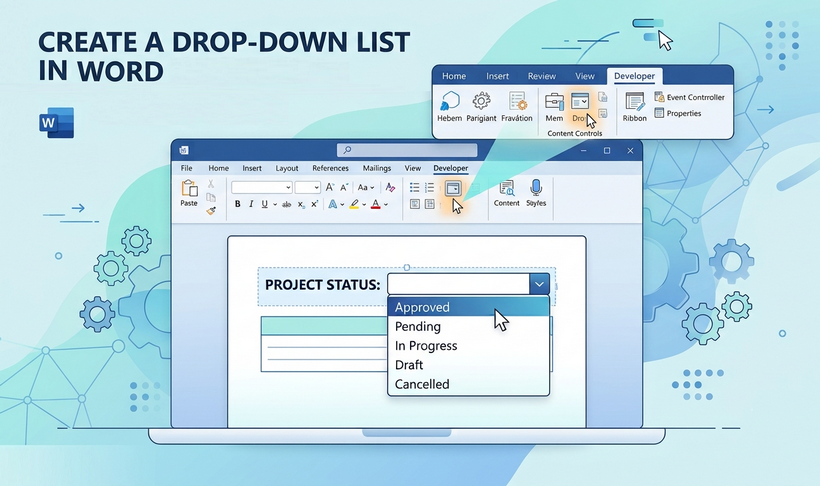
As listas suspensas (drop-down) são um dos recursos mais úteis no Microsoft Word. Elas restringem a entrada do usuário a um conjunto específico de escolhas predefinidas, o que melhora a precisão dos dados, agiliza as respostas e proporciona uma experiência de usuário mais limpa. Esteja você criando um formulário profissional ou um questionário, saber como criar uma lista suspensa no Word é uma habilidade essencial para a engenharia de documentos moderna.
Ao contrário das listas suspensas no Excel, que são usadas com mais frequência, a implementação do Word foi criada especificamente para a criação de formulários e design de documentos interativos. Neste guia passo a passo, detalhamos todos os métodos confiáveis para criar uma lista suspensa no Word.
- O que é uma lista suspensa no Word?
- Método 1: Criar uma lista suspensa usando Controles de Conteúdo
- Método 2: Usar campos de formulário herdados para compatibilidade
- Método 3: Criar uma lista suspensa programaticamente em C#
- Perguntas Frequentes (FAQs)
O que é uma lista suspensa no Word?
Uma lista suspensa é um elemento de interface do usuário que exibe uma lista de opções em formato de menu. Quando um usuário clica no controle, uma lista de opções predefinidas aparece, e ele pode selecionar uma para preencher o campo.
Este controle é particularmente útil em cenários onde você deseja:
- Padronizar respostas em formulários e pesquisas
- Evitar erros de entrada de dados limitando as escolhas
- Agilizar o preenchimento de formulários eliminando a digitação
- Coletar dados limpos e consistentes para análise
Método 1: Criar uma lista suspensa usando Controles de Conteúdo
Disponível do Word 2007 até o Microsoft 365 mais recente, esta é a abordagem moderna e oficialmente suportada para adicionar campos interativos. Os controles de conteúdo no Word são flexíveis, personalizáveis e funcionam sem bloquear o documento inteiro.
Passo 1: Habilitar a guia Desenvolvedor
A caixa de lista suspensa no Word fica na guia “Desenvolvedor”, que é oculta por padrão para simplificar a interface do usuário padrão.
- Clique em “Arquivo > Opções” (ou “Word > Preferências” no Mac).
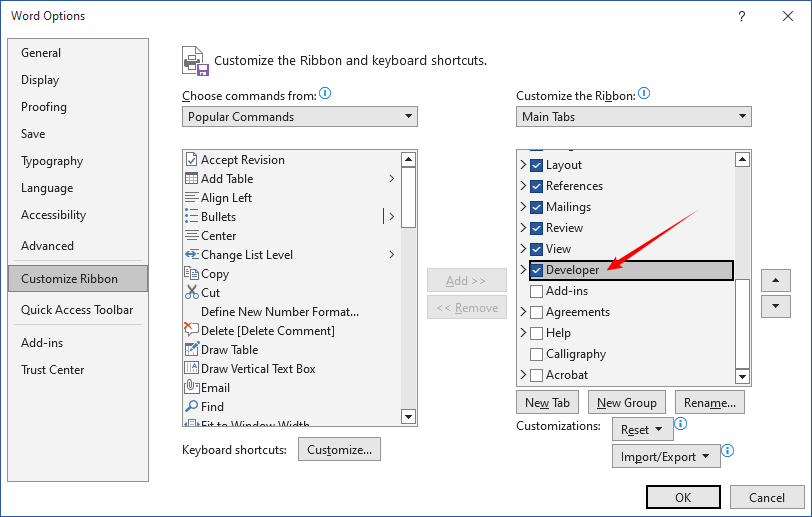
- Na janela “Opções do Word”, escolha “Personalizar Faixa de Opções”.
- No lado direito, marque a caixa ao lado da opção “Desenvolvedor”.
- Clique em “OK”. A guia Desenvolvedor aparecerá agora na faixa de opções superior.
Passo 2: Inserir o Controle de Conteúdo de Lista Suspensa
- Coloque o cursor onde deseja que a lista suspensa apareça.
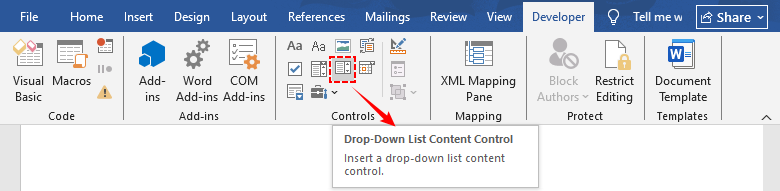
- Navegue até a guia “Desenvolvedor” e localize o grupo “Controles”.
- Clique no ícone “Controle de Conteúdo de Lista Suspensa” (parece uma lista com uma pequena seta).
- Uma caixa suspensa padrão aparecerá na posição do seu cursor.
Passo 3: Adicionar e personalizar itens da lista
- Selecione o controle recém-criado e clique em “Propriedades” na faixa de opções.
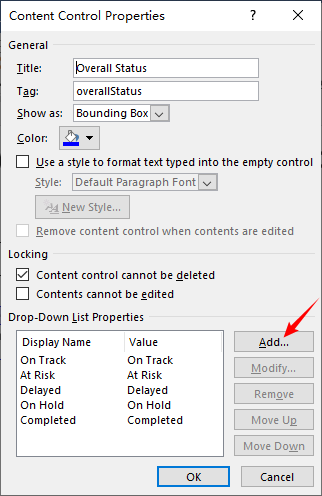
- Na caixa de diálogo “Propriedades do Controle de Conteúdo”, configure as definições gerais:
- Insira um “Título” para sua lista (aparece como um rótulo acima do controle)
- Insira uma “Tag” (um identificador interno para automação de documentos)
- Escolha um esquema de “Cor” para o controle
- Marque "O controle de conteúdo não pode ser excluído" para evitar remoção acidental
- Na seção “Propriedades da Lista Suspensa”, clique no botão “Adicionar”.
- Na janela “Adicionar Escolha”, insira sua opção no campo “Nome de Exibição” (é o que os usuários verão na lista).
- O campo “Valor” será preenchido automaticamente com o mesmo texto. Você pode modificá-lo se necessário.
- Repita este processo para cada opção que deseja incluir na sua lista suspensa.
- Use os botões “Modificar”, “Remover”, “Mover para Cima” e “Mover para Baixo” para refinar sua lista.
- Clique em “OK” para salvar suas configurações.
Passo 4: Testar o menu suspenso no Word
Clique na pequena seta no lado direito do controle para expandir a lista e selecionar um item. O texto de espaço reservado padrão ("Escolha um item.") será substituído pela sua seleção.
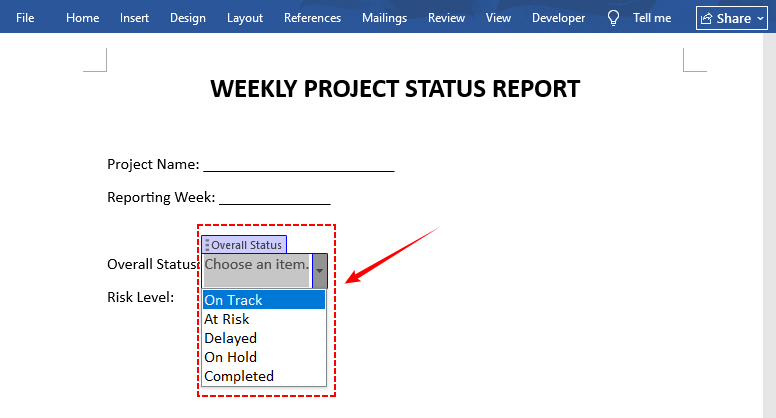
Dica profissional: A lista suspensa nativa do Microsoft Word suporta apenas seleção única. Para seleção múltipla, você pode usar controles de conteúdo de caixa de seleção no Word.
Método 2: Usar campos de formulário herdados para compatibilidade
Se o seu documento precisar funcionar com o Word 2003 e versões anteriores, ou ser salvo no formato .doc mais antigo, use campos de formulário suspensos herdados. Essa abordagem requer proteção de documento para funcionar e suporta recursos específicos de formulário, como macros de saída e cálculos de campo.
Passo 1: Inserir a lista suspensa herdada
- Na guia “Desenvolvedor”, clique no botão “Ferramentas Herdadas” (parece uma caixa de ferramentas).
- Em “Formulários Herdados”, clique no ícone “Campo de Formulário de Lista Suspensa”.
- Uma caixa de campo de formulário cinza aparece na posição do seu cursor.
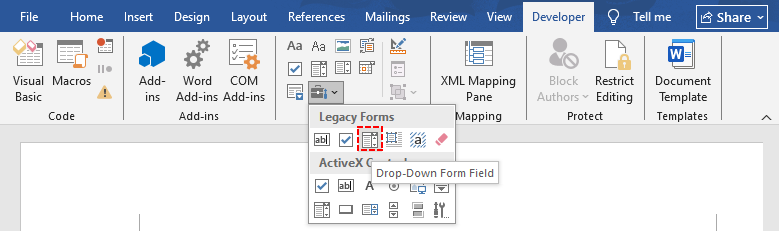
Passo 2: Configurar as opções da lista suspensa
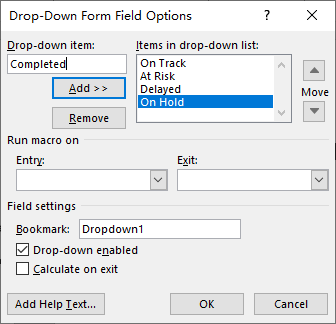
- Clique duas vezes no campo de formulário cinza para abrir a caixa de diálogo “Opções de Campo de Formulário de Lista Suspensa”.
- No campo “Item da lista suspensa”, digite sua primeira opção.
- Clique em “Adicionar >>” para movê-lo para a caixa “Itens na lista suspensa”.
- Repita para todas as opções restantes.
- Use os botões de seta para reordenar os itens ou clique em “Remover” para excluir uma opção.
- Opcional: Configure nomes de indicadores, macros de saída ou texto de ajuda para acessibilidade.
- Clique em “OK” para salvar.
Passo 3: Proteger o documento (Crucial)
Ao contrário dos controles de conteúdo modernos, os campos de formulário herdados não funcionarão a menos que o documento esteja protegido para preenchimento de formulários.
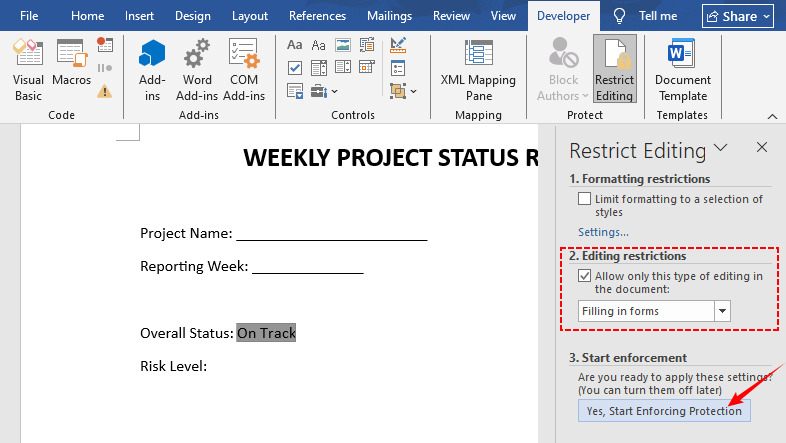
- Clique em “Restringir Edição” na guia “Desenvolvedor”.
- No painel “Restringir Edição” à direita:
- Marque “Permitir apenas este tipo de edição no documento”
- Selecione “Preenchendo formulários” na lista suspensa
- Clique em “Sim, Aplicar Proteção”.
- Insira uma senha (opcional) e clique em “OK”.
- Os usuários agora podem selecionar nas listas suspensas, mas não podem editar o restante do documento.
Método 3: Criar uma lista suspensa programaticamente em C#
Para desenvolvedores que precisam gerar ou modificar documentos do Word em lote em escala, o Free Spire.Doc for .NET oferece uma maneira programática de inserir um menu suspenso no Word sem exigir que o Microsoft Office esteja instalado na máquina.
Passo 1: Instalar o Free Spire.Doc
Você pode adicionar a biblioteca ao seu projeto .NET via NuGet:
- GUI do NuGet: Pesquise por “FreeSpire.Doc” e instale.
- Console do Gerenciador de Pacotes: Execute PM> Install-Package FreeSpire.Doc.
Alternativamente, baixe a DLL manualmente no site do Free Spire.Doc for .NET e adicione-a como referência.
Passo 2: Escrever o código C# para criar a lista suspensa no Word
O código a seguir cria um novo documento do Word, adiciona um controle de conteúdo de lista suspensa rotulado com nomes de exibição personalizados e valores subjacentes, e salva o arquivo de saída:
using Spire.Doc;
using Spire.Doc.Fields;
using Spire.Doc.Documents;

namespace CreateDropDownList
{
    class Program
    {
        static void Main(string[] args)
        {
            // Criar um novo documento do Word
            Document document = new Document();
            Section section = document.AddSection();
            Paragraph paragraph = section.AddParagraph();

            // Adicionar um texto de rótulo antes da lista suspensa
            TextRange label = paragraph.AppendText("Departamento: ");
            label.CharacterFormat.Bold = true;

            // Criar uma tag de documento estruturado em linha (controle de conteúdo de lista suspensa)
            StructureDocumentTagInline sdt = new StructureDocumentTagInline(document);
            sdt.SDTProperties.SDTType = SdtType.DropDownList;
            sdt.SDTProperties.Alias = "Departamento";
            sdt.SDTProperties.Tag = "dept_selection";
            paragraph.ChildObjects.Add(sdt);

            // Definir itens da lista suspensa
            SdtDropDownList dropDownList = new SdtDropDownList();
            dropDownList.ListItems.Add(new SdtListItem("Marketing", "MKT"));
            dropDownList.ListItems.Add(new SdtListItem("Vendas", "SLS"));
            dropDownList.ListItems.Add(new SdtListItem("Recursos Humanos", "HR"));
            dropDownList.ListItems.Add(new SdtListItem("Engenharia", "ENG"));
            dropDownList.ListItems.Add(new SdtListItem("Finanças", "FIN"));

            // Atribuir itens ao controle de conteúdo
            sdt.SDTProperties.ControlProperties = dropDownList;

            // Definir texto exibido padrão (primeiro item)
            TextRange defaultText = new TextRange(document);
            defaultText.Text = dropDownList.ListItems[0].DisplayText;
            sdt.SDTContent.ChildObjects.Add(defaultText);

            // Salvar o documento
            document.SaveToFile("DropDownList.docx", FileFormat.Docx2016);
            document.Close();
        }
    }
}
Referência de Componentes Principais
| Componente | Objetivo |
|---|---|
| StructureDocumentTagInline | Cria um controle de conteúdo (SDT) dentro do parágrafo. |
| SdtType.DropDownList | Especifica o tipo de controle como uma lista suspensa. |
| SdtDropDownList | Armazena a coleção completa de itens da lista suspensa. |
| SdtListItem | Representa uma única opção na lista (Texto de Exibição + Valor). |
| SDTContent.ChildObjects.Add() | Define o valor padrão exibido quando o documento é aberto. |
Saída:
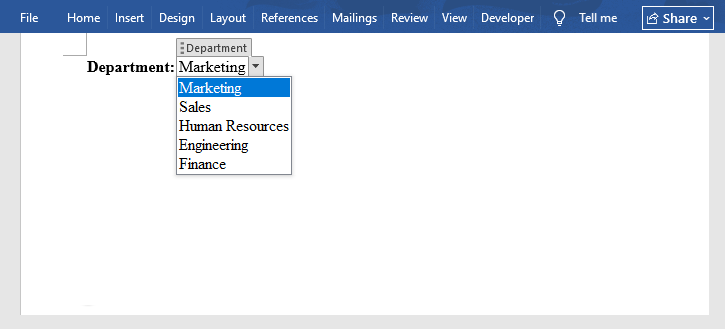
A enumeração SdtType suporta uma gama completa de controles. Além de listas suspensas, você também pode inserir caixas de combinação, caixas de seleção e seletores de data no Word.
Alternativa: Criar campo de formulário de lista suspensa herdado em C#
Se você precisar de compatibilidade com formatos mais antigos do Word, também pode criar um campo de formulário de lista suspensa herdado:
DropDownFormField legacyDropDown = paragraph.AppendField("StatusField", FieldType.FieldFormDropDown) as DropDownFormField;
legacyDropDown.DropDownItems.Add("Marketing");
legacyDropDown.DropDownItems.Add("Vendas");
legacyDropDown.DropDownItems.Add("Recursos Humanos");
legacyDropDown.DropDownItems.Add("Engenharia");
legacyDropDown.DropDownItems.Add("Finanças");

// Habilitar proteção de formulário (necessário para que os campos herdados funcionem)
document.Protect(ProtectionType.AllowOnlyFormFields, "");
Observe que os campos de formulário herdados exigem proteção de documento para funcionar, assim como o método manual herdado abordado anteriormente.
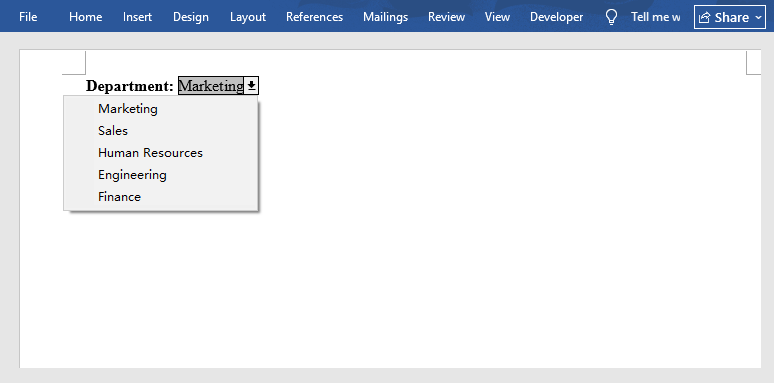
Perguntas Frequentes (FAQs)
P: Como removo uma lista suspensa?
Selecione o controle e pressione a tecla “Delete”. Se estiver bloqueado, abra “Propriedades” e desmarque "O controle de conteúdo não pode ser excluído" primeiro.
P: Por que minha lista suspensa não está funcionando?
- Para campos de formulário herdados: O documento não está protegido para preenchimento de formulários. Vá para “Desenvolvedor” > “Restringir Edição” e habilite a proteção de preenchimento de formulários.
- Para controles de conteúdo: O controle pode estar bloqueado para edição, ou o documento está em um modo de compatibilidade que desativa controles modernos.
- Se a seta de seleção não aparecer: Certifique-se de que você não está no Modo de Design.
P: Qual é a diferença entre uma lista suspensa e uma caixa de combinação?
Uma lista suspensa restringe os usuários apenas às suas opções predefinidas. Uma caixa de combinação permite tanto a seleção na lista quanto a entrada de texto livre.
P: Existe um número máximo de itens que posso adicionar a uma lista suspensa?
O Word não impõe um limite rígido, mas para usabilidade, recomenda-se manter as listas abaixo de 20–30 itens. Listas muito longas tornam-se difíceis para os usuários navegarem. Se você precisar de dezenas de opções, considere usar uma caixa de combinação (que suporta digitação para pesquisar) ou dividir as escolhas em vários campos.
Considerações Finais
Dominar como fazer uma lista suspensa no Word transforma documentos estáticos em formulários dinâmicos e fáceis de usar que melhoram a qualidade dos dados e reduzem o trabalho administrativo. Para a maioria dos casos de uso diário, os controles de conteúdo modernos oferecem o melhor equilíbrio de flexibilidade, aparência e facilidade de uso. Quando a compatibilidade com versões anteriores é crítica, os campos de formulário herdados permanecem uma opção confiável. Para fluxos de trabalho de documentos de alto volume ou automatizados, a geração programática com uma biblioteca .NET oferece uma solução escalável no lado do servidor.
Qualquer que seja o método escolhido, seguir as etapas acima ajudará você a criar listas suspensas polidas e funcionais que funcionam de forma confiável em toda a sua organização.
Veja Também
Word에서 드롭다운 목록을 만드는 방법
드롭다운 목록은 Microsoft Word에서 가장 유용한 기능 중 하나입니다. 사용자의 입력을 미리 정의된 특정 선택 항목으로 제한하여 데이터 정확도를 높이고, 응답을 간소화하며, 더 깔끔한 사용자 경험을 제공합니다. 전문적인 양식이나 설문지를 작성할 때 Word에서 드롭다운 목록을 만드는 방법을 아는 것은 현대 문서 엔지니어링의 필수 기술입니다.
더 일반적으로 사용되는 Excel의 드롭다운 목록과 달리, Word의 구현 방식은 양식 작성 및 대화형 문서 디자인을 위해 특별히 제작되었습니다. 이 단계별 가이드에서는 Word에서 드롭다운 목록을 만드는 모든 신뢰할 수 있는 방법을 상세히 설명합니다.
- Word의 드롭다운 목록이란 무엇인가요?
- 방법 1: 콘텐츠 컨트롤을 사용하여 드롭다운 목록 만들기
- 방법 2: 호환성을 위해 레거시 양식 필드 사용하기
- 방법 3: C#으로 프로그래밍 방식으로 드롭다운 목록 만들기
- 자주 묻는 질문 (FAQ)
Word의 드롭다운 목록이란 무엇인가요?
드롭다운 목록은 메뉴 형식으로 선택 항목을 표시하는 사용자 인터페이스 요소입니다. 사용자가 컨트롤을 클릭하면 미리 정의된 옵션 목록이 나타나며, 그중 하나를 선택하여 필드를 채울 수 있습니다.
이 컨트롤은 다음과 같은 상황에서 특히 유용합니다:
- 양식 및 설문조사에서 응답 표준화
- 선택 항목을 제한하여 데이터 입력 오류 방지
- 입력을 제거하여 양식 작성 속도 향상
- 분석을 위한 깔끔하고 일관된 데이터 수집
방법 1: 콘텐츠 컨트롤을 사용하여 드롭다운 목록 만들기
Word 2007부터 최신 Microsoft 365까지 제공되는 이 방법은 대화형 필드를 추가하기 위한 현대적이고 공식적으로 지원되는 방식입니다. Word의 콘텐츠 컨트롤은 유연하고 사용자 정의가 가능하며, 전체 문서를 잠그지 않고도 작동합니다.
1단계: 개발 도구 탭 활성화
Word의 드롭다운 상자는 기본적으로 숨겨져 있는 “개발 도구” 탭에 있습니다.
- “파일 > 옵션”(Mac의 경우 “Word > 기본 설정”)을 클릭합니다.
- “Word 옵션” 창에서 “리본 사용자 지정”을 선택합니다.
- 오른쪽 목록에서 “개발 도구” 옵션 옆의 확인란을 체크합니다.
- “확인”을 클릭합니다. 이제 상단 리본에 개발 도구 탭이 나타납니다.
2단계: 드롭다운 콘텐츠 컨트롤 삽입
- 드롭다운 목록을 표시할 위치에 커서를 둡니다.
- “개발 도구” 탭으로 이동하여 “컨트롤” 그룹을 찾습니다.
- “드롭다운 목록 콘텐츠 컨트롤” 아이콘(작은 화살표가 있는 목록 모양)을 클릭합니다.
- 커서 위치에 기본 드롭다운 상자가 나타납니다.
3단계: 목록 항목 추가 및 사용자 지정
- 새로 만든 컨트롤을 선택하고 리본에서 “속성”을 클릭합니다.
- “콘텐츠 컨트롤 속성” 대화 상자에서 일반 설정을 구성합니다:
- 목록의 “제목” 입력(컨트롤 위에 레이블로 표시됨)
- “태그” 입력(문서 자동화를 위한 내부 식별자)
- 컨트롤의 “색” 구성표 선택
- 실수로 삭제되는 것을 방지하려면 “콘텐츠 컨트롤을 삭제할 수 없음” 체크
- “드롭다운 목록 속성” 섹션에서 “추가” 버튼을 클릭합니다.
- “선택 항목 추가” 창의 “표시 이름” 필드에 옵션을 입력합니다(사용자가 목록에서 보게 될 내용입니다).
- “값” 필드는 동일한 텍스트로 자동 채워집니다. 필요한 경우 수정할 수 있습니다.
- 드롭다운 목록에 포함할 각 옵션에 대해 이 과정을 반복합니다.
- “수정”, “제거”, “위로 이동”, “아래로 이동” 버튼을 사용하여 목록을 다듬습니다.
- “확인”을 클릭하여 설정을 저장합니다.
4단계: Word에서 드롭다운 메뉴 테스트
컨트롤 오른쪽의 작은 화살표를 클릭하여 목록을 확장하고 항목을 선택합니다. 기본 자리 표시자 텍스트("항목 선택")가 선택한 항목으로 바뀝니다.
전문가 팁: 기본 Microsoft Word 드롭다운 목록은 단일 선택만 지원합니다. 다중 선택이 필요한 경우 Word의 확인란 콘텐츠 컨트롤을 사용할 수 있습니다.
방법 2: 호환성을 위해 레거시 양식 필드 사용하기
문서가 Word 2003 이전 버전과 호환되어야 하거나 이전 .doc 형식으로 저장해야 하는 경우, 레거시 드롭다운 양식 필드를 사용하세요. 이 방식은 작동을 위해 문서 보호가 필요하며, 종료 매크로 및 필드 계산과 같은 양식 전용 기능을 지원합니다.
1단계: 레거시 드롭다운 삽입
- “개발 도구” 탭에서 “레거시 도구” 버튼(도구 상자 모양)을 클릭합니다.
- “레거시 양식” 아래에서 “드롭다운 양식 필드” 아이콘을 클릭합니다.
- 커서 위치에 회색 양식 필드 상자가 나타납니다.
2단계: 드롭다운 옵션 구성
- 회색 양식 필드를 더블 클릭하여 “드롭다운 양식 필드 옵션” 대화 상자를 엽니다.
- “드롭다운 항목” 필드에 첫 번째 옵션을 입력합니다.
- “추가 >>”를 클릭하여 “드롭다운 목록의 항목” 상자로 이동합니다.
- 나머지 모든 옵션에 대해 반복합니다.
- 화살표 버튼을 사용하여 항목 순서를 변경하거나 “제거”를 클릭하여 옵션을 삭제합니다.
- 선택 사항: 접근성을 위해 책갈피 이름, 종료 매크로 또는 도움말 텍스트를 구성합니다.
- “확인”을 클릭하여 저장합니다.
3단계: 문서 보호 (중요)
최신 콘텐츠 컨트롤과 달리, 레거시 양식 필드는 문서가 양식 채우기용으로 보호되지 않으면 작동하지 않습니다.
- “개발 도구” 탭에서 “편집 제한”을 클릭합니다.
- 오른쪽의 “편집 제한” 창에서:
- “문서에서 선택한 유형의 편집만 허용”을 체크합니다.
- 드롭다운에서 “양식 채우기”를 선택합니다.
- “예, 보호 적용 시작”을 클릭합니다.
- 암호를 입력하고(선택 사항) “확인”을 클릭합니다.
- 이제 사용자는 드롭다운에서 선택할 수 있지만 문서의 나머지 부분은 편집할 수 없습니다.
방법 3: C#으로 프로그래밍 방식으로 드롭다운 목록 만들기
대규모로 Word 문서를 생성하거나 일괄 수정해야 하는 개발자를 위해, Free Spire.Doc for .NET은 Microsoft Office를 설치하지 않고도 Word에 드롭다운 메뉴를 삽입할 수 있는 프로그래밍 방식을 제공합니다.
1단계: Free Spire.Doc 설치
NuGet을 통해 .NET 프로젝트에 라이브러리를 추가할 수 있습니다:
- NuGet GUI: “FreeSpire.Doc”을 검색하여 설치합니다.
- 패키지 관리자 콘솔: PM> Install-Package FreeSpire.Doc 명령을 실행합니다.
또는 Free Spire.Doc for .NET 웹사이트에서 DLL을 수동으로 다운로드하여 참조로 추가합니다.
2단계: C# 코드를 작성하여 Word에 드롭다운 만들기
다음 코드는 새 Word 문서를 만들고, 사용자 지정 표시 이름과 기본 값이 포함된 레이블이 지정된 드롭다운 목록 콘텐츠 컨트롤을 추가한 후 출력 파일을 저장합니다:
using Spire.Doc;
using Spire.Doc.Fields;
using Spire.Doc.Documents;

namespace CreateDropDownList
{
    class Program
    {
        static void Main(string[] args)
        {
            // 새 Word 문서 생성
            Document document = new Document();
            Section section = document.AddSection();
            Paragraph paragraph = section.AddParagraph();

            // 드롭다운 앞에 레이블 텍스트 추가
            TextRange label = paragraph.AppendText("부서: ");
            label.CharacterFormat.Bold = true;

            // 인라인 구조화된 문서 태그(드롭다운 콘텐츠 컨트롤) 생성
            StructureDocumentTagInline sdt = new StructureDocumentTagInline(document);
            sdt.SDTProperties.SDTType = SdtType.DropDownList;
            sdt.SDTProperties.Alias = "부서";
            sdt.SDTProperties.Tag = "dept_selection";
            paragraph.ChildObjects.Add(sdt);

            // 드롭다운 목록 항목 정의
            SdtDropDownList dropDownList = new SdtDropDownList();
            dropDownList.ListItems.Add(new SdtListItem("마케팅", "MKT"));
            dropDownList.ListItems.Add(new SdtListItem("영업", "SLS"));
            dropDownList.ListItems.Add(new SdtListItem("인사", "HR"));
            dropDownList.ListItems.Add(new SdtListItem("엔지니어링", "ENG"));
            dropDownList.ListItems.Add(new SdtListItem("재무", "FIN"));

            // 콘텐츠 컨트롤에 항목 할당
            sdt.SDTProperties.ControlProperties = dropDownList;

            // 기본 표시 텍스트 설정(첫 번째 항목)
            TextRange defaultText = new TextRange(document);
            defaultText.Text = dropDownList.ListItems[0].DisplayText;
            sdt.SDTContent.ChildObjects.Add(defaultText);

            // 문서 저장
            document.SaveToFile("DropDownList.docx", FileFormat.Docx2016);
            document.Close();
        }
    }
}
주요 구성 요소 참조
| 구성 요소 | 용도 |
|---|---|
| StructureDocumentTagInline | 단락 내에 콘텐츠 컨트롤(SDT)을 생성합니다. |
| SdtType.DropDownList | 컨트롤 유형을 드롭다운 목록으로 지정합니다. |
| SdtDropDownList | 드롭다운 목록 항목의 전체 컬렉션을 저장합니다. |
| SdtListItem | 목록의 단일 옵션(표시 텍스트 + 값)을 나타냅니다. |
| SDTContent.ChildObjects.Add() | 문서가 열릴 때 표시되는 기본값을 설정합니다. |
출력:
SdtType 열거형은 다양한 컨트롤을 지원합니다. 드롭다운 외에도 Word에 콤보 상자, 확인란, 날짜 선택기를 삽입할 수 있습니다.
대안: C#에서 레거시 드롭다운 양식 필드 만들기
이전 Word 형식과의 호환성이 필요한 경우 레거시 드롭다운 양식 필드를 만들 수도 있습니다:
DropDownFormField legacyDropDown = paragraph.AppendField("StatusField", FieldType.FieldFormDropDown) as DropDownFormField;
legacyDropDown.DropDownItems.Add("마케팅");
legacyDropDown.DropDownItems.Add("영업");
legacyDropDown.DropDownItems.Add("인사");
legacyDropDown.DropDownItems.Add("엔지니어링");
legacyDropDown.DropDownItems.Add("재무");

// 양식 보호 활성화(레거시 필드가 작동하려면 필수)
document.Protect(ProtectionType.AllowOnlyFormFields, "");
레거시 양식 필드는 앞서 설명한 수동 레거시 방법과 마찬가지로 작동하려면 문서 보호가 필요합니다.
자주 묻는 질문 (FAQ)
Q: 드롭다운 목록을 어떻게 제거하나요?
컨트롤을 선택하고 “Delete” 키를 누릅니다. 잠겨 있는 경우 먼저 “속성”을 열고 “콘텐츠 컨트롤을 삭제할 수 없음” 체크를 해제하세요.
Q: 드롭다운 목록이 작동하지 않는 이유는 무엇인가요?
- 레거시 양식 필드의 경우: 문서가 양식 채우기용으로 보호되지 않았습니다. “개발 도구” > “편집 제한”으로 이동하여 양식 채우기 보호를 활성화하세요.
- 콘텐츠 컨트롤의 경우: 컨트롤 편집이 잠겨 있거나, 최신 컨트롤을 비활성화하는 호환 모드일 수 있습니다.
- 선택 화살표가 나타나지 않으면: 디자인 모드가 아닌지 확인하세요.
Q: 드롭다운 목록과 콤보 상자의 차이점은 무엇인가요?
드롭다운 목록은 사용자를 미리 정의된 옵션으로만 제한합니다. 콤보 상자는 목록에서 선택하는 것과 자유 텍스트 입력을 모두 허용합니다.
Q: 드롭다운 목록에 추가할 수 있는 최대 항목 수는 얼마인가요?
Word는 엄격한 하드 제한을 두지 않지만, 사용 편의성을 위해 목록을 20~30개 항목 미만으로 유지하는 것이 좋습니다. 목록이 너무 길면 사용자가 탐색하기 어렵습니다. 수십 개의 옵션이 필요한 경우 콤보 상자(입력하여 검색 지원)를 사용하거나 여러 필드에 걸쳐 선택 항목을 나누는 것을 고려하세요.
마치며
Word에서 드롭다운 목록을 만드는 방법을 익히면 정적인 문서를 데이터 품질을 개선하고 관리 업무를 줄여주는 동적이고 사용자 친화적인 양식으로 바꿀 수 있습니다. 대부분의 일상적인 사용 사례에서 최신 콘텐츠 컨트롤은 유연성, 외관 및 사용 편의성 사이에서 최상의 균형을 제공합니다. 하위 호환성이 중요한 경우 레거시 양식 필드가 여전히 신뢰할 수 있는 옵션입니다. 대량 또는 자동화된 문서 워크플로의 경우 .NET 라이브러리를 사용한 프로그래밍 방식 생성이 확장 가능한 서버 측 솔루션을 제공합니다.
어떤 방법을 선택하든 위의 단계를 따르면 조직 전체에서 안정적으로 작동하는 세련되고 기능적인 드롭다운 목록을 만들 수 있습니다.
참고 항목
Come creare un elenco a discesa in Word
Indice dei contenuti
Gli elenchi a discesa sono una delle funzionalità più utili in Microsoft Word. Limitano l'input dell'utente a una serie specifica di scelte predefinite, il che migliora l'accuratezza dei dati, semplifica le risposte e offre un'esperienza utente più pulita. Che tu stia creando un modulo professionale o un questionario, sapere come creare un elenco a discesa in Word è una competenza essenziale per la moderna ingegneria documentale.
A differenza degli elenchi a discesa in Excel, che sono più comunemente utilizzati, l'implementazione di Word è appositamente progettata per la creazione di moduli e la progettazione di documenti interattivi. In questa guida passo dopo passo, analizziamo ogni metodo affidabile per creare un elenco a discesa in Word.
- Cos'è un elenco a discesa in Word?
- Metodo 1: Creare un elenco a discesa utilizzando i controlli contenuto
- Metodo 2: Utilizzare i campi modulo legacy per la compatibilità
- Metodo 3: Creare un elenco a discesa a livello di programmazione in C#
- Domande frequenti (FAQ)
Cos'è un elenco a discesa in Word?
Un elenco a discesa è un elemento dell'interfaccia utente che visualizza un elenco di scelte in formato menu. Quando un utente fa clic sul controllo, appare un elenco di opzioni predefinite e può selezionarne una per popolare il campo.
Questo controllo è particolarmente utile negli scenari in cui si desidera:
- Standardizzare le risposte in moduli e sondaggi
- Prevenire errori di inserimento dati limitando le scelte
- Velocizzare la compilazione dei moduli eliminando la digitazione
- Raccogliere dati puliti e coerenti per l'analisi
Metodo 1: Creare un elenco a discesa utilizzando i controlli contenuto
Disponibile da Word 2007 fino all'ultimo Microsoft 365, questo è l'approccio moderno e ufficialmente supportato per aggiungere campi interattivi. I controlli contenuto in Word sono flessibili, personalizzabili e funzionano senza bloccare l'intero documento.
Passaggio 1: Abilitare la scheda Sviluppo
La casella a discesa in Word si trova nella scheda "Sviluppo", che è nascosta per impostazione predefinita per semplificare l'interfaccia utente standard.
- Fai clic su "File > Opzioni" (o "Word > Preferenze" su Mac).
- Nella finestra "Opzioni Word", scegli "Personalizzazione barra multifunzione".
- Sul lato destro, seleziona la casella accanto all'opzione "Sviluppo".
- Fai clic su "OK". La scheda Sviluppo apparirà ora nella barra multifunzione superiore.
Passaggio 2: Inserire il controllo contenuto elenco a discesa
- Posiziona il cursore dove vuoi che appaia l'elenco a discesa.
- Vai alla scheda "Sviluppo" e individua il gruppo "Controlli".
- Fai clic sull'icona "Controllo contenuto elenco a discesa" (sembra un elenco con una piccola freccia).
- Una casella a discesa predefinita apparirà nella posizione del cursore.
Passaggio 3: Aggiungere e personalizzare le voci dell'elenco
- Seleziona il controllo appena creato e fai clic su "Proprietà" nella barra multifunzione.
- Nella finestra di dialogo "Proprietà controllo contenuto", configura le impostazioni generali:
- Inserisci un "Titolo" per l'elenco (appare come etichetta sopra il controllo)
- Inserisci un "Tag" (un identificatore interno per l'automazione dei documenti)
- Scegli uno schema di "Colore" per il controllo
- Seleziona "Impossibile eliminare il controllo contenuto" per evitare la rimozione accidentale
- Nella sezione "Proprietà elenco a discesa", fai clic sul pulsante "Aggiungi".
- Nella finestra "Aggiungi scelta", inserisci la tua opzione nel campo "Nome visualizzato" (questo è ciò che gli utenti vedranno nell'elenco).
- Il campo "Valore" verrà popolato automaticamente con lo stesso testo. Puoi modificarlo se necessario.
- Ripeti questo processo per ogni opzione che desideri includere nell'elenco a discesa.
- Usa i pulsanti "Modifica", "Rimuovi", "Sposta su" e "Sposta giù" per perfezionare l'elenco.
- Fai clic su "OK" per salvare le impostazioni.
Passaggio 4: Testare il menu a discesa in Word
Fai clic sulla piccola freccia sul lato destro del controllo per espandere l'elenco e selezionare una voce. Il testo segnaposto predefinito ("Scegliere una voce.") verrà sostituito con la tua selezione.
Suggerimento: L'elenco a discesa nativo di Microsoft Word supporta solo la selezione singola. Per la selezione multipla, puoi utilizzare i controlli contenuto casella di controllo in Word.
Metodo 2: Utilizzare i campi modulo legacy per la compatibilità
Se il tuo documento deve funzionare con Word 2003 e versioni precedenti, o essere salvato nel vecchio formato .doc, utilizza i campi modulo a discesa legacy. Questo approccio richiede la protezione del documento per funzionare e supporta funzionalità specifiche del modulo come macro di uscita e calcoli dei campi.
Passaggio 1: Inserire l'elenco a discesa legacy
- Dalla scheda "Sviluppo", fai clic sul pulsante "Strumenti legacy" (sembra una cassetta degli attrezzi).
- Sotto "Moduli legacy", fai clic sull'icona "Campo modulo elenco a discesa".
- Una casella grigia del campo modulo apparirà nella posizione del cursore.
Passaggio 2: Configurare le opzioni dell'elenco a discesa
- Fai doppio clic sul campo modulo grigio per aprire la finestra di dialogo "Opzioni campo modulo elenco a discesa"
- Nel campo "Voce elenco a discesa", digita la tua prima opzione.
- Fai clic su "Aggiungi >>" per spostarla nella casella "Voci nell'elenco a discesa".
- Ripeti per tutte le opzioni rimanenti.
- Usa i pulsanti freccia per riordinare le voci o fai clic su "Rimuovi" per eliminare un'opzione.
- Opzionale: configura nomi di segnalibri, macro di uscita o testo della guida per l'accessibilità.
- Fai clic su "OK" per salvare.
Passaggio 3: Proteggere il documento (Cruciale)
A differenza dei moderni controlli contenuto, i campi modulo legacy non funzioneranno a meno che il documento non sia protetto per la compilazione dei moduli.
- Fai clic su "Limita modifica" nella scheda "Sviluppo".
- Nel riquadro "Limita modifica" a destra:
- Seleziona "Consenti solo questo tipo di modifiche nel documento"
- Seleziona "Compilazione moduli" dall'elenco a discesa
- Fai clic su "Sì, applica protezione".
- Inserisci una password (opzionale) e fai clic su "OK".
- Gli utenti ora possono selezionare dagli elenchi a discesa ma non possono modificare il resto del documento.
Metodo 3: Creare un elenco a discesa a livello di programmazione in C#
Per gli sviluppatori che hanno bisogno di generare o modificare in batch documenti Word su larga scala, Free Spire.Doc per .NET offre un modo programmatico per inserire un menu a discesa in Word senza richiedere che Microsoft Office sia installato sulla macchina.
Passaggio 1: Installare Free Spire.Doc
Puoi aggiungere la libreria al tuo progetto .NET tramite NuGet:
- GUI NuGet: Cerca "FreeSpire.Doc" e installa.
- Console di gestione pacchetti: Esegui PM> Install-Package FreeSpire.Doc.
In alternativa, scarica manualmente la DLL dal sito web di Free Spire.Doc per .NET e aggiungila come riferimento.
Passaggio 2: Scrivere il codice C# per creare un elenco a discesa in Word
Il seguente codice crea un nuovo documento Word, aggiunge un controllo contenuto elenco a discesa etichettato con nomi visualizzati personalizzati e valori sottostanti, e salva il file di output:
using Spire.Doc;
using Spire.Doc.Fields;
using Spire.Doc.Documents;

namespace CreateDropDownList
{
    class Program
    {
        static void Main(string[] args)
        {
            // Crea un nuovo documento Word
            Document document = new Document();
            Section section = document.AddSection();
            Paragraph paragraph = section.AddParagraph();

            // Aggiungi un testo etichetta prima dell'elenco a discesa
            TextRange label = paragraph.AppendText("Dipartimento: ");
            label.CharacterFormat.Bold = true;

            // Crea un tag documento strutturato inline (controllo contenuto elenco a discesa)
            StructureDocumentTagInline sdt = new StructureDocumentTagInline(document);
            sdt.SDTProperties.SDTType = SdtType.DropDownList;
            sdt.SDTProperties.Alias = "Dipartimento";
            sdt.SDTProperties.Tag = "dept_selection";
            paragraph.ChildObjects.Add(sdt);

            // Definisci le voci dell'elenco a discesa
            SdtDropDownList dropDownList = new SdtDropDownList();
            dropDownList.ListItems.Add(new SdtListItem("Marketing", "MKT"));
            dropDownList.ListItems.Add(new SdtListItem("Vendite", "SLS"));
            dropDownList.ListItems.Add(new SdtListItem("Risorse Umane", "HR"));
            dropDownList.ListItems.Add(new SdtListItem("Ingegneria", "ENG"));
            dropDownList.ListItems.Add(new SdtListItem("Finanza", "FIN"));

            // Assegna le voci al controllo contenuto
            sdt.SDTProperties.ControlProperties = dropDownList;

            // Imposta il testo visualizzato predefinito (prima voce)
            TextRange defaultText = new TextRange(document);
            defaultText.Text = dropDownList.ListItems[0].DisplayText;
            sdt.SDTContent.ChildObjects.Add(defaultText);

            // Salva il documento
            document.SaveToFile("DropDownList.docx", FileFormat.Docx2016);
            document.Close();
        }
    }
}
Riferimento componenti chiave
| Componente | Scopo |
|---|---|
| StructureDocumentTagInline | Crea un controllo contenuto (SDT) all'interno del paragrafo. |
| SdtType.DropDownList | Specifica il tipo di controllo come elenco a discesa. |
| SdtDropDownList | Memorizza l'intera raccolta di voci dell'elenco a discesa. |
| SdtListItem | Rappresenta una singola opzione nell'elenco (Testo visualizzato + Valore). |
| SDTContent.ChildObjects.Add() | Imposta il valore predefinito visualizzato all'apertura del documento. |
Output:
L'enumerazione SdtType supporta una gamma completa di controlli. Oltre agli elenchi a discesa, puoi anche inserire caselle combinate, caselle di controllo e selettori di data in Word.
Alternativa: Creare un campo modulo elenco a discesa legacy in C#
Se hai bisogno di compatibilità con i formati Word meno recenti, puoi anche creare un campo modulo elenco a discesa legacy:
DropDownFormField legacyDropDown = paragraph.AppendField("StatusField", FieldType.FieldFormDropDown) as DropDownFormField;
legacyDropDown.DropDownItems.Add("Marketing");
legacyDropDown.DropDownItems.Add("Vendite");
legacyDropDown.DropDownItems.Add("Risorse Umane");
legacyDropDown.DropDownItems.Add("Ingegneria");
legacyDropDown.DropDownItems.Add("Finanza");

// Abilita la protezione del modulo (richiesta per il funzionamento dei campi legacy)
document.Protect(ProtectionType.AllowOnlyFormFields, "");
Nota che i campi modulo legacy richiedono la protezione del documento per funzionare, proprio come il metodo legacy manuale trattato in precedenza.
Domande frequenti (FAQ)
D: Come rimuovo un elenco a discesa?
Seleziona il controllo e premi il tasto "Elimina". Se è bloccato, apri "Proprietà" e deseleziona prima "Impossibile eliminare il controllo contenuto".
D: Perché il mio elenco a discesa non funziona?
- Per i campi modulo legacy: Il documento non è protetto per la compilazione dei moduli. Vai su "Sviluppo" > "Limita modifica" e abilita la protezione per la compilazione dei moduli.
- Per i controlli contenuto: Il controllo potrebbe essere bloccato per la modifica, o il documento è in una modalità di compatibilità che disabilita i controlli moderni.
- Se la freccia di selezione non appare: Assicurati di non essere in Modalità progettazione.
D: Qual è la differenza tra un elenco a discesa e una casella combinata?
Un elenco a discesa limita gli utenti solo alle opzioni predefinite. Una casella combinata consente sia la selezione dall'elenco che l'inserimento di testo libero.
D: C'è un numero massimo di voci che posso aggiungere a un elenco a discesa?
Word non impone un limite rigido, ma per l'usabilità si consiglia di mantenere gli elenchi sotto le 20–30 voci. Gli elenchi molto lunghi diventano difficili da navigare per gli utenti. Se hai bisogno di decine di opzioni, prendi in considerazione l'utilizzo di una casella combinata (che supporta la digitazione per la ricerca) o la suddivisione delle scelte su più campi.
Considerazioni finali
Padroneggiare come creare un elenco a discesa in Word trasforma documenti statici in moduli dinamici e facili da usare che migliorano la qualità dei dati e riducono il lavoro amministrativo. Per la maggior parte dei casi d'uso quotidiani, i moderni controlli contenuto offrono il miglior equilibrio tra flessibilità, aspetto e facilità d'uso. Quando la compatibilità con le versioni precedenti è fondamentale, i campi modulo legacy rimangono un'opzione affidabile. Per flussi di lavoro documentali ad alto volume o automatizzati, la generazione programmatica con una libreria .NET fornisce una soluzione scalabile lato server.
Qualunque metodo tu scelga, seguire i passaggi precedenti ti aiuterà a creare elenchi a discesa rifiniti e funzionali che funzionano in modo affidabile in tutta la tua organizzazione.
Vedi anche
Comment créer une liste déroulante dans Word
Table des matières
Les listes déroulantes sont l'une des fonctionnalités les plus utiles de Microsoft Word. Elles limitent la saisie de l'utilisateur à un ensemble spécifique de choix prédéfinis, ce qui améliore la précision des données, rationalise les réponses et offre une expérience utilisateur plus fluide. Que vous créiez un formulaire professionnel ou un questionnaire, savoir comment créer une liste déroulante dans Word est une compétence essentielle pour la conception de documents modernes.
Contrairement aux listes déroulantes dans Excel, qui sont plus couramment utilisées, l'implémentation de Word est spécifiquement conçue pour la création de formulaires et la conception de documents interactifs. Dans ce guide étape par étape, nous détaillons toutes les méthodes fiables pour créer une liste déroulante dans Word.
- Qu'est-ce qu'une liste déroulante dans Word ?
- Méthode 1 : Créer une liste déroulante à l'aide des contrôles de contenu
- Méthode 2 : Utiliser les champs de formulaire hérités pour la compatibilité
- Méthode 3 : Créer une liste déroulante par programmation en C#
- Foire aux questions (FAQ)
Qu'est-ce qu'une liste déroulante dans Word ?
Une liste déroulante est un élément d'interface utilisateur qui affiche une liste de choix sous forme de menu. Lorsqu'un utilisateur clique sur le contrôle, une liste d'options prédéfinies apparaît, et il peut en sélectionner une pour remplir le champ.
Ce contrôle est particulièrement utile dans les scénarios où vous souhaitez :
- Standardiser les réponses dans les formulaires et les enquêtes
- Prévenir les erreurs de saisie en limitant les choix
- Accélérer le remplissage des formulaires en éliminant la saisie manuelle
- Collecter des données propres et cohérentes pour l'analyse
Méthode 1 : Créer une liste déroulante à l'aide des contrôles de contenu
Disponible depuis Word 2007 jusqu'à la dernière version de Microsoft 365, il s'agit de l'approche moderne officiellement prise en charge pour ajouter des champs interactifs. Les contrôles de contenu dans Word sont flexibles, personnalisables et fonctionnent sans verrouiller l'intégralité du document.
Étape 1 : Activer l'onglet Développeur
La zone de liste déroulante dans Word se trouve sous l'onglet « Développeur », qui est masqué par défaut pour simplifier l'interface utilisateur standard.
- Cliquez sur « Fichier > Options » (ou « Word > Préférences » sur Mac).
- Dans la fenêtre « Options Word », choisissez « Personnaliser le ruban ».
- Sur le côté droit, cochez la case à côté de l'option « Développeur ».
- Cliquez sur « OK ». L'onglet Développeur apparaît désormais dans le ruban supérieur.
Étape 2 : Insérer le contrôle de contenu de liste déroulante
- Placez votre curseur à l'endroit où vous souhaitez que la liste déroulante apparaisse.
- Accédez à l'onglet « Développeur » et localisez le groupe « Contrôles ».
- Cliquez sur l'icône « Contrôle de contenu de liste déroulante » (elle ressemble à une liste avec une petite flèche).
- Une zone de liste déroulante par défaut apparaîtra à la position de votre curseur.
Étape 3 : Ajouter et personnaliser les éléments de la liste
- Sélectionnez le contrôle nouvellement créé et cliquez sur « Propriétés » dans le ruban.
- Dans la boîte de dialogue « Propriétés du contrôle de contenu », configurez les paramètres généraux :
- Saisissez un « Titre » pour votre liste (apparaît comme une étiquette au-dessus du contrôle)
- Saisissez une « Balise » (un identifiant interne pour l'automatisation des documents)
- Choisissez un schéma de « Couleur » pour le contrôle
- Cochez « Le contrôle de contenu ne peut pas être supprimé » pour éviter toute suppression accidentelle
- Sous la section « Propriétés de la liste déroulante », cliquez sur le bouton « Ajouter ».
- Dans la fenêtre « Ajouter un choix », saisissez votre option dans le champ « Nom d'affichage » (c'est ce que les utilisateurs verront dans la liste).
- Le champ « Valeur » sera automatiquement rempli avec le même texte. Vous pouvez le modifier si nécessaire.
- Répétez ce processus pour chaque option que vous souhaitez inclure dans votre liste déroulante.
- Utilisez les boutons « Modifier », « Supprimer », « Monter » et « Descendre » pour affiner votre liste.
- Cliquez sur « OK » pour enregistrer vos paramètres.
Étape 4 : Tester le menu déroulant dans Word
Cliquez sur la petite flèche sur le côté droit du contrôle pour développer la liste et sélectionner un élément. Le texte d'espace réservé par défaut (« Choisissez un élément. ») sera remplacé par votre sélection.
Conseil d'expert : La liste déroulante native de Microsoft Word ne prend en charge que la sélection unique. Pour une sélection multiple, vous pouvez utiliser les contrôles de contenu de case à cocher dans Word.
Méthode 2 : Utiliser les champs de formulaire hérités pour la compatibilité
Si votre document doit fonctionner avec Word 2003 et versions antérieures, ou être enregistré dans l'ancien format .doc, utilisez les champs de formulaire de liste déroulante hérités. Cette approche nécessite la protection du document pour fonctionner et prend en charge des fonctionnalités spécifiques aux formulaires telles que les macros de sortie et les calculs de champs.
Étape 1 : Insérer la liste déroulante héritée
- Depuis l'onglet « Développeur », cliquez sur le bouton « Outils hérités » (ressemble à une boîte à outils).
- Sous « Formulaires hérités », cliquez sur l'icône « Champ de formulaire de liste déroulante ».
- Une zone de champ de formulaire grise apparaît à la position de votre curseur.
Étape 2 : Configurer les options de la liste déroulante
- Double-cliquez sur le champ de formulaire gris pour ouvrir la boîte de dialogue « Options de champ de formulaire de liste déroulante ».
- Dans le champ « Élément de liste déroulante », tapez votre première option.
- Cliquez sur « Ajouter >> » pour la déplacer dans la zone « Éléments de la liste déroulante ».
- Répétez l'opération pour toutes les options restantes.
- Utilisez les boutons fléchés pour réorganiser les éléments, ou cliquez sur « Supprimer » pour supprimer une option.
- Optionnel : Configurez les noms de signets, les macros de sortie ou le texte d'aide pour l'accessibilité.
- Cliquez sur « OK » pour enregistrer.
Étape 3 : Protéger le document (Crucial)
Contrairement aux contrôles de contenu modernes, les champs de formulaire hérités ne fonctionneront pas à moins que le document ne soit protégé pour le remplissage de formulaires.
- Cliquez sur « Restreindre la modification » dans l'onglet « Développeur ».
- Dans le volet « Restreindre la modification » sur la droite :
- Cochez « Autoriser uniquement ce type de modification dans le document »
- Sélectionnez « Remplissage de formulaires » dans la liste déroulante
- Cliquez sur « Oui, activer la protection ».
- Saisissez un mot de passe (optionnel) et cliquez sur « OK ».
- Les utilisateurs peuvent désormais effectuer des sélections dans les listes déroulantes mais ne peuvent pas modifier le reste du document.
Méthode 3 : Créer une liste déroulante par programmation en C#
Pour les développeurs qui ont besoin de générer ou de modifier par lots des documents Word à grande échelle, Free Spire.Doc for .NET offre un moyen programmatique d'insérer un menu déroulant dans Word sans nécessiter l'installation de Microsoft Office sur la machine.
Étape 1 : Installer Free Spire.Doc
Vous pouvez ajouter la bibliothèque à votre projet .NET via NuGet :
- Interface graphique NuGet : Recherchez « FreeSpire.Doc » et installez.
- Console du gestionnaire de package : Exécutez PM> Install-Package FreeSpire.Doc.
Alternativement, téléchargez manuellement la DLL depuis le site Web de Free Spire.Doc for .NET et ajoutez-la en tant que référence.
Étape 2 : Écrire le code C# pour créer une liste déroulante dans Word
Le code suivant crée un nouveau document Word, ajoute un contrôle de contenu de liste déroulante étiqueté avec des noms d'affichage et des valeurs sous-jacentes personnalisés, et enregistre le fichier de sortie :
using Spire.Doc;
using Spire.Doc.Fields;
using Spire.Doc.Documents;

namespace CreateDropDownList
{
    class Program
    {
        static void Main(string[] args)
        {
            // Créer un nouveau document Word
            Document document = new Document();
            Section section = document.AddSection();
            Paragraph paragraph = section.AddParagraph();

            // Ajouter un texte d'étiquette avant la liste déroulante
            TextRange label = paragraph.AppendText("Département : ");
            label.CharacterFormat.Bold = true;

            // Créer une balise de document structuré en ligne (contrôle de contenu de liste déroulante)
            StructureDocumentTagInline sdt = new StructureDocumentTagInline(document);
            sdt.SDTProperties.SDTType = SdtType.DropDownList;
            sdt.SDTProperties.Alias = "Département";
            sdt.SDTProperties.Tag = "dept_selection";
            paragraph.ChildObjects.Add(sdt);

            // Définir les éléments de la liste déroulante
            SdtDropDownList dropDownList = new SdtDropDownList();
            dropDownList.ListItems.Add(new SdtListItem("Marketing", "MKT"));
            dropDownList.ListItems.Add(new SdtListItem("Ventes", "SLS"));
            dropDownList.ListItems.Add(new SdtListItem("Ressources Humaines", "HR"));
            dropDownList.ListItems.Add(new SdtListItem("Ingénierie", "ENG"));
            dropDownList.ListItems.Add(new SdtListItem("Finance", "FIN"));

            // Assigner les éléments au contrôle de contenu
            sdt.SDTProperties.ControlProperties = dropDownList;

            // Définir le texte affiché par défaut (premier élément)
            TextRange defaultText = new TextRange(document);
            defaultText.Text = dropDownList.ListItems[0].DisplayText;
            sdt.SDTContent.ChildObjects.Add(defaultText);

            // Enregistrer le document
            document.SaveToFile("DropDownList.docx", FileFormat.Docx2016);
            document.Close();
        }
    }
}
Référence des composants clés
| Composant | Objectif |
|---|---|
| StructureDocumentTagInline | Crée un contrôle de contenu (SDT) à l'intérieur du paragraphe. |
| SdtType.DropDownList | Spécifie le type de contrôle comme une liste déroulante. |
| SdtDropDownList | Stocke la collection complète des éléments de la liste déroulante. |
| SdtListItem | Représente une option unique dans la liste (Texte d'affichage + Valeur). |
| SDTContent.ChildObjects.Add() | Définit la valeur par défaut affichée à l'ouverture du document. |
Sortie :
L'énumération SdtType prend en charge une gamme complète de contrôles. Au-delà des listes déroulantes, vous pouvez également insérer des zones de liste modifiables, des cases à cocher et des sélecteurs de date dans Word.
Alternative : Créer un champ de formulaire de liste déroulante hérité en C#
Si vous avez besoin d'une compatibilité avec les anciens formats Word, vous pouvez également créer un champ de formulaire de liste déroulante hérité :
DropDownFormField legacyDropDown = paragraph.AppendField("StatusField", FieldType.FieldFormDropDown) as DropDownFormField;
legacyDropDown.DropDownItems.Add("Marketing");
legacyDropDown.DropDownItems.Add("Ventes");
legacyDropDown.DropDownItems.Add("Ressources Humaines");
legacyDropDown.DropDownItems.Add("Ingénierie");
legacyDropDown.DropDownItems.Add("Finance");

// Activer la protection du formulaire (requis pour que les champs hérités fonctionnent)
document.Protect(ProtectionType.AllowOnlyFormFields, "");
Notez que les champs de formulaire hérités nécessitent la protection du document pour fonctionner, tout comme la méthode héritée manuelle couverte précédemment.
Foire aux questions (FAQ)
Q : Comment supprimer une liste déroulante ?
Sélectionnez le contrôle et appuyez sur la touche « Suppr ». S'il est verrouillé, ouvrez les « Propriétés » et décochez d'abord « Le contrôle de contenu ne peut pas être supprimé ».
Q : Pourquoi ma liste déroulante ne fonctionne-t-elle pas ?
- Pour les champs de formulaire hérités : Le document n'est pas protégé pour le remplissage de formulaires. Allez dans « Développeur » > « Restreindre la modification » et activez la protection de remplissage de formulaires.
- Pour les contrôles de contenu : Le contrôle peut être verrouillé pour la modification, ou le document est dans un mode de compatibilité qui désactive les contrôles modernes.
- Si la flèche de sélection n'apparaît pas : Assurez-vous que vous n'êtes pas en mode Création.
Q : Quelle est la différence entre une liste déroulante et une zone de liste modifiable (combo box) ?
Une liste déroulante limite les utilisateurs à vos options prédéfinies uniquement. Une zone de liste modifiable permet à la fois la sélection dans la liste et la saisie de texte libre.
Q : Y a-t-il un nombre maximum d'éléments que je peux ajouter à une liste déroulante ?
Word n'impose pas de limite stricte, mais pour des raisons d'ergonomie, il est recommandé de limiter les listes à 20–30 éléments. Les listes très longues deviennent difficiles à parcourir pour les utilisateurs. Si vous avez besoin de dizaines d'options, envisagez d'utiliser une zone de liste modifiable (qui prend en charge la saisie pour rechercher) ou de répartir les choix sur plusieurs champs.
Réflexions finales
Maîtriser comment créer une liste déroulante dans Word transforme des documents statiques en formulaires dynamiques et conviviaux qui améliorent la qualité des données et réduisent le travail administratif. Pour la plupart des cas d'utilisation quotidiens, les contrôles de contenu modernes offrent le meilleur équilibre entre flexibilité, apparence et facilité d'utilisation. Lorsque la rétrocompatibilité est critique, les champs de formulaire hérités restent une option fiable. Pour les flux de travail documentaires à haut volume ou automatisés, la génération programmatique avec une bibliothèque .NET fournit une solution évolutive côté serveur.
Quelle que soit la méthode choisie, suivre les étapes ci-dessus vous aidera à créer des listes déroulantes soignées et fonctionnelles qui fonctionnent de manière fiable dans toute votre organisation.
Voir aussi
- Supprimer la protection des fichiers Word : 5 méthodes simples
- 7 méthodes intelligentes pour insérer des blocs de code dans des documents Word
- 5 méthodes simples pour rendre un fichier Word en lecture seule
- C#/VB.NET : Protéger ou déprotéger un document Word
- Python : Créer un formulaire remplissable dans Word
Cómo crear una lista desplegable en Word
Tabla de contenidos
Las listas desplegables son una de las funciones más útiles en Microsoft Word. Limitan la entrada del usuario a un conjunto específico de opciones predefinidas, lo que mejora la precisión de los datos, agiliza las respuestas y ofrece una experiencia de usuario más limpia. Ya sea que esté creando un formulario profesional o un cuestionario, saber cómo crear una lista desplegable en Word es una habilidad esencial para la ingeniería de documentos moderna.
A diferencia de las listas desplegables en Excel, que se utilizan con mayor frecuencia, la implementación de Word está diseñada específicamente para la creación de formularios y el diseño de documentos interactivos. En esta guía paso a paso, desglosamos todos los métodos fiables para crear una lista desplegable en Word.
- ¿Qué es una lista desplegable en Word?
- Método 1: Crear una lista desplegable usando controles de contenido
- Método 2: Usar campos de formulario heredados para compatibilidad
- Método 3: Crear una lista desplegable mediante programación en C#
- Preguntas frecuentes (FAQs)
¿Qué es una lista desplegable en Word?
Una lista desplegable es un elemento de interfaz de usuario que muestra una lista de opciones en formato de menú. Cuando un usuario hace clic en el control, aparece una lista de opciones predefinidas y puede seleccionar una para completar el campo.
Este control es particularmente útil en escenarios donde desea:
- Estandarizar respuestas en formularios y encuestas.
- Prevenir errores de entrada de datos limitando las opciones.
- Acelerar la cumplimentación de formularios eliminando la escritura manual.
- Recopilar datos limpios y consistentes para su análisis.
Método 1: Crear una lista desplegable usando controles de contenido
Disponible desde Word 2007 hasta el Microsoft 365 más reciente, este es el enfoque moderno y oficialmente compatible para añadir campos interactivos. Los controles de contenido en Word son flexibles, personalizables y funcionan sin necesidad de bloquear todo el documento.
Paso 1: Habilitar la pestaña Programador
El cuadro desplegable en Word se encuentra en la pestaña “Programador” (o “Desarrollador”), la cual está oculta de forma predeterminada para simplificar la interfaz de usuario estándar.
- Haga clic en “Archivo > Opciones” (o “Word > Preferencias” en Mac).
- En la ventana “Opciones de Word”, elija “Personalizar cinta de opciones”.
- En el lado derecho, marque la casilla junto a la opción “Programador”.
- Haga clic en “Aceptar”. La pestaña Programador aparecerá ahora en la cinta superior.
Paso 2: Insertar el control de contenido de lista desplegable
- Coloque el cursor donde desee que aparezca la lista desplegable.
- Vaya a la pestaña “Programador” y localice el grupo “Controles”.
- Haga clic en el icono “Control de contenido de lista desplegable” (parece una lista con una pequeña flecha).
- Aparecerá un cuadro desplegable predeterminado en la posición del cursor.
Paso 3: Añadir y personalizar elementos de la lista
- Seleccione el control recién creado y haga clic en “Propiedades” en la cinta de opciones.
- En el cuadro de diálogo “Propiedades de control de contenido”, configure los ajustes generales:
- Introduzca un “Título” para su lista (aparece como una etiqueta sobre el control).
- Introduzca una “Etiqueta” (un identificador interno para la automatización de documentos).
- Elija un esquema de “Color” para el control.
- Marque “No se puede eliminar el control de contenido” para evitar su eliminación accidental.
- En la sección “Propiedades de lista desplegable”, haga clic en el botón “Agregar”.
- En la ventana “Agregar opción”, introduzca su opción en el campo “Nombre para mostrar” (esto es lo que verán los usuarios en la lista).
- El campo “Valor” se completará automáticamente con el mismo texto. Puede modificarlo si es necesario.
- Repita este proceso para cada opción que desee incluir en su lista desplegable.
- Utilice los botones “Modificar”, “Quitar”, “Subir” y “Bajar” para refinar su lista.
- Haga clic en “Aceptar” para guardar sus ajustes.
Paso 4: Probar el menú desplegable en Word
Haga clic en la pequeña flecha en el lado derecho del control para expandir la lista y seleccionar un elemento. El texto de marcador de posición predeterminado ("Elija un elemento.") será reemplazado por su selección.
Consejo profesional: La lista desplegable nativa de Microsoft Word solo admite selección única. Para selección múltiple, puede usar controles de contenido de casilla de verificación en Word.
Método 2: Usar campos de formulario heredados para compatibilidad
Si su documento necesita funcionar con Word 2003 o versiones anteriores, o guardarse en el formato antiguo .doc, utilice los campos de formulario desplegables heredados. Este enfoque requiere protección de documento para funcionar y admite características específicas de formulario como macros de salida y cálculos de campo.
Paso 1: Insertar el desplegable heredado
- Desde la pestaña “Programador”, haga clic en el botón “Herramientas heredadas” (parece una caja de herramientas).
- En “Formularios heredados”, haga clic en el icono “Campo de formulario desplegable”.
- Aparecerá un cuadro de campo de formulario gris en la posición del cursor.
Paso 2: Configurar las opciones del desplegable
- Haga doble clic en el campo de formulario gris para abrir el cuadro de diálogo “Opciones de campo de formulario desplegable”.
- En el campo “Elemento de lista desplegable”, escriba su primera opción.
- Haga clic en “Agregar >>” para moverla al cuadro “Elementos en la lista desplegable”.
- Repita para todas las opciones restantes.
- Utilice los botones de flecha para reordenar los elementos o haga clic en “Quitar” para eliminar una opción.
- Opcional: Configure nombres de marcadores, macros de salida o texto de ayuda para accesibilidad.
- Haga clic en “Aceptar” para guardar.
Paso 3: Proteger el documento (Crucial)
A diferencia de los controles de contenido modernos, los campos de formulario heredados no funcionarán a menos que el documento esté protegido para el llenado de formularios.
- Haga clic en “Restringir edición” en la pestaña “Programador”.
- En el panel “Restringir edición” a la derecha:
- Marque “Permitir solo este tipo de edición en el documento”.
- Seleccione “Rellenando formularios” del desplegable.
- Haga clic en “Sí, aplicar la protección”.
- Introduzca una contraseña (opcional) y haga clic en “Aceptar”.
- Los usuarios ahora pueden seleccionar de los desplegables pero no pueden editar el resto del documento.
Método 3: Crear una lista desplegable mediante programación en C#
Para los desarrolladores que necesitan generar o modificar por lotes documentos de Word a gran escala, Free Spire.Doc for .NET proporciona una forma programática de insertar un menú desplegable en Word sin necesidad de tener Microsoft Office instalado en la máquina.
Paso 1: Instalar Free Spire.Doc
Puede añadir la biblioteca a su proyecto .NET a través de NuGet:
- Interfaz gráfica de NuGet: Busque “FreeSpire.Doc” e instálelo.
- Consola del Administrador de paquetes: Ejecute PM> Install-Package FreeSpire.Doc.
Alternativamente, descargue el archivo DLL manualmente desde el sitio web de Free Spire.Doc for .NET y añádalo como referencia.
Paso 2: Escribir el código C# para crear un desplegable en Word
El siguiente código crea un nuevo documento de Word, añade un control de contenido de lista desplegable etiquetado con nombres para mostrar personalizados y valores subyacentes, y guarda el archivo resultante:
using Spire.Doc;
using Spire.Doc.Fields;
using Spire.Doc.Documents;

namespace CreateDropDownList
{
    class Program
    {
        static void Main(string[] args)
        {
            // Crear un nuevo documento de Word
            Document document = new Document();
            Section section = document.AddSection();
            Paragraph paragraph = section.AddParagraph();

            // Añadir un texto de etiqueta antes del desplegable
            TextRange label = paragraph.AppendText("Departamento: ");
            label.CharacterFormat.Bold = true;

            // Crear una etiqueta de documento estructurado en línea (control de contenido desplegable)
            StructureDocumentTagInline sdt = new StructureDocumentTagInline(document);
            sdt.SDTProperties.SDTType = SdtType.DropDownList;
            sdt.SDTProperties.Alias = "Departamento";
            sdt.SDTProperties.Tag = "dept_selection";
            paragraph.ChildObjects.Add(sdt);

            // Definir los elementos de la lista desplegable
            SdtDropDownList dropDownList = new SdtDropDownList();
            dropDownList.ListItems.Add(new SdtListItem("Marketing", "MKT"));
            dropDownList.ListItems.Add(new SdtListItem("Ventas", "SLS"));
            dropDownList.ListItems.Add(new SdtListItem("Recursos Humanos", "HR"));
            dropDownList.ListItems.Add(new SdtListItem("Ingeniería", "ENG"));
            dropDownList.ListItems.Add(new SdtListItem("Finanzas", "FIN"));

            // Asignar elementos al control de contenido
            sdt.SDTProperties.ControlProperties = dropDownList;

            // Establecer el texto mostrado predeterminado (primer elemento)
            TextRange defaultText = new TextRange(document);
            defaultText.Text = dropDownList.ListItems[0].DisplayText;
            sdt.SDTContent.ChildObjects.Add(defaultText);

            // Guardar el documento
            document.SaveToFile("DropDownList.docx", FileFormat.Docx2016);
            document.Close();
        }
    }
}
Referencia de componentes clave
| Componente | Propósito |
|---|---|
| StructureDocumentTagInline | Crea un control de contenido (SDT) dentro del párrafo. |
| SdtType.DropDownList | Especifica el tipo de control como una lista desplegable. |
| SdtDropDownList | Almacena la colección completa de elementos de la lista desplegable. |
| SdtListItem | Representa una única opción en la lista (Texto de visualización + Valor). |
| SDTContent.ChildObjects.Add() | Establece el valor predeterminado mostrado al abrir el documento. |
Resultado:
La enumeración SdtType admite una gama completa de controles. Más allá de los desplegables, también puede insertar cuadros combinados, casillas de verificación y selectores de fecha en Word.
Alternativa: Crear campo de formulario desplegable heredado en C#
Si necesita compatibilidad con formatos de Word antiguos, también puede crear un campo de formulario desplegable heredado:
DropDownFormField legacyDropDown = paragraph.AppendField("StatusField", FieldType.FieldFormDropDown) as DropDownFormField;
legacyDropDown.DropDownItems.Add("Marketing");
legacyDropDown.DropDownItems.Add("Ventas");
legacyDropDown.DropDownItems.Add("Recursos Humanos");
legacyDropDown.DropDownItems.Add("Ingeniería");
legacyDropDown.DropDownItems.Add("Finanzas");

// Habilitar protección de formulario (requerido para que los campos heredados funcionen)
document.Protect(ProtectionType.AllowOnlyFormFields, "");
Tenga en cuenta que los campos de formulario heredados requieren protección de documento para funcionar, al igual que el método heredado manual cubierto anteriormente.
Preguntas frecuentes (FAQs)
P: ¿Cómo elimino una lista desplegable?
Seleccione el control y presione la tecla “Suprimir”. Si está bloqueado, abra “Propiedades” y desmarque primero "No se puede eliminar el control de contenido".
P: ¿Por qué no funciona mi lista desplegable?
- Para campos de formulario heredados: El documento no está protegido para el llenado de formularios. Vaya a “Programador” > “Restringir edición” y habilite la protección de llenado de formularios.
- Para controles de contenido: El control puede estar bloqueado para edición, o el documento está en un modo de compatibilidad que deshabilita los controles modernos.
- Si la flecha de selección no aparece: Asegúrese de no estar en el Modo Diseño.
P: ¿Cuál es la diferencia entre una lista desplegable y un cuadro combinado?
Una lista desplegable restringe a los usuarios únicamente a sus opciones predefinidas. Un cuadro combinado permite tanto la selección de la lista como la entrada de texto libre.
P: ¿Existe un número máximo de elementos que puedo añadir a una lista desplegable?
Word no impone un límite estricto, pero por razones de usabilidad se recomienda mantener las listas por debajo de 20–30 elementos. Las listas muy largas se vuelven difíciles de navegar para los usuarios. Si necesita docenas de opciones, considere usar un cuadro combinado (que admite la búsqueda por escritura) o dividir las opciones en varios campos.
Reflexiones finales
Dominar cómo hacer una lista desplegable en Word transforma documentos estáticos en formularios dinámicos y fáciles de usar que mejoran la calidad de los datos y reducen el trabajo administrativo. Para la mayoría de los casos de uso cotidianos, los controles de contenido modernos ofrecen el mejor equilibrio de flexibilidad, apariencia y facilidad de uso. Cuando la compatibilidad con versiones anteriores es crítica, los campos de formulario heredados siguen siendo una opción fiable. Para flujos de trabajo de documentos automatizados o de alto volumen, la generación programática con una biblioteca .NET proporciona una solución escalable del lado del servidor.
Independientemente del método que elija, seguir los pasos anteriores le ayudará a crear listas desplegables pulidas y funcionales que funcionen de manera fiable en toda su organización.
Ver también
- Eliminar protección de archivos de Word: 5 formas sencillas
- 7 formas inteligentes de insertar bloques de código en documentos de Word
- 5 formas sencillas de hacer que un archivo de Word sea de solo lectura
- C#/VB.NET: Proteger o desproteger un documento de Word
- Python: Crear un formulario rellenable en Word
So erstellen Sie eine Dropdown-Liste in Word
Inhaltsverzeichnis
Dropdown-Listen sind eine der nützlichsten Funktionen in Microsoft Word. Sie beschränken die Benutzereingabe auf eine bestimmte Menge vordefinierter Auswahlmöglichkeiten, was die Datengenauigkeit verbessert, Antworten optimiert und für eine übersichtlichere Benutzererfahrung sorgt. Egal, ob Sie ein professionelles Formular oder einen Fragebogen erstellen, das Wissen, wie man eine Dropdown-Liste in Word erstellt, ist eine wesentliche Fähigkeit für die moderne Dokumentenerstellung.
Im Gegensatz zu Dropdown-Listen in Excel, die häufiger verwendet werden, ist die Implementierung in Word speziell für die Formularerstellung und interaktives Dokumentdesign konzipiert. In dieser Schritt-für-Schritt-Anleitung stellen wir jede zuverlässige Methode vor, um eine Dropdown-Liste in Word zu erstellen.
- Was ist eine Dropdown-Liste in Word?
- Methode 1: Erstellen einer Dropdown-Liste mit Inhaltssteuerelementen
- Methode 2: Verwendung von Legacy-Formularfeldern für Kompatibilität
- Methode 3: Programmgesteuertes Erstellen einer Dropdown-Liste in C#
- Häufig gestellte Fragen (FAQs)
Was ist eine Dropdown-Liste in Word?
Eine Dropdown-Liste ist ein Benutzeroberflächenelement, das eine Liste von Auswahlmöglichkeiten in einem Menüformat anzeigt. Wenn ein Benutzer auf das Steuerelement klickt, erscheint eine Liste vordefinierter Optionen, aus denen er eine auswählen kann, um das Feld auszufüllen.
Dieses Steuerelement ist besonders nützlich in Szenarien, in denen Sie:
- Antworten in Formularen und Umfragen standardisieren möchten
- Dateneingabefehler verhindern möchten, indem Sie die Auswahlmöglichkeiten begrenzen
- Das Ausfüllen von Formularen beschleunigen möchten, indem Sie das Tippen eliminieren
- Saubere, konsistente Daten für die Analyse sammeln möchten
Methode 1: Erstellen einer Dropdown-Liste mit Inhaltssteuerelementen
Verfügbar ab Word 2007 bis zum neuesten Microsoft 365, ist dies der moderne, offiziell unterstützte Ansatz zum Hinzufügen interaktiver Felder. Inhaltssteuerelemente in Word sind flexibel, anpassbar und funktionieren, ohne das gesamte Dokument zu sperren.
Schritt 1: Aktivieren der Registerkarte „Entwicklertools“
Das Dropdown-Feld in Word befindet sich auf der Registerkarte „Entwicklertools“, die standardmäßig ausgeblendet ist, um die Benutzeroberfläche zu vereinfachen.
- Klicken Sie auf „Datei > Optionen“ (oder „Word > Einstellungen“ auf dem Mac).
- Wählen Sie im Fenster „Word-Optionen“ die Option „Menüband anpassen“.
- Aktivieren Sie auf der rechten Seite das Kontrollkästchen neben „Entwicklertools“.
- Klicken Sie auf „OK“. Die Registerkarte „Entwicklertools“ erscheint nun im oberen Menüband.
Schritt 2: Einfügen des Dropdown-Inhaltssteuerelements
- Platzieren Sie den Cursor an der Stelle, an der die Dropdown-Liste erscheinen soll.
- Navigieren Sie zur Registerkarte „Entwicklertools“ und suchen Sie die Gruppe „Steuerelemente“.
- Klicken Sie auf das Symbol „Dropdownlisten-Inhaltssteuerelement“ (es sieht aus wie eine Liste mit einem kleinen Pfeil).
- Ein Standard-Dropdown-Feld erscheint an Ihrer Cursorposition.
Schritt 3: Hinzufügen und Anpassen von Listenelementen
- Wählen Sie das neu erstellte Steuerelement aus und klicken Sie im Menüband auf „Eigenschaften“.
- Konfigurieren Sie im Dialogfeld „Eigenschaften von Inhaltssteuerelementen“ die allgemeinen Einstellungen:
- Geben Sie einen „Titel“ für Ihre Liste ein (erscheint als Bezeichnung über dem Steuerelement)
- Geben Sie ein „Tag“ ein (ein interner Bezeichner für die Dokumentenautomatisierung)
- Wählen Sie ein „Farbschema“ für das Steuerelement
- Aktivieren Sie „Inhaltssteuerelement kann nicht gelöscht werden“, um ein versehentliches Entfernen zu verhindern
- Klicken Sie im Abschnitt „Eigenschaften der Dropdownliste“ auf die Schaltfläche „Hinzufügen“.
- Geben Sie im Fenster „Auswahl hinzufügen“ Ihre Option in das Feld „Anzeigename“ ein (dies ist das, was Benutzer in der Liste sehen werden).
- Das Feld „Wert“ wird automatisch mit demselben Text ausgefüllt. Sie können ihn bei Bedarf ändern.
- Wiederholen Sie diesen Vorgang für jede Option, die Sie in Ihre Dropdown-Liste aufnehmen möchten.
- Verwenden Sie die Schaltflächen „Ändern“, „Entfernen“, „Nach oben“ und „Nach unten“, um Ihre Liste zu verfeinern.
- Klicken Sie auf „OK“, um Ihre Einstellungen zu speichern.
Schritt 4: Testen des Dropdown-Menüs in Word
Klicken Sie auf den kleinen Pfeil auf der rechten Seite des Steuerelements, um die Liste zu erweitern und ein Element auszuwählen. Der Standard-Platzhaltertext („Wählen Sie ein Element aus.“) wird durch Ihre Auswahl ersetzt.
Profi-Tipp: Die native Microsoft Word-Dropdown-Liste unterstützt nur eine Einzelauswahl. Für eine Mehrfachauswahl können Sie Kontrollkästchen-Inhaltssteuerelemente in Word verwenden.
Methode 2: Verwendung von Legacy-Formularfeldern für Kompatibilität
Wenn Ihr Dokument mit Word 2003 und früher funktionieren oder im älteren .doc-Format gespeichert werden muss, verwenden Sie Legacy-Dropdown-Formularfelder. Dieser Ansatz erfordert zum Funktionieren einen Dokumentschutz und unterstützt formularspezifische Funktionen wie Exit-Makros und Feldberechnungen.
Schritt 1: Einfügen des Legacy-Dropdowns
- Klicken Sie auf der Registerkarte „Entwicklertools“ auf die Schaltfläche „Legacytools“ (sieht aus wie eine Werkzeugkiste).
- Klicken Sie unter „Legacyformulare“ auf das Symbol „Dropdown-Formularfeld“.
- Ein graues Formularfeld erscheint an Ihrer Cursorposition.
Schritt 2: Konfigurieren der Dropdown-Optionen
- Doppelklicken Sie auf das graue Formularfeld, um das Dialogfeld „Optionen für Dropdown-Formularfeld“ zu öffnen.
- Geben Sie im Feld „Dropdown-Element“ Ihre erste Option ein.
- Klicken Sie auf „Hinzufügen >>“, um sie in das Feld „Elemente in Dropdown-Liste“ zu verschieben.
- Wiederholen Sie dies für alle verbleibenden Optionen.
- Verwenden Sie die Pfeiltasten, um die Elemente neu anzuordnen, oder klicken Sie auf „Entfernen“, um eine Option zu löschen.
- Optional: Konfigurieren Sie Textmarkennamen, Exit-Makros oder Hilfetexte für die Barrierefreiheit.
- Klicken Sie auf „OK“, um zu speichern.
Schritt 3: Schützen des Dokuments (Wichtig)
Im Gegensatz zu modernen Inhaltssteuerelementen funktionieren Legacy-Formularfelder nicht, es sei denn, das Dokument ist für das Ausfüllen von Formularen geschützt.
- Klicken Sie auf der Registerkarte „Entwicklertools“ auf „Bearbeitung einschränken“.
- Im Bereich „Bearbeitung einschränken“ auf der rechten Seite:
- Aktivieren Sie „Bearbeitungseinschränkungen“
- Wählen Sie „Ausfüllen von Formularen“ aus dem Dropdown-Menü
- Klicken Sie auf „Ja, Schutz jetzt anwenden“.
- Geben Sie ein Kennwort ein (optional) und klicken Sie auf „OK“.
- Benutzer können nun aus Dropdowns auswählen, aber den Rest des Dokuments nicht bearbeiten.
Methode 3: Programmgesteuertes Erstellen einer Dropdown-Liste in C#
Für Entwickler, die Word-Dokumente in großem Maßstab generieren oder stapelweise ändern müssen, bietet Free Spire.Doc für .NET eine programmgesteuerte Möglichkeit, Dropdown-Menüs in Word einzufügen, ohne dass Microsoft Office auf dem Computer installiert sein muss.
Schritt 1: Installieren von Free Spire.Doc
Sie können die Bibliothek über NuGet zu Ihrem .NET-Projekt hinzufügen:
- NuGet-GUI: Suchen Sie nach „FreeSpire.Doc“ und installieren Sie es.
- Paket-Manager-Konsole: Führen Sie
PM> Install-Package FreeSpire.Docaus.
Alternativ können Sie die DLL manuell von der Website Free Spire.Doc für .NET herunterladen und als Referenz hinzufügen.
Schritt 2: Schreiben des C#-Codes zum Erstellen eines Dropdowns in Word
Der folgende Code erstellt ein neues Word-Dokument, fügt ein beschriftetes Dropdown-Listen-Inhaltssteuerelement mit benutzerdefinierten Anzeigenamen und zugrunde liegenden Werten hinzu und speichert die Ausgabedatei:
using Spire.Doc;
using Spire.Doc.Fields;
using Spire.Doc.Documents;

namespace CreateDropDownList
{
    class Program
    {
        static void Main(string[] args)
        {
            // Ein neues Word-Dokument erstellen
            Document document = new Document();
            Section section = document.AddSection();
            Paragraph paragraph = section.AddParagraph();

            // Einen Beschriftungstext vor dem Dropdown hinzufügen
            TextRange label = paragraph.AppendText("Abteilung: ");
            label.CharacterFormat.Bold = true;

            // Ein Inline-Strukturdokument-Tag (Dropdown-Inhaltssteuerelement) erstellen
            StructureDocumentTagInline sdt = new StructureDocumentTagInline(document);
            sdt.SDTProperties.SDTType = SdtType.DropDownList;
            sdt.SDTProperties.Alias = "Abteilung";
            sdt.SDTProperties.Tag = "dept_selection";
            paragraph.ChildObjects.Add(sdt);

            // Dropdown-Listenelemente definieren
            SdtDropDownList dropDownList = new SdtDropDownList();
            dropDownList.ListItems.Add(new SdtListItem("Marketing", "MKT"));
            dropDownList.ListItems.Add(new SdtListItem("Vertrieb", "SLS"));
            dropDownList.ListItems.Add(new SdtListItem("Personalwesen", "HR"));
            dropDownList.ListItems.Add(new SdtListItem("Technik", "ENG"));
            dropDownList.ListItems.Add(new SdtListItem("Finanzen", "FIN"));

            // Elemente dem Inhaltssteuerelement zuweisen
            sdt.SDTProperties.ControlProperties = dropDownList;

            // Standardmäßig angezeigten Text festlegen (erstes Element)
            TextRange defaultText = new TextRange(document);
            defaultText.Text = dropDownList.ListItems[0].DisplayText;
            sdt.SDTContent.ChildObjects.Add(defaultText);

            // Das Dokument speichern
            document.SaveToFile("DropDownList.docx", FileFormat.Docx2016);
            document.Close();
        }
    }
}
Referenz der Schlüsselkomponenten
| Komponente | Zweck |
|---|---|
| StructureDocumentTagInline | Erstellt ein Inhaltssteuerelement (SDT) innerhalb des Absatzes. |
| SdtType.DropDownList | Legt den Steuerelementtyp als Dropdown-Liste fest. |
| SdtDropDownList | Speichert die vollständige Sammlung der Dropdown-Listenelemente. |
| SdtListItem | Repräsentiert eine einzelne Option in der Liste (Anzeigetext + Wert). |
| SDTContent.ChildObjects.Add() | Legt den Standardwert fest, der beim Öffnen des Dokuments angezeigt wird. |
Ausgabe:
Die SdtType-Enumeration unterstützt eine ganze Reihe von Steuerelementen. Neben Dropdowns können Sie auch Kombinationsfelder, Kontrollkästchen und Datumsauswahlen in Word einfügen.
Alternative: Legacy-Dropdown-Formularfeld in C# erstellen
Wenn Sie Kompatibilität mit älteren Word-Formaten benötigen, können Sie auch ein Legacy-Dropdown-Formularfeld erstellen:
DropDownFormField legacyDropDown = paragraph.AppendField("StatusField", FieldType.FieldFormDropDown) as DropDownFormField;
legacyDropDown.DropDownItems.Add("Marketing");
legacyDropDown.DropDownItems.Add("Vertrieb");
legacyDropDown.DropDownItems.Add("Personalwesen");
legacyDropDown.DropDownItems.Add("Technik");
legacyDropDown.DropDownItems.Add("Finanzen");

// Formularschutz aktivieren (erforderlich, damit Legacy-Felder funktionieren)
document.Protect(ProtectionType.AllowOnlyFormFields, "");
Beachten Sie, dass Legacy-Formularfelder einen Dokumentschutz erfordern, um zu funktionieren, genau wie die zuvor behandelte manuelle Legacy-Methode.
Häufig gestellte Fragen (FAQs)
F: Wie entferne ich eine Dropdown-Liste?
Wählen Sie das Steuerelement aus und drücken Sie die „Entf“-Taste. Wenn es gesperrt ist, öffnen Sie „Eigenschaften“ und deaktivieren Sie zuerst „Inhaltssteuerelement kann nicht gelöscht werden“.
F: Warum funktioniert meine Dropdown-Liste nicht?
- Bei Legacy-Formularfeldern: Das Dokument ist nicht für das Ausfüllen von Formularen geschützt. Gehen Sie zu „Entwicklertools“ > „Bearbeitung einschränken“ und aktivieren Sie den Schutz für das Ausfüllen von Formularen.
- Bei Inhaltssteuerelementen: Das Steuerelement ist möglicherweise für die Bearbeitung gesperrt oder das Dokument befindet sich in einem Kompatibilitätsmodus, der moderne Steuerelemente deaktiviert.
- Wenn der Auswahlpfeil nicht erscheint: Stellen Sie sicher, dass Sie sich nicht im Entwurfsmodus befinden.
F: Was ist der Unterschied zwischen einer Dropdown-Liste und einem Kombinationsfeld?
Eine Dropdown-Liste beschränkt Benutzer nur auf Ihre vordefinierten Optionen. Ein Kombinationsfeld ermöglicht sowohl die Auswahl aus der Liste als auch die freie Texteingabe.
F: Gibt es eine maximale Anzahl von Elementen, die ich einer Dropdown-Liste hinzufügen kann?
Word erzwingt kein striktes hartes Limit, aber aus Gründen der Benutzerfreundlichkeit wird empfohlen, Listen unter 20–30 Elementen zu halten. Sehr lange Listen werden für Benutzer schwer zu navigieren. Wenn Sie Dutzende von Optionen benötigen, sollten Sie die Verwendung eines Kombinationsfelds (das die Suche durch Tippen unterstützt) oder die Aufteilung der Auswahlmöglichkeiten auf mehrere Felder in Betracht ziehen.
Abschließende Gedanken
Das Beherrschen der Erstellung einer Dropdown-Liste in Word verwandelt statische Dokumente in dynamische, benutzerfreundliche Formulare, die die Datenqualität verbessern und den administrativen Aufwand reduzieren. Für die meisten alltäglichen Anwendungsfälle bieten moderne Inhaltssteuerelemente das beste Gleichgewicht zwischen Flexibilität, Aussehen und Benutzerfreundlichkeit. Wenn Abwärtskompatibilität entscheidend ist, bleiben Legacy-Formularfelder eine zuverlässige Option. Für hochvolumige oder automatisierte Dokumenten-Workflows bietet die programmgesteuerte Generierung mit einer .NET-Bibliothek eine skalierbare, serverseitige Lösung.
Egal für welche Methode Sie sich entscheiden, die oben genannten Schritte helfen Ihnen dabei, ausgefeilte, funktionale Dropdown-Listen zu erstellen, die in Ihrem gesamten Unternehmen zuverlässig funktionieren.
Siehe auch
Как создать выпадающий список в Word
Оглавление
Раскрывающиеся списки — одна из самых полезных функций в Microsoft Word. Они ограничивают ввод пользователя определенным набором заранее заданных вариантов, что повышает точность данных, упрощает получение ответов и делает работу с документом более удобной. Независимо от того, создаете ли вы профессиональную форму или анкету, умение создавать раскрывающийся список в Word является важным навыком для современного документооборота.
В отличие от раскрывающихся списков в Excel, которые используются чаще, реализация в Word специально разработана для создания форм и интерактивного дизайна документов. В этом пошаговом руководстве мы разберем все надежные способы создания раскрывающегося списка в Word.
- Что такое раскрывающийся список в Word?
- Способ 1: Создание раскрывающегося списка с помощью элементов управления содержимым
- Способ 2: Использование устаревших полей формы для совместимости
- Способ 3: Программное создание раскрывающегося списка на C#
- Часто задаваемые вопросы (FAQ)
Что такое раскрывающийся список в Word?
Раскрывающийся список — это элемент пользовательского интерфейса, который отображает список вариантов в виде меню. Когда пользователь нажимает на элемент управления, появляется список заранее заданных опций, из которых можно выбрать одну для заполнения поля.
Этот элемент особенно полезен в ситуациях, когда вы хотите:
- Стандартизировать ответы в формах и опросах
- Предотвратить ошибки ввода данных, ограничив выбор
- Ускорить заполнение форм, исключив необходимость печати
- Собирать чистые и согласованные данные для анализа
Способ 1: Создание раскрывающегося списка с помощью элементов управления содержимым
Доступный в версиях Word от 2007 до новейшего Microsoft 365, это современный, официально поддерживаемый подход для добавления интерактивных полей. Элементы управления содержимым в Word гибкие, настраиваемые и работают без необходимости блокировки всего документа.
Шаг 1: Включите вкладку «Разработчик»
Раскрывающийся список в Word находится на вкладке «Разработчик», которая по умолчанию скрыта для упрощения стандартного интерфейса.
- Нажмите «Файл > Параметры» (или «Word > Параметры» на Mac).
- В окне «Параметры Word» выберите «Настроить ленту».
- В правой части установите флажок рядом с пунктом «Разработчик».
- Нажмите «ОК». Теперь вкладка «Разработчик» появится на верхней ленте.
Шаг 2: Вставьте элемент управления содержимым «Раскрывающийся список»
- Поместите курсор туда, где должен появиться раскрывающийся список.
- Перейдите на вкладку «Разработчик» и найдите группу «Элементы управления».
- Нажмите значок «Элемент управления содержимым "Раскрывающийся список"» (он выглядит как список с маленькой стрелкой).
- Стандартное поле списка появится в месте расположения курсора.
Шаг 3: Добавление и настройка элементов списка
- Выберите созданный элемент управления и нажмите «Свойства» на ленте.
- В диалоговом окне «Свойства элемента управления содержимым» настройте общие параметры:
- Введите «Заголовок» для вашего списка (отображается как метка над элементом)
- Введите «Тег» (внутренний идентификатор для автоматизации документа)
- Выберите цветовую схему для элемента
- Установите флажок «Элемент управления содержимым нельзя удалить», чтобы предотвратить случайное удаление
- В разделе «Свойства раскрывающегося списка» нажмите кнопку «Добавить».
- В окне «Добавление выбора» введите свой вариант в поле «Отображаемое имя» (это то, что пользователи увидят в списке).
- Поле «Значение» заполнится автоматически тем же текстом. Вы можете изменить его при необходимости.
- Повторите этот процесс для каждого варианта, который хотите включить в список.
- Используйте кнопки «Изменить», «Удалить», «Вверх» и «Вниз» для упорядочивания списка.
- Нажмите «ОК» для сохранения настроек.
Шаг 4: Проверка раскрывающегося меню в Word
Нажмите маленькую стрелку с правой стороны элемента управления, чтобы развернуть список и выбрать нужный пункт. Текст-заполнитель по умолчанию («Выберите элемент») будет заменен на ваш выбор.
Совет: Стандартный раскрывающийся список Microsoft Word поддерживает только одиночный выбор. Для множественного выбора можно использовать элементы управления содержимым «Флажок» в Word.
Способ 2: Использование устаревших полей формы для совместимости
Если ваш документ должен работать в Word 2003 и более ранних версиях или сохраняться в старом формате .doc, используйте устаревшие поля формы «Раскрывающийся список». Этот подход требует защиты документа для работы и поддерживает специфические функции форм, такие как макросы выхода и вычисления полей.
Шаг 1: Вставка устаревшего раскрывающегося списка
- На вкладке «Разработчик» нажмите кнопку «Инструменты из предыдущих версий» (выглядит как набор инструментов).
- В разделе «Формы из предыдущих версий» нажмите значок «Поле формы "Раскрывающийся список"».
- Серое поле формы появится в месте расположения курсора.
Шаг 2: Настройка параметров раскрывающегося списка
- Дважды щелкните по серому полю формы, чтобы открыть диалоговое окно «Параметры поля формы "Раскрывающийся список"».
- В поле «Элемент раскрывающегося списка» введите ваш первый вариант.
- Нажмите «Добавить >>», чтобы переместить его в поле «Элементы в раскрывающемся списке».
- Повторите для всех остальных вариантов.
- Используйте кнопки со стрелками для изменения порядка элементов или нажмите «Удалить», чтобы убрать вариант.
- Дополнительно: настройте имена закладок, макросы выхода или справочный текст для доступности.
- Нажмите «ОК» для сохранения.
Шаг 3: Защита документа (Критически важно)
В отличие от современных элементов управления, устаревшие поля формы не будут работать, если документ не защищен для заполнения форм.
- Нажмите «Ограничить редактирование» на вкладке «Разработчик».
- В панели «Ограничение редактирования» справа:
- Установите флажок «Разрешить только указанный способ редактирования документа»
- Выберите «Заполнение форм» из раскрывающегося списка
- Нажмите «Да, включить защиту».
- Введите пароль (необязательно) и нажмите «ОК».
- Теперь пользователи могут выбирать значения из списков, но не могут редактировать остальную часть документа.
Способ 3: Программное создание раскрывающегося списка на C#
Для разработчиков, которым необходимо создавать или массово изменять документы Word, Free Spire.Doc for .NET предоставляет программный способ вставки раскрывающегося меню в Word без необходимости установки Microsoft Office на машине.
Шаг 1: Установка Free Spire.Doc
Вы можете добавить библиотеку в свой .NET проект через NuGet:
- NuGet GUI: Найдите «FreeSpire.Doc» и установите.
- Консоль диспетчера пакетов: Выполните команду
PM> Install-Package FreeSpire.Doc.
Альтернативно, скачайте DLL вручную с сайта Free Spire.Doc for .NET и добавьте её как ссылку.
Шаг 2: Написание кода на C# для создания раскрывающегося списка в Word
Следующий код создает новый документ Word, добавляет элемент управления содержимым «Раскрывающийся список» с меткой, пользовательскими отображаемыми именами и базовыми значениями, а затем сохраняет выходной файл:
using Spire.Doc;
using Spire.Doc.Fields;
using Spire.Doc.Documents;

namespace CreateDropDownList
{
    class Program
    {
        static void Main(string[] args)
        {
            // Создание нового документа Word
            Document document = new Document();
            Section section = document.AddSection();
            Paragraph paragraph = section.AddParagraph();

            // Добавление текста метки перед списком
            TextRange label = paragraph.AppendText("Отдел: ");
            label.CharacterFormat.Bold = true;

            // Создание встроенного тега структурированного документа (элемент управления содержимым)
            StructureDocumentTagInline sdt = new StructureDocumentTagInline(document);
            sdt.SDTProperties.SDTType = SdtType.DropDownList;
            sdt.SDTProperties.Alias = "Department";
            sdt.SDTProperties.Tag = "dept_selection";
            paragraph.ChildObjects.Add(sdt);

            // Определение элементов раскрывающегося списка
            SdtDropDownList dropDownList = new SdtDropDownList();
            dropDownList.ListItems.Add(new SdtListItem("Маркетинг", "MKT"));
            dropDownList.ListItems.Add(new SdtListItem("Продажи", "SLS"));
            dropDownList.ListItems.Add(new SdtListItem("HR", "HR"));
            dropDownList.ListItems.Add(new SdtListItem("Инженерия", "ENG"));
            dropDownList.ListItems.Add(new SdtListItem("Финансы", "FIN"));

            // Назначение элементов элементу управления
            sdt.SDTProperties.ControlProperties = dropDownList;

            // Установка текста по умолчанию (первый элемент)
            TextRange defaultText = new TextRange(document);
            defaultText.Text = dropDownList.ListItems[0].DisplayText;
            sdt.SDTContent.ChildObjects.Add(defaultText);

            // Сохранение документа
            document.SaveToFile("DropDownList.docx", FileFormat.Docx2016);
            document.Close();
        }
    }
}
Справочник ключевых компонентов
| Компонент | Назначение |
|---|---|
| StructureDocumentTagInline | Создает элемент управления содержимым (SDT) внутри абзаца. |
| SdtType.DropDownList | Указывает тип элемента управления как раскрывающийся список. |
| SdtDropDownList | Хранит полную коллекцию элементов раскрывающегося списка. |
| SdtListItem | Представляет отдельный вариант в списке (Отображаемый текст + Значение). |
| SDTContent.ChildObjects.Add() | Устанавливает значение по умолчанию, отображаемое при открытии документа. |
Результат:
Перечисление SdtType поддерживает полный спектр элементов управления. Помимо раскрывающихся списков, вы также можете вставлять комбинированные списки, флажки и средства выбора даты в Word.
Альтернатива: Создание устаревшего поля формы «Раскрывающийся список» на C#
Если вам нужна совместимость со старыми форматами Word, вы также можете создать устаревшее поле формы:
DropDownFormField legacyDropDown = paragraph.AppendField("StatusField", FieldType.FieldFormDropDown) as DropDownFormField;
legacyDropDown.DropDownItems.Add("Маркетинг");
legacyDropDown.DropDownItems.Add("Продажи");
legacyDropDown.DropDownItems.Add("HR");
legacyDropDown.DropDownItems.Add("Инженерия");
legacyDropDown.DropDownItems.Add("Финансы");

// Включение защиты формы (требуется для работы устаревших полей)
document.Protect(ProtectionType.AllowOnlyFormFields, "");
Обратите внимание, что устаревшие поля формы требуют защиты документа для работы, так же как и ручной способ, описанный ранее.
Часто задаваемые вопросы (FAQ)
В: Как удалить раскрывающийся список?
Выберите элемент управления и нажмите клавишу «Delete». Если он заблокирован, сначала откройте «Свойства» и снимите флажок «Элемент управления содержимым нельзя удалить».
В: Почему мой раскрывающийся список не работает?
- Для устаревших полей формы: Документ не защищен для заполнения форм. Перейдите в «Разработчик» > «Ограничить редактирование» и включите защиту заполнения форм.
- Для элементов управления содержимым: Элемент может быть заблокирован для редактирования, или документ находится в режиме совместимости, который отключает современные элементы управления.
- Если стрелка выбора не появляется: Убедитесь, что вы не находитесь в режиме конструктора.
В: В чем разница между раскрывающимся списком и комбинированным списком?
Раскрывающийся список ограничивает пользователей только вашими заранее заданными вариантами. Комбинированный список позволяет как выбирать из списка, так и вводить произвольный текст.
В: Есть ли максимальное количество элементов, которые можно добавить в раскрывающийся список?
Word не устанавливает жесткого ограничения, но для удобства использования рекомендуется ограничивать списки 20–30 элементами. Очень длинные списки становятся неудобными для навигации. Если вам нужны десятки вариантов, рассмотрите возможность использования комбинированного списка (который поддерживает поиск по мере ввода) или разделения вариантов на несколько полей.
Заключение
Освоение того, как сделать раскрывающийся список в Word, превращает статические документы в динамические, удобные для пользователя формы, которые повышают качество данных и сокращают административную работу. Для большинства повседневных задач современные элементы управления содержимым предлагают наилучший баланс гибкости, внешнего вида и простоты использования. Когда критически важна обратная совместимость, устаревшие поля формы остаются надежным вариантом. Для автоматизированных рабочих процессов с большими объемами документов программная генерация с помощью .NET-библиотеки обеспечивает масштабируемое серверное решение.
Какой бы метод вы ни выбрали, выполнение описанных выше шагов поможет вам создать отточенные, функциональные раскрывающиеся списки, которые будут надежно работать во всей вашей организации.