Excel에서 드롭다운 목록을 제거하는 방법
Excel 드롭다운 목록은 데이터 입력의 일관성을 유지하고, 오타를 방지하며, 입력을 표준화하는 데 필수적입니다. 하지만 스프레드시트를 재구성하거나, 오래된 유효성 검사 규칙을 제거하거나, 일반 사용자를 위해 통합 문서를 단순화할 때는 Excel에서 드롭다운 목록을 제거하는 방법을 알아야 합니다.
이 가이드에서는 데이터를 손상시키지 않고 Excel에서 드롭다운 목록을 삭제하는 간단한 방법을 안내합니다. 단일 드롭다운 삭제부터 전체 워크시트에서 일괄 제거하고 Python을 사용하여 수십 개의 파일을 자동으로 정리하는 방법까지 다룹니다.
빠른 탐색:
- Excel의 드롭다운 목록이란 무엇인가요?
- 표준 방법: 데이터 유효성 검사를 통해 드롭다운 목록 제거
- 전체 삭제: 드롭다운 + 셀 내용/서식 삭제
- 일괄 제거: VBA 매크로를 사용하여 드롭다운 지우기
- 고급 방법: Python을 사용하여 Excel 드롭다운 목록 제거
- 자주 묻는 질문 (FAQ)
Excel의 드롭다운 목록이란 무엇인가요?
Excel에서 드롭다운 목록은 데이터 유효성 검사라는 기능을 사용하여 만들어집니다. 이 기능은 셀에 입력할 수 있는 데이터 유형(또는 특정 값)을 제한합니다.
드롭다운 목록을 제거하면 해당 셀이나 범위에 적용된 데이터 유효성 검사 규칙을 지우는 것입니다.
표준 방법: 데이터 유효성 검사를 통해 드롭다운 목록 제거
데이터 유효성 검사 방법은 기존의 모든 셀 값을 그대로 유지하면서 Excel에서 드롭다운 목록을 제거하는 가장 공식적이고 신뢰할 수 있는 방법입니다. 이 방법은 단일 셀, 인접한 범위 또는 비인접 셀에 모두 적용됩니다.
단계별 지침:
- Excel 워크시트를 열고 제거하려는 드롭다운 목록이 포함된 셀(또는 셀 범위)을 선택합니다.
- Excel 리본의 데이터 탭으로 이동합니다.
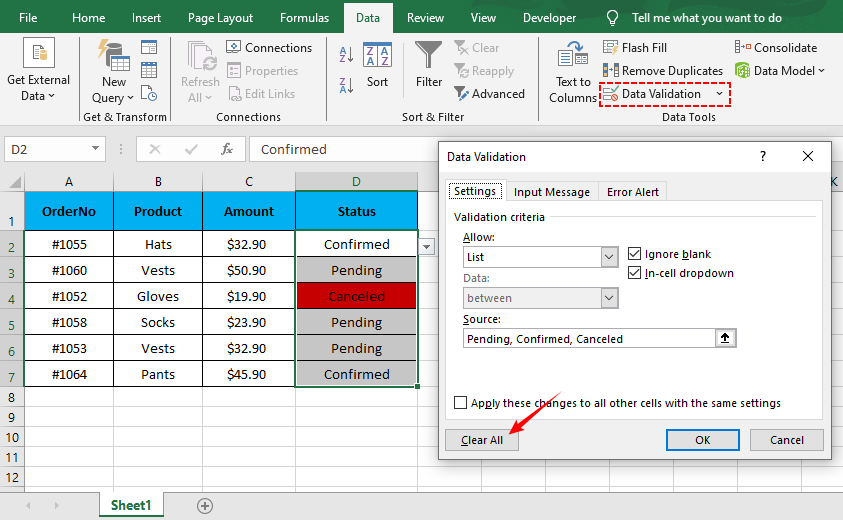
- 데이터 도구 그룹에서 데이터 유효성 검사 버튼을 클릭합니다.
- 데이터 유효성 검사 대화 상자에서 설정 탭으로 이동합니다.
- 모두 지우기 버튼을 클릭하여 모든 유효성 검사 규칙(드롭다운 목록, 입력 메시지 및 오류 알림 포함)을 지웁니다.
- 확인을 클릭하여 변경 사항을 적용합니다. 드롭다운 화살표가 즉시 사라지고 셀 데이터는 변경되지 않은 상태로 유지됩니다.
이제 원치 않는 드롭다운 목록을 제거하는 방법을 배웠으니, 처음부터 새로 만드는 데 관심이 있을 수 있습니다. Excel에서 드롭다운 목록을 만드는 방법 가이드에서는 정적 목록과 동적 범위를 모두 사용하여 데이터 유효성 검사 규칙을 설정하는 방법을 안내합니다.
전체 삭제: 드롭다운 + 셀 내용/서식 삭제
셀 데이터, 서식 또는 드롭다운 목록이 필요하지 않은 경우 Excel의 지우기 도구를 사용하여 한 번에 모든 것을 지울 수 있습니다. 이는 셀을 재설정하거나 스프레드시트의 사용하지 않는 섹션을 삭제하는 데 이상적입니다.
단계별 지침:
- 삭제하려는 드롭다운 목록이 있는 셀을 선택합니다.
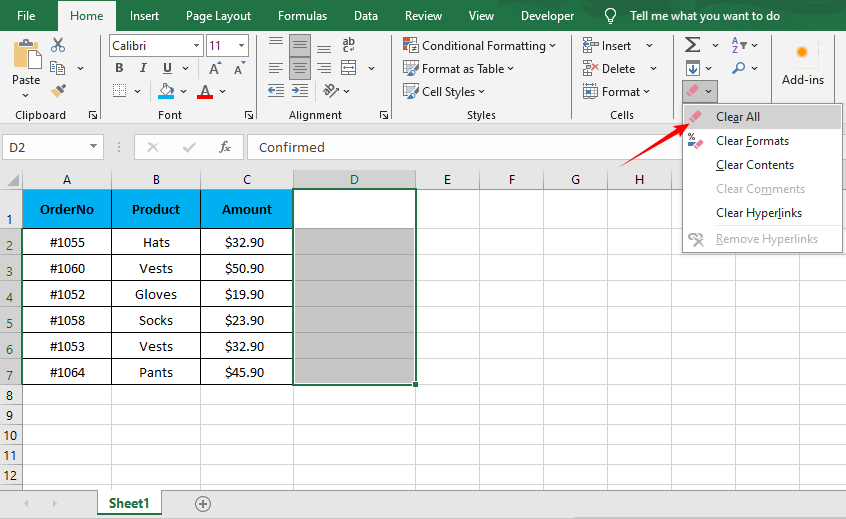
- 홈 탭 > 편집 그룹으로 이동하여 지우기(지우개 아이콘)를 클릭합니다.
- 모두 지우기 옵션을 선택하여 드롭다운, 셀 데이터, 서식 및 메모를 한 번에 삭제합니다.
경고: 셀을 완전히 비우고 일반 상태로 만들고 싶을 때만 이 방법을 사용하십시오. 부분적으로 지우려면(예: 서식은 그대로 두고 내용만 지우기) 다른 지우기 하위 옵션(내용 지우기, 서식 지우기)을 사용하십시오.
일괄 제거: VBA 매크로를 사용하여 드롭다운 지우기
통합 문서에 수십 개의 시트가 있고 모든 드롭다운 메뉴를 제거해야 하는 경우 간단한 VBA 매크로가 가장 효율적인 해결책입니다. 이 방법은 수동으로 셀을 선택할 필요 없이 전체 통합 문서의 모든 데이터 유효성 검사 규칙(및 드롭다운)을 몇 초 만에 삭제합니다.
방법:
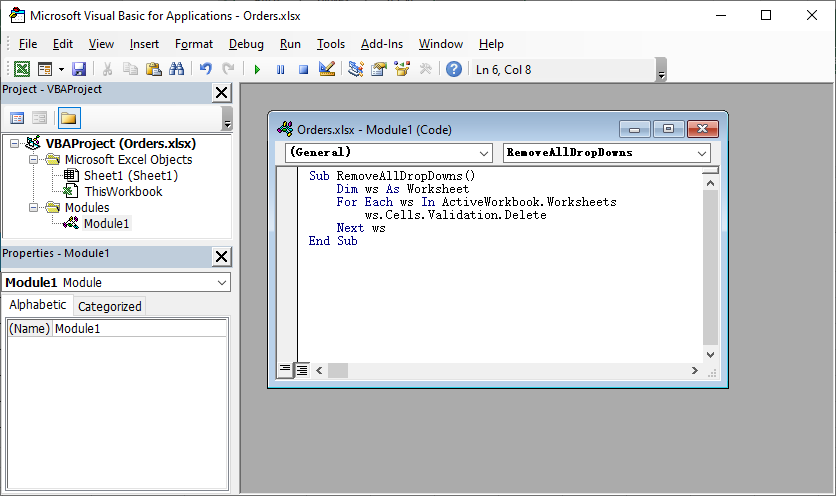
- Alt + F11을 눌러 VBA 편집기를 엽니다.
- 삽입 > 모듈로 이동합니다.
- 다음 코드를 붙여넣습니다:
Sub RemoveAllDropDowns()
    Dim ws As Worksheet
    For Each ws In ActiveWorkbook.Worksheets
        ws.Cells.Validation.Delete
    Next ws
End Sub
- F5 키를 눌러 실행합니다.
이 매크로는 활성 통합 문서의 모든 워크시트를 순환하며 모든 데이터 유효성 검사 목록을 삭제합니다.
드롭다운 목록이 제거되고 데이터 입력을 자유롭게 할 수 있게 되면 사용자가 입력한 중복 항목을 정리하고 싶을 수 있습니다. Excel에서 중복을 제거하는 방법을 배워 기록을 깔끔하고 체계적으로 유지하세요.
고급 방법: Python을 사용하여 Excel 드롭다운 목록 제거
여러 Excel 파일에서 드롭다운 제거를 자동화하거나 이를 스크립트에 통합해야 하는 사용자를 위해, Free Spire.XLS for Python은 Excel 데스크톱 앱 없이 프로그래밍 방식으로 Excel 파일을 조작할 수 있는 강력한 무료 라이브러리입니다.
무료 Python 라이브러리 설치
명령 프롬프트/터미널에서 다음 명령을 실행하여 pip를 통해 라이브러리를 설치합니다:
pip install Spire.Xls.Free
드롭다운 목록(데이터 유효성 검사)을 제거하는 Python 코드
이 코드는 다음을 수행합니다:
- Excel 파일 열기
- 특정 셀 범위에서 모든 드롭다운 목록 제거
- 수정된 파일 저장 (다른 모든 데이터/서식 보존)
from spire.xls import *
from spire.xls.common import *

# Create a Workbook object to load the Excel file
workbook = Workbook()

# Load your Excel file (replace with your file path)
workbook.LoadFromFile("input.xlsx")

# Get the first worksheet
worksheet = workbook.Worksheets[0]

# Create a list of rectangles to define the cell range for removal
# Rectangle.FromLTRB(Left, Top, Right, Bottom) — all values are 0-indexed
rects= []
rects.append(Rectangle.FromLTRB(0,0,3,6)) # Range A1:D7

# Remove data validation (drop-down lists) from the specified cell range
worksheet.DVTable.Remove(rects)

# Save the modified file
workbook.SaveToFile("RemoveDropdowns.xlsx")
workbook.Dispose()
범위 사용자 지정
다른 범위에서 유효성 검사를 제거하려면 Rectangle.FromLTRB 좌표를 조정하기만 하면 됩니다. 예를 들어:
- B열에서 D열(인덱스 1~3)과 2행에서 10행(인덱스 1~9)을 포함하려면 Rectangle.FromLTRB(1, 1, 3, 9)를 사용합니다.
- 여러 개의 개별 범위에서 유효성 검사를 제거하려면 rects 목록에 여러 개의 사각형을 추가합니다.
결과:
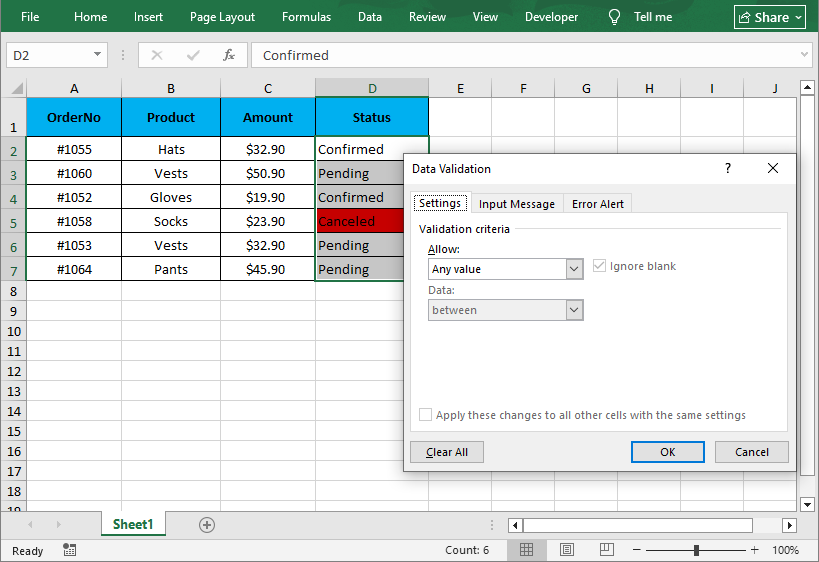
드롭다운 목록은 사용자가 입력할 수 있는 내용을 제어하는 반면, 조건부 서식은 데이터가 표시되는 방식을 제어합니다. Free Spire.XLS 라이브러리를 사용하면 유효성 검사 제한을 제거한 후 값에 따라 셀을 자동으로 강조 표시하도록 Excel에서 조건부 서식을 적용할 수도 있습니다.
자주 묻는 질문 (FAQ)
Q1. 왜 Delete 키를 눌러서 드롭다운 목록을 제거할 수 없나요?
A: Delete 키(또는 Backspace)를 누르면 셀 안의 값만 제거됩니다. 기본 데이터 유효성 검사 규칙은 제거되지 않습니다. 셀을 다시 선택하면 드롭다운 화살표가 계속 나타납니다.
Q2. 화살표는 제거하고 목록은 활성 상태로 유지하려면 어떻게 해야 하나요?
A: 기술적으로, 화살표는 드롭다운의 기본 사용자 인터페이스이므로 목록을 기능적으로 유지하면서 화살표를 제거할 수는 없습니다. 그러나 데이터 유효성 검사 설정에서 "셀 내 드롭다운" 확인란의 선택을 취소하여 화살표를 숨길 수 있습니다.
- 결과: 셀은 여전히 목록에 있는 항목으로 입력을 제한합니다. 사용자는 허용된 값을 수동으로 입력해야 하며, 화살표는 나타나지 않습니다.
Q3. 드롭다운을 제거하면 셀의 데이터가 삭제되나요?
A: 아니요, 데이터 유효성 검사 메뉴의 모두 지우기 버튼을 먼저 사용하는 한 텍스트는 그대로 유지됩니다.
Q4. 여러 Excel 파일에서 한 번에 드롭다운을 제거할 수 있나요?
A: 예. 두 가지 방법이 있습니다:
- Python (권장): 위에 제공된 Free Spire.XLS 스크립트를 사용하되, os.listdir()를 사용하여 폴더의 파일을 반복하는 루프로 감쌉니다.
- VBA 매크로: 폴더의 각 파일을 열고, 유효성 검사를 지우고, 저장하고, 닫는 매크로를 만듭니다 (Excel 고급 사용자에게 가장 적합).
요약
Excel에서 드롭다운 목록을 제거하는 방법을 배우는 것은 스프레드시트를 유연하고 깔끔하게 유지하는 기본적이면서도 필수적인 Excel 기술입니다. 데이터 유효성 검사 방법은 안전하고 대상이 명확한 제거를 위한 황금 표준이며, VBA 매크로는 대규모 편집을 간소화하고, Python 자동화는 자동화된 워크플로에 이상적인 정밀한 셀 범위에서 드롭다운을 지울 수 있게 해줍니다.
이 가이드를 따르면 필요할 때마다 제한을 제거하여 Excel 시트를 완전히 제어할 수 있습니다. Python을 사용한 더 많은 Excel 자동화 팁은 데이터 유효성 검사, 서식 지정 및 스프레드시트 최적화에 대한 다른 자습서를 확인하십시오.
참고 항목
Come rimuovere un elenco a discesa in Excel
Indice
- Cos'è un elenco a discesa in Excel?
- Metodo standard: Rimuovere l'elenco a discesa tramite la convalida dei dati
- Eliminazione completa: Elimina elenco a discesa + contenuto/formattazione della cella
- Rimozione in blocco: Cancellare l'elenco a discesa usando una macro VBA
- Metodo avanzato: Rimuovere gli elenchi a discesa di Excel con Python
- Domande frequenti (FAQ)
Gli elenchi a discesa di Excel sono essenziali per la coerenza dell'immissione dei dati, prevenendo errori di battitura e standardizzando gli input. Ma quando si ristrutturano i fogli di calcolo, si rimuovono regole di convalida obsolete o si semplificano le cartelle di lavoro per gli utenti occasionali, è necessario sapere come rimuovere un elenco a discesa in Excel.
In questa guida, ti illustreremo il metodo semplice per eliminare un elenco a discesa in Excel senza danneggiare i tuoi dati, dall'eliminazione di un singolo elenco a discesa alla loro rimozione in blocco da interi fogli di lavoro e all'automazione della pulizia per decine di file utilizzando Python.
Navigazione rapida:
- Cos'è un elenco a discesa in Excel?
- Metodo standard: Rimuovere l'elenco a discesa tramite la convalida dei dati
- Eliminazione completa: Elimina elenco a discesa + contenuto/formattazione della cella
- Rimozione in blocco: Cancellare l'elenco a discesa usando una macro VBA
- Metodo avanzato: Rimuovere gli elenchi a discesa di Excel con Python
- Domande frequenti (FAQ)
Cos'è un elenco a discesa in Excel?
In Excel, un elenco a discesa viene creato utilizzando una funzione chiamata Convalida dati. Questa funzione limita il tipo di dati (o i valori specifici) che possono essere inseriti in una cella.
Quando si rimuove un elenco a discesa, si stanno essenzialmente cancellando le regole di convalida dei dati applicate a quella cella o intervallo.
Metodo standard: Rimuovere l'elenco a discesa tramite la convalida dei dati
Il metodo di convalida dei dati è il modo ufficiale e più affidabile per eliminare un elenco a discesa in Excel mantenendo intatti tutti i valori delle celle esistenti. Questo metodo funziona per singole celle, intervalli adiacenti o celle non adiacenti.
Istruzioni passo-passo:
- Apri il tuo foglio di lavoro Excel e seleziona la cella (o l'intervallo di celle) che contiene l'elenco a discesa che desideri rimuovere.
- Vai alla scheda Dati sulla barra multifunzione di Excel.
- Nel gruppo Strumenti dati, fai clic sul pulsante Convalida dati.
- Nella finestra di dialogo Convalida dati, vai alla scheda Impostazioni.
- Fai clic sul pulsante Cancella tutto per cancellare tutte le regole di convalida (inclusi l'elenco a discesa, i messaggi di input e gli avvisi di errore).
- Fai clic su OK per applicare le modifiche. La freccia a discesa scomparirà immediatamente e i dati della cella rimarranno invariati.
Ora che hai imparato come rimuovere gli elenchi a discesa indesiderati, potresti essere interessato a crearli da zero. La nostra guida su Come creare un elenco a discesa in Excel ti guida nella configurazione delle regole di convalida dei dati utilizzando sia elenchi statici che intervalli dinamici.
Eliminazione completa: Elimina elenco a discesa + contenuto/formattazione della cella
Se non hai bisogno dei dati della cella, della formattazione, o dell'elenco a discesa, usa gli strumenti Cancella di Excel per cancellare tutto in un solo passaggio. Questo è ideale per reimpostare le celle o eliminare sezioni non utilizzate di un foglio di calcolo.
Istruzioni passo-passo:
- Seleziona le celle con l'elenco a discesa che desideri eliminare.
- Vai alla scheda Home > gruppo Modifica > fai clic su Cancella (icona della gomma).
- Seleziona l'opzione Cancella tutto per eliminare contemporaneamente l'elenco a discesa, i dati della cella, la formattazione e i commenti.
Avvertenza: usalo solo se vuoi che la cella sia completamente vuota e semplice. Per cancellazioni parziali (ad es. solo contenuto, non formattazione), utilizza le altre sotto-opzioni di Cancella (Cancella contenuto, Cancella formati).
Rimozione in blocco: Cancellare l'elenco a discesa usando una macro VBA
Se la tua cartella di lavoro ha dozzine di fogli e devi rimuovere ogni singolo menu a discesa, una semplice macro VBA è la soluzione più efficiente. Questo metodo elimina tutte le regole di convalida dei dati (e gli elenchi a discesa) in tutta la cartella di lavoro in pochi secondi, senza richiedere la selezione manuale delle celle.
Come farlo:
- Premi Alt + F11 per aprire l'editor VBA.
- Vai a Inserisci > Modulo.
- Incolla il seguente codice:
Sub RemoveAllDropDowns()
    Dim ws As Worksheet
    For Each ws In ActiveWorkbook.Worksheets
        ws.Cells.Validation.Delete
    Next ws
End Sub
- Premi F5 per eseguirlo.
Questa macro scorre ogni foglio di lavoro nella tua cartella di lavoro attiva ed elimina tutti gli elenchi di convalida dei dati.
Una volta rimossi gli elenchi a discesa e liberata l'immissione dei dati, potresti voler ripulire le voci duplicate che gli utenti hanno inserito. Scopri come rimuovere i duplicati in Excel per mantenere i tuoi record ordinati e organizzati.
Metodo avanzato: Rimuovere gli elenchi a discesa di Excel con Python
Per gli utenti che necessitano di automatizzare la rimozione degli elenchi a discesa su più file Excel o di integrare ciò in uno script, Free Spire.XLS for Python è una libreria gratuita e potente che consente di manipolare i file Excel a livello di codice, senza bisogno dell'applicazione desktop di Excel.
Installa la libreria Python gratuita
Esegui questo comando nel tuo prompt dei comandi/terminale per installare la libreria tramite pip:
pip install Spire.Xls.Free
Codice Python per rimuovere gli elenchi a discesa (convalida dei dati)
Questo codice:
- Apri un file Excel
- Rimuovi tutti gli elenchi a discesa da un intervallo di celle specifico
- Salva il file modificato (preservando tutti gli altri dati/formattazione)
from spire.xls import *
from spire.xls.common import *

# Create a Workbook object to load the Excel file
workbook = Workbook()

# Load your Excel file (replace with your file path)
workbook.LoadFromFile("input.xlsx")

# Get the first worksheet
worksheet = workbook.Worksheets[0]

# Create a list of rectangles to define the cell range for removal
# Rectangle.FromLTRB(Left, Top, Right, Bottom) — all values are 0-indexed
rects= []
rects.append(Rectangle.FromLTRB(0,0,3,6)) # Range A1:D7

# Remove data validation (drop-down lists) from the specified cell range
worksheet.DVTable.Remove(rects)

# Save the modified file
workbook.SaveToFile("RemoveDropdowns.xlsx")
workbook.Dispose()
Personalizzazione dell'intervallo
Per rimuovere la convalida da un intervallo diverso, è sufficiente regolare le coordinate di Rectangle.FromLTRB. Ad esempio:
- Per coprire le colonne da B a D (indici da 1 a 3) e le righe da 2 a 10 (indici da 1 a 9), utilizzare Rectangle.FromLTRB(1, 1, 3, 9).
- Per rimuovere la convalida da più intervalli separati, aggiungere più rettangoli all'elenco rects.
Risultato:
Mentre gli elenchi a discesa controllano ciò che gli utenti possono inserire, la formattazione condizionale controlla come appaiono i dati. La libreria Free Spire.XLS ti consente anche di applicare la formattazione condizionale in Excel per evidenziare automaticamente le celle in base ai loro valori dopo aver rimosso le restrizioni di convalida.
Domande frequenti (FAQ)
D1. Perché non posso semplicemente premere il tasto Canc per rimuovere un elenco a discesa?
R: Premendo il tasto Canc (o Backspace) si rimuove solo il valore all'interno della cella. Non rimuove la regola di convalida dei dati sottostante. La freccia a discesa apparirà ancora quando si seleziona nuovamente la cella.
D2. Come posso rimuovere la freccia ma mantenere attivo l'elenco?
R: Tecnicamente, non è possibile rimuovere la freccia mantenendo l'elenco funzionale, poiché la freccia è l'interfaccia utente principale per l'elenco a discesa. Tuttavia, è possibile nascondere la freccia deselezionando la casella di controllo "Elenco a discesa nella cella" nelle impostazioni di convalida dei dati.
- Risultato: la cella limiterà comunque le voci al tuo elenco. Gli utenti devono digitare manualmente il valore consentito; la freccia non apparirà.
D3. La rimozione dell'elenco a discesa eliminerà i dati nella cella?
R: No, finché si utilizza prima il pulsante Cancella tutto nel menu Convalida dati, il testo rimarrà.
D4. Posso rimuovere gli elenchi a discesa da più file Excel contemporaneamente?
R: Sì. Ci sono due modi:
- Python (consigliato): utilizzare lo script Free Spire.XLS fornito sopra, ma inserirlo in un ciclo che scorre i file in una cartella utilizzando os.listdir().
- Macro VBA: creare una macro che apra ogni file in una cartella, cancelli la convalida, salvi e lo chiuda (ideale per gli utenti esperti di Excel).
Riepilogo
Imparare come rimuovere un elenco a discesa in Excel è un'abilità di base ma essenziale di Excel che mantiene i tuoi fogli di calcolo flessibili e ordinati. Il metodo di convalida dei dati è lo standard di riferimento per una rimozione sicura e mirata; le macro VBA semplificano le modifiche su larga scala; e l'automazione con Python consente di cancellare gli elenchi a discesa da intervalli di celle precisi, ideale per flussi di lavoro automatizzati.
Seguendo questa guida, puoi assumere il pieno controllo dei tuoi fogli Excel, rimuovendo le restrizioni ogni volta che ne hai bisogno. Per ulteriori suggerimenti sull'automazione di Excel con Python, consulta i nostri altri tutorial sulla convalida dei dati, la formattazione e l'ottimizzazione dei fogli di calcolo.
Vedi anche
Comment supprimer une liste déroulante dans Excel
Table des matières
- Qu'est-ce qu'une liste déroulante dans Excel ?
- Méthode standard : Supprimer la liste déroulante via la validation des données
- Suppression complète : Supprimer la liste déroulante + le contenu/formatage de la cellule
- Suppression par lots : Effacer la liste déroulante à l'aide d'une macro VBA
- Méthode avancée : Supprimer les listes déroulantes Excel avec Python
- Foire aux questions (FAQ)
Les listes déroulantes Excel sont essentielles pour la cohérence de la saisie des données, en évitant les fautes de frappe et en normalisant les entrées. Mais lors de la restructuration de feuilles de calcul, de la suppression de règles de validation obsolètes ou de la simplification de classeurs pour les utilisateurs occasionnels, vous devrez savoir comment supprimer une liste déroulante dans Excel.
Dans ce guide, nous vous expliquerons la méthode simple pour supprimer une liste déroulante dans Excel sans endommager vos données, de la suppression d'une seule liste déroulante à leur suppression par lots sur des feuilles de calcul entières et à l'automatisation du nettoyage pour des dizaines de fichiers à l'aide de Python.
Navigation rapide :
- Qu'est-ce qu'une liste déroulante dans Excel ?
- Méthode standard : Supprimer la liste déroulante via la validation des données
- Suppression complète : Supprimer la liste déroulante + le contenu/formatage de la cellule
- Suppression par lots : Effacer la liste déroulante à l'aide d'une macro VBA
- Méthode avancée : Supprimer les listes déroulantes Excel avec Python
- Foire aux questions (FAQ)
Qu'est-ce qu'une liste déroulante dans Excel ?
Dans Excel, une liste déroulante est créée à l'aide d'une fonctionnalité appelée Validation des données. Cette fonctionnalité restreint le type de données (ou les valeurs spécifiques) qui peuvent être saisies dans une cellule.
Lorsque vous supprimez une liste déroulante, vous effacez essentiellement les règles de validation des données appliquées à cette cellule ou plage.
Méthode standard : Supprimer la liste déroulante via la validation des données
La méthode de validation des données est le moyen officiel et le plus fiable pour éliminer une liste déroulante dans Excel tout en conservant intactes toutes les valeurs de cellule existantes. Cette méthode fonctionne pour les cellules uniques, les plages adjacentes ou les cellules non adjacentes.
Instructions étape par étape :
- Ouvrez votre feuille de calcul Excel et sélectionnez la cellule (ou la plage de cellules) qui contient la liste déroulante que vous souhaitez supprimer.
- Accédez à l'onglet Données sur le ruban Excel.
- Dans le groupe Outils de données, cliquez sur le bouton Validation des données.
- Dans la boîte de dialogue Validation des données, accédez à l'onglet Options.
- Cliquez sur le bouton Effacer tout pour effacer toutes les règles de validation (y compris la liste déroulante, les messages de saisie et les alertes d'erreur).
- Cliquez sur OK pour appliquer les modifications. La flèche déroulante disparaîtra instantanément et les données de votre cellule resteront inchangées.
Maintenant que vous avez appris à supprimer les listes déroulantes indésirables, vous pourriez être intéressé à les créer à partir de zéro. Notre guide sur Comment créer une liste déroulante dans Excel vous guide dans la configuration des règles de validation des données à l'aide de listes statiques et de plages dynamiques.
Suppression complète : Supprimer la liste déroulante + le contenu/formatage de la cellule
Si vous n'avez pas besoin des données de la cellule, du formatage ou de la liste déroulante, utilisez les outils Effacer d'Excel pour tout effacer en une seule étape. C'est idéal pour réinitialiser des cellules ou supprimer des sections inutilisées d'une feuille de calcul.
Instructions étape par étape :
- Sélectionnez les cellules avec la liste déroulante que vous souhaitez supprimer.
- Allez dans l'onglet Accueil > groupe Édition > cliquez sur Effacer (icône de gomme).
- Sélectionnez l'option Effacer tout pour supprimer la liste déroulante, les données de la cellule, le formatage et les commentaires en une seule fois.
Avertissement : Utilisez cette option uniquement si vous voulez que la cellule soit complètement vide et sans mise en forme. Pour des effacements partiels (par exemple, uniquement le contenu, pas le formatage), utilisez les autres sous-options de Effacer (Effacer les contenus, Effacer les formats).
Suppression par lots : Effacer la liste déroulante à l'aide d'une macro VBA
Si votre classeur contient des dizaines de feuilles et que vous devez supprimer chaque menu déroulant, une simple macro VBA est la solution la plus efficace. Cette méthode supprime toutes les règles de validation des données (et les listes déroulantes) dans l'ensemble du classeur en quelques secondes, sans aucune sélection manuelle de cellule requise.
Comment faire :
- Appuyez sur Alt + F11 pour ouvrir l'éditeur VBA.
- Allez dans Insertion > Module.
- Collez le code suivant :
Sub RemoveAllDropDowns()
    Dim ws As Worksheet
    For Each ws In ActiveWorkbook.Worksheets
        ws.Cells.Validation.Delete
    Next ws
End Sub
- Appuyez sur F5 pour l'exécuter.
Cette macro parcourt chaque feuille de calcul de votre classeur actif et supprime toutes les listes de validation des données.
Une fois vos listes déroulantes supprimées et la saisie de données libérée, vous voudrez peut-être nettoyer les entrées en double que les utilisateurs ont saisies. Apprenez à supprimer les doublons dans Excel pour garder vos enregistrements propres et organisés.
Méthode avancée : Supprimer les listes déroulantes Excel avec Python
Pour les utilisateurs qui ont besoin d'automatiser la suppression des listes déroulantes sur plusieurs fichiers Excel ou d'intégrer cela dans un script, Free Spire.XLS for Python est une bibliothèque gratuite et puissante qui vous permet de manipuler les fichiers Excel par programme, sans nécessiter l'application de bureau Excel.
Installer la bibliothèque Python gratuite
Exécutez cette commande dans votre invite de commandes/terminal pour installer la bibliothèque via pip :
pip install Spire.Xls.Free
Code Python pour supprimer les listes déroulantes (Validation des données)
Ce code va :
- Ouvrir un fichier Excel
- Supprimer toutes les listes déroulantes d'une plage de cellules spécifique
- Enregistrer le fichier modifié (en préservant toutes les autres données/formatage)
from spire.xls import *
from spire.xls.common import *

# Créer un objet Workbook pour charger le fichier Excel
workbook = Workbook()

# Charger votre fichier Excel (remplacez par le chemin de votre fichier)
workbook.LoadFromFile("input.xlsx")

# Obtenir la première feuille de calcul
worksheet = workbook.Worksheets[0]

# Créer une liste de rectangles pour définir la plage de cellules pour la suppression
# Rectangle.FromLTRB(Gauche, Haut, Droite, Bas) — toutes les valeurs sont basées sur 0
rects= []
rects.append(Rectangle.FromLTRB(0,0,3,6)) # Plage A1:D7

# Supprimer la validation des données (listes déroulantes) de la plage de cellules spécifiée
worksheet.DVTable.Remove(rects)

# Enregistrer le fichier modifié
workbook.SaveToFile("RemoveDropdowns.xlsx")
workbook.Dispose()
Personnalisation de la plage
Pour supprimer la validation d'une plage différente, ajustez simplement les coordonnées de Rectangle.FromLTRB. Par exemple :
- Pour couvrir les colonnes B à D (indices 1 à 3) et les lignes 2 à 10 (indices 1 à 9), utilisez Rectangle.FromLTRB(1, 1, 3, 9).
- Pour supprimer la validation de plusieurs plages distinctes, ajoutez plusieurs rectangles à la liste rects.
Résultat :
Alors que les listes déroulantes contrôlent ce que les utilisateurs peuvent saisir, la mise en forme conditionnelle contrôle l'apparence des données. La bibliothèque Free Spire.XLS vous permet également d'appliquer une mise en forme conditionnelle dans Excel pour surligner automatiquement les cellules en fonction de leurs valeurs après avoir supprimé les restrictions de validation.
Foire aux questions (FAQ)
Q1. Pourquoi ne puis-je pas simplement appuyer sur la touche Suppr pour supprimer une liste déroulante ?
R : Appuyer sur la touche Suppr (ou Retour arrière) ne supprime que la valeur à l'intérieur de la cellule. Cela ne supprime pas la règle de validation des données sous-jacente. La flèche déroulante apparaîtra toujours lorsque vous sélectionnerez à nouveau la cellule.
Q2. Comment puis-je supprimer la flèche tout en gardant la liste active ?
R : Techniquement, vous ne pouvez pas supprimer la flèche tout en gardant la liste fonctionnelle, car la flèche est l'interface utilisateur principale de la liste déroulante. Cependant, vous pouvez masquer la flèche en décochant la case "Liste déroulante dans la cellule" dans les paramètres de validation des données.
- Résultat : La cellule continuera de restreindre les entrées à votre liste. Les utilisateurs devront taper manuellement la valeur autorisée ; la flèche n'apparaîtra pas.
Q3. La suppression de la liste déroulante supprimera-t-elle les données dans la cellule ?
R : Non, tant que vous utilisez d'abord le bouton Effacer tout dans le menu Validation des données, le texte restera.
Q4. Puis-je supprimer les listes déroulantes de plusieurs fichiers Excel à la fois ?
R : Oui. Il y a deux façons :
- Python (Recommandé) : Utilisez le script Free Spire.XLS fourni ci-dessus, mais enveloppez-le dans une boucle qui parcourt les fichiers d'un dossier à l'aide de os.listdir().
- Macro VBA : Créez une macro qui ouvre chaque fichier dans un dossier, efface la validation, enregistre et le ferme (idéal pour les utilisateurs avancés d'Excel).
Résumé
Apprendre à supprimer une liste déroulante dans Excel est une compétence de base mais essentielle d'Excel qui garde vos feuilles de calcul flexibles et sans encombrement. La méthode de validation des données est la référence pour une suppression sûre et ciblée ; les macros VBA rationalisent les modifications à grande échelle ; et l'automatisation Python vous permet d'effacer les listes déroulantes de plages de cellules précises, idéal pour les flux de travail automatisés.
En suivant ce guide, vous pouvez prendre le contrôle total de vos feuilles Excel, en supprimant les restrictions chaque fois que vous en avez besoin. Pour plus de conseils d'automatisation Excel avec Python, consultez nos autres tutoriels sur la validation des données, le formatage et l'optimisation des feuilles de calcul.
Voir aussi
- Comment supprimer les colonnes en double dans Excel : 4 meilleures façons
- Surligner les doublons dans Excel : 4 méthodes faciles
- Comment verrouiller des cellules Excel : Guide d'automatisation manuel et Python
- Python : Créer des listes déroulantes dans les feuilles de calcul Excel
- C# : Créer des listes déroulantes dans un document Excel
Cómo eliminar una lista desplegable en Excel
Tabla de Contenidos
- ¿Qué es una lista desplegable en Excel?
- Método estándar: Eliminar lista desplegable a través de la validación de datos
- Eliminación completa: Eliminar lista desplegable + Contenido/formato de celda
- Eliminación por lotes: Borrar lista desplegable usando una macro de VBA
- Método avanzado: Eliminar listas desplegables de Excel con Python
- Preguntas frecuentes (FAQ)
Las listas desplegables de Excel son esenciales para la coherencia en la entrada de datos, ya que evitan errores tipográficos y estandarizan las entradas. Pero al reestructurar hojas de cálculo, eliminar reglas de validación obsoletas o simplificar libros de trabajo para usuarios ocasionales, necesitará saber cómo eliminar una lista desplegable en Excel.
En esta guía, le mostraremos el método simple para eliminar una lista desplegable en Excel sin dañar sus datos, desde eliminar una sola lista desplegable hasta eliminarlas por lotes en hojas de trabajo completas y automatizar la limpieza de docenas de archivos usando Python.
Navegación rápida:
- ¿Qué es una lista desplegable en Excel?
- Método estándar: Eliminar lista desplegable a través de la validación de datos
- Eliminación completa: Eliminar lista desplegable + Contenido/formato de celda
- Eliminación por lotes: Borrar lista desplegable usando una macro de VBA
- Método avanzado: Eliminar listas desplegables de Excel con Python
- Preguntas frecuentes (FAQ)
¿Qué es una lista desplegable en Excel?
En Excel, una lista desplegable se crea utilizando una función llamada Validación de datos. Esta función restringe el tipo de datos (o los valores específicos) que se pueden introducir en una celda.
Cuando elimina una lista desplegable, básicamente está borrando las reglas de Validación de Datos aplicadas a esa celda o rango.
Método estándar: Eliminar lista desplegable a través de la validación de datos
El método de Validación de Datos es la forma oficial y más fiable de eliminar una lista desplegable en Excel manteniendo intactos todos los valores de celda existentes. Este método funciona para celdas individuales, rangos adyacentes o celdas no adyacentes.
Instrucciones paso a paso:
- Abra su hoja de cálculo de Excel y seleccione la celda (o rango de celdas) que contiene la lista desplegable que desea eliminar.
- Vaya a la pestaña Datos en la cinta de opciones de Excel.
- En el grupo Herramientas de datos, haga clic en el botón Validación de datos.
- En el cuadro de diálogo Validación de datos, vaya a la pestaña Configuración.
- Haga clic en el botón Borrar todo para borrar todas las reglas de validación (incluida la lista desplegable, los mensajes de entrada y las alertas de error).
- Haga clic en Aceptar para aplicar los cambios. La flecha desplegable desaparecerá instantáneamente y los datos de su celda permanecerán sin cambios.
Ahora que ha aprendido a eliminar listas desplegables no deseadas, podría estar interesado en crearlas desde cero. Nuestra guía sobre Cómo crear una lista desplegable en Excel le guía a través de la configuración de reglas de validación de datos utilizando tanto listas estáticas como rangos dinámicos.
Eliminación completa: Eliminar lista desplegable + Contenido/formato de celda
Si no necesita los datos de la celda, el formato o la lista desplegable, use las herramientas Borrar de Excel para borrar todo en un solo paso. Esto es ideal para restablecer celdas o eliminar secciones no utilizadas de una hoja de cálculo.
Instrucciones paso a paso:
- Seleccione las celdas con la lista desplegable que desea eliminar.
- Vaya a la pestaña Inicio > grupo Edición > haga clic en Borrar (icono de borrador).
- Seleccione la opción Borrar todo para eliminar la lista desplegable, los datos de la celda, el formato y los comentarios de una vez.
Advertencia: Use esto solo si desea que la celda esté completamente vacía y sin formato. Para borrados parciales (por ejemplo, solo contenido, no formato), use las otras subopciones de Borrar (Borrar contenido, Borrar formatos).
Eliminación por lotes: Borrar lista desplegable usando una macro de VBA
Si su libro de trabajo tiene docenas de hojas y necesita eliminar cada menú desplegable, una simple macro de VBA es la solución más eficiente. Este método elimina todas las reglas de Validación de Datos (y las listas desplegables) en todo el libro de trabajo en segundos, sin necesidad de seleccionar celdas manualmente.
Cómo hacerlo:
- Presione Alt + F11 para abrir el editor de VBA.
- Vaya a Insertar > Módulo.
- Pegue el siguiente código:
Sub RemoveAllDropDowns()
    Dim ws As Worksheet
    For Each ws In ActiveWorkbook.Worksheets
        ws.Cells.Validation.Delete
    Next ws
End Sub
- Presione F5 para ejecutarlo.
Esta macro recorre cada hoja de trabajo en su libro de trabajo activo y elimina todas las listas de Validación de Datos.
Una vez que se eliminan sus listas desplegables y se libera la entrada de datos, es posible que desee limpiar las entradas duplicadas que los usuarios han introducido. Aprenda a eliminar duplicados en Excel para mantener sus registros ordenados y organizados.
Método avanzado: Eliminar listas desplegables de Excel con Python
Para los usuarios que necesitan automatizar la eliminación de listas desplegables en múltiples archivos de Excel o integrar esto en un script, Free Spire.XLS para Python es una biblioteca gratuita y potente que le permite manipular archivos de Excel programáticamente, sin necesidad de la aplicación de escritorio de Excel.
Instale la biblioteca gratuita de Python
Ejecute este comando en su símbolo del sistema/terminal para instalar la biblioteca a través de pip:
pip install Spire.Xls.Free
Código de Python para eliminar listas desplegables (Validación de datos)
Este código hará lo siguiente:
- Abrir un archivo de Excel
- Eliminar todas las listas desplegables de un rango de celdas específico
- Guardar el archivo modificado (conservando todos los demás datos/formato)
from spire.xls import *
from spire.xls.common import *

# Create a Workbook object to load the Excel file
workbook = Workbook()

# Load your Excel file (replace with your file path)
workbook.LoadFromFile("input.xlsx")

# Get the first worksheet
worksheet = workbook.Worksheets[0]

# Create a list of rectangles to define the cell range for removal
# Rectangle.FromLTRB(Left, Top, Right, Bottom) — all values are 0-indexed
rects= []
rects.append(Rectangle.FromLTRB(0,0,3,6)) # Range A1:D7

# Remove data validation (drop-down lists) from the specified cell range
worksheet.DVTable.Remove(rects)

# Save the modified file
workbook.SaveToFile("RemoveDropdowns.xlsx")
workbook.Dispose()
Personalizando el rango
Para eliminar la validación de un rango diferente, simplemente ajuste las coordenadas de Rectangle.FromLTRB. Por ejemplo:
- Para cubrir las columnas B a D (índices 1 a 3) y las filas 2 a 10 (índices 1 a 9), use Rectangle.FromLTRB(1, 1, 3, 9).
- Para eliminar la validación de múltiples rangos separados, agregue múltiples rectángulos a la lista rects.
Resultado:
Mientras que las listas desplegables controlan lo que los usuarios pueden introducir, el formato condicional controla cómo aparecen los datos. La biblioteca Free Spire.XLS también le permite aplicar formato condicional en Excel para resaltar automáticamente las celdas en función de sus valores después de haber eliminado las restricciones de validación.
Preguntas frecuentes (FAQ)
P1. ¿Por qué no puedo simplemente presionar la tecla Suprimir para eliminar una lista desplegable?
R: Presionar la tecla Suprimir (o Retroceso) solo elimina el valor dentro de la celda. No elimina la regla de Validación de Datos subyacente. La flecha desplegable seguirá apareciendo cuando seleccione la celda de nuevo.
P2. ¿Cómo elimino la flecha pero mantengo la lista activa?
R: Técnicamente, no puede eliminar la flecha mientras mantiene la lista funcional, ya que la flecha es la interfaz de usuario principal para la lista desplegable. Sin embargo, puede ocultar la flecha desmarcando la casilla "Desplegable en la celda" en la configuración de Validación de datos.
- Resultado: La celda seguirá restringiendo las entradas a su lista. Los usuarios deben escribir el valor permitido manualmente; la flecha no aparecerá.
P3. ¿Eliminar la lista desplegable borrará los datos de la celda?
R: No, siempre que use primero el botón Borrar todo en el menú Validación de datos, el texto permanecerá.
P4. ¿Puedo eliminar listas desplegables de varios archivos de Excel a la vez?
R: Sí. Hay dos formas:
- Python (Recomendado): Use el script Free Spire.XLS proporcionado anteriormente, pero envuélvalo en un bucle que itere sobre los archivos en una carpeta usando os.listdir().
- Macro de VBA: Cree una macro que abra cada archivo en una carpeta, borre la validación, lo guarde y lo cierre (ideal para usuarios avanzados de Excel).
Resumen
Aprender a eliminar una lista desplegable en Excel es una habilidad básica pero esencial de Excel que mantiene sus hojas de cálculo flexibles y sin desorden. El método de Validación de Datos es el estándar de oro para una eliminación segura y específica; las macros de VBA agilizan las ediciones a gran escala; y la automatización con Python le permite borrar listas desplegables de rangos de celdas precisos, ideal para flujos de trabajo automatizados.
Siguiendo esta guía, puede tomar el control total de sus hojas de Excel, eliminando restricciones siempre que lo necesite. Para obtener más consejos de automatización de Excel con Python, consulte nuestros otros tutoriales sobre validación de datos, formato y optimización de hojas de cálculo.
Ver también
- Cómo eliminar columnas duplicadas en Excel: 4 mejores formas
- Resaltar duplicados en Excel: 4 métodos fáciles
- Cómo bloquear celdas de Excel: Guía de automatización manual y con Python
- Python: Crear listas desplegables en hojas de cálculo de Excel
- C#: Crear listas desplegables en un documento de Excel
Dropdown-Liste in Excel entfernen
Inhaltsverzeichnis
- Was ist eine Dropdown-Liste in Excel?
- Standardmethode: Dropdown-Liste über Datenüberprüfung entfernen
- Vollständige Löschung: Dropdown-Liste + Zellinhalt/Formatierung löschen
- Stapelentfernung: Dropdown-Liste mit einem VBA-Makro löschen
- Fortgeschrittene Methode: Excel-Dropdown-Listen mit Python entfernen
- Häufig gestellte Fragen (FAQ)
Excel-Dropdown-Listen sind für die Konsistenz der Dateneingabe unerlässlich, um Tippfehler zu vermeiden und Eingaben zu standardisieren. Aber beim Umstrukturieren von Tabellenkalkulationen, Entfernen veralteter Validierungsregeln oder Vereinfachen von Arbeitsmappen für Gelegenheitsbenutzer müssen Sie wissen, wie man eine Dropdown-Liste in Excel entfernt.
In dieser Anleitung führen wir Sie durch die einfache Methode zum Löschen einer Dropdown-Liste in Excel, ohne Ihre Daten zu beschädigen, vom Löschen einer einzelnen Dropdown-Liste bis zum stapelweisen Entfernen über ganze Arbeitsblätter und zur Automatisierung der Bereinigung für Dutzende von Dateien mit Python.
Schnellnavigation:
- Was ist eine Dropdown-Liste in Excel?
- Standardmethode: Dropdown-Liste über Datenüberprüfung entfernen
- Vollständige Löschung: Dropdown-Liste + Zellinhalt/Formatierung löschen
- Stapelentfernung: Dropdown-Liste mit einem VBA-Makro löschen
- Fortgeschrittene Methode: Excel-Dropdown-Listen mit Python entfernen
- Häufig gestellte Fragen (FAQ)
Was ist eine Dropdown-Liste in Excel?
In Excel wird eine Dropdown-Liste mit einer Funktion namens Datenüberprüfung erstellt. Diese Funktion beschränkt die Art der Daten (oder die spezifischen Werte), die in eine Zelle eingegeben werden können.
Wenn Sie eine Dropdown-Liste entfernen, löschen Sie im Wesentlichen die auf diese Zelle oder diesen Bereich angewendeten Datenüberprüfungsregeln.
Standardmethode: Dropdown-Liste über Datenüberprüfung entfernen
Die Datenüberprüfungsmethode ist der offizielle und zuverlässigste Weg, um eine Dropdown-Liste in Excel zu entfernen, während alle vorhandenen Zellwerte erhalten bleiben. Diese Methode funktioniert für einzelne Zellen, benachbarte Bereiche oder nicht benachbarte Zellen.
Schritt-für-Schritt-Anleitung:
- Öffnen Sie Ihr Excel-Arbeitsblatt und wählen Sie die Zelle (oder den Zellbereich) aus, die die zu entfernende Dropdown-Liste enthält.
- Navigieren Sie zur Registerkarte Daten in der Excel-Menüleiste.
- In der Gruppe Datentools klicken Sie auf die Schaltfläche Datenüberprüfung.
- Gehen Sie im Dialogfeld „Datenüberprüfung“ zur Registerkarte Einstellungen.
- Klicken Sie auf die Schaltfläche Alle löschen, um alle Validierungsregeln (einschließlich der Dropdown-Liste, Eingabemeldungen und Fehlermeldungen) zu löschen.
- Klicken Sie auf OK, um die Änderungen zu übernehmen. Der Dropdown-Pfeil verschwindet sofort und Ihre Zelldaten bleiben unverändert.
Nachdem Sie nun gelernt haben, wie Sie unerwünschte Dropdown-Listen entfernen, sind Sie vielleicht daran interessiert, sie von Grund auf neu zu erstellen. Unsere Anleitung zum Erstellen einer Dropdown-Liste in Excel führt Sie durch die Einrichtung von Datenüberprüfungsregeln mit statischen Listen und dynamischen Bereichen.
Vollständige Löschung: Dropdown-Liste + Zellinhalt/Formatierung löschen
Wenn Sie die Zelldaten, die Formatierung, oder die Dropdown-Liste nicht benötigen, verwenden Sie die Löschwerkzeuge von Excel, um alles in einem Schritt zu entfernen. Dies ist ideal zum Zurücksetzen von Zellen oder zum Löschen ungenutzter Abschnitte einer Tabellenkalkulation.
Schritt-für-Schritt-Anleitung:
- Wählen Sie die Zellen mit der Dropdown-Liste aus, die Sie löschen möchten.
- Gehen Sie zur Registerkarte Start > Gruppe Bearbeiten > klicken Sie auf Löschen (Radiergummi-Symbol).
- Wählen Sie die Option Alle löschen, um Dropdown-Liste, Zelldaten, Formatierung und Kommentare auf einmal zu löschen.
Warnung: Verwenden Sie dies nur, wenn die Zelle vollständig leer und unformatiert sein soll. Für teilweises Löschen (z. B. nur Inhalt, nicht Formatierung) verwenden Sie die anderen Löschen-Unteroptionen (Inhalte löschen, Formate löschen).
Stapelentfernung: Dropdown-Liste mit einem VBA-Makro löschen
Wenn Ihre Arbeitsmappe Dutzende von Blättern hat und Sie jedes einzelne Dropdown-Menü entfernen müssen, ist ein einfaches VBA-Makro die effizienteste Lösung. Diese Methode löscht alle Datenüberprüfungsregeln (und Dropdown-Listen) in der gesamten Arbeitsmappe in Sekunden – keine manuelle Zellauswahl erforderlich.
Wie es geht:
- Drücken Sie Alt + F11, um den VBA-Editor zu öffnen.
- Gehen Sie zu Einfügen > Modul.
- Fügen Sie den folgenden Code ein:
Sub RemoveAllDropDowns()
    Dim ws As Worksheet
    For Each ws In ActiveWorkbook.Worksheets
        ws.Cells.Validation.Delete
    Next ws
End Sub
- Drücken Sie F5, um es auszuführen.
Dieses Makro durchläuft jedes Arbeitsblatt in Ihrer aktiven Arbeitsmappe und löscht alle Datenüberprüfungslisten.
Sobald Ihre Dropdown-Listen entfernt und die Dateneingabe freigegeben ist, möchten Sie möglicherweise doppelte Einträge bereinigen, die Benutzer eingegeben haben. Erfahren Sie, wie Sie Duplikate in Excel entfernen, um Ihre Datensätze sauber und organisiert zu halten.
Fortgeschrittene Methode: Excel-Dropdown-Listen mit Python entfernen
Für Benutzer, die das Entfernen von Dropdown-Listen über mehrere Excel-Dateien hinweg automatisieren oder dies in ein Skript integrieren müssen, ist Free Spire.XLS for Python eine kostenlose, leistungsstarke Bibliothek, mit der Sie Excel-Dateien programmgesteuert bearbeiten können – keine Excel-Desktop-App erforderlich.
Installieren Sie die kostenlose Python-Bibliothek
Führen Sie diesen Befehl in Ihrer Eingabeaufforderung/Ihrem Terminal aus, um die Bibliothek über pip zu installieren:
pip install Spire.Xls.Free
Python-Code zum Entfernen von Dropdown-Listen (Datenüberprüfung)
Dieser Code wird:
- Eine Excel-Datei öffnen
- Alle Dropdown-Listen aus einem bestimmten Zellbereich entfernen
- Die geänderte Datei speichern (wobei alle anderen Daten/Formatierungen erhalten bleiben)
from spire.xls import *
from spire.xls.common import *

# Create a Workbook object to load the Excel file
workbook = Workbook()

# Load your Excel file (replace with your file path)
workbook.LoadFromFile("input.xlsx")

# Get the first worksheet
worksheet = workbook.Worksheets[0]

# Create a list of rectangles to define the cell range for removal
# Rectangle.FromLTRB(Left, Top, Right, Bottom) — all values are 0-indexed
rects= []
rects.append(Rectangle.FromLTRB(0,0,3,6)) # Range A1:D7

# Remove data validation (drop-down lists) from the specified cell range
worksheet.DVTable.Remove(rects)

# Save the modified file
workbook.SaveToFile("RemoveDropdowns.xlsx")
workbook.Dispose()
Anpassen des Bereichs
Um die Validierung aus einem anderen Bereich zu entfernen, passen Sie einfach die Rectangle.FromLTRB-Koordinaten an. Zum Beispiel:
- Um die Spalten B bis D (Indizes 1 bis 3) und die Zeilen 2 bis 10 (Indizes 1 bis 9) abzudecken, verwenden Sie Rectangle.FromLTRB(1, 1, 3, 9).
- Um die Validierung aus mehreren separaten Bereichen zu entfernen, fügen Sie der rects-Liste mehrere Rechtecke hinzu.
Ergebnis:
Während Dropdown-Listen steuern, was Benutzer eingeben können, steuert die bedingte Formatierung, wie Daten angezeigt werden. Die Free Spire.XLS-Bibliothek ermöglicht es Ihnen auch, bedingte Formatierung in Excel anzuwenden um Zellen basierend auf ihren Werten automatisch hervorzuheben, nachdem Sie die Validierungsbeschränkungen entfernt haben.
Häufig gestellte Fragen (FAQ)
F1. Warum kann ich nicht einfach die Entf-Taste drücken, um eine Dropdown-Liste zu entfernen?
A: Das Drücken der Entf-Taste (oder der Rücktaste) entfernt nur den Wert in der Zelle. Es entfernt nicht die zugrunde liegende Datenüberprüfungsregel. Der Dropdown-Pfeil wird weiterhin angezeigt, wenn Sie die Zelle erneut auswählen.
F2. Wie entferne ich den Pfeil, lasse aber die Liste aktiv?
A: Technisch gesehen können Sie den Pfeil nicht entfernen, während die Liste funktionsfähig bleibt, da der Pfeil die primäre Benutzeroberfläche für die Dropdown-Liste ist. Sie können den Pfeil jedoch ausblenden, indem Sie das Kontrollkästchen "In-Zellen-Dropdown" in den Datenüberprüfungseinstellungen deaktivieren.
- Ergebnis: Die Zelle beschränkt die Eingaben weiterhin auf Ihre Liste. Benutzer müssen den zulässigen Wert manuell eingeben; der Pfeil wird nicht angezeigt.
F3. Wird durch das Entfernen der Dropdown-Liste der Inhalt der Zelle gelöscht?
A: Nein, solange Sie zuerst die Schaltfläche Alle löschen im Menü „Datenüberprüfung“ verwenden, bleibt der Text erhalten.
F4. Kann ich Dropdown-Listen aus mehreren Excel-Dateien gleichzeitig entfernen?
A: Ja. Es gibt zwei Möglichkeiten:
- Python (Empfohlen): Verwenden Sie das oben bereitgestellte Free Spire.XLS-Skript, aber packen Sie es in eine Schleife, die mit os.listdir() über Dateien in einem Ordner iteriert.
- VBA-Makro: Erstellen Sie ein Makro, das jede Datei in einem Ordner öffnet, die Validierung löscht, speichert und schließt (am besten für Excel-Power-User).
Zusammenfassung
Zu lernen, wie man eine Dropdown-Liste in Excel entfernt, ist eine grundlegende, aber wesentliche Excel-Fähigkeit, die Ihre Tabellenkalkulationen flexibel und übersichtlich hält. Die Datenüberprüfungsmethode ist der Goldstandard für sicheres, gezieltes Entfernen; VBA-Makros rationalisieren umfangreiche Bearbeitungen; und die Python-Automatisierung ermöglicht es Ihnen, Dropdown-Listen aus präzisen Zellbereichen zu löschen, ideal für automatisierte Arbeitsabläufe.
Indem Sie dieser Anleitung folgen, können Sie die volle Kontrolle über Ihre Excel-Blätter übernehmen und Einschränkungen entfernen, wann immer Sie es benötigen. Weitere Tipps zur Excel-Automatisierung mit Python finden Sie in unseren anderen Tutorials zur Datenüberprüfung, Formatierung und Tabellenkalkulationsoptimierung.
Siehe auch
Как удалить выпадающий список в Excel
Содержание
- Что такое выпадающий список в Excel?
- Стандартный метод: удаление выпадающего списка через проверку данных
- Полное удаление: удаление выпадающего списка + содержимого/форматирования ячейки
- Пакетное удаление: очистка выпадающего списка с помощью макроса VBA
- Продвинутый метод: удаление выпадающих списков Excel с помощью Python
- Часто задаваемые вопросы (FAQ)
Выпадающие списки Excel необходимы для обеспечения согласованности ввода данных, предотвращения опечаток и стандартизации вводимых данных. Но при реструктуризации электронных таблиц, удалении устаревших правил проверки или упрощении рабочих книг для обычных пользователей вам нужно будет знать, как удалить выпадающий список в Excel.
В этом руководстве мы расскажем вам о простом методе удаления выпадающего списка в Excel без нарушения ваших данных, от удаления одного выпадающего списка до их пакетного удаления на целых листах и автоматизации очистки для десятков файлов с помощью Python.
Быстрая навигация:
- Что такое выпадающий список в Excel?
- Стандартный метод: удаление выпадающего списка через проверку данных
- Полное удаление: удаление выпадающего списка + содержимого/форматирования ячейки
- Пакетное удаление: очистка выпадающего списка с помощью макроса VBA
- Продвинутый метод: удаление выпадающих списков Excel с помощью Python
- Часто задаваемые вопросы (FAQ)
Что такое выпадающий список в Excel?
В Excel выпадающий список создается с помощью функции «Проверка данных». Эта функция ограничивает тип данных (или конкретные значения), которые можно вводить в ячейку.
Когда вы удаляете выпадающий список, вы, по сути, очищаете правила проверки данных, примененные к этой ячейке или диапазону.
Стандартный метод: удаление выпадающего списка через проверку данных
Метод проверки данных — это официальный и самый надежный способ удалить выпадающий список в Excel, сохранив при этом все существующие значения ячеек. Этот метод работает для отдельных ячеек, смежных диапазонов или несмежных ячеек.
Пошаговые инструкции:
- Откройте лист Excel и выберите ячейку (или диапазон ячеек), содержащую выпадающий список, который вы хотите удалить.
- Перейдите на вкладку Данные на ленте Excel.
- В группе Работа с данными нажмите кнопку Проверка данных.
- В диалоговом окне «Проверка данных» перейдите на вкладку Параметры.
- Нажмите кнопку Очистить все, чтобы удалить все правила проверки (включая выпадающий список, сообщения для ввода и оповещения об ошибках).
- Нажмите ОК, чтобы применить изменения. Стрелка выпадающего списка мгновенно исчезнет, а данные в ячейке останутся без изменений.
Теперь, когда вы узнали, как удалять ненужные выпадающие списки, вам может быть интересно создать их с нуля. Наше руководство «Как создать выпадающий список в Excel» проведет вас через настройку правил проверки данных с использованием как статических списков, так и динамических диапазонов.
Полное удаление: удаление выпадающего списка + содержимого/форматирования ячейки
Если вам не нужны данные ячейки, форматирование или выпадающий список, используйте инструменты очистки Excel, чтобы стереть все за один шаг. Это идеально подходит для сброса ячеек или удаления неиспользуемых разделов электронной таблицы.
Пошаговые инструкции:
- Выберите ячейки с выпадающим списком, который вы хотите удалить.
- Перейдите на вкладку Главная > группа Редактирование > нажмите Очистить (значок ластика).
- Выберите опцию Очистить все, чтобы одновременно удалить выпадающий список, данные ячейки, форматирование и комментарии.
Предупреждение: используйте это, только если вы хотите, чтобы ячейка была полностью пустой и без форматирования. Для частичной очистки (например, только содержимого, а не форматирования) используйте другие подпараметры Очистить («Очистить содержимое», «Очистить форматы»).
Пакетное удаление: очистка выпадающего списка с помощью макроса VBA
Если в вашей рабочей книге десятки листов и вам нужно удалить каждое выпадающее меню, простой макрос VBA — самое эффективное решение. Этот метод удаляет все правила проверки данных (и выпадающие списки) во всей рабочей книге за считанные секунды — ручной выбор ячеек не требуется.
Как это сделать:
- Нажмите Alt + F11, чтобы открыть редактор VBA.
- Перейдите в Вставка > Модуль.
- Вставьте следующий код:
Sub RemoveAllDropDowns()
    Dim ws As Worksheet
    For Each ws In ActiveWorkbook.Worksheets
        ws.Cells.Validation.Delete
    Next ws
End Sub
- Нажмите F5, чтобы запустить его.
Этот макрос просматривает каждый лист в вашей активной рабочей книге и удаляет все списки проверки данных.
После удаления выпадающих списков и освобождения ввода данных вы можете захотеть очистить дублирующиеся записи, введенные пользователями. Узнайте, как удалить дубликаты в Excel, чтобы ваши записи были аккуратными и организованными.
Продвинутый метод: удаление выпадающих списков Excel с помощью Python
Для пользователей, которым необходимо автоматизировать удаление выпадающих списков в нескольких файлах Excel или интегрировать это в скрипт, Free Spire.XLS for Python — это бесплатная и мощная библиотека, которая позволяет программно управлять файлами Excel — настольное приложение Excel не требуется.
Установите бесплатную библиотеку Python
Выполните эту команду в командной строке/терминале, чтобы установить библиотеку через pip:
pip install Spire.Xls.Free
Код Python для удаления выпадающих списков (проверка данных)
Этот код:
- Откроет файл Excel
- Удалит все выпадающие списки из определенного диапазона ячеек
- Сохранит измененный файл (сохраняя все остальные данные/форматирование)
from spire.xls import *
from spire.xls.common import *

# Create a Workbook object to load the Excel file
workbook = Workbook()

# Load your Excel file (replace with your file path)
workbook.LoadFromFile("input.xlsx")

# Get the first worksheet
worksheet = workbook.Worksheets[0]

# Create a list of rectangles to define the cell range for removal
# Rectangle.FromLTRB(Left, Top, Right, Bottom) — all values are 0-indexed
rects= []
rects.append(Rectangle.FromLTRB(0,0,3,6)) # Range A1:D7

# Remove data validation (drop-down lists) from the specified cell range
worksheet.DVTable.Remove(rects)

# Save the modified file
workbook.SaveToFile("RemoveDropdowns.xlsx")
workbook.Dispose()
Настройка диапазона
Чтобы удалить проверку из другого диапазона, просто измените координаты Rectangle.FromLTRB. Например:
- Чтобы охватить столбцы с B по D (индексы от 1 до 3) и строки с 2 по 10 (индексы от 1 до 9), используйте Rectangle.FromLTRB(1, 1, 3, 9).
- Чтобы удалить проверку из нескольких отдельных диапазонов, добавьте несколько прямоугольников в список rects.
Результат:
В то время как выпадающие списки контролируют то, что могут вводить пользователи, условное форматирование контролирует, как отображаются данные. Библиотека Free Spire.XLS также позволяет применять условное форматирование в Excel для автоматического выделения ячеек на основе их значений после снятия ограничений проверки.
Часто задаваемые вопросы (FAQ)
В1. Почему я не могу просто нажать клавишу Delete, чтобы удалить выпадающий список?
О: Нажатие клавиши Delete (или Backspace) удаляет только значение внутри ячейки. Это не удаляет базовое правило проверки данных. Стрелка выпадающего списка все равно будет появляться при повторном выборе ячейки.
В2. Как убрать стрелку, но оставить список активным?
О: Технически вы не можете убрать стрелку, сохраняя при этом функциональность списка, поскольку стрелка является основным пользовательским интерфейсом для выпадающего списка. Однако вы можете скрыть стрелку, сняв флажок «Выпадающий список в ячейке» в настройках проверки данных.
- Результат: ячейка по-прежнему будет ограничивать ввод записей вашим списком. Пользователи должны вводить разрешенное значение вручную; стрелка не появится.
В3. Удалит ли удаление выпадающего списка данные в ячейке?
О: Нет, если вы сначала воспользуетесь кнопкой Очистить все в меню «Проверка данных», текст останется.
В4. Могу ли я удалить выпадающие списки из нескольких файлов Excel одновременно?
О: Да. Есть два способа:
- Python (рекомендуется): используйте приведенный выше скрипт Free Spire.XLS, но оберните его в цикл, который перебирает файлы в папке с помощью os.listdir().
- Макрос VBA: создайте макрос, который открывает каждый файл в папке, очищает проверку, сохраняет и закрывает его (лучше всего подходит для опытных пользователей Excel).
Резюме
Умение удалять выпадающий список в Excel — это базовый, но важный навык работы с Excel, который обеспечивает гибкость и отсутствие беспорядка в ваших электронных таблицах. Метод проверки данных является золотым стандартом для безопасного, целенаправленного удаления; макросы VBA упрощают крупномасштабные правки; а автоматизация с помощью Python позволяет очищать выпадающие списки из точных диапазонов ячеек, что идеально подходит для автоматизированных рабочих процессов.
Следуя этому руководству, вы сможете полностью контролировать свои листы Excel, снимая ограничения, когда это необходимо. Для получения дополнительных советов по автоматизации Excel с помощью Python ознакомьтесь с другими нашими руководствами по проверке данных, форматированию и оптимизации электронных таблиц.
Смотрите также
Como remover marca d'água no Word (3 maneiras fáceis)
Índice
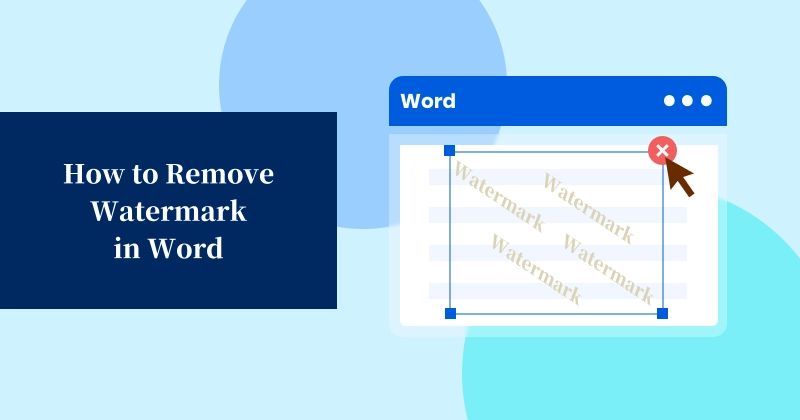
Uma marca d'água no Microsoft Word é uma ferramenta essencial para documentos corporativos, marcando rascunhos como confidenciais ou protegendo a propriedade intelectual. No entanto, quando chega a hora de finalizar um relatório, reaproveitar um modelo ou compartilhar uma versão polida com os clientes, essa marca d'água pode se tornar um obstáculo.
Felizmente, remover uma marca d'água do Word não precisa ser complicado. Com os métodos e ferramentas certos, limpar seu documento é moleza. Neste guia, vamos orientá-lo por 3 maneiras fáceis de remover a marca d'água no Word - sem alterar a formatação original do seu documento!
- Parte 1: Você pode remover uma marca d'água do Word
- Parte 2: Como excluir marca d'água do Word
- Parte 3: Por que remover marcas d'água de documentos do Word
- Parte 4: Dicas e problemas comuns ao remover marca d'água no Word
- Conclusão e Recomendações
Parte 1: Você pode remover uma marca d'água do Word?
A resposta é SIM! Você tem uma variedade de opções, desde recursos integrados do Microsoft Word, ferramentas online como o Google Docs, até scripts de automação usando C#. A escolha do método preferido depende de seus requisitos específicos, como o número de arquivos (único vs. em lote), seu acesso ao software (desktop vs. web) e seu nível de conforto técnico.
3 maneiras práticas de remover marca d'água no Word
- Via Microsoft Word: a maneira nativa e mais confiável de remover marcas d'água diretamente no aplicativo, sem ferramentas externas.
- Via Ferramentas Online: Ferramentas online como o Google Docs oferecem uma solução alternativa conveniente e sem software para limpar marcas d'água em documentos do Word.
- Via Automação C#: C# fornece uma solução mais eficiente para remoção de marcas d'água em lote de grandes volumes de documentos do Word.
Aqui está uma breve visão geral desses métodos:
| Método | Melhor para | Limitações |
|---|---|---|
| Microsoft Word |
|
|
| Google Docs |
|
|
| Automação C# |
|
|
Parte 2: Como excluir marca d'água do Word
Agora, vamos percorrer as etapas detalhadas de cada método.
Método 1: Usando o Microsoft Word (a abordagem nativa)
O Microsoft Word oferece um recurso integrado de remoção de marca d'água, que permite excluir a marca d'água de um documento do Word com apenas alguns cliques. Ele está disponível na maioria das versões, incluindo Word para Microsoft 365, Word 2021, 2019, 2016, 2013, 2010 e 2007.
Instruções passo a passo:
-
Abra o documento: inicie o Microsoft Word e abra o arquivo que contém a marca d'água.
-
Navegue até a guia Design:
-
No Word 2013 e posterior, clique na guia Design na faixa de opções superior.
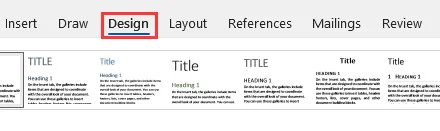
-
Observação: em versões mais antigas, como Word 2010 e 2007, vá para a guia Layout da página.
-
-
Clique em Marca d'água: pressione o botão Marca d'água na extremidade direita da faixa de opções no grupo Plano de fundo da página.
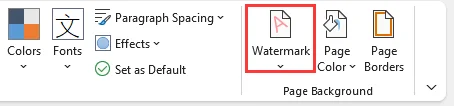
-
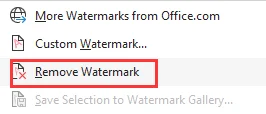
Selecione Remover marca d'água: no menu suspenso, escolha Remover marca d'água na parte inferior.
Nota para usuários de Mac
O processo para remover marcas d'água de documentos do Word no Mac é muito semelhante à versão do Windows, embora o layout do menu possa ser ligeiramente diferente:
- Vá para a guia Design e clique no botão Marca d'água.
- Na caixa de diálogo Inserir marca d'água, selecione Sem marca d'água.
Solução de problemas de marcas d'água teimosas
Se a marca d'água ainda estiver lá depois de usar o método de remoção integrado, ela pode ter sido inserida manualmente no cabeçalho/rodapé como uma imagem ou caixa de texto. Nesse caso, você precisa excluí-la da área do cabeçalho ou rodapé manualmente:
-
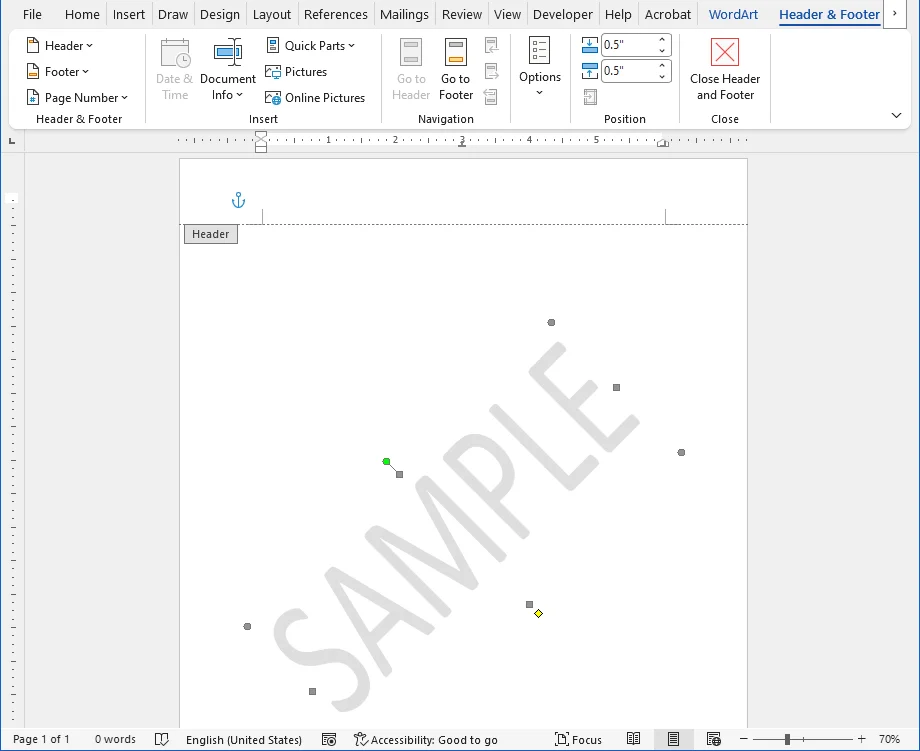
Clique duas vezes na parte superior da página para abrir a visualização Cabeçalho e Rodapé.
-
Mova o cursor sobre a imagem ou texto da marca d'água até que ele se transforme em um ponteiro de quatro setas.
-
Clique na marca d'água para selecioná-la e pressione a tecla Excluir no teclado.
-
Saia do modo de edição de Cabeçalho e Rodapé clicando em Fechar Cabeçalho e Rodapé na faixa de opções ou clicando duas vezes no texto do corpo principal.
A marca d'água agora deve ter desaparecido de todas as páginas que compartilhavam o mesmo cabeçalho. Este método manual funciona de forma idêntica no Windows e no Mac.
Dica: se o seu documento tiver várias seções, verifique o cabeçalho de cada seção. Para qualquer cabeçalho que não esteja "Vinculado ao anterior", repita estas etapas para remover a marca d'água.
Você também pode gostar: Como remover linhas em branco no Word rapidamente
Método 2: Usando ferramentas online (solução baseada na Web)
Se você não tem o Word instalado ou prefere uma solução baseada na web, ferramentas online como o Google Docs servem como uma boa alternativa para remover marcas d'água em documentos do Word. Funciona inteiramente no seu navegador e não requer nenhuma instalação de software.
Como remover marca d'água no Word Online:
-
Faça login no Google e vá para o Google Docs.
-
Clique em Documento em branco para iniciar um novo documento.
-
Clique em Arquivo (canto superior esquerdo) > Abrir > Upload, depois navegue e selecione seu arquivo .docx ou .doc para abri-lo no Google Docs.
-
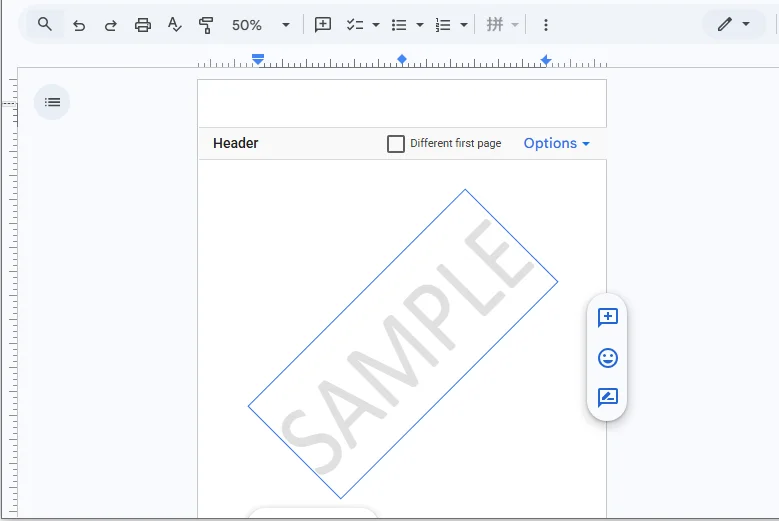
Quando o arquivo estiver aberto, clique duas vezes na marca d'água para selecioná-la e pressione a tecla Excluir.
-
Vá para Arquivo > Baixar > Microsoft Word (.docx) para salvar o documento limpo no seu dispositivo.
Consideração de segurança:
Embora o Google tenha segurança robusta, evite enviar documentos altamente confidenciais ou legalmente privilegiados para serviços de nuvem de terceiros. Use o método de desktop do Microsoft Word ou scripts C# locais para dados confidenciais.
Método 3: Usando automação C# (processamento em lote)
Para desenvolvedores ou empresas que lidam com milhares de documentos do Word, a remoção manual é ineficiente. Você pode remover marcas d'água no Word automaticamente usando C# e a biblioteca Spire.Doc for .NET. Este método permite processar lotes de arquivos sem a necessidade do Microsoft Word instalado no servidor.
O que é o Spire.Doc for .NET e por que escolhê-lo?
O Spire.Doc for .NET é uma biblioteca abrangente e autônoma projetada para criar, ler, editar e converter documentos do Word programaticamente. Ao contrário dos métodos de automação tradicionais que dependem do Microsoft Office, o Spire.Doc opera de forma independente.
Principais benefícios:
- Alto desempenho: mecanismo otimizado para processamento rápido em lote de centenas ou milhares de arquivos.
- Seguro para servidor: sem dependência do MS Office, tornando-o ideal para ambientes de servidor sem interface gráfica (por exemplo, contêineres Azure, AWS, Linux).
- Amplo suporte a formatos: lida perfeitamente com os formatos .doc, .docx, .docm e .dotx.
Pré-requisitos
Antes de executar o código, certifique-se de ter o seguinte:
-
Ambiente de desenvolvimento: Visual Studio com o .NET SDK instalado.
-
Instalação da biblioteca: instale o pacote Spire.Doc via Gerenciador de Pacotes NuGet usando o seguinte comando ou baixe-o do site oficial:
PM> Install-Package Spire.Doc
Exemplo de código C# para remover marcas d'água em lote de documentos do Word
using System;
using System.IO;
using Spire.Doc;

namespace RemoveWordWatermarkBatch
{
    class Program
    {
        static void Main(string[] args)
        {
            // Input folder containing Word files to process
            string inputFolder = @"C:\Documents\Input";
            // Output folder for the processed files
            string outputFolder = @"C:\Documents\Output";

            // Ensure the output folder exists
            if (!Directory.Exists(outputFolder))
            {
                Directory.CreateDirectory(outputFolder);
            }

            // Get all .docx files in the folder
            string[] files = Directory.GetFiles(inputFolder, "*.docx");

            foreach (string filePath in files)
            {
                try
                {
                    // Create a Document instance
                    Document doc = new Document();
                    doc.LoadFromFile(filePath);

                    // Remove the watermark
                    doc.Watermark = null;

                    // Build the output file path
                    string fileName = Path.GetFileName(filePath);
                    string outputPath = Path.Combine(outputFolder, fileName);

                    // Save the cleaned document
                    doc.SaveToFile(outputPath, FileFormat.Docx2013);

                    Console.WriteLine($"Successfully processed: {fileName}");
                }
                catch (Exception ex)
                {
                    Console.WriteLine($"Failed to process: {filePath}");
                    Console.WriteLine($"Error: {ex.Message}");
                }
            }

            Console.WriteLine("Batch processing completed!");
            Console.ReadLine();
        }
    }
}
Este script percorre todos os documentos do Word na pasta de entrada, remove a marca d'água de cada arquivo e salva o arquivo atualizado na pasta de saída.
Resultado:
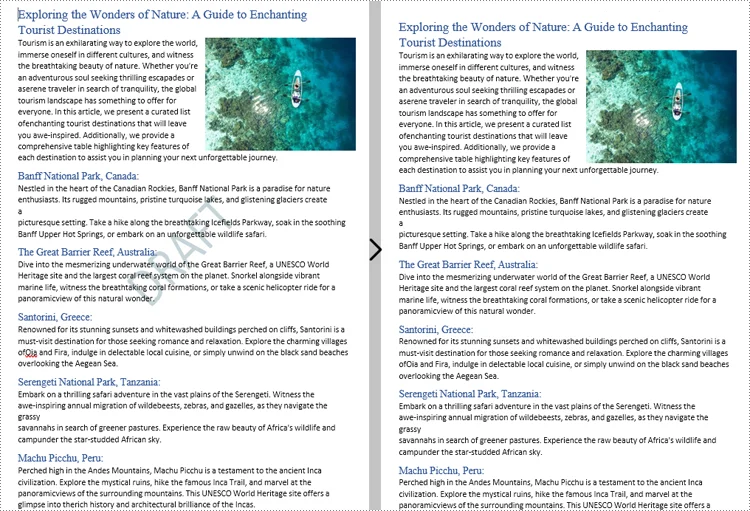
Parte 3: Por que remover marcas d'água de documentos do Word?
Embora as marcas d'água protejam os dados e a identidade da marca, removê-las geralmente é necessário para:
- Finalizando rascunhos: limpando marcadores "RASCUNHO" ou "REVISÃO" para apresentar um documento final polido e profissional.
- Personalizando modelos: removendo logotipos de amostra ou texto de espaço reservado para adaptar modelos para clientes ou projetos específicos.
- Melhorando a acessibilidade: eliminando fundos de baixo contraste que dificultam a legibilidade para usuários com deficiência visual ou interferem nos leitores de tela.
- Otimizando a impressão: evitando ruído de fundo e reduzindo o consumo desnecessário de tinta/toner para impressões mais limpas e econômicas.
⚠️Aviso legal: nunca remova marcas d'água de documentos protegidos por direitos autorais, confidenciais ou proprietários sem permissão explícita. Fazer isso pode violar as leis de direitos autorais, NDAs e políticas de segurança. Certifique-se de ter o direito legal de modificar o arquivo antes de prosseguir.
Parte 4: Dicas e problemas comuns ao remover marca d'água no Word
A remoção de marcas d'água no Word geralmente é simples, mas certos cenários podem causar problemas. Siga estas dicas para garantir um processo tranquilo e veja as soluções para problemas comuns que os usuários encontram.
Dicas
- Sempre faça backup primeiro – Salve uma cópia antes de remover marcas d'água, especialmente ao usar scripts ou processamento em lote.
- Verifique todo o documento – Percorra todas as páginas após a remoção para confirmar que a marca d'água desapareceu de todos os lugares.
- Inspecione objetos residuais – Algumas marcas d'água são inseridas como formas, imagens ou caixas de texto; verifique e remova quaisquer objetos flutuantes.
- Verifique cabeçalhos e seções – Certifique-se de que todos os cabeçalhos e seções sejam contabilizados antes da remoção para evitar a falta de marcas d'água.
Problemas e soluções comuns
- O botão Remover marca d'água não funciona – A marca d'água foi adicionada manualmente como uma imagem, forma ou caixa de texto no cabeçalho/rodapé. Abra o cabeçalho, selecione a marca d'água e pressione Excluir. Verifique todas as seções se houver vários cabeçalhos.
- A marca d'água reaparece após a exclusão – O documento está protegido ou a marca d'água está incorporada em um estilo/modelo. Vá para Revisão > Restringir edição > Parar proteção (pode ser necessária uma senha).
- A cor de fundo fraca permanece – Este é um preenchimento de página em vez de uma marca d'água. Vá para Design > Cor da página > Sem cor.
- A marca d'água ainda aparece em páginas específicas – As configurações de Primeira página diferente ou Página ímpar/par estão ativadas. Edite cada tipo de cabeçalho individualmente e exclua o objeto de marca d'água.
Conclusão e Recomendações
Agora você tem um kit de ferramentas completo para remover marcas d'água em documentos do Word. A chave é selecionar o método que se alinha às suas necessidades específicas:
- Para a maioria dos usuários: mantenha o recurso nativo de remoção de marca d'água do Microsoft Word. É a opção mais rápida, segura e confiável para arquivos individuais.
- Para usuários que não usam o Office: o Google Docs é uma excelente alternativa gratuita sem instalação de software.
- Para empresas e desenvolvedores que lidam com um grande número de arquivos: a automação C# é a solução mais eficiente e escalável.
Escolha com sabedoria e desfrute de documentos limpos e profissionais!
perguntas frequentes
P: Por que a marca d'água não desaparece quando clico em "Remover marca d'água"?
R: A marca d'água provavelmente foi inserida manualmente como uma imagem ou caixa de texto no cabeçalho/rodapé. Clique duas vezes na parte superior da página para abrir a visualização Cabeçalho e Rodapé, selecione a marca d'água diretamente e pressione Excluir.
P: Posso remover marcas d'água de vários arquivos do Word de uma vez?
R: A remoção manual é muito lenta para lotes. Para mais de 100 arquivos, use a automação C# com bibliotecas como o Spire.Doc para percorrer pastas e remover marcas d'água instantaneamente sem abrir o Word.
P: A remoção de uma marca d'água vai bagunçar minha formatação?
R: Usar a ferramenta nativa Remover marca d'água do Word preserva seu layout perfeitamente. Conversores de terceiros (como o Google Docs) podem deslocar ligeiramente as margens ou fontes, portanto, sempre revise.
P: É legal remover uma marca d'água no Word?
R: Sim, se você for o proprietário do documento ou tiver permissão. No entanto, remover marcas de "Confidencial", "Rascunho" ou direitos autorais de arquivos que você não possui pode violar NDAs ou leis de direitos autorais.
Veja também
Word에서 워터마크 제거하는 방법 (3가지 간편한 방법)
Microsoft Word의 워터마크는 회사 문서에 필수적인 도구로, 초안을 기밀로 표시하거나 지적 재산을 보호합니다. 그러나 보고서를 최종 마무리하거나, 템플릿을 다른 용도로 사용하거나, 고객과 세련된 버전을 공유해야 할 때 워터마크는 장애물이 될 수 있습니다.
다행히도 Word에서 워터마크를 제거하는 것은 복잡할 필요가 없습니다. 올바른 방법과 도구를 사용하면 문서를 정리하는 것이 식은 죽 먹기입니다. 이 가이드에서는 원본 문서 서식을 변경하지 않고 Word에서 워터마크를 제거하는 3가지 쉬운 방법을 안내합니다!
- 1부: Word에서 워터마크를 제거할 수 있나요?
- 2부: Word에서 워터마크를 삭제하는 방법
- 3부: Word 문서에서 워터마크를 제거하는 이유
- 4부: Word에서 워터마크 제거 시 팁 및 일반적인 문제
- 결론 및 권장 사항
1부: Word에서 워터마크를 제거할 수 있나요?
답은 '예'입니다! Microsoft Word 내장 기능, Google Docs와 같은 온라인 도구, C#을 사용한 자동화 스크립트에 이르기까지 다양한 옵션이 있습니다. 선호하는 방법을 선택하는 것은 파일 수(단일 대 일괄), 소프트웨어 접근성(데스크톱 대 웹), 기술적 편안함 수준과 같은 특정 요구 사항에 따라 달라집니다.
Word에서 워터마크를 제거하는 3가지 실용적인 방법
- Microsoft Word를 통해: 외부 도구 없이 응용 프로그램 내에서 직접 워터마크를 제거하는 가장 기본적이고 신뢰할 수 있는 방법입니다.
- 온라인 도구를 통해: Google Docs와 같은 온라인 도구는 Word 문서의 워터마크를 지우기 위한 편리하고 소프트웨어가 필요 없는 해결 방법을 제공합니다.
- C# 자동화를 통해: C#은 대량의 Word 문서에서 워터마크를 일괄 제거하기 위한 더 효율적인 솔루션을 제공합니다.
다음은 이러한 방법에 대한 간략한 개요입니다.
| 방법 | 최적 대상 | 제한 사항 |
|---|---|---|
| Microsoft Word |
|
|
| Google Docs |
|
|
| C# 자동화 |
|
|
2부: Word에서 워터마크를 삭제하는 방법
이제 각 방법의 자세한 단계를 살펴보겠습니다.
방법 1: Microsoft Word 사용(기본 접근 방식)
Microsoft Word는 몇 번의 클릭만으로 Word 문서에서 워터마크를 삭제할 수 있는 내장 워터마크 제거 기능을 제공합니다. Microsoft 365용 Word, Word 2021, 2019, 2016, 2013, 2010 및 2007을 포함한 대부분의 버전에서 사용할 수 있습니다.
단계별 지침:
-
문서 열기: Microsoft Word를 시작하고 워터마크가 포함된 파일을 엽니다.
-
디자인 탭으로 이동:
-
Word 2013 이상 버전에서는 상단 리본에서 디자인 탭을 클릭합니다.
-
참고: Word 2010 및 2007과 같은 이전 버전에서는 대신 페이지 레이아웃 탭으로 이동합니다.
-
-
워터마크 클릭: 페이지 배경 그룹의 리본 맨 오른쪽에 있는 워터마크 버튼을 누릅니다.
-
워터마크 제거 선택: 드롭다운 메뉴에서 하단의 워터마크 제거를 선택합니다.
Mac 사용자 참고
Mac에서 Word 문서의 워터마크를 제거하는 과정은 메뉴 레이아웃이 약간 다를 수 있지만 Windows 버전과 매우 유사합니다.
- 디자인 탭으로 이동하여 워터마크 버튼을 클릭합니다.
- 워터마크 삽입 대화 상자에서 워터마크 없음을 선택합니다.
지워지지 않는 워터마크 문제 해결
내장된 제거 방법을 사용한 후에도 워터마크가 여전히 남아 있다면, 머리글/바닥글에 이미지나 텍스트 상자로 수동으로 삽입되었을 수 있습니다. 이 경우 머리글 또는 바닥글 영역에서 수동으로 삭제해야 합니다.
-
페이지 맨 위를 두 번 클릭하여 머리글 및 바닥글 보기를 엽니다.
-
커서가 네 방향 화살표 포인터로 바뀔 때까지 워터마크 이미지나 텍스트 위로 커서를 이동합니다.
-
워터마크를 클릭하여 선택한 다음 키보드의 Delete 키를 누릅니다.
-
리본에서 머리글 및 바닥글 닫기를 클릭하거나 본문 텍스트를 두 번 클릭하여 머리글 및 바닥글 편집 모드를 종료합니다.
이제 동일한 머리글을 공유하는 모든 페이지에서 워터마크가 사라졌을 것입니다. 이 수동 방법은 Windows와 Mac 모두에서 동일하게 작동합니다.
팁: 문서에 여러 구역이 있는 경우 각 구역의 머리글을 확인하십시오. "이전 머리글에 연결"되지 않은 머리글의 경우 이 단계를 반복하여 워터마크를 제거하십시오.
관심 있을 만한 내용: Word에서 빈 줄을 빠르게 제거하는 방법
방법 2: 온라인 도구 사용(웹 기반 솔루션)
Word가 설치되어 있지 않거나 웹 기반 솔루션을 선호하는 경우 Google Docs와 같은 온라인 도구는 Word 문서에서 워터마크를 제거하는 좋은 대안이 됩니다. 브라우저에서 완전히 작동하며 소프트웨어 설치가 필요하지 않습니다.
온라인에서 Word 워터마크를 제거하는 방법:
-
Google에 로그인하고 Google Docs로 이동합니다.
-
빈 문서를 클릭하여 새 문서를 시작합니다.
-
파일(왼쪽 상단) > 열기 > 업로드를 클릭한 다음 .docx 또는 .doc 파일을 찾아 선택하여 Google Docs에서 엽니다.
-
파일이 열리면 워터마크를 두 번 클릭하여 선택하고 Delete 키를 누릅니다.
-
파일 > 다운로드 > Microsoft Word(.docx)로 이동하여 정리된 문서를 장치에 저장합니다.
보안 고려 사항:
Google은 강력한 보안을 갖추고 있지만, 매우 기밀이거나 법적 특권이 있는 문서를 타사 클라우드 서비스에 업로드하지 마십시오. 민감한 데이터의 경우 데스크톱 Microsoft Word 방법이나 로컬 C# 스크립트를 사용하십시오.
방법 3: C# 자동화 사용(일괄 처리)
수천 개의 Word 문서를 처리하는 개발자나 기업의 경우 수동 제거는 비효율적입니다. C# 및 Spire.Doc for .NET 라이브러리를 사용하여 Word에서 워터마크를 자동으로 제거할 수 있습니다. 이 방법을 사용하면 서버에 Microsoft Word를 설치할 필요 없이 파일 배치를 처리할 수 있습니다.
Spire.Doc for .NET이란 무엇이며 왜 선택해야 할까요?
Spire.Doc for .NET은 프로그래밍 방식으로 Word 문서를 생성, 읽기, 편집 및 변환하도록 설계된 포괄적인 독립 실행형 라이브러리입니다. Microsoft Office에 의존하는 기존 자동화 방법과 달리 Spire.Doc은 독립적으로 작동합니다.
주요 이점:
- 고성능: 수백 또는 수천 개의 파일을 신속하게 일괄 처리하기 위해 최적화된 엔진입니다.
- 서버 안전: MS Office에 대한 종속성이 없어 헤드리스 서버 환경(예: Azure, AWS, Linux 컨테이너)에 이상적입니다.
- 광범위한 형식 지원: .doc, .docx, .docm 및 .dotx 형식을 원활하게 처리합니다.
전제 조건
코드를 실행하기 전에 다음을 확인하십시오.
-
개발 환경: .NET SDK가 설치된 Visual Studio.
-
라이브러리 설치: 다음 명령을 사용하여 NuGet 패키지 관리자를 통해 Spire.Doc 패키지를 설치하거나 공식 웹사이트에서 다운로드하십시오.
PM> Install-Package Spire.Doc
Word 문서에서 워터마크를 일괄 제거하는 C# 코드 예제
using System;
using System.IO;
using Spire.Doc;

namespace RemoveWordWatermarkBatch
{
    class Program
    {
        static void Main(string[] args)
        {
            // Input folder containing Word files to process
            string inputFolder = @"C:\Documents\Input";
            // Output folder for the processed files
            string outputFolder = @"C:\Documents\Output";

            // Ensure the output folder exists
            if (!Directory.Exists(outputFolder))
            {
                Directory.CreateDirectory(outputFolder);
            }

            // Get all .docx files in the folder
            string[] files = Directory.GetFiles(inputFolder, "*.docx");

            foreach (string filePath in files)
            {
                try
                {
                    // Create a Document instance
                    Document doc = new Document();
                    doc.LoadFromFile(filePath);

                    // Remove the watermark
                    doc.Watermark = null;

                    // Build the output file path
                    string fileName = Path.GetFileName(filePath);
                    string outputPath = Path.Combine(outputFolder, fileName);

                    // Save the cleaned document
                    doc.SaveToFile(outputPath, FileFormat.Docx2013);

                    Console.WriteLine($"Successfully processed: {fileName}");
                }
                catch (Exception ex)
                {
                    Console.WriteLine($"Failed to process: {filePath}");
                    Console.WriteLine($"Error: {ex.Message}");
                }
            }

            Console.WriteLine("Batch processing completed!");
            Console.ReadLine();
        }
    }
}
이 스크립트는 입력 폴더의 모든 Word 문서를 반복하고 각 파일에서 워터마크를 제거한 다음 업데이트된 파일을 출력 폴더에 저장합니다.
결과:
3부: Word 문서에서 워터마크를 제거하는 이유
워터마크는 데이터와 브랜드 아이덴티티를 보호하지만, 다음과 같은 이유로 제거해야 하는 경우가 많습니다.
- 초안 마무리: "초안" 또는 "검토" 표시를 지워 세련되고 전문적인 최종 문서를 제시합니다.
- 템플릿 사용자 지정: 샘플 로고나 자리 표시자 텍스트를 제거하여 특정 고객이나 프로젝트에 맞게 템플릿을 조정합니다.
- 접근성 향상: 시각 장애가 있는 사용자의 가독성을 저해하거나 화면 판독기를 방해하는 저대비 배경을 제거합니다.
- 인쇄 최적화: 배경 노이즈를 방지하고 불필요한 잉크/토너 소비를 줄여 더 깨끗하고 비용 효율적인 인쇄를 합니다.
⚠️법적 경고: 명시적인 허가 없이 저작권이 있거나, 기밀이거나, 소유권이 있는 문서에서 워터마크를 제거하지 마십시오. 그렇게 하면 저작권법, NDA 및 보안 정책을 위반할 수 있습니다. 진행하기 전에 파일을 수정할 법적 권리가 있는지 확인하십시오.
4부: Word에서 워터마크 제거 시 팁 및 일반적인 문제
Word에서 워터마크를 제거하는 것은 일반적으로 간단하지만 특정 시나리오에서는 문제가 발생할 수 있습니다. 원활한 프로세스를 위해 다음 팁을 따르고 사용자가 겪는 일반적인 문제에 대한 해결책을 확인하십시오.
팁
- 항상 먼저 백업 – 워터마크를 제거하기 전에, 특히 스크립트나 일괄 처리를 사용할 때 사본을 저장하십시오.
- 전체 문서 확인 – 제거 후 모든 페이지를 스크롤하여 워터마크가 모든 곳에서 사라졌는지 확인하십시오.
- 남아있는 개체 검사 – 일부 워터마크는 도형, 이미지 또는 텍스트 상자로 삽입됩니다. 떠다니는 개체가 있는지 확인하고 제거하십시오.
- 머리글 및 구역 확인 – 워터마크가 누락되지 않도록 제거하기 전에 모든 머리글과 구역이 고려되었는지 확인하십시오.
일반적인 문제 및 해결책
- 워터마크 제거 버튼이 작동하지 않음 – 워터마크가 머리글/바닥글에 이미지, 도형 또는 텍스트 상자로 수동으로 추가되었습니다. 머리글을 열고 워터마크를 선택한 다음 Delete를 누릅니다. 여러 머리글이 있는 경우 모든 구역을 확인하십시오.
- 삭제 후 워터마크가 다시 나타남 – 문서가 보호되어 있거나 워터마크가 스타일/템플릿에 포함되어 있습니다. 검토 > 편집 제한 > 보호 중지로 이동합니다(암호가 필요할 수 있음).
- 희미한 배경색이 남음 – 이것은 워터마크가 아니라 페이지 채우기입니다. 디자인 > 페이지 색 > 색 없음으로 이동합니다.
- 특정 페이지에 워터마크가 계속 나타남 – 첫 페이지 다르게 또는 홀수/짝수 페이지 설정이 활성화되어 있습니다. 각 머리글 유형을 개별적으로 편집하고 워터마크 개체를 삭제하십시오.
결론 및 권장 사항
이제 Word 문서에서 워터마크를 제거하기 위한 완전한 도구 키트를 갖게 되었습니다. 핵심은 특정 요구 사항에 맞는 방법을 선택하는 것입니다.
- 대부분의 사용자: 기본 Microsoft Word 워터마크 제거 기능을 사용하십시오. 개별 파일에 대해 가장 빠르고 안전하며 신뢰할 수 있는 옵션입니다.
- Office를 사용하지 않는 사용자: Google Docs는 소프트웨어 설치 없이 훌륭한 무료 대안입니다.
- 많은 수의 파일을 처리하는 기업 및 개발자: C# 자동화는 가장 효율적이고 확장 가능한 솔루션입니다.
현명하게 선택하고 깨끗하고 전문적인 문서를 즐기십시오!
자주 묻는 질문
Q: "워터마크 제거"를 클릭해도 워터마크가 사라지지 않는 이유는 무엇입니까?
A: 워터마크가 머리글/바닥글에 이미지나 텍스트 상자로 수동으로 삽입되었을 가능성이 높습니다. 페이지 상단을 두 번 클릭하여 머리글 및 바닥글 보기를 열고 워터마크를 직접 선택한 다음 Delete를 누릅니다.
Q: 여러 Word 파일에서 한 번에 워터마크를 제거할 수 있습니까?
A: 수동 제거는 일괄 처리에 너무 느립니다. 100개 이상의 파일의 경우 Spire.Doc과 같은 라이브러리를 사용한 C# 자동화를 사용하여 Word를 열지 않고도 폴더를 반복하고 워터마크를 즉시 제거할 수 있습니다.
Q: 워터마크를 제거하면 서식이 엉망이 됩니까?
A: 기본 Word 워터마크 제거 도구를 사용하면 레이아웃이 완벽하게 보존됩니다. 타사 변환기(예: Google Docs)는 여백이나 글꼴을 약간 변경할 수 있으므로 항상 교정하십시오.
Q: Word에서 워터마크를 제거하는 것이 합법적입니까?
A: 예, 문서를 소유하고 있거나 허가를 받은 경우에만 가능합니다. 그러나 소유하지 않은 파일에서 "기밀", "초안" 또는 저작권 표시를 제거하면 NDA 또는 저작권법을 위반할 수 있습니다.
참고 항목
Come rimuovere la filigrana in Word (3 modi semplici)
Indice
Una filigrana in Microsoft Word è uno strumento essenziale per i documenti aziendali, che contrassegna le bozze come riservate o protegge la proprietà intellettuale. Tuttavia, quando è il momento di finalizzare un rapporto, riutilizzare un modello o condividere una versione raffinata con i clienti, quella filigrana può diventare un ostacolo.
Fortunatamente, rimuovere una filigrana da Word non deve essere complicato. Con i metodi e gli strumenti giusti, pulire il tuo documento è un gioco da ragazzi. In questa guida, ti illustreremo 3 semplici modi per rimuovere la filigrana in Word, senza alterare la formattazione originale del tuo documento!
- Parte 1: È possibile rimuovere una filigrana da Word
- Parte 2: Come eliminare la filigrana da Word
- Parte 3: Perché rimuovere le filigrane dai documenti di Word
- Parte 4: Suggerimenti e problemi comuni durante la rimozione della filigrana in Word
- Conclusione e raccomandazioni
Parte 1: È possibile rimuovere una filigrana da Word?
La risposta è SÌ! Hai una varietà di opzioni, che vanno dalle funzionalità integrate di Microsoft Word, agli strumenti online come Google Docs, agli script di automazione che utilizzano C#. La scelta del metodo preferito dipende dalle tue esigenze specifiche, come il numero di file (singolo vs. batch), il tuo accesso al software (desktop vs. web) e il tuo livello di comfort tecnico.
3 modi pratici per rimuovere la filigrana in Word
- Tramite Microsoft Word: il modo nativo e più affidabile per rimuovere le filigrane direttamente all'interno dell'applicazione senza strumenti esterni.
- Tramite strumenti online: strumenti online come Google Docs offrono una comoda soluzione alternativa senza software per cancellare le filigrane nei documenti di Word.
- Tramite automazione C#: C# fornisce una soluzione più efficiente per la rimozione batch di filigrane da grandi volumi di documenti Word.
Ecco una breve panoramica di questi metodi:
| Metodo | Ideale per | Limitazioni |
|---|---|---|
| Microsoft Word |
|
|
| Google Docs |
|
|
| Automazione C# |
|
|
Parte 2: Come eliminare la filigrana da Word
Ora, esaminiamo i passaggi dettagliati di ciascun metodo.
Metodo 1: Utilizzo di Microsoft Word (l'approccio nativo)
Microsoft Word offre una funzione di rimozione della filigrana integrata, che consente di eliminare la filigrana da un documento di Word in pochi clic. È disponibile nella maggior parte delle versioni, tra cui Word per Microsoft 365, Word 2021, 2019, 2016, 2013, 2010 e 2007.
Istruzioni passo passo:
-
Apri il documento: avvia Microsoft Word e apri il file contenente la filigrana.
-
Vai alla scheda Progettazione:
-
In Word 2013 e versioni successive, fai clic sulla scheda Progettazione nella barra multifunzione in alto.
-
Nota: nelle versioni precedenti come Word 2010 e 2007, vai invece alla scheda Layout di pagina.
-
-
Fai clic su Filigrana: premi il pulsante Filigrana all'estrema destra della barra multifunzione nel gruppo Sfondo pagina.
-
Seleziona Rimuovi filigrana: dal menu a discesa, scegli Rimuovi filigrana in basso.
Nota per gli utenti Mac
Il processo per rimuovere le filigrane dai documenti di Word su Mac è molto simile alla versione di Windows, anche se il layout del menu potrebbe essere leggermente diverso:
- Vai alla scheda Progettazione e fai clic sul pulsante Filigrana.
- Nella finestra di dialogo Inserisci filigrana, seleziona Nessuna filigrana.
Risoluzione dei problemi relativi alle filigrane ostinate
Se la filigrana è ancora presente dopo aver utilizzato il metodo di rimozione integrato, potrebbe essere stata inserita manualmente nell'intestazione/piè di pagina come immagine o casella di testo. In questo caso, è necessario eliminarla manualmente dall'area dell'intestazione o del piè di pagina:
-
Fai doppio clic sulla parte superiore della pagina per aprire la visualizzazione Intestazione e piè di pagina.
-
Sposta il cursore sull'immagine o sul testo della filigrana finché non si trasforma in un puntatore a quattro frecce.
-
Fai clic sulla filigrana per selezionarla, quindi premi il tasto Canc sulla tastiera.
-
Esci dalla modalità di modifica di Intestazione e piè di pagina facendo clic su Chiudi intestazione e piè di pagina sulla barra multifunzione o facendo doppio clic sul testo del corpo principale.
La filigrana dovrebbe ora essere scomparsa da ogni pagina che condivideva la stessa intestazione. Questo metodo manuale funziona in modo identico sia su Windows che su Mac.
Suggerimento: se il documento ha più sezioni, controlla l'intestazione di ogni sezione. Per qualsiasi intestazione che non sia "Collegata alla precedente", ripeti questi passaggi per rimuovere la filigrana.
Potrebbe piacerti anche: Come rimuovere rapidamente le righe vuote in Word
Metodo 2: Utilizzo di strumenti online (soluzione basata sul Web)
Se non hai Word installato o preferisci una soluzione basata sul Web, gli strumenti online come Google Docs sono una buona alternativa per rimuovere le filigrane nei documenti di Word. Funziona interamente nel tuo browser e non richiede alcuna installazione di software.
Come rimuovere la filigrana in Word online:
-
Accedi a Google e vai a Google Docs.
-
Fai clic su Documento vuoto per avviare un nuovo documento.
-
Fai clic su File (in alto a sinistra) > Apri > Carica, quindi sfoglia e seleziona il tuo file .docx o .doc per aprirlo in Google Docs.
-
Una volta aperto il file, fai doppio clic sulla filigrana per selezionarla e premi il tasto Canc.
-
Vai su File > Scarica > Microsoft Word (.docx) per salvare il documento pulito sul tuo dispositivo.
Considerazioni sulla sicurezza:
Sebbene Google disponga di una solida sicurezza, evita di caricare documenti altamente riservati o legalmente privilegiati su servizi cloud di terze parti. Utilizza il metodo desktop di Microsoft Word o script C# locali per i dati sensibili.
Metodo 3: Utilizzo dell'automazione C# (elaborazione batch)
Per gli sviluppatori o le aziende che gestiscono migliaia di documenti di Word, la rimozione manuale è inefficiente. Puoi rimuovere automaticamente le filigrane in Word utilizzando C# e la libreria Spire.Doc per .NET. Questo metodo consente di elaborare batch di file senza la necessità di installare Microsoft Word sul server.
Cos'è Spire.Doc per .NET e perché sceglierlo?
Spire.Doc per .NET è una libreria completa e autonoma progettata per creare, leggere, modificare e convertire documenti di Word a livello di codice. A differenza dei metodi di automazione tradizionali che si basano su Microsoft Office, Spire.Doc funziona in modo indipendente.
Vantaggi principali:
- Alte prestazioni: motore ottimizzato per l'elaborazione rapida in batch di centinaia o migliaia di file.
- Sicuro per il server: nessuna dipendenza da MS Office, il che lo rende ideale per ambienti server headless (ad es. Azure, AWS, container Linux).
- Ampio supporto di formati: gestisce senza problemi i formati .doc, .docx, .docm e .dotx.
Prerequisiti
Prima di eseguire il codice, assicurati di disporre di quanto segue:
-
Ambiente di sviluppo: Visual Studio con .NET SDK installato.
-
Installazione della libreria: installa il pacchetto Spire.Doc tramite NuGet Package Manager utilizzando il seguente comando o scaricalo dal sito Web ufficiale:
PM> Install-Package Spire.Doc
Esempio di codice C# per rimuovere in batch le filigrane dai documenti di Word
using System;
using System.IO;
using Spire.Doc;

namespace RemoveWordWatermarkBatch
{
    class Program
    {
        static void Main(string[] args)
        {
            // Input folder containing Word files to process
            string inputFolder = @"C:\Documents\Input";
            // Output folder for the processed files
            string outputFolder = @"C:\Documents\Output";

            // Ensure the output folder exists
            if (!Directory.Exists(outputFolder))
            {
                Directory.CreateDirectory(outputFolder);
            }

            // Get all .docx files in the folder
            string[] files = Directory.GetFiles(inputFolder, "*.docx");

            foreach (string filePath in files)
            {
                try
                {
                    // Create a Document instance
                    Document doc = new Document();
                    doc.LoadFromFile(filePath);

                    // Remove the watermark
                    doc.Watermark = null;

                    // Build the output file path
                    string fileName = Path.GetFileName(filePath);
                    string outputPath = Path.Combine(outputFolder, fileName);

                    // Save the cleaned document
                    doc.SaveToFile(outputPath, FileFormat.Docx2013);

                    Console.WriteLine($"Successfully processed: {fileName}");
                }
                catch (Exception ex)
                {
                    Console.WriteLine($"Failed to process: {filePath}");
                    Console.WriteLine($"Error: {ex.Message}");
                }
            }

            Console.WriteLine("Batch processing completed!");
            Console.ReadLine();
        }
    }
}
Questo script scorre tutti i documenti di Word nella cartella di input, rimuove la filigrana da ogni file e quindi salva il file aggiornato nella cartella di output.
Risultato:
Parte 3: Perché rimuovere le filigrane dai documenti di Word?
Sebbene le filigrane proteggano i dati e l'identità del marchio, la loro rimozione è spesso necessaria per:
- Finalizzazione delle bozze: cancellazione dei contrassegni "BOZZA" o "REVISIONE" per presentare un documento finale raffinato e professionale.
- Personalizzazione dei modelli: rimozione di loghi di esempio o testo segnaposto per adattare i modelli a clienti o progetti specifici.
- Miglioramento dell'accessibilità: eliminazione degli sfondi a basso contrasto che ostacolano la leggibilità per gli utenti ipovedenti o interferiscono con gli screen reader.
- Ottimizzazione della stampa: prevenzione del rumore di fondo e riduzione del consumo non necessario di inchiostro/toner per stampe più pulite ed economiche.
⚠️Avvertenza legale: non rimuovere mai le filigrane da documenti protetti da copyright, riservati o proprietari senza autorizzazione esplicita. Ciò potrebbe violare le leggi sul copyright, gli accordi di non divulgazione e le politiche di sicurezza. Assicurati di avere il diritto legale di modificare il file prima di procedere.
Parte 4: Suggerimenti e problemi comuni durante la rimozione della filigrana in Word
La rimozione delle filigrane in Word è solitamente semplice, ma alcuni scenari possono causare problemi. Segui questi suggerimenti per garantire un processo senza intoppi e consulta le soluzioni per i problemi comuni riscontrati dagli utenti.
Suggerimenti
- Esegui sempre prima il backup – Salva una copia prima di rimuovere le filigrane, soprattutto quando si utilizzano script o elaborazione batch.
- Controlla l'intero documento – Scorri tutte le pagine dopo la rimozione per confermare che la filigrana sia scomparsa ovunque.
- Ispeziona per oggetti residui – Alcune filigrane vengono inserite come forme, immagini o caselle di testo; controlla e rimuovi eventuali oggetti mobili.
- Verifica intestazioni e sezioni – Assicurati che tutte le intestazioni e le sezioni siano state prese in considerazione prima della rimozione per evitare di perdere le filigrane.
Problemi comuni e soluzioni
- Il pulsante Rimuovi filigrana non funziona – La filigrana è stata aggiunta manualmente come immagine, forma o casella di testo nell'intestazione/piè di pagina. Apri l'intestazione, seleziona la filigrana e premi Canc. Controlla tutte le sezioni se esistono più intestazioni.
- La filigrana riappare dopo l'eliminazione – Il documento è protetto o la filigrana è incorporata in uno stile/modello. Vai a Revisione > Limita modifica > Interrompi protezione (potrebbe essere richiesta una password).
- Rimane un debole colore di sfondo – Si tratta di un riempimento di pagina anziché di una filigrana. Vai a Progettazione > Colore pagina > Nessun colore.
- La filigrana appare ancora su pagine specifiche – Sono abilitate impostazioni diverse per la prima pagina o per le pagine pari/dispari. Modifica singolarmente ogni tipo di intestazione ed elimina l'oggetto filigrana.
Conclusione e raccomandazioni
Ora hai un kit di strumenti completo per rimuovere le filigrane nei documenti di Word. La chiave è selezionare il metodo che si allinea alle tue esigenze specifiche:
- Per la maggior parte degli utenti: attenersi alla funzione di rimozione della filigrana nativa di Microsoft Word. È l'opzione più veloce, sicura e affidabile per i singoli file.
- Per gli utenti non di Office: Google Docs è un'eccellente alternativa gratuita senza installazione di software.
- Per le aziende e gli sviluppatori che gestiscono un gran numero di file: l'automazione C# è la soluzione più efficiente e scalabile.
Scegli saggiamente e goditi documenti puliti e professionali!
Domande frequenti
D: Perché la filigrana non scompare quando faccio clic su "Rimuovi filigrana"?
R: La filigrana è stata probabilmente inserita manualmente come immagine o casella di testo nell'intestazione/piè di pagina. Fai doppio clic sulla parte superiore della pagina per aprire la visualizzazione Intestazione e piè di pagina, seleziona direttamente la filigrana e premi Canc.
D: Posso rimuovere le filigrane da più file di Word contemporaneamente?
R: La rimozione manuale è troppo lenta per i batch. Per oltre 100 file, utilizza l'automazione C# con librerie come Spire.Doc per scorrere le cartelle e rimuovere istantaneamente le filigrane senza aprire Word.
D: La rimozione di una filigrana rovinerà la mia formattazione?
R: L'utilizzo dello strumento nativo Rimuovi filigrana di Word preserva perfettamente il layout. I convertitori di terze parti (come Google Docs) potrebbero spostare leggermente i margini o i caratteri, quindi rileggi sempre.
D: È legale rimuovere una filigrana in Word?
R: Sì, se possiedi il documento o hai il permesso. Tuttavia, la rimozione dei contrassegni "Riservato", "Bozza" o di copyright da file di cui non sei proprietario potrebbe violare gli accordi di non divulgazione o le leggi sul copyright.
Vedi anche
Comment supprimer un filigrane dans Word (3 méthodes simples)
Table des matières
Un filigrane dans Microsoft Word est un outil essentiel pour les documents d'entreprise, marquant les brouillons comme confidentiels ou protégeant la propriété intellectuelle. Cependant, lorsqu'il est temps de finaliser un rapport, de réutiliser un modèle ou de partager une version soignée avec des clients, ce filigrane peut devenir un obstacle.
Heureusement, la suppression d'un filigrane de Word n'a pas à être compliquée. Avec les bonnes méthodes et les bons outils, nettoyer votre document est un jeu d'enfant. Dans ce guide, nous vous présenterons 3 façons simples de supprimer un filigrane dans Word - sans altérer le formatage de votre document original !
- Partie 1 : Pouvez-vous supprimer un filigrane de Word
- Partie 2 : Comment supprimer un filigrane de Word
- Partie 3 : Pourquoi supprimer les filigranes des documents Word
- Partie 4 : Conseils et problèmes courants lors de la suppression d'un filigrane dans Word
- Conclusion et recommandations
Partie 1 : Pouvez-vous supprimer un filigrane de Word ?
La réponse est OUI ! Vous disposez de plusieurs options, allant des fonctionnalités intégrées de Microsoft Word, des outils en ligne comme Google Docs, aux scripts d'automatisation utilisant C#. Le choix de la méthode préférée dépend de vos besoins spécifiques, tels que le nombre de fichiers (unique ou par lot), votre accès aux logiciels (bureau ou web) et votre niveau de confort technique.
3 façons pratiques de supprimer un filigrane dans Word
- Via Microsoft Word : La manière native et la plus fiable de supprimer les filigranes directement dans l'application sans outils externes.
- Via des outils en ligne : Des outils en ligne comme Google Docs offrent une solution de contournement pratique et sans logiciel pour effacer les filigranes dans les documents Word.
- Via l'automatisation C# : C# offre une solution plus efficace pour la suppression de filigranes par lots sur de grands volumes de documents Word.
Voici un bref aperçu de ces méthodes :
| Méthode | Idéal pour | Limites |
|---|---|---|
| Microsoft Word |
|
|
| Google Docs |
|
|
| Automatisation C# |
|
|
Partie 2 : Comment supprimer un filigrane de Word
Maintenant, passons en revue les étapes détaillées de chaque méthode.
Méthode 1 : Utilisation de Microsoft Word (L'approche native)
Microsoft Word offre une fonctionnalité intégrée de suppression de filigrane, qui vous permet de supprimer un filigrane d'un document Word en quelques clics seulement. Elle est disponible dans la plupart des versions, y compris Word pour Microsoft 365, Word 2021, 2019, 2016, 2013, 2010 et 2007.
Instructions étape par étape :
-
Ouvrez le document : Lancez Microsoft Word et ouvrez le fichier contenant le filigrane.
-
Accédez à l'onglet Création :
-
Dans Word 2013 et versions ultérieures, cliquez sur l'onglet Création dans le ruban supérieur.
-
Remarque : Dans les anciennes versions comme Word 2010 et 2007, allez plutôt à l'onglet Mise en page.
-
-
Cliquez sur Filigrane : Appuyez sur le bouton Filigrane à l'extrême droite du ruban dans le groupe Arrière-plan de la page.
-
Sélectionnez Supprimer le filigrane : Dans le menu déroulant, choisissez Supprimer le filigrane en bas.
Remarque pour les utilisateurs de Mac
Le processus pour supprimer les filigranes des documents Word sur Mac est très similaire à la version Windows, bien que la disposition du menu puisse être légèrement différente :
- Allez dans l'onglet Création et cliquez sur le bouton Filigrane.
- Dans la boîte de dialogue Insérer un filigrane, sélectionnez Aucun filigrane.
Dépannage des filigranes tenaces
Si le filigrane est toujours présent après avoir utilisé la méthode de suppression intégrée, il a peut-être été inséré manuellement dans l'en-tête/pied de page en tant qu'image ou zone de texte. Dans ce cas, vous devez le supprimer manuellement de la zone d'en-tête ou de pied de page :
-
Double-cliquez tout en haut de la page pour ouvrir la vue En-tête et pied de page.
-
Déplacez votre curseur sur l'image ou le texte du filigrane jusqu'à ce qu'il se transforme en un pointeur à quatre flèches.
-
Cliquez sur le filigrane pour le sélectionner, puis appuyez sur la touche Suppr de votre clavier.
-
Quittez le mode d'édition de l'en-tête et du pied de page en cliquant sur Fermer l'en-tête et le pied de page dans le ruban ou en double-cliquant sur le corps principal du texte.
Le filigrane devrait maintenant avoir disparu de chaque page qui partageait le même en-tête. Cette méthode manuelle fonctionne de manière identique sur Windows et Mac.
Conseil : Si votre document comporte plusieurs sections, vérifiez l'en-tête de chaque section. Pour tout en-tête qui n'est pas « Lié au précédent », répétez ces étapes pour supprimer le filigrane.
Vous pourriez aussi aimer : Comment supprimer rapidement les lignes vides dans Word
Méthode 2 : Utilisation d'outils en ligne (Solution basée sur le Web)
Si vous n'avez pas Word installé ou si vous préférez une solution basée sur le Web, des outils en ligne comme Google Docs constituent une bonne alternative pour supprimer les filigranes des documents Word. Cela fonctionne entièrement dans votre navigateur et ne nécessite aucune installation de logiciel.
Comment supprimer un filigrane dans Word en ligne :
-
Connectez-vous à Google et allez sur Google Docs.
-
Cliquez sur Document vierge pour commencer un nouveau document.
-
Cliquez sur Fichier (en haut à gauche) > Ouvrir > Importer, puis parcourez et sélectionnez votre fichier .docx ou .doc pour l'ouvrir dans Google Docs.
-
Une fois le fichier ouvert, double-cliquez sur le filigrane pour le sélectionner et appuyez sur la touche Suppr.
-
Allez dans Fichier > Télécharger > Microsoft Word (.docx) pour enregistrer le document nettoyé sur votre appareil.
Considération de sécurité :
Bien que Google dispose d'une sécurité robuste, évitez de télécharger des documents hautement confidentiels ou juridiquement privilégiés sur des services cloud tiers. Utilisez la méthode de bureau Microsoft Word ou des scripts C# locaux pour les données sensibles.
Méthode 3 : Utilisation de l'automatisation C# (Traitement par lots)
Pour les développeurs ou les entreprises qui traitent des milliers de documents Word, la suppression manuelle est inefficace. Vous pouvez supprimer automatiquement les filigranes dans Word en utilisant C# et la bibliothèque Spire.Doc for .NET. Cette méthode vous permet de traiter des lots de fichiers sans avoir besoin que Microsoft Word soit installé sur le serveur.
Qu'est-ce que Spire.Doc for .NET et pourquoi le choisir ?
Spire.Doc for .NET est une bibliothèque complète et autonome conçue pour créer, lire, modifier et convertir des documents Word par programmation. Contrairement aux méthodes d'automatisation traditionnelles qui reposent sur Microsoft Office, Spire.Doc fonctionne de manière indépendante.
Principaux avantages :
- Haute performance : Moteur optimisé pour le traitement rapide par lots de centaines ou de milliers de fichiers.
- Sécurisé pour le serveur : Aucune dépendance à MS Office, ce qui le rend idéal pour les environnements de serveur sans tête (par exemple, Azure, AWS, conteneurs Linux).
- Large prise en charge des formats : Gère de manière transparente les formats .doc, .docx, .docm et .dotx.
Prérequis
Avant d'exécuter le code, assurez-vous d'avoir les éléments suivants :
-
Environnement de développement : Visual Studio avec le SDK .NET installé.
-
Installation de la bibliothèque : Installez le package Spire.Doc via le gestionnaire de packages NuGet à l'aide de la commande suivante ou téléchargez-le depuis le site officiel :
PM> Install-Package Spire.Doc
Exemple de code C# pour supprimer par lots les filigranes des documents Word
using System;
using System.IO;
using Spire.Doc;

namespace RemoveWordWatermarkBatch
{
    class Program
    {
        static void Main(string[] args)
        {
            // Dossier d'entrée contenant les fichiers Word à traiter
            string inputFolder = @"C:\Documents\Input";
            // Dossier de sortie pour les fichiers traités
            string outputFolder = @"C:\Documents\Output";

            // S'assurer que le dossier de sortie existe
            if (!Directory.Exists(outputFolder))
            {
                Directory.CreateDirectory(outputFolder);
            }

            // Obtenir tous les fichiers .docx dans le dossier
            string[] files = Directory.GetFiles(inputFolder, "*.docx");

            foreach (string filePath in files)
            {
                try
                {
                    // Créer une instance de Document
                    Document doc = new Document();
                    doc.LoadFromFile(filePath);

                    // Supprimer le filigrane
                    doc.Watermark = null;

                    // Construire le chemin du fichier de sortie
                    string fileName = Path.GetFileName(filePath);
                    string outputPath = Path.Combine(outputFolder, fileName);

                    // Enregistrer le document nettoyé
                    doc.SaveToFile(outputPath, FileFormat.Docx2013);

                    Console.WriteLine($"Traité avec succès : {fileName}");
                }
                catch (Exception ex)
                {
                    Console.WriteLine($"Échec du traitement : {filePath}");
                    Console.WriteLine($"Erreur : {ex.Message}");
                }
            }

            Console.WriteLine("Traitement par lots terminé !");
            Console.ReadLine();
        }
    }
}
Ce script parcourt tous les documents Word dans le dossier d'entrée, supprime le filigrane de chaque fichier, puis enregistre le fichier mis à jour dans le dossier de sortie.
Résultat :
Partie 3 : Pourquoi supprimer les filigranes des documents Word ?
Bien que les filigranes protègent les données et l'identité de la marque, leur suppression est souvent nécessaire pour :
- Finaliser les brouillons : Effacer les marqueurs « BROUILLON » ou « RÉVISION » pour présenter un document final soigné et professionnel.
- Personnalisation des modèles : Suppression des logos d'exemple ou du texte de remplacement pour adapter les modèles à des clients ou des projets spécifiques.
- Amélioration de l'accessibilité : Élimination des arrière-plans à faible contraste qui entravent la lisibilité pour les utilisateurs malvoyants ou interfèrent avec les lecteurs d'écran.
- Optimisation de l'impression : Prévention du bruit de fond et réduction de la consommation d'encre/toner inutile pour des impressions plus propres et plus rentables.
⚠️Avertissement légal : Ne supprimez jamais les filigranes de documents protégés par le droit d'auteur, confidentiels ou propriétaires sans autorisation explicite. Cela pourrait violer les lois sur le droit d'auteur, les accords de non-divulgation et les politiques de sécurité. Assurez-vous d'avoir le droit légal de modifier le fichier avant de continuer.
Partie 4 : Conseils et problèmes courants lors de la suppression d'un filigrane dans Word
La suppression des filigranes dans Word est généralement simple, mais certains scénarios peuvent causer des problèmes. Suivez ces conseils pour garantir un processus fluide et consultez les solutions aux problèmes courants que les utilisateurs rencontrent.
Conseils
- Sauvegardez toujours en premier – Enregistrez une copie avant de supprimer les filigranes, en particulier lors de l'utilisation de scripts ou de traitement par lots.
- Vérifiez l'intégralité du document – Faites défiler toutes les pages après la suppression pour confirmer que le filigrane a disparu partout.
- Inspectez les objets résiduels – Certains filigranes sont insérés sous forme de formes, d'images ou de zones de texte ; vérifiez et supprimez tous les objets flottants.
- Vérifiez les en-têtes et les sections – Assurez-vous que tous les en-têtes et sections sont pris en compte avant la suppression pour éviter de manquer des filigranes.
Problèmes courants et solutions
- Le bouton Supprimer le filigrane ne fonctionne pas – Le filigrane a été ajouté manuellement en tant qu'image, forme ou zone de texte dans l'en-tête/pied de page. Ouvrez l'en-tête, sélectionnez le filigrane et appuyez sur Suppr. Vérifiez toutes les sections s'il existe plusieurs en-têtes.
- Le filigrane réapparaît après la suppression – Le document est protégé ou le filigrane est intégré dans un style/modèle. Allez dans Révision > Restreindre la modification > Arrêter la protection (un mot de passe peut être requis).
- Une couleur d'arrière-plan pâle persiste – Il s'agit d'un remplissage de page plutôt que d'un filigrane. Allez dans Création > Couleur de page > Aucune couleur.
- Le filigrane apparaît toujours sur des pages spécifiques – Les paramètres Première page différente ou Pages paires et impaires différentes sont activés. Modifiez chaque type d'en-tête individuellement et supprimez l'objet filigrane.
Conclusion et recommandations
Vous disposez maintenant d'une boîte à outils complète pour supprimer les filigranes des documents Word. La clé est de choisir la méthode qui correspond à vos besoins spécifiques :
- Pour la plupart des utilisateurs : Tenez-vous-en à la fonctionnalité native de suppression de filigrane de Microsoft Word. C'est l'option la plus rapide, la plus sûre et la plus fiable pour les fichiers individuels.
- Pour les utilisateurs non-Office : Google Docs est une excellente alternative gratuite sans installation de logiciel.
- Pour les entreprises et les développeurs qui traitent un grand nombre de fichiers : L'automatisation C# est la solution la plus efficace et la plus évolutive.
Choisissez judicieusement et profitez de documents propres et professionnels !
Foire aux questions
Q : Pourquoi le filigrane ne disparaît-il pas lorsque je clique sur « Supprimer le filigrane » ?
R : Le filigrane a probablement été inséré manuellement en tant qu'image ou zone de texte dans l'en-tête/pied de page. Double-cliquez en haut de la page pour ouvrir la vue En-tête et pied de page, sélectionnez directement le filigrane et appuyez sur Suppr.
Q : Puis-je supprimer les filigranes de plusieurs fichiers Word à la fois ?
R : La suppression manuelle est trop lente pour les lots. Pour plus de 100 fichiers, utilisez l'automatisation C# avec des bibliothèques comme Spire.Doc pour parcourir les dossiers et supprimer instantanément les filigranes sans ouvrir Word.
Q : La suppression d'un filigrane va-t-elle gâcher ma mise en forme ?
R : L'utilisation de l'outil natif de suppression de filigrane de Word préserve parfaitement votre mise en page. Les convertisseurs tiers (comme Google Docs) peuvent légèrement décaler les marges ou les polices, alors relisez toujours.
Q : Est-il légal de supprimer un filigrane dans Word ?
R : Oui, si vous possédez le document ou si vous en avez l'autorisation. Cependant, la suppression des mentions « Confidentiel », « Brouillon » ou des marques de droit d'auteur de fichiers que vous ne possédez pas peut violer des accords de non-divulgation ou des lois sur le droit d'auteur.