Word를 HTML로 변환하는 방법 (4가지 간편한 방법)
목차
Word(.docx 및 .doc)는 문서 및 비즈니스 보고서를 작성하는 데 적합하지만 웹에 최적화되어 있지는 않습니다. Word 콘텐츠를 직접 복사하면 표가 깨지거나 텍스트가 잘못 정렬되거나 이미지가 누락될 수 있습니다. Word를 HTML로 변환하면 텍스트, 표, 이미지 및 서식이 모든 브라우저와 장치에서 올바르게 표시됩니다.
이 가이드에서는 단일 문서든 여러 파일이든 웹에 바로 사용할 수 있는 HTML 콘텐츠를 효율적으로 생성할 수 있도록 빠른 수동 단계부터 개발자 친화적인 자동화 솔루션까지 Word를 HTML로 변환하는 네 가지 실용적인 방법을 보여드립니다.
- Word를 HTML로 변환해야 하는 이유
- 방법 1: Microsoft Word를 사용하여 Word를 HTML로 저장 (빠르고 간단)
- 방법 2: Word 내용을 복사하여 HTML 편집기에 붙여넣기 (깨끗한 HTML 코드)
- 방법 3: 온라인 Word to HTML 변환기 사용 (빠르고 접근 용이)
- 방법 4: C#을 사용하여 Word를 HTML로 일괄 변환 (자동화된 프로세스)
- 비교: 어떤 Word to HTML 변환 방법을 선택해야 할까요
- Word to HTML 변환을 위한 실용적인 팁
- 일반적인 문제 및 해결 방법
Word를 HTML로 변환해야 하는 이유?
Word 문서를 HTML로 변환하는 것은 다음에 필수적입니다:
- 웹 호환성: HTML 파일은 모든 웹 브라우저에서 보편적으로 지원되지만 Word 파일은 기본적으로 렌더링되지 않습니다.
- 서식 보존: HTML은 제목, 단락, 표, 목록, 이미지 및 링크를 보존하여 콘텐츠를 구조화하고 읽기 쉽게 유지합니다.
- 반응형 디자인: HTML은 데스크톱, 태블릿 및 모바일 장치에서 원활하게 적응합니다.
- CMS 통합: WordPress, Joomla 및 기타 플랫폼은 서식 및 콘텐츠 일관성을 위해 HTML이 필요합니다.
- SEO 최적화: 시맨틱 HTML 태그, 제목, 메타 설명 및 링크는 검색 엔진 검색 가능성을 향상시킵니다.
일반적인 사용 사례
- 보고서, 매뉴얼 또는 가이드를 온라인으로 게시.
- 블로그 초안이나 기사를 CMS에 바로 사용할 수 있는 HTML 콘텐츠로 변환.
- 일관된 서식으로 이메일 템플릿 만들기.
- 문서나 콘텐츠를 웹 기반 애플리케이션에 통합.
방법 1: Microsoft Word를 사용하여 Word를 HTML로 저장 (빠르고 간단)
Microsoft Word의 기본 제공 '다른 이름으로 저장' 기능은 Word 문서를 HTML로 변환하는 가장 쉬운 방법입니다. 추가 도구가 필요 없으며 단일 문서에 잘 작동합니다.
단계별 가이드:
-
Microsoft Word에서 Word 문서를 엽니다.
-
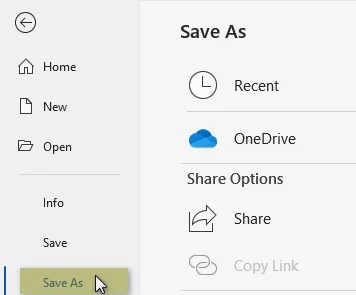
'파일' > '다른 이름으로 저장'을 클릭합니다.
-
HTML 파일을 저장할 폴더를 선택합니다.
-
'파일 형식' 드롭다운에서 다음 중 하나를 선택합니다:
- 웹 페이지(.htm, .html) - 대부분의 서식을 유지하지만 추가적인 Word 관련 태그를 포함합니다.
- 웹 페이지, 필터링됨(.htm, .html) - 불필요한 태그를 최소화하여 더 깨끗한 HTML을 생성합니다(권장).
-
'저장'을 클릭합니다. Word는 포함된 이미지, CSS 및 스크립트가 포함된 폴더와 함께 HTML 파일을 생성합니다.
장단점:
- 장점: 매우 쉽고 빠름; 레이아웃과 이미지를 보존합니다.
- 단점: 추가적인 Word 관련 마크업을 생성함; 필터링된 HTML이 더 깨끗하지만 여전히 장황합니다.
적합한 경우: 깨끗한 HTML이 필요 없는 빠른 단일 파일 변환.
관심 있을 만한 다른 내용: HTML을 Word로 변환하는 방법
방법 2: Word 내용을 복사하여 HTML 편집기에 붙여넣기 (깨끗한 HTML 코드)
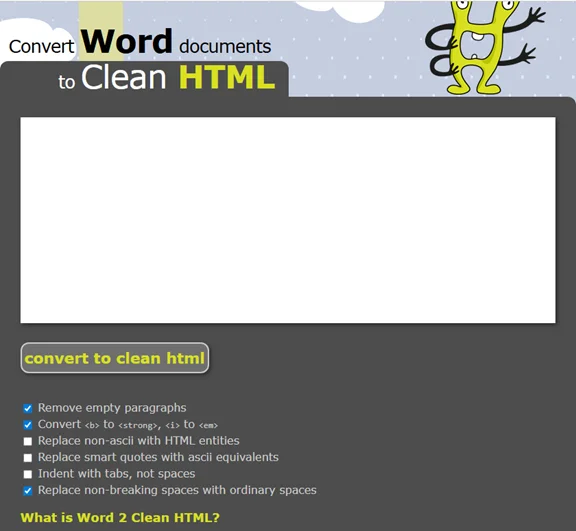
깨끗하고 웹에 바로 사용할 수 있는 HTML을 원하거나 Word 문서의 일부만 변환해야 하는 경우, Word2CleanHTML과 같은 HTML 편집기에 콘텐츠를 복사하는 것이 실용적인 해결책입니다.
단계별 가이드:
- Word 문서를 열고 변환하려는 콘텐츠를 선택합니다.
- 복사하려면 Ctrl + C(Windows) 또는 Cmd + C(Mac)를 누릅니다.
- Word2CleanHTML HTML 편집기를 엽니다.
- 편집기에 콘텐츠를 붙여넣으려면 Ctrl + V(Windows) 또는 Cmd + V(Mac)를 누릅니다.
- '깨끗한 HTML로 변환' 버튼을 클릭합니다. 변환기는 Word 콘텐츠를 처리하여 깨끗한 HTML 코드를 생성합니다.
- HTML 코드를 복사하여 .html 파일로 저장합니다.
중요 참고 사항:
- 이 방법은 텍스트 및 기본 서식에 가장 적합합니다. 이미지는 전송되지 않습니다. <img> 태그를 사용하여 최종 HTML 페이지에 수동으로 다시 삽입해야 합니다.
장단점:
- 장점: 더 깨끗하고 유지 관리하기 쉬운 HTML을 생성함; 부분 문서나 사용자 지정 서식에 이상적입니다.
- 단점: 수동 프로세스; 전체 문서나 여러 파일의 경우 시간이 더 오래 걸릴 수 있습니다.
사용 시기: 선택적 콘텐츠 변환이나 서식에 대한 정밀한 제어가 필요한 깨끗하고 웹에 바로 사용할 수 있는 HTML이 필요한 프로젝트에 가장 적합합니다.
방법 3: 온라인 Word to HTML 변환기 사용 (빠르고 접근 용이)
Word가 설치되어 있지 않거나 웹 기반 솔루션을 선호하는 경우, 무료 온라인 변환기는 Word 문서를 HTML로 변환하는 빠르고 편리한 솔루션을 제공합니다.
추천 온라인 Word to HTML 변환기:
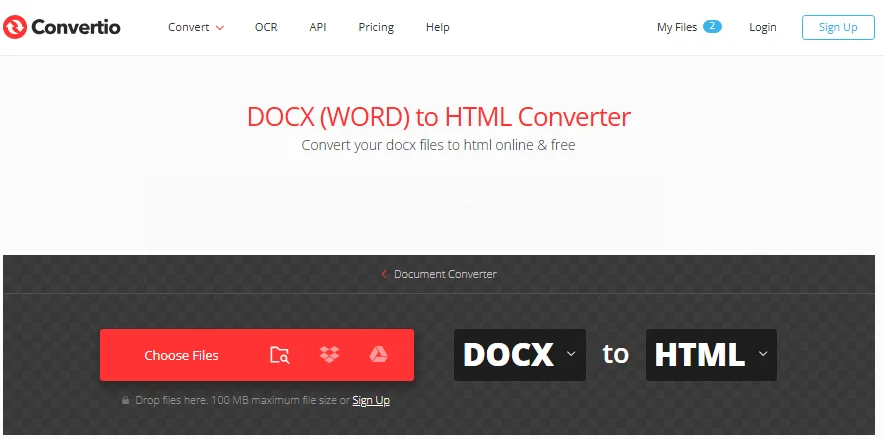
- Convertio: DOC/DOCX를 HTML로 변환하는 사용자 친화적인 도구.
- FreeConvert: Word 문서를 HTML로 변환하는 간단하고 인기 있는 서비스.
온라인에서 Word를 HTML로 변환하는 단계:
-
선택한 온라인 변환기 웹사이트(예: Convertio)로 이동합니다.
-
Word 문서를 업로드합니다.
-
'변환' 버튼을 클릭하고 변환 프로세스가 완료될 때까지 기다립니다.
-
변환된 HTML 파일을 장치에 다운로드합니다.
보안 경고:
- 공개 온라인 변환기는 데이터를 타사 서버에 저장할 수 있습니다. 민감한 문서의 경우 항상 오프라인 방법을 사용하십시오.
장단점:
- 장점: 빠르고 편리하며 소프트웨어 설치가 필요 없음; 모든 장치에서 작동합니다.
- 단점: 기밀 또는 대용량 문서에는 적합하지 않습니다.
사용 시기: 민감하지 않은 데이터의 빠른 변환이나 소프트웨어 설치 없이 빠른 웹 솔루션이 필요할 때 가장 적합합니다.
방법 4: C#을 사용하여 Word를 HTML로 일괄 변환 (자동화된 프로세스)
여러 Word 문서를 처리하는 개발자나 팀의 경우, C# 자동화는 DOC/DOCX 파일을 HTML로 일괄 변환하는 효율적인 방법을 제공합니다. 이 방법은 반복적인 작업, 대규모 프로젝트 또는 Word-to-HTML 변환을 워크플로에 통합하는 데 이상적입니다.
필요한 것:
- C# 개발 환경(Visual Studio 또는 유사).
- Spire.Doc for .NET: Word to HTML, PDF 등을 포함한 Word 파일 조작 및 변환을 지원하는 .NET 라이브러리.
설치 요구 사항:
진행하기 전에 NuGet을 통해 Spire.Doc for .NET을 설치하거나 공식 웹사이트에서 다운로드하십시오:
Install-Package Spire.Doc
코드 예제:
라이브러리가 설치되면 다음 코드를 C# 프로젝트에 추가하여 Word 파일을 HTML 파일로 일괄 변환합니다:
using Spire.Doc;
using System;
using System.IO;

namespace WordToHTMLBatch
{
    class Program
    {
        static void Main(string[] args)
        {
            // Specify the folder path containing Word files
            string folderPath = @"C:\WordFiles\";

            // Get all .docx files from the folder
            string[] wordFiles = Directory.GetFiles(folderPath, "*.docx");

            // Loop through each Word file
            foreach (var file in wordFiles)
            {
                // Create a Document object to load the Word file
                Document doc = new Document();
                // Load the Word document from the file
                doc.LoadFromFile(file);

                // Build the output HTML file path based on the original file name
                string outputFile = Path.Combine(
                    folderPath,
                    Path.GetFileNameWithoutExtension(file) + ".html"
                );

                // Save the Word document as an HTML file
                doc.SaveToFile(outputFile, FileFormat.Html);
            }
        }
    }
}
이 코드는 지정된 폴더의 여러 Word 파일을 반복하고 각 파일을 HTML 파일로 저장합니다. 출력 파일은 원본 Word 파일과 동일한 이름이지만 .html 확장자로 저장됩니다.

사용자 지정 옵션:
-
.doc 파일 처리:
.docx 대신 .doc 파일을 처리해야 하는 경우 파일 확장자 필터를 간단히 수정하십시오:
string[] wordFiles = Directory.GetFiles(folderPath, "*.doc"); -
고급 내보내기 옵션:
HtmlExportOptions 클래스를 사용하여 스타일, 이미지, 머리글 등을 제어하도록 HTML 내보내기 설정을 구성할 수 있습니다:
HtmlExportOptions htmlExportOptions = doc.HtmlExportOptions;

// Export document styles
htmlExportOptions.IsExportDocumentStyles = true;

// Embed images directly in the HTML
htmlExportOptions.ImageEmbedded = true;

// Choose CSS style sheet type (Internal, External, or Inline)
htmlExportOptions.CssStyleSheetType = CssStyleSheetType.Internal;

// Include headers and footers in the HTML output
htmlExportOptions.HasHeadersFooters = true;

// Export form fields as text or keep as input fields
htmlExportOptions.IsTextInputFormFieldAsText = false;

// Save the document as an HTML file with custom settings
doc.SaveToFile("AdvancedWordToHtmlConversion.html", FileFormat.Html);
장단점:
- 장점: 여러 파일에 효율적; 완전 자동화; 일관된 출력.
- 단점: 프로그래밍 기술이 필요함; 설정에 시간이 걸립니다.
사용 시기: 여러 Word 파일을 안정적이고 자동으로 HTML로 변환해야 하는 개발자, 팀 또는 기업에 가장 적합합니다.
비교: 어떤 Word to HTML 변환 방법을 선택해야 할까요
올바른 Word to HTML 변환 방법을 선택하는 것은 필요, 프로젝트 규모 및 기술 능력에 따라 다릅니다. 아래 표는 주요 옵션을 요약한 것입니다:
| 방법 | 사용 용이성 | 일괄 지원 | 보안 | 기술 요구 사항 |
|---|---|---|---|---|
| Word 다른 이름으로 저장 | 매우 쉬움 | 아니요 | 높음 | 낮음 |
| HTML 편집기에 복사 및 붙여넣기 | 쉬움 | 아니요 | 중간 | 낮음 |
| 온라인 변환기 | 쉬움 | 아니요 | 낮음 | 낮음 |
| C# 자동화 | 중간 | 예 | 높음 | 고급 |
빠른 선택 가이드:
- 빠른 일회성 변환 → Word 다른 이름으로 저장
- 깨끗한 시맨틱 HTML → HTML 편집기에 복사 및 붙여넣기
- 모바일 또는 웹 기반 변환 → 온라인 변환기
- 여러 파일 또는 자동화 → C# 자동화
Word to HTML 변환을 위한 실용적인 팁
- 변환하기 전에 Word 파일을 백업하십시오.
- Word에서 스타일을 사용하여 제목과 목록을 더 구조화하십시오.
- 변환 후 이미지와 링크를 확인하여 경로가 올바른지 확인하십시오.
- SEO를 위한 코드 정리: 불필요한 태그를 제거하고, 메타 설명을 추가하고, 시맨틱 HTML을 사용하십시오.
- 여러 브라우저에서 테스트하여 렌더링 일관성을 확인하십시오.
일반적인 문제 및 해결 방법
- 태그가 너무 많은 지저분한 HTML → Word 다른 이름으로 저장을 사용하고 "웹 페이지, 필터링됨"을 선택하거나 콘텐츠를 HTML 편집기에 복사하여 붙여넣어 깨끗한 HTML 코드를 만드십시오.
- 이미지가 표시되지 않음 → 이미지 폴더가 HTML 파일과 함께 유지되고 경로가 업데이트되었는지 확인하십시오.
- 서식 손실 → 일부 복잡한 레이아웃은 HTML에서 수동 조정이 필요할 수 있습니다.
- 표 또는 머리글이 잘못 정렬됨 → 반응형 디자인을 위해 CSS를 사용하여 다시 서식을 지정하십시오.
- 여러 문서가 처리되지 않음 → C#을 통한 일괄 자동화를 사용하십시오.
Word to HTML에 대한 FAQ
Q1: 여러 Word 파일을 한 번에 HTML로 변환할 수 있나요?
A1: 예, 하지만 여러 문서를 효율적으로 처리하려면 C# 자동화 또는 일괄 처리 도구가 필요합니다.
Q2: 어떤 방법이 가장 깨끗한 HTML을 생성하나요?
A2: Word 콘텐츠를 HTML 편집기에 복사하거나 Word 다른 이름으로 저장 "웹 페이지, 필터링됨"을 사용하면 더 깨끗하고 시맨틱한 HTML이 생성됩니다.
Q3: 온라인 Word to HTML 변환기는 기밀 문서에 안전한가요?
A3: 민감한 데이터의 경우 공개 온라인 변환기를 피하십시오. Word 다른 이름으로 저장, HTML 편집기 또는 C# 자동화와 같은 로컬 솔루션을 사용하십시오.
Q4: 변환된 HTML이 모바일 장치에서 작동하나요?
A4: HTML 출력은 일반적으로 호환되지만 완전히 반응형인 레이아웃을 위해서는 CSS 조정이 필요할 수 있습니다.
참고 항목
Come convertire Word in HTML (4 metodi semplici)
Indice dei contenuti
- Perché convertire Word in HTML
- Metodo 1: Salvare Word come HTML utilizzando Microsoft Word (semplice e veloce)
- Metodo 2: Copiare il contenuto di Word e incollarlo in un editor HTML (codice HTML pulito)
- Metodo 3: Utilizzare convertitori online da Word a HTML (veloci e accessibili)
- Metodo 4: Convertire in batch Word in HTML utilizzando C# (processo automatizzato)
- Confronto: quale metodo di conversione da Word a HTML scegliere
- Consigli pratici per la conversione da Word a HTML
- Problemi comuni e soluzioni
Word (.docx e .doc) è perfetto per creare documenti e report aziendali, ma non è ottimizzato per il web. Copiare direttamente il contenuto di Word può causare tabelle rotte, testo disallineato o immagini mancanti. La conversione di Word in HTML garantisce che testo, tabelle, immagini e formattazione vengano visualizzati correttamente su tutti i browser e dispositivi.
In questa guida, mostreremo quattro modi pratici per convertire Word in HTML - da rapidi passaggi manuali a soluzioni automatizzate adatte agli sviluppatori - in modo da poter produrre contenuti HTML pronti per il web in modo efficiente, sia per un singolo documento che per più file.
- Perché convertire Word in HTML
- Metodo 1: Salvare Word come HTML utilizzando Microsoft Word (semplice e veloce)
- Metodo 2: Copiare il contenuto di Word e incollarlo in un editor HTML (codice HTML pulito)
- Metodo 3: Utilizzare convertitori online da Word a HTML (veloci e accessibili)
- Metodo 4: Convertire in batch Word in HTML utilizzando C# (processo automatizzato)
- Confronto: quale metodo di conversione da Word a HTML scegliere
- Consigli pratici per la conversione da Word a HTML
- Problemi comuni e soluzioni
Perché convertire Word in HTML?
La conversione di documenti Word in HTML è essenziale per:
- Compatibilità web: i file HTML sono universalmente supportati in tutti i browser web, mentre i file Word non vengono renderizzati nativamente.
- Mantenimento della formattazione: l'HTML preserva intestazioni, paragrafi, tabelle, elenchi, immagini e link, mantenendo il contenuto strutturato e leggibile.
- Design reattivo: l'HTML si adatta perfettamente a dispositivi desktop, tablet e mobili.
- Integrazione CMS: WordPress, Joomla e altre piattaforme richiedono HTML per la formattazione e la coerenza dei contenuti.
- Ottimizzazione SEO: tag HTML semantici, intestazioni, meta descrizioni e link migliorano la reperibilità sui motori di ricerca.
Casi d'uso comuni
- Pubblicazione di report, manuali o guide online.
- Conversione di bozze di blog o articoli in contenuti HTML pronti per il CMS.
- Creazione di modelli di email con formattazione coerente.
- Integrazione di documentazione o contenuti in applicazioni basate sul web.
Metodo 1: Salvare Word come HTML utilizzando Microsoft Word (semplice e veloce)
La funzione integrata Salva con nome di Microsoft Word è il modo più semplice per convertire un documento Word in HTML. Non richiede strumenti aggiuntivi e funziona bene per i singoli documenti.
Guida passo passo:
-
Apri il tuo documento Word in Microsoft Word.
-
Fai clic su File > Salva con nome.
-
Scegli la cartella in cui desideri salvare il file HTML.
-
Nel menu a discesa Tipo file, seleziona:
- Pagina web (.htm, .html) - conserva la maggior parte della formattazione ma include tag aggiuntivi specifici di Word.
- Pagina web, filtrata (.htm, .html) - produce un HTML più pulito con un numero minimo di tag non necessari (consigliato).
-
Fai clic su Salva. Word creerà un file HTML insieme a una cartella contenente eventuali immagini, CSS e script incorporati.
Pro e contro:
- Pro: Molto facile e veloce; conserva layout e immagini.
- Contro: Genera markup aggiuntivo specifico di Word; l'HTML filtrato è più pulito ma comunque prolisso.
Ideale per: conversioni rapide di file singoli in cui non è necessario un HTML pulito.
Potrebbe interessarti anche: Come convertire HTML in Word
Metodo 2: Copiare il contenuto di Word e incollarlo in un editor HTML (codice HTML pulito)
Se desideri un HTML pulito e pronto per il web o hai solo bisogno di convertire parte di un documento Word, copiare il contenuto in un editor HTML come Word2CleanHTML è una soluzione pratica.
Guida passo passo:
- Apri il tuo documento Word e seleziona il contenuto che desideri convertire.
- Premi Ctrl + C (Windows) o Cmd + C (Mac) per copiare.
- Apri l'editor HTML Word2CleanHTML.
- Premi Ctrl + V (Windows) o Cmd + V (Mac) per incollare il contenuto nell'editor.
- Fai clic sul pulsante converti in HTML pulito. Il convertitore elaborerà e genererà codice HTML pulito dal tuo contenuto Word.
- Copia e salva il codice HTML come file .html.
Nota importante:
- Questo metodo funziona meglio per testo e formattazione di base. Le immagini non verranno trasferite. Dovrai reinserirle manualmente nella tua pagina HTML finale utilizzando i tag
.
Pro e contro:
- Pro: Produce un HTML più pulito e manutenibile; ideale per documenti parziali o formattazione personalizzata.
- Contro: Processo manuale; potrebbe richiedere più tempo per documenti completi o più file.
Quando usarlo: ideale per la conversione selettiva di contenuti o progetti che richiedono un HTML pulito e pronto per il web con un controllo preciso sulla formattazione.
Metodo 3: Utilizzare convertitori online da Word a HTML (veloci e accessibili)
Se non hai Word installato o preferisci una soluzione basata sul web, i convertitori online gratuiti forniscono una soluzione rapida e conveniente per trasformare i documenti Word in HTML.
Convertitori online da Word a HTML consigliati:
- Convertio: uno strumento intuitivo per la conversione di DOC/DOCX in HTML.
- FreeConvert: servizio semplice e popolare che converte documenti Word in HTML.
Passaggi per convertire Word in HTML online:
-
Vai al sito web del convertitore online scelto (ad es. Convertio).
-
Carica il tuo documento Word.
-
Fai clic sul pulsante Converti e attendi il completamento del processo di conversione.
-
Scarica il file HTML convertito sul tuo dispositivo.
Avviso di sicurezza:
- I convertitori online pubblici possono archiviare i tuoi dati su server di terze parti. Per i documenti sensibili, utilizzare sempre metodi offline.
Pro e contro:
- Pro: Veloce, conveniente, nessuna installazione di software necessaria; funziona da qualsiasi dispositivo.
- Contro: Non adatto a documenti riservati o di grandi dimensioni.
Quando usarlo: ideale per conversioni rapide di dati non sensibili o quando è necessaria una soluzione web veloce senza installazione di software.
Metodo 4: Convertire in batch Word in HTML utilizzando C# (processo automatizzato)
Per sviluppatori o team che gestiscono più documenti Word, l'automazione C# fornisce un modo efficiente per convertire file DOC/DOCX in HTML in batch. Questo metodo è ideale per attività ripetitive, grandi progetti o per integrare la conversione da Word a HTML nei flussi di lavoro.
Cosa ti serve:
- Un ambiente di sviluppo C# (Visual Studio o simile).
- Spire.Doc for .NET: una libreria .NET che supporta la manipolazione e la conversione di file Word, inclusi Word in HTML, PDF e altro.
Requisiti di installazione:
Prima di procedere, installa Spire.Doc for .NET tramite NuGet o scaricalo dal sito ufficiale:
Install-Package Spire.Doc
Esempio di codice:
Una volta installata la libreria, aggiungi il seguente codice al tuo progetto C# per convertire in batch i file Word in file HTML:
using Spire.Doc;
using System;
using System.IO;

namespace WordToHTMLBatch
{
    class Program
    {
        static void Main(string[] args)
        {
            // Specify the folder path containing Word files
            string folderPath = @"C:\WordFiles\";

            // Get all .docx files from the folder
            string[] wordFiles = Directory.GetFiles(folderPath, "*.docx");

            // Loop through each Word file
            foreach (var file in wordFiles)
            {
                // Create a Document object to load the Word file
                Document doc = new Document();
                // Load the Word document from the file
                doc.LoadFromFile(file);

                // Build the output HTML file path based on the original file name
                string outputFile = Path.Combine(
                    folderPath,
                    Path.GetFileNameWithoutExtension(file) + ".html"
                );

                // Save the Word document as an HTML file
                doc.SaveToFile(outputFile, FileFormat.Html);
            }
        }
    }
}
Questo codice scorre più file Word nella cartella specificata e salva ogni file come file HTML. I file di output vengono salvati con lo stesso nome del file Word originale ma con estensione .html.
Opzioni di personalizzazione:
-
Gestione dei file .doc:
Se devi elaborare file .doc invece di .docx, modifica semplicemente il filtro dell'estensione del file:
string[] wordFiles = Directory.GetFiles(folderPath, "*.doc"); -
Opzioni di esportazione avanzate:
È possibile configurare le impostazioni di esportazione HTML utilizzando la classe HtmlExportOptions per controllare stili, immagini, intestazioni e altro:
HtmlExportOptions htmlExportOptions = doc.HtmlExportOptions;

// Export document styles
htmlExportOptions.IsExportDocumentStyles = true;

// Embed images directly in the HTML
htmlExportOptions.ImageEmbedded = true;

// Choose CSS style sheet type (Internal, External, or Inline)
htmlExportOptions.CssStyleSheetType = CssStyleSheetType.Internal;

// Include headers and footers in the HTML output
htmlExportOptions.HasHeadersFooters = true;

// Export form fields as text or keep as input fields
htmlExportOptions.IsTextInputFormFieldAsText = false;

// Save the document as an HTML file with custom settings
doc.SaveToFile("AdvancedWordToHtmlConversion.html", FileFormat.Html);
Pro e contro:
- Pro: Efficiente per più file; completamente automatizzato; output coerente.
- Contro: Richiede competenze di programmazione; la configurazione richiede tempo.
Quando usarlo: ideale per sviluppatori, team o aziende che necessitano di convertire più file Word in HTML in modo affidabile e automatico.
Confronto: quale metodo di conversione da Word a HTML scegliere
La scelta del metodo di conversione da Word a HTML giusto dipende dalle tue esigenze, dalle dimensioni del tuo progetto e dalle tue competenze tecniche. La tabella seguente riassume le opzioni principali:
| Metodo | Facilità d'uso | Supporto batch | Sicurezza | Requisiti di abilità tecniche |
|---|---|---|---|---|
| Salva Word come HTML | Molto facile | No | Alto | Basso |
| Copia e incolla nell'editor HTML | Facile | No | Moderato | Basso |
| Convertitori online | Facile | No | Basso | Basso |
| Automazione C# | Moderato | Sì | Alto | Avanzate |
Guida rapida alla selezione:
- Conversioni rapide una tantum → Salva Word come HTML
- HTML pulito e semantico → Copia e incolla nell'editor HTML
- Conversione mobile o basata sul web → Convertitori online
- Più file o automazione → Automazione C#
Consigli pratici per la conversione da Word a HTML
- Esegui il backup dei tuoi file Word prima della conversione.
- Usa gli stili in Word per rendere più strutturate le intestazioni e gli elenchi.
- Controlla immagini e link dopo la conversione per assicurarti che i percorsi siano corretti.
- Pulisci il codice per la SEO: rimuovi i tag non necessari, aggiungi meta descrizioni e usa HTML semantico.
- Testa su più browser per confermare la coerenza del rendering.
Problemi comuni e soluzioni
- HTML disordinato con troppi tag → Usa Salva con nome di Word e scegli "Pagina web, filtrata" o copia e incolla il contenuto in un editor HTML per un codice HTML pulito.
- Immagini non visualizzate → Assicurati che la cartella delle immagini sia mantenuta insieme ai file HTML e aggiorna i percorsi.
- Formattazione persa → Alcuni layout complessi potrebbero richiedere una regolazione manuale in HTML.
- Tabelle o intestazioni disallineate → Riformatta utilizzando i CSS per un design reattivo.
- Più documenti non elaborati → Usa l'automazione batch tramite C#.
Domande frequenti su Word in HTML
D1: Posso convertire più file Word in HTML contemporaneamente?
R1: Sì, ma avrai bisogno di strumenti di automazione C# o di elaborazione batch per gestire più documenti in modo efficiente.
D2: Quale metodo produce l'HTML più pulito?
R2: Copiare il contenuto di Word in un editor HTML o utilizzare Salva con nome di Word "Pagina web, filtrata" genera un HTML più pulito e semantico.
D3: I convertitori online da Word a HTML sono sicuri per i documenti riservati?
R3: Per i dati sensibili, evita i convertitori online pubblici. Utilizza soluzioni locali come Salva con nome di Word, editor HTML o automazione C#.
D4: Il mio HTML convertito funzionerà sui dispositivi mobili?
R4: L'output HTML è generalmente compatibile, ma potresti aver bisogno di regolazioni CSS per layout completamente reattivi.
Vedi anche
Comment convertir Word en HTML (4 méthodes simples)
Table des matières
- Pourquoi convertir Word en HTML
- Méthode 1 : Enregistrer un document Word au format HTML avec Microsoft Word (rapide et simple)
- Méthode 2 : Copier le contenu de Word et le coller dans un éditeur HTML (code HTML propre)
- Méthode 3 : Utiliser des convertisseurs Word vers HTML en ligne (rapides et accessibles)
- Méthode 4 : Convertir par lots des documents Word en HTML en utilisant C# (processus automatisé)
- Comparaison : Quelle méthode de conversion de Word en HTML choisir
- Conseils pratiques pour la conversion de Word en HTML
- Problèmes courants et solutions
Word (.docx et .doc) est parfait pour créer des documents et des rapports d'activité, mais il n'est pas optimisé pour le web. Copier directement le contenu de Word peut entraîner des tableaux cassés, du texte mal aligné ou des images manquantes. La conversion de Word en HTML garantit que votre texte, vos tableaux, vos images et votre mise en forme s'affichent correctement sur tous les navigateurs et appareils.
Dans ce guide, nous vous présenterons quatre méthodes pratiques pour convertir Word en HTML - des étapes manuelles rapides aux solutions automatisées conviviales pour les développeurs - afin que vous puissiez produire efficacement du contenu HTML prêt pour le web, que ce soit pour un seul document ou plusieurs fichiers.
- Pourquoi convertir Word en HTML
- Méthode 1 : Enregistrer un document Word au format HTML avec Microsoft Word (rapide et simple)
- Méthode 2 : Copier le contenu de Word et le coller dans un éditeur HTML (code HTML propre)
- Méthode 3 : Utiliser des convertisseurs Word vers HTML en ligne (rapides et accessibles)
- Méthode 4 : Convertir par lots des documents Word en HTML en utilisant C# (processus automatisé)
- Comparaison : Quelle méthode de conversion de Word en HTML choisir
- Conseils pratiques pour la conversion de Word en HTML
- Problèmes courants et solutions
Pourquoi convertir Word en HTML ?
La conversion de documents Word en HTML est essentielle pour :
- Compatibilité Web : Les fichiers HTML sont universellement pris en charge par tous les navigateurs Web, tandis que les fichiers Word ne sont pas rendus de manière native.
- Préserver la mise en forme : Le HTML préserve les titres, les paragraphes, les tableaux, les listes, les images et les liens, gardant votre contenu structuré et lisible.
- Conception réactive : Le HTML s'adapte de manière transparente sur les ordinateurs de bureau, les tablettes et les appareils mobiles.
- Intégration CMS : WordPress, Joomla et d'autres plateformes nécessitent du HTML pour la mise en forme et la cohérence du contenu.
- Optimisation SEO : Les balises HTML sémantiques, les titres, les méta-descriptions et les liens améliorent la découvrabilité par les moteurs de recherche.
Cas d'utilisation courants
- Publication de rapports, manuels ou guides en ligne.
- Conversion de brouillons de blog ou d'articles en contenu HTML prêt pour le CMS.
- Création de modèles d'e-mails avec une mise en forme cohérente.
- Intégration de la documentation ou du contenu dans des applications Web.
Méthode 1 : Enregistrer un document Word au format HTML avec Microsoft Word (rapide et simple)
La fonctionnalité intégrée Enregistrer sous de Microsoft Word est le moyen le plus simple de convertir un document Word en HTML. Elle ne nécessite aucun outil supplémentaire et fonctionne bien pour les documents uniques.
Guide étape par étape :
-
Ouvrez votre document Word dans Microsoft Word.
-
Cliquez sur Fichier > Enregistrer sous.
-
Choisissez le dossier où vous souhaitez enregistrer le fichier HTML.
-
Dans la liste déroulante Type de fichier, sélectionnez soit :
- Page Web (.htm, .html) - préserve la plupart de la mise en forme mais inclut des balises supplémentaires spécifiques à Word.
- Page Web, filtrée (.htm, .html) - produit un HTML plus propre avec un minimum de balises inutiles (recommandé).
-
Cliquez sur Enregistrer. Word créera un fichier HTML ainsi qu'un dossier contenant les images, CSS et scripts intégrés.
Avantages et inconvénients :
- Avantages : Très facile et rapide ; préserve la mise en page et les images.
- Inconvénients : Génère un balisage supplémentaire spécifique à Word ; le HTML filtré est plus propre mais reste verbeux.
Idéal pour : Les conversions rapides de fichiers uniques où vous n'avez pas besoin d'un HTML propre.
Vous pourriez également être intéressé par : Comment convertir du HTML en Word
Méthode 2 : Copier le contenu de Word et le coller dans un éditeur HTML (code HTML propre)
Si vous voulez un HTML propre et prêt pour le web ou si vous n'avez besoin de convertir qu'une partie d'un document Word, copier le contenu dans un éditeur HTML comme Word2CleanHTML est une solution pratique.
Guide étape par étape :
- Ouvrez votre document Word et sélectionnez le contenu que vous souhaitez convertir.
- Appuyez sur Ctrl + C (Windows) ou Cmd + C (Mac) pour copier.
- Ouvrez l'éditeur HTML Word2CleanHTML.
- Appuyez sur Ctrl + V (Windows) ou Cmd + V (Mac) pour coller le contenu dans l'éditeur.
- Cliquez sur le bouton convertir en HTML propre. Le convertisseur traitera et générera un code HTML propre à partir de votre contenu Word.
- Copiez et enregistrez le code HTML dans un fichier .html.
Note importante :
- Cette méthode fonctionne mieux pour le texte et la mise en forme de base. Les images ne seront pas transférées. Vous devrez les réinsérer manuellement dans votre page HTML finale en utilisant les balises <img>.
Avantages et inconvénients :
- Avantages : Produit un HTML plus propre et plus facile à maintenir ; idéal pour les documents partiels ou la mise en forme personnalisée.
- Inconvénients : Processus manuel ; peut prendre plus de temps pour les documents complets ou plusieurs fichiers.
Quand l'utiliser : Idéal pour la conversion de contenu sélectif ou les projets nécessitant un HTML propre et prêt pour le web avec un contrôle précis sur la mise en forme.
Méthode 3 : Utiliser des convertisseurs Word vers HTML en ligne (rapides et accessibles)
Si vous n'avez pas Word installé ou si vous préférez une solution basée sur le Web, les convertisseurs en ligne gratuits offrent une solution rapide et pratique pour transformer des documents Word en HTML.
Convertisseurs Word vers HTML en ligne recommandés :
- Convertio : Un outil convivial pour convertir des fichiers DOC/DOCX en HTML.
- FreeConvert : Un service simple et populaire qui convertit les documents Word en HTML.
Étapes pour convertir Word en HTML en ligne :
-
Allez sur le site web du convertisseur en ligne choisi (par ex. Convertio).
-
Téléchargez votre document Word.
-
Cliquez sur le bouton Convertir et attendez que le processus de conversion se termine.
-
Téléchargez le fichier HTML converti sur votre appareil.
Avertissement de sécurité :
- Les convertisseurs en ligne publics peuvent stocker vos données sur des serveurs tiers. Pour les documents sensibles, utilisez toujours des méthodes hors ligne.
Avantages et inconvénients :
- Avantages : Rapide, pratique, aucune installation de logiciel requise ; fonctionne depuis n'importe quel appareil.
- Inconvénients : Ne convient pas aux documents confidentiels ou volumineux.
Quand l'utiliser : Idéal pour les conversions rapides de données non sensibles, ou lorsque vous avez besoin d'une solution Web rapide sans installation de logiciel.
Méthode 4 : Convertir par lots des documents Word en HTML en utilisant C# (processus automatisé)
Pour les développeurs ou les équipes qui gèrent plusieurs documents Word, l'automatisation C# offre un moyen efficace de convertir des fichiers DOC/DOCX en HTML par lots. Cette méthode est idéale pour les tâches répétitives, les grands projets ou l'intégration de la conversion Word vers HTML dans les flux de travail.
Ce dont vous avez besoin :
- Un environnement de développement C# (Visual Studio ou similaire).
- Spire.Doc for .NET : une bibliothèque .NET qui prend en charge la manipulation et la conversion de fichiers Word, y compris Word vers HTML, PDF et plus encore.
Prérequis d'installation :
Avant de continuer, installez Spire.Doc for .NET via NuGet ou téléchargez-le depuis le site officiel :
Install-Package Spire.Doc
Exemple de code :
Une fois la bibliothèque installée, ajoutez le code suivant à votre projet C# pour convertir par lots des fichiers Word en fichiers HTML :
using Spire.Doc;
using System;
using System.IO;

namespace WordToHTMLBatch
{
    class Program
    {
        static void Main(string[] args)
        {
            // Spécifiez le chemin du dossier contenant les fichiers Word
            string folderPath = @"C:\WordFiles\";

            // Obtenez tous les fichiers .docx du dossier
            string[] wordFiles = Directory.GetFiles(folderPath, "*.docx");

            // Parcourez chaque fichier Word
            foreach (var file in wordFiles)
            {
                // Créez un objet Document pour charger le fichier Word
                Document doc = new Document();
                // Chargez le document Word à partir du fichier
                doc.LoadFromFile(file);

                // Construisez le chemin du fichier HTML de sortie en fonction du nom du fichier d'origine
                string outputFile = Path.Combine(
                    folderPath,
                    Path.GetFileNameWithoutExtension(file) + ".html"
                );

                // Enregistrez le document Word en tant que fichier HTML
                doc.SaveToFile(outputFile, FileFormat.Html);
            }
        }
    }
}
Ce code parcourt plusieurs fichiers Word dans le dossier spécifié et enregistre chaque fichier en tant que fichier HTML. Les fichiers de sortie sont enregistrés avec le même nom que le fichier Word d'origine mais avec une extension .html.
Options de personnalisation :
-
Gestion des fichiers .doc :
Si vous devez traiter des fichiers .doc au lieu de .docx, modifiez simplement le filtre d'extension de fichier :
string[] wordFiles = Directory.GetFiles(folderPath, "*.doc"); -
Options d'exportation avancées :
Vous pouvez configurer les paramètres d'exportation HTML à l'aide de la classe HtmlExportOptions pour contrôler les styles, les images, les en-têtes, etc. :
HtmlExportOptions htmlExportOptions = doc.HtmlExportOptions;

// Exporter les styles du document
htmlExportOptions.IsExportDocumentStyles = true;

// Intégrer les images directement dans le HTML
htmlExportOptions.ImageEmbedded = true;

// Choisissez le type de feuille de style CSS (interne, externe ou en ligne)
htmlExportOptions.CssStyleSheetType = CssStyleSheetType.Internal;

// Inclure les en-têtes et pieds de page dans la sortie HTML
htmlExportOptions.HasHeadersFooters = true;

// Exporter les champs de formulaire en tant que texte ou les conserver en tant que champs de saisie
htmlExportOptions.IsTextInputFormFieldAsText = false;

// Enregistrez le document en tant que fichier HTML avec des paramètres personnalisés
doc.SaveToFile("AdvancedWordToHtmlConversion.html", FileFormat.Html);
Avantages et inconvénients :
- Avantages : Efficace pour plusieurs fichiers ; entièrement automatisé ; sortie cohérente.
- Inconvénients : Nécessite des compétences en programmation ; la configuration prend du temps.
Quand l'utiliser : Idéal pour les développeurs, les équipes ou les entreprises qui ont besoin de convertir plusieurs fichiers Word en HTML de manière fiable et automatique.
Comparaison : Quelle méthode de conversion de Word en HTML choisir
Le choix de la bonne méthode de conversion de Word en HTML dépend de vos besoins, de la taille de votre projet et de vos compétences techniques. Le tableau ci-dessous résume les principales options :
| Méthode | Facilité d'utilisation | Prise en charge par lots | Sécurité | Exigences en compétences techniques |
|---|---|---|---|---|
| Enregistrer sous HTML dans Word | Très facile | Non | Élevée | Faibles |
| Copier-coller dans un éditeur HTML | Facile | Non | Modérée | Faibles |
| Convertisseurs en ligne | Facile | Non | Faible | Faibles |
| Automatisation C# | Modérée | Oui | Élevée | Avancées |
Guide de sélection rapide :
- Conversions rapides et uniques → Enregistrer sous HTML dans Word
- HTML propre et sémantique → Copier-coller dans un éditeur HTML
- Conversion mobile ou basée sur le Web → Convertisseurs en ligne
- Plusieurs fichiers ou automatisation → Automatisation C#
Conseils pratiques pour la conversion de Word en HTML
- Sauvegardez vos fichiers Word avant la conversion.
- Utilisez les styles dans Word pour rendre les titres et les listes plus structurés.
- Vérifiez les images et les liens après la conversion pour vous assurer que les chemins sont corrects.
- Nettoyez le code pour le SEO : supprimez les balises inutiles, ajoutez des méta-descriptions et utilisez du HTML sémantique.
- Testez sur plusieurs navigateurs pour confirmer la cohérence du rendu.
Problèmes courants et solutions
- HTML désordonné avec trop de balises → Utilisez Enregistrer sous dans Word et choisissez "Page Web, filtrée" ou copiez et collez le contenu dans un éditeur HTML pour un code HTML propre.
- Les images ne s'affichent pas → Assurez-vous que le dossier des images est conservé à côté des fichiers HTML et mettez à jour les chemins.
- Perte de mise en forme → Certaines mises en page complexes peuvent nécessiter un ajustement manuel en HTML.
- Tableaux ou en-têtes mal alignés → Reformatez en utilisant CSS pour un design réactif.
- Plusieurs documents non traités → Utilisez l'automatisation par lots via C#.
FAQ sur Word vers HTML
Q1 : Puis-je convertir plusieurs fichiers Word en HTML à la fois ?
R1 : Oui, mais vous aurez besoin d'outils d'automatisation C# ou de traitement par lots pour gérer efficacement plusieurs documents.
Q2 : Quelle méthode produit le HTML le plus propre ?
R2 : Copier le contenu de Word dans un éditeur HTML ou utiliser Enregistrer sous "Page Web, filtrée" dans Word génère un HTML plus propre et plus sémantique.
Q3 : Les convertisseurs Word vers HTML en ligne sont-ils sûrs pour les documents confidentiels ?
R3 : Pour les données sensibles, évitez les convertisseurs en ligne publics. Utilisez des solutions locales comme Enregistrer sous dans Word, les éditeurs HTML ou l'automatisation C#.
Q4 : Mon HTML converti fonctionnera-t-il sur les appareils mobiles ?
R4 : La sortie HTML est généralement compatible, mais vous pourriez avoir besoin d'ajustements CSS pour des mises en page entièrement réactives.
Voir aussi
Cómo convertir Word a HTML (4 métodos sencillos)
Tabla de Contenidos
- Por qué convertir Word a HTML
- Método 1: Guardar Word como HTML usando Microsoft Word (Rápido y Sencillo)
- Método 2: Copiar contenido de Word y pegar en un editor HTML (Código HTML limpio)
- Método 3: Usar convertidores de Word a HTML en línea (Rápido y Accesible)
- Método 4: Convertir por lotes de Word a HTML usando C# (Proceso Automatizado)
- Comparación: Qué método de conversión de Word a HTML debería elegir
- Consejos prácticos para la conversión de Word a HTML
- Problemas comunes y soluciones
Word (.docx y .doc) es perfecto para crear documentos e informes comerciales, pero no está optimizado para la web. Copiar contenido de Word directamente puede causar tablas rotas, texto desalineado o imágenes faltantes. Convertir Word a HTML asegura que su texto, tablas, imágenes y formato se muestren correctamente en todos los navegadores y dispositivos.
En esta guía, le mostraremos cuatro formas prácticas de convertir Word a HTML - desde rápidos pasos manuales hasta soluciones automatizadas para desarrolladores - para que pueda producir contenido HTML listo para la web de manera eficiente, ya sea para un solo documento o para múltiples archivos.
- Por qué convertir Word a HTML
- Método 1: Guardar Word como HTML usando Microsoft Word (Rápido y Sencillo)
- Método 2: Copiar contenido de Word y pegar en un editor HTML (Código HTML limpio)
- Método 3: Usar convertidores de Word a HTML en línea (Rápido y Accesible)
- Método 4: Convertir por lotes de Word a HTML usando C# (Proceso Automatizado)
- Comparación: Qué método de conversión de Word a HTML debería elegir
- Consejos prácticos para la conversión de Word a HTML
- Problemas comunes y soluciones
¿Por qué convertir Word a HTML?
Convertir documentos de Word a HTML es esencial para:
- Compatibilidad web: los archivos HTML son universalmente compatibles con todos los navegadores web, mientras que los archivos de Word no se representan de forma nativa.
- Preservar el formato: HTML conserva encabezados, párrafos, tablas, listas, imágenes y enlaces, manteniendo su contenido estructurado y legible.
- Diseño responsivo: HTML se adapta sin problemas a dispositivos de escritorio, tabletas y móviles.
- Integración con CMS: WordPress, Joomla y otras plataformas requieren HTML para la coherencia del formato y el contenido.
- Optimización SEO: las etiquetas HTML semánticas, los encabezados, las metadescripciones y los enlaces mejoran la visibilidad en los motores de búsqueda.
Casos de uso comunes
- Publicar informes, manuales o guías en línea.
- Convertir borradores de blogs o artículos en contenido HTML listo para CMS.
- Crear plantillas de correo electrónico con formato coherente.
- Integrar documentación o contenido en aplicaciones basadas en la web.
Método 1: Guardar Word como HTML usando Microsoft Word (Rápido y Sencillo)
La función integrada Guardar como de Microsoft Word es la forma más fácil de convertir un documento de Word a HTML. No requiere herramientas adicionales y funciona bien para documentos individuales.
Guía paso a paso:
-
Abra su documento de Word en Microsoft Word.
-
Haga clic en Archivo > Guardar como.
-
Elija la carpeta donde desea guardar el archivo HTML.
-
En el menú desplegable Guardar como tipo, seleccione:
- Página web (.htm, .html) - conserva la mayor parte del formato pero incluye etiquetas adicionales específicas de Word.
- Página web, filtrada (.htm, .html) - produce un HTML más limpio con un mínimo de etiquetas innecesarias (recomendado).
-
Haga clic en Guardar. Word creará un archivo HTML junto con una carpeta que contiene las imágenes, CSS y scripts incrustados.
Pros y contras:
- Pros: Muy fácil y rápido; conserva el diseño y las imágenes.
- Contras: Genera marcado adicional específico de Word; el HTML filtrado es más limpio pero aún verboso.
Ideal para: Conversiones rápidas de un solo archivo donde no necesita un HTML limpio.
También te puede interesar: Cómo convertir HTML a Word
Método 2: Copiar contenido de Word y pegar en un editor HTML (Código HTML limpio)
Si desea un HTML limpio y listo para la web o solo necesita convertir parte de un documento de Word, copiar el contenido en un editor de HTML como Word2CleanHTML es una solución práctica.
Guía paso a paso:
- Abra su documento de Word y seleccione el contenido que desea convertir.
- Presione Ctrl + C (Windows) o Cmd + C (Mac) para copiar.
- Abra el editor HTML Word2CleanHTML.
- Presione Ctrl + V (Windows) o Cmd + V (Mac) para pegar el contenido en el editor.
- Haga clic en el botón convertir a HTML limpio. El convertidor procesará y generará un código HTML limpio a partir de su contenido de Word.
- Copie y guarde el código HTML como un archivo .html.
Nota importante:
- Este método funciona mejor para texto y formato básico. Las imágenes no se transferirán. Deberá reinsertarlas manualmente en su página HTML final usando etiquetas <img>.
Pros y contras:
- Pros: Produce un HTML más limpio y fácil de mantener; ideal para documentos parciales o formato personalizado.
- Contras: Proceso manual; puede llevar más tiempo para documentos completos o múltiples archivos.
Cuándo usarlo: Ideal para la conversión de contenido selectivo o proyectos que requieren un HTML limpio y listo para la web con un control preciso sobre el formato.
Método 3: Usar convertidores de Word a HTML en línea (Rápido y Accesible)
Si no tiene Word instalado o prefiere una solución basada en la web, los convertidores en línea gratuitos brindan una solución rápida y conveniente para convertir documentos de Word a HTML.
Convertidores de Word a HTML en línea recomendados:
- Convertio: una herramienta fácil de usar para convertir DOC/DOCX a HTML.
- FreeConvert: servicio simple y popular que convierte documentos de Word a HTML.
Pasos para convertir Word a HTML en línea:
-
Vaya al sitio web del convertidor en línea elegido (por ejemplo, Convertio).
-
Suba su documento de Word.
-
Haga clic en el botón Convertir y espere a que se complete el proceso de conversión.
-
Descargue el archivo HTML convertido a su dispositivo.
Advertencia de seguridad:
- Los convertidores en línea públicos pueden almacenar sus datos en servidores de terceros. Para documentos confidenciales, utilice siempre métodos sin conexión.
Pros y contras:
- Pros: Rápido, conveniente, no necesita instalación de software; funciona desde cualquier dispositivo.
- Contras: No apto para documentos confidenciales o grandes.
Cuándo usarlo: Ideal para conversiones rápidas de datos no confidenciales, o cuando necesita una solución web rápida sin instalación de software.
Método 4: Convertir por lotes de Word a HTML usando C# (Proceso Automatizado)
Para desarrolladores o equipos que manejan múltiples documentos de Word, la automatización de C# proporciona una forma eficiente de convertir archivos DOC/DOCX a HTML por lotes. Este método es ideal para tareas repetitivas, proyectos grandes o para integrar la conversión de Word a HTML en los flujos de trabajo.
Lo que necesita:
- Un entorno de desarrollo C# (Visual Studio o similar).
- Spire.Doc for .NET: una biblioteca .NET que admite la manipulación y conversión de archivos de Word, incluidos Word a HTML, PDF y más.
Requisitos de instalación:
Antes de continuar, instale Spire.Doc for .NET a través de NuGet o descárguelo del sitio web oficial:
Install-Package Spire.Doc
Ejemplo de código:
Una vez instalada la biblioteca, agregue el siguiente código a su proyecto de C# para convertir por lotes archivos de Word a archivos HTML:
using Spire.Doc;
using System;
using System.IO;

namespace WordToHTMLBatch
{
    class Program
    {
        static void Main(string[] args)
        {
            // Specify the folder path containing Word files
            string folderPath = @"C:\WordFiles\";

            // Get all .docx files from the folder
            string[] wordFiles = Directory.GetFiles(folderPath, "*.docx");

            // Loop through each Word file
            foreach (var file in wordFiles)
            {
                // Create a Document object to load the Word file
                Document doc = new Document();
                // Load the Word document from the file
                doc.LoadFromFile(file);

                // Build the output HTML file path based on the original file name
                string outputFile = Path.Combine(
                    folderPath,
                    Path.GetFileNameWithoutExtension(file) + ".html"
                );

                // Save the Word document as an HTML file
                doc.SaveToFile(outputFile, FileFormat.Html);
            }
        }
    }
}
Este código itera a través de múltiples archivos de Word en la carpeta especificada y guarda cada archivo como un archivo HTML. Los archivos de salida se guardan con el mismo nombre que el archivo de Word original pero con una extensión .html.
Opciones de personalización:
-
Manejo de archivos .doc:
Si necesita procesar archivos .doc en lugar de .docx, simplemente modifique el filtro de extensión de archivo:
string[] wordFiles = Directory.GetFiles(folderPath, "*.doc"); -
Opciones de exportación avanzadas:
Puede configurar los ajustes de exportación de HTML utilizando la clase HtmlExportOptions para controlar estilos, imágenes, encabezados y más:
HtmlExportOptions htmlExportOptions = doc.HtmlExportOptions;

// Export document styles
htmlExportOptions.IsExportDocumentStyles = true;

// Embed images directly in the HTML
htmlExportOptions.ImageEmbedded = true;

// Choose CSS style sheet type (Internal, External, or Inline)
htmlExportOptions.CssStyleSheetType = CssStyleSheetType.Internal;

// Include headers and footers in the HTML output
htmlExportOptions.HasHeadersFooters = true;

// Export form fields as text or keep as input fields
htmlExportOptions.IsTextInputFormFieldAsText = false;

// Save the document as an HTML file with custom settings
doc.SaveToFile("AdvancedWordToHtmlConversion.html", FileFormat.Html);
Pros y contras:
- Pros: Eficiente para múltiples archivos; totalmente automatizado; salida consistente.
- Contras: Requiere habilidades de programación; la configuración lleva tiempo.
Cuándo usarlo: Ideal para desarrolladores, equipos o empresas que necesitan convertir múltiples archivos de Word a HTML de manera confiable y automática.
Comparación: Qué método de conversión de Word a HTML debería elegir
Elegir el método de conversión de Word a HTML correcto depende de sus necesidades, el tamaño de su proyecto y sus habilidades técnicas. La siguiente tabla resume las opciones principales:
| Método | Facilidad de uso | Soporte por lotes | Seguridad | Requisitos de habilidad técnica |
|---|---|---|---|---|
| Guardar Word como HTML | Muy fácil | No | Alta | Bajo |
| Copiar y pegar en editor HTML | Fácil | No | Moderada | Bajo |
| Convertidores en línea | Fácil | No | Bajo | Bajo |
| Automatización C# | Moderada | Sí | Alta | Avanzado |
Guía de selección rápida:
- Conversiones rápidas únicas → Guardar Word como HTML
- HTML limpio y semántico → Copiar y pegar en editor HTML
- Conversión móvil o basada en web → Convertidores en línea
- Múltiples archivos o automatización → Automatización C#
Consejos prácticos para la conversión de Word a HTML
- Haga una copia de seguridad de sus archivos de Word antes de la conversión.
- Use estilos en Word para que los encabezados y las listas estén más estructurados.
- Verifique las imágenes y los enlaces después de la conversión para asegurarse de que las rutas sean correctas.
- Limpie el código para SEO: elimine las etiquetas innecesarias, agregue metadescripciones y use HTML semántico.
- Pruebe en múltiples navegadores para confirmar la coherencia de la representación.
Problemas comunes y soluciones
- HTML desordenado con demasiadas etiquetas → Use Guardar como de Word y elija "Página web, filtrada" o copie y pegue el contenido en un editor de HTML para obtener un código HTML limpio.
- Las imágenes no se muestran → Asegúrese de que la carpeta de imágenes se mantenga junto a los archivos HTML y actualice las rutas.
- Formato perdido → Algunos diseños complejos pueden necesitar un ajuste manual en HTML.
- Tablas o encabezados desalineados → Reformatee usando CSS para un diseño responsivo.
- Múltiples documentos no procesados → Use la automatización por lotes a través de C#.
Preguntas frecuentes sobre Word a HTML
P1: ¿Puedo convertir varios archivos de Word a HTML a la vez?
R1: Sí, pero necesitará herramientas de automatización de C# o de procesamiento por lotes para manejar múltiples documentos de manera eficiente.
P2: ¿Qué método produce el HTML más limpio?
R2: Copiar el contenido de Word en un editor de HTML o usar Guardar como de Word "Página web, filtrada" genera un HTML más limpio y semántico.
P3: ¿Son seguros los convertidores de Word a HTML en línea para documentos confidenciales?
R3: Para datos confidenciales, evite los convertidores en línea públicos. Utilice soluciones locales como Guardar como de Word, editores de HTML o automatización de C#.
P4: ¿Funcionará mi HTML convertido en dispositivos móviles?
R4: La salida HTML es generalmente compatible, pero es posible que necesite ajustes de CSS para diseños totalmente responsivos.
Ver también
Word in HTML umwandeln (4 einfache Methoden)
Inhaltsverzeichnis
- Warum Word in HTML konvertieren
- Methode 1: Word als HTML speichern mit Microsoft Word (schnell und einfach)
- Methode 2: Word-Inhalt kopieren und in einen HTML-Editor einfügen (sauberer HTML-Code)
- Methode 3: Online-Konverter von Word zu HTML verwenden (schnell und zugänglich)
- Methode 4: Stapelkonvertierung von Word in HTML mit C# (automatisierter Prozess)
- Vergleich: Welche Konvertierungsmethode von Word zu HTML sollten Sie wählen
- Praktische Tipps für die Konvertierung von Word in HTML
- Häufige Probleme und Lösungen
Word (.docx und .doc) ist perfekt für die Erstellung von Dokumenten und Geschäftsberichten, aber es ist nicht für das Web optimiert. Das direkte Kopieren von Word-Inhalten kann zu fehlerhaften Tabellen, falsch ausgerichtetem Text oder fehlenden Bildern führen. Die Konvertierung von Word in HTML stellt sicher, dass Ihr Text, Ihre Tabellen, Bilder und Formatierungen in allen Browsern und auf allen Geräten korrekt angezeigt werden.
In diesem Leitfaden zeigen wir Ihnen vier praktische Möglichkeiten, Word in HTML zu konvertieren – von schnellen manuellen Schritten bis hin zu entwicklerfreundlichen automatisierten Lösungen – damit Sie effizient webfähige HTML-Inhalte erstellen können, egal ob für ein einzelnes Dokument oder mehrere Dateien.
- Warum Word in HTML konvertieren
- Methode 1: Word als HTML speichern mit Microsoft Word (schnell und einfach)
- Methode 2: Word-Inhalt kopieren und in einen HTML-Editor einfügen (sauberer HTML-Code)
- Methode 3: Online-Konverter von Word zu HTML verwenden (schnell und zugänglich)
- Methode 4: Stapelkonvertierung von Word in HTML mit C# (automatisierter Prozess)
- Vergleich: Welche Konvertierungsmethode von Word zu HTML sollten Sie wählen
- Praktische Tipps für die Konvertierung von Word in HTML
- Häufige Probleme und Lösungen
Warum Word in HTML konvertieren?
Die Konvertierung von Word-Dokumenten in HTML ist unerlässlich für:
- Web-Kompatibilität: HTML-Dateien werden von allen Webbrowsern universell unterstützt, während Word-Dateien nicht nativ gerendert werden.
- Formatierung beibehalten: HTML bewahrt Überschriften, Absätze, Tabellen, Listen, Bilder und Links und hält Ihre Inhalte strukturiert und lesbar.
- Responsives Design: HTML passt sich nahtlos an Desktop-, Tablet- und mobile Geräte an.
- CMS-Integration: WordPress, Joomla und andere Plattformen erfordern HTML für Formatierung und Inhaltskonsistenz.
- SEO-Optimierung: Semantische HTML-Tags, Überschriften, Meta-Beschreibungen und Links verbessern die Auffindbarkeit in Suchmaschinen.
Häufige Anwendungsfälle
- Veröffentlichung von Berichten, Handbüchern oder Anleitungen online.
- Konvertierung von Blog-Entwürfen oder Artikeln in CMS-fähige HTML-Inhalte.
- Erstellung von E-Mail-Vorlagen mit einheitlicher Formatierung.
- Integration von Dokumentation oder Inhalten in webbasierte Anwendungen.
Methode 1: Word als HTML speichern mit Microsoft Word (schnell und einfach)
Die integrierte Funktion Speichern unter von Microsoft Word ist der einfachste Weg, ein Word-Dokument in HTML zu konvertieren. Es sind keine zusätzlichen Tools erforderlich und es funktioniert gut für einzelne Dokumente.
Schritt-für-Schritt-Anleitung:
-
Öffnen Sie Ihr Word-Dokument in Microsoft Word.
-
Klicken Sie auf Datei > Speichern unter.
-
Wählen Sie den Ordner, in dem Sie die HTML-Datei speichern möchten.
-
Wählen Sie im Dropdown-Menü Dateityp eine der folgenden Optionen aus:
- Webseite (.htm, .html) - behält die meiste Formatierung bei, enthält aber zusätzliche Word-spezifische Tags.
- Webseite, gefiltert (.htm, .html) - erzeugt saubereres HTML mit minimalen unnötigen Tags (empfohlen).
-
Klicken Sie auf Speichern. Word erstellt eine HTML-Datei zusammen mit einem Ordner, der alle eingebetteten Bilder, CSS und Skripte enthält.
Vor- und Nachteile:
- Vorteile: Sehr einfach und schnell; behält Layout und Bilder bei.
- Nachteile: Erzeugt zusätzliches Word-spezifisches Markup; gefiltertes HTML ist sauberer, aber immer noch ausführlich.
Am besten für: Schnelle Konvertierungen einzelner Dateien, bei denen Sie kein sauberes HTML benötigen.
Das könnte Sie auch interessieren: So konvertieren Sie HTML in Word
Methode 2: Word-Inhalt kopieren und in einen HTML-Editor einfügen (sauberer HTML-Code)
Wenn Sie sauberes, webfähiges HTML wünschen oder nur einen Teil eines Word-Dokuments konvertieren müssen, ist das Kopieren des Inhalts in einen HTML-Editor wie Word2CleanHTML eine praktische Lösung.
Schritt-für-Schritt-Anleitung:
- Öffnen Sie Ihr Word-Dokument und wählen Sie den Inhalt aus, den Sie konvertieren möchten.
- Drücken Sie Strg + C (Windows) oder Cmd + C (Mac) zum Kopieren.
- Öffnen Sie den Word2CleanHTML HTML-Editor.
- Drücken Sie Strg + V (Windows) oder Cmd + V (Mac), um den Inhalt in den Editor einzufügen.
- Klicken Sie auf die Schaltfläche in sauberes HTML konvertieren. Der Konverter verarbeitet und generiert sauberen HTML-Code aus Ihrem Word-Inhalt.
- Kopieren Sie den HTML-Code und speichern Sie ihn als .html-Datei.
Wichtiger Hinweis:
- Diese Methode funktioniert am besten für Text und grundlegende Formatierungen. Bilder werden nicht übertragen. Sie müssen sie manuell mit <img>-Tags wieder in Ihre endgültige HTML-Seite einfügen.
Vor- und Nachteile:
- Vorteile: Erzeugt saubereres, besser wartbares HTML; ideal für Teildokumente oder benutzerdefinierte Formatierungen.
- Nachteile: Manueller Prozess; kann bei vollständigen Dokumenten oder mehreren Dateien länger dauern.
Wann zu verwenden: Am besten für die selektive Inhaltskonvertierung oder Projekte, die sauberes, webfähiges HTML mit präziser Kontrolle über die Formatierung erfordern.
Methode 3: Online-Konverter von Word zu HTML verwenden (schnell und zugänglich)
Wenn Sie Word nicht installiert haben oder eine webbasierte Lösung bevorzugen, bieten kostenlose Online-Konverter eine schnelle und bequeme Lösung, um Word-Dokumente in HTML umzuwandeln.
Empfohlene Online-Konverter von Word zu HTML:
- Convertio: Ein benutzerfreundliches Tool zum Konvertieren von DOC/DOCX in HTML.
- FreeConvert: Einfacher und beliebter Dienst, der Word-Dokumente in HTML konvertiert.
Schritte zur Online-Konvertierung von Word in HTML:
-
Gehen Sie zur Website des ausgewählten Online-Konverters (z. B. Convertio).
-
Laden Sie Ihr Word-Dokument hoch.
-
Klicken Sie auf die Schaltfläche „Konvertieren“ und warten Sie, bis der Konvertierungsprozess abgeschlossen ist.
-
Laden Sie die konvertierte HTML-Datei auf Ihr Gerät herunter.
Sicherheitswarnung:
- Öffentliche Online-Konverter können Ihre Daten auf Servern von Drittanbietern speichern. Verwenden Sie für vertrauliche Dokumente immer Offline-Methoden.
Vor- und Nachteile:
- Vorteile: Schnell, bequem, keine Softwareinstallation erforderlich; funktioniert von jedem Gerät aus.
- Nachteile: Nicht für vertrauliche oder große Dokumente geeignet.
Wann zu verwenden: Am besten für schnelle Konvertierungen von nicht sensiblen Daten oder wenn Sie eine schnelle Weblösung ohne Softwareinstallation benötigen.
Methode 4: Stapelkonvertierung von Word in HTML mit C# (automatisierter Prozess)
Für Entwickler oder Teams, die mehrere Word-Dokumente verarbeiten, bietet die C#-Automatisierung eine effiziente Möglichkeit, DOC/DOCX-Dateien stapelweise in HTML zu konvertieren. Diese Methode ist ideal für sich wiederholende Aufgaben, große Projekte oder die Integration der Word-zu-HTML-Konvertierung in Arbeitsabläufe.
Was Sie brauchen:
- Eine C#-Entwicklungsumgebung (Visual Studio oder ähnlich).
- Spire.Doc for .NET: eine .NET-Bibliothek, die die Bearbeitung und Konvertierung von Word-Dateien unterstützt, einschließlich Word in HTML, PDF und mehr.
Installationsvoraussetzungen:
Bevor Sie fortfahren, installieren Sie Spire.Doc for .NET über NuGet oder laden Sie es von der offiziellen Website herunter:
Install-Package Spire.Doc
Codebeispiel:
Sobald die Bibliothek installiert ist, fügen Sie den folgenden Code zu Ihrem C#-Projekt hinzu, um Word-Dateien stapelweise in HTML-Dateien zu konvertieren:
using Spire.Doc;
using System;
using System.IO;

namespace WordToHTMLBatch
{
    class Program
    {
        static void Main(string[] args)
        {
            // Specify the folder path containing Word files
            string folderPath = @"C:\WordFiles\";

            // Get all .docx files from the folder
            string[] wordFiles = Directory.GetFiles(folderPath, "*.docx");

            // Loop through each Word file
            foreach (var file in wordFiles)
            {
                // Create a Document object to load the Word file
                Document doc = new Document();
                // Load the Word document from the file
                doc.LoadFromFile(file);

                // Build the output HTML file path based on the original file name
                string outputFile = Path.Combine(
                    folderPath,
                    Path.GetFileNameWithoutExtension(file) + ".html"
                );

                // Save the Word document as an HTML file
                doc.SaveToFile(outputFile, FileFormat.Html);
            }
        }
    }
}
Dieser Code durchläuft mehrere Word-Dateien im angegebenen Ordner und speichert jede Datei als HTML-Datei. Die Ausgabedateien werden mit demselben Namen wie die ursprüngliche Word-Datei, jedoch mit der Erweiterung .html gespeichert.
Anpassungsoptionen:
-
Umgang mit .doc-Dateien:
Wenn Sie .doc-Dateien anstelle von .docx verarbeiten müssen, ändern Sie einfach den Dateierweiterungsfilter:
string[] wordFiles = Directory.GetFiles(folderPath, "*.doc"); -
Erweiterte Exportoptionen:
Sie können die HTML-Exporteinstellungen mit der Klasse HtmlExportOptions konfigurieren, um Stile, Bilder, Kopfzeilen und mehr zu steuern:
HtmlExportOptions htmlExportOptions = doc.HtmlExportOptions;

// Export document styles
htmlExportOptions.IsExportDocumentStyles = true;

// Embed images directly in the HTML
htmlExportOptions.ImageEmbedded = true;

// Choose CSS style sheet type (Internal, External, or Inline)
htmlExportOptions.CssStyleSheetType = CssStyleSheetType.Internal;

// Include headers and footers in the HTML output
htmlExportOptions.HasHeadersFooters = true;

// Export form fields as text or keep as input fields
htmlExportOptions.IsTextInputFormFieldAsText = false;

// Save the document as an HTML file with custom settings
doc.SaveToFile("AdvancedWordToHtmlConversion.html", FileFormat.Html);
Vor- und Nachteile:
- Vorteile: Effizient für mehrere Dateien; vollautomatisch; konsistente Ausgabe.
- Nachteile: Erfordert Programmierkenntnisse; die Einrichtung dauert seine Zeit.
Wann zu verwenden: Am besten für Entwickler, Teams oder Unternehmen, die mehrere Word-Dateien zuverlässig und automatisch in HTML konvertieren müssen.
Vergleich: Welche Konvertierungsmethode von Word zu HTML sollten Sie wählen
Die Wahl der richtigen Konvertierungsmethode von Word zu HTML hängt von Ihren Bedürfnissen, der Größe Ihres Projekts und Ihren technischen Fähigkeiten ab. Die folgende Tabelle fasst die wichtigsten Optionen zusammen:
| Methode | Benutzerfreundlichkeit | Stapelverarbeitung | Sicherheit | Anforderungen an technische Fähigkeiten |
|---|---|---|---|---|
| Word Speichern als HTML | Sehr einfach | Nein | Hoch | Niedrig |
| Kopieren & Einfügen in HTML-Editor | Einfach | Nein | Mittel | Niedrig |
| Online-Konverter | Einfach | Nein | Niedrig | Niedrig |
| C#-Automatisierung | Mittel | Ja | Hoch | Fortgeschritten |
Schnellauswahl-Leitfaden:
- Schnelle einmalige Konvertierungen → Word Speichern als HTML
- Sauberes, semantisches HTML → Kopieren & Einfügen in HTML-Editor
- Mobile oder webbasierte Konvertierung → Online-Konverter
- Mehrere Dateien oder Automatisierung → C#-Automatisierung
Praktische Tipps für die Konvertierung von Word in HTML
- Sichern Sie Ihre Word-Dateien vor der Konvertierung.
- Verwenden Sie Stile in Word, um Überschriften und Listen strukturierter zu gestalten.
- Überprüfen Sie Bilder und Links nach der Konvertierung, um sicherzustellen, dass die Pfade korrekt sind.
- Sauberer Code für SEO: Entfernen Sie unnötige Tags, fügen Sie Meta-Beschreibungen hinzu und verwenden Sie semantisches HTML.
- Testen Sie in mehreren Browsern, um die Konsistenz der Darstellung zu bestätigen.
Häufige Probleme und Lösungen
- Unordentliches HTML mit zu vielen Tags → Verwenden Sie Word Speichern unter und wählen Sie „Webseite, gefiltert“ oder kopieren Sie den Inhalt und fügen Sie ihn in einen HTML-Editor ein, um sauberen HTML-Code zu erhalten.
- Bilder werden nicht angezeigt → Stellen Sie sicher, dass der Bilderordner neben den HTML-Dateien aufbewahrt wird, und aktualisieren Sie die Pfade.
- Formatierung verloren → Einige komplexe Layouts müssen möglicherweise manuell in HTML angepasst werden.
- Tabellen oder Kopfzeilen falsch ausgerichtet → Neuformatierung mit CSS für responsives Design.
- Mehrere Dokumente nicht verarbeitet → Verwenden Sie die Stapelautomatisierung über C#.
FAQs zu Word in HTML
F1: Kann ich mehrere Word-Dateien auf einmal in HTML konvertieren?
A1: Ja, aber Sie benötigen C#-Automatisierung oder Stapelverarbeitungstools, um mehrere Dokumente effizient zu verarbeiten.
F2: Welche Methode erzeugt das sauberste HTML?
A2: Das Kopieren von Word-Inhalten in einen HTML-Editor oder die Verwendung von Word Speichern unter „Webseite, gefiltert“ erzeugt saubereres, semantischeres HTML.
F3: Sind Online-Konverter von Word zu HTML für vertrauliche Dokumente sicher?
A3: Vermeiden Sie bei sensiblen Daten öffentliche Online-Konverter. Verwenden Sie lokale Lösungen wie Word Speichern unter, HTML-Editoren oder C#-Automatisierung.
F4: Funktioniert mein konvertiertes HTML auf mobilen Geräten?
A4: Die HTML-Ausgabe ist im Allgemeinen kompatibel, aber Sie benötigen möglicherweise CSS-Anpassungen für vollständig responsive Layouts.
Siehe auch
- So konvertieren Sie Word in RTF: 4 einfache Möglichkeiten (kostenlose & Stapeloptionen)
- So konvertieren Sie Word in EPUB (3 einfache Möglichkeiten)
- So konvertieren Sie Word in ODT: 4 einfache und zuverlässige Methoden
- So konvertieren Sie Word in PNG: 3 praktische Möglichkeiten, die Sie tatsächlich nutzen können
Как конвертировать Word в HTML (4 простых метода)
Содержание
- Зачем конвертировать Word в HTML
- Метод 1: Сохранение Word в формате HTML с помощью Microsoft Word (быстро и просто)
- Метод 2: Копирование содержимого Word и вставка в HTML-редактор (чистый HTML-код)
- Метод 3: Использование онлайн-конвертеров Word в HTML (быстро и доступно)
- Метод 4: Пакетное преобразование Word в HTML с использованием C# (автоматизированный процесс)
- Сравнение: какой метод преобразования Word в HTML выбрать
- Практические советы по преобразованию Word в HTML
- Распространенные проблемы и их решения
Word (.docx и .doc) идеально подходит для создания документов и бизнес-отчетов, но он не оптимизирован для веба. Прямое копирование содержимого из Word может привести к повреждению таблиц, смещению текста или отсутствию изображений. Преобразование Word в HTML гарантирует, что ваш текст, таблицы, изображения и форматирование будут правильно отображаться во всех браузерах и на всех устройствах.
В этом руководстве мы покажем четыре практических способа преобразования Word в HTML — от быстрых ручных шагов до удобных для разработчиков автоматизированных решений — чтобы вы могли эффективно создавать готовый к публикации в вебе HTML-контент, будь то для одного документа или для нескольких файлов.
- Зачем конвертировать Word в HTML
- Метод 1: Сохранение Word в формате HTML с помощью Microsoft Word (быстро и просто)
- Метод 2: Копирование содержимого Word и вставка в HTML-редактор (чистый HTML-код)
- Метод 3: Использование онлайн-конвертеров Word в HTML (быстро и доступно)
- Метод 4: Пакетное преобразование Word в HTML с использованием C# (автоматизированный процесс)
- Сравнение: какой метод преобразования Word в HTML выбрать
- Практические советы по преобразованию Word в HTML
- Распространенные проблемы и их решения
Зачем конвертировать Word в HTML?
Преобразование документов Word в HTML необходимо для:
- Совместимость с вебом: HTML-файлы универсально поддерживаются во всех веб-браузерах, в то время как файлы Word не отображаются в них изначально.
- Сохранение форматирования: HTML сохраняет заголовки, абзацы, таблицы, списки, изображения и ссылки, сохраняя структуру и читаемость вашего контента.
- Адаптивный дизайн: HTML плавно адаптируется для настольных компьютеров, планшетов и мобильных устройств.
- Интеграция с CMS: WordPress, Joomla и другие платформы требуют HTML для форматирования и единообразия контента.
- SEO-оптимизация: семантические HTML-теги, заголовки, мета-описания и ссылки улучшают обнаруживаемость поисковыми системами.
Распространенные сценарии использования
- Публикация отчетов, руководств или инструкций в Интернете.
- Преобразование черновиков блогов или статей в готовый для CMS HTML-контент.
- Создание шаблонов электронной почты с единообразным форматированием.
- Интеграция документации или контента в веб-приложения.
Метод 1: Сохранение Word в формате HTML с помощью Microsoft Word (быстро и просто)
Встроенная функция "Сохранить как" в Microsoft Word — это самый простой способ преобразовать документ Word в HTML. Он не требует дополнительных инструментов и хорошо подходит для отдельных документов.
Пошаговое руководство:
-
Откройте ваш документ Word в Microsoft Word.
-
Нажмите Файл > Сохранить как.
-
Выберите папку, в которую вы хотите сохранить HTML-файл.
-
В выпадающем списке "Тип файла" выберите один из вариантов:
- Веб-страница (.htm, .html) - сохраняет большую часть форматирования, но включает дополнительные теги, специфичные для Word.
- Веб-страница, фильтрованная (.htm, .html) - создает более чистый HTML с минимальным количеством ненужных тегов (рекомендуется).
-
Нажмите Сохранить. Word создаст HTML-файл вместе с папкой, содержащей все встроенные изображения, CSS и скрипты.
Плюсы и минусы:
- Плюсы: Очень просто и быстро; сохраняет макет и изображения.
- Минусы: Генерирует дополнительную разметку, специфичную для Word; фильтрованный HTML чище, но все равно избыточен.
Лучше всего подходит для: Быстрых преобразований отдельных файлов, когда вам не нужен чистый HTML.
Вам также может быть интересно: Как преобразовать HTML в Word
Метод 2: Копирование содержимого Word и вставка в HTML-редактор (чистый HTML-код)
Если вам нужен чистый, готовый для веба HTML или вы хотите преобразовать только часть документа Word, копирование содержимого в HTML-редактор, такой как Word2CleanHTML, является практичным решением.
Пошаговое руководство:
- Откройте ваш документ Word и выделите содержимое, которое хотите преобразовать.
- Нажмите Ctrl + C (Windows) или Cmd + C (Mac), чтобы скопировать.
- Откройте HTML-редактор Word2CleanHTML.
- Нажмите Ctrl + V (Windows) или Cmd + V (Mac), чтобы вставить содержимое в редактор.
- Нажмите кнопку "преобразовать в чистый HTML". Конвертер обработает и сгенерирует чистый HTML-код из вашего содержимого Word.
- Скопируйте и сохраните HTML-код как файл .html.
Важное примечание:
- Этот метод лучше всего подходит для текста и основного форматирования. Изображения не будут перенесены. Вам нужно будет вручную вставить их на вашу итоговую HTML-страницу с помощью тегов <img>.
Плюсы и минусы:
- Плюсы: Создает более чистый и поддерживаемый HTML; идеально подходит для частичных документов или пользовательского форматирования.
- Минусы: Ручной процесс; может занять больше времени для полных документов или нескольких файлов.
Когда использовать: Лучше всего подходит для выборочного преобразования контента или проектов, требующих чистого, готового для веба HTML с точным контролем над форматированием.
Метод 3: Использование онлайн-конвертеров Word в HTML (быстро и доступно)
Если у вас не установлен Word или вы предпочитаете веб-решение, бесплатные онлайн-конвертеры предоставляют быстрое и удобное решение для преобразования документов Word в HTML.
Рекомендуемые онлайн-конвертеры Word в HTML:
- Convertio: Удобный инструмент для преобразования DOC/DOCX в HTML.
- FreeConvert: Простой и популярный сервис, который преобразует документы Word в HTML.
Шаги по преобразованию Word в HTML онлайн:
-
Перейдите на сайт выбранного онлайн-конвертера (например, Convertio).
-
Загрузите ваш документ Word.
-
Нажмите кнопку "Конвертировать" и дождитесь завершения процесса преобразования.
-
Загрузите преобразованный HTML-файл на свое устройство.
Предупреждение о безопасности:
- Публичные онлайн-конвертеры могут хранить ваши данные на сторонних серверах. Для конфиденциальных документов всегда используйте офлайн-методы.
Плюсы и минусы:
- Плюсы: Быстро, удобно, не требует установки программного обеспечения; работает с любого устройства.
- Минусы: Не подходит для конфиденциальных или больших документов.
Когда использовать: Лучше всего подходит для быстрых преобразований неконфиденциальных данных или когда вам нужно быстрое веб-решение без установки программного обеспечения.
Метод 4: Пакетное преобразование Word в HTML с использованием C# (автоматизированный процесс)
Для разработчиков или команд, работающих с несколькими документами Word, автоматизация на C# предоставляет эффективный способ пакетного преобразования файлов DOC/DOCX в HTML. Этот метод идеально подходит для повторяющихся задач, крупных проектов или интеграции преобразования Word в HTML в рабочие процессы.
Что вам понадобится:
- Среда разработки C# (Visual Studio или аналогичная).
- Spire.Doc for .NET: библиотека .NET, которая поддерживает манипулирование и преобразование файлов Word, включая Word в HTML, PDF и многое другое.
Требования к установке:
Прежде чем продолжить, установите Spire.Doc for .NET через NuGet или загрузите его с официального сайта:
Install-Package Spire.Doc
Пример кода:
После установки библиотеки добавьте следующий код в ваш проект C#, чтобы пакетно преобразовать файлы Word в файлы HTML:
using Spire.Doc;
using System;
using System.IO;

namespace WordToHTMLBatch
{
    class Program
    {
        static void Main(string[] args)
        {
            // Specify the folder path containing Word files
            string folderPath = @"C:\WordFiles\";

            // Get all .docx files from the folder
            string[] wordFiles = Directory.GetFiles(folderPath, "*.docx");

            // Loop through each Word file
            foreach (var file in wordFiles)
            {
                // Create a Document object to load the Word file
                Document doc = new Document();
                // Load the Word document from the file
                doc.LoadFromFile(file);

                // Build the output HTML file path based on the original file name
                string outputFile = Path.Combine(
                    folderPath,
                    Path.GetFileNameWithoutExtension(file) + ".html"
                );

                // Save the Word document as an HTML file
                doc.SaveToFile(outputFile, FileFormat.Html);
            }
        }
    }
}
Этот код перебирает несколько файлов Word в указанной папке и сохраняет каждый файл как HTML-файл. Выходные файлы сохраняются с тем же именем, что и исходный файл Word, но с расширением .html.
Параметры настройки:
-
Обработка файлов .doc:
Если вам нужно обрабатывать файлы .doc вместо .docx, просто измените фильтр расширения файла:
string[] wordFiles = Directory.GetFiles(folderPath, "*.doc"); -
Расширенные параметры экспорта:
Вы можете настроить параметры экспорта HTML с помощью класса HtmlExportOptions для управления стилями, изображениями, колонтитулами и многим другим:
HtmlExportOptions htmlExportOptions = doc.HtmlExportOptions;

// Export document styles
htmlExportOptions.IsExportDocumentStyles = true;

// Embed images directly in the HTML
htmlExportOptions.ImageEmbedded = true;

// Choose CSS style sheet type (Internal, External, or Inline)
htmlExportOptions.CssStyleSheetType = CssStyleSheetType.Internal;

// Include headers and footers in the HTML output
htmlExportOptions.HasHeadersFooters = true;

// Export form fields as text or keep as input fields
htmlExportOptions.IsTextInputFormFieldAsText = false;

// Save the document as an HTML file with custom settings
doc.SaveToFile("AdvancedWordToHtmlConversion.html", FileFormat.Html);
Плюсы и минусы:
- Плюсы: Эффективно для нескольких файлов; полностью автоматизировано; согласованный результат.
- Минусы: Требуются навыки программирования; настройка занимает время.
Когда использовать: Лучше всего подходит для разработчиков, команд или предприятий, которым необходимо надежно и автоматически преобразовывать несколько файлов Word в HTML.
Сравнение: какой метод преобразования Word в HTML выбрать
Выбор правильного метода преобразования Word в HTML зависит от ваших потребностей, размера вашего проекта и ваших технических навыков. В таблице ниже приведены основные варианты:
| Метод | Простота использования | Пакетная поддержка | Безопасность | Требования к техническим навыкам |
|---|---|---|---|---|
| Сохранить как HTML в Word | Очень просто | Нет | Высокая | Низкие |
| Копирование и вставка в HTML-редактор | Просто | Нет | Средняя | Низкие |
| Онлайн-конвертеры | Просто | Нет | Низкая | Низкие |
| Автоматизация на C# | Средняя | Да | Высокая | Продвинутые |
Краткое руководство по выбору:
- Быстрые одноразовые преобразования → Сохранить как HTML в Word
- Чистый, семантический HTML → Копирование и вставка в HTML-редактор
- Мобильное или веб-преобразование → Онлайн-конвертеры
- Несколько файлов или автоматизация → Автоматизация на C#
Практические советы по преобразованию Word в HTML
- Создавайте резервные копии ваших файлов Word перед преобразованием.
- Используйте стили в Word, чтобы сделать заголовки и списки более структурированными.
- Проверяйте изображения и ссылки после преобразования, чтобы убедиться, что пути верны.
- Чистите код для SEO: удаляйте ненужные теги, добавляйте мета-описания и используйте семантический HTML.
- Тестируйте в нескольких браузерах, чтобы подтвердить единообразие отображения.
Распространенные проблемы и их решения
- Грязный HTML со слишком большим количеством тегов → Используйте "Сохранить как" в Word и выберите "Веб-страница, фильтрованная" или скопируйте и вставьте содержимое в HTML-редактор для получения чистого HTML-кода.
- Изображения не отображаются → Убедитесь, что папка с изображениями находится рядом с HTML-файлами, и обновите пути.
- Потеря форматирования → Некоторые сложные макеты могут потребовать ручной корректировки в HTML.
- Таблицы или заголовки смещены → Переформатируйте с помощью CSS для адаптивного дизайна.
- Несколько документов не обрабатываются → Используйте пакетную автоматизацию через C#.
Часто задаваемые вопросы о Word в HTML
В1: Могу ли я преобразовать несколько файлов Word в HTML одновременно?
О1: Да, но вам понадобятся инструменты автоматизации на C# или пакетной обработки для эффективной работы с несколькими документами.
В2: Какой метод создает самый чистый HTML?
О2: Копирование содержимого Word в HTML-редактор или использование функции "Сохранить как" в Word с опцией "Веб-страница, фильтрованная" создает более чистый и семантический HTML.
В3: Безопасны ли онлайн-конвертеры Word в HTML для конфиденциальных документов?
О3: Для конфиденциальных данных избегайте публичных онлайн-конвертеров. Используйте локальные решения, такие как "Сохранить как" в Word, HTML-редакторы или автоматизацию на C#.
В4: Будет ли мой преобразованный HTML работать на мобильных устройствах?
О4: Вывод HTML в целом совместим, но вам могут потребоваться корректировки CSS для полностью адаптивных макетов.
Смотрите также
Como copiar texto de um PDF protegido: 5 maneiras gratuitas e fáceis
Índice
- Por que você não consegue copiar texto de alguns PDFs?
- Método 1 — Copiar texto de um PDF protegido usando o Google Docs
- Método 2 — Converter um PDF restrito para TXT online
- Método 3 — Captura de tela + OCR para extrair texto
- Método 4 — Imprimir um PDF protegido contra cópia para um novo PDF
- Método 5 — Extrair texto de um PDF protegido usando Python
- Tabela de comparação: Qual método você deve escolher?
- Conclusão
- FAQs (Perguntas Frequentes)
Os arquivos PDF são amplamente utilizados para compartilhar documentos porque preservam o layout e a formatação em todos os dispositivos. No entanto, alguns PDFs incluem permissões de segurança que impedem os usuários de copiar texto. Ao tentar selecionar ou copiar conteúdo desses arquivos, você pode ver que a cópia está desativada.
Este tipo de arquivo é frequentemente chamado de PDF seguro, protegido ou restrito. Ao contrário dos PDFs protegidos por senha que bloqueiam a abertura do arquivo, esses documentos ainda podem ser visualizados normalmente, mas certas ações, como copiar texto, são restritas.
Felizmente, existem várias soluções alternativas gratuitas e práticas que permitem extrair ou copiar texto de PDFs protegidos. Neste guia, exploraremos cinco métodos fáceis, incluindo ferramentas online, recursos integrados do sistema e uma abordagem de automação com Python.
Navegação Rápida
- Método 1 — Copiar texto de um PDF protegido usando o Google Docs
- Método 2 — Converter um PDF restrito para TXT online
- Método 3 — Captura de tela + OCR para extrair texto
- Método 4 — Imprimir um PDF protegido contra cópia para um novo PDF
- Método 5 — Extrair texto de um PDF protegido usando Python
Por que você não consegue copiar texto de alguns PDFs?
Muitos criadores de PDF aplicam restrições de permissão para controlar como o documento pode ser usado. Essas permissões são definidas nas configurações de segurança do PDF e podem desativar ações como:
- Copiar texto
- Editar o documento
- Imprimir o arquivo
- Adicionar anotações
Isso é frequentemente chamado de proteção contra cópia ou restrição de conteúdo. Embora o documento permaneça legível, o visualizador de PDF impede a seleção ou cópia de texto.
Essas restrições são normalmente usadas para proteger a propriedade intelectual ou impedir a reutilização não autorizada do conteúdo. No entanto, quando você precisa legitimamente reutilizar o texto — por exemplo, para pesquisa, documentação ou fins de acessibilidade — pode precisar de maneiras alternativas para extrair o conteúdo.
Abaixo estão cinco métodos que podem ajudar.
Método 1 — Copiar texto de um PDF protegido usando o Google Docs
Uma das maneiras mais simples de copiar texto de um PDF protegido é abri-lo com o Google Docs. Quando um PDF é carregado no Google Drive e aberto no Google Docs, o serviço converte automaticamente o arquivo em um documento editável.
Durante esse processo de conversão, o conteúdo do PDF é reinterpretado como texto e parágrafos, o que geralmente ignora as restrições básicas de cópia. Após a conclusão da conversão, você pode selecionar e copiar facilmente o texto como em um documento normal.
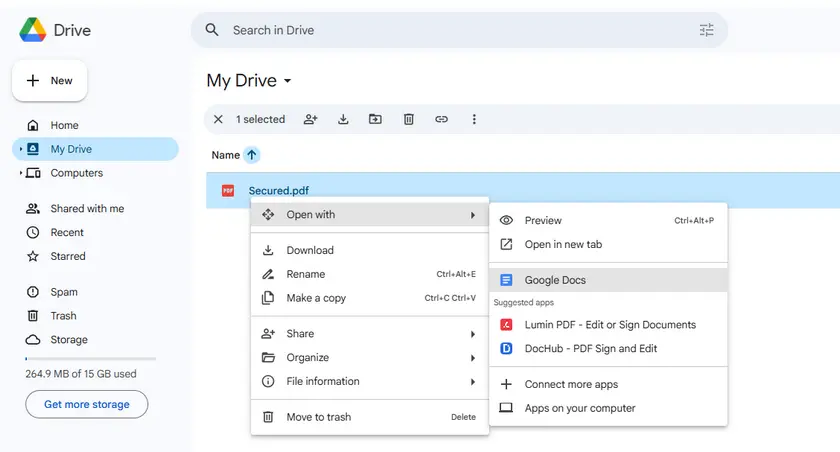
Passos
- Abra o Google Drive.
- Carregue o PDF protegido.
- Clique com o botão direito no arquivo e selecione Abrir com → Google Docs.
- O Google Docs converterá o PDF em um documento editável.
- Copie o texto extraído do documento.
Prós
- Gratuito e fácil de usar.
- Nenhuma instalação de software necessária.
- Funciona bem com documentos baseados em texto.
Limitações
- PDFs digitalizados/baseados em imagem não serão convertidos em texto (sem OCR).
- A formatação pode ficar bagunçada com layouts complexos.
- Requer uma conta do Google e conexão com a internet.
Método 2 — Converter um PDF restrito para TXT online
Outra solução rápida é converter o PDF restrito em um arquivo de texto simples usando um conversor online. Uma vez que o documento é convertido para o formato TXT, o texto se torna totalmente editável e pode ser copiado sem restrições.
Uma ferramenta gratuita conveniente para esse fim é o PDF24 Tools, que fornece um conversor de PDF para TXT baseado em navegador. Este método funciona bem quando você precisa extrair texto rapidamente sem instalar software adicional.
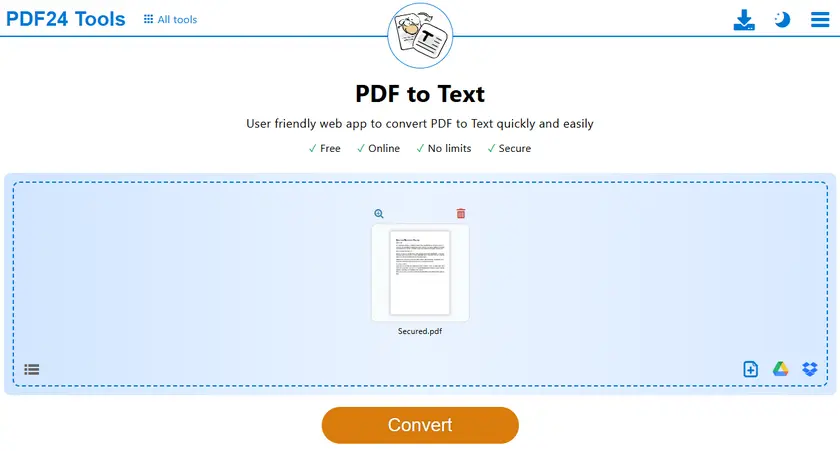
Passos
- Abra a ferramenta PDF para TXT.
- Carregue seu arquivo PDF protegido.
- Inicie o processo de conversão.
- Baixe o arquivo TXT gerado.
- Abra o arquivo TXT e copie o texto livremente.
Prós
- Fluxo de trabalho rápido e simples.
- Nenhuma instalação necessária.
Limitações
- Risco de privacidade — documentos confidenciais são carregados para servidores de terceiros.
- Muitas vezes limitado a algumas conversões gratuitas por dia.
- Sem suporte a OCR na maioria das ferramentas gratuitas (PDFs baseados em imagem não funcionarão).
Método 3 — Captura de tela + OCR para extrair texto
Se o PDF tiver fortes restrições de cópia ou contiver páginas digitalizadas, o OCR (Reconhecimento Óptico de Caracteres) ainda pode recuperar o texto visível. A tecnologia OCR analisa a imagem do documento e converte os caracteres detectados em texto editável.
O Windows 11 inclui um recurso de OCR integrado na Ferramenta de Recorte, permitindo que você capture parte da tela e extraia instantaneamente o texto da imagem.
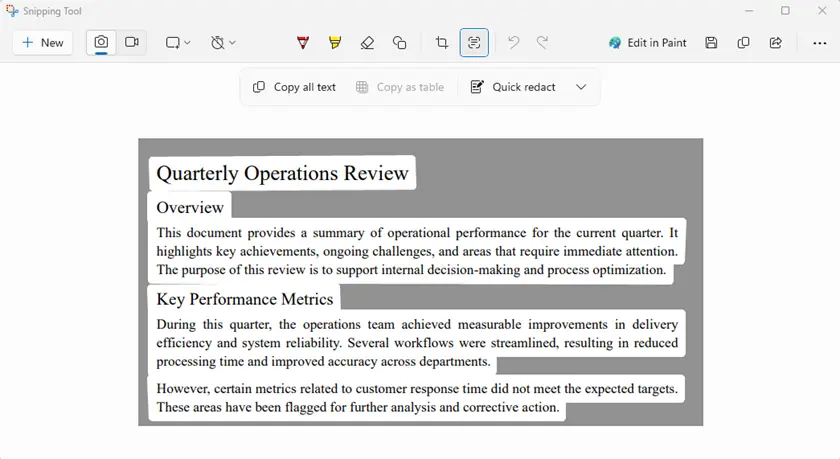
Passos
- Abra o PDF protegido na sua tela.
- Inicie a Ferramenta de Recorte.
- Capture a área que contém o texto.
- Use Ações de Texto → Copiar todo o texto.
- Cole o texto extraído em um documento.
Prós
- Ignora quase toda a proteção contra cópia, pois captura a tela.
- Funciona com PDFs digitalizados/baseados em imagem.
Limitações
- Demorado se houver muitas páginas.
- Erros de OCR — a precisão depende da qualidade da imagem e da fonte.
- Processo manual, a menos que automatizado com scripts.
Método 4 — Imprimir um PDF protegido contra cópia para um novo PDF
Alguns PDFs protegidos bloqueiam a cópia, mas ainda permitem a impressão. Nesses casos, você pode imprimir o documento em um novo arquivo PDF, o que pode remover a restrição de cópia.
Isso pode ser feito facilmente usando o recurso de impressão integrado no Google Chrome. Depois de salvar a versão impressa do arquivo, o novo PDF pode permitir a seleção e cópia normal de texto.
Passos
- Abra o PDF no Google Chrome.
- Pressione Ctrl + P para abrir a caixa de diálogo de impressão.
- Defina o destino como Salvar como PDF.
- Salve o PDF recém-gerado.
- Abra o novo arquivo e tente copiar o texto.
Prós
- Solução alternativa simples.
- Nenhuma ferramenta adicional necessária.
Limitações
- Se a impressão estiver desativada nas permissões do PDF, isso não funcionará.
- Algumas diferenças de formatação podem aparecer.
Método 5 — Extrair texto de um PDF protegido usando Python
Para desenvolvedores ou usuários que precisam processar vários documentos, extrair texto programaticamente pode ser a solução mais eficiente. Em vez de copiar o conteúdo manualmente, um script pode ler automaticamente a estrutura do PDF e recuperar o texto de cada página.
Usando o Free Spire.PDF for Python, você pode extrair facilmente texto de documentos PDF com apenas algumas linhas de código. Essa abordagem é particularmente útil para automação, processamento em lote ou criação de fluxos de trabalho de processamento de documentos.
Se você estiver trabalhando com documentos pequenos (até 10 páginas por documento) ou testando fluxos de trabalho de extração, a versão gratuita funciona bem. Para arquivos maiores, você pode dividir o documento primeiro ou usar a versão completa.
Instale a biblioteca
pip install spire.pdf.free
Exemplo: Extrair texto de cada página
from spire.pdf import *

# Create a PdfDocument object
doc = PdfDocument()

# Load a PDF document
doc.LoadFromFile("Secured.pdf")

# Iterate through the pages in the document
for i in range(doc.Pages.Count):

    # Get a specific page
    page = doc.Pages[i]

    # Create a PdfTextExtractor object
    textExtractor = PdfTextExtractor(page)

    # Create a PdfTextExtractOptions object
    extractOptions = PdfTextExtractOptions()

    # Set IsExtractAllText to True
    extractOptions.IsExtractAllText = True

    # Extract text from the page keeping white spaces
    text = textExtractor.ExtractText(extractOptions)

    # Write text to a txt file
    with open('output/TextOfPage-{}.txt'.format(i + 1), 'w', encoding='utf-8') as file:
        lines = text.split("\n")
        for line in lines:
            if line != '':
                file.write(line)
doc.Close()
O que este script faz
- Carrega o documento PDF.
- Itera através de cada página.
- Extrai texto preservando os espaços em branco.
- Salva o texto extraído em arquivos TXT.
Prós
- Controle total sobre o processo de extração.
- Pode ser automatizado para processamento em lote.
- Funciona bem com PDFs baseados em texto.
Limitações
- Requer conhecimento de programação.
- Não pode lidar com PDFs baseados em imagem, a menos que uma biblioteca de OCR adicional seja usada.
Você também pode gostar: Realizar OCR em PDF com Python (Extrair texto de PDF digitalizado)
Tabela de comparação: Qual método você deve escolher?
| Método | Nível de Habilidade | Facilidade de uso | Melhor para | Funciona com PDFs digitalizados | Funciona sob fortes restrições | Processamento em lote |
|---|---|---|---|---|---|---|
| Google Docs | Iniciante | Muito fácil | Extração rápida no navegador | Não | Sim | Não |
| Conversor Online | Iniciante | Muito fácil | Conversão rápida para TXT | Não | Sim | Não |
| Captura de tela + OCR | Iniciante | Fácil | PDFs digitalizados ou baseados em imagem | Sim | Sim | Não |
| Imprimir para PDF | Iniciante | Fácil | Removendo restrições simples | Não | Condicional (a impressão deve ser permitida) | Não |
| Python (Spire.PDF) | Desenvolvedor | Moderado | Automação e fluxos de trabalho em lote | Depende de bibliotecas de OCR extras | Sim | Sim |
Conclusão
As restrições de cópia em PDFs podem ser frustrantes, especialmente quando você só precisa reutilizar uma parte do texto. Felizmente, vários métodos gratuitos podem ajudar a extrair conteúdo de PDFs protegidos.
Para tarefas rápidas, ferramentas como o Google Docs ou conversores online podem ser a solução mais fácil. Se o documento contiver conteúdo digitalizado ou restrições rígidas, os métodos baseados em OCR ainda podem recuperar o texto. Para fluxos de trabalho em grande escala ou cenários de automação, o uso de bibliotecas Python, como o Free Spire.PDF for Python, oferece uma abordagem poderosa e flexível.
Ao escolher o método que melhor se adapta às suas necessidades, você pode recuperar eficientemente o texto de PDFs restritos, mantendo um fluxo de trabalho eficiente.
FAQs (Perguntas Frequentes)
P1: O que é um PDF seguro ou restrito?
Um PDF protegido ou restrito é um documento que pode ser aberto e visualizado normalmente, mas possui configurações de segurança que impedem a cópia, impressão ou edição de seu conteúdo. Essas permissões são definidas pelo proprietário do documento.
P2: Posso copiar texto de todos os PDFs protegidos?
Nem sempre. Alguns PDFs possuem criptografia forte ou DRM que impede totalmente a cópia. Nesses casos, ferramentas de OCR ou bibliotecas profissionais podem ser necessárias.
P3: Qual é o melhor método para PDFs digitalizados?
Para PDFs digitalizados, a extração por captura de tela + OCR ou a automação com Python com bibliotecas de OCR geralmente é a maneira mais confiável de recuperar o texto.
P4: Posso automatizar a extração de texto para vários PDFs?
Sim. Usando bibliotecas Python como o Spire.PDF, você pode extrair texto de vários arquivos PDF automaticamente, tornando-o ideal para processamento em lote ou automação de fluxo de trabalho.
P5: Preciso pagar por algum desses métodos?
Todos os métodos listados no artigo são de uso gratuito. No entanto, algumas ferramentas (como o Spire.PDF) têm versões gratuitas com limitações, como uma restrição de contagem de páginas. Para arquivos maiores, você pode precisar da versão completa.
Leia também
보안된 PDF에서 텍스트 복사하기: 가장 쉽고 무료인 5가지 방법
PDF 파일은 여러 장치에서 레이아웃과 서식을 보존하기 때문에 문서 공유에 널리 사용됩니다. 그러나 일부 PDF에는 사용자가 텍스트를 복사하지 못하도록 하는 보안 권한이 포함되어 있습니다. 이러한 파일에서 콘텐츠를 선택하거나 복사하려고 하면 복사가 비활성화된 것을 볼 수 있습니다.
이러한 유형의 파일은 종종 보안, 보호 또는 제한된 PDF라고 합니다. 파일 열기를 차단하는 암호로 보호된 PDF와 달리 이러한 문서는 정상적으로 볼 수 있지만 텍스트 복사와 같은 특정 작업은 제한됩니다.
다행히도 보호된 PDF에서 텍스트를 추출하거나 복사할 수 있는 몇 가지 무료이고 실용적인 해결 방법이 있습니다. 이 가이드에서는 온라인 도구, 내장 시스템 기능 및 Python 자동화 접근 방식을 포함한 다섯 가지 쉬운 방법을 살펴보겠습니다.
빠른 탐색
- 방법 1 — Google 문서를 사용하여 보안 PDF에서 텍스트 복사
- 방법 2 — 제한된 PDF를 온라인에서 TXT로 변환
- 방법 3 — 스크린샷 + OCR로 텍스트 추출
- 방법 4 — 복사 방지된 PDF를 새 PDF로 인쇄
- 방법 5 — Python을 사용하여 보안 PDF에서 텍스트 추출
일부 PDF에서 텍스트를 복사할 수 없는 이유는 무엇입니까?
많은 PDF 작성자는 문서 사용 방법을 제어하기 위해 권한 제한을 적용합니다. 이러한 권한은 PDF의 보안 설정에서 지정되며 다음과 같은 작업을 비활성화할 수 있습니다.
- 텍스트 복사
- 문서 편집
- 파일 인쇄
- 주석 추가
이를 종종 복사 방지 또는 콘텐츠 제한이라고 합니다. 문서는 읽을 수 있지만 PDF 뷰어는 텍스트 선택이나 복사를 방지합니다.
이러한 제한은 일반적으로 지적 재산을 보호하거나 콘텐츠의 무단 재사용을 방지하는 데 사용됩니다. 그러나 연구, 문서화 또는 접근성 목적으로 텍스트를 합법적으로 재사용해야 하는 경우 콘텐츠를 추출하는 다른 방법이 필요할 수 있습니다.
다음은 도움이 될 수 있는 다섯 가지 방법입니다.
방법 1 — Google 문서를 사용하여 보안 PDF에서 텍스트 복사
보호된 PDF에서 텍스트를 복사하는 가장 간단한 방법 중 하나는 Google 문서로 여는 것입니다. PDF를 Google 드라이브에 업로드하고 Google 문서에서 열면 서비스가 자동으로 파일을 편집 가능한 문서로 변환합니다.
이 변환 과정에서 PDF의 콘텐츠는 텍스트와 단락으로 재해석되어 기본적인 복사 제한을 우회하는 경우가 많습니다. 변환이 완료되면 일반 문서에서처럼 텍스트를 쉽게 선택하고 복사할 수 있습니다.
단계
- Google 드라이브를 엽니다.
- 보호된 PDF를 업로드합니다.
- 파일을 마우스 오른쪽 버튼으로 클릭하고 연결 프로그램 → Google 문서를 선택합니다.
- Google 문서가 PDF를 편집 가능한 문서로 변환합니다.
- 문서에서 추출된 텍스트를 복사합니다.
장점
- 무료이며 사용하기 쉽습니다.
- 소프트웨어 설치가 필요 없습니다.
- 텍스트 기반 문서에서 잘 작동합니다.
제한 사항
- 스캔/이미지 기반 PDF는 텍스트로 변환되지 않습니다 (OCR 없음).
- 복잡한 레이아웃에서는 서식이 지저분해질 수 있습니다.
- Google 계정과 인터넷 연결이 필요합니다.
방법 2 — 제한된 PDF를 온라인에서 TXT로 변환
또 다른 빠른 해결책은 온라인 변환기를 사용하여 제한된 PDF를 일반 텍스트 파일로 변환하는 것입니다. 문서가 TXT 형식으로 변환되면 텍스트는 완전히 편집 가능해지며 제한 없이 복사할 수 있습니다.
이 목적에 편리한 무료 도구는 브라우저 기반 PDF to TXT 변환기를 제공하는 PDF24 도구입니다. 이 방법은 추가 소프트웨어를 설치하지 않고 텍스트를 빠르게 추출해야 할 때 잘 작동합니다.
단계
- PDF-to-TXT 도구를 엽니다.
- 보호된 PDF 파일을 업로드합니다.
- 변환 프로세스를 시작합니다.
- 생성된 TXT 파일을 다운로드합니다.
- TXT 파일을 열고 텍스트를 자유롭게 복사합니다.
장점
- 빠르고 간단한 워크플로.
- 설치가 필요 없습니다.
제한 사항
- 개인 정보 보호 위험 — 민감한 문서가 타사 서버에 업로드됩니다.
- 하루에 몇 번의 무료 변환으로 제한되는 경우가 많습니다.
- 대부분의 무료 도구에서는 OCR을 지원하지 않습니다 (이미지 기반 PDF는 작동하지 않음).
방법 3 — 스크린샷 + OCR로 텍스트 추출
PDF에 강력한 복사 제한이 있거나 스캔된 페이지가 포함된 경우 OCR(광학 문자 인식)을 사용하여 표시되는 텍스트를 검색할 수 있습니다. OCR 기술은 문서의 이미지를 분석하고 감지된 문자를 편집 가능한 텍스트로 변환합니다.
Windows 11에는 캡처 도구에 내장된 OCR 기능이 포함되어 있어 화면의 일부를 캡처하고 이미지에서 텍스트를 즉시 추출할 수 있습니다.
단계
- 화면에서 보호된 PDF를 엽니다.
- 캡처 도구를 실행합니다.
- 텍스트가 포함된 영역을 캡처합니다.
- 텍스트 작업 → 모든 텍스트 복사를 사용합니다.
- 추출된 텍스트를 문서에 붙여넣습니다.
장점
- 화면을 캡처하므로 거의 모든 복사 방지를 우회합니다.
- 스캔/이미지 기반 PDF에서 작동합니다.
제한 사항
- 페이지가 많으면 시간이 많이 걸립니다.
- OCR 오류 — 정확도는 이미지 품질과 글꼴에 따라 다릅니다.
- 스크립트로 자동화하지 않으면 수동 프로세스입니다.
방법 4 — 복사 방지된 PDF를 새 PDF로 인쇄
일부 보호된 PDF는 복사를 차단하지만 인쇄는 허용합니다. 이러한 경우 문서를 새 PDF 파일로 인쇄하면 복사 제한이 제거될 수 있습니다.
이 작업은 Google Chrome의 내장 인쇄 기능을 사용하여 쉽게 수행할 수 있습니다. 파일의 인쇄된 버전을 저장한 후 새 PDF에서 일반 텍스트 선택 및 복사가 허용될 수 있습니다.
단계
- Google Chrome에서 PDF를 엽니다.
- Ctrl + P를 눌러 인쇄 대화 상자를 엽니다.
- 대상을 PDF로 저장으로 설정합니다.
- 새로 생성된 PDF를 저장합니다.
- 새 파일을 열고 텍스트 복사를 시도합니다.
장점
- 간단한 해결 방법.
- 추가 도구가 필요 없습니다.
제한 사항
- PDF 권한에서 인쇄가 비활성화된 경우 이 방법은 작동하지 않습니다.
- 일부 서식 차이가 나타날 수 있습니다.
방법 5 — Python을 사용하여 보안 PDF에서 텍스트 추출
여러 문서를 처리해야 하는 개발자나 사용자에게는 프로그래밍 방식으로 텍스트를 추출하는 것이 가장 효율적인 솔루션일 수 있습니다. 콘텐츠를 수동으로 복사하는 대신 스크립트가 자동으로 PDF 구조를 읽고 각 페이지에서 텍스트를 검색할 수 있습니다.
Python용 무료 Spire.PDF를 사용하면 단 몇 줄의 코드로 PDF 문서에서 텍스트를 쉽게 추출할 수 있습니다. 이 접근 방식은 자동화, 일괄 처리 또는 문서 처리 워크플로 구축에 특히 유용합니다.
작은 문서(문서당 10페이지 이내)로 작업하거나 추출 워크플로를 테스트하는 경우 무료 버전이 잘 작동합니다. 더 큰 파일의 경우 문서를 먼저 분할하거나 전체 버전을 사용할 수 있습니다.
라이브러리 설치
pip install spire.pdf.free
예: 각 페이지에서 텍스트 추출
from spire.pdf import *

# Create a PdfDocument object
doc = PdfDocument()

# Load a PDF document
doc.LoadFromFile("Secured.pdf")

# Iterate through the pages in the document
for i in range(doc.Pages.Count):

    # Get a specific page
    page = doc.Pages[i]

    # Create a PdfTextExtractor object
    textExtractor = PdfTextExtractor(page)

    # Create a PdfTextExtractOptions object
    extractOptions = PdfTextExtractOptions()

    # Set IsExtractAllText to True
    extractOptions.IsExtractAllText = True

    # Extract text from the page keeping white spaces
    text = textExtractor.ExtractText(extractOptions)

    # Write text to a txt file
    with open('output/TextOfPage-{}.txt'.format(i + 1), 'w', encoding='utf-8') as file:
        lines = text.split("\n")
        for line in lines:
            if line != '':
                file.write(line)
doc.Close()
이 스크립트의 기능
- PDF 문서를 로드합니다.
- 각 페이지를 반복합니다.
- 공백을 유지하면서 텍스트를 추출합니다.
- 추출된 텍스트를 TXT 파일에 저장합니다.
장점
- 추출 프로세스에 대한 완전한 제어.
- 일괄 처리를 위해 자동화할 수 있습니다.
- 텍스트 기반 PDF에서 잘 작동합니다.
제한 사항
- 프로그래밍 지식이 필요합니다.
- 추가 OCR 라이브러리를 사용하지 않으면 이미지 기반 PDF를 처리할 수 없습니다.
관심 있을 만한 글: Python으로 PDF OCR 수행 (스캔된 PDF에서 텍스트 추출)
비교표: 어떤 방법을 선택해야 할까요?
| 방법 | 기술 수준 | 사용 용이성 | 최적 대상 | 스캔된 PDF에서 작동 | 강력한 제한 하에서 작동 | 일괄 처리 |
|---|---|---|---|---|---|---|
| Google 문서 | 초보자 | 매우 쉬움 | 브라우저에서 빠른 추출 | 아니요 | 예 | 아니요 |
| 온라인 변환기 | 초보자 | 매우 쉬움 | 빠른 TXT 변환 | 아니요 | 예 | 아니요 |
| 스크린샷 + OCR | 초보자 | 쉬움 | 스캔 또는 이미지 기반 PDF | 예 | 예 | 아니요 |
| PDF로 인쇄 | 초보자 | 쉬움 | 간단한 제한 제거 | 아니요 | 조건부 (인쇄가 허용되어야 함) | 아니요 |
| Python (Spire.PDF) | 개발자 | 보통 | 자동화 및 일괄 워크플로 | 추가 OCR 라이브러리에 의존 | 예 | 예 |
결론
PDF의 복사 제한은 특히 텍스트의 일부만 재사용해야 할 때 답답할 수 있습니다. 다행히도 보호된 PDF에서 콘텐츠를 추출하는 데 도움이 되는 몇 가지 무료 방법이 있습니다.
빠른 작업을 위해 Google 문서나 온라인 변환기와 같은 도구가 가장 쉬운 해결책일 수 있습니다. 문서에 스캔된 콘텐츠나 엄격한 제한이 포함된 경우 OCR 기반 방법으로 텍스트를 복구할 수 있습니다. 대규모 워크플로나 자동화 시나리오의 경우 Python용 무료 Spire.PDF와 같은 Python 라이브러리를 사용하면 강력하고 유연한 접근 방식을 제공합니다.
자신의 필요에 가장 적합한 방법을 선택하면 효율적인 워크플로를 유지하면서 제한된 PDF에서 텍스트를 효율적으로 검색할 수 있습니다.
자주 묻는 질문 (FAQ)
Q1: 보안 또는 제한된 PDF란 무엇입니까?
보호 또는 제한된 PDF는 정상적으로 열고 볼 수 있지만 콘텐츠 복사, 인쇄 또는 편집을 방지하는 보안 설정이 있는 문서입니다. 이러한 권한은 문서 소유자가 설정합니다.
Q2: 모든 보안 PDF에서 텍스트를 복사할 수 있습니까?
항상 그런 것은 아닙니다. 일부 PDF에는 복사를 완전히 방지하는 강력한 암호화 또는 DRM이 있습니다. 이러한 경우 OCR 도구나 전문 라이브러리가 필요할 수 있습니다.
Q3: 스캔된 PDF에 가장 적합한 방법은 무엇입니까?
스캔된 PDF의 경우 스크린샷 + OCR 추출 또는 OCR 라이브러리를 사용한 Python 자동화가 일반적으로 텍스트를 검색하는 가장 신뢰할 수 있는 방법입니다.
Q4: 여러 PDF에 대한 텍스트 추출을 자동화할 수 있습니까?
예. Spire.PDF와 같은 Python 라이브러리를 사용하면 여러 PDF 파일에서 자동으로 텍스트를 추출할 수 있으므로 일괄 처리나 워크플로 자동화에 이상적입니다.
Q5: 이 방법들 중 비용을 지불해야 하는 것이 있습니까?
기사에 나열된 모든 방법은 무료로 사용할 수 있습니다. 그러나 일부 도구(예: Spire.PDF)에는 페이지 수 제한과 같은 제한이 있는 무료 버전이 있습니다. 더 큰 파일의 경우 전체 버전이 필요할 수 있습니다.
함께 읽기
Come copiare testo da un PDF protetto: 5 modi gratuiti e semplici
Indice
- Perché non è possibile copiare testo da alcuni PDF?
- Metodo 1 — Copiare testo da un PDF protetto utilizzando Google Docs
- Metodo 2 — Convertire un PDF con restrizioni in TXT online
- Metodo 3 — Screenshot + OCR per estrarre il testo
- Metodo 4 — Stampare un PDF protetto da copia in un nuovo PDF
- Metodo 5 — Estrarre testo da un PDF protetto utilizzando Python
- Tabella di confronto: quale metodo scegliere?
- Conclusione
- Domande frequenti (FAQ)
I file PDF sono ampiamente utilizzati per la condivisione di documenti perché preservano il layout e la formattazione su tutti i dispositivi. Tuttavia, alcuni PDF includono autorizzazioni di sicurezza che impediscono agli utenti di copiare il testo. Quando si tenta di selezionare o copiare contenuto da questi file, è possibile che la copia sia disabilitata.
Questo tipo di file è spesso chiamato PDF protetto, sicuro o con restrizioni. A differenza dei PDF protetti da password che bloccano l'apertura del file, questi documenti possono comunque essere visualizzati normalmente, ma alcune azioni come la copia del testo sono limitate.
Fortunatamente, esistono diverse soluzioni alternative gratuite e pratiche che consentono di estrarre o copiare testo da PDF protetti. In questa guida, esploreremo cinque metodi semplici, inclusi strumenti online, funzionalità di sistema integrate e un approccio di automazione con Python.
Navigazione rapida
- Metodo 1 — Copiare testo da un PDF protetto utilizzando Google Docs
- Metodo 2 — Convertire un PDF con restrizioni in TXT online
- Metodo 3 — Screenshot + OCR per estrarre il testo
- Metodo 4 — Stampare un PDF protetto da copia in un nuovo PDF
- Metodo 5 — Estrarre testo da un PDF protetto utilizzando Python
Perché non è possibile copiare testo da alcuni PDF?
Molti creatori di PDF applicano restrizioni sulle autorizzazioni per controllare come il documento può essere utilizzato. Queste autorizzazioni sono impostate nelle impostazioni di sicurezza del PDF e possono disabilitare azioni come:
- Copia del testo
- Modifica del documento
- Stampa del file
- Aggiunta di annotazioni
Questo viene spesso definito protezione dalla copia o restrizione del contenuto. Sebbene il documento rimanga leggibile, il visualizzatore PDF impedisce la selezione o la copia del testo.
Queste restrizioni vengono generalmente utilizzate per proteggere la proprietà intellettuale o impedire il riutilizzo non autorizzato dei contenuti. Tuttavia, quando è legittimamente necessario riutilizzare il testo, ad esempio per scopi di ricerca, documentazione o accessibilità, potrebbero essere necessari modi alternativi per estrarre il contenuto.
Di seguito sono riportati cinque metodi che possono aiutare.
Metodo 1 — Copiare testo da un PDF protetto utilizzando Google Docs
Uno dei modi più semplici per copiare testo da un PDF protetto è aprirlo con Google Docs. Quando un PDF viene caricato su Google Drive e aperto in Google Docs, il servizio converte automaticamente il file in un documento modificabile.
Durante questo processo di conversione, il contenuto del PDF viene reinterpretato come testo e paragrafi, il che spesso aggira le restrizioni di copia di base. Una volta completata la conversione, è possibile selezionare e copiare facilmente il testo proprio come in un normale documento.
Passaggi
- Apri Google Drive.
- Carica il PDF protetto.
- Fai clic con il pulsante destro del mouse sul file e seleziona Apri con → Google Docs.
- Google Docs convertirà il PDF in un documento modificabile.
- Copia il testo estratto dal documento.
Vantaggi
- Gratuito e facile da usare.
- Nessuna installazione di software richiesta.
- Funziona bene con documenti basati su testo.
Limitazioni
- I PDF scansionati/basati su immagini non verranno convertiti in testo (senza OCR).
- La formattazione può diventare disordinata con layout complessi.
- Richiede un account Google e una connessione Internet.
Metodo 2 — Convertire un PDF con restrizioni in TXT online
Un'altra soluzione rapida è convertire il PDF con restrizioni in un file di testo semplice utilizzando un convertitore online. Una volta che il documento viene convertito in formato TXT, il testo diventa completamente modificabile e può essere copiato senza restrizioni.
Uno strumento gratuito e conveniente per questo scopo è PDF24 Tools, che fornisce un convertitore da PDF a TXT basato su browser. Questo metodo funziona bene quando è necessario estrarre rapidamente il testo senza installare software aggiuntivo.
Passaggi
- Apri lo strumento da PDF a TXT.
- Carica il tuo file PDF protetto.
- Avvia il processo di conversione.
- Scarica il file TXT generato.
- Apri il file TXT e copia liberamente il testo.
Vantaggi
- Flusso di lavoro rapido e semplice.
- Nessuna installazione richiesta.
Limitazioni
- Rischio per la privacy: i documenti sensibili vengono caricati su server di terze parti.
- Spesso limitato a poche conversioni gratuite al giorno.
- Nessun supporto OCR nella maggior parte degli strumenti gratuiti (i PDF basati su immagini non funzioneranno).
Metodo 3 — Screenshot + OCR per estrarre il testo
Se il PDF ha forti restrizioni di copia o contiene pagine scansionate, l'OCR (Riconoscimento Ottico dei Caratteri) può comunque recuperare il testo visibile. La tecnologia OCR analizza l'immagine del documento e converte i caratteri rilevati in testo modificabile.
Windows 11 include una funzione OCR integrata nello Strumento di cattura, che consente di catturare parte dello schermo ed estrarre istantaneamente il testo dall'immagine.
Passaggi
- Apri il PDF protetto sullo schermo.
- Avvia lo Strumento di cattura.
- Cattura l'area contenente il testo.
- Usa Azioni testo → Copia tutto il testo.
- Incolla il testo estratto in un documento.
Vantaggi
- Aggira quasi tutte le protezioni dalla copia poiché cattura lo schermo.
- Funziona con PDF scansionati/basati su immagini.
Limitazioni
- Richiede molto tempo se ci sono molte pagine.
- Errori OCR: la precisione dipende dalla qualità dell'immagine e dal carattere.
- Processo manuale a meno che non sia automatizzato con script.
Metodo 4 — Stampare un PDF protetto da copia in un nuovo PDF
Alcuni PDF protetti bloccano la copia ma consentono comunque la stampa. In tali casi, è possibile stampare il documento in un nuovo file PDF, che potrebbe rimuovere la restrizione di copia.
Questo può essere fatto facilmente utilizzando la funzione di stampa integrata in Google Chrome. Dopo aver salvato la versione stampata del file, il nuovo PDF potrebbe consentire la normale selezione e copia del testo.
Passaggi
- Apri il PDF in Google Chrome.
- Premi Ctrl + P per aprire la finestra di dialogo di stampa.
- Imposta la destinazione su Salva come PDF.
- Salva il PDF appena generato.
- Apri il nuovo file e prova a copiare il testo.
Vantaggi
- Soluzione semplice.
- Nessuno strumento aggiuntivo richiesto.
Limitazioni
- Se la stampa è disabilitata nelle autorizzazioni del PDF, questo non funzionerà.
- Potrebbero apparire alcune differenze di formattazione.
Metodo 5 — Estrarre testo da un PDF protetto utilizzando Python
Per gli sviluppatori o gli utenti che devono elaborare più documenti, l'estrazione programmatica del testo può essere la soluzione più efficiente. Invece di copiare manualmente il contenuto, uno script può leggere automaticamente la struttura del PDF e recuperare il testo da ogni pagina.
Utilizzando Free Spire.PDF per Python, è possibile estrarre facilmente testo da documenti PDF con poche righe di codice. Questo approccio è particolarmente utile per l'automazione, l'elaborazione batch o la creazione di flussi di lavoro per l'elaborazione di documenti.
Se si lavora con documenti di piccole dimensioni (entro 10 pagine per documento) o si testano flussi di lavoro di estrazione, la versione gratuita funziona bene. Per file più grandi, è possibile dividere prima il documento o utilizzare la versione completa.
Installa la libreria
pip install spire.pdf.free
Esempio: estrarre testo da ogni pagina
from spire.pdf import *

# Create a PdfDocument object
doc = PdfDocument()

# Load a PDF document
doc.LoadFromFile("Secured.pdf")

# Iterate through the pages in the document
for i in range(doc.Pages.Count):

    # Get a specific page
    page = doc.Pages[i]

    # Create a PdfTextExtractor object
    textExtractor = PdfTextExtractor(page)

    # Create a PdfTextExtractOptions object
    extractOptions = PdfTextExtractOptions()

    # Set IsExtractAllText to True
    extractOptions.IsExtractAllText = True

    # Extract text from the page keeping white spaces
    text = textExtractor.ExtractText(extractOptions)

    # Write text to a txt file
    with open('output/TextOfPage-{}.txt'.format(i + 1), 'w', encoding='utf-8') as file:
        lines = text.split("\n")
        for line in lines:
            if line != '':
                file.write(line)
doc.Close()
Cosa fa questo script
- Carica il documento PDF.
- Scorre ogni pagina.
- Estrae il testo preservando gli spazi bianchi.
- Salva il testo estratto in file TXT.
Vantaggi
- Pieno controllo sul processo di estrazione.
- Può essere automatizzato per l'elaborazione batch.
- Funziona bene con i PDF basati su testo.
Limitazioni
- Richiede conoscenze di programmazione.
- Non è in grado di gestire PDF basati su immagini a meno che non venga utilizzata una libreria OCR aggiuntiva.
Potrebbe piacerti anche: Eseguire l'OCR di PDF con Python (estrarre testo da PDF scansionato)
Tabella di confronto: quale metodo scegliere?
| Metodo | Livello di abilità | Facilità d'uso | Ideale per | Funziona con PDF scansionati | Funziona con restrizioni forti | Elaborazione batch |
|---|---|---|---|---|---|---|
| Google Docs | Principiante | Molto facile | Estrazione rapida nel browser | No | Sì | No |
| Convertitore online | Principiante | Molto facile | Conversione TXT veloce | No | Sì | No |
| Screenshot + OCR | Principiante | Facile | PDF scansionati o basati su immagini | Sì | Sì | No |
| Stampa su PDF | Principiante | Facile | Rimozione di restrizioni semplici | No | Condizionale (la stampa deve essere consentita) | No |
| Python (Spire.PDF) | Sviluppatore | Moderato | Automazione e flussi di lavoro batch | Si basa su librerie OCR aggiuntive | Sì | Sì |
Conclusione
Le restrizioni di copia nei PDF possono essere frustranti, soprattutto quando è necessario riutilizzare solo una parte del testo. Fortunatamente, diversi metodi gratuiti possono aiutare a estrarre contenuto da PDF protetti.
Per attività rapide, strumenti come Google Docs o convertitori online possono essere la soluzione più semplice. Se il documento contiene contenuto scansionato o restrizioni rigide, i metodi basati su OCR possono comunque recuperare il testo. Per flussi di lavoro su larga scala o scenari di automazione, l'utilizzo di librerie Python come Free Spire.PDF per Python fornisce un approccio potente e flessibile.
Scegliendo il metodo che meglio si adatta alle tue esigenze, puoi recuperare in modo efficiente il testo da PDF con restrizioni mantenendo un flusso di lavoro efficiente.
Domande frequenti (FAQ)
D1: Cos'è un PDF protetto o con restrizioni?
Un PDF protetto o con restrizioni è un documento che può essere aperto e visualizzato normalmente ma ha impostazioni di sicurezza che impediscono la copia, la stampa o la modifica del suo contenuto. Queste autorizzazioni sono impostate dal proprietario del documento.
D2: Posso copiare testo da tutti i PDF protetti?
Non sempre. Alcuni PDF hanno una crittografia avanzata o DRM che impedisce completamente la copia. In tali casi, potrebbero essere necessari strumenti OCR o librerie professionali.
D3: Qual è il metodo migliore per i PDF scansionati?
Per i PDF scansionati, l'estrazione tramite screenshot + OCR o l'automazione con Python con librerie OCR è solitamente il modo più affidabile per recuperare il testo.
D4: Posso automatizzare l'estrazione del testo per più PDF?
Sì. Utilizzando librerie Python come Spire.PDF, è possibile estrarre automaticamente testo da più file PDF, rendendolo ideale per l'elaborazione batch o l'automazione del flusso di lavoro.
D5: Devo pagare per uno di questi metodi?
Tutti i metodi elencati nell'articolo sono gratuiti. Tuttavia, alcuni strumenti (come Spire.PDF) hanno versioni gratuite con limitazioni, come una restrizione sul numero di pagine. Per file più grandi, potrebbe essere necessaria la versione completa.
Leggi anche
Comment copier le texte d'un PDF protégé : 5 méthodes gratuites et simples
Table des matières
- Pourquoi ne pouvez-vous pas copier de texte à partir de certains PDF ?
- Méthode 1 — Copier du texte à partir d'un PDF sécurisé à l'aide de Google Docs
- Méthode 2 — Convertir un PDF restreint en TXT en ligne
- Méthode 3 — Capture d'écran + OCR pour extraire le texte
- Méthode 4 — Imprimer un PDF protégé contre la copie dans un nouveau PDF
- Méthode 5 — Extraire du texte d'un PDF sécurisé à l'aide de Python
- Tableau comparatif : Quelle méthode choisir ?
- Conclusion
- FAQ (Foire aux questions)
Les fichiers PDF sont largement utilisés pour le partage de documents car ils préservent la mise en page et le formatage sur tous les appareils. Cependant, certains PDF incluent des autorisations de sécurité qui empêchent les utilisateurs de copier du texte. Lorsque vous essayez de sélectionner ou de copier du contenu à partir de ces fichiers, vous pouvez constater que la copie est désactivée.
Ce type de fichier est souvent appelé un PDF sécurisé, protégé ou restreint. Contrairement aux PDF protégés par mot de passe qui bloquent l'ouverture du fichier, ces documents peuvent toujours être consultés normalement, mais certaines actions telles que la copie de texte sont restreintes.
Heureusement, il existe plusieurs solutions de contournement gratuites et pratiques qui vous permettent d'extraire ou de copier du texte à partir de PDF protégés. Dans ce guide, nous explorerons cinq méthodes simples, notamment des outils en ligne, des fonctionnalités système intégrées et une approche d'automatisation avec Python.
Navigation rapide
- Méthode 1 — Copier du texte à partir d'un PDF sécurisé à l'aide de Google Docs
- Méthode 2 — Convertir un PDF restreint en TXT en ligne
- Méthode 3 — Capture d'écran + OCR pour extraire le texte
- Méthode 4 — Imprimer un PDF protégé contre la copie dans un nouveau PDF
- Méthode 5 — Extraire du texte d'un PDF sécurisé à l'aide de Python
Pourquoi ne pouvez-vous pas copier de texte à partir de certains PDF ?
De nombreux créateurs de PDF appliquent des restrictions d'autorisation pour contrôler la manière dont le document peut être utilisé. Ces autorisations sont définies dans les paramètres de sécurité du PDF et peuvent désactiver des actions telles que :
- Copie de texte
- Modification du document
- Impression du fichier
- Ajout d'annotations
Ceci est souvent appelé protection contre la copie ou restriction de contenu. Bien que le document reste lisible, la visionneuse PDF empêche la sélection ou la copie de texte.
Ces restrictions sont généralement utilisées pour protéger la propriété intellectuelle ou empêcher la réutilisation non autorisée du contenu. Cependant, lorsque vous avez légitimement besoin de réutiliser du texte, par exemple à des fins de recherche, de documentation ou d'accessibilité, vous pouvez avoir besoin de moyens alternatifs pour extraire le contenu.
Voici cinq méthodes qui peuvent vous aider.
Méthode 1 — Copier du texte à partir d'un PDF sécurisé à l'aide de Google Docs
L'une des façons les plus simples de copier du texte à partir d'un PDF protégé est de l'ouvrir avec Google Docs. Lorsqu'un PDF est téléchargé sur Google Drive et ouvert dans Google Docs, le service convertit automatiquement le fichier en un document modifiable.
Au cours de ce processus de conversion, le contenu du PDF est réinterprété en texte et en paragraphes, ce qui contourne souvent les restrictions de copie de base. Une fois la conversion terminée, vous pouvez facilement sélectionner et copier le texte comme dans un document normal.
Étapes
- Ouvrez Google Drive.
- Téléchargez le PDF protégé.
- Faites un clic droit sur le fichier et sélectionnez Ouvrir avec → Google Docs.
- Google Docs convertira le PDF en un document modifiable.
- Copiez le texte extrait du document.
Avantages
- Gratuit et facile à utiliser.
- Aucune installation de logiciel requise.
- Fonctionne bien avec les documents textuels.
Limites
- Les PDF numérisés/basés sur des images ne seront pas convertis en texte (pas d'OCR).
- La mise en forme peut devenir désordonnée avec des mises en page complexes.
- Nécessite un compte Google et une connexion Internet.
Méthode 2 — Convertir un PDF restreint en TXT en ligne
Une autre solution rapide consiste à convertir le PDF restreint en un fichier texte brut à l'aide d'un convertisseur en ligne. Une fois le document converti au format TXT, le texte devient entièrement modifiable et peut être copié sans restrictions.
Un outil gratuit pratique à cet effet est PDF24 Tools, qui fournit un convertisseur PDF en TXT basé sur un navigateur. Cette méthode fonctionne bien lorsque vous avez besoin d'extraire du texte rapidement sans installer de logiciel supplémentaire.
Étapes
- Ouvrez l'outil PDF-en-TXT.
- Téléchargez votre fichier PDF protégé.
- Démarrez le processus de conversion.
- Téléchargez le fichier TXT généré.
- Ouvrez le fichier TXT et copiez le texte librement.
Avantages
- Flux de travail rapide et simple.
- Aucune installation requise.
Limites
- Risque de confidentialité — les documents sensibles sont téléchargés sur des serveurs tiers.
- Souvent limité à quelques conversions gratuites par jour.
- Pas de prise en charge de l'OCR dans la plupart des outils gratuits (les PDF basés sur des images ne fonctionneront pas).
Méthode 3 — Capture d'écran + OCR pour extraire le texte
Si le PDF a de fortes restrictions de copie ou contient des pages numérisées, l'OCR (Reconnaissance Optique de Caractères) peut toujours récupérer le texte visible. La technologie OCR analyse l'image du document et convertit les caractères détectés en texte modifiable.
Windows 11 inclut une fonctionnalité OCR intégrée dans l'Outil Capture d'écran, vous permettant de capturer une partie de l'écran et d'extraire instantanément le texte de l'image.
Étapes
- Ouvrez le PDF protégé sur votre écran.
- Lancez l'Outil Capture d'écran.
- Capturez la zone contenant le texte.
- Utilisez Actions de texte → Copier tout le texte.
- Collez le texte extrait dans un document.
Avantages
- Contourne presque toutes les protections contre la copie car il capture l'écran.
- Fonctionne avec les PDF numérisés/basés sur des images.
Limites
- Prend du temps s'il y a beaucoup de pages.
- Erreurs d'OCR — la précision dépend de la qualité de l'image et de la police.
- Processus manuel sauf s'il est automatisé avec des scripts.
Méthode 4 — Imprimer un PDF protégé contre la copie dans un nouveau PDF
Certains PDF protégés bloquent la copie mais autorisent toujours l'impression. Dans de tels cas, vous pouvez imprimer le document dans un nouveau fichier PDF, ce qui peut supprimer la restriction de copie.
Cela peut être fait facilement en utilisant la fonction d'impression intégrée de Google Chrome. Après avoir enregistré la version imprimée du fichier, le nouveau PDF peut autoriser la sélection et la copie de texte normales.
Étapes
- Ouvrez le PDF dans Google Chrome.
- Appuyez sur Ctrl + P pour ouvrir la boîte de dialogue d'impression.
- Définissez la destination sur Enregistrer au format PDF.
- Enregistrez le PDF nouvellement généré.
- Ouvrez le nouveau fichier et essayez de copier le texte.
Avantages
- Solution de contournement simple.
- Aucun outil supplémentaire requis.
Limites
- Si l'impression est désactivée dans les autorisations du PDF, cela ne fonctionnera pas.
- Certaines différences de formatage peuvent apparaître.
Méthode 5 — Extraire du texte d'un PDF sécurisé à l'aide de Python
Pour les développeurs ou les utilisateurs qui ont besoin de traiter plusieurs documents, l'extraction de texte par programmation peut être la solution la plus efficace. Au lieu de copier manuellement le contenu, un script peut lire automatiquement la structure du PDF et récupérer le texte de chaque page.
En utilisant Free Spire.PDF for Python, vous pouvez facilement extraire du texte de documents PDF avec seulement quelques lignes de code. Cette approche est particulièrement utile pour l'automatisation, le traitement par lots ou la création de flux de travail de traitement de documents.
Si vous travaillez avec de petits documents (moins de 10 pages par document) ou si vous testez des flux d'extraction, la version gratuite fonctionne bien. Pour les fichiers plus volumineux, vous pouvez soit diviser le document d'abord, soit utiliser la version complète.
Installer la bibliothèque
pip install spire.pdf.free
Exemple : Extraire le texte de chaque page
from spire.pdf import *

# Create a PdfDocument object
doc = PdfDocument()

# Load a PDF document
doc.LoadFromFile("Secured.pdf")

# Iterate through the pages in the document
for i in range(doc.Pages.Count):

    # Get a specific page
    page = doc.Pages[i]

    # Create a PdfTextExtractor object
    textExtractor = PdfTextExtractor(page)

    # Create a PdfTextExtractOptions object
    extractOptions = PdfTextExtractOptions()

    # Set IsExtractAllText to True
    extractOptions.IsExtractAllText = True

    # Extract text from the page keeping white spaces
    text = textExtractor.ExtractText(extractOptions)

    # Write text to a txt file
    with open('output/TextOfPage-{}.txt'.format(i + 1), 'w', encoding='utf-8') as file:
        lines = text.split("\n")
        for line in lines:
            if line != '':
                file.write(line)
doc.Close()
Ce que fait ce script
- Charge le document PDF.
- Itère à travers chaque page.
- Extrait le texte tout en préservant les espaces.
- Enregistre le texte extrait dans des fichiers TXT.
Avantages
- Contrôle total sur le processus d'extraction.
- Peut être automatisé pour le traitement par lots.
- Fonctionne bien avec les PDF textuels.
Limites
- Nécessite des connaissances en programmation.
- Ne peut pas traiter les PDF basés sur des images à moins qu'une bibliothèque OCR supplémentaire ne soit utilisée.
Vous aimerez peut-être aussi : Effectuer l'OCR de PDF avec Python (Extraire le texte d'un PDF numérisé)
Tableau comparatif : Quelle méthode choisir ?
| Méthode | Niveau de compétence | Facilité d'utilisation | Idéal pour | Fonctionne avec les PDF numérisés | Fonctionne sous de fortes restrictions | Traitement par lots |
|---|---|---|---|---|---|---|
| Google Docs | Débutant | Très facile | Extraction rapide dans le navigateur | Non | Oui | Non |
| Convertisseur en ligne | Débutant | Très facile | Conversion TXT rapide | Non | Oui | Non |
| Capture d'écran + OCR | Débutant | Facile | PDF numérisés ou basés sur des images | Oui | Oui | Non |
| Imprimer en PDF | Débutant | Facile | Suppression des restrictions simples | Non | Conditionnel (L'impression doit être autorisée) | Non |
| Python (Spire.PDF) | Développeur | Modéré | Automatisation et flux de travail par lots | Repose sur des bibliothèques OCR supplémentaires | Oui | Oui |
Conclusion
Les restrictions de copie dans les PDF peuvent être frustrantes, surtout lorsque vous n'avez besoin de réutiliser qu'une partie du texte. Heureusement, plusieurs méthodes gratuites peuvent aider à extraire le contenu de PDF protégés.
Pour les tâches rapides, des outils comme Google Docs ou les convertisseurs en ligne peuvent être la solution la plus simple. Si le document contient du contenu numérisé ou des restrictions strictes, les méthodes basées sur l'OCR peuvent toujours récupérer le texte. Pour les flux de travail à grande échelle ou les scénarios d'automatisation, l'utilisation de bibliothèques Python telles que Free Spire.PDF for Python offre une approche puissante et flexible.
En choisissant la méthode qui correspond le mieux à vos besoins, vous pouvez récupérer efficacement le texte des PDF restreints tout en maintenant un flux de travail efficace.
FAQ (Foire aux questions)
Q1 : Qu'est-ce qu'un PDF sécurisé ou restreint ?
Un PDF protégé ou restreint est un document qui peut être ouvert et consulté normalement mais qui dispose de paramètres de sécurité empêchant la copie, l'impression ou la modification de son contenu. Ces autorisations sont définies par le propriétaire du document.
Q2 : Puis-je copier du texte de tous les PDF sécurisés ?
Pas toujours. Certains PDF ont un cryptage fort ou une gestion des droits numériques (DRM) qui empêche complètement la copie. Dans de tels cas, des outils d'OCR ou des bibliothèques professionnelles peuvent être nécessaires.
Q3 : Quelle est la meilleure méthode pour les PDF numérisés ?
Pour les PDF numérisés, l'extraction par capture d'écran + OCR ou l'automatisation Python avec des bibliothèques OCR est généralement le moyen le plus fiable de récupérer le texte.
Q4 : Puis-je automatiser l'extraction de texte pour plusieurs PDF ?
Oui. En utilisant des bibliothèques Python comme Spire.PDF, vous pouvez extraire automatiquement le texte de plusieurs fichiers PDF, ce qui le rend idéal pour le traitement par lots ou l'automatisation des flux de travail.
Q5 : Dois-je payer pour l'une de ces méthodes ?
Toutes les méthodes répertoriées dans l'article sont gratuites. Cependant, certains outils (comme Spire.PDF) ont des versions gratuites avec des limitations, telles qu'une restriction du nombre de pages. Pour les fichiers plus volumineux, vous pourriez avoir besoin de la version complète.