Text in Word markieren (5 schnelle Wege)
Inhaltsverzeichnis
- Methode 1 – Text in Word mit dem Texthervorhebungsfarbwerkzeug hervorheben
- Methode 2 – Alle Instanzen eines Wortes schnell über Suchen & Ersetzen hervorheben
- Methode 3 – Schlüsselwörter vorübergehend über den Navigationsbereich hervorheben
- Methode 4 – Text in Word Online hervorheben
- Methode 5 – Texthervorhebung in Word-Dokumenten mit C# automatisieren
Bei der Arbeit mit langen Word-Dokumenten können wichtige Informationen leicht in dichtem Text untergehen. Das manuelle Durchsuchen von Seiten ist zeitaufwändig und fehleranfällig, und das Übersehen wichtiger Punkte kann sich auf Berichte, die Zusammenarbeit oder die Entscheidungsfindung auswirken. Das Hervorheben von Text in Word ist eine einfache, aber effektive Methode, um wichtige Inhalte hervorzuheben, die Lesbarkeit zu verbessern und die Überprüfung von Dokumenten zu beschleunigen.
In diesem Leitfaden werden wir 5 praktische Methoden zum Hervorheben von Text in Word behandeln – von einfachen manuellen Werkzeugen bis hin zu automatisierten Techniken. Am Ende werden Sie wissen, wie Sie einzelne Wörter, Phrasen oder alle Instanzen eines Schlüsselworts in Ihren Dokumenten effizient hervorheben können.
Methodenübersicht
- Methode 1 – Text in Word mit dem Texthervorhebungsfarbwerkzeug hervorheben
- Methode 2 – Alle Instanzen eines Wortes schnell über Suchen & Ersetzen hervorheben
- Methode 3 – Schlüsselwörter vorübergehend über den Navigationsbereich hervorheben
- Methode 4 – Text in Word Online hervorheben
- Methode 5 – Texthervorhebung in Word-Dokumenten mit C# automatisieren
Grundlegendes zur Texthervorhebung in Word
Die Texthervorhebung in Microsoft Word ist eine einfache, aber leistungsstarke Funktion, mit der die Aufmerksamkeit auf bestimmte Teile Ihres Dokuments gelenkt wird. Sie funktioniert wie ein virtueller Textmarker, mit dem Sie Wörter, Sätze oder ganze Abschnitte farblich markieren können, damit sie sich vom umgebenden Text abheben.
Warum Text in Word hervorheben
Hervorheben ist nicht nur zur Dekoration da. Es dient mehreren praktischen Zwecken:
- Wichtige Inhalte hervorheben – Kernpunkte, Fristen oder Anweisungen sind leicht zu erkennen.
- Lesbarkeit verbessern – Hilft Lesern, lange Dokumente schnell zu überfliegen.
- Informationen organisieren – Verschiedene Farben können Themen, Prioritäten oder Phasen in einem Projekt kategorisieren.
- Zusammenarbeit erleichtern – Gutachter oder Teammitglieder können wichtige oder bearbeitete Abschnitte schnell erkennen.
Durch durchdachtes Anwenden von Hervorhebungen stellen Sie sicher, dass sich die Leser auf die wichtigsten Informationen konzentrieren können, ohne sich überfordert zu fühlen. Im Folgenden werden wir 5 Methoden für diesen Zweck untersuchen.
Methode 1 – Text in Word mit dem Texthervorhebungsfarbwerkzeug hervorheben
Eine der einfachsten Möglichkeiten, Text in Word-Dokumenten hervorzuheben, ist die Verwendung des integrierten Texthervorhebungsfarbwerkzeugs. Diese Methode funktioniert wie ein digitaler Marker und ist ideal, um einzelne oder wenige Schlüsselwörter in kurzen Dokumenten hervorzuheben.
Schritt-für-Schritt-Anleitung:
-
Wählen Sie den Text oder die Phrase aus, die Sie hervorheben möchten.
-
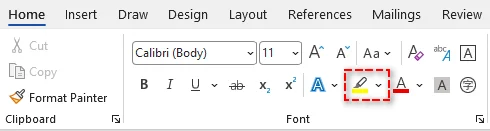
Navigieren Sie zur Registerkarte Start im Menüband.
-
Klicken Sie in der Gruppe „Schriftart“ auf den Pfeil neben dem Werkzeug Texthervorhebungsfarbe (sieht aus wie ein Textmarker).
-
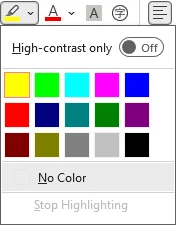
Wählen Sie eine Farbe aus der Palette (z. B. Gelb, Grün, Blau), um die Hervorhebung sofort anzuwenden.
Tipps:
- Um mehrere Bereiche hervorzuheben, wählen Sie zuerst eine Hervorhebungsfarbe, um Ihren Cursor in einen Textmarker zu verwandeln. Klicken und ziehen Sie dann über mehrere nicht zusammenhängende Abschnitte, ohne das Werkzeug erneut auszuwählen.
- Wenn Sie einen schnelleren Arbeitsablauf wünschen, wählen Sie einfach Ihren Text aus und drücken Sie Strg + Alt + H zusammen. Dadurch wird die zuletzt verwendete Hervorhebungsfarbe (oder die Standardfarbe, falls Sie noch keine verwendet haben) sofort angewendet.
✅Vorteile:
- Einfach und intuitiv für alle Benutzer.
- Funktioniert für fast alle Word-Versionen (einschließlich Word für Microsoft Office 365, Word 2024, 2019, 2016, 2013 und 2010).
⚠️Einschränkungen:
- Erfordert eine manuelle Auswahl für jede Instanz.
- Zeitaufwändig bei langen Dokumenten mit wiederholten Schlüsselwörtern.
Das könnte Ihnen auch gefallen: So finden und ersetzen Sie Text in Word
Methode 2 – Alle Instanzen eines Wortes schnell über Suchen & Ersetzen hervorheben
Wenn Sie alle Vorkommen eines bestimmten Textes in einem langen Word-Dokument hervorheben müssen, ist das Suchen-und-Ersetzen-Werkzeug effizienter. Es durchsucht das Dokument automatisch nach allen Instanzen und wendet die Hervorhebung auf sie an.
Schritte:
-
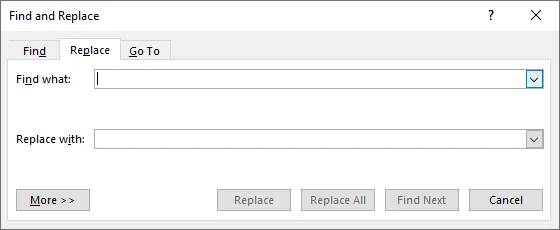
Gehen Sie zur Registerkarte Start und klicken Sie dann in der Gruppe „Bearbeiten“ auf Ersetzen, um das Dialogfeld Suchen und Ersetzen zu öffnen. Sie können auch Strg + H drücken.
-
Geben Sie im Dialogfeld das Wort oder die Phrase, die Sie hervorheben möchten (z. B. Budget), in das Feld Suchen nach ein.
-
Klicken Sie auf Erweitern >>, um erweiterte Optionen anzuzeigen.
-
Stellen Sie sicher, dass sich Ihr Cursor im Feld Ersetzen durch befindet, und klicken Sie dann auf Format (unten links) > Hervorhebung.
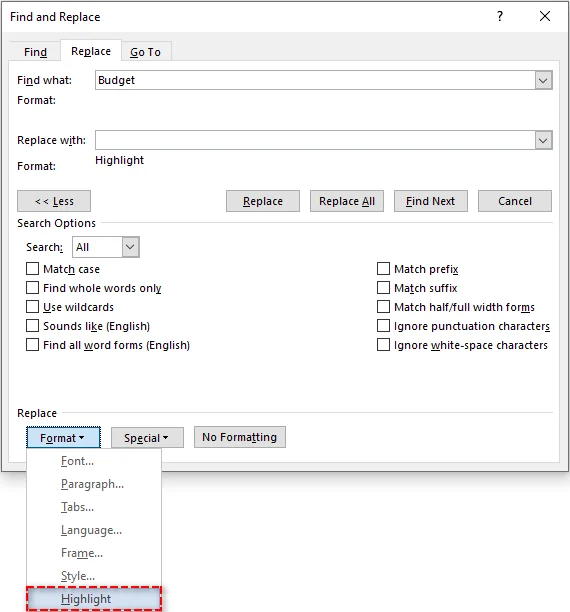
Hinweis: Sie sollten „Hervorhebung“ unter dem Feld „Ersetzen durch“ sehen.
-
Klicken Sie auf Alle ersetzen. Word bestätigt die Anzahl der vorgenommenen Ersetzungen, und jede Instanz des Wortes wird nun hervorgehoben.
Tipps für eine genaue Hervorhebung:
- Um Teilübereinstimmungen zu vermeiden (z. B. das Hervorheben von „Katze“ in „Kategorie“), aktivieren Sie die Option Nur ganze Wörter suchen im Menü „Erweitern“.
- Falls Sie zwischen Groß- und Kleinbuchstaben unterscheiden möchten, wählen Sie Groß-/Kleinschreibung beachten im Menü „Erweitern“.
✅Vorteile:
- Schnelle Möglichkeit, alle Instanzen eines Wortes hervorzuheben.
- Gewährleistet 100%ige Konsistenz, keine verpassten Vorkommen.
⚠️Einschränkungen:
- Funktioniert nur für ein Schlüsselwort gleichzeitig.
- Kann keine Hervorhebungsfarbe auswählen, es sei denn, Sie legen sie zuvor mit dem Texthervorhebungsfarbwerkzeug fest.
Methode 3 – Schlüsselwörter vorübergehend über den Navigationsbereich hervorheben
Wenn Ihr Ziel darin besteht, ein Word-Dokument während einer Besprechung nach Schlüsselwörtern zu durchsuchen, ohne die Formatierung der Datei dauerhaft zu ändern, ist der Navigationsbereich ideal. Er bietet temporäre visuelle Hinweise, die beim Löschen verschwinden.
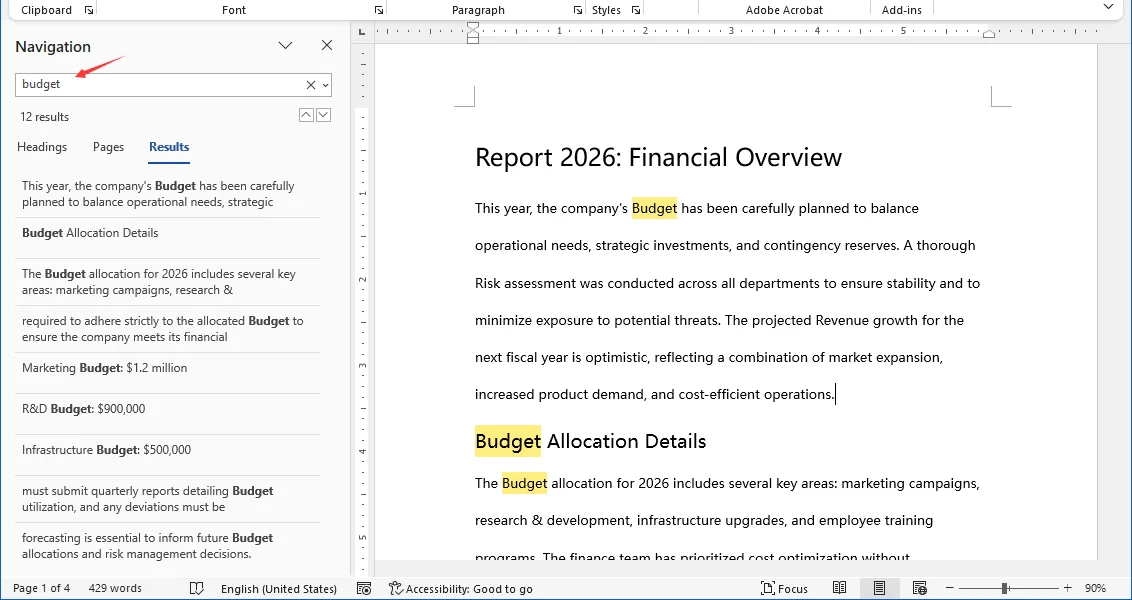
Schritte:
- Drücken Sie Strg + F, um den Navigationsbereich auf der linken Seite zu öffnen.
- Geben Sie Ihren Suchbegriff in das Suchfeld ein.
- Word hebt vorübergehend alle Übereinstimmungen im Dokumentkörper gelb hervor.
- Verwenden Sie die Liste im Bereich, um zwischen den Vorkommen zu springen.
✅Vorteile:
- Ideal für schnelles Scannen und Navigieren.
- Kein Risiko, das endgültige Dokumentformat zu zerstören.
⚠️Einschränkungen:
- Diese Hervorhebungen werden nicht gedruckt oder gespeichert. Sie sind nur auf dem Bildschirm sichtbar.
- Verschwindet, sobald Sie das Suchfeld leeren.
Methode 4 – Text in Word Online hervorheben
Wenn Sie Microsoft Word nicht installiert haben oder in Echtzeit zusammenarbeiten müssen, ist Word für das Web (Word 365 Online) eine ideale Option. Es ermöglicht Ihnen, Text schnell hervorzuheben und gleichzeitig die Änderungen mit Ihrem Team zu synchronisieren.
So heben Sie Text in Word Online hervor:
- Öffnen Sie Ihr Dokument in Word für das Web (Word 365 Online).
- Wählen Sie den Text aus, den Sie hervorheben möchten.
- Gehen Sie zur Registerkarte Start im oberen Menü.
- Klicken Sie auf das Symbol Texthervorhebungsfarbe.
- Wählen Sie eine Farbe, um die Hervorhebung anzuwenden.
Tipp:
- Wenn Sie die Hervorhebungsoption nicht sehen, stellen Sie sicher, dass sich das Dokument nicht im schreibgeschützten Modus befindet.
✅Vorteile:
- Hervorhebungen werden für Mitarbeiter schnell synchronisiert.
- Funktioniert auf jedem Gerät (Laptop, Handy und mehr).
- Keine Softwareinstallation erforderlich.
⚠️Einschränkungen:
- Suchen & Ersetzen mit Formatierungs-/Hervorhebungsregeln wird in Word für das Web nicht unterstützt (oder ist möglicherweise eingeschränkt).
- Abhängig von Ihren Dokumentberechtigungen können einige Bearbeitungs-/Hervorhebungsfunktionen eingeschränkt sein.
Methode 5 – Texthervorhebung in Word-Dokumenten mit C# automatisieren
Für Entwickler, Datenanalysten und Unternehmen, die mehrere Schlüsselwörter oder Hunderte von Dokumenten verarbeiten müssen, ist die manuelle Hervorhebung ineffizient und nicht nachhaltig. Durch die Verwendung von C# mit der Spire.Doc for .NET-Bibliothek können Sie:
- Hunderte von Instanzen oder Dokumenten in Sekunden stapelweise verarbeiten.
- Verschiedene Farben automatisch auf bestimmte Begriffe anwenden.
- 100%ige Konsistenz ohne eine einzige Übereinstimmung zu verpassen, sicherstellen.
Über Spire.Doc for .NET
Spire.Doc ist eine eigenständige Word-Manipulationsbibliothek, die es Entwicklern ermöglicht, Word-Dokumente zu erstellen und zu aktualisieren, einschließlich des Anwendens von Texthervorhebungen, ohne auf Microsoft Office angewiesen zu sein. Dies macht es zur idealen Wahl für serverseitige Automatisierung und Cloud-Umgebungen.
Installationsanforderungen
Bevor Sie fortfahren, installieren Sie die Bibliothek über NuGet oder laden Sie sie von der offiziellen Website herunter:
PM> Install-Package Spire.Doc
C#-Codebeispiel: Mehrere Schlüsselwörter mit unterschiedlichen Farben hervorheben
Das folgende Beispiel zeigt, wie Sie ein Word-Dokument laden, nach mehreren Schlüsselwörtern suchen und diese effizient mit unterschiedlichen Farben hervorheben (z. B. „Budget“ in Gelb, „Risiko“ in Rot).
using Spire.Doc;
using Spire.Doc.Documents;
using System;
using System.Collections.Generic;
using System.Drawing;

namespace HighlightMultipleKeywords
{
    internal class Program
    {
        static void Main(string[] args)
        {
            // Laden Sie das Word-Dokument
            Document doc = new Document();
            doc.LoadFromFile("Report_2026.docx");

            // Definieren Sie Schlüsselwörter und unterschiedliche Hervorhebungsfarben
            // Sie können diese Liste an Ihre spezifischen Bedürfnisse anpassen
            Dictionary<string, Color> keywords = new Dictionary<string, Color>()
            {
                { "Budget", Color.Yellow },
                { "Risk", Color.Red },
                { "Revenue", Color.Green }
            };

            // Heben Sie alle Vorkommen jedes Schlüsselworts hervor
            foreach (var kvp in keywords)
            {
                TextSelection[] selections = doc.FindAllString(kvp.Key, false, true); // Parameter: searchText, matchCase, wholeWord
                foreach (TextSelection selection in selections)
                {
                    selection.GetAsOneRange().CharacterFormat.HighlightColor = kvp.Value;
                }
            }

            // Speichern Sie das hervorgehobene Dokument
            doc.SaveToFile("Report_2026_Highlighted.docx", FileFormat.Docx);
            doc.Close();
            Console.WriteLine("Hervorhebung der Schlüsselwörter abgeschlossen!");
        }
    }
}
Tipps für Entwickler:
- Sie können diesen Ein-Datei-Workflow auf die Stapelverarbeitung erweitern, indem Sie dieselbe Hervorhebungslogik in eine Schleife über alle .docx-Dateien in einem Eingabeordner packen (z. B. foreach (var file in Directory.GetFiles(...))).
- Wenn Ihre Schlüsselwörter Mustern folgen (z. B. Teilcodes oder variable Phrasen), sollten Sie die Verwendung regulärer Ausdrücke in Betracht ziehen, um die Übereinstimmungsgenauigkeit zu verbessern – siehe Text in Word mit regulären Ausdrücken in C# suchen und ersetzen für weitere Details.
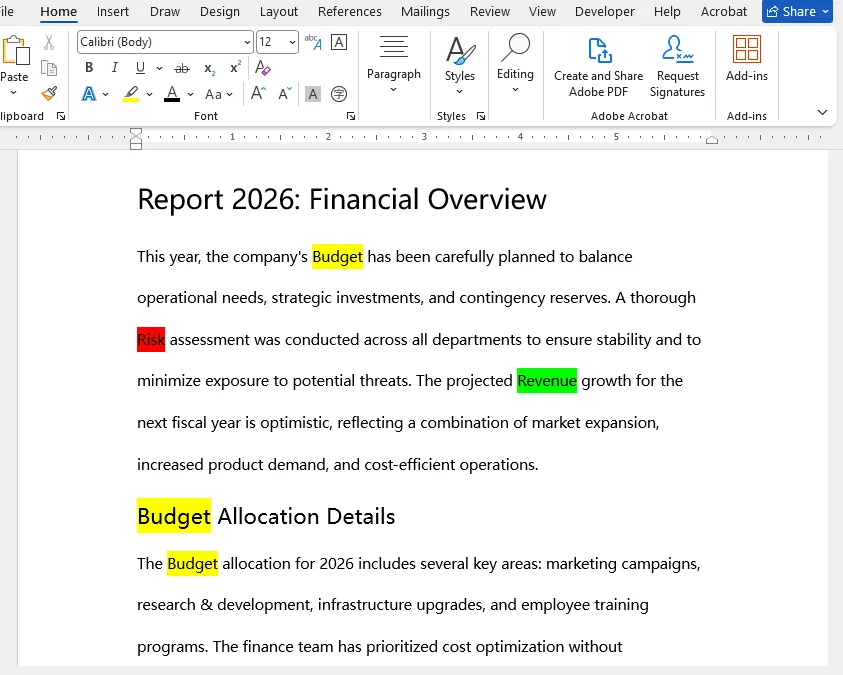
✅Vorteile:
- Heben Sie verschiedene Begriffe mit unterschiedlichen Farben in einer Ausführung ohne manuellen Aufwand einfach hervor.
- Beseitigt menschliche Fehler und gewährleistet eine einheitliche Formatierung.
- Läuft auf jedem Computer oder Server ohne installiertes Microsoft Word.
⚠️Einschränkungen:
- Erfordert grundlegende C#-Programmierkenntnisse.
- Die Konfiguration des Projekts und der Bibliothek kann für Anfänger eine Herausforderung sein.
Fazit und Empfehlungen
Sie haben jetzt 5 praktische Möglichkeiten, Text in Word hervorzuheben, die von schnellen manuellen Werkzeugen bis hin zu fortgeschrittenen automatisierten Arbeitsabläufen reichen. Die Wahl der richtigen Methode hängt von Ihrem spezifischen Szenario ab:
- Für einzelne Dokumente & wenige Begriffe: Verwenden Sie das Texthervorhebungsfarbwerkzeug oder die Suchen- & Ersetzen-Funktion.
- Für eine vorübergehende Überprüfung: Verwenden Sie den Navigationsbereich zum Scannen, ohne die Formatierung zu ändern.
- Für die Remote-Zusammenarbeit: Verwenden Sie Word für das Web (Word 365 Online) für die Echtzeit-Synchronisierung ohne Desktop-Installation.
- Für die Stapelverarbeitung & Automatisierung: Verwenden Sie die C#-Automatisierung (mit Spire.Doc), um Hunderte von Dateien und mehrere Farben sofort zu verarbeiten.
Abschließender Gedanke:
Beginnen Sie mit den integrierten Werkzeugen für alltägliche Aufgaben. Aber wenn Sie feststellen, dass Sie dieselben Hervorhebungsschritte für Dutzende von Dateien wiederholen, ist es an der Zeit, mit der Automatisierung aufzusteigen, um Stunden manueller Arbeit zu sparen.
Fehlerbehebung bei häufigen Hervorhebungsproblemen
Selbst mit einfachen Werkzeugen stoßen Benutzer häufig auf spezifische Probleme beim Versuch, Text in Word hervorzuheben. Hier sind die Lösungen für die häufigsten Probleme.
| Problem | Wahrscheinliche Ursache | Lösung |
|---|---|---|
| Hervorhebungen werden nicht gedruckt | Sie haben den Navigationsbereich verwendet (temporäre Hervorhebungen). | Verwenden Sie das Texthervorhebungsfarbwerkzeug oder die Suchen- & Ersetzen-Methode, um dauerhafte Hervorhebungen anzuwenden, die gedruckt werden. |
| Teilwörter hervorgehoben | „Nur ganze Wörter suchen“ wurde nicht ausgewählt. | Klicken Sie in Suchen & Ersetzen auf Erweitern >> und aktivieren Sie Nur ganze Wörter suchen, um das Hervorheben von Teilzeichenfolgen zu vermeiden. |
| Hervorhebungsfarbe nicht angewendet | Die Textauswahl war falsch oder der Cursor befand sich nicht im Textmarkermodus. | Wählen Sie den Text richtig aus, oder wenn Sie mehrere Bereiche hervorheben, wählen Sie zuerst die Farbe, damit der Cursor zu einem Textmarker wird, und klicken und ziehen Sie dann über den Text. |
FAQs: So heben Sie Text in Word hervor
F1: Was ist die Tastenkombination zum Hervorheben von Text in Word?
A1: Nachdem Sie den Text ausgewählt haben, drücken Sie Strg + Alt + H, um sofort die zuletzt verwendete oder die Standard-Hervorhebungsfarbe anzuwenden, falls Sie noch keine verwendet haben.
F2: Kann ich Text in Word Online hervorheben?
A2: Ja, Sie können Text in Word Online genauso wie in der Desktop-Version mit dem Texthervorhebungsfarbwerkzeug hervorheben. Erweiterte Funktionen wie Suchen & Ersetzen mit Formatierung werden in der Webversion jedoch nicht unterstützt.
F3: Warum kann ich die Hervorhebung von manchem Text nicht entfernen?
A3: Die Farbe könnte eine Absatzschattierung sein, keine Texthervorhebung. Um dies zu beheben: Gehen Sie zu Start > Absatz > Schattierung und wählen Sie Keine Farbe.
F4: Wie hebe ich Text in einem geschützten/schreibgeschützten Word-Dokument hervor?
A4: Sie können Text in einer streng schreibgeschützten oder geschützten Datei nicht direkt bearbeiten oder hervorheben. Sie haben zwei Möglichkeiten:
- Bearbeitung aktivieren: Wenn Sie oben eine gelbe Leiste mit der Aufschrift „Geschützte Ansicht“ sehen, klicken Sie auf Bearbeitung aktivieren.
- Kopie speichern: Wenn die Datei eingeschränkt ist, gehen Sie zu Datei > Speichern unter und speichern Sie eine neue Kopie auf Ihrem lokalen Laufwerk. Sie können dann Text in dieser neuen bearbeitbaren Version hervorheben.
F5: Kann ich Text in mehreren Word-Dokumenten gleichzeitig hervorheben?
A5: Sie können C# mit Bibliotheken wie Spire.Doc verwenden, um Text in mehreren Dateien gleichzeitig hervorzuheben.
Siehe auch
Как выделить текст в Word (5 быстрых способов)
Оглавление
- Метод 1 — Выделение текста в Word с помощью инструмента "Цвет выделения текста"
- Метод 2 — Быстрое выделение всех вхождений слова с помощью "Найти и заменить"
- Метод 3 — Временное выделение ключевых слов с помощью области навигации
- Метод 4 — Выделение текста в Word Online
- Метод 5 — Автоматизация выделения текста в документе Word с помощью C#
При работе с длинными документами Word важная информация может легко затеряться в плотном тексте. Ручное сканирование страниц отнимает много времени и чревато ошибками, а пропуск ключевых моментов может повлиять на отчеты, совместную работу или принятие решений. Выделение текста в Word — это простой, но эффективный способ подчеркнуть важное содержание, улучшить читаемость и ускорить проверку документа.
В этом руководстве мы рассмотрим 5 практических методов, как выделить текст в Word — от простых ручных инструментов до автоматизированных техник. К концу вы будете знать, как эффективно выделять отдельные слова, фразы или все вхождения ключевого слова в ваших документах.
Обзор методов
- Метод 1 — Выделение текста в Word с помощью инструмента "Цвет выделения текста"
- Метод 2 — Быстрое выделение всех вхождений слова с помощью "Найти и заменить"
- Метод 3 — Временное выделение ключевых слов с помощью области навигации
- Метод 4 — Выделение текста в Word Online
- Метод 5 — Автоматизация выделения текста в документе Word с помощью C#
Понимание выделения текста в Word
Выделение текста в Microsoft Word — это простая, но мощная функция, используемая для привлечения внимания к определенным частям вашего документа. Она работает как виртуальный маркер, позволяя вам помечать слова, фразы или целые разделы цветом, чтобы они выделялись на фоне окружающего текста.
Зачем выделять текст в Word
Выделение — это не просто украшение. Оно служит нескольким практическим целям:
- Подчеркнуть важное содержание – Ключевые моменты, сроки или инструкции легко заметить.
- Улучшить читаемость – Помогает читателям быстро просматривать длинные документы.
- Организовать информацию – Разные цвета могут классифицировать темы, приоритеты или этапы проекта.
- Облегчить совместную работу – Рецензенты или члены команды могут быстро увидеть важные или отредактированные разделы.
Продуманно применяя выделение, вы гарантируете, что читатели смогут сосредоточиться на самой важной информации, не чувствуя себя перегруженными. Ниже мы рассмотрим 5 методов для этой цели.
Метод 1 — Выделение текста в Word с помощью инструмента "Цвет выделения текста"
Один из самых простых способов выделить текст в документах Word — использовать встроенный инструмент "Цвет выделения текста". Этот метод работает как цифровой маркер и идеально подходит для выделения одного или нескольких ключевых слов в коротких документах.
Пошаговые инструкции:
-
Выберите текст или фразу, которую хотите выделить.
-
Перейдите на вкладку Главная на ленте.
-
В группе "Шрифт" щелкните стрелку рядом с инструментом Цвет выделения текста (выглядит как маркер).
-
Выберите цвет из палитры (например, желтый, зеленый, синий), чтобы мгновенно применить выделение.
Советы:
- Чтобы выделить несколько областей, сначала выберите цвет выделения, чтобы ваш курсор превратился в маркер. Затем щелкните и перетащите по нескольким несмежным разделам, не выбирая инструмент заново.
- Если вы хотите ускорить рабочий процесс, просто выделите текст и нажмите Ctrl + Alt + H. Это применит последний использованный цвет выделения (или цвет по умолчанию, если вы еще не использовали его) немедленно.
✅Плюсы:
- Просто и интуитивно понятно для всех пользователей.
- Работает почти во всех версиях Word (включая Word для Microsoft Office 365, Word 2024, 2019, 2016, 2013 и 2010).
⚠️Ограничения:
- Требуется ручное выделение для каждого вхождения.
- Отнимает много времени для длинных документов с повторяющимися ключевыми словами.
Вам также может понравиться: Как найти и заменить текст в Word
Метод 2 — Быстрое выделение всех вхождений слова с помощью "Найти и заменить"
Когда вам нужно выделить все вхождения определенного текста в длинном документе Word, инструмент "Найти и заменить" более эффективен. Он автоматически сканирует документ на наличие всех вхождений и применяет к ним выделение.
Шаги:
-
Перейдите на вкладку Главная, затем нажмите Заменить в группе "Редактирование", чтобы открыть диалоговое окно Найти и заменить. Вы также можете нажать Ctrl + H.
-
В диалоговом окне введите слово или фразу, которую хотите выделить (например, "Бюджет"), в поле Найти.
-
Нажмите Больше >>, чтобы развернуть расширенные параметры.
-
Убедитесь, что курсор находится в поле Заменить на, затем нажмите Формат (внизу слева) > Выделение.
Примечание: Вы должны увидеть надпись "Выделение" под полем "Заменить на".
-
Нажмите Заменить все. Word подтвердит количество выполненных замен, и каждое вхождение слова будет выделено.
Советы для точного выделения:
- Чтобы предотвратить частичные совпадения (например, выделение "кот" в "категория"), установите флажок Только слово целиком в меню "Больше".
- Если вы хотите различать прописные и строчные буквы, выберите Учитывать регистр в меню "Больше".
✅Плюсы:
- Быстрый способ выделить все вхождения слова.
- Обеспечивает 100% согласованность, ни одного пропущенного вхождения.
⚠️Ограничения:
- Работает только для одного ключевого слова за раз.
- Нельзя выбрать цвет выделения, если вы не установили его заранее с помощью инструмента "Цвет выделения текста".
Метод 3 — Временное выделение ключевых слов с помощью области навигации
Если ваша цель — просканировать документ Word на наличие ключевых слов во время совещания без постоянного изменения форматирования файла, область навигации идеальна. Она предоставляет временные визуальные подсказки, которые исчезают при очистке.
Шаги:
- Нажмите Ctrl + F, чтобы открыть Область навигации слева.
- Введите поисковый запрос в поле поиска.
- Word временно выделит все совпадения в теле документа желтым цветом.
- Используйте список в панели для перехода между вхождениями.
✅Плюсы:
- Отлично подходит для быстрого сканирования и навигации.
- Нулевой риск испортить окончательное форматирование документа.
⚠️Ограничения:
- Эти выделения не печатаются и не сохраняются. Они видны только на экране.
- Исчезают, как только вы очищаете поле поиска.
Метод 4 — Выделение текста в Word Online
Когда у вас не установлен Microsoft Word или нужно сотрудничать в реальном времени, Word для веба (Word 365 Online) — идеальный вариант. Он позволяет быстро выделять текст, сохраняя изменения синхронизированными с вашей командой.
Как выделить текст в Word Online:
- Откройте ваш документ в Word для веба (Word 365 Online).
- Выберите текст, который хотите выделить.
- Перейдите на вкладку Главная в верхнем меню.
- Нажмите на значок Цвет выделения текста.
- Выберите цвет, чтобы применить выделение.
Совет:
- Если вы не видите опцию выделения, убедитесь, что документ не находится в режиме "только для просмотра".
✅Плюсы:
- Выделения быстро синхронизируются для соавторов.
- Работает на любом устройстве (ноутбук, мобильный телефон и др.).
- Не требуется установка программного обеспечения.
⚠️Ограничения:
- "Найти и заменить" с правилами форматирования/выделения не поддерживается (или может быть ограничено) в Word для веба.
- В зависимости от разрешений вашего документа, некоторые функции редактирования/выделения могут быть ограничены.
Метод 5 — Автоматизация выделения текста в документе Word с помощью C#
Для разработчиков, аналитиков данных и предприятий, которым необходимо обрабатывать несколько ключевых слов или сотни документов, ручное выделение неэффективно и нецелесообразно. Используя C# с библиотекой Spire.Doc for .NET, вы можете:
- Пакетно обрабатывать сотни вхождений или документов за секунды.
- Автоматически применять разные цвета к определенным терминам.
- Обеспечить 100% согласованность, не пропустив ни одного совпадения.
О Spire.Doc for .NET
Spire.Doc — это автономная библиотека для работы с Word, которая позволяет разработчикам создавать и обновлять документы Word, включая применение выделения текста, не полагаясь на Microsoft Office. Это делает ее идеальным выбором для автоматизации на стороне сервера и в облачных средах.
Требования к установке
Прежде чем продолжить, установите библиотеку через NuGet или загрузите ее с официального сайта:
PM> Install-Package Spire.Doc
Пример кода на C#: выделение нескольких ключевых слов разными цветами
Приведенный ниже пример демонстрирует, как загрузить документ Word, найти несколько ключевых слов и эффективно выделить их разными цветами (например, "Бюджет" — желтым, "Риск" — красным).
using Spire.Doc;
using Spire.Doc.Documents;
using System;
using System.Collections.Generic;
using System.Drawing;

namespace HighlightMultipleKeywords
{
    internal class Program
    {
        static void Main(string[] args)
        {
            // Загрузка документа Word
            Document doc = new Document();
            doc.LoadFromFile("Report_2026.docx");

            // Определение ключевых слов и различных цветов выделения
            // Вы можете настроить этот список в соответствии с вашими потребностями
            Dictionary<string, Color> keywords = new Dictionary<string, Color>()
            {
                { "Budget", Color.Yellow },
                { "Risk", Color.Red },
                { "Revenue", Color.Green }
            };

            // Выделение всех вхождений каждого ключевого слова
            foreach (var kvp in keywords)
            {
                TextSelection[] selections = doc.FindAllString(kvp.Key, false, true); // Параметры: searchText, matchCase, wholeWord
                foreach (TextSelection selection in selections)
                {
                    selection.GetAsOneRange().CharacterFormat.HighlightColor = kvp.Value;
                }
            }

            // Сохранение выделенного документа
            doc.SaveToFile("Report_2026_Highlighted.docx", FileFormat.Docx);
            doc.Close();
            Console.WriteLine("Выделение ключевых слов завершено!");
        }
    }
}
Советы для разработчиков:
- Вы можете расширить этот рабочий процесс для одного файла до пакетной обработки, обернув ту же логику выделения в цикл по всем файлам .docx во входной папке (например, foreach (var file in Directory.GetFiles(...))).
- Если ваши ключевые слова следуют шаблонам (например, частичные коды или переменные фразы), рассмотрите возможность использования регулярных выражений для повышения точности совпадений — см. Найти и заменить текст по регулярным выражениям в Word на C# для получения более подробной информации.
✅Плюсы:
- Легко выделять разные термины разными цветами за одно выполнение без ручных усилий.
- Исключает человеческую ошибку и обеспечивает единообразное форматирование.
- Работает на любой машине или сервере без установленного Microsoft Word.
⚠️Ограничения:
- Требуются базовые знания программирования на C#.
- Настройка проекта и библиотеки может быть сложной для новичков.
Заключение и рекомендации
Теперь у вас есть 5 практических способов выделить текст в Word, от быстрых ручных инструментов до продвинутых автоматизированных рабочих процессов. Выбор правильного метода зависит от вашей конкретной ситуации:
- Для отдельных документов и нескольких терминов: Используйте инструмент "Цвет выделения текста" или функцию "Найти и заменить".
- Для временного просмотра: Используйте область навигации для сканирования без изменения форматирования.
- Для удаленной совместной работы: Используйте Word для веба (Word 365 Online) для синхронизации в реальном времени без установки на рабочий стол.
- Для пакетной обработки и автоматизации: Используйте автоматизацию на C# (с Spire.Doc) для мгновенной обработки сотен файлов и нескольких цветов.
Итоговая мысль:
Начните со встроенных инструментов для повседневных задач. Но если вы обнаружите, что повторяете одни и те же шаги выделения в десятках файлов, пришло время перейти на новый уровень с автоматизацией, чтобы сэкономить часы ручной работы.
Устранение распространенных проблем с выделением
Даже с простыми инструментами пользователи часто сталкиваются с определенными проблемами при попытке выделить текст в Word. Вот решения самых распространенных проблем.
| Проблема | Вероятная причина | Решение |
|---|---|---|
| Выделения не печатаются | Вы использовали область навигации (временные выделения). | Используйте инструмент "Цвет выделения текста" или метод "Найти и заменить", чтобы применить постоянные выделения, которые будут печататься. |
| Выделяются части слов | Не был выбран параметр "Только слово целиком". | В окне "Найти и заменить" нажмите "Больше >>" и установите флажок "Только слово целиком", чтобы избежать выделения подстрок. |
| Цвет выделения не применяется | Выделение текста было неверным или курсор не был в режиме маркера. | Правильно выделите текст, или, если выделяете несколько областей, сначала выберите цвет, чтобы курсор стал маркером, а затем щелкните и перетащите по тексту. |
Часто задаваемые вопросы: Как выделить текст в Word
В1: Какое сочетание клавиш для выделения текста в Word?
О1: После выбора текста нажмите Ctrl + Alt + H, чтобы мгновенно применить последний использованный или цвет выделения по умолчанию, если вы еще не использовали его.
В2: Могу ли я выделить текст в Word Online?
О2: Да, вы можете выделить текст в Word Online так же, как и в настольной версии, используя инструмент "Цвет выделения текста". Однако расширенные функции, такие как "Найти и заменить" с форматированием, в веб-версии не поддерживаются.
В3: Почему я не могу убрать выделение с некоторого текста?
О3: Цвет может быть заливкой абзаца, а не выделением текста. Чтобы это исправить: перейдите в Главная > Абзац > Заливка и выберите "Нет цвета".
В4: Как выделить текст в защищенном/доступном только для чтения документе Word?
О4: Вы не можете редактировать или выделять текст в строго защищенном или доступном только для чтения файле напрямую. У вас есть два варианта:
- Включить редактирование: Если вы видите желтую полосу вверху с надписью "Защищенный просмотр", нажмите "Включить редактирование".
- Сохранить копию: Если файл ограничен, перейдите в Файл > Сохранить как и сохраните новую копию на свой локальный диск. Затем вы сможете выделить текст в этой новой редактируемой версии.
В5: Могу ли я выделить текст в нескольких документах Word одновременно?
О5: Вы можете использовать C# с библиотеками, такими как Spire.Doc, чтобы выделить текст в нескольких файлах одновременно.
Смотрите также
Extrair texto de PDF gratuitamente | PDFs digitais e digitalizados (OCR)
Índice
- Por que extrair texto de PDF pode ser complicado?
- O truque mais simples – Copiar e colar
- Principais ferramentas online gratuitas para extrair texto de PDF
- Ferramentas gratuitas de extração de texto de PDF para desktop do PDF24 Creator
- Ferramenta de desenvolvedor gratuita para extrair texto de PDF em C#
- Perguntas Frequentes (FAQ)
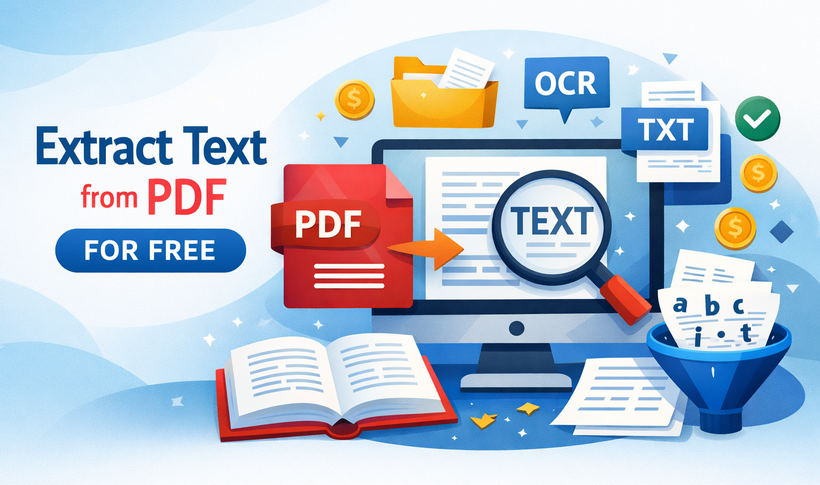
Imagine o seguinte: você finalmente localiza o relatório de pesquisa exato, o contrato comercial ou o whitepaper cheio de dados de que precisa, mas ele está preso em um PDF. Ao tentar copiar e colar seu conteúdo, você se depara com formatação confusa, texto não selecionável ou blocos frustrantes de proteção de conteúdo. A questão é universal: como extrair texto de arquivos PDF sem redigitação manual ou software caro?
Neste guia abrangente, exploraremos as melhores maneiras de extrair texto de PDF gratuitamente (incluindo PDFs digitalizados com OCR). Seja você um estudante, um profissional de negócios ou um desenvolvedor, encontrará o método perfeito para extrair texto de PDF com precisão e eficiência.
- Por que extrair texto de PDF pode ser complicado?
- O truque mais simples – Copiar e colar
- Principais ferramentas online gratuitas para extrair texto de PDF
- Ferramentas gratuitas de extração de texto de PDF para desktop do PDF24 Creator
- Ferramenta de desenvolvedor gratuita para extrair texto de PDF em C#
- Perguntas Frequentes (FAQ)
Por que extrair texto de PDF pode ser complicado?
Os PDFs armazenam texto de uma forma que prioriza a consistência visual. Isso significa que o texto pode ser armazenado como blocos fragmentados, em uma ordem incomum ou, pior, como parte de uma imagem. Existem dois tipos principais de PDFs, cada um com desafios de extração exclusivos:
- PDFs digitais: eles contêm texto selecionável, mas layouts complexos como artigos de várias colunas ou tabelas podem confundir ações simples de copiar e colar.
- PDFs digitalizados: são essencialmente imagens de páginas. Para extrair texto de um PDF digitalizado, você precisa da tecnologia OCR (Reconhecimento Óptico de Caracteres), que analisa a imagem e reconhece as formas das letras.
Felizmente, as ferramentas gratuitas abaixo lidam com os dois tipos com facilidade.
O truque mais simples – Copiar e colar
Se você tem um PDF digital simples e precisa apenas de uma pequena seção de texto, não ignore o básico. É a maneira mais rápida de obter texto de um PDF para pequenas tarefas.
- Abra o PDF: use um visualizador padrão como o Adobe Acrobat Reader, um navegador da web (como Chrome ou Edge) ou um aplicativo de visualização.
- Selecione e copie: destaque o texto que deseja, clique com o botão direito e selecione "Copiar" ou use os atalhos de teclado “Ctrl+C” (Windows) ou “Command+C” (Mac).
- Cole: abra um editor de texto (como o Bloco de Notas ou o TextEdit) ou um documento do Word e cole o texto com “Ctrl+V” ou “Command+V”.
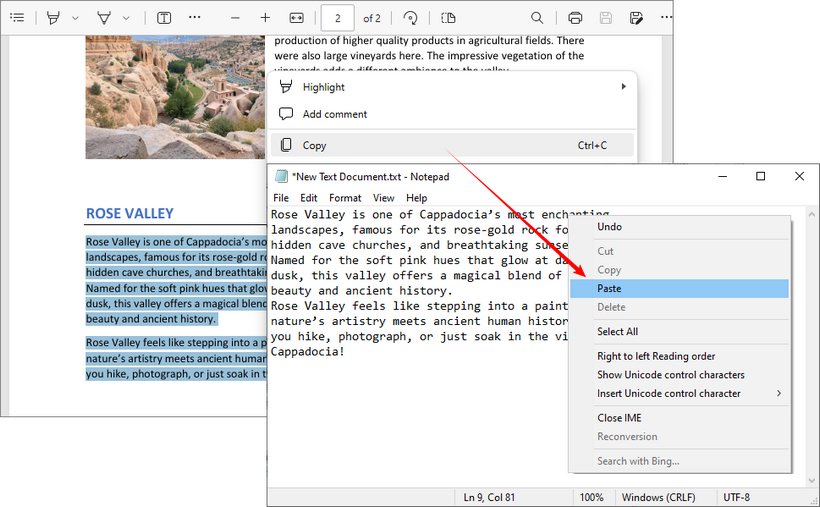
A ressalva: este método falha para documentos digitalizados, PDFs protegidos ou quando você precisa preservar formatação complexa. Para estes, use as ferramentas gratuitas dedicadas abaixo ou consulte nosso guia sobre como copiar texto de um PDF protegido.
Principais ferramentas online gratuitas para extrair texto de PDF
Para a maioria dos usuários, as ferramentas online gratuitas são a maneira mais rápida e fácil de extrair texto de PDF gratuitamente. Elas funcionam diretamente no seu navegador, não exigem instalação e muitas agora incluem recursos poderosos de OCR. Abaixo estão as duas principais opções para diferentes casos de uso - desde a extração básica de texto até o OCR multilíngue.
CLOUDXDOCS - A ferramenta gratuita mais simples para PDFs digitais
Se você precisa de uma ferramenta simples e sem anúncios para extrair texto de PDFs baseados em texto (não digitalizados), o CLOUDXDOCS é ideal. É 100% gratuito, não requer registro e funciona com um clique - perfeito para pegar texto de arquivos PDF em segundos.
Passos para extrair texto de PDF online:
- Visite o Conversor Gratuito de PDF para Texto do CLOUDXDOCS.
- Carregue seu arquivo PDF arrastando e soltando ou clicando para navegar.
- Aguarde a ferramenta processar seu arquivo.
- Baixe o texto extraído como um arquivo TXT.
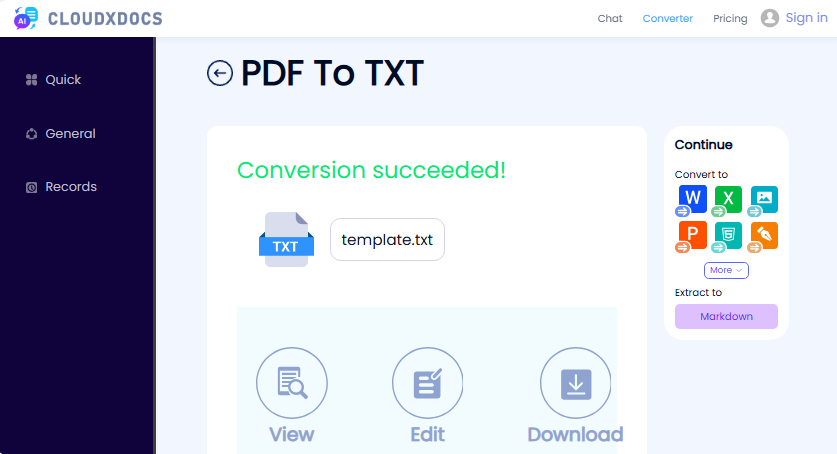
✔ Prós: Sem inscrição, sem anúncios, interface simples.
✘ Contras: Sem OCR (não funciona para PDFs digitalizados).
i2OCR - Ferramenta de OCR gratuita para PDFs digitalizados
O i2OCR é uma ferramenta online gratuita especializada em OCR para imagens e PDFs digitalizados, suportando mais de 100 idiomas - perfeito para PDFs que não estão em inglês. É gratuito para uso de página única e oferece vários formatos de saída.
Passos para extrair texto de PDF digitalizado online gratuitamente:
- Visite a ferramenta de OCR de PDF do i2OCR.
- Selecione o idioma de reconhecimento e o mecanismo de OCR de sua preferência.
- Clique em “Selecionar PDF” para carregar seu PDF digitalizado.
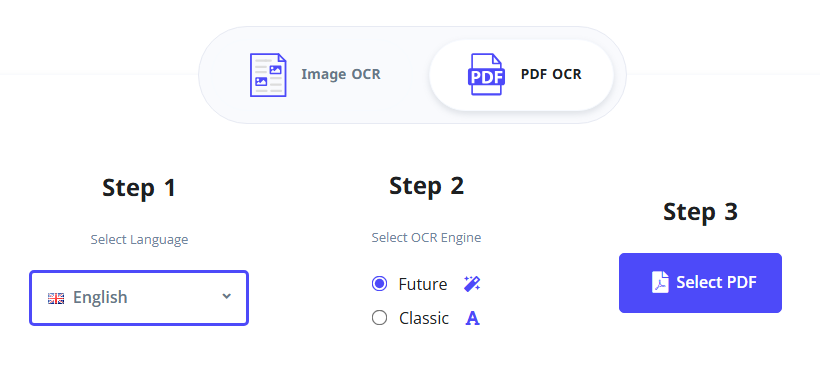
- Clique em “Iniciar OCR” e aguarde a ferramenta processar a digitalização.
- Copie o texto extraído ou baixe-o como TXT, Word ou HTML.
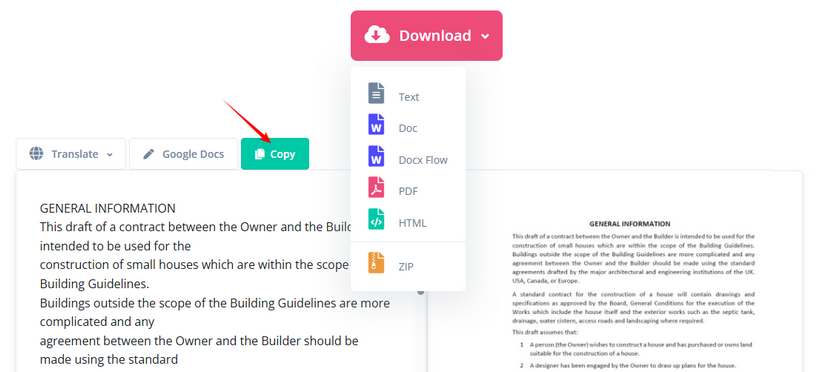
✔ Prós: Suporte para mais de 100 idiomas, OCR gratuito, vários formatos de saída, sem inscrição.
✘ Contras: O plano gratuito suporta apenas uma página por vez.
Além de texto, os PDFs geralmente contêm imagens, gráficos ou diagramas valiosos - descubra como extrair imagens incorporadas em seu documento PDF.
Ferramentas gratuitas de extração de texto de PDF para desktop do PDF24 Creator
Se você trabalha com PDFs com frequência, precisa de acesso offline ou tem arquivos em massa para processar, o PDF24 Creator é a escolha ideal. Esta ferramenta de desktop gratuita exclusiva para Windows oferece recursos abrangentes de manuseio de PDF - incluindo extração de texto, OCR para PDFs digitalizados e processamento em lote - tudo isso mantendo seus arquivos locais para máxima privacidade.
Extrair texto de um PDF digital (selecionável)
- Vá para a página de download oficial do PDF24 Creator e baixe a versão apropriada para o seu sistema Windows.
- Instale e inicie o PDF24. Você verá a Caixa de Ferramentas do PDF24 (um painel com muitas ferramentas de PDF).
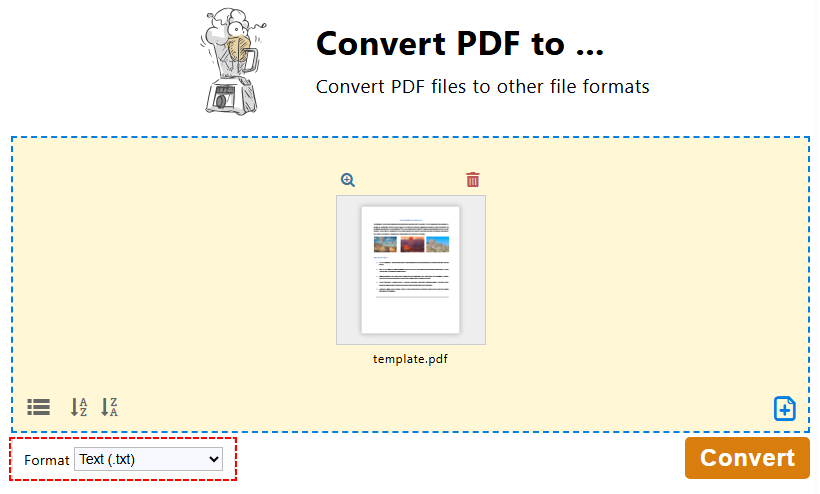
- Na Caixa de Ferramentas do PDF24, clique em "Converter PDF para…".
- Clique em "Escolher arquivos" ou arraste e solte para carregar seu arquivo PDF.
- Escolha “Texto (.txt)” como formato de saída e clique em "Converter".
- Salve o arquivo de texto extraído em seu dispositivo.
Extrair texto de um PDF digitalizado (usando OCR)
Para PDFs digitalizados/baseados em imagem, use o OCR integrado do PDF24 para reconhecer texto de digitalizações de PDF e convertê-los em texto editável ou PDFs pesquisáveis:
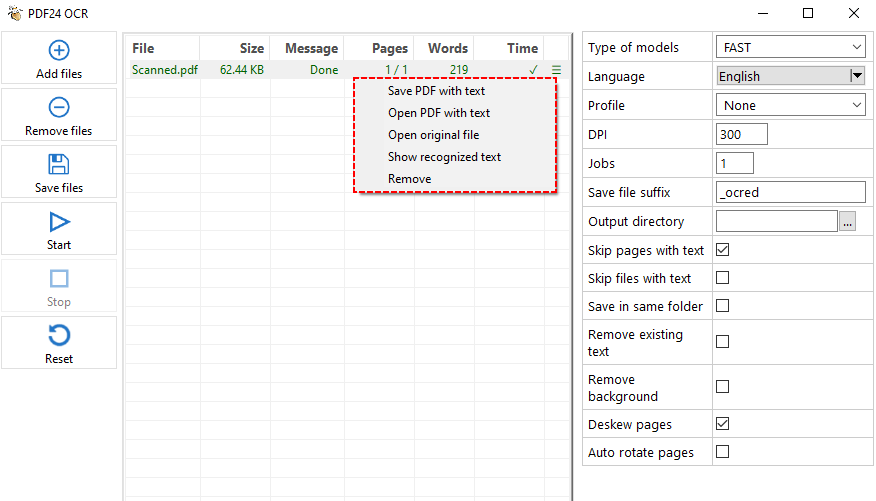
- Na Caixa de Ferramentas do PDF24, clique em "OCR de PDF".
- Clique em "Adicionar arquivo(s)" e selecione seu PDF digitalizado.
- No painel de configurações à direita, selecione o modo de reconhecimento de texto, idioma, DPI, diretório de saída, etc.
- Clique no botão "Iniciar" para processar o PDF.
- O PDF24 processará cada página, reconhecerá o texto e o salvará em um arquivo de texto ou em um PDF pesquisável.
Dica profissional para usuários da Adobe:
Se você tiver o Adobe Acrobat Pro (pago), poderá extrair texto indo para a ferramenta “Exportar PDF” e selecionando “Texto (Simples)” como formato de saída. O Acrobat salvará o arquivo como um documento .txt instantaneamente.
Ferramenta de desenvolvedor gratuita para extrair texto de PDF em C#
Se você é um desenvolvedor, Free Spire.PDF for .NET é uma biblioteca gratuita e sem dependências para ler texto de PDF programaticamente. É rápido, leve e perfeito para integrar a extração de texto de PDF em seus projetos.
Código C# para extrair texto de PDF
O código itera por cada página em um arquivo PDF digital e extrai todo o texto do PDF. As principais classes e métodos de extração de texto incluem:
- PdfTextExtractor: uma classe de utilitário especializada que extrai texto de uma única página de PDF (uma página por vez).
- PdfTextExtractOptions: uma classe de configuração para extração de texto. Define regras como se deve extrair todo o texto.
- ExtractText(): executa a extração de texto na página do PDF e retorna a string de texto extraída.
using Spire.Pdf;
using Spire.Pdf.Texts;
using System.IO;
using System.Text;

namespace ExtractAllTextFromPDF
{
    internal class Program
    {
        static void Main(string[] args)
        {
            // Crie uma instância de documento PDF
            PdfDocument pdf = new PdfDocument();
            // Carregue o arquivo PDF
            pdf.LoadFromFile("SamplePDF.pdf");

            // Inicialize um StringBuilder para conter o texto extraído
            StringBuilder extractedText = new StringBuilder();
            // Percorra cada página do PDF
            foreach (PdfPageBase page in pdf.Pages)
            {
                // Crie um PdfTextExtractor para a página atual
                PdfTextExtractor extractor = new PdfTextExtractor(page);
                // Definir opções de extração
                PdfTextExtractOptions option = new PdfTextExtractOptions
                {
                    IsExtractAllText = true
                };
                // Extraia o texto da página atual
                string text = extractor.ExtractText(option);
                // Anexe o texto extraído ao StringBuilder
                extractedText.AppendLine(text);
            }

            // Salve o texto extraído em um arquivo de texto
            File.WriteAllText("ExtractedText.txt", extractedText.ToString());
            // Feche o documento PDF
            pdf.Close();
        }
    }
}
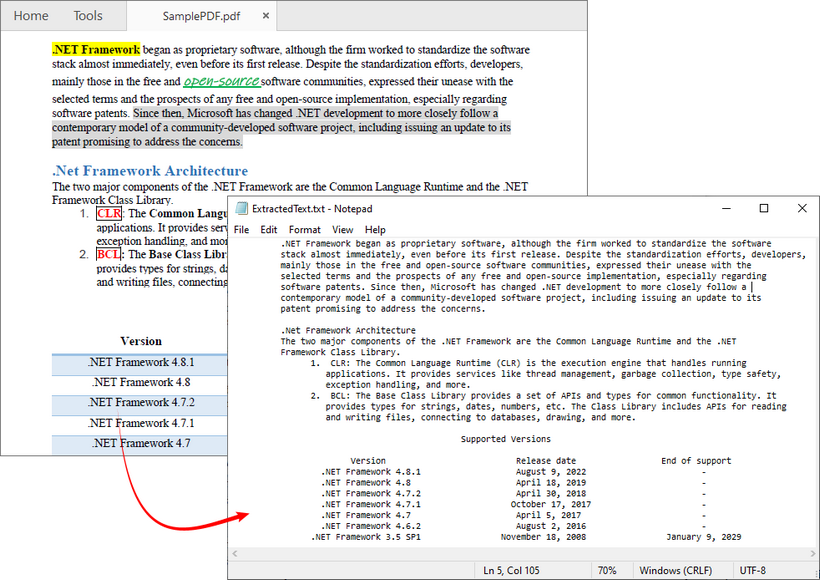
Além de extrair todo o texto, o Free Spire.PDF também permite extrair texto de uma única página ou de uma área especificada. O resultado da extração é mostrado abaixo:
Dica profissional: para extrair texto de um PDF digitalizado em C#, siga o guia oficial: Realizar OCR em PDFs digitalizados em C# para extração de texto
Perguntas Frequentes (FAQ)
P1: Como posso extrair texto de um PDF digitalizado gratuitamente?
R: Ferramentas como o i2OCR e o PDF24 oferecem opções de OCR gratuitas. Basta carregar seu PDF digitalizado e ativar a configuração de OCR antes de extrair.
P2: As ferramentas gratuitas suportam a extração de texto em massa?
R: Sim, mas o método é importante. A maioria das ferramentas online gratuitas tem limites de volume, mas você pode usar uma ferramenta de desktop offline como o PDF24 Creator ou uma solução programática para processar vários PDFs em massa.
P3: Qual é a melhor maneira de extrair tabelas de um PDF?
R: Extrair tabelas para texto simples é notoriamente difícil, pois a estrutura tabular é perdida. Sua melhor aposta é usar uma ferramenta que possa converter o PDF para Excel (XLSX) ou CSV. Isso tentará colocar os dados em células, preservando a estrutura.
P4: Como extraio texto de um PDF e mantenho a formatação?
R: Texto simples (.txt) não pode preservar a formatação como negrito, itálico ou tamanhos de fonte. Para manter a formatação, você deve converter seu PDF para um documento do Word (.docx).
Resumo
Este artigo apresenta várias maneiras confiáveis de extrair texto de PDF gratuitamente, independentemente do seu nível de habilidade técnica ou da complexidade do documento.
Para uma tarefa rápida e única, uma ferramenta online confiável como o CLOUDXDOCS é sua melhor aposta. Para trabalhos recorrentes ou informações confidenciais, recorra a um software offline como o PDF24. E se você deseja construir um pipeline de conteúdo automatizado de ponta, explorar uma solução de código como o Free Spire.PDF pode revolucionar seu fluxo de trabalho.
Com este guia, você agora está equipado para desbloquear o texto oculto em qualquer PDF e colocá-lo para trabalhar para você.
Veja também
- Converter tabelas de PDF para CSV: manual, online e automatizado
- Como desproteger um PDF (com ou sem senha)
- Como extrair páginas de um PDF gratuitamente - sem necessidade de Adobe
- Extrair texto de PDF em Python: um guia completo com exemplos de código práticos
- PDF para texto em Java: extraia texto de PDFs (baseados em texto e digitalizados)
PDF에서 텍스트 무료 추출 | 디지털 및 스캔된 PDF (OCR)
이것을 상상해 보십시오: 마침내 필요한 정확한 연구 보고서, 비즈니스 계약 또는 데이터로 가득 찬 백서를 찾았지만 PDF에 갇혀 있습니다. 내용을 복사하여 붙여넣으려고 하면 뒤죽박죽된 서식, 선택할 수 없는 텍스트 또는 답답한 콘텐츠 보호 블록이 나타납니다. 질문은 보편적입니다: 수동으로 다시 입력하거나 값비싼 소프트웨어 없이 PDF에서 텍스트를 추출하는 방법은 무엇입니까?
이 포괄적인 가이드에서는 (OCR이 포함된 스캔된 PDF 포함) 무료로 PDF에서 텍스트를 추출하는 가장 좋은 방법을 살펴보겠습니다. 학생, 비즈니스 전문가 또는 개발자이든 관계없이 PDF 텍스트를 정확하고 효율적으로 추출하는 완벽한 방법을 찾을 수 있습니다.
- PDF 텍스트 추출이 까다로울 수 있는 이유는 무엇입니까?
- 가장 간단한 방법 – 복사하여 붙여넣기
- PDF에서 텍스트를 추출하는 최고의 무료 온라인 도구
- PDF24 Creator 무료 데스크톱 PDF 텍스트 추출 도구
- C#에서 PDF 텍스트를 추출하는 무료 개발자 도구
- 자주 묻는 질문(FAQ)
PDF 텍스트 추출이 까다로울 수 있는 이유는 무엇입니까?
PDF는 시각적 일관성을 우선시하는 방식으로 텍스트를 저장합니다. 즉, 텍스트가 조각난 블록으로, 특이한 순서로 또는 더 나쁘게는 이미지의 일부로 저장될 수 있습니다. 각각 고유한 추출 과제가 있는 두 가지 주요 유형의 PDF가 있습니다.
- 디지털 PDF: 선택 가능한 텍스트가 포함되어 있지만 다중 열 기사나 표와 같은 복잡한 레이아웃은 간단한 복사-붙여넣기 작업을 혼동시킬 수 있습니다.
- 스캔된 PDF: 본질적으로 페이지의 이미지입니다. 스캔된 PDF에서 텍스트를 추출하려면 이미지의 문자 모양을 분석하고 인식하는 OCR(광학 문자 인식) 기술이 필요합니다.
고맙게도 아래의 무료 도구는 두 가지 유형을 모두 쉽게 처리합니다.
가장 간단한 방법 – 복사하여 붙여넣기
간단한 디지털 PDF가 있고 작은 텍스트 섹션만 필요한 경우 기본 사항을 간과하지 마십시오. 작은 작업의 경우 PDF에서 텍스트를 가져오는 가장 빠른 방법입니다.
- PDF 열기: Adobe Acrobat Reader, 웹 브라우저(Chrome 또는 Edge 등) 또는 미리보기 앱과 같은 표준 뷰어를 사용합니다.
- 선택 및 복사: 원하는 텍스트를 강조 표시하고 마우스 오른쪽 버튼을 클릭하여 "복사"를 선택하거나 키보드 단축키 "Ctrl+C"(Windows) 또는 "Command+C"(Mac)를 사용합니다.
- 붙여넣기: 텍스트 편집기(메모장 또는 TextEdit 등) 또는 Word 문서를 열고 "Ctrl+V" 또는 "Command+V"로 텍스트를 붙여넣습니다.
문제점: 이 방법은 스캔된 문서, 보호된 PDF 또는 복잡한 서식을 보존해야 하는 경우 실패합니다. 이러한 경우 아래의 전용 무료 도구를 사용하거나 보호된 PDF에서 텍스트를 복사하는 방법에 대한 가이드를 참조하십시오.
PDF에서 텍스트를 추출하는 최고의 무료 온라인 도구
대부분의 사용자에게 무료 온라인 도구는 무료로 PDF에서 텍스트를 추출하는 가장 빠르고 쉬운 방법입니다. 브라우저에서 직접 작동하며 설치가 필요 없으며 이제 많은 도구에 강력한 OCR 기능이 포함되어 있습니다. 다음은 기본 텍스트 추출에서 다국어 OCR에 이르기까지 다양한 사용 사례에 대한 두 가지 최고의 선택입니다.
CLOUDXDOCS - 디지털 PDF를 위한 가장 간단한 무료 도구
스캔되지 않은 텍스트 기반 PDF에서 텍스트를 추출하기 위한 군더더기 없고 광고 없는 도구가 필요한 경우 CLOUDXDOCS가 이상적입니다. 100% 무료이며 등록이 필요 없으며 한 번의 클릭으로 작동하므로 몇 초 만에 PDF 파일에서 텍스트를 가져오는 데 적합합니다.
온라인에서 PDF 텍스트를 추출하는 단계:
- CLOUDXDOCS 무료 PDF를 텍스트로 변환기를 방문하십시오.
- 끌어서 놓거나 클릭하여 찾아보기로 PDF 파일을 업로드합니다.
- 도구가 파일을 처리할 때까지 기다립니다.
- 추출된 텍스트를 TXT 파일로 다운로드합니다.
✔ 장점: 가입 없음, 광고 없음, 간단한 인터페이스.
✘ 단점: OCR 없음(스캔된 PDF에서는 작동하지 않음).
i2OCR - 스캔된 PDF를 위한 무료 OCR 도구
i2OCR은 이미지 및 스캔된 PDF용 OCR을 전문으로 하는 무료 온라인 도구로, 무려 100개 이상의 언어를 지원하여 영어가 아닌 PDF에 적합합니다. 단일 페이지 사용에 무료이며 여러 출력 형식을 제공합니다.
온라인에서 스캔된 PDF의 텍스트를 무료로 추출하는 단계:
- i2OCR PDF OCR 도구를 방문하십시오.
- 인식 언어와 선호하는 OCR 엔진을 선택합니다.
- "PDF 선택"을 클릭하여 스캔된 PDF를 업로드합니다.
- "OCR 시작"을 클릭하고 도구가 스캔을 처리할 때까지 기다립니다.
- 추출된 텍스트를 복사하거나 TXT, Word 또는 HTML로 다운로드합니다.
✔ 장점: 100개 이상의 언어 지원, 무료 OCR, 여러 출력 형식, 가입 없음.
✘ 단점: 무료 플랜은 한 번에 한 페이지만 지원합니다.
텍스트 외에도 PDF에는 종종 귀중한 이미지, 차트 또는 다이어그램이 포함되어 있습니다. PDF 문서에 포함된 이미지를 추출하는 방법을 알아보십시오.
PDF24 Creator 무료 데스크톱 PDF 텍스트 추출 도구
PDF를 자주 사용하거나 오프라인 액세스가 필요하거나 대량 파일을 처리해야 하는 경우 PDF24 Creator가 이상적인 선택입니다. 이 무료 Windows 전용 데스크톱 도구는 텍스트 추출, 스캔된 PDF용 OCR 및 대량 처리를 포함한 포괄적인 PDF 처리 기능을 제공하며 파일을 로컬에 보관하여 개인 정보를 최대한 보호합니다.
디지털(선택 가능) PDF에서 텍스트 추출
- 공식 PDF24 Creator 다운로드 페이지로 이동하여 Windows 시스템에 맞는 버전을 다운로드합니다.
- PDF24를 설치하고 실행합니다. PDF24 도구 상자(많은 PDF 도구가 있는 대시보드)가 표시됩니다.
- PDF24 도구 상자에서 "PDF를 다음으로 변환..."을 클릭합니다.
- "파일 선택"을 클릭하거나 끌어서 놓아 PDF 파일을 업로드합니다.
- 출력 형식으로 "텍스트(.txt)"를 선택하고 "변환"을 클릭합니다.
- 추출된 텍스트 파일을 장치에 저장합니다.
스캔된 PDF에서 텍스트 추출(OCR 사용)
스캔/이미지 기반 PDF의 경우 PDF24의 내장 OCR을 사용하여 PDF 스캔에서 텍스트를 인식하고 편집 가능한 텍스트 또는 검색 가능한 PDF로 변환합니다.
- PDF24 도구 상자에서 "PDF OCR"을 클릭합니다.
- "파일 추가"를 클릭하고 스캔된 PDF를 선택합니다.
- 오른쪽 설정 패널에서 텍스트 인식 모드, 언어, DPI, 출력 디렉토리 등을 선택합니다.
- "시작" 버튼을 클릭하여 PDF를 처리합니다.
- PDF24는 각 페이지를 처리하고 텍스트를 인식하여 텍스트 파일 또는 검색 가능한 PDF에 저장합니다.
Adobe 사용자를 위한 전문가 팁:
Adobe Acrobat Pro(유료)가 있는 경우 "PDF 내보내기" 도구로 이동하여 출력 형식으로 "텍스트(일반)"를 선택하여 텍스트를 추출할 수 있습니다. Acrobat은 파일을 .txt 문서로 즉시 저장합니다.
C#에서 PDF 텍스트를 추출하는 무료 개발자 도구
개발자라면 Free Spire.PDF for .NET은 프로그래밍 방식으로 PDF에서 텍스트를 읽는 무료 제로 종속성 라이브러리입니다. 빠르고 가벼우며 PDF 텍스트 추출을 프로젝트에 통합하는 데 적합합니다.
PDF에서 텍스트를 추출하는 C# 코드
이 코드는 디지털 PDF 파일의 각 페이지를 반복하고 PDF에서 모든 텍스트를 추출합니다. 핵심 텍스트 추출 클래스 및 메서드는 다음과 같습니다.
- PdfTextExtractor: 단일 PDF 페이지에서 텍스트를 가져오는 특수 유틸리티 클래스(한 번에 한 페이지).
- PdfTextExtractOptions: 텍스트 추출을 위한 구성 클래스. 모든 텍스트를 추출할지 여부와 같은 규칙을 설정합니다.
- ExtractText(): PDF 페이지에서 텍스트 추출을 실행하고 추출된 텍스트 문자열을 반환합니다.
using Spire.Pdf;
using Spire.Pdf.Texts;
using System.IO;
using System.Text;

namespace ExtractAllTextFromPDF
{
    internal class Program
    {
        static void Main(string[] args)
        {
            // Create a PDF document instance
            PdfDocument pdf = new PdfDocument();
            // Load the PDF file
            pdf.LoadFromFile("SamplePDF.pdf");

            // Initialize a StringBuilder to hold the extracted text
            StringBuilder extractedText = new StringBuilder();
            // Loop through each page in the PDF
            foreach (PdfPageBase page in pdf.Pages)
            {
                // Create a PdfTextExtractor for the current page
                PdfTextExtractor extractor = new PdfTextExtractor(page);
                // Set extraction options
                PdfTextExtractOptions option = new PdfTextExtractOptions
                {
                    IsExtractAllText = true
                };
                // Extract text from the current page
                string text = extractor.ExtractText(option);
                // Append the extracted text to the StringBuilder
                extractedText.AppendLine(text);
            }

            // Save the extracted text to a text file
            File.WriteAllText("ExtractedText.txt", extractedText.ToString());
            // Close the PDF document
            pdf.Close();
        }
    }
}
모든 텍스트를 추출하는 것 외에도 Free Spire.PDF를 사용하면 단일 페이지 또는 지정된 영역에서 텍스트를 추출할 수도 있습니다. 추출 결과는 다음과 같습니다.
전문가 팁: C#에서 스캔된 PDF의 텍스트를 추출하려면 공식 가이드 C#에서 스캔된 PDF에 대한 OCR을 수행하여 텍스트 추출을 따르십시오.
자주 묻는 질문(FAQ)
Q1: 스캔된 PDF에서 텍스트를 무료로 추출하려면 어떻게 해야 합니까?
A: i2OCR, PDF24와 같은 도구는 모두 무료 OCR 옵션을 제공합니다. 스캔된 PDF를 업로드하고 추출하기 전에 OCR 설정을 활성화하기만 하면 됩니다.
Q2: 무료 도구는 대량 텍스트 추출을 지원합니까?
A: 예, 하지만 방법이 중요합니다. 대부분의 온라인 무료 도구에는 대량 제한이 있지만 PDF24 Creator와 같은 오프라인 데스크톱 도구나 프로그래밍 방식 솔루션을 사용하여 여러 PDF를 대량으로 처리할 수 있습니다.
Q3: PDF에서 표를 추출하는 가장 좋은 방법은 무엇입니까?
A: 표 구조가 손실되므로 표를 일반 텍스트로 추출하는 것은 매우 어렵습니다. 가장 좋은 방법은 PDF를 Excel(XLSX) 또는 CSV로 변환할 수 있는 도구를 사용하는 것입니다. 이렇게 하면 데이터를 셀에 배치하여 구조를 보존하려고 시도합니다.
Q4: PDF에서 텍스트를 추출하고 서식을 유지하려면 어떻게 해야 합니까?
A: 일반 텍스트(.txt)는 굵게, 기울임꼴 또는 글꼴 크기와 같은 서식을 보존할 수 없습니다. 서식을 유지하려면 PDF를 Word 문서(.docx)로 변환해야 합니다.
요약
이 기사에서는 기술 수준이나 문서의 복잡성에 관계없이 무료로 PDF에서 텍스트를 추출하는 몇 가지 신뢰할 수 있는 방법을 제시합니다.
빠른 일회성 작업의 경우 CLOUDXDOCS와 같은 신뢰할 수 있는 온라인 도구가 가장 좋습니다. 반복적인 작업이나 민감한 정보의 경우 PDF24와 같은 오프라인 소프트웨어를 사용하십시오. 그리고 최첨단 자동화된 콘텐츠 파이프라인을 구축하려는 경우 Free Spire.PDF와 같은 코드 솔루션을 탐색하면 워크플로를 혁신할 수 있습니다.
이 가이드를 통해 이제 모든 PDF에 숨겨진 텍스트를 잠금 해제하고 이를 활용할 수 있습니다.
참고 항목
Estrarre testo da PDF gratuitamente | PDF digitali e scansionati (OCR)
Indice
- Perché estrarre testo da un PDF può essere complicato?
- Il trucco più semplice: Copia e Incolla
- I migliori strumenti online gratuiti per estrarre testo da PDF
- Strumenti gratuiti di estrazione testo da PDF per desktop di PDF24 Creator
- Strumento di sviluppo gratuito per estrarre testo da PDF in C#
- Domande Frequenti (FAQ)
Immagina questo: finalmente trovi il rapporto di ricerca esatto, il contratto commerciale o il whitepaper pieno di dati di cui hai bisogno, ma è intrappolato in un PDF. Quando provi a copiare e incollare il suo contenuto, ti trovi di fronte a una formattazione confusa, testo non selezionabile o frustranti blocchi di protezione dei contenuti. La domanda è universale: come estrarre testo da file PDF senza dover riscrivere manualmente o utilizzare software costosi?
In questa guida completa, esploreremo i modi migliori per estrarre testo da PDF gratuitamente (inclusi i PDF scansionati con OCR). Che tu sia uno studente, un professionista o uno sviluppatore, troverai il metodo perfetto per estrarre il testo da un PDF in modo accurato ed efficiente.
- Perché estrarre testo da un PDF può essere complicato?
- Il trucco più semplice: Copia e Incolla
- I migliori strumenti online gratuiti per estrarre testo da PDF
- Strumenti gratuiti di estrazione testo da PDF per desktop di PDF24 Creator
- Strumento di sviluppo gratuito per estrarre testo da PDF in C#
- Domande Frequenti (FAQ)
Perché estrarre testo da un PDF può essere complicato?
I PDF memorizzano il testo in un modo che dà priorità alla coerenza visiva. Ciò significa che il testo potrebbe essere memorizzato come blocchi frammentati, in un ordine insolito o, peggio, come parte di un'immagine. Esistono due tipi principali di PDF, ognuno con sfide di estrazione uniche:
- PDF digitali: Contengono testo selezionabile, ma layout complessi come articoli a più colonne o tabelle possono confondere le semplici azioni di copia e incolla.
- PDF scansionati: Sono essenzialmente immagini di pagine. Per estrarre testo da un PDF scansionato, è necessaria la tecnologia OCR (Riconoscimento Ottico dei Caratteri), che analizza l'immagine e riconosce le forme delle lettere.
Fortunatamente, gli strumenti gratuiti qui sotto gestiscono entrambi i tipi con facilità.
Il trucco più semplice: Copia e Incolla
Se hai un PDF digitale semplice e hai bisogno solo di una piccola sezione di testo, non trascurare le basi. È il modo più veloce per ottenere testo da un PDF per piccoli compiti.
- Apri il PDF: Usa un visualizzatore standard come Adobe Acrobat Reader, un browser web (come Chrome o Edge) o un'app di anteprima.
- Seleziona e Copia: Evidenzia il testo che desideri, fai clic con il pulsante destro del mouse e seleziona "Copia", oppure usa le scorciatoie da tastiera "Ctrl+C" (Windows) o "Command+C" (Mac).
- Incolla: Apri un editor di testo (come Blocco note o TextEdit) o un documento Word e incolla il testo con "Ctrl+V" o "Command+V".
L'inghippo: Questo metodo non funziona per documenti scansionati, PDF protetti o quando è necessario preservare una formattazione complessa. Per questi casi, utilizza gli strumenti gratuiti dedicati di seguito o consulta la nostra guida su come copiare testo da un PDF protetto.
I migliori strumenti online gratuiti per estrarre testo da PDF
Per la maggior parte degli utenti, gli strumenti online gratuiti sono il modo più rapido e semplice per estrarre testo da PDF gratuitamente. Funzionano direttamente nel tuo browser, non richiedono installazione e molti ora includono potenti funzionalità OCR. Di seguito sono riportate le due scelte migliori per diversi casi d'uso, dall'estrazione di testo di base all'OCR multilingue.
CLOUDXDOCS - Lo strumento gratuito più semplice per PDF digitali
Se hai bisogno di uno strumento senza fronzoli e senza pubblicità per estrarre testo da PDF basati su testo (non scansionati), CLOUDXDOCS è l'ideale. È 100% gratuito, non richiede registrazione e funziona con un solo clic, perfetto per recuperare testo da file PDF in pochi secondi.
Passaggi per estrarre testo da PDF online:
- Visita il Convertitore gratuito da PDF a testo di CLOUDXDOCS.
- Carica il tuo file PDF trascinandolo o facendo clic per sfogliare.
- Attendi che lo strumento elabori il tuo file.
- Scarica il testo estratto come file TXT.
✔ Pro: Nessuna registrazione, nessuna pubblicità, interfaccia semplice.
✘ Contro: Nessun OCR (non funziona per i PDF scansionati).
i2OCR - Strumento OCR gratuito per PDF scansionati
i2OCR è uno strumento online gratuito specializzato in OCR per immagini e PDF scansionati, che supporta oltre 100 lingue, perfetto per PDF non in inglese. È gratuito per l'uso su una singola pagina e offre più formati di output.
Passaggi per estrarre gratuitamente testo da PDF scansionati online:
- Visita lo strumento OCR per PDF di i2OCR.
- Seleziona la lingua di riconoscimento e il motore OCR preferito.
- Fai clic su "Seleziona PDF" per caricare il tuo PDF scansionato.
- Fai clic su "Avvia OCR" e attendi che lo strumento elabori la scansione.
- Copia il testo estratto o scaricalo come TXT, Word o HTML.
✔ Pro: Supporto per oltre 100 lingue, OCR gratuito, più formati di output, nessuna registrazione.
✘ Contro: Il piano gratuito supporta solo una pagina alla volta.
Oltre al testo, i PDF contengono spesso immagini, grafici o diagrammi di valore: scopri come estrarre le immagini incorporate nel tuo documento PDF.
Strumenti gratuiti di estrazione testo da PDF per desktop di PDF24 Creator
Se lavori spesso con i PDF, hai bisogno di accesso offline o devi elaborare file in blocco, PDF24 Creator è la scelta ideale. Questo strumento desktop gratuito esclusivo per Windows offre funzionalità complete di gestione dei PDF, tra cui estrazione di testo, OCR per PDF scansionati ed elaborazione in blocco, il tutto mantenendo i tuoi file in locale per la massima privacy.
Estrai testo da un PDF digitale (selezionabile)
- Vai alla pagina di download ufficiale di PDF24 Creator e scarica la versione appropriata per il tuo sistema Windows.
- Installa e avvia PDF24. Vedrai la Casella degli strumenti di PDF24 (una dashboard con molti strumenti per PDF).
- Nella Casella degli strumenti di PDF24, fai clic su "Converti PDF in...".
- Fai clic su "Scegli file" o trascina e rilascia per caricare il tuo file PDF.
- Scegli "Testo (.txt)" come formato di output e fai clic su "Converti".
- Salva il file di testo estratto sul tuo dispositivo.
Estrai testo da un PDF scansionato (usando l'OCR)
Per i PDF scansionati/basati su immagini, utilizza l'OCR integrato di PDF24 per riconoscere il testo dalle scansioni di PDF e convertirle in testo modificabile o PDF ricercabili:
- Nella Casella degli strumenti di PDF24, fai clic su "OCR PDF".
- Fai clic su "Aggiungi file" e seleziona il tuo PDF scansionato.
- Nel pannello delle impostazioni a destra, seleziona la modalità di riconoscimento del testo, la lingua, i DPI, la directory di output, ecc.
- Fai clic sul pulsante "Avvia" per elaborare il PDF.
- PDF24 elaborerà ogni pagina, riconoscerà il testo e lo salverà in un file di testo o in un PDF ricercabile.
Consiglio per gli utenti Adobe:
Se hai Adobe Acrobat Pro (a pagamento), puoi estrarre il testo andando sullo strumento "Esporta PDF" e selezionando "Testo (semplice)" come formato di output. Acrobat salverà istantaneamente il file come documento .txt.
Strumento di sviluppo gratuito per estrarre testo da PDF in C#
Se sei uno sviluppatore, Free Spire.PDF for .NET è una libreria gratuita, senza dipendenze, per leggere testo da PDF in modo programmatico. È veloce, leggera e perfetta per integrare l'estrazione di testo da PDF nei tuoi progetti.
Codice C# per estrarre testo da PDF
Il codice scorre ogni pagina di un file PDF digitale ed estrae tutto il testo dal PDF. Le classi e i metodi principali per l'estrazione del testo includono:
- PdfTextExtractor: una classe di utilità specializzata che estrae il testo da una singola pagina PDF (una pagina alla volta).
- PdfTextExtractOptions: una classe di configurazione per l'estrazione del testo. Imposta regole come l'estrazione di tutto il testo.
- ExtractText(): esegue l'estrazione del testo sulla pagina PDF e restituisce la stringa di testo estratta.
using Spire.Pdf;
using Spire.Pdf.Texts;
using System.IO;
using System.Text;

namespace ExtractAllTextFromPDF
{
    internal class Program
    {
        static void Main(string[] args)
        {
            // Crea un'istanza di documento PDF
            PdfDocument pdf = new PdfDocument();
            // Carica il file PDF
            pdf.LoadFromFile("SamplePDF.pdf");

            // Inizializza uno StringBuilder per contenere il testo estratto
            StringBuilder extractedText = new StringBuilder();
            // Scorri ogni pagina del PDF
            foreach (PdfPageBase page in pdf.Pages)
            {
                // Crea un PdfTextExtractor per la pagina corrente
                PdfTextExtractor extractor = new PdfTextExtractor(page);
                // Imposta le opzioni di estrazione
                PdfTextExtractOptions option = new PdfTextExtractOptions
                {
                    IsExtractAllText = true
                };
                // Estrai testo dalla pagina corrente
                string text = extractor.ExtractText(option);
                // Aggiungi il testo estratto allo StringBuilder
                extractedText.AppendLine(text);
            }

            // Salva il testo estratto in un file di testo
            File.WriteAllText("ExtractedText.txt", extractedText.ToString());
            // Chiudi il documento PDF
            pdf.Close();
        }
    }
}
Oltre a estrarre tutto il testo, Free Spire.PDF ti consente anche di estrarre testo da una singola pagina o da un'area specificata. Il risultato dell'estrazione è mostrato di seguito:
Consiglio: per estrarre testo da un PDF scansionato in C#, segui la guida ufficiale: Esegui l'OCR su PDF scansionati in C# per l'estrazione del testo
Domande Frequenti (FAQ)
D1: Come posso estrarre gratuitamente il testo da un PDF scansionato?
R: Strumenti come i2OCR e PDF24 offrono tutti opzioni OCR gratuite. Carica semplicemente il tuo PDF scansionato e abilita l'impostazione OCR prima di estrarre.
D2: Gli strumenti gratuiti supportano l'estrazione di testo in blocco?
R: Sì, ma il metodo è importante. La maggior parte degli strumenti online gratuiti ha limiti per l'elaborazione in blocco, ma puoi utilizzare uno strumento desktop offline come PDF24 Creator o una soluzione programmatica per elaborare più PDF in blocco.
D3: Qual è il modo migliore per estrarre tabelle da un PDF?
R: Estrarre tabelle in testo semplice è notoriamente difficile, poiché la struttura tabellare viene persa. La soluzione migliore è utilizzare uno strumento in grado di convertire il PDF in Excel (XLSX) o CSV. Questo tenterà di inserire i dati nelle celle, preservando la struttura.
D4: Come posso estrarre il testo da un PDF mantenendo la formattazione?
R: Il testo semplice (.txt) non può preservare la formattazione come grassetto, corsivo o dimensioni dei caratteri. Per mantenere la formattazione, dovresti convertire il tuo PDF in un documento Word (.docx).
Riepilogo
Questo articolo presenta diversi modi affidabili per estrarre testo da PDF gratuitamente, indipendentemente dal tuo livello di competenza tecnica o dalla complessità del documento.
Per un'attività rapida e una tantum, uno strumento online affidabile come CLOUDXDOCS è la soluzione migliore. Per lavori ricorrenti o informazioni sensibili, rivolgiti a software offline come PDF24. E se stai cercando di creare una pipeline di contenuti automatizzata e all'avanguardia, esplorare una soluzione di codice come Free Spire.PDF può rivoluzionare il tuo flusso di lavoro.
Con questa guida, ora sei attrezzato per sbloccare il testo nascosto in qualsiasi PDF e metterlo al lavoro per te.
Vedi anche
- Converti tabelle PDF in CSV: manuale, online e automatizzato
- Come sbloccare un PDF (con o senza password)
- Come estrarre pagine da un PDF gratuitamente — Non è necessario Adobe
- Estrarre testo da PDF in Python: una guida completa con esempi di codice pratici
- Da PDF a testo in Java: estrai testo da PDF (basati su testo e scansionati)
Extraire le texte d'un PDF gratuitement | PDF numériques et scannés (OCR)
Table des matières
- Pourquoi l'extraction de texte PDF peut-elle être délicate ?
- L'astuce la plus simple – Copier et coller
- Meilleurs outils en ligne gratuits pour extraire du texte d'un PDF
- Outils d'extraction de texte PDF de bureau gratuits de PDF24 Creator
- Outil de développement gratuit pour extraire du texte PDF en C#
- Foire aux questions (FAQ)
Imaginez ceci : Vous trouvez enfin le rapport de recherche exact, le contrat commercial ou le livre blanc rempli de données dont vous avez besoin, mais il est piégé dans un PDF. Lorsque vous essayez de copier et coller son contenu, vous êtes confronté à une mise en forme confuse, à du texte non sélectionnable ou à des blocages de protection de contenu frustrants. La question est universelle : comment extraire du texte de fichiers PDF sans ressaisie manuelle ni logiciel coûteux ?
Dans ce guide complet, nous explorerons les meilleures façons d'extraire gratuitement du texte d'un PDF (y compris les PDF numérisés avec OCR). Que vous soyez étudiant, professionnel ou développeur, vous trouverez la méthode parfaite pour extraire le texte d'un PDF avec précision et efficacité.
- Pourquoi l'extraction de texte PDF peut-elle être délicate ?
- L'astuce la plus simple – Copier et coller
- Meilleurs outils en ligne gratuits pour extraire du texte d'un PDF
- Outils d'extraction de texte PDF de bureau gratuits de PDF24 Creator
- Outil de développement gratuit pour extraire du texte PDF en C#
- Foire aux questions (FAQ)
Pourquoi l'extraction de texte PDF peut-elle être délicate ?
Les PDF stockent le texte d'une manière qui privilégie la cohérence visuelle. Cela signifie que le texte peut être stocké sous forme de blocs fragmentés, dans un ordre inhabituel ou, pire encore, comme partie d'une image. Il existe deux principaux types de PDF, chacun présentant des défis d'extraction uniques :
- PDF numériques : Ils contiennent du texte sélectionnable, mais des mises en page complexes comme des articles à plusieurs colonnes ou des tableaux peuvent perturber les simples actions de copier-coller.
- PDF numérisés : Ce sont essentiellement des images de pages. Pour extraire du texte d'un PDF numérisé, vous avez besoin de la technologie OCR (Reconnaissance Optique de Caractères), qui analyse l'image et reconnaît la forme des lettres.
Heureusement, les outils gratuits ci-dessous gèrent facilement les deux types.
L'astuce la plus simple – Copier et coller
Si vous avez un PDF numérique simple et que vous n'avez besoin que d'une petite section de texte, ne négligez pas les bases. C'est le moyen le plus rapide d'obtenir du texte à partir d'un PDF pour de petites tâches.
- Ouvrez le PDF : Utilisez une visionneuse standard comme Adobe Acrobat Reader, un navigateur Web (comme Chrome ou Edge) ou une application de prévisualisation.
- Sélectionnez et copiez : Surlignez le texte que vous voulez, faites un clic droit et sélectionnez "Copier", ou utilisez les raccourcis clavier “Ctrl+C” (Windows) ou “Command+C” (Mac).
- Collez : Ouvrez un éditeur de texte (comme le Bloc-notes ou TextEdit) ou un document Word et collez le texte avec “Ctrl+V” ou “Command+V”.
Le piège : Cette méthode échoue pour les documents numérisés, les PDF protégés ou lorsque vous devez préserver une mise en page complexe. Pour ceux-ci, utilisez les outils gratuits dédiés ci-dessous ou consultez notre guide sur la façon de copier du texte à partir d'un PDF sécurisé.
Meilleurs outils en ligne gratuits pour extraire du texte d'un PDF
Pour la plupart des utilisateurs, les outils en ligne gratuits sont le moyen le plus rapide et le plus simple d'extraire gratuitement du texte d'un PDF. Ils fonctionnent directement dans votre navigateur, ne nécessitent aucune installation, et beaucoup incluent désormais de puissantes fonctionnalités OCR. Voici les deux meilleurs choix pour différents cas d'utilisation, de l'extraction de texte de base à l'OCR multilingue.
CLOUDXDOCS - L'outil gratuit le plus simple pour les PDF numériques
Si vous avez besoin d'un outil simple et sans publicité pour extraire du texte de PDF textuels (non numérisés), CLOUDXDOCS est idéal. Il est 100% gratuit, ne nécessite aucune inscription et fonctionne en un clic, parfait pour récupérer du texte de fichiers PDF en quelques secondes.
Étapes pour extraire le texte d'un PDF en ligne :
- Visitez le Convertisseur PDF en Texte Gratuit de CLOUDXDOCS.
- Téléchargez votre fichier PDF par glisser-déposer ou en cliquant pour parcourir.
- Attendez que l'outil traite votre fichier.
- Téléchargez le texte extrait sous forme de fichier TXT.
✔ Avantages : Pas d'inscription, pas de publicité, interface simple.
✘ Inconvénients : Pas d'OCR (ne fonctionnera pas pour les PDF numérisés).
i2OCR - Outil OCR gratuit pour les PDF numérisés
i2OCR est un outil en ligne gratuit spécialisé dans l'OCR pour les images et les PDF numérisés, prenant en charge plus de 100 langues, ce qui est parfait pour les PDF non anglais. Il est gratuit pour une utilisation d'une seule page et offre plusieurs formats de sortie.
Étapes pour extraire gratuitement du texte d'un PDF numérisé en ligne :
- Visitez l'outil OCR PDF d'i2OCR.
- Sélectionnez votre langue de reconnaissance et le moteur OCR préféré.
- Cliquez sur “Sélectionner PDF” pour télécharger votre PDF numérisé.
- Cliquez sur “Démarrer l'OCR” et attendez que l'outil traite la numérisation.
- Copiez le texte extrait ou téléchargez-le en format TXT, Word ou HTML.
✔ Avantages : Prise en charge de plus de 100 langues, OCR gratuit, plusieurs formats de sortie, pas d'inscription.
✘ Inconvénients : Le plan gratuit ne prend en charge qu'une seule page à la fois.
Outre le texte, les PDF contiennent souvent des images, des graphiques ou des diagrammes précieux. Découvrez comment extraire les images intégrées dans votre document PDF.
Outils d'extraction de texte PDF de bureau gratuits de PDF24 Creator
Si vous travaillez fréquemment avec des PDF, avez besoin d'un accès hors ligne ou devez traiter des fichiers en masse, PDF24 Creator est le choix idéal. Cet outil de bureau gratuit exclusif à Windows offre des fonctionnalités complètes de gestion de PDF, y compris l'extraction de texte, l'OCR pour les PDF numérisés et le traitement par lots, tout en gardant vos fichiers en local pour une confidentialité maximale.
Extraire le texte d'un PDF numérique (sélectionnable)
- Allez sur la page de téléchargement officielle de PDF24 Creator et téléchargez la version appropriée pour votre système Windows.
- Installez et lancez PDF24. Vous verrez la boîte à outils PDF24 (un tableau de bord avec de nombreux outils PDF).
- Dans la boîte à outils PDF24, cliquez sur "Convertir PDF en…".
- Cliquez sur "Choisir des fichiers" ou glissez-déposez pour télécharger votre fichier PDF.
- Choisissez “Texte (.txt)” comme format de sortie et cliquez sur "Convertir".
- Enregistrez le fichier texte extrait sur votre appareil.
Extraire le texte d'un PDF numérisé (avec OCR)
Pour les PDF numérisés/basés sur des images, utilisez l'OCR intégré de PDF24 pour reconnaître le texte des numérisations de PDF et les convertir en texte modifiable ou en PDF interrogeables :
- Dans la boîte à outils PDF24, cliquez sur "OCR PDF".
- Cliquez sur "Ajouter fichier(s)" et sélectionnez votre PDF numérisé.
- Dans le panneau des paramètres à droite, sélectionnez le mode de reconnaissance de texte, la langue, le DPI, le répertoire de sortie, etc.
- Cliquez sur le bouton "Démarrer" pour traiter le PDF.
- PDF24 traitera chaque page, reconnaîtra le texte et l'enregistrera dans un fichier texte ou un PDF interrogeable.
Conseil pro pour les utilisateurs d'Adobe :
Si vous avez Adobe Acrobat Pro (payant), vous pouvez extraire du texte en allant dans l'outil “Exporter le PDF” et en sélectionnant “Texte (brut)” comme format de sortie. Acrobat enregistrera instantanément le fichier sous forme de document .txt.
Outil de développement gratuit pour extraire du texte PDF en C#
Si vous êtes développeur, Free Spire.PDF for .NET est une bibliothèque gratuite, sans dépendance, pour lire le texte d'un PDF par programmation. Elle est rapide, légère et parfaite pour intégrer l'extraction de texte PDF dans vos projets.
Code C# pour extraire le texte d'un PDF
Le code parcourt chaque page d'un fichier PDF numérique et en extrait tout le texte. Les classes et méthodes principales d'extraction de texte incluent :
- PdfTextExtractor : Une classe utilitaire spécialisée qui extrait le texte d'une seule page PDF (une page à la fois).
- PdfTextExtractOptions : Une classe de configuration pour l'extraction de texte. Définit des règles telles que l'extraction de tout le texte.
- ExtractText() : Exécute l'extraction de texte sur la page PDF et renvoie la chaîne de texte extraite.
using Spire.Pdf;
using Spire.Pdf.Texts;
using System.IO;
using System.Text;

namespace ExtractAllTextFromPDF
{
    internal class Program
    {
        static void Main(string[] args)
        {
            // Create a PDF document instance
            PdfDocument pdf = new PdfDocument();
            // Load the PDF file
            pdf.LoadFromFile("SamplePDF.pdf");

            // Initialize a StringBuilder to hold the extracted text
            StringBuilder extractedText = new StringBuilder();
            // Loop through each page in the PDF
            foreach (PdfPageBase page in pdf.Pages)
            {
                // Create a PdfTextExtractor for the current page
                PdfTextExtractor extractor = new PdfTextExtractor(page);
                // Set extraction options
                PdfTextExtractOptions option = new PdfTextExtractOptions
                {
                    IsExtractAllText = true
                };
                // Extract text from the current page
                string text = extractor.ExtractText(option);
                // Append the extracted text to the StringBuilder
                extractedText.AppendLine(text);
            }

            // Save the extracted text to a text file
            File.WriteAllText("ExtractedText.txt", extractedText.ToString());
            // Close the PDF document
            pdf.Close();
        }
    }
}
Au-delà de l'extraction de tout le texte, Free Spire.PDF vous permet également d'extraire du texte d'une seule page ou d'une zone spécifiée. Le résultat de l'extraction est présenté ci-dessous :
Conseil pro : Pour extraire du texte d'un PDF numérisé en C#, suivez le guide officiel : Effectuer l'OCR sur des PDF numérisés en C# pour l'extraction de texte
Foire aux questions (FAQ)
Q1 : Comment puis-je extraire gratuitement du texte d'un PDF numérisé ?
R : Des outils comme i2OCR, PDF24 offrent tous des options OCR gratuites. Téléchargez simplement votre PDF numérisé et activez le paramètre OCR avant l'extraction.
Q2 : Les outils gratuits prennent-ils en charge l'extraction de texte en masse ?
R : Oui, mais la méthode est importante. La plupart des outils gratuits en ligne ont des limites de traitement par lots, mais vous pouvez utiliser un outil de bureau hors ligne comme PDF24 Creator ou une solution programmatique pour traiter plusieurs PDF en masse.
Q3 : Quelle est la meilleure façon d'extraire des tableaux d'un PDF ?
R : L'extraction de tableaux en texte brut est notoirement difficile, car la structure tabulaire est perdue. Votre meilleure option est d'utiliser un outil qui peut convertir le PDF en Excel (XLSX) ou CSV. Cela tentera de placer les données dans des cellules, en préservant la structure.
Q4 : Comment puis-je extraire du texte d'un PDF en conservant la mise en forme ?
R : Le texte brut (.txt) ne peut pas préserver la mise en forme comme le gras, l'italique ou les tailles de police. Pour conserver la mise en forme, vous devriez convertir votre PDF en document Word (.docx).
Résumé
Cet article présente plusieurs moyens fiables d'extraire gratuitement du texte d'un PDF, quel que soit votre niveau de compétence technique ou la complexité du document.
Pour une tâche rapide et ponctuelle, un outil en ligne fiable comme CLOUDXDOCS est votre meilleur choix. Pour un travail récurrent ou des informations sensibles, tournez-vous vers un logiciel hors ligne comme PDF24. Et si vous cherchez à construire un pipeline de contenu automatisé de pointe, l'exploration d'une solution de code comme Free Spire.PDF peut révolutionner votre flux de travail.
Avec ce guide, vous êtes maintenant équipé pour déverrouiller le texte caché dans n'importe quel PDF et le mettre à votre service.
Voir aussi
- Convertir les tableaux PDF en CSV : Manuel, en ligne et automatisé
- Comment déprotéger un PDF (avec ou sans mot de passe)
- Comment extraire des pages d'un PDF gratuitement — Pas besoin d'Adobe
- Extraire du texte d'un PDF en Python : Un guide complet avec des exemples de code pratiques
- PDF en texte en Java : Extraire du texte de PDF (textuels et numérisés)
Extraer texto de PDF gratis | PDF digitales y escaneados (OCR)
Tabla de Contenidos
- ¿Por qué extraer texto de un PDF puede ser complicado?
- El truco más simple: copiar y pegar
- Las mejores herramientas gratuitas en línea para extraer texto de un PDF
- Herramientas de escritorio gratuitas de PDF24 Creator para extraer texto de PDF
- Herramienta de desarrollador gratuita para extraer texto de PDF en C#
- Preguntas Frecuentes (FAQ)
Imagina esto: finalmente encuentras el informe de investigación exacto, el contrato comercial o el documento técnico lleno de datos que necesitas, pero está atrapado en un PDF. Cuando intentas copiar y pegar su contenido, te encuentras con un formato desordenado, texto no seleccionable o frustrantes bloqueos de protección de contenido. La pregunta es universal: ¿cómo extraer texto de archivos PDF sin tener que volver a escribir manualmente o usar software costoso?
En esta guía completa, exploraremos las mejores formas de extraer texto de un PDF de forma gratuita (incluidos los PDF escaneados con OCR). Ya seas estudiante, profesional de negocios o desarrollador, encontrarás el método perfecto para extraer texto de un PDF con precisión y eficiencia.
- ¿Por qué extraer texto de un PDF puede ser complicado?
- El truco más simple: copiar y pegar
- Las mejores herramientas gratuitas en línea para extraer texto de un PDF
- Herramientas de escritorio gratuitas de PDF24 Creator para extraer texto de PDF
- Herramienta de desarrollador gratuita para extraer texto de PDF en C#
- Preguntas Frecuentes (FAQ)
¿Por qué extraer texto de un PDF puede ser complicado?
Los PDF almacenan el texto de una manera que prioriza la consistencia visual. Esto significa que el texto puede estar almacenado en bloques fragmentados, en un orden inusual o, peor aún, como parte de una imagen. Hay dos tipos principales de PDF, cada uno con desafíos de extracción únicos:
- PDF digitales: Contienen texto seleccionable, pero los diseños complejos como artículos de varias columnas o tablas pueden confundir las acciones simples de copiar y pegar.
- PDF escaneados: Son esencialmente imágenes de páginas. Para extraer texto de un PDF escaneado, necesitas la tecnología OCR (Reconocimiento Óptico de Caracteres), que analiza la imagen y reconoce las formas de las letras.
Afortunadamente, las herramientas gratuitas a continuación manejan ambos tipos con facilidad.
El truco más simple: copiar y pegar
Si tienes un PDF digital simple y solo necesitas una pequeña sección de texto, no pases por alto lo básico. Es la forma más rápida de obtener texto de un PDF para tareas pequeñas.
- Abre el PDF: Usa un visor estándar como Adobe Acrobat Reader, un navegador web (como Chrome o Edge) o una aplicación de vista previa.
- Selecciona y copia: Resalta el texto que deseas, haz clic derecho y selecciona "Copiar", o usa los atajos de teclado “Ctrl+C” (Windows) o “Comando+C” (Mac).
- Pega: Abre un editor de texto (como el Bloc de notas o TextEdit) o un documento de Word y pega el texto con “Ctrl+V” o “Comando+V”.
El inconveniente: Este método falla para documentos escaneados, PDF protegidos o cuando necesitas preservar un formato complejo. Para estos casos, utiliza las herramientas gratuitas dedicadas a continuación o consulta nuestra guía sobre cómo copiar texto de un PDF protegido.
Las mejores herramientas gratuitas en línea para extraer texto de un PDF
Para la mayoría de los usuarios, las herramientas gratuitas en línea son la forma más rápida y fácil de extraer texto de un PDF de forma gratuita. Funcionan directamente en tu navegador, no requieren instalación y muchas ahora incluyen potentes funciones de OCR. A continuación se presentan las dos mejores opciones para diferentes casos de uso, desde la extracción de texto básica hasta el OCR multilingüe.
CLOUDXDOCS - La herramienta gratuita más simple para PDF digitales
Si necesitas una herramienta sin adornos y sin publicidad para extraer texto de PDF basados en texto (no escaneados), CLOUDXDOCS es ideal. Es 100% gratuito, no requiere registro y funciona con un solo clic, perfecto para tomar texto de archivos PDF en segundos.
Pasos para extraer texto de un PDF en línea:
- Visita el Convertidor gratuito de PDF a texto de CLOUDXDOCS.
- Sube tu archivo PDF arrastrándolo y soltándolo o haciendo clic para buscar.
- Espera a que la herramienta procese tu archivo.
- Descarga el texto extraído como un archivo TXT.
✔ Ventajas: Sin registro, sin anuncios, interfaz simple.
✘ Desventajas: Sin OCR (no funcionará para PDF escaneados).
i2OCR - Herramienta de OCR gratuita para PDF escaneados
i2OCR es una herramienta gratuita en línea que se especializa en OCR para imágenes y PDF escaneados, y admite más de 100 idiomas, lo que es perfecto para PDF que no están en inglés. Es gratuito para el uso de una sola página y ofrece múltiples formatos de salida.
Pasos para extraer texto de un PDF escaneado en línea de forma gratuita:
- Visita la herramienta de OCR para PDF de i2OCR.
- Selecciona tu idioma de reconocimiento y el motor de OCR preferido.
- Haz clic en “Seleccionar PDF” para subir tu PDF escaneado.
- Haz clic en “Iniciar OCR” y espera a que la herramienta procese el escaneo.
- Copia el texto extraído o descárgalo como TXT, Word o HTML.
✔ Ventajas: Soporte para más de 100 idiomas, OCR gratuito, múltiples formatos de salida, sin registro.
✘ Desventajas: El plan gratuito solo admite una página a la vez.
Además de texto, los PDF a menudo contienen imágenes, gráficos o diagramas valiosos; descubre cómo extraer imágenes incrustadas en tu documento PDF.
Herramientas de escritorio gratuitas de PDF24 Creator para extraer texto de PDF
Si trabajas con PDF con frecuencia, necesitas acceso sin conexión o tienes archivos masivos para procesar, PDF24 Creator es la opción ideal. Esta herramienta de escritorio gratuita y exclusiva para Windows ofrece capacidades completas de manejo de PDF, incluida la extracción de texto, OCR para PDF escaneados y procesamiento por lotes, todo mientras mantiene tus archivos locales para una máxima privacidad.
Extraer texto de un PDF digital (seleccionable)
- Ve a la página oficial de descarga de PDF24 Creator y descarga la versión adecuada para tu sistema Windows.
- Instala e inicia PDF24. Verás la Caja de herramientas de PDF24 (un panel con muchas herramientas de PDF).
- En la Caja de herramientas de PDF24, haz clic en "Convertir PDF a…".
- Haz clic en "Elegir archivos" o arrastra y suelta para subir tu archivo PDF.
- Elige “Texto (.txt)” como formato de salida y haz clic en "Convertir".
- Guarda el archivo de texto extraído en tu dispositivo.
Extraer texto de un PDF escaneado (usando OCR)
Para PDF escaneados o basados en imágenes, utiliza el OCR integrado de PDF24 para reconocer el texto de los escaneos de PDF y convertirlos en texto editable o PDF con capacidad de búsqueda:
- En la Caja de herramientas de PDF24, haz clic en "PDF OCR".
- Haz clic en "Agregar archivo(s)" y selecciona tu PDF escaneado.
- En el panel de configuración de la derecha, selecciona el modo de reconocimiento de texto, el idioma, los DPI, el directorio de salida, etc.
- Haz clic en el botón "Iniciar" para procesar el PDF.
- PDF24 procesará cada página, reconocerá el texto y lo guardará en un archivo de texto o en un PDF con capacidad de búsqueda.
Consejo profesional para usuarios de Adobe:
Si tienes Adobe Acrobat Pro (de pago), puedes extraer texto yendo a la herramienta “Exportar PDF” y seleccionando “Texto (sin formato)” como formato de salida. Acrobat guardará el archivo como un documento .txt al instante.
Herramienta de desarrollador gratuita para extraer texto de PDF en C#
Si eres desarrollador, Free Spire.PDF for .NET es una biblioteca gratuita y sin dependencias para leer texto de PDF mediante programación. Es rápida, ligera y perfecta para integrar la extracción de texto de PDF en tus proyectos.
Código C# para extraer texto de un PDF
El código itera a través de cada página en un archivo PDF digital y extrae todo el texto del PDF. Las clases y métodos principales de extracción de texto incluyen:
- PdfTextExtractor: Una clase de utilidad especializada que extrae texto de una sola página de PDF (una página a la vez).
- PdfTextExtractOptions: Una clase de configuración para la extracción de texto. Establece reglas como si se debe extraer todo el texto.
- ExtractText(): Ejecuta la extracción de texto en la página del PDF y devuelve la cadena de texto extraída.
using Spire.Pdf;
using Spire.Pdf.Texts;
using System.IO;
using System.Text;

namespace ExtractAllTextFromPDF
{
    internal class Program
    {
        static void Main(string[] args)
        {
            // Create a PDF document instance
            PdfDocument pdf = new PdfDocument();
            // Load the PDF file
            pdf.LoadFromFile("SamplePDF.pdf");

            // Initialize a StringBuilder to hold the extracted text
            StringBuilder extractedText = new StringBuilder();
            // Loop through each page in the PDF
            foreach (PdfPageBase page in pdf.Pages)
            {
                // Create a PdfTextExtractor for the current page
                PdfTextExtractor extractor = new PdfTextExtractor(page);
                // Set extraction options
                PdfTextExtractOptions option = new PdfTextExtractOptions
                {
                    IsExtractAllText = true
                };
                // Extract text from the current page
                string text = extractor.ExtractText(option);
                // Append the extracted text to the StringBuilder
                extractedText.AppendLine(text);
            }

            // Save the extracted text to a text file
            File.WriteAllText("ExtractedText.txt", extractedText.ToString());
            // Close the PDF document
            pdf.Close();
        }
    }
}
Además de extraer todo el texto, Free Spire.PDF también te permite extraer texto de una sola página o de un área específica. El resultado de la extracción se muestra a continuación:
Consejo profesional: Para extraer texto de un PDF escaneado en C#, sigue la guía oficial: Realizar OCR en PDF escaneados en C# para la extracción de texto
Preguntas Frecuentes (FAQ)
P1: ¿Cómo puedo extraer texto de un PDF escaneado de forma gratuita?
R: Herramientas como i2OCR y PDF24 ofrecen opciones de OCR gratuitas. Simplemente sube tu PDF escaneado y activa la configuración de OCR antes de extraer.
P2: ¿Las herramientas gratuitas admiten la extracción masiva de texto?
R: Sí, pero el método importa. La mayoría de las herramientas gratuitas en línea tienen límites masivos, pero puedes usar una herramienta de escritorio sin conexión como PDF24 Creator o una solución programática para procesar múltiples PDF en lote.
P3: ¿Cuál es la mejor manera de extraer tablas de un PDF?
R: Extraer tablas a texto sin formato es notoriamente difícil, ya que se pierde la estructura tabular. Tu mejor opción es usar una herramienta que pueda convertir el PDF a Excel (XLSX) o CSV. Esto intentará colocar los datos en celdas, preservando la estructura.
P4: ¿Cómo extraigo texto de un PDF y mantengo el formato?
R: El texto sin formato (.txt) no puede preservar el formato como negrita, cursiva o tamaños de fuente. Para mantener el formato, debes convertir tu PDF a un documento de Word (.docx).
Resumen
Este artículo presenta varias formas confiables de extraer texto de un PDF de forma gratuita, independientemente de tu nivel de habilidad técnica o la complejidad del documento.
Para una tarea rápida y única, una herramienta en línea confiable como CLOUDXDOCS es tu mejor opción. Para trabajos recurrentes o información sensible, recurre a un software sin conexión como PDF24. Y si buscas construir una canalización de contenido automatizada y de vanguardia, explorar una solución de código como Free Spire.PDF puede revolucionar tu flujo de trabajo.
Con esta guía, ahora estás equipado para desbloquear el texto oculto en cualquier PDF y ponerlo a trabajar para ti.
Ver También
- Convertir tablas de PDF a CSV: Manual, en línea y automatizado
- Cómo desproteger un PDF (con o sin contraseña)
- Cómo extraer páginas de un PDF de forma gratuita — No se necesita Adobe
- Extraer texto de un PDF en Python: una guía completa con ejemplos de código prácticos
- PDF a texto en Java: extraer texto de PDF (basados en texto y escaneados)
Text kostenlos aus PDF extrahieren | Digitale & gescannte PDFs (OCR)
Inhaltsverzeichnis
- Warum das Extrahieren von PDF-Text schwierig sein kann?
- Der einfachste Trick – Kopieren und Einfügen
- Top kostenlose Online-Tools zum Extrahieren von Text aus PDF
- PDF24 Creator Kostenlose Desktop-Tools zur PDF-Textextraktion
- Kostenloses Entwickler-Tool zum Extrahieren von PDF-Text in C#
- Häufig gestellte Fragen (FAQ)
Stellen Sie sich vor: Sie finden endlich den genauen Forschungsbericht, den Geschäftsvertrag oder das datenreiche Whitepaper, das Sie benötigen, aber es ist in einem PDF gefangen. Wenn Sie versuchen, den Inhalt zu kopieren und einzufügen, stoßen Sie auf durcheinandergebrachte Formatierungen, nicht auswählbaren Text oder frustrierende Inhaltsschutzblöcke. Die Frage ist universell: Wie extrahiert man Text aus PDF-Dateien ohne manuelles Abtippen oder teure Software?
In diesem umfassenden Leitfaden werden wir die besten Möglichkeiten untersuchen, kostenlos Text aus PDF zu extrahieren (einschließlich gescannter PDFs mit OCR). Ob Sie Student, Geschäftsprofi oder Entwickler sind, Sie werden die perfekte Methode finden, um PDF-Text genau und effizient zu extrahieren.
- Warum das Extrahieren von PDF-Text schwierig sein kann?
- Der einfachste Trick – Kopieren und Einfügen
- Top kostenlose Online-Tools zum Extrahieren von Text aus PDF
- PDF24 Creator Kostenlose Desktop-Tools zur PDF-Textextraktion
- Kostenloses Entwickler-Tool zum Extrahieren von PDF-Text in C#
- Häufig gestellte Fragen (FAQ)
Warum das Extrahieren von PDF-Text schwierig sein kann?
PDFs speichern Text auf eine Weise, die die visuelle Konsistenz priorisiert. Das bedeutet, dass der Text möglicherweise als fragmentierte Blöcke, in einer ungewöhnlichen Reihenfolge oder, schlimmer noch, als Teil eines Bildes gespeichert ist. Es gibt zwei Haupttypen von PDFs, von denen jeder einzigartige Extraktionsherausforderungen mit sich bringt:
- Digitale PDFs: Diese enthalten auswählbaren Text, aber komplexe Layouts wie mehrspaltige Artikel oder Tabellen können einfache Kopier- und Einfügeaktionen verwirren.
- Gescannte PDFs: Dies sind im Wesentlichen Bilder von Seiten. Um Text aus einem gescannten PDF zu extrahieren, benötigen Sie die OCR (Optical Character Recognition)-Technologie, die das Bild analysiert und die Formen von Buchstaben erkennt.
Glücklicherweise bewältigen die unten aufgeführten kostenlosen Tools beide Typen mit Leichtigkeit.
Der einfachste Trick – Kopieren und Einfügen
Wenn Sie ein einfaches, digitales PDF haben und nur einen kleinen Textabschnitt benötigen, übersehen Sie nicht die Grundlagen. Es ist der schnellste Weg, um Text aus PDF für kleine Aufgaben zu erhalten.
- Öffnen Sie das PDF: Verwenden Sie einen Standard-Viewer wie Adobe Acrobat Reader, einen Webbrowser (wie Chrome oder Edge) oder eine Vorschau-App.
- Auswählen und Kopieren: Markieren Sie den gewünschten Text, klicken Sie mit der rechten Maustaste und wählen Sie "Kopieren" oder verwenden Sie die Tastenkombinationen „Strg+C“ (Windows) oder „Befehl+C“ (Mac).
- Einfügen: Öffnen Sie einen Texteditor (wie Notepad oder TextEdit) oder ein Word-Dokument und fügen Sie den Text mit „Strg+V“ oder „Befehl+V“ ein.
Der Haken: Diese Methode schlägt bei gescannten Dokumenten, geschützten PDFs oder wenn Sie komplexe Formatierungen beibehalten müssen, fehl. Verwenden Sie für diese Fälle die unten aufgeführten dedizierten kostenlosen Tools oder lesen Sie unseren Leitfaden zum Kopieren von Text aus einem gesicherten PDF.
Top kostenlose Online-Tools zum Extrahieren von Text aus PDF
Für die meisten Benutzer sind kostenlose Online-Tools der schnellste und einfachste Weg, um kostenlos Text aus PDF zu extrahieren. Sie funktionieren direkt in Ihrem Browser, erfordern keine Installation und viele enthalten jetzt leistungsstarke OCR-Funktionen. Nachfolgend finden Sie die beiden Top-Picks für verschiedene Anwendungsfälle – von der einfachen Textextraktion bis zur mehrsprachigen OCR.
CLOUDXDOCS - Einfachstes kostenloses Tool für digitale PDFs
Wenn Sie ein schnörkelloses, werbefreies Tool zum Extrahieren von Text aus textbasierten PDFs (nicht gescannt) benötigen, ist CLOUDXDOCS ideal. Es ist 100 % kostenlos, erfordert keine Registrierung und funktioniert mit einem Klick – perfekt, um in Sekundenschnelle Text aus PDF-Dateien zu extrahieren.
Schritte zum Online-Extrahieren von Text aus PDF:
- Besuchen Sie den CLOUDXDOCS kostenlosen PDF zu Text Konverter.
- Laden Sie Ihre PDF-Datei per Drag & Drop hoch oder klicken Sie zum Durchsuchen.
- Warten Sie, bis das Tool Ihre Datei verarbeitet hat.
- Laden Sie den extrahierten Text als TXT-Datei herunter.
✔ Vorteile: Keine Anmeldung, keine Werbung, einfache Benutzeroberfläche.
✘ Nachteile: Kein OCR (funktioniert nicht bei gescannten PDFs).
i2OCR - Kostenloses OCR-Tool für gescannte PDFs
i2OCR ist ein kostenloses Online-Tool, das sich auf OCR für Bilder und gescannte PDFs spezialisiert hat und über 100 Sprachen unterstützt – perfekt für nicht-englische PDFs. Es ist für die einseitige Nutzung kostenlos und bietet mehrere Ausgabeformate.
Schritte zum kostenlosen Online-Extrahieren von Text aus gescannten PDFs:
- Besuchen Sie das i2OCR PDF OCR-Tool.
- Wählen Sie Ihre Erkennungssprache und die bevorzugte OCR-Engine.
- Klicken Sie auf „PDF auswählen“, um Ihr gescanntes PDF hochzuladen.
- Klicken Sie auf „OCR starten“ und warten Sie, bis das Tool den Scan verarbeitet hat.
- Kopieren Sie den extrahierten Text oder laden Sie ihn als TXT, Word oder HTML herunter.
✔ Vorteile: Unterstützung für über 100 Sprachen, kostenloses OCR, mehrere Ausgabeformate, keine Anmeldung.
✘ Nachteile: Der kostenlose Plan unterstützt nur eine Seite auf einmal.
Neben Text enthalten PDFs oft wertvolle Bilder, Diagramme oder Schaubilder – entdecken Sie, wie Sie in Ihrem PDF-Dokument eingebettete Bilder extrahieren.
PDF24 Creator Kostenlose Desktop-Tools zur PDF-Textextraktion
Wenn Sie häufig mit PDFs arbeiten, Offline-Zugriff benötigen oder große Dateien zu verarbeiten haben, ist PDF24 Creator die ideale Wahl. Dieses kostenlose, exklusiv für Windows erhältliche Desktop-Tool bietet umfassende PDF-Bearbeitungsfunktionen – einschließlich Textextraktion, OCR für gescannte PDFs und Stapelverarbeitung – und das alles, während Ihre Dateien für maximale Privatsphäre lokal bleiben.
Text aus einem digitalen (auswählbaren) PDF extrahieren
- Gehen Sie zur offiziellen PDF24 Creator-Downloadseite und laden Sie die passende Version für Ihr Windows-System herunter.
- Installieren und starten Sie PDF24. Sie sehen die PDF24 Toolbox (ein Dashboard mit vielen PDF-Tools).
- Klicken Sie in der PDF24 Toolbox auf „PDF konvertieren in…“.
- Klicken Sie auf „Dateien auswählen“ oder ziehen Sie Ihre PDF-Datei per Drag & Drop, um sie hochzuladen.
- Wählen Sie „Text (.txt)“ als Ausgabeformat und klicken Sie auf „Konvertieren“.
- Speichern Sie die extrahierte Textdatei auf Ihrem Gerät.
Text aus einem gescannten PDF extrahieren (mit OCR)
Für gescannte/bildbasierte PDFs verwenden Sie die integrierte OCR von PDF24, um Text aus PDF-Scans zu erkennen und in bearbeitbaren Text oder durchsuchbare PDFs umzuwandeln:
- Klicken Sie in der PDF24 Toolbox auf „PDF OCR“.
- Klicken Sie auf „Datei(en) hinzufügen“ und wählen Sie Ihr gescanntes PDF aus.
- Wählen Sie im rechten Einstellungsfenster den Texterkennungsmodus, die Sprache, die DPI, das Ausgabeverzeichnis usw. aus.
- Klicken Sie auf die Schaltfläche „Start“, um das PDF zu verarbeiten.
- PDF24 verarbeitet jede Seite, erkennt den Text und speichert ihn in einer Textdatei oder einem durchsuchbaren PDF.
Profi-Tipp für Adobe-Benutzer:
Wenn Sie Adobe Acrobat Pro (kostenpflichtig) haben, können Sie Text extrahieren, indem Sie zum Werkzeug „PDF exportieren“ gehen und „Text (einfach)“ als Ausgabeformat auswählen. Acrobat speichert die Datei sofort als .txt-Dokument.
Kostenloses Entwickler-Tool zum Extrahieren von PDF-Text in C#
Wenn Sie Entwickler sind, ist Free Spire.PDF for .NET eine kostenlose, abhängigkeitsfreie Bibliothek zum programmgesteuerten Lesen von Text aus PDFs. Es ist schnell, leicht und perfekt für die Integration der PDF-Textextraktion in Ihre Projekte.
C#-Code zum Extrahieren von Text aus PDF
Der Code durchläuft jede Seite in einer digitalen PDF-Datei und extrahiert den gesamten Text aus dem PDF. Zu den wichtigsten Klassen und Methoden zur Textextraktion gehören:
- PdfTextExtractor: Eine spezialisierte Dienstprogrammklasse, die Text von einer einzelnen PDF-Seite (eine Seite nach der anderen) extrahiert.
- PdfTextExtractOptions: Eine Konfigurationsklasse für die Textextraktion. Legt Regeln fest, z. B. ob der gesamte Text extrahiert werden soll.
- ExtractText(): Führt die Textextraktion auf der PDF-Seite aus und gibt die extrahierte Zeichenfolge zurück.
using Spire.Pdf;
using Spire.Pdf.Texts;
using System.IO;
using System.Text;

namespace ExtractAllTextFromPDF
{
    internal class Program
    {
        static void Main(string[] args)
        {
            // Create a PDF document instance
            PdfDocument pdf = new PdfDocument();
            // Load the PDF file
            pdf.LoadFromFile("SamplePDF.pdf");

            // Initialize a StringBuilder to hold the extracted text
            StringBuilder extractedText = new StringBuilder();
            // Loop through each page in the PDF
            foreach (PdfPageBase page in pdf.Pages)
            {
                // Create a PdfTextExtractor for the current page
                PdfTextExtractor extractor = new PdfTextExtractor(page);
                // Set extraction options
                PdfTextExtractOptions option = new PdfTextExtractOptions
                {
                    IsExtractAllText = true
                };
                // Extract text from the current page
                string text = extractor.ExtractText(option);
                // Append the extracted text to the StringBuilder
                extractedText.AppendLine(text);
            }

            // Save the extracted text to a text file
            File.WriteAllText("ExtractedText.txt", extractedText.ToString());
            // Close the PDF document
            pdf.Close();
        }
    }
}
Über das Extrahieren des gesamten Textes hinaus ermöglicht Ihnen Free Spire.PDF auch, Text von einer einzelnen Seite oder einem bestimmten Bereich zu extrahieren. Das Extraktionsergebnis wird unten gezeigt:
Profi-Tipp: Um Text aus einem gescannten PDF in C# zu extrahieren, folgen Sie der offiziellen Anleitung: OCR an gescannten PDFs in C# zur Textextraktion durchführen
Häufig gestellte Fragen (FAQ)
F1: Wie kann ich kostenlos Text aus einem gescannten PDF extrahieren?
A: Tools wie i2OCR, PDF24 bieten alle kostenlose OCR-Optionen. Laden Sie einfach Ihr gescanntes PDF hoch und aktivieren Sie die OCR-Einstellung vor dem Extrahieren.
F2: Unterstützen kostenlose Tools die Stapel-Textextraktion?
A: Ja, aber die Methode ist entscheidend. Die meisten kostenlosen Online-Tools haben Mengenbeschränkungen, aber Sie können ein Offline-Desktop-Tool wie PDF24 Creator oder eine programmatische Lösung verwenden, um mehrere PDFs im Stapel zu verarbeiten.
F3: Was ist der beste Weg, um Tabellen aus einem PDF zu extrahieren?
A: Das Extrahieren von Tabellen in reinen Text ist bekanntermaßen schwierig, da die tabellarische Struktur verloren geht. Ihre beste Wahl ist die Verwendung eines Tools, das das PDF in Excel (XLSX) oder CSV konvertieren kann. Dadurch wird versucht, die Daten in Zellen zu platzieren und die Struktur beizubehalten.
F4: Wie extrahiere ich Text aus einem PDF und behalte die Formatierung bei?
A: Reiner Text (.txt) kann Formatierungen wie Fett, Kursiv oder Schriftgrößen nicht beibehalten. Um die Formatierung beizubehalten, sollten Sie Ihr PDF in ein Word-Dokument (.docx) konvertieren.
Zusammenfassung
Dieser Artikel stellt mehrere zuverlässige Möglichkeiten vor, kostenlos Text aus PDF zu extrahieren, unabhängig von Ihrem technischen Kenntnisstand oder der Komplexität des Dokuments.
Für eine schnelle, einmalige Aufgabe ist ein zuverlässiges Online-Tool wie CLOUDXDOCS die beste Wahl. Für wiederkehrende Arbeiten oder sensible Informationen greifen Sie auf Offline-Software wie PDF24 zurück. Und wenn Sie eine hochmoderne, automatisierte Inhalts-Pipeline aufbauen möchten, kann die Erkundung einer Codelösung wie Free Spire.PDF Ihren Arbeitsablauf revolutionieren.
Mit diesem Leitfaden sind Sie nun gerüstet, den in jedem PDF verborgenen Text freizuschalten und für sich zu nutzen.
Siehe auch
- PDF-Tabellen in CSV konvertieren: Manuell, Online & Automatisiert
- Wie man ein PDF entsichert (mit oder ohne Passwort)
- Wie man kostenlos Seiten aus einem PDF extrahiert – kein Adobe erforderlich
- Text aus PDF in Python extrahieren: Ein vollständiger Leitfaden mit praktischen Codebeispielen
- PDF zu Text in Java: Text aus PDFs extrahieren (textbasiert & gescannt)
Извлечение текста из PDF бесплатно | Цифровые и отсканированные PDF (OCR)
Содержание
- Почему извлечение текста из PDF может быть сложным?
- Самый простой трюк – копирование и вставка
- Лучшие бесплатные онлайн-инструменты для извлечения текста из PDF
- Бесплатные настольные инструменты для извлечения текста из PDF от PDF24 Creator
- Бесплатный инструмент разработчика для извлечения текста из PDF на C#
- Часто задаваемые вопросы (FAQ)
Представьте себе: вы наконец-то находите нужный вам исследовательский отчет, деловой контракт или технический документ с данными, но он заперт в PDF. Когда вы пытаетесь скопировать и вставить его содержимое, вы сталкиваетесь с искаженным форматированием, невыделяемым текстом или раздражающими блоками защиты контента. Вопрос универсален: как извлечь текст из PDF-файлов без ручного перепечатывания или дорогостоящего программного обеспечения?
В этом подробном руководстве мы рассмотрим лучшие способы бесплатного извлечения текста из PDF (включая сканированные PDF с OCR). Независимо от того, являетесь ли вы студентом, бизнес-профессионалом или разработчиком, вы найдете идеальный метод для точного и эффективного извлечения текста из PDF.
- Почему извлечение текста из PDF может быть сложным?
- Самый простой трюк – копирование и вставка
- Лучшие бесплатные онлайн-инструменты для извлечения текста из PDF
- Бесплатные настольные инструменты для извлечения текста из PDF от PDF24 Creator
- Бесплатный инструмент разработчика для извлечения текста из PDF на C#
- Часто задаваемые вопросы (FAQ)
Почему извлечение текста из PDF может быть сложным?
PDF-файлы хранят текст таким образом, чтобы обеспечить визуальную согласованность. Это означает, что текст может храниться в виде фрагментированных блоков, в необычном порядке или, что еще хуже, как часть изображения. Существует два основных типа PDF, каждый из которых имеет свои уникальные проблемы с извлечением:
- Цифровые PDF: Они содержат выделяемый текст, но сложные макеты, такие как многоколоночные статьи или таблицы, могут запутать простые действия копирования и вставки.
- Сканированные PDF: Это, по сути, изображения страниц. Чтобы извлечь текст из сканированного PDF, вам нужна технология OCR (оптическое распознавание символов), которая анализирует изображение и распознает формы букв.
К счастью, бесплатные инструменты, представленные ниже, легко справляются с обоими типами.
Самый простой трюк – копирование и вставка
Если у вас простой цифровой PDF и вам нужен лишь небольшой фрагмент текста, не пренебрегайте основами. Это самый быстрый способ получить текст из PDF для небольших задач.
- Откройте PDF: Используйте стандартный просмотрщик, такой как Adobe Acrobat Reader, веб-браузер (например, Chrome или Edge) или приложение для предварительного просмотра.
- Выделите и скопируйте: Выделите нужный текст, щелкните правой кнопкой мыши и выберите "Копировать" или используйте сочетания клавиш “Ctrl+C” (Windows) или “Command+C” (Mac).
- Вставьте: Откройте текстовый редактор (например, Блокнот или TextEdit) или документ Word и вставьте текст с помощью “Ctrl+V” или “Command+V”.
Подвох: Этот метод не работает для сканированных документов, защищенных PDF или когда вам нужно сохранить сложное форматирование. Для этого используйте специальные бесплатные инструменты, представленные ниже, или ознакомьтесь с нашим руководством о том, как копировать текст из защищенного PDF.
Лучшие бесплатные онлайн-инструменты для извлечения текста из PDF
Для большинства пользователей бесплатные онлайн-инструменты — это самый быстрый и простой способ бесплатно извлечь текст из PDF. Они работают прямо в вашем браузере, не требуют установки, и многие из них теперь включают мощные функции OCR. Ниже приведены два лучших варианта для различных случаев использования — от базового извлечения текста до многоязычного OCR.
CLOUDXDOCS - Самый простой бесплатный инструмент для цифровых PDF
Если вам нужен простой, без рекламы инструмент для извлечения текста из текстовых PDF (не сканированных), CLOUDXDOCS — идеальный вариант. Он на 100% бесплатный, не требует регистрации и работает в один клик — идеально для извлечения текста из PDF-файлов за секунды.
Шаги для извлечения текста из PDF онлайн:
- Посетите бесплатный конвертер PDF в текст от CLOUDXDOCS.
- Загрузите свой PDF-файл, перетащив его или нажав для выбора.
- Подождите, пока инструмент обработает ваш файл.
- Загрузите извлеченный текст в виде файла TXT.
✔ Плюсы: Без регистрации, без рекламы, простой интерфейс.
✘ Минусы: Нет OCR (не работает для сканированных PDF).
i2OCR - Бесплатный инструмент OCR для сканированных PDF
i2OCR — это бесплатный онлайн-инструмент, который специализируется на OCR для изображений и сканированных PDF, поддерживая более 100 языков — идеально для PDF не на английском языке. Он бесплатен для одностраничного использования и предлагает несколько форматов вывода.
Шаги для бесплатного извлечения текста из сканированного PDF онлайн:
- Посетите инструмент i2OCR PDF OCR.
- Выберите язык распознавания и предпочтительный движок OCR.
- Нажмите “Выбрать PDF”, чтобы загрузить ваш сканированный PDF.
- Нажмите “Начать OCR” и подождите, пока инструмент обработает скан.
- Скопируйте извлеченный текст или загрузите его в формате TXT, Word или HTML.
✔ Плюсы: Поддержка более 100 языков, бесплатный OCR, несколько форматов вывода, без регистрации.
✘ Минусы: Бесплатный план поддерживает только одну страницу за раз.
Помимо текста, PDF-файлы часто содержат ценные изображения, диаграммы или схемы — узнайте, как извлечь изображения, встроенные в ваш PDF-документ.
Бесплатные настольные инструменты для извлечения текста из PDF от PDF24 Creator
Если вы часто работаете с PDF, нуждаетесь в офлайн-доступе или у вас есть пакетные файлы для обработки, PDF24 Creator — идеальный выбор. Этот бесплатный эксклюзивный для Windows настольный инструмент предлагает комплексные возможности по работе с PDF, включая извлечение текста, OCR для сканированных PDF и пакетную обработку — все это при сохранении ваших файлов на локальном компьютере для максимальной конфиденциальности.
Извлечение текста из цифрового (выделяемого) PDF
- Перейдите на официальную страницу загрузки PDF24 Creator и загрузите соответствующую версию для вашей системы Windows.
- Установите и запустите PDF24. Вы увидите PDF24 Toolbox (панель инструментов с множеством утилит для PDF).
- В PDF24 Toolbox нажмите "Конвертировать PDF в…".
- Нажмите "Выбрать файлы" или перетащите, чтобы загрузить ваш PDF-файл.
- Выберите “Текст (.txt)” в качестве формата вывода и нажмите "Конвертировать".
- Сохраните извлеченный текстовый файл на вашем устройстве.
Извлечение текста из сканированного PDF (с использованием OCR)
Для сканированных/основанных на изображениях PDF используйте встроенный OCR в PDF24 для распознавания текста из сканов PDF и преобразования их в редактируемый текст или PDF с возможностью поиска:
- В PDF24 Toolbox нажмите "PDF OCR".
- Нажмите "Добавить файл(ы)" и выберите ваш сканированный PDF.
- На правой панели настроек выберите режим распознавания текста, язык, DPI, выходной каталог и т.д.
- Нажмите кнопку "Старт", чтобы обработать PDF.
- PDF24 обработает каждую страницу, распознает текст и сохранит его в текстовый файл или PDF с возможностью поиска.
Совет для пользователей Adobe:
Если у вас есть Adobe Acrobat Pro (платная версия), вы можете извлечь текст, перейдя в инструмент “Экспорт PDF” и выбрав “Текст (простой)” в качестве формата вывода. Acrobat мгновенно сохранит файл в формате .txt.
Бесплатный инструмент разработчика для извлечения текста из PDF на C#
Если вы разработчик, Free Spire.PDF for .NET — это бесплатная библиотека без зависимостей для программного чтения текста из PDF. Она быстрая, легковесная и идеально подходит для интеграции извлечения текста из PDF в ваши проекты.
Код на C# для извлечения текста из PDF
Код перебирает каждую страницу в цифровом PDF-файле и извлекает весь текст из PDF. Основные классы и методы для извлечения текста включают:
- PdfTextExtractor: Специализированный служебный класс, который извлекает текст с одной страницы PDF (по одной странице за раз).
- PdfTextExtractOptions: Класс конфигурации для извлечения текста. Устанавливает правила, например, извлекать ли весь текст.
- ExtractText(): Выполняет извлечение текста на странице PDF и возвращает извлеченную текстовую строку.
using Spire.Pdf;
using Spire.Pdf.Texts;
using System.IO;
using System.Text;

namespace ExtractAllTextFromPDF
{
    internal class Program
    {
        static void Main(string[] args)
        {
            // Создаем экземпляр документа PDF
            PdfDocument pdf = new PdfDocument();
            // Загружаем PDF-файл
            pdf.LoadFromFile("SamplePDF.pdf");

            // Инициализируем StringBuilder для хранения извлеченного текста
            StringBuilder extractedText = new StringBuilder();
            // Проходим по каждой странице в PDF
            foreach (PdfPageBase page in pdf.Pages)
            {
                // Создаем PdfTextExtractor для текущей страницы
                PdfTextExtractor extractor = new PdfTextExtractor(page);
                // Устанавливаем опции извлечения
                PdfTextExtractOptions option = new PdfTextExtractOptions
                {
                    IsExtractAllText = true
                };
                // Извлекаем текст с текущей страницы
                string text = extractor.ExtractText(option);
                // Добавляем извлеченный текст в StringBuilder
                extractedText.AppendLine(text);
            }

            // Сохраняем извлеченный текст в текстовый файл
            File.WriteAllText("ExtractedText.txt", extractedText.ToString());
            // Закрываем документ PDF
            pdf.Close();
        }
    }
}
Помимо извлечения всего текста, Free Spire.PDF также позволяет извлекать текст с одной страницы или из указанной области. Результат извлечения показан ниже:
Профессиональный совет: Чтобы извлечь текст из сканированного PDF на C#, следуйте официальному руководству: Выполнение OCR на сканированных PDF на C# для извлечения текста
Часто задаваемые вопросы (FAQ)
В1: Как я могу бесплатно извлечь текст из сканированного PDF?
О: Инструменты, такие как i2OCR, PDF24, все предлагают бесплатные опции OCR. Просто загрузите ваш сканированный PDF и включите настройку OCR перед извлечением.
В2: Поддерживают ли бесплатные инструменты пакетное извлечение текста?
О: Да, но метод имеет значение. Большинство бесплатных онлайн-инструментов имеют ограничения на пакетную обработку, но вы можете использовать офлайн-настольный инструмент, такой как PDF24 Creator, или программное решение для пакетной обработки нескольких PDF.
В3: Какой лучший способ извлечь таблицы из PDF?
О: Извлечение таблиц в простой текст notoriously сложно, так как табличная структура теряется. Ваш лучший вариант — использовать инструмент, который может конвертировать PDF в Excel (XLSX) или CSV. Это попытается поместить данные в ячейки, сохраняя структуру.
В4: Как извлечь текст из PDF и сохранить форматирование?
О: Простой текст (.txt) не может сохранить форматирование, такое как жирный шрифт, курсив или размеры шрифта. Чтобы сохранить форматирование, вам следует конвертировать ваш PDF в документ Word (.docx).
Резюме
В этой статье представлены несколько надежных способов бесплатного извлечения текста из PDF, независимо от вашего технического уровня или сложности документа.
Для быстрой, одноразовой задачи надежный онлайн-инструмент, такой как CLOUDXDOCS, — ваш лучший выбор. Для повторяющейся работы или конфиденциальной информации обратитесь к офлайн-программному обеспечению, такому как PDF24. А если вы хотите создать передовой, автоматизированный конвейер контента, изучение программного решения, такого как Free Spire.PDF, может революционизировать ваш рабочий процесс.
С этим руководством вы теперь вооружены, чтобы разблокировать текст, скрытый в любом PDF, и заставить его работать на вас.
Смотрите также
- Конвертация таблиц PDF в CSV: вручную, онлайн и автоматически
- Как снять защиту с PDF (с паролем или без)
- Как бесплатно извлечь страницы из PDF — Adobe не нужен
- Извлечение текста из PDF на Python: полное руководство с практическими примерами кода
- PDF в текст на Java: извлечение текста из PDF (текстовых и сканированных)
Remover destaques de PDF: Guia online, Adobe e Python
Saber como remover destaques de arquivos PDF é uma habilidade vital, especialmente quando você está limpando um rascunho. Embora o destaque ajude a enfatizar pontos-chave, marcações desordenadas podem dificultar a legibilidade. Neste guia, exploramos as maneiras mais eficazes de excluir todos os destaques em um PDF de uma vez ou limpar seletivamente marcações específicas usando ferramentas online, o Adobe Acrobat e automação com Python.
- Remover Destaques de PDF Online
- Remover Destaque de PDF no Adobe Acrobat
- Automatizar com Spire.PDF para Python
- Tabela Comparativa dos Três Métodos
- Conclusão
Remover Destaques de PDF Online Grátis: A Solução Rápida na Web
Para usuários que precisam remover destaques de PDF sem o Acrobat, as plataformas online são as soluções mais rápidas para limpar um arquivo PDF. Essas ferramentas são ideais para tarefas únicas sem a necessidade de instalar software no seu dispositivo.
Uma das maneiras mais intuitivas de lidar com isso é através do Smallpdf. Ele trata os destaques como objetos interativos, tornando o processo de remoção de destaques perfeito.
Passos Rápidos para Limpar Destaques Online:
- Acesse o Editor: Navegue até a ferramenta Editor de PDF na página inicial do Smallpdf.
- Carregue seu Arquivo: Arraste e solte seu documento do seu dispositivo ou armazenamento em nuvem.
- Selecione a Marcação: Clique diretamente no destaque amarelo para ativar a caixa de seleção.
- Execute a Exclusão: Uma vez selecionado, simplesmente pressione a tecla Delete no seu teclado ou clique no ícone da lixeira que aparece acima do texto.
- Finalize e Exporte: Clique em Baixar para salvar o arquivo imediatamente. Alternativamente, selecione Finalizar para entrar no modo de visualização, onde você pode então escolher Baixar ou Exportar Como outros formatos como Microsoft Word ou Excel.
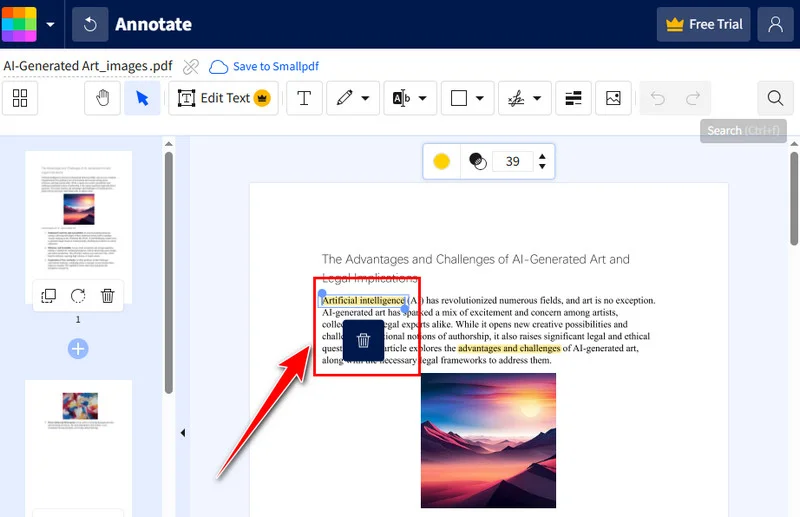
Dica Profissional: Solucionando Problemas com Destaques "Teimosos"
Se você descobrir que um destaque não seleciona, certifique-se de que seu editor esteja especificamente alternado para o "Modo de Anotação". Para documentos digitalizados onde o destaque está achatado na própria imagem, você pode usar uma sobreposição de forma branca para mascarar manualmente a cor do destaque.
Nota: Segurança e Armazenamento Sempre baixe sua cópia imediatamente, pois a maioria das ferramentas online gratuitas tem uma janela de sessão limitada para armazenamento de arquivos. Além disso, seja cauteloso com dados sensíveis ou confidenciais; como esses serviços podem enviar seu arquivo para um servidor de terceiros, métodos locais como o Free Spire.PDF e o Adobe Acrobat são preferíveis para privacidade.
Precisão Profissional: Como Remover Destaque de PDF no Adobe Acrobat
Para documentos legais complexos, o Adobe Acrobat Pro é o padrão da indústria. Ele fornece a precisão necessária para gerenciar marcações de texto intrincadas. Ele suporta o gerenciamento de todas as anotações em um painel dedicado de "Comentários".
Este método é perfeito quando você precisa distinguir entre um destaque e um preenchimento de fundo que pode ter sido adicionado durante a criação original do documento.
Instruções Passo a Passo:
- Abra o Painel de Comentários: Na barra de ferramentas do lado direito, selecione a ferramenta Comentários. Isso listará todas as marcações em ordem cronológica.
- Filtre e Encontre: Você pode classificar por tipo, autor ou cor. Isso é particularmente útil se você deseja apenas remover o destaque do PDF, mantendo outras anotações intactas.
- Exclusão em Lote ou Única:
- Para remover um: Clique com o botão direito no destaque na página ou na lista e selecione Excluir.
- Para excluir todos os destaques no PDF de uma vez: Segure a tecla Ctrl e clique manualmente em cada comentário na lista que deseja remover, depois clique com o botão direito e selecione Excluir.
- Alternativas de Sistema: Se você estiver em um Mac, pode conseguir a remoção básica através do Pré-visualização do Mac selecionando o destaque e pressionando backspace, ou até mesmo através do visualizador de PDF do Chrome para camadas de anotação muito simples.
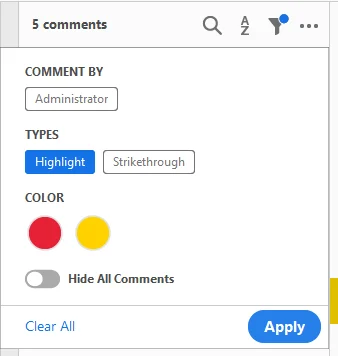
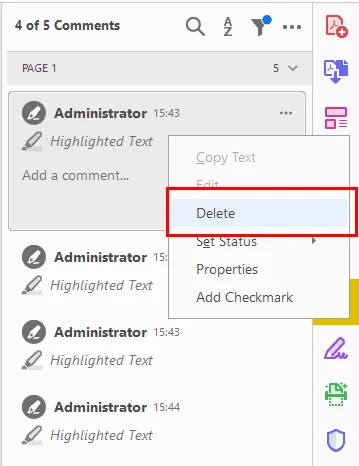
Nota: Certifique-se de "Salvar Como" uma nova versão após a edição para preservar os metadados do documento original, se necessário.
Leia também: Como Destacar Texto em um PDF: 5 Métodos Fáceis
Escolha do Desenvolvedor: Automatize com o Free Spire.PDF para Python
Para desenvolvedores que lidam com grandes volumes de dados, o clique manual é ineficiente. Usando uma biblioteca como o Free Spire.PDF para Python, você pode remover programaticamente destaques de arquivos PDF em diretórios inteiros em segundos.
Implementação Básica: Limpar Todas as Marcações de Uma Vez
O Free Spire.PDF fornece acesso à coleção de Anotações, onde os marcadores de destaque são armazenados como objetos PdfTextMarkupAnnotationWidget. Como esta classe também abrange outras marcações de texto, como tachados e sublinhados, nossa implementação inclui uma verificação específica para o TextMarkupAnnotationType para garantir que apenas os destaques sejam alvo e removidos.
Aqui está um exemplo de código mostrando como excluir todos os destaques de um PDF de uma só vez:
from spire.pdf.common import *
from spire.pdf import *

# Initialize the PdfDocument object
pdf = PdfDocument()
# Load the PDF file
pdf.LoadFromFile("/input/sample.pdf")

# Iterate through each page in the document
for i in range(pdf.Pages.Count):
    page = pdf.Pages[i]
    # Access the collection of annotations for the current page
    annotations = page.Annotations

    # Iterate through annotations in reverse order
    for j in range(annotations.Count - 1, -1, -1):
        annot = annotations[j]

        # Check if the annotation is a text markup type (highlights, underlines, etc.)
        if isinstance(annot, PdfTextMarkupAnnotationWidget):
            # Verify if the specific markup type is a Highlight
            if annot.TextMarkupAnnotationType == PdfTextMarkupAnnotationType.Highlight:
                # Remove the highlight annotation from the collection
                annotations.RemoveAt(j)

# Save the modified document
pdf.SaveToFile("/output/HighlightsRemoved.pdf")
pdf.Close()
Aqui está a pré-visualização do PDF original e do PDF limpo:
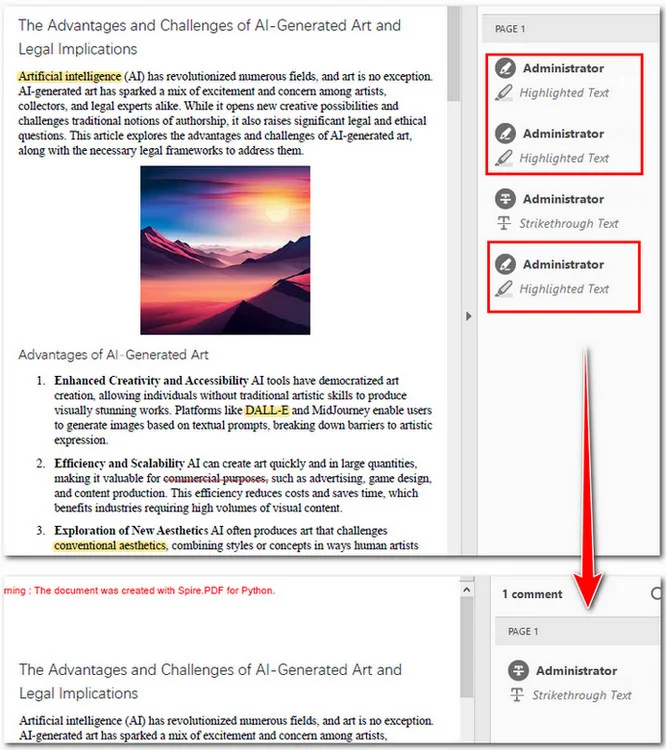
Você pode ver que os três destaques no PDF foram excluídos e o tachado foi preservado.
Controle Avançado: Remoção Seletiva por Índice ou Atributo
Às vezes, uma limpeza total é desnecessária. Você pode querer apenas remover anotações específicas, como o segundo destaque em uma página, ou filtrar destaques com base em seus metadados, como autor ou conteúdo.
Ao filtrar primeiro as anotações em uma lista, você pode visar instâncias específicas. Abaixo está a implementação para remover o segundo destaque encontrado na primeira página:
from spire.pdf.common import *
from spire.pdf import *

# Create a PdfDocument object and load a PDF file
doc = PdfDocument()
doc.LoadFromFile("/input/sample.pdf")

# Get the annotations collection of the first page
annotations = doc.Pages[0].Annotations

# Loop through annotations collection and get the highlights
highlights = []
for i in range(annotations.Count):
    if isinstance(annotations[i], PdfTextMarkupAnnotationWidget):
        highlights.append(annotations[i])

# Remove the second highlight
annotations.Remove(highlights[1])

# Save the document
doc.SaveToFile("/output/RemoveSecondHighlight.pdf")
doc.Close()
Aqui está a pré-visualização do PDF original e do arquivo de saída:
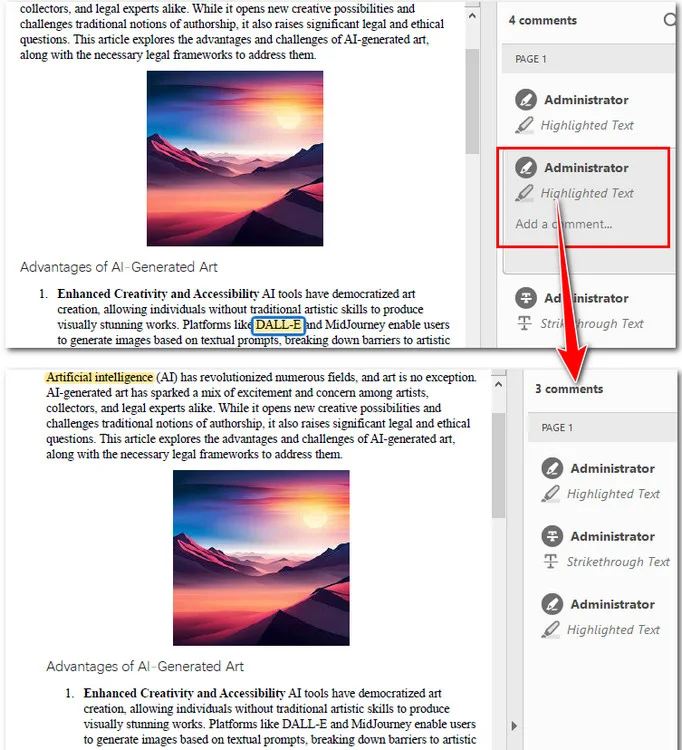
Nota: As bibliotecas de programação só podem detectar camadas de "Anotação". Se o destaque estiver achatado no fluxo de conteúdo, você precisará fazer OCR no PDF ou usar técnicas de branqueamento baseadas em coordenadas.
Comparação Final: Qual Método Você Deve Escolher?
Como exploramos, a maneira ideal de remover destaques de arquivos PDF depende do seu fluxo de trabalho específico, do volume de documentos e do seu nível técnico. A tabela a seguir fornece uma análise lado a lado para ajudá-lo a selecionar a ferramenta mais eficiente para suas necessidades.
| Característica | Ferramentas Online | Adobe Acrobat | Free Spire.PDF (Python) |
|---|---|---|---|
| Esforço | Baixo (Único) | Médio (Manual) | Alto (Configuração Inicial) |
| Velocidade | Rápido | Lento para Lotes | Extremamente Rápido para Lotes |
| Custo | Grátis (Geralmente) | Assinatura Paga | Grátis |
| Privacidade | Baixa (Nuvem) | Alta (Local) | Máxima (Local/Criptografado) |
Conclusão
Neste guia, explicamos três maneiras de remover destaques de arquivos PDF. Ferramentas online como o Smallpdf são perfeitas para tarefas rápidas, enquanto o Adobe Acrobat oferece a precisão manual necessária para o gerenciamento profissional de documentos. Para desenvolvedores, o Free Spire.PDF para Python é ideal para automação de alto volume e privacidade de dados.
Ao entender essas diferentes abordagens, você pode transformar um documento desordenado e cheio de marcações em um PDF limpo e profissional em segundos. Experimente o método que melhor se adapta ao seu fluxo de trabalho para se manter produtivo e organizado.