Convertire PHP in PDF: Creazione di PDF di codice di alta qualità
Indice
- Perché convertire il codice PHP in PDF?
- Metodo 1 — Stampa il codice PHP in PDF in un browser (senza evidenziazione della sintassi)
- Metodo 2 — Esporta il codice PHP in PDF con VS Code (alta qualità visiva)
- Metodo 3 — Converti PHP in PDF utilizzando strumenti online (nessuna installazione)
- Metodo 4 — Converti PHP in PDF con Python (pieno controllo e automazione)
- Confronta i metodi — Scegliere il modo giusto
- Considerazioni finali
- Domande frequenti da PHP a PDF
L'esportazione del codice sorgente PHP in PDF è utile per la documentazione, le revisioni del codice, gli archivi di conformità, i tutorial e la consegna al cliente. Un PDF ben formattato rende il codice più facile da leggere, condividere e stampare, specialmente quando vengono preservate l'evidenziazione della sintassi e i numeri di riga.
Questa guida ti illustra quattro metodi pratici, dall'opzione manuale più rapida a una pipeline di sviluppo completamente automatizzata.
Navigazione rapida
- Metodo 1 — Stampa il codice PHP in PDF in un browser
- Metodo 2 — Esporta il codice PHP in PDF con VS Code
- Metodo 3 — Converti PHP in PDF utilizzando strumenti online
- Metodo 4 — Converti PHP in PDF con Python
Perché convertire il codice PHP in PDF?
Sviluppatori e team convertono il codice PHP in PDF per diversi motivi comuni:
- Documentazione — Includi codice leggibile nei manuali tecnici
- Revisioni del codice — Condividi istantanee senza esporre i repository
- Consegna al cliente — Fornisci materiali di riferimento non modificabili
- Formazione e tutorial — Risorse di apprendimento adatte alla stampa
- Archiviazione e conformità — Archiviazione a lungo termine e a prova di manomissione
Se la chiarezza visiva è importante, l'evidenziazione della sintassi e un layout pulito sono essenziali.
Metodo 1 — Stampa il codice PHP in PDF utilizzando un browser (senza evidenziazione della sintassi)
Questo è il modo più rapido per trasformare il codice PHP in un PDF utilizzando gli strumenti che già possiedi. Funziona stampando il file direttamente dal tuo browser, rendendolo ideale per la condivisione semplice e la documentazione temporanea. Tuttavia, poiché i browser trattano il file come testo semplice, la formattazione visiva è molto limitata.
Ideale per: Esportazione più rapida possibile
Livello di abilità: Principiante
Evidenziazione della sintassi: No

Passaggi
- Apri il tuo file .php in un browser web (ad es. Google Chrome).
- Premi Ctrl + P (Stampa).
- Scegli Salva come PDF come stampante.
- Fai clic su Salva.
Vantaggi
- Nessuna installazione richiesta.
- Funziona su qualsiasi sistema operativo.
- Flusso di lavoro più veloce.
Svantaggi
- Nessuna evidenziazione della sintassi.
- Formattazione semplice.
- Più difficile da leggere per file di grandi dimensioni.
Questa è un'opzione rapida "abbastanza buona" quando la formattazione non ha importanza.
Metodo 2 — Esporta il codice PHP in PDF con VS Code (alta qualità visiva)
Se la qualità della presentazione è importante, l'esportazione da un moderno editor di codice è un'ottima scelta. VS Code può generare PDF raffinati che corrispondono fedelmente a ciò che vedi nell'editor, inclusi temi, caratteri e spaziatura. Ciò lo rende particolarmente adatto per tutorial, documentazione ed esempi di codice.
Ideale per: PDF di codice puliti e belli
Livello di abilità: Principiante → Intermedio
Evidenziazione della sintassi: Sì
L'utilizzo di VS Code con l'estensione PrintCode produce PDF professionali in stile IDE con un'eccellente leggibilità.
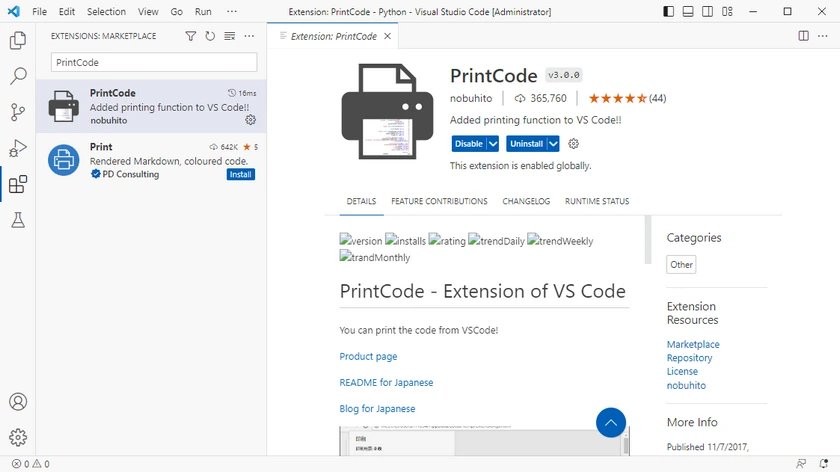
Passaggio 1 — Installa PrintCode
- Apri VS Code.
- Vai su Estensioni (Ctrl + Shift + X).
- Cerca PrintCode.
- Fai clic su Installa.
Passaggio 2 — Apri il tuo file PHP
Apri il file PHP che desideri esportare.
Passaggio 3 — Apri l'anteprima di stampa
- Premi F1 per aprire il riquadro comandi.
- Digita PrintCode.
- Fai clic sul comando PrintCode.
- Apparirà la finestra di anteprima di stampa.
Passaggio 4 — Salva come PDF
Nella finestra di anteprima:
- Scegli Salva come PDF come stampante predefinita.
- Regola i margini della pagina (opzionale).
- Includi intestazioni e piè di pagina (opzionale).
- Fai clic su Salva.
Vantaggi
- Eccellente evidenziazione della sintassi.
- Layout WYSIWYG.
- Output molto leggibile.
- Nessuna codifica richiesta.
Svantaggi
- Flusso di lavoro manuale.
- Non adatto per la conversione batch.
Ideale per documentazione, tutorial e condivisione di esempi di codice raffinati.
Metodo 3 — Converti PHP in PDF utilizzando strumenti online (nessuna installazione)
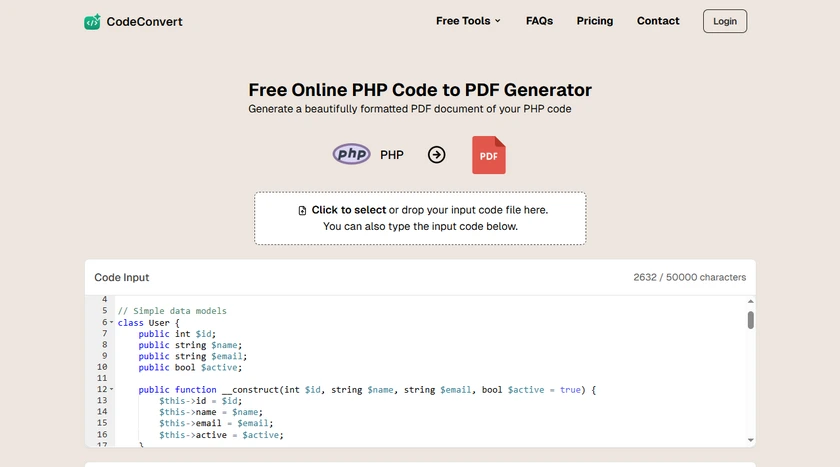
I convertitori online ti consentono di generare PDF senza installare alcun software in locale. Carichi semplicemente il tuo file PHP, configuri le opzioni di formattazione e scarichi il risultato. Questa comodità li rende ideali per attività rapide e occasionali e per utenti su dispositivi con restrizioni.
Ideale per: Conversioni una tantum su qualsiasi dispositivo
Livello di abilità: Principiante
Evidenziazione della sintassi: Solitamente supportata
Passaggi
- Apri un convertitore online da codice a PDF.
- Carica il tuo file PHP.
- Regola le opzioni di formattazione in Opzioni PDF, inclusi carattere, numeri di riga e tema.
- Scarica il PDF generato.
Vantaggi
- Nessuna installazione di software.
- Funziona su dispositivi mobili.
- Molto veloce per file di piccole dimensioni.
Svantaggi
- Preoccupazioni sulla privacy (codice caricato su terze parti).
- Limiti di dimensione del file.
- Personalizzazione limitata.
- Non ideale per progetti sensibili.
Ideale per attività rapide e non riservate.
Metodo 4 — Converti PHP in PDF con Python (pieno controllo e automazione)
Per gli sviluppatori che necessitano di automazione e controllo preciso della formattazione, una soluzione programmatica è l'opzione più potente. Questo metodo converte il codice sorgente attraverso una pipeline personalizzabile, rendendolo perfetto per l'elaborazione batch, la generazione di report e i flussi di lavoro di ingegneria. Richiede una certa configurazione ma offre la massima flessibilità e scalabilità.
Ideale per: Automazione, elaborazione batch, stile personalizzato
Livello di abilità: Intermedio → Avanzato
Evidenziazione della sintassi: Sì (qualità professionale)
Questo metodo ti dà il pieno controllo sulla formattazione ed è ideale per i flussi di lavoro degli sviluppatori e i sistemi di reportistica.
Cosa fa questa pipeline
Codice sorgente PHP → Evidenziazione della sintassi → Documento strutturato → PDF
Passaggio 1 — Installa le librerie richieste
pip install pygments spire.doc
- Pygments: un potente evidenziatore di sintassi per oltre 300 linguaggi di programmazione che migliora la leggibilità del codice applicando la codifica a colori ai frammenti.
- Spire.Doc per Python: una libreria completa per la creazione e la manipolazione di documenti Word, che consente un'esportazione senza interruzioni in PDF con una formattazione precisa per risultati di qualità professionale.
Passaggio 2 — Converti il codice PHP in PDF
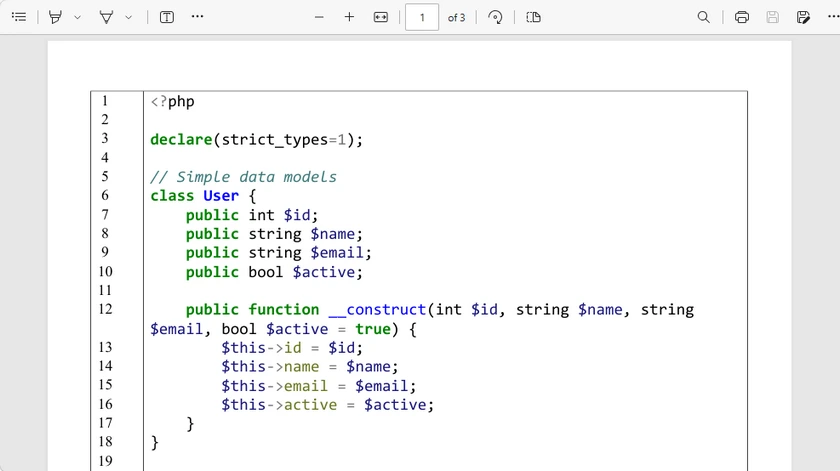
Lo script seguente:
- Conserva le interruzioni di riga originali.
- Aggiunge i numeri di riga.
- Applica l'evidenziazione della sintassi.
- Produce un layout pulito a due colonne.
- Utilizza un carattere per sviluppatori monospazio personalizzabile con dimensioni regolabili.
- Supporta dimensioni di pagina configurabili (ad es. A4, Lettera) e margini regolabili.
- Esporta direttamente in PDF.
from pathlib import Path
from pygments import highlight
from pygments.lexers import PhpLexer
from pygments.formatters import RtfFormatter
from spire.doc import *

# ==============================
# Read PHP file
# ==============================
code = Path(r"C:\Users\Administrator\Desktop\Demo.php").read_text(encoding="utf-8-sig")
lines = code.split("\n")  # preserve real lines

# ==============================
# Create Word document
# ==============================
doc = Document()
section = doc.AddSection()
section.PageSetup.PageSize = PageSize.A4()
section.PageSetup.Margins.All = 40

# ==============================
# Create table
# ==============================
table = section.AddTable(True)
table.ResetCells(len(lines), 2)

table.PreferredWidth = PreferredWidth(WidthType.Percentage, 100)

for i in range(table.Rows.Count):
    row = table.Rows[i]
    row.Cells[0].SetCellWidth(8, CellWidthType.Percentage)
    row.Cells[1].SetCellWidth(92, CellWidthType.Percentage)

# ==============================
# Syntax highlighter
# ==============================
formatter = RtfFormatter(fontface="Consolas")
lexer = PhpLexer(startinline=True)

# ==============================
# Fill table
# ==============================
line_no_width = len(str(len(lines)))

for i, line in enumerate(lines):
    # Line number
    num_para = table.Rows[i].Cells[0].AddParagraph()
    num_para.AppendText(str(i + 1).rjust(line_no_width))

    # Highlight PHP
    rtf = highlight(line if line.strip() else " ", lexer, formatter).rstrip()
    rtf = rtf.replace(r"\f0", r"\f0\fs26") # font size

    code_para = table.Rows[i].Cells[1].AddParagraph()
    code_para.AppendRTF(rtf)

# ==============================
# Border styling
# ==============================
table.TableFormat.Borders.Horizontal.BorderType = BorderStyle.none

# ==============================
# Save
# ==============================
doc.SaveToFile("PHP_Code.pdf", FileFormat.PDF)
doc.Dispose()
Vantaggi
- Flusso di lavoro completamente automatizzato.
- Converti in batch interi progetti.
- Layout per sviluppatori professionisti.
- Controllo preciso della formattazione.
- Facile da integrare nelle pipeline.
Svantaggi
- Richiede la configurazione dell'ambiente.
- Più tecnico di altri metodi.
Perfetto per i team di ingegneri e i sistemi di documentazione.
Potrebbe piacerti anche: Converti codice Python in Word (semplice o con evidenziazione della sintassi)
Confronta i metodi — Scegliere il modo giusto
| Caratteristica | Stampa da browser | VS Code + PrintCode | Convertitori online | Pipeline Python |
|---|---|---|---|---|
| Facilità d'uso | ★★★★★ | ★★★★☆ | ★★★★★ | ★★★☆☆ |
| Configurazione richiesta | Nessuna | Installa estensione | Nessuna | Installa librerie |
| Evidenziazione della sintassi | No | Sì | Sì (varia in base allo strumento) | Sì (pieno controllo) |
| Qualità visiva | Base | Alta | Alta | Eccellente (personalizzabile) |
| Numeri di riga | No | Sì | Sì | Sì |
| Conversione batch | No | No | No | Sì |
| Adatto all'automazione | No | No | No | Sì |
| Stile personalizzato | No | No | Limitato | Pieno controllo |
| Privacy / sicurezza | Alta (locale) | Alta (locale) | Bassa–Media (caricamento richiesto) | Alta (locale) |
| Ideale per | Esportazioni rapide | Documentazione raffinata | Attività rapide una tantum | Flussi di lavoro e report di sviluppo |
Considerazioni finali
Non esiste un unico modo "migliore" per convertire PHP in PDF: il metodo giusto dipende dal flusso di lavoro e dagli obiettivi. Per esportazioni rapide e occasionali, il metodo del browser è sufficiente. Se la qualità della presentazione e la leggibilità sono importanti, VS Code con PrintCode offre una soluzione raffinata. I convertitori online offrono praticità per gli utenti su dispositivi con restrizioni o quando non è possibile installare alcun software. Per team, automazione o progetti di grandi dimensioni, le pipeline Python offrono pieno controllo e flessibilità.
Comprendendo le tue esigenze — velocità, qualità visiva, automazione e sicurezza — puoi selezionare il metodo che meglio si adatta al tuo flusso di lavoro e garantisce che il tuo codice sia presentato in modo chiaro e professionale.
Domande frequenti da PHP a PDF
D1. La conversione da PHP a PDF preserva l'evidenziazione della sintassi?
Solo gli strumenti che supportano il rendering del codice (editor, convertitori o librerie) preservano l'evidenziazione della sintassi. La stampa da browser no.
D2. Posso convertire in batch più file PHP in PDF?
Sì. Soluzioni programmatiche come le pipeline Python possono elaborare intere cartelle automaticamente.
D3. È sicuro usare i convertitori online?
Sono convenienti ma non consigliati per codice confidenziale o proprietario.
D4. Qual è il metodo migliore per la documentazione?
Le esportazioni di VS Code sono ideali per piccoli set di file. Le pipeline automatizzate sono migliori per grandi progetti di documentazione.
D5. Posso aggiungere numeri di riga ai PDF di codice?
Sì. Molti strumenti e librerie supportano la numerazione delle righe, in particolare le estensioni dell'editor e le soluzioni programmatiche.
Vedi anche
Convertir du PHP en PDF : Créer des PDF de code de haute qualité
Table des matières
- Pourquoi convertir du code PHP en PDF ?
- Méthode 1 — Imprimer du code PHP en PDF dans un navigateur (sans coloration syntaxique)
- Méthode 2 — Exporter du code PHP en PDF avec VS Code (haute qualité visuelle)
- Méthode 3 — Convertir du PHP en PDF à l'aide d'outils en ligne (sans installation)
- Méthode 4 — Convertir du PHP en PDF avec Python (contrôle total et automatisation)
- Comparer les méthodes — Choisir la bonne façon
- Réflexions finales
- FAQ PHP vers PDF
L'exportation du code source PHP au format PDF est utile pour la documentation, les revues de code, les archives de conformité, les tutoriels et la livraison aux clients. Un PDF bien formaté rend le code plus facile à lire, à partager et à imprimer, surtout lorsque la coloration syntaxique et les numéros de ligne sont préservés.
Ce guide vous présente quatre méthodes pratiques, de l'option manuelle la plus rapide à un pipeline de développement entièrement automatisé.
Navigation rapide
- Méthode 1 — Imprimer du code PHP en PDF dans un navigateur
- Méthode 2 — Exporter du code PHP en PDF avec VS Code
- Méthode 3 — Convertir du PHP en PDF à l'aide d'outils en ligne
- Méthode 4 — Convertir du PHP en PDF avec Python
Pourquoi convertir du code PHP en PDF ?
Les développeurs et les équipes convertissent le code PHP en PDF pour plusieurs raisons courantes :
- Documentation — Inclure du code lisible dans les manuels techniques
- Revues de code — Partager des instantanés sans exposer les dépôts
- Livraison client — Fournir des documents de référence non modifiables
- Formation et tutoriels — Ressources d'apprentissage faciles à imprimer
- Archivage et conformité — Stockage à long terme et inviolable
Si la clarté visuelle est importante, la coloration syntaxique et une mise en page propre sont essentielles.
Méthode 1 — Imprimer du code PHP en PDF à l'aide d'un navigateur (sans coloration syntaxique)
C'est le moyen le plus rapide de transformer du code PHP en PDF à l'aide des outils que vous possédez déjà. Cela fonctionne en imprimant le fichier directement depuis votre navigateur, ce qui le rend idéal pour le partage simple et la documentation temporaire. Cependant, comme les navigateurs traitent le fichier comme du texte brut, la mise en forme visuelle est très limitée.
Idéal pour : Exportation la plus rapide possible
Niveau de compétence : Débutant
Coloration syntaxique : Non
Étapes
- Ouvrez votre fichier .php dans un navigateur Web (par exemple, Google Chrome).
- Appuyez sur Ctrl + P (Imprimer).
- Choisissez Enregistrer en PDF comme imprimante.
- Cliquez sur Enregistrer.
Avantages
- Aucune installation requise.
- Fonctionne sur n'importe quel système d'exploitation.
- Flux de travail le plus rapide.
Inconvénients
- Pas de coloration syntaxique.
- Mise en forme simple.
- Plus difficile à lire pour les fichiers volumineux.
C'est une option rapide « assez bonne » lorsque la mise en forme n'a pas d'importance.
Méthode 2 — Exporter du code PHP en PDF avec VS Code (haute qualité visuelle)
Si la qualité de la présentation est importante, l'exportation à partir d'un éditeur de code moderne est un excellent choix. VS Code peut générer des PDF soignés qui correspondent étroitement à ce que vous voyez dans l'éditeur, y compris les thèmes, les polices et l'espacement. Cela le rend particulièrement adapté aux tutoriels, à la documentation et aux exemples de code.
Idéal pour : Des PDF de code propres et esthétiques
Niveau de compétence : Débutant → Intermédiaire
Coloration syntaxique : Oui
L'utilisation de VS Code avec l'extension PrintCode produit des PDF de style IDE professionnels avec une excellente lisibilité.
Étape 1 — Installer PrintCode
- Ouvrez VS Code.
- Allez dans Extensions (Ctrl + Maj + X).
- Recherchez PrintCode.
- Cliquez sur Installer.
Étape 2 — Ouvrez votre fichier PHP
Ouvrez le fichier PHP que vous souhaitez exporter.
Étape 3 — Ouvrir l'aperçu avant impression
- Appuyez sur F1 pour ouvrir la palette de commandes.
- Tapez PrintCode.
- Cliquez sur la commande PrintCode.
- La fenêtre d'aperçu avant impression apparaîtra.
Étape 4 — Enregistrer en PDF
Dans la fenêtre d'aperçu :
- Choisissez Enregistrer en PDF comme imprimante par défaut.
- Ajustez les marges de la page (facultatif).
- Inclure les en-têtes et pieds de page (facultatif).
- Cliquez sur Enregistrer.
Avantages
- Excellente coloration syntaxique.
- Mise en page WYSIWYG.
- Sortie très lisible.
- Aucun codage requis.
Inconvénients
- Flux de travail manuel.
- Ne convient pas à la conversion par lots.
Idéal pour la documentation, les tutoriels et le partage d'exemples de code soignés.
Méthode 3 — Convertir du PHP en PDF à l'aide d'outils en ligne (sans installation)
Les convertisseurs en ligne vous permettent de générer des PDF sans installer de logiciel localement. Il vous suffit de télécharger votre fichier PHP, de configurer les options de formatage et de télécharger le résultat. Cette commodité les rend idéaux pour les tâches rapides et occasionnelles et pour les utilisateurs sur des appareils restreints.
Idéal pour : Conversions uniques sur n'importe quel appareil
Niveau de compétence : Débutant
Coloration syntaxique : Généralement prise en charge
Étapes
- Ouvrez un convertisseur de code en PDF en ligne.
- Téléchargez votre fichier PHP.
- Ajustez les options de formatage sous Options PDF, y compris la police, les numéros de ligne et le thème.
- Téléchargez le PDF généré.
Avantages
- Aucune installation de logiciel.
- Fonctionne sur les appareils mobiles.
- Très rapide pour les petits fichiers.
Inconvénients
- Problèmes de confidentialité (code téléchargé sur un tiers).
- Limites de taille de fichier.
- Personnalisation limitée.
- Pas idéal pour les projets sensibles.
Idéal pour les tâches rapides et non confidentielles.
Méthode 4 — Convertir du PHP en PDF avec Python (contrôle total et automatisation)
Pour les développeurs qui ont besoin d'automatisation et d'un contrôle précis du formatage, une solution programmatique est l'option la plus puissante. Cette méthode convertit le code source via un pipeline personnalisable, ce qui la rend parfaite pour le traitement par lots, la génération de rapports et les flux de travail d'ingénierie. Elle nécessite une certaine configuration mais offre le plus de flexibilité et d'évolutivité.
Idéal pour : Automatisation, traitement par lots, style personnalisé
Niveau de compétence : Intermédiaire → Avancé
Coloration syntaxique : Oui (qualité professionnelle)
Cette méthode vous donne un contrôle total sur le formatage et est idéale pour les flux de travail des développeurs et les systèmes de reporting.
Ce que fait ce pipeline
Code source PHP → Coloration syntaxique → Document structuré → PDF
Étape 1 — Installer les bibliothèques requises
pip install pygments spire.doc
- Pygments : un puissant surligneur de syntaxe pour plus de 300 langages de programmation qui améliore la lisibilité du code en appliquant un codage couleur aux extraits.
- Spire.Doc for Python : une bibliothèque complète pour créer et manipuler des documents Word, permettant une exportation transparente vers PDF avec un formatage précis pour des résultats de qualité professionnelle.
Étape 2 — Convertir le code PHP en PDF
Le script ci-dessous :
- Préserve les sauts de ligne d'origine.
- Ajoute des numéros de ligne.
- Applique la coloration syntaxique.
- Produit une mise en page propre à deux colonnes.
- Utilise une police de développeur à espacement fixe personnalisable avec une taille ajustable.
- Prend en charge une taille de page configurable (par exemple, A4, Lettre) et des marges ajustables.
- Exporte directement en PDF.
from pathlib import Path
from pygments import highlight
from pygments.lexers import PhpLexer
from pygments.formatters import RtfFormatter
from spire.doc import *

# ==============================
# Read PHP file
# ==============================
code = Path(r"C:\Users\Administrator\Desktop\Demo.php").read_text(encoding="utf-8-sig")
lines = code.split("\n")  # preserve real lines

# ==============================
# Create Word document
# ==============================
doc = Document()
section = doc.AddSection()
section.PageSetup.PageSize = PageSize.A4()
section.PageSetup.Margins.All = 40

# ==============================
# Create table
# ==============================
table = section.AddTable(True)
table.ResetCells(len(lines), 2)

table.PreferredWidth = PreferredWidth(WidthType.Percentage, 100)

for i in range(table.Rows.Count):
    row = table.Rows[i]
    row.Cells[0].SetCellWidth(8, CellWidthType.Percentage)
    row.Cells[1].SetCellWidth(92, CellWidthType.Percentage)

# ==============================
# Syntax highlighter
# ==============================
formatter = RtfFormatter(fontface="Consolas")
lexer = PhpLexer(startinline=True)

# ==============================
# Fill table
# ==============================
line_no_width = len(str(len(lines)))

for i, line in enumerate(lines):
    # Line number
    num_para = table.Rows[i].Cells[0].AddParagraph()
    num_para.AppendText(str(i + 1).rjust(line_no_width))

    # Highlight PHP
    rtf = highlight(line if line.strip() else " ", lexer, formatter).rstrip()
    rtf = rtf.replace(r"\f0", r"\f0\fs26") # font size

    code_para = table.Rows[i].Cells[1].AddParagraph()
    code_para.AppendRTF(rtf)

# ==============================
# Border styling
# ==============================
table.TableFormat.Borders.Horizontal.BorderType = BorderStyle.none

# ==============================
# Save
# ==============================
doc.SaveToFile("PHP_Code.pdf", FileFormat.PDF)
doc.Dispose()
Avantages
- Flux de travail entièrement automatisé.
- Convertir par lots des projets entiers.
- Mise en page de développeur professionnel.
- Contrôle précis du formatage.
- Facile à intégrer dans les pipelines.
Inconvénients
- Nécessite une configuration de l'environnement.
- Plus technique que les autres méthodes.
Parfait pour les équipes d'ingénierie et les systèmes de documentation.
Vous aimerez peut-être aussi : Convertir du code Python en Word (brut ou avec coloration syntaxique)
Comparer les méthodes — Choisir la bonne façon
| Fonctionnalité | Impression navigateur | VS Code + PrintCode | Convertisseurs en ligne | Pipeline Python |
|---|---|---|---|---|
| Facilité d'utilisation | ★★★★★ | ★★★★☆ | ★★★★★ | ★★★☆☆ |
| Configuration requise | Aucune | Installer l'extension | Aucune | Installer les bibliothèques |
| Coloration syntaxique | Non | Oui | Oui (varie selon l'outil) | Oui (contrôle total) |
| Qualité visuelle | Basique | Élevée | Élevée | Excellente (personnalisable) |
| Numéros de ligne | Non | Oui | Oui | Oui |
| Conversion par lots | Non | Non | Non | Oui |
| Adapté à l'automatisation | Non | Non | Non | Oui |
| Style personnalisé | Non | Non | Limité | Contrôle total |
| Confidentialité / sécurité | Élevée (local) | Élevée (local) | Faible à moyenne (téléchargement requis) | Élevée (local) |
| Idéal pour | Exportations rapides | Documentation soignée | Tâches rapides ponctuelles | Flux de travail et rapports de développement |
Réflexions finales
Il n'y a pas de « meilleure » façon unique de convertir du PHP en PDF — la bonne méthode dépend de votre flux de travail et de vos objectifs. Pour des exportations rapides et occasionnelles, la méthode du navigateur est suffisante. Si la qualité de la présentation et la lisibilité sont importantes, VS Code avec PrintCode offre une solution soignée. Les convertisseurs en ligne offrent une commodité aux utilisateurs sur des appareils restreints ou lorsqu'aucune installation de logiciel n'est possible. Pour les équipes, l'automatisation ou les grands projets, les pipelines Python offrent un contrôle et une flexibilité complets.
En comprenant vos besoins — vitesse, qualité visuelle, automatisation et sécurité — vous pouvez sélectionner la méthode qui correspond le mieux à votre flux de travail et garantit que votre code est présenté de manière claire et professionnelle.
FAQ PHP vers PDF
Q1. La conversion de PHP en PDF préserve-t-elle la coloration syntaxique ?
Seuls les outils qui prennent en charge le rendu du code (éditeurs, convertisseurs ou bibliothèques) préservent la coloration syntaxique. L'impression par le navigateur ne le fait pas.
Q2. Puis-je convertir par lots plusieurs fichiers PHP en PDF ?
Oui. Les solutions programmatiques comme les pipelines Python peuvent traiter automatiquement des dossiers entiers.
Q3. Est-il sûr d'utiliser des convertisseurs en ligne ?
Ils sont pratiques mais non recommandés pour le code confidentiel ou propriétaire.
Q4. Quelle est la meilleure méthode pour la documentation ?
Les exportations VS Code sont idéales pour de petits ensembles de fichiers. Les pipelines automatisés sont meilleurs pour les grands projets de documentation.
Q5. Puis-je ajouter des numéros de ligne aux PDF de code ?
Oui. De nombreux outils et bibliothèques prennent en charge la numérotation des lignes, en particulier les extensions d'éditeur et les solutions programmatiques.
Voir aussi
Convertir PHP a PDF: Creación de PDF de código de alta calidad
Tabla de Contenidos
- ¿Por Qué Convertir Código PHP a PDF?
- Método 1 — Imprimir Código PHP a PDF en un Navegador (Sin Resaltado de Sintaxis)
- Método 2 — Exportar Código PHP a PDF con VS Code (Alta Calidad Visual)
- Método 3 — Convertir PHP a PDF Usando Herramientas en Línea (Sin Instalación)
- Método 4 — Convertir PHP a PDF con Python (Control Total y Automatización)
- Comparar los Métodos — Eligiendo la Forma Correcta
- Conclusiones Finales
- Preguntas Frecuentes sobre PHP a PDF
Exportar el código fuente de PHP a PDF es útil para documentación, revisiones de código, archivos de cumplimiento, tutoriales y entrega a clientes. Un PDF bien formateado hace que el código sea más fácil de leer, compartir e imprimir, especialmente cuando se conservan el resaltado de sintaxis y los números de línea.
Esta guía te mostrará cuatro métodos prácticos, desde la opción manual más rápida hasta un pipeline de desarrollo totalmente automatizado.
Navegación Rápida
- Método 1 — Imprimir Código PHP a PDF en un Navegador
- Método 2 — Exportar Código PHP a PDF con VS Code
- Método 3 — Convertir PHP a PDF Usando Herramientas en Línea
- Método 4 — Convertir PHP a PDF con Python
¿Por Qué Convertir Código PHP a PDF?
Los desarrolladores y equipos convierten código PHP a PDF por varias razones comunes:
- Documentación — Incluir código legible en manuales técnicos
- Revisiones de Código — Compartir instantáneas sin exponer repositorios
- Entrega a Clientes — Proporcionar materiales de referencia no editables
- Formación y Tutoriales — Recursos de aprendizaje amigables para la impresión
- Archivo y Cumplimiento — Almacenamiento a largo plazo y resistente a manipulaciones
Si la claridad visual es importante, el resaltado de sintaxis y un diseño limpio son esenciales.
Método 1 — Imprimir Código PHP a PDF Usando un Navegador (Sin Resaltado de Sintaxis)
Esta es la forma más rápida de convertir código PHP en un PDF utilizando herramientas que ya tienes. Funciona imprimiendo el archivo directamente desde tu navegador, lo que lo hace ideal para compartir de forma sencilla y para documentación temporal. Sin embargo, como los navegadores tratan el archivo como texto plano, el formato visual es muy limitado.
Ideal para: La exportación más rápida posible
Nivel de habilidad: Principiante
Resaltado de sintaxis: No
Pasos
- Abre tu archivo .php en un navegador web (p. ej., Google Chrome).
- Presiona Ctrl + P (Imprimir).
- Elige Guardar como PDF como la impresora.
- Haz clic en Guardar.
Ventajas
- No requiere instalación.
- Funciona en cualquier sistema operativo.
- El flujo de trabajo más rápido.
Desventajas
- Sin resaltado de sintaxis.
- Formato simple.
- Más difícil de leer en archivos grandes.
Esta es una opción rápida y "suficientemente buena" cuando el formato no importa.
Método 2 — Exportar Código PHP a PDF con VS Code (Alta Calidad Visual)
Si la calidad de la presentación es importante, exportar desde un editor de código moderno es una excelente opción. VS Code puede generar PDFs pulidos que se asemejan mucho a lo que ves en el editor, incluyendo temas, fuentes y espaciado. Esto lo hace especialmente adecuado para tutoriales, documentación y muestras de código.
Ideal para: PDFs de código limpios y atractivos
Nivel de habilidad: Principiante → Intermedio
Resaltado de sintaxis: Sí
Usar VS Code con la extensión PrintCode produce PDFs de estilo profesional, como los de un IDE, con una excelente legibilidad.
Paso 1 — Instalar PrintCode
- Abre VS Code.
- Ve a Extensiones (Ctrl + Shift + X).
- Busca PrintCode.
- Haz clic en Instalar.
Paso 2 — Abre Tu Archivo PHP
Abre el archivo PHP que quieres exportar.
Paso 3 — Abrir Vista Previa de Impresión
- Presiona F1 para abrir la Paleta de Comandos.
- Escribe PrintCode.
- Haz clic en el comando PrintCode.
- Aparecerá la ventana de vista previa de impresión.
Paso 4 — Guardar como PDF
En la ventana de vista previa:
- Elige Guardar como PDF como la impresora predeterminada.
- Ajusta los márgenes de la página (opcional).
- Incluye encabezados y pies de página (opcional).
- Haz clic en Guardar.
Ventajas
- Excelente resaltado de sintaxis.
- Diseño WYSIWYG.
- Salida muy legible.
- No requiere codificación.
Desventajas
- Flujo de trabajo manual.
- No es adecuado para la conversión por lotes.
Ideal para documentación, tutoriales y compartir muestras de código pulidas.
Método 3 — Convertir PHP a PDF Usando Herramientas en Línea (Sin Instalación)
Los convertidores en línea te permiten generar PDFs sin instalar ningún software localmente. Simplemente subes tu archivo PHP, configuras las opciones de formato y descargas el resultado. Esta comodidad los hace ideales para tareas rápidas y ocasionales y para usuarios en dispositivos restringidos.
Ideal para: Conversiones únicas en cualquier dispositivo
Nivel de habilidad: Principiante
Resaltado de sintaxis: Generalmente compatible
Pasos
- Abre un convertidor de código a PDF en línea.
- Sube tu archivo PHP.
- Ajusta las opciones de formato en Opciones de PDF, incluyendo fuente, números de línea y tema.
- Descarga el PDF generado.
Ventajas
- Sin instalación de software.
- Funciona en dispositivos móviles.
- Muy rápido para archivos pequeños.
Desventajas
- Preocupaciones de privacidad (el código se sube a un tercero).
- Límites de tamaño de archivo.
- Personalización limitada.
- No es ideal para proyectos sensibles.
Ideal para tareas rápidas y no confidenciales.
Método 4 — Convertir PHP a PDF con Python (Control Total y Automatización)
Para los desarrolladores que necesitan automatización y un control preciso del formato, una solución programática es la opción más potente. Este método convierte el código fuente a través de un pipeline personalizable, lo que lo hace perfecto para el procesamiento por lotes, la generación de informes y los flujos de trabajo de ingeniería. Requiere cierta configuración, pero ofrece la mayor flexibilidad y escalabilidad.
Ideal para: Automatización, procesamiento por lotes, estilo personalizado
Nivel de habilidad: Intermedio → Avanzado
Resaltado de sintaxis: Sí (calidad profesional)
Este método te da control total sobre el formato y es ideal para flujos de trabajo de desarrolladores y sistemas de informes.
Qué Hace Este Pipeline
Código fuente PHP → Resaltado de sintaxis → Documento estructurado → PDF
Paso 1 — Instalar las Bibliotecas Necesarias
pip install pygments spire.doc
- Pygments: Un potente resaltador de sintaxis para más de 300 lenguajes de programación que mejora la legibilidad del código aplicando codificación por colores a los fragmentos.
- Spire.Doc for Python: Una biblioteca completa para crear y manipular documentos de Word, que permite una exportación fluida a PDF con un formato preciso para resultados de calidad profesional.
Paso 2 — Convertir Código PHP a PDF
El siguiente script:
- Conserva los saltos de línea originales.
- Añade números de línea.
- Aplica resaltado de sintaxis.
- Produce un diseño limpio de dos columnas.
- Utiliza una fuente de desarrollador monoespaciada personalizable con tamaño ajustable.
- Admite tamaños de página configurables (p. ej., A4, Carta) y márgenes ajustables.
- Exporta directamente a PDF.
from pathlib import Path
from pygments import highlight
from pygments.lexers import PhpLexer
from pygments.formatters import RtfFormatter
from spire.doc import *

# ==============================
# Read PHP file
# ==============================
code = Path(r"C:\Users\Administrator\Desktop\Demo.php").read_text(encoding="utf-8-sig")
lines = code.split("\n")  # preserve real lines

# ==============================
# Create Word document
# ==============================
doc = Document()
section = doc.AddSection()
section.PageSetup.PageSize = PageSize.A4()
section.PageSetup.Margins.All = 40

# ==============================
# Create table
# ==============================
table = section.AddTable(True)
table.ResetCells(len(lines), 2)

table.PreferredWidth = PreferredWidth(WidthType.Percentage, 100)

for i in range(table.Rows.Count):
    row = table.Rows[i]
    row.Cells[0].SetCellWidth(8, CellWidthType.Percentage)
    row.Cells[1].SetCellWidth(92, CellWidthType.Percentage)

# ==============================
# Syntax highlighter
# ==============================
formatter = RtfFormatter(fontface="Consolas")
lexer = PhpLexer(startinline=True)

# ==============================
# Fill table
# ==============================
line_no_width = len(str(len(lines)))

for i, line in enumerate(lines):
    # Line number
    num_para = table.Rows[i].Cells[0].AddParagraph()
    num_para.AppendText(str(i + 1).rjust(line_no_width))

    # Highlight PHP
    rtf = highlight(line if line.strip() else " ", lexer, formatter).rstrip()
    rtf = rtf.replace(r"\f0", r"\f0\fs26") # font size

    code_para = table.Rows[i].Cells[1].AddParagraph()
    code_para.AppendRTF(rtf)

# ==============================
# Border styling
# ==============================
table.TableFormat.Borders.Horizontal.BorderType = BorderStyle.none

# ==============================
# Save
# ==============================
doc.SaveToFile("PHP_Code.pdf", FileFormat.PDF)
doc.Dispose()
Ventajas
- Flujo de trabajo totalmente automatizado.
- Convierte proyectos enteros por lotes.
- Diseño profesional para desarrolladores.
- Control preciso del formato.
- Fácil de integrar en pipelines.
Desventajas
- Requiere configuración del entorno.
- Más técnico que otros métodos.
Perfecto para equipos de ingeniería y sistemas de documentación.
También te puede interesar: Convertir Código Python a Word (Plano o con Resaltado de Sintaxis)
Comparar los Métodos — Eligiendo la Forma Correcta
| Característica | Impresión del Navegador | VS Code + PrintCode | Convertidores en Línea | Pipeline de Python |
|---|---|---|---|---|
| Facilidad de uso | ★★★★★ | ★★★★☆ | ★★★★★ | ★★★☆☆ |
| Configuración requerida | Ninguna | Instalar extensión | Ninguna | Instalar bibliotecas |
| Resaltado de sintaxis | No | Sí | Sí (varía según la herramienta) | Sí (control total) |
| Calidad visual | Básica | Alta | Alta | Excelente (personalizable) |
| Números de línea | No | Sí | Sí | Sí |
| Conversión por lotes | No | No | No | Sí |
| Compatible con automatización | No | No | No | Sí |
| Estilo personalizado | No | No | Limitado | Control total |
| Privacidad / seguridad | Alta (local) | Alta (local) | Baja–Media (requiere subida) | Alta (local) |
| Ideal para | Exportaciones rápidas | Documentación pulida | Tareas rápidas puntuales | Flujos de trabajo y informes de desarrollo |
Conclusiones Finales
No hay una única forma "mejor" de convertir PHP a PDF; el método correcto depende de tu flujo de trabajo y tus objetivos. Para exportaciones rápidas y ocasionales, el método del navegador es suficiente. Si la calidad de la presentación y la legibilidad son importantes, VS Code con PrintCode ofrece una solución pulida. Los convertidores en línea brindan comodidad a los usuarios en dispositivos restringidos o cuando no es posible instalar software. Para equipos, automatización o proyectos grandes, los pipelines de Python ofrecen control total y flexibilidad.
Al comprender tus necesidades (velocidad, calidad visual, automatización y seguridad), puedes seleccionar el método que mejor se adapte a tu flujo de trabajo y garantizar que tu código se presente de manera clara y profesional.
Preguntas Frecuentes sobre PHP a PDF
P1. ¿Convertir PHP a PDF conserva el resaltado de sintaxis?
Solo las herramientas que admiten la representación de código (editores, convertidores o bibliotecas) conservan el resaltado de sintaxis. La impresión del navegador no lo hace.
P2. ¿Puedo convertir por lotes varios archivos PHP a PDF?
Sí. Las soluciones programáticas como los pipelines de Python pueden procesar carpetas enteras automáticamente.
P3. ¿Es seguro usar convertidores en línea?
Son convenientes pero no se recomiendan para código confidencial o propietario.
P4. ¿Cuál es el mejor método para la documentación?
Las exportaciones de VS Code son ideales para conjuntos pequeños de archivos. Los pipelines automatizados son mejores para grandes proyectos de documentación.
P5. ¿Puedo agregar números de línea a los PDF de código?
Sí. Muchas herramientas y bibliotecas admiten la numeración de líneas, especialmente las extensiones de editor y las soluciones programáticas.
Ver También
PHP in PDF konvertieren: Hochwertige Code-PDFs erstellen
Inhaltsverzeichnis
- Warum PHP-Code in PDF umwandeln?
- Methode 1 – PHP-Code in einem Browser als PDF drucken (keine Syntaxhervorhebung)
- Methode 2 – PHP-Code mit VS Code nach PDF exportieren (hohe visuelle Qualität)
- Methode 3 – PHP mit Online-Tools in PDF umwandeln (keine Installation)
- Methode 4 – PHP mit Python in PDF umwandeln (volle Kontrolle & Automatisierung)
- Vergleich der Methoden – Die richtige Wahl treffen
- Abschließende Gedanken
- PHP zu PDF FAQs
Das Exportieren von PHP-Quellcode in PDF ist nützlich für Dokumentationen, Code-Reviews, Compliance-Archive, Tutorials und die Auslieferung an Kunden. Ein gut formatiertes PDF erleichtert das Lesen, Teilen und Drucken von Code – insbesondere wenn Syntaxhervorhebung und Zeilennummern erhalten bleiben.
Dieser Leitfaden führt Sie durch vier praktische Methoden, von der schnellsten manuellen Option bis hin zu einer vollständig automatisierten Entwickler-Pipeline.
Schnellnavigation
- Methode 1 – PHP-Code in einem Browser als PDF drucken
- Methode 2 – PHP-Code mit VS Code nach PDF exportieren
- Methode 3 – PHP mit Online-Tools in PDF umwandeln
- Methode 4 – PHP mit Python in PDF umwandeln
Warum PHP-Code in PDF umwandeln?
Entwickler und Teams wandeln PHP-Code aus mehreren häufigen Gründen in PDF um:
- Dokumentation – Lesbaren Code in technische Handbücher einfügen
- Code-Reviews – Snapshots teilen, ohne Repositories preiszugeben
- Kundenlieferung – Nicht bearbeitbare Referenzmaterialien bereitstellen
- Schulungen & Tutorials – Druckfreundliche Lernressourcen
- Archivierung & Compliance – Langfristige, manipulationssichere Speicherung
Wenn visuelle Klarheit wichtig ist, sind Syntaxhervorhebung und ein sauberes Layout unerlässlich.
Methode 1 – PHP-Code in einem Browser als PDF drucken (keine Syntaxhervorhebung)
Dies ist der schnellste Weg, PHP-Code mit bereits vorhandenen Tools in ein PDF umzuwandeln. Es funktioniert, indem die Datei direkt aus Ihrem Browser gedruckt wird, was es ideal für einfaches Teilen und temporäre Dokumentation macht. Da Browser die Datei jedoch als reinen Text behandeln, ist die visuelle Formatierung sehr begrenzt.
Am besten für: Schnellstmöglicher Export
Schwierigkeitsgrad: Anfänger
Syntaxhervorhebung: Nein
Schritte
- Öffnen Sie Ihre .php-Datei in einem Webbrowser (z. B. Google Chrome).
- Drücken Sie Strg + P (Drucken).
- Wählen Sie Als PDF speichern als Drucker.
- Klicken Sie auf Speichern.
Vorteile
- Keine Installation erforderlich.
- Funktioniert auf jedem Betriebssystem.
- Schnellster Arbeitsablauf.
Nachteile
- Keine Syntaxhervorhebung.
- Einfache Formatierung.
- Schwerer zu lesen bei großen Dateien.
Dies ist eine schnelle „ausreichende“ Option, wenn die Formatierung keine Rolle spielt.
Methode 2 – PHP-Code mit VS Code nach PDF exportieren (hohe visuelle Qualität)
Wenn die Präsentationsqualität wichtig ist, ist der Export aus einem modernen Code-Editor eine gute Wahl. VS Code kann ausgefeilte PDFs erstellen, die dem, was Sie im Editor sehen, sehr nahe kommen, einschließlich Themen, Schriftarten und Abständen. Dies macht es besonders geeignet für Tutorials, Dokumentationen und Codebeispiele.
Am besten für: Saubere, schöne Code-PDFs
Schwierigkeitsgrad: Anfänger → Mittelstufe
Syntaxhervorhebung: Ja
Die Verwendung von VS Code mit der PrintCode-Erweiterung erzeugt professionelle PDFs im IDE-Stil mit ausgezeichneter Lesbarkeit.
Schritt 1 – PrintCode installieren
- Öffnen Sie VS Code.
- Gehen Sie zu Erweiterungen (Strg + Umschalt + X).
- Suchen Sie nach PrintCode.
- Klicken Sie auf Installieren.
Schritt 2 – Öffnen Sie Ihre PHP-Datei
Öffnen Sie die PHP-Datei, die Sie exportieren möchten.
Schritt 3 – Druckvorschau öffnen
- Drücken Sie F1, um die Befehlspalette zu öffnen.
- Geben Sie PrintCode ein.
- Klicken Sie auf den Befehl PrintCode.
- Das Druckvorschau-Fenster wird angezeigt.
Schritt 4 – Als PDF speichern
Im Vorschaufenster:
- Wählen Sie Als PDF speichern als Standarddrucker.
- Seitenränder anpassen (optional).
- Kopf- und Fußzeilen einfügen (optional).
- Klicken Sie auf Speichern.
Vorteile
- Hervorragende Syntaxhervorhebung.
- WYSIWYG-Layout.
- Sehr lesbare Ausgabe.
- Keine Programmierung erforderlich.
Nachteile
- Manueller Arbeitsablauf.
- Nicht für die Stapelkonvertierung geeignet.
Ideal für Dokumentationen, Tutorials und das Teilen von ausgefeilten Codebeispielen.
Methode 3 – PHP mit Online-Tools in PDF umwandeln (keine Installation)
Mit Online-Konvertern können Sie PDFs erstellen, ohne lokal Software installieren zu müssen. Sie laden einfach Ihre PHP-Datei hoch, konfigurieren die Formatierungsoptionen und laden das Ergebnis herunter. Diese Bequemlichkeit macht sie ideal für schnelle, gelegentliche Aufgaben und Benutzer auf eingeschränkten Geräten.
Am besten für: Einmalige Konvertierungen auf jedem Gerät
Schwierigkeitsgrad: Anfänger
Syntaxhervorhebung: Normalerweise unterstützt
Schritte
- Öffnen Sie einen Online-Code-zu-PDF-Konverter.
- Laden Sie Ihre PHP-Datei hoch.
- Passen Sie die Formatierungsoptionen unter PDF-Optionen an, einschließlich Schriftart, Zeilennummern und Thema.
- Laden Sie das generierte PDF herunter.
Vorteile
- Keine Softwareinstallation.
- Funktioniert auf mobilen Geräten.
- Sehr schnell bei kleinen Dateien.
Nachteile
- Datenschutzbedenken (Code wird an Dritte hochgeladen).
- Dateigrößenbeschränkungen.
- Begrenzte Anpassungsmöglichkeiten.
- Nicht ideal für sensible Projekte.
Am besten für schnelle, nicht vertrauliche Aufgaben.
Methode 4 – PHP mit Python in PDF umwandeln (volle Kontrolle & Automatisierung)
Für Entwickler, die Automatisierung und präzise Formatierungskontrolle benötigen, ist eine programmatische Lösung die leistungsstärkste Option. Diese Methode konvertiert Quellcode über eine anpassbare Pipeline und ist somit perfekt für die Stapelverarbeitung, Berichterstellung und Engineering-Workflows. Sie erfordert etwas Einrichtungsaufwand, bietet aber die größte Flexibilität und Skalierbarkeit.
Am besten für: Automatisierung, Stapelverarbeitung, benutzerdefiniertes Styling
Schwierigkeitsgrad: Mittelstufe → Fortgeschritten
Syntaxhervorhebung: Ja (professionelle Qualität)
Diese Methode gibt Ihnen die volle Kontrolle über die Formatierung und ist ideal für Entwickler-Workflows und Berichtssysteme.
Was diese Pipeline tut
PHP-Quellcode → Syntaxhervorhebung → Strukturiertes Dokument → PDF
Schritt 1 – Erforderliche Bibliotheken installieren
pip install pygments spire.doc
- Pygments: Ein leistungsstarker Syntax-Highlighter für über 300 Programmiersprachen, der die Lesbarkeit von Code durch Farbcodierung von Snippets verbessert.
- Spire.Doc for Python: Eine umfassende Bibliothek zum Erstellen und Bearbeiten von Word-Dokumenten, die einen nahtlosen Export nach PDF mit präziser Formatierung für professionelle Ergebnisse ermöglicht.
Schritt 2 – PHP-Code in PDF umwandeln
Das folgende Skript:
- Behält ursprüngliche Zeilenumbrüche bei.
- Fügt Zeilennummern hinzu.
- Wendet Syntaxhervorhebung an.
- Erzeugt ein sauberes zweispaltiges Layout.
- Verwendet eine anpassbare Monospace-Entwicklerschrift mit einstellbarer Größe.
- Unterstützt konfigurierbare Seitengrößen (z. B. A4, Letter) und anpassbare Ränder.
- Exportiert direkt nach PDF.
from pathlib import Path
from pygments import highlight
from pygments.lexers import PhpLexer
from pygments.formatters import RtfFormatter
from spire.doc import *

# ==============================
# Read PHP file
# ==============================
code = Path(r"C:\Users\Administrator\Desktop\Demo.php").read_text(encoding="utf-8-sig")
lines = code.split("\n")  # preserve real lines

# ==============================
# Create Word document
# ==============================
doc = Document()
section = doc.AddSection()
section.PageSetup.PageSize = PageSize.A4()
section.PageSetup.Margins.All = 40

# ==============================
# Create table
# ==============================
table = section.AddTable(True)
table.ResetCells(len(lines), 2)

table.PreferredWidth = PreferredWidth(WidthType.Percentage, 100)

for i in range(table.Rows.Count):
    row = table.Rows[i]
    row.Cells[0].SetCellWidth(8, CellWidthType.Percentage)
    row.Cells[1].SetCellWidth(92, CellWidthType.Percentage)

# ==============================
# Syntax highlighter
# ==============================
formatter = RtfFormatter(fontface="Consolas")
lexer = PhpLexer(startinline=True)

# ==============================
# Fill table
# ==============================
line_no_width = len(str(len(lines)))

for i, line in enumerate(lines):
    # Line number
    num_para = table.Rows[i].Cells[0].AddParagraph()
    num_para.AppendText(str(i + 1).rjust(line_no_width))

    # Highlight PHP
    rtf = highlight(line if line.strip() else " ", lexer, formatter).rstrip()
    rtf = rtf.replace(r"\f0", r"\f0\fs26") # font size

    code_para = table.Rows[i].Cells[1].AddParagraph()
    code_para.AppendRTF(rtf)

# ==============================
# Border styling
# ==============================
table.TableFormat.Borders.Horizontal.BorderType = BorderStyle.none

# ==============================
# Save
# ==============================
doc.SaveToFile("PHP_Code.pdf", FileFormat.PDF)
doc.Dispose()
Vorteile
- Vollautomatischer Arbeitsablauf.
- Ganze Projekte stapelweise konvertieren.
- Professionelles Entwickler-Layout.
- Präzise Formatierungskontrolle.
- Einfach in Pipelines zu integrieren.
Nachteile
- Erfordert eine Umgebungseinrichtung.
- Technischer als andere Methoden.
Perfekt für Engineering-Teams und Dokumentationssysteme.
Das könnte Ihnen auch gefallen: Python-Code in Word umwandeln (einfach oder mit Syntaxhervorhebung)
Vergleich der Methoden – Die richtige Wahl treffen
| Merkmal | Browser-Druck | VS Code + PrintCode | Online-Konverter | Python-Pipeline |
|---|---|---|---|---|
| Benutzerfreundlichkeit | ★★★★★ | ★★★★☆ | ★★★★★ | ★★★☆☆ |
| Einrichtung erforderlich | Keine | Erweiterung installieren | Keine | Bibliotheken installieren |
| Syntaxhervorhebung | Nein | Ja | Ja (variiert je nach Tool) | Ja (volle Kontrolle) |
| Visuelle Qualität | Grundlegend | Hoch | Hoch | Ausgezeichnet (anpassbar) |
| Zeilennummern | Nein | Ja | Ja | Ja |
| Stapelkonvertierung | Nein | Nein | Nein | Ja |
| Automatisierungsfreundlich | Nein | Nein | Nein | Ja |
| Benutzerdefiniertes Styling | Nein | Nein | Begrenzt | Volle Kontrolle |
| Datenschutz / Sicherheit | Hoch (lokal) | Hoch (lokal) | Niedrig–Mittel (Upload erforderlich) | Hoch (lokal) |
| Am besten für | Schnelle Exporte | Ausgefeilte Dokumentation | Einmalige schnelle Aufgaben | Entwickler-Workflows & Berichte |
Abschließende Gedanken
Es gibt nicht den einen „besten“ Weg, PHP in PDF zu konvertieren – die richtige Methode hängt von Ihrem Arbeitsablauf und Ihren Zielen ab. Für schnelle, gelegentliche Exporte ist die Browser-Methode ausreichend. Wenn Präsentationsqualität und Lesbarkeit wichtig sind, bietet VS Code mit PrintCode eine ausgefeilte Lösung. Online-Konverter bieten Komfort für Benutzer auf eingeschränkten Geräten oder wenn keine Softwareinstallation möglich ist. Für Teams, Automatisierung oder große Projekte bieten Python-Pipelines volle Kontrolle und Flexibilität.
Indem Sie Ihre Bedürfnisse – Geschwindigkeit, visuelle Qualität, Automatisierung und Sicherheit – verstehen, können Sie die Methode auswählen, die am besten zu Ihrem Arbeitsablauf passt und sicherstellt, dass Ihr Code klar und professionell präsentiert wird.
PHP zu PDF FAQs
F1. Bleibt die Syntaxhervorhebung beim Konvertieren von PHP in PDF erhalten?
Nur Tools, die das Rendern von Code unterstützen (Editoren, Konverter oder Bibliotheken), erhalten die Syntaxhervorhebung. Der Browserdruck tut dies nicht.
F2. Kann ich mehrere PHP-Dateien stapelweise in PDF konvertieren?
Ja. Programmatische Lösungen wie Python-Pipelines können ganze Ordner automatisch verarbeiten.
F3. Ist die Verwendung von Online-Konvertern sicher?
Sie sind praktisch, aber nicht für vertraulichen oder proprietären Code zu empfehlen.
F4. Was ist die beste Methode für die Dokumentation?
VS Code-Exporte sind ideal für kleine Dateisätze. Automatisierte Pipelines sind besser für große Dokumentationsprojekte.
F5. Kann ich Zeilennummern zu Code-PDFs hinzufügen?
Ja. Viele Tools und Bibliotheken unterstützen die Zeilennummerierung, insbesondere Editor-Erweiterungen und programmatische Lösungen.
Siehe auch
Конвертация PHP в PDF: создание высококачественных PDF-файлов с кодом
Содержание
- Зачем конвертировать код PHP в PDF?
- Способ 1 — Печать кода PHP в PDF в браузере (без подсветки синтаксиса)
- Способ 2 — Экспорт кода PHP в PDF с помощью VS Code (высокое визуальное качество)
- Способ 3 — Конвертация PHP в PDF с помощью онлайн-инструментов (без установки)
- Способ 4 — Конвертация PHP в PDF с помощью Python (полный контроль и автоматизация)
- Сравнение методов — выбор правильного способа
- Заключительные мысли
- Часто задаваемые вопросы о PHP в PDF
Экспорт исходного кода PHP в PDF полезен для документации, обзоров кода, архивов соответствия, учебных пособий и доставки клиентам. Хорошо отформатированный PDF-файл облегчает чтение, совместное использование и печать кода, особенно при сохранении подсветки синтаксиса и номеров строк.
Это руководство проведет вас через четыре практических метода, от самого быстрого ручного варианта до полностью автоматизированного конвейера для разработчиков.
Быстрая навигация
- Способ 1 — Печать кода PHP в PDF в браузере
- Способ 2 — Экспорт кода PHP в PDF с помощью VS Code
- Способ 3 — Конвертация PHP в PDF с помощью онлайн-инструментов
- Способ 4 — Конвертация PHP в PDF с помощью Python
Зачем конвертировать код PHP в PDF?
Разработчики и команды конвертируют код PHP в PDF по нескольким распространенным причинам:
- Документация — Включайте читаемый код в технические руководства
- Обзоры кода — Делитесь снимками без предоставления доступа к репозиториям
- Доставка клиенту — Предоставляйте нередактируемые справочные материалы
- Обучение и учебные пособия — Удобные для печати учебные ресурсы
- Архивирование и соответствие — Долгосрочное, защищенное от несанкционированного доступа хранилище
Если важна визуальная четкость, необходимы подсветка синтаксиса и чистая верстка.
Способ 1 — Печать кода PHP в PDF с помощью браузера (без подсветки синтаксиса)
Это самый быстрый способ превратить код PHP в PDF с помощью уже имеющихся у вас инструментов. Он работает путем прямой печати файла из вашего браузера, что делает его идеальным для простого обмена и временной документации. Однако, поскольку браузеры рассматривают файл как обычный текст, визуальное форматирование очень ограничено.
Лучше всего для: Максимально быстрого экспорта
Уровень квалификации: Начинающий
Подсветка синтаксиса: Нет
Шаги
- Откройте ваш .php файл в веб-браузере (например, Google Chrome).
- Нажмите Ctrl + P (Печать).
- Выберите Сохранить как PDF в качестве принтера.
- Нажмите Сохранить.
Плюсы
- Не требуется установка.
- Работает на любой операционной системе.
- Самый быстрый рабочий процесс.
Минусы
- Нет подсветки синтаксиса.
- Простое форматирование.
- Труднее читать для больших файлов.
Это быстрый вариант «достаточно хороший», когда форматирование не имеет значения.
Способ 2 — Экспорт кода PHP в PDF с помощью VS Code (высокое визуальное качество)
Если качество представления имеет значение, экспорт из современного редактора кода — отличный выбор. VS Code может генерировать отполированные PDF-файлы, которые точно соответствуют тому, что вы видите в редакторе, включая темы, шрифты и интервалы. Это делает его особенно подходящим для учебных пособий, документации и примеров кода.
Лучше всего для: Чистых, красивых PDF-файлов с кодом
Уровень квалификации: Начинающий → Средний
Подсветка синтаксиса: Да
Использование VS Code с расширением PrintCode позволяет создавать профессиональные PDF-файлы в стиле IDE с отличной читаемостью.
Шаг 1 — Установите PrintCode
- Откройте VS Code.
- Перейдите в Расширения (Ctrl + Shift + X).
- Найдите PrintCode.
- Нажмите Установить.
Шаг 2 — Откройте ваш PHP-файл
Откройте PHP-файл, который вы хотите экспортировать.
Шаг 3 — Откройте предварительный просмотр печати
- Нажмите F1, чтобы открыть палитру команд.
- Введите PrintCode.
- Щелкните команду PrintCode.
- Появится окно предварительного просмотра печати.
Шаг 4 — Сохранить как PDF
В окне предварительного просмотра:
- Выберите Сохранить как PDF в качестве принтера по умолчанию.
- Настройте поля страницы (необязательно).
- Включите верхние и нижние колонтитулы (необязательно).
- Нажмите Сохранить.
Плюсы
- Отличная подсветка синтаксиса.
- WYSIWYG-макет.
- Очень читаемый вывод.
- Не требуется кодирование.
Минусы
- Ручной рабочий процесс.
- Не подходит для пакетного преобразования.
Идеально подходит для документации, учебных пособий и обмена отполированными примерами кода.
Способ 3 — Конвертация PHP в PDF с помощью онлайн-инструментов (без установки)
Онлайн-конвертеры позволяют создавать PDF-файлы без установки какого-либо программного обеспечения на локальном уровне. Вы просто загружаете свой PHP-файл, настраиваете параметры форматирования и загружаете результат. Это удобство делает их идеальными для быстрых, случайных задач и пользователей на устройствах с ограниченным доступом.
Лучше всего для: Одноразовых преобразований на любом устройстве
Уровень квалификации: Начинающий
Подсветка синтаксиса: Обычно поддерживается
Шаги
- Откройте онлайн-конвертер кода в PDF.
- Загрузите ваш PHP-файл.
- Настройте параметры форматирования в разделе Параметры PDF, включая шрифт, номера строк и тему.
- Загрузите сгенерированный PDF.
Плюсы
- Не требуется установка программного обеспечения.
- Работает на мобильных устройствах.
- Очень быстро для небольших файлов.
Минусы
- Проблемы с конфиденциальностью (код загружается третьей стороне).
- Ограничения на размер файла.
- Ограниченная настройка.
- Не идеально для конфиденциальных проектов.
Лучше всего для быстрых, неконфиденциальных задач.
Способ 4 — Конвертация PHP в PDF с помощью Python (полный контроль и автоматизация)
Для разработчиков, которым нужна автоматизация и точный контроль форматирования, программное решение является самым мощным вариантом. Этот метод преобразует исходный код через настраиваемый конвейер, что делает его идеальным для пакетной обработки, генерации отчетов и инженерных рабочих процессов. Это требует некоторой настройки, но обеспечивает наибольшую гибкость и масштабируемость.
Лучше всего для: Автоматизации, пакетной обработки, пользовательского стиля
Уровень квалификации: Средний → Продвинутый
Подсветка синтаксиса: Да (профессиональное качество)
Этот метод дает вам полный контроль над форматированием и идеально подходит для рабочих процессов разработчиков и систем отчетов.
Что делает этот конвейер
Исходный код PHP → Подсветка синтаксиса → Структурированный документ → PDF
Шаг 1 — Установите необходимые библиотеки
pip install pygments spire.doc
- Pygments: Мощный инструмент для подсветки синтаксиса более 300 языков программирования, который улучшает читаемость кода, применяя цветовое кодирование к фрагментам.
- Spire.Doc for Python: Комплексная библиотека для создания и управления документами Word, позволяющая беспрепятственно экспортировать в PDF с точным форматированием для получения результатов профессионального качества.
Шаг 2 — Конвертируйте код PHP в PDF
Приведенный ниже скрипт:
- Сохраняет исходные разрывы строк.
- Добавляет номера строк.
- Применяет подсветку синтаксиса.
- Создает чистый двухколоночный макет.
- Использует настраиваемый моноширинный шрифт для разработчиков с регулируемым размером.
- Поддерживает настраиваемый размер страницы (например, A4, Letter) и регулируемые поля.
- Экспортирует напрямую в PDF.
from pathlib import Path
from pygments import highlight
from pygments.lexers import PhpLexer
from pygments.formatters import RtfFormatter
from spire.doc import *

# ==============================
# Read PHP file
# ==============================
code = Path(r"C:\Users\Administrator\Desktop\Demo.php").read_text(encoding="utf-8-sig")
lines = code.split("\n")  # preserve real lines

# ==============================
# Create Word document
# ==============================
doc = Document()
section = doc.AddSection()
section.PageSetup.PageSize = PageSize.A4()
section.PageSetup.Margins.All = 40

# ==============================
# Create table
# ==============================
table = section.AddTable(True)
table.ResetCells(len(lines), 2)

table.PreferredWidth = PreferredWidth(WidthType.Percentage, 100)

for i in range(table.Rows.Count):
    row = table.Rows[i]
    row.Cells[0].SetCellWidth(8, CellWidthType.Percentage)
    row.Cells[1].SetCellWidth(92, CellWidthType.Percentage)

# ==============================
# Syntax highlighter
# ==============================
formatter = RtfFormatter(fontface="Consolas")
lexer = PhpLexer(startinline=True)

# ==============================
# Fill table
# ==============================
line_no_width = len(str(len(lines)))

for i, line in enumerate(lines):
    # Line number
    num_para = table.Rows[i].Cells[0].AddParagraph()
    num_para.AppendText(str(i + 1).rjust(line_no_width))

    # Highlight PHP
    rtf = highlight(line if line.strip() else " ", lexer, formatter).rstrip()
    rtf = rtf.replace(r"\f0", r"\f0\fs26") # font size

    code_para = table.Rows[i].Cells[1].AddParagraph()
    code_para.AppendRTF(rtf)

# ==============================
# Border styling
# ==============================
table.TableFormat.Borders.Horizontal.BorderType = BorderStyle.none

# ==============================
# Save
# ==============================
doc.SaveToFile("PHP_Code.pdf", FileFormat.PDF)
doc.Dispose()
Плюсы
- Полностью автоматизированный рабочий процесс.
- Пакетное преобразование целых проектов.
- Профессиональный макет для разработчиков.
- Точный контроль форматирования.
- Легко интегрируется в конвейеры.
Минусы
- Требуется настройка среды.
- Более технически сложный, чем другие методы.
Идеально подходит для инженерных команд и систем документации.
Вам также может понравиться: Конвертировать код Python в Word (простой или с подсветкой синтаксиса)
Сравнение методов — выбор правильного способа
| Функция | Печать в браузере | VS Code + PrintCode | Онлайн-конвертеры | Конвейер Python |
|---|---|---|---|---|
| Простота использования | ★★★★★ | ★★★★☆ | ★★★★★ | ★★★☆☆ |
| Требуется настройка | Нет | Установить расширение | Нет | Установить библиотеки |
| Подсветка синтаксиса | Нет | Да | Да (зависит от инструмента) | Да (полный контроль) |
| Визуальное качество | Базовое | Высокое | Высокое | Отличное (настраиваемое) |
| Номера строк | Нет | Да | Да | Да |
| Пакетное преобразование | Нет | Нет | Нет | Да |
| Подходит для автоматизации | Нет | Нет | Нет | Да |
| Пользовательский стиль | Нет | Нет | Ограниченный | Полный контроль |
| Конфиденциальность / безопасность | Высокая (локально) | Высокая (локально) | Низкая–Средняя (требуется загрузка) | Высокая (локально) |
| Лучше всего для | Быстрого экспорта | Отполированной документации | Одноразовых быстрых задач | Рабочих процессов и отчетов для разработчиков |
Заключительные мысли
Нет единого «лучшего» способа конвертировать PHP в PDF — правильный метод зависит от вашего рабочего процесса и целей. Для быстрых, случайных экспортов достаточно метода браузера. Если важны качество представления и читаемость, VS Code с PrintCode предлагает отполированное решение. Онлайн-конвертеры обеспечивают удобство для пользователей на устройствах с ограниченным доступом или когда установка программного обеспечения невозможна. Для команд, автоматизации или крупных проектов конвейеры Python дают полный контроль и гибкость.
Понимая ваши потребности — скорость, визуальное качество, автоматизацию и безопасность — вы можете выбрать метод, который наилучшим образом соответствует вашему рабочему процессу и гарантирует, что ваш код будет представлен четко и профессионально.
Часто задаваемые вопросы о PHP в PDF
В1. Сохраняется ли подсветка синтаксиса при преобразовании PHP в PDF?
Только инструменты, поддерживающие рендеринг кода (редакторы, конвертеры или библиотеки), сохраняют подсветку синтаксиса. Печать в браузере этого не делает.
В2. Могу ли я пакетно конвертировать несколько файлов PHP в PDF?
Да. Программные решения, такие как конвейеры Python, могут автоматически обрабатывать целые папки.
В3. Безопасно ли использовать онлайн-конвертеры?
Они удобны, но не рекомендуются для конфиденциального или проприетарного кода.
В4. Какой метод лучше всего подходит для документации?
Экспорт из VS Code идеально подходит для небольших наборов файлов. Автоматизированные конвейеры лучше подходят для крупных проектов документации.
В5. Могу ли я добавить номера строк в PDF-файлы с кодом?
Да. Многие инструменты и библиотеки поддерживают нумерацию строк, особенно расширения редакторов и программные решения.
Смотрите также
Como converter DOCX para DOC sem perder a formatação
DOCX é o formato de arquivo padrão usado pelas versões modernas do Microsoft Word. No entanto, muitas organizações e sistemas legados ainda dependem do formato DOC mais antigo por razões de compatibilidade. Como resultado, os usuários às vezes precisam converter DOCX para DOC para garantir que os documentos possam ser abertos e editados em versões mais antigas do Word ou integrados aos fluxos de trabalho existentes.
Se você precisa converter um único documento ou processar um grande número de arquivos, existem várias soluções práticas disponíveis. Neste guia, você aprenderá como converter arquivos DOCX para DOC usando o Microsoft Word, ferramentas online gratuitas e soluções automatizadas em Python para processamento em lote.
1. Por que converter DOCX para DOC?
Embora o DOCX seja o formato padrão do Word desde o Microsoft Word 2007, o formato DOC continua sendo amplamente utilizado em determinados ambientes. A conversão de um arquivo DOCX para DOC pode ser necessária em vários cenários.
1.1 Compatibilidade com Versões Mais Antigas do Word
Versões mais antigas do Microsoft Word — especialmente o Word 2003 e anteriores — não conseguem abrir arquivos DOCX sem pacotes de compatibilidade. Se um destinatário usar uma versão mais antiga do Word, salvar um documento no formato DOC garante que ele possa ser aberto sem software adicional.
1.2 Sistemas Empresariais Legados
Alguns sistemas empresariais, plataformas de gerenciamento de documentos e aplicativos legados ainda dependem de arquivos DOC. Esses sistemas foram projetados antes que o DOCX se tornasse o padrão e podem suportar apenas o formato binário mais antigo.
1.3 Compatibilidade entre Organizações
Ao compartilhar documentos entre diferentes organizações, o uso do formato DOC pode melhorar a compatibilidade e reduzir problemas de formatação em ambientes de software mais antigos.
Por esses motivos, muitos usuários procuram um conversor confiável de DOCX para DOC ou uma maneira simples de realizar a conversão manual ou automaticamente.
2. Método 1: Converter DOCX para DOC no Microsoft Word (Mais Confiável)
A maneira mais simples e confiável de converter um documento DOCX é usar o próprio Microsoft Word. O Word inclui recursos de compatibilidade integrados que permitem salvar DOCX como DOC em apenas algumas etapas.
2.1 Processo Passo a Passo
Passo 1: Abra o Arquivo DOCX
Inicie o Microsoft Word e abra o arquivo DOCX que você deseja converter.
Passo 2: Clique em "Arquivo" → "Salvar Como"
No menu, selecione Arquivo e, em seguida, escolha Salvar Como. Esta opção permite exportar o documento em um formato diferente.
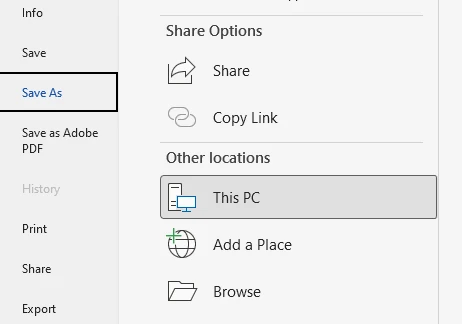
Passo 3: Selecione o Formato DOC
Na lista suspensa "Salvar como tipo", selecione:
Documento do Word 97–2003 (*.doc)
Este formato corresponde ao tipo de arquivo DOC legado.
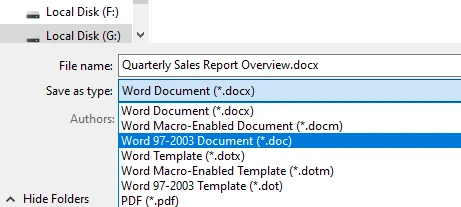
Passo 4: Salve o Arquivo
Escolha o local onde deseja armazenar o arquivo e clique em Salvar. O Word converterá o documento e criará uma nova versão DOC.
2.2 Prós
- Maior precisão de conversão
- Preserva layout, fontes e formatação
- Não requer conexão com a internet
- Sem limitações de tamanho de arquivo
- Privacidade completa (os arquivos permanecem locais)
2.3 Contras
- Requer instalação do Microsoft Word
- Processo manual para cada arquivo
- Não é adequado para processamento em lote
- Demorado para vários documentos
Este método é ideal quando você precisa converter apenas alguns documentos e tem o Microsoft Word instalado. Como a conversão acontece dentro do Word, geralmente preserva o layout, as fontes e a formatação com a mais alta precisão.
Se você precisar realizar a conversão inversa, também pode aprender como converter arquivos DOC para arquivos DOCX.
3. Método 2: Converter DOCX para DOC Online Gratuitamente (Mais Rápido e Fácil)
Outra opção conveniente é usar uma ferramenta de conversão online. Muitos sites permitem que os usuários alterem DOCX para DOC online sem instalar software adicional.
3.1 Fluxo de Trabalho Típico
Aqui está um exemplo de fluxo de trabalho para converter um arquivo DOCX para DOC online com o CloudConvert:
-
Selecione ou arraste e solte para enviar seu arquivo DOCX
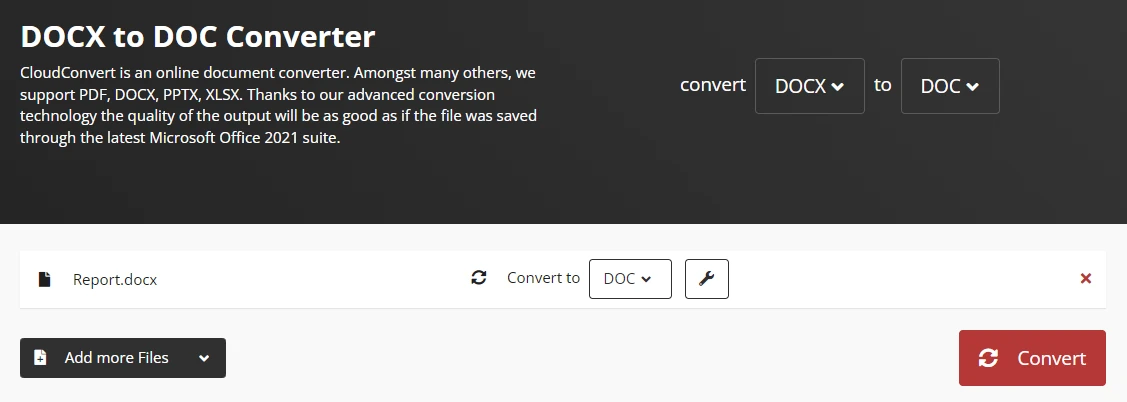
-
Inicie o processo de conversão
-
Baixe o arquivo convertido
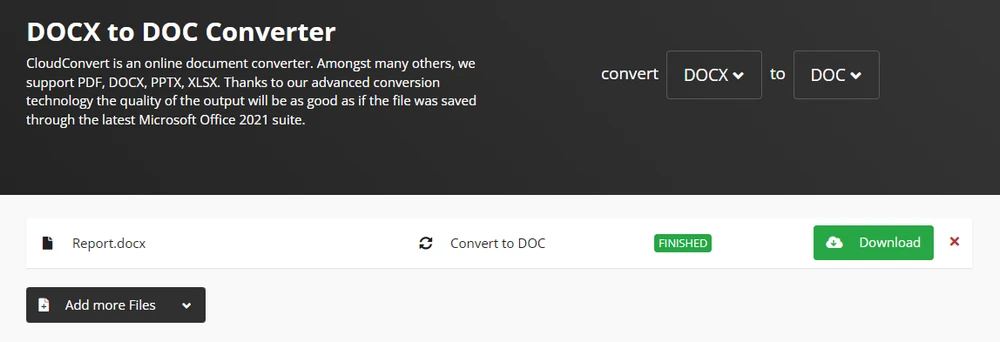
Muitas plataformas permitem que você converta DOCX para DOC gratuitamente, tornando-as úteis para conversões rápidas e ocasionais.
3.2 Prós
- Nenhuma instalação necessária
- Funciona em qualquer dispositivo com acesso à internet
- Conversão muito rápida
- Sem custo de software
3.3 Contras
- Preocupações com a privacidade (arquivos enviados para a nuvem)
- Limites de tamanho de arquivo podem ser aplicados
- Conversão em lote geralmente restrita
- Conexão com a internet necessária
- Documentos confidenciais podem apresentar riscos de segurança
Conversores online são particularmente úteis se você não tiver o Microsoft Word instalado ou se precisar realizar uma mudança rápida de formato a partir de um dispositivo móvel. No entanto, por esses motivos, as ferramentas online são mais adequadas para arquivos pequenos ou documentos não confidenciais.
Se você precisa preservar a aparência visual de um documento para compartilhamento ou apresentação, também pode converter documentos do Word em imagens.
4. Método 3: Converter em Lote DOCX para DOC Usando Python (Processamento em Massa)
Se você precisa converter um grande número de documentos, os métodos manuais rapidamente se tornam impraticáveis. Nesses casos, a automação pode melhorar significativamente a eficiência.
4.1 Por que Usar Python para Conversão?
Desenvolvedores e equipes de TI geralmente automatizam fluxos de trabalho de processamento de documentos usando Python. Com uma biblioteca Python como Spire.Doc for Python, é possível converter programaticamente documentos do Word entre formatos, incluindo DOCX e DOC.
Esta abordagem é particularmente útil para:
- Processamento de documentos em lote
- Pipelines de documentos automatizados
- Conversão de documentos no lado do servidor
- Sistemas de gerenciamento de documentos empresariais
- Integração com fluxos de trabalho existentes
4.2 Instalando a Biblioteca Necessária
Instale o Spire.Doc for Python usando pip:
pip install spire.doc
4.3 Exemplo: Converter um Único DOCX para DOC
O exemplo a seguir demonstra como converter um arquivo DOCX em um arquivo DOC usando Python.
from spire.doc import *

# Create a document object
document = Document()

# Load the DOCX file
document.LoadFromFile("Quarterly Sales Report Overview.docx")

# Save the document as DOC
document.SaveToFile("output.doc", FileFormat.Doc)

# Close the document
document.Close()
Neste exemplo:
- Um objeto Document é criado
- O arquivo DOCX é carregado usando o método LoadFromFile
- O documento é salvo no formato DOC usando o método SaveToFile
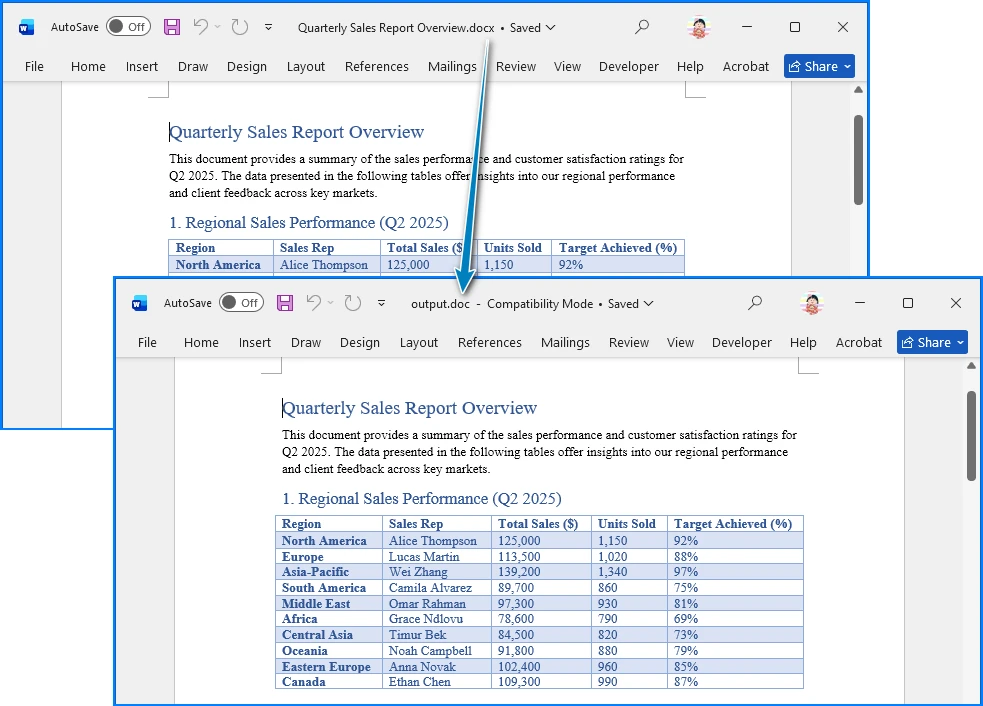
Este script converte um único arquivo DOCX em um arquivo DOC, preservando a estrutura e a formatação do documento. A imagem a seguir mostra o documento do Word antes e depois da conversão:
4.4 Exemplo: Script de Conversão em Lote
Você também pode converter vários arquivos automaticamente, digitalizando um diretório e processando cada documento DOCX em um loop.
from spire.doc import *
import os

# Set input and output directories
input_dir = "input_docs/"
output_dir = "output_docs/"

# Create output directory if it doesn't exist
if not os.path.exists(output_dir):
    os.makedirs(output_dir)

# Loop through all files in input directory
for filename in os.listdir(input_dir):
    if filename.endswith(".docx"):
        # Create document object
        document = Document()

        # Load DOCX file
        input_path = os.path.join(input_dir, filename)
        document.LoadFromFile(input_path)

        # Generate output filename
        output_filename = filename.replace(".docx", ".doc")
        output_path = os.path.join(output_dir, output_filename)

        # Save as DOC
        document.SaveToFile(output_path, FileFormat.Doc)

        # Close document
        document.Close()

        print(f"Converted: {filename} → {output_filename}")
Este script em lote pode:
- Localizar todos os arquivos DOCX em uma pasta
- Converter cada arquivo para DOC
- Salvar os resultados em um diretório separado
- Fornecer feedback de progresso
4.5 Prós
- Processamento em lote automatizado
- Nenhuma intervenção manual necessária
- Qualidade de conversão consistente
- Integra-se com fluxos de trabalho existentes
- Escalável para grandes repositórios de documentos
4.6 Contras
- Requer conhecimento de programação em Python
- Tempo de configuração inicial
- Pode precisar de tratamento de erros para casos extremos
- Requer instalação de biblioteca
Essa abordagem de automação é ideal para organizações que processam regularmente um grande número de documentos e precisam de uma solução confiável e escalável.
Se o seu objetivo é uma formatação consistente em diferentes dispositivos, você também pode considerar usar Python para converter documentos do Word para PDF.
5. Como Converter DOCX para DOC Sem Perder a Formatação
Uma preocupação comum ao converter formatos de documento é se o layout permanecerá intacto. Os usuários geralmente desejam converter DOCX para DOC sem perder a formatação, especialmente quando os documentos contêm elementos complexos, como tabelas, imagens ou fontes personalizadas.
5.1 Entendendo as Diferenças de Formato
DOCX e DOC usam estruturas internas diferentes. O DOCX é baseado em XML e usa uma arquitetura de documento moderna, enquanto o DOC depende de um formato binário mais antigo. Devido a essa diferença, certos recursos de formatação podem se comportar de maneira um pouco diferente após a conversão.
5.2 Dicas para Preservar a Formatação
Para minimizar problemas de formatação, considere as seguintes melhores práticas:
- Use o recurso integrado Salvar Como do Microsoft Word em vez de conversores de terceiros, quando possível
- Garanta que as mesmas fontes estejam instaladas no sistema que realiza a conversão
- Verifique tabelas, gráficos e imagens após a conversão
- Evite recursos de formatação avançados que não são suportados em versões mais antigas do Word
- Teste a conversão com um documento de amostra antes de processar arquivos importantes
5.3 Quando Ocorrem Problemas de Formatação
Se você encontrar problemas de formatação:
- Reabra o arquivo DOCX no Microsoft Word
- Use o recurso nativo Salvar Como em vez de conversores online
- Verifique se todas as fontes necessárias estão instaladas
- Verifique se há avisos de compatibilidade no Word
- Considere simplificar layouts complexos antes da conversão
Na maioria dos casos, documentos padrão são convertidos corretamente com pouca ou nenhuma alteração visível ao usar a conversão nativa do Microsoft Word.
6. Comparação de Todos os Métodos
| Método | Precisão | Velocidade | Privacidade | Suporte a Lote | Melhor Para |
|---|---|---|---|---|---|
| Microsoft Word | ★★★★★ | ★★★★☆ | ★★★★★ | ★☆☆☆☆ | Conversão de arquivo único de alta qualidade |
| Conversores Online | ★★★★☆ | ★★★★★ | ★★☆☆☆ | ★★☆☆☆ | Conversões rápidas e únicas |
| Conversão em Lote com Python | ★★★★★ | ★★★★★ | ★★★★★ | ★★★★★ | Fluxos de trabalho automatizados em grande escala |
7. Melhores Práticas para Conversão de DOCX para DOC
Para garantir os melhores resultados de conversão, siga estas diretrizes:
7.1 Antes da Conversão
- Faça backup dos arquivos DOCX originais
- Teste a conversão com um documento de amostra primeiro
- Verifique se as fontes necessárias estão instaladas
- Verifique a complexidade do documento (tabelas, imagens, formatação)
7.2 Durante a Conversão
- Use o Salvar Como nativo do Microsoft Word para maior precisão
- Evite conversores online para documentos confidenciais
- Monitore os processos de conversão em lote em busca de erros
- Valide os arquivos de saída após a conversão
7.3 Após a Conversão
- Revise os documentos convertidos em busca de problemas de formatação
- Teste os arquivos nos sistemas ou aplicativos de destino
- Arquive os arquivos DOCX originais, se necessário
- Documente o processo de conversão para referência futura
7.4 Considerações de Segurança
- Nunca envie documentos confidenciais para conversores online
- Use métodos de conversão locais para conteúdo sensível
- Garanta controles de acesso adequados nos arquivos convertidos
- Considere a criptografia para documentos que contêm dados pessoais
8. Perguntas Frequentes
1. Posso converter DOCX para DOC gratuitamente?
Sim. Você pode converter arquivos DOCX para DOC usando o recurso integrado Salvar Como do Microsoft Word ou usando ferramentas de conversão online gratuitas. Muitos sites permitem que os usuários convertam DOCX para DOC gratuitamente, embora possam ser aplicadas limitações de tamanho de arquivo ou privacidade.
2. A conversão de DOCX para DOC afetará a formatação?
Na maioria dos casos, a formatação permanece consistente, mas alguns recursos de layout avançados podem mudar ligeiramente porque DOC e DOCX usam formatos internos diferentes. Se você precisar converter DOCX para DOC sem perder a formatação, usar o recurso de conversão nativo do Microsoft Word geralmente produz os resultados mais confiáveis.
3. Como posso converter vários arquivos DOCX para DOC de uma só vez?
Para conversões em massa, ferramentas ou scripts automatizados costumam ser a melhor opção. Bibliotecas Python projetadas para processamento de documentos permitem que os desenvolvedores convertam muitos arquivos em lote, tornando-as adequadas para grandes repositórios de documentos ou fluxos de trabalho automatizados.
4. Qual método é o melhor para converter documentos confidenciais?
Para documentos confidenciais ou sensíveis, sempre use métodos de conversão locais, como o Microsoft Word ou scripts Python. Evite conversores online que exigem o envio de arquivos para servidores externos, pois isso representa riscos de privacidade e segurança.
5. Posso converter DOCX para DOC sem o Microsoft Word?
Sim, você pode usar conversores online ou bibliotecas Python como o Spire.Doc para converter arquivos DOCX para DOC sem ter o Microsoft Word instalado. No entanto, o uso do Microsoft Word geralmente fornece a maior precisão de conversão e preservação da formatação.
6. O que devo fazer se a formatação for perdida após a conversão?
Se a formatação for perdida após a conversão, tente o seguinte:
- Reabra o arquivo DOCX original no Microsoft Word
- Use o recurso nativo Salvar Como do Word em vez de conversores online
- Garanta que todas as fontes necessárias estejam instaladas
- Simplifique layouts complexos antes da conversão
- Verifique se há avisos de compatibilidade no Word antes de salvar
9. Conclusão
A conversão de DOCX para DOC pode ser necessária para sistemas legados, versões mais antigas do Word ou ambientes sensíveis à compatibilidade. Existem vários métodos, dependendo de suas necessidades.
O Microsoft Word fornece uma solução manual confiável para conversões ocasionais. As ferramentas online permitem uma conversão rápida quando a instalação de software não é uma opção, embora a privacidade deva ser considerada. Para fluxos de trabalho em grande escala ou automatizados, as soluções baseadas em Python oferecem eficiência e escalabilidade superiores.
Ao escolher o método que se adapta ao seu fluxo de trabalho, você pode facilmente converter DOCX para DOC, mantendo a qualidade e a compatibilidade do documento — seja para uma tarefa única ou para um processamento em lote robusto.
Veja Também
서식 유실 없이 DOCX를 DOC로 변환하는 방법
DOCX는 최신 버전의 Microsoft Word에서 사용하는 기본 파일 형식입니다. 그러나 많은 조직과 레거시 시스템은 여전히 호환성을 이유로 이전 DOC 형식에 의존합니다. 결과적으로 사용자는 이전 버전의 Word에서 문서를 열고 편집하거나 기존 워크플로와 통합할 수 있도록 DOCX를 DOC로 변환해야 하는 경우가 있습니다.
단일 문서를 변환해야 하든 대량의 파일을 처리해야 하든 여러 가지 실용적인 솔루션을 사용할 수 있습니다. 이 가이드에서는 Microsoft Word, 무료 온라인 도구 및 일괄 처리를 위한 자동화된 Python 솔루션을 사용하여 DOCX 파일을 DOC로 변환하는 방법을 배웁니다.
1. DOCX를 DOC로 변환해야 하는 이유
DOCX는 Microsoft Word 2007 이후 기본 Word 형식이지만 DOC 형식은 특정 환경에서 여전히 널리 사용됩니다. 여러 시나리오에서 DOCX 파일을 DOC로 변환해야 할 수 있습니다.
1.1 이전 Word 버전과의 호환성
이전 버전의 Microsoft Word, 특히 Word 2003 및 이전 버전은 호환성 팩 없이는 DOCX 파일을 열 수 없습니다. 수신자가 이전 버전의 Word를 사용하는 경우 문서를 DOC 형식으로 저장하면 추가 소프트웨어 없이도 문서를 열 수 있습니다.
1.2 레거시 엔터프라이즈 시스템
일부 엔터프라이즈 시스템, 문서 관리 플랫폼 및 레거시 응용 프로그램은 여전히 DOC 파일에 의존합니다. 이러한 시스템은 DOCX가 표준이 되기 전에 설계되었으며 이전 바이너리 형식만 지원할 수 있습니다.
1.3 조직 간 호환성
여러 조직에서 문서를 공유할 때 DOC 형식을 사용하면 이전 소프트웨어 환경에서 호환성을 개선하고 서식 문제를 줄일 수 있습니다.
이러한 이유로 많은 사용자는 신뢰할 수 있는 DOCX to DOC 변환기 또는 수동 또는 자동으로 변환을 수행하는 간단한 방법을 찾습니다.
2. 방법 1: Microsoft Word에서 DOCX를 DOC로 변환 (가장 신뢰성 높음)
DOCX 문서를 변환하는 가장 간단하고 신뢰할 수 있는 방법은 Microsoft Word 자체를 사용하는 것입니다. Word에는 몇 단계만으로 DOCX를 DOC로 저장할 수 있는 기본 제공 호환성 기능이 포함되어 있습니다.
2.1 단계별 프로세스
1단계: DOCX 파일 열기
Microsoft Word를 시작하고 변환하려는 DOCX 파일을 엽니다.
2단계: "파일" → "다른 이름으로 저장" 클릭
메뉴에서 파일을 선택한 다음 다른 이름으로 저장을 선택합니다. 이 옵션을 사용하면 문서를 다른 형식으로 내보낼 수 있습니다.
3단계: DOC 형식 선택
"파일 형식" 드롭다운 목록에서 다음을 선택합니다.
Word 97–2003 문서 (*.doc)
이 형식은 레거시 DOC 파일 형식에 해당합니다.
4단계: 파일 저장
파일을 저장할 위치를 선택하고 저장을 클릭합니다. Word가 문서를 변환하고 새 DOC 버전을 만듭니다.
2.2 장점
- 최고의 변환 정확도
- 레이아웃, 글꼴 및 서식 유지
- 인터넷 연결 필요 없음
- 파일 크기 제한 없음
- 완벽한 개인 정보 보호 (파일은 로컬에 유지됨)
2.3 단점
- Microsoft Word 설치 필요
- 각 파일에 대한 수동 프로세스
- 일괄 처리에 적합하지 않음
- 여러 문서에 대해 시간이 많이 소요됨
이 방법은 몇 개의 문서만 변환해야 하고 Microsoft Word가 설치되어 있는 경우에 이상적입니다. 변환이 Word 내부에서 발생하기 때문에 일반적으로 레이아웃, 글꼴 및 서식을 최고의 정확도로 유지합니다.
역변환을 수행해야 하는 경우 DOC 파일을 DOCX 파일로 변환하는 방법을 배울 수도 있습니다.
3. 방법 2: 온라인에서 무료로 DOCX를 DOC로 변환 (가장 빠르고 쉬움)
또 다른 편리한 옵션은 온라인 변환 도구를 사용하는 것입니다. 많은 웹사이트에서 사용자가 추가 소프트웨어를 설치하지 않고도 온라인에서 DOCX를 DOC로 변경할 수 있습니다.
3.1 일반적인 워크플로
다음은 CloudConvert를 사용하여 온라인에서 DOCX 파일을 DOC로 변환하는 워크플로 예시입니다.
-
DOCX 파일을 선택하거나 드래그 앤 드롭하여 업로드
-
변환 프로세스 시작
-
변환된 파일 다운로드
많은 플랫폼에서 DOCX를 DOC로 무료로 변환할 수 있으므로 빠르고 가끔씩 변환하는 데 유용합니다.
3.2 장점
- 설치 필요 없음
- 인터넷에 연결된 모든 장치에서 작동
- 매우 빠른 변환
- 소프트웨어 비용 없음
3.3 단점
- 개인 정보 보호 문제 (클라우드에 파일 업로드)
- 파일 크기 제한이 적용될 수 있음
- 일괄 변환이 종종 제한됨
- 인터넷 연결 필요
- 민감한 문서는 보안 위험을 초래할 수 있음
온라인 변환기는 Microsoft Word가 설치되어 있지 않거나 모바일 장치에서 빠른 형식 변경을 수행해야 하는 경우에 특히 유용합니다. 그러나 이러한 이유로 온라인 도구는 작은 파일이나 기밀이 아닌 문서에 가장 적합합니다.
공유 또는 프레젠테이션을 위해 문서의 시각적 모양을 유지해야 하는 경우 Word 문서를 이미지로 변환할 수도 있습니다.
4. 방법 3: Python을 사용하여 DOCX를 DOC로 일괄 변환 (대량 처리)
많은 수의 문서를 변환해야 하는 경우 수동 방법은 금방 비실용적이 됩니다. 이러한 경우 자동화는 효율성을 크게 향상시킬 수 있습니다.
4.1 변환에 Python을 사용하는 이유
개발자와 IT 팀은 종종 Python을 사용하여 문서 처리 워크플로를 자동화합니다. Spire.Doc for Python과 같은 Python 라이브러리를 사용하면 DOCX 및 DOC를 포함한 형식 간에 Word 문서를 프로그래밍 방식으로 변환할 수 있습니다.
이 접근 방식은 다음에 특히 유용합니다.
- 일괄 문서 처리
- 자동화된 문서 파이프라인
- 서버 측 문서 변환
- 엔터프라이즈 문서 관리 시스템
- 기존 워크플로와의 통합
4.2 필수 라이브러리 설치
pip를 사용하여 Spire.Doc for Python 설치:
pip install spire.doc
4.3 예제: 단일 DOCX를 DOC로 변환
다음 예제는 Python을 사용하여 DOCX 파일을 DOC 파일로 변환하는 방법을 보여줍니다.
from spire.doc import *

# 문서 객체 생성
document = Document()

# DOCX 파일 로드
document.LoadFromFile("Quarterly Sales Report Overview.docx")

# 문서를 DOC로 저장
document.SaveToFile("output.doc", FileFormat.Doc)

# 문서 닫기
document.Close()
이 예제에서는:
- Document 객체가 생성됩니다.
- LoadFromFile 메서드를 사용하여 DOCX 파일을 로드합니다.
- SaveToFile 메서드를 사용하여 문서를 DOC 형식으로 저장합니다.
이 스크립트는 문서 구조와 서식을 유지하면서 단일 DOCX 파일을 DOC 파일로 변환합니다. 다음 이미지는 변환 전후의 Word 문서를 보여줍니다.
4.4 예제: 일괄 변환 스크립트
디렉토리를 스캔하고 루프에서 각 DOCX 문서를 처리하여 여러 파일을 자동으로 변환할 수도 있습니다.
from spire.doc import *
import os

# 입력 및 출력 디렉토리 설정
input_dir = "input_docs/"
output_dir = "output_docs/"

# 출력 디렉토리가 없으면 생성
if not os.path.exists(output_dir):
    os.makedirs(output_dir)

# 입력 디렉토리의 모든 파일을 반복
for filename in os.listdir(input_dir):
    if filename.endswith(".docx"):
        # 문서 객체 생성
        document = Document()

        # DOCX 파일 로드
        input_path = os.path.join(input_dir, filename)
        document.LoadFromFile(input_path)

        # 출력 파일 이름 생성
        output_filename = filename.replace(".docx", ".doc")
        output_path = os.path.join(output_dir, output_filename)

        # DOC로 저장
        document.SaveToFile(output_path, FileFormat.Doc)

        # 문서 닫기
        document.Close()

        print(f"변환됨: {filename} → {output_filename}")
이 일괄 스크립트는 다음을 수행할 수 있습니다.
- 폴더에서 모든 DOCX 파일 찾기
- 각 파일을 DOC로 변환
- 결과를 별도 디렉토리에 저장
- 진행 상황 피드백 제공
4.5 장점
- 자동화된 일괄 처리
- 수동 개입 필요 없음
- 일관된 변환 품질
- 기존 워크플로와 통합
- 대규모 문서 리포지토리에 대해 확장 가능
4.6 단점
- Python 프로그래밍 지식 필요
- 초기 설정 시간
- 에지 케이스에 대한 오류 처리가 필요할 수 있음
- 라이브러리 설치 필요
이 자동화 접근 방식은 정기적으로 많은 수의 문서를 처리하고 신뢰할 수 있고 확장 가능한 솔루션이 필요한 조직에 이상적입니다.
여러 장치에서 일관된 서식을 유지하는 것이 목표라면 Python을 사용하여 Word 문서를 PDF로 변환하는 것을 고려할 수도 있습니다.
5. 서식 손실 없이 DOCX를 DOC로 변환하는 방법
문서 형식을 변환할 때 일반적인 관심사 중 하나는 레이아웃이 그대로 유지되는지 여부입니다. 사용자는 특히 문서에 표, 이미지 또는 사용자 지정 글꼴과 같은 복잡한 요소가 포함된 경우 서식 손실 없이 DOCX를 DOC로 변환하기를 원합니다.
5.1 형식 차이 이해
DOCX와 DOC는 다른 내부 구조를 사용합니다. DOCX는 XML을 기반으로 하며 최신 문서 아키텍처를 사용하는 반면 DOC는 이전 바이너리 형식에 의존합니다. 이러한 차이로 인해 특정 서식 기능은 변환 후 약간 다르게 동작할 수 있습니다.
5.2 서식 유지를 위한 팁
서식 문제를 최소화하려면 다음 모범 사례를 고려하십시오.
- 가능하면 타사 변환기 대신 Microsoft Word의 기본 제공 다른 이름으로 저장 기능 사용
- 변환을 수행하는 시스템에 동일한 글꼴이 설치되어 있는지 확인
- 변환 후 표, 차트 및 이미지 확인
- 이전 Word 버전에서 지원되지 않는 고급 서식 기능 방지
- 중요한 파일을 처리하기 전에 샘플 문서로 변환 테스트
5.3 서식 문제가 발생할 때
서식 문제가 발생하면 다음을 수행하십시오.
- Microsoft Word에서 DOCX 파일 다시 열기
- 온라인 변환기 대신 기본 다른 이름으로 저장 기능 사용
- 필요한 모든 글꼴이 설치되어 있는지 확인
- Word에서 호환성 경고 확인
- 변환 전에 복잡한 레이아웃 단순화 고려
대부분의 경우 표준 문서는 Microsoft Word의 기본 변환을 사용할 때 거의 또는 전혀 눈에 띄는 변경 없이 올바르게 변환됩니다.
6. 모든 방법 비교
| 방법 | 정확도 | 속도 | 개인 정보 보호 | 일괄 지원 | 최적 대상 |
|---|---|---|---|---|---|
| Microsoft Word | ★★★★★ | ★★★★☆ | ★★★★★ | ★☆☆☆☆ | 고품질 단일 파일 변환 |
| 온라인 변환기 | ★★★★☆ | ★★★★★ | ★★☆☆☆ | ★★☆☆☆ | 빠른 일회성 변환 |
| Python 일괄 변환 | ★★★★★ | ★★★★★ | ★★★★★ | ★★★★★ | 대규모 자동화 워크플로 |
7. DOCX to DOC 변환을 위한 모범 사례
최상의 변환 결과를 보장하려면 다음 지침을 따르십시오.
7.1 변환 전
- 원본 DOCX 파일 백업
- 먼저 샘플 문서로 변환 테스트
- 필요한 글꼴이 설치되어 있는지 확인
- 문서 복잡성 확인 (표, 이미지, 서식)
7.2 변환 중
- 최고의 정확도를 위해 Microsoft Word의 기본 다른 이름으로 저장 사용
- 민감한 문서에 온라인 변환기 사용 방지
- 오류에 대한 일괄 변환 프로세스 모니터링
- 변환 후 출력 파일 유효성 검사
7.3 변환 후
- 변환된 문서에서 서식 문제 검토
- 대상 시스템 또는 응용 프로그램에서 파일 테스트
- 필요한 경우 원본 DOCX 파일 보관
- 나중에 참조할 수 있도록 변환 프로세스 문서화
7.4 보안 고려 사항
- 기밀 문서를 온라인 변환기에 절대 업로드하지 마십시오.
- 민감한 콘텐츠에 로컬 변환 방법 사용
- 변환된 파일에 대한 적절한 액세스 제어 보장
- 개인 데이터가 포함된 문서에 대한 암호화 고려
8. 자주 묻는 질문
1. DOCX를 DOC로 무료로 변환할 수 있나요?
예. Microsoft Word의 기본 제공 다른 이름으로 저장 기능을 사용하거나 무료 온라인 변환 도구를 사용하여 DOCX 파일을 DOC로 변환할 수 있습니다. 많은 웹사이트에서 사용자가 DOCX를 DOC로 무료로 변환할 수 있지만 파일 크기 또는 개인 정보 보호 제한이 적용될 수 있습니다.
2. DOCX를 DOC로 변환하면 서식에 영향을 미치나요?
대부분의 경우 서식은 일관되게 유지되지만 DOC와 DOCX는 다른 내부 형식을 사용하기 때문에 일부 고급 레이아웃 기능이 약간 변경될 수 있습니다. 서식 손실 없이 DOCX를 DOC로 변환해야 하는 경우 Microsoft Word의 기본 변환 기능을 사용하면 일반적으로 가장 신뢰할 수 있는 결과가 생성됩니다.
3. 여러 DOCX 파일을 한 번에 DOC로 변환하려면 어떻게 해야 하나요?
대량 변환의 경우 자동화된 도구나 스크립트가 가장 좋은 옵션인 경우가 많습니다. 문서 처리를 위해 설계된 Python 라이브러리를 사용하면 개발자가 많은 파일을 일괄적으로 변환할 수 있으므로 대규모 문서 리포지토리나 자동화된 워크플로에 적합합니다.
4. 기밀 문서를 변환하는 데 가장 좋은 방법은 무엇인가요?
기밀 또는 민감한 문서의 경우 항상 Microsoft Word 또는 Python 스크립트와 같은 로컬 변환 방법을 사용하십시오. 파일을 외부 서버에 업로드해야 하는 온라인 변환기는 개인 정보 보호 및 보안 위험을 초래하므로 피하십시오.
5. Microsoft Word 없이 DOCX를 DOC로 변환할 수 있나요?
예, 온라인 변환기나 Spire.Doc과 같은 Python 라이브러리를 사용하여 Microsoft Word를 설치하지 않고도 DOCX 파일을 DOC로 변환할 수 있습니다. 그러나 Microsoft Word를 사용하면 일반적으로 최고의 변환 정확도와 서식 보존을 제공합니다.
6. 변환 후 서식이 손실되면 어떻게 해야 하나요?
변환 후 서식이 손실되면 다음을 시도해 보십시오.
- Microsoft Word에서 원본 DOCX 파일 다시 열기
- 온라인 변환기 대신 Word의 기본 다른 이름으로 저장 기능 사용
- 필요한 모든 글꼴이 설치되어 있는지 확인
- 변환 전에 복잡한 레이아웃 단순화
- 저장하기 전에 Word에서 호환성 경고 확인
9. 결론
레거시 시스템, 이전 Word 버전 또는 호환성에 민감한 환경에서는 DOCX를 DOC로 변환해야 할 수 있습니다. 필요에 따라 여러 가지 방법이 있습니다.
Microsoft Word는 가끔씩 변환하는 데 신뢰할 수 있는 수동 솔루션을 제공합니다. 온라인 도구를 사용하면 소프트웨어를 설치할 수 없는 경우 빠른 변환이 가능하지만 개인 정보 보호를 고려해야 합니다. 대규모 또는 자동화된 워크플로의 경우 Python 기반 솔루션은 뛰어난 효율성과 확장성을 제공합니다.
워크플로에 맞는 방법을 선택하면 일회성 작업이든 강력한 일괄 처리이든 문서 품질과 호환성을 유지하면서 DOCX를 DOC로 쉽게 변환할 수 있습니다.
참고 항목
Come convertire DOCX in DOC senza perdere la formattazione
DOCX è il formato di file predefinito utilizzato dalle versioni moderne di Microsoft Word. Tuttavia, molte organizzazioni e sistemi legacy si affidano ancora al vecchio formato DOC per motivi di compatibilità. Di conseguenza, gli utenti a volte devono convertire DOCX in DOC per garantire che i documenti possano essere aperti e modificati nelle versioni precedenti di Word o integrati con i flussi di lavoro esistenti.
Che tu debba convertire un singolo documento o elaborare un gran numero di file, sono disponibili diverse soluzioni pratiche. In questa guida, imparerai come convertire file DOCX in DOC utilizzando Microsoft Word, strumenti online gratuiti e soluzioni Python automatizzate per l'elaborazione batch.
1. Perché Convertire DOCX in DOC?
Sebbene DOCX sia il formato Word predefinito da Microsoft Word 2007, il formato DOC rimane ampiamente utilizzato in determinati ambienti. La conversione di un file DOCX in DOC può essere necessaria in diversi scenari.
1.1 Compatibilità con le Versioni Precedenti di Word
Le versioni precedenti di Microsoft Word, in particolare Word 2003 e precedenti, non possono aprire i file DOCX senza i pacchetti di compatibilità. Se un destinatario utilizza una versione precedente di Word, salvare un documento in formato DOC garantisce che possa essere aperto senza software aggiuntivo.
1.2 Sistemi Aziendali Legacy
Alcuni sistemi aziendali, piattaforme di gestione dei documenti e applicazioni legacy si basano ancora sui file DOC. Questi sistemi sono stati progettati prima che DOCX diventasse lo standard e potrebbero supportare solo il vecchio formato binario.
1.3 Compatibilità tra Organizzazioni Diverse
Quando si condividono documenti tra organizzazioni diverse, l'uso del formato DOC può migliorare la compatibilità e ridurre i problemi di formattazione negli ambienti software più vecchi.
Per questi motivi, molti utenti cercano un convertitore affidabile da DOCX a DOC o un modo semplice per eseguire la conversione manualmente o automaticamente.
2. Metodo 1: Convertire DOCX in DOC in Microsoft Word (Più Affidabile)
Il modo più semplice e affidabile per convertire un documento DOCX è utilizzare Microsoft Word stesso. Word include funzionalità di compatibilità integrate che ti consentono di salvare DOCX come DOC in pochi passaggi.
2.1 Processo Passo-Passo
Passaggio 1: Apri il File DOCX
Avvia Microsoft Word e apri il file DOCX che desideri convertire.
Passaggio 2: Fai clic su "File" → "Salva con nome"
Nel menu, seleziona File, quindi scegli Salva con nome. Questa opzione ti consente di esportare il documento in un formato diverso.
Passaggio 3: Seleziona il Formato DOC
Nell'elenco a discesa "Salva come", seleziona:
Documento di Word 97–2003 (*.doc)
Questo formato corrisponde al tipo di file DOC legacy.
Passaggio 4: Salva il File
Scegli la posizione in cui desideri archiviare il file e fai clic su Salva. Word convertirà il documento e creerà una nuova versione DOC.
2.2 Vantaggi
- Massima precisione di conversione
- Conserva layout, caratteri e formattazione
- Nessuna connessione Internet richiesta
- Nessuna limitazione sulla dimensione del file
- Privacy completa (i file rimangono locali)
2.3 Svantaggi
- Richiede l'installazione di Microsoft Word
- Processo manuale per ogni file
- Non adatto per l'elaborazione batch
- Richiede molto tempo per più documenti
Questo metodo è ideale quando è necessario convertire solo pochi documenti e si dispone di Microsoft Word installato. Poiché la conversione avviene all'interno di Word, generalmente conserva layout, caratteri e formattazione con la massima precisione.
Se devi eseguire la conversione inversa, puoi anche imparare come convertire i file DOC in file DOCX.
3. Metodo 2: Convertire DOCX in DOC Online Gratuitamente (Più Veloce e Facile)
Un'altra opzione conveniente è utilizzare uno strumento di conversione online. Molti siti Web consentono agli utenti di cambiare DOCX in DOC online senza installare software aggiuntivo.
3.1 Flusso di Lavoro Tipico
Ecco un esempio di flusso di lavoro per convertire un file DOCX in DOC online con CloudConvert:
-
Seleziona o trascina e rilascia per caricare il tuo file DOCX
-
Avvia il processo di conversione
-
Scarica il file convertito
Molte piattaforme ti consentono di convertire DOCX in DOC gratuitamente, rendendole utili per conversioni rapide e occasionali.
3.2 Vantaggi
- Nessuna installazione richiesta
- Funziona su qualsiasi dispositivo con accesso a Internet
- Conversione molto veloce
- Nessun costo del software
3.3 Svantaggi
- Preoccupazioni per la privacy (file caricati nel cloud)
- Potrebbero essere applicati limiti alla dimensione del file
- La conversione batch è spesso limitata
- Connessione Internet richiesta
- I documenti sensibili possono comportare rischi per la sicurezza
I convertitori online sono particolarmente utili se non si dispone di Microsoft Word installato o se è necessario eseguire una rapida modifica del formato da un dispositivo mobile. Tuttavia, per questi motivi, gli strumenti online sono più adatti per file di piccole dimensioni o documenti non riservati.
Se hai bisogno di preservare l'aspetto visivo di un documento per la condivisione o la presentazione, puoi anche convertire documenti Word in immagini.
4. Metodo 3: Conversione Batch da DOCX a DOC Tramite Python (Elaborazione Massiva)
Se è necessario convertire un gran numero di documenti, i metodi manuali diventano rapidamente poco pratici. In tali casi, l'automazione può migliorare significativamente l'efficienza.
4.1 Perché Usare Python per la Conversione?
Sviluppatori e team IT spesso automatizzano i flussi di lavoro di elaborazione dei documenti utilizzando Python. Con una libreria Python come Spire.Doc for Python, è possibile convertire programmaticamente documenti Word tra formati, inclusi DOCX e DOC.
Questo approccio è particolarmente utile per:
- Elaborazione batch di documenti
- Pipeline di documenti automatizzate
- Conversione di documenti lato server
- Sistemi di gestione documentale aziendali
- Integrazione con i flussi di lavoro esistenti
4.2 Installazione della Libreria Richiesta
Installa Spire.Doc for Python usando pip:
pip install spire.doc
4.3 Esempio: Convertire un Singolo DOCX in DOC
L'esempio seguente dimostra come convertire un file DOCX in un file DOC utilizzando Python.
from spire.doc import *

# Create a document object
document = Document()

# Load the DOCX file
document.LoadFromFile("Quarterly Sales Report Overview.docx")

# Save the document as DOC
document.SaveToFile("output.doc", FileFormat.Doc)

# Close the document
document.Close()
In questo esempio:
- Viene creato un oggetto Document
- Il file DOCX viene caricato utilizzando il metodo LoadFromFile
- Il documento viene salvato in formato DOC utilizzando il metodo SaveToFile
Questo script converte un singolo file DOCX in un file DOC preservando la struttura e la formattazione del documento. L'immagine seguente mostra il documento Word prima e dopo la conversione:
4.4 Esempio: Script di Conversione Batch
È inoltre possibile convertire più file automaticamente eseguendo la scansione di una directory ed elaborando ogni documento DOCX in un ciclo.
from spire.doc import *
import os

# Set input and output directories
input_dir = "input_docs/"
output_dir = "output_docs/"

# Create output directory if it doesn't exist
if not os.path.exists(output_dir):
    os.makedirs(output_dir)

# Loop through all files in input directory
for filename in os.listdir(input_dir):
    if filename.endswith(".docx"):
        # Create document object
        document = Document()

        # Load DOCX file
        input_path = os.path.join(input_dir, filename)
        document.LoadFromFile(input_path)

        # Generate output filename
        output_filename = filename.replace(".docx", ".doc")
        output_path = os.path.join(output_dir, output_filename)

        # Save as DOC
        document.SaveToFile(output_path, FileFormat.Doc)

        # Close document
        document.Close()

        print(f"Converted: {filename} → {output_filename}")
Questo script batch può:
- Individuare tutti i file DOCX in una cartella
- Convertire ogni file in DOC
- Salvare i risultati in una directory separata
- Fornire un feedback sullo stato di avanzamento
4.5 Vantaggi
- Elaborazione batch automatizzata
- Nessun intervento manuale richiesto
- Qualità di conversione costante
- Si integra con i flussi di lavoro esistenti
- Scalabile per grandi archivi di documenti
4.6 Svantaggi
- Richiede conoscenze di programmazione Python
- Tempo di configurazione iniziale
- Potrebbe essere necessaria la gestione degli errori per i casi limite
- Richiede l'installazione della libreria
Questo approccio di automazione è ideale per le organizzazioni che elaborano regolarmente un gran numero di documenti e necessitano di una soluzione affidabile e scalabile.
Se il tuo obiettivo è una formattazione coerente su dispositivi diversi, puoi anche considerare di usare Python per convertire documenti Word in PDF.
5. Come Convertire DOCX in DOC Senza Perdere la Formattazione
Una preoccupazione comune durante la conversione dei formati di documento è se il layout rimarrà intatto. Gli utenti spesso desiderano convertire DOCX in DOC senza perdere la formattazione, specialmente quando i documenti contengono elementi complessi come tabelle, immagini o caratteri personalizzati.
5.1 Comprensione delle Differenze di Formato
DOCX e DOC utilizzano strutture interne diverse. DOCX si basa su XML e utilizza un'architettura di documento moderna, mentre DOC si basa su un formato binario più vecchio. A causa di questa differenza, alcune funzionalità di formattazione potrebbero comportarsi in modo leggermente diverso dopo la conversione.
5.2 Suggerimenti per Preservare la Formattazione
Per ridurre al minimo i problemi di formattazione, considera le seguenti migliori pratiche:
- Utilizza la funzione integrata Salva con nome di Microsoft Word anziché i convertitori di terze parti quando possibile
- Assicurati che gli stessi caratteri siano installati sul sistema che esegue la conversione
- Controlla tabelle, grafici e immagini dopo la conversione
- Evita le funzionalità di formattazione avanzate non supportate nelle versioni precedenti di Word
- Testa la conversione con un documento di esempio prima di elaborare file importanti
5.3 Quando si Verificano Problemi di Formattazione
Se riscontri problemi di formattazione:
- Riapri il file DOCX in Microsoft Word
- Utilizza la funzione nativa Salva con nome anziché i convertitori online
- Verifica che tutti i caratteri richiesti siano installati
- Verifica la presenza di avvisi di compatibilità in Word
- Considera di semplificare i layout complessi prima della conversione
Nella maggior parte dei casi, i documenti standard si convertono correttamente con poche o nessuna modifica visibile quando si utilizza la conversione nativa di Microsoft Word.
6. Confronto di Tutti i Metodi
| Metodo | Precisione | Velocità | Privacy | Supporto Batch | Ideale Per |
|---|---|---|---|---|---|
| Microsoft Word | ★★★★★ | ★★★★☆ | ★★★★★ | ★☆☆☆☆ | Conversione di file singoli di alta qualità |
| Convertitori Online | ★★★★☆ | ★★★★★ | ★★☆☆☆ | ★★☆☆☆ | Conversioni rapide e una tantum |
| Conversione Batch con Python | ★★★★★ | ★★★★★ | ★★★★★ | ★★★★★ | Flussi di lavoro automatizzati su larga scala |
7. Migliori Pratiche per la Conversione da DOCX a DOC
Per garantire i migliori risultati di conversione, segui queste linee guida:
7.1 Prima della Conversione
- Esegui il backup dei file DOCX originali
- Testa prima la conversione con un documento di esempio
- Verifica che i caratteri richiesti siano installati
- Controlla la complessità del documento (tabelle, immagini, formattazione)
7.2 Durante la Conversione
- Utilizza la funzione nativa Salva con nome di Microsoft Word per la massima precisione
- Evita i convertitori online per i documenti sensibili
- Monitora i processi di conversione batch per eventuali errori
- Convalida i file di output dopo la conversione
7.3 Dopo la Conversione
- Rivedi i documenti convertiti per problemi di formattazione
- Testa i file nei sistemi o nelle applicazioni di destinazione
- Archivia i file DOCX originali se necessario
- Documenta il processo di conversione per riferimento futuro
7.4 Considerazioni sulla Sicurezza
- Non caricare mai documenti riservati su convertitori online
- Utilizza metodi di conversione locali per i contenuti sensibili
- Garantisci controlli di accesso adeguati sui file convertiti
- Considera la crittografia per i documenti contenenti dati personali
8. Domande Frequenti
1. Posso convertire DOCX in DOC gratuitamente?
Sì. Puoi convertire file DOCX in DOC utilizzando la funzione integrata Salva con nome di Microsoft Word o utilizzando strumenti di conversione online gratuiti. Molti siti Web consentono agli utenti di convertire DOCX in DOC gratuitamente, sebbene possano essere applicate limitazioni sulla dimensione del file o sulla privacy.
2. La conversione da DOCX a DOC influirà sulla formattazione?
Nella maggior parte dei casi la formattazione rimane coerente, ma alcune funzionalità di layout avanzate potrebbero cambiare leggermente perché DOC e DOCX utilizzano formati interni diversi. Se devi convertire DOCX in DOC senza perdere la formattazione, l'utilizzo della funzione di conversione nativa di Microsoft Word di solito produce i risultati più affidabili.
3. Come posso convertire più file DOCX in DOC contemporaneamente?
Per le conversioni di massa, gli strumenti o gli script automatizzati sono spesso l'opzione migliore. Le librerie Python progettate per l'elaborazione dei documenti consentono agli sviluppatori di convertire molti file in batch, rendendole adatte per grandi archivi di documenti o flussi di lavoro automatizzati.
4. Qual è il metodo migliore per convertire documenti riservati?
Per i documenti riservati o sensibili, utilizzare sempre metodi di conversione locali come Microsoft Word o script Python. Evita i convertitori online che richiedono il caricamento di file su server esterni, poiché ciò comporta rischi per la privacy e la sicurezza.
5. Posso convertire DOCX in DOC senza Microsoft Word?
Sì, puoi utilizzare convertitori online o librerie Python come Spire.Doc per convertire file DOCX in DOC senza avere Microsoft Word installato. Tuttavia, l'utilizzo di Microsoft Word offre in genere la massima precisione di conversione e conservazione della formattazione.
6. Cosa devo fare se la formattazione viene persa dopo la conversione?
Se la formattazione viene persa dopo la conversione, prova quanto segue:
- Riapri il file DOCX originale in Microsoft Word
- Utilizza la funzione nativa Salva con nome di Word anziché i convertitori online
- Assicurati che tutti i caratteri richiesti siano installati
- Semplifica i layout complessi prima della conversione
- Verifica la presenza di avvisi di compatibilità in Word prima di salvare
9. Conclusione
La conversione da DOCX a DOC può essere necessaria per sistemi legacy, versioni precedenti di Word o ambienti sensibili alla compatibilità. Esistono diversi metodi a seconda delle tue esigenze.
Microsoft Word fornisce una soluzione manuale affidabile per conversioni occasionali. Gli strumenti online consentono una conversione rapida quando l'installazione del software non è un'opzione, sebbene la privacy debba essere considerata. Per flussi di lavoro su larga scala o automatizzati, le soluzioni basate su Python offrono efficienza e scalabilità superiori.
Scegliendo il metodo che si adatta al tuo flusso di lavoro, puoi facilmente convertire DOCX in DOC mantenendo la qualità e la compatibilità del documento, sia per un'attività una tantum che per un'elaborazione batch robusta.
Vedi Anche
Comment convertir un DOCX en DOC sans perdre la mise en forme
DOCX est le format de fichier par défaut utilisé par les versions modernes de Microsoft Word. Cependant, de nombreuses organisations et systèmes hérités dépendent encore de l'ancien format DOC pour des raisons de compatibilité. Par conséquent, les utilisateurs ont parfois besoin de convertir DOCX en DOC pour s'assurer que les documents peuvent être ouverts et modifiés dans les anciennes versions de Word ou intégrés aux flux de travail existants.
Que vous ayez besoin de convertir un seul document ou de traiter un grand nombre de fichiers, plusieurs solutions pratiques sont disponibles. Dans ce guide, vous apprendrez comment convertir des fichiers DOCX en DOC en utilisant Microsoft Word, des outils en ligne gratuits et des solutions Python automatisées pour le traitement par lots.
1. Pourquoi convertir DOCX en DOC ?
Bien que DOCX soit le format Word par défaut depuis Microsoft Word 2007, le format DOC reste largement utilisé dans certains environnements. La conversion d'un fichier DOCX en DOC peut être nécessaire dans plusieurs scénarios.
1.1 Compatibilité avec les anciennes versions de Word
Les anciennes versions de Microsoft Word, en particulier Word 2003 et les versions antérieures, ne peuvent pas ouvrir les fichiers DOCX sans packs de compatibilité. Si un destinataire utilise une ancienne version de Word, l'enregistrement d'un document au format DOC garantit qu'il peut être ouvert sans logiciel supplémentaire.
1.2 Systèmes d'entreprise hérités
Certains systèmes d'entreprise, plateformes de gestion de documents et applications héritées dépendent encore des fichiers DOC. Ces systèmes ont été conçus avant que le DOCX ne devienne la norme et ne peuvent prendre en charge que l'ancien format binaire.
1.3 Compatibilité inter-organisationnelle
Lors du partage de documents entre différentes organisations, l'utilisation du format DOC peut améliorer la compatibilité et réduire les problèmes de formatage dans les anciens environnements logiciels.
Pour ces raisons, de nombreux utilisateurs recherchent un convertisseur DOCX vers DOC fiable ou un moyen simple d'effectuer la conversion manuellement ou automatiquement.
2. Méthode 1 : Convertir DOCX en DOC dans Microsoft Word (la plus fiable)
Le moyen le plus simple et le plus fiable de convertir un document DOCX est d'utiliser Microsoft Word lui-même. Word inclut des fonctionnalités de compatibilité intégrées qui vous permettent d'enregistrer un DOCX en tant que DOC en quelques étapes seulement.
2.1 Processus étape par étape
Étape 1 : Ouvrir le fichier DOCX
Lancez Microsoft Word et ouvrez le fichier DOCX que vous souhaitez convertir.
Étape 2 : Cliquez sur "Fichier" → "Enregistrer sous"
Dans le menu, sélectionnez Fichier, puis choisissez Enregistrer sous. Cette option vous permet d'exporter le document dans un format différent.
Étape 3 : Sélectionner le format DOC
Dans la liste déroulante "Type de fichier", sélectionnez :
Document Word 97–2003 (*.doc)
Ce format correspond à l'ancien type de fichier DOC.
Étape 4 : Enregistrer le fichier
Choisissez l'emplacement où vous souhaitez stocker le fichier et cliquez sur Enregistrer. Word convertira le document et créera une nouvelle version DOC.
2.2 Avantages
- Précision de conversion la plus élevée
- Préserve la mise en page, les polices et le formatage
- Aucune connexion Internet requise
- Aucune limitation de taille de fichier
- Confidentialité totale (les fichiers restent locaux)
2.3 Inconvénients
- Nécessite l'installation de Microsoft Word
- Processus manuel pour chaque fichier
- Ne convient pas au traitement par lots
- Prend du temps pour plusieurs documents
Cette méthode est idéale lorsque vous n'avez besoin de convertir que quelques documents et que Microsoft Word est installé. Comme la conversion se fait dans Word, elle préserve généralement la mise en page, les polices et le formatage avec la plus grande précision.
Si vous devez effectuer la conversion inverse, vous pouvez également apprendre comment convertir des fichiers DOC en fichiers DOCX.
3. Méthode 2 : Convertir DOCX en DOC en ligne gratuitement (le plus rapide et le plus simple)
Une autre option pratique consiste à utiliser un outil de conversion en ligne. De nombreux sites Web permettent aux utilisateurs de changer DOCX en DOC en ligne sans installer de logiciel supplémentaire.
3.1 Flux de travail typique
Voici un exemple de flux de travail pour convertir un fichier DOCX en DOC en ligne avec CloudConvert :
-
Sélectionnez ou glissez-déposez pour télécharger votre fichier DOCX
-
Démarrer le processus de conversion
-
Télécharger le fichier converti
De nombreuses plateformes vous permettent de convertir gratuitement des DOCX en DOC, ce qui les rend utiles pour des conversions rapides et occasionnelles.
3.2 Avantages
- Aucune installation requise
- Fonctionne sur n'importe quel appareil avec accès à Internet
- Conversion très rapide
- Aucun coût de logiciel
3.3 Inconvénients
- Problèmes de confidentialité (fichiers téléchargés sur le cloud)
- Des limites de taille de fichier peuvent s'appliquer
- La conversion par lots est souvent restreinte
- Connexion Internet requise
- Les documents sensibles peuvent présenter des risques de sécurité
Les convertisseurs en ligne sont particulièrement utiles si vous n'avez pas installé Microsoft Word ou si vous devez effectuer un changement de format rapide à partir d'un appareil mobile. Cependant, pour ces raisons, les outils en ligne sont les mieux adaptés aux petits fichiers ou aux documents non confidentiels.
Si vous avez besoin de préserver l'apparence visuelle d'un document pour le partage ou la présentation, vous pouvez également convertir des documents Word en images.
4. Méthode 3 : Conversion par lots de DOCX en DOC avec Python (traitement en masse)
Si vous devez convertir un grand nombre de documents, les méthodes manuelles deviennent rapidement impraticables. Dans de tels cas, l'automatisation peut améliorer considérablement l'efficacité.
4.1 Pourquoi utiliser Python pour la conversion ?
Les développeurs et les équipes informatiques automatisent souvent les flux de travail de traitement de documents à l'aide de Python. Avec une bibliothèque Python telle que Spire.Doc for Python, il est possible de convertir par programme des documents Word entre différents formats, y compris DOCX et DOC.
Cette approche est particulièrement utile pour :
- Traitement de documents par lots
- Pipelines de documents automatisés
- Conversion de documents côté serveur
- Systèmes de gestion de documents d'entreprise
- Intégration avec les flux de travail existants
4.2 Installation de la bibliothèque requise
Installez Spire.Doc for Python en utilisant pip :
pip install spire.doc
4.3 Exemple : Convertir un seul DOCX en DOC
L'exemple suivant montre comment convertir un fichier DOCX en fichier DOC à l'aide de Python.
from spire.doc import *

# Créer un objet document
document = Document()

# Charger le fichier DOCX
document.LoadFromFile("Quarterly Sales Report Overview.docx")

# Enregistrer le document en tant que DOC
document.SaveToFile("output.doc", FileFormat.Doc)

# Fermer le document
document.Close()
Dans cet exemple :
- Un objet Document est créé
- Le fichier DOCX est chargé à l'aide de la méthode LoadFromFile
- Le document est enregistré au format DOC à l'aide de la méthode SaveToFile
Ce script convertit un seul fichier DOCX en un fichier DOC tout en préservant la structure et le formatage du document. L'image suivante montre le document Word avant et après la conversion :
4.4 Exemple : Script de conversion par lots
Vous pouvez également convertir plusieurs fichiers automatiquement en analysant un répertoire et en traitant chaque document DOCX dans une boucle.
from spire.doc import *
import os

# Définir les répertoires d'entrée et de sortie
input_dir = "input_docs/"
output_dir = "output_docs/"

# Créer le répertoire de sortie s'il n'existe pas
if not os.path.exists(output_dir):
    os.makedirs(output_dir)

# Parcourir tous les fichiers du répertoire d'entrée
for filename in os.listdir(input_dir):
    if filename.endswith(".docx"):
        # Créer un objet document
        document = Document()

        # Charger le fichier DOCX
        input_path = os.path.join(input_dir, filename)
        document.LoadFromFile(input_path)

        # Générer le nom du fichier de sortie
        output_filename = filename.replace(".docx", ".doc")
        output_path = os.path.join(output_dir, output_filename)

        # Enregistrer en tant que DOC
        document.SaveToFile(output_path, FileFormat.Doc)

        # Fermer le document
        document.Close()

        print(f"Converti : {filename} → {output_filename}")
Ce script de traitement par lots peut :
- Localiser tous les fichiers DOCX dans un dossier
- Convertir chaque fichier en DOC
- Enregistrer les résultats dans un répertoire distinct
- Fournir un retour d'information sur la progression
4.5 Avantages
- Traitement par lots automatisé
- Aucune intervention manuelle requise
- Qualité de conversion constante
- S'intègre aux flux de travail existants
- Évolutif pour les grands référentiels de documents
4.6 Inconvénients
- Nécessite des connaissances en programmation Python
- Temps de configuration initial
- Peut nécessiter une gestion des erreurs pour les cas limites
- Nécessite l'installation d'une bibliothèque
Cette approche d'automatisation est idéale pour les organisations qui traitent régulièrement un grand nombre de documents et ont besoin d'une solution fiable et évolutive.
Si votre objectif est d'obtenir un formatage cohérent sur différents appareils, vous pouvez également envisager d'utiliser Python pour convertir des documents Word en PDF.
5. Comment convertir DOCX en DOC sans perdre le formatage
Une préoccupation courante lors de la conversion de formats de documents est de savoir si la mise en page restera intacte. Les utilisateurs souhaitent souvent convertir DOCX en DOC sans perte de format, en particulier lorsque les documents contiennent des éléments complexes tels que des tableaux, des images ou des polices personnalisées.
5.1 Comprendre les différences de format
DOCX et DOC utilisent des structures internes différentes. DOCX est basé sur XML et utilise une architecture de document moderne, tandis que DOC repose sur un ancien format binaire. En raison de cette différence, certaines fonctionnalités de formatage peuvent se comporter légèrement différemment après la conversion.
5.2 Conseils pour préserver le formatage
Pour minimiser les problèmes de formatage, tenez compte des meilleures pratiques suivantes :
- Utilisez la fonction Enregistrer sous intégrée de Microsoft Word plutôt que des convertisseurs tiers lorsque cela est possible
- Assurez-vous que les mêmes polices sont installées sur le système effectuant la conversion
- Vérifiez les tableaux, les graphiques et les images après la conversion
- Évitez les fonctionnalités de formatage avancées qui ne sont pas prises en charge dans les anciennes versions de Word
- Testez la conversion avec un exemple de document avant de traiter des fichiers importants
5.3 En cas de problèmes de formatage
Si vous rencontrez des problèmes de formatage :
- Rouvrez le fichier DOCX dans Microsoft Word
- Utilisez la fonction native Enregistrer sous au lieu des convertisseurs en ligne
- Vérifiez que toutes les polices requises sont installées
- Recherchez les avertissements de compatibilité dans Word
- Envisagez de simplifier les mises en page complexes avant la conversion
Dans la plupart des cas, les documents standard se convertissent correctement avec peu ou pas de changement visible lors de l'utilisation de la conversion native de Microsoft Word.
6. Comparaison de toutes les méthodes
| Méthode | Précision | Vitesse | Confidentialité | Support par lots | Idéal pour |
|---|---|---|---|---|---|
| Microsoft Word | ★★★★★ | ★★★★☆ | ★★★★★ | ★☆☆☆☆ | Conversion de fichiers uniques de haute qualité |
| Convertisseurs en ligne | ★★★★☆ | ★★★★★ | ★★☆☆☆ | ★★☆☆☆ | Conversions rapides et uniques |
| Conversion par lots avec Python | ★★★★★ | ★★★★★ | ★★★★★ | ★★★★★ | Flux de travail automatisés à grande échelle |
7. Meilleures pratiques pour la conversion de DOCX en DOC
Pour garantir les meilleurs résultats de conversion, suivez ces directives :
7.1 Avant la conversion
- Sauvegardez les fichiers DOCX originaux
- Testez d'abord la conversion avec un exemple de document
- Vérifiez que les polices requises sont installées
- Vérifiez la complexité du document (tableaux, images, formatage)
7.2 Pendant la conversion
- Utilisez la fonction native Enregistrer sous de Microsoft Word pour une précision maximale
- Évitez les convertisseurs en ligne pour les documents sensibles
- Surveillez les processus de conversion par lots pour détecter les erreurs
- Validez les fichiers de sortie après la conversion
7.3 Après la conversion
- Examinez les documents convertis pour déceler les problèmes de formatage
- Testez les fichiers dans les systèmes ou applications cibles
- Archivez les fichiers DOCX originaux si nécessaire
- Documentez le processus de conversion pour référence future
7.4 Considérations de sécurité
- Ne téléchargez jamais de documents confidentiels sur des convertisseurs en ligne
- Utilisez des méthodes de conversion locales pour le contenu sensible
- Assurez des contrôles d'accès appropriés sur les fichiers convertis
- Envisagez le chiffrement pour les documents contenant des données personnelles
8. Foire aux questions
1. Puis-je convertir DOCX en DOC gratuitement ?
Oui. Vous pouvez convertir des fichiers DOCX en DOC à l'aide de la fonction Enregistrer sous intégrée de Microsoft Word ou en utilisant des outils de conversion en ligne gratuits. De nombreux sites Web permettent aux utilisateurs de convertir gratuitement des DOCX en DOC, bien que des limitations de taille de fichier ou de confidentialité puissent s'appliquer.
2. La conversion de DOCX en DOC affectera-t-elle le formatage ?
Dans la plupart des cas, le formatage reste cohérent, mais certaines fonctionnalités de mise en page avancées peuvent légèrement changer car DOC et DOCX utilisent des formats internes différents. Si vous avez besoin de convertir DOCX en DOC sans perte de format, l'utilisation de la fonction de conversion native de Microsoft Word produit généralement les résultats les plus fiables.
3. Comment puis-je convertir plusieurs fichiers DOCX en DOC à la fois ?
Pour les conversions en masse, les outils ou scripts automatisés sont souvent la meilleure option. Les bibliothèques Python conçues pour le traitement de documents permettent aux développeurs de convertir de nombreux fichiers par lots, ce qui les rend adaptées aux grands référentiels de documents ou aux flux de travail automatisés.
4. Quelle est la meilleure méthode pour convertir des documents confidentiels ?
Pour les documents confidentiels ou sensibles, utilisez toujours des méthodes de conversion locales telles que Microsoft Word ou des scripts Python. Évitez les convertisseurs en ligne qui nécessitent le téléchargement de fichiers sur des serveurs externes, car cela présente des risques pour la confidentialité et la sécurité.
5. Puis-je convertir DOCX en DOC sans Microsoft Word ?
Oui, vous pouvez utiliser des convertisseurs en ligne ou des bibliothèques Python comme Spire.Doc pour convertir des fichiers DOCX en DOC sans avoir installé Microsoft Word. Cependant, l'utilisation de Microsoft Word offre généralement la plus grande précision de conversion et la meilleure préservation du formatage.
6. Que dois-je faire si le formatage est perdu après la conversion ?
Si le formatage est perdu après la conversion, essayez ce qui suit :
- Rouvrez le fichier DOCX original dans Microsoft Word
- Utilisez la fonction native Enregistrer sous de Word au lieu des convertisseurs en ligne
- Assurez-vous que toutes les polices requises sont installées
- Simplifiez les mises en page complexes avant la conversion
- Recherchez les avertissements de compatibilité dans Word avant d'enregistrer
9. Conclusion
La conversion de DOCX en DOC peut être nécessaire pour les systèmes hérités, les anciennes versions de Word ou les environnements sensibles à la compatibilité. Plusieurs méthodes existent en fonction de vos besoins.
Microsoft Word fournit une solution manuelle fiable pour les conversions occasionnelles. Les outils en ligne permettent une conversion rapide lorsque l'installation de logiciels n'est pas une option, bien que la confidentialité doive être prise en compte. Pour les flux de travail à grande échelle ou automatisés, les solutions basées sur Python offrent une efficacité et une évolutivité supérieures.
En choisissant la méthode qui convient à votre flux de travail, vous pouvez facilement convertir DOCX en DOC tout en maintenant la qualité et la compatibilité du document, que ce soit pour une tâche ponctuelle ou un traitement par lots robuste.
Voir aussi
Cómo convertir DOCX a DOC sin perder el formato
Tabla de Contenidos
DOCX es el formato de archivo predeterminado utilizado por las versiones modernas de Microsoft Word. Sin embargo, muchas organizaciones y sistemas heredados todavía dependen del formato DOC más antiguo por razones de compatibilidad. Como resultado, los usuarios a veces necesitan convertir DOCX a DOC para garantizar que los documentos se puedan abrir y editar en versiones anteriores de Word o integrar con los flujos de trabajo existentes.
Ya sea que necesite convertir un solo documento o procesar una gran cantidad de archivos, existen varias soluciones prácticas disponibles. En esta guía, aprenderá cómo convertir archivos DOCX a DOC utilizando Microsoft Word, herramientas gratuitas en línea y soluciones automatizadas de Python para el procesamiento por lotes.
1. ¿Por Qué Convertir DOCX a DOC?
Aunque DOCX ha sido el formato predeterminado de Word desde Microsoft Word 2007, el formato DOC sigue siendo ampliamente utilizado en ciertos entornos. Convertir un archivo DOCX a DOC puede ser necesario en varios escenarios.
1.1 Compatibilidad con Versiones Anteriores de Word
Las versiones anteriores de Microsoft Word, especialmente Word 2003 y anteriores, no pueden abrir archivos DOCX sin paquetes de compatibilidad. Si un destinatario utiliza una versión anterior de Word, guardar un documento en formato DOC garantiza que se pueda abrir sin software adicional.
1.2 Sistemas Empresariales Heredados
Algunos sistemas empresariales, plataformas de gestión de documentos y aplicaciones heredadas todavía dependen de los archivos DOC. Estos sistemas fueron diseñados antes de que DOCX se convirtiera en el estándar y es posible que solo admitan el formato binario más antiguo.
1.3 Compatibilidad entre Organizaciones
Al compartir documentos entre diferentes organizaciones, usar el formato DOC puede mejorar la compatibilidad y reducir los problemas de formato en entornos de software más antiguos.
Por estas razones, muchos usuarios buscan un convertidor de DOCX a DOC confiable o una forma sencilla de realizar la conversión de forma manual o automática.
2. Método 1: Convertir DOCX a DOC en Microsoft Word (El más Confiable)
La forma más sencilla y confiable de convertir un documento DOCX es usar el propio Microsoft Word. Word incluye funciones de compatibilidad integradas que le permiten guardar DOCX como DOC en solo unos pocos pasos.
2.1 Proceso Paso a Paso
Paso 1: Abra el Archivo DOCX
Inicie Microsoft Word y abra el archivo DOCX que desea convertir.
Paso 2: Haga Clic en "Archivo" → "Guardar Como"
En el menú, seleccione Archivo, luego elija Guardar como. Esta opción le permite exportar el documento en un formato diferente.
Paso 3: Seleccione el Formato DOC
En la lista desplegable "Guardar como tipo", seleccione:
Documento de Word 97–2003 (*.doc)
Este formato corresponde al tipo de archivo DOC heredado.
Paso 4: Guarde el Archivo
Elija la ubicación donde desea almacenar el archivo y haga clic en Guardar. Word convertirá el documento y creará una nueva versión DOC.
2.2 Ventajas
- Máxima precisión de conversión
- Conserva el diseño, las fuentes y el formato
- No se requiere conexión a internet
- Sin limitaciones de tamaño de archivo
- Privacidad total (los archivos permanecen locales)
2.3 Desventajas
- Requiere la instalación de Microsoft Word
- Proceso manual para cada archivo
- No es adecuado para el procesamiento por lotes
- Consume mucho tiempo para múltiples documentos
Este método es ideal cuando solo necesita convertir unos pocos documentos y tiene Microsoft Word instalado. Debido a que la conversión ocurre dentro de Word, generalmente conserva el diseño, las fuentes y el formato con la mayor precisión.
Si necesita realizar la conversión inversa, también puede aprender cómo convertir archivos DOC a archivos DOCX.
3. Método 2: Convertir DOCX a DOC en Línea Gratis (El más Rápido y Fácil)
Otra opción conveniente es utilizar una herramienta de conversión en línea. Muchos sitios web permiten a los usuarios cambiar DOCX a DOC en línea sin instalar software adicional.
3.1 Flujo de Trabajo Típico
Aquí hay un ejemplo de flujo de trabajo para convertir un archivo DOCX a DOC en línea con CloudConvert:
-
Seleccione o arrastre y suelte para cargar su archivo DOCX
-
Iniciar el proceso de conversión
-
Descargar el archivo convertido
Muchas plataformas le permiten convertir DOCX a DOC de forma gratuita, lo que las hace útiles para conversiones rápidas y ocasionales.
3.2 Ventajas
- No se requiere instalación
- Funciona en cualquier dispositivo con acceso a internet
- Conversión muy rápida
- Sin costo de software
3.3 Desventajas
- Preocupaciones de privacidad (archivos subidos a la nube)
- Pueden aplicarse límites de tamaño de archivo
- La conversión por lotes a menudo está restringida
- Se requiere conexión a internet
- Los documentos confidenciales pueden presentar riesgos de seguridad
Los convertidores en línea son particularmente útiles si no tiene Microsoft Word instalado o si necesita realizar un cambio de formato rápido desde un dispositivo móvil. Sin embargo, por estas razones, las herramientas en línea son más adecuadas para archivos pequeños o documentos no confidenciales.
Si necesita preservar la apariencia visual de un documento para compartirlo o presentarlo, también puede convertir documentos de Word a imágenes.
4. Método 3: Convertir por Lotes de DOCX a DOC Usando Python (Procesamiento Masivo)
Si necesita convertir una gran cantidad de documentos, los métodos manuales se vuelven rápidamente imprácticos. En tales casos, la automatización puede mejorar significativamente la eficiencia.
4.1 ¿Por Qué Usar Python para la Conversión?
Los desarrolladores y los equipos de TI a menudo automatizan los flujos de trabajo de procesamiento de documentos utilizando Python. Con una biblioteca de Python como Spire.Doc for Python, es posible convertir mediante programación documentos de Word entre formatos, incluidos DOCX y DOC.
Este enfoque es particularmente útil para:
- Procesamiento de documentos por lotes
- Canalizaciones de documentos automatizadas
- Conversión de documentos del lado del servidor
- Sistemas de gestión de documentos empresariales
- Integración con flujos de trabajo existentes
4.2 Instalación de la Biblioteca Requerida
Instale Spire.Doc for Python usando pip:
pip install spire.doc
4.3 Ejemplo: Convertir un Único DOCX a DOC
El siguiente ejemplo demuestra cómo convertir un archivo DOCX en un archivo DOC usando Python.
from spire.doc import *

# Create a document object
document = Document()

# Load the DOCX file
document.LoadFromFile("Quarterly Sales Report Overview.docx")

# Save the document as DOC
document.SaveToFile("output.doc", FileFormat.Doc)

# Close the document
document.Close()
En este ejemplo:
- Se crea un objeto Documento
- El archivo DOCX se carga utilizando el método LoadFromFile
- El documento se guarda en formato DOC utilizando el método SaveToFile
Este script convierte un único archivo DOCX en un archivo DOC conservando la estructura y el formato del documento. La siguiente imagen muestra el documento de Word antes y después de la conversión:
4.4 Ejemplo: Script de Conversión por Lotes
También puede convertir varios archivos automáticamente escaneando un directorio y procesando cada documento DOCX en un bucle.
from spire.doc import *
import os

# Set input and output directories
input_dir = "input_docs/"
output_dir = "output_docs/"

# Create output directory if it doesn't exist
if not os.path.exists(output_dir):
    os.makedirs(output_dir)

# Loop through all files in input directory
for filename in os.listdir(input_dir):
    if filename.endswith(".docx"):
        # Create document object
        document = Document()

        # Load DOCX file
        input_path = os.path.join(input_dir, filename)
        document.LoadFromFile(input_path)

        # Generate output filename
        output_filename = filename.replace(".docx", ".doc")
        output_path = os.path.join(output_dir, output_filename)

        # Save as DOC
        document.SaveToFile(output_path, FileFormat.Doc)

        # Close document
        document.Close()

        print(f"Converted: {filename} → {output_filename}")
Este script por lotes puede:
- Localizar todos los archivos DOCX en una carpeta
- Convertir cada archivo a DOC
- Guardar los resultados en un directorio separado
- Proporcionar retroalimentación sobre el progreso
4.5 Ventajas
- Procesamiento por lotes automatizado
- No se requiere intervención manual
- Calidad de conversión consistente
- Se integra con los flujos de trabajo existentes
- Escalable para grandes repositorios de documentos
4.6 Desventajas
- Requiere conocimientos de programación en Python
- Tiempo de configuración inicial
- Puede necesitar manejo de errores para casos extremos
- Requiere instalación de la biblioteca
Este enfoque de automatización es ideal para organizaciones que procesan regularmente grandes cantidades de documentos y necesitan una solución confiable y escalable.
Si su objetivo es un formato consistente en diferentes dispositivos, también puede considerar usar Python para convertir documentos de Word a PDF.
5. Cómo Convertir DOCX a DOC Sin Perder el Formato
Una preocupación común al convertir formatos de documentos es si el diseño permanecerá intacto. Los usuarios a menudo quieren convertir DOCX a DOC sin perder el formato, especialmente cuando los documentos contienen elementos complejos como tablas, imágenes o fuentes personalizadas.
5.1 Entendiendo las Diferencias de Formato
DOCX y DOC utilizan diferentes estructuras internas. DOCX se basa en XML y utiliza una arquitectura de documento moderna, mientras que DOC se basa en un formato binario más antiguo. Debido a esta diferencia, ciertas características de formato pueden comportarse de manera ligeramente diferente después de la conversión.
5.2 Consejos para Preservar el Formato
Para minimizar los problemas de formato, considere las siguientes mejores prácticas:
- Use la función integrada Guardar como de Microsoft Word en lugar de convertidores de terceros cuando sea posible
- Asegúrese de que las mismas fuentes estén instaladas en el sistema que realiza la conversión
- Revise las tablas, gráficos e imágenes después de la conversión
- Evite las funciones de formato avanzadas que no son compatibles con las versiones anteriores de Word
- Pruebe la conversión con un documento de muestra antes de procesar archivos importantes
5.3 Cuándo Ocurren Problemas de Formato
Si encuentra problemas de formato:
- Vuelva a abrir el archivo DOCX en Microsoft Word
- Use la función nativa Guardar como en lugar de los convertidores en línea
- Verifique que todas las fuentes requeridas estén instaladas
- Compruebe si hay advertencias de compatibilidad en Word
- Considere simplificar los diseños complejos antes de la conversión
En la mayoría de los casos, los documentos estándar se convierten correctamente con pocos o ningún cambio visible al usar la conversión nativa de Microsoft Word.
6. Comparación de Todos los Métodos
| Método | Precisión | Velocidad | Privacidad | Soporte por Lotes | Ideal Para |
|---|---|---|---|---|---|
| Microsoft Word | ★★★★★ | ★★★★☆ | ★★★★★ | ★☆☆☆☆ | Conversión de un solo archivo de alta calidad |
| Convertidores en Línea | ★★★★☆ | ★★★★★ | ★★☆☆☆ | ★★☆☆☆ | Conversiones rápidas y únicas |
| Conversión por Lotes con Python | ★★★★★ | ★★★★★ | ★★★★★ | ★★★★★ | Flujos de trabajo automatizados a gran escala |
7. Mejores Prácticas para la Conversión de DOCX a DOC
Para garantizar los mejores resultados de conversión, siga estas pautas:
7.1 Antes de la Conversión
- Haga una copia de seguridad de los archivos DOCX originales
- Pruebe la conversión con un documento de muestra primero
- Verifique que las fuentes requeridas estén instaladas
- Verifique la complejidad del documento (tablas, imágenes, formato)
7.2 Durante la Conversión
- Use la función nativa Guardar como de Microsoft Word para obtener la máxima precisión
- Evite los convertidores en línea para documentos confidenciales
- Supervise los procesos de conversión por lotes en busca de errores
- Valide los archivos de salida después de la conversión
7.3 Después de la Conversión
- Revise los documentos convertidos en busca de problemas de formato
- Pruebe los archivos en los sistemas o aplicaciones de destino
- Archive los archivos DOCX originales si es necesario
- Documente el proceso de conversión para referencia futura
7.4 Consideraciones de Seguridad
- Nunca suba documentos confidenciales a convertidores en línea
- Use métodos de conversión locales para contenido confidencial
- Asegure controles de acceso adecuados en los archivos convertidos
- Considere el cifrado para documentos que contienen datos personales
8. Preguntas Frecuentes
1. ¿Puedo convertir DOCX a DOC gratis?
Sí. Puede convertir archivos DOCX a DOC utilizando la función integrada Guardar como de Microsoft Word o utilizando herramientas de conversión en línea gratuitas. Muchos sitios web permiten a los usuarios convertir DOCX a DOC gratis, aunque pueden aplicarse limitaciones de tamaño de archivo o de privacidad.
2. ¿La conversión de DOCX a DOC afectará el formato?
En la mayoría de los casos, el formato permanece consistente, pero algunas características de diseño avanzadas pueden cambiar ligeramente porque DOC y DOCX usan diferentes formatos internos. Si necesita convertir DOCX a DOC sin perder el formato, usar la función de conversión nativa de Microsoft Word generalmente produce los resultados más confiables.
3. ¿Cómo puedo convertir varios archivos DOCX a DOC a la vez?
Para conversiones masivas, las herramientas o scripts automatizados suelen ser la mejor opción. Las bibliotecas de Python diseñadas para el procesamiento de documentos permiten a los desarrolladores convertir muchos archivos por lotes, lo que las hace adecuadas para grandes repositorios de documentos o flujos de trabajo automatizados.
4. ¿Qué método es mejor para convertir documentos confidenciales?
Para documentos confidenciales o sensibles, utilice siempre métodos de conversión locales como Microsoft Word o scripts de Python. Evite los convertidores en línea que requieren la carga de archivos a servidores externos, ya que esto plantea riesgos de privacidad y seguridad.
5. ¿Puedo convertir DOCX a DOC sin Microsoft Word?
Sí, puede usar convertidores en línea o bibliotecas de Python como Spire.Doc para convertir archivos DOCX a DOC sin tener instalado Microsoft Word. Sin embargo, el uso de Microsoft Word generalmente proporciona la mayor precisión de conversión y preservación del formato.
6. ¿Qué debo hacer si se pierde el formato después de la conversión?
Si se pierde el formato después de la conversión, intente lo siguiente:
- Vuelva a abrir el archivo DOCX original en Microsoft Word
- Use la función nativa Guardar como de Word en lugar de los convertidores en línea
- Asegúrese de que todas las fuentes requeridas estén instaladas
- Simplifique los diseños complejos antes de la conversión
- Compruebe si hay advertencias de compatibilidad en Word antes de guardar
9. Conclusión
La conversión de DOCX a DOC puede ser necesaria para sistemas heredados, versiones anteriores de Word o entornos sensibles a la compatibilidad. Existen varios métodos según sus necesidades.
Microsoft Word proporciona una solución manual confiable para conversiones ocasionales. Las herramientas en línea permiten una conversión rápida cuando la instalación de software no es una opción, aunque se debe considerar la privacidad. Para flujos de trabajo a gran escala o automatizados, las soluciones basadas en Python ofrecen una eficiencia y escalabilidad superiores.
Al elegir el método que se adapte a su flujo de trabajo, puede convertir DOCX a DOC fácilmente mientras mantiene la calidad y compatibilidad del documento, ya sea para una tarea única o un procesamiento por lotes robusto.