Cómo quitar la marca de agua en Word (3 métodos sencillos)
Tabla de Contenidos

Una marca de agua en Microsoft Word es una herramienta esencial para documentos corporativos, marcando borradores como confidenciales o protegiendo la propiedad intelectual. Sin embargo, cuando llega el momento de finalizar un informe, reutilizar una plantilla o compartir una versión pulida con los clientes, esa marca de agua puede convertirse en un obstáculo.
Afortunadamente, quitar una marca de agua de Word no tiene por qué ser complicado. Con los métodos y herramientas adecuados, limpiar su documento es pan comido. En esta guía, le mostraremos 3 formas sencillas de quitar la marca de agua en Word, ¡sin alterar el formato original de su documento!
- Parte 1: ¿Se puede quitar una marca de agua de Word?
- Parte 2: Cómo eliminar una marca de agua de Word
- Parte 3: ¿Por qué quitar las marcas de agua de los documentos de Word?
- Parte 4: Consejos y problemas comunes al quitar marcas de agua en Word
- Conclusión y recomendaciones
Parte 1: ¿Se puede quitar una marca de agua de Word?
¡La respuesta es SÍ! Tiene una variedad de opciones, que van desde las funciones integradas de Microsoft Word, herramientas en línea como Google Docs, hasta scripts de automatización con C#. La elección del método preferido depende de sus requisitos específicos, como el número de archivos (único frente a lote), su acceso al software (escritorio frente a web) y su nivel de comodidad técnica.
3 formas prácticas de quitar la marca de agua en Word
- A través de Microsoft Word: la forma nativa y más confiable de eliminar marcas de agua directamente dentro de la aplicación sin herramientas externas.
- A través de herramientas en línea: herramientas en línea como Google Docs ofrecen una solución conveniente y sin software para eliminar marcas de agua en documentos de Word.
- A través de la automatización con C#: C# proporciona una solución más eficiente para la eliminación de marcas de agua por lotes de grandes volúmenes de documentos de Word.
Aquí hay una breve descripción de estos métodos:
| Método | Ideal para | Limitaciones |
|---|---|---|
| Microsoft Word |
|
|
| Google Docs |
|
|
| Automatización con C# |
|
|
Parte 2: Cómo eliminar una marca de agua de Word
Ahora, repasemos los pasos detallados de cada método.
Método 1: Usando Microsoft Word (El enfoque nativo)
Microsoft Word ofrece una función integrada de eliminación de marcas de agua, que le permite eliminar la marca de agua de un documento de Word con solo unos pocos clics. Está disponible en la mayoría de las versiones, incluidas Word para Microsoft 365, Word 2021, 2019, 2016, 2013, 2010 y 2007.
Instrucciones paso a paso:
-
Abra el documento: Inicie Microsoft Word y abra el archivo que contiene la marca de agua.
-
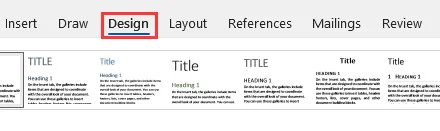
Vaya a la pestaña Diseño:
-
En Word 2013 y versiones posteriores, haga clic en la pestaña Diseño en la cinta superior.
-
Nota: En versiones anteriores como Word 2010 y 2007, vaya a la pestaña Diseño de página en su lugar.
-
-
Haga clic en Marca de agua: presione el botón Marca de agua en el extremo derecho de la cinta en el grupo Fondo de página.

-
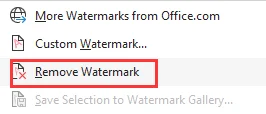
Seleccione Quitar marca de agua: en el menú desplegable, elija Quitar marca de agua en la parte inferior.
Nota para usuarios de Mac
El proceso para quitar marcas de agua de documentos de Word en Mac es muy similar a la versión de Windows, aunque la disposición del menú puede ser ligeramente diferente:
- Vaya a la pestaña Diseño y haga clic en el botón Marca de agua.
- En el cuadro de diálogo Insertar marca de agua, seleccione Sin marca de agua.
Solución de problemas de marcas de agua persistentes
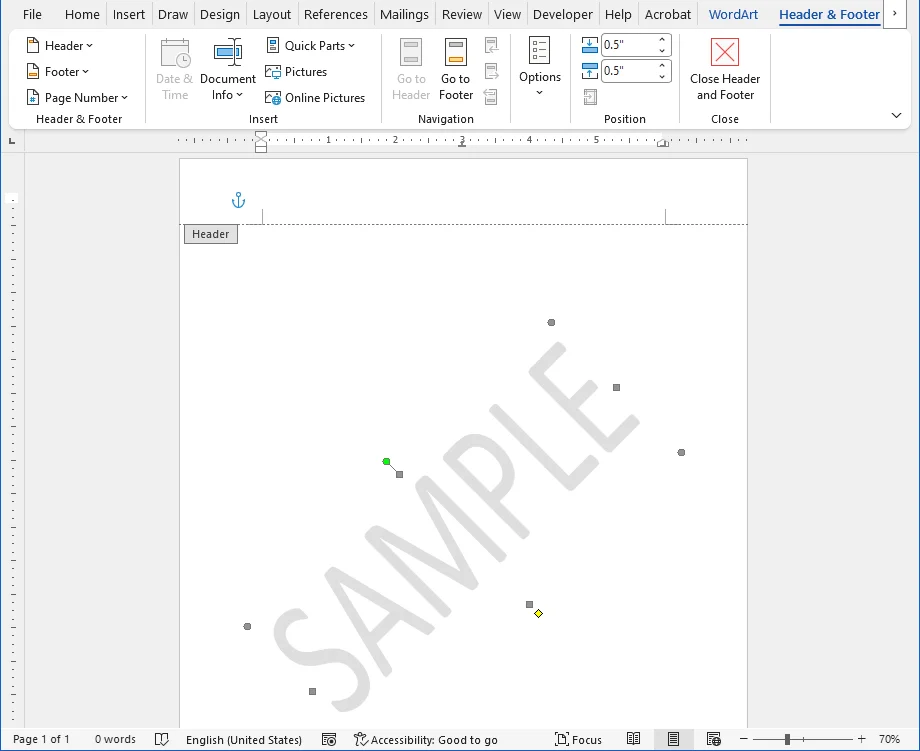
Si la marca de agua sigue ahí después de usar el método de eliminación integrado, es posible que se haya insertado manualmente en el Encabezado/Pie de página como una imagen o un cuadro de texto. En este caso, debe eliminarla del área del encabezado o pie de página manualmente:
-
Haga doble clic en la parte superior de la página para abrir la vista Encabezado y pie de página.
-
Mueva el cursor sobre la imagen o el texto de la marca de agua hasta que cambie a un puntero de cuatro flechas.
-
Haga clic en la marca de agua para seleccionarla y luego presione la tecla Suprimir en su teclado.
-
Salga del modo de edición de Encabezado y pie de página haciendo clic en Cerrar encabezado y pie de página en la cinta o haciendo doble clic en el texto del cuerpo principal.
La marca de agua ya debería haber desaparecido de todas las páginas que compartían el mismo encabezado. Este método manual funciona de forma idéntica tanto en Windows como en Mac.
Consejo: si su documento tiene varias secciones, revise el encabezado de cada sección. Para cualquier encabezado que no esté "Vinculado al anterior", repita estos pasos para quitar la marca de agua.
También te puede interesar: Cómo eliminar líneas en blanco en Word rápidamente
Método 2: Usando herramientas en línea (Solución basada en la web)
Si no tiene Word instalado o prefiere una solución basada en la web, las herramientas en línea como Google Docs son una buena alternativa para eliminar marcas de agua en documentos de Word. Funciona completamente en su navegador y no requiere ninguna instalación de software.
Cómo quitar la marca de agua en Word en línea:
-
Inicie sesión en Google y vaya a Google Docs.
-
Haga clic en Documento en blanco para iniciar un nuevo documento.
-
Haga clic en Archivo (arriba a la izquierda) > Abrir > Subir, luego busque y seleccione su archivo .docx o .doc para abrirlo en Google Docs.
-
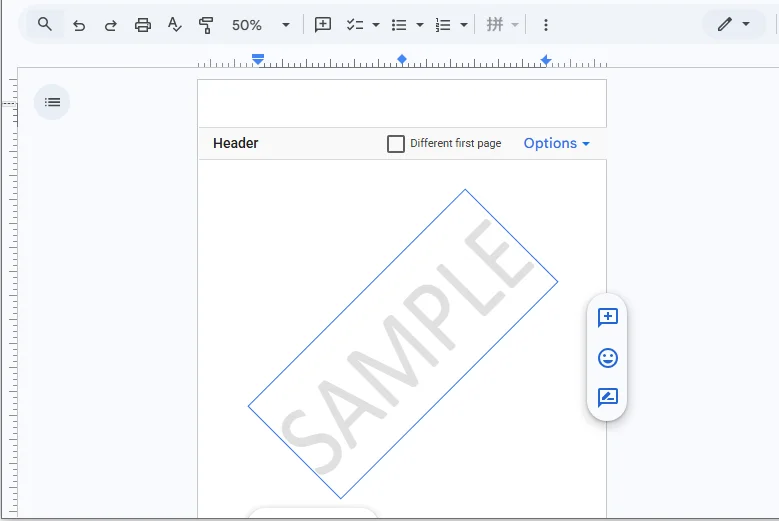
Una vez que el archivo esté abierto, haga doble clic en la marca de agua para seleccionarla y presione la tecla Suprimir.
-
Vaya a Archivo > Descargar > Microsoft Word (.docx) para guardar el documento limpio en su dispositivo.
Consideración de seguridad:
Si bien Google tiene una seguridad sólida, evite cargar documentos altamente confidenciales o legalmente privilegiados en servicios en la nube de terceros. Utilice el método de escritorio de Microsoft Word o scripts locales de C# para datos confidenciales.
Método 3: Usando automatización con C# (Procesamiento por lotes)
Para los desarrolladores o las empresas que manejan miles de documentos de Word, la eliminación manual es ineficiente. Puede eliminar marcas de agua en Word automáticamente usando C# y la biblioteca Spire.Doc for .NET. Este método le permite procesar lotes de archivos sin necesidad de tener Microsoft Word instalado en el servidor.
¿Qué es Spire.Doc for .NET y por qué elegirlo?
Spire.Doc for .NET es una biblioteca completa e independiente diseñada para crear, leer, editar y convertir documentos de Word mediante programación. A diferencia de los métodos de automatización tradicionales que dependen de Microsoft Office, Spire.Doc funciona de forma independiente.
Beneficios clave:
- Alto rendimiento: motor optimizado para el procesamiento rápido por lotes de cientos o miles de archivos.
- Seguro para el servidor: sin dependencia de MS Office, lo que lo hace ideal para entornos de servidor sin cabeza (por ejemplo, contenedores de Azure, AWS, Linux).
- Amplio soporte de formatos: maneja sin problemas los formatos .doc, .docx, .docm y .dotx.
Requisitos previos
Antes de ejecutar el código, asegúrese de tener lo siguiente:
-
Entorno de desarrollo: Visual Studio con el SDK de .NET instalado.
-
Instalación de la biblioteca: instale el paquete Spire.Doc a través del Administrador de paquetes NuGet usando el siguiente comando o descárguelo del sitio web oficial:
PM> Install-Package Spire.Doc
Ejemplo de código C# para eliminar marcas de agua por lotes de documentos de Word
using System;
using System.IO;
using Spire.Doc;

namespace RemoveWordWatermarkBatch
{
    class Program
    {
        static void Main(string[] args)
        {
            // Input folder containing Word files to process
            string inputFolder = @"C:\Documents\Input";
            // Output folder for the processed files
            string outputFolder = @"C:\Documents\Output";

            // Ensure the output folder exists
            if (!Directory.Exists(outputFolder))
            {
                Directory.CreateDirectory(outputFolder);
            }

            // Get all .docx files in the folder
            string[] files = Directory.GetFiles(inputFolder, "*.docx");

            foreach (string filePath in files)
            {
                try
                {
                    // Create a Document instance
                    Document doc = new Document();
                    doc.LoadFromFile(filePath);

                    // Remove the watermark
                    doc.Watermark = null;

                    // Build the output file path
                    string fileName = Path.GetFileName(filePath);
                    string outputPath = Path.Combine(outputFolder, fileName);

                    // Save the cleaned document
                    doc.SaveToFile(outputPath, FileFormat.Docx2013);

                    Console.WriteLine($"Successfully processed: {fileName}");
                }
                catch (Exception ex)
                {
                    Console.WriteLine($"Failed to process: {filePath}");
                    Console.WriteLine($"Error: {ex.Message}");
                }
            }

            Console.WriteLine("Batch processing completed!");
            Console.ReadLine();
        }
    }
}
Este script recorre todos los documentos de Word en la carpeta de entrada, elimina la marca de agua de cada archivo y luego guarda el archivo actualizado en la carpeta de salida.
Resultado:

Parte 3: ¿Por qué quitar las marcas de agua de los documentos de Word?
Si bien las marcas de agua protegen los datos y la identidad de la marca, a menudo es necesario eliminarlas para:
- Finalización de borradores: eliminación de marcadores "BORRADOR" o "REVISIÓN" para presentar un documento final pulido y profesional.
- Personalización de plantillas: eliminación de logotipos de muestra o texto de marcador de posición para adaptar las plantillas a clientes o proyectos específicos.
- Mejora de la accesibilidad: eliminación de fondos de bajo contraste que dificultan la legibilidad para usuarios con discapacidad visual o interfieren con los lectores de pantalla.
- Optimización de la impresión: prevención del ruido de fondo y reducción del consumo innecesario de tinta/tóner para impresiones más limpias y rentables.
⚠️Advertencia legal: nunca elimine marcas de agua de documentos con derechos de autor, confidenciales o de propiedad sin un permiso explícito. Hacerlo puede violar las leyes de derechos de autor, los acuerdos de confidencialidad y las políticas de seguridad. Asegúrese de tener el derecho legal de modificar el archivo antes de continuar.
Parte 4: Consejos y problemas comunes al quitar marcas de agua en Word
Quitar marcas de agua en Word suele ser sencillo, pero ciertos escenarios pueden causar problemas. Siga estos consejos para garantizar un proceso sin problemas y vea las soluciones a los problemas comunes que encuentran los usuarios.
Consejos
- Haga siempre una copia de seguridad primero – Guarde una copia antes de eliminar las marcas de agua, especialmente cuando use scripts o procesamiento por lotes.
- Revise todo el documento – Desplácese por todas las páginas después de la eliminación para confirmar que la marca de agua ha desaparecido por completo.
- Inspeccione en busca de objetos residuales – Algunas marcas de agua se insertan como formas, imágenes o cuadros de texto; verifique y elimine cualquier objeto flotante.
- Verifique los encabezados y las secciones – Asegúrese de que todos los encabezados y las secciones se tengan en cuenta antes de la eliminación para evitar que falten marcas de agua.
Problemas y soluciones comunes
- El botón Quitar marca de agua no funciona – La marca de agua se agregó manualmente como una imagen, forma o cuadro de texto en el encabezado/pie de página. Abra el encabezado, seleccione la marca de agua y presione Suprimir. Revise todas las secciones si existen varios encabezados.
- La marca de agua vuelve a aparecer después de eliminarla – El documento está protegido o la marca de agua está incrustada en un estilo/plantilla. Vaya a Revisar > Restringir edición > Detener protección (es posible que se requiera una contraseña).
- Permanece un color de fondo tenue – Se trata de un relleno de página en lugar de una marca de agua. Vaya a Diseño > Color de página > Sin color.
- La marca de agua sigue apareciendo en páginas específicas – Están habilitadas las configuraciones de Primera página diferente o Página par/impar. Edite cada tipo de encabezado individualmente y elimine el objeto de marca de agua.
Conclusión y recomendaciones
Ahora tiene un conjunto de herramientas completo para eliminar marcas de agua en documentos de Word. La clave es seleccionar el método que se alinee con sus necesidades específicas:
- Para la mayoría de los usuarios: utilice la función nativa de eliminación de marcas de agua de Microsoft Word. Es la opción más rápida, segura y confiable para archivos individuales.
- Para usuarios que no usan Office: Google Docs es una excelente alternativa gratuita sin instalación de software.
- Para empresas y desarrolladores que manejan una gran cantidad de archivos: la automatización con C# es la solución más eficiente y escalable.
¡Elija sabiamente y disfrute de documentos limpios y profesionales!
Preguntas frecuentes
P: ¿Por qué no desaparece la marca de agua cuando hago clic en "Quitar marca de agua"?
R: Es probable que la marca de agua se haya insertado manualmente como una imagen o un cuadro de texto en el Encabezado/Pie de página. Haga doble clic en la parte superior de la página para abrir la vista Encabezado y pie de página, seleccione la marca de agua directamente y presione Suprimir.
P: ¿Puedo quitar las marcas de agua de varios archivos de Word a la vez?
R: La eliminación manual es demasiado lenta para los lotes. Para más de 100 archivos, use la automatización de C# con bibliotecas como Spire.Doc para recorrer las carpetas y eliminar las marcas de agua al instante sin abrir Word.
P: ¿Quitar una marca de agua arruinará mi formato?
R: El uso de la herramienta nativa de eliminación de marcas de agua de Word conserva perfectamente su diseño. Los convertidores de terceros (como Google Docs) pueden cambiar ligeramente los márgenes o las fuentes, así que siempre revise.
P: ¿Es legal quitar una marca de agua en Word?
R: Sí, si es el propietario del documento o tiene permiso. Sin embargo, eliminar las marcas de "Confidencial", "Borrador" o de derechos de autor de los archivos que no le pertenecen puede violar los acuerdos de confidencialidad o las leyes de derechos de autor.
Ver también
Wasserzeichen in Word entfernen (3 einfache Wege)
Inhaltsverzeichnis
Ein Wasserzeichen in Microsoft Word ist ein unverzichtbares Werkzeug für Unternehmensdokumente, um Entwürfe als vertraulich zu kennzeichnen oder geistiges Eigentum zu schützen. Wenn es jedoch an der Zeit ist, einen Bericht fertigzustellen, eine Vorlage wiederzuverwenden oder eine ausgefeilte Version mit Kunden zu teilen, kann dieses Wasserzeichen zu einem Hindernis werden.
Glücklicherweise muss das Entfernen eines Wasserzeichens aus Word nicht kompliziert sein. Mit den richtigen Methoden und Werkzeugen ist das Bereinigen Ihres Dokuments ein Kinderspiel. In dieser Anleitung führen wir Sie durch 3 einfache Möglichkeiten, Wasserzeichen in Word zu entfernen – ohne die ursprüngliche Formatierung Ihres Dokuments zu verändern!
- Teil 1: Können Sie ein Wasserzeichen aus Word entfernen
- Teil 2: So löschen Sie Wasserzeichen aus Word
- Teil 3: Warum Wasserzeichen aus Word-Dokumenten entfernen
- Teil 4: Tipps und häufige Probleme beim Entfernen von Wasserzeichen in Word
- Fazit und Empfehlungen
Teil 1: Können Sie ein Wasserzeichen aus Word entfernen?
Die Antwort ist JA! Sie haben eine Vielzahl von Optionen, die von integrierten Microsoft Word-Funktionen über Online-Tools wie Google Docs bis hin zu Automatisierungsskripten mit C# reichen. Die Wahl der bevorzugten Methode hängt von Ihren spezifischen Anforderungen ab, wie z. B. der Anzahl der Dateien (einzeln vs. Stapel), Ihrem Zugang zu Software (Desktop vs. Web) und Ihrem technischen Komfortniveau.
3 praktische Möglichkeiten, Wasserzeichen in Word zu entfernen
- Über Microsoft Word: Die native und zuverlässigste Methode, Wasserzeichen direkt in der Anwendung ohne externe Tools zu entfernen.
- Über Online-Tools: Online-Tools wie Google Docs bieten eine bequeme, softwarefreie Problemumgehung zum Entfernen von Wasserzeichen in Word-Dokumenten.
- Über C#-Automatisierung: C# bietet eine effizientere Lösung für die Stapelentfernung von Wasserzeichen aus großen Mengen von Word-Dokumenten.
Hier ist ein kurzer Überblick über diese Methoden:
| Methode | Am besten geeignet für | Einschränkungen |
|---|---|---|
| Microsoft Word |
|
|
| Google Docs |
|
|
| C#-Automatisierung |
|
|
Teil 2: So löschen Sie Wasserzeichen aus Word
Lassen Sie uns nun die detaillierten Schritte jeder Methode durchgehen.
Methode 1: Verwendung von Microsoft Word (Der native Ansatz)
Microsoft Word bietet eine integrierte Funktion zum Entfernen von Wasserzeichen, mit der Sie Wasserzeichen mit nur wenigen Klicks aus einem Word-Dokument löschen können. Sie ist in den meisten Versionen verfügbar, einschließlich Word für Microsoft 365, Word 2021, 2019, 2016, 2013, 2010 und 2007.
Schritt-für-Schritt-Anleitung:
-
Öffnen Sie das Dokument: Starten Sie Microsoft Word und öffnen Sie die Datei, die das Wasserzeichen enthält.
-
Navigieren Sie zur Registerkarte „Entwurf“:
-
In Word 2013 und höher, klicken Sie auf die Registerkarte Entwurf im oberen Menüband.
-
Hinweis: In älteren Versionen wie Word 2010 und 2007 gehen Sie stattdessen zur Registerkarte Seitenlayout.
-
-
Klicken Sie auf Wasserzeichen: Klicken Sie auf die Schaltfläche Wasserzeichen ganz rechts im Menüband in der Gruppe Seitenhintergrund.
-
Wählen Sie Wasserzeichen entfernen: Wählen Sie im Dropdown-Menü unten Wasserzeichen entfernen.
Hinweis für Mac-Benutzer
Der Vorgang zum Entfernen von Wasserzeichen aus Word-Dokumenten auf dem Mac ist dem der Windows-Version sehr ähnlich, obwohl das Menülayout geringfügig anders sein kann:
- Gehen Sie zur Registerkarte Entwurf und klicken Sie auf die Schaltfläche Wasserzeichen.
- Wählen Sie im Dialogfeld Wasserzeichen einfügen die Option Kein Wasserzeichen.
Fehlerbehebung bei hartnäckigen Wasserzeichen
Wenn das Wasserzeichen nach Verwendung der integrierten Entfernungsmethode immer noch vorhanden ist, wurde es möglicherweise manuell in der Kopf-/Fußzeile als Bild oder Textfeld eingefügt. In diesem Fall müssen Sie es manuell aus dem Kopf- oder Fußzeilenbereich löschen:
-
Doppelklicken Sie ganz oben auf der Seite, um die Ansicht Kopf- und Fußzeile zu öffnen.
-
Bewegen Sie den Mauszeiger über das Wasserzeichenbild oder den Text, bis er sich in einen Vier-Pfeil-Zeiger ändert.
-
Klicken Sie auf das Wasserzeichen, um es auszuwählen, und drücken Sie dann die Entf-Taste auf Ihrer Tastatur.
-
Verlassen Sie den Bearbeitungsmodus für Kopf- und Fußzeile, indem Sie auf Kopf- und Fußzeile schließen im Menüband klicken oder auf den Haupttext doppelklicken.
Das Wasserzeichen sollte nun von jeder Seite verschwunden sein, die dieselbe Kopfzeile verwendet hat. Diese manuelle Methode funktioniert sowohl unter Windows als auch auf dem Mac identisch.
Tipp: Wenn Ihr Dokument mehrere Abschnitte hat, überprüfen Sie die Kopfzeile jedes Abschnitts. Wiederholen Sie diese Schritte für jede Kopfzeile, die nicht „Mit vorheriger verknüpft“ ist, um das Wasserzeichen zu entfernen.
Das könnte Ihnen auch gefallen: So entfernen Sie schnell leere Zeilen in Word
Methode 2: Verwendung von Online-Tools (Webbasierte Lösung)
Wenn Sie Word nicht installiert haben oder eine webbasierte Lösung bevorzugen, sind Online-Tools wie Google Docs eine gute Alternative zum Entfernen von Wasserzeichen in Word-Dokumenten. Es funktioniert vollständig in Ihrem Browser und erfordert keine Softwareinstallation.
So entfernen Sie Wasserzeichen in Word Online:
-
Melden Sie sich bei Google an und gehen Sie zu Google Docs.
-
Klicken Sie auf Leeres Dokument, um ein neues Dokument zu starten.
-
Klicken Sie auf Datei (oben links) > Öffnen > Hochladen, durchsuchen Sie dann Ihre .docx- oder .doc-Datei und wählen Sie sie aus, um sie in Google Docs zu öffnen.
-
Sobald die Datei geöffnet ist, doppelklicken Sie auf das Wasserzeichen, um es auszuwählen, und drücken Sie die Entf-Taste.
-
Gehen Sie zu Datei > Herunterladen > Microsoft Word (.docx), um das saubere Dokument auf Ihrem Gerät zu speichern.
Sicherheitsüberlegung:
Obwohl Google über robuste Sicherheit verfügt, vermeiden Sie das Hochladen von streng vertraulichen oder rechtlich geschützten Dokumenten in Cloud-Dienste von Drittanbietern. Verwenden Sie für sensible Daten die Desktop-Methode von Microsoft Word oder lokale C#-Skripte.
Methode 3: Verwendung von C#-Automatisierung (Stapelverarbeitung)
Für Entwickler oder Unternehmen, die Tausende von Word-Dokumenten bearbeiten, ist die manuelle Entfernung ineffizient. Sie können Wasserzeichen in Word automatisch mit C# und der Spire.Doc for .NET-Bibliothek entfernen. Mit dieser Methode können Sie Stapel von Dateien verarbeiten, ohne dass Microsoft Word auf dem Server installiert sein muss.
Was ist Spire.Doc for .NET und warum sollten Sie es wählen?
Spire.Doc for .NET ist eine umfassende, eigenständige Bibliothek zum programmgesteuerten Erstellen, Lesen, Bearbeiten und Konvertieren von Word-Dokumenten. Im Gegensatz zu herkömmlichen Automatisierungsmethoden, die auf Microsoft Office basieren, arbeitet Spire.Doc unabhängig.
Wichtige Vorteile:
- Hohe Leistung: Optimierte Engine für die schnelle Stapelverarbeitung von Hunderten oder Tausenden von Dateien.
- Serversicher: Keine Abhängigkeit von MS Office, was es ideal für monitorlose Serverumgebungen macht (z. B. Azure, AWS, Linux-Container).
- Breite Formatunterstützung: Nahtlose Verarbeitung der Formate .doc, .docx, .docm und .dotx.
Voraussetzungen
Stellen Sie vor dem Ausführen des Codes sicher, dass Sie über Folgendes verfügen:
-
Entwicklungsumgebung: Visual Studio mit installiertem .NET SDK.
-
Bibliotheksinstallation: Installieren Sie das Spire.Doc-Paket über den NuGet-Paket-Manager mit dem folgenden Befehl oder laden Sie es von der offiziellen Website herunter:
PM> Install-Package Spire.Doc
C#-Codebeispiel zum Stapelentfernen von Wasserzeichen aus Word-Dokumenten
using System;
using System.IO;
using Spire.Doc;

namespace RemoveWordWatermarkBatch
{
    class Program
    {
        static void Main(string[] args)
        {
            // Input folder containing Word files to process
            string inputFolder = @"C:\Documents\Input";
            // Output folder for the processed files
            string outputFolder = @"C:\Documents\Output";

            // Ensure the output folder exists
            if (!Directory.Exists(outputFolder))
            {
                Directory.CreateDirectory(outputFolder);
            }

            // Get all .docx files in the folder
            string[] files = Directory.GetFiles(inputFolder, "*.docx");

            foreach (string filePath in files)
            {
                try
                {
                    // Create a Document instance
                    Document doc = new Document();
                    doc.LoadFromFile(filePath);

                    // Remove the watermark
                    doc.Watermark = null;

                    // Build the output file path
                    string fileName = Path.GetFileName(filePath);
                    string outputPath = Path.Combine(outputFolder, fileName);

                    // Save the cleaned document
                    doc.SaveToFile(outputPath, FileFormat.Docx2013);

                    Console.WriteLine($"Successfully processed: {fileName}");
                }
                catch (Exception ex)
                {
                    Console.WriteLine($"Failed to process: {filePath}");
                    Console.WriteLine($"Error: {ex.Message}");
                }
            }

            Console.WriteLine("Batch processing completed!");
            Console.ReadLine();
        }
    }
}
Dieses Skript durchläuft alle Word-Dokumente im Eingabeordner, entfernt das Wasserzeichen aus jeder Datei und speichert die aktualisierte Datei dann im Ausgabeordner.
Ergebnis:
Teil 3: Warum Wasserzeichen aus Word-Dokumenten entfernen?
Während Wasserzeichen Daten und Markenidentität schützen, ist ihre Entfernung oft notwendig für:
- Fertigstellen von Entwürfen: Entfernen von „ENTWURF“- oder „ÜBERPRÜFUNG“-Markierungen, um ein ausgefeiltes, professionelles Enddokument zu präsentieren.
- Anpassen von Vorlagen: Entfernen von Beispiellogos oder Platzhaltertext, um Vorlagen für bestimmte Kunden oder Projekte anzupassen.
- Verbesserung der Barrierefreiheit: Beseitigung von kontrastarmen Hintergründen, die die Lesbarkeit für sehbehinderte Benutzer beeinträchtigen oder mit Bildschirmlesegeräten interferieren.
- Optimierung des Drucks: Vermeidung von Hintergrundrauschen und Reduzierung des unnötigen Tinten-/Tonverbrauchs für sauberere, kostengünstigere Ausdrucke.
⚠️Rechtlicher Hinweis: Entfernen Sie niemals Wasserzeichen von urheberrechtlich geschützten, vertraulichen oder proprietären Dokumenten ohne ausdrückliche Genehmigung. Dies kann gegen Urheberrechtsgesetze, NDAs und Sicherheitsrichtlinien verstoßen. Stellen Sie sicher, dass Sie das gesetzliche Recht haben, die Datei zu ändern, bevor Sie fortfahren.
Teil 4: Tipps und häufige Probleme beim Entfernen von Wasserzeichen in Word
Das Entfernen von Wasserzeichen in Word ist in der Regel unkompliziert, aber bestimmte Szenarien können Probleme verursachen. Befolgen Sie diese Tipps, um einen reibungslosen Prozess zu gewährleisten, und sehen Sie sich Lösungen für häufige Probleme an, auf die Benutzer stoßen.
Tipps
- Immer zuerst sichern – Speichern Sie eine Kopie, bevor Sie Wasserzeichen entfernen, insbesondere bei der Verwendung von Skripten oder Stapelverarbeitung.
- Überprüfen Sie das gesamte Dokument – Blättern Sie nach dem Entfernen durch alle Seiten, um zu bestätigen, dass das Wasserzeichen überall verschwunden ist.
- Auf verbleibende Objekte prüfen – Einige Wasserzeichen werden als Formen, Bilder oder Textfelder eingefügt; überprüfen und entfernen Sie alle schwebenden Objekte.
- Kopfzeilen und Abschnitte überprüfen – Stellen Sie sicher, dass alle Kopfzeilen und Abschnitte vor dem Entfernen berücksichtigt werden, um fehlende Wasserzeichen zu vermeiden.
Häufige Probleme und Lösungen
- Schaltfläche „Wasserzeichen entfernen“ funktioniert nicht – Das Wasserzeichen wurde manuell als Bild, Form oder Textfeld in der Kopf-/Fußzeile hinzugefügt. Öffnen Sie die Kopfzeile, wählen Sie das Wasserzeichen aus und drücken Sie Entf. Überprüfen Sie alle Abschnitte, wenn mehrere Kopfzeilen vorhanden sind.
- Wasserzeichen erscheint nach dem Löschen wieder – Das Dokument ist geschützt oder das Wasserzeichen ist in einem Stil/einer Vorlage eingebettet. Gehen Sie zu Überprüfen > Bearbeitung einschränken > Schutz aufheben (möglicherweise ist ein Passwort erforderlich).
- Schwache Hintergrundfarbe bleibt erhalten – Dies ist eine Seitenfüllung und kein Wasserzeichen. Gehen Sie zu Entwurf > Seitenfarbe > Keine Farbe.
- Wasserzeichen erscheint immer noch auf bestimmten Seiten – Unterschiedliche Einstellungen für „Erste Seite“ oder „Ungerade/Gerade Seite“ sind aktiviert. Bearbeiten Sie jeden Kopfzeilentyp einzeln und löschen Sie das Wasserzeichenobjekt.
Fazit und Empfehlungen
Sie haben jetzt ein komplettes Toolkit zum Entfernen von Wasserzeichen in Word-Dokumenten. Der Schlüssel liegt in der Auswahl der Methode, die Ihren spezifischen Anforderungen entspricht:
- Für die meisten Benutzer: Bleiben Sie bei der nativen Funktion zum Entfernen von Wasserzeichen in Microsoft Word. Es ist die schnellste, sicherste und zuverlässigste Option für einzelne Dateien.
- Für Nicht-Office-Benutzer: Google Docs ist eine ausgezeichnete kostenlose Alternative ohne Softwareinstallation.
- Für Unternehmen & Entwickler, die eine große Anzahl von Dateien bearbeiten: Die C#-Automatisierung ist die effizienteste und skalierbarste Lösung.
Wählen Sie mit Bedacht und genießen Sie saubere, professionelle Dokumente!
Häufig gestellte Fragen
F: Warum verschwindet das Wasserzeichen nicht, wenn ich auf „Wasserzeichen entfernen“ klicke?
A: Das Wasserzeichen wurde wahrscheinlich manuell als Bild oder Textfeld in der Kopf-/Fußzeile eingefügt. Doppelklicken Sie oben auf der Seite, um die Ansicht „Kopf- und Fußzeile“ zu öffnen, wählen Sie das Wasserzeichen direkt aus und drücken Sie Entf.
F: Kann ich Wasserzeichen aus mehreren Word-Dateien gleichzeitig entfernen?
A: Die manuelle Entfernung ist für Stapel zu langsam. Verwenden Sie für mehr als 100 Dateien die C#-Automatisierung mit Bibliotheken wie Spire.Doc, um Ordner zu durchlaufen und Wasserzeichen sofort zu entfernen, ohne Word zu öffnen.
F: Wird das Entfernen eines Wasserzeichens meine Formatierung durcheinander bringen?
A: Die Verwendung des nativen Word-Tools zum Entfernen von Wasserzeichen bewahrt Ihr Layout perfekt. Konverter von Drittanbietern (wie Google Docs) können Ränder oder Schriftarten geringfügig verschieben, lesen Sie also immer Korrektur.
F: Ist es legal, ein Wasserzeichen in Word zu entfernen?
A: Ja, wenn Sie das Dokument besitzen oder die Erlaubnis dazu haben. Das Entfernen von „Vertraulich“-, „Entwurf“- oder Urheberrechtsvermerken aus Dateien, die Sie nicht besitzen, kann jedoch gegen NDAs oder Urheberrechtsgesetze verstoßen.
Siehe auch
Как удалить водяной знак в Word (3 простых способа)
Содержание
Водяной знак в Microsoft Word является важным инструментом для корпоративных документов, помечая черновики как конфиденциальные или защищая интеллектуальную собственность. Однако, когда приходит время завершить отчет, перепрофилировать шаблон или поделиться отполированной версией с клиентами, этот водяной знак может стать препятствием.
К счастью, удаление водяного знака из Word не должно быть сложным. С правильными методами и инструментами очистка вашего документа — это проще простого. В этом руководстве мы покажем вам 3 простых способа удалить водяной знак в Word - не изменяя форматирование вашего исходного документа!
- Часть 1: Можно ли удалить водяной знак из Word
- Часть 2: Как удалить водяной знак из Word
- Часть 3: Зачем удалять водяные знаки из документов Word
- Часть 4: Советы и распространенные проблемы при удалении водяного знака в Word
- Заключение и рекомендации
Часть 1: Можно ли удалить водяной знак из Word?
Ответ ДА! У вас есть множество вариантов, от встроенных функций Microsoft Word, онлайн-инструментов, таких как Google Docs, до скриптов автоматизации с использованием C#. Выбор предпочтительного метода зависит от ваших конкретных требований, таких как количество файлов (один или пакет), ваш доступ к программному обеспечению (настольное или веб) и ваш уровень технической подготовки.
3 практических способа удалить водяной знак в Word
- Через Microsoft Word: Нативный и самый надежный способ удалить водяные знаки непосредственно в приложении без внешних инструментов.
- Через онлайн-инструменты: Онлайн-инструменты, такие как Google Docs, предлагают удобное, не требующее программного обеспечения решение для удаления водяных знаков в документах Word.
- Через автоматизацию C#: C# предоставляет более эффективное решение для пакетного удаления водяных знаков из больших объемов документов Word.
Вот краткий обзор этих методов:
| Метод | Лучше всего подходит для | Ограничения |
|---|---|---|
| Microsoft Word |
|
|
| Google Docs |
|
|
| Автоматизация C# |
|
|
Часть 2: Как удалить водяной знак из Word
Теперь давайте рассмотрим подробные шаги каждого метода.
Метод 1: Использование Microsoft Word (нативный подход)
Microsoft Word предлагает встроенную функцию удаления водяных знаков, которая позволяет удалить водяной знак из документа Word всего за несколько кликов. Она доступна в большинстве версий, включая Word для Microsoft 365, Word 2021, 2019, 2016, 2013, 2010 и 2007.
Пошаговые инструкции:
-
Откройте документ: Запустите Microsoft Word и откройте файл, содержащий водяной знак.
-
Перейдите на вкладку «Дизайн»:
-
В Word 2013 и более поздних версиях нажмите на вкладку Дизайн на верхней ленте.
-
Примечание: В более старых версиях, таких как Word 2010 и 2007, вместо этого перейдите на вкладку Макет страницы.
-
-
Нажмите «Водяной знак»: Нажмите кнопку Водяной знак в крайней правой части ленты в группе Фон страницы.
-
Выберите «Удалить водяной знак»: В раскрывающемся меню выберите Удалить водяной знак внизу.
Примечание для пользователей Mac
Процесс удаления водяных знаков из документов Word на Mac очень похож на версию для Windows, хотя расположение меню может немного отличаться:
- Перейдите на вкладку Дизайн и нажмите кнопку Водяной знак.
- В диалоговом окне Вставить водяной знак выберите Нет водяного знака.
Устранение неполадок с упрямыми водяными знаками
Если водяной знак все еще остается после использования встроенного метода удаления, он мог быть вставлен вручную в верхний/нижний колонтитул как изображение или текстовое поле. В этом случае вам нужно удалить его из области верхнего или нижнего колонтитула вручную:
-
Дважды щелкните в самом верху страницы, чтобы открыть вид Верхний и нижний колонтитулы.
-
Наведите курсор на изображение или текст водяного знака, пока он не изменится на указатель с четырьмя стрелками.
-
Нажмите на водяной знак, чтобы выбрать его, затем нажмите клавишу Delete на клавиатуре.
-
Выйдите из режима редактирования верхнего и нижнего колонтитулов, нажав Закрыть верхний и нижний колонтитулы на ленте или дважды щелкнув основной текст.
Теперь водяной знак должен исчезнуть со всех страниц, которые использовали один и тот же верхний колонтитул. Этот ручной метод работает одинаково как на Windows, так и на Mac.
Совет: Если в вашем документе несколько разделов, проверьте верхний колонтитул каждого раздела. Для любого верхнего колонтитула, который не «связан с предыдущим», повторите эти шаги, чтобы удалить водяной знак.
Вам также может понравиться: Как быстро удалить пустые строки в Word
Метод 2: Использование онлайн-инструментов (веб-решение)
Если у вас не установлен Word или вы предпочитаете веб-решение, онлайн-инструменты, такие как Google Docs, служат хорошей альтернативой для удаления водяных знаков в документах Word. Он работает полностью в вашем браузере и не требует установки какого-либо программного обеспечения.
Как удалить водяной знак в Word онлайн:
-
Войдите в Google и перейдите в Google Docs.
-
Нажмите Пустой документ, чтобы начать новый документ.
-
Нажмите Файл (вверху слева) > Открыть > Загрузить, затем найдите и выберите свой файл .docx или .doc, чтобы открыть его в Google Docs.
-
Как только файл откроется, дважды щелкните по водяному знаку, чтобы выбрать его, и нажмите клавишу Delete.
-
Перейдите в Файл > Скачать > Microsoft Word (.docx), чтобы сохранить чистый документ на свое устройство.
Соображения безопасности:
Хотя у Google надежная система безопасности, избегайте загрузки строго конфиденциальных или юридически привилегированных документов в сторонние облачные сервисы. Используйте настольный метод Microsoft Word или локальные скрипты C# для конфиденциальных данных.
Метод 3: Использование автоматизации C# (пакетная обработка)
Для разработчиков или предприятий, обрабатывающих тысячи документов Word, ручное удаление неэффективно. Вы можете автоматически удалять водяные знаки в Word с помощью C# и библиотеки Spire.Doc for .NET. Этот метод позволяет обрабатывать пакеты файлов без необходимости установки Microsoft Word на сервере.
Что такое Spire.Doc for .NET и почему стоит выбрать его?
Spire.Doc for .NET — это комплексная, автономная библиотека, предназначенная для создания, чтения, редактирования и преобразования документов Word программным способом. В отличие от традиционных методов автоматизации, которые зависят от Microsoft Office, Spire.Doc работает независимо.
Ключевые преимущества:
- Высокая производительность: Оптимизированный движок для быстрой пакетной обработки сотен или тысяч файлов.
- Безопасность для сервера: Отсутствие зависимости от MS Office, что делает его идеальным для безголовых серверных сред (например, Azure, AWS, контейнеры Linux).
- Широкая поддержка форматов: Бесшовная обработка форматов .doc, .docx, .docm и .dotx.
Предварительные требования
Перед запуском кода убедитесь, что у вас есть следующее:
-
Среда разработки: Visual Studio с установленным .NET SDK.
-
Установка библиотеки: Установите пакет Spire.Doc через NuGet Package Manager, используя следующую команду, или загрузите его с официального сайта:
PM> Install-Package Spire.Doc
Пример кода C# для пакетного удаления водяных знаков из документов Word
using System;
using System.IO;
using Spire.Doc;

namespace RemoveWordWatermarkBatch
{
    class Program
    {
        static void Main(string[] args)
        {
            // Входная папка, содержащая файлы Word для обработки
            string inputFolder = @"C:\Documents\Input";
            // Выходная папка для обработанных файлов
            string outputFolder = @"C:\Documents\Output";

            // Убедитесь, что выходная папка существует
            if (!Directory.Exists(outputFolder))
            {
                Directory.CreateDirectory(outputFolder);
            }

            // Получить все файлы .docx в папке
            string[] files = Directory.GetFiles(inputFolder, "*.docx");

            foreach (string filePath in files)
            {
                try
                {
                    // Создать экземпляр документа
                    Document doc = new Document();
                    doc.LoadFromFile(filePath);

                    // Удалить водяной знак
                    doc.Watermark = null;

                    // Создать путь к выходному файлу
                    string fileName = Path.GetFileName(filePath);
                    string outputPath = Path.Combine(outputFolder, fileName);

                    // Сохранить очищенный документ
                    doc.SaveToFile(outputPath, FileFormat.Docx2013);

                    Console.WriteLine($"Успешно обработано: {fileName}");
                }
                catch (Exception ex)
                {
                    Console.WriteLine($"Не удалось обработать: {filePath}");
                    Console.WriteLine($"Ошибка: {ex.Message}");
                }
            }

            Console.WriteLine("Пакетная обработка завершена!");
            Console.ReadLine();
        }
    }
}
Этот скрипт перебирает все документы Word во входной папке, удаляет водяной знак из каждого файла, а затем сохраняет обновленный файл в выходную папку.
Результат:
Часть 3: Зачем удалять водяные знаки из документов Word?
Хотя водяные знаки защищают данные и фирменный стиль, их удаление часто необходимо для:
- Завершение черновиков: Удаление маркеров «ЧЕРНОВИК» или «ОБЗОР» для представления отполированного, профессионального окончательного документа.
- Настройка шаблонов: Удаление образцов логотипов или текста-заполнителя для адаптации шаблонов для конкретных клиентов или проектов.
- Улучшение доступности: Устранение низкоконтрастных фонов, которые мешают читаемости для пользователей с нарушениями зрения или мешают программам чтения с экрана.
- Оптимизация печати: Предотвращение фонового шума и сокращение ненужного расхода чернил/тонера для более чистых и экономичных отпечатков.
⚠️Юридическое предупреждение: Никогда не удаляйте водяные знаки с защищенных авторским правом, конфиденциальных или служебных документов без явного разрешения. Это может нарушать законы об авторском праве, соглашения о неразглашении и политики безопасности. Убедитесь, что у вас есть законное право изменять файл, прежде чем продолжить.
Часть 4: Советы и распространенные проблемы при удалении водяного знака в Word
Удаление водяных знаков в Word обычно просто, но в некоторых случаях могут возникнуть проблемы. Следуйте этим советам, чтобы обеспечить плавный процесс, и ознакомьтесь с решениями распространенных проблем, с которыми сталкиваются пользователи.
Советы
- Всегда делайте резервную копию – Сохраните копию перед удалением водяных знаков, особенно при использовании скриптов или пакетной обработки.
- Проверьте весь документ – Прокрутите все страницы после удаления, чтобы убедиться, что водяной знак исчез везде.
- Проверьте на наличие остаточных объектов – Некоторые водяные знаки вставляются как фигуры, изображения или текстовые поля; проверьте и удалите все плавающие объекты.
- Проверьте верхние колонтитулы и разделы – Убедитесь, что все верхние колонтитулы и разделы учтены перед удалением, чтобы не пропустить водяные знаки.
Распространенные проблемы и решения
- Кнопка «Удалить водяной знак» не работает – Водяной знак был добавлен вручную как изображение, фигура или текстовое поле в верхнем/нижнем колонтитуле. Откройте верхний колонтитул, выберите водяной знак и нажмите Delete. Проверьте все разделы, если существует несколько верхних колонтитулов.
- Водяной знак снова появляется после удаления – Документ защищен или водяной знак встроен в стиль/шаблон. Перейдите в Рецензирование > Ограничить редактирование > Остановить защиту (может потребоваться пароль).
- Остается слабый цвет фона – Это заливка страницы, а не водяной знак. Перейдите в Дизайн > Цвет страницы > Нет цвета.
- Водяной знак все еще появляется на определенных страницах – Включены настройки «Разные для первой страницы» или «Разные для четных/нечетных страниц». Отредактируйте каждый тип верхнего колонтитула индивидуально и удалите объект водяного знака.
Заключение и рекомендации
Теперь у вас есть полный набор инструментов для удаления водяных знаков в документах Word. Ключ в том, чтобы выбрать метод, который соответствует вашим конкретным потребностям:
- Для большинства пользователей: Придерживайтесь встроенной функции удаления водяных знаков Microsoft Word. Это самый быстрый, безопасный и надежный вариант для отдельных файлов.
- Для пользователей без Office: Google Docs — отличная бесплатная альтернатива без установки программного обеспечения.
- Для предприятий и разработчиков, обрабатывающих большое количество файлов: Автоматизация C# — самое эффективное и масштабируемое решение.
Выбирайте с умом и наслаждайтесь чистыми, профессиональными документами!
Часто задаваемые вопросы
В: Почему водяной знак не исчезает, когда я нажимаю «Удалить водяной знак»?
О: Водяной знак, скорее всего, был вставлен вручную как изображение или текстовое поле в Верхний/нижний колонтитул. Дважды щелкните вверху страницы, чтобы открыть вид «Верхний и нижний колонтитулы», выберите водяной знак напрямую и нажмите Delete.
В: Могу ли я удалить водяные знаки из нескольких файлов Word одновременно?
О: Ручное удаление слишком медленное для пакетов. Для 100+ файлов используйте автоматизацию C# с библиотеками, такими как Spire.Doc, для перебора папок и мгновенного удаления водяных знаков без открытия Word.
В: Испортит ли удаление водяного знака мое форматирование?
О: Использование встроенного инструмента Word «Удалить водяной знак» идеально сохраняет вашу верстку. Сторонние конвертеры (например, Google Docs) могут незначительно смещать поля или шрифты, поэтому всегда проверяйте.
В: Законно ли удалять водяной знак в Word?
О: Да, если вы являетесь владельцем документа или имеете разрешение. Однако удаление отметок «Конфиденциально», «Черновик» или авторских прав из файлов, которыми вы не владеете, может нарушать соглашения о неразглашении или законы об авторском праве.
Смотрите также
Converter JSON para Excel: 5 métodos para diferentes fluxos de trabalho
Índice
- Prepare a sua estrutura JSON
- Método 1 — Excel Power Query (Sem Código)
- Método 2 — Conversor JSON Online (Rápido e Único)
- Método 3 — Python com pandas (Amigável para Automação)
- Método 4 — Python com Spire.XLS (Relatórios Excel Formatados)
- Método 5 — Node.js com SheetJS (Fluxo de Trabalho JavaScript)
- Comparação Rápida dos 5 Métodos
- Melhores Práticas para Converter JSON para Excel
- Conclusão
- Perguntas Frequentes

JSON é um dos formatos mais utilizados para armazenar e trocar dados estruturados. APIs, arquivos de configuração e muitas aplicações modernas usam JSON para representar conjuntos de dados.
No entanto, o JSON nem sempre é conveniente para análise, relatórios ou partilha com utilizadores não técnicos. Em muitos casos, converter dados JSON para uma folha de cálculo do Excel facilita a visualização, filtragem, ordenação e apresentação da informação.
Este guia mostra cinco métodos práticos para converter JSON para Excel, desde soluções sem código até abordagens programáticas.
Visão geral dos métodos abordados:
- Método 1 — Excel Power Query (Sem Código)
- Método 2 — Conversor JSON Online (Rápido e Único)
- Método 3 — Python com pandas (Amigável para Automação)
- Método 4 — Python com Spire.XLS (Relatórios Excel Formatados)
- Método 5 — Node.js com SheetJS (Fluxo de Trabalho JavaScript)
Prepare a sua estrutura JSON
Antes de converter JSON para Excel, é importante entender como a estrutura dos seus dados JSON afeta o processo de conversão. Muitas ferramentas de conversão assumem um formato específico, e estruturas incompatíveis podem causar resultados inesperados ou erros.
Array Raiz vs. Objeto Raiz
Muitas ferramentas de JSON para Excel esperam que os dados sejam um array de objetos raiz, como este:
[
  {"id":1,"name":"Alice"},
  {"id":2,"name":"Bob"}
]
Esta estrutura mapeia-se naturalmente para uma tabela do Excel:
| id | name |
|---|---|
| 1 | Alice |
| 2 | Bob |
Cada objeto torna-se uma linha e as chaves tornam-se cabeçalhos de coluna.
No entanto, muitas APIs e conjuntos de dados do mundo real envolvem o array dentro de um objeto raiz:
{
  "employees":[
    {"id":1,"name":"Alice"},
    {"id":2,"name":"Bob"}
  ]
}
Neste caso, o conjunto de dados tabular real é armazenado dentro da propriedade "employees".
Porque Algumas Ferramentas Falham em Objetos Raiz
Alguns conversores não conseguem determinar automaticamente qual propriedade contém o conjunto de dados tabular. Eles esperam que o arquivo JSON comece diretamente com um array.
Quando os dados estão envolvidos num objeto raiz, estas ferramentas podem falhar ao analisar o ficheiro corretamente ou produzir resultados vazios.
Portanto, pode ser necessário extrair o array relevante manually antes de realizar a conversão. Por exemplo, você pode reestruturar o JSON para que o array se torne o elemento raiz para um conversor online, ou acessá-lo diretamente no código.
Aceder ao Array em Python
Por exemplo, se o conjunto de dados estiver armazenado em "employees", pode carregá-lo e extraí-lo desta forma:
data = json.load(f)["employees"]
Após este passo, data torna-se uma lista de objetos, que pode ser facilmente escrita no Excel como linhas e colunas.
Método 1 — Excel Power Query (Sem Código)
Se já tiver o Microsoft Excel instalado, pode importar dados JSON diretamente sem escrever qualquer código. A funcionalidade Power Query do Excel permite aos utilizadores carregar ficheiros JSON e convertê-los automaticamente para um formato tabular. Esta abordagem é ideal para analistas ou utilizadores de negócios que desejam visualizar rapidamente dados JSON num ambiente de folha de cálculo.
Passos
- Inicie o Microsoft Excel no seu computador.
- Clique no separador Dados localizado no menu superior do Excel.
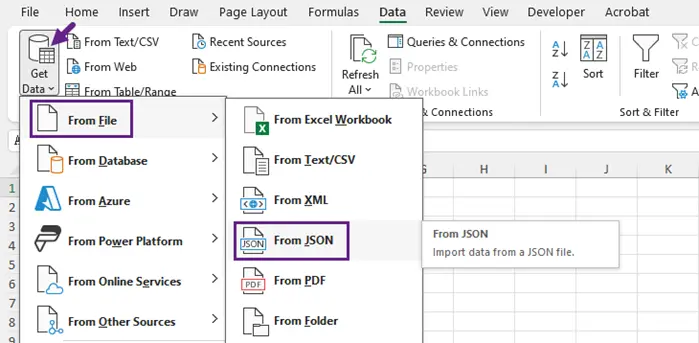
- No separador Dados, navegue para Obter Dados, depois selecione Do Ficheiro e escolha Do JSON no menu pendente.
- Quando solicitado, localize e selecione o seu ficheiro JSON e, em seguida, clique em Importar.
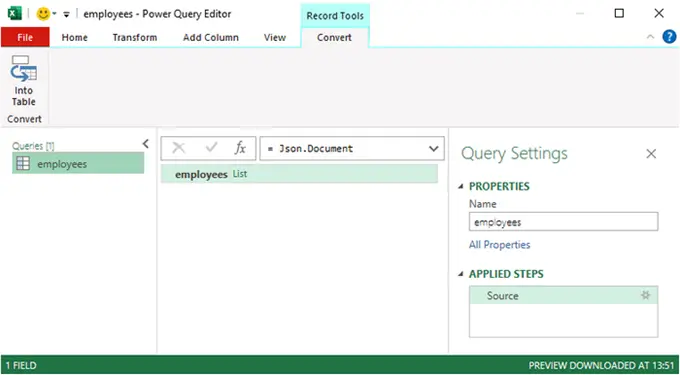
- O Editor do Power Query será iniciado.
-
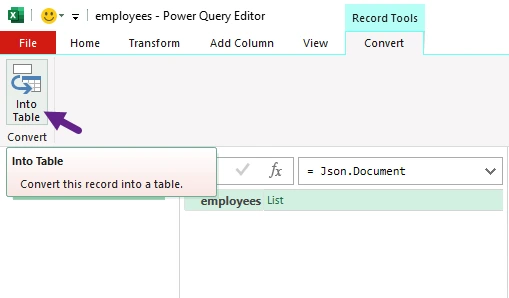
Se o ficheiro abrir como uma lista de registos:
- Clique em Para Tabela para converter a lista para um formato de tabela.
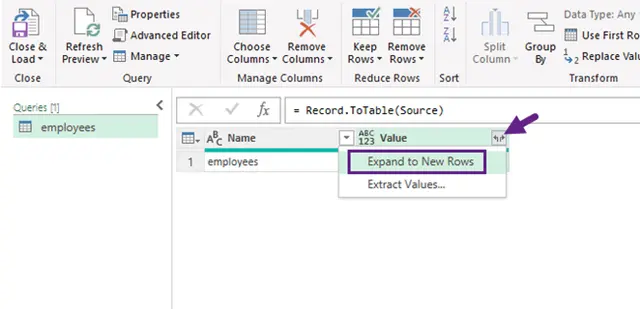
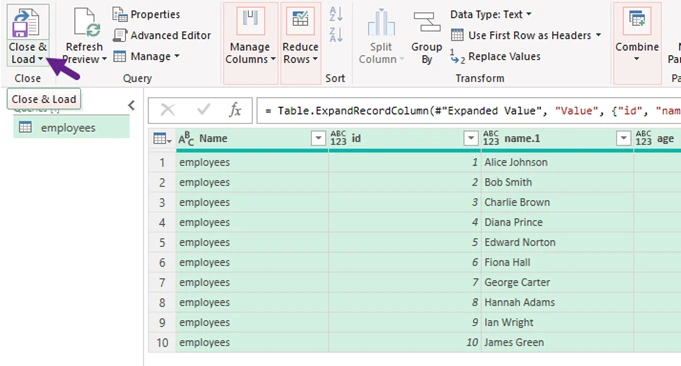
- Em seguida, clique no ícone Expandir (⇄) no cabeçalho da coluna para revelar os nomes das colunas. Se as colunas ainda mostrarem "Lista" ou "Registo", clique novamente no ícone de expansão para achatar ainda mais.
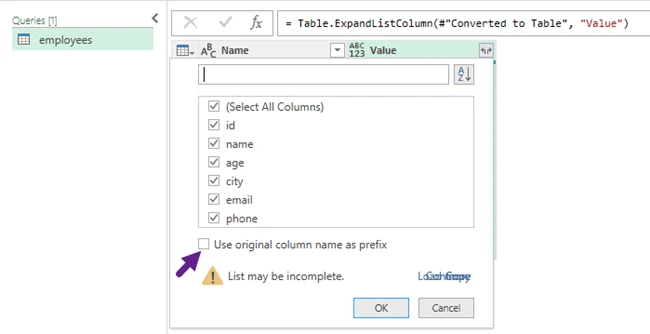
- Aparecerá uma caixa de diálogo, permitindo-lhe selecionar os campos que deseja incluir na tabela. Escolha os campos necessários, desmarque "Usar nome da coluna original como prefixo" para cabeçalhos mais limpos e, em seguida, clique em OK.
- Clique em Fechar e Carregar para importar os dados estruturados para a sua folha de cálculo do Excel.
- Guarde o seu ficheiro Excel no formato .xlsx, garantindo que os seus dados são preservados para utilização futura.
Quando usar este método
Ideal para pequenos conjuntos de dados e utilizadores que preferem uma interface visual em vez de programação.
Método 2 — Conversor JSON Online (Rápido e Único)
Os conversores JSON online fornecem uma das formas mais rápidas de transformar ficheiros JSON em folhas de cálculo do Excel. Estas ferramentas normalmente requerem apenas o carregamento de um ficheiro e geram automaticamente um ficheiro Excel para download. Plataformas como as oferecidas por jsontoexcel.net podem concluir a conversão em segundos sem instalar qualquer software.
Passos
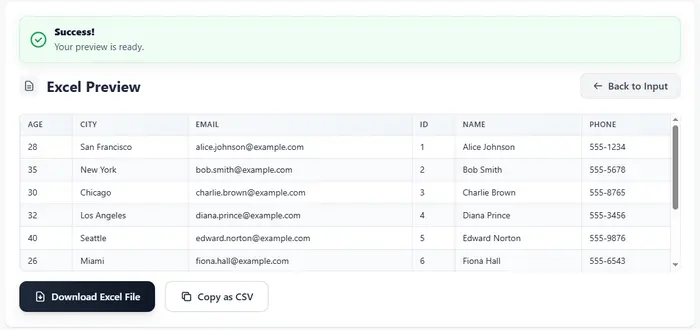
- Abra um site de conversor de JSON para Excel.
- Copie e cole os seus dados JSON diretamente no editor de texto ou carregue um ficheiro do seu computador.
- Clique no botão Converter para Excel para iniciar o processo de conversão.
- Faça o download do ficheiro Excel gerado.

Nota Importante
A maioria dos conversores online espera um array de objetos raiz; caso contrário, podem falhar silenciosamente ou produzir resultados inesperados. Este formato converte-se de forma mais fiável para o Excel.
Quando usar este método
Ideal para conversões rápidas e únicas ou para testar conjuntos de dados de amostra.
Método 3 — Python com pandas (Amigável para Automação)
Para programadores e engenheiros de dados, o Python oferece uma forma poderosa de automatizar as conversões de JSON para Excel. A popular biblioteca de análise de dados pandas pode carregar facilmente ficheiros JSON, transformá-los num DataFrame estruturado e exportar os resultados para o Excel. Este método é particularmente útil quando a conversão precisa de ser integrada em scripts, fluxos de trabalho ETL ou pipelines de relatórios automatizados.
Instalar Dependências
pip install pandas openpyxl
Converter JSON para Excel
import pandas as pd
import json

with open("employees.json") as f:
    data = json.load(f)["employees"]

df = pd.json_normalize(data)
df.to_excel("output.xlsx", index=False)
Saída:
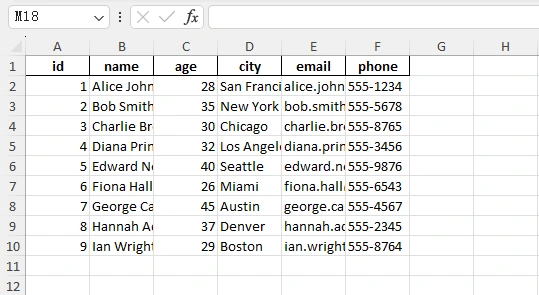
Quando usar este método
Ideal para processamento automatizado de dados, fluxos de trabalho de análise e grandes conjuntos de dados.
Método 4 — Python com Spire.XLS (Relatórios Excel Formatados)
Se o seu objetivo é gerar relatórios Excel bem formatados, o Python pode trabalhar com Spire.XLS para criar folhas de cálculo programaticamente. Ao contrário das bibliotecas de exportação de dados simples, o Spire.XLS oferece um controlo extensivo sobre a formatação do Excel, incluindo fontes, cores, alinhamento e dimensionamento de colunas. Isto torna-o adequado para a produção de folhas de cálculo profissionais prontas a partilhar com as partes interessadas.
Instalar a Biblioteca
pip install spire.xls
Código de Exemplo
O script seguinte lê dados de funcionários em JSON, gera dinamicamente cabeçalhos de coluna, escreve linhas no Excel e aplica formatação, como estilo de cabeçalho, cores de linha alternadas e colunas auto-ajustadas.
import json
from spire.xls import *

# Load JSON data
with open('C:/Users/Administrator/Desktop/employees.json') as f:
    data = json.load(f)["employees"]

if not data:
    raise ValueError("JSON data is empty!")

# Create workbook and worksheet
workbook = Workbook()
sheet = workbook.Worksheets[0]

# Extract headers dynamically
headers = list(data[0].keys())
num_cols = len(headers)

# Write headers
for col, header in enumerate(headers, start=1):
    sheet.Range[1, col].Value = header

# Write rows
for row_index, item in enumerate(data, start=2):
    for col_index, key in enumerate(headers, start=1):
        value = item.get(key, "")
        sheet.Range[row_index, col_index].Value = str(value) if value is not None else ""

# Header formatting
header_row = sheet.Range[1, 1, 1, num_cols]
header_row.RowHeight = 30
header_style = header_row.Style
header_style.Font.FontName = "Times New Roman"
header_style.Font.Size = 16
header_style.Font.Color = Color.get_White()
header_style.Color = Color.FromArgb(255, 128, 128, 128)
header_style.HorizontalAlignment = HorizontalAlignType.Center
header_style.VerticalAlignment = VerticalAlignType.Center

# Data formatting
locatedRange = sheet.AllocatedRange
for rowNum in range(2, locatedRange.RowCount + 1):
    data_row = sheet.Range[rowNum, 1, rowNum, num_cols]
    data_row.RowHeight = 20
    row_style = data_row.Style
    row_style.Font.FontName = "Times New Roman"
    row_style.Font.Size = 13
    row_style.HorizontalAlignment = HorizontalAlignType.Center
    row_style.VerticalAlignment = VerticalAlignType.Center
    row_style.Color = Color.get_White() if rowNum % 2 == 0 else Color.FromArgb(255, 245, 245, 245)

# Auto-fit columns
extra_width = 3
for col in range(1, num_cols + 1):
    sheet.AutoFitColumn(col)
    current_width = sheet.Columns[col - 1].ColumnWidth
    sheet.Columns[col - 1].ColumnWidth = current_width + extra_width

workbook.SaveToFile("JsonToExcel.xlsx", ExcelVersion.Version2016)
workbook.Dispose()
Saída:
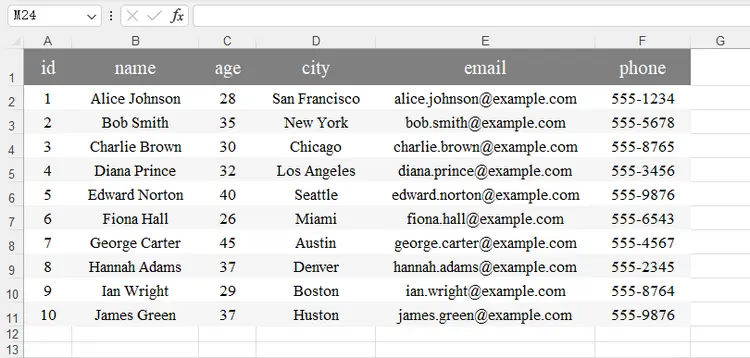
Quando usar este método
Ideal para a geração automatizada de relatórios, aplicações que requerem formatação precisa do Excel e fluxos de trabalho onde os ficheiros Excel são o produto final.
Também pode gostar: Converter JSON para/de Excel em Python – Guia Completo com Exemplos
Método 5 — Node.js com SheetJS (Fluxo de Trabalho JavaScript)
Os programadores de JavaScript podem converter JSON para Excel utilizando bibliotecas como SheetJS. Esta biblioteca fornece utilitários para transformar objetos JSON em folhas de cálculo e escrevê-los em ficheiros .xlsx. Como funciona bem em ambientes Node.js, é comummente utilizada em serviços de backend e scripts de processamento de dados.
Instalar
npm install xlsx
Exemplo
const XLSX = require("xlsx");
const fs = require("fs");

const data = JSON.parse(fs.readFileSync("employees.json")).employees;

const worksheet = XLSX.utils.json_to_sheet(data);
const workbook = XLSX.utils.book_new();

XLSX.utils.book_append_sheet(workbook, worksheet, "Employees");
XLSX.writeFile(workbook, "output.xlsx");
Saída:
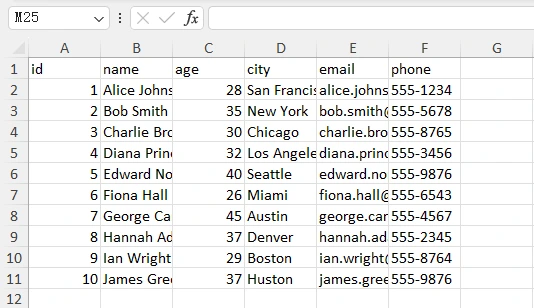
Quando usar este método
Ideal para aplicações web, backends Node.js e fluxos de trabalho de automação baseados em JavaScript.
Comparação Rápida dos 5 Métodos
Cada método para converter JSON para Excel serve um tipo diferente de utilizador e fluxo de trabalho. Algumas abordagens focam-se na simplicidade e velocidade, enquanto outras fornecem automação e controlo de formatação para cenários mais avançados. A tabela abaixo resume as principais diferenças para o ajudar a escolher a opção mais adequada.
| Método | Nível de Habilidade | Automação | Ideal Para | Limitações |
|---|---|---|---|---|
| Excel (Power Query) | Iniciante | Não | Conversão manual rápida e exploração de dados | Requer passos manuais; limitado para fluxos de trabalho repetidos |
| Conversor Online | Iniciante | Não | Conversões únicas e testes rápidos | Limites de tamanho de ficheiro; potenciais preocupações com a privacidade |
| Python com pandas | Intermediário | Sim | Pipelines de dados, análises e grandes conjuntos de dados | Controlo limitado sobre a formatação avançada do Excel |
| Python com Spire.XLS | Intermediário | Sim | Geração de relatórios profissionais em Excel | Requer configuração adicional da biblioteca |
| Node.js com SheetJS | Intermediário | Sim | Aplicações JavaScript e automação de backend | Requer ambiente Node.js |
Melhores Práticas para Converter JSON para Excel
Converter JSON para Excel pode parecer simples, mas os conjuntos de dados do mundo real contêm frequentemente estruturas aninhadas, chaves inconsistentes ou grandes volumes de dados. Seguir algumas das melhores práticas pode ajudar a garantir resultados fiáveis e legíveis.
- Aplanar Estruturas JSON Aninhadas
- Considere o Tamanho do Ficheiro e o Desempenho
Grandes conjuntos de dados JSON podem conter milhares ou milhões de registos, o que pode causar problemas de desempenho ao converter diretamente para o Excel. Algumas dicas:
- Use soluções programáticas (Python ou Node.js) para ficheiros grandes.
- Processe os dados em lotes, se necessário.
- Evite carregar conjuntos de dados extremamente grandes diretamente no Excel.
O próprio Excel tem limites (por exemplo, cerca de 1.048.576 linhas por folha), pelo que conjuntos de dados muito grandes podem precisar de ser divididos por várias folhas de cálculo.
- Use Várias Folhas para Dados Complexos
- Aplique Formatação para Melhor Legibilidade
Se o ficheiro Excel for partilhado com colegas ou partes interessadas, a formatação pode melhorar significativamente a legibilidade.
Práticas de formatação úteis incluem:
- Linhas de cabeçalho a negrito
- Larguras de coluna ajustadas
- Cores de linha alternadas
- Fontes e alinhamento consistentes
Bibliotecas como o Spire.XLS permitem o controlo programático sobre estes elementos, tornando possível gerar relatórios prontos para apresentação automaticamente.
Muitos ficheiros JSON contêm objetos ou arrays aninhados. Embora o JSON suporte dados hierárquicos, o Excel funciona melhor com estruturas planas e tabulares.
Por exemplo, JSON como este:
{
  "id": 1,
  "name": "Alice",
  "address": {
    "city": "San Francisco",
    "zip": "94105"
  }
}
pode precisar de ser achatado em:
| id | name | address.city | address.zip |
|---|---|---|---|
| 1 | Alice | San Francisco | 94105 |
Bibliotecas como o pandas fornecem ferramentas como json_normalize() para achatar dados aninhados automaticamente. Ao trabalhar com JSON mais complexo, o pré-processamento da estrutura antes de exportar para o Excel geralmente produz resultados mais limpos.
Algumas APIs retornam JSON com múltiplos arrays relacionados, tais como:
{
  "customers": [...],
  "orders": [...],
  "products": [...]
}
Em vez de forçar tudo para uma única folha de cálculo, considere exportar cada conjunto de dados para folhas de Excel separadas. Isto preserva a estrutura lógica dos dados originais e facilita a análise.
Conclusão
O JSON é amplamente utilizado para armazenar e trocar dados estruturados, mas nem sempre é ideal para análise ou partilha com utilizadores não técnicos. A conversão de JSON para Excel torna os dados mais fáceis de ler, filtrar e organizar num formato de folha de cálculo familiar.
Para conversões simples e únicas, ferramentas como o Excel ou conversores online são muitas vezes suficientes. No entanto, os programadores que trabalham com pipelines de dados ou relatórios automatizados beneficiarão de soluções programáticas como pandas, Spire.XLS ou SheetJS, que oferecem maior flexibilidade e controlo sobre o resultado.
Perguntas Frequentes
Q1. Porque é que alguns conversores online rejeitam JSON válido?
Muitos conversores online esperam um array de objetos raiz como conjunto de dados. Se o ficheiro JSON começar com um objeto raiz contendo arrays aninhados, a ferramenta pode não saber qual propriedade representa a tabela. Extrair o array relevante antes de carregar o ficheiro geralmente resolve este problema.
Q2. Qual é a diferença entre um array JSON e um objeto JSON?
Um array JSON é uma lista ordenada de valores entre parênteses retos [], enquanto um objeto JSON é uma coleção de pares chave-valor entre chavetas {}.
Q3. Como posso converter JSON aninhado para Excel?
O JSON aninhado requer frequentemente achatamento antes de ser exportado para o Excel. Ferramentas como o pandas fornecem funções como json_normalize() que expandem automaticamente os campos aninhados em colunas. Alternativamente, pode extrair manualmente objetos ou arrays aninhados antes de escrever os dados.
Q4. O Excel pode abrir ficheiros JSON diretamente?
Sim. O Excel inclui uma funcionalidade chamada Power Query, que pode importar ficheiros JSON e convertê-los em tabelas. No entanto, o processo pode exigir a expansão manual de estruturas aninhadas para obter um conjunto de dados tabular limpo.
Leia Também
JSON을 Excel로 변환: 다양한 워크플로우를 위한 5가지 방법
JSON은 구조화된 데이터를 저장하고 교환하는 데 가장 널리 사용되는 형식 중 하나입니다. API, 구성 파일 및 많은 최신 응용 프로그램에서 JSON을 사용하여 데이터 세트를 나타냅니다.
그러나 JSON은 비기술적인 사용자와 분석, 보고 또는 공유하기에 항상 편리한 것은 아닙니다. 많은 경우 JSON 데이터를 Excel 스프레드시트로 변환하면 정보를 더 쉽게 보고, 필터링하고, 정렬하고, 표시할 수 있습니다.
이 가이드에서는 코드 없는 솔루션부터 프로그래밍 방식 접근 방식에 이르기까지 JSON을 Excel로 변환하는 다섯 가지 실용적인 방법을 보여줍니다.
다루는 방법 개요:
- 방법 1 — Excel 파워 쿼리 (코드 없음)
- 방법 2 — 온라인 JSON 변환기 (빠른 일회성)
- 방법 3 — pandas를 사용한 Python (자동화 친화적)
- 방법 4 — Spire.XLS를 사용한 Python (서식이 지정된 Excel 보고서)
- 방법 5 — SheetJS를 사용한 Node.js (JavaScript 워크플로)
JSON 구조 준비
JSON을 Excel로 변환하기 전에 JSON 데이터의 구조가 변환 프로세스에 어떤 영향을 미치는지 이해하는 것이 중요합니다. 많은 변환 도구는 특정 형식을 가정하며, 구조가 일치하지 않으면 예기치 않은 결과나 오류가 발생할 수 있습니다.
루트 배열 대 루트 객체
많은 JSON-to-Excel 도구는 데이터가 다음과 같은 객체의 루트 배열이기를 기대합니다.
[
  {"id":1,"name":"Alice"},
  {"id":2,"name":"Bob"}
]
이 구조는 Excel 테이블에 자연스럽게 매핑됩니다.
| id | name |
|---|---|
| 1 | Alice |
| 2 | Bob |
각 객체는 행이 되고 키는 열 머리글이 됩니다.
그러나 많은 실제 API 및 데이터 세트는 배열을 루트 객체 내에 래핑합니다.
{
  "employees":[
    {"id":1,"name":"Alice"},
    {"id":2,"name":"Bob"}
  ]
}
이 경우 실제 테이블 형식 데이터 세트는 "employees" 속성 내에 저장됩니다.
일부 도구가 루트 객체에서 실패하는 이유
일부 변환기는 테이블 형식 데이터 세트를 포함하는 속성을 자동으로 결정할 수 없습니다. JSON 파일이 배열로 직접 시작될 것으로 예상합니다.
데이터가 루트 객체 내에 래핑되면 이러한 도구는 파일을 올바르게 구문 분석하지 못하거나 빈 결과를 생성할 수 있습니다.
따라서 변환을 수행하기 전에 관련 배열을 수동으로 추출해야 할 수 있습니다. 예를 들어, 배열이 온라인 변환기의 루트 요소가 되도록 JSON을 재구성하거나 코드에서 직접 액세스할 수 있습니다.
Python에서 배열에 액세스하기
예를 들어, 데이터 세트가 "employees" 아래에 저장된 경우 다음과 같이 로드하고 추출할 수 있습니다.
data = json.load(f)["employees"]
이 단계가 끝나면 data는 객체 목록이 되며, 이를 행과 열로 Excel에 쉽게 쓸 수 있습니다.
방법 1 — Excel 파워 쿼리 (코드 없음)
Microsoft Excel이 이미 설치되어 있는 경우 코드를 작성하지 않고도 JSON 데이터를 직접 가져올 수 있습니다. Excel의 파워 쿼리 기능을 사용하면 사용자가 JSON 파일을 로드하고 자동으로 테이블 형식으로 변환할 수 있습니다. 이 접근 방식은 스프레드시트 환경 내에서 JSON 데이터를 빠르게 보려는 분석가나 비즈니스 사용자에게 이상적입니다.
단계
- 컴퓨터에서 Microsoft Excel을 시작합니다.
- Excel 상단 메뉴에 있는 데이터 탭을 클릭합니다.
- 데이터 탭에서 데이터 가져오기로 이동한 다음 파일에서를 선택하고 드롭다운 메뉴에서 JSON에서를 선택합니다.
- 메시지가 표시되면 JSON 파일을 찾아 선택한 다음 가져오기를 클릭합니다.
- 파워 쿼리 편집기가 시작됩니다.
-
파일이 레코드 목록으로 열리는 경우:
- 테이블로를 클릭하여 목록을 테이블 형식으로 변환합니다.
- 그런 다음 열 머리글의 확장 (⇄) 아이콘을 클릭하여 열 이름을 표시합니다. 열에 여전히 "목록" 또는 "레코드"가 표시되면 확장 아이콘을 다시 클릭하여 더 평탄화합니다.
- 테이블에 포함할 필드를 선택할 수 있는 대화 상자가 나타납니다. 필요한 필드를 선택하고 더 깔끔한 머리글을 위해 "접두사로 원래 열 이름 사용"을 선택 취소한 다음 확인을 클릭합니다.
- 닫기 & 로드를 클릭하여 구조화된 데이터를 Excel 워크시트로 가져옵니다.
- 데이터가 나중에 사용할 수 있도록 보존되도록 Excel 파일을 .xlsx 형식으로 저장합니다.
이 방법을 사용하는 경우
프로그래밍보다 시각적 인터페이스를 선호하는 사용자 및 소규모 데이터 세트에 가장 적합합니다.
방법 2 — 온라인 JSON 변환기 (빠른 일회성)
온라인 JSON 변환기는 JSON 파일을 Excel 스프레드시트로 변환하는 가장 빠른 방법 중 하나를 제공합니다. 이러한 도구는 일반적으로 파일 업로드만 필요하며 다운로드 가능한 Excel 파일을 자동으로 생성합니다. jsontoexcel.net에서 제공하는 것과 같은 플랫폼은 소프트웨어를 설치하지 않고도 몇 초 만에 변환을 완료할 수 있습니다.
단계
- JSON-to-Excel 변환기 웹사이트를 엽니다.
- JSON 데이터를 텍스트 편집기에 직접 복사하여 붙여넣거나 컴퓨터에서 파일을 업로드합니다.
- Excel로 변환 버튼을 클릭하여 변환 프로세스를 시작합니다.
- 생성된 Excel 파일을 다운로드합니다.
중요 참고 사항
대부분의 온라인 변환기는 객체의 루트 배열을 예상합니다. 그렇지 않으면 자동으로 실패하거나 예기치 않은 결과가 발생할 수 있습니다. 이 형식은 Excel로 가장 안정적으로 변환됩니다.
이 방법을 사용하는 경우
빠른 일회성 변환 또는 샘플 데이터 세트 테스트에 가장 적합합니다.
방법 3 — pandas를 사용한 Python (자동화 친화적)
개발자와 데이터 엔지니어에게 Python은 JSON-to-Excel 변환을 자동화하는 강력한 방법을 제공합니다. 인기 있는 데이터 분석 라이브러리인 pandas는 JSON 파일을 쉽게 로드하고 구조화된 DataFrame으로 변환한 다음 결과를 Excel로 내보낼 수 있습니다. 이 방법은 변환을 스크립트, ETL 워크플로 또는 자동화된 보고 파이프라인에 통합해야 할 때 특히 유용합니다.
종속성 설치
pip install pandas openpyxl
JSON을 Excel로 변환
import pandas as pd
import json

with open("employees.json") as f:
    data = json.load(f)["employees"]

df = pd.json_normalize(data)
df.to_excel("output.xlsx", index=False)
Output:
이 방법을 사용하는 경우
자동화된 데이터 처리, 분석 워크플로 및 대규모 데이터 세트에 이상적입니다.
방법 4 — Spire.XLS를 사용한 Python (서식이 지정된 Excel 보고서)
목표가 잘 서식 지정된 Excel 보고서를 생성하는 것이라면 Python은 Spire.XLS와 함께 작동하여 프로그래밍 방식으로 스프레드시트를 만들 수 있습니다. 간단한 데이터 내보내기 라이브러리와 달리 Spire.XLS는 Excel 서식에 대한 광범위한 제어를 제공하며, 글꼴, 색상, 정렬 및 열 크기 조정을 포함합니다. 따라서 이해 관계자와 공유할 준비가 된 전문적인 스프레드시트를 생성하는 데 적합합니다.
라이브러리 설치
pip install spire.xls
예제 코드
다음 스크립트는 JSON 직원 데이터를 읽고, 열 머리글을 동적으로 생성하고, 행을 Excel에 쓰고, 머리글 스타일 지정, 행 색상 교대 및 자동 맞춤 열과 같은 서식을 적용합니다.
import json
from spire.xls import *

# Load JSON data
with open('C:/Users/Administrator/Desktop/employees.json') as f:
    data = json.load(f)["employees"]

if not data:
    raise ValueError("JSON data is empty!")

# Create workbook and worksheet
workbook = Workbook()
sheet = workbook.Worksheets[0]

# Extract headers dynamically
headers = list(data[0].keys())
num_cols = len(headers)

# Write headers
for col, header in enumerate(headers, start=1):
    sheet.Range[1, col].Value = header

# Write rows
for row_index, item in enumerate(data, start=2):
    for col_index, key in enumerate(headers, start=1):
        value = item.get(key, "")
        sheet.Range[row_index, col_index].Value = str(value) if value is not None else ""

# Header formatting
header_row = sheet.Range[1, 1, 1, num_cols]
header_row.RowHeight = 30
header_style = header_row.Style
header_style.Font.FontName = "Times New Roman"
header_style.Font.Size = 16
header_style.Font.Color = Color.get_White()
header_style.Color = Color.FromArgb(255, 128, 128, 128)
header_style.HorizontalAlignment = HorizontalAlignType.Center
header_style.VerticalAlignment = VerticalAlignType.Center

# Data formatting
locatedRange = sheet.AllocatedRange
for rowNum in range(2, locatedRange.RowCount + 1):
    data_row = sheet.Range[rowNum, 1, rowNum, num_cols]
    data_row.RowHeight = 20
    row_style = data_row.Style
    row_style.Font.FontName = "Times New Roman"
    row_style.Font.Size = 13
    row_style.HorizontalAlignment = HorizontalAlignType.Center
    row_style.VerticalAlignment = VerticalAlignType.Center
    row_style.Color = Color.get_White() if rowNum % 2 == 0 else Color.FromArgb(255, 245, 245, 245)

# Auto-fit columns
extra_width = 3
for col in range(1, num_cols + 1):
    sheet.AutoFitColumn(col)
    current_width = sheet.Columns[col - 1].ColumnWidth
    sheet.Columns[col - 1].ColumnWidth = current_width + extra_width

workbook.SaveToFile("JsonToExcel.xlsx", ExcelVersion.Version2016)
workbook.Dispose()
Output:
이 방법을 사용하는 경우
자동화된 보고서 생성, 정확한 Excel 서식이 필요한 응용 프로그램 및 Excel 파일이 최종 결과물인 워크플로에 가장 적합합니다.
관심 있을 만한 다른 글: Python에서 JSON을 Excel로/Excel에서 JSON으로 변환 – 예제가 포함된 전체 가이드
방법 5 — SheetJS를 사용한 Node.js (JavaScript 워크플로)
JavaScript 개발자는 SheetJS와 같은 라이브러리를 사용하여 JSON을 Excel로 변환할 수 있습니다. 이 라이브러리는 JSON 객체를 스프레드시트 워크시트로 변환하고 .xlsx 파일에 쓰는 유틸리티를 제공합니다. Node.js 환경에서 잘 작동하기 때문에 백엔드 서비스 및 데이터 처리 스크립트에서 일반적으로 사용됩니다.
설치
npm install xlsx
예제
const XLSX = require("xlsx");
const fs = require("fs");

const data = JSON.parse(fs.readFileSync("employees.json")).employees;

const worksheet = XLSX.utils.json_to_sheet(data);
const workbook = XLSX.utils.book_new();

XLSX.utils.book_append_sheet(workbook, worksheet, "Employees");
XLSX.writeFile(workbook, "output.xlsx");
Output:
이 방법을 사용하는 경우
웹 응용 프로그램, Node.js 백엔드 및 JavaScript 기반 자동화 워크플로에 가장 적합합니다.
5가지 방법 빠른 비교
JSON을 Excel로 변환하는 각 방법은 다른 유형의 사용자 및 워크플로에 적합합니다. 일부 접근 방식은 단순성과 속도에 중점을 두는 반면, 다른 접근 방식은 고급 시나리오를 위한 자동화 및 서식 제어를 제공합니다. 아래 표는 가장 적합한 옵션을 선택하는 데 도움이 되도록 주요 차이점을 요약합니다.
| 방법 | 기술 수준 | 자동화 | 최적 대상 | 제한 사항 |
|---|---|---|---|---|
| Excel (파워 쿼리) | 초급 | 아니요 | 빠른 수동 변환 및 데이터 탐색 | 수동 단계 필요; 반복적인 워크플로에 제한적 |
| 온라인 변환기 | 초급 | 아니요 | 일회성 변환 및 빠른 테스트 | 파일 크기 제한; 잠재적인 개인 정보 보호 문제 |
| pandas를 사용한 Python | 중급 | 예 | 데이터 파이프라인, 분석 및 대규모 데이터 세트 | 고급 Excel 서식에 대한 제한된 제어 |
| Spire.XLS를 사용한 Python | 중급 | 예 | 전문적인 Excel 보고서 생성 | 추가 라이브러리 설정 필요 |
| SheetJS를 사용한 Node.js | 중급 | 예 | JavaScript 응용 프로그램 및 백엔드 자동화 | Node.js 환경 필요 |
JSON을 Excel로 변환하기 위한 모범 사례
JSON을 Excel로 변환하는 것은 간단해 보일 수 있지만, 실제 데이터 세트에는 종종 중첩된 구조, 일관성 없는 키 또는 대량의 데이터가 포함됩니다. 몇 가지 모범 사례를 따르면 안정적이고 읽기 쉬운 결과를 보장하는 데 도움이 될 수 있습니다.
- 중첩된 JSON 구조 평탄화
- 파일 크기 및 성능 고려
대규모 JSON 데이터 세트에는 수천 또는 수백만 개의 레코드가 포함될 수 있으며, 이는 Excel로 직접 변환할 때 성능 문제를 일으킬 수 있습니다. 몇 가지 팁:
- 대용량 파일에는 프로그래밍 방식 솔루션(Python 또는 Node.js)을 사용합니다.
- 필요한 경우 데이터를 일괄 처리합니다.
- 매우 큰 데이터 세트를 Excel에 직접 로드하지 마십시오.
Excel 자체에는 제한(예: 시트당 약 1,048,576개 행)이 있으므로 매우 큰 데이터 세트는 여러 워크시트로 분할해야 할 수 있습니다.
- 복잡한 데이터에 여러 시트 사용
- 가독성 향상을 위한 서식 적용
Excel 파일을 동료나 이해 관계자와 공유할 경우 서식을 지정하면 가독성을 크게 향상시킬 수 있습니다.
유용한 서식 지정 방법은 다음과 같습니다.
- 굵은 머리글 행
- 조정된 열 너비
- 교대 행 색상
- 일관된 글꼴 및 정렬
Spire.XLS와 같은 라이브러리를 사용하면 이러한 요소를 프로그래밍 방식으로 제어할 수 있으므로 프레젠테이션 준비가 된 보고서를 자동으로 생성할 수 있습니다.
많은 JSON 파일에는 중첩된 객체나 배열이 포함되어 있습니다. JSON은 계층적 데이터를 지원하지만 Excel은 평평한 테이블 형식 구조에서 가장 잘 작동합니다.
예를 들어, 다음과 같은 JSON:
{
  "id": 1,
  "name": "Alice",
  "address": {
    "city": "San Francisco",
    "zip": "94105"
  }
}
다음과 같이 평탄화해야 할 수 있습니다.
| id | name | address.city | address.zip |
|---|---|---|---|
| 1 | Alice | San Francisco | 94105 |
pandas와 같은 라이브러리는 json_normalize()와 같은 도구를 제공하여 중첩된 데이터를 자동으로 평탄화합니다. 더 복잡한 JSON으로 작업할 때 Excel로 내보내기 전에 구조를 전처리하면 종종 더 깔끔한 결과를 얻을 수 있습니다.
일부 API는 다음과 같이 여러 관련 배열이 있는 JSON을 반환합니다.
{
  "customers": [...],
  "orders": [...],
  "products": [...]
}
모든 것을 하나의 워크시트에 강제로 넣는 대신 각 데이터 세트를 별도의 Excel 시트로 내보내는 것을 고려하십시오. 이렇게 하면 원본 데이터의 논리적 구조가 보존되고 분석이 더 쉬워집니다.
결론
JSON은 구조화된 데이터를 저장하고 교환하는 데 널리 사용되지만, 비기술적인 사용자와 분석하거나 공유하기에 항상 이상적인 것은 아닙니다. JSON을 Excel로 변환하면 익숙한 스프레드시트 형식으로 데이터를 더 쉽게 읽고, 필터링하고, 구성할 수 있습니다.
간단한 일회성 변환의 경우 Excel이나 온라인 변환기와 같은 도구로 충분한 경우가 많습니다. 그러나 데이터 파이프라인이나 자동화된 보고서로 작업하는 개발자는 출력에 대한 더 큰 유연성과 제어를 제공하는 pandas, Spire.XLS 또는 SheetJS와 같은 프로그래밍 방식 솔루션의 이점을 누릴 수 있습니다.
자주 묻는 질문
Q1. 일부 온라인 변환기가 유효한 JSON을 거부하는 이유는 무엇입니까?
많은 온라인 변환기는 데이터 세트로 객체의 루트 배열을 예상합니다. JSON 파일이 중첩된 배열을 포함하는 루트 객체로 시작하는 경우 도구는 어떤 속성이 테이블을 나타내는지 알 수 없습니다. 파일을 업로드하기 전에 관련 배열을 추출하면 일반적으로 이 문제가 해결됩니다.
Q2. JSON 배열과 JSON 객체의 차이점은 무엇입니까?
JSON 배열은 대괄호 []로 묶인 순서 있는 값 목록이고, JSON 객체는 중괄호 {}로 묶인 키-값 쌍의 모음입니다.
Q3. 중첩된 JSON을 Excel로 어떻게 변환할 수 있습니까?
중첩된 JSON은 종종 Excel로 내보내기 전에 평탄화해야 합니다. pandas와 같은 도구는 중첩된 필드를 열로 자동 확장하는 json_normalize()와 같은 함수를 제공합니다. 또는 데이터를 쓰기 전에 중첩된 객체나 배열을 수동으로 추출할 수 있습니다.
Q4. Excel에서 JSON 파일을 직접 열 수 있습니까?
예. Excel에는 JSON 파일을 가져와서 테이블로 변환할 수 있는 파워 쿼리라는 기능이 포함되어 있습니다. 그러나 이 프로세스는 깔끔한 테이블 형식 데이터 세트를 얻기 위해 중첩된 구조를 수동으로 확장해야 할 수 있습니다.
함께 읽기
Convertire JSON in Excel: 5 metodi per diversi flussi di lavoro
Indice
- Prepara la tua struttura JSON
- Metodo 1 — Excel Power Query (Senza Codice)
- Metodo 2 — Convertitore JSON Online (Veloce e Singolo)
- Metodo 3 — Python con pandas (Adatto all'Automazione)
- Metodo 4 — Python con Spire.XLS (Report Excel Formattati)
- Metodo 5 — Node.js con SheetJS (Flusso di Lavoro JavaScript)
- Confronto Rapido dei 5 Metodi
- Migliori Pratiche per Convertire JSON in Excel
- Conclusione
- Domande Frequenti
JSON è uno dei formati più utilizzati per archiviare e scambiare dati strutturati. API, file di configurazione e molte applicazioni moderne utilizzano JSON per rappresentare i set di dati.
Tuttavia, JSON non è sempre comodo per analisi, reporting o condivisione con utenti non tecnici. In molti casi, convertire i dati JSON in un foglio di calcolo Excel rende più facile visualizzare, filtrare, ordinare e presentare le informazioni.
Questa guida mostra cinque metodi pratici per convertire JSON in Excel, che vanno da soluzioni senza codice ad approcci programmatici.
Panoramica dei metodi trattati:
- Metodo 1 — Excel Power Query (Senza Codice)
- Metodo 2 — Convertitore JSON Online (Veloce e Singolo)
- Metodo 3 — Python con pandas (Adatto all'Automazione)
- Metodo 4 — Python con Spire.XLS (Report Excel Formattati)
- Metodo 5 — Node.js con SheetJS (Flusso di Lavoro JavaScript)
Prepara la tua struttura JSON
Prima di convertire JSON in Excel, è importante capire come la struttura dei tuoi dati JSON influisce sul processo di conversione. Molti strumenti di conversione presuppongono un formato specifico e strutture non corrispondenti possono causare risultati imprevisti o errori.
Array Radice vs. Oggetto Radice
Molti strumenti da JSON a Excel si aspettano che i dati siano un array di oggetti radice, come questo:
[
  {"id":1,"name":"Alice"},
  {"id":2,"name":"Bob"}
]
Questa struttura si mappa naturalmente a una tabella di Excel:
| id | nome |
|---|---|
| 1 | Alice |
| 2 | Bob |
Ogni oggetto diventa una riga e le chiavi diventano intestazioni di colonna.
Tuttavia, molte API e set di dati del mondo reale racchiudono l'array all'interno di un oggetto radice:
{
  "employees":[
    {"id":1,"name":"Alice"},
    {"id":2,"name":"Bob"}
  ]
}
In questo caso, il set di dati tabellare effettivo è archiviato all'interno della proprietà "employees".
Perché Alcuni Strumenti Falliscono con gli Oggetti Radice
Alcuni convertitori non possono determinare automaticamente quale proprietà contiene il set di dati tabellare. Si aspettano che il file JSON inizi direttamente con un array.
Quando i dati sono racchiusi in un oggetto radice, questi strumenti potrebbero non riuscire a analizzare correttamente il file o produrre risultati vuoti.
Pertanto, potrebbe essere necessario estrarre manualmente l'array pertinente prima di eseguire la conversione. Ad esempio, potresti ristrutturare il JSON in modo che l'array diventi l'elemento radice per un convertitore online, o accedervi direttamente nel codice.
Accesso all'Array in Python
Ad esempio, se il set di dati è archiviato sotto "employees", puoi caricarlo ed estrarlo in questo modo:
data = json.load(f)["employees"]
Dopo questo passaggio, data diventa una lista di oggetti, che può essere facilmente scritta in Excel come righe e colonne.
Metodo 1 — Excel Power Query (Senza Codice)
Se hai già installato Microsoft Excel, puoi importare i dati JSON direttamente senza scrivere alcun codice. La funzione Power Query di Excel consente agli utenti di caricare file JSON e convertirli automaticamente in un formato tabellare. Questo approccio è ideale per analisti o utenti aziendali che desiderano visualizzare rapidamente i dati JSON all'interno di un ambiente di foglio di calcolo.
Passaggi
- Avvia Microsoft Excel sul tuo computer.
- Fai clic sulla scheda Dati situata nel menu superiore di Excel.
- Nella scheda Dati, vai a Recupera dati, quindi seleziona Da file e scegli Da JSON dal menu a discesa.
- Quando richiesto, individua e seleziona il tuo file JSON, quindi fai clic su Importa.
- Si avvierà l'Editor di Power Query.
-
Se il file si apre come un elenco di record:
- Fai clic su In tabella per convertire l'elenco in un formato di tabella.
- Quindi, fai clic sull'icona Espandi (⇄) nell'intestazione della colonna per rivelare i nomi delle colonne. Se le colonne mostrano ancora "Elenco" o "Record", fai di nuovo clic sull'icona di espansione per appiattire ulteriormente.
- Apparirà una finestra di dialogo che ti consentirà di selezionare quali campi desideri includere nella tabella. Scegli i campi necessari, deseleziona "Usa nome colonna originale come prefisso" per intestazioni più pulite, quindi fai clic su OK.
- Fai clic su Chiudi e carica per importare i dati strutturati nel tuo foglio di lavoro Excel.
- Salva il tuo file Excel in formato .xlsx, assicurandoti che i tuoi dati siano conservati per un uso futuro.
Quando usare questo metodo
Ideale per piccoli set di dati e utenti che preferiscono un'interfaccia visiva piuttosto che la programmazione.
Metodo 2 — Convertitore JSON Online (Veloce e Singolo)
I convertitori JSON online offrono uno dei modi più veloci per trasformare i file JSON in fogli di calcolo Excel. Questi strumenti richiedono in genere solo il caricamento di un file e generano automaticamente un file Excel scaricabile. Piattaforme come quelle offerte da jsontoexcel.net possono completare la conversione in pochi secondi senza installare alcun software.
Passaggi
- Apri un sito web di conversione da JSON a Excel.
- Copia e incolla i tuoi dati JSON direttamente nell'editor di testo o carica un file dal tuo computer.
- Fai clic sul pulsante Converti in Excel per avviare il processo di conversione.
- Scarica il file Excel generato.
Nota Importante
La maggior parte dei convertitori online si aspetta un array di oggetti radice; in caso contrario, potrebbero fallire silenziosamente o produrre risultati imprevisti. Questo formato si converte in modo più affidabile in Excel.
Quando usare questo metodo
Ideale per conversioni rapide e una tantum o per testare set di dati di esempio.
Metodo 3 — Python con pandas (Adatto all'Automazione)
Per sviluppatori e ingegneri dei dati, Python offre un modo potente per automatizzare le conversioni da JSON a Excel. La popolare libreria di analisi dei dati pandas può caricare facilmente file JSON, trasformarli in un DataFrame strutturato ed esportare i risultati in Excel. Questo metodo è particolarmente utile quando la conversione deve essere integrata in script, flussi di lavoro ETL o pipeline di reporting automatizzate.
Installa Dipendenze
pip install pandas openpyxl
Converti JSON in Excel
import pandas as pd
import json

with open("employees.json") as f:
    data = json.load(f)["employees"]

df = pd.json_normalize(data)
df.to_excel("output.xlsx", index=False)
Output:
Quando usare questo metodo
Ideale per l'elaborazione automatizzata dei dati, i flussi di lavoro di analisi e i grandi set di dati.
Metodo 4 — Python con Spire.XLS (Report Excel Formattati)
Se il tuo obiettivo è generare report Excel ben formattati, Python può funzionare con Spire.XLS per creare fogli di calcolo in modo programmatico. A differenza delle semplici librerie di esportazione dati, Spire.XLS offre un controllo esteso sulla formattazione di Excel, inclusi caratteri, colori, allineamento e dimensionamento delle colonne. Ciò lo rende adatto per produrre fogli di calcolo professionali pronti per essere condivisi con gli stakeholder.
Installa la Libreria
pip install spire.xls
Codice di Esempio
Lo script seguente legge i dati dei dipendenti JSON, genera dinamicamente le intestazioni delle colonne, scrive le righe in Excel e applica la formattazione come lo stile dell'intestazione, i colori alternati delle righe e le colonne adattate automaticamente.
import json
from spire.xls import *

# Load JSON data
with open('C:/Users/Administrator/Desktop/employees.json') as f:
    data = json.load(f)["employees"]

if not data:
    raise ValueError("JSON data is empty!")

# Create workbook and worksheet
workbook = Workbook()
sheet = workbook.Worksheets[0]

# Extract headers dynamically
headers = list(data[0].keys())
num_cols = len(headers)

# Write headers
for col, header in enumerate(headers, start=1):
    sheet.Range[1, col].Value = header

# Write rows
for row_index, item in enumerate(data, start=2):
    for col_index, key in enumerate(headers, start=1):
        value = item.get(key, "")
        sheet.Range[row_index, col_index].Value = str(value) if value is not None else ""

# Header formatting
header_row = sheet.Range[1, 1, 1, num_cols]
header_row.RowHeight = 30
header_style = header_row.Style
header_style.Font.FontName = "Times New Roman"
header_style.Font.Size = 16
header_style.Font.Color = Color.get_White()
header_style.Color = Color.FromArgb(255, 128, 128, 128)
header_style.HorizontalAlignment = HorizontalAlignType.Center
header_style.VerticalAlignment = VerticalAlignType.Center

# Data formatting
locatedRange = sheet.AllocatedRange
for rowNum in range(2, locatedRange.RowCount + 1):
    data_row = sheet.Range[rowNum, 1, rowNum, num_cols]
    data_row.RowHeight = 20
    row_style = data_row.Style
    row_style.Font.FontName = "Times New Roman"
    row_style.Font.Size = 13
    row_style.HorizontalAlignment = HorizontalAlignType.Center
    row_style.VerticalAlignment = VerticalAlignType.Center
    row_style.Color = Color.get_White() if rowNum % 2 == 0 else Color.FromArgb(255, 245, 245, 245)

# Auto-fit columns
extra_width = 3
for col in range(1, num_cols + 1):
    sheet.AutoFitColumn(col)
    current_width = sheet.Columns[col - 1].ColumnWidth
    sheet.Columns[col - 1].ColumnWidth = current_width + extra_width

workbook.SaveToFile("JsonToExcel.xlsx", ExcelVersion.Version2016)
workbook.Dispose()
Output:
Quando usare questo metodo
Ideale per la generazione automatizzata di report, applicazioni che richiedono una formattazione precisa di Excel e flussi di lavoro in cui i file Excel sono il prodotto finale.
Potrebbe Piacerti Anche: Convertire JSON da/a Excel in Python – Guida Completa con Esempi
Metodo 5 — Node.js con SheetJS (Flusso di Lavoro JavaScript)
Gli sviluppatori JavaScript possono convertire JSON in Excel utilizzando librerie come SheetJS. Questa libreria fornisce utilità per trasformare oggetti JSON in fogli di lavoro per fogli di calcolo e scriverli in file .xlsx. Poiché funziona bene negli ambienti Node.js, è comunemente utilizzata nei servizi di backend e negli script di elaborazione dati.
Installa
npm install xlsx
Esempio
const XLSX = require("xlsx");
const fs = require("fs");

const data = JSON.parse(fs.readFileSync("employees.json")).employees;

const worksheet = XLSX.utils.json_to_sheet(data);
const workbook = XLSX.utils.book_new();

XLSX.utils.book_append_sheet(workbook, worksheet, "Employees");
XLSX.writeFile(workbook, "output.xlsx");
Output:
Quando usare questo metodo
Ideale per applicazioni web, backend Node.js e flussi di lavoro di automazione basati su JavaScript.
Confronto Rapido dei 5 Metodi
Ogni metodo per convertire JSON in Excel serve un diverso tipo di utente e flusso di lavoro. Alcuni approcci si concentrano su semplicità e velocità, while others provide automazione e controllo della formattazione per scenari più avanzati. La tabella seguente riassume le principali differenze per aiutarti a scegliere l'opzione più adatta.
| Metodo | Livello di Abilità | Automazione | Ideale Per | Limitazioni |
|---|---|---|---|---|
| Excel (Power Query) | Principiante | No | Conversione manuale rapida ed esplorazione dei dati | Richiede passaggi manuali; limitato per flussi di lavoro ripetuti |
| Convertitore Online | Principiante | No | Conversioni una tantum e test rapidi | Limiti di dimensione del file; potenziali problemi di privacy |
| Python con pandas | Intermedio | Sì | Pipeline di dati, analisi e grandi set di dati | Controllo limitato sulla formattazione avanzata di Excel |
| Python con Spire.XLS | Intermedio | Sì | Generazione di report Excel professionali | Richiede la configurazione di una libreria aggiuntiva |
| Node.js con SheetJS | Intermedio | Sì | Applicazioni JavaScript e automazione di backend | Richiede un ambiente Node.js |
Migliori Pratiche per Convertire JSON in Excel
La conversione da JSON a Excel può sembrare semplice, ma i set di dati del mondo reale contengono spesso strutture annidate, chiavi incoerenti o grandi volumi di dati. Seguire alcune migliori pratiche può aiutare a garantire risultati affidabili e leggibili.
- Appiattire le Strutture JSON Annidate
- Considera la Dimensione del File e le Prestazioni
Grandi set di dati JSON possono contenere migliaia o milioni di record, il che può causare problemi di prestazioni durante la conversione diretta in Excel. Alcuni suggerimenti:
- Usa soluzioni programmatiche (Python o Node.js) per file di grandi dimensioni.
- Elabora i dati in batch se necessario.
- Evita di caricare set di dati estremamente grandi direttamente in Excel.
Excel stesso ha dei limiti (ad esempio, circa 1.048.576 righe per foglio), quindi set di dati molto grandi potrebbero dover essere suddivisi su più fogli di lavoro.
- Usa Fogli Multipli per Dati Complessi
- Applica la Formattazione per una Migliore Leggibilità
Se il file Excel verrà condiviso con colleghi o stakeholder, la formattazione può migliorare significativamente la leggibilità.
Le pratiche di formattazione utili includono:
- Righe di intestazione in grassetto
- Larghezze delle colonne regolate
- Colori delle righe alternati
- Caratteri e allineamento coerenti
Librerie come Spire.XLS consentono il controllo programmatico su questi elementi, rendendo possibile la generazione di report pronti per la presentazione automaticamente.
Molti file JSON contengono oggetti o array annidati. Mentre JSON supporta dati gerarchici, Excel funziona meglio con strutture piatte e tabellari.
Ad esempio, JSON come questo:
{
  "id": 1,
  "name": "Alice",
  "address": {
    "city": "San Francisco",
    "zip": "94105"
  }
}
potrebbe essere necessario appiattirlo in:
| id | nome | address.city | address.zip |
|---|---|---|---|
| 1 | Alice | San Francisco | 94105 |
Librerie come pandas forniscono strumenti come json_normalize() per appiattire automaticamente i dati annidati. Quando si lavora con JSON più complessi, la pre-elaborazione della struttura prima dell'esportazione in Excel produce spesso risultati più puliti.
Alcune API restituiscono JSON con array correlati multipli, come:
{
  "customers": [...],
  "orders": [...],
  "products": [...]
}
Invece di forzare tutto in un unico foglio di lavoro, considera di esportare ogni set di dati in fogli Excel separati. Ciò preserva la struttura logica dei dati originali e facilita l'analisi.
Conclusione
JSON è ampiamente utilizzato per archiviare e scambiare dati strutturati, ma non è sempre ideale per l'analisi o la condivisione con utenti non tecnici. La conversione di JSON in Excel rende i dati più facili da leggere, filtrare e organizzare in un formato di foglio di calcolo familiare.
Per conversioni semplici e una tantum, strumenti come Excel o convertitori online sono spesso sufficienti. Tuttavia, gli sviluppatori che lavorano con pipeline di dati o report automatizzati trarranno vantaggio da soluzioni programmatiche come pandas, Spire.XLS, o SheetJS, che offrono maggiore flessibilità e controllo sull'output.
Domande Frequenti
D1. Perché alcuni convertitori online rifiutano JSON validi?
Molti convertitori online si aspettano un array di oggetti radice come set di dati. Se il file JSON inizia con un oggetto radice contenente array annidati, lo strumento potrebbe non sapere quale proprietà rappresenta la tabella. L'estrazione dell'array pertinente prima di caricare il file di solito risolve questo problema.
D2. Qual è la differenza tra un array JSON e un oggetto JSON?
Un array JSON è un elenco ordinato di valori racchiusi tra parentesi quadre [], mentre un oggetto JSON è una raccolta di coppie chiave-valore racchiuse tra parentesi graffe {}.
D3. Come posso convertire JSON annidato in Excel?
Il JSON annidato richiede spesso l'appiattimento prima dell'esportazione in Excel. Strumenti come pandas forniscono funzioni come json_normalize() che espandono automaticamente i campi annidati in colonne. In alternativa, è possibile estrarre manualmente oggetti o array annidati prima di scrivere i dati.
D4. Excel può aprire direttamente i file JSON?
Sì. Excel include una funzione chiamata Power Query, che può importare file JSON e convertirli in tabelle. Tuttavia, il processo potrebbe richiedere l'espansione manuale delle strutture annidate per ottenere un set di dati tabellare pulito.
Leggi Anche
Convertir du JSON en Excel : 5 méthodes pour différents flux de travail
Table des matières
- Préparez votre structure JSON
- Méthode 1 — Excel Power Query (sans code)
- Méthode 2 — Convertisseur JSON en ligne (pour une conversion rapide et unique)
- Méthode 3 — Python avec pandas (adapté à l'automatisation)
- Méthode 4 — Python avec Spire.XLS (rapports Excel formatés)
- Méthode 5 — Node.js avec SheetJS (flux de travail JavaScript)
- Comparaison rapide des 5 méthodes
- Meilleures pratiques pour la conversion de JSON en Excel
- Conclusion
- FAQ
Le JSON est l'un des formats les plus utilisés pour stocker et échanger des données structurées. Les API, les fichiers de configuration et de nombreuses applications modernes utilisent le JSON pour représenter des ensembles de données.
Cependant, le JSON n'est pas toujours pratique pour l'analyse, le reporting ou le partage avec des utilisateurs non techniques. Dans de nombreux cas, la conversion des données JSON en une feuille de calcul Excel facilite la visualisation, le filtrage, le tri et la présentation des informations.
Ce guide présente cinq méthodes pratiques pour convertir du JSON en Excel, allant des solutions sans code aux approches programmatiques.
Aperçu des méthodes couvertes :
- Méthode 1 — Excel Power Query (sans code)
- Méthode 2 — Convertisseur JSON en ligne (pour une conversion rapide et unique)
- Méthode 3 — Python avec pandas (adapté à l'automatisation)
- Méthode 4 — Python avec Spire.XLS (rapports Excel formatés)
- Méthode 5 — Node.js avec SheetJS (flux de travail JavaScript)
Préparez votre structure JSON
Avant de convertir du JSON en Excel, il est important de comprendre comment la structure de vos données JSON affecte le processus de conversion. De nombreux outils de conversion supposent un format spécifique, et des structures incompatibles peuvent entraîner des résultats inattendus ou des erreurs.
Tableau racine vs. Objet racine
De nombreux outils de conversion JSON vers Excel s'attendent à ce que les données soient un tableau racine d'objets, comme ceci :
[
  {"id":1,"name":"Alice"},
  {"id":2,"name":"Bob"}
]
Cette structure correspond naturellement à un tableau Excel :
| id | name |
|---|---|
| 1 | Alice |
| 2 | Bob |
Chaque objet devient une ligne, et les clés deviennent des en-têtes de colonne.
Cependant, de nombreuses API et ensembles de données du monde réel encapsulent le tableau à l'intérieur d'un objet racine :
{
  "employees":[
    {"id":1,"name":"Alice"},
    {"id":2,"name":"Bob"}
  ]
}
Dans ce cas, l'ensemble de données tabulaires réel est stocké à l'intérieur de la propriété "employees".
Pourquoi certains outils échouent avec les objets racines
Certains convertisseurs ne peuvent pas déterminer automatiquement quelle propriété contient l'ensemble de données tabulaires. Ils s'attendent à ce que le fichier JSON commence directement par un tableau.
Lorsque les données sont encapsulées dans un objet racine, ces outils peuvent ne pas réussir à analyser correctement le fichier ou produire des résultats vides.
Par conséquent, vous devrez peut-être extraire manuellement le tableau pertinent avant d'effectuer la conversion. Par exemple, vous pourriez restructurer le JSON pour que le tableau devienne l'élément racine pour un convertisseur en ligne, ou y accéder directement dans le code.
Accéder au tableau en Python
Par exemple, si l'ensemble de données est stocké sous "employees", vous pouvez le charger et l'extraire comme ceci :
data = json.load(f)["employees"]
Après cette étape, data devient une liste d'objets, qui peut être facilement écrite dans Excel sous forme de lignes et de colonnes.
Méthode 1 — Excel Power Query (sans code)
Si vous avez déjà installé Microsoft Excel, vous pouvez importer des données JSON directement sans écrire de code. La fonctionnalité Power Query d'Excel permet aux utilisateurs de charger des fichiers JSON et de les convertir automatiquement en format tabulaire. Cette approche est idéale pour les analystes ou les utilisateurs professionnels qui souhaitent visualiser rapidement des données JSON dans un environnement de feuille de calcul.
Étapes
- Lancez Microsoft Excel sur votre ordinateur.
- Cliquez sur l'onglet Données situé dans le menu supérieur d'Excel.
- Dans l'onglet Données, naviguez vers Obtenir des données, puis sélectionnez À partir d'un fichier, et choisissez À partir de JSON dans le menu déroulant.
- Lorsque vous y êtes invité, localisez et sélectionnez votre fichier JSON, puis cliquez sur Importer.
- L'Éditeur Power Query se lancera.
-
Si le fichier s'ouvre comme une liste d'enregistrements :
- Cliquez sur Vers la table pour convertir la liste en format de tableau.
- Ensuite, cliquez sur l'icône Développer (⇄) dans l'en-tête de colonne pour afficher les noms de colonnes. Si les colonnes affichent toujours "List" ou "Record", cliquez à nouveau sur l'icône de développement pour aplatir davantage.
- Une boîte de dialogue apparaîtra, vous permettant de sélectionner les champs que vous souhaitez inclure dans le tableau. Choisissez les champs nécessaires, décochez "Utiliser le nom de la colonne d'origine comme préfixe" pour des en-têtes plus propres, puis cliquez sur OK.
- Cliquez sur Fermer et charger pour importer les données structurées dans votre feuille de calcul Excel.
- Enregistrez votre fichier Excel au format .xlsx, en vous assurant que vos données sont conservées pour une utilisation future.
Quand utiliser cette méthode
Idéal pour les petits ensembles de données et les utilisateurs qui préfèrent une interface visuelle plutôt que la programmation.
Méthode 2 — Convertisseur JSON en ligne (pour une conversion rapide et unique)
Les convertisseurs JSON en ligne offrent l'un des moyens les plus rapides de transformer des fichiers JSON en feuilles de calcul Excel. Ces outils ne nécessitent généralement qu'un téléchargement de fichier et génèrent automatiquement un fichier Excel téléchargeable. Des plateformes comme celles proposées par jsontoexcel.net peuvent effectuer la conversion en quelques secondes sans installer de logiciel.
Étapes
- Ouvrez un site web de convertisseur JSON vers Excel.
- Copiez et collez vos données JSON directement dans l'éditeur de texte, ou téléchargez un fichier depuis votre ordinateur.
- Cliquez sur le bouton Convertir en Excel pour lancer le processus de conversion.
- Téléchargez le fichier Excel généré.
Note importante
La plupart des convertisseurs en ligne s'attendent à un tableau racine d'objets ; sinon, ils peuvent échouer silencieusement ou produire des résultats inattendus. Ce format se convertit de la manière la plus fiable en Excel.
Quand utiliser cette méthode
Idéal pour les conversions rapides et uniques ou pour tester des ensembles de données d'échantillons.
Méthode 3 — Python avec pandas (adapté à l'automatisation)
Pour les développeurs et les ingénieurs de données, Python offre un moyen puissant d'automatiser les conversions de JSON en Excel. La populaire bibliothèque d'analyse de données pandas peut facilement charger des fichiers JSON, les transformer en un DataFrame structuré et exporter les résultats vers Excel. Cette méthode est particulièrement utile lorsque la conversion doit être intégrée dans des scripts, des flux de travail ETL ou des pipelines de reporting automatisés.
Installer les dépendances
pip install pandas openpyxl
Convertir JSON en Excel
import pandas as pd
import json

with open("employees.json") as f:
    data = json.load(f)["employees"]

df = pd.json_normalize(data)
df.to_excel("output.xlsx", index=False)
Output:
Quand utiliser cette méthode
Idéal pour le traitement automatisé des données, les flux de travail d'analyse et les grands ensembles de données.
Méthode 4 — Python avec Spire.XLS (rapports Excel formatés)
Si votre objectif est de générer des rapports Excel bien formatés, Python peut fonctionner avec Spire.XLS pour créer des feuilles de calcul par programmation. Contrairement aux bibliothèques d'exportation de données simples, Spire.XLS offre un contrôle étendu sur le formatage Excel, y compris les polices, les couleurs, l'alignement et le dimensionnement des colonnes. Cela le rend approprié pour produire des feuilles de calcul professionnelles prêtes à être partagées avec les parties prenantes.
Installer la bibliothèque
pip install spire.xls
Exemple de code
Le script suivant lit les données des employés au format JSON, génère dynamiquement les en-têtes de colonne, écrit les lignes dans Excel et applique une mise en forme telle que le style des en-têtes, l'alternance des couleurs de lignes et l'ajustement automatique des colonnes.
import json
from spire.xls import *

# Load JSON data
with open('C:/Users/Administrator/Desktop/employees.json') as f:
    data = json.load(f)["employees"]

if not data:
    raise ValueError("JSON data is empty!")

# Create workbook and worksheet
workbook = Workbook()
sheet = workbook.Worksheets[0]

# Extract headers dynamically
headers = list(data[0].keys())
num_cols = len(headers)

# Write headers
for col, header in enumerate(headers, start=1):
    sheet.Range[1, col].Value = header

# Write rows
for row_index, item in enumerate(data, start=2):
    for col_index, key in enumerate(headers, start=1):
        value = item.get(key, "")
        sheet.Range[row_index, col_index].Value = str(value) if value is not None else ""

# Header formatting
header_row = sheet.Range[1, 1, 1, num_cols]
header_row.RowHeight = 30
header_style = header_row.Style
header_style.Font.FontName = "Times New Roman"
header_style.Font.Size = 16
header_style.Font.Color = Color.get_White()
header_style.Color = Color.FromArgb(255, 128, 128, 128)
header_style.HorizontalAlignment = HorizontalAlignType.Center
header_style.VerticalAlignment = VerticalAlignType.Center

# Data formatting
locatedRange = sheet.AllocatedRange
for rowNum in range(2, locatedRange.RowCount + 1):
    data_row = sheet.Range[rowNum, 1, rowNum, num_cols]
    data_row.RowHeight = 20
    row_style = data_row.Style
    row_style.Font.FontName = "Times New Roman"
    row_style.Font.Size = 13
    row_style.HorizontalAlignment = HorizontalAlignType.Center
    row_style.VerticalAlignment = VerticalAlignType.Center
    row_style.Color = Color.get_White() if rowNum % 2 == 0 else Color.FromArgb(255, 245, 245, 245)

# Auto-fit columns
extra_width = 3
for col in range(1, num_cols + 1):
    sheet.AutoFitColumn(col)
    current_width = sheet.Columns[col - 1].ColumnWidth
    sheet.Columns[col - 1].ColumnWidth = current_width + extra_width

workbook.SaveToFile("JsonToExcel.xlsx", ExcelVersion.Version2016)
workbook.Dispose()
Output:
Quand utiliser cette méthode
Idéal pour la génération automatisée de rapports, les applications nécessitant un formatage Excel précis et les flux de travail où les fichiers Excel sont le livrable final.
Vous pourriez aussi aimer : Convertir JSON vers/depuis Excel en Python – Guide complet avec exemples
Méthode 5 — Node.js avec SheetJS (flux de travail JavaScript)
Les développeurs JavaScript peuvent convertir du JSON en Excel en utilisant des bibliothèques telles que SheetJS. Cette bibliothèque fournit des utilitaires pour transformer des objets JSON en feuilles de calcul et les écrire dans des fichiers .xlsx. Parce qu'elle fonctionne bien dans les environnements Node.js, elle est couramment utilisée dans les services backend et les scripts de traitement de données.
Installer
npm install xlsx
Exemple
const XLSX = require("xlsx");
const fs = require("fs");

const data = JSON.parse(fs.readFileSync("employees.json")).employees;

const worksheet = XLSX.utils.json_to_sheet(data);
const workbook = XLSX.utils.book_new();

XLSX.utils.book_append_sheet(workbook, worksheet, "Employees");
XLSX.writeFile(workbook, "output.xlsx");
Output:
Quand utiliser cette méthode
Idéal pour les applications web, les backends Node.js et les flux de travail d'automatisation basés sur JavaScript.
Comparaison rapide des 5 méthodes
Chaque méthode de conversion de JSON en Excel s'adresse à un type d'utilisateur et à un flux de travail différents. Certaines approches se concentrent sur la simplicité et la rapidité, tandis que d'autres offrent un contrôle de l'automatisation et du formatage pour des scénarios plus avancés. Le tableau ci-dessous résume les principales différences pour vous aider à choisir l'option la plus appropriée.
| Méthode | Niveau de compétence | Automatisation | Idéal pour | Limites |
|---|---|---|---|---|
| Excel (Power Query) | Débutant | Non | Conversion manuelle rapide et exploration de données | Nécessite des étapes manuelles ; limité pour les flux de travail répétés |
| Convertisseur en ligne | Débutant | Non | Conversions uniques et tests rapides | Limites de taille de fichier ; préoccupations potentielles en matière de confidentialité |
| Python avec pandas | Intermédiaire | Oui | Pipelines de données, analyses et grands ensembles de données | Contrôle limité sur le formatage Excel avancé |
| Python avec Spire.XLS | Intermédiaire | Oui | Génération de rapports Excel professionnels | Nécessite une configuration de bibliothèque supplémentaire |
| Node.js avec SheetJS | Intermédiaire | Oui | Applications JavaScript et automatisation du backend | Nécessite un environnement Node.js |
Meilleures pratiques pour la conversion de JSON en Excel
La conversion de JSON en Excel peut sembler simple, mais les ensembles de données du monde réel contiennent souvent des structures imbriquées, des clés incohérentes ou de grands volumes de données. Suivre quelques meilleures pratiques peut aider à garantir des résultats fiables et lisibles.
- Aplatir les structures JSON imbriquées
- Tenir compte de la taille du fichier et des performances
Les grands ensembles de données JSON peuvent contenir des milliers ou des millions d'enregistrements, ce qui peut entraîner des problèmes de performances lors de la conversion directe vers Excel. Quelques conseils :
- Utilisez des solutions programmatiques (Python ou Node.js) pour les fichiers volumineux.
- Traitez les données par lots si nécessaire.
- Évitez de charger des ensembles de données extrêmement volumineux directement dans Excel.
Excel lui-même a des limites (par exemple, environ 1 048 576 lignes par feuille), donc les très grands ensembles de données peuvent devoir être répartis sur plusieurs feuilles de calcul.
- Utiliser plusieurs feuilles pour les données complexes
- Appliquer une mise en forme pour une meilleure lisibilité
Si le fichier Excel doit être partagé avec des collègues ou des parties prenantes, la mise en forme peut améliorer considérablement la lisibilité.
Les pratiques de formatage utiles incluent :
- Lignes d'en-tête en gras
- Largeurs de colonne ajustées
- Couleurs de lignes alternées
- Polices et alignement cohérents
Des bibliothèques comme Spire.XLS permettent un contrôle programmatique sur ces éléments, rendant possible la génération de rapports prêts à être présentés automatiquement.
De nombreux fichiers JSON contiennent des objets ou des tableaux imbriqués. Alors que le JSON prend en charge les données hiérarchiques, Excel fonctionne mieux avec des structures plates et tabulaires.
Par exemple, un JSON comme celui-ci :
{
  "id": 1,
  "name": "Alice",
  "address": {
    "city": "San Francisco",
    "zip": "94105"
  }
}
peut avoir besoin d'être aplati en :
| id | name | address.city | address.zip |
|---|---|---|---|
| 1 | Alice | San Francisco | 94105 |
Des bibliothèques telles que pandas fournissent des outils comme json_normalize() pour aplatir automatiquement les données imbriquées. Lorsque vous travaillez avec un JSON plus complexe, le prétraitement de la structure avant l'exportation vers Excel produit souvent des résultats plus propres.
Certaines API renvoient du JSON avec plusieurs tableaux liés, tels que :
{
  "customers": [...],
  "orders": [...],
  "products": [...]
}
Au lieu de tout forcer dans une seule feuille de calcul, envisagez d'exporter chaque ensemble de données dans des feuilles Excel séparées. Cela préserve la structure logique des données d'origine et facilite l'analyse.
Conclusion
Le JSON est largement utilisé pour stocker et échanger des données structurées, mais il n'est pas toujours idéal pour l'analyse ou le partage avec des utilisateurs non techniques. La conversion de JSON en Excel rend les données plus faciles à lire, à filtrer et à organiser dans un format de feuille de calcul familier.
Pour les conversions simples et uniques, des outils comme Excel ou les convertisseurs en ligne sont souvent suffisants. Cependant, les développeurs travaillant avec des pipelines de données ou des rapports automatisés bénéficieront de solutions programmatiques telles que pandas, Spire.XLS ou SheetJS, qui offrent une plus grande flexibilité et un meilleur contrôle sur le résultat.
FAQ
Q1. Pourquoi certains convertisseurs en ligne rejettent-ils un JSON valide ?
De nombreux convertisseurs en ligne s'attendent à un tableau racine d'objets comme ensemble de données. Si le fichier JSON commence par un objet racine contenant des tableaux imbriqués, l'outil peut ne pas savoir quelle propriété représente le tableau. L'extraction du tableau pertinent avant de télécharger le fichier résout généralement ce problème.
Q2. Quelle est la différence entre un tableau JSON et un objet JSON ?
Un tableau JSON est une liste ordonnée de valeurs entre crochets [], tandis qu'un objet JSON est une collection de paires clé-valeur entre accolades {}.
Q3. Comment puis-je convertir un JSON imbriqué en Excel ?
Le JSON imbriqué nécessite souvent un aplatissement avant d'être exporté vers Excel. Des outils comme pandas fournissent des fonctions telles que json_normalize() qui développent automatiquement les champs imbriqués en colonnes. Alternativement, vous pouvez extraire manuellement des objets ou des tableaux imbriqués avant d'écrire les données.
Q4. Excel peut-il ouvrir directement les fichiers JSON ?
Oui. Excel inclut une fonctionnalité appelée Power Query, qui peut importer des fichiers JSON et les convertir en tableaux. Cependant, le processus peut nécessiter de développer manuellement les structures imbriquées pour obtenir un ensemble de données tabulaires propre.
À lire également
Convertir JSON a Excel: 5 métodos para diferentes flujos de trabajo
Tabla de Contenidos
- Prepara tu Estructura JSON
- Método 1 — Excel Power Query (Sin Código)
- Método 2 — Convertidor JSON en Línea (Rápido y Único)
- Método 3 — Python con pandas (Amigable para la Automatización)
- Método 4 — Python con Spire.XLS (Informes de Excel con Formato)
- Método 5 — Node.js con SheetJS (Flujo de Trabajo de JavaScript)
- Comparación Rápida de los 5 Métodos
- Mejores Prácticas para Convertir JSON a Excel
- Conclusión
- Preguntas Frecuentes
JSON es uno de los formatos más utilizados para almacenar e intercambiar datos estructurados. Las API, los archivos de configuración y muchas aplicaciones modernas utilizan JSON para representar conjuntos de datos.
Sin embargo, JSON no siempre es conveniente para el análisis, la generación de informes o el uso compartido con usuarios no técnicos. En muchos casos, convertir los datos JSON en una hoja de cálculo de Excel facilita la visualización, el filtrado, la clasificación y la presentación de la información.
Esta guía muestra cinco métodos prácticos para convertir JSON a Excel, que van desde soluciones sin código hasta enfoques programáticos.
Resumen de los métodos cubiertos:
- Método 1 — Excel Power Query (Sin Código)
- Método 2 — Convertidor JSON en Línea (Rápido y Único)
- Método 3 — Python con pandas (Amigable para la Automatización)
- Método 4 — Python con Spire.XLS (Informes de Excel con Formato)
- Método 5 — Node.js con SheetJS (Flujo de Trabajo de JavaScript)
Prepara tu Estructura JSON
Antes de convertir JSON a Excel, es importante comprender cómo la estructura de tus datos JSON afecta el proceso de conversión. Muchas herramientas de conversión asumen un formato específico, y las estructuras no coincidentes pueden causar resultados inesperados o errores.
Array Raíz vs. Objeto Raíz
Muchas herramientas de JSON a Excel esperan que los datos sean un array raíz de objetos, como este:
[
  {"id":1,"name":"Alice"},
  {"id":2,"name":"Bob"}
]
Esta estructura se asigna de forma natural a una tabla de Excel:
| id | nombre |
|---|---|
| 1 | Alice |
| 2 | Bob |
Cada objeto se convierte en una fila y las claves se convierten en encabezados de columna.
Sin embargo, muchas API y conjuntos de datos del mundo real envuelven el array dentro de un objeto raíz:
{
  "employees":[
    {"id":1,"name":"Alice"},
    {"id":2,"name":"Bob"}
  ]
}
En este caso, el conjunto de datos tabular real se almacena dentro de la propiedad "employees".
Por Qué Algunas Herramientas Fallan con los Objetos Raíz
Algunos convertidores no pueden determinar automáticamente qué propiedad contiene el conjunto de datos tabular. Esperan que el archivo JSON comience directamente con un array.
Cuando los datos están envueltos dentro de un objeto raíz, estas herramientas pueden fallar al analizar el archivo correctamente o producir resultados vacíos.
Por lo tanto, es posible que debas extraer el array relevante manualmente antes de realizar la conversión. Por ejemplo, podrías reestructurar el JSON para que el array se convierta en el elemento raíz para un convertidor en línea, o acceder a él directamente en el código.
Accediendo al Array en Python
Por ejemplo, si el conjunto de datos se almacena en "employees", puedes cargarlo y extraerlo de esta manera:
data = json.load(f)["employees"]
Después de este paso, data se convierte en una lista de objetos, que se puede escribir fácilmente en Excel como filas y columnas.
Método 1 — Excel Power Query (Sin Código)
Si ya tienes Microsoft Excel instalado, puedes importar datos JSON directamente sin escribir ningún código. La función Power Query de Excel permite a los usuarios cargar archivos JSON y convertirlos automáticamente en un formato tabular. Este enfoque es ideal para analistas o usuarios de negocios que desean ver rápidamente los datos JSON dentro de un entorno de hoja de cálculo.
Pasos
- Inicia Microsoft Excel en tu computadora.
- Haz clic en la pestaña Datos ubicada en el menú superior de Excel.
- En la pestaña Datos, navega a Obtener Datos, luego selecciona Desde Archivo, y elige Desde JSON en el menú desplegable.
- Cuando se te solicite, busca y selecciona tu archivo JSON, luego haz clic en Importar.
- Se iniciará el Editor de Power Query.
-
Si el archivo se abre como una lista de registros:
- Haz clic en A la tabla para convertir la lista en un formato de tabla.
- Luego, haz clic en el icono Expandir (⇄) en el encabezado de la columna para revelar los nombres de las columnas. Si las columnas aún muestran "Lista" o "Registro," haz clic en el icono de expandir nuevamente para aplanar aún más.
- Aparecerá un cuadro de diálogo que te permitirá seleccionar qué campos deseas incluir en la tabla. Elige los campos necesarios, desmarca "Usar el nombre de columna original como prefijo" para obtener encabezados más limpios, y luego haz clic en Aceptar.
- Haz clic en Cerrar y Cargar para importar los datos estructurados a tu hoja de cálculo de Excel.
- Guarda tu archivo de Excel en formato .xlsx, asegurando que tus datos se conserven para uso futuro.
Cuándo usar este método
Ideal para conjuntos de datos pequeños y usuarios que prefieren una interfaz visual en lugar de la programación.
Método 2 — Convertidor JSON en Línea (Rápido y Único)
Los convertidores de JSON en línea ofrecen una de las formas más rápidas de convertir archivos JSON en hojas de cálculo de Excel. Estas herramientas generalmente solo requieren la carga de un archivo y generan automáticamente un archivo de Excel descargable. Plataformas como las ofrecidas por jsontoexcel.net pueden completar la conversión en segundos sin instalar ningún software.
Pasos
- Abre un sitio web de conversión de JSON a Excel.
- Copia y pega tus datos JSON directamente en el editor de texto, o sube un archivo desde tu computadora.
- Haz clic en el botón Convertir a Excel para iniciar el proceso de conversión.
- Descarga el archivo de Excel generado.
Nota Importante
La mayoría de los convertidores en línea esperan un array raíz de objetos; de lo contrario, pueden fallar silenciosamente o producir resultados inesperados. Este formato se convierte de manera más confiable a Excel.
Cuándo usar este método
Ideal para conversiones rápidas y únicas o para probar conjuntos de datos de muestra.
Método 3 — Python con pandas (Amigable para la Automatización)
Para desarrolladores e ingenieros de datos, Python proporciona una forma poderosa de automatizar las conversiones de JSON a Excel. La popular biblioteca de análisis de datos pandas puede cargar fácilmente archivos JSON, transformarlos en un DataFrame estructurado y exportar los resultados a Excel. Este método es particularmente útil cuando la conversión necesita integrarse en scripts, flujos de trabajo de ETL o canalizaciones de informes automatizados.
Instalar Dependencias
pip install pandas openpyxl
Convertir JSON a Excel
import pandas as pd
import json

with open("employees.json") as f:
    data = json.load(f)["employees"]

df = pd.json_normalize(data)
df.to_excel("output.xlsx", index=False)
Salida:
Cuándo usar este método
Ideal para el procesamiento automatizado de datos, flujos de trabajo de análisis y grandes conjuntos de datos.
Método 4 — Python con Spire.XLS (Informes de Excel con Formato)
Si tu objetivo es generar informes de Excel bien formateados, Python puede trabajar con Spire.XLS para crear hojas de cálculo programáticamente. A diferencia de las bibliotecas de exportación de datos simples, Spire.XLS proporciona un control extenso sobre el formato de Excel, incluyendo fuentes, colores, alineación y tamaño de las columnas. Esto lo hace adecuado para producir hojas de cálculo profesionales que están listas para compartir con las partes interesadas.
Instalar la Biblioteca
pip install spire.xls
Código de Ejemplo
El siguiente script lee datos de empleados en formato JSON, genera dinámicamente encabezados de columna, escribe filas en Excel y aplica formato como estilo de encabezado, colores de fila alternos y columnas autoajustadas.
import json
from spire.xls import *

# Load JSON data
with open('C:/Users/Administrator/Desktop/employees.json') as f:
    data = json.load(f)["employees"]

if not data:
    raise ValueError("JSON data is empty!")

# Create workbook and worksheet
workbook = Workbook()
sheet = workbook.Worksheets[0]

# Extract headers dynamically
headers = list(data[0].keys())
num_cols = len(headers)

# Write headers
for col, header in enumerate(headers, start=1):
    sheet.Range[1, col].Value = header

# Write rows
for row_index, item in enumerate(data, start=2):
    for col_index, key in enumerate(headers, start=1):
        value = item.get(key, "")
        sheet.Range[row_index, col_index].Value = str(value) if value is not None else ""

# Header formatting
header_row = sheet.Range[1, 1, 1, num_cols]
header_row.RowHeight = 30
header_style = header_row.Style
header_style.Font.FontName = "Times New Roman"
header_style.Font.Size = 16
header_style.Font.Color = Color.get_White()
header_style.Color = Color.FromArgb(255, 128, 128, 128)
header_style.HorizontalAlignment = HorizontalAlignType.Center
header_style.VerticalAlignment = VerticalAlignType.Center

# Data formatting
locatedRange = sheet.AllocatedRange
for rowNum in range(2, locatedRange.RowCount + 1):
    data_row = sheet.Range[rowNum, 1, rowNum, num_cols]
    data_row.RowHeight = 20
    row_style = data_row.Style
    row_style.Font.FontName = "Times New Roman"
    row_style.Font.Size = 13
    row_style.HorizontalAlignment = HorizontalAlignType.Center
    row_style.VerticalAlignment = VerticalAlignType.Center
    row_style.Color = Color.get_White() if rowNum % 2 == 0 else Color.FromArgb(255, 245, 245, 245)

# Auto-fit columns
extra_width = 3
for col in range(1, num_cols + 1):
    sheet.AutoFitColumn(col)
    current_width = sheet.Columns[col - 1].ColumnWidth
    sheet.Columns[col - 1].ColumnWidth = current_width + extra_width

workbook.SaveToFile("JsonToExcel.xlsx", ExcelVersion.Version2016)
workbook.Dispose()
Salida:
Cuándo usar este método
Ideal para la generación automatizada de informes, aplicaciones que requieren un formato preciso de Excel y flujos de trabajo donde los archivos de Excel son el entregable final.
También te puede interesar: Convertir JSON a/desde Excel en Python – Guía Completa con Ejemplos
Método 5 — Node.js con SheetJS (Flujo de Trabajo de JavaScript)
Los desarrolladores de JavaScript pueden convertir JSON a Excel utilizando bibliotecas como SheetJS. Esta biblioteca proporciona utilidades para transformar objetos JSON en hojas de cálculo y escribirlos en archivos .xlsx. Debido a que funciona bien en entornos de Node.js, se usa comúnmente en servicios de backend y scripts de procesamiento de datos.
Instalar
npm install xlsx
Ejemplo
const XLSX = require("xlsx");
const fs = require("fs");

const data = JSON.parse(fs.readFileSync("employees.json")).employees;

const worksheet = XLSX.utils.json_to_sheet(data);
const workbook = XLSX.utils.book_new();

XLSX.utils.book_append_sheet(workbook, worksheet, "Employees");
XLSX.writeFile(workbook, "output.xlsx");
Salida:
Cuándo usar este método
Ideal para aplicaciones web, backends de Node.js y flujos de trabajo de automatización basados en JavaScript.
Comparación Rápida de los 5 Métodos
Cada método para convertir JSON a Excel sirve a un tipo diferente de usuario y flujo de trabajo. Algunos enfoques se centran en la simplicidad y la velocidad, mientras que otros proporcionan automatización y control de formato para escenarios más avanzados. La siguiente tabla resume las diferencias clave para ayudarte a elegir la opción más adecuada.
| Método | Nivel de Habilidad | Automatización | Ideal Para | Limitaciones |
|---|---|---|---|---|
| Excel (Power Query) | Principiante | No | Conversión manual rápida y exploración de datos | Requiere pasos manuales; limitado para flujos de trabajo repetidos |
| Convertidor en Línea | Principiante | No | Conversiones únicas y pruebas rápidas | Límites de tamaño de archivo; posibles preocupaciones de privacidad |
| Python con pandas | Intermedio | Sí | Canalizaciones de datos, análisis y grandes conjuntos de datos | Control limitado sobre el formato avanzado de Excel |
| Python con Spire.XLS | Intermedio | Sí | Generación de informes profesionales de Excel | Requiere configuración de biblioteca adicional |
| Node.js con SheetJS | Intermedio | Sí | Aplicaciones de JavaScript y automatización de backend | Requiere entorno Node.js |
Mejores Prácticas para Convertir JSON a Excel
Convertir JSON a Excel puede parecer sencillo, pero los conjuntos de datos del mundo real a menudo contienen estructuras anidadas, claves inconsistentes o grandes volúmenes de datos. Seguir algunas de las mejores prácticas puede ayudar a garantizar resultados fiables y legibles.
- Aplanar Estructuras JSON Anidadas
- Considera el Tamaño del Archivo y el Rendimiento
Los grandes conjuntos de datos JSON pueden contener miles o millones de registros, lo que puede causar problemas de rendimiento al convertir directamente a Excel. Algunos consejos:
- Usa soluciones programáticas (Python o Node.js) para archivos grandes.
- Procesa los datos en lotes si es necesario.
- Evita cargar conjuntos de datos extremadamente grandes directamente en Excel.
Excel mismo tiene límites (por ejemplo, alrededor de 1,048,576 filas por hoja), por lo que los conjuntos de datos muy grandes pueden necesitar ser divididos en múltiples hojas de trabajo.
- Usa Múltiples Hojas para Datos Complejos
- Aplica Formato para una Mejor Legibilidad
Si el archivo de Excel se compartirá con colegas o partes interesadas, el formato puede mejorar significativamente la legibilidad.
Las prácticas de formato útiles incluyen:
- Filas de encabezado en negrita
- Anchos de columna ajustados
- Colores de fila alternos
- Fuentes y alineación consistentes
Bibliotecas como Spire.XLS permiten el control programático sobre estos elementos, lo que permite generar informes listos para la presentación automáticamente.
Muchos archivos JSON contienen objetos o arrays anidados. Si bien JSON admite datos jerárquicos, Excel funciona mejor con estructuras planas y tabulares.
Por ejemplo, un JSON como este:
{
  "id": 1,
  "name": "Alice",
  "address": {
    "city": "San Francisco",
    "zip": "94105"
  }
}
puede necesitar ser aplanado en:
| id | nombre | address.city | address.zip |
|---|---|---|---|
| 1 | Alice | San Francisco | 94105 |
Bibliotecas como pandas proporcionan herramientas como json_normalize() para aplanar datos anidados automáticamente. Al trabajar con JSON más complejos, preprocesar la estructura antes de exportar a Excel a menudo produce resultados más limpios.
Algunas API devuelven JSON con múltiples arrays relacionados, como:
{
  "customers": [...],
  "orders": [...],
  "products": [...]
}
En lugar de forzar todo en una sola hoja de trabajo, considera exportar cada conjunto de datos a hojas de Excel separadas. Esto preserva la estructura lógica de los datos originales y facilita el análisis.
Conclusión
JSON es ampliamente utilizado para almacenar e intercambiar datos estructurados, pero no siempre es ideal para el análisis o para compartir con usuarios no técnicos. Convertir JSON a Excel hace que los datos sean más fáciles de leer, filtrar y organizar en un formato de hoja de cálculo familiar.
Para conversiones simples y únicas, herramientas como Excel o convertidores en línea suelen ser suficientes. Sin embargo, los desarrolladores que trabajan con canalizaciones de datos o informes automatizados se beneficiarán de soluciones programáticas como pandas, Spire.XLS, o SheetJS, que ofrecen una mayor flexibilidad y control sobre el resultado.
Preguntas Frecuentes
P1. ¿Por qué algunos convertidores en línea rechazan JSON válido?
Muchos convertidores en línea esperan un array raíz de objetos como conjunto de datos. Si el archivo JSON comienza con un objeto raíz que contiene arrays anidados, la herramienta puede no saber qué propiedad representa la tabla. Extraer el array relevante antes de subir el archivo generalmente resuelve este problema.
P2. ¿Cuál es la diferencia entre un array JSON y un objeto JSON?
Un array JSON es una lista ordenada de valores encerrados entre corchetes [], mientras que un objeto JSON es una colección de pares clave-valor encerrados entre llaves {}.
P3. ¿Cómo puedo convertir JSON anidado a Excel?
El JSON anidado a menudo requiere ser aplanado antes de exportarlo a Excel. Herramientas como pandas proporcionan funciones como json_normalize() que expanden automáticamente los campos anidados en columnas. Alternativamente, puedes extraer manualmente objetos o arrays anidados antes de escribir los datos.
P4. ¿Puede Excel abrir archivos JSON directamente?
Sí. Excel incluye una función llamada Power Query , que puede importar archivos JSON y convertirlos en tablas. Sin embargo, el proceso puede requerir la expansión manual de estructuras anidadas para obtener un conjunto de datos tabular limpio.
También Leer
JSON in Excel umwandeln: 5 Methoden für unterschiedliche Arbeitsabläufe
Inhaltsverzeichnis
- Bereiten Sie Ihre JSON-Struktur vor
- Methode 1 – Excel Power Query (ohne Code)
- Methode 2 – Online-JSON-Konverter (schnell und einmalig)
- Methode 3 – Python mit Pandas (automatisierungsfreundlich)
- Methode 4 – Python mit Spire.XLS (formatierte Excel-Berichte)
- Methode 5 – Node.js mit SheetJS (JavaScript-Workflow)
- Schneller Vergleich der 5 Methoden
- Bewährte Verfahren zum Konvertieren von JSON in Excel
- Fazit
- Häufig gestellte Fragen
JSON ist eines der am weitesten verbreiteten Formate zum Speichern und Austauschen strukturierter Daten. APIs, Konfigurationsdateien und viele moderne Anwendungen verwenden JSON, um Datensätze darzustellen.
Allerdings ist JSON nicht immer praktisch für Analyse, Berichterstattung oder die Weitergabe an nicht-technische Benutzer. In vielen Fällen erleichtert die Konvertierung von JSON-Daten in eine Excel-Tabelle das Anzeigen, Filtern, Sortieren und Präsentieren der Informationen.
Dieser Leitfaden zeigt fünf praktische Methoden zur Konvertierung von JSON in Excel, die von No-Code-Lösungen bis hin zu programmatischen Ansätzen reichen.
Überblick über die behandelten Methoden:
- Methode 1 – Excel Power Query (ohne Code)
- Methode 2 – Online-JSON-Konverter (schnell und einmalig)
- Methode 3 – Python mit Pandas (automatisierungsfreundlich)
- Methode 4 – Python mit Spire.XLS (formatierte Excel-Berichte)
- Methode 5 – Node.js mit SheetJS (JavaScript-Workflow)
Bereiten Sie Ihre JSON-Struktur vor
Bevor Sie JSON in Excel konvertieren, ist es wichtig zu verstehen, wie die Struktur Ihrer JSON-Daten den Konvertierungsprozess beeinflusst. Viele Konvertierungstools gehen von einem bestimmten Format aus, und nicht übereinstimmende Strukturen können zu unerwarteten Ergebnissen oder Fehlern führen.
Root-Array vs. Root-Objekt
Viele JSON-zu-Excel-Tools erwarten, dass die Daten ein Root-Array von Objekten sind, wie hier:
[
  {"id":1,"name":"Alice"},
  {"id":2,"name":"Bob"}
]
Diese Struktur lässt sich natürlich auf eine Excel-Tabelle abbilden:
| id | name |
|---|---|
| 1 | Alice |
| 2 | Bob |
Jedes Objekt wird zu einer Zeile, und die Schlüssel werden zu Spaltenüberschriften.
Allerdings verpacken viele reale APIs und Datensätze das Array in einem Root-Objekt:
{
  "employees":[
    {"id":1,"name":"Alice"},
    {"id":2,"name":"Bob"}
  ]
}
In diesem Fall wird der eigentliche tabellarische Datensatz in der Eigenschaft "employees" gespeichert.
Warum einige Tools bei Root-Objekten fehlschlagen
Einige Konverter können nicht automatisch bestimmen, welche Eigenschaft den tabellarischen Datensatz enthält. Sie erwarten, dass die JSON-Datei direkt mit einem Array beginnt.
Wenn die Daten in einem Root-Objekt verpackt sind, können diese Tools die Datei möglicherweise nicht korrekt parsen oder leere Ergebnisse liefern.
Daher müssen Sie möglicherweise das relevante Array manuell extrahieren, bevor Sie die Konvertierung durchführen. Zum Beispiel könnten Sie die JSON-Struktur so umstrukturieren, dass das Array zum Root-Element für einen Online-Konverter wird, oder direkt im Code darauf zugreifen.
Zugriff auf das Array in Python
Wenn der Datensatz beispielsweise unter "employees" gespeichert ist, können Sie ihn wie folgt laden und extrahieren:
data = json.load(f)["employees"]
Nach diesem Schritt wird data zu einer Liste von Objekten, die leicht als Zeilen und Spalten in Excel geschrieben werden kann.
Methode 1 – Excel Power Query (ohne Code)
Wenn Sie bereits Microsoft Excel installiert haben, können Sie JSON-Daten direkt importieren, ohne Code zu schreiben. Die Funktion Power Query von Excel ermöglicht es Benutzern, JSON-Dateien zu laden und sie automatisch in ein tabellarisches Format zu konvertieren. Dieser Ansatz ist ideal für Analysten oder Geschäftsanwender, die JSON-Daten schnell in einer Tabellenkalkulationsumgebung anzeigen möchten.
Schritte
- Starten Sie Microsoft Excel auf Ihrem Computer.
- Klicken Sie auf die Registerkarte Daten im oberen Menü von Excel.
- Navigieren Sie in der Registerkarte Daten zu Daten abrufen, wählen Sie dann Aus Datei und wählen Sie Aus JSON aus dem Dropdown-Menü.
- Wenn Sie dazu aufgefordert werden, suchen und wählen Sie Ihre JSON-Datei aus und klicken Sie dann auf Importieren.
- Der Power Query-Editor wird gestartet.
-
Wenn die Datei als eine Liste von Datensätzen geöffnet wird:
- Klicken Sie auf Zur Tabelle, um die Liste in ein Tabellenformat zu konvertieren.
- Klicken Sie dann auf das Erweitern (⇄)-Symbol in der Spaltenüberschrift, um die Spaltennamen anzuzeigen. Wenn die Spalten immer noch "Liste" oder "Datensatz" anzeigen, klicken Sie erneut auf das Erweiterungssymbol, um weiter zu reduzieren.
- Ein Dialogfeld wird angezeigt, in dem Sie auswählen können, welche Felder Sie in die Tabelle aufnehmen möchten. Wählen Sie die erforderlichen Felder aus, deaktivieren Sie "Ursprünglichen Spaltennamen als Präfix verwenden" für sauberere Überschriften und klicken Sie dann auf OK.
- Klicken Sie auf Schließen & Laden, um die strukturierten Daten in Ihr Excel-Arbeitsblatt zu importieren.
- Speichern Sie Ihre Excel-Datei im .xlsx-Format, um sicherzustellen, dass Ihre Daten für die zukünftige Verwendung erhalten bleiben.
Wann diese Methode verwenden
Am besten für kleine Datensätze und Benutzer, die eine visuelle Oberfläche anstelle von Programmierung bevorzugen.
Methode 2 – Online-JSON-Konverter (schnell und einmalig)
Online-JSON-Konverter bieten eine der schnellsten Möglichkeiten, JSON-Dateien in Excel-Tabellen umzuwandeln. Diese Tools erfordern in der Regel nur einen Dateiupload und generieren automatisch eine herunterladbare Excel-Datei. Plattformen wie die von jsontoexcel.net können die Konvertierung in Sekunden abschließen, ohne dass Software installiert werden muss.
Schritte
- Öffnen Sie eine JSON-zu-Excel-Konverter-Website.
- Kopieren Sie Ihre JSON-Daten und fügen Sie sie direkt in den Texteditor ein oder laden Sie eine Datei von Ihrem Computer hoch.
- Klicken Sie auf die Schaltfläche In Excel konvertieren, um den Konvertierungsprozess zu starten.
- Laden Sie die generierte Excel-Datei herunter.
Wichtiger Hinweis
Die meisten Online-Konverter erwarten ein Root-Array von Objekten; andernfalls können sie stillschweigend fehlschlagen oder unerwartete Ergebnisse liefern. Dieses Format lässt sich am zuverlässigsten in Excel konvertieren.
Wann diese Methode verwenden
Am besten für schnelle, einmalige Konvertierungen oder zum Testen von Beispieldatensätzen.
Methode 3 – Python mit Pandas (automatisierungsfreundlich)
Für Entwickler und Dateningenieure bietet Python eine leistungsstarke Möglichkeit, JSON-zu-Excel-Konvertierungen zu automatisieren. Die beliebte Datenanalysebibliothek pandas kann problemlos JSON-Dateien laden, sie in einen strukturierten DataFrame umwandeln und die Ergebnisse nach Excel exportieren. Diese Methode ist besonders nützlich, wenn die Konvertierung in Skripte, ETL-Workflows oder automatisierte Berichtspipelines integriert werden muss.
Abhängigkeiten installieren
pip install pandas openpyxl
JSON in Excel konvertieren
import pandas as pd
import json

with open("employees.json") as f:
    data = json.load(f)["employees"]

df = pd.json_normalize(data)
df.to_excel("output.xlsx", index=False)
Ausgabe:
Wann diese Methode verwenden
Ideal für die automatisierte Datenverarbeitung, Analyse-Workflows und große Datensätze.
Methode 4 – Python mit Spire.XLS (formatierte Excel-Berichte)
Wenn Ihr Ziel darin besteht, gut formatierte Excel-Berichte zu erstellen, kann Python mit Spire.XLS zusammenarbeiten, um Tabellenkalkulationen programmgesteuert zu erstellen. Im Gegensatz zu einfachen Datenexportbibliotheken bietet Spire.XLS eine umfassende Kontrolle über die Excel-Formatierung, einschließlich Schriftarten, Farben, Ausrichtung und Spaltengrößen. Dies macht es geeignet für die Erstellung professioneller Tabellenkalkulationen, die bereit sind, mit Stakeholdern geteilt zu werden.
Die Bibliothek installieren
pip install spire.xls
Beispielcode
Das folgende Skript liest JSON-Mitarbeiterdaten, generiert dynamisch Spaltenüberschriften, schreibt Zeilen in Excel und wendet Formatierungen wie Kopfzeilen-Styling, abwechselnde Zeilenfarben und automatisch angepasste Spalten an.
import json
from spire.xls import *

# Load JSON data
with open('C:/Users/Administrator/Desktop/employees.json') as f:
    data = json.load(f)["employees"]

if not data:
    raise ValueError("JSON data is empty!")

# Create workbook and worksheet
workbook = Workbook()
sheet = workbook.Worksheets[0]

# Extract headers dynamically
headers = list(data[0].keys())
num_cols = len(headers)

# Write headers
for col, header in enumerate(headers, start=1):
    sheet.Range[1, col].Value = header

# Write rows
for row_index, item in enumerate(data, start=2):
    for col_index, key in enumerate(headers, start=1):
        value = item.get(key, "")
        sheet.Range[row_index, col_index].Value = str(value) if value is not None else ""

# Header formatting
header_row = sheet.Range[1, 1, 1, num_cols]
header_row.RowHeight = 30
header_style = header_row.Style
header_style.Font.FontName = "Times New Roman"
header_style.Font.Size = 16
header_style.Font.Color = Color.get_White()
header_style.Color = Color.FromArgb(255, 128, 128, 128)
header_style.HorizontalAlignment = HorizontalAlignType.Center
header_style.VerticalAlignment = VerticalAlignType.Center

# Data formatting
locatedRange = sheet.AllocatedRange
for rowNum in range(2, locatedRange.RowCount + 1):
    data_row = sheet.Range[rowNum, 1, rowNum, num_cols]
    data_row.RowHeight = 20
    row_style = data_row.Style
    row_style.Font.FontName = "Times New Roman"
    row_style.Font.Size = 13
    row_style.HorizontalAlignment = HorizontalAlignType.Center
    row_style.VerticalAlignment = VerticalAlignType.Center
    row_style.Color = Color.get_White() if rowNum % 2 == 0 else Color.FromArgb(255, 245, 245, 245)

# Auto-fit columns
extra_width = 3
for col in range(1, num_cols + 1):
    sheet.AutoFitColumn(col)
    current_width = sheet.Columns[col - 1].ColumnWidth
    sheet.Columns[col - 1].ColumnWidth = current_width + extra_width

workbook.SaveToFile("JsonToExcel.xlsx", ExcelVersion.Version2016)
workbook.Dispose()
Ausgabe:
Wann diese Methode verwenden
Am besten für die automatisierte Berichterstellung, Anwendungen, die eine präzise Excel-Formatierung erfordern, und Workflows, bei denen Excel-Dateien das Endergebnis sind.
Das könnte Ihnen auch gefallen: JSON in/aus Excel in Python konvertieren – Vollständiger Leitfaden mit Beispielen
Methode 5 – Node.js mit SheetJS (JavaScript-Workflow)
JavaScript-Entwickler können JSON mit Bibliotheken wie SheetJS in Excel konvertieren. Diese Bibliothek bietet Dienstprogramme zum Umwandeln von JSON-Objekten in Tabellenkalkulationsblätter und zum Schreiben in .xlsx-Dateien. Da es gut in Node.js-Umgebungen funktioniert, wird es häufig in Backend-Diensten und Datenverarbeitungsskripten verwendet.
Installieren
npm install xlsx
Beispiel
const XLSX = require("xlsx");
const fs = require("fs");

const data = JSON.parse(fs.readFileSync("employees.json")).employees;

const worksheet = XLSX.utils.json_to_sheet(data);
const workbook = XLSX.utils.book_new();

XLSX.utils.book_append_sheet(workbook, worksheet, "Employees");
XLSX.writeFile(workbook, "output.xlsx");
Ausgabe:
Wann diese Methode verwenden
Am besten für Webanwendungen, Node.js-Backends und JavaScript-basierte Automatisierungsworkflows.
Schneller Vergleich der 5 Methoden
Jede Methode zur Konvertierung von JSON in Excel richtet sich an einen anderen Benutzertyp und Workflow. Einige Ansätze konzentrieren sich auf Einfachheit und Geschwindigkeit, während andere Automatisierung und Formatierungskontrolle für fortgeschrittenere Szenarien bieten. Die folgende Tabelle fasst die wichtigsten Unterschiede zusammen, um Ihnen bei der Auswahl der am besten geeigneten Option zu helfen.
| Methode | Fähigkeitslevel | Automatisierung | Am besten für | Einschränkungen |
|---|---|---|---|---|
| Excel (Power Query) | Anfänger | Nein | Schnelle manuelle Konvertierung und Datenexploration | Erfordert manuelle Schritte; begrenzt für wiederholte Workflows |
| Online-Konverter | Anfänger | Nein | Einmalige Konvertierungen und schnelle Tests | Dateigrößenbeschränkungen; potenzielle Datenschutzbedenken |
| Python mit Pandas | Mittelstufe | Ja | Datenpipelines, Analysen und große Datensätze | Begrenzte Kontrolle über erweiterte Excel-Formatierung |
| Python mit Spire.XLS | Mittelstufe | Ja | Erstellung professioneller Excel-Berichte | Erfordert zusätzliche Bibliotheks-Einrichtung |
| Node.js mit SheetJS | Mittelstufe | Ja | JavaScript-Anwendungen und Backend-Automatisierung | Erfordert Node.js-Umgebung |
Bewährte Verfahren zum Konvertieren von JSON in Excel
Die Konvertierung von JSON in Excel mag unkompliziert erscheinen, aber reale Datensätze enthalten oft verschachtelte Strukturen, inkonsistente Schlüssel oder große Datenmengen. Das Befolgen einiger bewährter Verfahren kann helfen, zuverlässige und lesbare Ergebnisse zu gewährleisten.
- Verschachtelte JSON-Strukturen abflachen
- Dateigröße und Leistung berücksichtigen
Große JSON-Datensätze können Tausende oder Millionen von Datensätzen enthalten, was bei der direkten Konvertierung in Excel zu Leistungsproblemen führen kann. Einige Tipps:
- Verwenden Sie programmatische Lösungen (Python oder Node.js) für große Dateien.
- Verarbeiten Sie die Daten bei Bedarf in Stapeln.
- Vermeiden Sie das direkte Laden extrem großer Datensätze in Excel.
Excel selbst hat Grenzen (zum Beispiel etwa 1.048.576 Zeilen pro Blatt), sodass sehr große Datensätze möglicherweise auf mehrere Arbeitsblätter aufgeteilt werden müssen.
- Verwenden Sie mehrere Blätter für komplexe Daten
- Formatierung für bessere Lesbarkeit anwenden
Wenn die Excel-Datei mit Kollegen oder Stakeholdern geteilt wird, kann die Formatierung die Lesbarkeit erheblich verbessern.
Nützliche Formatierungspraktiken umfassen:
- Fettgedruckte Kopfzeilen
- Angepasste Spaltenbreiten
- Abwechselnde Zeilenfarben
- Konsistente Schriftarten und Ausrichtung
Bibliotheken wie Spire.XLS ermöglichen die programmgesteuerte Kontrolle über diese Elemente, sodass präsentationsfertige Berichte automatisch erstellt werden können.
Viele JSON-Dateien enthalten verschachtelte Objekte oder Arrays. Während JSON hierarchische Daten unterstützt, funktioniert Excel am besten mit flachen, tabellarischen Strukturen.
Zum Beispiel JSON wie dieses:
{
  "id": 1,
  "name": "Alice",
  "address": {
    "city": "San Francisco",
    "zip": "94105"
  }
}
muss möglicherweise abgeflacht werden in:
| id | name | address.city | address.zip |
|---|---|---|---|
| 1 | Alice | San Francisco | 94105 |
Bibliotheken wie Pandas bieten Tools wie json_normalize(), um verschachtelte Daten automatisch abzuflachen. Bei der Arbeit mit komplexerem JSON führt die Vorverarbeitung der Struktur vor dem Export nach Excel oft zu saubereren Ergebnissen.
Einige APIs geben JSON mit mehreren zusammengehörigen Arrays zurück, wie zum Beispiel:
{
  "customers": [...],
  "orders": [...],
  "products": [...]
}
Anstatt alles in ein Arbeitsblatt zu zwingen, sollten Sie jeden Datensatz in separate Excel-Blätter exportieren. Dies bewahrt die logische Struktur der ursprünglichen Daten und erleichtert die Analyse.
Fazit
JSON wird häufig zum Speichern und Austauschen strukturierter Daten verwendet, ist aber nicht immer ideal für die Analyse oder die Weitergabe an nicht-technische Benutzer. Die Konvertierung von JSON in Excel macht die Daten in einem vertrauten Tabellenkalkulationsformat leichter lesbar, filterbar und organisierbar.
Für einfache, einmalige Konvertierungen sind Tools wie Excel oder Online-Konverter oft ausreichend. Entwickler, die mit Datenpipelines oder automatisierten Berichten arbeiten, profitieren jedoch von programmatischen Lösungen wie pandas, Spire.XLS oder SheetJS, die eine größere Flexibilität und Kontrolle über die Ausgabe bieten.
Häufig gestellte Fragen
F1. Warum lehnen einige Online-Konverter gültiges JSON ab?
Viele Online-Konverter erwarten ein Root-Array von Objekten als Datensatz. Wenn die JSON-Datei mit einem Root-Objekt beginnt, das verschachtelte Arrays enthält, weiß das Tool möglicherweise nicht, welche Eigenschaft die Tabelle darstellt. Das Extrahieren des relevanten Arrays vor dem Hochladen der Datei löst dieses Problem normalerweise.
F2. Was ist der Unterschied zwischen einem JSON-Array und einem JSON-Objekt?
Ein JSON-Array ist eine geordnete Liste von Werten, die in eckigen Klammern [] eingeschlossen sind, während ein JSON-Objekt eine Sammlung von Schlüssel-Wert-Paaren ist, die in geschweiften Klammern {} eingeschlossen sind.
F3. Wie kann ich verschachteltes JSON in Excel konvertieren?
Verschachteltes JSON erfordert oft ein Abflachen vor dem Export nach Excel. Tools wie Pandas bieten Funktionen wie json_normalize(), die verschachtelte Felder automatisch in Spalten erweitern. Alternativ können Sie verschachtelte Objekte oder Arrays manuell extrahieren, bevor Sie die Daten schreiben.
F4. Kann Excel JSON-Dateien direkt öffnen?
Ja. Excel enthält eine Funktion namens Power Query, die JSON-Dateien importieren und in Tabellen umwandeln kann. Der Prozess kann jedoch das manuelle Erweitern verschachtelter Strukturen erfordern, um einen sauberen tabellarischen Datensatz zu erhalten.
Lesen Sie auch
Преобразование JSON в Excel: 5 методов для различных рабочих процессов
Содержание
- Подготовьте свою структуру JSON
- Метод 1 — Excel Power Query (без кода)
- Метод 2 — Онлайн-конвертер JSON (для разовых задач)
- Метод 3 — Python с pandas (удобно для автоматизации)
- Метод 4 — Python с Spire.XLS (для форматированных отчетов Excel)
- Метод 5 — Node.js с SheetJS (рабочий процесс на JavaScript)
- Краткое сравнение 5 методов
- Лучшие практики по преобразованию JSON в Excel
- Заключение
- Часто задаваемые вопросы
JSON — один из самых широко используемых форматов для хранения и обмена структурированными данными. API, файлы конфигурации и многие современные приложения используют JSON для представления наборов данных.
Однако JSON не всегда удобен для анализа, создания отчетов или обмена с нетехническими пользователями. Во многих случаях преобразование данных JSON в электронную таблицу Excel упрощает просмотр, фильтрацию, сортировку и представление информации.
В этом руководстве показаны пять практических методов преобразования JSON в Excel, от решений без кода до программных подходов.
Обзор рассматриваемых методов:
- Метод 1 — Excel Power Query (без кода)
- Метод 2 — Онлайн-конвертер JSON (для разовых задач)
- Метод 3 — Python с pandas (удобно для автоматизации)
- Метод 4 — Python с Spire.XLS (для форматированных отчетов Excel)
- Метод 5 — Node.js с SheetJS (рабочий процесс на JavaScript)
Подготовьте свою структуру JSON
Перед преобразованием JSON в Excel важно понять, как структура ваших данных JSON влияет на процесс преобразования. Многие инструменты преобразования предполагают определенный формат, и несоответствие структур может привести к неожиданным результатам или ошибкам.
Корневой массив и корневой объект
Многие инструменты для преобразования JSON в Excel ожидают, что данные будут представлять собой корневой массив объектов, например:
[
  {"id":1,"name":"Алиса"},
  {"id":2,"name":"Боб"}
]
Эта структура естественным образом сопоставляется с таблицей Excel:
| id | имя |
|---|---|
| 1 | Алиса |
| 2 | Боб |
Каждый объект становится строкой, а ключи — заголовками столбцов.
Однако многие реальные API и наборы данных заключают массив в корневой объект:
{
  "employees":[
    {"id":1,"name":"Алиса"},
    {"id":2,"name":"Боб"}
  ]
}
В этом случае фактический табличный набор данных хранится в свойстве "employees".
Почему некоторые инструменты не работают с корневыми объектами
Некоторые конвертеры не могут автоматически определить, какое свойство содержит табличный набор данных. Они ожидают, что JSON-файл будет начинаться непосредственно с массива.
Когда данные заключены в корневой объект, эти инструменты могут неверно проанализировать файл или выдать пустые результаты.
Поэтому вам может потребоваться извлечь соответствующий массив вручную перед выполнением преобразования. Например, вы можете реструктурировать JSON так, чтобы массив стал корневым элементом для онлайн-конвертера, или получить к нему доступ непосредственно в коде.
Доступ к массиву в Python
Например, если набор данных хранится в "employees", вы можете загрузить и извлечь его следующим образом:
data = json.load(f)["employees"]
После этого шага data становится списком объектов, которые можно легко записать в Excel в виде строк и столбцов.
Метод 1 — Excel Power Query (без кода)
Если у вас уже установлен Microsoft Excel, вы можете импортировать данные JSON напрямую, не написав ни строчки кода. Функция Power Query в Excel позволяет пользователям загружать файлы JSON и автоматически преобразовывать их в табличный формат. Этот подход идеален для аналитиков или бизнес-пользователей, которые хотят быстро просматривать данные JSON в среде электронных таблиц.
Шаги
- Запустите Microsoft Excel на своем компьютере.
- Перейдите на вкладку Данные, расположенную в верхнем меню Excel.
- На вкладке "Данные" перейдите к Получить данные, затем выберите Из файла и выберите Из JSON в раскрывающемся меню.
- Когда появится запрос, найдите и выберите свой JSON-файл, затем нажмите Импорт.
- Запустится редактор Power Query.
-
Если файл открывается как список записей:
- Нажмите В таблицу, чтобы преобразовать список в табличный формат.
- Затем щелкните значок Развернуть (⇄) в заголовке столбца, чтобы отобразить имена столбцов. Если в столбцах по-прежнему отображается "Список" или "Запись," щелкните значок развертывания еще раз, чтобы продолжить сведение.
- Появится диалоговое окно, в котором вы сможете выбрать, какие поля вы хотите включить в таблицу. Выберите необходимые поля, снимите флажок "Использовать исходное имя столбца как префикс" для более чистых заголовков, а затем нажмите ОК.
- Нажмите Закрыть и загрузить, чтобы импортировать структурированные данные в лист Excel.
- Сохраните файл Excel в формате .xlsx, чтобы ваши данные сохранились для будущего использования.
Когда использовать этот метод
Лучше всего подходит для небольших наборов данных и пользователей, которые предпочитают визуальный интерфейс программированию.
Метод 2 — Онлайн-конвертер JSON (для разовых задач)
Онлайн-конвертеры JSON предоставляют один из самых быстрых способов превратить файлы JSON в электронные таблицы Excel. Эти инструменты обычно требуют только загрузки файла и автоматически создают загружаемый файл Excel. Платформы, подобные тем, что предлагает jsontoexcel.net, могут выполнить преобразование за считанные секунды без установки какого-либо программного обеспечения.
Шаги
- Откройте веб-сайт конвертера JSON в Excel.
- Скопируйте и вставьте данные JSON непосредственно в текстовый редактор или загрузите файл с вашего компьютера.
- Нажмите кнопку Конвертировать в Excel, чтобы начать процесс преобразования.
- Загрузите сгенерированный файл Excel.
Важное замечание
Большинство онлайн-конвертеров ожидают корневой массив объектов; в противном случае они могут молча завершиться неудачей или выдать неожиданные результаты. Этот формат наиболее надежно преобразуется в Excel.
Когда использовать этот метод
Лучше всего подходит для быстрых, одноразовых преобразований или тестирования образцов наборов данных.
Метод 3 — Python с pandas (удобно для автоматизации)
Для разработчиков и инженеров данных Python предоставляет мощный способ автоматизации преобразования JSON в Excel. Популярная библиотека для анализа данных pandas может легко загружать файлы JSON, преобразовывать их в структурированный DataFrame и экспортировать результаты в Excel. Этот метод особенно полезен, когда преобразование необходимо интегрировать в скрипты, рабочие процессы ETL или автоматизированные конвейеры отчетности.
Установка зависимостей
pip install pandas openpyxl
Преобразование JSON в Excel
import pandas as pd
import json

with open("employees.json") as f:
    data = json.load(f)["employees"]

df = pd.json_normalize(data)
df.to_excel("output.xlsx", index=False)
Вывод:
Когда использовать этот метод
Идеально подходит для автоматизированной обработки данных, аналитических рабочих процессов и больших наборов данных.
Метод 4 — Python с Spire.XLS (для форматированных отчетов Excel)
Если ваша цель — создавать хорошо отформатированные отчеты Excel, Python может работать с Spire.XLS для программного создания электронных таблиц. В отличие от простых библиотек экспорта данных, Spire.XLS предоставляет обширный контроль над форматированием Excel, включая шрифты, цвета, выравнивание и размеры столбцов. Это делает его подходящим для создания профессиональных электронных таблиц, готовых для обмена с заинтересованными сторонами.
Установите библиотеку
pip install spire.xls
Пример кода
Следующий скрипт считывает данные о сотрудниках в формате JSON, динамически генерирует заголовки столбцов, записывает строки в Excel и применяет форматирование, такое как стиль заголовка, чередующиеся цвета строк и автоматически подогнанные столбцы.
import json
from spire.xls import *

# Загрузка данных JSON
with open('C:/Users/Administrator/Desktop/employees.json') as f:
    data = json.load(f)["employees"]

if not data:
    raise ValueError("Данные JSON пусты!")

# Создание книги и листа
workbook = Workbook()
sheet = workbook.Worksheets[0]

# Динамическое извлечение заголовков
headers = list(data[0].keys())
num_cols = len(headers)

# Запись заголовков
for col, header in enumerate(headers, start=1):
    sheet.Range[1, col].Value = header

# Запись строк
for row_index, item in enumerate(data, start=2):
    for col_index, key in enumerate(headers, start=1):
        value = item.get(key, "")
        sheet.Range[row_index, col_index].Value = str(value) if value is not None else ""

# Форматирование заголовка
header_row = sheet.Range[1, 1, 1, num_cols]
header_row.RowHeight = 30
header_style = header_row.Style
header_style.Font.FontName = "Times New Roman"
header_style.Font.Size = 16
header_style.Font.Color = Color.get_White()
header_style.Color = Color.FromArgb(255, 128, 128, 128)
header_style.HorizontalAlignment = HorizontalAlignType.Center
header_style.VerticalAlignment = VerticalAlignType.Center

# Форматирование данных
locatedRange = sheet.AllocatedRange
for rowNum in range(2, locatedRange.RowCount + 1):
    data_row = sheet.Range[rowNum, 1, rowNum, num_cols]
    data_row.RowHeight = 20
    row_style = data_row.Style
    row_style.Font.FontName = "Times New Roman"
    row_style.Font.Size = 13
    row_style.HorizontalAlignment = HorizontalAlignType.Center
    row_style.VerticalAlignment = VerticalAlignType.Center
    row_style.Color = Color.get_White() if rowNum % 2 == 0 else Color.FromArgb(255, 245, 245, 245)

# Автоподбор ширины столбцов
extra_width = 3
for col in range(1, num_cols + 1):
    sheet.AutoFitColumn(col)
    current_width = sheet.Columns[col - 1].ColumnWidth
    sheet.Columns[col - 1].ColumnWidth = current_width + extra_width

workbook.SaveToFile("JsonToExcel.xlsx", ExcelVersion.Version2016)
workbook.Dispose()
Вывод:
Когда использовать этот метод
Лучше всего подходит для автоматического создания отчетов, приложений, требующих точного форматирования Excel, и рабочих процессов, где файлы Excel являются конечным результатом.
Вам также может понравиться: Преобразование JSON в/из Excel на Python — полное руководство с примерами
Метод 5 — Node.js с SheetJS (рабочий процесс на JavaScript)
Разработчики JavaScript могут преобразовывать JSON в Excel с помощью таких библиотек, как SheetJS. Эта библиотека предоставляет утилиты для преобразования объектов JSON в листы электронных таблиц и их записи в файлы .xlsx. Поскольку она хорошо работает в средах Node.js, она обычно используется в бэкэнд-сервисах и скриптах обработки данных.
Установка
npm install xlsx
Пример
const XLSX = require("xlsx");
const fs = require("fs");

const data = JSON.parse(fs.readFileSync("employees.json")).employees;

const worksheet = XLSX.utils.json_to_sheet(data);
const workbook = XLSX.utils.book_new();

XLSX.utils.book_append_sheet(workbook, worksheet, "Employees");
XLSX.writeFile(workbook, "output.xlsx");
Вывод:
Когда использовать этот метод
Лучше всего подходит для веб-приложений, бэкендов Node.js и рабочих процессов автоматизации на основе JavaScript.
Краткое сравнение 5 методов
Каждый метод преобразования JSON в Excel предназначен для разных типов пользователей и рабочих процессов. Некоторые подходы ориентированы на простоту и скорость, в то время как другие обеспечивают автоматизацию и контроль форматирования для более сложных сценариев. В таблице ниже приведены основные различия, которые помогут вам выбрать наиболее подходящий вариант.
| Метод | Уровень квалификации | Автоматизация | Лучше всего для | Ограничения |
|---|---|---|---|---|
| Excel (Power Query) | Начинающий | Нет | Быстрое ручное преобразование и исследование данных | Требует ручных шагов; ограничен для повторяющихся рабочих процессов |
| Онлайн-конвертер | Начинающий | Нет | Одноразовые преобразования и быстрое тестирование | Ограничения на размер файла; потенциальные проблемы с конфиденциальностью |
| Python с pandas | Средний | Да | Конвейеры данных, аналитика и большие наборы данных | Ограниченный контроль над расширенным форматированием Excel |
| Python с Spire.XLS | Средний | Да | Создание профессиональных отчетов Excel | Требуется дополнительная настройка библиотеки |
| Node.js с SheetJS | Средний | Да | Приложения JavaScript и автоматизация бэкенда | Требуется среда Node.js |
Лучшие практики по преобразованию JSON в Excel
Преобразование JSON в Excel может показаться простым, но реальные наборы данных часто содержат вложенные структуры, несогласованные ключи или большие объемы данных. Соблюдение нескольких лучших практик поможет обеспечить надежные и читаемые результаты.
- Сведение вложенных структур JSON
- Учитывайте размер файла и производительность
Большие наборы данных JSON могут содержать тысячи или миллионы записей, что может вызвать проблемы с производительностью при прямом преобразовании в Excel. Несколько советов:
- Используйте программные решения (Python или Node.js) для больших файлов.
- При необходимости обрабатывайте данные пакетами.
- Избегайте загрузки чрезвычайно больших наборов данных непосредственно в Excel.
Сам Excel имеет ограничения (например, около 1 048 576 строк на лист), поэтому очень большие наборы данных может потребоваться разделить на несколько листов.
- Используйте несколько листов для сложных данных
- Применяйте форматирование для лучшей читаемости
Если файл Excel будет передаваться коллегам или заинтересованным сторонам, форматирование может значительно улучшить читаемость.
Полезные практики форматирования включают:
- Выделение строк заголовков жирным шрифтом
- Скорректированная ширина столбцов
- Чередующиеся цвета строк
- Единообразные шрифты и выравнивание
Библиотеки, подобные Spire.XLS, позволяют программно управлять этими элементами, что дает возможность автоматически создавать готовые к презентации отчеты.
Многие файлы JSON содержат вложенные объекты или массивы. Хотя JSON поддерживает иерархические данные, Excel лучше всего работает с плоскими, табличными структурами.
Например, такой JSON:
{
  "id": 1,
  "name": "Алиса",
  "address": {
    "city": "Сан-Франциско",
    "zip": "94105"
  }
}
может потребоваться свести к:
| id | имя | address.city | address.zip |
|---|---|---|---|
| 1 | Алиса | Сан-Франциско | 94105 |
Библиотеки, такие как pandas, предоставляют инструменты, подобные json_normalize(), для автоматического сведения вложенных данных. При работе с более сложным JSON предварительная обработка структуры перед экспортом в Excel часто дает более чистые результаты.
Некоторые API возвращают JSON с несколькими связанными массивами, например:
{
  "customers": [...],
  "orders": [...],
  "products": [...]
}
Вместо того, чтобы помещать все в один лист, рассмотрите возможность экспорта каждого набора данных в отдельные листы Excel. Это сохраняет логическую структуру исходных данных и упрощает анализ.
Заключение
JSON широко используется для хранения и обмена структурированными данными, но он не всегда идеален для анализа или обмена с нетехническими пользователями. Преобразование JSON в Excel упрощает чтение, фильтрацию и организацию данных в привычном формате электронной таблицы.
Для простых, одноразовых преобразований часто достаточно таких инструментов, как Excel или онлайн-конвертеры. Однако разработчики, работающие с конвейерами данных или автоматизированными отчетами, получат выгоду от программных решений, таких как pandas, Spire.XLS или SheetJS, которые предлагают большую гибкость и контроль над выводом.
Часто задаваемые вопросы
В1. Почему некоторые онлайн-конвертеры отклоняют действительный JSON?
Многие онлайн-конвертеры ожидают корневой массив объектов в качестве набора данных. Если JSON-файл начинается с корневого объекта, содержащего вложенные массивы, инструмент может не знать, какое свойство представляет таблицу. Извлечение соответствующего массива перед загрузкой файла обычно решает эту проблему.
В2. В чем разница между массивом JSON и объектом JSON?
Массив JSON — это упорядоченный список значений, заключенный в квадратные скобки [], а объект JSON — это коллекция пар ключ-значение, заключенная в фигурные скобки {}.
В3. Как я могу преобразовать вложенный JSON в Excel?
Вложенный JSON часто требует сведения перед экспортом в Excel. Инструменты, такие как pandas, предоставляют функции, подобные json_normalize(), которые автоматически разворачивают вложенные поля в столбцы. В качестве альтернативы вы можете вручную извлечь вложенные объекты или массивы перед записью данных.
В4. Может ли Excel открывать файлы JSON напрямую?
Да. В Excel есть функция под названием Power Query , которая может импортировать файлы JSON и преобразовывать их в таблицы. Однако процесс может потребовать ручного развертывания вложенных структур для получения чистого табличного набора данных.