.NET AI 에이전트로 Excel 계산 자동화
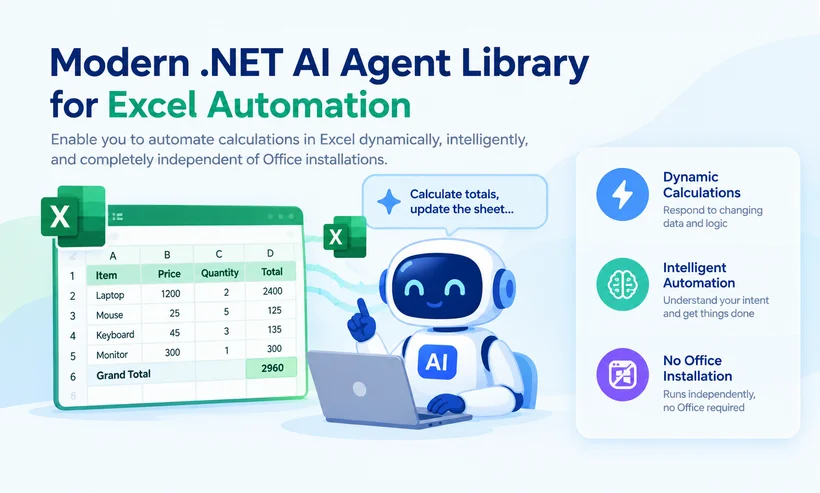
수동 Excel 계산은 느리고 오류가 발생하기 쉬우며, 엔터프라이즈 데이터 워크플로로 확장하는 것이 불가능합니다. 재무 보고 도구, 비즈니스 분석 대시보드 또는 일괄 데이터 처리 시스템을 구축하든, .NET으로 Excel에서 계산 자동화하기는 인적 오류를 제거하고 워크플로 속도를 높이며 애플리케이션 전반에서 스프레드시트 로직을 표준화합니다.
VBA, Interop 또는 레거시 라이브러리와 같은 기존 Excel 자동화 방법에는 설치된 Microsoft Office에 대한 의존성, 제한적인 크로스 플랫폼 지원, 경직된 수식 스크립팅, 대용량 데이터셋에 대한 낮은 성능 등 상당한 한계가 있습니다.
이 가이드에서는 Spire.Agent.Office를 소개합니다. 이는 Office 설치와 완전히 독립적으로, 동적이고 지능적으로 Excel에서 계산을 자동화할 수 있게 해 주는 최신 .NET AI 에이전트 라이브러리입니다.
- 기존 Excel 자동화가 부족한 이유
- Spire.Agent.Office 소개 – AI 솔루션
- 전제 조건 및 설치
- 단계별: Spire.Agent.Office로 Excel에서 계산 자동화하기
- 고급 자동화: 수백 개 파일 일괄 처리
- 자주 묻는 질문(FAQ)
기존 Excel 자동화가 부족한 이유
기존 방식은 현대 엔터프라이즈 배포에 치명적인 한계가 있습니다.
| 방법 | 단점 |
|---|---|
| VBA | Windows 전용, Office 설치 필요, 대용량 데이터셋에서 느림, AI 없음. |
| Interop | 메모리 누수 발생 가능, 서버 안전하지 않음, 비싼 라이선스. |
| Open XML SDK | 저수준, 복잡함, 수식 생성 없음, AI 없음. |
| Spire.XLS | 수식 생성에는 탁월하지만 AI 추론 기능이 없습니다. 모든 IF 또는 VLOOKUP 문자열을 하드코딩해야 합니다. |
해결책은? 비즈니스 규칙을 일반 영어로 이해하고 대규모로 실행하는 최신 .NET AI 에이전트 SDK입니다.
Spire.Agent.Office 소개 – AI 솔루션
Spire.Agent.Office는 .NET용 고급 AI 기반 문서 자동화 라이브러리로, Excel, Word, PowerPoint 및 PDF 처리를 간소화하도록 설계되었습니다. 전용 Spire.Agent.XLS 모듈은 수식 생성, 자동 계산, 데이터 분석 및 스프레드시트 변환을 포함한 지능형 Excel 자동화를 전문으로 합니다.
정적 라이브러리와 달리 Spire.Agent.Office는 동적 계산 기능을 추가합니다. 원하는 내용을 설명하면 AI가 이를 정확한 Excel 수식으로 변환하고 실행합니다.

어떻게 작동하나요?
이 라이브러리는 최신 LLM(대규모 언어 모델) 강화 워크플로에서 작동합니다. 기술 파이프라인은 다음과 같습니다:
Developer Input (Workbook + Plain-Text Prompt)
         ↓
Spire.Agent.Office (AI Translation Layer)
         ↓
Structured Computation Plan
         ↓
Spire.Office (Execution Engine)
         ↓
Updated Excel File or Data Output
- 입력 계층: 개발자는 .xls 또는 .xlsx 파일, 일반 텍스트 프롬프트, AI 인증용 SpireToken을 제공합니다.
- 의미 분석: Spire.Agent.Office AI가 통합 문서 메타데이터를 스캔하고 프롬프트와 함께 LLM으로 전송합니다.
- 구조화된 계획: AI는 원시 수식 텍스트가 아닌 결정적 계산 계획, 즉 순서가 지정된 엔진 작업 집합을 생성합니다.
- 실행 엔진: Spire.Office가 계획을 실행하고, Excel을 실행하지 않고 셀에 수식을 직접 작성하며, 종속성 체인의 전체 재계산을 강제합니다.
- 출력: 업데이트된 통합 문서가 디스크에 저장되거나 직접 API 응답용 MemoryStream으로 반환됩니다.
핵심 Excel 계산 기능
- 코드 또는 자연어 프롬프트를 통해 Excel에서 수식(SUM, AVERAGE, VLOOKUP, IF 함수) 자동 생성 및 추가
- 프로그래밍 방식으로 전체 통합 문서/워크시트 재계산 강제
- 여러 Excel 파일 및 대용량 데이터셋에 대한 일괄 계산 자동화
- 정확한 결과를 보장하기 위한 계산 전 AI 기반 데이터 정리
- 데이터셋 변경에 따른 동적 수식 조정
- 계산된 Excel 파일을 PDF, CSV 및 기타 형식으로 원활하게 내보내기
전제 조건 및 설치
.NET 프로젝트에서 Spire.Agent.Office로 스프레드시트 자동화를 시작하려면 다음 설정을 준비하세요:
- .NET 프로젝트(Console, ASP.NET, WinForms 또는 .NET Core)
- 필수 NuGet 패키지 설치: Spire.Agent.Office
- AI 에이전트 기능 활성화를 위한 임시 Spire Token 요청
NuGet 설치 명령:
Install‑Package Spire.Agent.Office
전체 설정 지침은 .NET 프로젝트에 Spire.Agent.Office 통합하기를 참조하세요.
단계별: Spire.Agent.Office로 Excel에서 계산 자동화하기
다음은 이 .NET AI Agent SDK를 사용하여 영업 수수료 계산을 동적으로 자동화하는 개발자 중심 워크플로입니다.
1단계: AI 에이전트 초기화 및 문서 로드
코드에서 Spire.Agent를 인스턴스화하고 대상 Excel 통합 문서를 로드합니다. 에이전트는 기본 Spire.Office 엔진을 사용하여 통합 문서의 메타데이터를 스캔합니다.
using Spire.Agent.Office.AI;
using Spire.Agent.Office.Extensions;
using Spire.Xls;


AIOptions options = new AIOptions();
options.SpireToken = "your_spire_token";

Workbook workbook = new Workbook();

workbook.LoadFromFile("SalesData.xlsx");
AIDocumentProcessor processor = workbook.AI(options);
2단계: 자연어로 계산 로직 정의
여기에서 AI의 마법이 일어납니다. 모든 행에 대해 복잡한 IF 문을 수동으로 작성하는 대신, 에이전트에 프롬프트를 보냅니다:
string instruction = @"
In this input sales dataset. Column A is 'Sales Rep', Column B is 'Revenue', Column C is 'Target'.
Add a Column D with the same style and set its header as 'Commission' in D1
Create a calculation rule for Column D (Commission):
If Revenue exceeds Target, calculate 15% of Revenue. Otherwise, calculate 5%.
Apply this formula to the entire data range dynamically.
";
3단계: 계획 실행
에이전트는 정적 수식 텍스트가 아닌 구조화된 계산 계획을 생성합니다. Spire.Office는 계산된 필드를 워크시트 셀에 직접 적용합니다.
AIResult result = processor.ExecuteInstruction(
    workbook,
    instruction,
    "Calculated_data.xlsx"
);
전체 C# 코드 예제:
using Spire.Agent.Office.AI;
using Spire.Agent.Office.Extensions;
using Spire.Xls;


AIOptions options = new AIOptions();
options.SpireToken = "spireToken";

using (Workbook workbook = new Workbook())
{
    workbook.LoadFromFile("SalesData.xlsx");
    AIDocumentProcessor processor = workbook.AI(options);

    string instruction = @"
    In this input sales dataset. Column A is 'Sales Rep', Column B is 'Revenue', Column C is 'Target'.
    Add a Column D with the same style and add a header 'Commission' in D1
    Create a calculation rule for Column D (Commission):
    If Revenue exceeds Target, calculate 15% of Revenue. Otherwise, calculate 5%.
    Apply this formula to the entire data range dynamically.
";

    AIResult result = processor.ExecuteInstruction(
        workbook,
        instruction,
        "Calculated_data.xlsx"
    );
}
핵심 API 개요
- AIOptions: AI 에이전트의 구성 컨테이너입니다.
SpireToken(인증에 필요)을 설정하고,TimeoutMs(선택 사항)를 조정하며, 임시 파일용WorkDir를 지정하는 데 사용합니다. - AIDocumentProcessor: 문서 처리를 담당하는 AI 에이전트 인스턴스입니다. 지원되는 모든 문서 객체(
Workbook,Document,Presentation또는PdfDocument)에서.AI()확장 메서드를 호출하여 얻습니다. - AIResult:
ExecuteInstruction의 반환 객체입니다. 실행 상태와 출력 경로를 포함하므로 성공 여부를 확인하거나 프로그래밍 방식으로 오류를 처리할 수 있습니다.
결과:
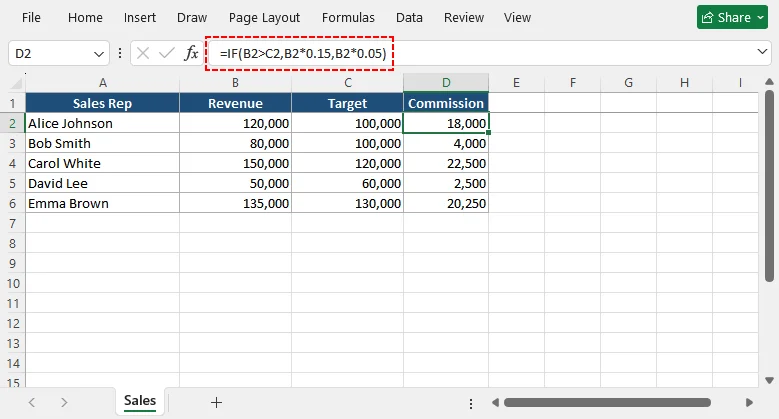
출력 파일에서 D열은 올바른 Excel 수식으로 채워집니다: =IF(B2>C2, B2*0.15, B2*0.05)
고급 자동화: 수백 개 파일 일괄 처리
월별 반복 보고서의 경우, 로직을 루프로 감싸 전체 폴더를 처리하세요:
using System.IO;
using Spire.Agent.Office.AI;
using Spire.Agent.Office.Extensions;
using Spire.Xls;

// 1. Configuration
string inputFolder = @"C:\reports\inbox";
string outputFolder = @"C:\reports\output";
string spireToken = "your_spire_token";

// Ensure the output directory exists
Directory.CreateDirectory(outputFolder);

// 2. Setup AI Options
AIOptions agentOptions = new AIOptions();
agentOptions.WorkDir = outputFolder; // Sets the working/temp directory
agentOptions.SpireToken = spireToken;

// 3. Define your calculation logic (Natural Language Prompt)
string calculationPrompt = @"Input your calculation logic";

// 4. Loop through all Excel files
foreach (string file in Directory.GetFiles(inputFolder, "*.xlsx"))
{
    // Define the output path (keeps the same filename)
    string outputPath = Path.Combine(outputFolder, Path.GetFileName(file));

    // Dispose the workbook after each file to free memory
    using (Workbook workbook = new Workbook())
    {
        // Load the source Excel file
        workbook.LoadFromFile(file);

        // Execute the AI instruction
        AIResult result = workbook.AI(agentOptions).ExecuteInstruction(
            workbook,              // Pass the document instance
            calculationPrompt,     // The prompt
            outputPath,            // Full path to save the processed file
            new string[] { }       // Additional options (empty array)
        );
    }
}
✅ 엔터프라이즈 자동화의 주요 이점
- 100% 서버 측: 야간 일괄 작업으로 수천 개의 .xlsx 파일을 처리합니다. UI 팝업도, 렌더링 지연도 없습니다.
- Office 설치 불필요: CI/CD 파이프라인 또는 웹 서버에서 Office 라이선스를 제거합니다.
- AI 기반 로직 변환: 복잡한 규칙을 에이전트에게 일반 영어로 설명하면, 에이전트가 Spire.Office가 적용할 기본 수식 또는 C# 로직을 생성합니다.
- 고성능: .NET Core/.NET 6+ 기반으로 구축되어 최적화된 메모리 관리로 대규모 데이터 처리를 처리합니다.
마무리 생각
Excel에서 계산 자동화는 더 이상 키 입력을 기록하는 것이 아니라 소프트웨어 인프라에 지능형 로직을 통합하는 것입니다. Spire.Agent.Office는 인간의 비즈니스 요구 사항(자연어)과 기계 실행(Spire.Office의 강력한 .NET API) 사이의 간극을 연결합니다.
이 아키텍처를 채택하면 데스크톱에 대한 의존성을 제거하고, 인적 오류를 크게 줄이며, Excel 보고를 완전 자동화된 서버 측 파이프라인으로 전환할 수 있습니다.
차세대 스프레드시트 자동화를 구축할 준비가 되셨나요? NuGet 패키지를 추가하고, SpireToken을 요청한 다음, 몇 분 안에 첫 프롬프트를 작성하여 엔드투엔드 데이터 파이프라인을 재구성하세요.
자주 묻는 질문(FAQ)
질문: INDEX/MATCH 또는 XLOOKUP 같은 복잡한 Excel 수식을 자동화할 수 있나요?
답변: 예. Spire.Agent.Office는 대부분의 최신 Excel 함수를 지원합니다. "Product ID를 기준으로 Sheet2에서 가격을 찾으려면 XLOOKUP을 사용하세요"와 같이 프롬프트할 수 있으며, 라이브러리가 정확한 중첩 구문을 생성합니다.
질문: Microsoft Excel을 설치하지 않고 .NET에서 Excel 계산을 자동화할 수 있나요?
답변: 예. Spire.Agent.Office는 Microsoft Office 설치 없이 Excel 계산 자동화를 지원하는 완전 독립 실행형 라이브러리입니다.
질문: AI 프롬프트 해석은 얼마나 정확한가요?
답변: Spire.Agent.Office는 스프레드시트 자동화 워크플로에 최적화된 고급 언어 모델을 사용합니다. 복잡한 로직, 시트 간 참조, 동적 범위를 높은 정확도로 처리합니다. 그러나 프로덕션 배포 전에 샘플 데이터로 프롬프트를 테스트하는 것이 좋습니다.
질문: Spire.Agent.Office는 일괄 처리를 지원하나요?
답변: 예. Excel 파일이 있는 전체 폴더를 반복하면서 각 파일에 동일한 AI 지침을 적용할 수 있으므로, 월별 반복 보고서 및 대량 데이터 처리 파이프라인에 이상적입니다.
함께 읽기
Automatizza i calcoli in Excel con un agente AI .NET
Indice
- Perché l'automazione tradizionale di Excel non è all'altezza
- Presentazione di Spire.Agent.Office – La soluzione AI
- Prerequisiti e installazione
- Passo dopo passo: automatizzare i calcoli in Excel con Spire.Agent.Office
- Automazione avanzata: elaborazione in batch di centinaia di file
- Domande frequenti (FAQ)
I calcoli manuali in Excel sono lenti, soggetti a errori e impossibili da scalare per i flussi di lavoro dei dati aziendali. Che tu stia creando strumenti di reportistica finanziaria, dashboard di analisi aziendale o sistemi di elaborazione dati in batch, automatizzare i calcoli in Excel con .NET elimina l'errore umano, accelera i flussi di lavoro e standardizza la logica dei fogli di calcolo in tutte le tue applicazioni.
I metodi tradizionali di automazione di Excel come VBA, Interop o librerie legacy presentano limiti significativi: dipendenza da Microsoft Office installato, supporto multipiattaforma limitato, scripting rigido delle formule e prestazioni scarse con grandi set di dati.
Questa guida presenta Spire.Agent.Office—la moderna libreria di agenti AI .NET che consente di automatizzare i calcoli in Excel in modo dinamico, intelligente e completamente indipendente dalle installazioni di Office.
- Perché l'automazione tradizionale di Excel non è all'altezza
- Presentazione di Spire.Agent.Office – La soluzione AI
- Prerequisiti e installazione
- Passo dopo passo: automatizzare i calcoli in Excel con Spire.Agent.Office
- Automazione avanzata: elaborazione in batch di centinaia di file
- Domande frequenti (FAQ)
Perché l'automazione tradizionale di Excel non è all'altezza
I metodi tradizionali presentano limiti critici per le implementazioni aziendali moderne.
| Metodo | Svantaggi |
|---|---|
| VBA | Solo Windows, richiede l'installazione di Office, lento con grandi set di dati, nessuna AI. |
| Interop | Soggetto a perdite di memoria, non sicuro per i server, licenze costose. |
| Open XML SDK | Di basso livello, complesso, nessuna generazione di formule, nessuna AI. |
| Spire.XLS | Eccellente per la creazione di formule, ma manca di inferenza AI. Devi codificare manualmente ogni stringa IF o VLOOKUP. |
La soluzione? Un moderno SDK per agenti AI .NET che comprende le tue regole aziendali in linguaggio naturale e le esegue su larga scala.
Presentazione di Spire.Agent.Office – La soluzione AI
Spire.Agent.Office è una libreria avanzata di automazione documentale basata su AI per .NET, progettata per semplificare l'elaborazione di Excel, Word, PowerPoint e PDF. Il suo modulo dedicato Spire.Agent.XLS è specializzato nell'automazione intelligente di Excel, inclusa la generazione di formule, il calcolo automatico, l'analisi dei dati e la trasformazione dei fogli di calcolo.
A differenza delle librerie statiche, Spire.Agent.Office aggiunge capacità di calcolo dinamico – descrivi ciò che vuoi e l'AI lo traduce in formule Excel precise e le esegue.
Come funziona?
La libreria si basa su un moderno flusso di lavoro potenziato da LLM (Large Language Model). Ecco la pipeline tecnica:
Developer Input (Workbook + Plain-Text Prompt)
         ↓
Spire.Agent.Office (AI Translation Layer)
         ↓
Structured Computation Plan
         ↓
Spire.Office (Execution Engine)
         ↓
Updated Excel File or Data Output
- Livello di input: lo sviluppatore fornisce un file .xls o .xlsx, un prompt in testo semplice e un SpireToken per l'autenticazione AI.
- Analisi semantica: l'AI di Spire.Agent.Office analizza i metadati della cartella di lavoro e li invia al LLM insieme al prompt.
- Pianificazione strutturata: l'AI genera un piano di calcolo deterministico—un insieme ordinato di operazioni del motore—anziché testo grezzo di formule.
- Motore di esecuzione: Spire.Office esegue il piano, scrive le formule direttamente nelle celle senza avviare Excel e forza un ricalcolo completo della catena di dipendenze.
- Output: la cartella di lavoro aggiornata viene salvata su disco o restituita come MemoryStream per risposte API dirette.
Funzionalità principali di calcolo Excel
- Genera automaticamente e aggiungi formule in Excel (funzioni SUM, AVERAGE, VLOOKUP, IF) tramite codice o prompt in linguaggio naturale
- Forza il ricalcolo completo della cartella di lavoro/foglio di lavoro a livello di codice
- Automatizza il calcolo in batch per più file Excel e grandi set di dati
- Pulizia dei dati basata su AI prima del calcolo per garantire risultati accurati
- Adattamento dinamico delle formule in base alle modifiche del set di dati
- Esporta senza problemi i file Excel calcolati in PDF, CSV e altri formati
Prerequisiti e installazione
Per iniziare l'automazione dei fogli di calcolo con Spire.Agent.Office nel tuo progetto .NET, prepara la seguente configurazione:
- Un progetto .NET (Console, ASP.NET, WinForms o .NET Core)
- Installa i pacchetti NuGet richiesti: Spire.Agent.Office
- Richiedi un Spire Token temporaneo per attivare le funzionalità dell'agente AI
Comandi di installazione NuGet:
Install‑Package Spire.Agent.Office
Per le istruzioni di configurazione complete, consulta: Integra Spire.Agent.Office nel tuo progetto .NET
Passo dopo passo: automatizza i calcoli in Excel con Spire.Agent.Office
Ecco un flusso di lavoro orientato allo sviluppatore per automatizzare dinamicamente il calcolo delle commissioni di vendita utilizzando questo SDK .NET per agenti AI.
Passaggio 1: inizializza l'agente AI e carica il documento
Nel tuo codice, istanzierai Spire.Agent e caricherai la cartella di lavoro Excel di destinazione. L'agente utilizza il motore Spire.Office sottostante per analizzare i metadati della cartella di lavoro.
using Spire.Agent.Office.AI;
using Spire.Agent.Office.Extensions;
using Spire.Xls;


AIOptions options = new AIOptions();
options.SpireToken = "your_spire_token";

Workbook workbook = new Workbook();

workbook.LoadFromFile("SalesData.xlsx");
AIDocumentProcessor processor = workbook.AI(options);
Passaggio 2: definisci la logica di calcolo tramite linguaggio naturale
Qui avviene la magia dell'AI. Invece di scrivere manualmente un'istruzione IF complessa per ogni riga, invii un prompt all'agente:
string instruction = @"
In this input sales dataset. Column A is 'Sales Rep', Column B is 'Revenue', Column C is 'Target'.
Add a Column D with the same style and set its header as 'Commission' in D1
Create a calculation rule for Column D (Commission):
If Revenue exceeds Target, calculate 15% of Revenue. Otherwise, calculate 5%.
Apply this formula to the entire data range dynamically.
";
Passaggio 3: esegui il piano
L'agente produce un piano di calcolo strutturato anziché testo statico di formule. Spire.Office applica i campi calcolati direttamente alle celle del foglio di lavoro.
AIResult result = processor.ExecuteInstruction(
    workbook,
    instruction,
    "Calculated_data.xlsx"
);
Esempio completo di codice C#:
using Spire.Agent.Office.AI;
using Spire.Agent.Office.Extensions;
using Spire.Xls;


AIOptions options = new AIOptions();
options.SpireToken = "spireToken";

using (Workbook workbook = new Workbook())
{
    workbook.LoadFromFile("SalesData.xlsx");
    AIDocumentProcessor processor = workbook.AI(options);

    string instruction = @"
    In this input sales dataset. Column A is 'Sales Rep', Column B is 'Revenue', Column C is 'Target'.
    Add a Column D with the same style and add a header 'Commission' in D1
    Create a calculation rule for Column D (Commission):
    If Revenue exceeds Target, calculate 15% of Revenue. Otherwise, calculate 5%.
    Apply this formula to the entire data range dynamically.
";

    AIResult result = processor.ExecuteInstruction(
        workbook,
        instruction,
        "Calculated_data.xlsx"
    );
}
Panoramica delle API principali
- AIOptions: contenitore di configurazione per l'agente AI. Usalo per impostare
SpireToken(richiesto per l'autenticazione), regolareTimeoutMs(opzionale) e specificare unWorkDirper i file temporanei. - AIDocumentProcessor: l'istanza dell'agente AI che gestisce l'elaborazione dei documenti. Ottienila chiamando il metodo di estensione
.AI()su qualsiasi oggetto documento supportato (Workbook,Document,PresentationoPdfDocument). - AIResult: l'oggetto restituito da
ExecuteInstruction. Contiene lo stato di esecuzione e il percorso di output, consentendoti di verificare il successo o gestire gli errori a livello di codice.
Risultato:
Nel file di output, la colonna D verrà popolata con la formula Excel corretta: =IF(B2>C2, B2*0.15, B2*0.05)
Automazione avanzata: elaborazione in batch di centinaia di file
Per report mensili ricorrenti, racchiudi la logica in un ciclo per elaborare un'intera cartella:
using System.IO;
using Spire.Agent.Office.AI;
using Spire.Agent.Office.Extensions;
using Spire.Xls;

// 1. Configuration
string inputFolder = @"C:\reports\inbox";
string outputFolder = @"C:\reports\output";
string spireToken = "your_spire_token";

// Ensure the output directory exists
Directory.CreateDirectory(outputFolder);

// 2. Setup AI Options
AIOptions agentOptions = new AIOptions();
agentOptions.WorkDir = outputFolder; // Sets the working/temp directory
agentOptions.SpireToken = spireToken;

// 3. Define your calculation logic (Natural Language Prompt)
string calculationPrompt = @"Input your calculation logic";

// 4. Loop through all Excel files
foreach (string file in Directory.GetFiles(inputFolder, "*.xlsx"))
{
    // Define the output path (keeps the same filename)
    string outputPath = Path.Combine(outputFolder, Path.GetFileName(file));

    // Dispose the workbook after each file to free memory
    using (Workbook workbook = new Workbook())
    {
        // Load the source Excel file
        workbook.LoadFromFile(file);

        // Execute the AI instruction
        AIResult result = workbook.AI(agentOptions).ExecuteInstruction(
            workbook,              // Pass the document instance
            calculationPrompt,     // The prompt
            outputPath,            // Full path to save the processed file
            new string[] { }       // Additional options (empty array)
        );
    }
}
✅ Vantaggi principali per l'automazione aziendale
- 100% lato server: elabora migliaia di file .xlsx in processi batch durante la notte. Nessun pop-up dell'interfaccia utente, nessun ritardo di rendering.
- Nessuna installazione di Office: elimina le licenze Office nelle pipeline CI/CD o nei server web.
- Traduzione logica basata su AI: descrivi regole complesse in linguaggio naturale all'agente; genera la formula sottostante o la logica C# che Spire.Office deve applicare.
- Alte prestazioni: basato su .NET Core/.NET 6+, gestisce l'elaborazione di dati massivi con gestione ottimizzata della memoria.
Considerazioni finali
Automatizzare i calcoli in Excel non significa più registrare sequenze di tasti; significa integrare una logica intelligente nella tua infrastruttura software. Spire.Agent.Office colma il divario tra i requisiti aziendali umani (linguaggio naturale) e l'esecuzione automatica (la solida API .NET di Spire.Office).
Adottando questa architettura, elimini la dipendenza dal desktop, riduci significativamente gli errori umani e trasformi la tua reportistica Excel in una pipeline completamente automatizzata lato server.
Pronto a costruire la prossima generazione di automazione dei fogli di calcolo? Aggiungi il pacchetto NuGet, richiedi il tuo SpireToken e scrivi il tuo primo prompt in pochi minuti per rimodellare le tue pipeline di dati end-to-end.
Domande frequenti (FAQ)
D: Posso automatizzare formule Excel complesse come INDEX/MATCH o XLOOKUP?
R: Sì. Spire.Agent.Office supporta la maggior parte delle funzioni moderne di Excel. Puoi inviare il prompt: "Usa XLOOKUP per trovare il prezzo nel Foglio2 in base all'ID prodotto", e la libreria genererà la sintassi annidata precisa.
D: Posso automatizzare i calcoli di Excel in .NET senza installare Microsoft Excel?
R: Sì. Spire.Agent.Office è una libreria completamente autonoma che supporta l'automazione dei calcoli di Excel senza alcuna installazione di Microsoft Office.
D: Quanto è accurata l'interpretazione dei prompt AI?
R: Spire.Agent.Office utilizza modelli linguistici avanzati ottimizzati per i flussi di lavoro di automazione dei fogli di calcolo. Gestisce logica complessa, riferimenti tra fogli e intervalli dinamici con elevata accuratezza. Tuttavia, consigliamo di testare i prompt con dati di esempio prima della distribuzione in produzione.
D: Spire.Agent.Office supporta l'elaborazione in batch?
R: Sì. Puoi scorrere un'intera cartella di file Excel e applicare la stessa istruzione AI a ciascuno, rendendolo ideale per report mensili ricorrenti e pipeline di elaborazione dati in blocco.
Leggi anche
Automatisez les calculs dans Excel avec un agent IA .NET
Table des matières
- Pourquoi l'automatisation Excel traditionnelle est insuffisante
- Présentation de Spire.Agent.Office – La solution IA
- Prérequis & installation
- Étape par étape : automatiser les calculs dans Excel avec Spire.Agent.Office
- Automatisation avancée : traitement par lots de centaines de fichiers
- Foire aux questions (FAQ)
Les calculs Excel manuels sont lents, sujets aux erreurs et impossibles à mettre à l'échelle pour les flux de données d'entreprise. Que vous construisiez des outils de reporting financier, des tableaux de bord d'analyse métier ou des systèmes de traitement par lots de données, automatiser les calculs dans Excel avec .NET élimine les erreurs humaines, accélère les flux de travail et normalise la logique des feuilles de calcul dans vos applications.
Les méthodes traditionnelles d'automatisation Excel comme VBA, Interop ou les bibliothèques héritées présentent des limites importantes : dépendance à Microsoft Office installé, prise en charge multiplateforme limitée, script de formules rigide et performances médiocres pour les grands ensembles de données.
Ce guide présente Spire.Agent.Office—la bibliothèque moderne d'agents IA .NET qui vous permet d'automatiser les calculs dans Excel de manière dynamique, intelligente et totalement indépendante des installations d'Office.
- Pourquoi l'automatisation Excel traditionnelle est insuffisante
- Présentation de Spire.Agent.Office – La solution IA
- Prérequis & installation
- Étape par étape : automatiser les calculs dans Excel avec Spire.Agent.Office
- Automatisation avancée : traitement par lots de centaines de fichiers
- Foire aux questions (FAQ)
Pourquoi l'automatisation Excel traditionnelle est insuffisante
Les méthodes traditionnelles présentent des limites critiques pour les déploiements d'entreprise modernes.
| Méthode | Inconvénients |
|---|---|
| VBA | Windows uniquement, nécessite l'installation d'Office, lent avec de grands ensembles de données, pas d'IA. |
| Interop | Sujet aux fuites de mémoire, non sécurisé pour les serveurs, licences coûteuses. |
| Open XML SDK | Bas niveau, complexe, aucune génération de formules, pas d'IA. |
| Spire.XLS | Excellent pour la création de formules, mais manque d'inférence IA. Vous devez coder en dur chaque chaîne IF ou VLOOKUP. |
La solution ? Un SDK moderne d'agent IA .NET qui comprend vos règles métier en langage naturel et les exécute à grande échelle.
Présentation de Spire.Agent.Office – La solution IA
Spire.Agent.Office est une bibliothèque avancée d'automatisation documentaire pilotée par l'IA pour .NET, conçue pour rationaliser le traitement Excel, Word, PowerPoint et PDF. Son module dédié Spire.Agent.XLS est spécialisé dans l'automatisation intelligente d'Excel, notamment la génération de formules, le calcul automatique, l'analyse de données et la transformation de feuilles de calcul.
Contrairement aux bibliothèques statiques, Spire.Agent.Office ajoute des capacités de calcul dynamique – vous décrivez ce que vous voulez, et l'IA le traduit en formules Excel précises et les exécute.
Comment ça marche ?
La bibliothèque fonctionne selon un flux de travail amélioré par LLM (grand modèle de langage) moderne. Voici le pipeline technique :
Developer Input (Workbook + Plain-Text Prompt)
         ↓
Spire.Agent.Office (AI Translation Layer)
         ↓
Structured Computation Plan
         ↓
Spire.Office (Execution Engine)
         ↓
Updated Excel File or Data Output
- Couche d'entrée : le développeur fournit un fichier .xls ou .xlsx, une invite en texte brut et un SpireToken pour l'authentification IA.
- Analyse sémantique : l'IA Spire.Agent.Office analyse les métadonnées du classeur et les envoie avec l'invite au LLM.
- Planification structurée : l'IA génère un plan de calcul déterministe — un ensemble ordonné d'opérations du moteur — plutôt que du texte de formule brut.
- Moteur d'exécution : Spire.Office exécute le plan, écrit les formules directement dans les cellules sans lancer Excel et force un recalcul complet de la chaîne de dépendances.
- Sortie : le classeur mis à jour est enregistré sur le disque ou renvoyé sous forme de MemoryStream pour des réponses API directes.
Fonctionnalités clés de calcul Excel
- Générer et ajouter automatiquement des formules dans Excel (fonctions SUM, AVERAGE, VLOOKUP, IF) via du code ou des invites en langage naturel
- Forcer le recalcul complet d'un classeur/d'une feuille de calcul par programmation
- Automatiser le calcul par lots pour plusieurs fichiers Excel et de grands ensembles de données
- Nettoyage des données alimenté par l'IA avant le calcul pour garantir des résultats précis
- Ajustement dynamique des formules en fonction des modifications de l'ensemble de données
- Exporter de manière transparente les fichiers Excel calculés vers PDF, CSV et autres formats
Prérequis & installation
Pour commencer l'automatisation des feuilles de calcul avec Spire.Agent.Office dans votre projet .NET, préparez la configuration suivante :
- Un projet .NET (Console, ASP.NET, WinForms ou .NET Core)
- Installez les packages NuGet requis : Spire.Agent.Office
- Demandez un jeton Spire temporaire pour activer les fonctionnalités d'agent IA
Commandes d'installation NuGet :
Install‑Package Spire.Agent.Office
Pour obtenir les instructions d'installation complètes, consultez : Intégrer Spire.Agent.Office à votre projet .NET
Étape par étape : automatiser les calculs dans Excel avec Spire.Agent.Office
Voici un flux de travail orienté développeur pour automatiser dynamiquement un calcul de commission sur les ventes à l'aide de ce SDK .NET AI Agent.
Étape 1 : initialiser l'agent IA et charger le document
Dans votre code, vous instancierez Spire.Agent et chargerez votre classeur Excel cible. L'agent utilise le moteur Spire.Office sous-jacent pour analyser les métadonnées du classeur.
using Spire.Agent.Office.AI;
using Spire.Agent.Office.Extensions;
using Spire.Xls;


AIOptions options = new AIOptions();
options.SpireToken = "your_spire_token";

Workbook workbook = new Workbook();

workbook.LoadFromFile("SalesData.xlsx");
AIDocumentProcessor processor = workbook.AI(options);
Étape 2 : définir la logique de calcul via le langage naturel
C'est ici que la magie de l'IA opère. Au lieu d'écrire manuellement une instruction IF complexe pour chaque ligne, vous envoyez une invite à l'Agent :
string instruction = @"
In this input sales dataset. Column A is 'Sales Rep', Column B is 'Revenue', Column C is 'Target'.
Add a Column D with the same style and set its header as 'Commission' in D1
Create a calculation rule for Column D (Commission):
If Revenue exceeds Target, calculate 15% of Revenue. Otherwise, calculate 5%.
Apply this formula to the entire data range dynamically.
";
Étape 3 : exécuter le plan
L'agent produit un plan de calcul structuré plutôt qu'un texte de formule statique. Spire.Office applique les champs calculés directement sur les cellules de la feuille de calcul.
AIResult result = processor.ExecuteInstruction(
    workbook,
    instruction,
    "Calculated_data.xlsx"
);
Exemple de code C# complet :
using Spire.Agent.Office.AI;
using Spire.Agent.Office.Extensions;
using Spire.Xls;


AIOptions options = new AIOptions();
options.SpireToken = "spireToken";

using (Workbook workbook = new Workbook())
{
    workbook.LoadFromFile("SalesData.xlsx");
    AIDocumentProcessor processor = workbook.AI(options);

    string instruction = @"
    In this input sales dataset. Column A is 'Sales Rep', Column B is 'Revenue', Column C is 'Target'.
    Add a Column D with the same style and add a header 'Commission' in D1
    Create a calculation rule for Column D (Commission):
    If Revenue exceeds Target, calculate 15% of Revenue. Otherwise, calculate 5%.
    Apply this formula to the entire data range dynamically.
";

    AIResult result = processor.ExecuteInstruction(
        workbook,
        instruction,
        "Calculated_data.xlsx"
    );
}
Aperçu des API principales
- AIOptions : conteneur de configuration pour l'agent IA. Utilisez-le pour définir le
SpireToken(requis pour l'authentification), ajuster leTimeoutMs(facultatif) et spécifier unWorkDirpour les fichiers temporaires. - AIDocumentProcessor : l'instance de l'agent IA qui gère le traitement des documents. Obtenez-la en appelant la méthode d'extension
.AI()sur tout objet document pris en charge (Workbook,Document,PresentationouPdfDocument). - AIResult : l'objet de retour de
ExecuteInstruction. Il contient l'état d'exécution et le chemin de sortie, ce qui vous permet de vérifier le succès ou de gérer les erreurs par programmation.
Résultat :
Dans le fichier de sortie, la colonne D sera remplie avec la formule Excel correcte : =IF(B2>C2, B2*0.15, B2*0.05)
Automatisation avancée : traitement par lots de centaines de fichiers
Pour les rapports mensuels récurrents, encapsulez la logique dans une boucle pour traiter un dossier entier :
using System.IO;
using Spire.Agent.Office.AI;
using Spire.Agent.Office.Extensions;
using Spire.Xls;

// 1. Configuration
string inputFolder = @"C:\reports\inbox";
string outputFolder = @"C:\reports\output";
string spireToken = "your_spire_token";

// Ensure the output directory exists
Directory.CreateDirectory(outputFolder);

// 2. Setup AI Options
AIOptions agentOptions = new AIOptions();
agentOptions.WorkDir = outputFolder; // Sets the working/temp directory
agentOptions.SpireToken = spireToken;

// 3. Define your calculation logic (Natural Language Prompt)
string calculationPrompt = @"Input your calculation logic";

// 4. Loop through all Excel files
foreach (string file in Directory.GetFiles(inputFolder, "*.xlsx"))
{
    // Define the output path (keeps the same filename)
    string outputPath = Path.Combine(outputFolder, Path.GetFileName(file));

    // Dispose the workbook after each file to free memory
    using (Workbook workbook = new Workbook())
    {
        // Load the source Excel file
        workbook.LoadFromFile(file);

        // Execute the AI instruction
        AIResult result = workbook.AI(agentOptions).ExecuteInstruction(
            workbook,              // Pass the document instance
            calculationPrompt,     // The prompt
            outputPath,            // Full path to save the processed file
            new string[] { }       // Additional options (empty array)
        );
    }
}
✅ Principaux avantages pour l'automatisation d'entreprise
- 100 % côté serveur : traitez des milliers de fichiers .xlsx dans des tâches par lots pendant la nuit. Aucune fenêtre contextuelle d'interface utilisateur, aucun délai de rendu.
- Aucune installation d'Office : éliminez les licences Office sur les pipelines CI/CD ou les serveurs web.
- Traduction de logique alimentée par l'IA : décrivez des règles complexes en langage naturel à l'Agent ; il génère la formule sous-jacente ou la logique C# que Spire.Office doit appliquer.
- Hautes performances : construit sur .NET Core/.NET 6+, il gère le traitement massif de données avec une gestion optimisée de la mémoire.
Réflexions finales
Automatiser les calculs dans Excel ne consiste plus à enregistrer des frappes clavier ; il s'agit d'intégrer une logique intelligente dans votre infrastructure logicielle. Spire.Agent.Office comble le fossé entre les exigences métier humaines (langage naturel) et l'exécution machine (l'API .NET robuste de Spire.Office).
En adoptant cette architecture, vous éliminez la dépendance au poste de travail, réduisez considérablement les erreurs humaines et transformez votre reporting Excel en un pipeline entièrement automatisé côté serveur.
Prêt à construire la prochaine génération d'automatisation des feuilles de calcul ? Ajoutez le package NuGet, demandez votre SpireToken et écrivez votre première invite en quelques minutes pour remodeler vos pipelines de données de bout en bout.
Foire aux questions (FAQ)
Q : Puis-je automatiser des formules Excel complexes comme INDEX/MATCH ou XLOOKUP ?
R : Oui. Spire.Agent.Office prend en charge la plupart des fonctions Excel modernes. Vous pouvez demander : "Utilisez XLOOKUP pour trouver le prix dans Sheet2 en fonction de l'ID produit", et la bibliothèque générera la syntaxe imbriquée précise.
Q : Puis-je automatiser les calculs Excel dans .NET sans installer Microsoft Excel ?
R : Oui. Spire.Agent.Office est une bibliothèque entièrement autonome qui prend en charge l'automatisation des calculs Excel sans aucune installation de Microsoft Office.
Q : Quelle est la précision de l'interprétation des invites par l'IA ?
R : Spire.Agent.Office utilise des modèles de langage avancés optimisés pour les flux de travail d'automatisation des feuilles de calcul. Il gère une logique complexe, des références inter-feuilles et des plages dynamiques avec une grande précision. Toutefois, nous recommandons de tester les invites avec des données d'exemple avant le déploiement en production.
Q : Spire.Agent.Office prend-il en charge le traitement par lots ?
R : Oui. Vous pouvez parcourir un dossier entier de fichiers Excel et appliquer la même instruction IA à chacun, ce qui le rend idéal pour les rapports mensuels récurrents et les pipelines de traitement de données en masse.
À lire aussi
Automatice cálculos en Excel con un agente de IA de .NET
Índice de contenidos
- Por qué la automatización tradicional de Excel se queda corta
- Presentamos Spire.Agent.Office – La solución de IA
- Requisitos previos e instalación
- Paso a paso: Automatizar cálculos en Excel con Spire.Agent.Office
- Automatización avanzada: Procesamiento por lotes de cientos de archivos
- Preguntas frecuentes (FAQs)
Los cálculos manuales en Excel son lentos, propensos a errores e imposibles de escalar para flujos de trabajo de datos empresariales. Ya sea que estés creando herramientas de informes financieros, paneles de análisis de negocio o sistemas de procesamiento de datos por lotes, automatizar cálculos en Excel con .NET elimina el error humano, acelera los flujos de trabajo y estandariza la lógica de las hojas de cálculo en todas tus aplicaciones.
Los métodos tradicionales de automatización de Excel como VBA, Interop o bibliotecas heredadas vienen con limitaciones significativas: dependencia de Microsoft Office instalado, soporte multiplataforma limitado, scripting de fórmulas rígido y un rendimiento deficiente para grandes conjuntos de datos.
Esta guía presenta Spire.Agent.Office: la moderna biblioteca de agentes de IA para .NET que te permite automatizar cálculos en Excel de forma dinámica, inteligente y completamente independiente de instalaciones de Office.
- Por qué la automatización tradicional de Excel se queda corta
- Presentamos Spire.Agent.Office – La solución de IA
- Requisitos previos e instalación
- Paso a paso: Automatizar cálculos en Excel con Spire.Agent.Office
- Automatización avanzada: Procesamiento por lotes de cientos de archivos
- Preguntas frecuentes (FAQs)
Por qué la automatización tradicional de Excel se queda corta
Los métodos tradicionales vienen con limitaciones críticas para los despliegues empresariales modernos.
| Método | Desventajas |
|---|---|
| VBA | Solo para Windows, requiere instalación de Office, lento con grandes conjuntos de datos, sin IA. |
| Interop | Propenso a fugas de memoria, no es seguro para servidores, licencias costosas. |
| Open XML SDK | De bajo nivel, complejo, sin generación de fórmulas, sin IA. |
| Spire.XLS | Excelente para la creación de fórmulas, pero carece de inferencia de IA. Debes codificar manualmente cada cadena IF o VLOOKUP. |
¿La solución? Un SDK moderno de agentes de IA para .NET que entiende tus reglas de negocio en lenguaje natural y las ejecuta a escala.
Presentamos Spire.Agent.Office – La solución de IA
Spire.Agent.Office es una biblioteca avanzada de automatización de documentos impulsada por IA para .NET, diseñada para optimizar el procesamiento de Excel, Word, PowerPoint y PDF. Su módulo dedicado Spire.Agent.XLS se especializa en la automatización inteligente de Excel, incluyendo la generación de fórmulas, el cálculo automático, el análisis de datos y la transformación de hojas de cálculo.
A diferencia de las bibliotecas estáticas, Spire.Agent.Office añade capacidades de cálculo dinámico: describes lo que quieres y la IA lo traduce en fórmulas precisas de Excel y las ejecuta.
¿Cómo funciona?
La biblioteca opera en un moderno flujo de trabajo mejorado con LLM (modelo de lenguaje grande). Aquí está el pipeline técnico:
Developer Input (Workbook + Plain-Text Prompt)
         ↓
Spire.Agent.Office (AI Translation Layer)
         ↓
Structured Computation Plan
         ↓
Spire.Office (Execution Engine)
         ↓
Updated Excel File or Data Output
- Capa de entrada: El desarrollador proporciona un archivo .xls o .xlsx, un prompt en texto plano y un SpireToken para la autenticación de IA.
- Análisis semántico: La IA de Spire.Agent.Office escanea los metadatos del libro de trabajo y los envía junto con el prompt al LLM.
- Planificación estructurada: La IA genera un plan de cálculo determinista (un conjunto ordenado de operaciones del motor) en lugar de texto de fórmula sin procesar.
- Motor de ejecución: Spire.Office ejecuta el plan, escribe las fórmulas directamente en las celdas sin iniciar Excel y fuerza un recálculo completo de la cadena de dependencias.
- Salida: El libro de trabajo actualizado se guarda en disco o se devuelve como MemoryStream para respuestas directas de la API.
Características principales de cálculo en Excel
- Generar y añadir fórmulas en Excel automáticamente (funciones SUM, AVERAGE, VLOOKUP, IF) mediante código o prompts en lenguaje natural
- Forzar el recálculo completo del libro de trabajo u hoja de cálculo mediante programación
- Automatizar el cálculo por lotes para múltiples archivos de Excel y grandes conjuntos de datos
- Limpieza de datos impulsada por IA antes del cálculo para garantizar resultados precisos
- Ajuste dinámico de fórmulas en función de los cambios en el conjunto de datos
- Exportar archivos de Excel calculados a PDF, CSV y otros formatos sin problemas
Requisitos previos e instalación
Para comenzar la automatización de hojas de cálculo con Spire.Agent.Office en tu proyecto .NET, prepara la siguiente configuración:
- Un proyecto .NET (Console, ASP.NET, WinForms o .NET Core)
- Instalar los paquetes NuGet requeridos: Spire.Agent.Office
- Solicitar un Spire Token temporal para activar las funciones del agente de IA
Comandos de instalación de NuGet:
Install‑Package Spire.Agent.Office
Para obtener instrucciones completas de configuración, consulta: Integrar Spire.Agent.Office en tu proyecto .NET
Paso a paso: Automatizar cálculos en Excel con Spire.Agent.Office
A continuación se presenta un flujo de trabajo centrado en el desarrollador para automatizar dinámicamente el cálculo de comisiones de ventas utilizando este SDK de agentes de IA para .NET.
Paso 1: Inicializar el agente de IA y cargar el documento
En tu código, instanciarás el Spire.Agent y cargarás tu libro de trabajo de Excel objetivo. El agente utiliza el motor subyacente de Spire.Office para escanear los metadatos del libro de trabajo.
using Spire.Agent.Office.AI;
using Spire.Agent.Office.Extensions;
using Spire.Xls;


AIOptions options = new AIOptions();
options.SpireToken = "your_spire_token";

Workbook workbook = new Workbook();

workbook.LoadFromFile("SalesData.xlsx");
AIDocumentProcessor processor = workbook.AI(options);
Paso 2: Definir la lógica de cálculo mediante lenguaje natural
Aquí es donde ocurre la magia de la IA. En lugar de escribir manualmente una declaración IF compleja para cada fila, envías un prompt al Agente:
string instruction = @"
In this input sales dataset. Column A is 'Sales Rep', Column B is 'Revenue', Column C is 'Target'.
Add a Column D with the same style and set its header as 'Commission' in D1
Create a calculation rule for Column D (Commission):
If Revenue exceeds Target, calculate 15% of Revenue. Otherwise, calculate 5%.
Apply this formula to the entire data range dynamically.
";
Paso 3: Ejecutar el plan
El agente produce un plan de cálculo estructurado en lugar de texto de fórmula estático. Spire.Office aplica los campos calculados directamente en las celdas de la hoja de cálculo.
AIResult result = processor.ExecuteInstruction(
    workbook,
    instruction,
    "Calculated_data.xlsx"
);
Ejemplo completo de código C#:
using Spire.Agent.Office.AI;
using Spire.Agent.Office.Extensions;
using Spire.Xls;


AIOptions options = new AIOptions();
options.SpireToken = "spireToken";

using (Workbook workbook = new Workbook())
{
    workbook.LoadFromFile("SalesData.xlsx");
    AIDocumentProcessor processor = workbook.AI(options);

    string instruction = @"
    In this input sales dataset. Column A is 'Sales Rep', Column B is 'Revenue', Column C is 'Target'.
    Add a Column D with the same style and add a header 'Commission' in D1
    Create a calculation rule for Column D (Commission):
    If Revenue exceeds Target, calculate 15% of Revenue. Otherwise, calculate 5%.
    Apply this formula to the entire data range dynamically.
";

    AIResult result = processor.ExecuteInstruction(
        workbook,
        instruction,
        "Calculated_data.xlsx"
    );
}
Descripción general de las API principales
- AIOptions: Contenedor de configuración para el agente de IA. Úsalo para establecer el
SpireToken(requerido para la autenticación), ajustar elTimeoutMs(opcional) y especificar unWorkDirpara archivos temporales. - AIDocumentProcessor: La instancia del agente de IA que gestiona el procesamiento de documentos. Obténla llamando al método de extensión
.AI()en cualquier objeto de documento compatible (Workbook,Document,PresentationoPdfDocument). - AIResult: El objeto devuelto por
ExecuteInstruction. Contiene el estado de ejecución y la ruta de salida, lo que te permite verificar el éxito o gestionar errores mediante programación.
Resultado:
En el archivo de salida, la columna D se rellenará con la fórmula correcta de Excel: =IF(B2>C2, B2*0.15, B2*0.05)
Automatización avanzada: Procesamiento por lotes de cientos de archivos
Para informes mensuales recurrentes, envuelve la lógica en un bucle para procesar una carpeta completa:
using System.IO;
using Spire.Agent.Office.AI;
using Spire.Agent.Office.Extensions;
using Spire.Xls;

// 1. Configuration
string inputFolder = @"C:\reports\inbox";
string outputFolder = @"C:\reports\output";
string spireToken = "your_spire_token";

// Ensure the output directory exists
Directory.CreateDirectory(outputFolder);

// 2. Setup AI Options
AIOptions agentOptions = new AIOptions();
agentOptions.WorkDir = outputFolder; // Sets the working/temp directory
agentOptions.SpireToken = spireToken;

// 3. Define your calculation logic (Natural Language Prompt)
string calculationPrompt = @"Input your calculation logic";

// 4. Loop through all Excel files
foreach (string file in Directory.GetFiles(inputFolder, "*.xlsx"))
{
    // Define the output path (keeps the same filename)
    string outputPath = Path.Combine(outputFolder, Path.GetFileName(file));

    // Dispose the workbook after each file to free memory
    using (Workbook workbook = new Workbook())
    {
        // Load the source Excel file
        workbook.LoadFromFile(file);

        // Execute the AI instruction
        AIResult result = workbook.AI(agentOptions).ExecuteInstruction(
            workbook,              // Pass the document instance
            calculationPrompt,     // The prompt
            outputPath,            // Full path to save the processed file
            new string[] { }       // Additional options (empty array)
        );
    }
}
✅ Ventajas clave para la automatización empresarial
- 100% del lado del servidor: Procesa miles de archivos .xlsx en trabajos por lotes durante la noche. Sin ventanas emergentes de interfaz, sin retrasos de representación.
- Sin instalación de Office: Elimina las licencias de Office en los pipelines de CI/CD o servidores web.
- Traducción de lógica impulsada por IA: Describe reglas complejas en lenguaje natural al Agente; este genera la fórmula subyacente o la lógica de C# para que Spire.Office las aplique.
- Alto rendimiento: Construido sobre .NET Core/.NET 6+, maneja el procesamiento masivo de datos con una gestión de memoria optimizada.
Reflexiones finales
Automatizar cálculos en Excel ya no se trata de grabar pulsaciones de teclas; se trata de integrar lógica inteligente en tu infraestructura de software. Spire.Agent.Office tiende un puente entre los requisitos de negocio humanos (lenguaje natural) y la ejecución de la máquina (la robusta API de .NET de Spire.Office).
Al adoptar esta arquitectura, eliminas la dependencia del escritorio, reduces significativamente los errores humanos y conviertes tus informes de Excel en un pipeline totalmente automatizado del lado del servidor.
¿Listo para construir la próxima generación de automatización de hojas de cálculo? Añade el paquete NuGet, solicita tu SpireToken y escribe tu primer prompt en minutos para reconfigurar tus pipelines de datos de extremo a extremo.
Preguntas frecuentes (FAQs)
P: ¿Puedo automatizar fórmulas complejas de Excel como INDEX/MATCH o XLOOKUP?
R: Sí. Spire.Agent.Office admite la mayoría de las funciones modernas de Excel. Puedes indicar: "Usa XLOOKUP para encontrar el precio en Sheet2 según el ID del producto", y la biblioteca generará la sintaxis anidada precisa.
P: ¿Puedo automatizar cálculos de Excel en .NET sin instalar Microsoft Excel?
R: Sí. Spire.Agent.Office es una biblioteca totalmente independiente que admite la automatización de cálculos de Excel sin ninguna instalación de Microsoft Office.
P: ¿Qué tan precisa es la interpretación del prompt por parte de la IA?
R: Spire.Agent.Office utiliza modelos de lenguaje avanzados optimizados para flujos de trabajo de automatización de hojas de cálculo. Maneja lógica compleja, referencias entre hojas y rangos dinámicos con alta precisión. Sin embargo, recomendamos probar los prompts con datos de muestra antes del despliegue en producción.
P: ¿Spire.Agent.Office admite el procesamiento por lotes?
R: Sí. Puedes recorrer una carpeta completa de archivos de Excel y aplicar la misma instrucción de IA a cada uno, lo que lo hace ideal para informes mensuales recurrentes y pipelines de procesamiento masivo de datos.
Lee también
- Automatizar el procesamiento de facturas con un agente de IA en .NET
- Cómo automatizar documentos de Office con un SDK de agentes de IA para .NET
- Formato, resumen e indexación de Word impulsados por IA en C#
- Automatizar el análisis y la clasificación de calificaciones de estudiantes con Spire.Agent.Office
Automatisieren Sie Berechnungen in Excel mit einem .NET-KI-Agenten
Inhaltsverzeichnis
- Warum herkömmliche Excel-Automatisierung nicht ausreicht
- Einführung in Spire.Agent.Office – Die KI-Lösung
- Voraussetzungen & Installation
- Schritt für Schritt: Berechnungen in Excel mit Spire.Agent.Office automatisieren
- Erweiterte Automatisierung: Stapelverarbeitung von Hunderten von Dateien
- Häufig gestellte Fragen (FAQs)
Manuelle Excel-Berechnungen sind langsam, fehleranfällig und lassen sich für unternehmensweite Datenworkflows nicht skalieren. Ob Sie Finanzberichterstattungstools, Business-Analytics-Dashboards oder Batch-Datenverarbeitungssysteme erstellen – die Automatisierung von Berechnungen in Excel mit .NET beseitigt menschliche Fehler, beschleunigt Workflows und standardisiert Tabellenkalkulationslogik über Ihre Anwendungen hinweg.
Herkömmliche Excel-Automatisierungsmethoden wie VBA, Interop oder Legacy-Bibliotheken bringen erhebliche Einschränkungen mit sich: Abhängigkeit von installiertem Microsoft Office, begrenzte plattformübergreifende Unterstützung, starre Formelskripting und schlechte Leistung bei großen Datensätzen.
Dieser Leitfaden stellt Spire.Agent.Office vor – die moderne .NET-KI-Agent-Bibliothek, mit der Sie Berechnungen in Excel dynamisch, intelligent und völlig unabhängig von Office-Installationen automatisieren können.
- Warum herkömmliche Excel-Automatisierung nicht ausreicht
- Einführung in Spire.Agent.Office – Die KI-Lösung
- Voraussetzungen & Installation
- Schritt für Schritt: Berechnungen in Excel mit Spire.Agent.Office automatisieren
- Erweiterte Automatisierung: Stapelverarbeitung von Hunderten von Dateien
- Häufig gestellte Fragen (FAQs)
Warum herkömmliche Excel-Automatisierung nicht ausreicht
Herkömmliche Methoden bringen kritische Einschränkungen für moderne Unternehmensbereitstellungen mit sich.
| Methode | Nachteile |
|---|---|
| VBA | Nur Windows, erfordert Office-Installation, langsam bei großen Datensätzen, keine KI. |
| Interop | Anfällig für Speicherlecks, nicht serverseitig sicher, teure Lizenzierung. |
| Open XML SDK | Low-Level, komplex, keine Formelgenerierung, keine KI. |
| Spire.XLS | Hervorragend für Formelerstellung, aber es fehlt KI-Inferenz. Sie müssen jede IF- oder VLOOKUP-Zeichenfolge fest codieren. |
Die Lösung? Ein modernes .NET-KI-Agent-SDK, das Ihre Geschäftsregeln in einfachem Englisch versteht und sie im großen Maßstab ausführt.
Einführung in Spire.Agent.Office – Die KI-Lösung
Spire.Agent.Office ist eine fortschrittliche KI-gesteuerte Dokumentenautomatisierungsbibliothek für .NET, die die Verarbeitung von Excel, Word, PowerPoint und PDF optimiert. Ihr spezielles Modul Spire.Agent.XLS ist auf intelligente Excel-Automatisierung spezialisiert, einschließlich Formelgenerierung, automatischer Berechnung, Datenanalyse und Tabellenkalkulationstransformation.
Im Gegensatz zu statischen Bibliotheken bietet Spire.Agent.Office dynamische Berechnungsfunktionen – Sie beschreiben, was Sie möchten, und die KI übersetzt es in präzise Excel-Formeln und führt sie aus.
Wie es funktioniert
Die Bibliothek arbeitet mit einem modernen LLM (Large Language Model)-erweiterten Workflow. Hier ist die technische Pipeline:
Developer Input (Workbook + Plain-Text Prompt)
         ↓
Spire.Agent.Office (AI Translation Layer)
         ↓
Structured Computation Plan
         ↓
Spire.Office (Execution Engine)
         ↓
Updated Excel File or Data Output
- Eingabeebene: Der Entwickler stellt eine .xls- oder .xlsx-Datei, einen Klartext-Prompt und ein SpireToken für die KI-Authentifizierung bereit.
- Semantische Analyse: Die Spire.Agent.Office-KI scannt die Arbeitsmappenmetadaten und sendet sie zusammen mit dem Prompt an das LLM.
- Strukturierte Planung: Die KI generiert einen deterministischen Berechnungsplan – eine geordnete Menge von Engine-Operationen – anstelle von rohem Formeltext.
- Ausführungs-Engine: Spire.Office führt den Plan aus, schreibt Formeln direkt in Zellen, ohne Excel zu starten, und erzwingt eine vollständige Neuberechnung der Abhängigkeitskette.
- Ausgabe: Die aktualisierte Arbeitsmappe wird auf der Festplatte gespeichert oder als MemoryStream für direkte API-Antworten zurückgegeben.
Kernfunktionen für Excel-Berechnungen
- Automatisches Generieren und Hinzufügen von Formeln in Excel (SUM-, AVERAGE-, VLOOKUP-, IF-Funktionen) über Code oder natürlichsprachliche Prompts
- Vollständige Neuberechnung der Arbeitsmappe/des Arbeitsblatts programmgesteuert erzwingen
- Batch-Berechnung für mehrere Excel-Dateien und große Datensätze automatisieren
- KI-gestützte Datenbereinigung vor der Berechnung, um genaue Ergebnisse zu gewährleisten
- Dynamische Formelanpassung basierend auf Datensatzänderungen
- Berechnete Excel-Dateien nahtlos in PDF, CSV und andere Formate exportieren
Voraussetzungen & Installation
Um mit der Tabellenkalkulationsautomatisierung mit Spire.Agent.Office in Ihrem .NET-Projekt zu beginnen, bereiten Sie das folgende Setup vor:
- Ein .NET-Projekt (Konsole, ASP.NET, WinForms oder .NET Core)
- Installieren Sie die erforderlichen NuGet-Pakete: Spire.Agent.Office
- Fordern Sie ein temporäres Spire-Token an zur Aktivierung der KI-Agent-Funktionen
NuGet-Installationsbefehle:
Install‑Package Spire.Agent.Office
Vollständige Einrichtungsanweisungen finden Sie unter: Spire.Agent.Office in Ihr .NET-Projekt integrieren
Schritt für Schritt: Berechnungen in Excel mit Spire.Agent.Office automatisieren
Hier ist ein entwicklerzentrierter Workflow zur dynamischen Automatisierung einer Vertriebsprovisionsberechnung mit diesem .NET-KI-Agent-SDK.
Schritt 1: KI-Agent initialisieren und Dokument laden
In Ihrem Code instanziieren Sie den Spire.Agent und laden Ihre Ziel-Excel-Arbeitsmappe. Der Agent verwendet die zugrunde liegende Spire.Office-Engine, um die Metadaten der Arbeitsmappe zu scannen.
using Spire.Agent.Office.AI;
using Spire.Agent.Office.Extensions;
using Spire.Xls;

AIOptions options = new AIOptions();
options.SpireToken = "your_spire_token";

Workbook workbook = new Workbook();

workbook.LoadFromFile("SalesData.xlsx");
AIDocumentProcessor processor = workbook.AI(options);
Schritt 2: Berechnungslogik über natürliche Sprache definieren
Hier geschieht die KI-Magie. Anstatt für jede Zeile manuell eine komplexe IF-Anweisung zu schreiben, senden Sie einen Prompt an den Agenten:
string instruction = @"
In this input sales dataset. Column A is 'Sales Rep', Column B is 'Revenue', Column C is 'Target'.
Add a Column D with the same style and set its header as 'Commission' in D1
Create a calculation rule for Column D (Commission):
If Revenue exceeds Target, calculate 15% of Revenue. Otherwise, calculate 5%.
Apply this formula to the entire data range dynamically.
";
Schritt 3: Plan ausführen
Der Agent erzeugt einen strukturierten Berechnungsplan anstelle von statischem Formeltext. Spire.Office wendet die berechneten Felder direkt auf Arbeitsblattzellen an.
AIResult result = processor.ExecuteInstruction(
    workbook,
    instruction,
    "Calculated_data.xlsx"
);
Vollständiges C#-Codebeispiel:
using Spire.Agent.Office.AI;
using Spire.Agent.Office.Extensions;
using Spire.Xls;

AIOptions options = new AIOptions();
options.SpireToken = "spireToken";

using (Workbook workbook = new Workbook())
{
    workbook.LoadFromFile("SalesData.xlsx");
    AIDocumentProcessor processor = workbook.AI(options);

    string instruction = @"
    In this input sales dataset. Column A is 'Sales Rep', Column B is 'Revenue', Column C is 'Target'.
    Add a Column D with the same style and add a header 'Commission' in D1
    Create a calculation rule for Column D (Commission):
    If Revenue exceeds Target, calculate 15% of Revenue. Otherwise, calculate 5%.
    Apply this formula to the entire data range dynamically.
";

    AIResult result = processor.ExecuteInstruction(
        workbook,
        instruction,
        "Calculated_data.xlsx"
    );
}
Übersicht über die Kern-APIs
- AIOptions: Konfigurationscontainer für den KI-Agenten. Verwenden Sie ihn, um das
SpireToken(erforderlich für die Authentifizierung) festzulegen, dieTimeoutMs(optional) anzupassen und einWorkDirfür temporäre Dateien anzugeben. - AIDocumentProcessor: Die KI-Agent-Instanz, die die Dokumentverarbeitung übernimmt. Erhalten Sie sie, indem Sie die
.AI()-Erweiterungsmethode für jedes unterstützte Dokumentobjekt (Workbook,Document,PresentationoderPdfDocument) aufrufen. - AIResult: Das Rückgabeobjekt von
ExecuteInstruction. Es enthält den Ausführungsstatus und den Ausgabepfad, sodass Sie den Erfolg überprüfen oder Fehler programmgesteuert behandeln können.
Ergebnis:
In der Ausgabedatei wird Spalte D mit der korrekten Excel-Formel gefüllt: =IF(B2>C2, B2*0.15, B2*0.05)
Erweiterte Automatisierung: Stapelverarbeitung von Hunderten von Dateien
Für wiederkehrende monatliche Berichte packen Sie die Logik in eine Schleife, um einen ganzen Ordner zu verarbeiten:
using System.IO;
using Spire.Agent.Office.AI;
using Spire.Agent.Office.Extensions;
using Spire.Xls;

// 1. Configuration
string inputFolder = @"C:\reports\inbox";
string outputFolder = @"C:\reports\output";
string spireToken = "your_spire_token";

// Ensure the output directory exists
Directory.CreateDirectory(outputFolder);

// 2. Setup AI Options
AIOptions agentOptions = new AIOptions();
agentOptions.WorkDir = outputFolder; // Sets the working/temp directory
agentOptions.SpireToken = spireToken;

// 3. Define your calculation logic (Natural Language Prompt)
string calculationPrompt = @"Input your calculation logic";

// 4. Loop through all Excel files
foreach (string file in Directory.GetFiles(inputFolder, "*.xlsx"))
{
    // Define the output path (keeps the same filename)
    string outputPath = Path.Combine(outputFolder, Path.GetFileName(file));

    // Dispose the workbook after each file to free memory
    using (Workbook workbook = new Workbook())
    {
        // Load the source Excel file
        workbook.LoadFromFile(file);

        // Execute the AI instruction
        AIResult result = workbook.AI(agentOptions).ExecuteInstruction(
            workbook,              // Pass the document instance
            calculationPrompt,     // The prompt
            outputPath,            // Full path to save the processed file
            new string[] { }       // Additional options (empty array)
        );
    }
}
✅ Hauptvorteile für Unternehmensautomatisierung
- 100 % serverseitig: Verarbeiten Sie Tausende von .xlsx-Dateien über Nacht in Batch-Jobs. Keine UI-Pop-ups, keine Rendering-Verzögerungen.
- Keine Office-Installation: Eliminieren Sie Office-Lizenzierung auf CI/CD-Pipelines oder Webservern.
- KI-gestützte Logikübersetzung: Beschreiben Sie komplexe Regeln in einfachem Englisch für den Agenten; er generiert die zugrunde liegende Formel oder C#-Logik, die Spire.Office anwenden soll.
- Hohe Leistung: Auf .NET Core/.NET 6+ aufgebaut, bewältigt es massive Datenverarbeitung mit optimierter Speicherverwaltung.
Abschließende Gedanken
Die Automatisierung von Berechnungen in Excel dreht sich nicht mehr um das Aufzeichnen von Tastenanschlägen; es geht darum, intelligente Logik in Ihre Softwareinfrastruktur zu integrieren. Spire.Agent.Office schließt die Lücke zwischen menschlichen Geschäftsanforderungen (natürliche Sprache) und maschineller Ausführung (robuste .NET-API von Spire.Office).
Durch die Übernahme dieser Architektur eliminieren Sie die Abhängigkeit vom Desktop, reduzieren menschliche Fehler erheblich und verwandeln Ihr Excel-Reporting in eine vollständig automatisierte serverseitige Pipeline.
Bereit, die nächste Generation der Tabellenkalkulationsautomatisierung zu entwickeln? Fügen Sie das NuGet-Paket hinzu, fordern Sie Ihr SpireToken an und schreiben Sie Ihren ersten Prompt in Minuten, um Ihre End-to-End-Datenpipelines neu zu gestalten.
Häufig gestellte Fragen (FAQs)
F: Kann ich komplexe Excel-Formeln wie INDEX/MATCH oder XLOOKUP automatisieren?
A: Ja. Spire.Agent.Office unterstützt die meisten modernen Excel-Funktionen. Sie können folgenden Prompt verwenden: „Verwenden Sie XLOOKUP, um den Preis in Sheet2 basierend auf der Produkt-ID zu finden“, und die Bibliothek generiert die präzise verschachtelte Syntax.
F: Kann ich Excel-Berechnungen in .NET automatisieren, ohne Microsoft Excel zu installieren?
A: Ja. Spire.Agent.Office ist eine vollständig eigenständige Bibliothek, die Excel-Berechnungsautomatisierung ohne jegliche Microsoft Office-Installation unterstützt.
F: Wie genau ist die Interpretation von KI-Prompts?
A: Spire.Agent.Office verwendet fortschrittliche Sprachmodelle, die für Tabellenkalkulations-Automatisierungsworkflows optimiert sind. Es verarbeitet komplexe Logik, blattübergreifende Verweise und dynamische Bereiche mit hoher Genauigkeit. Wir empfehlen jedoch, Prompts vor dem Produktionseinsatz mit Beispieldaten zu testen.
F: Unterstützt Spire.Agent.Office die Stapelverarbeitung?
A: Ja. Sie können einen ganzen Ordner mit Excel-Dateien durchlaufen und dieselbe KI-Anweisung auf jede anwenden, was es ideal für wiederkehrende monatliche Berichte und Massendatenverarbeitungspipelines macht.
Lesen Sie auch
Автоматизируйте вычисления в Excel с помощью .NET AI-агента
Содержание
- Почему традиционная автоматизация Excel не справляется
- Представляем Spire.Agent.Office – решение на основе ИИ
- Предварительные требования и установка
- Пошаговое руководство: автоматизация вычислений в Excel с помощью Spire.Agent.Office
- Продвинутая автоматизация: пакетная обработка сотен файлов
- Часто задаваемые вопросы (FAQ)
Ручные вычисления в Excel медленны, подвержены ошибкам и не поддаются масштабированию для корпоративных рабочих процессов с данными. Создаёте ли вы инструменты финансовой отчётности, панели бизнес-аналитики или системы пакетной обработки данных, автоматизация вычислений в Excel с помощью .NET устраняет человеческие ошибки, ускоряет рабочие процессы и стандартизирует логику электронных таблиц во всех ваших приложениях.
Традиционные методы автоматизации Excel, такие как VBA, Interop или устаревшие библиотеки, имеют существенные ограничения: зависимость от установленного Microsoft Office, ограниченная кроссплатформенная поддержка, жёсткое написание формул и низкая производительность при больших наборах данных.
В этом руководстве представлена Spire.Agent.Office — современная библиотека ИИ-агентов для .NET, которая позволяет автоматизировать вычисления в Excel динамически, интеллектуально и полностью независимо от установки Office.
- Почему традиционная автоматизация Excel не справляется
- Представляем Spire.Agent.Office – решение на основе ИИ
- Предварительные требования и установка
- Пошаговое руководство: автоматизация вычислений в Excel с помощью Spire.Agent.Office
- Продвинутая автоматизация: пакетная обработка сотен файлов
- Часто задаваемые вопросы (FAQ)
Почему традиционная автоматизация Excel не справляется
Традиционные методы имеют критические ограничения для современных корпоративных развёртываний.
| Метод | Недостатки |
|---|---|
| VBA | Только для Windows, требует установки Office, медленно работает с большими наборами данных, нет ИИ. |
| Interop | Подвержен утечкам памяти, небезопасен для серверов, дорогое лицензирование. |
| Open XML SDK | Низкоуровневый, сложный, не генерирует формулы, нет ИИ. |
| Spire.XLS | Отлично подходит для создания формул, но не поддерживает ИИ-вывод. Вам приходится вручную прописывать каждую строку IF или VLOOKUP. |
Решение? Современный SDK ИИ-агента для .NET, который понимает ваши бизнес-правила на простом английском языке и выполняет их в масштабе.
Представляем Spire.Agent.Office – решение на основе ИИ
Spire.Agent.Office — это продвинутая библиотека автоматизации документов на основе ИИ для .NET, предназначенная для оптимизации обработки Excel, Word, PowerPoint и PDF. Её специализированный модуль Spire.Agent.XLS специализируется на интеллектуальной автоматизации Excel, включая генерацию формул, автоматические вычисления, анализ данных и преобразование электронных таблиц.
В отличие от статических библиотек, Spire.Agent.Office добавляет возможности динамических вычислений — вы описываете, что хотите, а ИИ переводит это в точные формулы Excel и выполняет их.
Как это работает?
Библиотека работает на современном рабочем процессе с поддержкой LLM (большой языковой модели). Вот технический конвейер:
Developer Input (Workbook + Plain-Text Prompt)
         ↓
Spire.Agent.Office (AI Translation Layer)
         ↓
Structured Computation Plan
         ↓
Spire.Office (Execution Engine)
         ↓
Updated Excel File or Data Output
- Входной слой: Разработчик предоставляет файл .xls или .xlsx, текстовый запрос и SpireToken для аутентификации ИИ.
- Семантический анализ: ИИ Spire.Agent.Office сканирует метаданные книги и отправляет их вместе с запросом в LLM.
- Структурированное планирование: ИИ создаёт детерминированный план вычислений — упорядоченный набор операций движка, а не необработанный текст формул.
- Движок выполнения: Spire.Office выполняет план, записывает формулы непосредственно в ячейки без запуска Excel и принудительно запускает полный пересчёт цепочки зависимостей.
- Вывод: Обновлённая книга сохраняется на диск или возвращается как MemoryStream для прямых ответов API.
Основные возможности вычислений в Excel
- Автоматически генерировать и добавлять формулы в Excel (функции SUM, AVERAGE, VLOOKUP, IF) с помощью кода или запросов на естественном языке
- Программно запускать полный пересчёт книги/листа
- Автоматизировать пакетные вычисления для нескольких файлов Excel и больших наборов данных
- Очистка данных с помощью ИИ перед вычислениями для обеспечения точных результатов
- Динамическая корректировка формул на основе изменений набора данных
- Экспорт вычисленных файлов Excel в PDF, CSV и другие форматы без проблем
Предварительные требования и установка
Чтобы начать автоматизацию электронных таблиц с помощью Spire.Agent.Office в вашем проекте .NET, подготовьте следующую настройку:
- Проект .NET (Console, ASP.NET, WinForms или .NET Core)
- Установите необходимые пакеты NuGet: Spire.Agent.Office
- Запросите временный Spire Token для активации функций ИИ-агента
Команды установки NuGet:
Install‑Package Spire.Agent.Office
Полные инструкции по настройке см. в разделе: Интеграция Spire.Agent.Office в ваш проект .NET
Пошаговое руководство: автоматизация вычислений в Excel с помощью Spire.Agent.Office
Вот ориентированный на разработчика рабочий процесс для динамической автоматизации расчёта комиссии с продаж с использованием этого SDK ИИ-агента для .NET.
Шаг 1: Инициализация ИИ-агента и загрузка документа
В вашем коде вы создадите экземпляр Spire.Agent и загрузите целевую книгу Excel. Агент использует базовый движок Spire.Office для сканирования метаданных книги.
using Spire.Agent.Office.AI;
using Spire.Agent.Office.Extensions;
using Spire.Xls;


AIOptions options = new AIOptions();
options.SpireToken = "your_spire_token";

Workbook workbook = new Workbook();

workbook.LoadFromFile("SalesData.xlsx");
AIDocumentProcessor processor = workbook.AI(options);
Шаг 2: Определение логики вычислений на естественном языке
Здесь происходит магия ИИ. Вместо того чтобы вручную писать сложный оператор IF для каждой строки, вы отправляете запрос агенту:
string instruction = @"
In this input sales dataset. Column A is 'Sales Rep', Column B is 'Revenue', Column C is 'Target'.
Add a Column D with the same style and set its header as 'Commission' in D1
Create a calculation rule for Column D (Commission):
If Revenue exceeds Target, calculate 15% of Revenue. Otherwise, calculate 5%.
Apply this formula to the entire data range dynamically.
";
Шаг 3: Выполнение плана
Агент создаёт структурированный план вычислений, а не статический текст формул. Spire.Office применяет вычисленные поля непосредственно к ячейкам листа.
AIResult result = processor.ExecuteInstruction(
    workbook,
    instruction,
    "Calculated_data.xlsx"
);
Полный пример кода на C#:
using Spire.Agent.Office.AI;
using Spire.Agent.Office.Extensions;
using Spire.Xls;


AIOptions options = new AIOptions();
options.SpireToken = "spireToken";

using (Workbook workbook = new Workbook())
{
    workbook.LoadFromFile("SalesData.xlsx");
    AIDocumentProcessor processor = workbook.AI(options);

    string instruction = @"
    In this input sales dataset. Column A is 'Sales Rep', Column B is 'Revenue', Column C is 'Target'.
    Add a Column D with the same style and add a header 'Commission' in D1
    Create a calculation rule for Column D (Commission):
    If Revenue exceeds Target, calculate 15% of Revenue. Otherwise, calculate 5%.
    Apply this formula to the entire data range dynamically.
";

    AIResult result = processor.ExecuteInstruction(
        workbook,
        instruction,
        "Calculated_data.xlsx"
    );
}
Обзор основных API
- AIOptions: Контейнер конфигурации для ИИ-агента. Используйте его, чтобы задать
SpireToken(требуется для аутентификации), настроитьTimeoutMs(необязательно) и указатьWorkDirдля временных файлов. - AIDocumentProcessor: Экземпляр ИИ-агента, который обрабатывает документы. Получите его, вызвав метод расширения
.AI()для любого поддерживаемого объекта документа (Workbook,Document,PresentationилиPdfDocument). - AIResult: Возвращаемый объект из
ExecuteInstruction. Он содержит статус выполнения и путь вывода, что позволяет программно проверять успех или обрабатывать ошибки.
Результат:
В выходном файле столбец D будет заполнен правильной формулой Excel: =IF(B2>C2, B2*0.15, B2*0.05)
Продвинутая автоматизация: пакетная обработка сотен файлов
Для повторяющихся ежемесячных отчётов оберните логику в цикл, чтобы обработать целую папку:
using System.IO;
using Spire.Agent.Office.AI;
using Spire.Agent.Office.Extensions;
using Spire.Xls;

// 1. Configuration
string inputFolder = @"C:\reports\inbox";
string outputFolder = @"C:\reports\output";
string spireToken = "your_spire_token";

// Ensure the output directory exists
Directory.CreateDirectory(outputFolder);

// 2. Setup AI Options
AIOptions agentOptions = new AIOptions();
agentOptions.WorkDir = outputFolder; // Sets the working/temp directory
agentOptions.SpireToken = spireToken;

// 3. Define your calculation logic (Natural Language Prompt)
string calculationPrompt = @"Input your calculation logic";

// 4. Loop through all Excel files
foreach (string file in Directory.GetFiles(inputFolder, "*.xlsx"))
{
    // Define the output path (keeps the same filename)
    string outputPath = Path.Combine(outputFolder, Path.GetFileName(file));

    // Dispose the workbook after each file to free memory
    using (Workbook workbook = new Workbook())
    {
        // Load the source Excel file
        workbook.LoadFromFile(file);

        // Execute the AI instruction
        AIResult result = workbook.AI(agentOptions).ExecuteInstruction(
            workbook,              // Pass the document instance
            calculationPrompt,     // The prompt
            outputPath,            // Full path to save the processed file
            new string[] { }       // Additional options (empty array)
        );
    }
}
✅ Ключевые преимущества для корпоративной автоматизации
- 100% на стороне сервера: Обрабатывайте тысячи файлов .xlsx в пакетных заданиях за ночь. Никаких всплывающих окон интерфейса, никаких задержек отрисовки.
- Без установки Office: Устраните лицензирование Office на конвейерах CI/CD или веб-серверах.
- Перевод логики с помощью ИИ: Опишите сложные правила простым языком агенту; он сгенерирует базовую формулу или логику C# для применения Spire.Office.
- Высокая производительность: Работает на .NET Core/.NET 6+ и обрабатывает огромные объёмы данных с оптимизированным управлением памятью.
Заключительные мысли
Автоматизация вычислений в Excel — это больше не запись нажатий клавиш; это интеграция интеллектуальной логики в вашу программную инфраструктуру. Spire.Agent.Office сокращает разрыв между бизнес-требованиями человека (естественный язык) и машинным выполнением (надёжный .NET API Spire.Office).
Приняв эту архитектуру, вы устраняете зависимость от настольных приложений, значительно сокращаете человеческие ошибки и превращаете отчётность Excel в полностью автоматизированный серверный конвейер.
Готовы создать следующее поколение автоматизации электронных таблиц? Добавьте пакет NuGet, запросите свой SpireToken и напишите свой первый запрос за считанные минуты, чтобы преобразовать сквозные конвейеры данных.
Часто задаваемые вопросы (FAQ)
В: Могу ли я автоматизировать сложные формулы Excel, такие как INDEX/MATCH или XLOOKUP?
О: Да. Spire.Agent.Office поддерживает большинство современных функций Excel. Вы можете задать запрос: «Использовать XLOOKUP для поиска цены на Sheet2 по Product ID», и библиотека сгенерирует точный вложенный синтаксис.
В: Могу ли я автоматизировать вычисления в Excel в .NET без установки Microsoft Excel?
О: Да. Spire.Agent.Office — это полностью автономная библиотека, поддерживающая автоматизацию вычислений в Excel без установки Microsoft Office.
В: Насколько точно интерпретируются запросы ИИ?
О: Spire.Agent.Office использует передовые языковые модели, оптимизированные для рабочих процессов автоматизации электронных таблиц. Он с высокой точностью обрабатывает сложную логику, межлистовые ссылки и динамические диапазоны. Однако мы рекомендуем тестировать запросы на образцах данных перед развёртыванием в продакшене.
В: Поддерживает ли Spire.Agent.Office пакетную обработку?
О: Да. Вы можете пройти циклом по всей папке с файлами Excel и применить одну и ту же инструкцию ИИ к каждому из них, что идеально подходит для повторяющихся ежемесячных отчётов и конвейеров массовой обработки данных.
Читайте также
Automate Calculations in Excel with a .NET AI Agent
Table of Contents
Manual Excel calculations are slow, error‑prone, and impossible to scale for enterprise data workflows. Whether you’re building financial reporting tools, business analytics dashboards, or batch data processing systems, automating calculations in Excel with .NET eliminates human error, speeds up workflows, and standardizes spreadsheet logic across your applications.
Traditional Excel automation methods like VBA, Interop, or legacy libraries come with significant limitations: dependency on installed Microsoft Office, limited cross‑platform support, rigid formula scripting, and poor performance for large datasets.
This guide introduces Spire.Agent.Office—the modern .NET AI agent library that enables you to automate calculations in Excel dynamically, intelligently, and completely independent of Office installations.
- Why Traditional Excel Automation Falls Short
- Introducing Spire.Agent.Office – The AI Solution
- Prerequisites & Installation
- Step by Step: Automate Calculations in Excel with Spire.Agent.Office
- Advanced Automation: Batch Processing Hundreds of Files
- Frequently Asked Questions (FAQs)
Why Traditional Excel Automation Falls Short
Traditional methods come with critical limitations for modern enterprise deployments.
| Method | Drawbacks |
|---|---|
| VBA | Windows-only, requires Office installation, slow with large datasets, no AI. |
| Interop | Prone to memory leaks, not server-safe, expensive licensing. |
| Open XML SDK | Low-level, complex, no formula generation, no AI. |
| Spire.XLS | Excellent for formula creation, but lacks AI inference. You must hardcode every IF or VLOOKUP string. |
The solution? A modern .NET AI agent SDK that understands your business rules in plain English and executes them at scale.
Introducing Spire.Agent.Office – The AI Solution
Spire.Agent.Office is an advanced AI‑driven document automation library for .NET, designed to streamline Excel, Word, PowerPoint, and PDF processing. Its dedicated Spire.Agent.XLS module specializes in intelligent Excel automation, including formula generation, automatic calculation, data analysis, and spreadsheet transformation.
Unlike static libraries, Spire.Agent.Office adds dynamic calculation capabilities – you describe what you want, and the AI translates it into precise Excel formulas and executes them.
How It Works?
The library operates on a modern LLM (Large Language Model) enhanced workflow. Here’s the technical pipeline:
Developer Input (Workbook + Plain-Text Prompt)
         ↓
Spire.Agent.Office (AI Translation Layer)
         ↓
Structured Computation Plan
         ↓
Spire.Office (Execution Engine)
         ↓
Updated Excel File or Data Output
- Input Layer: The developer supplies a .xls or .xlsx file, a plain-text prompt, and a SpireToken for AI authentication.
- Semantic Analysis: The Spire.Agent.Office AI scans the workbook metadata and sends it with the prompt to the LLM.
- Structured Planning: The AI generates a deterministic computation plan—an ordered set of engine operations—rather than raw formula text.
- Execution Engine: Spire.Office executes the plan, writes formulas directly to cells without launching Excel, and forces a full recalculation of the dependency chain.
- Output: The updated workbook is saved to disk or returned as a MemoryStream for direct API responses.
Core Excel Calculation Features
- Auto‑generate and add formulas in Excel (SUM, AVERAGE, VLOOKUP, IF functions) via code or natural language prompts
- Force full workbook/worksheet recalculation programmatically
- Automate batch calculation for multiple Excel files and large datasets
- AI‑powered data cleaning before calculation to ensure accurate results
- Dynamic formula adjustment based on dataset changes
- Export calculated Excel files to PDF, CSV, and other formats seamlessly
Prerequisites & Installation
To start spreadsheet automation with Spire.Agent.Office in your .NET project, prepare the following setup:
- A .NET project (Console, ASP.NET, WinForms, or .NET Core)
- Install required NuGet packages: Spire.Agent.Office
- Request a temporary Spire Token for activating AI agent features
NuGet Installation Commands:
Install‑Package Spire.Agent.Office
For complete setup instructions, see: Integrate Spire.Agent.Office in Your .NET Project
Step‑by‑Step: Automate Calculations in Excel with Spire.Agent.Office
Here is a developer-centric workflow to automate a sales commission calculation dynamically using this .NET AI Agent SDK.
Step 1: Initialize the AI Agent and Load the Document
In your code, you will instantiate the Spire.Agent and load your target Excel workbook. The agent uses the underlying Spire.Office engine to scan the workbook's metadata.
using Spire.Agent.Office.AI;
using Spire.Agent.Office.Extensions;
using Spire.Xls;


AIOptions options = new AIOptions();
options.SpireToken = "your_spire_token";

Workbook workbook = new Workbook();

workbook.LoadFromFile("SalesData.xlsx");
AIDocumentProcessor processor = workbook.AI(options);
Step 2: Define Calculation Logic via Natural Language
Here is where the AI magic happens. Instead of manually writing a complex IF statement for every row, you send a prompt to the Agent:
string instruction = @"
In this input sales dataset. Column A is 'Sales Rep', Column B is 'Revenue', Column C is 'Target'.
Add a Column D with the same style and set its header as 'Commission' in D1
Create a calculation rule for Column D (Commission):
If Revenue exceeds Target, calculate 15% of Revenue. Otherwise, calculate 5%.
Apply this formula to the entire data range dynamically.
";
Step 3: Execute the Plan
The agent produces a structured computation plan rather than static formula text. Spire.Office applies the computed fields directly onto worksheet cells.
AIResult result = processor.ExecuteInstruction(
    workbook,
    instruction,
    "Calculated_data.xlsx"
);
Complete C# Code Example:
using Spire.Agent.Office.AI;
using Spire.Agent.Office.Extensions;
using Spire.Xls;


AIOptions options = new AIOptions();
options.SpireToken = "spireToken";

using (Workbook workbook = new Workbook())
{
    workbook.LoadFromFile("SalesData.xlsx");
    AIDocumentProcessor processor = workbook.AI(options);

    string instruction = @"
    In this input sales dataset. Column A is 'Sales Rep', Column B is 'Revenue', Column C is 'Target'.
    Add a Column D with the same style and add a header 'Commission' in D1
    Create a calculation rule for Column D (Commission):
    If Revenue exceeds Target, calculate 15% of Revenue. Otherwise, calculate 5%.
    Apply this formula to the entire data range dynamically.
";

    AIResult result = processor.ExecuteInstruction(
        workbook,
        instruction,
        "Calculated_data.xlsx"
    );
}
Core APIs Overview
- AIOptions: Configuration container for the AI agent. Use it to set the
SpireToken(required for authentication), adjust theTimeoutMs(optional), and specify aWorkDirfor temporary files. - AIDocumentProcessor: The AI agent instance that handles document processing. Obtain it by calling the
.AI()extension method on any supported document object (Workbook,Document,Presentation, orPdfDocument). - AIResult: The return object from
ExecuteInstruction. It contains the execution status and output path, allowing you to verify success or handle errors programmatically.
Result:
In the output file, column D will populate with the correct Excel formula: =IF(B2>C2, B2*0.15, B2*0.05)
Advanced Automation: Batch Processing Hundreds of Files
For recurring monthly reports, wrap the logic in a loop to process an entire folder:
using System.IO;
using Spire.Agent.Office.AI;
using Spire.Agent.Office.Extensions;
using Spire.Xls;

// 1. Configuration
string inputFolder = @"C:\reports\inbox";
string outputFolder = @"C:\reports\output";
string spireToken = "your_spire_token";

// Ensure the output directory exists
Directory.CreateDirectory(outputFolder);

// 2. Setup AI Options
AIOptions agentOptions = new AIOptions();
agentOptions.WorkDir = outputFolder; // Sets the working/temp directory
agentOptions.SpireToken = spireToken;

// 3. Define your calculation logic (Natural Language Prompt)
string calculationPrompt = @"Input your calculation logic";

// 4. Loop through all Excel files
foreach (string file in Directory.GetFiles(inputFolder, "*.xlsx"))
{
    // Define the output path (keeps the same filename)
    string outputPath = Path.Combine(outputFolder, Path.GetFileName(file));

    // Dispose the workbook after each file to free memory
    using (Workbook workbook = new Workbook())
    {
        // Load the source Excel file
        workbook.LoadFromFile(file);

        // Execute the AI instruction
        AIResult result = workbook.AI(agentOptions).ExecuteInstruction(
            workbook,              // Pass the document instance
            calculationPrompt,     // The prompt
            outputPath,            // Full path to save the processed file
            new string[] { }       // Additional options (empty array)
        );
    }
}
✅ Key Advantages for Enterprise Automation
- 100% Server-Side: Process thousands of .xlsx files in batch jobs overnight. No UI pop-ups, no rendering delays.
- No Office Installation: Eliminate Office licensing on CI/CD pipelines or web servers.
- AI-Powered Logic Translation: Describe complex rules in plain English to the Agent; it generates the underlying formula or C# logic for Spire.Office to apply.
- High Performance: Built on .NET Core/.NET 6+, it handles massive data processing with optimized memory management.
Final Thoughts
Automating calculations in Excel is no longer about recording keystrokes; it is about integrating intelligent logic into your software infrastructure. Spire.Agent.Office bridges the gap between human business requirements (natural language) and machine execution (Spire.Office's robust .NET API).
By adopting this architecture, you eliminate dependency on the desktop, reduce significantly reduce human errors, and turn your Excel reporting into a fully automated, server-side pipeline.
Ready to build the next generation of spreadsheet automation? Add the NuGet package, request your SpireToken, and write your first prompt in minutes to reshape your end‑to‑end data pipelines.
Frequently Asked Questions (FAQs)
Q: Can I automate complex Excel formulas like INDEX/MATCH or XLOOKUP?
A: Yes. Spire.Agent.Office supports most of the modern Excel functions. You can prompt: "Use XLOOKUP to find the price in Sheet2 based on Product ID", and the library will generate the precise nested syntax.
Q: Can I automate Excel calculations in .NET without installing Microsoft Excel?
A: Yes. Spire.Agent.Office is a fully standalone library that support Excel calculation automation without any Microsoft Office installation.
Q: How accurate is the AI prompt interpretation?
A: Spire.Agent.Office uses advanced language models optimized for spreadsheet automation workflows. It handles complex logic, cross-sheet references, and dynamic ranges with high accuracy. However, we recommend testing prompts with sample data before production deployment.
Q: Does Spire.Agent.Office support batch processing?
A: Yes. You can loop through an entire folder of Excel files and apply the same AI instruction to each one, making it ideal for recurring monthly reports and bulk data processing pipelines.
Also Read
How to Automate Office Docs with a .NET AI Agent SDK
Table of Contents
- The Evolution: From Macros to AI Agents
- The Real Cost of Document‑Driven Code in .NET
- Spire.Agent.Office SDK Architecture and Core APIs
- A Practical Example: Extracting Invoice Data from PDF
- Beyond PDF: Four Specialized AI Agent Modules
- Why This Matters for .NET Developers
- Frequently Asked Questions (FAQs)
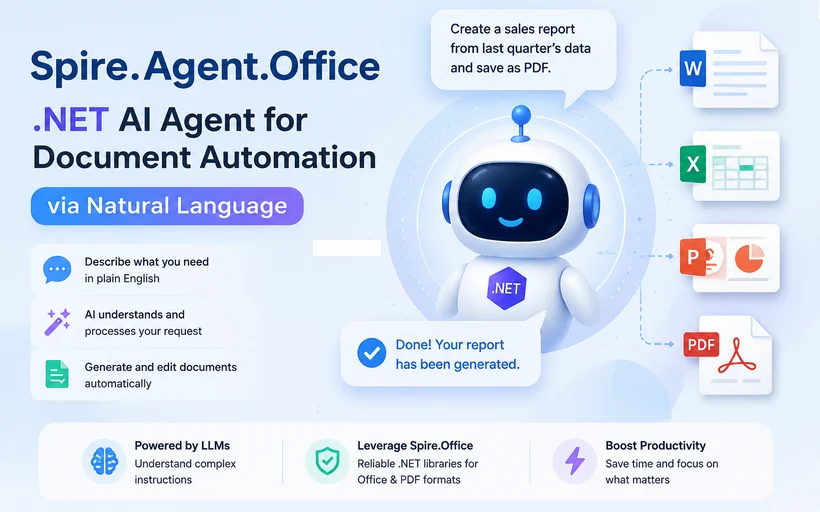
For decades, building document processing features followed a predictable pattern: more complex document logic demanded more code. Common workloads such as extracting data from PDFs, reformatting Word reports, or cleaning Excel exports typically required hundreds of lines of hand-coded logic, regular expressions, and endless exception handling.
That rule is now being fundamentally transformed. .NET AI agent SDKs are changing how enterprises handle documents—not by making C# scripting easier, but by making large parts of it unnecessary.
Meet Spire.Agent.Office SDK — a .NET AI agent built specifically for the Office ecosystem. With it, .NET developers can replace verbose traversal and parsing code with a single natural language instruction. Simply describe your target outcome in plain English, and the agent executes it for you.
What you’ll learn in this article:
- The Evolution: From Macros to AI Agents
- The Real Cost of Document‑Driven Code in .NET
- Spire.Agent.Office SDK Architecture and Core APIs
- A Practical Example: Extracting Invoice Data from PDF
- Beyond PDF: Four Specialized AI Agent Modules
- Why This Matters for .NET Developers
- Frequently Asked Questions (FAQs)
The Evolution: From Macros to AI Agents
Document automation has evolved through distinct phases, each bringing developers closer to a true natural-language programming interface.
Phase 1: Recorded Macros and Scripting
Early automation relied on recorded keystrokes and VBA scripts. These solutions were rigid, broke easily when layouts changed, and required specialist knowledge to modify.
Phase 2: Programmatic SDKs
Libraries like Spire.Office for .NET gave developers granular control over DOCX, XLSX, PPTX, and PDF formats. While powerful, this approach was code-intensive. A simple task like "extract the total from an invoice" demanded multiple lines of code to handle page traversal, coordinate mapping, and data serialization.
Phase 3: Agentic Task Automation
We are now entering the era of document AI agents. These tools don't just help you find a specific API method; they understand the business intent behind your request. Instead of telling the computer how to find a table in a Word document, you tell it what you want.
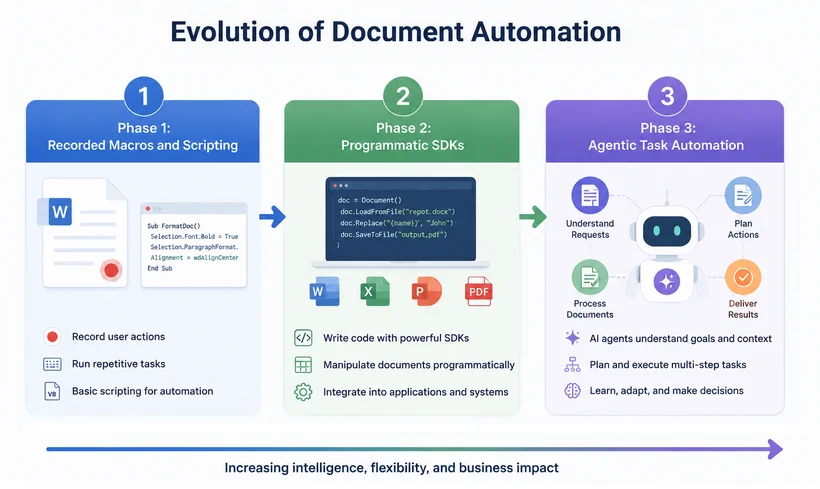
The Real Cost of Document‑Driven Code in .NET
Traditional document automation in C# places a heavy burden on developers:
- Learning intricate APIs from specialized document libraries
- Manually invoking methods to load files, iterate pages, and parse content
- Bearing complete responsibility for custom error handling logic
The developer drives every step; the library is merely a toolbox of discrete functions.
And How an AI Agent SDK Changes It?
A purpose-built document AI agent SDK changes this dynamic. Instead of coding traversal logic, users define the desired business outcome. With Spire.Agent.Office, you write C# code like this:
// New approach: one natural language instruction
string instruction = "Review this contract for risky clauses and generate a summary.";
AIResult result = processor.ExecuteInstruction(doc, instruction, "summary.docx");
Behind the scenes, the agent autonomously parses layouts, extracts content, executes transformations, validates output, and adapts to unexpected structures—all without explicit coding.
✅ The core insight: Spire.Agent.Office has "action ability" within the document domain. It does not merely suggest code snippets—it directly manipulates files, reads content, applies formatting rules, and verifies results, all controlled through natural language commands.
This transforms the library from a coding toolkit into an autonomous operator that completes end-to-end document engineering tasks on your behalf—while still exposing a familiar C# API surface for .NET developers.
Spire.Agent.Office SDK Architecture and Core APIs
The architecture is a hybrid:
┌─────────────────────────────────────────────────────────────────┐
│  [1]  AI Understanding Layer (configurable LLM)               │
│       • Interprets natural language instructions              │
│       • Identifies business intent                            │
│       • Plans the necessary actions                           │
└─────────────────────────────┬───────────────────────────────────┘
                              │
                              ▼
┌─────────────────────────────────────────────────────────────────┐
│  [2]  Deterministic Document Engine (Spire.Office APIs)        │
│       • Executes planned actions with precision               │
│       • Guarantees accurate file manipulation                 │
│       • Ensures pixel-perfect layouts and correct formats     │
└─────────────────────────────────────────────────────────────────┘
Key SDK components for .NET developers:
AIOptions– Configuration class for setting your AI provider (OpenAI, Azure, local models, etc.) and API keys.AIDocumentProcessor– The main entry point, obtained by calling .AI(options) on a document object (e.g., PdfDocument, WordDocument, etc.).ExecuteInstruction()– The core method that accepts a natural language instruction and an optional output path, returning an AIResult containing status, messages, and generated file paths.
All processing runs locally within your infrastructure—no document content is sent to external servers, preserving data security and compliance—and you can swap the underlying LLM via the AIOptions.
A Practical Example: Extracting Invoice Data from PDF
The Challenge: Extracting structured data from PDF invoices is one of the most time-consuming tasks for developers.
Traditional Approach
The traditional programmatic approach requires writing code to:
- Load the PDF and iterate through every page
- Identify text regions and table boundaries
- Apply regular expressions or positional coordinates
- Handle variations across dozens of vendor layouts
- Export the final structured data to an Excel sheet
This workflow typically demands dozens of lines of C# code, filled with brittle positional logic and edge-case exception handling.
The Spire.Agent.Office Approach
With Spire.Agent.Office, an AI agent SDK built on the mature Spire.Office document engine, the same task is reduced to a single natural language instruction wrapped in minimal boilerplate:
using Spire.Agent.Office.AI;
using Spire.Agent.Office.Extensions;
using Spire.Pdf;

AIOptions options = new AIOptions();
options.SpireToken = "your-token";

using (PdfDocument pdf = new PdfDocument())
{
    pdf.LoadFromFile("Invoice Details.pdf");
    AIDocumentProcessor processor = pdf.AI(options);

    string instruction = "From this invoice table, extract only the rows where the Total is greater than $50. " +
                         "Include all 7 columns (Item #, Description, Qty, Unit Price, Discount, Price) and export to an Excel workbook.";

    AIResult result = processor.ExecuteInstruction(
        pdf,
        instruction,
        "extracted_invoice_data.xlsx"
    );
}
About 10 lines of supporting code + 1 natural language instruction. You can filter and export target invoice rows into an Excel file.
Result Preview:
The Workflow Behind It

You no longer need to understand document object models, page coordinates, or API signatures. You simply describe what you want in the instruction string.
And when business rules evolve, you update the instruction—not the codebase. This dramatically reduces maintenance overhead and accelerates response times to business needs.
Beyond PDF: Four Specialized AI Agent Modules
The agent’s capabilities extend far beyond PDF processing. Spire.Agent.Office comprises four specialized modules, each tailored to a core office document format, all controllable via natural language instructions:
| Module | Document Type | Natural Language Capabilities |
|---|---|---|
| Spire.Agent.Doc | Word | Report generation, contract review, content refinement, format standardization |
| Spire.Agent.XLS | Excel | Automated reporting, data cleaning, data importing, multi-format export |
| Spire.Agent.Presentation | PowerPoint | Automated slide generation, content updates, media embedding, data visualization |
| Spire.Agent.PDF | Merge/split operations, watermarking, data extraction, conversion to Word/Excel |
All modules share the same pattern: configure AIOptions, then make a single ExecuteInstruction call.
Why This Matters for .NET Developers
This evolution does not spell the end for automation engineers or .NET developers. Rather, it redefines their daily work.
- Less time on low‑level file I/O, coordinate mapping, and exception‑handling boilerplate.
- More time on workflow design, validation rules, and integrating the agent into larger business processes.
- Easier maintenance: when rules change, you update the instruction, not the codebase. This reduces regression risk and speeds up response to business needs.
Developers shift from being hands-on scripters to workflow orchestrators. They define high-level objectives, supervise the agent’s output, and make strategic decisions about what to accept, refine, or reject.
Conclusion
In short, Spire.Agent.Office brings AI capabilities directly into your document workflows. Instead of writing hundreds of lines of complex code to process Word, Excel, PowerPoint, and PDF files, you simply tell the agent what you need in natural language.
It handles the heavy‑duty work including data extraction, batch report generation and slide formatting, while you retain full control of security and accuracy. The result is faster development, easier maintenance, and more time to focus on business outcomes, not coding details.
Frequently Asked Questions (FAQs)
Q: Is Spire.Agent.Office replacing traditional document automation?
A: No. It enhances it by eliminating manual coding for routine tasks while allowing developers to focus on complex, high-value workflows.
Q: What about security and compliance?
A: Spire.Agent.Office operates within your existing infrastructure, with all processing happening locally. No document content is sent externally.
Q: Can I customize the agent's behavior?
A: Yes. You can provide specific instructions, set validation rules, and define approval workflows for agent outputs.
Q: Can I bring my own custom LLM or switch the underlying AI model?
A: Yes. Spire.Agent.Office allows you to set up your preferred AI models. Whether it’s OpenAI, Azure OpenAI, a local Llama model, or any other compatible AI endpoints, you can plug it into the AI understanding layer.
Additional Resources
Create Bookmarks in PDF for Easy Navigation
Table of Contents
Long‑form PDF files such as e‑books, technical manuals, reports and whitepapers can become difficult to navigate. Scrolling through hundreds of pages to find specific chapters wastes time for you and your readers. That is exactly why PDF bookmarks matter.
PDF bookmarks act as interactive clickable navigation points. They let users jump instantly to chapters, sections, figures, or important pages without endless scrolling. Whether you work with business reports, academic papers, or technical documentation, knowing how to create bookmarks in PDF will greatly improve your document experience.
In this article, we will cover manual workflows for regular users and code‑based approaches for developers to add PDF bookmarks effectively.
- What Exactly Are PDF Bookmarks?
- Manually Create PDF Bookmarks in Adobe Acrobat Pro
- Programmatically Create Bookmarks in PDF for Developers
- Generate PDF Bookmarks Directly from Microsoft Word
- Frequently Asked Questions (FAQs)
What Exactly Are PDF Bookmarks?
PDF bookmarks (also called outlines) are an interactive outline tree stored within the PDF file itself. Each bookmark links to a target page, position, or view setting. Bookmarks support hierarchical nesting, allowing main chapters to contain multiple sub-section child bookmarks.
Benefits of PDF bookmarks:
- Fast one‑click navigation across large documents
- Keep document structure visible in sidebar panel
- Support nested multi‑level outlines for complex content
- Work across most PDF readers on desktop and mobile
- No extra external files required; all data lives inside the PDF
Manually Create PDF Bookmarks in Adobe Acrobat Pro
Adobe Acrobat Pro is the industry standard for PDF editing and offers robust bookmarking features.
How to Add Bookmarks in Adobe:
- Open your PDF in Adobe Acrobat Pro.
- Display the Bookmarks panel by clicking the “Bookmark” icon (looks like a ribbon) on the right-hand side.
- Navigate to the page or section you want to bookmark.
- Create a new bookmark by clicking the “New Bookmark” icon (page with a plus sign) at the top of the panel.
- Type a clear, descriptive name for the bookmark and press Enter.

Pro Tip for Acrobat Users:
If you highlight text before creating a bookmark, Acrobat will automatically use the highlighted words as the bookmark title. This saves time and ensures consistency with your document’s headings.
While bookmarks serve as a hidden navigation backbone for the sidebar, generating a visible Table of Contents allows you to extract your bookmark titles and corresponding page numbers into a dedicated in-text page.
Programmatically Create Bookmarks in PDF for Developers
Manually adding bookmarks to PDFs becomes inefficient if you need to process hundreds of PDF files or automate document generation pipelines. Developers can insert bookmarks via code when building or processing PDF documents.
Recommended Solution: Free Spire.PDF for .NET
Free Spire.PDF for .NET is a standalone .NET library that enables developers to create, write, edit, convert, and read PDF files across any .NET application. It supports adding and modifying bookmarks programmatically.
Here's how to insert bookmarks in PDF using C#:
1. Install Free Spire.PDF for .NET
First, add the free library to your .NET project via NuGet Package Manager
PM> Install-Package FreeSpire.PDF
2. Add the Required Namespaces
These imports give you access to the graphics primitives, action triggers, and bookmark collection objects.
using System.Drawing;
using Spire.Pdf;
using Spire.Pdf.Graphics;
using Spire.Pdf.Actions;
using Spire.Pdf.Bookmarks;
using Spire.Pdf.General;
3. Write the Code to Add Bookmarks
Let's expand on the example. The following code demonstrates how to:
- Load an existing PDF
- Add top-level parent bookmarks
- Add nested child sub-bookmarks
- Define target page positions, bookmark text color, and font styles
- Export the modified PDF output
namespace AddBookmark
{
    class Program
    {
        static void Main(string[] args)
        {
            // Create a PdfDocument object
            PdfDocument pdf = new PdfDocument();

            // Load the source PDF file
            pdf.LoadFromFile("template.pdf");

            // Get the first page
            PdfPageBase page1 = pdf.Pages[0];

            // Add a parent bookmark at (290, 70)
            PdfBookmark execSummary = pdf.Bookmarks.Add("Executive Summary");
            PdfDestination dest1 = new PdfDestination(page1, new PointF(290, 70));
            execSummary.Action = new PdfGoToAction(dest1);
            execSummary.Color = new PdfRGBColor(Color.Black);
            execSummary.DisplayStyle = PdfTextStyle.Bold;

            // Adds two child bookmarks at specified location
            PdfBookmark problem = execSummary.Add("The Problem");
            PdfDestination destProb = new PdfDestination(page1, new PointF(70, 465));
            problem.Action = new PdfGoToAction(destProb);
            problem.Color = new PdfRGBColor(Color.Brown);
            problem.DisplayStyle = PdfTextStyle.Italic;

            PdfBookmark solution = execSummary.Add("The Solution");
            PdfDestination destSol = new PdfDestination(page1, new PointF(345, 480));
            solution.Action = new PdfGoToAction(destSol);
            solution.Color = new PdfRGBColor(Color.Brown);
            solution.DisplayStyle = PdfTextStyle.Italic;

            // Get the second page
            PdfPageBase page2 = pdf.Pages[1];

            // Add a parent bookmark at (70, 75)
            PdfBookmark deliverables = pdf.Bookmarks.Add("Project Deliverables");
            PdfDestination dest2 = new PdfDestination(page2, new PointF(60, 75));
            deliverables.Action = new PdfGoToAction(dest2);
            deliverables.Color = new PdfRGBColor(Color.Black);
            deliverables.DisplayStyle = PdfTextStyle.Bold;

            // Save the updated document
            pdf.SaveToFile("AddPdfBookmarks.pdf");
            pdf.Dispose();
        }
    }
}
Key API Reference:
pdf.Bookmarks.Add(): Adds a parent bookmark to the documentbookmark.Add(): Adds a sub-bookmark to an existing parent bookmarknew PdfDestination(page, location): Defines the target page and positionnew PdfGoToAction(destination): Creates a "go to" action that jumps to the specified destination
Pro Tip: To determine exact text positions in PDF, Free Spire.PDF allows you to get coordinates of text or images within the document.
The added PDF bookmarks:

Why Choose Free Spire.PDF for Programmatic Bookmarking?
- Automation: Perfect for batch processing hundreds of PDFs
- Flexibility: Add bookmarks to existing documents or create new PDFs from scratch with bookmarks
- Full Control: Set destinations, colors, styles, and nested hierarchies programmatically
- Free for Commercial Use: No licensing fees, even for business applications
- Cross-Platform: Works on any .NET application, including ASP.NET and .NET Core
Generate PDF Bookmarks Directly from Microsoft Word
If you’re creating a document from scratch, you can generate bookmarks automatically during the PDF export process.
How it Works
When Word generates a PDF, it analyzes your document's style definitions. It maps the built-in Heading Styles (Heading 1, Heading 2, Heading 3) to hierarchical bookmarks:
- Heading 1 → Top-level (Level 1) bookmarks.
- Heading 2 → Nested child (Level 2) bookmarks.
- Heading 3 → Grandchild (Level 3) bookmarks.
Steps:
- Format your Word content with built‑in heading styles.
- Go to “File > Save As” and select PDF.
- Before saving, click “Options” and check “Create bookmarks using headings”.
- Save the file. Your exported PDF will contain auto‑generated bookmarks mapped to your Word headings.
Conclusion
PDF bookmarks convert cumbersome documents into polished, easily navigable resources. Choose the approach that fits your workflow:
- Adobe Acrobat Pro for manual, visual control
- Programmatic approaches (like Free Spire.PDF for .NET) for automation and batch processing
- Microsoft Word for automatic generation during export
Whichever you select, you’ll significantly enhance document usability and reader satisfaction. Well-structured bookmarks signal professionalism and attention to detail. Invest the time to add them, and your audience will appreciate the difference.
Frequently Asked Questions (FAQs)
Q: Are bookmarks the same as hyperlinks?
A: No. Hyperlinks in PDF are typically embedded directly within the text body (inline) and are often underlined. Bookmarks reside in a dedicated side-panel outline tree. While both navigate the user, bookmarks provide a persistent structural map, whereas hyperlinks offer contextual inline jumps.
Q: Do bookmarks work on all PDF readers?
A: Absolutely. PDF bookmarks are a standard PDF feature supported by all major readers, including Adobe Acrobat, Foxit, Preview (Mac), and mobile PDF viewers.
Q: Do bookmarks increase the file size of my PDF significantly?
A: No. Bookmarks are extremely lightweight. They are essentially a small text-based index containing titles, page pointers, and action attributes. Even with thousands of nested entries, the impact on overall file size is negligible compared to images or embedded fonts.
Q: Can I edit or delete existing bookmarks from a PDF without Adobe Acrobat?
A: Yes. The Free Spire.PDF library allows you to access the pdf.Bookmarks collection. You can call bookmarks.RemoveAt(index) or bookmarks.Clear() to delete them programmatically without purchasing expensive desktop software.
See Also
Insert Slicers in Excel: A Beginner’s Guide to Interactive Filters
Table of Contents
- What is a Slicer in Excel?
- Why Slicers Outperform Traditional Filters
- Prerequisites Before Inserting Slicers
- How to Add Slicers in Excel: Two Methods
- Advanced: Programmatically Create Slicers in Excel in C#
- How to Use Excel Slicers Once They’re Inserted
- Best Practices for Excel Slicers
- Frequently Asked Questions (FAQs)
Tired of losing track of your Excel filters inside endless drop-down menus? There's a better way. Slicers turn tedious data exploration into a one‑click visual experience, keeping your selections visible and your dashboards interactive.
In this guide, you'll learn exactly how to insert slicers in Excel, whether you're working with tables or PivotTables. We'll cover best practices for building professional dashboards and even show you how to automate the process with C#.
- What is a Slicer in Excel?
- Why Slicers Outperform Traditional Filters
- Prerequisites Before Inserting Slicers
- How to Add Slicers in Excel: Two Methods
- Advanced: Programmatically Create Slicers in Excel in C#
- How to Use Excel Slicers Once They’re Inserted
- Best Practices for Excel Slicers
- Frequently Asked Questions (FAQs)
What is a Slicer in Excel?
A slicer is a visual filtering tool made up of clickable buttons that correspond to unique values in a data column. Instead of hiding your filter options inside drop-down menus, slicers display them directly on your worksheet, making your current filter state visible at a glance.
Think of slicers as an intuitive control panel for your data. Click a button, and your table, PivotTable, or chart updates instantly. Selected buttons remain highlighted, so you and any other user can always see which filters are active.
Why Slicers Outperform Traditional Filters
| Feature | Traditional Filters | Slicers |
|---|---|---|
| Visibility | Filter state is hidden in drop-down menus | Selected filters are always visible |
| Ease of use | Requires multiple clicks to navigate menu layers | One-click button selection for instant filtering |
| Multi-select | Clunky and unintuitive | Hold Ctrl or use Multi-Select toggle |
| Multiple data sources | Tied to one table | Can control multiple PivotTables and charts |
| Dashboard-friendly | Not designed for dashboards | Perfect for interactive dashboards |
Standard filters force you to click a tiny arrow, uncheck “Select All,” scroll through a long list, and click OK. The moment you click away, your filtering choices disappear from view, leaving you guessing what’s currently applied. Excel slicer tool solves this problem completely by making every filter option a clear, clickable button that sits directly on your worksheet.
Prerequisites Before Inserting Slicers
Before adding slicers in Excel, make sure your data meets these requirements:
- Formatted as Excel Table or PivotTable: Slicers do not work with unformatted raw cell ranges.
- Supported Excel version: Slicers are available in Excel 2013 and later for Windows, and Excel 2016 and later for Mac.
- No blank rows or columns: Empty rows or columns within your dataset can cause Excel to misinterpret the full data range.
- Clean, structured data: Ensure every column has a unique, descriptive header and consistent data formatting.
To convert a range to a table, select your data and press "Ctrl + T", then click OK.
How to Add Slicers in Excel: Two Methods
The process for inserting slicers depends on whether you’re working with a regular Excel Table or a PivotTable. We’ll cover both.
Method 1: Insert Slicers in an Excel Table
- Click anywhere inside your Excel table.
- Go to the Table Design tab on the ribbon.
- Click the Insert Slicer button in the Tools group.

- In the pop-up dialog box, check the boxes for the columns you want to use as slicers (e.g., Region, Product, Category).
- Click OK.
Excel will place slicer objects directly on your worksheet. Each slicer displays buttons for all unique items in its respective field. Click any button inside a slicer to filter the table instantly.
Method 2: Insert Slicers in a PivotTable
- Click any cell inside your pivot table.
- Navigate to the PivotTable Analyze tab (or Analyze tab, depending on your version).
- Click Insert Slicer in the Filter group.

- In the Insert Slicers dialog box, check the boxes for the fields you want to filter by (e.g., Product).
- Click OK.
The slicers appear on your sheet and dynamically update the PivotTable results. You can move, resize, and format them to match your dashboard layout.
Advanced: Programmatically Create Slicers in Excel in C#
While the manual methods are perfect for one‑off tasks, you may need to add slicers to hundreds of Excel files programmatically. That’s where Free Spire.XLS for .NET comes in. This free library allows you to create, read, and modify Excel files without Microsoft Office installed—and it fully supports inserting slicers into Excel tables.
C# Code: Adding Slicers to an Excel Table
Below is a complete C# example that loads an existing Excel file, retrieves the first table in the first worksheet, and inserts two slicers for two different columns. It then sets a name and a built‑in style for each slicer, and saves the result as a new .xlsx file.
using Spire.Xls;
using Spire.Xls.Core;

namespace AddSlicerToTable
{
    internal class Program
    {
        static void Main(string[] args)
        {
            // Load an Excel file
            Workbook workbook = new Workbook();
            workbook.LoadFromFile("sampleData.xlsx");

            // Get the first worksheet
            Worksheet worksheet = workbook.Worksheets[0];

            // Get the first table in the worksheet
            IListObject table = worksheet.ListObjects[0];

            // Add 2 slicers
            // Parameters: table, location (cell reference), column index (0‑based)
            int slicer1 = worksheet.Slicers.Add(table, "G3", 1);
            int slicer2 = worksheet.Slicers.Add(table, "H5", 2);

            // Set name and style for the slicer
            worksheet.Slicers[slicer1].Name = "Region";
            worksheet.Slicers[slicer1].StyleType = SlicerStyleType.SlicerStyleLight1;
            worksheet.Slicers[slicer2].Name = "Category";
            worksheet.Slicers[slicer2].StyleType = SlicerStyleType.SlicerStyleDark1;

            // Save the result file
            workbook.SaveToFile("AddSlicers.xlsx", ExcelVersion.Version2016);
            workbook.Dispose();
        }
    }
}
How the Slicer API Works
The core method is Slicers.Add() with the following signature:
int Add(IListObject table, string destCellName, int index);
- table: The source IListObject (Excel Table) the slicer is bound to
- destCellName: Top-left cell address where the slicer is placed (e.g., "G3")
- index: 0-based index of the column within the table to use as filter values.
Note: Slicers require a structured Excel Table object. Always create and configure your Excel table first before calling the slicer insertion API.
Result:
Additional Tips for Programmatic Slicer Insertion
- Multiple tables: If your worksheet has more than one table, you can access them via worksheet.ListObjects[index].
- PivotTable slicers: Free Spire.XLS also supports adding slicers to PivotTables using
worksheet.Slicers.Add(IPivotTable, string, int). - Saving formats: Use
ExcelVersion.Version2013orVersion2016to ensure slicers are preserved correctly. - Performance: When processing multiple files, create a new Workbook instance for each file and call Dispose() promptly after processing to avoid memory leaks.
How to Use Excel Slicers Once They’re Inserted
Using slicers is remarkably simple:
- Single selection: Click any button to filter your data to that value
- Multiple selection: Hold Ctrl as you click multiple buttons, or click the Multi-Select toggle at the top of the slicer panel
- Clear a filter: Click the Clear Filter button (the funnel icon with an X) in the top-right corner of the slicer
Best Practices for Excel Slicers
- Keep slicers grouped and aligned at the top or side of your dashboard.
- Use descriptive captions so viewers understand what each slicer filters.
- Limit the number of slicers — 3–5 usually gives enough interactivity without clutter.
- Name your slicers in the Selection Pane (Alt + F10) for easier management.
- Lock slicer positions (right-click → Size and Properties → Properties → check “Don’t move or size with cells”) so they stay put when users scroll.
- For automation, always target ExcelVersion.Version2016 or higher to ensure slicer compatibility.
Final Thoughts
Adding slicers in Excel is one of the highest-impact skills for anyone building reports or dashboards. For everyday users, they make filtering intuitive, transparent, and dashboard-ready, eliminating the friction of nested drop-down menus. For developers, programmatic slicer APIs enable scalable, automated generation of interactive workbooks at enterprise scale.
Don’t settle for static spreadsheets that confuse your audience. Start using Excel slicers today to unlock the full potential of your data—turning ordinary tables into powerful, interactive decision-making tools that impress and inform.
Frequently Asked Questions (FAQs)
Q: Can I connect one slicer to multiple PivotTables?
A: Yes. Right‑click the slicer → Report Connections → select all PivotTables you want to control.
Q: Can I change slicer colors?
A: Absolutely. Use the Slicer Tools → Options tab to apply built‑in styles or create custom formatting.
Q: Do slicers work with Excel charts?
A: Yes. If a chart is linked to a Table or PivotTable that has an associated slicer, the chart will update automatically to reflect your slicer selections.
Q: Can I change the sort order of items inside a slicer?
A: Yes. Right-click the slicer and select Slicer Settings. In the dialog box, you can choose ascending (A-Z) or descending (Z-A) sort order, or choose to sort using a custom list. You can also control whether items deleted from the source data are retained in the slicer display.