HTML in JPG (oder PNG) konvertieren – Kostenlose & einfache Tools
Inhaltsverzeichnis
- Warum Sie möglicherweise HTML in ein Bild konvertieren müssen – von der Archivierung von Webseiten bis zur Erstellung automatisierter Social-Media-Karten.
- JPG vs. PNG: Welches Format soll man wählen – detaillierter Vergleich von Komprimierung, Transparenz, Dateigröße usw.
- 3 bewährte Methoden zur Konvertierung von HTML in JPG oder PNG
- Profi-Tipps für hochwertige Konvertierungen – Optimierung von HTML, Einstellung der Auflösung, Umgang mit Schriftarten und Komprimierung der endgültigen Bilder.
Die Konvertierung von HTML in Bildformate wie JPG oder PNG ist zu einer wesentlichen Aufgabe für Entwickler, Designer und Inhaltsersteller geworden. Ob Sie Social-Media-Vorschauen generieren, Daten-Dashboards für Berichte erfassen, Website-Thumbnails erstellen oder Screenshot-Workflows automatisieren müssen, die Kenntnis der richtigen HTML in JPG oder HTML in PNG Konvertierungsmethode ist der Schlüssel zur effizienten Bereitstellung hochwertiger Ergebnisse.
Dieser umfassende Leitfaden behandelt alles, was Sie über die HTML-zu-Bild Konvertierung wissen müssen, einschließlich:
- Warum Sie möglicherweise HTML in ein Bild konvertieren müssen – von der Archivierung von Webseiten bis zur Erstellung automatisierter Social-Media-Karten.
- JPG vs. PNG: Welches Format soll man wählen – detaillierter Vergleich von Komprimierung, Transparenz, Dateigröße usw.
- 3 bewährte Methoden zur Konvertierung von HTML in JPG oder PNG:
- Online-Konverter – schnelle Lösungen für einmalige Konvertierungen.
- Integrierte Screenshot-Tools des Browsers – nutzen Sie Chrome, Edge oder Firefox für hochauflösende Aufnahmen.
- C# mit Free Spire.Doc for .NET – eine zuverlässige kostenlose Bibliothek für serverseitige Automatisierung.
- Profi-Tipps für hochwertige Konvertierungen – Optimierung von HTML, Einstellung der Auflösung, Umgang mit Schriftarten und Komprimierung der endgültigen Bilder.
Am Ende dieses Leitfadens werden Sie ein klares Verständnis dafür haben, wie Sie den richtigen Ansatz basierend auf Ihrem technischen Kenntnisstand, Ihrer Infrastruktur und Ihren Automatisierungsanforderungen auswählen.
Warum HTML in ein Bild konvertieren?
HTML (HyperText Markup Language) ist das Rückgrat von Webseiten, aber es ist nicht immer das portabelste oder am einfachsten zu teilende Format. Die Konvertierung von HTML-Dateien in JPG oder PNG löst mehrere häufige Probleme:
- Layout & Design beibehalten: Browser rendern HTML unterschiedlich, und die Konvertierung in ein Bild fixiert das Layout, sodass Ihr Inhalt überall gleich aussieht.
- Einfaches Teilen: Bilder werden universell über soziale Medien, E-Mails, Präsentationen und Dokumente hinweg unterstützt – Empfänger müssen keinen Browser öffnen oder auf die ursprüngliche HTML-Datei zugreifen.
- Archivierung & Dokumentation: Webseiten ändern sich oder verschwinden im Laufe der Zeit. Die Konvertierung einer Webseite in ein Bild erstellt eine dauerhafte Momentaufnahme des Inhalts für die Aufzeichnungen.
- Design & Mockups: Webdesigner konvertieren oft HTML-Prototypen in JPG/PNG, um sie mit Kunden zu teilen, Arbeiten in Portfolios zu präsentieren oder in Designsysteme zu integrieren.
- Leistungsoptimierung: Bei einfachen Inhalten (z. B. Infografiken, statische Widgets) laden Bilder schneller als HTML, insbesondere auf Geräten mit geringer Bandbreite.
JPG vs. PNG: Welches Format sollten Sie wählen?
Die Wahl des richtigen Ausgabeformats wirkt sich direkt auf Dateigröße, Qualität und Transparenzunterstützung aus. Hier ist ein kurzer Vergleich:
| Merkmal | PNG | JPG |
|---|---|---|
| Kompression | Verlustfrei | Verlustbehaftet |
| Dateigröße | Größer | Kleiner |
| Transparenz | Unterstützt Alpha-Kanal (transparente Bereiche) | Keine Transparenz (füllt mit Weiß oder Schwarz) |
| Am besten für | Logos, Symbole, textlastige UIs, Screenshots | Fotografien, Banner, große Bilder |
Faustregel: Verwenden Sie PNG wenn Sie scharfen Text, feine Details oder einen transparenten Hintergrund benötigen. Verwenden Sie JPG wenn Sie eine kleine Dateigröße priorisieren und der Inhalt fotografisch ist.
3 Methoden zur Konvertierung von HTML in Bilder (für alle Kenntnisstufen)
Egal, ob Sie ein Anfänger ohne Programmiererfahrung oder ein Entwickler auf der Suche nach automatisierten Lösungen sind, es gibt eine Methode, die Ihren Bedürfnissen entspricht. Wir werden die zuverlässigsten Werkzeuge und Techniken behandeln, von einfachen Online-Konvertern bis hin zu codebasierten Lösungen.
1. Online-HTML-zu-JPG/PNG-Konverter
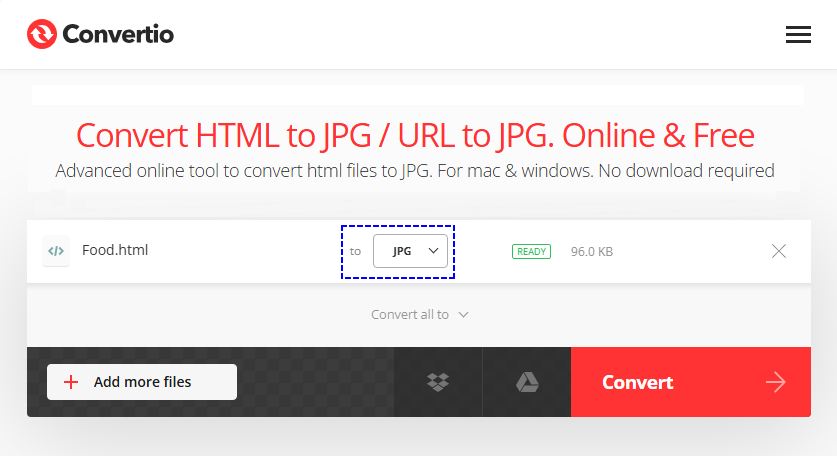
Online-Konverter sind der einfachste Weg, um HTML in JPG zu ändern oder HTML in PNG ohne Software oder Programmierung. Sie funktionieren direkt in Ihrem Browser und unterstützen HTML-Dateien oder URLs. Top-Tools wie Convertio und CloudxDocs liefern schnelle und zuverlässige Konvertierungsergebnisse.
Schritt-für-Schritt mit Convertio:
- Gehen Sie zu Convertios HTML-zu-JPG/PNG-Tool.
- Laden Sie Ihre HTML/URL-Datei hoch.
- Wählen Sie das Ausgabeformat (JPG, JPEG oder PNG) aus dem Dropdown-Menü.
- Klicken Sie auf "Konvertieren" und warten Sie, bis der Vorgang abgeschlossen ist.
- Laden Sie das konvertierte Bild auf Ihr Gerät herunter.
Vorteile: Keine Einrichtung, einfach zu bedienen.
Nachteile: Erfordert eine Internetverbindung; kostenlose Stufen können Dateigrößenbeschränkungen haben.
Die Konvertierung von HTML in Bilder bewahrt das visuelle Layout, aber manchmal benötigen Sie nur den zugrunde liegenden Inhalt. Erfahren Sie, wie Sie einfachen Text aus HTML-Dokumenten extrahieren mit unserer Schritt-für-Schritt-Anleitung, perfekt für Data Mining, Inhaltsmigration oder Suchindexierung.
2. Integrierte Screenshot-Tools des Browsers (schnell & kostenlos)
Alle modernen Browser (Chrome, Firefox, Safari, Edge) verfügen über integrierte Screenshot-Tools, die HTML in PNG konvertieren können. Dies ist ideal zum Erfassen von Webseiten oder bestimmten HTML-Elementen ohne Tools von Drittanbietern.
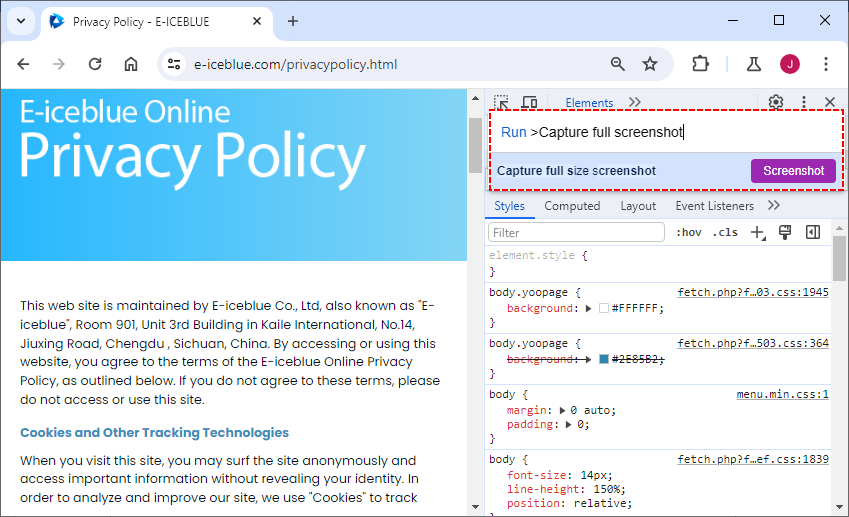
Beispiel für die Konvertierung von Chrome HTML in PNG (die Schritte sind für andere Browser ähnlich):
- Öffnen Sie die HTML-Seite in Ihrem Browser (lokale Datei oder URL).
- Drücken Sie "F12", um die DevTools zu öffnen.
- Drücken Sie in den DevTools "Strg + Umschalt + P" (Windows) oder "Cmd + Umschalt + P" (Mac), um die Befehlspalette zu öffnen.
- Geben Sie "Vollständigen Screenshot aufnehmen" (oder "Screenshot in voller Größe aufnehmen") ein und drücken Sie "Enter".
- Der Screenshot wird automatisch als PNG heruntergeladen. Um ihn in JPG zu konvertieren, verwenden Sie einen Bildeditor, um das PNG als JPG zu speichern.
Vorteile: Perfekte visuelle Wiedergabetreue, keine Einrichtung, ideal für Debugging/UI-Prüfungen, 100 % kostenlos.
Nachteile: Manueller Prozess (nicht automatisierbar), gibt nativ nur PNG aus.
Profi-Tipp: Während Bilder ideal zum Teilen von visuellen Inhalten sind, die Konvertierung von HTML in PDF bewahrt sowohl Layout als auch Text für Dokumente, Berichte und Archivierung und bietet ein ergänzendes Ausgabeformat.
3. C# mit Free Spire.Doc for .NET
Für .NET-Entwickler, die serverseitige Anwendungen erstellen, ist Free Spire.Doc for .NET eine zuverlässige, kostenlose Bibliothek, die die Konvertierung von HTML in JPG, PNG und andere Bildformate unterstützt. Sie verarbeitet komplexe HTML-Inhalte (einschließlich CSS-Stile, Tabellen und Bilder), ohne auf einen Browser angewiesen zu sein, was sie ideal für automatisierte .NET-Workflows macht.
Installation über NuGet:
Der einfachste Weg, Free Spire.Doc zu installieren, ist über den NuGet Package Manager in Visual Studio:
Install-Package FreeSpire.Doc
C#-Code zum Konvertieren von HTML in PNG
Dieser Code konvertiert eine lokale HTML-Datei in PNG (tauschen Sie ImageFormat.Png gegen ImageFormat.Jpeg aus, um JPG auszugeben) und passt die Seitenränder für eine optimale Wiedergabe an:
using Spire.Doc;
using Spire.Doc.Documents;
using System.Drawing;
using System.Drawing.Imaging;

namespace ConvertHtmlFileToPng
{
    class Program
    {
        static void Main(string[] args)
        {
            // Create a Document object
            Document document = new Document();

            // Load an HTML file
            document.LoadFromFile("input.html", FileFormat.Html, XHTMLValidationType.None);

            // Get the first section
            Section section = document.Sections[0];

            // Set the page margins
            section.PageSetup.Margins.All = 2;

            // Convert the document to an array of bitmap images
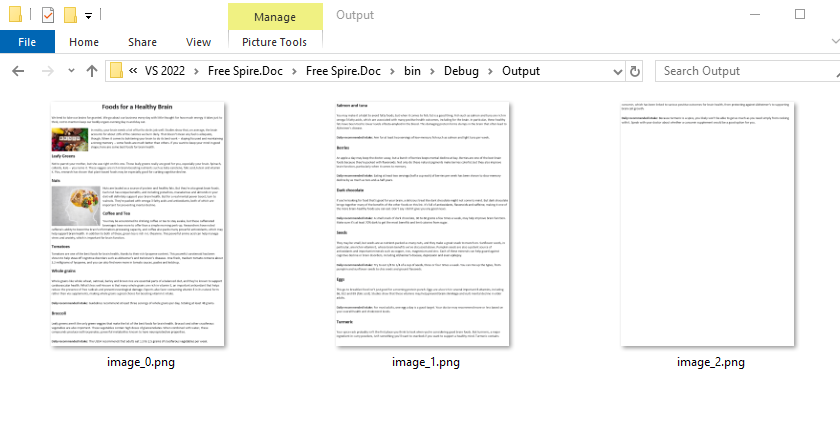
            Image[] images = document.SaveToImages(ImageType.Bitmap);

            // Iterate through the images
            for (int index = 0; index < images.Length; index++)
            {
                // Specify the output file name
                string fileName = string.Format( @"Output\image_{0}.png", index);

                // Save each image as a PNG file
                images[index].Save(fileName, ImageFormat.Png);

            }

            // Dispose resources
            document.Dispose();
        }
    }
}
Konvertierungsergebnis: Die Bibliothek richtet das HTML-Layout am Standardseitenmodell eines Word-Dokuments aus. Dementsprechend werden lange HTML-Inhalte paginiert und als mehrere Bilder exportiert.
Vorteile: Hohe Skalierbarkeit, serverfreundlich, volle Kontrolle über das Rendering, unterstützt die Stapelkonvertierung.
Nachteile: Erfordert .NET-Programmierkenntnisse.
Referenz: HTML-Datei oder HTML-String in Bild in C# konvertieren
Profi-Tipps für hochwertige HTML-zu-Bild-Konvertierungen
Um sicherzustellen, dass Ihre konvertierten Bilder scharf, klar und professionell sind, befolgen Sie diese Tipps:
- Zuerst HTML optimieren: Entfernen Sie unnötigen Code, komprimieren Sie Bilder und stellen Sie sicher, dass die Stile konsistent sind.
- Hohe Auflösung verwenden: Stellen Sie beim Konvertieren die Auflösung auf mindestens 1920x1080 (Full HD) ein, um Unschärfe zu vermeiden.
- Auf Responsivität testen: Wenn das Quell-HTML responsiv ist, testen Sie verschiedene Bildschirmgrößen, um sicherzustellen, dass das Layout im Bild nicht bricht.
- Schriftarten sorgfältig behandeln: Betten Sie benutzerdefinierte Schriftarten in Ihr HTML ein; fehlende Schriftarten verursachen verzerrten Text und inkonsistente Wiedergabe.
- Endgültige Bilder komprimieren: Verwenden Sie Tools wie TinyPNG oder Squoosh, um die Dateigrößen von JPG/PNG zu reduzieren, ohne an Qualität zu verlieren.
Abschließende Gedanken
Die Konvertierung von HTML in JPG oder PNG schließt die Lücke zwischen dynamischen Webinhalten und statischen, universell teilbaren Medien. Egal, ob Sie ein Anfänger sind, der Online-Tools verwendet, ein Designer, der Browser-Screenshots verwendet, oder ein Entwickler, der Konvertierungen mit Code automatisiert, die Methoden in diesem Handbuch decken jeden Anwendungsfall ab.
Denken Sie daran, das richtige Format zu wählen (JPG für Fotos, PNG für Transparenz), und befolgen Sie die Profi-Tipps, um HTML und nach der Konvertierung erstellte Bilder für Qualität und Leistung zu optimieren.
Häufig gestellte Fragen (FAQs)
F1. Kann ich HTML in JPG/PNG konvertieren, ohne an Qualität zu verlieren?
Ja. Verwenden Sie PNG für verlustfreie Qualität oder JPG mit hoher Qualität (90–100 %) für Fotos und ganze Seiten. Vermeiden Sie wiederholte JPG-Konvertierungen, da jede Bearbeitung die Qualität geringfügig verschlechtert.
F2. Gibt es eine Möglichkeit, mehrere HTML-Dateien stapelweise in JPG/PNG zu konvertieren?
Ja. Verwenden Sie Online-Tools wie Convertio mit Unterstützung für Stapel-Uploads. Für Entwickler schreiben Sie ein Skript, um durch HTML-Dateien zu iterieren und sie automatisch zu konvertieren.
F3. Kann ich HTML-E-Mails in JPG/PNG konvertieren?
Ja. Öffnen Sie die HTML-E-Mail in einem Browser und verwenden Sie dann das Screenshot-Tool des Browsers oder einen Online-Konverter, um die E-Mail als Bild zu erfassen. Dies ist nützlich zum Testen der E-Mail-Wiedergabe auf verschiedenen Geräten.
F4. Kann ich nur ein bestimmtes HTML-Element (nicht die ganze Seite) konvertieren, ohne das Bild später zuschneiden zu müssen?
Ja. Chrome/Firefox DevTools sind dafür ausgelegt:
- Verwenden Sie in den DevTools (F12) den Element-Selektor (Pfeilsymbol oben links), um auf das spezifische HTML-Element zu klicken (z. B. ein Div, eine Tabelle oder ein Banner).
- Öffnen Sie die Befehlspalette (Strg/Cmd + Umschalt + P) und wählen Sie Knoten-Screenshot aufnehmen—das Tool erfasst nur das ausgewählte Element als PNG, kein Zuschneiden erforderlich.
Siehe auch
- So konvertieren Sie Bilder in Text: Die besten OCR-Tools für Anfänger
- Word in PNG konvertieren: 3 praktische Möglichkeiten, die Sie tatsächlich nutzen können
- PNG-zu-Word-Konverter: Die 5 besten Möglichkeiten, PNG in Word zu konvertieren
- Python: HTML in Bild konvertieren
- Java: HTML in Bilder konvertieren
Конвертация HTML в JPG (или PNG) — бесплатные и простые инструменты
Содержание
- Зачем может понадобиться конвертировать HTML в изображение – от архивации веб-страниц до создания автоматических карточек для социальных сетей.
- JPG против PNG: какой формат выбрать – подробное сравнение сжатия, прозрачности, размера файла и т.д.
- 3 проверенных метода конвертации HTML в JPG или PNG
- Профессиональные советы для высококачественных преобразований – оптимизация HTML, установка разрешения, обработка шрифтов и сжатие конечных изображений.
Преобразование HTML в форматы изображений, такие как JPG или PNG, стало важной задачей для разработчиков, дизайнеров и создателей контента. Независимо от того, нужно ли вам создавать превью для социальных сетей, захватывать информационные панели для отчетов, создавать миниатюры веб-сайтов или автоматизировать рабочие процессы создания скриншотов, знание правильного метода преобразования HTML в JPG или HTML в PNG является ключом к эффективному достижению высококачественных результатов.
Это подробное руководство охватывает все, что вам нужно знать о преобразовании HTML в изображение, включая:
- Зачем может понадобиться конвертировать HTML в изображение – от архивации веб-страниц до создания автоматических карточек для социальных сетей.
- JPG против PNG: какой формат выбрать – подробное сравнение сжатия, прозрачности, размера файла и т.д.
- 3 проверенных метода конвертации HTML в JPG или PNG:
- Онлайн-конвертеры – быстрые решения для разовых преобразований.
- Встроенные в браузер инструменты для создания скриншотов – используйте Chrome, Edge или Firefox для высококачественных снимков.
- C# с Free Spire.Doc for .NET – надежная бесплатная библиотека для автоматизации на стороне сервера.
- Профессиональные советы для высококачественных преобразований – оптимизация HTML, установка разрешения, обработка шрифтов и сжатие конечных изображений.
К концу этого руководства у вас будет четкое понимание того, как выбрать правильный подход в зависимости от вашего технического уровня, инфраструктуры и потребностей в автоматизации.
Зачем конвертировать HTML в изображение?
HTML (HyperText Markup Language) является основой веб-страниц, но это не всегда самый портативный или удобный для обмена формат. Преобразование HTML-файла в JPG или PNG решает несколько распространенных проблем:
- Сохранение макета и дизайна: Браузеры по-разному отображают HTML, и преобразование в изображение фиксирует макет, гарантируя, что ваш контент будет выглядеть одинаково везде.
- Простота обмена: Изображения универсально поддерживаются в социальных сетях, электронной почте, презентациях и документах — получателям не нужно открывать браузер или иметь доступ к исходному HTML-файлу.
- Архивация и документация: Веб-страницы со временем меняются или исчезают. Преобразование веб-страницы в изображение создает постоянный снимок контента для записей.
- Дизайн и макеты: Веб-дизайнеры часто преобразуют HTML-прототипы в JPG/PNG, чтобы поделиться ими с клиентами, продемонстрировать работу в портфолио или интегрировать в системы дизайна.
- Оптимизация производительности: Для простого контента (например, инфографики, статических виджетов) изображения загружаются быстрее, чем HTML, особенно на устройствах с низкой пропускной способностью.
JPG против PNG: какой формат выбрать?
Выбор правильного выходного формата напрямую влияет на размер файла, качество и поддержку прозрачности. Вот краткое сравнение:
| Характеристика | PNG | JPG |
|---|---|---|
| Сжатие | Без потерь | С потерями |
| Размер файла | Больше | Меньше |
| Прозрачность | Поддерживает альфа-канал (прозрачные области) | Нет прозрачности (заполняется белым или черным) |
| Лучше всего подходит для | Логотипы, иконки, интерфейсы с большим количеством текста, скриншоты | Фотографии, баннеры, большие изображения |
Основное правило: Используйте PNG, когда вам нужен четкий текст, мелкие детали или прозрачный фон. Используйте JPG, когда вы отдаете предпочтение небольшому размеру файла, а контент является фотографическим.
3 метода преобразования HTML в изображения (для всех уровней квалификации)
Независимо от того, являетесь ли вы новичком без опыта программирования или разработчиком, ищущим автоматизированные решения, найдется метод, соответствующий вашим потребностям. Мы рассмотрим самые надежные инструменты и методы, от простых онлайн-конвертеров до решений на основе кода.
1. Онлайн-конвертеры HTML в JPG/PNG
Онлайн-конвертеры — это самый простой способ преобразовать HTML в JPG или HTML в PNG без какого-либо программного обеспечения или программирования. Они работают прямо в вашем браузере и поддерживают HTML-файлы или URL-адреса. Ведущие инструменты, такие как Convertio и CloudxDocs, обеспечивают быстрые и надежные результаты преобразования.
Пошаговая инструкция с Convertio:
- Перейдите к инструменту Convertio для преобразования HTML в JPG/PNG.
- Загрузите свой HTML-файл/URL.
- Выберите выходной формат (JPG, JPEG или PNG) из выпадающего меню.
- Нажмите «Конвертировать» и дождитесь завершения процесса.
- Загрузите преобразованное изображение на свое устройство.
Плюсы: Нулевая настройка, простота в использовании.
Минусы: Требуется подключение к Интернету; бесплатные тарифы могут иметь ограничения на размер файла.
Преобразование HTML в изображения сохраняет визуальный макет, но иногда вам нужен только основной контент. Узнайте, как извлечь обычный текст из HTML-документов с помощью нашего пошагового руководства, идеально подходящего для интеллектуального анализа данных, миграции контента или индексации поиска.
2. Встроенные в браузер инструменты для создания скриншотов (быстро и бесплатно)
Все современные браузеры (Chrome, Firefox, Safari, Edge) имеют встроенные инструменты для создания скриншотов, которые могут преобразовывать HTML в PNG. Это идеально подходит для захвата веб-страниц или определенных элементов HTML без сторонних инструментов.
Пример преобразования HTML в PNG в Chrome (шаги аналогичны для других браузеров):
- Откройте HTML-страницу в браузере (локальный файл или URL).
- Нажмите «F12», чтобы открыть инструменты разработчика.
- В инструментах разработчика нажмите «Ctrl + Shift + P» (Windows) или «Cmd + Shift + P» (Mac), чтобы открыть палитру команд.
- Введите «Capture full screenshot» (или «Capture full size screenshot») и нажмите «Enter».
- Скриншот будет автоматически загружен в формате PNG. Чтобы преобразовать в JPG, используйте редактор изображений, чтобы сохранить PNG как JPG.
Плюсы: Идеальная визуальная точность, нулевая настройка, отлично подходит для отладки/проверки пользовательского интерфейса, 100% бесплатно.
Минусы: Ручной процесс (не автоматизируется), по умолчанию выводит только PNG.
Профессиональный совет: Хотя изображения идеально подходят для обмена визуальными эффектами, преобразование HTML в PDF сохраняет как макет, так и текст для документов, отчетов и архивирования, предлагая дополнительный выходной формат.
3. C# с Free Spire.Doc for .NET
Для .NET-разработчиков, создающих серверные приложения, Free Spire.Doc for .NET — это надежная бесплатная библиотека, которая поддерживает преобразование HTML в JPG, PNG и другие форматы изображений. Она обрабатывает сложный HTML-контент (включая стили CSS, таблицы и изображения), не полагаясь на браузер, что делает ее идеальной для автоматизированных рабочих процессов .NET.
Установка через NuGet:
Самый простой способ установить Free Spire.Doc — через диспетчер пакетов NuGet в Visual Studio:
Install-Package FreeSpire.Doc
Код C# для преобразования HTML в PNG
Этот код преобразует локальный HTML-файл в PNG (замените ImageFormat.Png на ImageFormat.Jpeg для вывода в JPG) и настраивает поля страницы для оптимального рендеринга:
using Spire.Doc;
using Spire.Doc.Documents;
using System.Drawing;
using System.Drawing.Imaging;

namespace ConvertHtmlFileToPng
{
    class Program
    {
        static void Main(string[] args)
        {
            // Create a Document object
            Document document = new Document();

            // Load an HTML file
            document.LoadFromFile("input.html", FileFormat.Html, XHTMLValidationType.None);

            // Get the first section
            Section section = document.Sections[0];

            // Set the page margins
            section.PageSetup.Margins.All = 2;

            // Convert the document to an array of bitmap images
            Image[] images = document.SaveToImages(ImageType.Bitmap);

            // Iterate through the images
            for (int index = 0; index < images.Length; index++)
            {
                // Specify the output file name
                string fileName = string.Format( @"Output\image_{0}.png", index);

                // Save each image as a PNG file
                images[index].Save(fileName, ImageFormat.Png);

            }

            // Dispose resources
            document.Dispose();
        }
    }
}
Результат преобразования: Библиотека выравнивает макет HTML со стандартной моделью страницы документа Word. Соответственно, длинный HTML-контент будет разбит на страницы и экспортирован в виде нескольких изображений.
Плюсы: Высокая масштабируемость, удобство для сервера, полный контроль над рендерингом, поддержка массового преобразования.
Минусы: Требуются знания в области программирования на .NET.
Справка: Преобразование HTML-файла или HTML-строки в изображение на C#
Профессиональные советы по высококачественному преобразованию HTML в изображение
Чтобы ваши преобразованные изображения были четкими, ясными и профессиональными, следуйте этим советам:
- Сначала оптимизируйте HTML: Удалите ненужный код, сожмите изображения и убедитесь, что стили согласованы.
- Используйте высокое разрешение: При преобразовании установите разрешение не менее 1920x1080 (Full HD), чтобы избежать размытости.
- Проверьте на адаптивность: Если исходный HTML является адаптивным, протестируйте различные размеры экрана, чтобы убедиться, что макет не ломается в изображении.
- Осторожно обращайтесь со шрифтами: Встраивайте пользовательские шрифты в свой HTML; отсутствующие шрифты вызывают искажение текста и несогласованный рендеринг.
- Сжимайте конечные изображения: Используйте такие инструменты, как TinyPNG или Squoosh, чтобы уменьшить размер файлов JPG/PNG без потери качества.
Заключительные мысли
Преобразование HTML в JPG или PNG устраняет разрыв между динамическим веб-контентом и статическими, универсально распространяемыми медиа. Независимо от того, являетесь ли вы новичком, использующим онлайн-инструменты, дизайнером, использующим скриншоты браузера, или разработчиком, автоматизирующим преобразования с помощью кода, методы, описанные в этом руководстве, охватывают все варианты использования.
Не забудьте выбрать правильный формат (JPG для фотографий, PNG для прозрачности) и следуйте профессиональным советам по оптимизации HTML и изображений после преобразования для обеспечения качества и производительности.
Часто задаваемые вопросы (FAQ)
В1. Могу ли я преобразовать HTML в JPG/PNG без потери качества?
Да. Используйте PNG для качества без потерь или JPG с высоким качеством (90–100%) для фотографий и полных страниц. Избегайте повторных преобразований JPG, так как каждое редактирование незначительно ухудшает качество.
В2. Есть ли способ пакетного преобразования нескольких файлов HTML в JPG/PNG?
Да. Используйте онлайн-инструменты, такие как Convertio, с поддержкой пакетной загрузки. Для разработчиков напишите скрипт для перебора HTML-файлов и их автоматического преобразования.
В3. Могу ли я преобразовать электронные письма в формате HTML в JPG/PNG?
Да. Откройте электронное письмо в формате HTML в браузере, затем используйте инструмент для создания скриншотов браузера или онлайн-конвертер, чтобы захватить электронное письмо в виде изображения. Это полезно для тестирования рендеринга электронной почты на разных устройствах.
В4. Могу ли я преобразовать только определенный элемент HTML (а не всю страницу) без последующей обрезки изображения?
Да. Инструменты разработчика Chrome/Firefox предназначены для этого:
- В инструментах разработчика (F12) используйте селектор элементов (значок стрелки в верхнем левом углу), чтобы щелкнуть определенный элемент HTML (например, div, таблицу или баннер).
- Откройте палитру команд (Ctrl/Cmd + Shift + P) и выберите Сделать снимок экрана узла — инструмент захватит только выбранный элемент в виде PNG, обрезка не потребуется.
Смотрите также
- Как преобразовать изображения в текст: лучшие инструменты OCR для начинающих
- Преобразование Word в PNG: 3 практических способа, которые вы действительно можете использовать
- Конвертер PNG в Word: 5 лучших способов преобразования PNG в Word
- Python: преобразование HTML в изображение
- Java: преобразование HTML в изображения
Remover permissões de PDF – online, offline e via código
Índice
- O que são permissões de PDF?
- Método 1: Usando o truque de imprimir para PDF
- Método 2: Usando o Adobe Acrobat Pro
- Método 3: Usando um removedor de permissões de PDF online
- Método 4: Usando a ferramenta de linha de comando QPDF
- Método 5: Usando o Free Spire.PDF para .NET (C#)
- Comparação de todos os métodos de remoção de permissão de PDF
- Perguntas Frequentes (FAQ)
Você já baixou um PDF crucial apenas para descobrir que não pode editá-lo, copiar texto dele ou até mesmo imprimi-lo? Você provavelmente está lidando com um PDF que possui restrições de permissões (frequentemente rotulado como “Seguro” ou “Protegido”). Quando essas restrições atrapalham, você precisa de uma maneira confiável de remover as permissões dos arquivos PDF para poder trabalhar com o documento livremente.
Este artigo o guiará por cinco métodos confiáveis para remover permissões de PDF — desde ferramentas online gratuitas e truques de navegador até software de desktop profissional e soluções programáticas para desenvolvedores.
- O que são permissões de PDF?
- Método 1: Usando o truque de imprimir para PDF
- Método 2: Usando o Adobe Acrobat Pro
- Método 3: Usando um removedor de permissões de PDF online
- Método 4: Usando a ferramenta de linha de comando QPDF
- Método 5: Usando o Free Spire.PDF para .NET (C#)
- Comparação de todos os métodos de remoção de permissão de PDF
- Perguntas Frequentes (FAQ)
O que são permissões de PDF?
As permissões de PDF (também chamadas de “senhas de proprietário” ou “restrições”) são configurações de segurança que controlam o que os usuários podem fazer com um documento depois de aberto. Ao contrário de uma senha de abertura de documento que impede totalmente a visualização, uma senha de permissões permite a visualização, mas limita ações como:
- Impressão
- Edição ou modificação de conteúdo
- Cópia de texto ou imagens
- Adição de comentários ou anotações
- Preenchimento de campos de formulário
Razões comuns para aplicar permissões:
- Proteção de documentos comerciais confidenciais (por exemplo, relatórios financeiros, contratos legais)
- Prevenção de modificações não autorizadas em formulários oficiais
- Controle da distribuição de conteúdo proprietário
- Restringir o preenchimento de formulários para usuários não aprovados
No entanto, essas restrições podem se tornar frustrantes quando você precisa colaborar ou extrair informações — e é aí que nosso guia entra.
⚠️ Importante: Você só deve remover permissões de PDFs que possui ou tem autorização legal para modificar. A remoção não autorizada de restrições de PDF pode violar leis de direitos autorais ou termos de serviço.
Método 1: Usando o truque de imprimir para PDF
A solução alternativa “Imprimir para PDF” é o método gratuito mais popular para contornar as permissões de PDF. Não requer software adicional e funciona na maioria dos dispositivos de desktop (Windows/Mac).
Por que isso funciona
A função "Imprimir para PDF" cria um arquivo totalmente novo que não herda restrições do original. Mas esteja ciente de que elementos interativos como hiperlinks, campos de formulário preenchíveis, marcadores e assinaturas digitais podem ser perdidos no processo.
Requisito crítico: O PDF original deve permitir a impressão. Se o arquivo tiver uma restrição de “não impressão”, a opção de impressão ficará esmaecida e esse truque falhará.
Passos para Imprimir para PDF:
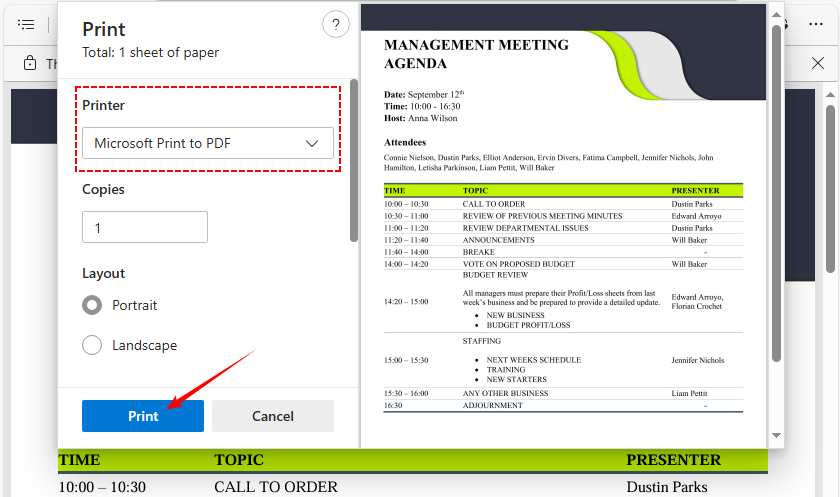
- Abra o PDF restrito em um visualizador (Microsoft Edge, Chrome).
- Clique no ícone Imprimir no canto superior direito (ou use Ctrl + P / Cmd + P).
- Na caixa de diálogo de impressão, clique no menu suspenso "Destino".
- Selecione “Microsoft Print to PDF” (ou “Salvar como PDF”) como a impressora.
- Clique em “Imprimir” e escolha um local para salvar o novo arquivo PDF.
- O novo arquivo não terá restrições de permissões (mas pode perder alguma formatação).
Quando você usa a solução alternativa Imprimir para PDF para remover permissões, todos os campos de formulário preenchíveis no documento original desaparecem — deixando você com um arquivo plano e não interativo. Consulte este guia para criar um PDF preenchível e restaurar esses campos perdidos.
Método 2: Usando o Adobe Acrobat Pro
Se você tem uma assinatura do Adobe Acrobat Pro DC ou Standard, este é o método mais confiável. O Adobe Acrobat é o padrão da indústria para gerenciamento de PDF e torna a remoção de permissões rápida e direta.
✅ Melhor para: Profissionais, edição diária de PDF e arquivos confidenciais (processamento offline).
Passos para usar o Adobe:
- Abra o PDF restrito no Adobe Acrobat Pro.
- Clique em "Arquivo" > "Propriedades" e selecione a guia "Segurança".
- Clique no menu suspenso "Método de segurança".
- Altere a configuração de "Segurança por senha" para "Sem segurança."
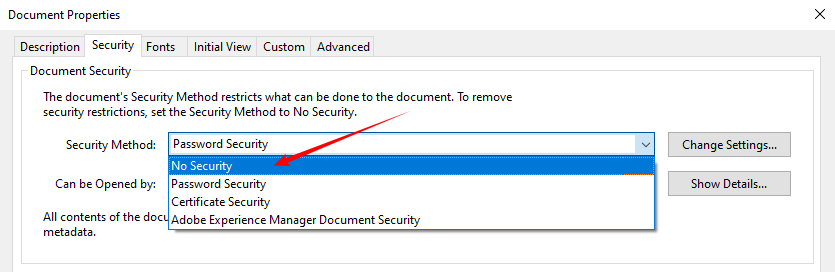
- Uma caixa de diálogo aparecerá solicitando a senha de permissões. Digite-a e clique em OK.
- Clique em OK novamente para salvar as alterações. Agora você pode editar e copiar livremente.
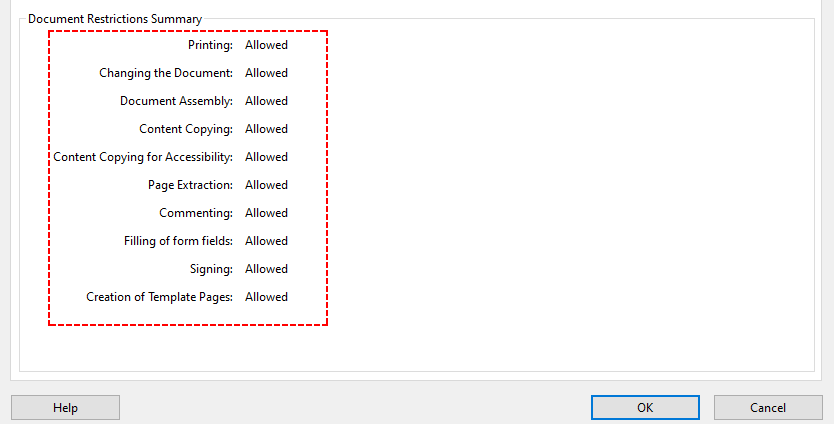
Nota: Se você não souber a senha de permissões, o Adobe Acrobat Pro não permitirá que você remova as restrições. Você precisará usar um dos métodos alternativos abaixo.
Método 3: Usando um removedor de permissões de PDF online
Se você não tem acesso a um navegador de desktop ou prefere uma solução de um clique, as ferramentas gratuitas de remoção de permissão de PDF online são uma boa alternativa. Essas ferramentas removem as restrições de permissão diretamente e funcionam em qualquer dispositivo (Windows, Mac, iPhone, Android)
Nota de segurança importante:
Nunca envie documentos confidenciais, sigilosos ou legalmente protegidos para um site em que você não confia. Para arquivos não confidenciais, os seguintes serviços são respeitáveis:
- Smallpdf (Desbloquear PDF) – Interface simples, sem instalação, funciona no navegador.
- ILovePDF – Oferece processamento em lote com uma conta gratuita.
- Soda PDF – Fornece versões online e de desktop.
Passos para desbloquear permissões de PDF online:
- Acesse o site da ferramenta de desbloqueio de PDF de sua escolha.
- Carregue seu arquivo PDF (arraste e solte ou clique em “ESCOLHER ARQUIVOS”).
- Aguarde a ferramenta remover as restrições automaticamente.
- Baixe o PDF desbloqueado — agora você pode editar, imprimir ou copiar seu conteúdo.
A maioria dos desbloqueadores de PDF online não exige que você saiba a senha de permissões — eles removem as restrições recriptografando o arquivo sem elas.
Exemplo do SmallPDF:
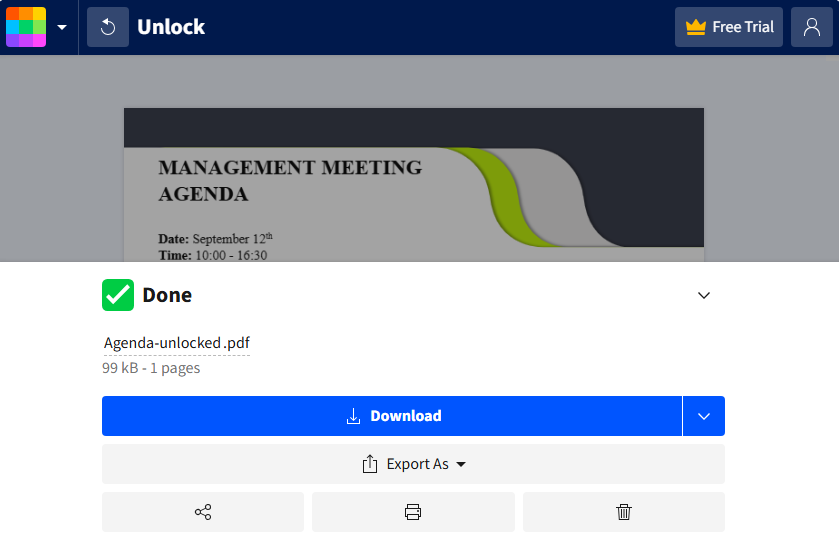
Depois de desbloquear um PDF restrito, extrair seu conteúdo para fins analíticos costuma ser um próximo passo fundamental. Aqui está um mergulho profundo nas principais ferramentas e técnicas comprovadas para extrair texto de documentos PDF.
Método 4: Usando a ferramenta de linha de comando
Se você se sente à vontade com interfaces de linha de comando (CLI), ferramentas como o QPDF permitem remover permissões de PDF de forma rápida e eficiente. O QPDF é de código aberto, multiplataforma e funciona totalmente offline, tornando-o ideal para documentos confidenciais ou processamento em lote.
Passos para usar o QPDF:
- Baixe o QPDF em qpdf.sourceforge.io e instale-o em seu sistema (Windows, Mac, Linux).
- Abra o Prompt de Comando (Windows) ou o Terminal (Mac/Linux).
- Navegue até a pasta onde seu PDF está salvo.
- Digite o comando de descriptografia (substitua os nomes dos arquivos pelos seus):
qpdf --decrypt "Restricted.pdf" "Unlocked.pdf"
- Pressione Enter. O QPDF removerá todas as permissões e salvará o arquivo desbloqueado.
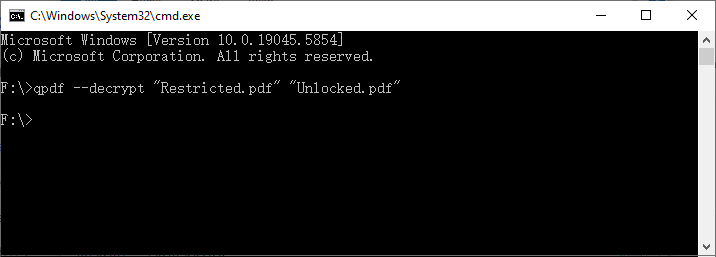
Por que usar o QPDF?
A melhor parte? Ele funciona totalmente offline, então seus arquivos confidenciais nunca saem do seu dispositivo. Você pode até mesmo criar um script para desbloquear uma pasta inteira de PDFs de uma só vez. E, ao contrário do truque de impressão, funciona mesmo que a impressão esteja bloqueada.
Método 5: Usando o Free Spire.PDF para .NET (C#)
Para desenvolvedores .NET ou qualquer pessoa que trabalhe com aplicativos C#, o Free Spire.PDF for .NET é uma biblioteca gratuita que permite remover programaticamente as permissões de PDF. Funciona offline e também suporta a criptografia padrão de PDF.
Instalar via NuGet: Install-Package FreeSpire.PDF
Código C# para remover permissões de PDF
O código a seguir carrega um PDF com a senha do proprietário (senha de permissão) e, em seguida, chama o método Decrypt() para remover toda a criptografia e restrições.
using Spire.Pdf;

namespace RemovePermissions
{
    class Program
    {
        static void Main(string[] args)
        {
            // Create a PdfDocument object
            PdfDocument pdf = new PdfDocument();

            // Load the PDF with the owner (permission) password.
            pdf.LoadFromFile( @"F:\Restricted.pdf", "123abc");

            // Decrypt the PDF – this removes all encryption and permissions
            pdf.Decrypt();

            // Save as a new PDF without any restrictions
            pdf.SaveToFile("RemovedPermissions.pdf");
        }
    }
}
Principais vantagens deste método
- Programabilidade total: integre a lógica de desbloqueio diretamente em seus aplicativos .NET existentes.
- Processamento em lote: desbloqueie centenas de PDFs restritos com algumas linhas de código.
- Preserva todos os elementos do PDF: mantém hiperlinks, formulários preenchíveis, marcadores, assinaturas digitais e formatação.
- Suporte multiplataforma: funciona com .NET Framework (4.8+)/ .NET Standard (2.0) e é compatível com Windows, Linux e macOS.
Dica profissional: se você precisar apenas ajustar as permissões existentes em vez de removê-las totalmente, o Free Spire.PDF for .NET permite que você altere as permissões do PDF diretamente.
Comparação de todos os métodos de remoção de permissão de PDF
Use esta tabela de referência rápida para escolher o melhor método para suas necessidades. Destacamos custo, dificuldade, casos de uso e requisitos de senha para cada um:
| Método | Custo | Dificuldade | Melhor para | Senha necessária? |
|---|---|---|---|---|
| Truque de imprimir para PDF | 100% Gratuito | Muito fácil | Soluções rápidas quando a impressão é permitida | Não |
| Adobe Acrobat Pro | Pago (Assinatura) | Fácil | Profissionais, edição diária, arquivos confidenciais | Sim |
| Ferramentas online gratuitas | Gratuito (geralmente) | Muito fácil | Arquivos únicos (não confidenciais) | Às vezes |
| QPDF (Linha de Comando) | 100% Gratuito | Moderado | usuários de tecnologia, processamento em lote, arquivos confidenciais | Não |
| Free Spire.PDF para .NET | Gratuito (com limites) | Moderado (C#) | Desenvolvedores que integram em aplicativos .NET | Sim |
Perguntas Frequentes (FAQ)
Q1: É legal remover permissões de arquivos PDF?
R: Sim, se você for o proprietário do PDF ou tiver permissão explícita do proprietário. A remoção de permissões de um PDF que você não possui ou não tem direitos pode violar leis de direitos autorais, termos de serviço ou regras de proteção de dados.
Q2: A remoção de permissões afetará a qualidade do PDF?
R: Não. A maioria das ferramentas (Adobe Acrobat, QPDF, Smallpdf, Free Spire.PDF) remove permissões sem alterar o conteúdo, a formatação ou a resolução. A única exceção é o método “Imprimir para PDF”, que pode perder elementos interativos ou causar pequenas alterações na formatação.
Q3: Posso remover permissões de vários PDFs de uma vez?
R: Sim. O Adobe Acrobat Pro (processamento em lote), o QPDF (via script) e o Free Spire.PDF (usando loops) suportam operações em massa. As ferramentas online geralmente limitam o processamento em lote a planos pagos
Q4: Não sei a senha de permissões. Ainda posso remover as restrições?
R: Em muitos casos, sim. O truque de imprimir para PDF, os desbloqueadores online e o QPDF podem remover restrições sem exigir a senha do proprietário, porque funcionam recriando o arquivo. No entanto, algumas criptografias de alto nível podem exigir a senha.
Palavras Finais
A remoção de permissões de PDF depende de suas necessidades. Para arquivos rápidos e não confidenciais, use ferramentas online como o Smallpdf ou o truque de imprimir para PDF. Para trabalhos confidenciais ou profissionais, as opções offline como o Adobe Acrobat Pro ou o QPDF são as melhores. Os desenvolvedores podem integrar o desbloqueio via Free Spire.PDF for .NET.
Seguindo os passos deste guia, você poderá desbloquear qualquer PDF e acessar seu conteúdo livremente. Lembre-se de remover apenas as permissões de PDFs que você possui ou tem permissão para modificar e sempre priorize ferramentas que protejam seus dados (especialmente para arquivos confidenciais).
Veja também
PDF 권한 제거 – 온라인, 오프라인 및 코드를 통해
중요한 PDF를 다운로드했는데 편집, 텍스트 복사, 심지어 인쇄조차 할 수 없었던 적이 있나요? 아마도 권한 제한(종종 "보안됨" 또는 "보호됨"으로 표시됨)이 있는 PDF를 다루고 있을 가능성이 높습니다. 이러한 제한이 방해가 될 때, 문서를 자유롭게 다룰 수 있도록 PDF 파일에서 권한을 제거하는 신뢰할 수 있는 방법이 필요합니다.
이 기사에서는 무료 온라인 도구와 브라우저 트릭부터 전문 데스크톱 소프트웨어 및 개발자를 위한 프로그래밍 방식 솔루션에 이르기까지 PDF 권한을 제거하는 다섯 가지 신뢰할 수 있는 방법을 안내합니다.
- PDF 권한이란 무엇인가요?
- 방법 1: PDF로 인쇄 트릭 사용하기
- 방법 2: Adobe Acrobat Pro 사용하기
- 방법 3: 온라인 PDF 권한 제거기 사용하기
- 방법 4: QPDF 명령줄 도구 사용하기
- 방법 5: Free Spire.PDF for .NET (C#) 사용하기
- 모든 PDF 권한 제거 방법 비교
- 자주 묻는 질문 (FAQ)
PDF 권한이란 무엇인가요?
PDF 권한("소유자 암호" 또는 "제한"이라고도 함)은 문서가 열린 후 사용자가 할 수 있는 작업을 제어하는 보안 설정입니다. 보기를 완전히 막는 문서 열기 암호와 달리, 권한 암호는 보기는 허용하지만 다음과 같은 작업을 제한합니다:
- 인쇄
- 내용 편집 또는 수정
- 텍스트 또는 이미지 복사
- 주석 또는 주해 추가
- 양식 필드 채우기
권한을 적용하는 일반적인 이유:
- 기밀 비즈니스 문서 보호 (예: 재무 보고서, 법률 계약서)
- 공식 양식의 무단 수정 방지
- 독점 콘텐츠의 배포 제어
- 승인되지 않은 사용자의 양식 작성 제한
하지만 이러한 제한은 협업하거나 정보를 추출해야 할 때 답답해질 수 있으며, 바로 이 지점에서 저희 가이드가 도움이 됩니다.
⚠️ 중요: 소유하고 있거나 수정할 법적 권한이 있는 PDF에서만 권한을 제거해야 합니다. PDF 제한을 무단으로 제거하면 저작권법이나 서비스 약관을 위반할 수 있습니다.
방법 1: PDF로 인쇄 트릭 사용하기
"PDF로 인쇄" 해결 방법은 PDF 권한을 우회하는 가장 인기 있는 무료 방법입니다. 추가 소프트웨어가 필요 없으며 대부분의 데스크톱 장치(Windows/Mac)에서 작동합니다.
이 방법이 작동하는 이유
"PDF로 인쇄" 기능은 원본의 제한을 상속하지 않는 새로운 파일을 만듭니다. 하지만 하이퍼링크, 채울 수 있는 양식 필드, 북마크, 디지털 서명과 같은 대화형 요소는 이 과정에서 손실될 수 있다는 점에 유의하세요.
중요 요구 사항: 원본 PDF는 인쇄를 허용해야 합니다. 파일에 "인쇄 금지" 제한이 있는 경우 인쇄 옵션이 회색으로 표시되고 이 트릭은 실패합니다.
PDF로 인쇄하는 단계:
- 제한된 PDF를 뷰어(Microsoft Edge, Chrome)에서 엽니다.
- 오른쪽 상단의 인쇄 아이콘을 클릭하거나 Ctrl + P / Cmd + P를 사용합니다.
- 인쇄 대화 상자에서 "대상" 드롭다운 메뉴를 클릭합니다.
- 프린터로 "Microsoft Print to PDF"(또는 "PDF로 저장")를 선택합니다.
- "인쇄"를 클릭하고 새 PDF 파일을 저장할 위치를 선택합니다.
- 새 파일에는 권한 제한이 없지만 일부 서식이 손실될 수 있습니다.
PDF로 인쇄 해결 방법을 사용하여 권한을 제거하면 원본 문서의 모든 채울 수 있는 양식 필드가 사라져 평평하고 비대화형 파일만 남게 됩니다. 이 가이드를 참조하여 채울 수 있는 PDF를 만들고 손실된 필드를 복원하세요.
방법 2: Adobe Acrobat Pro 사용하기
Adobe Acrobat Pro DC 또는 Standard 구독이 있는 경우, 이것이 가장 신뢰할 수 있는 방법입니다. Adobe Acrobat은 PDF 관리의 업계 표준이며, 권한 제거를 빠르고 간단하게 만듭니다.
✅ 가장 적합한 대상: 전문가, 일상적인 PDF 편집, 민감한 파일(오프라인 처리).
Adobe 사용 단계:
- Adobe Acrobat Pro에서 제한된 PDF를 엽니다.
- "파일" > "속성"을 클릭하고 "보안" 탭을 선택합니다.
- "보안 방법" 드롭다운 메뉴를 클릭합니다.
- 설정을 "암호 보안"에서 "보안 없음"으로 변경합니다.
- 권한 암호를 묻는 대화 상자가 나타납니다. 암호를 입력하고 확인을 클릭합니다.
- 다시 확인을 클릭하여 변경 사항을 저장합니다. 이제 자유롭게 편집하고 복사할 수 있습니다.
참고: 권한 암호를 모르는 경우 Adobe Acrobat Pro는 제한을 제거하도록 허용하지 않습니다. 아래의 대체 방법 중 하나를 사용해야 합니다.
방법 3: 온라인 PDF 권한 제거기 사용하기
데스크톱 브라우저에 액세스할 수 없거나 원클릭 솔루션을 선호하는 경우, 무료 온라인 PDF 권한 제거 도구가 좋은 대안입니다. 이러한 도구는 권한 제한을 직접 제거하며 모든 장치(Windows, Mac, iPhone, Android)에서 작동합니다.
중요 보안 참고 사항:
신뢰하지 않는 웹사이트에 민감하거나, 기밀이거나, 법적으로 보호되는 문서를 절대 업로드하지 마세요. 민감하지 않은 파일의 경우 다음 서비스는 평판이 좋습니다:
- Smallpdf (PDF 잠금 해제) – 간단한 인터페이스, 설치 불필요, 브라우저에서 작동.
- ILovePDF – 무료 계정으로 일괄 처리를 제공합니다.
- Soda PDF – 온라인 및 데스크톱 버전을 모두 제공합니다.
온라인으로 PDF 권한을 잠금 해제하는 단계:
- 선택한 PDF 잠금 해제 도구 웹사이트로 이동합니다.
- PDF 파일을 업로드합니다(드래그 앤 드롭 또는 "파일 선택" 클릭).
- 도구가 자동으로 제한을 제거할 때까지 기다립니다.
- 잠금 해제된 PDF를 다운로드합니다. 이제 내용을 편집, 인쇄 또는 복사할 수 있습니다.
대부분의 온라인 PDF 잠금 해제기는 권한 암호를 알 필요가 없습니다. 암호 없이 파일을 다시 암호화하여 제한을 제거합니다.
SmallPDF 예시:
제한된 PDF의 잠금을 해제한 후에는 분석 목적으로 콘텐츠를 추출하는 것이 종종 중요한 다음 단계입니다. PDF 문서에서 텍스트를 추출하기 위한 최고의 도구와 검증된 기술에 대해 자세히 알아보세요.
방법 4: 명령줄 도구 사용하기
명령줄 인터페이스(CLI)에 익숙하다면 QPDF와 같은 도구를 사용하여 PDF 권한을 빠르고 효율적으로 제거할 수 있습니다. QPDF는 오픈 소스이며, 크로스 플랫폼이고, 완전히 오프라인으로 작동하므로 민감한 문서나 일괄 처리에 이상적입니다.
QPDF 사용 단계:
- qpdf.sourceforge.io에서 QPDF를 다운로드하여 시스템(Windows, Mac, Linux)에 설치합니다.
- 명령 프롬프트(Windows) 또는 터미널(Mac/Linux)을 엽니다.
- PDF가 저장된 폴더로 이동합니다.
- 암호 해독 명령을 입력합니다(파일 이름을 자신의 것으로 교체):
qpdf --decrypt "Restricted.pdf" "Unlocked.pdf"
- Enter 키를 누릅니다. QPDF가 모든 권한을 제거하고 잠금 해제된 파일을 저장합니다.
QPDF를 사용하는 이유?
가장 좋은 점은? 완전히 오프라인으로 실행되므로 민감한 파일이 장치를 떠나지 않습니다. 스크립트를 작성하여 한 번에 전체 PDF 폴더의 잠금을 해제할 수도 있습니다. 그리고 인쇄 트릭과 달리 인쇄가 잠겨 있어도 작동합니다.
방법 5: Free Spire.PDF for .NET (C#) 사용하기
.NET 개발자나 C# 애플리케이션으로 작업하는 모든 사람에게 Free Spire.PDF for .NET은 프로그래밍 방식으로 PDF 권한을 제거할 수 있는 무료 라이브러리입니다. 오프라인으로 작동하며 표준 PDF 암호화도 지원합니다.
NuGet을 통해 설치: Install-Package FreeSpire.PDF
PDF에서 권한을 제거하는 C# 코드
다음 코드는 소유자 암호(권한 암호)로 PDF를 로드한 다음 Decrypt() 메서드를 호출하여 모든 암호화 및 제한을 제거합니다.
using Spire.Pdf;

namespace RemovePermissions
{
    class Program
    {
        static void Main(string[] args)
        {
            // PdfDocument 객체 생성
            PdfDocument pdf = new PdfDocument();

            // 소유자(권한) 암호로 PDF 로드
            pdf.LoadFromFile( @"F:\Restricted.pdf", "123abc");

            // PDF 암호 해독 – 모든 암호화 및 권한 제거
            pdf.Decrypt();

            // 제한 없는 새 PDF로 저장
            pdf.SaveToFile("RemovedPermissions.pdf");
        }
    }
}
이 방법의 핵심 장점
- 완전한 프로그래밍 가능성: 잠금 해제 로직을 기존 .NET 앱에 직접 통합합니다.
- 일괄 처리: 몇 줄의 코드로 수백 개의 제한된 PDF 잠금을 해제합니다.
- 모든 PDF 요소 보존: 하이퍼링크, 채울 수 있는 양식, 북마크, 디지털 서명 및 서식을 유지합니다.
- 크로스 플랫폼 지원: .NET Framework (4.8+)/ .NET Standard (2.0)와 함께 작동하며 Windows, Linux 및 macOS와 호환됩니다.
전문가 팁: 권한을 완전히 제거하는 대신 기존 권한을 조정해야 하는 경우, Free Spire.PDF for .NET을 사용하면 PDF 권한을 직접 변경할 수 있습니다.
모든 PDF 권한 제거 방법 비교
이 빠른 참조 표를 사용하여 필요에 가장 적합한 방법을 선택하세요. 각 방법에 대한 비용, 난이도, 사용 사례 및 암호 요구 사항을 강조했습니다:
| 방법 | 비용 | 난이도 | 가장 적합한 대상 | 암호 필요 여부? |
|---|---|---|---|---|
| PDF로 인쇄 트릭 | 100% 무료 | 매우 쉬움 | 인쇄가 허용될 때 빠른 수정 | 아니요 |
| Adobe Acrobat Pro | 유료 (구독) | 쉬움 | 전문가, 일상적인 편집, 민감한 파일 | 예 |
| 무료 온라인 도구 | 무료 (보통) | 매우 쉬움 | 일회성 파일 (민감하지 않음) | 때때로 |
| QPDF (명령줄) | 100% 무료 | 중간 | 기술 사용자, 일괄 처리, 민감한 파일 | 아니요 |
| Free Spire.PDF for .NET | 무료 (제한 있음) | 중간 (C#) | .NET 앱에 통합하는 개발자 | 예 |
자주 묻는 질문 (FAQ)
Q1: PDF 파일에서 권한을 제거하는 것이 합법적인가요?
A: 예, PDF를 소유하고 있거나 소유자로부터 명시적인 허가를 받은 경우 합법입니다. 소유하지 않거나 권리가 없는 PDF에서 권한을 제거하면 저작권법, 서비스 약관 또는 데이터 보호 규칙을 위반할 수 있습니다.
Q2: 권한을 제거하면 PDF의 품질에 영향을 미치나요?
A: 아니요. 대부분의 도구(Adobe Acrobat, QPDF, Smallpdf, Free Spire.PDF)는 내용, 서식 또는 해상도를 변경하지 않고 권한을 제거합니다. 유일한 예외는 "PDF로 인쇄" 방법으로, 대화형 요소를 잃거나 사소한 서식 변경이 발생할 수 있습니다.
Q3: 한 번에 여러 PDF에서 권한을 제거할 수 있나요?
A: 예. Adobe Acrobat Pro(일괄 처리), QPDF(스크립팅을 통해) 및 Free Spire.PDF(루프 사용)는 대량 작업을 지원합니다. 온라인 도구는 일반적으로 유료 플랜에 일괄 처리를 제한합니다.
Q4: 권한 암호를 모릅니다. 그래도 제한을 제거할 수 있나요?
A: 많은 경우에 예. PDF로 인쇄 트릭, 온라인 잠금 해제기 및 QPDF는 파일을 다시 생성하여 작동하므로 소유자 암호 없이 제한을 제거할 수 있습니다. 그러나 일부 높은 수준의 암호화는 암호가 필요할 수 있습니다.
마지막 말
PDF에서 권한을 제거하는 것은 필요에 따라 다릅니다. 빠르고 민감하지 않은 파일의 경우 Smallpdf와 같은 온라인 도구나 PDF로 인쇄 트릭을 사용하세요. 민감하거나 전문적인 작업의 경우 Adobe Acrobat Pro 또는 QPDF와 같은 오프라인 옵션이 가장 좋습니다. 개발자는 Free Spire.PDF for .NET을 통해 잠금 해제를 통합할 수 있습니다.
이 가이드의 단계를 따르면 모든 PDF의 잠금을 해제하고 콘텐츠에 자유롭게 액세스할 수 있습니다. 소유하거나 수정할 권한이 있는 PDF에서만 권한을 제거하고, 항상 데이터를 보호하는 도구를 우선적으로 사용하세요(특히 민감한 파일의 경우).
참고 항목
Rimuovere le autorizzazioni dal PDF – online, offline e tramite codice
Indice
- Cosa sono le autorizzazioni PDF?
- Metodo 1: Utilizzare il trucco della stampa in PDF
- Metodo 2: Utilizzare Adobe Acrobat Pro
- Metodo 3: Utilizzare un dispositivo di rimozione delle autorizzazioni PDF online
- Metodo 4: Utilizzare lo strumento da riga di comando QPDF
- Metodo 5: Utilizzare Free Spire.PDF per .NET (C#)
- Confronto di tutti i metodi di rimozione delle autorizzazioni PDF
- Domande frequenti (FAQ)
Hai mai scaricato un PDF cruciale solo per scoprire che non puoi modificarlo, copiarne il testo o persino stamparlo? Probabilmente hai a che fare con un PDF con restrizioni di autorizzazione (spesso etichettato come "Protetto"). Quando queste restrizioni ti ostacolano, hai bisogno di un modo affidabile per rimuovere le autorizzazioni dai file PDF in modo da poter lavorare liberamente con il documento.
Questo articolo ti guiderà attraverso cinque metodi affidabili per rimuovere le autorizzazioni PDF, che vanno da strumenti online gratuiti e trucchi del browser a software desktop professionali e soluzioni programmatiche per sviluppatori.
- Cosa sono le autorizzazioni PDF?
- Metodo 1: Utilizzare il trucco della stampa in PDF
- Metodo 2: Utilizzare Adobe Acrobat Pro
- Metodo 3: Utilizzare un dispositivo di rimozione delle autorizzazioni PDF online
- Metodo 4: Utilizzare lo strumento da riga di comando QPDF
- Metodo 5: Utilizzare Free Spire.PDF per .NET (C#)
- Confronto di tutti i metodi di rimozione delle autorizzazioni PDF
- Domande frequenti (FAQ)
Cosa sono le autorizzazioni PDF?
Le autorizzazioni PDF (chiamate anche "password del proprietario" o "restrizioni") sono impostazioni di sicurezza che controllano ciò che gli utenti possono fare con un documento dopo che è stato aperto. A differenza di una password di apertura del documento che impedisce completamente la visualizzazione, una password di autorizzazione consente la visualizzazione ma limita azioni come:
- Stampa
- Modifica o modifica del contenuto
- Copia di testo o immagini
- Aggiunta di commenti o annotazioni
- Compilazione dei campi del modulo
Motivi comuni per l'applicazione delle autorizzazioni:
- Protezione di documenti aziendali riservati (ad es. rapporti finanziari, contratti legali)
- Prevenzione di modifiche non autorizzate ai moduli ufficiali
- Controllo della distribuzione di contenuti proprietari
- Limitare la compilazione dei moduli per gli utenti non approvati
Tuttavia, queste restrizioni possono diventare frustranti quando è necessario collaborare o estrarre informazioni, ed è qui che entra in gioco la nostra guida.
⚠️ Importante: dovresti rimuovere le autorizzazioni solo dai PDF di tua proprietà o per i quali hai l'autorizzazione legale alla modifica. La rimozione non autorizzata delle restrizioni PDF può violare le leggi sul copyright o i termini di servizio.
Metodo 1: Utilizzare il trucco della stampa in PDF
La soluzione alternativa "Stampa in PDF" è il metodo gratuito più popolare per bypassare le autorizzazioni PDF. Non richiede software aggiuntivo e funziona sulla maggior parte dei dispositivi desktop (Windows/Mac).
Perché funziona
La funzione "Stampa in PDF" crea un file nuovo di zecca che non eredita alcuna restrizione dall'originale. Ma tieni presente che elementi interattivi come collegamenti ipertestuali, campi modulo compilabili, segnalibri e firme digitali potrebbero andare persi nel processo.
Requisito critico: il PDF originale deve consentire la stampa. Se il file ha una restrizione "nessuna stampa", l'opzione di stampa sarà disattivata e questo trucco fallirà.
Passaggi per stampare in PDF:
- Apri il PDF con restrizioni in un visualizzatore (Microsoft Edge, Chrome).
- Fai clic sull'icona Stampa nell'angolo in alto a destra (o usa Ctrl + P / Cmd + P).
- Nella finestra di dialogo di stampa, fai clic sul menu a discesa "Destinazione".
- Seleziona “Microsoft Print to PDF” (o “Salva come PDF”) come stampante.
- Fai clic su “Stampa” e scegli una posizione per salvare il nuovo file PDF.
- Il nuovo file non avrà restrizioni di autorizzazione (ma potrebbe perdere parte della formattazione).
Quando si utilizza la soluzione alternativa Stampa in PDF per rimuovere le autorizzazioni, tutti i campi modulo compilabili nel documento originale scompaiono, lasciando un file piatto e non interattivo. Fare riferimento a questa guida per creare un PDF compilabile e ripristinare i campi persi.
Metodo 2: Utilizzare Adobe Acrobat Pro
Se hai un abbonamento ad Adobe Acrobat Pro DC o Standard, questo è il metodo più affidabile. Adobe Acrobat è lo standard del settore per la gestione dei PDF e rende la rimozione delle autorizzazioni rapida e semplice.
✅ Ideale per: professionisti, modifica quotidiana di PDF e file sensibili (elaborazione offline).
Passaggi per utilizzare Adobe:
- Apri il PDF con restrizioni in Adobe Acrobat Pro.
- Fai clic su "File" > "Proprietà" e seleziona la scheda "Sicurezza".
- Fai clic sul menu a discesa "Metodo di sicurezza".
- Modifica l'impostazione da "Sicurezza password" a "Nessuna sicurezza".
- Apparirà una finestra di dialogo che richiede la password delle autorizzazioni. Inseriscila e fai clic su OK.
- Fai di nuovo clic su OK per salvare le modifiche. Ora puoi modificare e copiare liberamente.
Nota: se non conosci la password delle autorizzazioni, Adobe Acrobat Pro non ti consentirà di rimuovere le restrizioni. Dovrai utilizzare uno dei metodi alternativi di seguito.
Metodo 3: Utilizzare un dispositivo di rimozione delle autorizzazioni PDF online
Se non hai accesso a un browser desktop o preferisci una soluzione con un clic, gli strumenti gratuiti per la rimozione delle autorizzazioni PDF online sono una buona alternativa. Questi strumenti rimuovono direttamente le restrizioni di autorizzazione e funzionano su qualsiasi dispositivo (Windows, Mac, iPhone, Android)
Nota importante sulla sicurezza:
Non caricare mai documenti sensibili, riservati o legalmente protetti su un sito Web di cui non ti fidi. Per i file non sensibili, i seguenti servizi sono affidabili:
- Smallpdf (Sblocca PDF) – Interfaccia semplice, nessuna installazione, funziona nel browser.
- ILovePDF – Offre l'elaborazione in batch con un account gratuito.
- Soda PDF – Fornisce versioni sia online che desktop.
Passaggi per sbloccare le autorizzazioni PDF online:
- Vai al sito Web dello strumento di sblocco PDF scelto.
- Carica il tuo file PDF (trascina e rilascia o fai clic su "SCEGLI FILE").
- Attendi che lo strumento rimuova automaticamente le restrizioni.
- Scarica il PDF sbloccato: ora puoi modificarne, stamparne o copiarne il contenuto.
La maggior parte degli sbloccatori di PDF online non richiede la conoscenza della password delle autorizzazioni: rimuovono le restrizioni crittografando nuovamente il file senza di esse.
Esempio di SmallPDF:
Una volta sbloccato un PDF con restrizioni, l'estrazione del suo contenuto a scopo di analisi è spesso un passaggio chiave successivo. Ecco un'analisi approfondita dei migliori strumenti e delle tecniche collaudate per estrarre testo da documenti PDF.
Metodo 4: Utilizzare gli strumenti da riga di comando
Se hai familiarità con le interfacce a riga di comando (CLI), strumenti come QPDF ti consentono di rimuovere le autorizzazioni PDF in modo rapido ed efficiente. QPDF è open source, multipiattaforma e funziona completamente offline, rendendolo ideale per documenti sensibili o elaborazione batch.
Passaggi per utilizzare QPDF:
- Scarica QPDF da qpdf.sourceforge.io e installalo sul tuo sistema (Windows, Mac, Linux).
- Apri il prompt dei comandi (Windows) o il terminale (Mac/Linux).
- Vai alla cartella in cui è salvato il tuo PDF.
- Immetti il comando di decrittografia (sostituisci i nomi dei file con i tuoi):
qpdf --decrypt "Restricted.pdf" "Unlocked.pdf"
- Premi Invio. QPDF rimuoverà tutte le autorizzazioni e salverà il file sbloccato.
Perché usare QPDF?
La parte migliore? Funziona completamente offline, quindi i tuoi file sensibili non lasciano mai il tuo dispositivo. Puoi persino creare uno script per sbloccare un'intera cartella di PDF in una volta sola. E a differenza del trucco della stampa, funziona anche se la stampa è bloccata.
Metodo 5: Utilizzare Free Spire.PDF per .NET (C#)
Per gli sviluppatori .NET o chiunque lavori con applicazioni C#, Free Spire.PDF per .NET è una libreria gratuita che consente di rimuovere programmaticamente le autorizzazioni PDF. Funziona offline e supporta anche la crittografia PDF standard.
Installa tramite NuGet: Install-Package FreeSpire.PDF
Codice C# per rimuovere le autorizzazioni dal PDF
Il codice seguente carica un PDF con la password del proprietario (password di autorizzazione) e quindi chiama il metodo Decrypt() per rimuovere tutte le crittografie e le restrizioni.
using Spire.Pdf;

namespace RemovePermissions
{
    class Program
    {
        static void Main(string[] args)
        {
            // Create a PdfDocument object
            PdfDocument pdf = new PdfDocument();

            // Load the PDF with the owner (permission) password.
            pdf.LoadFromFile( @"F:\Restricted.pdf", "123abc");

            // Decrypt the PDF – this removes all encryption and permissions
            pdf.Decrypt();

            // Save as a new PDF without any restrictions
            pdf.SaveToFile("RemovedPermissions.pdf");
        }
    }
}
Vantaggi principali di questo metodo
- Completa programmabilità: integra la logica di sblocco direttamente nelle tue app .NET esistenti.
- Elaborazione batch: sblocca centinaia di PDF con restrizioni con poche righe di codice.
- Conserva tutti gli elementi PDF: mantiene collegamenti ipertestuali, moduli compilabili, segnalibri, firme digitali e formattazione.
- Supporto multipiattaforma: funziona con .NET Framework (4.8+)/ .NET Standard (2.0) ed è compatibile con Windows, Linux e macOS.
Suggerimento professionale: se hai solo bisogno di regolare le autorizzazioni esistenti anziché rimuoverle completamente, Free Spire.PDF per .NET ti consente di modificare direttamente le autorizzazioni PDF.
Confronto di tutti i metodi di rimozione delle autorizzazioni PDF
Utilizza questa tabella di riferimento rapido per scegliere il metodo migliore per le tue esigenze. Abbiamo evidenziato costi, difficoltà, casi d'uso e requisiti di password per ciascuno:
| Metodo | Costo | Difficoltà | Ideale per | Password richiesta? |
|---|---|---|---|---|
| Trucco della stampa in PDF | 100% gratuito | Molto facile | Correzioni rapide quando la stampa è consentita | No |
| Adobe Acrobat Pro | A pagamento (abbonamento) | Facile | Professionisti, editing quotidiano, file sensibili | Sì |
| Strumenti online gratuiti | Gratuito (di solito) | Molto facile | File una tantum (non sensibili) | A volte |
| QPDF (riga di comando) | 100% gratuito | Moderato | utenti esperti, elaborazione batch, file sensibili | No |
| Free Spire.PDF per .NET | Gratuito (con limiti) | Moderato (C#) | Sviluppatori che si integrano nelle app .NET | Sì |
Domande frequenti (FAQ)
D1: È legale rimuovere le autorizzazioni dai file PDF?
R: Sì, se sei il proprietario del PDF o hai l'autorizzazione esplicita del proprietario. La rimozione delle autorizzazioni da un PDF di cui non sei proprietario o di cui non hai i diritti può violare le leggi sul copyright, i termini di servizio o le norme sulla protezione dei dati.
D2: La rimozione delle autorizzazioni influirà sulla qualità del PDF?
R: No. La maggior parte degli strumenti (Adobe Acrobat, QPDF, Smallpdf, Free Spire.PDF) rimuove le autorizzazioni senza alterare il contenuto, la formattazione o la risoluzione. L'unica eccezione è il metodo "Stampa in PDF", che potrebbe perdere elementi interattivi o causare lievi spostamenti di formattazione.
D3: Posso rimuovere le autorizzazioni da più PDF contemporaneamente?
R: Sì. Adobe Acrobat Pro (elaborazione batch), QPDF (tramite scripting) e Free Spire.PDF (utilizzando i loop) supportano le operazioni in blocco. Gli strumenti online di solito limitano l'elaborazione batch ai piani a pagamento
D4: Non conosco la password delle autorizzazioni. Posso comunque rimuovere le restrizioni?
R: In molti casi, sì. Il trucco Stampa in PDF, gli sbloccatori online e QPDF possono rimuovere le restrizioni senza richiedere la password del proprietario perché funzionano ricreando il file. Tuttavia, alcune crittografie di alto livello potrebbero richiedere la password.
Parole finali
La rimozione delle autorizzazioni dal PDF dipende dalle tue esigenze. Per file veloci e non sensibili, utilizza strumenti online come Smallpdf o il trucco Stampa in PDF. Per lavori sensibili o professionali, le opzioni offline come Adobe Acrobat Pro o QPDF sono le migliori. Gli sviluppatori possono integrare lo sblocco tramite Free Spire.PDF per .NET.
Seguendo i passaggi di questa guida, sarai in grado di sbloccare qualsiasi PDF e accedere liberamente al suo contenuto. Ricorda di rimuovere le autorizzazioni solo dai PDF di tua proprietà o per i quali hai il permesso di modificare e di dare sempre la priorità agli strumenti che proteggono i tuoi dati (specialmente per i file sensibili).
Vedi anche
Supprimer les autorisations d'un PDF – en ligne, hors ligne et via code
Table des matières
- Que sont les autorisations PDF ?
- Méthode 1 : Utiliser l'astuce Imprimer en PDF
- Méthode 2 : Utiliser Adobe Acrobat Pro
- Méthode 3 : Utiliser un suppresseur d'autorisations PDF en ligne
- Méthode 4 : Utiliser l'outil de ligne de commande QPDF
- Méthode 5 : Utiliser Free Spire.PDF for .NET (C#)
- Comparaison de toutes les méthodes de suppression d'autorisation PDF
- Foire aux questions (FAQ)
Avez-vous déjà téléchargé un PDF crucial pour découvrir que vous ne pouvez pas le modifier, en copier du texte ou même l'imprimer ? Vous avez probablement affaire à un PDF avec des restrictions d'autorisations (souvent étiqueté comme « Sécurisé » ou « Protégé »). Lorsque ces restrictions vous gênent, vous avez besoin d'un moyen fiable pour supprimer les autorisations des fichiers PDF afin de pouvoir travailler librement avec le document.
Cet article vous guidera à travers cinq méthodes fiables pour supprimer les autorisations PDF — allant des outils en ligne gratuits et des astuces de navigateur aux logiciels de bureau professionnels et aux solutions programmatiques pour les développeurs.
- Que sont les autorisations PDF ?
- Méthode 1 : Utiliser l'astuce Imprimer en PDF
- Méthode 2 : Utiliser Adobe Acrobat Pro
- Méthode 3 : Utiliser un suppresseur d'autorisations PDF en ligne
- Méthode 4 : Utiliser l'outil de ligne de commande QPDF
- Méthode 5 : Utiliser Free Spire.PDF for .NET (C#)
- Comparaison de toutes les méthodes de suppression d'autorisation PDF
- Foire aux questions (FAQ)
Que sont les autorisations PDF ?
Les autorisations PDF (également appelées « mots de passe propriétaire » ou « restrictions ») sont des paramètres de sécurité qui contrôlent ce que les utilisateurs peuvent faire avec un document une fois qu'il est ouvert. Contrairement à un mot de passe d'ouverture de document qui empêche complètement la visualisation, un mot de passe d'autorisations permet la visualisation mais limite des actions telles que :
- Impression
- Modification ou modification du contenu
- Copie de texte ou d'images
- Ajout de commentaires ou d'annotations
- Remplissage des champs de formulaire
Raisons courantes pour appliquer des autorisations :
- Protéger les documents commerciaux confidentiels (par exemple, les rapports financiers, les contrats juridiques)
- Empêcher les modifications non autorisées des formulaires officiels
- Contrôler la distribution de contenu propriétaire
- Restreindre le remplissage de formulaires pour les utilisateurs non approuvés
Cependant, ces restrictions peuvent devenir frustrantes lorsque vous avez besoin de collaborer ou d'extraire des informations — et c'est là que notre guide intervient.
⚠️ Important : Vous ne devez supprimer les autorisations que des PDF que vous possédez ou que vous avez l'autorisation légale de modifier. La suppression non autorisée des restrictions PDF peut violer les lois sur le droit d'auteur ou les conditions d'utilisation.
Méthode 1 : Utiliser l'astuce Imprimer en PDF
La solution de contournement « Imprimer en PDF » est la méthode gratuite la plus populaire pour contourner les autorisations PDF. Elle ne nécessite aucun logiciel supplémentaire et fonctionne sur la plupart des appareils de bureau (Windows/Mac).
Pourquoi ça marche
La fonction "Imprimer en PDF" crée un tout nouveau fichier qui n'hérite d'aucune restriction de l'original. Mais sachez que les éléments interactifs tels que les hyperliens, les champs de formulaire à remplir, les signets et les signatures numériques peuvent être perdus au cours du processus.
Exigence critique : Le PDF original doit autoriser l'impression. Si le fichier a une restriction « pas d'impression », l'option d'impression sera grisée et cette astuce échouera.
Étapes pour imprimer en PDF :
- Ouvrez le PDF restreint dans une visionneuse (Microsoft Edge, Chrome).
- Cliquez sur l'icône Imprimer dans le coin supérieur droit (ou utilisez Ctrl + P / Cmd + P).
- Dans la boîte de dialogue d'impression, cliquez sur le menu déroulant "Destination".
- Sélectionnez “Microsoft Print to PDF” (ou “Enregistrer en tant que PDF”) comme imprimante.
- Cliquez sur “Imprimer” et choisissez un emplacement pour enregistrer le nouveau fichier PDF.
- Le nouveau fichier n'aura aucune restriction d'autorisation (mais peut perdre une partie de sa mise en forme).
Lorsque vous utilisez la solution de contournement Imprimer en PDF pour supprimer les autorisations, tous les champs de formulaire à remplir du document original disparaissent, vous laissant avec un fichier plat et non interactif. Reportez-vous à ce guide pour créer un PDF remplissable et restaurer ces champs perdus.
Méthode 2 : Utiliser Adobe Acrobat Pro
Si vous avez un abonnement à Adobe Acrobat Pro DC ou Standard, c'est la méthode la plus fiable. Adobe Acrobat est la norme de l'industrie pour la gestion des PDF, et il rend la suppression des autorisations rapide et simple.
✅ Idéal pour : les professionnels, l'édition quotidienne de PDF et les fichiers sensibles (traitement hors ligne).
Étapes pour utiliser Adobe :
- Ouvrez le PDF restreint dans Adobe Acrobat Pro.
- Cliquez sur "Fichier" > "Propriétés", et sélectionnez l'onglet "Sécurité".
- Cliquez sur le menu déroulant "Méthode de sécurité".
- Changez le paramètre de "Sécurité par mot de passe" à "Aucune sécurité."
- Une boîte de dialogue apparaîtra vous demandant le mot de passe des autorisations. Entrez-le et cliquez sur OK.
- Cliquez à nouveau sur OK pour enregistrer les modifications. Vous pouvez maintenant modifier et copier librement.
Remarque : Si vous ne connaissez pas le mot de passe des autorisations, Adobe Acrobat Pro ne vous autorisera pas à supprimer les restrictions. Vous devrez utiliser l'une des méthodes alternatives ci-dessous.
Méthode 3 : Utiliser un suppresseur d'autorisations PDF en ligne
Si vous n'avez pas accès à un navigateur de bureau ou préférez une solution en un clic, les outils gratuits de suppression d'autorisations PDF en ligne sont une bonne alternative. Ces outils suppriment directement les restrictions d'autorisation et fonctionnent sur n'importe quel appareil (Windows, Mac, iPhone, Android)
Note de sécurité importante :
Ne téléchargez jamais de documents sensibles, confidentiels ou légalement protégés sur un site Web auquel vous ne faites pas confiance. Pour les fichiers non sensibles, les services suivants sont réputés :
- Smallpdf (Déverrouiller PDF) – Interface simple, aucune installation, fonctionne dans le navigateur.
- ILovePDF – Offre un traitement par lots avec un compte gratuit.
- Soda PDF – Fournit des versions en ligne et de bureau.
Étapes pour déverrouiller les autorisations PDF en ligne :
- Allez sur le site Web de l'outil de déverrouillage PDF de votre choix.
- Téléchargez votre fichier PDF (glisser-déposer ou cliquez sur “CHOISIR DES FICHIERS”).
- Attendez que l'outil supprime automatiquement les restrictions.
- Téléchargez le PDF déverrouillé — vous pouvez maintenant modifier, imprimer ou copier son contenu.
La plupart des déverrouilleurs de PDF en ligne ne vous demandent pas de connaître le mot de passe des autorisations — ils suppriment les restrictions en re-chiffrant le fichier sans elles.
Exemple SmallPDF :
Une fois que vous avez déverrouillé un PDF restreint, l'extraction de son contenu à des fins d'analyse est souvent une étape clé suivante. Voici une analyse approfondie des meilleurs outils et des techniques éprouvées pour extraire le texte des documents PDF.
Méthode 4 : Utiliser les outils de ligne de commande
Si vous êtes à l'aise avec les interfaces de ligne de commande (CLI), des outils comme QPDF vous permettent de supprimer les autorisations PDF rapidement et efficacement. QPDF est open-source, multiplateforme et fonctionne entièrement hors ligne, ce qui le rend idéal pour les documents sensibles ou le traitement par lots.
Étapes pour utiliser QPDF :
- Téléchargez QPDF sur qpdf.sourceforge.io et installez-le sur votre système (Windows, Mac, Linux).
- Ouvrez l'invite de commandes (Windows) ou le terminal (Mac/Linux).
- Accédez au dossier où votre PDF est enregistré.
- Entrez la commande de déchiffrement (remplacez les noms de fichiers par les vôtres) :
qpdf --decrypt "Restricted.pdf" "Unlocked.pdf"
- Appuyez sur Entrée. QPDF supprimera toutes les autorisations et enregistrera le fichier déverrouillé.
Pourquoi utiliser QPDF ?
La meilleure partie ? Il fonctionne entièrement hors ligne, de sorte que vos fichiers sensibles ne quittent jamais votre appareil. Vous pouvez même le scripter pour déverrouiller tout un dossier de PDF en une seule fois. Et contrairement à l'astuce de l'impression, cela fonctionne même si l'impression est verrouillée.
Méthode 5 : Utiliser Free Spire.PDF for .NET (C#)
Pour les développeurs .NET ou toute personne travaillant avec des applications C#, Free Spire.PDF for .NET est une bibliothèque gratuite qui vous permet de supprimer par programme les autorisations PDF. Elle fonctionne hors ligne et prend également en charge le chiffrement PDF standard.
Installer via NuGet: Install-Package FreeSpire.PDF
Code C# pour supprimer les autorisations d'un PDF
Le code suivant charge un PDF avec le mot de passe propriétaire (mot de passe d'autorisation), puis appelle la méthode Decrypt() pour supprimer tout le chiffrement et les restrictions.
using Spire.Pdf;

namespace RemovePermissions
{
    class Program
    {
        static void Main(string[] args)
        {
            // Create a PdfDocument object
            PdfDocument pdf = new PdfDocument();

            // Load the PDF with the owner (permission) password.
            pdf.LoadFromFile( @"F:\Restricted.pdf", "123abc");

            // Decrypt the PDF – this removes all encryption and permissions
            pdf.Decrypt();

            // Save as a new PDF without any restrictions
            pdf.SaveToFile("RemovedPermissions.pdf");
        }
    }
}
Principaux avantages de cette méthode
- Programmabilité complète : intégrez la logique de déverrouillage directement dans vos applications .NET existantes.
- Traitement par lots : déverrouillez des centaines de PDF restreints avec quelques lignes de code.
- Préserve tous les éléments PDF : conserve les hyperliens, les formulaires à remplir, les signets, les signatures numériques et la mise en forme.
- Prise en charge multiplateforme : fonctionne avec .NET Framework (4.8+)/ .NET Standard (2.0), et est compatible avec Windows, Linux et macOS.
Conseil de pro : si vous avez seulement besoin d'ajuster les autorisations existantes plutôt que de les supprimer entièrement, Free Spire.PDF for .NET vous permet de modifier directement les autorisations PDF.
Comparaison de toutes les méthodes de suppression d'autorisation PDF
Utilisez ce tableau de référence rapide pour choisir la meilleure méthode pour vos besoins. Nous avons mis en évidence le coût, la difficulté, les cas d'utilisation et les exigences en matière de mot de passe pour chacun :
| Méthode | Coût | Difficulté | Idéal pour | Mot de passe requis ? |
|---|---|---|---|---|
| Astuce Imprimer en PDF | 100% gratuit | Très facile | Corrections rapides lorsque l'impression est autorisée | Non |
| Adobe Acrobat Pro | Payant (Abonnement) | Facile | Professionnels, édition quotidienne, fichiers sensibles | Oui |
| Outils en ligne gratuits | Gratuit (généralement) | Très facile | Fichiers uniques (non sensibles) | Parfois |
| QPDF (Ligne de commande) | 100% gratuit | Modéré | utilisateurs techniques, traitement par lots, fichiers sensibles | Non |
| Free Spire.PDF for .NET | Gratuit (avec limites) | Modéré (C#) | Développeurs intégrant dans des applications .NET | Oui |
Foire aux questions (FAQ)
Q1 : Est-il légal de supprimer les autorisations des fichiers PDF ?
R : Oui, si vous possédez le PDF ou avez l'autorisation explicite du propriétaire. La suppression des autorisations d'un PDF que vous ne possédez pas ou pour lequel vous n'avez pas les droits peut violer les lois sur le droit d'auteur, les conditions d'utilisation ou les règles de protection des données.
Q2 : La suppression des autorisations affectera-t-elle la qualité du PDF ?
R : Non. La plupart des outils (Adobe Acrobat, QPDF, Smallpdf, Free Spire.PDF) suppriment les autorisations sans altérer le contenu, la mise en forme ou la résolution. La seule exception est la méthode « Imprimer en PDF », qui peut entraîner la perte d'éléments interactifs ou provoquer des changements de mise en forme mineurs.
Q3 : Puis-je supprimer les autorisations de plusieurs PDF à la fois ?
R : Oui. Adobe Acrobat Pro (traitement par lots), QPDF (via des scripts) et Free Spire.PDF (en utilisant des boucles) prennent en charge les opérations en masse. Les outils en ligne limitent généralement le traitement par lots aux forfaits payants
Q4 : Je ne connais pas le mot de passe des autorisations. Puis-je quand même supprimer les restrictions ?
R : Dans de nombreux cas, oui. L'astuce Imprimer en PDF, les déverrouilleurs en ligne et QPDF peuvent supprimer les restrictions without requiring the owner password because they work by re‑creating the file. However, some high‑level encryption may require the password.
Mots de la fin
La suppression des autorisations d'un PDF dépend de vos besoins. Pour les fichiers rapides et non sensibles, utilisez des outils en ligne comme Smallpdf ou l'astuce Imprimer en PDF. Pour un travail sensible ou professionnel, les options hors ligne comme Adobe Acrobat Pro ou QPDF sont les meilleures. Les développeurs peuvent intégrer le déverrouillage via Free Spire.PDF for .NET.
En suivant les étapes de ce guide, vous pourrez déverrouiller n'importe quel PDF et accéder librement à son contenu. N'oubliez de supprimer les autorisations que des PDF que vous possédez ou que vous avez la permission de modifier, et donnez toujours la priorité aux outils qui protègent vos données (en particulier pour les fichiers sensibles).
Voir aussi
- Copier du texte à partir d'un PDF sécurisé : 5 moyens gratuits et faciles
- Supprimer les métadonnées d'un PDF – Méthodes sûres et faciles
- Comment compresser un PDF : les meilleurs outils pour réduire la taille des PDF
- Python : Protéger ou déprotéger des documents PDF
- Java : Chiffrer ou déchiffrer des fichiers PDF
Eliminar permisos de PDF: en línea, fuera de línea y mediante código
Tabla de Contenidos
- ¿Qué son los permisos de PDF?
- Método 1: Usando el truco de Imprimir a PDF
- Método 2: Usando Adobe Acrobat Pro
- Método 3: Usando un eliminador de permisos de PDF en línea
- Método 4: Usando la herramienta de línea de comandos QPDF
- Método 5: Usando Free Spire.PDF para .NET (C#)
- Comparación de todos los métodos para eliminar permisos de PDF
- Preguntas Frecuentes (FAQ)
¿Alguna vez ha descargado un PDF crucial solo para descubrir que no puede editarlo, copiar texto de él o incluso imprimirlo? Es probable que esté tratando con un PDF que tiene restricciones de permisos (a menudo etiquetado como "Seguro" o "Protegido"). Cuando estas restricciones se interponen en su camino, necesita una forma confiable de eliminar los permisos de los archivos PDF para poder trabajar con el documento libremente.
Este artículo lo guiará a través de cinco métodos confiables para eliminar los permisos de PDF, que van desde herramientas gratuitas en línea y trucos de navegador hasta software de escritorio profesional y soluciones programáticas para desarrolladores.
- ¿Qué son los permisos de PDF?
- Método 1: Usando el truco de Imprimir a PDF
- Método 2: Usando Adobe Acrobat Pro
- Método 3: Usando un eliminador de permisos de PDF en línea
- Método 4: Usando la herramienta de línea de comandos QPDF
- Método 5: Usando Free Spire.PDF para .NET (C#)
- Comparación de todos los métodos para eliminar permisos de PDF
- Preguntas Frecuentes (FAQ)
¿Qué son los permisos de PDF?
Los permisos de PDF (también llamados "contraseñas de propietario" o "restricciones") son configuraciones de seguridad que controlan lo que los usuarios pueden hacer con un documento después de abrirlo. A diferencia de una contraseña de apertura de documento que impide la visualización por completo, una contraseña de permisos permite la visualización pero limita acciones como:
- Impresión
- Edición o modificación de contenido
- Copia de texto o imágenes
- Adición de comentarios o anotaciones
- Relleno de campos de formulario
Razones comunes para aplicar permisos:
- Proteger documentos comerciales confidenciales (p. ej., informes financieros, contratos legales)
- Prevenir modificaciones no autorizadas en formularios oficiales
- Controlar la distribución de contenido propietario
- Restringir el llenado de formularios para usuarios no aprobados
Sin embargo, estas restricciones pueden volverse frustrantes cuando necesita colaborar o extraer información, y ahí es donde entra nuestra guía.
⚠️ Importante: Solo debe eliminar los permisos de los PDF que posee o para los que tiene autorización legal para modificar. La eliminación no autorizada de las restricciones de PDF puede violar las leyes de derechos de autor o los términos de servicio.
Método 1: Usando el truco de Imprimir a PDF
La solución alternativa "Imprimir a PDF" es el método gratuito más popular para eludir los permisos de PDF. No requiere software adicional y funciona en la mayoría de los dispositivos de escritorio (Windows/Mac).
Por qué funciona esto
La función "Imprimir a PDF" crea un archivo completamente nuevo que no hereda restricciones del original. Pero tenga en cuenta que los elementos interactivos como hipervínculos, campos de formulario rellenables, marcadores y firmas digitales pueden perderse en el proceso.
Requisito crítico: El PDF original debe permitir la impresión. Si el archivo tiene una restricción de "no imprimir", la opción de impresión aparecerá atenuada y este truco fallará.
Pasos para Imprimir a PDF:
- Abra el PDF restringido en un visor (Microsoft Edge, Chrome).
- Haga clic en el icono de Imprimir en la esquina superior derecha (o use Ctrl + P / Cmd + P).
- En el cuadro de diálogo de impresión, haga clic en el menú desplegable "Destino".
- Seleccione “Microsoft Print to PDF” (o “Guardar como PDF”) como impresora.
- Haga clic en “Imprimir” y elija una ubicación para guardar el nuevo archivo PDF.
- El nuevo archivo no tendrá restricciones de permisos (pero puede perder algo de formato).
Cuando utiliza la solución alternativa Imprimir a PDF para eliminar permisos, los campos de formulario rellenables del documento original desaparecen, dejándolo con un archivo plano y no interactivo. Consulte esta guía para crear un PDF rellenable y restaurar esos campos perdidos.
Método 2: Usando Adobe Acrobat Pro
Si tiene una suscripción a Adobe Acrobat Pro DC o Standard, este es el método más confiable. Adobe Acrobat es el estándar de la industria para la gestión de PDF y hace que la eliminación de permisos sea rápida y sencilla.
✅ Ideal para: Profesionales, edición diaria de PDF y archivos confidenciales (procesamiento sin conexión).
Pasos para usar Adobe:
- Abra el PDF restringido en Adobe Acrobat Pro.
- Haga clic en "Archivo" > "Propiedades" y seleccione la pestaña "Seguridad".
- Haga clic en el menú desplegable "Método de seguridad".
- Cambie la configuración de "Seguridad con contraseña" a "Sin seguridad".
- Aparecerá un cuadro de diálogo pidiendo la contraseña de permisos. Ingrésela y haga clic en Aceptar.
- Haga clic en Aceptar nuevamente para guardar los cambios. Ahora puede editar y copiar libremente.
Nota: Si no conoce la contraseña de permisos, Adobe Acrobat Pro no le permitirá eliminar las restricciones. Deberá utilizar uno de los métodos alternativos a continuación.
Método 3: Usando un eliminador de permisos de PDF en línea
Si no tiene acceso a un navegador de escritorio o prefiere una solución de un solo clic, las herramientas gratuitas en línea para eliminar permisos de PDF son una buena alternativa. Estas herramientas eliminan las restricciones de permisos directamente y funcionan en cualquier dispositivo (Windows, Mac, iPhone, Android)
Nota de seguridad importante:
Nunca suba documentos sensibles, confidenciales o legalmente protegidos a un sitio web en el que no confíe. Para archivos no sensibles, los siguientes servicios son de buena reputación:
- Smallpdf (Desbloquear PDF) – Interfaz simple, sin instalación, funciona en el navegador.
- ILovePDF – Ofrece procesamiento por lotes con una cuenta gratuita.
- Soda PDF – Proporciona versiones tanto en línea como de escritorio.
Pasos para desbloquear permisos de PDF en línea:
- Vaya al sitio web de la herramienta de desbloqueo de PDF que haya elegido.
- Suba su archivo PDF (arrastre y suelte o haga clic en “ELEGIR ARCHIVOS”).
- Espere a que la herramienta elimine las restricciones automáticamente.
- Descargue el PDF desbloqueado: ahora puede editar, imprimir o copiar su contenido.
La mayoría de los desbloqueadores de PDF en línea no requieren que conozca la contraseña de permisos; eliminan las restricciones volviendo a cifrar el archivo sin ellas.
Ejemplo de SmallPDF:
Una vez que haya desbloqueado un PDF restringido, extraer su contenido para fines analíticos suele ser un paso clave. Aquí hay una inmersión profunda en las mejores herramientas y técnicas probadas para extraer texto de documentos PDF.
Método 4: Usando la herramienta de línea de comandos
Si se siente cómodo con las interfaces de línea de comandos (CLI), herramientas como QPDF le permiten eliminar los permisos de PDF de forma rápida y eficiente. QPDF es de código abierto, multiplataforma y funciona completamente sin conexión, lo que lo hace ideal para documentos confidenciales o procesamiento por lotes.
Pasos para usar QPDF:
- Descargue QPDF de qpdf.sourceforge.io e instálelo en su sistema (Windows, Mac, Linux).
- Abra el Símbolo del sistema (Windows) o la Terminal (Mac/Linux).
- Navegue a la carpeta donde está guardado su PDF.
- Ingrese el comando de descifrado (reemplace los nombres de archivo con los suyos):
qpdf --decrypt "Restricted.pdf" "Unlocked.pdf"
- Presione Enter. QPDF eliminará todos los permisos y guardará el archivo desbloqueado.
¿Por qué usar QPDF?
¿La mejor parte? Funciona completamente sin conexión, por lo que sus archivos confidenciales nunca salen de su dispositivo. Incluso puede programarlo para desbloquear una carpeta completa de archivos PDF de una sola vez. Y a diferencia del truco de impresión, funciona incluso si la impresión está bloqueada.
Método 5: Usando Free Spire.PDF para .NET (C#)
Para los desarrolladores de .NET o cualquiera que trabaje con aplicaciones C#, Free Spire.PDF para .NET es una biblioteca gratuita que le permite eliminar permisos de PDF mediante programación. Funciona sin conexión y también admite el cifrado de PDF estándar.
Instalar a través de NuGet: Install-Package FreeSpire.PDF
Código C# para eliminar permisos de PDF
El siguiente código carga un PDF con la contraseña del propietario (contraseña de permisos) y luego llama al método Decrypt() para eliminar todo el cifrado y las restricciones.
using Spire.Pdf;

namespace RemovePermissions
{
    class Program
    {
        static void Main(string[] args)
        {
            // Create a PdfDocument object
            PdfDocument pdf = new PdfDocument();

            // Load the PDF with the owner (permission) password.
            pdf.LoadFromFile( @"F:\Restricted.pdf", "123abc");

            // Decrypt the PDF – this removes all encryption and permissions
            pdf.Decrypt();

            // Save as a new PDF without any restrictions
            pdf.SaveToFile("RemovedPermissions.pdf");
        }
    }
}
Ventajas principales de este método
- Programabilidad total: integre la lógica de desbloqueo directamente en sus aplicaciones .NET existentes.
- Procesamiento por lotes: desbloquee cientos de PDF restringidos con unas pocas líneas de código.
- Conserva todos los elementos del PDF: retiene hipervínculos, formularios rellenables, marcadores, firmas digitales y formato.
- Soporte multiplataforma: funciona con .NET Framework (4.8+)/ .NET Standard (2.0) y es compatible con Windows, Linux y macOS.
Consejo profesional: si solo necesita ajustar los permisos existentes en lugar de eliminarlos por completo, Free Spire.PDF para .NET le permite cambiar los permisos de PDF directamente.
Comparación de todos los métodos para eliminar permisos de PDF
Use esta tabla de referencia rápida para elegir el mejor método para sus necesidades. Hemos destacado el costo, la dificultad, los casos de uso y los requisitos de contraseña para cada uno:
| Método | Costo | Dificultad | Ideal para | ¿Se requiere contraseña? |
|---|---|---|---|---|
| Truco de Imprimir a PDF | 100% Gratis | Muy fácil | Soluciones rápidas cuando se permite la impresión | No |
| Adobe Acrobat Pro | De pago (Suscripción) | Fácil | Profesionales, edición diaria, archivos confidenciales | Sí |
| Herramientas en línea gratuitas | Gratis (Generalmente) | Muy fácil | Archivos únicos (no confidenciales) | A veces |
| QPDF (Línea de comandos) | 100% Gratis | Moderada | usuarios técnicos, procesamiento por lotes, archivos confidenciales | No |
| Free Spire.PDF para .NET | Gratis (con límites) | Moderada (C#) | Desarrolladores que integran en aplicaciones .NET | Sí |
Preguntas Frecuentes (FAQ)
P1: ¿Es legal eliminar los permisos de los archivos PDF?
R: Sí, si es el propietario del PDF o tiene permiso explícito del propietario. Eliminar los permisos de un PDF que no posee o sobre el que no tiene derechos puede violar las leyes de derechos de autor, los términos de servicio o las reglas de protección de datos.
P2: ¿La eliminación de permisos afectará la calidad del PDF?
R: No. La mayoría de las herramientas (Adobe Acrobat, QPDF, Smallpdf, Free Spire.PDF) eliminan los permisos sin alterar el contenido, el formato o la resolución. La única excepción es el método "Imprimir a PDF", que puede perder elementos interactivos o causar cambios menores de formato.
P3: ¿Puedo eliminar los permisos de varios PDF a la vez?
R: Sí. Adobe Acrobat Pro (procesamiento por lotes), QPDF (a través de secuencias de comandos) y Free Spire.PDF (usando bucles) admiten operaciones masivas. Las herramientas en línea generalmente limitan el procesamiento por lotes a los planes de pago
P4: No conozco la contraseña de permisos. ¿Aún puedo eliminar las restricciones?
R: En muchos casos, sí. El truco de Imprimir a PDF, los desbloqueadores en línea y QPDF pueden eliminar las restricciones sin requerir la contraseña del propietario porque funcionan recreando el archivo. Sin embargo, algunos cifrados de alto nivel pueden requerir la contraseña.
Palabras Finales
Eliminar los permisos de un PDF depende de sus necesidades. Para archivos rápidos y no confidenciales, use herramientas en línea como Smallpdf o el truco de Imprimir a PDF. Para trabajos confidenciales o profesionales, las opciones sin conexión como Adobe Acrobat Pro o QPDF son las mejores. Los desarrolladores pueden integrar el desbloqueo a través de Free Spire.PDF para .NET.
Siguiendo los pasos de esta guía, podrá desbloquear cualquier PDF y acceder a su contenido libremente. Recuerde eliminar solo los permisos de los PDF que posee o tiene permiso para modificar, y siempre priorice las herramientas que protegen sus datos (especialmente para archivos confidenciales).
Ver También
Berechtigungen aus PDF entfernen – online, offline und per Code
Inhaltsverzeichnis
- Was sind PDF-Berechtigungen?
- Methode 1: Verwendung des Tricks „In PDF drucken“
- Methode 2: Verwendung von Adobe Acrobat Pro
- Methode 3: Verwendung eines Online-Tools zum Entfernen von PDF-Berechtigungen
- Methode 4: Verwendung des QPDF-Befehlszeilentools
- Methode 5: Verwendung von Free Spire.PDF for .NET (C#)
- Vergleich aller Methoden zum Entfernen von PDF-Berechtigungen
- Häufig gestellte Fragen (FAQ)
Haben Sie schon einmal eine wichtige PDF-Datei heruntergeladen und festgestellt, dass Sie sie nicht bearbeiten, keinen Text daraus kopieren oder sie sogar nicht drucken können? Wahrscheinlich haben Sie es mit einer PDF-Datei zu tun, die Berechtigungseinschränkungen hat (oft als „Gesichert“ oder „Geschützt“ bezeichnet). Wenn diese Einschränkungen Ihnen im Weg stehen, benötigen Sie eine zuverlässige Methode, um Berechtigungen aus PDF-Dateien zu entfernen, damit Sie frei mit dem Dokument arbeiten können.
Dieser Artikel führt Sie durch fünf zuverlässige Methoden zum Entfernen von PDF-Berechtigungen – von kostenlosen Online-Tools und Browser-Tricks bis hin zu professioneller Desktop-Software und programmatischen Lösungen für Entwickler.
- Was sind PDF-Berechtigungen?
- Methode 1: Verwendung des Tricks „In PDF drucken“
- Methode 2: Verwendung von Adobe Acrobat Pro
- Methode 3: Verwendung eines Online-Tools zum Entfernen von PDF-Berechtigungen
- Methode 4: Verwendung des QPDF-Befehlszeilentools
- Methode 5: Verwendung von Free Spire.PDF for .NET (C#)
- Vergleich aller Methoden zum Entfernen von PDF-Berechtigungen
- Häufig gestellte Fragen (FAQ)
Was sind PDF-Berechtigungen?
PDF-Berechtigungen (auch „Besitzerpasswörter“ oder „Einschränkungen“ genannt) sind Sicherheitseinstellungen, die steuern, was Benutzer mit einem Dokument tun können, nachdem es geöffnet wurde. Im Gegensatz zu einem Passwort zum Öffnen des Dokuments, das die Ansicht vollständig verhindert, erlaubt ein Berechtigungspasswort die Ansicht, schränkt jedoch Aktionen ein wie:
- Bearbeiten oder Ändern von Inhalten
- Kopieren von Text oder Bildern
- Hinzufügen von Kommentaren oder Anmerkungen
- Ausfüllen von Formularfeldern
Häufige Gründe für die Anwendung von Berechtigungen:
- Schutz vertraulicher Geschäftsdokumente (z. B. Finanzberichte, Rechtsverträge)
- Verhinderung unbefugter Änderungen an offiziellen Formularen
- Kontrolle der Verbreitung von proprietären Inhalten
- Einschränkung des Ausfüllens von Formularen für nicht genehmigte Benutzer
Diese Einschränkungen können jedoch frustrierend werden, wenn Sie zusammenarbeiten oder Informationen extrahieren müssen – und hier kommt unser Leitfaden ins Spiel.
⚠️ Wichtig: Sie sollten Berechtigungen nur von PDFs entfernen, die Sie besitzen oder für deren Änderung Sie eine rechtliche Befugnis haben. Die unbefugte Entfernung von PDF-Einschränkungen kann gegen Urheberrechtsgesetze oder Nutzungsbedingungen verstoßen.
Methode 1: Verwendung des Tricks „In PDF drucken“
Der Workaround „In PDF drucken“ ist die beliebteste kostenlose Methode, um PDF-Berechtigungen zu umgehen. Er erfordert keine zusätzliche Software und funktioniert auf den meisten Desktop-Geräten (Windows/Mac).
Warum das funktioniert
Die Funktion „In PDF drucken“ erstellt eine brandneue Datei, die keine Einschränkungen vom Original übernimmt. Beachten Sie jedoch, dass interaktive Elemente wie Hyperlinks, ausfüllbare Formularfelder, Lesezeichen und digitale Signaturen dabei verloren gehen können.
Kritische Anforderung: Die ursprüngliche PDF-Datei muss das Drucken erlauben. Wenn die Datei eine „Drucken verboten“-Einschränkung hat, ist die Druckoption ausgegraut und dieser Trick schlägt fehl.
Schritte zum Drucken in PDF:
- Öffnen Sie die eingeschränkte PDF-Datei in einem Viewer (Microsoft Edge, Chrome).
- Klicken Sie auf das Druckersymbol in der oberen rechten Ecke (oder verwenden Sie Strg + P / Cmd + P).
- In the print dialog box, click the "Destination" dropdown menu.
- Wählen Sie „Microsoft Print to PDF“ (oder „Als PDF speichern“) als Drucker aus.
- Klicken Sie auf „Drucken“ und wählen Sie einen Speicherort für die neue PDF-Datei.
- Die neue Datei hat keine Berechtigungseinschränkungen (kann aber etwas an Formatierung verlieren).
Wenn Sie den Workaround „In PDF drucken“ verwenden, um Berechtigungen zu entfernen, verschwinden alle ausfüllbaren Formularfelder im Originaldokument – und Sie erhalten eine flache, nicht interaktive Datei. Lesen Sie diese Anleitung, um eine ausfüllbare PDF-Datei zu erstellen und diese verlorenen Felder wiederherzustellen.
Methode 2: Verwendung von Adobe Acrobat Pro
Wenn Sie ein Abonnement für Adobe Acrobat Pro DC oder Standard haben, ist dies die zuverlässigste Methode. Adobe Acrobat ist der Industriestandard für die PDF-Verwaltung und macht das Entfernen von Berechtigungen schnell und unkompliziert.
✅ Am besten für: Profis, tägliche PDF-Bearbeitung und sensible Dateien (Offline-Verarbeitung).
Schritte zur Verwendung von Adobe:
- Öffnen Sie die eingeschränkte PDF-Datei in Adobe Acrobat Pro.
- Klicken Sie auf „Datei“ > „Eigenschaften“, und wählen Sie den „Sicherheit“ Reiter.
- Klicken Sie auf das „Sicherheitsmethode“ Dropdown-Menü.
- Ändern Sie die Einstellung von „Passwortsicherheit“ auf „Keine Sicherheit.“
- Es erscheint ein Dialogfeld, in dem nach dem Berechtigungspasswort gefragt wird. Geben Sie es ein und klicken Sie auf OK.
- Klicken Sie erneut auf OK, um die Änderungen zu speichern. Sie können jetzt frei bearbeiten und kopieren.
Hinweis: Wenn Sie das Berechtigungspasswort nicht kennen, können Sie mit Adobe Acrobat Pro die Einschränkungen nicht entfernen. Sie müssen eine der unten aufgeführten alternativen Methoden verwenden.
Methode 3: Verwendung eines Online-Tools zum Entfernen von PDF-Berechtigungen
Wenn Sie keinen Zugriff auf einen Desktop-Browser haben oder eine Ein-Klick-Lösung bevorzugen, sind kostenlose Online-Tools zum Entfernen von PDF-Berechtigungen eine gute Alternative. Diese Tools entfernen die Berechtigungseinschränkungen direkt und funktionieren auf jedem Gerät (Windows, Mac, iPhone, Android)
Wichtiger Sicherheitshinweis:
Laden Sie niemals sensible, vertrauliche oder rechtlich geschützte Dokumente auf eine Website hoch, der Sie nicht vertrauen. Für nicht sensible Dateien sind die folgenden Dienste seriös:
- Smallpdf (PDF entsperren) – Einfache Benutzeroberfläche, keine Installation, funktioniert im Browser.
- ILovePDF – Bietet Stapelverarbeitung mit einem kostenlosen Konto.
- Soda PDF – Bietet sowohl Online- als auch Desktop-Versionen.
Schritte zum Online-Entsperren von PDF-Berechtigungen:
- Gehen Sie zur Website des von Ihnen gewählten PDF-Entsperr-Tools.
- Laden Sie Ihre PDF-Datei hoch (per Drag-and-Drop oder klicken Sie auf „DATEIEN AUSWÄHLEN“).
- Warten Sie, bis das Tool die Einschränkungen automatisch entfernt hat.
- Laden Sie die entsperrte PDF-Datei herunter – Sie können jetzt deren Inhalt bearbeiten, drucken oder kopieren.
Die meisten Online-PDF-Entsperrer erfordern nicht, dass Sie das Berechtigungspasswort kennen – sie entfernen die Einschränkungen, indem sie die Datei ohne sie neu verschlüsseln.
SmallPDF-Beispiel:
Sobald Sie eine eingeschränkte PDF-Datei entsperrt haben, ist das Extrahieren ihres Inhalts für analytische Zwecke oft ein wichtiger nächster Schritt. Hier ist ein tiefer Einblick in die besten Tools und bewährten Techniken zum Extrahieren von Text aus PDF-Dokumenten.
Methode 4: Verwendung von Befehlszeilentools
Wenn Sie mit Befehlszeilenschnittstellen (CLI) vertraut sind, können Sie mit Tools wie QPDF PDF-Berechtigungen schnell und effizient entfernen. QPDF ist Open-Source, plattformübergreifend und funktioniert vollständig offline, was es ideal für sensible Dokumente oder die Stapelverarbeitung macht.
Schritte zur Verwendung von QPDF:
- Laden Sie QPDF von qpdf.sourceforge.io herunter und installieren Sie es auf Ihrem System (Windows, Mac, Linux).
- Öffnen Sie die Eingabeaufforderung (Windows) oder das Terminal (Mac/Linux).
- Navigieren Sie zu dem Ordner, in dem Ihre PDF-Datei gespeichert ist.
- Geben Sie den Entschlüsselungsbefehl ein (ersetzen Sie die Dateinamen durch Ihre eigenen):
qpdf --decrypt "Restricted.pdf" "Unlocked.pdf"
- Drücken Sie die Eingabetaste. QPDF entfernt alle Berechtigungen und speichert die entsperrte Datei.
Warum QPDF verwenden?
Das Beste daran? Es läuft vollständig offline, sodass Ihre sensiblen Dateien Ihr Gerät nie verlassen. Sie können es sogar skripten, um einen ganzen Ordner von PDFs auf einmal zu entsperren. Und im Gegensatz zum Drucktrick funktioniert es auch, wenn das Drucken gesperrt ist.
Methode 5: Verwendung von Free Spire.PDF for .NET (C#)
Für .NET-Entwickler oder jeden, der mit C#-Anwendungen arbeitet, ist Free Spire.PDF for .NET eine kostenlose Bibliothek, mit der Sie PDF-Berechtigungen programmgesteuert entfernen können. Es funktioniert offline und unterstützt auch die standardmäßige PDF-Verschlüsselung.
Installation über NuGet: Install-Package FreeSpire.PDF
C#-Code zum Entfernen von Berechtigungen aus PDF
Der folgende Code lädt eine PDF-Datei mit dem Besitzerpasswort (Berechtigungspasswort) und ruft dann die Decrypt() Methode auf, um alle Verschlüsselungen und Einschränkungen zu entfernen.
using Spire.Pdf;

namespace RemovePermissions
{
    class Program
    {
        static void Main(string[] args)
        {
            // Create a PdfDocument object
            PdfDocument pdf = new PdfDocument();

            // Load the PDF with the owner (permission) password.
            pdf.LoadFromFile( @"F:\Restricted.pdf", "123abc");

            // Decrypt the PDF – this removes all encryption and permissions
            pdf.Decrypt();

            // Save as a new PDF without any restrictions
            pdf.SaveToFile("RemovedPermissions.pdf");
        }
    }
}
Hauptvorteile dieser Methode
- Vollständige Programmierbarkeit: Integrieren Sie die Entsperrlogik direkt in Ihre bestehenden .NET-Anwendungen.
- Stapelverarbeitung: Entsperren Sie Hunderte von eingeschränkten PDFs mit nur wenigen Codezeilen.
- Behält alle PDF-Elemente bei: Behält Hyperlinks, ausfüllbare Formulare, Lesezeichen, digitale Signaturen und Formatierungen bei.
- Plattformübergreifende Unterstützung: Funktioniert mit .NET Framework (4.8+)/ .NET Standard (2.0) und ist kompatibel mit Windows, Linux und macOS.
Profi-Tipp: Wenn Sie nur vorhandene Berechtigungen anpassen und nicht vollständig entfernen müssen, können Sie mit Free Spire.PDF for .NET die PDF-Berechtigungen ändern direkt.
Vergleich aller Methoden zum Entfernen von PDF-Berechtigungen
Verwenden Sie diese schnelle Referenztabelle, um die beste Methode für Ihre Bedürfnisse auszuwählen. Wir haben Kosten, Schwierigkeitsgrad, Anwendungsfälle und Passwortanforderungen für jede Methode hervorgehoben:
| Methode | Kosten | Schwierigkeit | Am besten für | Passwort erforderlich? |
|---|---|---|---|---|
| Trick „In PDF drucken“ | 100% kostenlos | Sehr einfach | Schnelle Lösungen, wenn Drucken erlaubt ist | Nein |
| Adobe Acrobat Pro | Kostenpflichtig (Abonnement) | Einfach | Profis, tägliche Bearbeitung, sensible Dateien | Ja |
| Kostenlose Online-Tools | Kostenlos (normalerweise) | Sehr einfach | Einmalige Dateien (nicht sensibel) | Manchmal |
| QPDF (Befehlszeile) | 100% kostenlos | Mittel | technische Benutzer, Stapelverarbeitung, sensible Dateien | Nein |
| Free Spire.PDF for .NET | Kostenlos (mit Einschränkungen) | Mittel (C#) | Entwickler, die in .NET-Apps integrieren | Ja |
Häufig gestellte Fragen (FAQ)
F1: Ist es legal, Berechtigungen aus PDF-Dateien zu entfernen?
A: Ja, wenn Sie die PDF-Datei besitzen oder die ausdrückliche Erlaubnis des Eigentümers haben. Das Entfernen von Berechtigungen aus einer PDF-Datei, die Sie nicht besitzen oder zu deren Änderung Sie keine Rechte haben, kann gegen Urheberrechtsgesetze, Nutzungsbedingungen oder Datenschutzbestimmungen verstoßen.
F2: Beeinträchtigt das Entfernen von Berechtigungen die Qualität der PDF-Datei?
A: Nein. Die meisten Tools (Adobe Acrobat, QPDF, Smallpdf, Free Spire.PDF) entfernen Berechtigungen, ohne Inhalt, Formatierung oder Auflösung zu verändern. Die einzige Ausnahme ist die Methode „In PDF drucken“, bei der interaktive Elemente verloren gehen oder geringfügige Formatierungsverschiebungen auftreten können.
F3: Kann ich Berechtigungen von mehreren PDFs gleichzeitig entfernen?
A: Ja. Adobe Acrobat Pro (Stapelverarbeitung), QPDF (über Skripting) und Free Spire.PDF (über Schleifen) unterstützen Massenoperationen. Online-Tools beschränken die Stapelverarbeitung normalerweise auf kostenpflichtige Pläne
F4: Ich kenne das Berechtigungspasswort nicht. Kann ich die Einschränkungen trotzdem entfernen?
A: In vielen Fällen ja. Der Trick „In PDF drucken“, Online-Entsperrer und QPDF können Einschränkungen entfernen, ohne das Besitzerpasswort zu benötigen, da sie durch Neuerstellung der Datei funktionieren. Bei einigen hochgradigen Verschlüsselungen kann jedoch das Passwort erforderlich sein.
Schlussworte
Das Entfernen von Berechtigungen aus PDF hängt von Ihren Bedürfnissen ab. Für schnelle, nicht sensible Dateien verwenden Sie Online-Tools wie Smallpdf oder den Trick „In PDF drucken“. Für sensible oder professionelle Arbeiten sind Offline-Optionen wie Adobe Acrobat Pro oder QPDF am besten. Entwickler können die Entsperrung über Free Spire.PDF for .NET integrieren.
Indem Sie die Schritte in dieser Anleitung befolgen, können Sie jede PDF-Datei entsperren und frei auf deren Inhalt zugreifen. Denken Sie daran, Berechtigungen nur von PDFs zu entfernen, die Sie besitzen oder zu deren Änderung Sie die Erlaubnis haben, und priorisieren Sie immer Tools, die Ihre Daten schützen (insbesondere bei sensiblen Dateien).
Siehe auch
- Text aus einer gesicherten PDF kopieren: 5 kostenlose & einfache Wege
- Metadaten aus PDF entfernen – Sichere & einfache Methoden
- So komprimieren Sie eine PDF: Die besten Tools, um PDFs zu verkleinern
- Python: PDF-Dokumente schützen oder den Schutz aufheben
- Java: PDF-Dateien verschlüsseln oder entschlüsseln
Удаление разрешений из PDF — онлайн, офлайн и с помощью кода
Содержание
- Что такое разрешения PDF?
- Способ 1: Использование трюка с печатью в PDF
- Способ 2: Использование Adobe Acrobat Pro
- Способ 3: Использование онлайн-инструмента для снятия разрешений PDF
- Способ 4: Использование инструмента командной строки QPDF
- Способ 5: Использование Free Spire.PDF for .NET (C#)
- Сравнение всех методов снятия разрешений PDF
- Часто задаваемые вопросы (FAQ)
Вы когда-нибудь скачивали важный PDF-файл только для того, чтобы обнаружить, что не можете его редактировать, копировать из него текст или даже распечатать? Скорее всего, вы имеете дело с PDF-файлом, у которого есть ограничения по разрешениям (часто помеченные как «Защищено»). Когда эти ограничения мешают вам, вам нужен надежный способ снять разрешения с PDF-файлов, чтобы вы могли свободно работать с документом.
В этой статье мы рассмотрим пять надежных методов снятия разрешений с PDF — от бесплатных онлайн-инструментов и браузерных трюков до профессионального программного обеспечения для настольных компьютеров и программных решений для разработчиков.
- Что такое разрешения PDF?
- Способ 1: Использование трюка с печатью в PDF
- Способ 2: Использование Adobe Acrobat Pro
- Способ 3: Использование онлайн-инструмента для снятия разрешений PDF
- Способ 4: Использование инструмента командной строки QPDF
- Способ 5: Использование Free Spire.PDF for .NET (C#)
- Сравнение всех методов снятия разрешений PDF
- Часто задаваемые вопросы (FAQ)
Что такое разрешения PDF?
Разрешения PDF (также называемые «паролями владельца» или «ограничениями») — это настройки безопасности, которые контролируют, что пользователи могут делать с документом после его открытия. В отличие от пароля на открытие документа, который полностью запрещает просмотр, пароль разрешений позволяет просматривать, но ограничивает такие действия, как:
- Печать
- Редактирование или изменение содержимого
- Копирование текста или изображений
- Добавление комментариев или аннотаций
- Заполнение полей форм
Распространенные причины применения разрешений:
- Защита конфиденциальных деловых документов (например, финансовых отчетов, юридических договоров)
- Предотвращение несанкционированных изменений официальных форм
- Контроль распространения проприетарного контента
- Ограничение заполнения форм для неавторизованных пользователей
Однако эти ограничения могут вызывать разочарование, когда вам нужно сотрудничать или извлекать информацию — и именно здесь на помощь приходит наше руководство.
⚠️ Важно: Вы должны снимать разрешения только с тех PDF-файлов, которыми вы владеете или на изменение которых у вас есть законное разрешение. Несанкционированное снятие ограничений с PDF может нарушать законы об авторском праве или условия предоставления услуг.
Способ 1: Использование трюка с печатью в PDF
Обходной путь «Печать в PDF» — самый популярный бесплатный метод обхода разрешений PDF. Он не требует дополнительного программного обеспечения и работает на большинстве настольных устройств (Windows/Mac).
Почему это работает
Функция «Печать в PDF» создает совершенно новый файл, который не наследует никаких ограничений от оригинала. Но имейте в виду, что в процессе могут быть утеряны интерактивные элементы, такие как гиперссылки, заполняемые поля форм, закладки и цифровые подписи.
Критическое требование: Исходный PDF-файл должен разрешать печать. Если у файла есть ограничение «без печати», опция печати будет неактивна, и этот трюк не сработает.
Шаги для печати в PDF:
- Откройте ограниченный PDF-файл в программе для просмотра (Microsoft Edge, Chrome).
- Нажмите на значок «Печать» в правом верхнем углу (или используйте Ctrl + P / Cmd + P).
- В диалоговом окне печати нажмите на выпадающее меню «Назначение».
- Выберите «Microsoft Print to PDF» (или «Сохранить как PDF») в качестве принтера.
- Нажмите «Печать» и выберите место для сохранения нового PDF-файла.
- Новый файл не будет иметь ограничений по разрешениям (но может потерять некоторое форматирование).
Когда вы используете обходной путь «Печать в PDF» для снятия разрешений, любые заполняемые поля форм в исходном документе исчезают, оставляя вас с плоским, неинтерактивным файлом. Обратитесь к этому руководству, чтобы создать заполняемый PDF и восстановить утерянные поля.
Способ 2: Использование Adobe Acrobat Pro
Если у вас есть подписка на Adobe Acrobat Pro DC или Standard, это самый надежный метод. Adobe Acrobat является отраслевым стандартом для управления PDF, и он делает снятие разрешений быстрым и простым.
✅ Лучше всего подходит для: Профессионалов, ежедневного редактирования PDF и конфиденциальных файлов (офлайн-обработка).
Шаги по использованию Adobe:
- Откройте ограниченный PDF-файл в Adobe Acrobat Pro.
- Нажмите «Файл» > «Свойства» и выберите вкладку «Безопасность».
- Нажмите на выпадающее меню «Метод безопасности».
- Измените настройку с «Защита паролем» на «Без защиты».
- Появится диалоговое окно с запросом пароля разрешений. Введите его и нажмите ОК.
- Нажмите ОК еще раз, чтобы сохранить изменения. Теперь вы можете свободно редактировать и копировать.
Примечание: Если вы не знаете пароль разрешений, Adobe Acrobat Pro не позволит вам снять ограничения. Вам нужно будет использовать один из альтернативных методов, описанных ниже.
Способ 3: Использование онлайн-инструмента для снятия разрешений PDF
Если у вас нет доступа к настольному браузеру или вы предпочитаете решение в один клик, хорошей альтернативой являются бесплатные онлайн-инструменты для снятия разрешений PDF. Эти инструменты снимают ограничения разрешений напрямую и работают на любом устройстве (Windows, Mac, iPhone, Android)
Важное примечание по безопасности:
Никогда не загружайте конфиденциальные, секретные или юридически защищенные документы на веб-сайты, которым вы не доверяете. Для неконфиденциальных файлов следующие сервисы имеют хорошую репутацию:
- Smallpdf (Разблокировать PDF) – Простой интерфейс, не требует установки, работает в браузере.
- ILovePDF – Предлагает пакетную обработку с бесплатной учетной записью.
- Soda PDF – Предоставляет как онлайн, так и настольные версии.
Шаги для разблокировки разрешений PDF онлайн:
- Перейдите на веб-сайт выбранного вами инструмента для разблокировки PDF.
- Загрузите свой PDF-файл (перетащите или нажмите «ВЫБРАТЬ ФАЙЛЫ»).
- Подождите, пока инструмент автоматически снимет ограничения.
- Загрузите разблокированный PDF — теперь вы можете редактировать, печатать или копировать его содержимое.
Большинство онлайн-разблокировщиков PDF не требуют знания пароля разрешений — они снимают ограничения, повторно шифруя файл без них.
Пример SmallPDF:
После того, как вы разблокировали ограниченный PDF, извлечение его содержимого для аналитических целей часто является ключевым следующим шагом. Вот подробный обзор лучших инструментов и проверенных методов для извлечения текста из PDF-документов.
Способ 4: Использование инструментов командной строки
Если вы знакомы с интерфейсами командной строки (CLI), такие инструменты, как QPDF, позволяют быстро и эффективно снимать разрешения с PDF. QPDF является кроссплатформенным инструментом с открытым исходным кодом и работает полностью в автономном режиме, что делает его идеальным для конфиденциальных документов или пакетной обработки.
Шаги по использованию QPDF:
- Загрузите QPDF с qpdf.sourceforge.io и установите его на свою систему (Windows, Mac, Linux).
- Откройте командную строку (Windows) или терминал (Mac/Linux).
- Перейдите в папку, где сохранен ваш PDF-файл.
- Введите команду для расшифровки (замените имена файлов на свои):
qpdf --decrypt "Restricted.pdf" "Unlocked.pdf"
- Нажмите Enter. QPDF снимет все разрешения и сохранит разблокированный файл.
Зачем использовать QPDF?
Самое лучшее? Он работает полностью в автономном режиме, поэтому ваши конфиденциальные файлы никогда не покинут ваше устройство. Вы даже можете написать скрипт для разблокировки целой папки PDF-файлов за один раз. И в отличие от трюка с печатью, он работает, даже если печать заблокирована.
Способ 5: Использование Free Spire.PDF for .NET (C#)
Для разработчиков .NET или всех, кто работает с приложениями на C#, Free Spire.PDF for .NET — это бесплатная библиотека, которая позволяет программно снимать разрешения с PDF. Она работает в автономном режиме и также поддерживает стандартное шифрование PDF.
Установить через NuGet: Install-Package FreeSpire.PDF
Код на C# для снятия разрешений с PDF
Следующий код загружает PDF с паролем владельца (паролем разрешений), а затем вызывает метод Decrypt() для снятия всего шифрования и ограничений.
using Spire.Pdf;

namespace RemovePermissions
{
    class Program
    {
        static void Main(string[] args)
        {
            // Create a PdfDocument object
            PdfDocument pdf = new PdfDocument();

            // Load the PDF with the owner (permission) password.
            pdf.LoadFromFile( @"F:\Restricted.pdf", "123abc");

            // Decrypt the PDF – this removes all encryption and permissions
            pdf.Decrypt();

            // Save as a new PDF without any restrictions
            pdf.SaveToFile("RemovedPermissions.pdf");
        }
    }
}
Основные преимущества этого метода
- Полная программируемость: Интегрируйте логику разблокировки непосредственно в ваши существующие приложения .NET.
- Пакетная обработка: Разблокируйте сотни ограниченных PDF-файлов с помощью нескольких строк кода.
- Сохраняет все элементы PDF: Сохраняет гиперссылки, заполняемые формы, закладки, цифровые подписи и форматирование.
- Кроссплатформенная поддержка: Работает с .NET Framework (4.8+)/ .NET Standard (2.0) и совместима с Windows, Linux и macOS.
Совет профессионала: Если вам нужно только настроить существующие разрешения, а не удалять их полностью, Free Spire.PDF for .NET позволяет вам изменять разрешения PDF напрямую.
Сравнение всех методов снятия разрешений PDF
Используйте эту краткую справочную таблицу, чтобы выбрать лучший метод для ваших нужд. Мы выделили стоимость, сложность, варианты использования и требования к паролю для каждого из них:
| Метод | Стоимость | Сложность | Лучше всего подходит для | Требуется пароль? |
|---|---|---|---|---|
| Трюк с печатью в PDF | 100% бесплатно | Очень легко | Быстрые исправления, когда печать разрешена | Нет |
| Adobe Acrobat Pro | Платно (подписка) | Легко | Профессионалы, ежедневное редактирование, конфиденциальные файлы | Да |
| Бесплатные онлайн-инструменты | Бесплатно (обычно) | Очень легко | Разовые файлы (неконфиденциальные) | Иногда |
| QPDF (командная строка) | 100% бесплатно | Средняя | технические пользователи, пакетная обработка, конфиденциальные файлы | Нет |
| Free Spire.PDF for .NET | Бесплатно (с ограничениями) | Средняя (C#) | Разработчики, интегрирующие в приложения .NET | Да |
Часто задаваемые вопросы (FAQ)
В1: Законно ли снимать разрешения с PDF-файлов?
О: Да, если вы являетесь владельцем PDF-файла или имеете явное разрешение от владельца. Снятие разрешений с PDF-файла, которым вы не владеете или на который у вас нет прав, может нарушать законы об авторском праве, условия предоставления услуг или правила защиты данных.
В2: Повлияет ли снятие разрешений на качество PDF?
О: Нет. Большинство инструментов (Adobe Acrobat, QPDF, Smallpdf, Free Spire.PDF) снимают разрешения, не изменяя содержимое, форматирование или разрешение. Единственным исключением является метод «Печать в PDF», который может привести к потере интерактивных элементов или незначительным сдвигам в форматировании.
В3: Могу ли я снять разрешения с нескольких PDF-файлов одновременно?
О: Да. Adobe Acrobat Pro (пакетная обработка), QPDF (с помощью скриптов) и Free Spire.PDF (с использованием циклов) поддерживают массовые операции. Онлайн-инструменты обычно ограничивают пакетную обработку платными планами
В4: Я не знаю пароль разрешений. Могу ли я все равно снять ограничения?
О: Во многих случаях да. Трюк с печатью в PDF, онлайн-разблокировщики и QPDF могут снимать ограничения, не требуя пароля владельца, поскольку они работают путем повторного создания файла. Однако для некоторых видов шифрования высокого уровня может потребоваться пароль.
Заключительные слова
Снятие разрешений с PDF зависит от ваших потребностей. Для быстрых, неконфиденциальных файлов используйте онлайн-инструменты, такие как Smallpdf, или трюк с печатью в PDF. Для конфиденциальной или профессиональной работы лучше всего подходят офлайн-варианты, такие как Adobe Acrobat Pro или QPDF. Разработчики могут интегрировать разблокировку через Free Spire.PDF for .NET.
Следуя шагам в этом руководстве, вы сможете разблокировать любой PDF и свободно получать доступ к его содержимому. Помните, что снимать разрешения следует только с тех PDF-файлов, которыми вы владеете или на изменение которых у вас есть разрешение, и всегда отдавайте предпочтение инструментам, которые защищают ваши данные (особенно для конфиденциальных файлов).
Смотрите также
Converta DBF em relatórios Excel facilmente com comandos Python
Índice
- Por que converter DBF para Excel
- Conversão básica de DBF para Excel com Python
- Gerar saídas de Excel formatadas a partir de arquivos DBF
- Conversão em lote e formatação automática
- Ferramenta de linha de comando para conversão de DBF para Excel
- Comparação dos métodos
- Melhores práticas e dicas
- Perguntas frequentes
Trabalhar com formatos de banco de dados legados como DBF ainda é comum, mas esses arquivos não são adequados para fluxos de trabalho modernos, como análise de dados, relatórios ou integração de sistemas. Em muitos casos, pode ser necessário converter arquivos DBF para arquivos Excel para tornar os dados mais fáceis de usar, compartilhar ou processar. Embora ferramentas como o Excel ou conversores online possam abrir arquivos DBF, eles carecem de automação, flexibilidade e confiabilidade, especialmente ao lidar com grandes conjuntos de dados ou tarefas repetitivas.
O Python oferece uma solução mais escalável. Ele permite não apenas converter arquivos DBF para Excel, mas também limpar dados, padronizar estruturas e integrar o processo em fluxos de trabalho automatizados.
Este guia aborda uma abordagem prática para a conversão de DBF para Excel, incluindo a criação de um comando reutilizável e a geração de saídas de Excel estruturadas para uso no mundo real.
Navegação Rápida
- Por que converter DBF para Excel
- Conversão básica de DBF para Excel com Python
- Gerar saídas de Excel formatadas a partir de arquivos DBF
- Conversão em lote e formatação automática
- Ferramenta de linha de comando para conversão de DBF para Excel
- Comparação dos métodos
- Melhores práticas e dicas
- Perguntas frequentes
Por que converter DBF para Excel e os métodos de conversão comuns
Os arquivos DBF armazenam dados estruturados, mas vêm com várias limitações:
- Formatos de codificação legados (muitas vezes causando problemas de caracteres)
- Compatibilidade limitada com ferramentas modernas
- Sem suporte para formatação ou relatórios
A conversão de DBF para Excel (XLS/XLSX) permite que você:
- Integre com pipelines de dados modernos
- Melhore a legibilidade e a usabilidade
- Habilite relatórios e análises estruturados
Métodos comuns de DBF para Excel
Existem várias maneiras de lidar com a conversão de arquivo DBF para arquivo Excel:
- Abrindo DBF diretamente no Excel
- Usando conversores online
- Exportando via ferramentas de banco de dados legadas
No entanto, esses métodos têm limitações claras:
- ❌ Sem automação
- ❌ Baixa escalabilidade
- ❌ Controle limitado sobre a saída
- ❌ Sem suporte para relatórios estruturados
Para desenvolvedores e fluxos de trabalho de produção, essas abordagens não são suficientes.
O Python permite controle total, automação e extensibilidade, tornando-o uma solução mais prática.
Converter DBF para Excel em Python (Conversão Básica)
Para realizar uma conversão básica de DBF para Excel em Python, o processo é simples: leia o arquivo DBF em um formato estruturado e, em seguida, exporte-o como um arquivo Excel (XLSX).
Neste fluxo de trabalho:
- A biblioteca dbf é usada para ler e analisar arquivos DBF, incluindo formatos legados
- Os dados são organizados e exportados usando bibliotecas como pandas (com openpyxl como o mecanismo de escrita do Excel)
Esta abordagem fornece uma maneira simples e prática de converter arquivos DBF para Excel com configuração mínima.
Etapa 1: Instalar dependências
Você pode instalar as bibliotecas necessárias usando pip:
pip install dbf pandas openpyxl
Etapa 2: Ler o arquivo DBF
import dbf
import pandas as pd

table = dbf.Table("business_demo.dbf")
table.open()

data = [{field: record[field] for field in dbf.field_names(table)} for record in table]

df = pd.DataFrame(data)
Esta etapa converte os registros DBF em um formato estruturado e compatível com o Excel.
Etapa 3: Exportar DBF para Excel
df.to_excel("output.xlsx", index=False)
Nesta fase, os dados DBF são gravados em um arquivo Excel padrão (formato XLSX), concluindo uma conversão básica de DBF para XLSX.
Abaixo está uma imagem mostrando o arquivo Excel gerado:
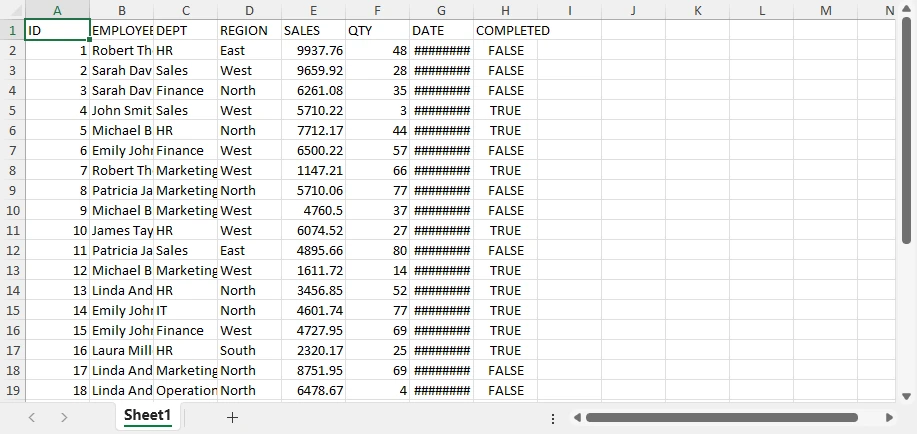
Isso produz um conjunto de dados limpo e estruturado que pode ser usado diretamente ou processado posteriormente, se necessário.
Por que este método funciona
Este método é comumente usado porque mantém o processo de conversão simples e confiável:
- Converte registros DBF em um formato de tabela estruturada
- Preserva nomes de campos e organização de dados
- Funciona em diferentes variantes de DBF (dBase, FoxPro, etc.)
- Requer código mínimo para concluir a conversão
Como resultado, é adequado para tarefas rápidas de arquivo .dbf para arquivo .xlsx e fluxos de trabalho automatizados.
Embora essa abordagem funcione bem para conversão básica, ela gera apenas dados brutos do Excel e não fornece controle sobre formatação, layout ou estrutura de relatório.
Se você também estiver trabalhando com a geração de arquivos Excel de outras fontes de dados, como CSV, JSON e XML, pode consultar Como importar dados para arquivos Excel com Python para obter instruções detalhadas.
Limitações da conversão básica
Embora essa abordagem de conversão básica seja poderosa para conversões rápidas e simples, ela tem limitações ao exportar arquivos do Excel:
- Sem estilo ou formatação
- Sem controle de layout
- Sem estrutura de relatório
- Usabilidade limitada para saídas prontas para negócios
O resultado é um conjunto de dados bruto em vez de um relatório polido.
Gerar relatórios profissionais do Excel a partir de dados DBF
A conversão básica de DBF para Excel produz apenas conjuntos de dados brutos. No entanto, em cenários do mundo real, os arquivos do Excel são frequentemente usados para relatórios, apresentações e tomada de decisões. Para ir além da simples exportação de dados e gerar saídas estruturadas e prontas para negócios, você pode usar o Spire.XLS for Python.
Um fluxo de trabalho de produção típico se parece com isto:
- Ler dados DBF com dbf
- Gravar dados estruturados do Excel com Spire.XLS
- Aplicar formatação e layout
- Adicionar gráficos e outros elementos de relatório conforme necessário
Com essa abordagem, você pode aprimorar progressivamente seu arquivo do Excel — de uma tabela básica a um relatório totalmente formatado com elementos visuais.
Etapa 1: Instalar bibliotecas
Você pode instalar as bibliotecas usando pip:
pip install spire.xls dbf
Etapa 2: Ler dados DBF e gravá-los no Excel
from spire.xls import *
import dbf

table = dbf.Table("business_demo.dbf")
table.open()

data = [{field: record[field] for field in dbf.field_names(table)} for record in table]
field_names = list(dbf.field_names(table))

workbook = Workbook()
workbook.Worksheets.Clear()
sheet = workbook.Worksheets.Add("Data")

# Write header
for j, col in enumerate(field_names):
    sheet.Range[1, j+1].Value = col

# Write data
for i, record in enumerate(data, start=2):
    for j, col in enumerate(field_names):
        sheet.Range[i, j+1].Value = str(record[col])
Nesta fase, o arquivo DBF foi convertido em um conjunto de dados estruturado do Excel.
Etapa 3: Aplicar estilos e salvar como um arquivo Excel
Depois que os dados são gravados, você pode melhorar a legibilidade aplicando estilos e ajustes de layout.
# Header styling
header = sheet.Range[1, 1, 1, sheet.LastColumn]
header.Style.Font.Bold = True
header.Style.Font.Size = 12
header.Style.Color = Color.get_LightGray()

# Data borders
data_range = sheet.Range[1, 1, sheet.LastRow, sheet.LastColumn]
data_range.BorderAround(LineStyleType.Thin, ExcelColors.Black)
data_range.BorderInside(LineStyleType.Thin, ExcelColors.Black)

# Global font
sheet.AllocatedRange.Style.Font.Name = "Arial"

# Auto-fit columns
sheet.AllocatedRange.AutoFitColumns()

# Save the workbook to a file
workbook.SaveToFile("output.xlsx", ExcelVersion.Version2016)
O arquivo Excel gerado se parece com isto:
Notas da API
O Spire.XLS fornece um modelo de estilo baseado em intervalo, que permite aplicar formatação a regiões inteiras em vez de células individuais.
- Range[row, col] → acessar uma célula ou região específica
- Style.Font → controlar propriedades da fonte, como tamanho, negrito e família
- BorderAround / BorderInside → adicionar bordas internas e externas
- AllocatedRange → refere-se ao intervalo usado na planilha, que inclui todas as células com dados
- AutoFitColumns / AutoFitRows → ajustar automaticamente as larguras das colunas e linhas dentro do intervalo
- SaveToFile → salvar a pasta de trabalho em um arquivo no formato especificado
Nota: Para o método SaveToFile, o segundo argumento especifica o formato do arquivo. FileFormat.Version97to2003 representa o formato .xls, e FileFormat.Version2007 e superior representam o formato .xlsx.
Essa abordagem torna eficiente a formatação de grandes conjuntos de dados com código mínimo.
Neste ponto, o arquivo do Excel não é mais dados brutos — ele foi transformado em uma tabela limpa e legível. No entanto, ainda é um conjunto de dados formatado em vez de um relatório completo.
Adicionar elementos de relatório (melhorias incrementais)
Para aprimorar ainda mais a saída, você pode adicionar elementos analíticos e visuais.
Exemplo 1: Adicionar um gráfico
# Aggregate data by REGION (for charting purposes)
region_sales = defaultdict(float)

for record in data:
    region = record["REGION"]
    sales = float(record["SALES"])
    region_sales[region] += sales

# Create a summary sheet for aggregated data
summary_sheet = workbook.Worksheets.Add("Summary")

# Write summary header
summary_sheet.Range[1, 1].Value = "Region"
summary_sheet.Range[1, 2].Value = "Total Sales"

# Write aggregated results
for i, (region, total) in enumerate(region_sales.items(), start=2):
    summary_sheet.Range[i, 1].Value = region
    summary_sheet.Range[i, 2].Value = total
summary_sheet.Range[2, 2, summary_sheet.LastRow, 2].NumberFormat = "$#,##0.00"

# Create chart based on aggregated data
chart = summary_sheet.Charts.Add()
chart.ChartType = ExcelChartType.ColumnClustered

# Set data range (Region + Total Sales)
chart.DataRange = summary_sheet.Range[
    "A1:B{}".format(len(region_sales) + 1)
]

# Position the chart in the worksheet
chart.LeftColumn = 4
chart.TopRow = 2
chart.RightColumn = 10
chart.BottomRow = 20

# Set chart title
chart.ChartTitle = "Sales by Region"
Abaixo está uma prévia do gráfico adicionado à planilha do Excel:
Você pode criar muitos outros tipos de gráficos em planilhas do Excel usando o Spire.XLS, como gráficos de pizza e gráficos de barras. Escolha o tipo de gráfico apropriado com base em seus dados e requisitos.
Exemplo 2: Adicionar formatação condicional
# Create a conditional format in the specified range
conditions = sheet.ConditionalFormats.Add()
conditions.AddRange(sheet.Range[2, 8, sheet.LastRow, 8])

# Add a rule to the conditional format
condition1 = conditions.AddCondition()
condition1.FormatType = ConditionalFormatType.ContainsText;
condition1.FirstFormula = "TRUE"
condition1.BackColor = Color.FromRgb(144, 200, 172)

# Add another rule to the conditional format
condition2 = conditions.AddCondition()
condition2.FormatType = ConditionalFormatType.ContainsText
condition2.FirstFormula = "FALSE"
condition2.BackColor = Color.FromRgb(255, 199, 206)
Abaixo está uma prévia do arquivo Excel gerado com a formatação condicional aplicada:
A formatação condicional permite obter muitos efeitos especiais em planilhas do Excel. Você pode consultar Como aplicar formatação condicional a planilhas do Excel usando Python para obter mais detalhes.
Por que isso importa
Essas melhorias transformam o arquivo do Excel de uma simples exportação em uma ferramenta de relatório.
Agora você pode:
- Apresentar dados estruturados com clareza
- Destacar informações importantes
- Visualizar tendências com gráficos
Ao combinar o manuseio de dados estruturados com recursos avançados do Excel, você pode transformar arquivos DBF legados em relatórios modernos e utilizáveis. Esse nível de funcionalidade é essencial para fluxos de trabalho de negócios, painéis e sistemas de relatórios automatizados.
Conversão avançada: processamento em lote e formatação automatizada
Para fluxos de trabalho do mundo real, a conversão de DBF para Excel geralmente não é uma tarefa única. Em vez disso, pode ser necessário processar vários arquivos automaticamente, especialmente em cenários como migração de dados ou trabalhos agendados.
O Python facilita a escalabilidade da conversão de DBF para Excel de um único arquivo para o processamento em lote.
Converter arquivos DBF para Excel em lote
Se você só precisa gerar arquivos básicos do Excel, pode combinar a lógica de conversão com o módulo os para processar todos os arquivos DBF em um diretório.
import os
import dbf
import pandas as pd

input_folder = "dbf_files"
output_folder = "excel_files"

for file in os.listdir(input_folder):
    if file.endswith(".dbf"):
        table = dbf.Table(os.path.join(input_folder, file))
        table.open()

        df = pd.DataFrame([dict(record) for record in table])

        output_file = file.replace(".dbf", ".xlsx")
        df.to_excel(os.path.join(output_folder, output_file), index=False)
Essa abordagem permite a exportação automatizada de DBF para Excel em vários arquivos e é adequada para:
- Migração de sistema legado
- Sincronização de dados
- Fluxos de trabalho ETL agendados
Conversão em lote com formatação automática
Ao trabalhar com dados de negócios, simplesmente exportar arquivos brutos do Excel geralmente não é suficiente. Você também pode precisar de formatação consistente e saída estruturada em todos os arquivos gerados.
Usando o Spire.XLS for Python, você pode aplicar a formatação automaticamente durante a conversão em lote.
import os
import dbf
from spire.xls import *

input_folder = "dbf_files"
output_folder = "formatted_reports"

for file in os.listdir(input_folder):
    if file.endswith(".dbf"):
        table = dbf.Table(os.path.join(input_folder, file))
        table.open()

        data = [{field: record[field] for field in dbf.field_names(table)} for record in table]
        field_names = list(dbf.field_names(table))

        workbook = Workbook()
        workbook.Worksheets.Clear()
        sheet = workbook.Worksheets.Add("Data")

        # Write header
        for j, col in enumerate(field_names):
            sheet.Range[1, j+1].Value = col

        # Write data
        for i, record in enumerate(data, start=2):
            for j, col in enumerate(field_names):
                sheet.Range[i, j+1].Value = str(record[col])

        # Create a table with built-in style
        table_range = sheet.AllocatedRange
        table_obj = sheet.ListObjects.Create("Data", table_range)
        table_obj.BuiltInTableStyle = TableBuiltInStyles.TableStyleMedium13

        # Auto-fit layout
        sheet.AllocatedRange.AutoFitColumns()

        # Save file
        output_file = file.replace(".dbf", ".xlsx")
        workbook.SaveToFile(os.path.join(output_folder, output_file), FileFormat.Version2016)
        workbook.Dispose()
Abaixo está uma prévia do estilo de tabela embutido aplicado aos dados:
Por que essa abordagem é importante
Ao combinar o processamento em lote com a formatação automática, você pode:
- Converter vários arquivos DBF em Excel em um único fluxo de trabalho
- Garantir estrutura e estilo consistentes em todas as saídas
- Reduzir o trabalho manual ao gerar relatórios
- Integrar a conversão em pipelines automatizados
Isso transforma uma simples tarefa de conversão de arquivo DBF para Excel em uma solução escalável e pronta para produção.
Com o Spire.XLS, você pode transferir dados facilmente entre arquivos do Excel e bancos de dados. Consulte Transferência de dados entre Excel e banco de dados em Python para obter mais detalhes.
Ferramenta de linha de comando para conversão de DBF para Excel
Além do processamento em lote, você pode melhorar ainda mais a automação transformando sua lógica de conversão em uma ferramenta de linha de comando reutilizável.
Isso permite que você execute a conversão de DBF para Excel diretamente do terminal, tornando-a adequada para scripts, tarefas agendadas e fluxos de trabalho de back-end.
Criar uma interface de linha de comando
Você pode encapsular a lógica de conversão em um script Python que aceita caminhos de entrada e saída como argumentos.
import sys

input_file = sys.argv[1]
output_file = sys.argv[2]
Usar o comando
Quando seu script estiver pronto, você poderá executá-lo na linha de comando:
python convert.py data.dbf output.xlsx
Essa abordagem permite reutilizar a mesma lógica de conversão em diferentes ambientes e integrar a conversão em fluxos de trabalho automatizados com o mínimo de esforço.
Conversão básica vs Spire.XLS for Python
Ao converter arquivos DBF para Excel, a escolha da abordagem depende de seus objetivos.
| Capacidade | Conversão básica (por exemplo, pandas e dbf) | Spire.XLS for Python e dbf |
|---|---|---|
| Exportação de DBF para Excel | ✅ | ✅ |
| Processamento em lote | ✅ | ✅ |
| Formatação & estilo | ❌ | ✅ |
| Estrutura do relatório | ❌ | ✅ |
| Gráficos & visualização | ❌ | ✅ |
Quando usar cada abordagem
Use a conversão básica quando:
- Você só precisa converter DBF para Excel
- A saída é usada para armazenamento ou processamento posterior
- Nenhuma formatação ou relatório é necessário
Use o Spire.XLS for Python e o dbf quando:
- Você precisa de relatórios estruturados do Excel
- Formatação e layout são importantes
- Você deseja incluir gráficos ou elementos visuais
A escolha da abordagem certa pode melhorar significativamente a eficiência e a qualidade da saída, especialmente ao passar da simples conversão de arquivo .dbf para .xlsx para fluxos de trabalho de relatórios automatizados.
Melhores práticas para conversão de DBF para Excel
Manuseie a codificação com cuidado
table = dbf.Table("file.dbf", codepage="cp1252")
Os arquivos DBF podem usar codificações diferentes, dependendo de sua origem. Sempre verifique a página de código correta para evitar a corrupção de caracteres.
Validar tipos de dados
Os campos DBF nem sempre são mapeados de forma limpa para os formatos do Excel. Verifique os valores numéricos, de data e booleanos antes de exportar para garantir a precisão.
Otimizar para arquivos grandes
Ao trabalhar com grandes conjuntos de dados:
- Processe dados em blocos
- Evite carregar todos os registros na memória de uma só vez
Separar conversão e relatórios
Para melhor flexibilidade e manutenção:
- Use uma abordagem simples para a conversão de DBF para Excel
- Aplique formatação e elementos de relatório apenas quando necessário
Conclusão
A conversão de arquivos DBF para Excel costuma ser mais do que apenas uma mudança de formato — trata-se de tornar os dados legados mais fáceis de usar, compartilhar e analisar.
Com o Python, você pode começar com uma simples conversão de DBF para Excel e escalar para processamento em lote e fluxos de trabalho automatizados. Para necessidades básicas, uma abordagem leve funciona bem. Mas quando você precisa de layouts estruturados, formatação consistente ou elementos visuais, recursos mais avançados do Excel se tornam importantes.
Se você deseja gerar arquivos Excel profissionais e prontos para relatórios, pode experimentar o Spire.XLS for Python. Uma licença gratuita de 30 dias está disponível para explorar todos os seus recursos em cenários do mundo real.
FAQ
Como converto um arquivo DBF para Excel em Python?
Use uma abordagem baseada em Python para ler dados DBF e exportá-los para o Excel. Por exemplo, você pode combinar dbf com ferramentas como pandas para uma conversão rápida de arquivo DBF para arquivo Excel.
Qual é a melhor maneira de converter DBF para XLSX?
Depende das suas necessidades:
- Para conversão simples → use uma abordagem básica de Python
- Para relatórios formatados → use o Spire.XLS for Python
Posso importar um arquivo DBF diretamente para o Excel?
Sim, mas não é adequado para automação ou grandes conjuntos de dados. O Python oferece uma solução mais confiável e escalável.
Por que meu arquivo do Excel não está formatado?
Os métodos de conversão básicos exportam apenas dados brutos sem estilo. Para gerar relatórios formatados do Excel, você precisa de uma ferramenta que suporte layout e estilo, como o Spire.XLS for Python.
Como crio um comando para converter DBF para Excel?
Encapsule sua lógica de conversão em um script e passe os caminhos de entrada/saída como argumentos. Isso permite que você execute a conversão de DBF para Excel diretamente da linha de comando.