Converta DBF em relatórios Excel facilmente com comandos Python
Índice
- Por que converter DBF para Excel
- Conversão básica de DBF para Excel com Python
- Gerar saídas de Excel formatadas a partir de arquivos DBF
- Conversão em lote e formatação automática
- Ferramenta de linha de comando para conversão de DBF para Excel
- Comparação dos métodos
- Melhores práticas e dicas
- Perguntas frequentes
Trabalhar com formatos de banco de dados legados como DBF ainda é comum, mas esses arquivos não são adequados para fluxos de trabalho modernos, como análise de dados, relatórios ou integração de sistemas. Em muitos casos, pode ser necessário converter arquivos DBF para arquivos Excel para tornar os dados mais fáceis de usar, compartilhar ou processar. Embora ferramentas como o Excel ou conversores online possam abrir arquivos DBF, eles carecem de automação, flexibilidade e confiabilidade, especialmente ao lidar com grandes conjuntos de dados ou tarefas repetitivas.
O Python oferece uma solução mais escalável. Ele permite não apenas converter arquivos DBF para Excel, mas também limpar dados, padronizar estruturas e integrar o processo em fluxos de trabalho automatizados.
Este guia aborda uma abordagem prática para a conversão de DBF para Excel, incluindo a criação de um comando reutilizável e a geração de saídas de Excel estruturadas para uso no mundo real.
Navegação Rápida
- Por que converter DBF para Excel
- Conversão básica de DBF para Excel com Python
- Gerar saídas de Excel formatadas a partir de arquivos DBF
- Conversão em lote e formatação automática
- Ferramenta de linha de comando para conversão de DBF para Excel
- Comparação dos métodos
- Melhores práticas e dicas
- Perguntas frequentes
Por que converter DBF para Excel e os métodos de conversão comuns
Os arquivos DBF armazenam dados estruturados, mas vêm com várias limitações:
- Formatos de codificação legados (muitas vezes causando problemas de caracteres)
- Compatibilidade limitada com ferramentas modernas
- Sem suporte para formatação ou relatórios
A conversão de DBF para Excel (XLS/XLSX) permite que você:
- Integre com pipelines de dados modernos
- Melhore a legibilidade e a usabilidade
- Habilite relatórios e análises estruturados
Métodos comuns de DBF para Excel
Existem várias maneiras de lidar com a conversão de arquivo DBF para arquivo Excel:
- Abrindo DBF diretamente no Excel
- Usando conversores online
- Exportando via ferramentas de banco de dados legadas
No entanto, esses métodos têm limitações claras:
- ❌ Sem automação
- ❌ Baixa escalabilidade
- ❌ Controle limitado sobre a saída
- ❌ Sem suporte para relatórios estruturados
Para desenvolvedores e fluxos de trabalho de produção, essas abordagens não são suficientes.
O Python permite controle total, automação e extensibilidade, tornando-o uma solução mais prática.
Converter DBF para Excel em Python (Conversão Básica)
Para realizar uma conversão básica de DBF para Excel em Python, o processo é simples: leia o arquivo DBF em um formato estruturado e, em seguida, exporte-o como um arquivo Excel (XLSX).
Neste fluxo de trabalho:
- A biblioteca dbf é usada para ler e analisar arquivos DBF, incluindo formatos legados
- Os dados são organizados e exportados usando bibliotecas como pandas (com openpyxl como o mecanismo de escrita do Excel)
Esta abordagem fornece uma maneira simples e prática de converter arquivos DBF para Excel com configuração mínima.
Etapa 1: Instalar dependências
Você pode instalar as bibliotecas necessárias usando pip:
pip install dbf pandas openpyxl
Etapa 2: Ler o arquivo DBF
import dbf
import pandas as pd

table = dbf.Table("business_demo.dbf")
table.open()

data = [{field: record[field] for field in dbf.field_names(table)} for record in table]

df = pd.DataFrame(data)
Esta etapa converte os registros DBF em um formato estruturado e compatível com o Excel.
Etapa 3: Exportar DBF para Excel
df.to_excel("output.xlsx", index=False)
Nesta fase, os dados DBF são gravados em um arquivo Excel padrão (formato XLSX), concluindo uma conversão básica de DBF para XLSX.
Abaixo está uma imagem mostrando o arquivo Excel gerado:
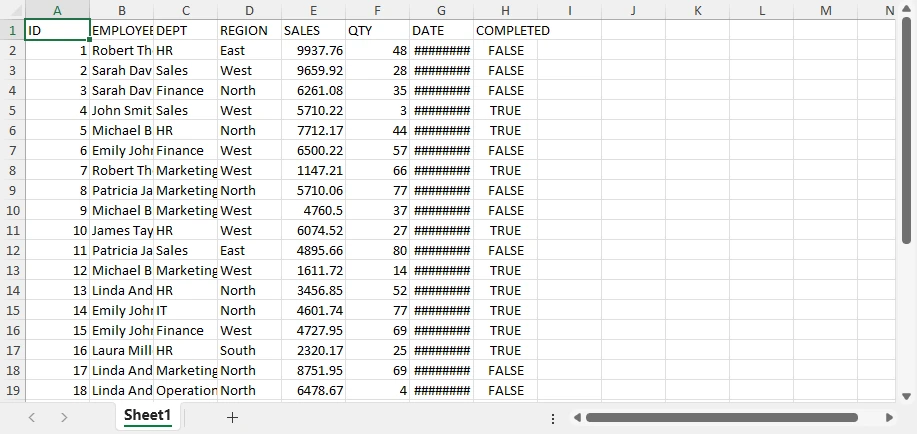
Isso produz um conjunto de dados limpo e estruturado que pode ser usado diretamente ou processado posteriormente, se necessário.
Por que este método funciona
Este método é comumente usado porque mantém o processo de conversão simples e confiável:
- Converte registros DBF em um formato de tabela estruturada
- Preserva nomes de campos e organização de dados
- Funciona em diferentes variantes de DBF (dBase, FoxPro, etc.)
- Requer código mínimo para concluir a conversão
Como resultado, é adequado para tarefas rápidas de arquivo .dbf para arquivo .xlsx e fluxos de trabalho automatizados.
Embora essa abordagem funcione bem para conversão básica, ela gera apenas dados brutos do Excel e não fornece controle sobre formatação, layout ou estrutura de relatório.
Se você também estiver trabalhando com a geração de arquivos Excel de outras fontes de dados, como CSV, JSON e XML, pode consultar Como importar dados para arquivos Excel com Python para obter instruções detalhadas.
Limitações da conversão básica
Embora essa abordagem de conversão básica seja poderosa para conversões rápidas e simples, ela tem limitações ao exportar arquivos do Excel:
- Sem estilo ou formatação
- Sem controle de layout
- Sem estrutura de relatório
- Usabilidade limitada para saídas prontas para negócios
O resultado é um conjunto de dados bruto em vez de um relatório polido.
Gerar relatórios profissionais do Excel a partir de dados DBF
A conversão básica de DBF para Excel produz apenas conjuntos de dados brutos. No entanto, em cenários do mundo real, os arquivos do Excel são frequentemente usados para relatórios, apresentações e tomada de decisões. Para ir além da simples exportação de dados e gerar saídas estruturadas e prontas para negócios, você pode usar o Spire.XLS for Python.
Um fluxo de trabalho de produção típico se parece com isto:
- Ler dados DBF com dbf
- Gravar dados estruturados do Excel com Spire.XLS
- Aplicar formatação e layout
- Adicionar gráficos e outros elementos de relatório conforme necessário
Com essa abordagem, você pode aprimorar progressivamente seu arquivo do Excel — de uma tabela básica a um relatório totalmente formatado com elementos visuais.
Etapa 1: Instalar bibliotecas
Você pode instalar as bibliotecas usando pip:
pip install spire.xls dbf
Etapa 2: Ler dados DBF e gravá-los no Excel
from spire.xls import *
import dbf

table = dbf.Table("business_demo.dbf")
table.open()

data = [{field: record[field] for field in dbf.field_names(table)} for record in table]
field_names = list(dbf.field_names(table))

workbook = Workbook()
workbook.Worksheets.Clear()
sheet = workbook.Worksheets.Add("Data")

# Write header
for j, col in enumerate(field_names):
    sheet.Range[1, j+1].Value = col

# Write data
for i, record in enumerate(data, start=2):
    for j, col in enumerate(field_names):
        sheet.Range[i, j+1].Value = str(record[col])
Nesta fase, o arquivo DBF foi convertido em um conjunto de dados estruturado do Excel.
Etapa 3: Aplicar estilos e salvar como um arquivo Excel
Depois que os dados são gravados, você pode melhorar a legibilidade aplicando estilos e ajustes de layout.
# Header styling
header = sheet.Range[1, 1, 1, sheet.LastColumn]
header.Style.Font.Bold = True
header.Style.Font.Size = 12
header.Style.Color = Color.get_LightGray()

# Data borders
data_range = sheet.Range[1, 1, sheet.LastRow, sheet.LastColumn]
data_range.BorderAround(LineStyleType.Thin, ExcelColors.Black)
data_range.BorderInside(LineStyleType.Thin, ExcelColors.Black)

# Global font
sheet.AllocatedRange.Style.Font.Name = "Arial"

# Auto-fit columns
sheet.AllocatedRange.AutoFitColumns()

# Save the workbook to a file
workbook.SaveToFile("output.xlsx", ExcelVersion.Version2016)
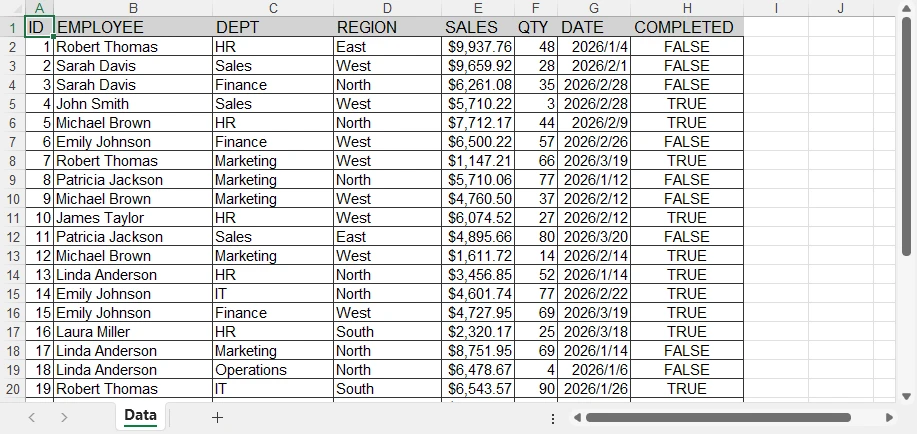
O arquivo Excel gerado se parece com isto:
Notas da API
O Spire.XLS fornece um modelo de estilo baseado em intervalo, que permite aplicar formatação a regiões inteiras em vez de células individuais.
- Range[row, col] → acessar uma célula ou região específica
- Style.Font → controlar propriedades da fonte, como tamanho, negrito e família
- BorderAround / BorderInside → adicionar bordas internas e externas
- AllocatedRange → refere-se ao intervalo usado na planilha, que inclui todas as células com dados
- AutoFitColumns / AutoFitRows → ajustar automaticamente as larguras das colunas e linhas dentro do intervalo
- SaveToFile → salvar a pasta de trabalho em um arquivo no formato especificado
Nota: Para o método SaveToFile, o segundo argumento especifica o formato do arquivo. FileFormat.Version97to2003 representa o formato .xls, e FileFormat.Version2007 e superior representam o formato .xlsx.
Essa abordagem torna eficiente a formatação de grandes conjuntos de dados com código mínimo.
Neste ponto, o arquivo do Excel não é mais dados brutos — ele foi transformado em uma tabela limpa e legível. No entanto, ainda é um conjunto de dados formatado em vez de um relatório completo.
Adicionar elementos de relatório (melhorias incrementais)
Para aprimorar ainda mais a saída, você pode adicionar elementos analíticos e visuais.
Exemplo 1: Adicionar um gráfico
# Aggregate data by REGION (for charting purposes)
region_sales = defaultdict(float)

for record in data:
    region = record["REGION"]
    sales = float(record["SALES"])
    region_sales[region] += sales

# Create a summary sheet for aggregated data
summary_sheet = workbook.Worksheets.Add("Summary")

# Write summary header
summary_sheet.Range[1, 1].Value = "Region"
summary_sheet.Range[1, 2].Value = "Total Sales"

# Write aggregated results
for i, (region, total) in enumerate(region_sales.items(), start=2):
    summary_sheet.Range[i, 1].Value = region
    summary_sheet.Range[i, 2].Value = total
summary_sheet.Range[2, 2, summary_sheet.LastRow, 2].NumberFormat = "$#,##0.00"

# Create chart based on aggregated data
chart = summary_sheet.Charts.Add()
chart.ChartType = ExcelChartType.ColumnClustered

# Set data range (Region + Total Sales)
chart.DataRange = summary_sheet.Range[
    "A1:B{}".format(len(region_sales) + 1)
]

# Position the chart in the worksheet
chart.LeftColumn = 4
chart.TopRow = 2
chart.RightColumn = 10
chart.BottomRow = 20

# Set chart title
chart.ChartTitle = "Sales by Region"
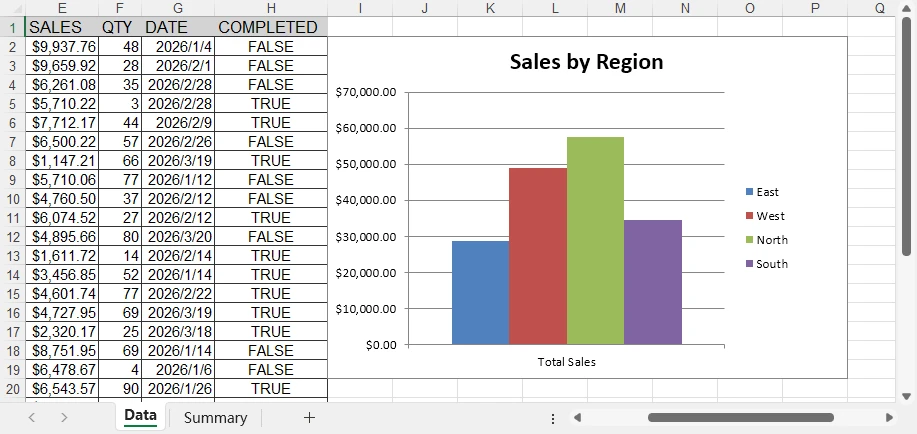
Abaixo está uma prévia do gráfico adicionado à planilha do Excel:
Você pode criar muitos outros tipos de gráficos em planilhas do Excel usando o Spire.XLS, como gráficos de pizza e gráficos de barras. Escolha o tipo de gráfico apropriado com base em seus dados e requisitos.
Exemplo 2: Adicionar formatação condicional
# Create a conditional format in the specified range
conditions = sheet.ConditionalFormats.Add()
conditions.AddRange(sheet.Range[2, 8, sheet.LastRow, 8])

# Add a rule to the conditional format
condition1 = conditions.AddCondition()
condition1.FormatType = ConditionalFormatType.ContainsText;
condition1.FirstFormula = "TRUE"
condition1.BackColor = Color.FromRgb(144, 200, 172)

# Add another rule to the conditional format
condition2 = conditions.AddCondition()
condition2.FormatType = ConditionalFormatType.ContainsText
condition2.FirstFormula = "FALSE"
condition2.BackColor = Color.FromRgb(255, 199, 206)
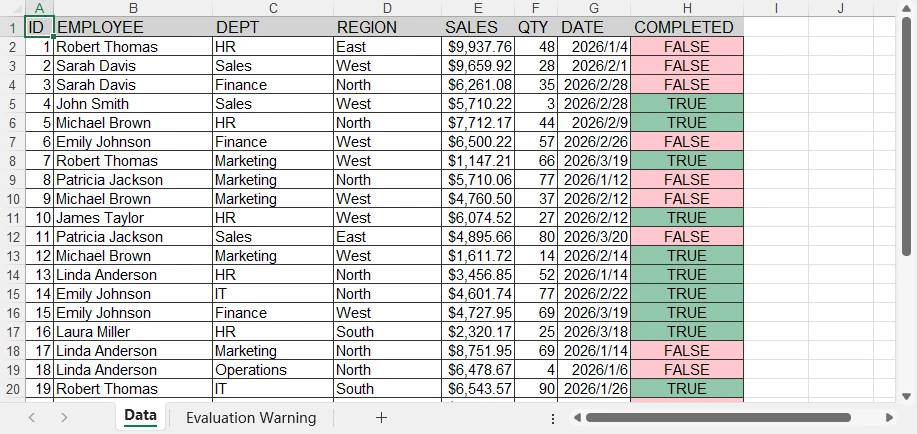
Abaixo está uma prévia do arquivo Excel gerado com a formatação condicional aplicada:
A formatação condicional permite obter muitos efeitos especiais em planilhas do Excel. Você pode consultar Como aplicar formatação condicional a planilhas do Excel usando Python para obter mais detalhes.
Por que isso importa
Essas melhorias transformam o arquivo do Excel de uma simples exportação em uma ferramenta de relatório.
Agora você pode:
- Apresentar dados estruturados com clareza
- Destacar informações importantes
- Visualizar tendências com gráficos
Ao combinar o manuseio de dados estruturados com recursos avançados do Excel, você pode transformar arquivos DBF legados em relatórios modernos e utilizáveis. Esse nível de funcionalidade é essencial para fluxos de trabalho de negócios, painéis e sistemas de relatórios automatizados.
Conversão avançada: processamento em lote e formatação automatizada
Para fluxos de trabalho do mundo real, a conversão de DBF para Excel geralmente não é uma tarefa única. Em vez disso, pode ser necessário processar vários arquivos automaticamente, especialmente em cenários como migração de dados ou trabalhos agendados.
O Python facilita a escalabilidade da conversão de DBF para Excel de um único arquivo para o processamento em lote.
Converter arquivos DBF para Excel em lote
Se você só precisa gerar arquivos básicos do Excel, pode combinar a lógica de conversão com o módulo os para processar todos os arquivos DBF em um diretório.
import os
import dbf
import pandas as pd

input_folder = "dbf_files"
output_folder = "excel_files"

for file in os.listdir(input_folder):
    if file.endswith(".dbf"):
        table = dbf.Table(os.path.join(input_folder, file))
        table.open()

        df = pd.DataFrame([dict(record) for record in table])

        output_file = file.replace(".dbf", ".xlsx")
        df.to_excel(os.path.join(output_folder, output_file), index=False)
Essa abordagem permite a exportação automatizada de DBF para Excel em vários arquivos e é adequada para:
- Migração de sistema legado
- Sincronização de dados
- Fluxos de trabalho ETL agendados
Conversão em lote com formatação automática
Ao trabalhar com dados de negócios, simplesmente exportar arquivos brutos do Excel geralmente não é suficiente. Você também pode precisar de formatação consistente e saída estruturada em todos os arquivos gerados.
Usando o Spire.XLS for Python, você pode aplicar a formatação automaticamente durante a conversão em lote.
import os
import dbf
from spire.xls import *

input_folder = "dbf_files"
output_folder = "formatted_reports"

for file in os.listdir(input_folder):
    if file.endswith(".dbf"):
        table = dbf.Table(os.path.join(input_folder, file))
        table.open()

        data = [{field: record[field] for field in dbf.field_names(table)} for record in table]
        field_names = list(dbf.field_names(table))

        workbook = Workbook()
        workbook.Worksheets.Clear()
        sheet = workbook.Worksheets.Add("Data")

        # Write header
        for j, col in enumerate(field_names):
            sheet.Range[1, j+1].Value = col

        # Write data
        for i, record in enumerate(data, start=2):
            for j, col in enumerate(field_names):
                sheet.Range[i, j+1].Value = str(record[col])

        # Create a table with built-in style
        table_range = sheet.AllocatedRange
        table_obj = sheet.ListObjects.Create("Data", table_range)
        table_obj.BuiltInTableStyle = TableBuiltInStyles.TableStyleMedium13

        # Auto-fit layout
        sheet.AllocatedRange.AutoFitColumns()

        # Save file
        output_file = file.replace(".dbf", ".xlsx")
        workbook.SaveToFile(os.path.join(output_folder, output_file), FileFormat.Version2016)
        workbook.Dispose()
Abaixo está uma prévia do estilo de tabela embutido aplicado aos dados:
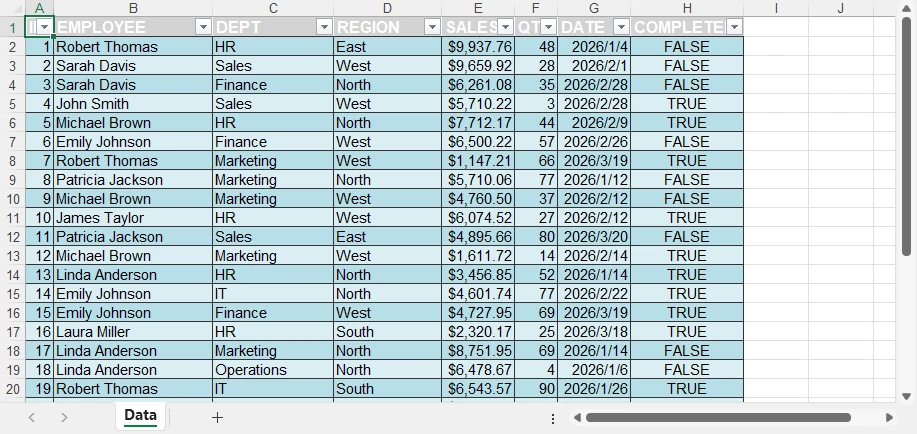
Por que essa abordagem é importante
Ao combinar o processamento em lote com a formatação automática, você pode:
- Converter vários arquivos DBF em Excel em um único fluxo de trabalho
- Garantir estrutura e estilo consistentes em todas as saídas
- Reduzir o trabalho manual ao gerar relatórios
- Integrar a conversão em pipelines automatizados
Isso transforma uma simples tarefa de conversão de arquivo DBF para Excel em uma solução escalável e pronta para produção.
Com o Spire.XLS, você pode transferir dados facilmente entre arquivos do Excel e bancos de dados. Consulte Transferência de dados entre Excel e banco de dados em Python para obter mais detalhes.
Ferramenta de linha de comando para conversão de DBF para Excel
Além do processamento em lote, você pode melhorar ainda mais a automação transformando sua lógica de conversão em uma ferramenta de linha de comando reutilizável.
Isso permite que você execute a conversão de DBF para Excel diretamente do terminal, tornando-a adequada para scripts, tarefas agendadas e fluxos de trabalho de back-end.
Criar uma interface de linha de comando
Você pode encapsular a lógica de conversão em um script Python que aceita caminhos de entrada e saída como argumentos.
import sys

input_file = sys.argv[1]
output_file = sys.argv[2]
Usar o comando
Quando seu script estiver pronto, você poderá executá-lo na linha de comando:
python convert.py data.dbf output.xlsx
Essa abordagem permite reutilizar a mesma lógica de conversão em diferentes ambientes e integrar a conversão em fluxos de trabalho automatizados com o mínimo de esforço.
Conversão básica vs Spire.XLS for Python
Ao converter arquivos DBF para Excel, a escolha da abordagem depende de seus objetivos.
| Capacidade | Conversão básica (por exemplo, pandas e dbf) | Spire.XLS for Python e dbf |
|---|---|---|
| Exportação de DBF para Excel | ✅ | ✅ |
| Processamento em lote | ✅ | ✅ |
| Formatação & estilo | ❌ | ✅ |
| Estrutura do relatório | ❌ | ✅ |
| Gráficos & visualização | ❌ | ✅ |
Quando usar cada abordagem
Use a conversão básica quando:
- Você só precisa converter DBF para Excel
- A saída é usada para armazenamento ou processamento posterior
- Nenhuma formatação ou relatório é necessário
Use o Spire.XLS for Python e o dbf quando:
- Você precisa de relatórios estruturados do Excel
- Formatação e layout são importantes
- Você deseja incluir gráficos ou elementos visuais
A escolha da abordagem certa pode melhorar significativamente a eficiência e a qualidade da saída, especialmente ao passar da simples conversão de arquivo .dbf para .xlsx para fluxos de trabalho de relatórios automatizados.
Melhores práticas para conversão de DBF para Excel
Manuseie a codificação com cuidado
table = dbf.Table("file.dbf", codepage="cp1252")
Os arquivos DBF podem usar codificações diferentes, dependendo de sua origem. Sempre verifique a página de código correta para evitar a corrupção de caracteres.
Validar tipos de dados
Os campos DBF nem sempre são mapeados de forma limpa para os formatos do Excel. Verifique os valores numéricos, de data e booleanos antes de exportar para garantir a precisão.
Otimizar para arquivos grandes
Ao trabalhar com grandes conjuntos de dados:
- Processe dados em blocos
- Evite carregar todos os registros na memória de uma só vez
Separar conversão e relatórios
Para melhor flexibilidade e manutenção:
- Use uma abordagem simples para a conversão de DBF para Excel
- Aplique formatação e elementos de relatório apenas quando necessário
Conclusão
A conversão de arquivos DBF para Excel costuma ser mais do que apenas uma mudança de formato — trata-se de tornar os dados legados mais fáceis de usar, compartilhar e analisar.
Com o Python, você pode começar com uma simples conversão de DBF para Excel e escalar para processamento em lote e fluxos de trabalho automatizados. Para necessidades básicas, uma abordagem leve funciona bem. Mas quando você precisa de layouts estruturados, formatação consistente ou elementos visuais, recursos mais avançados do Excel se tornam importantes.
Se você deseja gerar arquivos Excel profissionais e prontos para relatórios, pode experimentar o Spire.XLS for Python. Uma licença gratuita de 30 dias está disponível para explorar todos os seus recursos em cenários do mundo real.
FAQ
Como converto um arquivo DBF para Excel em Python?
Use uma abordagem baseada em Python para ler dados DBF e exportá-los para o Excel. Por exemplo, você pode combinar dbf com ferramentas como pandas para uma conversão rápida de arquivo DBF para arquivo Excel.
Qual é a melhor maneira de converter DBF para XLSX?
Depende das suas necessidades:
- Para conversão simples → use uma abordagem básica de Python
- Para relatórios formatados → use o Spire.XLS for Python
Posso importar um arquivo DBF diretamente para o Excel?
Sim, mas não é adequado para automação ou grandes conjuntos de dados. O Python oferece uma solução mais confiável e escalável.
Por que meu arquivo do Excel não está formatado?
Os métodos de conversão básicos exportam apenas dados brutos sem estilo. Para gerar relatórios formatados do Excel, você precisa de uma ferramenta que suporte layout e estilo, como o Spire.XLS for Python.
Como crio um comando para converter DBF para Excel?
Encapsule sua lógica de conversão em um script e passe os caminhos de entrada/saída como argumentos. Isso permite que você execute a conversão de DBF para Excel diretamente da linha de comando.
Python 명령으로 DBF를 Excel 보고서로 쉽게 변환하기
DBF와 같은 레거시 데이터베이스 형식으로 작업하는 것은 여전히 일반적이지만 이러한 파일은 데이터 분석, 보고 또는 시스템 통합과 같은 최신 워크플로우에 적합하지 않습니다. 많은 경우 데이터를 더 쉽게 사용, 공유 또는 처리하기 위해 DBF 파일을 Excel 파일로 변환해야 할 수 있습니다. Excel이나 온라인 변환기와 같은 도구는 DBF 파일을 열 수 있지만 특히 대용량 데이터 세트나 반복 가능한 작업을 처리할 때 자동화, 유연성 및 안정성이 부족합니다.
Python은 더 확장 가능한 솔루션을 제공합니다. DBF 파일을 Excel로 변환할 수 있을 뿐만 아니라 데이터를 정리하고 구조를 표준화하며 프로세스를 자동화된 워크플로우에 통합할 수 있습니다.
이 가이드에서는 재사용 가능한 명령을 구축하고 실제 사용을 위해 구조화된 Excel 출력을 생성하는 것을 포함하여 DBF-Excel 변환에 대한 실용적인 접근 방식을 다룹니다.
빠른 탐색
- DBF를 Excel로 변환하는 이유
- Python을 사용한 기본 DBF-Excel 변환
- DBF 파일에서 서식 있는 Excel 출력 생성
- 일괄 변환 및 자동 서식 지정
- DBF-Excel 변환을 위한 명령줄 도구
- 방법 비교
- 모범 사례 및 팁
- 자주 묻는 질문
DBF를 Excel로 변환하는 이유 및 일반적인 변환 방법
DBF 파일은 구조화된 데이터를 저장하지만 몇 가지 제한 사항이 있습니다.
- 레거시 인코딩 형식(종종 문자 문제 발생)
- 최신 도구와의 제한된 호환성
- 서식 또는 보고 지원 없음
DBF를 Excel(XLS/XLSX)로 변환하면 다음을 수행할 수 있습니다.
- 최신 데이터 파이프라인과 통합
- 가독성 및 사용성 향상
- 구조화된 보고 및 분석 활성화
일반적인 DBF-Excel 변환 방법
DBF 파일을 Excel 파일로 변환하는 방법에는 여러 가지가 있습니다.
- Excel에서 직접 DBF 열기
- 온라인 변환기 사용
- 레거시 데이터베이스 도구를 통해 내보내기
그러나 이러한 방법에는 명확한 한계가 있습니다.
- ❌ 자동화 없음
- ❌ 낮은 확장성
- ❌ 출력에 대한 제한된 제어
- ❌ 구조화된 보고 지원 없음
개발자 및 프로덕션 워크플로우의 경우 이러한 접근 방식으로는 충분하지 않습니다.
Python은 완전한 제어, 자동화 및 확장성을 지원하므로 더 실용적인 솔루션입니다.
Python에서 DBF를 Excel로 변환 (기본 변환)
Python에서 기본 DBF-Excel 변환을 수행하는 프로세스는 간단합니다. DBF 파일을 구조화된 형식으로 읽은 다음 Excel 파일(XLSX)로 내보냅니다.
이 워크플로우에서:
- dbf 라이브러리는 레거시 형식을 포함하여 DBF 파일을 읽고 구문 분석하는 데 사용됩니다.
- 데이터는 pandas와 같은 라이브러리(Excel 쓰기 엔진으로 openpyxl 사용)를 사용하여 구성되고 내보내집니다.
이 접근 방식은 최소한의 설정으로 DBF 파일을 Excel로 변환하는 간단하고 실용적인 방법을 제공합니다.
1단계: 종속성 설치
pip를 사용하여 필요한 라이브러리를 설치할 수 있습니다.
pip install dbf pandas openpyxl
2단계: DBF 파일 읽기
import dbf
import pandas as pd

table = dbf.Table("business_demo.dbf")
table.open()

data = [{field: record[field] for field in dbf.field_names(table)} for record in table]

df = pd.DataFrame(data)
이 단계는 DBF 레코드를 구조화된 Excel 호환 형식으로 변환합니다.
3단계: DBF를 Excel로 내보내기
df.to_excel("output.xlsx", index=False)
이 단계에서 DBF 데이터는 표준 Excel 파일(XLSX 형식)에 기록되어 기본 DBF-XLSX 변환을 완료합니다.
아래는 생성된 Excel 파일을 보여주는 이미지입니다.
이렇게 하면 직접 사용하거나 필요한 경우 추가 처리할 수 있는 깨끗하고 구조화된 데이터 세트가 생성됩니다.
이 방법이 작동하는 이유
이 방법은 변환 프로세스를 간단하고 안정적으로 유지하기 때문에 일반적으로 사용됩니다.
- DBF 레코드를 구조화된 테이블 형식으로 변환
- 필드 이름 및 데이터 구성 유지
- 다양한 DBF 변형(dBase, FoxPro 등)에서 작동
- 변환을 완료하는 데 최소한의 코드 필요
결과적으로 빠른 .dbf 파일에서 .xlsx 파일로의 작업 및 자동화된 워크플로우에 적합합니다.
이 접근 방식은 기본 변환에는 잘 작동하지만 원시 Excel 데이터만 생성하고 서식, 레이아웃 또는 보고서 구조에 대한 제어를 제공하지 않습니다.
CSV, JSON 및 XML과 같은 다른 데이터 소스에서 Excel 파일을 생성하는 작업도 하는 경우 자세한 지침은 Python으로 Excel 파일로 데이터 가져오기 방법을 참조할 수 있습니다.
기본 변환의 한계
이 기본 변환 접근 방식은 빠르고 간단한 변환에 강력하지만 Excel 파일을 내보낼 때 한계가 있습니다.
- 스타일링 또는 서식 없음
- 레이아웃 제어 없음
- 보고서 구조 없음
- 비즈니스용 출력에 대한 제한된 사용성
결과는 세련된 보고서가 아닌 원시 데이터 세트입니다.
DBF 데이터에서 전문적인 Excel 보고서 생성
기본 DBF-Excel 변환은 원시 데이터 세트만 생성합니다. 그러나 실제 시나리오에서 Excel 파일은 종종 보고, 프레젠테이션 및 의사 결정에 사용됩니다. 단순한 데이터 내보내기를 넘어 구조화된 비즈니스용 출력을 생성하려면 Spire.XLS for Python을 사용할 수 있습니다.
일반적인 프로덕션 워크플로우는 다음과 같습니다.
- dbf로 DBF 데이터 읽기
- Spire.XLS로 구조화된 Excel 데이터 쓰기
- 서식 및 레이아웃 적용
- 필요에 따라 차트 및 기타 보고서 요소 추가
이 접근 방식을 사용하면 기본 테이블에서 시각적 요소가 포함된 완전한 서식의 보고서로 Excel 파일을 점진적으로 향상시킬 수 있습니다.
1단계: 라이브러리 설치
pip를 사용하여 라이브러리를 설치할 수 있습니다.
pip install spire.xls dbf
2단계: DBF 데이터 읽기 및 Excel에 쓰기
from spire.xls import *
import dbf

table = dbf.Table("business_demo.dbf")
table.open()

data = [{field: record[field] for field in dbf.field_names(table)} for record in table]
field_names = list(dbf.field_names(table))

workbook = Workbook()
workbook.Worksheets.Clear()
sheet = workbook.Worksheets.Add("Data")

# 헤더 쓰기
for j, col in enumerate(field_names):
    sheet.Range[1, j+1].Value = col

# 데이터 쓰기
for i, record in enumerate(data, start=2):
    for j, col in enumerate(field_names):
        sheet.Range[i, j+1].Value = str(record[col])
이 단계에서 DBF 파일은 구조화된 Excel 데이터 세트로 변환되었습니다.
3단계: 스타일 적용 및 Excel 파일로 저장
데이터가 작성되면 스타일 및 레이아웃 조정을 적용하여 가독성을 향상시킬 수 있습니다.
# 헤더 스타일링
header = sheet.Range[1, 1, 1, sheet.LastColumn]
header.Style.Font.Bold = True
header.Style.Font.Size = 12
header.Style.Color = Color.get_LightGray()

# 데이터 테두리
data_range = sheet.Range[1, 1, sheet.LastRow, sheet.LastColumn]
data_range.BorderAround(LineStyleType.Thin, ExcelColors.Black)
data_range.BorderInside(LineStyleType.Thin, ExcelColors.Black)

# 전역 글꼴
sheet.AllocatedRange.Style.Font.Name = "Arial"

# 열 자동 맞춤
sheet.AllocatedRange.AutoFitColumns()

# 통합 문서를 파일에 저장
workbook.SaveToFile("output.xlsx", ExcelVersion.Version2016)
생성된 Excel 파일은 다음과 같습니다.
API 참고
Spire.XLS는 범위 기반 스타일링 모델을 제공하여 개별 셀 대신 전체 영역에 서식을 적용할 수 있습니다.
- Range[row, col] → 특정 셀 또는 영역에 액세스
- Style.Font → 크기, 굵게, 글꼴 모음과 같은 글꼴 속성 제어
- BorderAround / BorderInside → 내부 및 외부 테두리 추가
- AllocatedRange → 데이터가 있는 모든 셀을 포함하는 워크시트에서 사용된 범위를 참조합니다.
- AutoFitColumns / AutoFitRows → 범위 내에서 열 및 행 너비 자동 조정
- SaveToFile → 지정된 형식으로 통합 문서를 파일에 저장
참고: SaveToFile 메서드의 경우 두 번째 인수는 파일 형식을 지정합니다. FileFormat.Version97to2003은 .xls 형식을 나타내고 FileFormat.Version2007 이상은 .xlsx 형식을 나타냅니다.
이 접근 방식은 최소한의 코드로 대용량 데이터 세트를 효율적으로 서식 지정할 수 있게 해줍니다.
이 시점에서 Excel 파일은 더 이상 원시 데이터가 아니며 깨끗하고 읽기 쉬운 테이블로 변환되었습니다. 그러나 여전히 완전한 보고서가 아닌 서식 있는 데이터 세트입니다.
보고서 요소 추가 (점진적 향상)
출력을 더욱 향상시키기 위해 분석 및 시각적 요소를 추가할 수 있습니다.
예제 1: 차트 추가
# REGION별 데이터 집계 (차트 작성 목적)
region_sales = defaultdict(float)

for record in data:
    region = record["REGION"]
    sales = float(record["SALES"])
    region_sales[region] += sales

# 집계된 데이터에 대한 요약 시트 만들기
summary_sheet = workbook.Worksheets.Add("Summary")

# 요약 헤더 쓰기
summary_sheet.Range[1, 1].Value = "Region"
summary_sheet.Range[1, 2].Value = "Total Sales"

# 집계된 결과 쓰기
for i, (region, total) in enumerate(region_sales.items(), start=2):
    summary_sheet.Range[i, 1].Value = region
    summary_sheet.Range[i, 2].Value = total
summary_sheet.Range[2, 2, summary_sheet.LastRow, 2].NumberFormat = "$#,##0.00"

# 집계된 데이터를 기반으로 차트 만들기
chart = summary_sheet.Charts.Add()
chart.ChartType = ExcelChartType.ColumnClustered

# 데이터 범위 설정 (지역 + 총 매출)
chart.DataRange = summary_sheet.Range[
    "A1:B{}".format(len(region_sales) + 1)
]

# 워크시트에 차트 배치
chart.LeftColumn = 4
chart.TopRow = 2
chart.RightColumn = 10
chart.BottomRow = 20

# 차트 제목 설정
chart.ChartTitle = "지역별 매출"
아래는 Excel 시트에 추가된 차트의 미리보기입니다.
Spire.XLS를 사용하면 원형 차트 및 막대 차트와 같은 다양한 유형의 차트를 Excel 워크시트에서 만들 수 있습니다. 데이터 및 요구 사항에 따라 적절한 차트 유형을 선택하십시오.
예제 2: 조건부 서식 추가
# 지정된 범위에 조건부 서식 만들기
conditions = sheet.ConditionalFormats.Add()
conditions.AddRange(sheet.Range[2, 8, sheet.LastRow, 8])

# 조건부 서식에 규칙 추가
condition1 = conditions.AddCondition()
condition1.FormatType = ConditionalFormatType.ContainsText;
condition1.FirstFormula = "TRUE"
condition1.BackColor = Color.FromRgb(144, 200, 172)

# 조건부 서식에 다른 규칙 추가
condition2 = conditions.AddCondition()
condition2.FormatType = ConditionalFormatType.ContainsText
condition2.FirstFormula = "FALSE"
condition2.BackColor = Color.FromRgb(255, 199, 206)
아래는 조건부 서식이 적용된 생성된 Excel 파일의 미리보기입니다.
조건부 서식을 사용하면 Excel 시트에서 다양한 특수 효과를 얻을 수 있습니다. 자세한 내용은 Python을 사용하여 Excel 시트에 조건부 서식 적용 방법을 참조하십시오.
이것이 중요한 이유
이러한 향상 기능은 Excel 파일을 단순한 내보내기에서 보고 도구로 변환합니다.
이제 다음을 수행할 수 있습니다.
- 구조화된 데이터를 명확하게 제시
- 주요 정보 강조
- 차트로 추세 시각화
구조화된 데이터 처리와 고급 Excel 기능을 결합하여 레거시 DBF 파일을 최신 사용 가능한 보고서로 전환할 수 있습니다. 이 수준의 기능은 비즈니스 워크플로우, 대시보드 및 자동화된 보고 시스템에 필수적입니다.
고급 변환: 일괄 처리 및 자동 서식 지정
실제 워크플로우의 경우 DBF-Excel 변환은 종종 일회성 작업이 아닙니다. 대신 데이터 마이그레이션이나 예약된 작업과 같은 시나리오에서 특히 여러 파일을 자동으로 처리해야 할 수 있습니다.
Python을 사용하면 단일 파일에서 일괄 처리로 DBF-Excel 변환을 쉽게 확장할 수 있습니다.
DBF 파일을 Excel 파일로 일괄 변환
기본 Excel 파일만 생성해야 하는 경우 변환 논리를 os 모듈과 결합하여 디렉토리의 모든 DBF 파일을 처리할 수 있습니다.
import os
import dbf
import pandas as pd

input_folder = "dbf_files"
output_folder = "excel_files"

for file in os.listdir(input_folder):
    if file.endswith(".dbf"):
        table = dbf.Table(os.path.join(input_folder, file))
        table.open()

        df = pd.DataFrame([dict(record) for record in table])

        output_file = file.replace(".dbf", ".xlsx")
        df.to_excel(os.path.join(output_folder, output_file), index=False)
이 접근 방식은 여러 파일에 걸쳐 자동화된 DBF-Excel 내보내기를 가능하게 하며 다음에 적합합니다.
- 레거시 시스템 마이그레이션
- 데이터 동기화
- 예약된 ETL 워크플로우
자동 서식 지정을 사용한 일괄 변환
비즈니스 데이터로 작업할 때 원시 Excel 파일을 내보내는 것만으로는 충분하지 않은 경우가 많습니다. 생성된 모든 파일에 걸쳐 일관된 서식과 구조화된 출력이 필요할 수도 있습니다.
Spire.XLS for Python을 사용하면 일괄 변환 중에 자동으로 서식을 적용할 수 있습니다.
import os
import dbf
from spire.xls import *

input_folder = "dbf_files"
output_folder = "formatted_reports"

for file in os.listdir(input_folder):
    if file.endswith(".dbf"):
        table = dbf.Table(os.path.join(input_folder, file))
        table.open()

        data = [{field: record[field] for field in dbf.field_names(table)} for record in table]
        field_names = list(dbf.field_names(table))

        workbook = Workbook()
        workbook.Worksheets.Clear()
        sheet = workbook.Worksheets.Add("Data")

        # 헤더 쓰기
        for j, col in enumerate(field_names):
            sheet.Range[1, j+1].Value = col

        # 데이터 쓰기
        for i, record in enumerate(data, start=2):
            for j, col in enumerate(field_names):
                sheet.Range[i, j+1].Value = str(record[col])

        # 기본 제공 스타일로 테이블 만들기
        table_range = sheet.AllocatedRange
        table_obj = sheet.ListObjects.Create("Data", table_range)
        table_obj.BuiltInTableStyle = TableBuiltInStyles.TableStyleMedium13

        # 레이아웃 자동 맞춤
        sheet.AllocatedRange.AutoFitColumns()

        # 파일 저장
        output_file = file.replace(".dbf", ".xlsx")
        workbook.SaveToFile(os.path.join(output_folder, output_file), FileFormat.Version2016)
        workbook.Dispose()
아래는 데이터에 적용된 기본 제공 테이블 스타일의 미리보기입니다.
이 접근 방식이 중요한 이유
일괄 처리와 자동 서식 지정을 결합하면 다음을 수행할 수 있습니다.
- 하나의 워크플로우에서 여러 DBF 파일을 Excel로 변환
- 모든 출력에서 일관된 구조 및 스타일링 보장
- 보고서 생성 시 수동 작업 감소
- 자동화된 파이프라인에 변환 통합
이렇게 하면 간단한 DBF 파일-Excel 변환 작업이 확장 가능하고 프로덕션에 즉시 사용 가능한 솔루션으로 바뀝니다.
Spire.XLS를 사용하면 Excel 파일과 데이터베이스 간에 데이터를 쉽게 전송할 수 있습니다. 자세한 내용은 Python에서 Excel과 데이터베이스 간의 데이터 전송을 참조하십시오.
DBF-Excel 변환을 위한 명령줄 도구
일괄 처리 외에도 변환 논리를 재사용 가능한 명령줄 도구로 전환하여 자동화를 더욱 향상시킬 수 있습니다.
이를 통해 터미널에서 직접 DBF-Excel 변환을 실행할 수 있으므로 스크립트, 예약된 작업 및 백엔드 워크플로우에 적합합니다.
명령줄 인터페이스 만들기
변환 논리를 입력 및 출력 경로를 인수로 받는 Python 스크립트로 래핑할 수 있습니다.
import sys

input_file = sys.argv[1]
output_file = sys.argv[2]
명령 사용
스크립트가 준비되면 명령줄에서 실행할 수 있습니다.
python convert.py data.dbf output.xlsx
이 접근 방식을 사용하면 다양한 환경에서 동일한 변환 논리를 재사용하고 최소한의 노력으로 변환을 자동화된 워크플로우에 통합할 수 있습니다.
기본 변환 대 Spire.XLS for Python
DBF 파일을 Excel로 변환할 때 접근 방식의 선택은 목표에 따라 다릅니다.
| 기능 | 기본 변환 (예: pandas 및 dbf) | Spire.XLS for Python 및 dbf |
|---|---|---|
| DBF-Excel 내보내기 | ✅ | ✅ |
| 일괄 처리 | ✅ | ✅ |
| 서식 및 스타일링 | ❌ | ✅ |
| 보고서 구조 | ❌ | ✅ |
| 차트 및 시각화 | ❌ | ✅ |
각 접근 방식을 사용해야 하는 경우
다음과 같은 경우 기본 변환을 사용하십시오.
- DBF를 Excel로 변환하기만 하면 됩니다.
- 출력은 저장 또는 추가 처리에 사용됩니다.
- 서식이나 보고가 필요하지 않습니다.
다음과 같은 경우 Spire.XLS for Python 및 dbf를 사용하십시오.
- 구조화된 Excel 보고서가 필요합니다.
- 서식과 레이아웃이 중요합니다.
- 차트나 시각적 요소를 포함하고 싶습니다.
올바른 접근 방식을 선택하면 특히 간단한 .dbf 파일에서 .xlsx 파일로의 변환에서 자동화된 보고 워크플로우로 이동할 때 효율성과 출력 품질을 모두 크게 향상시킬 수 있습니다.
DBF-Excel 변환을 위한 모범 사례
인코딩을 신중하게 처리
table = dbf.Table("file.dbf", codepage="cp1252")
DBF 파일은 소스에 따라 다른 인코딩을 사용할 수 있습니다. 문자 손상을 방지하려면 항상 올바른 코드 페이지를 확인하십시오.
데이터 유형 확인
DBF 필드가 항상 Excel 형식에 깔끔하게 매핑되는 것은 아닙니다. 내보내기 전에 숫자, 날짜 및 부울 값을 확인하여 정확성을 보장하십시오.
대용량 파일 최적화
대용량 데이터 세트로 작업할 때:
- 데이터를 청크 단위로 처리
- 모든 레코드를 한 번에 메모리에 로드하지 마십시오.
변환 및 보고 분리
더 나은 유연성과 유지 관리를 위해:
- DBF-Excel 변환에 간단한 접근 방식 사용
- 필요할 때만 서식 및 보고서 요소 적용
결론
DBF 파일을 Excel로 변환하는 것은 종종 단순한 형식 변경 그 이상입니다. 레거시 데이터를 더 쉽게 사용, 공유 및 분석할 수 있도록 만드는 것입니다.
Python을 사용하면 간단한 DBF-Excel 변환으로 시작하여 일괄 처리 및 자동화된 워크플로우로 확장할 수 있습니다. 기본 요구 사항의 경우 가벼운 접근 방식이 잘 작동합니다. 그러나 구조화된 레이아웃, 일관된 서식 또는 시각적 요소가 필요한 경우 고급 Excel 기능이 중요해집니다.
전문적이고 보고서에 즉시 사용 가능한 Excel 파일을 생성하려는 경우 Spire.XLS for Python을 사용해 볼 수 있습니다. 무료 30일 라이선스가 제공되어 실제 시나리오에서 전체 기능을 탐색할 수 있습니다.
자주 묻는 질문
Python에서 DBF 파일을 Excel로 변환하려면 어떻게 해야 합니까?
Python 기반 접근 방식을 사용하여 DBF 데이터를 읽고 Excel로 내보냅니다. 예를 들어 dbf를 pandas와 같은 도구와 결합하여 빠른 DBF 파일-Excel 파일 변환을 수행할 수 있습니다.
DBF를 XLSX로 변환하는 가장 좋은 방법은 무엇입니까?
요구 사항에 따라 다릅니다.
- 간단한 변환의 경우 → 기본 Python 접근 방식 사용
- 서식 있는 보고서의 경우 → Spire.XLS for Python 사용
DBF 파일을 Excel로 직접 가져올 수 있습니까?
예, 하지만 자동화나 대용량 데이터 세트에는 적합하지 않습니다. Python은 더 안정적이고 확장 가능한 솔루션을 제공합니다.
내 Excel 파일에 서식이 지정되지 않은 이유는 무엇입니까?
기본 변환 방법은 스타일링 없이 원시 데이터만 내보냅니다. 서식 있는 Excel 보고서를 생성하려면 Spire.XLS for Python과 같이 레이아웃 및 스타일링을 지원하는 도구가 필요합니다.
DBF를 Excel로 변환하는 명령을 만들려면 어떻게 해야 합니까?
변환 논리를 스크립트로 래핑하고 입력/출력 경로를 인수로 전달합니다. 이를 통해 명령줄에서 직접 DBF-Excel 변환을 실행할 수 있습니다.
Converti facilmente DBF in report Excel con i comandi Python
Indice
- Perché Convertire DBF in Excel
- Conversione di Base da DBF a Excel con Python
- Generare Output Excel Formattati da File DBF
- Conversione Batch e Formattazione Automatica
- Strumento da Riga di Comando per la Conversione da DBF a Excel
- Confronto dei Metodi
- Migliori Pratiche e Suggerimenti
- Domande Frequenti
Lavorare con formati di database legacy come DBF è ancora comune, ma questi file non sono adatti ai flussi di lavoro moderni come l'analisi dei dati, la reportistica o l'integrazione di sistemi. In molti casi, potrebbe essere necessario convertire i file DBF in file Excel per rendere i dati più facili da usare, condividere o elaborare. Sebbene strumenti come Excel o i convertitori online possano aprire i file DBF, mancano di automazione, flessibilità e affidabilità, specialmente quando si gestiscono grandi set di dati o attività ripetibili.
Python offre una soluzione più scalabile. Ti permette non solo di convertire i file DBF in Excel, ma anche di pulire i dati, standardizzare le strutture e integrare il processo in flussi di lavoro automatizzati.
Questa guida copre un approccio pratico alla conversione da DBF a Excel, inclusa la creazione di un comando riutilizzabile e la generazione di output Excel strutturati per l'uso nel mondo reale.
Navigazione Rapida
- Perché Convertire DBF in Excel
- Conversione di Base da DBF a Excel con Python
- Generare Output Excel Formattati da File DBF
- Conversione Batch e Formattazione Automatica
- Strumento da Riga di Comando per la Conversione da DBF a Excel
- Confronto dei Metodi
- Migliori Pratiche e Suggerimenti
- Domande Frequenti
Perché Convertire DBF in Excel e i Metodi di Conversione Comuni
I file DBF memorizzano dati strutturati, ma presentano diverse limitazioni:
- Formati di codifica legacy (che spesso causano problemi con i caratteri)
- Compatibilità limitata con gli strumenti moderni
- Nessun supporto per la formattazione o la reportistica
La conversione di DBF in Excel (XLS/XLSX) ti permette di:
- Integrare con le moderne pipeline di dati
- Migliorare la leggibilità e l'usabilità
- Abilitare la reportistica e l'analisi strutturata
Metodi Comuni di Conversione da DBF a Excel
Esistono diversi modi per gestire la conversione da file DBF a file Excel:
- Aprire DBF direttamente in Excel
- Utilizzare convertitori online
- Esportare tramite strumenti di database legacy
Tuttavia, questi metodi presentano chiare limitazioni:
- ❌ Nessuna automazione
- ❌ Scarsa scalabilità
- ❌ Controllo limitato sull'output
- ❌ Nessun supporto per la reportistica strutturata
Per gli sviluppatori e i flussi di lavoro di produzione, questi approcci non sono sufficienti.
Python consente pieno controllo, automazione ed estensibilità, rendendolo una soluzione più pratica.
Convertire DBF in Excel in Python (Conversione di Base)
Per eseguire una conversione di base da DBF a Excel in Python, il processo è semplice: leggere il file DBF in un formato strutturato, quindi esportarlo come file Excel (XLSX).
In questo flusso di lavoro:
- La libreria dbf viene utilizzata per leggere e analizzare i file DBF, inclusi i formati legacy
- I dati vengono organizzati ed esportati utilizzando librerie come pandas (con openpyxl come motore di scrittura Excel)
Questo approccio fornisce un modo semplice e pratico per convertire i file DBF in Excel con una configurazione minima.
Passaggio 1: Installa le Dipendenze
Puoi installare le librerie richieste usando pip:
pip install dbf pandas openpyxl
Passaggio 2: Leggi il File DBF
import dbf
import pandas as pd

table = dbf.Table("business_demo.dbf")
table.open()

data = [{field: record[field] for field in dbf.field_names(table)} for record in table]

df = pd.DataFrame(data)
Questo passaggio converte i record DBF in un formato strutturato e compatibile con Excel.
Passaggio 3: Esporta DBF in Excel
df.to_excel("output.xlsx", index=False)
In questa fase, i dati DBF vengono scritti in un file Excel standard (formato XLSX), completando una conversione di base da DBF a XLSX.
Di seguito è riportata un'immagine che mostra il file Excel generato:
Questo produce un set di dati pulito e strutturato che può essere utilizzato direttamente o ulteriormente elaborato se necessario.
Perché Questo Metodo Funziona
Questo metodo è comunemente usato perché mantiene il processo di conversione semplice e affidabile:
- Converte i record DBF in un formato di tabella strutturato
- Conserva i nomi dei campi e l'organizzazione dei dati
- Funziona con diverse varianti di DBF (dBase, FoxPro, ecc.)
- Richiede un codice minimo per completare la conversione
Di conseguenza, è adatto per attività rapide di conversione da file .dbf a file .xlsx e flussi di lavoro automatizzati.
Sebbene questo approccio funzioni bene per la conversione di base, genera solo dati Excel grezzi e non fornisce controllo su formattazione, layout o struttura del report.
Se stai anche lavorando con la generazione di file Excel da altre origini dati, come CSV, JSON e XML, puoi fare riferimento a Come Importare Dati in File Excel con Python per istruzioni dettagliate.
Limitazioni della Conversione di Base
Sebbene questo approccio di conversione di base sia potente per conversioni rapide e semplici, presenta limitazioni durante l'esportazione di file Excel:
- Nessuno stile o formattazione
- Nessun controllo del layout
- Nessuna struttura del report
- Usabilità limitata per output pronti per l'azienda
Il risultato è un set di dati grezzo piuttosto che un report rifinito.
Genera Report Excel Professionali dai Dati DBF
La conversione di base da DBF a Excel produce solo set di dati grezzi. Tuttavia, negli scenari del mondo reale, i file Excel vengono spesso utilizzati per la reportistica, la presentazione e il processo decisionale. Per andare oltre la semplice esportazione di dati e generare output strutturati e pronti per l'azienda, è possibile utilizzare Spire.XLS for Python.
Un tipico flusso di lavoro di produzione assomiglia a questo:
- Leggi i dati DBF con dbf
- Scrivi dati Excel strutturati con Spire.XLS
- Applica formattazione e layout
- Aggiungi grafici e altri elementi del report secondo necessità
Con questo approccio, puoi migliorare progressivamente il tuo file Excel, da una tabella di base a un report completamente formattato con elementi visivi.
Passaggio 1: Installa le Librerie
Puoi installare le librerie usando pip:
pip install spire.xls dbf
Passaggio 2: Leggi i Dati DBF e Scrivili in Excel
from spire.xls import *
import dbf

table = dbf.Table("business_demo.dbf")
table.open()

data = [{field: record[field] for field in dbf.field_names(table)} for record in table]
field_names = list(dbf.field_names(table))

workbook = Workbook()
workbook.Worksheets.Clear()
sheet = workbook.Worksheets.Add("Data")

# Write header
for j, col in enumerate(field_names):
    sheet.Range[1, j+1].Value = col

# Write data
for i, record in enumerate(data, start=2):
    for j, col in enumerate(field_names):
        sheet.Range[i, j+1].Value = str(record[col])
In questa fase, il file DBF è stato convertito in un set di dati Excel strutturato.
Passaggio 3: Applica Stili e Salva come File Excel
Una volta scritti i dati, è possibile migliorare la leggibilità applicando stili e regolazioni del layout.
# Header styling
header = sheet.Range[1, 1, 1, sheet.LastColumn]
header.Style.Font.Bold = True
header.Style.Font.Size = 12
header.Style.Color = Color.get_LightGray()

# Data borders
data_range = sheet.Range[1, 1, sheet.LastRow, sheet.LastColumn]
data_range.BorderAround(LineStyleType.Thin, ExcelColors.Black)
data_range.BorderInside(LineStyleType.Thin, ExcelColors.Black)

# Global font
sheet.AllocatedRange.Style.Font.Name = "Arial"

# Auto-fit columns
sheet.AllocatedRange.AutoFitColumns()

# Save the workbook to a file
workbook.SaveToFile("output.xlsx", ExcelVersion.Version2016)
Il file Excel generato assomiglia a questo:
Note sull'API
Spire.XLS fornisce un modello di stile basato su intervalli, che consente di applicare la formattazione a intere regioni anziché a singole celle.
- Range[riga, col] → accedi a una cella o regione specifica
- Style.Font → controlla le proprietà del carattere come dimensione, grassetto e famiglia
- BorderAround / BorderInside → aggiungi bordi interni ed esterni
- AllocatedRange → si riferisce all'intervallo utilizzato nel foglio di lavoro, che include tutte le celle con dati
- AutoFitColumns / AutoFitRows → regola automaticamente la larghezza delle colonne e delle righe all'interno dell'intervallo
- SaveToFile → salva la cartella di lavoro in un file nel formato specificato
Nota: per il metodo SaveToFile, il secondo argomento specifica il formato del file. FileFormat.Version97to2003 rappresenta il formato .xls e FileFormat.Version2007 e versioni successive rappresentano il formato .xlsx.
Questo approccio rende efficiente la formattazione di grandi set di dati con un codice minimo.
A questo punto, il file Excel non è più dati grezzi, è stato trasformato in una tabella pulita e leggibile. Tuttavia, è ancora un set di dati formattato piuttosto che un report completo.
Aggiungi Elementi del Report (Miglioramenti Incrementali)
Per migliorare ulteriormente l'output, è possibile aggiungere elementi analitici e visivi.
Esempio 1: Aggiungi un Grafico
# Aggregate data by REGION (for charting purposes)
region_sales = defaultdict(float)

for record in data:
    region = record["REGION"]
    sales = float(record["SALES"])
    region_sales[region] += sales

# Create a summary sheet for aggregated data
summary_sheet = workbook.Worksheets.Add("Summary")

# Write summary header
summary_sheet.Range[1, 1].Value = "Region"
summary_sheet.Range[1, 2].Value = "Total Sales"

# Write aggregated results
for i, (region, total) in enumerate(region_sales.items(), start=2):
    summary_sheet.Range[i, 1].Value = region
    summary_sheet.Range[i, 2].Value = total
summary_sheet.Range[2, 2, summary_sheet.LastRow, 2].NumberFormat = "$#,##0.00"

# Create chart based on aggregated data
chart = summary_sheet.Charts.Add()
chart.ChartType = ExcelChartType.ColumnClustered

# Set data range (Region + Total Sales)
chart.DataRange = summary_sheet.Range[
    "A1:B{}".format(len(region_sales) + 1)
]

# Position the chart in the worksheet
chart.LeftColumn = 4
chart.TopRow = 2
chart.RightColumn = 10
chart.BottomRow = 20

# Set chart title
chart.ChartTitle = "Sales by Region"
Di seguito è riportata un'anteprima del grafico aggiunto al foglio Excel:
È possibile creare molti altri tipi di grafici nei fogli di lavoro di Excel utilizzando Spire.XLS, come grafici a torta e grafici a barre. Scegli il tipo di grafico appropriato in base ai tuoi dati e requisiti.
Esempio 2: Aggiungi Formattazione Condizionale
# Create a conditional format in the specified range
conditions = sheet.ConditionalFormats.Add()
conditions.AddRange(sheet.Range[2, 8, sheet.LastRow, 8])

# Add a rule to the conditional format
condition1 = conditions.AddCondition()
condition1.FormatType = ConditionalFormatType.ContainsText;
condition1.FirstFormula = "TRUE"
condition1.BackColor = Color.FromRgb(144, 200, 172)

# Add another rule to the conditional format
condition2 = conditions.AddCondition()
condition2.FormatType = ConditionalFormatType.ContainsText
condition2.FirstFormula = "FALSE"
condition2.BackColor = Color.FromRgb(255, 199, 206)
Di seguito è riportata un'anteprima del file Excel generato con la formattazione condizionale applicata:
La formattazione condizionale consente di ottenere molti effetti speciali nei fogli di Excel. È possibile fare riferimento a Come Applicare la Formattazione Condizionale ai Fogli di Excel Usando Python per maggiori dettagli.
Perché Questo è Importante
Questi miglioramenti trasformano il file Excel da una semplice esportazione in uno strumento di reporting.
Ora puoi:
- Presentare i dati strutturati in modo chiaro
- Evidenziare le informazioni chiave
- Visualizzare le tendenze con i grafici
Combinando la gestione dei dati strutturati con le funzionalità avanzate di Excel, è possibile trasformare i file DBF legacy in report moderni e utilizzabili. Questo livello di funzionalità è essenziale per i flussi di lavoro aziendali, i dashboard e i sistemi di reporting automatizzati.
Conversione Avanzata: Elaborazione Batch e Formattazione Automatica
Per i flussi di lavoro del mondo reale, la conversione da DBF a Excel spesso non è un'attività una tantum. Potrebbe invece essere necessario elaborare più file automaticamente, specialmente in scenari come la migrazione dei dati o i lavori pianificati.
Python semplifica la scalabilità della conversione da DBF a Excel da un singolo file all'elaborazione batch.
Converti in Batch File DBF in File Excel
Se hai solo bisogno di generare file Excel di base, puoi combinare la logica di conversione con il modulo os per elaborare tutti i file DBF in una directory.
import os
import dbf
import pandas as pd

input_folder = "dbf_files"
output_folder = "excel_files"

for file in os.listdir(input_folder):
    if file.endswith(".dbf"):
        table = dbf.Table(os.path.join(input_folder, file))
        table.open()

        df = pd.DataFrame([dict(record) for record in table])

        output_file = file.replace(".dbf", ".xlsx")
        df.to_excel(os.path.join(output_folder, output_file), index=False)
Questo approccio consente l'esportazione automatizzata da DBF a Excel su più file ed è adatto per:
- Migrazione di sistemi legacy
- Sincronizzazione dei dati
- Flussi di lavoro ETL pianificati
Conversione Batch con Formattazione Automatica
Quando si lavora con dati aziendali, la semplice esportazione di file Excel grezzi spesso non è sufficiente. Potrebbe anche essere necessaria una formattazione coerente e un output strutturato su tutti i file generati.
Utilizzando Spire.XLS for Python, è possibile applicare la formattazione automaticamente durante la conversione batch.
import os
import dbf
from spire.xls import *

input_folder = "dbf_files"
output_folder = "formatted_reports"

for file in os.listdir(input_folder):
    if file.endswith(".dbf"):
        table = dbf.Table(os.path.join(input_folder, file))
        table.open()

        data = [{field: record[field] for field in dbf.field_names(table)} for record in table]
        field_names = list(dbf.field_names(table))

        workbook = Workbook()
        workbook.Worksheets.Clear()
        sheet = workbook.Worksheets.Add("Data")

        # Write header
        for j, col in enumerate(field_names):
            sheet.Range[1, j+1].Value = col

        # Write data
        for i, record in enumerate(data, start=2):
            for j, col in enumerate(field_names):
                sheet.Range[i, j+1].Value = str(record[col])

        # Create a table with built-in style
        table_range = sheet.AllocatedRange
        table_obj = sheet.ListObjects.Create("Data", table_range)
        table_obj.BuiltInTableStyle = TableBuiltInStyles.TableStyleMedium13

        # Auto-fit layout
        sheet.AllocatedRange.AutoFitColumns()

        # Save file
        output_file = file.replace(".dbf", ".xlsx")
        workbook.SaveToFile(os.path.join(output_folder, output_file), FileFormat.Version2016)
        workbook.Dispose()
Di seguito è riportata un'anteprima dello stile di tabella incorporato applicato ai dati:
Perché Questo Approccio è Importante
Combinando l'elaborazione batch con la formattazione automatica, è possibile:
- Convertire più file DBF in Excel in un unico flusso di lavoro
- Garantire una struttura e uno stile coerenti su tutti gli output
- Ridurre il lavoro manuale durante la generazione di report
- Integrare la conversione in pipeline automatizzate
Questo trasforma una semplice attività di conversione da file DBF a Excel in una soluzione scalabile e pronta per la produzione.
Con Spire.XLS, puoi trasferire facilmente dati tra file Excel e database. Vedi Trasferimento Dati tra Excel e Database in Python per maggiori dettagli.
Strumento da Riga di Comando per la Conversione da DBF a Excel
Oltre all'elaborazione batch, è possibile migliorare ulteriormente l'automazione trasformando la logica di conversione in uno strumento da riga di comando riutilizzabile.
Ciò consente di eseguire la conversione da DBF a Excel direttamente dal terminale, rendendola adatta per script, attività pianificate e flussi di lavoro di backend.
Crea un'Interfaccia a Riga di Comando
È possibile racchiudere la logica di conversione in uno script Python che accetta percorsi di input e output come argomenti.
import sys

input_file = sys.argv[1]
output_file = sys.argv[2]
Usa il Comando
Una volta che lo script è pronto, puoi eseguirlo dalla riga di comando:
python convert.py data.dbf output.xlsx
Questo approccio consente di riutilizzare la stessa logica di conversione in ambienti diversi e di integrare la conversione in flussi di lavoro automatizzati con il minimo sforzo.
Conversione di Base vs Spire.XLS for Python
Quando si convertono file DBF in Excel, la scelta dell'approccio dipende dai tuoi obiettivi.
| Capacità | Conversione di Base (es. pandas e dbf) | Spire.XLS for Python e dbf |
|---|---|---|
| Esportazione da DBF a Excel | ✅ | ✅ |
| Elaborazione batch | ✅ | ✅ |
| Formattazione e stile | ❌ | ✅ |
| Struttura del report | ❌ | ✅ |
| Grafici e visualizzazione | ❌ | ✅ |
Quando Usare Ciascun Approccio
Usa la conversione di base quando:
- Devi solo convertire da DBF a Excel
- L'output viene utilizzato per l'archiviazione o l'elaborazione successiva
- Non è richiesta alcuna formattazione o reportistica
Usa Spire.XLS for Python e dbf quando:
- Hai bisogno di report Excel strutturati
- La formattazione e il layout sono importanti
- Vuoi includere grafici o elementi visivi
La scelta dell'approccio giusto può migliorare significativamente sia l'efficienza che la qualità dell'output, specialmente quando si passa da una semplice conversione da file .dbf a file .xlsx a flussi di lavoro di reporting automatizzati.
Migliori Pratiche per la Conversione da DBF a Excel
Gestire la Codifica con Attenzione
table = dbf.Table("file.dbf", codepage="cp1252")
I file DBF possono utilizzare codifiche diverse a seconda della loro origine. Verificare sempre la codepage corretta per prevenire la corruzione dei caratteri.
Convalida i Tipi di Dati
I campi DBF non sempre si mappano in modo pulito ai formati di Excel. Controllare i valori numerici, di data e booleani prima di esportare per garantire l'accuratezza.
Ottimizza per File di Grandi Dimensioni
Quando si lavora con grandi set di dati:
- Elabora i dati in blocchi
- Evita di caricare tutti i record in memoria contemporaneamente
Separa Conversione e Reportistica
Per una migliore flessibilità e manutenibilità:
- Usa un approccio semplice per la conversione da DBF a Excel
- Applica la formattazione e gli elementi del report solo quando necessario
Conclusione
La conversione di file DBF in Excel è spesso più di un semplice cambio di formato—si tratta di rendere i dati legacy più facili da usare, condividere e analizzare.
Con Python, puoi iniziare con una semplice conversione da DBF a Excel e passare all'elaborazione batch e ai flussi di lavoro automatizzati. Per le esigenze di base, un approccio leggero funziona bene. Ma quando hai bisogno di layout strutturati, formattazione coerente o elementi visivi, le funzionalità più avanzate di Excel diventano importanti.
Se stai cercando di generare file Excel professionali e pronti per i report, puoi provare Spire.XLS for Python. È disponibile una licenza gratuita di 30 giorni per esplorare tutte le sue funzionalità in scenari reali.
FAQ
Come converto un file DBF in Excel in Python?
Usa un approccio basato su Python per leggere i dati DBF ed esportarli in Excel. Ad esempio, puoi combinare dbf con strumenti come pandas per una rapida conversione da file DBF a file Excel.
Qual è il modo migliore per convertire DBF in XLSX?
Dipende dalle tue esigenze:
- Per una conversione semplice → usa un approccio Python di base
- Per report formattati → usa Spire.XLS for Python
Posso importare un file DBF direttamente in Excel?
Sì, ma non è adatto per l'automazione o per grandi set di dati. Python fornisce una soluzione più affidabile e scalabile.
Perché il mio file Excel non è formattato?
I metodi di conversione di base esportano solo dati grezzi senza stile. Per generare report Excel formattati, è necessario uno strumento che supporti layout e stile, come Spire.XLS for Python.
Come creo un comando per convertire DBF in Excel?
Racchiudi la tua logica di conversione in uno script e passa i percorsi di input/output come argomenti. Ciò ti consente di eseguire la conversione da DBF a Excel direttamente dalla riga di comando.
Convertissez facilement des fichiers DBF en rapports Excel avec des commandes Python
Table des matières
- Pourquoi convertir DBF en Excel
- Conversion de base de DBF en Excel avec Python
- Générer des sorties Excel formatées à partir de fichiers DBF
- Conversion par lots et formatage automatique
- Outil en ligne de commande pour la conversion de DBF en Excel
- Comparaison des méthodes
- Meilleures pratiques et conseils
- Foire aux questions
Travailler avec des formats de base de données hérités comme DBF est encore courant, mais ces fichiers ne sont pas bien adaptés aux flux de travail modernes tels que l'analyse de données, le reporting ou l'intégration de systèmes. Dans de nombreux cas, vous devrez peut-être convertir des fichiers DBF en fichiers Excel pour rendre les données plus faciles à utiliser, à partager ou à traiter. Bien que des outils comme Excel ou des convertisseurs en ligne puissent ouvrir des fichiers DBF, ils manquent d'automatisation, de flexibilité et de fiabilité, en particulier lors du traitement de grands ensembles de données ou de tâches répétitives.
Python offre une solution plus évolutive. Il vous permet non seulement de convertir des fichiers DBF en Excel, mais aussi de nettoyer les données, de standardiser les structures et d'intégrer le processus dans des flux de travail automatisés.
Ce guide couvre une approche pratique de la conversion DBF vers Excel, y compris la création d'une commande réutilisable et la génération de sorties Excel structurées pour une utilisation réelle.
Navigation rapide
- Pourquoi convertir DBF en Excel
- Conversion de base de DBF en Excel avec Python
- Générer des sorties Excel formatées à partir de fichiers DBF
- Conversion par lots et formatage automatique
- Outil en ligne de commande pour la conversion de DBF en Excel
- Comparaison des méthodes
- Meilleures pratiques et conseils
- Foire aux questions
Pourquoi convertir DBF en Excel et les méthodes de conversion courantes
Les fichiers DBF stockent des données structurées, mais ils présentent plusieurs limitations :
- Formats d'encodage hérités (provoquant souvent des problèmes de caractères)
- Compatibilité limitée avec les outils modernes
- Aucun support pour le formatage ou le reporting
La conversion de DBF en Excel (XLS/XLSX) vous permet de :
- Intégrer avec les pipelines de données modernes
- Améliorer la lisibilité et la convivialité
- Permettre le reporting et l'analyse structurés
Méthodes courantes de conversion de DBF en Excel
Il existe plusieurs façons de gérer la conversion de fichier DBF en fichier Excel :
- Ouvrir DBF directement dans Excel
- Utiliser des convertisseurs en ligne
- Exporter via des outils de base de données hérités
Cependant, ces méthodes ont des limitations claires :
- ❌ Pas d'automatisation
- ❌ Faible évolutivité
- ❌ Contrôle limité sur la sortie
- ❌ Aucun support pour le reporting structuré
Pour les développeurs et les flux de travail de production, ces approches ne sont pas suffisantes.
Python permet un contrôle total, une automatisation et une extensibilité, ce qui en fait une solution plus pratique.
Convertir DBF en Excel en Python (Conversion de base)
Pour effectuer une conversion de base de DBF en Excel en Python, le processus est simple : lire le fichier DBF dans un format structuré, puis l'exporter en tant que fichier Excel (XLSX).
Dans ce flux de travail :
- La bibliothèque dbf est utilisée pour lire et analyser les fichiers DBF, y compris les formats hérités
- Les données sont organisées et exportées à l'aide de bibliothèques comme pandas (avec openpyxl comme moteur d'écriture Excel)
Cette approche offre un moyen simple et pratique de convertir des fichiers DBF en Excel avec une configuration minimale.
Étape 1 : Installer les dépendances
Vous pouvez installer les bibliothèques requises à l'aide de pip :
pip install dbf pandas openpyxl
Étape 2 : Lire le fichier DBF
import dbf
import pandas as pd

table = dbf.Table("business_demo.dbf")
table.open()

data = [{field: record[field] for field in dbf.field_names(table)} for record in table]

df = pd.DataFrame(data)
Cette étape convertit les enregistrements DBF en un format structuré et compatible avec Excel.
Étape 3 : Exporter DBF vers Excel
df.to_excel("output.xlsx", index=False)
À ce stade, les données DBF sont écrites dans un fichier Excel standard (format XLSX), complétant une conversion de base de DBF en XLSX.
Voici une image montrant le fichier Excel généré :
Cela produit un ensemble de données propre et structuré qui peut être utilisé directement ou traité ultérieurement si nécessaire.
Pourquoi cette méthode fonctionne
Cette méthode est couramment utilisée car elle maintient le processus de conversion simple et fiable :
- Convertit les enregistrements DBF en un format de tableau structuré
- Préserve les noms de champs et l'organisation des données
- Fonctionne avec différentes variantes de DBF (dBase, FoxPro, etc.)
- Nécessite un minimum de code pour terminer la conversion
En conséquence, il convient aux tâches rapides de conversion de fichier .dbf en fichier .xlsx et aux flux de travail automatisés.
Bien que cette approche fonctionne bien pour la conversion de base, elle ne génère que des données Excel brutes et ne fournit aucun contrôle sur le formatage, la mise en page ou la structure du rapport.
Si vous travaillez également à la génération de fichiers Excel à partir d'autres sources de données, telles que CSV, JSON et XML, vous pouvez vous référer à Comment importer des données dans des fichiers Excel avec Python pour des instructions détaillées.
Limitations de la conversion de base
Bien que cette approche de conversion de base soit puissante pour les conversions rapides et simples, elle présente des limitations lors de l'exportation de fichiers Excel :
- Pas de style ni de formatage
- Pas de contrôle de la mise en page
- Pas de structure de rapport
- Utilisabilité limitée pour les sorties prêtes à l'emploi
Le résultat est un ensemble de données brutes plutôt qu'un rapport soigné.
Générer des rapports Excel professionnels à partir des données DBF
La conversion de base de DBF en Excel ne produit que des ensembles de données brutes. Cependant, dans des scénarios réels, les fichiers Excel sont souvent utilisés pour le reporting, la présentation et la prise de décision. Pour aller au-delà de la simple exportation de données et générer des sorties structurées et prêtes à l'emploi, vous pouvez utiliser Spire.XLS for Python.
Un flux de travail de production typique ressemble à ceci :
- Lire les données DBF avec dbf
- Écrire des données Excel structurées avec Spire.XLS
- Appliquer le formatage et la mise en page
- Ajouter des graphiques et d'autres éléments de rapport si nécessaire
Avec cette approche, vous pouvez améliorer progressivement votre fichier Excel, d'un simple tableau à un rapport entièrement formaté avec des éléments visuels.
Étape 1 : Installer les bibliothèques
Vous pouvez installer les bibliothèques à l'aide de pip :
pip install spire.xls dbf
Étape 2 : Lire les données DBF et les écrire dans Excel
from spire.xls import *
import dbf

table = dbf.Table("business_demo.dbf")
table.open()

data = [{field: record[field] for field in dbf.field_names(table)} for record in table]
field_names = list(dbf.field_names(table))

workbook = Workbook()
workbook.Worksheets.Clear()
sheet = workbook.Worksheets.Add("Data")

# Write header
for j, col in enumerate(field_names):
    sheet.Range[1, j+1].Value = col

# Write data
for i, record in enumerate(data, start=2):
    for j, col in enumerate(field_names):
        sheet.Range[i, j+1].Value = str(record[col])
À ce stade, le fichier DBF a été converti en un ensemble de données Excel structuré.
Étape 3 : Appliquer des styles et enregistrer en tant que fichier Excel
Une fois les données écrites, vous pouvez améliorer la lisibilité en appliquant des styles et des ajustements de mise en page.
# Header styling
header = sheet.Range[1, 1, 1, sheet.LastColumn]
header.Style.Font.Bold = True
header.Style.Font.Size = 12
header.Style.Color = Color.get_LightGray()

# Data borders
data_range = sheet.Range[1, 1, sheet.LastRow, sheet.LastColumn]
data_range.BorderAround(LineStyleType.Thin, ExcelColors.Black)
data_range.BorderInside(LineStyleType.Thin, ExcelColors.Black)

# Global font
sheet.AllocatedRange.Style.Font.Name = "Arial"

# Auto-fit columns
sheet.AllocatedRange.AutoFitColumns()

# Save the workbook to a file
workbook.SaveToFile("output.xlsx", ExcelVersion.Version2016)
Le fichier Excel généré ressemble à ceci :
Notes sur l'API
Spire.XLS fournit un modèle de style basé sur des plages, qui vous permet d'appliquer un formatage à des régions entières au lieu de cellules individuelles.
- Range[row, col] → accéder à une cellule ou une région spécifique
- Style.Font → contrôler les propriétés de la police telles que la taille, le gras et la famille
- BorderAround / BorderInside → ajouter des bordures intérieures et extérieures
- AllocatedRange → fait référence à la plage utilisée dans la feuille de calcul, qui inclut toutes les cellules contenant des données
- AutoFitColumns / AutoFitRows → ajuster automatiquement la largeur des colonnes et des lignes dans la plage
- SaveToFile → enregistrer le classeur dans un fichier au format spécifié
Remarque : Pour la méthode SaveToFile, le deuxième argument spécifie le format du fichier. FileFormat.Version97to2003 représente le format .xls, et FileFormat.Version2007 et supérieur représentent le format .xlsx.
Cette approche permet de formater efficacement de grands ensembles de données avec un minimum de code.
À ce stade, le fichier Excel n'est plus des données brutes, il a été transformé en un tableau propre et lisible. Cependant, il s'agit toujours d'un ensemble de données formaté plutôt que d'un rapport complet.
Ajouter des éléments de rapport (Améliorations incrémentielles)
Pour améliorer davantage la sortie, vous pouvez ajouter des éléments analytiques et visuels.
Exemple 1 : Ajouter un graphique
# Aggregate data by REGION (for charting purposes)
region_sales = defaultdict(float)

for record in data:
    region = record["REGION"]
    sales = float(record["SALES"])
    region_sales[region] += sales

# Create a summary sheet for aggregated data
summary_sheet = workbook.Worksheets.Add("Summary")

# Write summary header
summary_sheet.Range[1, 1].Value = "Region"
summary_sheet.Range[1, 2].Value = "Total Sales"

# Write aggregated results
for i, (region, total) in enumerate(region_sales.items(), start=2):
    summary_sheet.Range[i, 1].Value = region
    summary_sheet.Range[i, 2].Value = total
summary_sheet.Range[2, 2, summary_sheet.LastRow, 2].NumberFormat = "$#,##0.00"

# Create chart based on aggregated data
chart = summary_sheet.Charts.Add()
chart.ChartType = ExcelChartType.ColumnClustered

# Set data range (Region + Total Sales)
chart.DataRange = summary_sheet.Range[
    "A1:B{}".format(len(region_sales) + 1)
]

# Position the chart in the worksheet
chart.LeftColumn = 4
chart.TopRow = 2
chart.RightColumn = 10
chart.BottomRow = 20

# Set chart title
chart.ChartTitle = "Sales by Region"
Voici un aperçu du graphique ajouté à la feuille Excel :
Vous pouvez créer de nombreux autres types de graphiques dans les feuilles de calcul Excel à l'aide de Spire.XLS, tels que des graphiques en secteurs et des graphiques à barres. Choisissez le type de graphique approprié en fonction de vos données et de vos besoins.
Exemple 2 : Ajouter un formatage conditionnel
# Create a conditional format in the specified range
conditions = sheet.ConditionalFormats.Add()
conditions.AddRange(sheet.Range[2, 8, sheet.LastRow, 8])

# Add a rule to the conditional format
condition1 = conditions.AddCondition()
condition1.FormatType = ConditionalFormatType.ContainsText;
condition1.FirstFormula = "TRUE"
condition1.BackColor = Color.FromRgb(144, 200, 172)

# Add another rule to the conditional format
condition2 = conditions.AddCondition()
condition2.FormatType = ConditionalFormatType.ContainsText
condition2.FirstFormula = "FALSE"
condition2.BackColor = Color.FromRgb(255, 199, 206)
Voici un aperçu du fichier Excel généré avec le formatage conditionnel appliqué :
Le formatage conditionnel vous permet d'obtenir de nombreux effets spéciaux dans les feuilles Excel. Vous pouvez vous référer à Comment appliquer un formatage conditionnel aux feuilles Excel en utilisant Python pour plus de détails.
Pourquoi c'est important
Ces améliorations transforment le fichier Excel d'une simple exportation en un outil de reporting.
Vous pouvez maintenant :
- Présenter clairement les données structurées
- Mettre en évidence les informations clés
- Visualiser les tendances avec des graphiques
En combinant la gestion de données structurées avec des fonctionnalités Excel avancées, vous pouvez transformer des fichiers DBF hérités en rapports modernes et utilisables. Ce niveau de fonctionnalité est essentiel pour les flux de travail métier, les tableaux de bord et les systèmes de reporting automatisés.
Conversion avancée : Traitement par lots et formatage automatisé
Pour les flux de travail réels, la conversion de DBF en Excel n'est souvent pas une tâche ponctuelle. Au lieu de cela, vous devrez peut-être traiter plusieurs fichiers automatiquement, en particulier dans des scénarios tels que la migration de données ou les tâches planifiées.
Python facilite la mise à l'échelle de la conversion DBF vers Excel d'un seul fichier au traitement par lots.
Convertir par lots des fichiers DBF en fichiers Excel
Si vous n'avez besoin que de générer des fichiers Excel de base, vous pouvez combiner la logique de conversion avec le module os pour traiter tous les fichiers DBF d'un répertoire.
import os
import dbf
import pandas as pd

input_folder = "dbf_files"
output_folder = "excel_files"

for file in os.listdir(input_folder):
    if file.endswith(".dbf"):
        table = dbf.Table(os.path.join(input_folder, file))
        table.open()

        df = pd.DataFrame([dict(record) for record in table])

        output_file = file.replace(".dbf", ".xlsx")
        df.to_excel(os.path.join(output_folder, output_file), index=False)
Cette approche permet une exportation automatisée de DBF vers Excel sur plusieurs fichiers et convient pour :
- Migration de système hérité
- Synchronisation des données
- Flux de travail ETL planifiés
Conversion par lots avec formatage automatique
Lorsque vous travaillez avec des données métier, la simple exportation de fichiers Excel bruts n'est souvent pas suffisante. Vous pouvez également avoir besoin d'un formatage cohérent et d'une sortie structurée sur tous les fichiers générés.
En utilisant Spire.XLS for Python, vous pouvez appliquer automatiquement le formatage lors de la conversion par lots.
import os
import dbf
from spire.xls import *

input_folder = "dbf_files"
output_folder = "formatted_reports"

for file in os.listdir(input_folder):
    if file.endswith(".dbf"):
        table = dbf.Table(os.path.join(input_folder, file))
        table.open()

        data = [{field: record[field] for field in dbf.field_names(table)} for record in table]
        field_names = list(dbf.field_names(table))

        workbook = Workbook()
        workbook.Worksheets.Clear()
        sheet = workbook.Worksheets.Add("Data")

        # Write header
        for j, col in enumerate(field_names):
            sheet.Range[1, j+1].Value = col

        # Write data
        for i, record in enumerate(data, start=2):
            for j, col in enumerate(field_names):
                sheet.Range[i, j+1].Value = str(record[col])

        # Create a table with built-in style
        table_range = sheet.AllocatedRange
        table_obj = sheet.ListObjects.Create("Data", table_range)
        table_obj.BuiltInTableStyle = TableBuiltInStyles.TableStyleMedium13

        # Auto-fit layout
        sheet.AllocatedRange.AutoFitColumns()

        # Save file
        output_file = file.replace(".dbf", ".xlsx")
        workbook.SaveToFile(os.path.join(output_folder, output_file), FileFormat.Version2016)
        workbook.Dispose()
Voici un aperçu du style de tableau intégré appliqué aux données :
Pourquoi cette approche est importante
En combinant le traitement par lots avec le formatage automatique, vous pouvez :
- Convertir plusieurs fichiers DBF en Excel en un seul flux de travail
- Assurer une structure et un style cohérents sur toutes les sorties
- Réduire le travail manuel lors de la génération de rapports
- Intégrer la conversion dans des pipelines automatisés
Cela transforme une simple tâche de conversion de fichier DBF en Excel en une solution évolutive et prête pour la production.
Avec Spire.XLS, vous pouvez facilement transférer des données entre des fichiers Excel et des bases de données. Voir Transfert de données entre Excel et une base de données en Python pour plus de détails.
Outil en ligne de commande pour la conversion de DBF en Excel
En plus du traitement par lots, vous pouvez encore améliorer l'automatisation en transformant votre logique de conversion en un outil en ligne de commande réutilisable.
Cela vous permet d'exécuter la conversion de DBF en Excel directement depuis le terminal, ce qui la rend adaptée aux scripts, aux tâches planifiées et aux flux de travail backend.
Créer une interface en ligne de commande
Vous pouvez encapsuler la logique de conversion dans un script Python qui accepte les chemins d'entrée et de sortie comme arguments.
import sys

input_file = sys.argv[1]
output_file = sys.argv[2]
Utiliser la commande
Une fois votre script prêt, vous pouvez l'exécuter depuis la ligne de commande :
python convert.py data.dbf output.xlsx
Cette approche vous permet de réutiliser la même logique de conversion dans différents environnements et d'intégrer la conversion dans des flux de travail automatisés avec un minimum d'effort.
Conversion de base vs Spire.XLS for Python
Lors de la conversion de fichiers DBF en Excel, le choix de l'approche dépend de vos objectifs.
| Capacité | Conversion de base (par ex., pandas et dbf) | Spire.XLS for Python et dbf |
|---|---|---|
| Exportation de DBF vers Excel | ✅ | ✅ |
| Traitement par lots | ✅ | ✅ |
| Formatage et style | ❌ | ✅ |
| Structure du rapport | ❌ | ✅ |
| Graphiques et visualisation | ❌ | ✅ |
Quand utiliser chaque approche
Utilisez la conversion de base lorsque :
- Vous n'avez besoin que de convertir DBF en Excel
- La sortie est utilisée pour le stockage ou un traitement ultérieur
- Aucun formatage ou reporting n'est requis
Utilisez Spire.XLS for Python et dbf lorsque :
- Vous avez besoin de rapports Excel structurés
- Le formatage et la mise en page sont importants
- Vous souhaitez inclure des graphiques ou des éléments visuels
Choisir la bonne approche peut améliorer considérablement à la fois l'efficacité et la qualité de la sortie, en particulier lors du passage d'une simple conversion de fichier .dbf en fichier .xlsx à des flux de travail de reporting automatisés.
Meilleures pratiques pour la conversion de DBF en Excel
Gérer l'encodage avec soin
table = dbf.Table("file.dbf", codepage="cp1252")
Les fichiers DBF peuvent utiliser différents encodages en fonction de leur source. Vérifiez toujours la page de codes correcte pour éviter la corruption des caractères.
Valider les types de données
Les champs DBF ne correspondent pas toujours parfaitement aux formats Excel. Vérifiez les valeurs numériques, de date et booléennes avant d'exporter pour garantir l'exactitude.
Optimiser pour les fichiers volumineux
Lorsque vous travaillez avec de grands ensembles de données :
- Traiter les données par morceaux
- Évitez de charger tous les enregistrements en mémoire en une seule fois
Séparer la conversion et le reporting
Pour une meilleure flexibilité et maintenabilité :
- Utilisez une approche simple pour la conversion de DBF en Excel
- Appliquez le formatage et les éléments de rapport uniquement lorsque cela est nécessaire
Conclusion
La conversion de fichiers DBF en Excel est souvent plus qu'un simple changement de format—il s'agit de rendre les données héritées plus faciles à utiliser, à partager et à analyser.
Avec Python, vous pouvez commencer par une simple conversion DBF vers Excel et évoluer vers le traitement par lots et les flux de travail automatisés. Pour les besoins de base, une approche légère fonctionne bien. Mais lorsque vous avez besoin de mises en page structurées, d'un formatage cohérent ou d'éléments visuels, des fonctionnalités Excel plus avancées deviennent importantes.
Si vous cherchez à générer des fichiers Excel professionnels et prêts pour le reporting, vous pouvez essayer Spire.XLS for Python. Une licence gratuite de 30 jours est disponible pour explorer toutes ses fonctionnalités dans des scénarios réels.
FAQ
Comment convertir un fichier DBF en Excel en Python ?
Utilisez une approche basée sur Python pour lire les données DBF et les exporter vers Excel. Par exemple, vous pouvez combiner dbf avec des outils comme pandas pour une conversion rapide de fichier DBF en fichier Excel.
Quelle est la meilleure façon de convertir DBF en XLSX ?
Cela dépend de vos besoins :
- Pour une conversion simple → utilisez une approche Python de base
- Pour les rapports formatés → utilisez Spire.XLS for Python
Puis-je importer un fichier DBF directement dans Excel ?
Oui, mais ce n'est pas adapté à l'automatisation ou aux grands ensembles de données. Python offre une solution plus fiable et évolutive.
Pourquoi mon fichier Excel n'est-il pas formaté ?
Les méthodes de conversion de base n'exportent que des données brutes sans style. Pour générer des rapports Excel formatés, vous avez besoin d'un outil qui prend en charge la mise en page et le style, tel que Spire.XLS for Python.
Comment créer une commande pour convertir DBF en Excel ?
Encapsulez votre logique de conversion dans un script et passez les chemins d'entrée/sortie comme arguments. Cela vous permet d'exécuter la conversion de DBF en Excel directement depuis la ligne de commande.
Convierta fácilmente DBF en informes de Excel con comandos de Python
Tabla de Contenidos
- Por Qué Convertir DBF a Excel
- Conversión Básica de DBF a Excel con Python
- Generar Salidas de Excel Formateadas desde Archivos DBF
- Conversión por Lotes y Formateo Automático
- Herramienta de Línea de Comandos para la Conversión de DBF a Excel
- Comparación de los Métodos
- Mejores Prácticas y Consejos
- Preguntas Frecuentes
Trabajar con formatos de bases de datos heredados como DBF sigue siendo común, pero estos archivos no son adecuados para los flujos de trabajo modernos como el análisis de datos, la generación de informes o la integración de sistemas. En muchos casos, es posible que necesite convertir archivos DBF a archivos de Excel para que los datos sean más fáciles de usar, compartir o procesar. Aunque herramientas como Excel o convertidores en línea pueden abrir archivos DBF, carecen de automatización, flexibilidad y fiabilidad, especialmente al manejar grandes conjuntos de datos o tareas repetitivas.
Python proporciona una solución más escalable. Le permite no solo convertir archivos DBF a Excel, sino también limpiar datos, estandarizar estructuras e integrar el proceso en flujos de trabajo automatizados.
Esta guía cubre un enfoque práctico para la conversión de DBF a Excel, incluyendo la creación de un comando reutilizable y la generación de salidas de Excel estructuradas para su uso en el mundo real.
Navegación Rápida
- Por Qué Convertir DBF a Excel
- Conversión Básica de DBF a Excel con Python
- Generar Salidas de Excel Formateadas desde Archivos DBF
- Conversión por Lotes y Formateo Automático
- Herramienta de Línea de Comandos para la Conversión de DBF a Excel
- Comparación de los Métodos
- Mejores Prácticas y Consejos
- Preguntas Frecuentes
Por Qué Convertir DBF a Excel y los Métodos de Conversión Comunes
Los archivos DBF almacenan datos estructurados, pero vienen con varias limitaciones:
- Formatos de codificación heredados (a menudo causan problemas con los caracteres)
- Compatibilidad limitada con herramientas modernas
- Sin soporte para formato o informes
Convertir DBF a Excel (XLS/XLSX) le permite:
- Integrarse con flujos de datos modernos
- Mejorar la legibilidad y la usabilidad
- Habilitar informes y análisis estructurados
Métodos Comunes de DBF a Excel
Hay varias formas de manejar la conversión de archivos DBF a archivos de Excel:
- Abrir DBF directamente en Excel
- Usar convertidores en línea
- Exportar a través de herramientas de bases de datos heredadas
Sin embargo, estos métodos tienen limitaciones claras:
- ❌ Sin automatización
- ❌ Poca escalabilidad
- ❌ Control limitado sobre la salida
- ❌ Sin soporte para informes estructurados
Para los desarrolladores y los flujos de trabajo de producción, estos enfoques no son suficientes.
Python permite un control total, automatización y extensibilidad, lo que lo convierte en una solución más práctica.
Convertir DBF a Excel en Python (Conversión Básica)
Para realizar una conversión básica de DBF a Excel en Python, el proceso es sencillo: leer el archivo DBF en un formato estructurado y luego exportarlo como un archivo de Excel (XLSX).
En este flujo de trabajo:
- La biblioteca dbf se utiliza para leer y analizar archivos DBF, incluidos los formatos heredados
- Los datos se organizan y exportan utilizando bibliotecas como pandas (con openpyxl como motor de escritura de Excel)
Este enfoque proporciona una forma simple y práctica de convertir archivos DBF a Excel con una configuración mínima.
Paso 1: Instalar Dependencias
Puede instalar las bibliotecas necesarias usando pip:
pip install dbf pandas openpyxl
Paso 2: Leer el Archivo DBF
import dbf
import pandas as pd

table = dbf.Table("business_demo.dbf")
table.open()

data = [{field: record[field] for field in dbf.field_names(table)} for record in table]

df = pd.DataFrame(data)
Este paso convierte los registros DBF en un formato estructurado y compatible con Excel.
Paso 3: Exportar DBF a Excel
df.to_excel("output.xlsx", index=False)
En esta etapa, los datos DBF se escriben en un archivo de Excel estándar (formato XLSX), completando una conversión básica de DBF a XLSX.
A continuación se muestra una imagen que muestra el archivo de Excel generado:
Esto produce un conjunto de datos limpio y estructurado que se puede usar directamente o procesar más si es necesario.
Por Qué Funciona Este Método
Este método se usa comúnmente porque mantiene el proceso de conversión simple y confiable:
- Convierte los registros DBF en un formato de tabla estructurada
- Conserva los nombres de los campos y la organización de los datos
- Funciona en diferentes variantes de DBF (dBase, FoxPro, etc.)
- Requiere un código mínimo para completar la conversión
Como resultado, es adecuado para tareas rápidas de archivo .dbf a archivo .xlsx y flujos de trabajo automatizados.
Si bien este enfoque funciona bien para la conversión básica, solo genera datos de Excel sin procesar y no proporciona control sobre el formato, el diseño o la estructura del informe.
Si también está trabajando en la generación de archivos de Excel a partir de otras fuentes de datos, como CSV, JSON y XML, puede consultar Cómo Importar Datos a Archivos de Excel con Python para obtener instrucciones detalladas.
Limitaciones de la Conversión Básica
Si bien este enfoque de conversión básica es potente para conversiones rápidas y simples, tiene limitaciones al exportar archivos de Excel:
- Sin estilo ni formato
- Sin control de diseño
- Sin estructura de informe
- Usabilidad limitada para salidas listas para la empresa
El resultado es un conjunto de datos sin procesar en lugar de un informe pulido.
Generar Informes Profesionales de Excel a Partir de Datos DBF
La conversión básica de DBF a Excel solo produce conjuntos de datos sin procesar. Sin embargo, en escenarios del mundo real, los archivos de Excel se utilizan a menudo para informes, presentaciones y toma de decisiones. Para ir más allá de la simple exportación de datos y generar salidas estructuradas y listas para la empresa, puede usar Spire.XLS for Python.
Un flujo de trabajo de producción típico se ve así:
- Leer datos DBF con dbf
- Escribir datos de Excel estructurados con Spire.XLS
- Aplicar formato y diseño
- Agregar gráficos y otros elementos de informe según sea necesario
Con este enfoque, puede mejorar progresivamente su archivo de Excel, desde una tabla básica hasta un informe completamente formateado con elementos visuales.
Paso 1: Instalar Bibliotecas
Puede instalar las bibliotecas usando pip:
pip install spire.xls dbf
Paso 2: Leer Datos DBF y Escribirlos en Excel
from spire.xls import *
import dbf

table = dbf.Table("business_demo.dbf")
table.open()

data = [{field: record[field] for field in dbf.field_names(table)} for record in table]
field_names = list(dbf.field_names(table))

workbook = Workbook()
workbook.Worksheets.Clear()
sheet = workbook.Worksheets.Add("Data")

# Write header
for j, col in enumerate(field_names):
    sheet.Range[1, j+1].Value = col

# Write data
for i, record in enumerate(data, start=2):
    for j, col in enumerate(field_names):
        sheet.Range[i, j+1].Value = str(record[col])
En esta etapa, el archivo DBF se ha convertido en un conjunto de datos de Excel estructurado.
Paso 3: Aplicar Estilos y Guardar como un Archivo de Excel
Una vez que se escriben los datos, puede mejorar la legibilidad aplicando estilos y ajustes de diseño.
# Header styling
header = sheet.Range[1, 1, 1, sheet.LastColumn]
header.Style.Font.Bold = True
header.Style.Font.Size = 12
header.Style.Color = Color.get_LightGray()

# Data borders
data_range = sheet.Range[1, 1, sheet.LastRow, sheet.LastColumn]
data_range.BorderAround(LineStyleType.Thin, ExcelColors.Black)
data_range.BorderInside(LineStyleType.Thin, ExcelColors.Black)

# Global font
sheet.AllocatedRange.Style.Font.Name = "Arial"

# Auto-fit columns
sheet.AllocatedRange.AutoFitColumns()

# Save the workbook to a file
workbook.SaveToFile("output.xlsx", ExcelVersion.Version2016)
El archivo de Excel generado se ve así:
Notas de la API
Spire.XLS proporciona un modelo de estilo basado en rangos, que le permite aplicar formato a regiones enteras en lugar de a celdas individuales.
- Range[row, col] → acceder a una celda o región específica
- Style.Font → controlar las propiedades de la fuente como el tamaño, la negrita y la familia
- BorderAround / BorderInside → agregar bordes interiores y exteriores
- AllocatedRange → se refiere al rango utilizado en la hoja de trabajo, que incluye todas las celdas con datos
- AutoFitColumns / AutoFitRows → ajustar automáticamente el ancho de las columnas y las filas dentro del rango
- SaveToFile → guardar el libro de trabajo en un archivo en el formato especificado
Nota: Para el método SaveToFile, el segundo argumento especifica el formato del archivo. FileFormat.Version97to2003 representa el formato .xls, y FileFormat.Version2007 y superior representan el formato .xlsx.
Este enfoque hace que sea eficiente formatear grandes conjuntos de datos con un código mínimo.
En este punto, el archivo de Excel ya no son datos sin procesar, se ha transformado en una tabla limpia y legible. Sin embargo, sigue siendo un conjunto de datos formateado en lugar de un informe completo.
Agregar Elementos de Informe (Mejoras Incrementales)
Para mejorar aún más la salida, puede agregar elementos analíticos y visuales.
Ejemplo 1: Agregar un Gráfico
# Aggregate data by REGION (for charting purposes)
region_sales = defaultdict(float)

for record in data:
    region = record["REGION"]
    sales = float(record["SALES"])
    region_sales[region] += sales

# Create a summary sheet for aggregated data
summary_sheet = workbook.Worksheets.Add("Summary")

# Write summary header
summary_sheet.Range[1, 1].Value = "Region"
summary_sheet.Range[1, 2].Value = "Total Sales"

# Write aggregated results
for i, (region, total) in enumerate(region_sales.items(), start=2):
    summary_sheet.Range[i, 1].Value = region
    summary_sheet.Range[i, 2].Value = total
summary_sheet.Range[2, 2, summary_sheet.LastRow, 2].NumberFormat = "$#,##0.00"

# Create chart based on aggregated data
chart = summary_sheet.Charts.Add()
chart.ChartType = ExcelChartType.ColumnClustered

# Set data range (Region + Total Sales)
chart.DataRange = summary_sheet.Range[
    "A1:B{}".format(len(region_sales) + 1)
]

# Position the chart in the worksheet
chart.LeftColumn = 4
chart.TopRow = 2
chart.RightColumn = 10
chart.BottomRow = 20

# Set chart title
chart.ChartTitle = "Sales by Region"
A continuación se muestra una vista previa del gráfico agregado a la hoja de Excel:
Puede crear muchos otros tipos de gráficos en hojas de trabajo de Excel usando Spire.XLS, como gráficos circulares y gráficos de barras. Elija el tipo de gráfico apropiado según sus datos y requisitos.
Ejemplo 2: Agregar Formato Condicional
# Create a conditional format in the specified range
conditions = sheet.ConditionalFormats.Add()
conditions.AddRange(sheet.Range[2, 8, sheet.LastRow, 8])

# Add a rule to the conditional format
condition1 = conditions.AddCondition()
condition1.FormatType = ConditionalFormatType.ContainsText;
condition1.FirstFormula = "TRUE"
condition1.BackColor = Color.FromRgb(144, 200, 172)

# Add another rule to the conditional format
condition2 = conditions.AddCondition()
condition2.FormatType = ConditionalFormatType.ContainsText
condition2.FirstFormula = "FALSE"
condition2.BackColor = Color.FromRgb(255, 199, 206)
A continuación se muestra una vista previa del archivo de Excel generado con formato condicional aplicado:
El formato condicional le permite lograr muchos efectos especiales en las hojas de Excel. Puede consultar Cómo Aplicar Formato Condicional a Hojas de Excel Usando Python para obtener más detalles.
Por Qué Esto Importa
Estas mejoras transforman el archivo de Excel de una simple exportación en una herramienta de informes.
Ahora puede:
- Presentar datos estructurados claramente
- Resaltar información clave
- Visualizar tendencias con gráficos
Al combinar el manejo de datos estructurados con funciones avanzadas de Excel, puede convertir archivos DBF heredados en informes modernos y utilizables. Este nivel de funcionalidad es esencial para los flujos de trabajo empresariales, los paneles de control y los sistemas de informes automatizados.
Conversión Avanzada: Procesamiento por Lotes y Formateo Automatizado
Para los flujos de trabajo del mundo real, la conversión de DBF a Excel a menudo no es una tarea única. En su lugar, es posible que necesite procesar múltiples archivos automáticamente, especialmente en escenarios como la migración de datos o los trabajos programados.
Python facilita la escalada de la conversión de DBF a Excel de un solo archivo al procesamiento por lotes.
Convertir por Lotes Archivos DBF a Excel
Si solo necesita generar archivos de Excel básicos, puede combinar la lógica de conversión con el módulo os para procesar todos los archivos DBF en un directorio.
import os
import dbf
import pandas as pd

input_folder = "dbf_files"
output_folder = "excel_files"

for file in os.listdir(input_folder):
    if file.endswith(".dbf"):
        table = dbf.Table(os.path.join(input_folder, file))
        table.open()

        df = pd.DataFrame([dict(record) for record in table])

        output_file = file.replace(".dbf", ".xlsx")
        df.to_excel(os.path.join(output_folder, output_file), index=False)
Este enfoque permite la exportación automatizada de DBF a Excel en múltiples archivos y es adecuado para:
- Migración de sistemas heredados
- Sincronización de datos
- Flujos de trabajo ETL programados
Conversión por Lotes con Formateo Automático
Cuando se trabaja con datos empresariales, simplemente exportar archivos de Excel sin procesar a menudo no es suficiente. También puede necesitar formato consistente y salida estructurada en todos los archivos generados.
Usando Spire.XLS for Python, puede aplicar formato automáticamente durante la conversión por lotes.
import os
import dbf
from spire.xls import *

input_folder = "dbf_files"
output_folder = "formatted_reports"

for file in os.listdir(input_folder):
    if file.endswith(".dbf"):
        table = dbf.Table(os.path.join(input_folder, file))
        table.open()

        data = [{field: record[field] for field in dbf.field_names(table)} for record in table]
        field_names = list(dbf.field_names(table))

        workbook = Workbook()
        workbook.Worksheets.Clear()
        sheet = workbook.Worksheets.Add("Data")

        # Write header
        for j, col in enumerate(field_names):
            sheet.Range[1, j+1].Value = col

        # Write data
        for i, record in enumerate(data, start=2):
            for j, col in enumerate(field_names):
                sheet.Range[i, j+1].Value = str(record[col])

        # Create a table with built-in style
        table_range = sheet.AllocatedRange
        table_obj = sheet.ListObjects.Create("Data", table_range)
        table_obj.BuiltInTableStyle = TableBuiltInStyles.TableStyleMedium13

        # Auto-fit layout
        sheet.AllocatedRange.AutoFitColumns()

        # Save file
        output_file = file.replace(".dbf", ".xlsx")
        workbook.SaveToFile(os.path.join(output_folder, output_file), FileFormat.Version2016)
        workbook.Dispose()
A continuación se muestra una vista previa del estilo de tabla incorporado aplicado a los datos:
Por Qué Este Enfoque Importa
Al combinar el procesamiento por lotes con el formato automático, puede:
- Convertir múltiples archivos DBF a Excel en un solo flujo de trabajo
- Asegurar una estructura y estilo consistentes en todas las salidas
- Reducir el trabajo manual al generar informes
- Integrar la conversión en flujos de trabajo automatizados
Esto convierte una simple tarea de conversión de archivos DBF a Excel en una solución escalable y lista para producción.
Con Spire.XLS, puede transferir fácilmente datos entre archivos de Excel y bases de datos. Consulte Transferencia de Datos entre Excel y Base de Datos en Python para obtener más detalles.
Herramienta de Línea de Comandos para la Conversión de DBF a Excel
Además del procesamiento por lotes, puede mejorar aún más la automatización convirtiendo su lógica de conversión en una herramienta de línea de comandos reutilizable.
Esto le permite ejecutar la conversión de DBF a Excel directamente desde el terminal, lo que la hace adecuada para scripts, tareas programadas y flujos de trabajo de backend.
Crear una Interfaz de Línea de Comandos
Puede envolver la lógica de conversión en un script de Python que acepte rutas de entrada y salida como argumentos.
import sys

input_file = sys.argv[1]
output_file = sys.argv[2]
Usar el Comando
Una vez que su script esté listo, puede ejecutarlo desde la línea de comandos:
python convert.py data.dbf output.xlsx
Este enfoque le permite reutilizar la misma lógica de conversión en diferentes entornos e integrar la conversión en flujos de trabajo automatizados con un esfuerzo mínimo.
Conversión Básica vs Spire.XLS for Python
Al convertir archivos DBF a Excel, la elección del enfoque depende de sus objetivos.
| Capacidad | Conversión Básica (p. ej., pandas y dbf) | Spire.XLS for Python y dbf |
|---|---|---|
| Exportación de DBF a Excel | ✅ | ✅ |
| Procesamiento por lotes | ✅ | ✅ |
| Formato y estilo | ❌ | ✅ |
| Estructura del informe | ❌ | ✅ |
| Gráficos y visualización | ❌ | ✅ |
Cuándo Usar Cada Enfoque
Use la conversión básica cuando:
- Solo necesita convertir DBF a Excel
- La salida se utiliza para almacenamiento o procesamiento posterior
- No se requiere formato ni informes
Use Spire.XLS for Python y dbf cuando:
- Necesita informes de Excel estructurados
- El formato y el diseño son importantes
- Desea incluir gráficos o elementos visuales
Elegir el enfoque correcto puede mejorar significativamente tanto la eficiencia como la calidad de la salida, especialmente al pasar de una simple conversión de archivos .dbf a .xlsx a flujos de trabajo de informes automatizados.
Mejores Prácticas para la Conversión de DBF a Excel
Manejar la Codificación con Cuidado
table = dbf.Table("file.dbf", codepage="cp1252")
Los archivos DBF pueden usar diferentes codificaciones según su origen. Siempre verifique la página de códigos correcta para evitar la corrupción de caracteres.
Validar Tipos de Datos
Los campos DBF no siempre se asignan limpiamente a los formatos de Excel. Verifique los valores numéricos, de fecha y booleanos antes de exportar para garantizar la precisión.
Optimizar para Archivos Grandes
Cuando se trabaja con grandes conjuntos de datos:
- Procesar datos en trozos
- Evitar cargar todos los registros en la memoria a la vez
Separar Conversión e Informes
Para una mejor flexibilidad y mantenibilidad:
- Use un enfoque simple para la conversión de DBF a Excel
- Aplique formato y elementos de informe solo cuando sea necesario
Conclusión
Convertir archivos DBF a Excel a menudo es más que un simple cambio de formato: se trata de hacer que los datos heredados sean más fáciles de usar, compartir y analizar.
Con Python, puede comenzar con una simple conversión de DBF a Excel y escalar hasta el procesamiento por lotes y los flujos de trabajo automatizados. Para necesidades básicas, un enfoque ligero funciona bien. Pero cuando necesita diseños estructurados, formato consistente o elementos visuales, las capacidades más avanzadas de Excel se vuelven importantes.
Si está buscando generar archivos de Excel profesionales y listos para informes, puede probar Spire.XLS for Python. Una licencia gratuita de 30 días está disponible para explorar todas sus funciones en escenarios del mundo real.
Preguntas Frecuentes
¿Cómo convierto un archivo DBF a Excel en Python?
Use un enfoque basado en Python para leer datos DBF y exportarlos a Excel. Por ejemplo, puede combinar dbf con herramientas como pandas para una conversión rápida de archivos DBF a Excel.
¿Cuál es la mejor manera de convertir DBF a XLSX?
Depende de sus necesidades:
- Para una conversión simple → use un enfoque básico de Python
- Para informes formateados → use Spire.XLS for Python
¿Puedo importar un archivo DBF a Excel directamente?
Sí, pero no es adecuado para la automatización o grandes conjuntos de datos. Python proporciona una solución más confiable y escalable.
¿Por qué mi archivo de Excel no está formateado?
Los métodos de conversión básicos solo exportan datos sin procesar sin estilo. Para generar informes de Excel formateados, necesita una herramienta que admita diseño y estilo, como Spire.XLS for Python.
¿Cómo creo un comando para convertir DBF a Excel?
Envuelva su lógica de conversión en un script y pase las rutas de entrada/salida como argumentos. Esto le permite ejecutar la conversión de DBF a Excel directamente desde la línea de comandos.
DBF einfach in Excel-Berichte mit Python-Befehlen konvertieren
Inhaltsverzeichnis
- Warum DBF in Excel konvertieren
- Grundlegende DBF-zu-Excel-Konvertierung mit Python
- Formatierte Excel-Ausgaben aus DBF-Dateien erstellen
- Stapelkonvertierung und automatische Formatierung
- Befehlszeilentool für die DBF-zu-Excel-Konvertierung
- Vergleich der Methoden
- Best Practices und Tipps
- Häufig gestellte Fragen
Die Arbeit mit älteren Datenbankformaten wie DBF ist immer noch üblich, aber diese Dateien sind nicht gut für moderne Arbeitsabläufe wie Datenanalyse, Berichterstellung oder Systemintegration geeignet. In vielen Fällen müssen Sie möglicherweise DBF-Dateien in Excel-Dateien konvertieren, um die Daten einfacher zu verwenden, zu teilen oder zu verarbeiten. Während Tools wie Excel oder Online-Konverter DBF-Dateien öffnen können, mangelt es ihnen an Automatisierung, Flexibilität und Zuverlässigkeit – insbesondere bei der Verarbeitung großer Datenmengen oder wiederholbarer Aufgaben.
Python bietet eine skalierbarere Lösung. Es ermöglicht Ihnen nicht nur, DBF-Dateien in Excel zu konvertieren, sondern auch Daten zu bereinigen, Strukturen zu standardisieren und den Prozess in automatisierte Arbeitsabläufe zu integrieren.
Diese Anleitung behandelt einen praktischen Ansatz zur DBF-zu-Excel-Konvertierung, einschließlich der Erstellung eines wiederverwendbaren Befehls und der Generierung strukturierter Excel-Ausgaben für den realen Einsatz.
Schnellnavigation
- Warum DBF in Excel konvertieren
- Grundlegende DBF-zu-Excel-Konvertierung mit Python
- Formatierte Excel-Ausgaben aus DBF-Dateien erstellen
- Stapelkonvertierung und automatische Formatierung
- Befehlszeilentool für die DBF-zu-Excel-Konvertierung
- Vergleich der Methoden
- Best Practices und Tipps
- Häufig gestellte Fragen
Warum DBF in Excel konvertieren und die gängigen Konvertierungsmethoden
DBF-Dateien speichern strukturierte Daten, haben aber mehrere Einschränkungen:
- Veraltete Kodierungsformate (verursachen oft Zeichenprobleme)
- Begrenzte Kompatibilität mit modernen Werkzeugen
- Keine Unterstützung für Formatierung oder Berichterstellung
Die Konvertierung von DBF in Excel (XLS/XLSX) ermöglicht Ihnen:
- Integration in moderne Datenpipelines
- Verbesserung der Lesbarkeit und Benutzerfreundlichkeit
- Ermöglichen von strukturierten Berichten und Analysen
Gängige DBF-zu-Excel-Methoden
Es gibt mehrere Möglichkeiten, die Konvertierung von DBF-Dateien in Excel-Dateien durchzuführen:
- DBF direkt in Excel öffnen
- Verwendung von Online-Konvertern
- Export über ältere Datenbanktools
Diese Methoden haben jedoch klare Einschränkungen:
- ❌ Keine Automatisierung
- ❌ Schlechte Skalierbarkeit
- ❌ Begrenzte Kontrolle über die Ausgabe
- ❌ Keine Unterstützung für strukturierte Berichterstellung
Für Entwickler und Produktionsabläufe sind diese Ansätze nicht ausreichend.
Python ermöglicht volle Kontrolle, Automatisierung und Erweiterbarkeit und ist damit eine praktischere Lösung.
DBF in Excel in Python konvertieren (Grundlegende Konvertierung)
Um eine grundlegende DBF-zu-Excel-Konvertierung in Python durchzuführen, ist der Prozess einfach: Lesen Sie die DBF-Datei in ein strukturiertes Format ein und exportieren Sie sie dann als Excel-Datei (XLSX).
In diesem Arbeitsablauf:
- Die dbf-Bibliothek wird zum Lesen und Parsen von DBF-Dateien verwendet, einschließlich älterer Formate
- Die Daten werden mit Bibliotheken wie pandas (mit openpyxl als Excel-Schreib-Engine) organisiert und exportiert
Dieser Ansatz bietet eine einfache und praktische Möglichkeit, DBF-Dateien mit minimalem Einrichtungsaufwand in Excel zu konvertieren.
Schritt 1: Abhängigkeiten installieren
Sie können die erforderlichen Bibliotheken mit pip installieren:
pip install dbf pandas openpyxl
Schritt 2: Die DBF-Datei lesen
import dbf
import pandas as pd

table = dbf.Table("business_demo.dbf")
table.open()

data = [{field: record[field] for field in dbf.field_names(table)} for record in table]

df = pd.DataFrame(data)
Dieser Schritt konvertiert DBF-Datensätze in ein strukturiertes, Excel-kompatibles Format.
Schritt 3: DBF nach Excel exportieren
df.to_excel("output.xlsx", index=False)
In diesem Stadium werden die DBF-Daten in eine Standard-Excel-Datei (XLSX-Format) geschrieben, wodurch eine grundlegende DBF-zu-XLSX-Konvertierung abgeschlossen wird.
Unten sehen Sie ein Bild der generierten Excel-Datei:
Dies erzeugt einen sauberen, strukturierten Datensatz, der direkt verwendet oder bei Bedarf weiterverarbeitet werden kann.
Warum diese Methode funktioniert
Diese Methode wird häufig verwendet, da sie den Konvertierungsprozess einfach und zuverlässig hält:
- Konvertiert DBF-Datensätze in ein strukturiertes Tabellenformat
- Behält Feldnamen und Datenorganisation bei
- Funktioniert mit verschiedenen DBF-Varianten (dBase, FoxPro usw.)
- Benötigt minimalen Code, um die Konvertierung abzuschließen
Daher eignet es sich für schnelle .dbf-Datei-zu-.xlsx-Datei-Aufgaben und automatisierte Arbeitsabläufe.
Obwohl dieser Ansatz für die grundlegende Konvertierung gut funktioniert, generiert er nur rohe Excel-Daten und bietet keine Kontrolle über Formatierung, Layout oder Berichtsstruktur.
Wenn Sie auch Excel-Dateien aus anderen Datenquellen wie CSV, JSON und XML generieren, finden Sie detaillierte Anweisungen unter Wie man Daten mit Python in Excel-Dateien importiert.
Einschränkungen der grundlegenden Konvertierung
Obwohl dieser grundlegende Konvertierungsansatz für schnelle und einfache Konvertierungen leistungsstark ist, hat er Einschränkungen beim Exportieren von Excel-Dateien:
- Kein Styling oder Formatierung
- Keine Layout-Kontrolle
- Keine Berichtsstruktur
- Begrenzte Benutzerfreundlichkeit für geschäftsfertige Ausgaben
Das Ergebnis ist ein roher Datensatz anstelle eines ausgefeilten Berichts.
Professionelle Excel-Berichte aus DBF-Daten erstellen
Die grundlegende DBF-zu-Excel-Konvertierung erzeugt nur rohe Datensätze. In realen Szenarien werden Excel-Dateien jedoch häufig für Berichterstellung, Präsentation und Entscheidungsfindung verwendet. Um über den einfachen Datenexport hinauszugehen und strukturierte, geschäftsfertige Ausgaben zu generieren, können Sie Spire.XLS for Python verwenden.
Ein typischer Produktionsworkflow sieht so aus:
- DBF-Daten mit dbf lesen
- Strukturierte Excel-Daten mit Spire.XLS schreiben
- Formatierung und Layout anwenden
- Diagramme und andere Berichtselemente nach Bedarf hinzufügen
Mit diesem Ansatz können Sie Ihre Excel-Datei schrittweise verbessern – von einer einfachen Tabelle zu einem vollständig formatierten Bericht mit visuellen Elementen.
Schritt 1: Bibliotheken installieren
Sie können die Bibliotheken mit pip installieren:
pip install spire.xls dbf
Schritt 2: DBF-Daten lesen und in Excel schreiben
from spire.xls import *
import dbf

table = dbf.Table("business_demo.dbf")
table.open()

data = [{field: record[field] for field in dbf.field_names(table)} for record in table]
field_names = list(dbf.field_names(table))

workbook = Workbook()
workbook.Worksheets.Clear()
sheet = workbook.Worksheets.Add("Data")

# Write header
for j, col in enumerate(field_names):
    sheet.Range[1, j+1].Value = col

# Write data
for i, record in enumerate(data, start=2):
    for j, col in enumerate(field_names):
        sheet.Range[i, j+1].Value = str(record[col])
In diesem Stadium wurde die DBF-Datei in einen strukturierten Excel-Datensatz konvertiert.
Schritt 3: Stile anwenden und als Excel-Datei speichern
Sobald die Daten geschrieben sind, können Sie die Lesbarkeit durch Anwenden von Stilen und Layout-Anpassungen verbessern.
# Header styling
header = sheet.Range[1, 1, 1, sheet.LastColumn]
header.Style.Font.Bold = True
header.Style.Font.Size = 12
header.Style.Color = Color.get_LightGray()

# Data borders
data_range = sheet.Range[1, 1, sheet.LastRow, sheet.LastColumn]
data_range.BorderAround(LineStyleType.Thin, ExcelColors.Black)
data_range.BorderInside(LineStyleType.Thin, ExcelColors.Black)

# Global font
sheet.AllocatedRange.Style.Font.Name = "Arial"

# Auto-fit columns
sheet.AllocatedRange.AutoFitColumns()

# Save the workbook to a file
workbook.SaveToFile("output.xlsx", ExcelVersion.Version2016)
Die generierte Excel-Datei sieht so aus:
API-Hinweise
Spire.XLS bietet ein bereichsbasiertes Styling-Modell, mit dem Sie Formatierungen auf ganze Bereiche anstatt auf einzelne Zellen anwenden können.
- Range[Zeile, Spalte] → auf eine bestimmte Zelle oder einen bestimmten Bereich zugreifen
- Style.Font → Steuerung von Schrifteigenschaften wie Größe, Fett und Familie
- BorderAround / BorderInside → Innen- und Außenränder hinzufügen
- AllocatedRange → bezieht sich auf den verwendeten Bereich im Arbeitsblatt, der alle Zellen mit Daten umfasst
- AutoFitColumns / AutoFitRows → Spalten- und Zeilenbreiten innerhalb des Bereichs automatisch anpassen
- SaveToFile → die Arbeitsmappe in einer Datei im angegebenen Format speichern
Hinweis: Bei der SaveToFile-Methode gibt das zweite Argument das Dateiformat an. FileFormat.Version97to2003 repräsentiert das .xls-Format und FileFormat.Version2007 und höher repräsentieren das .xlsx-Format.
Dieser Ansatz macht es effizient, große Datensätze mit minimalem Code zu formatieren.
An diesem Punkt ist die Excel-Datei keine Rohdaten mehr – sie wurde in eine saubere, lesbare Tabelle umgewandelt. Es handelt sich jedoch immer noch um einen formatierten Datensatz und nicht um einen vollständigen Bericht.
Berichtselemente hinzufügen (Inkrementelle Verbesserungen)
Um die Ausgabe weiter zu verbessern, können Sie analytische und visuelle Elemente hinzufügen.
Beispiel 1: Ein Diagramm hinzufügen
# Aggregate data by REGION (for charting purposes)
region_sales = defaultdict(float)

for record in data:
    region = record["REGION"]
    sales = float(record["SALES"])
    region_sales[region] += sales

# Create a summary sheet for aggregated data
summary_sheet = workbook.Worksheets.Add("Summary")

# Write summary header
summary_sheet.Range[1, 1].Value = "Region"
summary_sheet.Range[1, 2].Value = "Total Sales"

# Write aggregated results
for i, (region, total) in enumerate(region_sales.items(), start=2):
    summary_sheet.Range[i, 1].Value = region
    summary_sheet.Range[i, 2].Value = total
summary_sheet.Range[2, 2, summary_sheet.LastRow, 2].NumberFormat = "$#,##0.00"

# Create chart based on aggregated data
chart = summary_sheet.Charts.Add()
chart.ChartType = ExcelChartType.ColumnClustered

# Set data range (Region + Total Sales)
chart.DataRange = summary_sheet.Range[
    "A1:B{}".format(len(region_sales) + 1)
]

# Position the chart in the worksheet
chart.LeftColumn = 4
chart.TopRow = 2
chart.RightColumn = 10
chart.BottomRow = 20

# Set chart title
chart.ChartTitle = "Sales by Region"
Unten sehen Sie eine Vorschau des zum Excel-Blatt hinzugefügten Diagramms:
Sie können mit Spire.XLS viele andere Arten von Diagrammen in Excel-Arbeitsblättern erstellen, wie z. B. Kreisdiagramme und Balkendiagramme. Wählen Sie den geeigneten Diagrammtyp basierend auf Ihren Daten und Anforderungen.
Beispiel 2: Bedingte Formatierung hinzufügen
# Create a conditional format in the specified range
conditions = sheet.ConditionalFormats.Add()
conditions.AddRange(sheet.Range[2, 8, sheet.LastRow, 8])

# Add a rule to the conditional format
condition1 = conditions.AddCondition()
condition1.FormatType = ConditionalFormatType.ContainsText;
condition1.FirstFormula = "TRUE"
condition1.BackColor = Color.FromRgb(144, 200, 172)

# Add another rule to the conditional format
condition2 = conditions.AddCondition()
condition2.FormatType = ConditionalFormatType.ContainsText
condition2.FirstFormula = "FALSE"
condition2.BackColor = Color.FromRgb(255, 199, 206)
Unten sehen Sie eine Vorschau der generierten Excel-Datei mit angewendeter bedingter Formatierung:
Bedingte Formatierung ermöglicht es Ihnen, viele Spezialeffekte in Excel-Blättern zu erzielen. Weitere Details finden Sie unter Wie man bedingte Formatierung mit Python auf Excel-Blätter anwendet.
Warum das wichtig ist
Diese Verbesserungen verwandeln die Excel-Datei von einem einfachen Export in ein Berichtstool.
Sie können jetzt:
- Strukturierte Daten klar präsentieren
- Wichtige Informationen hervorheben
- Trends mit Diagrammen visualisieren
Durch die Kombination von strukturierter Datenverarbeitung mit erweiterten Excel-Funktionen können Sie ältere DBF-Dateien in moderne, nutzbare Berichte umwandeln. Dieses Funktionsniveau ist für Geschäftsabläufe, Dashboards und automatisierte Berichtssysteme unerlässlich.
Erweiterte Konvertierung: Stapelverarbeitung und automatisierte Formatierung
Für reale Arbeitsabläufe ist die Konvertierung von DBF in Excel oft keine einmalige Aufgabe. Stattdessen müssen Sie möglicherweise mehrere Dateien automatisch verarbeiten, insbesondere in Szenarien wie Datenmigration oder geplanten Aufträgen.
Python macht es einfach, die DBF-zu-Excel-Konvertierung von einer einzelnen Datei auf die Stapelverarbeitung zu skalieren.
DBF-Dateien stapelweise in Excel-Dateien konvertieren
Wenn Sie nur einfache Excel-Dateien generieren müssen, können Sie die Konvertierungslogik mit dem os-Modul kombinieren, um alle DBF-Dateien in einem Verzeichnis zu verarbeiten.
import os
import dbf
import pandas as pd

input_folder = "dbf_files"
output_folder = "excel_files"

for file in os.listdir(input_folder):
    if file.endswith(".dbf"):
        table = dbf.Table(os.path.join(input_folder, file))
        table.open()

        df = pd.DataFrame([dict(record) for record in table])

        output_file = file.replace(".dbf", ".xlsx")
        df.to_excel(os.path.join(output_folder, output_file), index=False)
Dieser Ansatz ermöglicht den automatisierten DBF-zu-Excel-Export über mehrere Dateien hinweg und eignet sich für:
- Migration von Altsystemen
- Datensynchronisation
- Geplante ETL-Workflows
Stapelkonvertierung mit automatischer Formatierung
Bei der Arbeit mit Geschäftsdaten reicht das einfache Exportieren von rohen Excel-Dateien oft nicht aus. Möglicherweise benötigen Sie auch eine konsistente Formatierung und strukturierte Ausgabe für alle generierten Dateien.
Mit Spire.XLS for Python können Sie die Formatierung während der Stapelkonvertierung automatisch anwenden.
import os
import dbf
from spire.xls import *

input_folder = "dbf_files"
output_folder = "formatted_reports"

for file in os.listdir(input_folder):
    if file.endswith(".dbf"):
        table = dbf.Table(os.path.join(input_folder, file))
        table.open()

        data = [{field: record[field] for field in dbf.field_names(table)} for record in table]
        field_names = list(dbf.field_names(table))

        workbook = Workbook()
        workbook.Worksheets.Clear()
        sheet = workbook.Worksheets.Add("Data")

        # Write header
        for j, col in enumerate(field_names):
            sheet.Range[1, j+1].Value = col

        # Write data
        for i, record in enumerate(data, start=2):
            for j, col in enumerate(field_names):
                sheet.Range[i, j+1].Value = str(record[col])

        # Create a table with built-in style
        table_range = sheet.AllocatedRange
        table_obj = sheet.ListObjects.Create("Data", table_range)
        table_obj.BuiltInTableStyle = TableBuiltInStyles.TableStyleMedium13

        # Auto-fit layout
        sheet.AllocatedRange.AutoFitColumns()

        # Save file
        output_file = file.replace(".dbf", ".xlsx")
        workbook.SaveToFile(os.path.join(output_folder, output_file), FileFormat.Version2016)
        workbook.Dispose()
Unten sehen Sie eine Vorschau des auf die Daten angewendeten integrierten Tabellenstils:
Warum dieser Ansatz wichtig ist
Durch die Kombination von Stapelverarbeitung mit automatischer Formatierung können Sie:
- Mehrere DBF-Dateien in einem Arbeitsablauf in Excel konvertieren
- Sicherstellung einer konsistenten Struktur und eines einheitlichen Stils für alle Ausgaben
- Reduzierung des manuellen Aufwands bei der Erstellung von Berichten
- Integration der Konvertierung in automatisierte Pipelines
Dies verwandelt eine einfache DBF-zu-Excel-Konvertierungsaufgabe in eine skalierbare und produktionsreife Lösung.
Mit Spire.XLS können Sie problemlos Daten zwischen Excel-Dateien und Datenbanken übertragen. Weitere Details finden Sie unter Datentransfer zwischen Excel und Datenbank in Python.
Befehlszeilentool für die DBF-zu-Excel-Konvertierung
Zusätzlich zur Stapelverarbeitung können Sie die Automatisierung weiter verbessern, indem Sie Ihre Konvertierungslogik in ein wiederverwendbares Befehlszeilentool umwandeln.
Dies ermöglicht es Ihnen, die DBF-zu-Excel-Konvertierung direkt vom Terminal auszuführen, was es für Skripte, geplante Aufgaben und Backend-Workflows geeignet macht.
Eine Befehlszeilenschnittstelle erstellen
Sie können die Konvertierungslogik in ein Python-Skript packen, das Eingabe- und Ausgabepfade als Argumente akzeptiert.
import sys

input_file = sys.argv[1]
output_file = sys.argv[2]
Den Befehl verwenden
Sobald Ihr Skript fertig ist, können Sie es von der Befehlszeile ausführen:
python convert.py data.dbf output.xlsx
Dieser Ansatz ermöglicht es Ihnen, dieselbe Konvertierungslogik in verschiedenen Umgebungen wiederzuverwenden und die Konvertierung mit minimalem Aufwand in automatisierte Arbeitsabläufe zu integrieren.
Grundlegende Konvertierung vs. Spire.XLS for Python
Bei der Konvertierung von DBF-Dateien in Excel hängt die Wahl des Ansatzes von Ihren Zielen ab.
| Fähigkeit | Grundlegende Konvertierung (z. B. pandas und dbf) | Spire.XLS for Python und dbf |
|---|---|---|
| DBF-zu-Excel-Export | ✅ | ✅ |
| Stapelverarbeitung | ✅ | ✅ |
| Formatierung & Styling | ❌ | ✅ |
| Berichtsstruktur | ❌ | ✅ |
| Diagramme & Visualisierung | ❌ | ✅ |
Wann welcher Ansatz zu verwenden ist
Verwenden Sie die grundlegende Konvertierung, wenn:
- Sie nur DBF in Excel konvertieren müssen
- Die Ausgabe zur Speicherung oder Weiterverarbeitung verwendet wird
- Keine Formatierung oder Berichterstellung erforderlich ist
Verwenden Sie Spire.XLS for Python und dbf, wenn:
- Sie strukturierte Excel-Berichte benötigen
- Formatierung und Layout wichtig sind
- Sie Diagramme oder visuelle Elemente einfügen möchten
Die Wahl des richtigen Ansatzes kann sowohl die Effizienz als auch die Ausgabequalität erheblich verbessern, insbesondere beim Übergang von der einfachen Konvertierung von .dbf- in .xlsx-Dateien zu automatisierten Berichtsworkflows.
Best Practices für die DBF-zu-Excel-Konvertierung
Kodierung sorgfältig behandeln
table = dbf.Table("file.dbf", codepage="cp1252")
DBF-Dateien können je nach Quelle unterschiedliche Kodierungen verwenden. Überprüfen Sie immer die richtige Codepage, um Zeichenverfälschungen zu vermeiden.
Datentypen validieren
DBF-Felder lassen sich nicht immer sauber auf Excel-Formate abbilden. Überprüfen Sie numerische, Datums- und boolesche Werte vor dem Export, um die Genauigkeit sicherzustellen.
Für große Dateien optimieren
Bei der Arbeit mit großen Datensätzen:
- Daten in Blöcken verarbeiten
- Vermeiden Sie es, alle Datensätze auf einmal in den Speicher zu laden
Konvertierung und Berichterstellung trennen
Für bessere Flexibilität und Wartbarkeit:
- Verwenden Sie einen einfachen Ansatz für die DBF-zu-Excel-Konvertierung
- Formatierungs- und Berichtselemente nur bei Bedarf anwenden
Fazit
Die Konvertierung von DBF-Dateien in Excel ist oft mehr als nur eine Formatänderung – es geht darum, ältere Daten einfacher nutzbar, teilbar und analysierbar zu machen.
Mit Python können Sie mit einer einfachen DBF-zu-Excel-Konvertierung beginnen und bis zur Stapelverarbeitung und automatisierten Workflows skalieren. Für grundlegende Anforderungen funktioniert ein leichtgewichtiger Ansatz gut. Aber wenn Sie strukturierte Layouts, konsistente Formatierung oder visuelle Elemente benötigen, werden erweiterte Excel-Funktionen wichtig.
Wenn Sie professionelle, berichtsfertige Excel-Dateien erstellen möchten, können Sie Spire.XLS for Python ausprobieren. Eine kostenlose 30-Tage-Lizenz ist verfügbar, um alle Funktionen in realen Szenarien zu erkunden.
FAQ
Wie konvertiere ich eine DBF-Datei in Excel mit Python?
Verwenden Sie einen Python-basierten Ansatz, um DBF-Daten zu lesen und nach Excel zu exportieren. Sie können beispielsweise dbf mit Tools wie Pandas für eine schnelle Konvertierung von DBF-Dateien in Excel-Dateien kombinieren.
Was ist der beste Weg, um DBF in XLSX zu konvertieren?
Es hängt von Ihren Bedürfnissen ab:
- Für einfache Konvertierung → verwenden Sie einen grundlegenden Python-Ansatz
- Für formatierte Berichte → verwenden Sie Spire.XLS for Python
Kann ich eine DBF-Datei direkt in Excel importieren?
Ja, aber es ist nicht für die Automatisierung oder große Datensätze geeignet. Python bietet eine zuverlässigere und skalierbarere Lösung.
Warum ist meine Excel-Datei unformatiert?
Grundlegende Konvertierungsmethoden exportieren nur Rohdaten ohne Styling. Um formatierte Excel-Berichte zu erstellen, benötigen Sie ein Tool, das Layout und Styling unterstützt, wie z. B. Spire.XLS for Python.
Wie erstelle ich einen Befehl zum Konvertieren von DBF in Excel?
Packen Sie Ihre Konvertierungslogik in ein Skript und übergeben Sie Eingabe-/Ausgabepfade als Argumente. Dies ermöglicht es Ihnen, die DBF-zu-Excel-Konvertierung direkt von der Befehlszeile auszuführen.
Преобразуйте DBF в отчеты Excel легко с помощью команд Python
Содержание
- Зачем конвертировать DBF в Excel
- Базовое преобразование DBF в Excel с помощью Python
- Создание отформатированных файлов Excel из файлов DBF
- Пакетное преобразование и автоматическое форматирование
- Инструмент командной строки для преобразования DBF в Excel
- Сравнение методов
- Лучшие практики и советы
- Часто задаваемые вопросы
Работа с устаревшими форматами баз данных, такими как DBF, все еще распространена, но эти файлы плохо подходят для современных рабочих процессов, таких как анализ данных, отчетность или системная интеграция. Во многих случаях вам может потребоваться преобразовать файлы DBF в файлы Excel, чтобы упростить использование, совместное использование или обработку данных. Хотя инструменты, такие как Excel или онлайн-конвертеры, могут открывать файлы DBF, им не хватает автоматизации, гибкости и надежности, особенно при работе с большими наборами данных или повторяющимися задачами.
Python предоставляет более масштабируемое решение. Он позволяет не только конвертировать файлы DBF в Excel, но и очищать данные, стандартизировать структуры и интегрировать процесс в автоматизированные рабочие процессы.
Это руководство охватывает практический подход к преобразованию DBF в Excel, включая создание повторно используемой команды и генерацию структурированных выходных данных Excel для реального использования.
Быстрая навигация
- Зачем конвертировать DBF в Excel
- Базовое преобразование DBF в Excel с помощью Python
- Создание отформатированных файлов Excel из файлов DBF
- Пакетное преобразование и автоматическое форматирование
- Инструмент командной строки для преобразования DBF в Excel
- Сравнение методов
- Лучшие практики и советы
- Часто задаваемые вопросы
Зачем конвертировать DBF в Excel и распространенные методы преобразования
Файлы DBF хранят структурированные данные, но у них есть несколько ограничений:
- Устаревшие форматы кодировки (часто вызывающие проблемы с символами)
- Ограниченная совместимость с современными инструментами
- Отсутствие поддержки форматирования или отчетности
Преобразование DBF в Excel (XLS/XLSX) позволяет вам:
- Интегрироваться с современными конвейерами данных
- Улучшить читаемость и удобство использования
- Обеспечить структурированную отчетность и анализ
Распространенные методы преобразования DBF в Excel
Существует несколько способов обработки преобразования файла DBF в файл Excel:
- Открытие DBF непосредственно в Excel
- Использование онлайн-конвертеров
- Экспорт через устаревшие инструменты баз данных
Однако у этих методов есть явные ограничения:
- ❌ Нет автоматизации
- ❌ Плохая масштабируемость
- ❌ Ограниченный контроль над выводом
- ❌ Нет поддержки структурированной отчетности
Для разработчиков и производственных рабочих процессов этих подходов недостаточно.
Python обеспечивает полный контроль, автоматизацию и расширяемость, что делает его более практичным решением.
Преобразование DBF в Excel на Python (базовое преобразование)
Чтобы выполнить базовое преобразование DBF в Excel на Python, процесс прост: прочитать файл DBF в структурированный формат, а затем экспортировать его как файл Excel (XLSX).
В этом рабочем процессе:
- Библиотека dbf используется для чтения и анализа файлов DBF, включая устаревшие форматы
- Данные организуются и экспортируются с использованием библиотек, таких как pandas (с openpyxl в качестве механизма записи Excel)
Этот подход обеспечивает простой и практичный способ преобразования файлов DBF в Excel с минимальной настройкой.
Шаг 1: Установите зависимости
Вы можете установить необходимые библиотеки с помощью pip:
pip install dbf pandas openpyxl
Шаг 2: Прочтите файл DBF
import dbf
import pandas as pd

table = dbf.Table("business_demo.dbf")
table.open()

data = [{field: record[field] for field in dbf.field_names(table)} for record in table]

df = pd.DataFrame(data)
Этот шаг преобразует записи DBF в структурированный, совместимый с Excel формат.
Шаг 3: Экспорт DBF в Excel
df.to_excel("output.xlsx", index=False)
На этом этапе данные DBF записываются в стандартный файл Excel (формат XLSX), завершая базовое преобразование DBF в XLSX.
Ниже приведено изображение сгенерированного файла Excel:
Это создает чистый, структурированный набор данных, который можно использовать напрямую или при необходимости обрабатывать дальше.
Почему этот метод работает
Этот метод широко используется, потому что он делает процесс преобразования простым и надежным:
- Преобразует записи DBF в структурированный табличный формат
- Сохраняет имена полей и организацию данных
- Работает с различными вариантами DBF (dBase, FoxPro и т. д.)
- Требует минимального кода для завершения преобразования
В результате он подходит для быстрых задач преобразования файлов .dbf в .xlsx и автоматизированных рабочих процессов.
Хотя этот подход хорошо работает для базового преобразования, он генерирует только необработанные данные Excel и не обеспечивает контроля над форматированием, макетом или структурой отчета.
Если вы также работаете с созданием файлов Excel из других источников данных, таких как CSV, JSON и XML, вы можете обратиться к Как импортировать данные в файлы Excel с помощью Python для получения подробных инструкций.
Ограничения базового преобразования
Хотя этот базовый подход к преобразованию эффективен для быстрых и простых преобразований, у него есть ограничения при экспорте файлов Excel:
- Нет стилизации или форматирования
- Нет контроля над макетом
- Нет структуры отчета
- Ограниченная применимость для готовых к использованию в бизнесе результатов
Результатом является необработанный набор данных, а не отполированный отчет.
Создание профессиональных отчетов Excel из данных DBF
Базовое преобразование DBF в Excel создает только необработанные наборы данных. Однако в реальных сценариях файлы Excel часто используются для отчетности, презентаций и принятия решений. Чтобы выйти за рамки простого экспорта данных и создавать структурированные, готовые к использованию в бизнесе результаты, вы можете использовать Spire.XLS for Python.
Типичный производственный рабочий процесс выглядит так:
- Чтение данных DBF с помощью dbf
- Запись структурированных данных Excel с помощью Spire.XLS
- Применение форматирования и макета
- Добавление диаграмм и других элементов отчета по мере необходимости
С помощью этого подхода вы можете постепенно улучшать свой файл Excel — от базовой таблицы до полностью отформатированного отчета с визуальными элементами.
Шаг 1: Установите библиотеки
Вы можете установить библиотеки с помощью pip:
pip install spire.xls dbf
Шаг 2: Прочтите данные DBF и запишите их в Excel
from spire.xls import *
import dbf

table = dbf.Table("business_demo.dbf")
table.open()

data = [{field: record[field] for field in dbf.field_names(table)} for record in table]
field_names = list(dbf.field_names(table))

workbook = Workbook()
workbook.Worksheets.Clear()
sheet = workbook.Worksheets.Add("Data")

# Записать заголовок
for j, col in enumerate(field_names):
    sheet.Range[1, j+1].Value = col

# Записать данные
for i, record in enumerate(data, start=2):
    for j, col in enumerate(field_names):
        sheet.Range[i, j+1].Value = str(record[col])
На этом этапе файл DBF был преобразован в структурированный набор данных Excel.
Шаг 3: Примените стили и сохраните как файл Excel
После записи данных вы можете улучшить читаемость, применив стили и настройки макета.
# Стилизация заголовка
header = sheet.Range[1, 1, 1, sheet.LastColumn]
header.Style.Font.Bold = True
header.Style.Font.Size = 12
header.Style.Color = Color.get_LightGray()

# Границы данных
data_range = sheet.Range[1, 1, sheet.LastRow, sheet.LastColumn]
data_range.BorderAround(LineStyleType.Thin, ExcelColors.Black)
data_range.BorderInside(LineStyleType.Thin, ExcelColors.Black)

# Глобальный шрифт
sheet.AllocatedRange.Style.Font.Name = "Arial"

# Автоподбор ширины столбцов
sheet.AllocatedRange.AutoFitColumns()

# Сохранить рабочую книгу в файл
workbook.SaveToFile("output.xlsx", ExcelVersion.Version2016)
Сгенерированный файл Excel выглядит так:
Примечания к API
Spire.XLS предоставляет модель стилизации на основе диапазонов, которая позволяет применять форматирование ко всем регионам, а не к отдельным ячейкам.
- Range[row, col] → доступ к определенной ячейке или региону
- Style.Font → управление свойствами шрифта, такими как размер, жирность и семейство
- BorderAround / BorderInside → добавить внутренние и внешние границы
- AllocatedRange → относится к используемому диапазону на листе, который включает все ячейки с данными
- AutoFitColumns / AutoFitRows → автоматически настраивать ширину столбцов и строк в диапазоне
- SaveToFile → сохранить рабочую книгу в файл в указанном формате
Примечание: для метода SaveToFile второй аргумент указывает формат файла. FileFormat.Version97to2003 представляет формат .xls, а FileFormat.Version2007 и выше представляют формат .xlsx.
Этот подход делает форматирование больших наборов данных эффективным с минимальным кодом.
На данный момент файл Excel больше не является необработанными данными — он был преобразован в чистую, читаемую таблицу. Однако это все еще отформатированный набор данных, а не полный отчет.
Добавить элементы отчета (постепенные улучшения)
Чтобы еще больше улучшить вывод, вы можете добавить аналитические и визуальные элементы.
Пример 1: Добавить диаграмму
# Агрегировать данные по РЕГИОНУ (для построения диаграмм)
region_sales = defaultdict(float)

for record in data:
    region = record["REGION"]
    sales = float(record["SALES"])
    region_sales[region] += sales

# Создать сводный лист для агрегированных данных
summary_sheet = workbook.Worksheets.Add("Summary")

# Записать сводный заголовок
summary_sheet.Range[1, 1].Value = "Region"
summary_sheet.Range[1, 2].Value = "Total Sales"

# Записать агрегированные результаты
for i, (region, total) in enumerate(region_sales.items(), start=2):
    summary_sheet.Range[i, 1].Value = region
    summary_sheet.Range[i, 2].Value = total
summary_sheet.Range[2, 2, summary_sheet.LastRow, 2].NumberFormat = "$#,##0.00"

# Создать диаграмму на основе агрегированных данных
chart = summary_sheet.Charts.Add()
chart.ChartType = ExcelChartType.ColumnClustered

# Установить диапазон данных (Регион + Общие продажи)
chart.DataRange = summary_sheet.Range[
    "A1:B{}".format(len(region_sales) + 1)
]

# Разместить диаграмму на листе
chart.LeftColumn = 4
chart.TopRow = 2
chart.RightColumn = 10
chart.BottomRow = 20

# Установить заголовок диаграммы
chart.ChartTitle = "Продажи по регионам"
Ниже представлен предварительный просмотр диаграммы, добавленной на лист Excel:
Вы можете создавать много других типов диаграмм на листах Excel с помощью Spire.XLS, таких как круговые диаграммы и столбчатые диаграммы. Выберите подходящий тип диаграммы в зависимости от ваших данных и требований.
Пример 2: Добавить условное форматирование
# Создать условный формат в указанном диапазоне
conditions = sheet.ConditionalFormats.Add()
conditions.AddRange(sheet.Range[2, 8, sheet.LastRow, 8])

# Добавить правило к условному формату
condition1 = conditions.AddCondition()
condition1.FormatType = ConditionalFormatType.ContainsText;
condition1.FirstFormula = "TRUE"
condition1.BackColor = Color.FromRgb(144, 200, 172)

# Добавить еще одно правило к условному формату
condition2 = conditions.AddCondition()
condition2.FormatType = ConditionalFormatType.ContainsText
condition2.FirstFormula = "FALSE"
condition2.BackColor = Color.FromRgb(255, 199, 206)
Ниже представлен предварительный просмотр сгенерированного файла Excel с примененным условным форматированием:
Условное форматирование позволяет достичь многих специальных эффектов на листах Excel. Вы можете обратиться к Как применить условное форматирование к листам Excel с помощью Python для получения более подробной информации.
Почему это важно
Эти улучшения превращают файл Excel из простого экспорта в инструмент отчетности.
Теперь вы можете:
- Четко представлять структурированные данные
- Выделять ключевую информацию
- Визуализировать тенденции с помощью диаграмм
Сочетая обработку структурированных данных с расширенными функциями Excel, вы можете превратить устаревшие файлы DBF в современные, удобные для использования отчеты. Этот уровень функциональности необходим для бизнес-процессов, информационных панелей и автоматизированных систем отчетности.
Расширенное преобразование: пакетная обработка и автоматическое форматирование
Для реальных рабочих процессов преобразование DBF в Excel часто не является одноразовой задачей. Вместо этого вам может потребоваться обрабатывать несколько файлов автоматически, особенно в таких сценариях, как миграция данных или запланированные задания.
Python позволяет легко масштабировать преобразование DBF в Excel с одного файла до пакетной обработки.
Пакетное преобразование файлов DBF в Excel
Если вам нужно только создавать базовые файлы Excel, вы можете объединить логику преобразования с модулем os для обработки всех файлов DBF в каталоге.
import os
import dbf
import pandas as pd

input_folder = "dbf_files"
output_folder = "excel_files"

for file in os.listdir(input_folder):
    if file.endswith(".dbf"):
        table = dbf.Table(os.path.join(input_folder, file))
        table.open()

        df = pd.DataFrame([dict(record) for record in table])

        output_file = file.replace(".dbf", ".xlsx")
        df.to_excel(os.path.join(output_folder, output_file), index=False)
Этот подход обеспечивает автоматический экспорт DBF в Excel для нескольких файлов и подходит для:
- Миграция устаревших систем
- Синхронизация данных
- Запланированные рабочие процессы ETL
Пакетное преобразование с автоматическим форматированием
При работе с бизнес-данными простого экспорта необработанных файлов Excel часто бывает недостаточно. Вам также может потребоваться единообразное форматирование и структурированный вывод для всех сгенерированных файлов.
Используя Spire.XLS for Python, вы можете автоматически применять форматирование во время пакетного преобразования.
import os
import dbf
from spire.xls import *

input_folder = "dbf_files"
output_folder = "formatted_reports"

for file in os.listdir(input_folder):
    if file.endswith(".dbf"):
        table = dbf.Table(os.path.join(input_folder, file))
        table.open()

        data = [{field: record[field] for field in dbf.field_names(table)} for record in table]
        field_names = list(dbf.field_names(table))

        workbook = Workbook()
        workbook.Worksheets.Clear()
        sheet = workbook.Worksheets.Add("Data")

        # Записать заголовок
        for j, col in enumerate(field_names):
            sheet.Range[1, j+1].Value = col

        # Записать данные
        for i, record in enumerate(data, start=2):
            for j, col in enumerate(field_names):
                sheet.Range[i, j+1].Value = str(record[col])

        # Создать таблицу со встроенным стилем
        table_range = sheet.AllocatedRange
        table_obj = sheet.ListObjects.Create("Data", table_range)
        table_obj.BuiltInTableStyle = TableBuiltInStyles.TableStyleMedium13

        # Автоподбор макета
        sheet.AllocatedRange.AutoFitColumns()

        # Сохранить файл
        output_file = file.replace(".dbf", ".xlsx")
        workbook.SaveToFile(os.path.join(output_folder, output_file), FileFormat.Version2016)
        workbook.Dispose()
Ниже представлен предварительный просмотр встроенного стиля таблицы, примененного к данным:
Почему этот подход важен
Сочетая пакетную обработку с автоматическим форматированием, вы можете:
- Преобразовывать несколько файлов DBF в Excel в одном рабочем процессе
- Обеспечить согласованную структуру и стилизацию для всех выходных данных
- Сократить ручную работу при создании отчетов
- Интегрировать преобразование в автоматизированные конвейеры
Это превращает простую задачу преобразования файла DBF в Excel в масштабируемое и готовое к производству решение.
С помощью Spire.XLS вы можете легко передавать данные между файлами Excel и базами данных. См. Передача данных между Excel и базой данных на Python для получения более подробной информации.
Инструмент командной строки для преобразования DBF в Excel
В дополнение к пакетной обработке вы можете еще больше улучшить автоматизацию, превратив логику преобразования в повторно используемый инструмент командной строки.
Это позволяет запускать преобразование DBF в Excel непосредственно из терминала, что делает его подходящим для сценариев, запланированных задач и серверных рабочих процессов.
Создать интерфейс командной строки
Вы можете обернуть логику преобразования в сценарий Python, который принимает пути ввода и вывода в качестве аргументов.
import sys

input_file = sys.argv[1]
output_file = sys.argv[2]
Использовать команду
Как только ваш сценарий будет готов, вы можете запустить его из командной строки:
python convert.py data.dbf output.xlsx
Этот подход позволяет повторно использовать одну и ту же логику преобразования в разных средах и интегрировать преобразование в автоматизированные рабочие процессы с минимальными усилиями.
Базовое преобразование в сравнении со Spire.XLS for Python
При преобразовании файлов DBF в Excel выбор подхода зависит от ваших целей.
| Возможность | Базовое преобразование (например, pandas и dbf) | Spire.XLS for Python и dbf |
|---|---|---|
| Экспорт из DBF в Excel | ✅ | ✅ |
| Пакетная обработка | ✅ | ✅ |
| Форматирование и стилизация | ❌ | ✅ |
| Структура отчета | ❌ | ✅ |
| Диаграммы и визуализация | ❌ | ✅ |
Когда использовать каждый подход
Используйте базовое преобразование, когда:
- Вам нужно только преобразовать DBF в Excel
- Вывод используется для хранения или дальнейшей обработки
- Форматирование или отчетность не требуются
Используйте Spire.XLS for Python и dbf, когда:
- Вам нужны структурированные отчеты Excel
- Форматирование и макет важны
- Вы хотите включить диаграммы или визуальные элементы
Выбор правильного подхода может значительно повысить как эффективность, так и качество вывода, особенно при переходе от простого преобразования файлов .dbf в .xlsx к автоматизированным рабочим процессам отчетности.
Лучшие практики для преобразования DBF в Excel
Осторожно обращайтесь с кодировкой
table = dbf.Table("file.dbf", codepage="cp1252")
Файлы DBF могут использовать разные кодировки в зависимости от их источника. Всегда проверяйте правильную кодовую страницу, чтобы предотвратить повреждение символов.
Проверка типов данных
Поля DBF не всегда чисто сопоставляются с форматами Excel. Проверяйте числовые, датные и логические значения перед экспортом, чтобы обеспечить точность.
Оптимизация для больших файлов
При работе с большими наборами данных:
- Обрабатывайте данные по частям
- Избегайте загрузки всех записей в память одновременно
Разделение преобразования и отчетности
Для большей гибкости и удобства обслуживания:
- Используйте простой подход для преобразования DBF в Excel
- Применяйте форматирование и элементы отчета только при необходимости
Заключение
Преобразование файлов DBF в Excel — это часто больше, чем просто смена формата, это о том, чтобы сделать устаревшие данные проще в использовании, совместном использовании и анализе.
С помощью Python вы можете начать с простого преобразования DBF в Excel и масштабировать до пакетной обработки и автоматизированных рабочих процессов. Для базовых нужд хорошо подходит легковесный подход. Но когда вам нужны структурированные макеты, согласованное форматирование или визуальные элементы, более продвинутые возможности Excel становятся важными.
Если вы хотите создавать профессиональные, готовые к отчетности файлы Excel, вы можете попробовать Spire.XLS for Python. Бесплатная 30-дневная лицензия доступна для изучения всех ее функций в реальных сценариях.
Часто задаваемые вопросы
Как мне преобразовать файл DBF в Excel на Python?
Используйте подход на основе Python для чтения данных DBF и их экспорта в Excel. Например, вы можете объединить dbf с такими инструментами, как pandas, для быстрого преобразования файла DBF в файл Excel.
Какой лучший способ преобразовать DBF в XLSX?
Это зависит от ваших потребностей:
- Для простого преобразования → используйте базовый подход на Python
- Для отформатированных отчетов → используйте Spire.XLS for Python
Могу ли я импортировать файл DBF напрямую в Excel?
Да, но это не подходит для автоматизации или больших наборов данных. Python предоставляет более надежное и масштабируемое решение.
Почему мой файл Excel не отформатирован?
Базовые методы преобразования экспортируют только необработанные данные без стилизации. Чтобы создавать отформатированные отчеты Excel, вам нужен инструмент, поддерживающий макет и стилизацию, такой как Spire.XLS for Python.
Как мне создать команду для преобразования DBF в Excel?
Оберните логику преобразования в сценарий и передайте пути ввода/вывода в качестве аргументов. Это позволяет запускать преобразование DBF в Excel непосредственно из командной строки.
Converter XPS para PDF: métodos integrados, online e por script
Índice
- XPS vs PDF: Qual é a diferença?
- Método 1 - Usando o Visualizador XPS + Microsoft Print to PDF
- Método 2 - Usando conversores online
- Método 3 - Usando ferramentas de linha de comando
- Método 4 - Usando bibliotecas Python (processamento em lote)
- Comparação - Qual método você deve escolher
- Conclusão
- Perguntas frequentes
Precisa converter um arquivo XPS para PDF? Você não está sozinho. Desde empresas que arquivam documentos até indivíduos que compartilham relatórios, a conversão de XPS para PDF garante que seus arquivos sejam acessíveis, compatíveis e com aparência profissional.
Neste artigo, mostraremos quatro maneiras confiáveis de converter XPS para PDF, incluindo ferramentas integradas, conversores online, opções de linha de comando e processamento em lote baseado em Python, para que você possa escolher o método que melhor se adapta às suas necessidades.
Navegação Rápida:
- Método 1 - Usando o Visualizador XPS + Microsoft Print to PDF
- Método 2 - Usando conversores online
- Método 3 - Usando ferramentas de linha de comando
- Método 4 - Usando bibliotecas Python (processamento em lote)
XPS vs PDF: Qual é a diferença?
O PDF é o padrão multiplataforma de longa data da Adobe. É rico em recursos — suportando formulários, anotações, criptografia, assinaturas digitais e perfis avançados de impressão e arquivamento — e é apoiado por um vasto ecossistema de visualizadores, editores e ferramentas profissionais. O PDF garante renderização confiável, acessibilidade e segurança robusta em todos os dispositivos e setores.
O XPS é o formato de layout fixo da Microsoft, baseado em XML e empacotado em ZIP, usado principalmente em determinados fluxos de trabalho de impressão do Windows. Seu conjunto de recursos e suporte de terceiros são limitados em comparação com o PDF, resultando em interoperabilidade mais fraca e menos ferramentas. Como o PDF oferece compatibilidade, recursos e adoção da indústria superiores, a conversão de XPS para PDF é frequentemente necessária.
Método 1 - Usando o Visualizador XPS + Microsoft Print to PDF
Para usuários do Windows, a maneira mais simples de converter um arquivo XPS é através do Visualizador XPS integrado e do Microsoft Print to PDF. Este método não requer software extra e é ideal para conversões únicas ou uso ocasional. Ao aproveitar a funcionalidade de impressão para PDF do sistema, você pode gerar rapidamente um PDF sem comprometer o layout básico.
Passos:
- Abra seu arquivo XPS usando o Visualizador XPS.
- Clique em Imprimir na barra de ferramentas.
- Selecione Microsoft Print to PDF como a impressora.
- Escolha o local de saída e salve seu PDF.
Prós:
- Gratuito e não requer instalação.
- Interface simples para usuários casuais.
Contras:
- Não é possível processar vários arquivos de uma vez.
- A formatação complexa pode mudar ligeiramente.
Método 2 - Usando conversores online
Conversores online oferecem uma maneira conveniente de converter XPS para PDF sem instalar software. Eles são particularmente úteis se você precisar de uma conversão rápida ou estiver usando uma plataforma que não seja o Windows. A maioria das ferramentas online é tão simples quanto carregar seu arquivo, selecionar PDF como formato de saída e baixar o resultado.
Passos:
- Visite um conversor online confiável, como o CloudConvert.
- Carregue seu arquivo XPS.
- Escolha PDF como o formato de destino.
- Clique em Converter e baixe o PDF resultante.
Prós:
- Funciona em qualquer plataforma (Windows, Mac, celular).
- Nenhuma instalação de software necessária.
- Interface rápida de arrastar e soltar.
Contras:
- Limites de tamanho de arquivo podem ser aplicados.
- Conexão com a Internet necessária.
- Potenciais preocupações com a privacidade de arquivos confidenciais.
Método 3 - Usando ferramentas de linha de comando (MuPDF)
Para usuários avançados ou fluxos de trabalho de automação, as ferramentas de linha de comando oferecem opções de conversão flexíveis. O MuPDF fornece um utilitário de linha de comando leve (mutool) que pode converter arquivos XPS para PDF, individualmente ou em scripts em lote. Este método é ideal para desenvolvedores ou administradores de TI que precisam de resultados consistentes em vários arquivos.
Passos:
-
Baixe o MuPDF.
- Acesse o site oficial do MuPDF: https://mupdf.com/downloads/
- Baixe o pacote de ferramentas MuPDF para o seu sistema operacional (Windows, macOS ou Linux)
- Extraia o pacote para uma pasta, por exemplo, C:\MuPDF
-
Abra um Prompt de Comando / Terminal.
- Windows: Pressione Win + R, digite cmd, pressione Enter
- macOS/Linux: Abra o Terminal
-
Navegue até a pasta do seu arquivo XPS.
Use o comando cd para alterar o diretório para onde seu arquivo XPS está localizado. Exemplo:
cd C:\Users\Administrator\Desktop\XPSFiles -
Execute o comando de conversão.
Use mutool convert com a opção -o para especificar o PDF de saída:
C:\MuPDF\mutool.exe convert -o output.pdf input.xpsExplicação:
- convert → diz ao MuPDF para converter formatos de arquivo
- -o output.pdf → especifica o nome do arquivo PDF de saída
- input.xps → seu arquivo XPS
No Linux/macOS, pode parecer com:
./mutool convert -o output.pdf input.xps -
Verifique o PDF de saída na sua pasta de destino.
Prós:
- Automatizável e programável para processamento em massa.
- Multiplataforma (Windows, Mac, Linux).
Contras:
- Requer conhecimento técnico.
- A configuração e a sintaxe podem ser complexas para iniciantes.
Método 4 - Usando bibliotecas Python (processamento em lote com Spire.PDF)
Para desenvolvedores ou empresas que precisam de processamento em lote, as bibliotecas Python fornecem uma solução eficiente. Usando o Spire.PDF para Python, você pode converter vários arquivos XPS em PDFs programaticamente, preservando imagens de alta qualidade e a integridade do layout. Essa abordagem é ideal para automatizar grandes fluxos de trabalho ou integrar em sistemas de backend.
Passos:
- Instale a biblioteca necessária.
- Use o script a seguir para converter um único arquivo XPS em um arquivo PDF.
pip install spire.pdffrom spire.pdf.common import *
from spire.pdf import *
# Load an XPS file
doc = PdfDocument()
doc.LoadFromFile("Input.xps", FileFormat.XPS)
# Preserve images' quality
doc.ConvertOptions.SetXpsToPdfOptions(True)
# Save to PDF
doc.SaveToFile("XpsToPdf.pdf", FileFormat.PDF)
doc.Dispose()
Saída:

Exemplo de processamento em lote:
import os
from spire.pdf.common import *
from spire.pdf import *

folder = r"C:\path\to\your\folder"

for name in os.listdir(folder):
    if not name.lower().endswith(".xps"):
        continue
    in_path = os.path.join(folder, name)
    out_path = os.path.join(folder, os.path.splitext(name)[0] + ".pdf")

    doc = PdfDocument()
    doc.LoadFromFile(in_path, FileFormat.XPS)
    doc.ConvertOptions.SetXpsToPdfOptions(True)
    doc.SaveToFile(out_path, FileFormat.PDF)
    doc.Dispose()
Prós:
- Controle total sobre a conversão em lote.
- Preservação de alta fidelidade do layout e das imagens.
- Integra-se facilmente em fluxos de trabalho automatizados.
Contras:
- Requer conhecimento de codificação.
- Instalação de biblioteca necessária.
Além de converter XPS para PDF, o Spire.PDF para Python também permite que você aplique marcas d'água, adicione anotações e criptografe documentos PDF programaticamente. Você pode explorar esses recursos para aprimorar ou proteger seus arquivos PDF diretamente do seu código, tornando-o uma solução versátil para muitas tarefas de automação de PDF.
Comparação – Qual método você deve escolher?
| Método | Facilidade de uso | Suporte a Lote | Plataforma | Prós | Contras |
|---|---|---|---|---|---|
| Visualizador XPS | ★★★★ | ✗ | Windows | Gratuito, simples | Arquivo único, problemas de formatação |
| Conversores Online | ★★★★ | ✗ | Qualquer | Sem instalação, rápido | Privacidade, limites de tamanho de arquivo |
| MuPDF | ★★ | ✓ | Windows / Mac / Linux | Automatizável | Configuração técnica necessária |
| Python / Spire.PDF | ★★ | ✓ | Multiplataforma | Processamento em lote, alta fidelidade | Requer conhecimento de codificação |
Conclusão
A escolha do método certo depende de suas necessidades: usuários casuais podem preferir o Visualizador XPS ou conversores online, enquanto desenvolvedores e empresas que lidam com vários arquivos se beneficiarão do MuPDF ou Python/Spire.PDF para processamento em lote. Para conversão de alta qualidade, automatizada e escalável, o Spire.PDF é uma solução robusta que garante que sua saída em PDF mantenha a integridade dos arquivos XPS originais.
Perguntas frequentes
P1: Posso converter vários arquivos XPS de uma vez?
Sim, a conversão em lote é possível usando ferramentas de linha de comando como o MuPDF ou bibliotecas Python como o Spire.PDF.
P2: Os conversores online são seguros para documentos confidenciais?
Depende da plataforma. Para arquivos confidenciais, é recomendável usar ferramentas offline como o Visualizador XPS ou o Spire.PDF.
P3: O Python pode converter XPS para PDF no Mac/Linux?
Sim, o Spire.PDF para Python suporta conversão multiplataforma, e a ferramenta de linha de comando fornecida pelo MuPDF também é compatível com Mac e Linux.
P4: O PDF manterá o layout e as imagens originais?
A maioria dos métodos preserva o layout, mas soluções em lote e programáticas como o Spire.PDF fornecem a mais alta fidelidade, especialmente para arquivos XPS complexos.
Veja também
XPS를 PDF로 변환: 내장형, 온라인 및 스크립트 방식
XPS 파일을 PDF로 변환해야 하나요? 당신만 그런 것이 아닙니다. 문서를 보관하는 기업부터 보고서를 공유하는 개인에 이르기까지, XPS를 PDF로 변환하면 파일에 쉽게 접근하고, 호환성을 확보하며, 전문적인 외관을 유지할 수 있습니다.
이 기사에서는 내장 도구, 온라인 변환기, 명령줄 옵션, Python 기반 일괄 처리를 포함하여 XPS를 PDF로 변환하는 네 가지 신뢰할 수 있는 방법을 안내하여 귀하의 필요에 가장 적합한 방법을 선택할 수 있도록 도와드립니다.
빠른 탐색:
- 방법 1 - XPS 뷰어 + Microsoft Print to PDF 사용
- 방법 2 - 온라인 변환기 사용
- 방법 3 - 명령줄 도구 사용
- 방법 4 - Python 라이브러리 사용 (일괄 처리)
XPS와 PDF: 차이점은 무엇인가요?
PDF는 Adobe의 오랜 크로스 플랫폼 표준입니다. 양식, 주석, 암호화, 디지털 서명, 고급 인쇄 및 보관 프로필을 지원하는 등 기능이 풍부하며, 방대한 뷰어, 편집기 및 전문 도구 생태계의 지원을 받습니다. PDF는 장치와 산업 전반에 걸쳐 신뢰할 수 있는 렌더링, 접근성 및 강력한 보안을 보장합니다.
XPS는 Microsoft의 XML 기반, ZIP 패키지 고정 레이아웃 형식으로, 주로 특정 Windows 인쇄 워크플로에서 사용됩니다. 기능 세트와 타사 지원이 PDF에 비해 제한적이어서 상호 운용성이 약하고 도구가 적습니다. PDF가 우수한 호환성, 기능 및 산업 채택률을 제공하기 때문에 XPS를 PDF로 변환하는 것이 종종 필요합니다.
방법 1 - XPS 뷰어 + Microsoft Print to PDF 사용
Windows 사용자의 경우 XPS 파일을 변환하는 가장 간단한 방법은 내장된 XPS 뷰어와 Microsoft Print to PDF를 사용하는 것입니다. 이 방법은 추가 소프트웨어가 필요 없으며 일회성 변환이나 가끔 사용하는 데 이상적입니다. 시스템의 PDF로 인쇄 기능을 활용하여 기본 레이아웃을 손상시키지 않고 신속하게 PDF를 생성할 수 있습니다.
단계:
- XPS 뷰어를 사용하여 XPS 파일을 엽니다.
- 도구 모음에서 인쇄를 클릭합니다.
- 프린터로 Microsoft Print to PDF를 선택합니다.
- 출력 위치를 선택하고 PDF를 저장합니다.
장점:
- 무료이며 설치가 필요 없습니다.
- 일반 사용자를 위한 간단한 인터페이스.
단점:
- 한 번에 여러 파일을 처리할 수 없습니다.
- 복잡한 서식이 약간 변경될 수 있습니다.
방법 2 - 온라인 변환기 사용
온라인 변환기는 소프트웨어를 설치하지 않고도 XPS를 PDF로 변환하는 편리한 방법을 제공합니다. 빠른 변환이 필요하거나 Windows가 아닌 플랫폼을 사용하는 경우 특히 유용합니다. 대부분의 온라인 도구는 파일을 업로드하고 출력 형식으로 PDF를 선택한 다음 결과를 다운로드하는 것만큼 간단합니다.
단계:
- CloudConvert와 같은 신뢰할 수 있는 온라인 변환기를 방문합니다.
- XPS 파일을 업로드합니다.
- 대상 형식으로 PDF를 선택합니다.
- 변환을 클릭하고 결과 PDF를 다운로드합니다.
장점:
- 모든 플랫폼(Windows, Mac, 모바일)에서 작동합니다.
- 소프트웨어 설치가 필요 없습니다.
- 빠른 드래그 앤 드롭 인터페이스.
단점:
- 파일 크기 제한이 적용될 수 있습니다.
- 인터넷 연결이 필요합니다.
- 민감한 파일에 대한 잠재적인 개인 정보 보호 문제.
방법 3 - 명령줄 도구 사용 (MuPDF)
고급 사용자나 자동화 워크플로를 위해 명령줄 도구는 유연한 변환 옵션을 제공합니다. MuPDF는 개별적으로 또는 배치 스크립트에서 XPS 파일을 PDF로 변환할 수 있는 경량 명령줄 유틸리티( mutool )를 제공합니다. 이 방법은 여러 파일에 걸쳐 일관된 결과가 필요한 개발자나 IT 관리자에게 이상적입니다.
단계:
-
MuPDF를 다운로드합니다.
- 공식 MuPDF 웹사이트로 이동합니다: https://mupdf.com/downloads/
- 운영 체제(Windows, macOS 또는 Linux)용 MuPDF 도구 패키지를 다운로드합니다.
- 패키지를 폴더(예: C:\MuPDF)에 압축 해제합니다.
-
명령 프롬프트 / 터미널을 엽니다.
- Windows: Win + R을 누르고 cmd를 입력한 다음 Enter를 누릅니다.
- macOS/Linux: 터미널을 엽니다.
-
XPS 파일 폴더로 이동합니다.
cd 명령을 사용하여 XPS 파일이 있는 디렉터리로 변경합니다. 예:
cd C:\Users\Administrator\Desktop\XPSFiles -
변환 명령을 실행합니다.
mutool convert를 -o 옵션과 함께 사용하여 출력 PDF를 지정합니다:
C:\MuPDF\mutool.exe convert -o output.pdf input.xps설명:
- convert → MuPDF에 파일 형식 변환을 지시합니다.
- -o output.pdf → PDF 출력 파일 이름을 지정합니다.
- input.xps → 당신의 XPS 파일
Linux/macOS에서는 다음과 같이 보일 수 있습니다:
./mutool convert -o output.pdf input.xps -
대상 폴더에서 출력 PDF를 확인합니다.
장점:
- 대량 처리를 위해 자동화 및 스크립트 작성이 가능합니다.
- 크로스 플랫폼(Windows, Mac, Linux).
단점:
- 기술적 지식이 필요합니다.
- 초보자에게는 설정 및 구문이 복잡할 수 있습니다.
방법 4 - Python 라이브러리 사용 (Spire.PDF로 일괄 처리)
일괄 처리가 필요한 개발자나 기업을 위해 Python 라이브러리는 효율적인 솔루션을 제공합니다. Spire.PDF for Python을 사용하면 고품질 이미지와 레이아웃 무결성을 유지하면서 여러 XPS 파일을 프로그래밍 방식으로 PDF로 변환할 수 있습니다. 이 접근 방식은 대규모 워크플로를 자동화하거나 백엔드 시스템에 통합하는 데 이상적입니다.
단계:
- 필요한 라이브러리를 설치합니다.
- 다음 스크립트를 사용하여 단일 XPS를 PDF 파일로 변환합니다.
pip install spire.pdffrom spire.pdf.common import *
from spire.pdf import *
# XPS 파일 로드
doc = PdfDocument()
doc.LoadFromFile("Input.xps", FileFormat.XPS)
# 이미지 품질 보존
doc.ConvertOptions.SetXpsToPdfOptions(True)
# PDF로 저장
doc.SaveToFile("XpsToPdf.pdf", FileFormat.PDF)
doc.Dispose()
출력:
일괄 처리 예제:
import os
from spire.pdf.common import *
from spire.pdf import *

folder = r"C:\path\to\your\folder"

for name in os.listdir(folder):
    if not name.lower().endswith(".xps"):
        continue
    in_path = os.path.join(folder, name)
    out_path = os.path.join(folder, os.path.splitext(name)[0] + ".pdf")

    doc = PdfDocument()
    doc.LoadFromFile(in_path, FileFormat.XPS)
    doc.ConvertOptions.SetXpsToPdfOptions(True)
    doc.SaveToFile(out_path, FileFormat.PDF)
    doc.Dispose()
장점:
- 일괄 변환에 대한 완전한 제어.
- 레이아웃 및 이미지의 높은 충실도 보존.
- 자동화된 워크플로에 쉽게 통합됩니다.
단점:
- 코딩 지식이 필요합니다.
- 라이브러리 설치가 필요합니다.
XPS를 PDF로 변환하는 것 외에도 Spire.PDF for Python을 사용하면 프로그래밍 방식으로 워터마크를 적용하고, 주석을 추가하고, PDF 문서를 암호화할 수 있습니다. 이러한 기능을 탐색하여 코드에서 직접 PDF 파일을 향상시키거나 보호할 수 있으므로 많은 PDF 자동화 작업에 다용도 솔루션이 됩니다.
비교 – 어떤 방법을 선택해야 할까요?
| 방법 | 사용 편의성 | 일괄 지원 | 플랫폼 | 장점 | 단점 |
|---|---|---|---|---|---|
| XPS 뷰어 | ★★★★ | ✗ | Windows | 무료, 간단함 | 단일 파일, 서식 문제 |
| 온라인 변환기 | ★★★★ | ✗ | 모두 | 설치 불필요, 빠름 | 개인 정보 보호, 파일 크기 제한 |
| MuPDF | ★★ | ✓ | Windows / Mac / Linux | 자동화 가능 | 기술적 설정 필요 |
| Python / Spire.PDF | ★★ | ✓ | 크로스 플랫폼 | 일괄 처리, 높은 충실도 | 코딩 지식 필요 |
결론
올바른 방법을 선택하는 것은 필요에 따라 다릅니다. 일반 사용자는 XPS 뷰어나 온라인 변환기를 선호할 수 있으며, 여러 파일을 처리하는 개발자 및 기업은 일괄 처리를 위해 MuPDF 또는 Python/Spire.PDF를 사용하는 것이 좋습니다. 고품질의 자동화되고 확장 가능한 변환을 위해 Spire.PDF는 PDF 출력이 원본 XPS 파일의 무결성을 유지하도록 보장하는 강력한 솔루션입니다.
자주 묻는 질문
Q1: 한 번에 여러 XPS 파일을 변환할 수 있나요?
예, MuPDF와 같은 명령줄 도구나 Spire.PDF와 같은 Python 라이브러리를 사용하여 일괄 변환이 가능합니다.
Q2: 온라인 변환기는 기밀 문서에 안전한가요?
플랫폼에 따라 다릅니다. 민감한 파일의 경우 XPS 뷰어나 Spire.PDF와 같은 오프라인 도구를 사용하는 것이 좋습니다.
Q3: Python으로 Mac/Linux에서 XPS를 PDF로 변환할 수 있나요?
예, Spire.PDF for Python은 크로스 플랫폼 변환을 지원하며, MuPDF에서 제공하는 명령줄 도구도 Mac 및 Linux와 호환됩니다.
Q4: PDF가 원본 레이아웃과 이미지를 유지하나요?
대부분의 방법은 레이아웃을 보존하지만, Spire.PDF와 같은 일괄 및 프로그래밍 방식 솔루션은 특히 복잡한 XPS 파일에 대해 최고의 충실도를 제공합니다.
관련 항목
Convertire XPS in PDF: metodi integrati, online e tramite script
Indice
- XPS vs PDF: Qual è la differenza?
- Metodo 1 - Utilizzo di XPS Viewer + Microsoft Print to PDF
- Metodo 2 - Utilizzo di convertitori online
- Metodo 3 - Utilizzo di strumenti da riga di comando
- Metodo 4 - Utilizzo di librerie Python (elaborazione batch)
- Confronto - Quale metodo scegliere
- Conclusione
- Domande frequenti
Devi convertire un file XPS in PDF? Non sei solo. Dalle aziende che archiviano documenti ai privati che condividono report, la conversione da XPS a PDF garantisce che i tuoi file siano accessibili, compatibili e dall'aspetto professionale.
In questo articolo, ti guideremo attraverso quattro modi affidabili per convertire XPS in PDF, inclusi strumenti integrati, convertitori online, opzioni da riga di comando ed elaborazione batch basata su Python, in modo che tu possa scegliere il metodo che meglio si adatta alle tue esigenze.
Navigazione rapida:
- Metodo 1 - Utilizzo di XPS Viewer + Microsoft Print to PDF
- Metodo 2 - Utilizzo di convertitori online
- Metodo 3 - Utilizzo di strumenti da riga di comando
- Metodo 4 - Utilizzo di librerie Python (elaborazione batch)
XPS vs PDF: Qual è la differenza?
PDF è lo standard multipiattaforma di lunga data di Adobe. È ricco di funzionalità, supportando moduli, annotazioni, crittografia, firme digitali e profili di stampa e archiviazione avanzati, ed è supportato da un vasto ecosistema di visualizzatori, editor e strumenti professionali. Il PDF garantisce un rendering affidabile, accessibilità e una solida sicurezza su tutti i dispositivi e settori.
XPS è il formato a layout fisso basato su XML e compresso in ZIP di Microsoft, utilizzato principalmente in determinati flussi di lavoro di stampa di Windows. Il suo set di funzionalità e il supporto di terze parti sono limitati rispetto al PDF, con conseguente minore interoperabilità e meno strumenti. Poiché il PDF offre compatibilità, funzionalità e adozione nel settore superiori, la conversione da XPS a PDF è spesso necessaria.
Metodo 1 - Utilizzo di XPS Viewer + Microsoft Print to PDF
Per gli utenti Windows, il modo più semplice per convertire un file XPS è tramite il visualizzatore XPS integrato e Microsoft Print to PDF. Questo metodo non richiede software aggiuntivo ed è ideale per conversioni una tantum o per un uso occasionale. Sfruttando la funzionalità di stampa in PDF del sistema, è possibile generare rapidamente un PDF senza compromettere il layout di base.
Passaggi:
- Apri il tuo file XPS utilizzando XPS Viewer.
- Fai clic su Stampa nella barra degli strumenti.
- Seleziona Microsoft Print to PDF come stampante.
- Scegli la posizione di output e salva il tuo PDF.
Vantaggi:
- Gratuito e non richiede installazione.
- Interfaccia semplice per utenti occasionali.
Svantaggi:
- Non è possibile elaborare più file contemporaneamente.
- La formattazione complessa potrebbe subire lievi variazioni.
Metodo 2 - Utilizzo di convertitori online
I convertitori online offrono un modo comodo per convertire XPS in PDF senza installare software. Sono particolarmente utili se hai bisogno di una conversione rapida o se utilizzi una piattaforma non Windows. La maggior parte degli strumenti online è semplice: basta caricare il file, selezionare PDF come formato di output e scaricare il risultato.
Passaggi:
- Visita un convertitore online affidabile, come CloudConvert.
- Carica il tuo file XPS.
- Scegli PDF come formato di destinazione.
- Fai clic su Converti e scarica il PDF risultante.
Vantaggi:
- Funziona su qualsiasi piattaforma (Windows, Mac, mobile).
- Nessuna installazione di software richiesta.
- Interfaccia rapida con trascinamento della selezione.
Svantaggi:
- Potrebbero essere applicati limiti sulla dimensione del file.
- Connessione Internet richiesta.
- Potenziali problemi di privacy per i file sensibili.
Metodo 3 - Utilizzo di strumenti da riga di comando (MuPDF)
Per utenti avanzati o flussi di lavoro di automazione, gli strumenti da riga di comando offrono opzioni di conversione flessibili. MuPDF fornisce un'utilità da riga di comando leggera ( mutool ) in grado di convertire file XPS in PDF, singolarmente o in script batch. Questo metodo è ideale per sviluppatori o amministratori IT che necessitano di risultati coerenti su più file.
Passaggi:
-
Scarica MuPDF.
- Vai al sito Web ufficiale di MuPDF: https://mupdf.com/downloads/
- Scarica il pacchetto di strumenti MuPDF per il tuo sistema operativo (Windows, macOS o Linux)
- Estrai il pacchetto in una cartella, ad es. C:\MuPDF
-
Apri un prompt dei comandi/terminale.
- Windows: premi Win + R, digita cmd, premi Invio
- macOS/Linux: apri il terminale
-
Vai alla cartella del tuo file XPS.
Usa il comando cd per cambiare la directory in quella in cui si trova il tuo file XPS. Esempio:
cd C:\Users\Administrator\Desktop\XPSFiles -
Esegui il comando di conversione.
Usa mutool convert con l'opzione -o per specificare il PDF di output:
C:\MuPDF\mutool.exe convert -o output.pdf input.xpsSpiegazione:
- convert → dice a MuPDF di convertire i formati di file
- -o output.pdf → specifica il nome del file PDF di output
- input.xps → il tuo file XPS
Su Linux/macOS, potrebbe assomigliare a:
./mutool convert -o output.pdf input.xps -
Controlla il PDF di output nella cartella di destinazione.
Vantaggi:
- Automatizzabile e scriptabile per l'elaborazione di massa.
- Multipiattaforma (Windows, Mac, Linux).
Svantaggi:
- Richiede conoscenze tecniche.
- L'installazione e la sintassi possono essere complesse per i principianti.
Metodo 4 - Utilizzo di librerie Python (elaborazione batch con Spire.PDF)
Per sviluppatori o aziende che necessitano di elaborazione batch, le librerie Python forniscono una soluzione efficiente. Utilizzando Spire.PDF per Python , è possibile convertire più file XPS in PDF in modo programmatico preservando l'integrità delle immagini e del layout di alta qualità. Questo approccio è ideale per automatizzare grandi flussi di lavoro o per l'integrazione in sistemi backend.
Passaggi:
- Installa la libreria richiesta.
- Utilizza lo script seguente per convertire un singolo file XPS in un file PDF.
pip install spire.pdffrom spire.pdf.common import *
from spire.pdf import *
# Carica un file XPS
doc = PdfDocument()
doc.LoadFromFile("Input.xps", FileFormat.XPS)
# Preserva la qualità delle immagini
doc.ConvertOptions.SetXpsToPdfOptions(True)
# Salva in PDF
doc.SaveToFile("XpsToPdf.pdf", FileFormat.PDF)
doc.Dispose()
Output:
Esempio di elaborazione batch:
import os
from spire.pdf.common import *
from spire.pdf import *

folder = r"C:\path\to\your\folder"

for name in os.listdir(folder):
    if not name.lower().endswith(".xps"):
        continue
    in_path = os.path.join(folder, name)
    out_path = os.path.join(folder, os.path.splitext(name)[0] + ".pdf")

    doc = PdfDocument()
    doc.LoadFromFile(in_path, FileFormat.XPS)
    doc.ConvertOptions.SetXpsToPdfOptions(True)
    doc.SaveToFile(out_path, FileFormat.PDF)
    doc.Dispose()
Vantaggi:
- Pieno controllo sulla conversione batch.
- Conservazione ad alta fedeltà di layout e immagini.
- Si integra facilmente nei flussi di lavoro automatizzati.
Svantaggi:
- Richiede conoscenze di programmazione.
- È necessaria l'installazione della libreria.
Oltre a convertire XPS in PDF, Spire.PDF per Python consente anche di applicare filigrane, aggiungere annotazioni e crittografare documenti PDF in modo programmatico. È possibile esplorare queste funzionalità per migliorare o proteggere i file PDF direttamente dal codice, rendendola una soluzione versatile per molte attività di automazione PDF.
Confronto – Quale metodo scegliere?
| Metodo | Facilità d'uso | Supporto batch | Piattaforma | Vantaggi | Svantaggi |
|---|---|---|---|---|---|
| Visualizzatore XPS | ★★★★ | ✗ | Windows | Gratuito, semplice | File singolo, problemi di formattazione |
| Convertitori online | ★★★★ | ✗ | Qualsiasi | Nessuna installazione, veloce | Privacy, limiti di dimensione del file |
| MuPDF | ★★ | ✓ | Windows / Mac / Linux | Automatizzabile | Richiesta configurazione tecnica |
| Python / Spire.PDF | ★★ | ✓ | Multipiattaforma | Elaborazione batch, alta fedeltà | Richiede conoscenze di programmazione |
Conclusione
La scelta del metodo giusto dipende dalle tue esigenze: gli utenti occasionali potrebbero preferire il Visualizzatore XPS o i convertitori online, while developers and businesses handling multiple files will benefit from MuPDF or Python/Spire.PDF per l'elaborazione batch. Per una conversione di alta qualità, automatizzata e scalabile, Spire.PDF è una soluzione solida che garantisce che l'output PDF mantenga l'integrità dei file XPS originali.
Domande frequenti
D1: Posso convertire più file XPS contemporaneamente?
Sì, la conversione batch è possibile utilizzando strumenti da riga di comando come MuPDF o librerie Python come Spire.PDF.
D2: I convertitori online sono sicuri per i documenti riservati?
Dipende dalla piattaforma. Per i file sensibili, si consiglia di utilizzare strumenti offline come XPS Viewer o Spire.PDF.
D3: Python può convertire XPS in PDF su Mac/Linux?
Sì, Spire.PDF per Python supporta la conversione multipiattaforma e anche lo strumento da riga di comando fornito da MuPDF è compatibile con Mac e Linux.
D4: Il PDF manterrà il layout e le immagini originali?
La maggior parte dei metodi preserva il layout, ma le soluzioni batch e programmatiche come Spire.PDF forniscono la massima fedeltà, specialmente per i file XPS complessi.