Convertir XPS a PDF: métodos integrados, en línea y mediante scripts
Tabla de Contenidos
- XPS vs PDF: ¿Cuál es la diferencia?
- Método 1 - Usando el Visor XPS + Microsoft Print to PDF
- Método 2 - Usando convertidores en línea
- Método 3 - Usando herramientas de línea de comandos
- Método 4 - Usando bibliotecas de Python (Procesamiento por lotes)
- Comparación - ¿Qué método debería elegir?
- Conclusión
- Preguntas frecuentes
¿Necesita convertir un archivo XPS a PDF? No está solo. Desde empresas que archivan documentos hasta particulares que comparten informes, convertir XPS a PDF garantiza que sus archivos sean accesibles, compatibles y de aspecto profesional.
En este artículo, le guiaremos a través de cuatro formas fiables de convertir XPS a PDF, incluyendo herramientas integradas, convertidores en línea, opciones de línea de comandos y procesamiento por lotes basado en Python, para que pueda elegir el método que mejor se adapte a sus necesidades.
Navegación rápida:
- Método 1 - Usando el Visor XPS + Microsoft Print to PDF
- Método 2 - Usando convertidores en línea
- Método 3 - Usando herramientas de línea de comandos
- Método 4 - Usando bibliotecas de Python (Procesamiento por lotes)
XPS vs PDF: ¿Cuál es la diferencia?
PDF es el estándar multiplataforma de larga data de Adobe. Es rico en funciones—admite formularios, anotaciones, cifrado, firmas digitales y perfiles avanzados de impresión y archivo—y está respaldado por un vasto ecosistema de visores, editores y herramientas profesionales. El PDF garantiza una representación fiable, accesibilidad y una seguridad robusta en todos los dispositivos e industrias.
XPS es el formato de diseño fijo basado en XML y empaquetado en ZIP de Microsoft, utilizado principalmente en ciertos flujos de trabajo de impresión de Windows. Su conjunto de características y el soporte de terceros son limitados en comparación con el PDF, lo que resulta en una interoperabilidad más débil y menos herramientas. Debido a que el PDF ofrece una compatibilidad, características y adopción de la industria superiores, a menudo es necesario convertir XPS a PDF.
Método 1 - Usando el Visor XPS + Microsoft Print to PDF
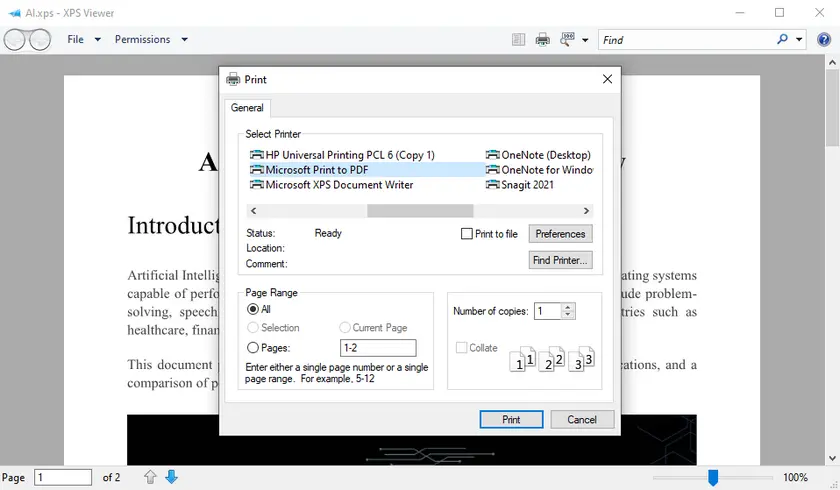
Para los usuarios de Windows, la forma más sencilla de convertir un archivo XPS es a través del Visor XPS integrado y Microsoft Print to PDF. Este método no requiere software adicional y es ideal para conversiones únicas o de uso ocasional. Al aprovechar la funcionalidad de imprimir a PDF del sistema, puede generar rápidamente un PDF sin comprometer el diseño básico.
Pasos:
- Abra su archivo XPS usando el Visor XPS.
- Haga clic en Imprimir en la barra de herramientas.
- Seleccione Microsoft Print to PDF como la impresora.
- Elija la ubicación de salida y guarde su PDF.
Ventajas:
- Gratis y no requiere instalación.
- Interfaz sencilla para usuarios ocasionales.
Desventajas:
- No puede procesar varios archivos a la vez.
- El formato complejo puede cambiar ligeramente.
Método 2 - Usando convertidores en línea
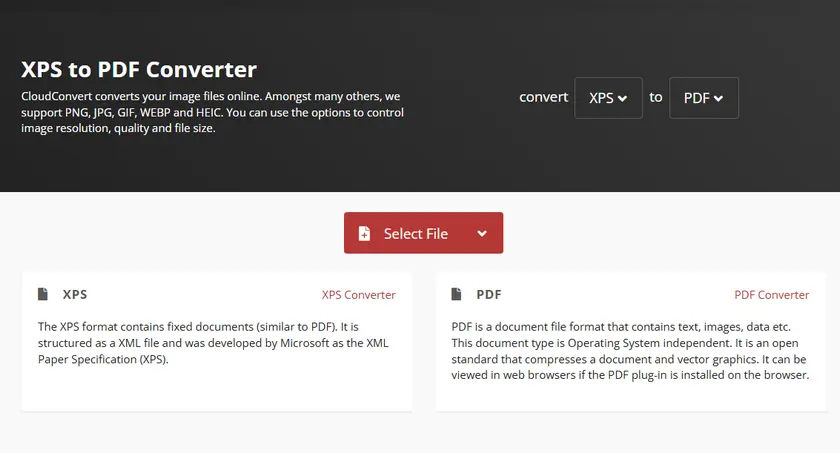
Los convertidores en línea ofrecen una forma conveniente de convertir XPS a PDF sin instalar software. Son particularmente útiles si necesita una conversión rápida o si está utilizando una plataforma que no es Windows. La mayoría de las herramientas en línea son tan simples como cargar su archivo, seleccionar PDF como formato de salida y descargar el resultado.
Pasos:
- Visite un convertidor en línea de buena reputación, como CloudConvert.
- Cargue su archivo XPS.
- Elija PDF como formato de destino.
- Haga clic en Convertir y descargue el PDF resultante.
Ventajas:
- Funciona en cualquier plataforma (Windows, Mac, móvil).
- No se necesita instalación de software.
- Interfaz rápida de arrastrar y soltar.
Desventajas:
- Pueden aplicarse límites de tamaño de archivo.
- Se requiere conexión a Internet.
- Posibles problemas de privacidad para archivos sensibles.
Método 3 - Usando herramientas de línea de comandos (MuPDF)
Para usuarios avanzados o flujos de trabajo de automatización, las herramientas de línea de comandos ofrecen opciones de conversión flexibles. MuPDF proporciona una utilidad de línea de comandos ligera ( mutool ) que puede convertir archivos XPS a PDF, ya sea individualmente o en scripts por lotes. Este método es ideal para desarrolladores o administradores de TI que necesitan resultados consistentes en múltiples archivos.
Pasos:
-
Descargar MuPDF.
- Vaya al sitio web oficial de MuPDF: https://mupdf.com/downloads/
- Descargue el paquete de herramientas de MuPDF para su sistema operativo (Windows, macOS o Linux)
- Extraiga el paquete a una carpeta, por ejemplo, C:\MuPDF
-
Abra un Símbolo del sistema / Terminal.
- Windows: Presione Win + R, escriba cmd, presione Enter
- macOS/Linux: Abra la Terminal
-
Navegue a la carpeta de su archivo XPS.
Use el comando cd para cambiar el directorio a donde se encuentra su archivo XPS. Ejemplo:
cd C:\Users\Administrator\Desktop\XPSFiles -
Ejecute el comando de conversión.
Use mutool convert con la opción -o para especificar el PDF de salida:
C:\MuPDF\mutool.exe convert -o output.pdf input.xpsExplicación:
- convert → le dice a MuPDF que convierta formatos de archivo
- -o output.pdf → especifica el nombre del archivo PDF de salida
- input.xps → su archivo XPS
En Linux/macOS, podría verse así:
./mutool convert -o output.pdf input.xps -
Verifique el PDF de salida en su carpeta de destino.
Ventajas:
- Automatizable y programable para procesamiento masivo.
- Multiplataforma (Windows, Mac, Linux).
Desventajas:
- Requiere conocimientos técnicos.
- La configuración y la sintaxis pueden ser complejas para los principiantes.
Método 4 - Usando bibliotecas de Python (Procesamiento por lotes con Spire.PDF)
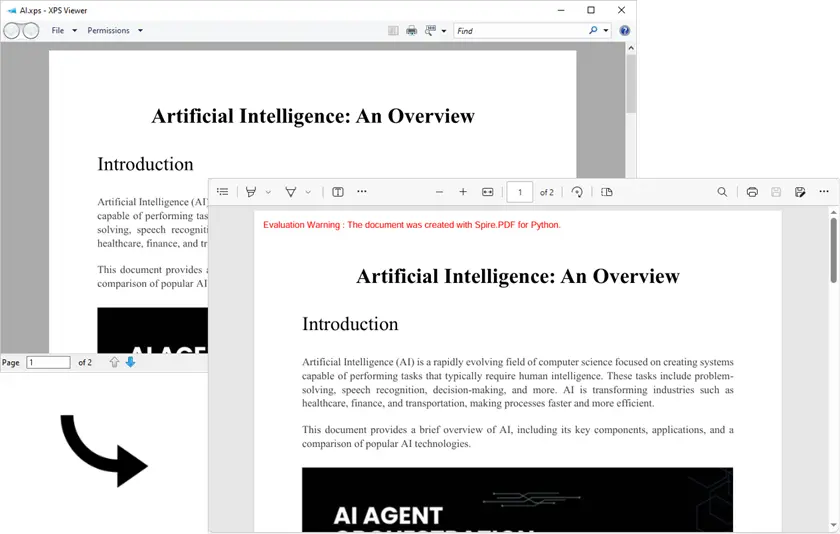
Para desarrolladores o empresas que necesitan procesamiento por lotes, las bibliotecas de Python proporcionan una solución eficiente. Usando Spire.PDF para Python, puede convertir múltiples archivos XPS en PDF de forma programática conservando imágenes de alta calidad y la integridad del diseño. Este enfoque es ideal para automatizar grandes flujos de trabajo o para integrarse en sistemas de backend.
Pasos:
- Instale la biblioteca requerida.
- Use el siguiente script para convertir un solo archivo XPS a un archivo PDF.
pip install spire.pdffrom spire.pdf.common import *
from spire.pdf import *
# Load an XPS file
doc = PdfDocument()
doc.LoadFromFile("Input.xps", FileFormat.XPS)
# Preserve images' quality
doc.ConvertOptions.SetXpsToPdfOptions(True)
# Save to PDF
doc.SaveToFile("XpsToPdf.pdf", FileFormat.PDF)
doc.Dispose()
Salida:
Ejemplo de procesamiento por lotes:
import os
from spire.pdf.common import *
from spire.pdf import *

folder = r"C:\path\to\your\folder"

for name in os.listdir(folder):
    if not name.lower().endswith(".xps"):
        continue
    in_path = os.path.join(folder, name)
    out_path = os.path.join(folder, os.path.splitext(name)[0] + ".pdf")

    doc = PdfDocument()
    doc.LoadFromFile(in_path, FileFormat.XPS)
    doc.ConvertOptions.SetXpsToPdfOptions(True)
    doc.SaveToFile(out_path, FileFormat.PDF)
    doc.Dispose()
Ventajas:
- Control total sobre la conversión por lotes.
- Preservación de alta fidelidad del diseño y las imágenes.
- Se integra fácilmente en flujos de trabajo automatizados.
Desventajas:
- Requiere conocimientos de codificación.
- Se necesita instalación de la biblioteca.
Además de convertir XPS a PDF, Spire.PDF para Python también le permite aplicar marcas de agua, agregar anotaciones y cifrar documentos PDF de forma programática. Puede explorar estas características para mejorar o proteger sus archivos PDF directamente desde su código, lo que lo convierte en una solución versátil para muchas tareas de automatización de PDF.
Comparación – ¿Qué método debería elegir?
| Método | Facilidad de uso | Soporte por lotes | Plataforma | Ventajas | Desventajas |
|---|---|---|---|---|---|
| Visor XPS | ★★★★ | ✗ | Windows | Gratis, simple | Archivo único, problemas de formato |
| Convertidores en línea | ★★★★ | ✗ | Cualquiera | Sin instalación, rápido | Privacidad, límites de tamaño de archivo |
| MuPDF | ★★ | ✓ | Windows / Mac / Linux | Automatizable | Se requiere configuración técnica |
| Python / Spire.PDF | ★★ | ✓ | Multiplataforma | Procesamiento por lotes, alta fidelidad | Requiere conocimientos de codificación |
Conclusión
Elegir el método correcto depende de sus necesidades: los usuarios ocasionales pueden preferir el Visor XPS o los convertidores en línea, mientras que los desarrolladores y las empresas que manejan múltiples archivos se beneficiarán de MuPDF o Python/Spire.PDF para el procesamiento por lotes. Para una conversión de alta calidad, automatizada y escalable, Spire.PDF es una solución robusta que garantiza que su salida de PDF mantenga la integridad de los archivos XPS originales.
Preguntas frecuentes
P1: ¿Puedo convertir varios archivos XPS a la vez?
Sí, la conversión por lotes es posible utilizando herramientas de línea de comandos como MuPDF o bibliotecas de Python como Spire.PDF.
P2: ¿Son seguros los convertidores en línea para documentos confidenciales?
Depende de la plataforma. Para archivos sensibles, se recomienda utilizar herramientas sin conexión como el Visor XPS o Spire.PDF.
P3: ¿Puede Python convertir XPS a PDF en Mac/Linux?
Sí, Spire.PDF para Python admite la conversión multiplataforma, y la herramienta de línea de comandos proporcionada por MuPDF también es compatible con Mac y Linux.
P4: ¿El PDF conservará el diseño y las imágenes originales?
La mayoría de los métodos conservan el diseño, pero las soluciones por lotes y programáticas como Spire.PDF proporcionan la más alta fidelidad, especialmente para archivos XPS complejos.
Ver también
XPS in PDF konvertieren: Integrierte, Online- und Skript-Methoden
Inhaltsverzeichnis
- XPS vs PDF: Was ist der Unterschied?
- Methode 1 - Verwendung von XPS Viewer + Microsoft Print to PDF
- Methode 2 - Verwendung von Online-Konvertern
- Methode 3 - Verwendung von Kommandozeilen-Tools
- Methode 4 - Verwendung von Python-Bibliotheken (Stapelverarbeitung)
- Vergleich - Welche Methode sollten Sie wählen
- Fazit
- FAQs
Müssen Sie eine XPS-Datei in PDF konvertieren? Sie sind nicht allein. Von Unternehmen, die Dokumente archivieren, bis hin zu Privatpersonen, die Berichte teilen – die Konvertierung von XPS zu PDF stellt sicher, dass Ihre Dateien zugänglich, kompatibel und professionell aussehen.
In diesem Artikel führen wir Sie durch vier zuverlässige Methoden zur Konvertierung von XPS in PDF, darunter integrierte Tools, Online-Konverter, Kommandozeilenoptionen und Python-basierte Stapelverarbeitung, damit Sie die Methode wählen können, die am besten zu Ihren Bedürfnissen passt.
Schnelle Navigation:
- Methode 1 - Verwendung von XPS Viewer + Microsoft Print to PDF
- Methode 2 - Verwendung von Online-Konvertern
- Methode 3 - Verwendung von Kommandozeilen-Tools
- Methode 4 - Verwendung von Python-Bibliotheken (Stapelverarbeitung)
XPS vs PDF: Was ist der Unterschied?
PDF ist Adobes langjähriger, plattformübergreifender Standard. Es ist funktionsreich – unterstützt Formulare, Anmerkungen, Verschlüsselung, digitale Signaturen sowie erweiterte Druck- und Archivierungsprofile – und wird von einem umfangreichen Ökosystem aus Betrachtern, Editoren und professionellen Tools unterstützt. PDF gewährleistet zuverlässige Darstellung, Barrierefreiheit und robuste Sicherheit über Geräte und Branchen hinweg.
XPS ist Microsofts XML-basiertes, ZIP-verpacktes Fixed-Layout-Format, das hauptsächlich in bestimmten Windows-Druckabläufen verwendet wird. Sein Funktionsumfang und die Unterstützung durch Drittanbieter sind im Vergleich zu PDF begrenzt, was zu geringerer Interoperabilität und weniger Tools führt. Da PDF überlegene Kompatibilität, Funktionen und Branchenakzeptanz bietet, ist die Konvertierung von XPS zu PDF oft notwendig.
Methode 1 - Verwendung von XPS Viewer + Microsoft Print to PDF
Für Windows-Benutzer ist der einfachste Weg, eine XPS-Datei zu konvertieren, der integrierte XPS Viewer und Microsoft Print to PDF. Diese Methode erfordert keine zusätzliche Software und eignet sich ideal für Einzelkonvertierungen oder gelegentliche Nutzung. Durch die Nutzung der systemeigenen Druck-zu-PDF-Funktion können Sie schnell ein PDF erstellen, ohne das grundlegende Layout zu beeinträchtigen.
Schritte:
- Öffnen Sie Ihre XPS-Datei mit dem XPS Viewer.
- Klicken Sie in der Symbolleiste auf Drucken.
- Wählen Sie Microsoft Print to PDF als Drucker aus.
- Wählen Sie den Speicherort und speichern Sie Ihr PDF.
Vorteile:
- Kostenlos und erfordert keine Installation.
- Einfache Benutzeroberfläche für Gelegenheitsnutzer.
Nachteile:
- Kann nicht mehrere Dateien gleichzeitig verarbeiten.
- Komplexe Formatierungen können leicht verschoben werden.
Methode 2 - Verwendung von Online-Konvertern
Online-Konverter bieten eine bequeme Möglichkeit, XPS in PDF zu konvertieren, ohne Software zu installieren. Sie sind besonders nützlich, wenn Sie eine schnelle Konvertierung benötigen oder eine Nicht-Windows-Plattform verwenden. Die meisten Online-Tools sind so einfach wie das Hochladen Ihrer Datei, die Auswahl von PDF als Ausgabeformat und das Herunterladen des Ergebnisses.
Schritte:
- Besuchen Sie einen seriösen Online-Konverter wie CloudConvert.
- Laden Sie Ihre XPS-Datei hoch.
- Wählen Sie PDF als Zielformat.
- Klicken Sie auf Konvertieren und laden Sie das resultierende PDF herunter.
Vorteile:
- Funktioniert auf jeder Plattform (Windows, Mac, mobil).
- Keine Softwareinstallation erforderlich.
- Schnelle Drag-and-Drop-Oberfläche.
Nachteile:
- Dateigrößenbeschränkungen können gelten.
- Internetverbindung erforderlich.
- Mögliche Datenschutzbedenken bei sensiblen Dateien.
Methode 3 - Verwendung von Kommandozeilen-Tools (MuPDF)
Für fortgeschrittene Benutzer oder Automatisierungsabläufe bieten Kommandozeilen-Tools flexible Konvertierungsoptionen. MuPDF stellt ein leichtgewichtiges Kommandozeilen-Tool ( mutool ) bereit, mit dem XPS-Dateien einzeln oder in Stapelskripten in PDF konvertiert werden können. Diese Methode ist ideal für Entwickler oder IT-Administratoren, die konsistente Ergebnisse über mehrere Dateien benötigen.
Schritte:
-
MuPDF herunterladen.
- Besuchen Sie die offizielle MuPDF-Webseite: https://mupdf.com/downloads/
- Laden Sie das MuPDF-Tools-Paket für Ihr Betriebssystem (Windows, macOS oder Linux) herunter
- Entpacken Sie das Paket in einen Ordner, z.B. C:\MuPDF
-
Öffnen Sie die Eingabeaufforderung / das Terminal.
- Windows: Drücken Sie Win + R, geben Sie cmd ein, drücken Sie Enter
- macOS/Linux: Terminal öffnen
-
Navigieren Sie zu Ihrem XPS-Dateiordner.
Verwenden Sie den cd-Befehl, um in das Verzeichnis zu wechseln, in dem sich Ihre XPS-Datei befindet. Beispiel:
cd C:\Users\Administrator\Desktop\XPSFiles -
Führen Sie den Konvertierungsbefehl aus.
Verwenden Sie mutool convert mit der -o Option, um die Ausgabedatei anzugeben:
C:\MuPDF\mutool.exe convert -o output.pdf input.xpsErklärung:
- convert → weist MuPDF an, Dateiformate zu konvertieren
- -o output.pdf → gibt den Namen der PDF-Ausgabedatei an
- input.xps → Ihre XPS-Datei
Unter Linux/macOS könnte es so aussehen:
./mutool convert -o output.pdf input.xps -
Überprüfen Sie das Ausgabe-PDF in Ihrem Zielordner.
Vorteile:
- Automatisierbar und skriptfähig für die Stapelverarbeitung.
- Plattformübergreifend (Windows, Mac, Linux).
Nachteile:
- Erfordert technisches Wissen.
- Einrichtung und Syntax können für Anfänger komplex sein.
Methode 4 - Verwendung von Python-Bibliotheken (Stapelverarbeitung mit Spire.PDF)
Für Entwickler oder Unternehmen, die Stapelverarbeitung benötigen, bieten Python-Bibliotheken eine effiziente Lösung. Mit Spire.PDF für Python können Sie mehrere XPS-Dateien programmgesteuert in PDFs konvertieren und dabei hochwertige Bilder und Layoutintegrität bewahren. Dieser Ansatz eignet sich ideal zur Automatisierung großer Workflows oder zur Integration in Backend-Systeme.
Schritte:
- Installieren Sie die benötigte Bibliothek.
- Verwenden Sie folgendes Skript, um eine einzelne XPS-Datei in eine PDF-Datei zu konvertieren.
pip install spire.pdffrom spire.pdf.common import *
from spire.pdf import *
# Laden einer XPS-Datei
doc = PdfDocument()
doc.LoadFromFile("Input.xps", FileFormat.XPS)
# Qualität der Bilder bewahren
doc.ConvertOptions.SetXpsToPdfOptions(True)
# Als PDF speichern
doc.SaveToFile("XpsToPdf.pdf", FileFormat.PDF)
doc.Dispose()
Ausgabe:
Beispiel für Stapelverarbeitung:
import os
from spire.pdf.common import *
from spire.pdf import *

folder = r"C:\path\to\your\folder"

for name in os.listdir(folder):
    if not name.lower().endswith(".xps"):
        continue
    in_path = os.path.join(folder, name)
    out_path = os.path.join(folder, os.path.splitext(name)[0] + ".pdf")

    doc = PdfDocument()
    doc.LoadFromFile(in_path, FileFormat.XPS)
    doc.ConvertOptions.SetXpsToPdfOptions(True)
    doc.SaveToFile(out_path, FileFormat.PDF)
    doc.Dispose()
Vorteile:
- Volle Kontrolle über die Stapelkonvertierung.
- Hohe Genauigkeit bei Layout und Bildern.
- Einfache Integration in automatisierte Workflows.
Nachteile:
- Erfordert Programmierkenntnisse.
- Bibliotheksinstallation erforderlich.
Neben der Konvertierung von XPS zu PDF ermöglicht Spire.PDF für Python auch das programmgesteuerte Hinzufügen von Wasserzeichen, das Einfügen von Anmerkungen und das Verschlüsseln von PDF-Dokumenten. Sie können diese Funktionen nutzen, um Ihre PDF-Dateien direkt aus dem Code heraus zu verbessern oder zu sichern, was es zu einer vielseitigen Lösung für viele PDF-Automatisierungsaufgaben macht.
Vergleich – Welche Methode sollten Sie wählen?
| Methode | Benutzerfreundlichkeit | Stapelverarbeitung | Plattform | Vorteile | Nachteile |
|---|---|---|---|---|---|
| XPS Viewer | ★★★★ | ✗ | Windows | Kostenlos, einfach | Einzeldatei, Formatierungsprobleme |
| Online-Konverter | ★★★★ | ✗ | Beliebig | Keine Installation, schnell | Datenschutz, Dateigrößenbeschränkungen |
| MuPDF | ★★ | ✓ | Windows / Mac / Linux | Automatisierbar | Technische Einrichtung erforderlich |
| Python / Spire.PDF | ★★ | ✓ | Plattformübergreifend | Stapelverarbeitung, hohe Genauigkeit | Erfordert Programmierkenntnisse |
Fazit
Die Wahl der richtigen Methode hängt von Ihren Bedürfnissen ab: Gelegenheitsnutzer bevorzugen möglicherweise XPS Viewer oder Online-Konverter, während Entwickler und Unternehmen, die mehrere Dateien verarbeiten, von MuPDF oder Python/Spire.PDF für die Stapelverarbeitung profitieren. Für hochwertige, automatisierte und skalierbare Konvertierung ist Spire.PDF eine robuste Lösung, die sicherstellt, dass Ihre PDF-Ausgabe die Integrität der ursprünglichen XPS-Dateien bewahrt.
FAQs
F1: Kann ich mehrere XPS-Dateien gleichzeitig konvertieren?
Ja, Stapelkonvertierung ist mit Kommandozeilen-Tools wie MuPDF oder Python-Bibliotheken wie Spire.PDF möglich.
F2: Sind Online-Konverter sicher für vertrauliche Dokumente?
Das hängt von der Plattform ab. Für sensible Dateien wird empfohlen, Offline-Tools wie XPS Viewer oder Spire.PDF zu verwenden.
F3: Kann Python XPS auf Mac/Linux in PDF konvertieren?
Ja, Spire.PDF für Python unterstützt plattformübergreifende Konvertierung, und das von MuPDF bereitgestellte Kommandozeilen-Tool ist ebenfalls mit Mac und Linux kompatibel.
F4: Behält das PDF das ursprüngliche Layout und die Bilder bei?
Die meisten Methoden bewahren das Layout, aber Stapel- und programmgesteuerte Lösungen wie Spire.PDF bieten die höchste Genauigkeit, insbesondere bei komplexen XPS-Dateien.
Siehe auch
Преобразование XPS в PDF: встроенные, онлайн и программные методы
Содержание
- XPS против PDF: в чем разница?
- Метод 1 - Использование XPS Viewer + Microsoft Print to PDF
- Метод 2 - Использование онлайн-конвертеров
- Метод 3 - Использование командной строки
- Метод 4 - Использование библиотек Python (пакетная обработка)
- Сравнение - какой метод выбрать
- Заключение
- Часто задаваемые вопросы
Нужно конвертировать файл XPS в PDF? Вы не одиноки. От компаний, архивирующих документы, до частных лиц, обменивающихся отчетами — конвертация XPS в PDF гарантирует, что ваши файлы будут доступны, совместимы и выглядеть профессионально.
В этой статье мы рассмотрим четыре надежных способа конвертации XPS в PDF, включая встроенные инструменты, онлайн-конвертеры, командную строку и пакетную обработку на Python, чтобы вы могли выбрать метод, который лучше всего подходит для ваших нужд.
Быстрая навигация:
- Метод 1 - Использование XPS Viewer + Microsoft Print to PDF
- Метод 2 - Использование онлайн-конвертеров
- Метод 3 - Использование командной строки
- Метод 4 - Использование библиотек Python (пакетная обработка)
XPS против PDF: в чем разница?
PDF — это давно устоявшийся кроссплатформенный стандарт Adobe. Он богат функциями — поддерживает формы, аннотации, шифрование, цифровые подписи, расширенные профили печати и архивирования — и поддерживается огромной экосистемой просмотрщиков, редакторов и профессиональных инструментов. PDF обеспечивает надежное отображение, доступность и высокую безопасность на разных устройствах и в разных отраслях.
XPS — это основанный на XML формат с фиксированным макетом, упакованный в ZIP, разработанный Microsoft, в основном используемый в некоторых рабочих процессах печати Windows. Его функциональность и поддержка сторонних приложений ограничены по сравнению с PDF, что приводит к худшей совместимости и меньшему количеству инструментов. Поскольку PDF предлагает лучшую совместимость, функции и широкое распространение, конвертация XPS в PDF часто необходима.
Метод 1 - Использование XPS Viewer + Microsoft Print to PDF
Для пользователей Windows самый простой способ конвертировать файл XPS — использовать встроенный XPS Viewer и Microsoft Print to PDF. Этот метод не требует дополнительного ПО и идеально подходит для разовых конвертаций или редкого использования. Используя функцию печати в PDF системы, вы быстро получите PDF без потери базового оформления.
Шаги:
- Откройте ваш файл XPS с помощью XPS Viewer.
- Нажмите Печать на панели инструментов.
- Выберите Microsoft Print to PDF в качестве принтера.
- Выберите место сохранения и сохраните PDF.
Плюсы:
- Бесплатно и не требует установки.
- Простой интерфейс для непрофессиональных пользователей.
Минусы:
- Нельзя обрабатывать несколько файлов одновременно.
- Сложное форматирование может немного сместиться.
Метод 2 - Использование онлайн-конвертеров
Онлайн-конвертеры предлагают удобный способ преобразования XPS в PDF без установки программ. Они особенно полезны, если нужна быстрая конвертация или вы используете не-Windows платформу. Большинство онлайн-инструментов просты: загрузите файл, выберите PDF как формат вывода и скачайте результат.
Шаги:
- Перейдите на надежный онлайн-конвертер, например, CloudConvert.
- Загрузите ваш файл XPS.
- Выберите PDF как целевой формат.
- Нажмите Конвертировать и скачайте полученный PDF.
Плюсы:
- Работает на любой платформе (Windows, Mac, мобильные).
- Не требует установки ПО.
- Быстрый интерфейс с перетаскиванием.
Минусы:
- Могут быть ограничения по размеру файла.
- Требуется подключение к интернету.
- Возможны проблемы с конфиденциальностью для чувствительных файлов.
Метод 3 - Использование командной строки (MuPDF)
Для продвинутых пользователей или автоматизации командная строка предлагает гибкие варианты конвертации. MuPDF предоставляет легковесную утилиту командной строки ( mutool ), которая может конвертировать XPS в PDF как по одному файлу, так и пакетно. Этот метод идеально подходит для разработчиков или IT-администраторов, которым нужны стабильные результаты для множества файлов.
Шаги:
-
Скачайте MuPDF.
- Перейдите на официальный сайт MuPDF: https://mupdf.com/downloads/
- Скачайте пакет инструментов MuPDF для вашей ОС (Windows, macOS или Linux)
- Распакуйте пакет в папку, например, C:\MuPDF
-
Откройте командную строку / терминал.
- Windows: нажмите Win + R, введите cmd, нажмите Enter
- macOS/Linux: откройте Терминал
-
Перейдите в папку с вашим файлом XPS.
Используйте команду cd, чтобы перейти в нужный каталог. Пример:
cd C:\Users\Administrator\Desktop\XPSFiles -
Запустите команду конвертации.
Используйте mutool convert с опцией -o для указания выходного PDF:
C:\MuPDF\mutool.exe convert -o output.pdf input.xpsОбъяснение:
- convert → команда для конвертации форматов
- -o output.pdf → имя выходного PDF-файла
- input.xps → ваш файл XPS
На Linux/macOS команда может выглядеть так:
./mutool convert -o output.pdf input.xps -
Проверьте выходной PDF в целевой папке.
Плюсы:
- Автоматизация и скрипты для пакетной обработки.
- Кроссплатформенность (Windows, Mac, Linux).
Минусы:
- Требуются технические знания.
- Настройка и синтаксис могут быть сложны для новичков.
Метод 4 - Использование библиотек Python (пакетная обработка с Spire.PDF)
Для разработчиков или компаний, нуждающихся в пакетной обработке, библиотеки Python предлагают эффективное решение. С помощью Spire.PDF для Python вы можете программно конвертировать несколько файлов XPS в PDF, сохраняя высокое качество изображений и целостность макета. Этот подход идеально подходит для автоматизации больших рабочих процессов или интеграции в серверные системы.
Шаги:
- Установите необходимую библиотеку.
- Используйте следующий скрипт для конвертации одного XPS в PDF.
pip install spire.pdffrom spire.pdf.common import *
from spire.pdf import *
# Загрузить файл XPS
doc = PdfDocument()
doc.LoadFromFile("Input.xps", FileFormat.XPS)
# Сохранить качество изображений
doc.ConvertOptions.SetXpsToPdfOptions(True)
# Сохранить в PDF
doc.SaveToFile("XpsToPdf.pdf", FileFormat.PDF)
doc.Dispose()
Результат:
Пример пакетной обработки:
import os
from spire.pdf.common import *
from spire.pdf import *

folder = r"C:\path\to\your\folder"

for name in os.listdir(folder):
    if not name.lower().endswith(".xps"):
        continue
    in_path = os.path.join(folder, name)
    out_path = os.path.join(folder, os.path.splitext(name)[0] + ".pdf")

    doc = PdfDocument()
    doc.LoadFromFile(in_path, FileFormat.XPS)
    doc.ConvertOptions.SetXpsToPdfOptions(True)
    doc.SaveToFile(out_path, FileFormat.PDF)
    doc.Dispose()
Плюсы:
- Полный контроль над пакетной конвертацией.
- Высокое качество сохранения макета и изображений.
- Легко интегрируется в автоматизированные процессы.
Минусы:
- Требуются навыки программирования.
- Необходима установка библиотеки.
Помимо конвертации XPS в PDF, Spire.PDF для Python позволяет программно добавлять водяные знаки, создавать аннотации и шифровать PDF-документы. Вы можете использовать эти функции для улучшения или защиты ваших PDF-файлов прямо из кода, что делает этот инструмент универсальным решением для многих задач автоматизации PDF.
Сравнение – какой метод выбрать?
| Метод | Простота использования | Поддержка пакетной обработки | Платформа | Плюсы | Минусы |
|---|---|---|---|---|---|
| XPS Viewer | ★★★★ | ✗ | Windows | Бесплатно, просто | Один файл, проблемы с форматированием |
| Онлайн-конвертеры | ★★★★ | ✗ | Любая | Без установки, быстро | Конфиденциальность, ограничения размера файлов |
| MuPDF | ★★ | ✓ | Windows / Mac / Linux | Автоматизация | Требуется техническая настройка |
| Python / Spire.PDF | ★★ | ✓ | Кроссплатформенно | Пакетная обработка, высокое качество | Требуются знания программирования |
Заключение
Выбор подходящего метода зависит от ваших потребностей: обычным пользователям подойдут XPS Viewer или онлайн-конвертеры, а разработчикам и компаниям, работающим с множеством файлов, будут полезны MuPDF или Python/Spire.PDF для пакетной обработки. Для качественной, автоматизированной и масштабируемой конвертации Spire.PDF — надежное решение, которое сохраняет целостность оригинальных файлов XPS в PDF.
Часто задаваемые вопросы
В1: Можно ли конвертировать несколько файлов XPS одновременно?
Да, пакетная конвертация возможна с помощью командных утилит, таких как MuPDF, или библиотек Python, например Spire.PDF.
В2: Безопасны ли онлайн-конвертеры для конфиденциальных документов?
Это зависит от платформы. Для чувствительных файлов рекомендуется использовать офлайн-инструменты, такие как XPS Viewer или Spire.PDF.
В3: Может ли Python конвертировать XPS в PDF на Mac/Linux?
Да, Spire.PDF для Python поддерживает кроссплатформенную конвертацию, а командная утилита MuPDF также совместима с Mac и Linux.
В4: Сохраняет ли PDF исходный макет и изображения?
Большинство методов сохраняют макет, но пакетные и программные решения, такие как Spire.PDF, обеспечивают наивысшее качество, особенно для сложных файлов XPS.
Смотрите также
Converter Word para XPS: 4 métodos fáceis (gratuitos e automatizados)
Índice
- Por que Converter Word para XPS?
- Método 1 - Usando o Microsoft Word
- Método 2 - Usando a Impressão do Windows para XPS
- Método 3 - Usando Conversores Online
- Método 4 - Usando Python (Processamento em Lote)
- Tabela Comparativa – Qual Método Você Deve Escolher?
- Melhores Práticas para Saída XPS de Alta Qualidade
- Conclusão
- Perguntas Frequentes
Converter documentos Word para o formato XPS é uma forma útil de preservar o layout, garantir uma visualização consistente e preparar arquivos para compartilhamento ou impressão. Seja trabalhando com relatórios, contratos ou documentos técnicos, o XPS oferece um formato de layout fixo semelhante ao PDF, mas suportado nativamente em ambientes Windows.
Neste guia, você aprenderá quatro métodos fáceis para converter Word para XPS, incluindo abordagens manuais, ferramentas online e soluções automatizadas para processamento em lote.
Navegação Rápida:
- Método 1 - Usando o Microsoft Word
- Método 2 - Usando a Impressão do Windows para XPS
- Método 3 - Usando Conversores Online
- Método 4 - Usando Python (Processamento em Lote)
Por que Converter Word para XPS?
XPS (XML Paper Specification) foi projetado para manter a fidelidade do documento em diferentes sistemas e dispositivos. Ele fixa a formatação, fontes e layout, tornando-o ideal para versões finais de documentos que não devem ser editados.
Além disso, arquivos XPS se integram bem com sistemas Windows e podem ser visualizados sem necessidade de software de terceiros. Para desenvolvedores e empresas, o XPS também é útil em fluxos de trabalho que exigem renderização consistente de documentos.
Método 1 – Usando o Microsoft Word
O Microsoft Word inclui um recurso embutido que permite salvar documentos diretamente como arquivos XPS. Como a conversão é feita internamente pelo Word, este método oferece simplicidade e alta fidelidade.
Ideal para: Conversões rápidas e pontuais onde a precisão é importante.
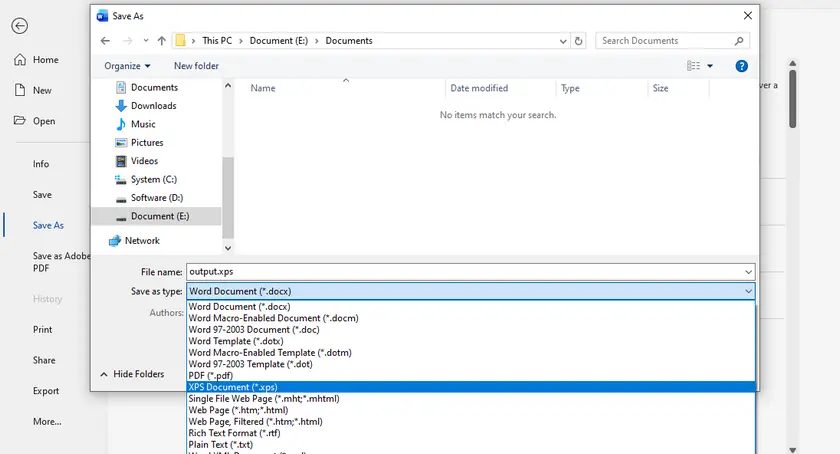
Passos para Converter Word para XPS Usando o MS Word
- Abra seu documento Word no Microsoft Word.
- Clique em Arquivo → Salvar Como.
- Escolha o local onde deseja salvar o arquivo.
- Selecione Documento XPS (*.xps) no menu suspenso de tipo de arquivo.
- Clique em Salvar.
Prós
- Saída de alta qualidade com formatação precisa.
- Simples e amigável para iniciantes.
Contras
- Requer instalação do Microsoft Word.
- Sem suporte para processamento em lote.
Método 2 – Usando a Impressão do Windows para XPS
O Windows inclui uma impressora virtual chamada Microsoft XPS Document Writer que permite converter qualquer documento imprimível para o formato XPS. Este método funciona com praticamente qualquer aplicativo que suporte impressão — não apenas o Word.
Ideal para: Quando você prefere não depender de recursos de exportação específicos de aplicativos.
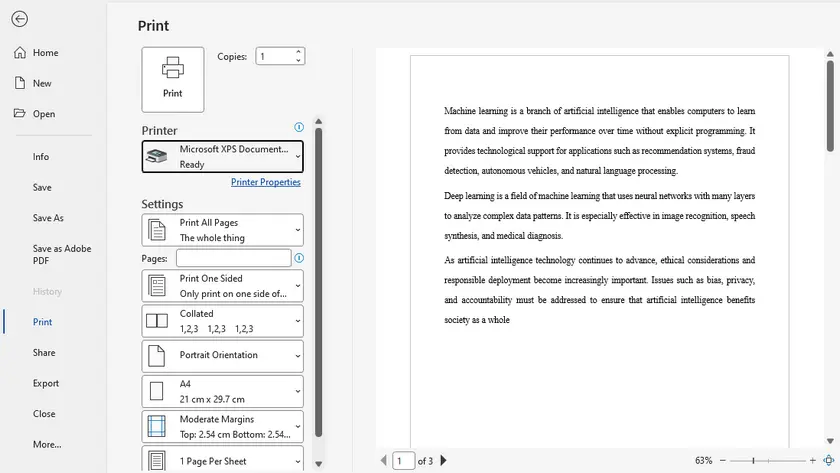
Passos para Converter Word para XPS Usando o XPS Document Writer
- Abra o documento Word.
- Vá para Arquivo → Imprimir.
- Selecione Microsoft XPS Document Writer como impressora.
- Clique em Imprimir.
- Escolha um nome de arquivo e local para salvar.
Prós
- Integrado ao Windows (não precisa instalar).
- Funciona com múltiplos aplicativos.
- Confiável para preservar o layout.
Contras
- Processo manual, não adequado para conversão em massa.
- Um pouco mais lento que a exportação direta.
Método 3 – Usando Conversores Online
Conversores online oferecem uma forma conveniente de converter arquivos Word para XPS sem instalar nenhum software. Essas ferramentas geralmente suportam upload por arrastar e soltar e downloads rápidos, tornando-as acessíveis em qualquer dispositivo.
Ideal para: Uso ocasional ou quando estiver em sistemas onde não é possível instalar software.
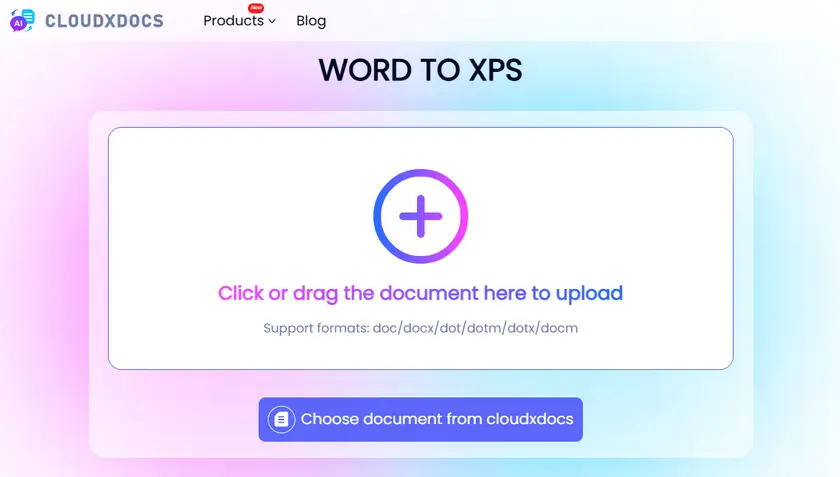
Passos para Converter Word para XPS Online
- Abra um site conversor online (ex.: cloudxdocs).
- Envie seu documento Word.
- A conversão começa automaticamente assim que o upload termina.
- Baixe o arquivo convertido.
Prós
- Não requer instalação.
- Acessível de qualquer dispositivo.
- Rápido e fácil para uso ocasional.
Contras
- Limites de tamanho de arquivo em planos gratuitos.
- Possíveis preocupações com privacidade/segurança.
- Requer conexão com a internet.
Método 4 – Usando Python (Processamento em Lote)
Para desenvolvedores ou usuários que lidam com múltiplos arquivos, a automação é a solução mais eficiente. Usando bibliotecas como Spire.Doc para Python, você pode converter documentos Word para XPS em lote programaticamente com esforço mínimo.
Esta abordagem é ideal para sistemas backend, fluxos de trabalho de documentos ou tarefas de processamento em larga escala onde a conversão manual seria muito demorada.

Passos para Converter Word para XPS em Lote com Python
- Crie um programa em Python.
- Instale a biblioteca Spire.Doc para Python.
- Execute o script abaixo para realizar a conversão.
import os
from spire.doc import *
from spire.doc.common import *

# Pastas de entrada e saída
input_folder = "input_docs"
output_folder = "output_xps"

# Cria a pasta de saída se não existir
if not os.path.exists(output_folder):
    os.makedirs(output_folder)

# Percorre todos os arquivos na pasta de entrada
for file_name in os.listdir(input_folder):
    if file_name.endswith((".doc", ".docx")):
        input_path = os.path.join(input_folder, file_name)
        output_name = os.path.splitext(file_name)[0] + ".xps"
        output_path = os.path.join(output_folder, output_name)

        # Cria um objeto Documento
        doc = Document()

        # Carrega o documento Word
        doc.LoadFromFile(input_path)

        # Salva como XPS
        doc.SaveToFile(output_path, FileFormat.XPS)

        # Descarta o documento
        doc.Dispose()

        print(f"Convertido: {file_name} → {output_name}")

print("Conversão em lote concluída.")
Prós
- Suporta conversão em lote (alta eficiência).
- Fluxo de trabalho totalmente automatizado.
- Fácil de integrar em sistemas ou pipelines.
Contras
- Requer conhecimento de programação.
- Necessita configuração do ambiente e dependências.
- A configuração inicial leva mais tempo que métodos manuais.
Além da conversão para XPS, o Spire.Doc permite converter Word para PDF, ou exportar Word como imagens, dando controle total sobre como seus documentos são compartilhados e exibidos.
Tabela Comparativa – Qual Método Você Deve Escolher?
| Método | Ideal Para | Facilidade de Uso | Suporte a Lote | Requer Instalação | Custo |
|---|---|---|---|---|---|
| Microsoft Word | Conversão rápida e de alta qualidade | ★★★★★ | x | √ | Pago (licença Office) |
| Impressão para XPS | Flexível, funciona com qualquer app | ★★★★★ | x | x (integrado) | Grátis |
| Ferramentas Online | Conveniência, sem instalação | ★★★★★ | x | x | Grátis (limitado) / Pago |
| Python (Spire.Doc) | Automação, processamento em lote | ★★★☆☆ | √ | √ | Grátis (limitado) / Pago |
Melhores Práticas para Saída XPS de Alta Qualidade
Antes de converter, certifique-se de que seu documento Word está finalizado, incluindo fontes, imagens e layout. Como o XPS preserva a formatação exatamente, quaisquer problemas no arquivo original serão mantidos na saída.
Também é recomendável incorporar fontes e evitar elementos não suportados para garantir compatibilidade em diferentes sistemas. Para processamento em lote, teste alguns arquivos primeiro para confirmar resultados consistentes.
Conclusão
Converter Word para XPS pode ser feito usando vários métodos dependendo das suas necessidades. Para resultados rápidos e confiáveis, opções integradas como Microsoft Word ou Impressão do Windows para XPS funcionam bem. Se precisar de flexibilidade ou portabilidade, ferramentas online são uma boa escolha.
Para usuários avançados e desenvolvedores, a automação em Python com bibliotecas como Spire.Doc oferece uma forma poderosa de lidar com grandes volumes de documentos de forma eficiente.
Perguntas Frequentes
P1: O XPS é melhor que PDF?
XPS e PDF são similares no sentido de que ambos preservam o layout do documento. PDF é mais amplamente suportado, enquanto XPS é mais integrado aos sistemas Windows.
P2: Posso converter XPS de volta para Word?
Sim, mas geralmente requer ferramentas de terceiros ou conversão intermediária (ex.: XPS → PDF → Word), e a formatação pode não ser perfeitamente preservada.
P3: Converter para XPS reduz a qualidade do arquivo?
Não, o XPS mantém o layout e a qualidade originais. No entanto, configurações de compressão e recursos incorporados podem afetar o tamanho do arquivo.
P4: Qual método é melhor para conversão em massa?
O método Python usando Spire.Doc é a melhor escolha para processamento em lote e automação.
P5: Como abrir um arquivo XPS?
Você pode abrir um arquivo XPS usando o visualizador XPS embutido no Windows. Basta dar um duplo clique no arquivo, ou clicar com o botão direito e escolher Abrir com → Visualizador XPS.
Veja Também
Word를 XPS로 변환: 4가지 쉬운 방법 (무료 및 자동화)
Word 문서를 XPS 형식으로 변환하는 것은 레이아웃을 보존하고 일관된 보기 환경을 보장하며 파일 공유나 인쇄 준비에 유용한 방법입니다. 보고서, 계약서 또는 기술 문서 작업 시 XPS는 PDF와 유사한 고정 레이아웃 형식을 제공하며 Windows 환경에서 기본 지원됩니다.
이 가이드에서는 Word를 XPS로 변환하는 네 가지 쉬운 방법을 배우게 됩니다. 수동 방법, 온라인 도구, 그리고 배치 처리를 위한 자동화 솔루션을 포함합니다.
빠른 탐색:
- 방법 1 - Microsoft Word 사용하기
- 방법 2 - Windows 인쇄 기능으로 XPS 만들기
- 방법 3 - 온라인 변환기 사용하기
- 방법 4 - Python 사용하기 (배치 처리)
왜 Word를 XPS로 변환해야 하나요?
XPS (XML Paper Specification)는 다양한 시스템과 장치에서 문서의 충실도를 유지하도록 설계되었습니다. 서식, 글꼴, 레이아웃을 고정하여 편집되지 않아야 하는 문서의 최종 버전에 이상적입니다.
또한 XPS 파일은 Windows 시스템과 잘 통합되며 별도의 소프트웨어 없이도 볼 수 있습니다. 개발자와 기업에게는 일관된 문서 렌더링이 필요한 워크플로우에서 유용합니다.
방법 1 – Microsoft Word 사용하기
Microsoft Word에는 문서를 직접 XPS 파일로 저장할 수 있는 내장 기능이 있습니다. 변환이 Word 내부에서 처리되므로 이 방법은 간단하면서도 높은 충실도를 제공합니다.
추천 대상: 정확도가 중요한 빠른 단일 변환에 적합합니다.
Microsoft Word로 Word를 XPS로 변환하는 단계
- Microsoft Word에서 문서를 엽니다.
- 파일 → 다른 이름으로 저장을 클릭합니다.
- 파일을 저장할 위치를 선택합니다.
- 파일 형식 드롭다운에서 XPS 문서 (*.xps)를 선택합니다.
- 저장을 클릭합니다.
장점
- 정확한 서식으로 고품질 출력.
- 간단하고 초보자도 사용하기 쉬움.
단점
- Microsoft Word 설치 필요.
- 배치 처리 지원 안 함.
방법 2 – Windows 인쇄 기능으로 XPS 만들기
Windows에는 Microsoft XPS 문서 작성기라는 가상 프린터가 포함되어 있어 인쇄 가능한 모든 문서를 XPS 형식으로 변환할 수 있습니다. 이 방법은 Word뿐만 아니라 인쇄를 지원하는 거의 모든 응용 프로그램에서 작동합니다.
추천 대상: 응용 프로그램별 내보내기 기능에 의존하지 않으려는 경우.
XPS 문서 작성기로 Word를 XPS로 변환하는 단계
- Word 문서를 엽니다.
- 파일 → 인쇄로 이동합니다.
- 프린터로 Microsoft XPS 문서 작성기를 선택합니다.
- 인쇄를 클릭합니다.
- 파일 이름과 저장 위치를 선택합니다.
장점
- Windows에 내장되어 있어 설치 불필요.
- 여러 응용 프로그램에서 사용 가능.
- 레이아웃 보존에 신뢰할 수 있음.
단점
- 수동 프로세스이며 대량 변환에는 부적합.
- 직접 내보내기보다 약간 느림.
방법 3 – 온라인 변환기 사용하기
온라인 변환기는 소프트웨어 설치 없이 Word 파일을 XPS로 변환할 수 있는 편리한 방법을 제공합니다. 일반적으로 드래그 앤 드롭 업로드와 빠른 다운로드를 지원하여 어떤 장치에서도 접근할 수 있습니다.
추천 대상: 가끔 사용하거나 소프트웨어 설치가 불가능한 시스템에서 작업할 때.
온라인에서 Word를 XPS로 변환하는 단계
- 온라인 변환기 웹사이트(예: cloudxdocs)를 엽니다.
- Word 문서를 업로드합니다.
- 업로드가 완료되면 변환이 자동으로 시작됩니다.
- 변환된 파일을 다운로드합니다.
장점
- 설치 불필요.
- 어떤 장치에서도 접근 가능.
- 가끔 사용하기에 빠르고 쉬움.
단점
- 무료 플랜의 파일 크기 제한.
- 개인정보/보안 우려 가능성.
- 인터넷 연결 필요.
방법 4 – Python 사용하기 (배치 처리)
여러 파일을 다루는 개발자나 사용자의 경우 자동화가 가장 효율적인 솔루션입니다. Spire.Doc for Python과 같은 라이브러리를 사용하면 최소한의 노력으로 Word 문서를 일괄적으로 XPS로 변환할 수 있습니다.
이 방법은 수동 변환에 시간이 많이 걸리는 백엔드 시스템, 문서 워크플로우 또는 대규모 처리 작업에 이상적입니다.
Python에서 Word를 XPS로 일괄 변환하는 단계
- Python 프로그램을 만듭니다.
- Python용 Spire.Doc 라이브러리를 설치합니다.
- 다음 스크립트를 실행하여 변환을 수행합니다.
import os
from spire.doc import *
from spire.doc.common import *

# Input and output folders
input_folder = "input_docs"
output_folder = "output_xps"

# Create output folder if it doesn't exist
if not os.path.exists(output_folder):
    os.makedirs(output_folder)

# Loop through all files in the input folder
for file_name in os.listdir(input_folder):
    if file_name.endswith((".doc", ".docx")):
        input_path = os.path.join(input_folder, file_name)
        output_name = os.path.splitext(file_name)[0] + ".xps"
        output_path = os.path.join(output_folder, output_name)

        # Create a Document object
        doc = Document()

        # Load the Word document
        doc.LoadFromFile(input_path)

        # Save as XPS
        doc.SaveToFile(output_path, FileFormat.XPS)

        # Dispose the document
        doc.Dispose()

        print(f"Converted: {file_name} → {output_name}")

print("Batch conversion completed.")
장점
- 배치 변환 지원 (높은 효율성).
- 완전 자동화된 워크플로우.
- 시스템이나 파이프라인에 쉽게 통합 가능.
단점
- 프로그래밍 지식 필요.
- 환경 설정과 의존성 필요.
- 초기 설정에 수동 방법보다 시간이 더 걸림.
XPS 변환 외에도 Spire.Doc은 Word를 PDF로 변환하거나, Word를 이미지로 내보내기를 지원하여 문서 공유 및 표시 방식을 완벽하게 제어할 수 있습니다.
비교표 – 어떤 방법을 선택해야 할까요?
| 방법 | 추천 대상 | 사용 편의성 | 배치 지원 | 설치 필요 여부 | 비용 |
|---|---|---|---|---|---|
| Microsoft Word | 빠르고 고품질 변환 | ★★★★★ | x | √ | 유료 (오피스 라이선스) |
| Print to XPS | 유연하며 모든 앱에서 사용 가능 | ★★★★★ | x | x (내장) | 무료 |
| 온라인 도구 | 편리함, 설치 불필요 | ★★★★★ | x | x | 무료 (제한 있음) / 유료 |
| Python (Spire.Doc) | 자동화, 대량 처리 | ★★★☆☆ | √ | √ | 무료 (제한 있음) / 유료 |
고품질 XPS 출력의 모범 사례
변환 전에 Word 문서가 최종본인지 확인하세요. 글꼴, 이미지, 레이아웃이 모두 포함되어야 합니다. XPS는 서식을 정확히 보존하므로 원본 파일의 문제도 그대로 반영됩니다.
호환성을 위해 글꼴을 포함하고 지원되지 않는 요소는 피하는 것이 좋습니다. 배치 처리 시에는 몇 개의 파일을 먼저 테스트하여 일관된 결과를 확인하세요.
결론
Word를 XPS로 변환하는 방법은 필요에 따라 다양합니다. 빠르고 신뢰할 수 있는 결과를 원한다면 Microsoft Word나 Windows 인쇄 기능이 적합합니다. 유연성과 휴대성을 원한다면 온라인 도구가 좋은 선택입니다.
고급 사용자와 개발자에게는 Spire.Doc과 같은 라이브러리를 활용한 Python 자동화가 대량 문서 처리에 강력한 방법입니다.
자주 묻는 질문
Q1: XPS가 PDF보다 더 좋은가요?
XPS와 PDF는 모두 문서 레이아웃을 보존한다는 점에서 유사합니다. PDF가 더 널리 지원되는 반면, XPS는 Windows 시스템과 더 긴밀하게 통합되어 있습니다.
Q2: XPS를 다시 Word로 변환할 수 있나요?
예, 가능하지만 보통 서드파티 도구나 중간 변환(XPS → PDF → Word)이 필요하며 서식이 완벽하게 보존되지 않을 수 있습니다.
Q3: XPS 변환 시 파일 품질이 떨어지나요?
아니요, XPS는 원본 레이아웃과 품질을 유지합니다. 다만 압축 설정과 포함된 리소스에 따라 파일 크기에 영향을 줄 수 있습니다.
Q4: 대량 변환에 가장 좋은 방법은 무엇인가요?
Spire.Doc을 사용하는 Python 방법이 배치 처리와 자동화에 가장 적합합니다.
Q5: XPS 파일은 어떻게 열 수 있나요?
Windows에 내장된 XPS 뷰어를 사용하여 열 수 있습니다. 파일을 더블 클릭하거나 마우스 오른쪽 버튼 클릭 후 열기 → XPS 뷰어 를 선택하세요.
참고 문서
Convertire Word in XPS: 4 semplici metodi (gratuiti e automatizzati)
Indice
- Perché convertire Word in XPS?
- Metodo 1 - Utilizzando Microsoft Word
- Metodo 2 - Utilizzando la stampa su XPS di Windows
- Metodo 3 - Utilizzando convertitori online
- Metodo 4 - Utilizzando Python (Elaborazione batch)
- Tabella di confronto – Quale metodo scegliere?
- Migliori pratiche per un output XPS di alta qualità
- Conclusione
- Domande frequenti
La conversione di documenti Word in formato XPS è un modo utile per preservare il layout, garantire una visualizzazione coerente e preparare i file per la condivisione o la stampa. Che si tratti di report, contratti o documenti tecnici, XPS offre un formato a layout fisso simile al PDF ma supportato nativamente negli ambienti Windows.
In questa guida imparerai quattro semplici metodi per convertire Word in XPS, inclusi approcci manuali, strumenti online e soluzioni automatizzate per l'elaborazione batch.
Navigazione rapida:
- Metodo 1 - Utilizzando Microsoft Word
- Metodo 2 - Utilizzando la stampa su XPS di Windows
- Metodo 3 - Utilizzando convertitori online
- Metodo 4 - Utilizzando Python (Elaborazione batch)
Perché convertire Word in XPS?
XPS (XML Paper Specification) è progettato per mantenere la fedeltà dei documenti su diversi sistemi e dispositivi. Blocca la formattazione, i caratteri e il layout, rendendolo ideale per le versioni finali dei documenti che non devono essere modificati.
Inoltre, i file XPS si integrano bene con i sistemi Windows e possono essere visualizzati senza bisogno di software di terze parti. Per sviluppatori e aziende, XPS è utile anche nei flussi di lavoro che richiedono un rendering coerente dei documenti.
Metodo 1 – Utilizzando Microsoft Word
Microsoft Word include una funzionalità integrata che consente di salvare i documenti direttamente come file XPS. Poiché la conversione è gestita internamente da Word, questo metodo offre sia semplicità che alta fedeltà.
Ideale per: conversioni rapide e occasionali in cui la precisione è importante.
Passaggi per convertire Word in XPS utilizzando MS Word
- Apri il tuo documento Word in Microsoft Word.
- Fai clic su File → Salva con nome.
- Scegli la posizione in cui desideri salvare il file.
- Seleziona Documento XPS (*.xps) dal menu a discesa del tipo di file.
- Fai clic su Salva.
Vantaggi
- Output di alta qualità con formattazione accurata.
- Semplice e adatto ai principianti.
Svantaggi
- Richiede l'installazione di Microsoft Word.
- Nessun supporto per l'elaborazione batch.
Metodo 2 – Utilizzando la stampa su XPS di Windows
Windows include una stampante virtuale chiamata Microsoft XPS Document Writer che consente di convertire qualsiasi documento stampabile in formato XPS. Questo metodo funziona con praticamente qualsiasi applicazione che supporti la stampa, non solo Word.
Ideale per: quando si preferisce non fare affidamento su funzionalità di esportazione specifiche dell'applicazione.
Passaggi per convertire Word in XPS utilizzando XPS Document Writer
- Apri il documento Word.
- Vai a File → Stampa.
- Seleziona Microsoft XPS Document Writer come stampante.
- Fai clic su Stampa.
- Scegli un nome file e una posizione di salvataggio.
Vantaggi
- Integrato in Windows (nessuna installazione necessaria).
- Funziona con più applicazioni.
- Affidabile per preservare il layout.
Svantaggi
- Processo manuale, non adatto alla conversione di massa.
- Leggermente più lento dell'esportazione diretta.
Metodo 3 – Utilizzando convertitori online
I convertitori online offrono un modo comodo per convertire file Word in XPS senza installare alcun software. Questi strumenti in genere supportano il caricamento tramite trascinamento e download rapidi, rendendoli accessibili su qualsiasi dispositivo.
Ideale per: uso occasionale o quando si lavora su sistemi in cui non è possibile installare software.
Passaggi per convertire Word in XPS online
- Apri un sito Web di conversione online (ad es. cloudxdocs).
- Carica il tuo documento Word.
- La conversione si avvia automaticamente non appena il caricamento è terminato.
- Scarica il file convertito.
Vantaggi
- Nessuna installazione richiesta.
- Accessibile da qualsiasi dispositivo.
- Veloce e facile per un uso occasionale.
Svantaggi
- Limiti di dimensione dei file sui piani gratuiti.
- Potenziali problemi di privacy/sicurezza.
- Richiede una connessione a Internet.
Metodo 4 – Utilizzando Python (Elaborazione batch)
Per sviluppatori o utenti che gestiscono più file, l'automazione è la soluzione più efficiente. Utilizzando librerie come Spire.Doc for Python, è possibile convertire programmaticamente documenti Word in XPS in blocco con il minimo sforzo.
Questo approccio è ideale per sistemi backend, flussi di lavoro documentali o attività di elaborazione su larga scala in cui la conversione manuale richiederebbe troppo tempo.
Passaggi per la conversione batch di Word in XPS in Python
- Crea un programma Python.
- Installa la libreria Spire.Doc per Python.
- Esegui lo script seguente per eseguire la conversione.
import os
from spire.doc import *
from spire.doc.common import *

# Input and output folders
input_folder = "input_docs"
output_folder = "output_xps"

# Create output folder if it doesn't exist
if not os.path.exists(output_folder):
    os.makedirs(output_folder)

# Loop through all files in the input folder
for file_name in os.listdir(input_folder):
    if file_name.endswith((".doc", ".docx")):
        input_path = os.path.join(input_folder, file_name)
        output_name = os.path.splitext(file_name)[0] + ".xps"
        output_path = os.path.join(output_folder, output_name)

        # Create a Document object
        doc = Document()

        # Load the Word document
        doc.LoadFromFile(input_path)

        # Save as XPS
        doc.SaveToFile(output_path, FileFormat.XPS)

        # Dispose the document
        doc.Dispose()

        print(f"Converted: {file_name} → {output_name}")

print("Batch conversion completed.")
Vantaggi
- Supporta la conversione batch (alta efficienza).
- Flusso di lavoro completamente automatizzato.
- Facile da integrare in sistemi o pipeline.
Svantaggi
- Richiede conoscenze di programmazione.
- Necessita di configurazione dell'ambiente e dipendenze.
- La configurazione iniziale richiede più tempo rispetto ai metodi manuali.
Oltre alla conversione XPS, Spire.Doc ti consente di convertire Word in PDF o esportare Word come immagini, offrendoti il pieno controllo su come i tuoi documenti vengono condivisi e visualizzati.
Tabella di confronto – Quale metodo scegliere?
| Metodo | Ideale per | Facilità d'uso | Supporto batch | Richiede installazione | Costo |
|---|---|---|---|---|---|
| Microsoft Word | Conversione rapida e di alta qualità | ★★★★★ | x | √ | A pagamento (licenza Office) |
| Stampa su XPS | Flessibile, funziona con qualsiasi app | ★★★★★ | x | x (integrato) | Gratuito |
| Strumenti online | Comodità, nessuna configurazione | ★★★★★ | x | x | Gratuito (limitato) / A pagamento |
| Python (Spire.Doc) | Automazione, elaborazione di massa | ★★★☆☆ | √ | √ | Gratuito (limitato) / A pagamento |
Migliori pratiche per un output XPS di alta qualità
Prima della conversione, assicurati che il tuo documento Word sia finalizzato, inclusi caratteri, immagini e layout. Poiché XPS preserva esattamente la formattazione, eventuali problemi nel file originale verranno trasferiti nell'output.
È anche una buona idea incorporare i caratteri ed evitare elementi non supportati per garantire la compatibilità tra sistemi diversi. Per l'elaborazione batch, testa prima alcuni file per confermare risultati coerenti.
Conclusione
La conversione di Word in XPS può essere eseguita utilizzando una varietà di metodi a seconda delle proprie esigenze. Per risultati rapidi e affidabili, le opzioni integrate come Microsoft Word o Stampa su XPS di Windows funzionano bene. Se hai bisogno di flessibilità o portabilità, gli strumenti online sono una scelta solida.
Per utenti avanzati e sviluppatori, l'automazione Python con librerie come Spire.Doc fornisce un modo potente per gestire in modo efficiente grandi volumi di documenti.
Domande frequenti
D1: XPS è migliore del PDF?
XPS e PDF sono simili in quanto entrambi preservano il layout del documento. Il PDF è più ampiamente supportato, mentre XPS è più strettamente integrato con i sistemi Windows.
D2: Posso riconvertire XPS in Word?
Sì, ma di solito richiede strumenti di terze parti o una conversione intermedia (ad es. XPS → PDF → Word) e la formattazione potrebbe non essere perfettamente preservata.
D3: La conversione in XPS riduce la qualità del file?
No, XPS mantiene il layout e la qualità originali. Tuttavia, le impostazioni di compressione e le risorse incorporate possono influire sulla dimensione del file.
D4: Quale metodo è migliore per la conversione di massa?
Il metodo Python che utilizza Spire.Doc è la scelta migliore per l'elaborazione batch e l'automazione.
D5: Come aprire un file XPS?
È possibile aprire un file XPS utilizzando il Visualizzatore XPS integrato in Windows. È sufficiente fare doppio clic sul file o fare clic con il pulsante destro del mouse e scegliere Apri con → Visualizzatore XPS.
Vedi anche
Convertir Word en XPS : 4 méthodes simples (gratuites et automatisées)
Table des matières
- Pourquoi convertir Word en XPS ?
- Méthode 1 - Utilisation de Microsoft Word
- Méthode 2 - Utilisation de l'impression Windows vers XPS
- Méthode 3 - Utilisation de convertisseurs en ligne
- Méthode 4 - Utilisation de Python (traitement par lots)
- Tableau comparatif – Quelle méthode choisir ?
- Meilleures pratiques pour une sortie XPS de haute qualité
- Conclusion
- FAQ
La conversion de documents Word au format XPS est un moyen utile de préserver la mise en page, d'assurer une visualisation cohérente et de préparer des fichiers pour le partage ou l'impression. Que vous travailliez avec des rapports, des contrats ou des documents techniques, XPS fournit un format à mise en page fixe similaire au PDF mais pris en charge nativement dans les environnements Windows.
Dans ce guide, vous apprendrez quatre méthodes faciles pour convertir Word en XPS, y compris des approches manuelles, des outils en ligne et des solutions automatisées pour le traitement par lots.
Navigation rapide :
- Méthode 1 - Utilisation de Microsoft Word
- Méthode 2 - Utilisation de l'impression Windows vers XPS
- Méthode 3 - Utilisation de convertisseurs en ligne
- Méthode 4 - Utilisation de Python (traitement par lots)
Pourquoi convertir Word en XPS ?
XPS (XML Paper Specification) est conçu pour maintenir la fidélité des documents sur différents systèmes et appareils. Il verrouille la mise en forme, les polices et la mise en page, ce qui le rend idéal pour les versions finales de documents qui ne doivent pas être modifiées.
De plus, les fichiers XPS s'intègrent bien aux systèmes Windows et peuvent être visualisés sans nécessiter de logiciel tiers. Pour les développeurs et les entreprises, XPS est également utile dans les flux de travail qui nécessitent un rendu de document cohérent.
Méthode 1 – Utilisation de Microsoft Word
Microsoft Word inclut une fonctionnalité intégrée qui vous permet d'enregistrer des documents directement en tant que fichiers XPS. Étant donné que la conversion est gérée en interne par Word, cette méthode offre à la fois simplicité et haute fidélité.
Idéal pour : Conversions rapides et uniques où la précision est importante.
Étapes pour convertir Word en XPS à l'aide de MS Word
- Ouvrez votre document Word dans Microsoft Word.
- Cliquez sur Fichier → Enregistrer sous.
- Choisissez l'emplacement où vous souhaitez enregistrer le fichier.
- Sélectionnez Document XPS (*.xps) dans la liste déroulante des types de fichiers.
- Cliquez sur Enregistrer.
Avantages
- Sortie de haute qualité avec une mise en forme précise.
- Simple et convivial pour les débutants.
Inconvénients
- Nécessite l'installation de Microsoft Word.
- Pas de prise en charge du traitement par lots.
Méthode 2 – Utilisation de l'impression Windows vers XPS
Windows inclut une imprimante virtuelle appelée Microsoft XPS Document Writer qui vous permet de convertir n'importe quel document imprimable au format XPS. Cette méthode fonctionne avec pratiquement toutes les applications qui prennent en charge l'impression, pas seulement Word.
Idéal pour : Lorsque vous préférez ne pas dépendre des fonctionnalités d'exportation spécifiques à l'application.
Étapes pour convertir Word en XPS à l'aide de XPS Document Writer
- Ouvrez le document Word.
- Allez dans Fichier → Imprimer.
- Sélectionnez Microsoft XPS Document Writer comme imprimante.
- Cliquez sur Imprimer.
- Choisissez un nom de fichier et un emplacement d'enregistrement.
Avantages
- Intégré à Windows (aucune installation requise).
- Fonctionne avec plusieurs applications.
- Fiable pour préserver la mise en page.
Inconvénients
- Processus manuel, ne convient pas à la conversion en masse.
- Légèrement plus lent que l'exportation directe.
Méthode 3 – Utilisation de convertisseurs en ligne
Les convertisseurs en ligne offrent un moyen pratique de convertir des fichiers Word en XPS sans installer de logiciel. Ces outils prennent généralement en charge les téléchargements par glisser-déposer et les téléchargements rapides, ce qui les rend accessibles sur n'importe quel appareil.
Idéal pour : Utilisation occasionnelle ou lorsque vous travaillez sur des systèmes où vous ne pouvez pas installer de logiciel.
Étapes pour convertir Word en XPS en ligne
- Ouvrez un site Web de conversion en ligne (par exemple, cloudxdocs).
- Téléchargez votre document Word.
- La conversion démarre automatiquement dès la fin du téléchargement.
- Téléchargez le fichier converti.
Avantages
- Aucune installation requise.
- Accessible depuis n'importe quel appareil.
- Rapide et facile pour une utilisation occasionnelle.
Inconvénients
- Limites de taille de fichier sur les plans gratuits.
- Problèmes potentiels de confidentialité/sécurité.
- Nécessite une connexion Internet.
Méthode 4 – Utilisation de Python (traitement par lots)
Pour les développeurs ou les utilisateurs qui gèrent plusieurs fichiers, l'automatisation est la solution la plus efficace. En utilisant des bibliothèques comme Spire.Doc for Python, vous pouvez convertir par programme des documents Word en XPS en masse avec un minimum d'effort.
Cette approche est idéale pour les systèmes backend, les flux de travail de documents ou les tâches de traitement à grande échelle où la conversion manuelle prendrait trop de temps.
Étapes pour convertir par lots Word en XPS en Python
- Créez un programme Python.
- Installez la bibliothèque Spire.Doc pour Python.
- Exécutez le script suivant pour effectuer la conversion.
import os
from spire.doc import *
from spire.doc.common import *

# Input and output folders
input_folder = "input_docs"
output_folder = "output_xps"

# Create output folder if it doesn't exist
if not os.path.exists(output_folder):
    os.makedirs(output_folder)

# Loop through all files in the input folder
for file_name in os.listdir(input_folder):
    if file_name.endswith((".doc", ".docx")):
        input_path = os.path.join(input_folder, file_name)
        output_name = os.path.splitext(file_name)[0] + ".xps"
        output_path = os.path.join(output_folder, output_name)

        # Create a Document object
        doc = Document()

        # Load the Word document
        doc.LoadFromFile(input_path)

        # Save as XPS
        doc.SaveToFile(output_path, FileFormat.XPS)

        # Dispose the document
        doc.Dispose()

        print(f"Converted: {file_name} → {output_name}")

print("Batch conversion completed.")
Avantages
- Prend en charge la conversion par lots (haute efficacité).
- Flux de travail entièrement automatisé.
- Facile à intégrer dans des systèmes ou des pipelines.
Inconvénients
- Nécessite des connaissances en programmation.
- Nécessite une configuration de l'environnement et des dépendances.
- La configuration initiale prend plus de temps que les méthodes manuelles.
En plus de la conversion XPS, Spire.Doc vous permet de convertir Word en PDF, ou d'exporter Word en tant qu'images, vous donnant un contrôle total sur la façon dont vos documents sont partagés et affichés.
Tableau comparatif – Quelle méthode choisir ?
| Méthode | Idéal pour | Facilité d'utilisation | Prise en charge par lots | Nécessite une installation | Coût |
|---|---|---|---|---|---|
| Microsoft Word | Conversion rapide et de haute qualité | ★★★★★ | x | √ | Payant (licence Office) |
| Imprimer vers XPS | Flexible, fonctionne avec n'importe quelle application | ★★★★★ | x | x (intégré) | Gratuit |
| Outils en ligne | Pratique, pas de configuration | ★★★★★ | x | x | Gratuit (limité) / Payant |
| Python (Spire.Doc) | Automatisation, traitement en masse | ★★★☆☆ | √ | √ | Gratuit (limité) / Payant |
Meilleures pratiques pour une sortie XPS de haute qualité
Avant de convertir, assurez-vous que votre document Word est finalisé, y compris les polices, les images et la mise en page. Étant donné que XPS préserve exactement la mise en forme, tout problème dans le fichier d'origine sera reporté sur la sortie.
C'est également une bonne idée d'incorporer les polices et d'éviter les éléments non pris en charge pour garantir la compatibilité entre les différents systèmes. Pour le traitement par lots, testez d'abord quelques fichiers pour confirmer des résultats cohérents.
Conclusion
La conversion de Word en XPS peut être effectuée à l'aide de diverses méthodes en fonction de vos besoins. Pour des résultats rapides et fiables, les options intégrées comme Microsoft Word ou l'impression Windows vers XPS fonctionnent bien. Si vous avez besoin de flexibilité ou de portabilité, les outils en ligne sont un choix solide.
Pour les utilisateurs avancés et les développeurs, l'automatisation Python avec des bibliothèques comme Spire.Doc offre un moyen puissant de gérer efficacement de gros volumes de documents.
FAQ
Q1 : XPS est-il meilleur que le PDF ?
XPS et PDF sont similaires en ce qu'ils préservent tous deux la mise en page du document. Le PDF est plus largement pris en charge, tandis que XPS est plus étroitement intégré aux systèmes Windows.
Q2 : Puis-je reconvertir XPS en Word ?
Oui, mais cela nécessite généralement des outils tiers ou une conversion intermédiaire (par exemple, XPS → PDF → Word), et la mise en forme peut ne pas être parfaitement préservée.
Q3 : La conversion en XPS réduit-elle la qualité du fichier ?
Non, XPS conserve la mise en page et la qualité d'origine. Cependant, les paramètres de compression et les ressources intégrées peuvent affecter la taille du fichier.
Q4 : Quelle est la meilleure méthode pour la conversion en masse ?
La méthode Python utilisant Spire.Doc est le meilleur choix pour le traitement par lots et l'automatisation.
Q5 : Comment ouvrir un fichier XPS ?
Vous pouvez ouvrir un fichier XPS à l'aide de la visionneuse XPS intégrée à Windows. Double-cliquez simplement sur le fichier, ou faites un clic droit et choisissez Ouvrir avec → Visionneuse XPS.
Voir aussi
Convertir Word a XPS: 4 métodos sencillos (gratuitos y automatizados)
Tabla de Contenidos
- ¿Por Qué Convertir Word a XPS?
- Método 1 - Usando Microsoft Word
- Método 2 - Usando la Impresión a XPS de Windows
- Método 3 - Usando Convertidores en Línea
- Método 4 - Usando Python (Procesamiento por Lotes)
- Tabla Comparativa – ¿Qué Método Deberías Elegir?
- Mejores Prácticas para una Salida XPS de Alta Calidad
- Conclusión
- Preguntas Frecuentes
Convertir documentos de Word al formato XPS es una forma útil de preservar el diseño, asegurar una visualización consistente y preparar archivos para compartir o imprimir. Ya sea que estés trabajando con informes, contratos o documentos técnicos, XPS proporciona un formato de diseño fijo similar al PDF pero con soporte nativo en entornos de Windows.
En esta guía, aprenderás cuatro métodos sencillos para convertir Word a XPS, incluyendo enfoques manuales, herramientas en línea y soluciones automatizadas para el procesamiento por lotes.
Navegación Rápida:
- Método 1 - Usando Microsoft Word
- Método 2 - Usando la Impresión a XPS de Windows
- Método 3 - Usando Convertidores en Línea
- Método 4 - Usando Python (Procesamiento por Lotes)
¿Por Qué Convertir Word a XPS?
XPS (XML Paper Specification) está diseñado para mantener la fidelidad del documento en diferentes sistemas y dispositivos. Bloquea el formato, las fuentes y el diseño, lo que lo hace ideal para versiones finales de documentos que no deben ser editados.
Además, los archivos XPS se integran bien con los sistemas Windows y se pueden ver sin necesidad de software de terceros. Para desarrolladores y empresas, XPS también es útil en flujos de trabajo que requieren una representación consistente de documentos.
Método 1 – Usando Microsoft Word
Microsoft Word incluye una función integrada que te permite guardar documentos directamente como archivos XPS. Dado que la conversión es manejada internamente por Word, este método ofrece tanto simplicidad como alta fidelidad.
Ideal para: Conversiones rápidas y únicas donde la precisión es importante.
Pasos para Convertir Word a XPS Usando MS Word
- Abre tu documento de Word en Microsoft Word.
- Haz clic en Archivo → Guardar como.
- Elige la ubicación donde quieres guardar el archivo.
- Selecciona Documento XPS (*.xps) en el menú desplegable de tipo de archivo.
- Haz clic en Guardar.
Pros
- Salida de alta calidad con formato preciso.
- Simple y amigable para principiantes.
Contras
- Requiere la instalación de Microsoft Word.
- No admite procesamiento por lotes.
Método 2 – Usando la Impresión a XPS de Windows
Windows incluye una impresora virtual llamada Microsoft XPS Document Writer que te permite convertir cualquier documento imprimible al formato XPS. Este método funciona con prácticamente cualquier aplicación que admita la impresión, no solo con Word.
Ideal para: Cuando prefieres no depender de las funciones de exportación específicas de una aplicación.
Pasos para Convertir Word a XPS Usando XPS Document Writer
- Abre el documento de Word.
- Ve a Archivo → Imprimir.
- Selecciona Microsoft XPS Document Writer como la impresora.
- Haz clic en Imprimir.
- Elige un nombre de archivo y una ubicación para guardarlo.
Pros
- Integrado en Windows (no se necesita instalación).
- Funciona con múltiples aplicaciones.
- Confiable para preservar el diseño.
Contras
- Proceso manual, no adecuado para la conversión masiva.
- Ligeramente más lento que la exportación directa.
Método 3 – Usando Convertidores en Línea
Los convertidores en línea ofrecen una forma conveniente de convertir archivos de Word a XPS sin instalar ningún software. Estas herramientas suelen admitir la carga de archivos mediante arrastrar y soltar y descargas rápidas, lo que las hace accesibles en cualquier dispositivo.
Ideal para: Uso ocasional o cuando se trabaja en sistemas donde no se puede instalar software.
Pasos para Convertir Word a XPS en Línea
- Abre un sitio web de conversión en línea (por ejemplo, cloudxdocs).
- Sube tu documento de Word.
- La conversión comienza automáticamente tan pronto como finaliza la carga.
- Descarga el archivo convertido.
Pros
- No se requiere instalación.
- Accesible desde cualquier dispositivo.
- Rápido y fácil para uso ocasional.
Contras
- Límites de tamaño de archivo en los planes gratuitos.
- Posibles preocupaciones de privacidad/seguridad.
- Requiere conexión a internet.
Método 4 – Usando Python (Procesamiento por Lotes)
Para desarrolladores o usuarios que manejan múltiples archivos, la automatización es la solución más eficiente. Usando bibliotecas como Spire.Doc for Python, puedes convertir programáticamente documentos de Word a XPS en masa con un esfuerzo mínimo.
Este enfoque es ideal para sistemas de backend, flujos de trabajo de documentos o tareas de procesamiento a gran escala donde la conversión manual consumiría demasiado tiempo.
Pasos para Convertir por Lotes Word a XPS en Python
- Crea un programa en Python.
- Instala la biblioteca Spire.Doc para Python.
- Ejecuta el siguiente script para realizar la conversión.
import os
from spire.doc import *
from spire.doc.common import *

# Input and output folders
input_folder = "input_docs"
output_folder = "output_xps"

# Create output folder if it doesn't exist
if not os.path.exists(output_folder):
    os.makedirs(output_folder)

# Loop through all files in the input folder
for file_name in os.listdir(input_folder):
    if file_name.endswith((".doc", ".docx")):
        input_path = os.path.join(input_folder, file_name)
        output_name = os.path.splitext(file_name)[0] + ".xps"
        output_path = os.path.join(output_folder, output_name)

        # Create a Document object
        doc = Document()

        # Load the Word document
        doc.LoadFromFile(input_path)

        # Save as XPS
        doc.SaveToFile(output_path, FileFormat.XPS)

        # Dispose the document
        doc.Dispose()

        print(f"Converted: {file_name} → {output_name}")

print("Batch conversion completed.")
Pros
- Admite la conversión por lotes (alta eficiencia).
- Flujo de trabajo completamente automatizado.
- Fácil de integrar en sistemas o pipelines.
Contras
- Requiere conocimientos de programación.
- Necesita configuración del entorno y dependencias.
- La configuración inicial lleva más tiempo que los métodos manuales.
Además de la conversión a XPS, Spire.Doc te permite convertir Word a PDF, o exportar Word como imágenes, dándote un control total sobre cómo se comparten y muestran tus documentos.
Tabla Comparativa – ¿Qué Método Deberías Elegir?
| Método | Ideal Para | Facilidad de Uso | Soporte por Lotes | Requiere Instalación | Costo |
|---|---|---|---|---|---|
| Microsoft Word | Conversión rápida y de alta calidad | ★★★★★ | x | √ | Pagado (licencia de Office) |
| Imprimir a XPS | Flexible, funciona con cualquier aplicación | ★★★★★ | x | x (integrado) | Gratis |
| Herramientas en Línea | Conveniencia, sin configuración | ★★★★★ | x | x | Gratis (limitado) / Pagado |
| Python (Spire.Doc) | Automatización, procesamiento masivo | ★★★☆☆ | √ | √ | Gratis (limitado) / Pagado |
Mejores Prácticas para una Salida XPS de Alta Calidad
Antes de convertir, asegúrate de que tu documento de Word esté finalizado, incluyendo fuentes, imágenes y diseño. Dado que XPS preserva el formato exactamente, cualquier problema en el archivo original se trasladará a la salida.
También es una buena idea incrustar las fuentes y evitar elementos no compatibles para asegurar la compatibilidad en diferentes sistemas. Para el procesamiento por lotes, prueba primero algunos archivos para confirmar resultados consistentes.
Conclusión
La conversión de Word a XPS se puede realizar utilizando una variedad de métodos según tus necesidades. Para resultados rápidos y confiables, las opciones integradas como Microsoft Word o la Impresión a XPS de Windows funcionan bien. Si necesitas flexibilidad o portabilidad, las herramientas en línea son una opción sólida.
Para usuarios avanzados y desarrolladores, la automatización con Python y bibliotecas como Spire.Doc proporciona una forma poderosa de manejar grandes volúmenes de documentos de manera eficiente.
Preguntas Frecuentes
P1: ¿Es XPS mejor que PDF?
XPS y PDF son similares en que ambos preservan el diseño del documento. PDF tiene un soporte más amplio, mientras que XPS está más estrechamente integrado con los sistemas Windows.
P2: ¿Puedo convertir XPS de nuevo a Word?
Sí, pero generalmente requiere herramientas de terceros o una conversión intermedia (por ejemplo, XPS → PDF → Word), y es posible que el formato no se conserve perfectamente.
P3: ¿Convertir a XPS reduce la calidad del archivo?
No, XPS mantiene el diseño y la calidad originales. Sin embargo, la configuración de compresión y los recursos incrustados pueden afectar el tamaño del archivo.
P4: ¿Qué método es mejor para la conversión masiva?
El método de Python usando Spire.Doc es la mejor opción para el procesamiento por lotes y la automatización.
P5: ¿Cómo abrir un archivo XPS?
Puedes abrir un archivo XPS usando el Visor de XPS integrado en Windows. Simplemente haz doble clic en el archivo, o haz clic derecho y elige Abrir con → Visor de XPS.
Ver También
Word in XPS umwandeln: 4 einfache Methoden (kostenlos & automatisiert)
Inhaltsverzeichnis
- Warum Word in XPS konvertieren?
- Methode 1 - Verwendung von Microsoft Word
- Methode 2 - Verwendung von Windows-Druck in XPS
- Methode 3 - Verwendung von Online-Konvertern
- Methode 4 - Verwendung von Python (Stapelverarbeitung)
- Vergleichstabelle – Welche Methode sollten Sie wählen?
- Beste Praktiken für eine hochwertige XPS-Ausgabe
- Fazit
- Häufig gestellte Fragen
Das Konvertieren von Word-Dokumenten in das XPS-Format ist eine nützliche Methode, um das Layout beizubehalten, eine konsistente Anzeige zu gewährleisten und Dateien für die Freigabe oder den Druck vorzubereiten. Egal, ob Sie mit Berichten, Verträgen oder technischen Dokumenten arbeiten, XPS bietet ein festes Layoutformat ähnlich wie PDF, das jedoch nativ in Windows-Umgebungen unterstützt wird.
In diesem Leitfaden lernen Sie vier einfache Methoden zur Konvertierung von Word in XPS kennen, einschließlich manueller Ansätze, Online-Tools und automatisierter Lösungen für die Stapelverarbeitung.
Schnellnavigation:
- Methode 1 - Verwendung von Microsoft Word
- Methode 2 - Verwendung von Windows-Druck in XPS
- Methode 3 - Verwendung von Online-Konvertern
- Methode 4 - Verwendung von Python (Stapelverarbeitung)
Warum Word in XPS konvertieren?
XPS (XML Paper Specification) wurde entwickelt, um die Dokumententreue über verschiedene Systeme und Geräte hinweg zu gewährleisten. Es sperrt Formatierungen, Schriftarten und Layout und ist somit ideal für endgültige Versionen von Dokumenten, die nicht bearbeitet werden sollen.
Darüber hinaus lassen sich XPS-Dateien gut in Windows-Systeme integrieren und können ohne zusätzliche Software von Drittanbietern angezeigt werden. Für Entwickler und Unternehmen ist XPS auch in Arbeitsabläufen nützlich, die eine konsistente Dokumentenwiedergabe erfordern.
Methode 1 – Verwendung von Microsoft Word
Microsoft Word enthält eine integrierte Funktion, mit der Sie Dokumente direkt als XPS-Dateien speichern können. Da die Konvertierung intern von Word durchgeführt wird, bietet diese Methode sowohl Einfachheit als auch hohe Wiedergabetreue.
Am besten für: Schnelle, einmalige Konvertierungen, bei denen Genauigkeit wichtig ist.
Schritte zum Konvertieren von Word in XPS mit MS Word
- Öffnen Sie Ihr Word-Dokument in Microsoft Word.
- Klicken Sie auf Datei → Speichern unter.
- Wählen Sie den Speicherort für die Datei.
- Wählen Sie XPS-Dokument (*.xps) aus dem Dropdown-Menü für den Dateityp.
- Klicken Sie auf Speichern.
Vorteile
- Hochwertige Ausgabe mit präziser Formatierung.
- Einfach und anfängerfreundlich.
Nachteile
- Erfordert die Installation von Microsoft Word.
- Keine Unterstützung für die Stapelverarbeitung.
Methode 2 – Verwendung von Windows-Druck in XPS
Windows enthält einen virtuellen Drucker namens Microsoft XPS Document Writer, mit dem Sie jedes druckbare Dokument in das XPS-Format konvertieren können. Diese Methode funktioniert mit praktisch jeder Anwendung, die das Drucken unterstützt – nicht nur mit Word.
Am besten für: Wenn Sie sich nicht auf anwendungsspezifische Exportfunktionen verlassen möchten.
Schritte zum Konvertieren von Word in XPS mit dem XPS Document Writer
- Öffnen Sie das Word-Dokument.
- Gehen Sie zu Datei → Drucken.
- Wählen Sie Microsoft XPS Document Writer als Drucker aus.
- Klicken Sie auf Drucken.
- Wählen Sie einen Dateinamen und einen Speicherort.
Vorteile
- In Windows integriert (keine Installation erforderlich).
- Funktioniert mit mehreren Anwendungen.
- Zuverlässig zur Beibehaltung des Layouts.
Nachteile
- Manueller Prozess, nicht für die Massenkonvertierung geeignet.
- Etwas langsamer als der direkte Export.
Methode 3 – Verwendung von Online-Konvertern
Online-Konverter bieten eine bequeme Möglichkeit, Word-Dateien in XPS zu konvertieren, ohne Software installieren zu müssen. Diese Tools unterstützen in der Regel Drag-and-Drop-Uploads und schnelle Downloads, sodass sie auf jedem Gerät zugänglich sind.
Am besten für: Gelegentliche Verwendung oder bei der Arbeit an Systemen, auf denen Sie keine Software installieren können.
Schritte zum Online-Konvertieren von Word in XPS
- Öffnen Sie eine Online-Konverter-Website (z. B. cloudxdocs).
- Laden Sie Ihr Word-Dokument hoch.
- Die Konvertierung startet automatisch, sobald der Upload abgeschlossen ist.
- Laden Sie die konvertierte Datei herunter.
Vorteile
- Keine Installation erforderlich.
- Von jedem Gerät aus zugänglich.
- Schnell und einfach für den gelegentlichen Gebrauch.
Nachteile
- Dateigrößenbeschränkungen bei kostenlosen Plänen.
- Mögliche Datenschutz-/Sicherheitsbedenken.
- Erfordert eine Internetverbindung.
Methode 4 – Verwendung von Python (Stapelverarbeitung)
Für Entwickler oder Benutzer, die mehrere Dateien verarbeiten, ist die Automatisierung die effizienteste Lösung. Mit Bibliotheken wie Spire.Doc for Python können Sie Word-Dokumente programmgesteuert und mit minimalem Aufwand in großen Mengen in XPS konvertieren.
Dieser Ansatz ist ideal für Backend-Systeme, Dokumenten-Workflows oder umfangreiche Verarbeitungsaufgaben, bei denen eine manuelle Konvertierung zu zeitaufwändig wäre.
Schritte zur Stapelkonvertierung von Word in XPS in Python
- Erstellen Sie ein Python-Programm.
- Installieren Sie die Spire.Doc-Bibliothek für Python.
- Führen Sie das folgende Skript aus, um die Konvertierung durchzuführen.
import os
from spire.doc import *
from spire.doc.common import *

# Eingabe- und Ausgabeordner
input_folder = "input_docs"
output_folder = "output_xps"

# Ausgabeordner erstellen, falls er nicht existiert
if not os.path.exists(output_folder):
    os.makedirs(output_folder)

# Alle Dateien im Eingabeordner durchlaufen
for file_name in os.listdir(input_folder):
    if file_name.endswith((".doc", ".docx")):
        input_path = os.path.join(input_folder, file_name)
        output_name = os.path.splitext(file_name)[0] + ".xps"
        output_path = os.path.join(output_folder, output_name)

        # Ein Document-Objekt erstellen
        doc = Document()

        # Das Word-Dokument laden
        doc.LoadFromFile(input_path)

        # Als XPS speichern
        doc.SaveToFile(output_path, FileFormat.XPS)

        # Das Dokument freigeben
        doc.Dispose()

        print(f"Konvertiert: {file_name} → {output_name}")

print("Stapelkonvertierung abgeschlossen.")
Vorteile
- Unterstützt Stapelkonvertierung (hohe Effizienz).
- Vollautomatisierter Arbeitsablauf.
- Einfach in Systeme oder Pipelines zu integrieren.
Nachteile
- Erfordert Programmierkenntnisse.
- Benötigt Umgebungseinrichtung und Abhängigkeiten.
- Die Ersteinrichtung dauert länger als bei manuellen Methoden.
Zusätzlich zur XPS-Konvertierung ermöglicht Ihnen Spire.Doc, Word in PDF zu konvertieren oder Word als Bilder zu exportieren, sodass Sie die volle Kontrolle darüber haben, wie Ihre Dokumente geteilt und angezeigt werden.
Vergleichstabelle – Welche Methode sollten Sie wählen?
| Methode | Am besten für | Benutzerfreundlichkeit | Stapelunterstützung | Erfordert Installation | Kosten |
|---|---|---|---|---|---|
| Microsoft Word | Schnelle, hochwertige Konvertierung | ★★★★★ | x | √ | Kostenpflichtig (Office-Lizenz) |
| Drucken in XPS | Flexibel, funktioniert mit jeder App | ★★★★★ | x | x (integriert) | Kostenlos |
| Online-Tools | Bequemlichkeit, keine Einrichtung | ★★★★★ | x | x | Kostenlos (eingeschränkt) / Kostenpflichtig |
| Python (Spire.Doc) | Automatisierung, Massenverarbeitung | ★★★☆☆ | √ | √ | Kostenlos (eingeschränkt) / Kostenpflichtig |
Beste Praktiken für eine hochwertige XPS-Ausgabe
Stellen Sie vor der Konvertierung sicher, dass Ihr Word-Dokument fertiggestellt ist, einschließlich Schriftarten, Bildern und Layout. Da XPS die Formatierung exakt beibehält, werden alle Probleme in der Originaldatei in die Ausgabe übernommen.
Es ist auch eine gute Idee, Schriftarten einzubetten und nicht unterstützte Elemente zu vermeiden, um die Kompatibilität über verschiedene Systeme hinweg zu gewährleisten. Testen Sie bei der Stapelverarbeitung zunächst einige Dateien, um konsistente Ergebnisse zu bestätigen.
Fazit
Die Konvertierung von Word in XPS kann je nach Ihren Anforderungen mit verschiedenen Methoden erfolgen. Für schnelle und zuverlässige Ergebnisse eignen sich integrierte Optionen wie Microsoft Word oder Windows-Druck in XPS gut. Wenn Sie Flexibilität oder Portabilität benötigen, sind Online-Tools eine gute Wahl.
Für fortgeschrittene Benutzer und Entwickler bietet die Python-Automatisierung mit Bibliotheken wie Spire.Doc eine leistungsstarke Möglichkeit, große Dokumentenmengen effizient zu verarbeiten.
Häufig gestellte Fragen
F1: Ist XPS besser als PDF?
XPS und PDF sind sich insofern ähnlich, als beide das Dokumentenlayout beibehalten. PDF wird breiter unterstützt, während XPS enger in Windows-Systeme integriert ist.
F2: Kann ich XPS zurück in Word konvertieren?
Ja, aber es erfordert normalerweise Tools von Drittanbietern oder eine Zwischenkonvertierung (z. B. XPS → PDF → Word), und die Formatierung bleibt möglicherweise nicht perfekt erhalten.
F3: Verringert die Konvertierung in XPS die Dateiqualität?
Nein, XPS behält das ursprüngliche Layout und die Qualität bei. Komprimierungseinstellungen und eingebettete Ressourcen können sich jedoch auf die Dateigröße auswirken.
F4: Welche Methode eignet sich am besten für die Massenkonvertierung?
Die Python-Methode mit Spire.Doc ist die beste Wahl für die Stapelverarbeitung und Automatisierung.
F5: Wie öffne ich eine XPS-Datei?
Sie können eine XPS-Datei mit dem integrierten XPS-Viewer unter Windows öffnen. Doppelklicken Sie einfach auf die Datei oder klicken Sie mit der rechten Maustaste und wählen Sie Öffnen mit → XPS-Viewer.
Siehe auch
Преобразование Word в XPS: 4 простых способа (бесплатные и автоматизированные)
Содержание
- Зачем конвертировать Word в XPS?
- Способ 1 - Использование Microsoft Word
- Способ 2 - Использование Windows Print to XPS
- Способ 3 - Использование онлайн-конвертеров
- Способ 4 - Использование Python (пакетная обработка)
- Сравнительная таблица – какой метод выбрать?
- Лучшие практики для высококачественного вывода XPS
- Заключение
- Часто задаваемые вопросы
Преобразование документов Word в формат XPS — это полезный способ сохранить макет, обеспечить единообразный просмотр и подготовить файлы для совместного использования или печати. Независимо от того, работаете ли вы с отчетами, контрактами или техническими документами, XPS предоставляет формат с фиксированным макетом, аналогичный PDF, но с собственной поддержкой в средах Windows.
В этом руководстве вы узнаете четыре простых способа конвертировать Word в XPS, включая ручные подходы, онлайн-инструменты и автоматизированные решения для пакетной обработки.
Быстрая навигация:
- Способ 1 - Использование Microsoft Word
- Способ 2 - Использование Windows Print to XPS
- Способ 3 - Использование онлайн-конвертеров
- Способ 4 - Использование Python (пакетная обработка)
Зачем конвертировать Word в XPS?
XPS (XML Paper Specification) предназначен для сохранения точности документа на разных системах и устройствах. Он фиксирует форматирование, шрифты и макет, что делает его идеальным для окончательных версий документов, которые не должны редактироваться.
Кроме того, файлы XPS хорошо интегрируются с системами Windows и могут быть просмотрены без необходимости использования стороннего программного обеспечения. Для разработчиков и бизнеса XPS также полезен в рабочих процессах, требующих последовательного рендеринга документов.
Способ 1 – Использование Microsoft Word
Microsoft Word включает встроенную функцию, которая позволяет сохранять документы непосредственно в виде файлов XPS. Поскольку преобразование выполняется внутри Word, этот метод обеспечивает как простоту, так и высокую точность.
Лучше всего подходит для: быстрых, одноразовых преобразований, где важна точность.
Шаги по преобразованию Word в XPS с помощью MS Word
- Откройте ваш документ Word в Microsoft Word.
- Нажмите Файл → Сохранить как.
- Выберите место, куда вы хотите сохранить файл.
- Выберите Документ XPS (*.xps) из выпадающего списка типов файлов.
- Нажмите Сохранить.
Плюсы
- Высококачественный вывод с точным форматированием.
- Просто и удобно для начинающих.
Минусы
- Требуется установка Microsoft Word.
- Нет поддержки пакетной обработки.
Способ 2 – Использование Windows Print to XPS
Windows включает виртуальный принтер под названием Microsoft XPS Document Writer, который позволяет конвертировать любой печатаемый документ в формат XPS. Этот метод работает практически с любым приложением, поддерживающим печать, а не только с Word.
Лучше всего подходит для: случаев, когда вы предпочитаете не полагаться на функции экспорта конкретного приложения.
Шаги по преобразованию Word в XPS с помощью XPS Document Writer
- Откройте документ Word.
- Перейдите в Файл → Печать.
- Выберите Microsoft XPS Document Writer в качестве принтера.
- Нажмите Печать.
- Выберите имя файла и место сохранения.
Плюсы
- Встроено в Windows (установка не требуется).
- Работает с несколькими приложениями.
- Надежно для сохранения макета.
Минусы
- Ручной процесс, не подходит для массового преобразования.
- Немного медленнее, чем прямой экспорт.
Способ 3 – Использование онлайн-конвертеров
Онлайн-конвертеры предлагают удобный способ конвертировать файлы Word в XPS без установки какого-либо программного обеспечения. Эти инструменты обычно поддерживают загрузку перетаскиванием и быструю загрузку, что делает их доступными на любом устройстве.
Лучше всего подходит для: редкого использования или при работе на системах, где вы не можете установить программное обеспечение.
Шаги по онлайн-преобразованию Word в XPS
- Откройте веб-сайт онлайн-конвертера (например, cloudxdocs).
- Загрузите ваш документ Word.
- Преобразование начнется автоматически сразу после завершения загрузки.
- Скачайте преобразованный файл.
Плюсы
- Не требуется установка.
- Доступно с любого устройства.
- Быстро и легко для редкого использования.
Минусы
- Ограничения на размер файла в бесплатных планах.
- Потенциальные проблемы с конфиденциальностью/безопасностью.
- Требуется подключение к интернету.
Способ 4 – Использование Python (пакетная обработка)
Для разработчиков или пользователей, работающих с несколькими файлами, автоматизация является наиболее эффективным решением. Используя библиотеки, такие как Spire.Doc for Python, вы можете программно конвертировать документы Word в XPS в пакетном режиме с минимальными усилиями.
Этот подход идеален для бэкэнд-систем, документооборота или крупномасштабных задач обработки, где ручное преобразование было бы слишком трудоемким.
Шаги по пакетному преобразованию Word в XPS на Python
- Создайте программу на Python.
- Установите библиотеку Spire.Doc для Python.
- Запустите следующий скрипт для выполнения преобразования.
import os
from spire.doc import *
from spire.doc.common import *

# Входная и выходная папки
input_folder = "input_docs"
output_folder = "output_xps"

# Создать выходную папку, если она не существует
if not os.path.exists(output_folder):
    os.makedirs(output_folder)

# Пройти по всем файлам во входной папке
for file_name in os.listdir(input_folder):
    if file_name.endswith((".doc", ".docx")):
        input_path = os.path.join(input_folder, file_name)
        output_name = os.path.splitext(file_name)[0] + ".xps"
        output_path = os.path.join(output_folder, output_name)

        # Создать объект Document
        doc = Document()

        # Загрузить документ Word
        doc.LoadFromFile(input_path)

        # Сохранить как XPS
        doc.SaveToFile(output_path, FileFormat.XPS)

        # Освободить ресурсы документа
        doc.Dispose()

        print(f"Преобразовано: {file_name} → {output_name}")

print("Пакетное преобразование завершено.")
Плюсы
- Поддерживает пакетное преобразование (высокая эффективность).
- Полностью автоматизированный рабочий процесс.
- Легко интегрируется в системы или конвейеры.
Минусы
- Требуются знания в программировании.
- Требуется настройка среды и зависимостей.
- Первоначальная настройка занимает больше времени, чем ручные методы.
В дополнение к преобразованию в XPS, Spire.Doc позволяет вам конвертировать Word в PDF или экспортировать Word как изображения, предоставляя вам полный контроль над тем, как ваши документы распространяются и отображаются.
Сравнительная таблица – какой метод выбрать?
| Метод | Лучше всего подходит для | Простота использования | Пакетная поддержка | Требуется установка | Стоимость |
|---|---|---|---|---|---|
| Microsoft Word | Быстрое, высококачественное преобразование | ★★★★★ | x | √ | Платно (лицензия Office) |
| Печать в XPS | Гибкий, работает с любым приложением | ★★★★★ | x | x (встроено) | Бесплатно |
| Онлайн-инструменты | Удобство, без настройки | ★★★★★ | x | x | Бесплатно (ограниченно) / Платно |
| Python (Spire.Doc) | Автоматизация, массовая обработка | ★★★☆☆ | √ | √ | Бесплатно (ограниченно) / Платно |
Лучшие практики для высококачественного вывода XPS
Перед преобразованием убедитесь, что ваш документ Word окончательно готов, включая шрифты, изображения и макет. Поскольку XPS точно сохраняет форматирование, любые проблемы в исходном файле перенесутся в вывод.
Также хорошей идеей является встраивание шрифтов и избегание неподдерживаемых элементов для обеспечения совместимости на разных системах. Для пакетной обработки сначала протестируйте несколько файлов, чтобы убедиться в стабильности результатов.
Заключение
Преобразование Word в XPS можно выполнить различными методами в зависимости от ваших потребностей. Для быстрых и надежных результатов хорошо подходят встроенные опции, такие как Microsoft Word или Windows Print to XPS. Если вам нужна гибкость или портативность, онлайн-инструменты — это надежный выбор.
Для продвинутых пользователей и разработчиков автоматизация на Python с использованием библиотек, таких как Spire.Doc, предоставляет мощный способ эффективной обработки больших объемов документов.
Часто задаваемые вопросы
В1: XPS лучше, чем PDF?
XPS и PDF похожи тем, что оба сохраняют макет документа. PDF более широко поддерживается, в то время как XPS более тесно интегрирован с системами Windows.
В2: Могу ли я преобразовать XPS обратно в Word?
Да, но это обычно требует сторонних инструментов или промежуточного преобразования (например, XPS → PDF → Word), и форматирование может быть не идеально сохранено.
В3: Снижает ли преобразование в XPS качество файла?
Нет, XPS сохраняет исходный макет и качество. Однако настройки сжатия и встроенные ресурсы могут влиять на размер файла.
В4: Какой метод лучше всего подходит для массового преобразования?
Метод с использованием Python и Spire.Doc является лучшим выбором для пакетной обработки и автоматизации.
В5: Как открыть файл XPS?
Вы можете открыть файл XPS с помощью встроенного средства просмотра XPS в Windows. Просто дважды щелкните файл или щелкните правой кнопкой мыши и выберите Открыть с помощью → Средство просмотра XPS.