4 façons d'enregistrer une seule page d'un PDF (Windows, Mac et Python)
Table des matières
Parfois, vous n'avez besoin que d'une seule page d'un grand fichier PDF, que ce soit pour soumettre une seule facture, partager un graphique spécifique d'un rapport de 100 pages ou organiser des archives numériques. Apprendre à enregistrer efficacement une seule page d'un PDF peut vous faire gagner du temps et des efforts. Ce guide explique quatre méthodes pratiques. Chaque méthode convient à différents niveaux de compétence.
- Utiliser l'impression au format PDF sous Windows et les navigateurs
- Enregistrer une seule page d'un PDF sur Mac à l'aide d'Aperçu
- Utiliser des éditeurs de PDF en ligne
- Enregistrer automatiquement une page PDF avec Python
- Tableau comparatif des 4 méthodes
Enregistrer une seule page d'un PDF en utilisant l'impression au format PDF sous Windows et les navigateurs
Le moyen le plus accessible d'extraire une page consiste à utiliser la fonction d'impression intégrée à presque tous les systèmes d'exploitation et navigateurs modernes. Cette technique imprime essentiellement les pages PDF de votre choix dans un nouveau fichier numérique plus petit. Selon le logiciel que vous utilisez, les étapes pour enregistrer une seule page d'un document PDF varient légèrement dans leur interface.
Option A : Utiliser Google Chrome ou Microsoft Edge
Les navigateurs sont les outils les plus rapides pour cette tâche car ils ne nécessitent aucune installation. C'est la solution idéale pour quiconque se demande comment enregistrer une seule page d'un PDF lors de la navigation sur le Web ou du travail avec des fichiers locaux.
- Étape 1 : Faites glisser votre fichier PDF directement dans un onglet Chrome ou Edge.
- Étape 2 : Appuyez sur Ctrl + P pour ouvrir le menu d'impression.
- Étape 3 : Dans la liste déroulante Destination, assurez-vous que Enregistrer au format PDF est sélectionné.
- Étape 4 : Sous Pages, sélectionnez Personnalisé et saisissez le numéro de la page que vous souhaitez conserver.
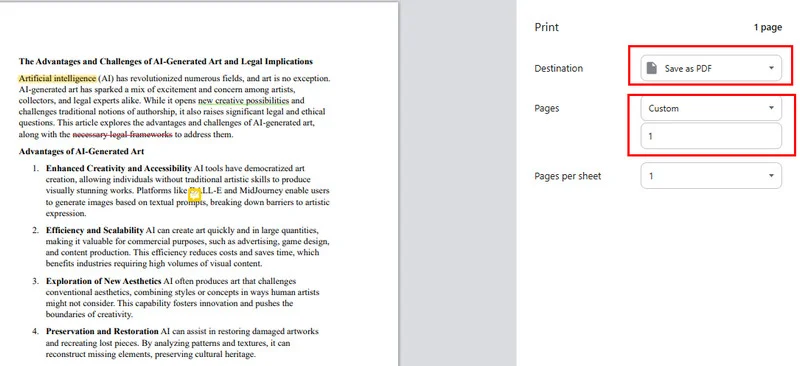
- Étape 5 : Cliquez sur le bouton bleu Enregistrer et choisissez votre dossier de destination.
Option B : Utiliser Adobe Acrobat Reader
Adobe Acrobat est l'un des outils PDF les plus utilisés, offrant des outils professionnels pour presque toutes les tâches. Lorsque vous devez enregistrer une seule page d'un PDF dans cet outil puissant, la méthode la plus efficace consiste à utiliser son moteur d'impression intégré, qui utilise une disposition de dialogue spécialisée pour plus de précision.
- Étape 1 : Ouvrez votre document dans Adobe Acrobat ou Reader.
- Étape 2 : Cliquez sur l'icône Imprimante ou appuyez sur Ctrl + P pour ouvrir la boîte de dialogue d'impression.
- Étape 3 : Dans le menu Imprimante en haut, sélectionnez Adobe PDF ou Microsoft Print to PDF.
- Étape 4 : Sous la section "Pages à imprimer", sélectionnez le bouton radio Pages et entrez le numéro de votre page cible.
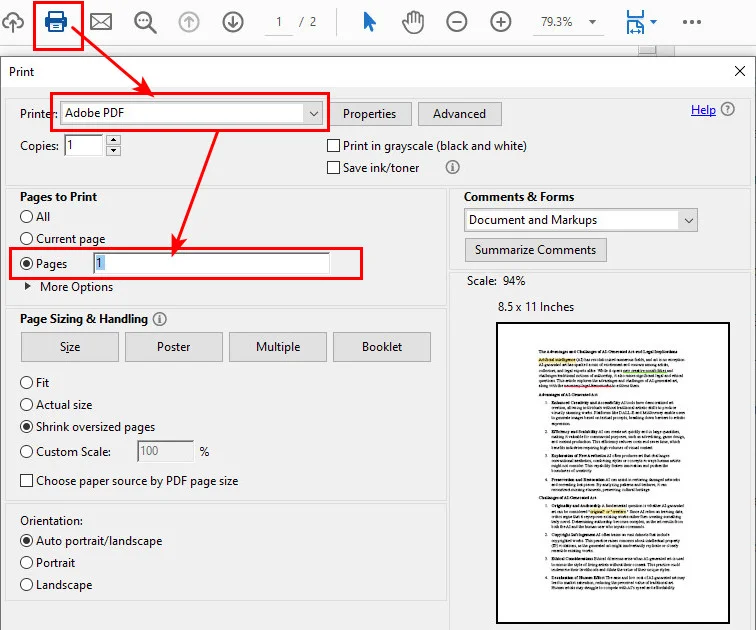
- Étape 5 : Cliquez sur Imprimer et, lorsque la fenêtre Enregistrer sous apparaît, nommez votre fichier et enregistrez-le.
Remarque : Si vous trouvez plus facile de supprimer le contenu indésirable plutôt que d'extraire une seule page, consultez ce guide sur comment supprimer des pages d'un PDF avec Acrobat.
Enregistrer une seule page d'un PDF sur Mac à l'aide d'Aperçu
Si vous êtes un utilisateur Apple, l'enregistrement d'une seule page d'un PDF sur un Mac est un processus intuitif. macOS inclut un outil intégré puissant appelé Aperçu qui gère la manipulation des PDF de manière native sans avoir besoin d'une imprimante virtuelle. Vous pouvez rapidement extraire une page à l'aide de simples actions de glisser-déposer.
- Étape 1 : Double-cliquez sur votre fichier PDF pour l'ouvrir dans Aperçu par défaut.
- Étape 2 : Si vous ne voyez pas les aperçus des pages à gauche, accédez à Affichage > Miniatures.
- Étape 3 : Localisez la page cible dans la barre latérale, puis cliquez simplement et faites glisser cette miniature directement sur votre bureau.
- Étape 4 : Alternativement, sélectionnez la miniature, allez dans Fichier > Exporter au format PDF, et assurez-vous que l'option Pages sélectionnées est cochée avant d'enregistrer.
Enregistrer une seule page d'un document PDF avec des éditeurs de PDF en ligne
Parfois, vous travaillez sur un appareil mobile ou devez enregistrer une seule page d'un document PDF séparément tout en effectuant d'autres modifications comme la fusion ou la compression. Les suites PDF en ligne proposent des outils spécialisés de division ou d'extraction conçus pour ces tâches spécifiques. Ces plateformes sont idéales pour ceux qui préfèrent une interface simple de glisser-déposer aux menus système complexes.
- Étape 1 : Visitez un site de confiance comme Smallpdf, iLovePDF ou les services PDF en ligne d'Adobe. Pour ce guide, nous utiliserons Smallpdf comme exemple.
- Étape 2 : Cliquez sur Choisir les fichiers ou faites glisser votre document dans l'outil Extraire les pages PDF de Smallpdf.
- Étape 3 : Faites défiler le document et cochez la case de la page spécifique que vous souhaitez enregistrer.
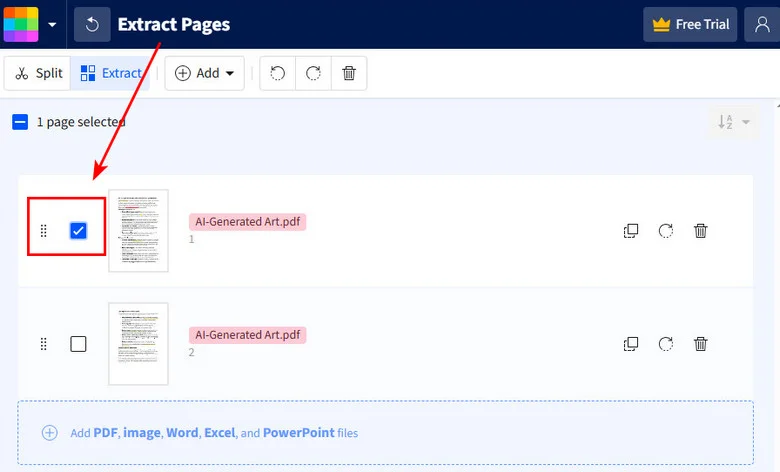
- Étape 4 : Cliquez sur le bouton Terminer pour démarrer le processus d'extraction.
- Étape 5 : Une fois le traitement terminé, cliquez sur le bouton Télécharger pour enregistrer le nouveau fichier directement sur votre appareil.
Enregistrer automatiquement une page dans un PDF avec Python
Pour les développeurs qui traitent un grand nombre de PDF, l'automatisation est plus efficace. L'utilisation d'un script de code vous permet d'automatiser le processus d'enregistrement d'une seule page d'un PDF sur des centaines de fichiers en quelques secondes. À cette fin, nous recommandons Free Spire.PDF for Python, une bibliothèque robuste et indépendante qui permet aux développeurs de créer, lire et manipuler des documents PDF sans Adobe Acrobat.
Il enregistre une seule page d'un PDF en clonant la page spécifique dans un nouveau PdfDocument, puis en l'enregistrant. Dans la plupart des cas, la mise en page et le contenu d'origine sont préservés, contrairement à l'impression, qui aplatit ces éléments.
Voici comment installer Free Spire.PDF et lancer l'enregistrement de la page PDF :
- Étape 1 : Installez la bibliothèque via le terminal en utilisant pip install Spire.Pdf.Free.
- Étape 2 : Chargez votre document source et initialisez un nouvel objet PDF vide pour servir de conteneur de page unique.
- Étape 3 : Utilisez la méthode PdfDocument.InsertPage() pour copier la page cible dans le nouveau fichier.
- Étape 4 : Enregistrez le nouveau PDF à l'aide de la méthode PdfDocument.SaveToFile().
Voici un exemple simple en Python montrant comment enregistrer la première page d'un document PDF :
from spire.pdf import *

# Charger le document PDF source
input_pdf = PdfDocument()
input_pdf.LoadFromFile("/input/sample.pdf")

# Créer un nouveau document PDF pour la sortie
output_pdf = PdfDocument()

# Enregistrer uniquement la première page
output_pdf.InsertPage(input_pdf, 0)

# Enregistrer la page extraite en tant que nouveau document
output_pdf.SaveToFile("/output/extracted_single_page.pdf")
output_pdf.Close()
input_pdf.Close()
L'aperçu du fichier original et du document PDF de sortie :
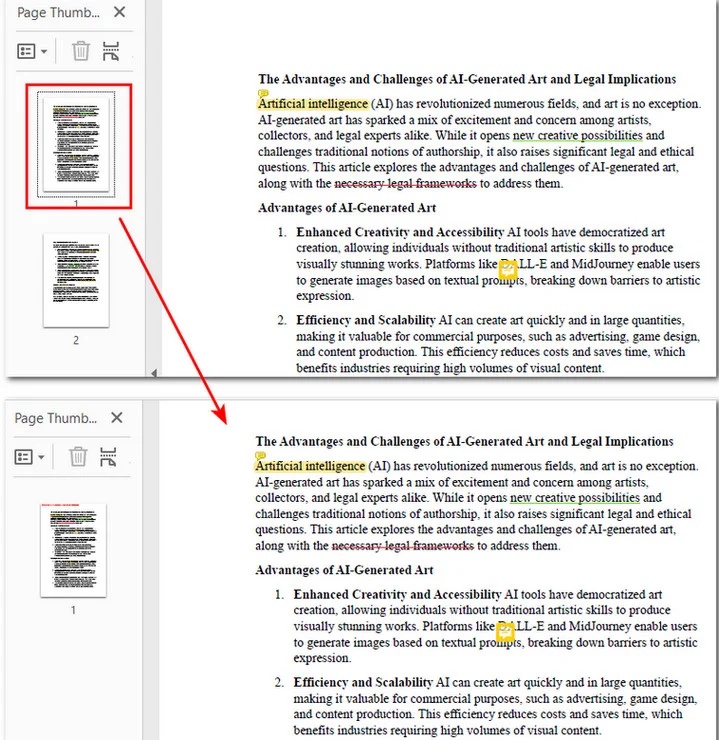
Quelle méthode devriez-vous choisir ?
Dans le tutoriel d'aujourd'hui, nous avons couvert quatre méthodes distinctes. Pour vous aider à identifier rapidement l'option la plus adaptée à vos tâches, le tableau suivant compare ces méthodes en fonction de l'accessibilité, de la plateforme et de l'échelle.
| Scénario | Méthode recommandée | Avantage principal |
|---|---|---|
| Tâches rapides et uniques (Windows/PC) | Imprimer au format PDF (Navigateur ou Adobe) | Universel et gratuit ; aucun nouveau logiciel requis. |
| Travailler sur un appareil macOS | Aperçu Mac | Outil système natif avec glisser-déposer fluide. |
| Édition en déplacement ou mobile | Éditeurs de PDF en ligne | Aucun stockage local utilisé ; accessible depuis n'importe quel appareil. |
| Traitement en masse ou répétitif | Scripting Python | Automatisation à grande vitesse avec une précision de 100 %. |
Conclusion
Enregistrer une seule page d'un PDF est en fait plus facile que ce que beaucoup de gens pensent. Si vous avez besoin d'une solution rapide, la méthode d'impression au format PDF fonctionne sur presque tous les ordinateurs. Les utilisateurs de Mac peuvent utiliser Aperçu, tandis que les outils en ligne sont pratiques lorsque vous ne souhaitez pas installer de logiciel.
Si vous devez extraire des pages PDF en masse, l'utilisation de Python avec Free Spire.PDF est l'approche la plus efficace. Choisissez la méthode qui correspond à votre flux de travail, et vous pourrez enregistrer rapidement une seule page d'un PDF chaque fois que vous en aurez besoin.
À lire également :
4 formas de guardar una sola página de un PDF (Windows, Mac y Python)
Tabla de Contenidos
A veces solo necesitas una página de un archivo PDF grande, ya sea para presentar una sola factura, compartir un gráfico específico de un informe de 100 páginas u organizar archivos digitales. Aprender a guardar una página de un PDF de manera eficiente puede ahorrarte tiempo y esfuerzo. Esta guía explica cuatro métodos prácticos. Cada método funciona para diferentes niveles de habilidad.
- Usar Imprimir a PDF en Windows y Navegadores
- Guardar una Página de un PDF en Mac Usando Vista Previa
- Usar Editores de PDF en Línea
- Guardar Automáticamente una Página de PDF con Python
- Tabla Comparativa de los 4 Métodos
Guardar una Página de un PDF Usando Imprimir a PDF en Windows y Navegadores
La forma más accesible de extraer una página es a través de la función de impresión integrada en casi todos los sistemas operativos y navegadores modernos. Esta técnica esencialmente imprime las páginas de PDF de su elección en un archivo digital nuevo y más pequeño. Dependiendo del software que esté utilizando, los pasos para guardar solo una página de un documento PDF varían ligeramente en su interfaz.
Opción A: Usando Google Chrome o Microsoft Edge
Los navegadores son las herramientas más rápidas para esta tarea porque no requieren instalación. Esta es la solución ideal para cualquiera que se pregunte cómo guardar solo una página de un PDF mientras navega por la web o trabaja con archivos locales.
- Paso 1: Arrastra tu archivo PDF directamente a una pestaña de Chrome o Edge.
- Paso 2: Presiona Ctrl + P para abrir el menú de impresión.
- Paso 3: En el menú desplegable Destino, asegúrate de que Guardar como PDF esté seleccionado.
- Paso 4: En Páginas, selecciona Personalizado y escribe el número de la página que deseas conservar.
- Paso 5: Haz clic en el botón azul Guardar y elige tu carpeta de destino.
Opción B: Usando Adobe Acrobat Reader
Adobe Acrobat es una de las herramientas de PDF más utilizadas y ofrece herramientas profesionales para casi cualquier tarea. Cuando necesitas guardar una sola página de un PDF con esta potente herramienta, el método más eficiente es usar su motor de impresión incorporado, que utiliza un diseño de diálogo especializado para mayor precisión.
- Paso 1: Abre tu documento en Adobe Acrobat o Reader.
- Paso 2: Haz clic en el icono de la impresora o presiona Ctrl + P para abrir el diálogo de impresión.
- Paso 3: En el menú Impresora en la parte superior, selecciona Adobe PDF o Microsoft Print to PDF.
- Paso 4: En la sección "Páginas para imprimir", selecciona el botón de opción Páginas e ingresa el número de página de destino.
- Paso 5: Haz clic en Imprimir y, cuando aparezca la ventana Guardar como, nombra tu archivo y guárdalo.
Nota: Si te resulta más fácil eliminar contenido no deseado en lugar de extraer una sola página, consulta esta guía sobre cómo eliminar páginas de un PDF con Acrobat.
Guardar una Página de un PDF en Mac Usando Vista Previa
Si eres un usuario de Apple, guardar solo una página de un PDF en una Mac es un proceso intuitivo. macOS incluye una potente herramienta integrada llamada Vista Previa que maneja la manipulación de PDF de forma nativa sin necesidad de una impresora virtual. Puedes extraer una página rápidamente usando simples acciones de arrastrar y soltar.
- Paso 1: Haz doble clic en tu archivo PDF para abrirlo en Vista Previa por defecto.
- Paso 2: Si no ves las vistas previas de las páginas a la izquierda, ve a Ver > Miniaturas.
- Paso 3: Localiza la página de destino en la barra lateral, luego simplemente haz clic y arrastra esa miniatura directamente a tu escritorio.
- Paso 4: Alternativamente, selecciona la miniatura, ve a Archivo > Exportar como PDF y asegúrate de que la opción Páginas seleccionadas esté marcada antes de guardar.
Guardar una Página de un Documento PDF con Editores de PDF en Línea
A veces puedes estar trabajando en un dispositivo móvil o necesitar guardar una página de un documento PDF por separado mientras realizas otras ediciones como fusionar o comprimir. Las suites de PDF en línea ofrecen herramientas especializadas para dividir o extraer diseñadas para estas tareas específicas. Estas plataformas son ideales para quienes prefieren una interfaz simple de arrastrar y soltar en lugar de menús de sistema complejos.
- Paso 1: Visita un sitio de confianza como Smallpdf, iLovePDF o los servicios de PDF en línea de Adobe. Para esta guía, usaremos Smallpdf como ejemplo.
- Paso 2: Haz clic en Elegir archivos o arrastra tu documento a la herramienta Extraer páginas PDF de Smallpdf.
- Paso 3: Desplázate por el documento y marca la casilla de la página específica que deseas guardar.
- Paso 4: Haz clic en el botón Finalizar para iniciar el proceso de extracción.
- Paso 5: Una vez completado el procesamiento, haz clic en el botón Descargar para guardar el nuevo archivo directamente en tu dispositivo.
Guardar una Página en un PDF Automáticamente con Python
Para los desarrolladores que procesan grandes cantidades de archivos PDF, la automatización es más eficiente. Usar un script de código te permite automatizar el proceso de guardar solo una página de un PDF en cientos de archivos en segundos. Para este propósito, recomendamos Free Spire.PDF for Python, una biblioteca robusta e independiente que permite a los desarrolladores crear, leer y manipular documentos PDF sin Adobe Acrobat.
Guarda una sola página de un PDF clonando la página específica en un nuevo PdfDocument y luego guardándola. En la mayoría de los casos, el diseño y el contenido originales se conservan, a diferencia de la impresión, que aplana estos elementos.
A continuación, se explica cómo instalar Free Spire.PDF e iniciar el guardado de la página PDF:
- Paso 1: Instala la biblioteca a través del terminal usando pip install Spire.Pdf.Free.
- Paso 2: Carga tu documento de origen e inicializa un nuevo objeto PDF vacío para que actúe como contenedor de una sola página.
- Paso 3: Usa el método PdfDocument.InsertPage() para copiar la página de destino en el nuevo archivo.
- Paso 4: Guarda el nuevo PDF usando el método PdfDocument.SaveToFile().
A continuación se muestra un ejemplo simple de Python que muestra cómo guardar la primera página de un documento PDF:
from spire.pdf import *

# Load the source PDF document
input_pdf = PdfDocument()
input_pdf.LoadFromFile("/input/sample.pdf")

# Create a new PDF document for the output
output_pdf = PdfDocument()

# Save only the first page
output_pdf.InsertPage(input_pdf, 0)

# Save the extracted page as a new document
output_pdf.SaveToFile("/output/extracted_single_page.pdf")
output_pdf.Close()
input_pdf.Close()
La vista previa del archivo original y el documento PDF de salida:
¿Qué Método Deberías Elegir?
En el tutorial de hoy, hemos cubierto cuatro métodos distintos. Para ayudarte a identificar rápidamente la opción más adecuada para tus tareas, la siguiente tabla compara estos métodos según la accesibilidad, la plataforma y la escala.
| Escenario | Método Recomendado | Beneficio Principal |
|---|---|---|
| Tareas rápidas y únicas (Windows/PC) | Imprimir a PDF (Navegador o Adobe) | Universal y gratuito; no se requiere software nuevo. |
| Trabajando en un dispositivo macOS | Vista Previa de Mac | Herramienta nativa del sistema con arrastrar y soltar sin problemas. |
| Edición sobre la marcha o móvil | Editores de PDF en Línea | No se utiliza almacenamiento local; accesible desde cualquier dispositivo. |
| Procesamiento masivo o repetitivo | Scripting con Python | Automatización de alta velocidad con 100% de precisión. |
Conclusión
Guardar una sola página de un PDF es en realidad más fácil de lo que mucha gente espera. Si necesitas una solución rápida, el método de imprimir a PDF funciona en casi cualquier computadora. Los usuarios de Mac pueden usar Vista Previa, mientras que las herramientas en línea son convenientes cuando no quieres instalar software.
Si necesitas extraer páginas de PDF en masa, usar Python con Free Spire.PDF es el enfoque más eficiente. Elige el método que se adapte a tu flujo de trabajo y podrás guardar una página de un PDF rápidamente cuando lo necesites.
También Leer:
4 Möglichkeiten, eine einzelne Seite eines PDFs zu speichern (Windows, Mac & Python)
Inhaltsverzeichnis
Manchmal benötigen Sie nur eine Seite aus einer großen PDF-Datei, sei es für die Einreichung einer einzelnen Rechnung, die Weitergabe eines bestimmten Diagramms aus einem 100-seitigen Bericht oder die Organisation digitaler Archive. Zu lernen, wie man eine einzelne Seite einer PDF-Datei speichert, kann Ihnen Zeit und Mühe sparen. Diese Anleitung erklärt vier praktische Methoden. Jede Methode ist für unterschiedliche Kenntnisstufen geeignet.
- Verwendung von „In PDF drucken“ unter Windows und in Browsern
- Eine einzelne Seite einer PDF-Datei auf einem Mac mit Vorschau speichern
- Verwendung von Online-PDF-Editoren
- Automatisches Speichern einer PDF-Seite mit Python
- Vergleichstabelle der 4 Methoden
Eine einzelne Seite einer PDF-Datei mit „In PDF drucken“ unter Windows und in Browsern speichern
Die einfachste Möglichkeit, eine Seite zu extrahieren, ist die Druckfunktion, die in fast jedem modernen Betriebssystem und Browser integriert ist. Diese Technik druckt im Wesentlichen die von Ihnen ausgewählten PDF-Seiten in eine neue, kleinere digitale Datei. Je nach verwendeter Software variieren die Schritte zum Speichern nur einer Seite eines PDF-Dokuments geringfügig in ihrer Benutzeroberfläche.
Option A: Verwendung von Google Chrome oder Microsoft Edge
Browser sind die schnellsten Werkzeuge für diese Aufgabe, da sie keine Installation erfordern. Dies ist die ideale Lösung für alle, die sich fragen, wie man nur eine Seite einer PDF-Datei speichert, während man im Internet surft oder mit lokalen Dateien arbeitet.
- Schritt 1: Ziehen Sie Ihre PDF-Datei direkt in einen Chrome- oder Edge-Tab.
- Schritt 2: Drücken Sie Strg + P, um das Druckmenü zu öffnen.
- Schritt 3: Stellen Sie im Dropdown-Menü Ziel sicher, dass Als PDF speichern ausgewählt ist.
- Schritt 4: Wählen Sie unter Seiten die Option Benutzerdefiniert und geben Sie die Seitenzahl ein, die Sie behalten möchten.
- Schritt 5: Klicken Sie auf die blaue Schaltfläche Speichern und wählen Sie Ihren Zielordner.
Option B: Verwendung von Adobe Acrobat Reader
Adobe Acrobat ist eines der am weitesten verbreiteten PDF-Tools und bietet professionelle Werkzeuge für nahezu jede Aufgabe. Wenn Sie eine einzelne Seite einer PDF-Datei in diesem leistungsstarken Tool speichern müssen, ist die effizienteste Methode die Verwendung der integrierten Druck-Engine, die ein spezielles Dialoglayout für Präzision verwendet.
- Schritt 1: Öffnen Sie Ihr Dokument in Adobe Acrobat oder Reader.
- Schritt 2: Klicken Sie auf das Druckersymbol oder drücken Sie Strg + P, um den Druckdialog zu öffnen.
- Schritt 3: Wählen Sie im Menü Drucker oben Adobe PDF oder Microsoft Print to PDF aus.
- Schritt 4: Wählen Sie im Abschnitt „Zu druckende Seiten“ das Optionsfeld Seiten und geben Sie Ihre Zielseitenzahl ein.
- Schritt 5: Klicken Sie auf Drucken und benennen Sie Ihre Datei, wenn das Fenster Speichern unter angezeigt wird, und speichern Sie sie.
Hinweis: Wenn Sie es einfacher finden, unerwünschte Inhalte zu entfernen, anstatt eine einzelne Seite zu extrahieren, lesen Sie diese Anleitung zum Löschen von Seiten aus PDF mit Acrobat.
Eine einzelne Seite einer PDF-Datei auf einem Mac mit Vorschau speichern
Wenn Sie ein Apple-Benutzer sind, ist das Speichern nur einer Seite einer PDF-Datei auf einem Mac ein intuitiver Prozess. macOS enthält ein leistungsstarkes integriertes Tool namens Vorschau, das die PDF-Bearbeitung nativ ohne virtuellen Drucker ermöglicht. Sie können schnell eine Seite mit einfachen Drag-and-Drop-Aktionen extrahieren.
- Schritt 1: Doppelklicken Sie auf Ihre PDF-Datei, um sie standardmäßig in Vorschau zu öffnen.
- Schritt 2: Wenn Sie die Seitenvorschauen auf der linken Seite nicht sehen, navigieren Sie zu Ansicht > Miniaturen.
- Schritt 3: Suchen Sie die Zielseite in der Seitenleiste, klicken Sie dann einfach auf die Miniaturansicht und ziehen Sie sie direkt auf Ihren Desktop.
- Schritt 4: Alternativ wählen Sie die Miniaturansicht aus, gehen Sie zu Datei > Als PDF exportieren und stellen Sie sicher, dass die Option Ausgewählte Seiten aktiviert ist, bevor Sie speichern.
Eine einzelne Seite eines PDF-Dokuments mit Online-PDF-Editoren speichern
Manchmal arbeiten Sie möglicherweise auf einem mobilen Gerät oder müssen eine Seite eines PDF-Dokuments separat speichern, während Sie andere Bearbeitungen wie das Zusammenführen oder Komprimieren durchführen. Online-PDF-Suiten bieten spezielle Werkzeuge zum Teilen oder Extrahieren, die für diese spezifischen Aufgaben entwickelt wurden. Diese Plattformen sind ideal für diejenigen, die eine einfache Drag-and-Drop-Oberfläche gegenüber komplexen Systemmenüs bevorzugen.
- Schritt 1: Besuchen Sie eine vertrauenswürdige Website wie Smallpdf, iLovePDF oder die Online-PDF-Dienste von Adobe. Für diese Anleitung verwenden wir Smallpdf als Beispiel.
- Schritt 2: Klicken Sie auf Dateien auswählen oder ziehen Sie Ihr Dokument in das Werkzeug PDF-Seiten extrahieren von Smallpdf.
- Schritt 3: Scrollen Sie durch das Dokument und aktivieren Sie das Kontrollkästchen auf der spezifischen Seite, die Sie speichern möchten.
- Schritt 4: Klicken Sie auf die Schaltfläche Fertig stellen, um den Extraktionsprozess zu starten.
- Schritt 5: Nachdem die Verarbeitung abgeschlossen ist, klicken Sie auf die Schaltfläche Herunterladen, um die neue Datei direkt auf Ihrem Gerät zu speichern.
Eine Seite in einer PDF-Datei automatisch mit Python speichern
Für Entwickler, die große Mengen von PDFs verarbeiten, ist die Automatisierung effizienter. Mit einem Code-Skript können Sie den Prozess des Speicherns nur einer Seite einer PDF-Datei über Hunderte von Dateien in Sekunden automatisieren. Zu diesem Zweck empfehlen wir Free Spire.PDF for Python, eine robuste und unabhängige Bibliothek, die es Entwicklern ermöglicht, PDF-Dokumente ohne Adobe Acrobat zu erstellen, zu lesen und zu bearbeiten.
Es speichert eine einzelne Seite einer PDF-Datei, indem es die spezifische Seite in ein neues PdfDocument klont und es dann speichert. In den meisten Fällen bleiben das ursprüngliche Layout und der Inhalt erhalten, im Gegensatz zum Drucken, bei dem diese Elemente abgeflacht werden.
So installieren Sie Free Spire.PDF und starten das Speichern der PDF-Seite:
- Schritt 1: Installieren Sie die Bibliothek über das Terminal mit pip install Spire.Pdf.Free.
- Schritt 2: Laden Sie Ihr Quelldokument und initialisieren Sie ein neues, leeres PDF-Objekt, das als einseitiger Container dient.
- Schritt 3: Verwenden Sie die Methode PdfDocument.InsertPage(), um die Zielseite in die neue Datei zu kopieren.
- Schritt 4: Speichern Sie die neue PDF-Datei mit der Methode PdfDocument.SaveToFile().
Unten finden Sie ein einfaches Python-Beispiel, das zeigt, wie die erste Seite eines PDF-Dokuments gespeichert wird:
from spire.pdf import *

# Laden Sie das Quell-PDF-Dokument
input_pdf = PdfDocument()
input_pdf.LoadFromFile("/input/sample.pdf")

# Erstellen Sie ein neues PDF-Dokument für die Ausgabe
output_pdf = PdfDocument()

# Speichern Sie nur die erste Seite
output_pdf.InsertPage(input_pdf, 0)

# Speichern Sie die extrahierte Seite als neues Dokument
output_pdf.SaveToFile("/output/extracted_single_page.pdf")
output_pdf.Close()
input_pdf.Close()
Die Vorschau der Originaldatei und des ausgegebenen PDF-Dokuments:
Welche Methode sollten Sie wählen?
Im heutigen Tutorial haben wir vier verschiedene Methoden behandelt. Um Ihnen zu helfen, schnell die am besten geeignete Option für Ihre Aufgaben zu finden, vergleicht die folgende Tabelle diese Methoden nach Zugänglichkeit, Plattform und Umfang.
| Szenario | Empfohlene Methode | Hauptvorteil |
|---|---|---|
| Schnelle einmalige Aufgaben (Windows/PC) | In PDF drucken (Browser oder Adobe) | Universell und kostenlos; keine neue Software erforderlich. |
| Arbeiten auf einem macOS-Gerät | Mac Vorschau | Natives Systemtool mit nahtlosem Drag-and-Drop. |
| Unterwegs oder mobile Bearbeitung | Online-PDF-Editoren | Kein lokaler Speicherplatz wird verwendet; von jedem Gerät aus zugänglich. |
| Massen- oder wiederholte Verarbeitung | Python-Skripting | Hochgeschwindigkeitsautomatisierung mit 100 % Präzision. |
Fazit
Das Speichern einer einzelnen Seite aus einer PDF-Datei ist tatsächlich einfacher, als viele Leute erwarten. Wenn Sie eine schnelle Lösung benötigen, funktioniert die Methode „In PDF drucken“ auf fast jedem Computer. Mac-Benutzer können Vorschau verwenden, während Online-Tools praktisch sind, wenn Sie keine Software installieren möchten.
Wenn Sie PDF-Seiten in großen Mengen extrahieren müssen, ist die Verwendung von Python mit Free Spire.PDF der effizienteste Ansatz. Wählen Sie die Methode, die zu Ihrem Arbeitsablauf passt, und Sie können bei Bedarf schnell eine Seite einer PDF-Datei speichern.
Lesen Sie auch:
4 способа сохранить одну страницу PDF (Windows, Mac и Python)
Содержание
Иногда вам нужна только одна страница из большого PDF-файла, будь то отправка одного счета, предоставление определенной диаграммы из 100-страничного отчета или организация цифровых архивов. Изучение как эффективно сохранить одну страницу PDF, может сэкономить ваше время и усилия. В этом руководстве объясняются четыре практических метода. Каждый метод подходит для разных уровней квалификации.
- Использование «Печати в PDF» в Windows и браузерах
- Сохранение одной страницы PDF на Mac с помощью Preview
- Использование онлайн-редакторов PDF
- Автоматическое сохранение страницы PDF с помощью Python
- Сравнительная таблица 4 методов
Сохранение одной страницы PDF с помощью «Печати в PDF» в Windows и браузерах
Самый доступный способ извлечь страницу — это функция печати, встроенная почти в каждую современную операционную систему и браузер. Этот метод, по сути, печатает выбранные вами страницы PDF в новый, меньший по размеру цифровой файл. В зависимости от используемого программного обеспечения шаги по сохранению только одной страницы PDF-документа могут незначительно отличаться в интерфейсе.
Вариант А: Использование Google Chrome или Microsoft Edge
Браузеры — самые быстрые инструменты для этой задачи, поскольку они не требуют установки. Это идеальное решение для тех, кто задается вопросом, как сохранить только одну страницу PDF во время просмотра веб-страниц или работы с локальными файлами.
- Шаг 1: Перетащите ваш PDF-файл прямо во вкладку Chrome или Edge.
- Шаг 2: Нажмите Ctrl + P, чтобы открыть меню печати.
- Шаг 3: В выпадающем списке «Назначение» убедитесь, что выбрано «Сохранить как PDF».
- Шаг 4: В разделе «Страницы» выберите «Пользовательские» и введите номер единственной страницы, которую вы хотите сохранить.
- Шаг 5: Нажмите синюю кнопку «Сохранить» и выберите папку назначения.
Вариант Б: Использование Adobe Acrobat Reader
Adobe Acrobat — один из самых широко используемых инструментов для работы с PDF, предлагающий профессиональные инструменты практически для любой задачи. Когда вам нужно сохранить одну страницу PDF с помощью этого мощного инструмента, наиболее эффективным методом является использование его встроенного механизма печати, который использует специализированный диалоговый макет для точности.
- Шаг 1: Откройте ваш документ в Adobe Acrobat или Reader.
- Шаг 2: Нажмите на значок принтера или нажмите Ctrl + P, чтобы открыть диалоговое окно печати.
- Шаг 3: В меню «Принтер» вверху выберите «Adobe PDF» или «Microsoft Print to PDF».
- Шаг 4: В разделе «Страницы для печати» выберите переключатель «Страницы» и введите номер нужной страницы.
- Шаг 5: Нажмите «Печать» и, когда появится окно «Сохранить как», назовите ваш файл и сохраните его.
Примечание: Если вам проще удалять ненужный контент, а не извлекать одну страницу, ознакомьтесь с этим руководством о том, как удалять страницы из PDF с помощью Acrobat.
Сохранение одной страницы PDF на Mac с помощью Preview
Если вы пользователь Apple, сохранение только одной страницы PDF на Mac — это интуитивно понятный процесс. macOS включает в себя мощный встроенный инструмент под названием Preview, который обрабатывает манипуляции с PDF нативно, без необходимости в виртуальном принтере. Вы можете быстро извлечь страницу с помощью простых действий перетаскивания.
- Шаг 1: Дважды щелкните ваш PDF-файл, чтобы открыть его в Preview по умолчанию.
- Шаг 2: Если вы не видите предварительный просмотр страниц слева, перейдите в «Вид» > «Миниатюры».
- Шаг 3: Найдите нужную страницу на боковой панели, затем просто щелкните и перетащите эту миниатюру прямо на рабочий стол.
- Шаг 4: В качестве альтернативы выберите миниатюру, перейдите в «Файл» > «Экспортировать как PDF» и убедитесь, что опция «Выбранные страницы» отмечена перед сохранением.
Сохранение одной страницы PDF-документа с помощью онлайн-редакторов PDF
Иногда вы можете работать на мобильном устройстве или вам нужно сохранить одну страницу PDF-документа отдельно во время выполнения других правок, таких как объединение или сжатие. Онлайн-пакеты для работы с PDF предлагают специализированные инструменты для разделения или извлечения, разработанные для этих конкретных задач. Эти платформы идеально подходят для тех, кто предпочитает простой интерфейс перетаскивания сложным системным меню.
- Шаг 1: Посетите надежный сайт, такой как Smallpdf, iLovePDF или онлайн-сервисы Adobe для PDF. В этом руководстве мы будем использовать Smallpdf в качестве примера.
- Шаг 2: Нажмите «Выбрать файлы» или перетащите ваш документ в инструмент «Извлечь страницы PDF» от Smallpdf.
- Шаг 3: Пролистайте документ и отметьте флажком ту страницу, которую вы хотите сохранить.
- Шаг 4: Нажмите кнопку «Завершить», чтобы начать процесс извлечения.
- Шаг 5: После завершения обработки нажмите кнопку «Скачать», чтобы сохранить новый файл прямо на ваше устройство.
Автоматическое сохранение одной страницы в PDF с помощью Python
Для разработчиков, которые обрабатывают большое количество PDF-файлов, автоматизация более эффективна. Использование скрипта позволяет автоматизировать процесс сохранения только одной страницы PDF в сотнях файлов за считанные секунды. Для этой цели мы рекомендуем Free Spire.PDF for Python, надежную и независимую библиотеку, которая позволяет разработчикам создавать, читать и манипулировать PDF-документами без Adobe Acrobat.
Он сохраняет одну страницу PDF, клонируя конкретную страницу в новый PdfDocument, а затем сохраняя его. В большинстве случаев исходный макет и содержимое сохраняются, в отличие от печати, которая «сплющивает» эти элементы.
Вот как установить Free Spire.PDF и начать сохранение страницы PDF:
- Шаг 1: Установите библиотеку через терминал, используя pip install Spire.Pdf.Free.
- Шаг 2: Загрузите исходный документ и инициализируйте новый, пустой объект PDF, который будет служить контейнером для одной страницы.
- Шаг 3: Используйте метод PdfDocument.InsertPage(), чтобы скопировать целевую страницу в новый файл.
- Шаг 4: Сохраните новый PDF, используя метод PdfDocument.SaveToFile().
Ниже приведен простой пример на Python, показывающий, как сохранить первую страницу PDF-документа:
from spire.pdf import *

# Load the source PDF document
input_pdf = PdfDocument()
input_pdf.LoadFromFile("/input/sample.pdf")

# Create a new PDF document for the output
output_pdf = PdfDocument()

# Save only the first page
output_pdf.InsertPage(input_pdf, 0)

# Save the extracted page as a new document
output_pdf.SaveToFile("/output/extracted_single_page.pdf")
output_pdf.Close()
input_pdf.Close()
Предварительный просмотр исходного файла и выходного PDF-документа:
Какой метод выбрать?
В сегодняшнем руководстве мы рассмотрели четыре различных метода. Чтобы помочь вам быстро определить наиболее подходящий вариант для ваших задач, в следующей таблице сравниваются эти методы по доступности, платформе и масштабу.
| Сценарий | Рекомендуемый метод | Основное преимущество |
|---|---|---|
| Быстрые разовые задачи (Windows/ПК) | Печать в PDF (браузер или Adobe) | Универсальный и бесплатный; не требуется нового ПО. |
| Работа на устройстве с macOS | Mac Preview | Встроенный системный инструмент с удобным перетаскиванием. |
| Редактирование на ходу или с мобильного устройства | Онлайн-редакторы PDF | Не используется локальное хранилище; доступно с любого устройства. |
| Массовая или повторяющаяся обработка | Скрипты на Python | Высокоскоростная автоматизация со 100% точностью. |
Заключение
Сохранение одной страницы из PDF на самом деле проще, чем многие думают. Если вам нужно быстрое решение, метод «печать в PDF» работает практически на любом компьютере. Пользователи Mac могут использовать Preview, а онлайн-инструменты удобны, когда вы не хотите устанавливать программное обеспечение.
Если вам нужно извлекать страницы PDF в больших количествах, использование Python с Free Spire.PDF является наиболее эффективным подходом. Выберите метод, который соответствует вашему рабочему процессу, и вы сможете быстро сохранить одну страницу PDF, когда вам это понадобится.
Также читайте:
Como destacar texto no Word (5 maneiras rápidas)
Índice
- Método 1 — Realçar Texto no Word com a Ferramenta de Cor de Realce de Texto
- Método 2 — Realçar Todas as Instâncias de uma Palavra Rapidamente via Localizar e Substituir
- Método 3 — Realçar Palavras-chave Temporariamente Usando o Painel de Navegação
- Método 4 — Realçar Texto no Word Online
- Método 5 — Automatizar o Realce de Texto em Documentos do Word com C#

Ao trabalhar com documentos longos do Word, informações importantes podem se perder facilmente em textos densos. A verificação manual das páginas consome tempo e está sujeita a erros, e a perda de pontos-chave pode impactar relatórios, colaboração ou tomada de decisões. Realçar texto no Word é uma maneira simples, mas eficaz, de enfatizar conteúdo importante, melhorar a legibilidade e acelerar a revisão de documentos.
Neste guia, abordaremos 5 métodos práticos para realçar texto no Word — desde ferramentas manuais simples até técnicas automatizadas. Ao final, você saberá como realçar palavras únicas, frases ou todas as instâncias de uma palavra-chave em seus documentos de forma eficiente.
Visão Geral dos Métodos
- Método 1 — Realçar Texto no Word com a Ferramenta de Cor de Realce de Texto
- Método 2 — Realçar Todas as Instâncias de uma Palavra Rapidamente via Localizar e Substituir
- Método 3 — Realçar Palavras-chave Temporariamente Usando o Painel de Navegação
- Método 4 — Realçar Texto no Word Online
- Método 5 — Automatizar o Realce de Texto em Documentos do Word com C#
Entendendo o Realce de Texto no Word
O realce de texto no Microsoft Word é um recurso simples, mas poderoso, usado para chamar a atenção para partes específicas do seu documento. Funciona como uma caneta marca-texto virtual, permitindo que você marque palavras, frases ou seções inteiras com cor para que se destaquem do texto ao redor.
Por Que Realçar Texto no Word
O realce não é apenas para decoração. Ele serve a vários propósitos práticos:
- Enfatizar conteúdo importante – Pontos-chave, prazos ou instruções são fáceis de identificar.
- Melhorar a legibilidade – Ajuda os leitores a digitalizar documentos longos rapidamente.
- Organizar informações – Cores diferentes podem categorizar tópicos, prioridades ou estágios em um projeto.
- Facilitar a colaboração – Revisores ou membros da equipe podem ver rapidamente seções importantes ou editadas.
Ao aplicar o realce de forma ponderada, você garante que os leitores possam se concentrar nas informações mais importantes sem se sentirem sobrecarregados. Abaixo, exploraremos 5 métodos para esse fim.
Método 1 — Realçar Texto no Word com a Ferramenta de Cor de Realce de Texto
Uma das maneiras mais simples de realçar texto em documentos do Word é usando a ferramenta interna Cor de Realce do Texto. Este método funciona como um marcador digital e é ideal para enfatizar palavras-chave únicas ou poucas em documentos curtos.
Instruções Passo a Passo:
-
Selecione o texto ou a frase que deseja realçar.
-
Navegue até a guia Página Inicial na faixa de opções.
-
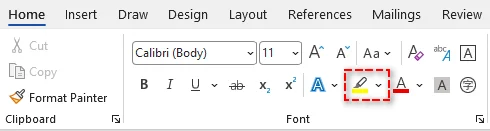
No grupo Fonte, clique na seta ao lado da ferramenta Cor de Realce do Texto (parece uma caneta marca-texto).
-
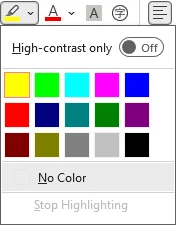
Escolha uma cor da paleta (por exemplo, Amarelo, Verde, Azul) para aplicar o realce instantaneamente.
Dicas:
- Para realçar várias áreas, selecione primeiro uma cor de realce para transformar o cursor em uma caneta marca-texto. Em seguida, clique e arraste sobre várias seções não contíguas sem selecionar novamente a ferramenta.
- Se você deseja um fluxo de trabalho mais rápido, basta selecionar o texto e pressionar Ctrl + Alt + H juntos. Isso aplica a última cor de realce usada (ou a cor padrão, se você ainda não usou nenhuma) imediatamente.
✅Prós:
- Fácil e intuitivo para todos os usuários.
- Funciona para quase todas as versões do Word (incluindo Word para Microsoft Office 365, Word 2024, 2019, 2016, 2013 e 2010).
⚠️Limitações:
- Requer seleção manual para cada instância.
- Demorado para documentos longos com palavras-chave repetidas.
Você também pode gostar: Como Localizar e Substituir Texto no Word
Método 2 — Realçar Todas as Instâncias de uma Palavra Rapidamente via Localizar e Substituir
Quando você precisa realçar todas as ocorrências de um texto específico em um documento longo do Word, a ferramenta Localizar e Substituir é mais eficiente. Ela verifica automaticamente o documento em busca de todas as instâncias e aplica o realce a elas.
Passos:
-
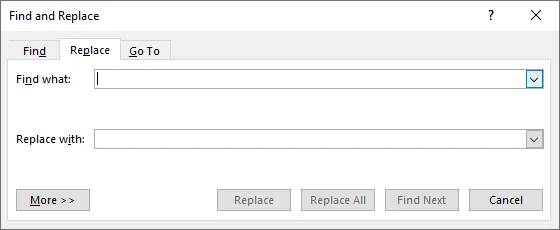
Vá para a guia Página Inicial, depois clique em Substituir no grupo Edição para abrir a caixa de diálogo Localizar e Substituir. Você também pode pressionar Ctrl + H.
-
Na caixa de diálogo, digite a palavra ou frase que deseja realçar (por exemplo, Orçamento) na caixa Localizar.
-
Clique em Mais >> para expandir as opções avançadas.
-
Certifique-se de que o cursor esteja na caixa Substituir por, depois clique em Formatar (canto inferior esquerdo) > Realçar.
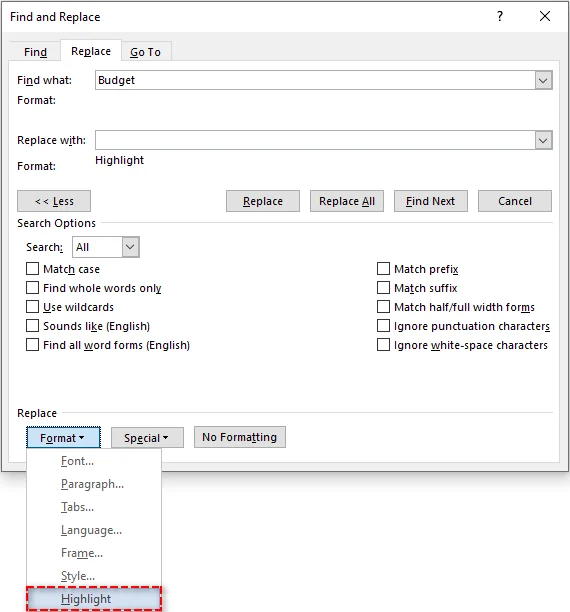
Nota: Você deve ver "Realçar" aparecer abaixo do campo "Substituir por".
-
Clique em Substituir Tudo. O Word confirmará o número de substituições feitas, e cada instância da palavra será agora realçada.
Dicas para um Realce Preciso:
- Para evitar correspondências parciais (por exemplo, realçar “gato” em “categoria”), marque a opção Localizar apenas palavras inteiras no menu "Mais".
- Caso queira distinguir entre letras maiúsculas e minúsculas, selecione Diferenciar maiúsculas de minúsculas no menu "Mais".
✅Prós:
- Maneira rápida de realçar todas as instâncias de uma palavra.
- Garante 100% de consistência, sem ocorrências perdidas.
⚠️Limitações:
- Funciona apenas para uma palavra-chave de cada vez.
- Não é possível selecionar uma cor de realce a menos que você a defina previamente com a ferramenta Cor de Realce do Texto.
Método 3 — Realçar Palavras-chave Temporariamente Usando o Painel de Navegação
Se o seu objetivo é verificar um documento do Word em busca de palavras-chave durante uma reunião de revisão sem alterar permanentemente a formatação do arquivo, o Painel de Navegação é ideal. Ele fornece dicas visuais temporárias que desaparecem quando limpas.
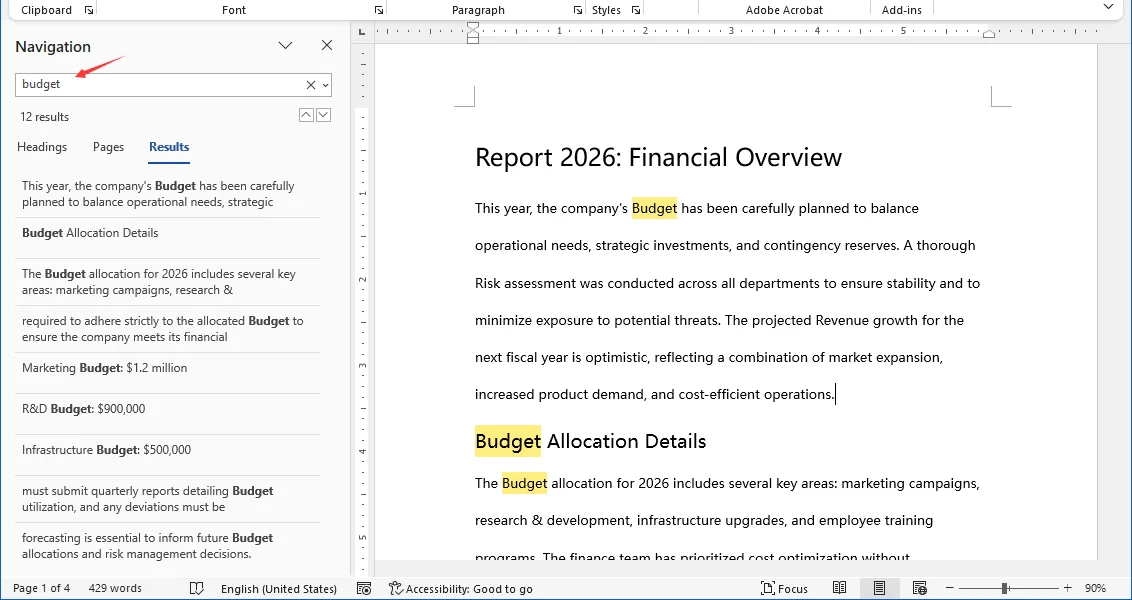
Passos:
- Pressione Ctrl + F para abrir o Painel de Navegação à esquerda.
- Digite seu termo de pesquisa na caixa de pesquisa.
- O Word realça temporariamente todas as correspondências no corpo do documento em amarelo.
- Use a lista no painel para pular entre as ocorrências.
✅Prós:
- Ótimo para verificação rápida e navegação.
- Risco zero de bagunçar o formato final do documento.
⚠️Limitações:
- Esses realces não são impressos nem salvos. São apenas para a tela.
- Desaparece assim que você limpa a caixa de pesquisa.
Método 4 — Realçar Texto no Word Online
Quando você não tem o Microsoft Word instalado ou precisa colaborar em tempo real, o Word para a web (Word 365 Online) é uma opção ideal. Ele permite que você realce o texto rapidamente, mantendo as alterações sincronizadas com sua equipe.
Como Realçar Texto no Word Online:
- Abra seu documento no Word para a web (Word 365 Online).
- Selecione o texto que deseja realçar.
- Vá para a guia Página Inicial no menu superior.
- Clique no ícone Cor de Realce do Texto.
- Escolha uma cor para aplicar o realce.
Dica:
- Se você não vir a opção de realce, verifique se o documento não está no modo somente exibição.
✅Prós:
- Os realces são sincronizados rapidamente para os colaboradores.
- Funciona em qualquer dispositivo (laptop, celular e mais).
- Nenhuma instalação de software necessária.
⚠️Limitações:
- Localizar e Substituir com regras de formatação/realce não é suportado (ou pode ser limitado) no Word para a web.
- Dependendo das permissões do seu documento, alguns recursos de edição/realce podem ser limitados.
Método 5 — Automatizar o Realce de Texto em Documentos do Word com C#
Para desenvolvedores, analistas de dados e empresas que precisam processar várias palavras-chave ou centenas de documentos, o realce manual é ineficiente e insustentável. Usando C# com a biblioteca Spire.Doc for .NET, você pode:
- Processar em lote centenas de instâncias ou documentos em segundos.
- Aplicar cores diferentes a termos específicos automaticamente.
- Garantir 100% de consistência sem perder uma única correspondência.
Sobre o Spire.Doc for .NET
O Spire.Doc é uma biblioteca de manipulação de Word autônoma que permite aos desenvolvedores criar e atualizar documentos do Word, incluindo a aplicação de realce de texto sem depender do Microsoft Office. Isso o torna a escolha ideal para automação do lado do servidor e ambientes em nuvem.
Requisitos de Instalação
Antes de prosseguir, instale a biblioteca via NuGet ou baixe-a através do site oficial:
PM> Install-Package Spire.Doc
Exemplo de Código C#: Realçar Várias Palavras-chave com Cores Distintas
O exemplo abaixo demonstra como carregar um documento do Word, pesquisar várias palavras-chave e realçá-las com cores distintas (por exemplo, "Orçamento" em Amarelo, "Risco" em Vermelho) de forma eficiente.
using Spire.Doc;
using Spire.Doc.Documents;
using System;
using System.Collections.Generic;
using System.Drawing;

namespace HighlightMultipleKeywords
{
    internal class Program
    {
        static void Main(string[] args)
        {
            // Load the Word document
            Document doc = new Document();
            doc.LoadFromFile("Report_2026.docx");

            // Define keywords and different highlight colors
            // You can customize this list to match your specific needs
            Dictionary<string, Color> keywords = new Dictionary<string, Color>()
            {
                { "Budget", Color.Yellow },
                { "Risk", Color.Red },
                { "Revenue", Color.Green }
            };

            // Highlight all occurrences of each keyword
            foreach (var kvp in keywords)
            {
                TextSelection[] selections = doc.FindAllString(kvp.Key, false, true); // Parameters: searchText, matchCase, wholeWord
                foreach (TextSelection selection in selections)
                {
                    selection.GetAsOneRange().CharacterFormat.HighlightColor = kvp.Value;
                }
            }

            // Save the highlighted document
            doc.SaveToFile("Report_2026_Highlighted.docx", FileFormat.Docx);
            doc.Close();
            Console.WriteLine("Keyword highlighting completed!");
        }
    }
}
Dicas para Desenvolvedores:
- Você pode estender este fluxo de trabalho de arquivo único para processamento em lote, envolvendo a mesma lógica de realce em um loop sobre todos os arquivos .docx em uma pasta de entrada (por exemplo, foreach (var file in Directory.GetFiles(...))).
- Se suas palavras-chave seguem padrões (por exemplo, códigos parciais ou frases variáveis), considere o uso de expressões regulares para aumentar a precisão da correspondência — veja Localizar e Substituir Texto por Expressões Regulares no Word em C# para mais detalhes.
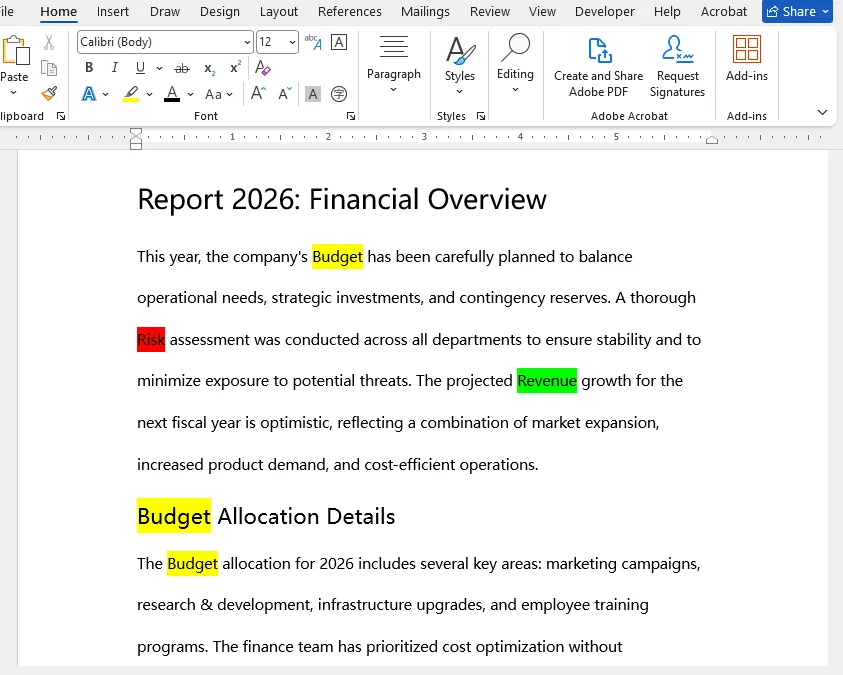
✅Prós:
- Realce facilmente termos diferentes com cores diferentes em uma única execução, sem esforço manual.
- Elimina o erro humano e garante uma formatação uniforme.
- Funciona em qualquer máquina ou servidor sem o Microsoft Word instalado.
⚠️Limitações:
- Requer conhecimento básico de programação em C#.
- Configurar o projeto e a biblioteca pode ser um desafio para iniciantes.
Conclusão e Recomendações
Agora você tem 5 maneiras práticas de realçar texto no Word, desde ferramentas manuais rápidas até fluxos de trabalho automatizados avançados. A escolha do método certo depende do seu cenário específico:
- Para documentos únicos e poucos termos: Use a ferramenta Cor de Realce do Texto ou o recurso Localizar e Substituir.
- Para revisão temporária: Use o Painel de Navegação para verificar sem alterar a formatação.
- Para colaboração remota: Use o Word para a web (Word 365 Online) para sincronização em tempo real sem instalação no desktop.
- Para processamento em lote e automação: Use a automação em C# (com Spire.Doc) para lidar com centenas de arquivos e várias cores instantaneamente.
Consideração Final:
Comece com as ferramentas integradas para tarefas diárias. Mas se você se encontrar repetindo os mesmos passos de realce em dezenas de arquivos, é hora de avançar com a automação para economizar horas de trabalho manual.
Solução de Problemas Comuns de Realce
Mesmo com ferramentas simples, os usuários frequentemente encontram problemas específicos ao tentar realçar texto no Word. Aqui estão as soluções para os problemas mais comuns.
| Problema | Causa Provável | Solução |
|---|---|---|
| Os realces não são impressos | Você usou o Painel de Navegação (realces temporários). | Use a ferramenta Cor de Realce do Texto ou o método Localizar e Substituir para aplicar realces permanentes que são impressos. |
| Palavras parciais realçadas | A opção "Localizar apenas palavras inteiras" não foi selecionada. | Em Localizar e Substituir, clique em Mais >> e marque Localizar apenas palavras inteiras para evitar realçar substrings. |
| Cor de realce não aplicada | A seleção de texto estava incorreta ou o cursor não estava no modo de marca-texto. | Selecione o texto corretamente ou, se estiver realçando várias áreas, escolha primeiro a cor para que o cursor se torne um marca-texto e, em seguida, clique e arraste sobre o texto. |
FAQs: Como Realçar Texto no Word
P1: Qual é o atalho de teclado para realçar texto no Word?
R1: Após selecionar o texto, pressione Ctrl + Alt + H para aplicar instantaneamente a última cor de realce usada ou a cor padrão, se você ainda não tiver usado nenhuma.
P2: Posso realçar texto no Word Online?
R2: Sim, você pode realçar texto no Word online assim como na versão para desktop, usando a ferramenta Cor de Realce do Texto. No entanto, recursos avançados como Localizar e Substituir com formatação não são suportados na versão web.
P3: Por que não consigo remover o realce de algum texto?
R3: A cor pode ser Sombreamento de Parágrafo, não realce de texto. Para corrigir: Vá para Página Inicial > Parágrafo > Sombreamento e selecione Sem Cor.
P4: Como realço texto em um documento do Word protegido/somente leitura?
R4: Você não pode editar ou realçar texto diretamente em um arquivo estritamente somente leitura ou protegido. Você tem duas opções:
- Habilitar Edição: Se você vir uma barra amarela na parte superior dizendo "Modo de Exibição Protegido", clique em Habilitar Edição.
- Salvar uma Cópia: Se o arquivo for restrito, vá para Arquivo > Salvar Como e salve uma nova cópia em sua unidade local. Você poderá então realçar o texto nesta nova versão editável.
P5: Posso realçar texto em vários documentos do Word de uma vez?
R5: Você pode usar C# com bibliotecas como o Spire.Doc para realçar texto em vários arquivos simultaneamente.
Veja Também
Word에서 텍스트를 강조 표시하는 방법 (5가지 빠른 방법)
긴 Word 문서로 작업할 때 중요한 정보가 빽빽한 텍스트 속에서 쉽게 사라질 수 있습니다. 페이지를 수동으로 스캔하는 것은 시간이 많이 걸리고 오류가 발생하기 쉬우며, 핵심 포인트를 놓치면 보고서, 공동 작업 또는 의사 결정에 영향을 미칠 수 있습니다. Word에서 텍스트를 강조하는 것은 중요한 콘텐츠를 강조하고, 가독성을 높이며, 문서 검토 속도를 높이는 간단하면서도 효과적인 방법입니다.
이 가이드에서는 간단한 수동 도구부터 자동화된 기술에 이르기까지 Word에서 텍스트를 강조하는 5가지 실용적인 방법을 다룹니다. 이 가이드를 마치면 문서 전체에서 단일 단어, 구 또는 키워드의 모든 인스턴스를 효율적으로 강조하는 방법을 알게 될 것입니다.
방법 개요
- 방법 1 — 텍스트 강조 색상 도구를 사용하여 Word에서 텍스트 강조
- 방법 2 — 찾기 및 바꾸기를 통해 단어의 모든 인스턴스를 빠르게 강조
- 방법 3 — 탐색 창을 사용하여 일시적으로 키워드 강조
- 방법 4 — Word Online에서 텍스트 강조
- 방법 5 — C#을 사용하여 Word 문서에서 텍스트 강조 자동화
Word에서 텍스트 강조 이해하기
Microsoft Word의 텍스트 강조는 문서의 특정 부분에 주의를 환기시키는 데 사용되는 간단하면서도 강력한 기능입니다. 가상 형광펜처럼 작동하여 단어, 구 또는 전체 섹션을 색상으로 표시하여 주변 텍스트와 구별되게 할 수 있습니다.
Word에서 텍스트를 강조하는 이유
강조는 단지 장식을 위한 것이 아닙니다. 다음과 같은 몇 가지 실용적인 목적을 수행합니다.
- 중요한 콘텐츠 강조 – 핵심 포인트, 마감일 또는 지침을 쉽게 찾을 수 있습니다.
- 가독성 향상 – 독자가 긴 문서를 빠르게 스캔하는 데 도움이 됩니다.
- 정보 구성 – 다른 색상을 사용하여 주제, 우선순위 또는 프로젝트 단계를 분류할 수 있습니다.
- 공동 작업 촉진 – 검토자나 팀원이 중요하거나 편집된 섹션을 빠르게 볼 수 있습니다.
강조를 신중하게 적용하면 독자가 압도당하지 않고 가장 중요한 정보에 집중할 수 있습니다. 아래에서는 이 목적을 위한 5가지 방법을 살펴보겠습니다.
방법 1 — 텍스트 강조 색상 도구를 사용하여 Word에서 텍스트 강조
Word 문서에서 텍스트를 강조하는 가장 간단한 방법 중 하나는 내장된 텍스트 강조 색상 도구를 사용하는 것입니다. 이 방법은 디지털 마커처럼 작동하며 짧은 문서에서 단일 또는 몇 개의 키워드를 강조하는 데 이상적입니다.
단계별 지침:
-
강조하려는 텍스트나 구를 선택합니다.
-
리본 메뉴의 홈 탭으로 이동합니다.
-
글꼴 그룹에서 텍스트 강조 색상 도구(마커 펜 모양) 옆의 화살표를 클릭합니다.
-
팔레트에서 색상(예: 노랑, 녹색, 파랑)을 선택하여 즉시 강조를 적용합니다.
팁:
- 여러 영역을 강조하려면 먼저 강조 색상을 선택하여 커서를 형광펜으로 바꿉니다. 그런 다음 도구를 다시 선택하지 않고도 여러 비연속적인 섹션 위로 클릭하고 드래그합니다.
- 더 빠른 작업 흐름을 원하면 텍스트를 선택하고 Ctrl + Alt + H를 함께 누릅니다. 이렇게 하면 마지막으로 사용한 강조 색상(또는 아직 사용하지 않은 경우 기본 색상)이 즉시 적용됩니다.
✅장점:
- 모든 사용자에게 쉽고 직관적입니다.
- 거의 모든 Word 버전(Microsoft Office 365용 Word, Word 2024, 2019, 2016, 2013 및 2010 포함)에서 작동합니다.
⚠️제한 사항:
- 각 인스턴스에 대해 수동 선택이 필요합니다.
- 반복되는 키워드가 있는 긴 문서의 경우 시간이 많이 걸립니다.
관심 있을 만한 글: Word에서 텍스트 찾기 및 바꾸기 방법
방법 2 — 찾기 및 바꾸기를 통해 단어의 모든 인스턴스를 빠르게 강조
긴 Word 문서 전체에서 특정 텍스트의 모든 발생을 강조해야 할 때 찾기 및 바꾸기 도구가 더 효율적입니다. 문서를 자동으로 스캔하여 모든 인스턴스를 찾아 강조를 적용합니다.
단계:
-
홈 탭으로 이동한 다음 편집 그룹에서 바꾸기를 클릭하여 찾기 및 바꾸기 대화 상자를 엽니다. Ctrl + H를 누를 수도 있습니다.
-
대화 상자의 찾을 내용 상자에 강조하려는 단어나 구(예: 예산)를 입력합니다.
-
자세히 >>를 클릭하여 고급 옵션을 확장합니다.
-
커서가 바꿀 내용 상자에 있는지 확인한 다음 서식(왼쪽 하단) > 강조를 클릭합니다.
참고: "바꿀 내용" 필드 아래에 "강조"가 나타나는 것을 볼 수 있습니다.
-
모두 바꾸기를 클릭합니다. Word는 수행된 교체 횟수를 확인하고 단어의 모든 인스턴스가 이제 강조 표시됩니다.
정확한 강조를 위한 팁:
- 부분 일치를 방지하려면(예: "category"에서 "cat" 강조) "자세히" 메뉴에서 전체 단어만 찾기 옵션을 선택합니다.
- 대문자와 소문자를 구별하려면 "자세히" 메뉴에서 대/소문자 구분을 선택합니다.
✅장점:
- 단어의 모든 인스턴스를 강조하는 빠른 방법입니다.
- 100% 일관성을 보장하며 놓치는 발생이 없습니다.
⚠️제한 사항:
- 한 번에 하나의 키워드에만 작동합니다.
- 텍스트 강조 색상 도구로 미리 설정하지 않으면 강조 색상을 선택할 수 없습니다.
방법 3 — 탐색 창을 사용하여 일시적으로 키워드 강조
파일의 서식을 영구적으로 변경하지 않고 검토 회의 중에 Word 문서에서 키워드를 스캔하는 것이 목표라면 탐색 창이 이상적입니다. 지워지면 사라지는 임시 시각적 신호를 제공합니다.
단계:
- Ctrl + F를 눌러 왼쪽에 탐색 창을 엽니다.
- 검색 상자에 검색어를 입력합니다.
- Word는 문서 본문의 모든 일치 항목을 노란색으로 일시적으로 강조 표시합니다.
- 창의 목록을 사용하여 발생 항목 간에 이동합니다.
✅장점:
- 빠른 스캔 및 탐색에 적합합니다.
- 최종 문서 형식을 망칠 위험이 없습니다.
⚠️제한 사항:
- 이러한 강조는 인쇄되거나 저장되지 않습니다. 화면 전용입니다.
- 검색 상자를 지우는 즉시 사라집니다.
방법 4 — Word Online에서 텍스트 강조
Microsoft Word가 설치되어 있지 않거나 실시간으로 공동 작업해야 할 때 웹용 Word(Word 365 Online)는 이상적인 옵션입니다. 팀과 변경 사항을 동기화하면서 텍스트를 빠르게 강조할 수 있습니다.
Word Online에서 텍스트를 강조하는 방법:
- 웹용 Word(Word 365 Online)에서 문서를 엽니다.
- 강조하려는 텍스트를 선택합니다.
- 상단 메뉴의 홈 탭으로 이동합니다.
- 텍스트 강조 색상 아이콘을 클릭합니다.
- 강조를 적용할 색상을 선택합니다.
- 강조 옵션이 보이지 않으면 문서가 보기 전용 모드가 아닌지 확인하십시오.
- 공동 작업자를 위해 강조 표시가 빠르게 동기화됩니다.
- 모든 장치(노트북, 모바일 등)에서 작동합니다.
- 소프트웨어 설치가 필요 없습니다.
- 서식/강조 규칙이 있는 찾기 및 바꾸기는 웹용 Word에서 지원되지 않거나 제한될 수 있습니다.
- 문서 권한에 따라 일부 편집/강조 기능이 제한될 수 있습니다.
- 수백 개의 인스턴스 또는 문서를 몇 초 만에 일괄 처리합니다.
- 특정 용어에 다른 색상을 자동으로 적용합니다.
- 단일 일치 항목도 놓치지 않고 100% 일관성을 보장합니다.
- 입력 폴더의 모든 .docx 파일에 대해 동일한 강조 논리를 루프로 래핑하여 이 단일 파일 워크플로를 일괄 처리로 확장할 수 있습니다(예: foreach (var file in Directory.GetFiles(...))).
- 키워드가 패턴(예: 부분 코드 또는 가변 구)을 따르는 경우 정규식을 사용하여 일치 정확도를 높이는 것을 고려하십시오. 자세한 내용은 C#에서 정규식으로 Word의 텍스트 찾기 및 바꾸기를 참조하십시오.
- 수동 작업 없이 한 번의 실행으로 다른 용어를 다른 색상으로 쉽게 강조할 수 있습니다.
- 인적 오류를 제거하고 균일한 서식을 보장합니다.
- Microsoft Word가 설치되지 않은 모든 컴퓨터 또는 서버에서 실행됩니다.
- 기본적인 C# 프로그래밍 지식이 필요합니다.
- 초보자에게는 프로젝트 및 라이브러리 구성이 어려울 수 있습니다.
- 단일 문서 및 몇 가지 용어의 경우: 텍스트 강조 색상 도구 또는 찾기 및 바꾸기 기능을 사용합니다.
- 임시 검토의 경우: 탐색 창을 사용하여 서식을 변경하지 않고 스캔합니다.
- 원격 공동 작업의 경우: 데스크톱 설치 없이 실시간 동기화를 위해 웹용 Word(Word 365 Online)를 사용합니다.
- 일괄 처리 및 자동화의 경우: C# 자동화(Spire.Doc 사용)를 사용하여 수백 개의 파일과 여러 색상을 즉시 처리합니다.
- 편집 사용: 상단에 "보호된 보기"라는 노란색 막대가 표시되면 편집 사용을 클릭합니다.
- 복사본 저장: 파일이 제한된 경우 파일 > 다른 이름으로 저장으로 이동하여 로컬 드라이브에 새 복사본을 저장합니다. 그런 다음 이 새 편집 가능한 버전에서 텍스트를 강조할 수 있습니다.
ol>
팁:
✅장점:
⚠️제한 사항:
방법 5 — C#을 사용하여 Word 문서에서 텍스트 강조 자동화
여러 키워드나 수백 개의 문서를 처리해야 하는 개발자, 데이터 분석가 및 기업의 경우 수동 강조는 비효율적이고 지속 불가능합니다. C#과 Spire.Doc for .NET 라이브러리를 사용하면 다음을 수행할 수 있습니다.
Spire.Doc for .NET 정보
Spire.Doc은 개발자가 Microsoft Office에 의존하지 않고 텍스트 강조 적용을 포함하여 Word 문서를 만들고 업데이트할 수 있는 독립 실행형 Word 조작 라이브러리입니다. 따라서 서버 측 자동화 및 클라우드 환경에 이상적인 선택입니다.
설치 요구 사항
진행하기 전에 NuGet을 통해 라이브러리를 설치하거나 공식 웹사이트를 통해 다운로드하십시오.
PM> Install-Package Spire.Doc
C# 코드 예제: 여러 키워드를 고유한 색상으로 강조
아래 예제는 Word 문서를 로드하고 여러 키워드를 검색하여 고유한 색상(예: "예산"은 노란색, "위험"은 빨간색)으로 효율적으로 강조하는 방법을 보여줍니다.
using Spire.Doc;
using Spire.Doc.Documents;
using System;
using System.Collections.Generic;
using System.Drawing;

namespace HighlightMultipleKeywords
{
    internal class Program
    {
        static void Main(string[] args)
        {
            // Word 문서 로드
            Document doc = new Document();
            doc.LoadFromFile("Report_2026.docx");

            // 키워드 및 다른 강조 색상 정의
            // 특정 요구 사항에 맞게 이 목록을 사용자 지정할 수 있습니다.
            Dictionary<string, Color> keywords = new Dictionary<string, Color>()
            {
                { "Budget", Color.Yellow },
                { "Risk", Color.Red },
                { "Revenue", Color.Green }
            };

            // 각 키워드의 모든 발생 항목 강조
            foreach (var kvp in keywords)
            {
                TextSelection[] selections = doc.FindAllString(kvp.Key, false, true); // 매개변수: searchText, matchCase, wholeWord
                foreach (TextSelection selection in selections)
                {
                    selection.GetAsOneRange().CharacterFormat.HighlightColor = kvp.Value;
                }
            }

            // 강조된 문서 저장
            doc.SaveToFile("Report_2026_Highlighted.docx", FileFormat.Docx);
            doc.Close();
            Console.WriteLine("키워드 강조가 완료되었습니다!");
        }
    }
}
개발자를 위한 팁:
✅장점:
⚠️제한 사항:
결론 및 권장 사항
이제 빠른 수동 도구부터 고급 자동화 워크플로에 이르기까지 Word에서 텍스트를 강조하는 5가지 실용적인 방법을 알게 되었습니다. 올바른 방법을 선택하는 것은 특정 시나리오에 따라 다릅니다.
마지막 생각:
일상적인 작업에는 내장된 도구로 시작하십시오. 그러나 수십 개의 파일에서 동일한 강조 단계를 반복하고 있다면 자동화로 수준을 높여 수 시간의 수동 작업을 절약할 때입니다.
일반적인 강조 문제 해결
간단한 도구를 사용하더라도 사용자는 Word에서 텍스트를 강조하려고 할 때 종종 특정 문제에 직면합니다. 가장 일반적인 문제에 대한 해결책은 다음과 같습니다.
| 문제 | 가능성 있는 원인 | 해결책 |
|---|---|---|
| 강조가 인쇄되지 않음 | 탐색 창(임시 강조)을 사용했습니다. | 텍스트 강조 색상 도구 또는 찾기 및 바꾸기 방법을 사용하여 인쇄되는 영구 강조를 적용합니다. |
| 부분 단어 강조됨 | "전체 단어만 찾기"가 선택되지 않았습니다. | 찾기 및 바꾸기에서 자세히 >>를 클릭하고 전체 단어만 찾기를 선택하여 하위 문자열 강조를 방지합니다. |
| 강조 색상이 적용되지 않음 | 텍스트 선택이 잘못되었거나 커서가 형광펜 모드가 아니었습니다. | 텍스트를 올바르게 선택하거나 여러 영역을 강조하는 경우 먼저 색상을 선택하여 커서가 형광펜이 되도록 한 다음 텍스트 위로 클릭하고 드래그합니다. |
자주 묻는 질문: Word에서 텍스트를 강조하는 방법
Q1: Word에서 텍스트를 강조하는 키보드 단축키는 무엇입니까?
A1: 텍스트를 선택한 후 Ctrl + Alt + H를 눌러 마지막으로 사용한 강조 색상 또는 아직 사용하지 않은 경우 기본 강조 색상을 즉시 적용합니다.
Q2: Word Online에서 텍스트를 강조할 수 있습니까?
A2: 예, 텍스트 강조 색상 도구를 사용하여 데스크톱 버전과 마찬가지로 Word Online에서 텍스트를 강조할 수 있습니다. 그러나 서식이 있는 찾기 및 바꾸기와 같은 고급 기능은 웹 버전에서 지원되지 않습니다.
Q3: 일부 텍스트에서 강조를 제거할 수 없는 이유는 무엇입니까?
A3: 색상이 텍스트 강조가 아닌 단락 음영일 수 있습니다. 이 문제를 해결하려면 홈 > 단락 > 음영으로 이동하여 색 없음을 선택합니다.
Q4: 보호되거나 읽기 전용인 Word 문서에서 텍스트를 강조하려면 어떻게 해야 합니까?
A4: 엄격하게 읽기 전용이거나 보호된 파일에서는 직접 텍스트를 편집하거나 강조할 수 없습니다. 두 가지 옵션이 있습니다.
Q5: 여러 Word 문서에서 한 번에 텍스트를 강조할 수 있습니까?
A5: Spire.Doc과 같은 라이브러리와 함께 C#을 사용하여 여러 파일에서 동시에 텍스트를 강조할 수 있습니다.
참고 항목
Come evidenziare il testo in Word (5 modi rapidi)
Indice
- Metodo 1 — Evidenziare il testo in Word con lo strumento Colore evidenziatore testo
- Metodo 2 — Evidenziare rapidamente tutte le istanze di una parola tramite Trova e sostituisci
- Metodo 3 — Evidenziare temporaneamente le parole chiave utilizzando il riquadro di spostamento
- Metodo 4 — Evidenziare il testo in Word Online
- Metodo 5 — Automatizzare l'evidenziazione del testo in un documento di Word con C#
Quando si lavora con documenti Word lunghi, le informazioni importanti possono facilmente perdersi in un testo denso. La scansione manuale delle pagine richiede tempo ed è soggetta a errori e la mancanza di punti chiave può avere un impatto su report, collaborazione o processi decisionali. Evidenziare il testo in Word è un modo semplice ma efficace per enfatizzare i contenuti importanti, migliorare la leggibilità e accelerare la revisione dei documenti.
In questa guida, tratteremo 5 metodi pratici per evidenziare il testo in Word, da semplici strumenti manuali a tecniche automatizzate. Alla fine, saprai come evidenziare in modo efficiente singole parole, frasi o tutte le istanze di una parola chiave nei tuoi documenti.
Panoramica dei metodi
- Metodo 1 — Evidenziare il testo in Word con lo strumento Colore evidenziatore testo
- Metodo 2 — Evidenziare rapidamente tutte le istanze di una parola tramite Trova e sostituisci
- Metodo 3 — Evidenziare temporaneamente le parole chiave utilizzando il riquadro di spostamento
- Metodo 4 — Evidenziare il testo in Word Online
- Metodo 5 — Automatizzare l'evidenziazione del testo in un documento di Word con C#
Comprendere l'evidenziazione del testo in Word
L'evidenziazione del testo in Microsoft Word è una funzione semplice ma potente utilizzata per attirare l'attenzione su parti specifiche del documento. Funziona come un evidenziatore virtuale, consentendoti di contrassegnare parole, frasi o intere sezioni con un colore in modo che si distinguano dal testo circostante.
Perché evidenziare il testo in Word
L'evidenziazione non è solo per la decorazione. Serve a diversi scopi pratici:
- Enfatizzare i contenuti importanti: i punti chiave, le scadenze o le istruzioni sono facili da individuare.
- Migliorare la leggibilità: aiuta i lettori a scansionare rapidamente documenti lunghi.
- Organizzare le informazioni: colori diversi possono classificare argomenti, priorità o fasi di un progetto.
- Facilitare la collaborazione: i revisori o i membri del team possono visualizzare rapidamente le sezioni importanti o modificate.
Applicando l'evidenziazione in modo ponderato, ti assicuri che i lettori possano concentrarsi sulle informazioni più importanti senza sentirsi sopraffatti. Di seguito, esploreremo 5 metodi per questo scopo.
Metodo 1 — Evidenziare il testo in Word con lo strumento Colore evidenziatore testo
Uno dei modi più semplici per evidenziare il testo nei documenti di Word è utilizzare lo strumento integrato Colore evidenziatore testo. Questo metodo funziona come un pennarello digitale ed è ideale per enfatizzare singole o poche parole chiave in documenti brevi.
Istruzioni passo passo:
-
Seleziona il testo o la frase che desideri evidenziare.
-
Vai alla scheda Home sulla barra multifunzione.
-
Nel gruppo Carattere, fai clic sulla freccia accanto allo strumento Colore evidenziatore testo (sembra un pennarello).
-
Scegli un colore dalla tavolozza (ad es. Giallo, Verde, Blu) per applicare istantaneamente l'evidenziazione.
Suggerimenti:
- Per evidenziare più aree, seleziona prima un colore di evidenziazione per trasformare il cursore in un pennarello evidenziatore. Quindi fai clic e trascina su più sezioni non contigue senza riselezionare lo strumento.
- Se desideri un flusso di lavoro più rapido, seleziona semplicemente il testo e premi insieme Ctrl + Alt + H. Ciò applica immediatamente l'ultimo colore di evidenziazione utilizzato (o il colore predefinito se non ne hai ancora utilizzato uno).
✅Vantaggi:
- Facile e intuitivo per tutti gli utenti.
- Funziona con quasi tutte le versioni di Word (incluse Word per Microsoft Office 365, Word 2024, 2019, 2016, 2013 e 2010).
⚠️Limitazioni:
- Richiede la selezione manuale per ogni istanza.
- Richiede molto tempo per documenti lunghi con parole chiave ripetute.
Potrebbe piacerti anche: Come trovare e sostituire il testo in Word
Metodo 2 — Evidenziare rapidamente tutte le istanze di una parola tramite Trova e sostituisci
Quando è necessario evidenziare tutte le occorrenze di un testo specifico in un lungo documento di Word, lo strumento Trova e sostituisci è più efficiente. Scansiona automaticamente il documento per tutte le istanze e applica loro l'evidenziazione.
Passaggi:
-
Vai alla scheda Home, quindi fai clic su Sostituisci nel gruppo Modifica per aprire la finestra di dialogo Trova e sostituisci. Puoi anche premere Ctrl + H.
-
Nella finestra di dialogo, digita la parola o la frase che desideri evidenziare (ad es. Budget) nella casella Trova.
-
Fai clic su Altro >> per espandere le opzioni avanzate.
-
Assicurati che il cursore si trovi nella casella Sostituisci con, quindi fai clic su Formato (in basso a sinistra) > Evidenzia.
Nota: dovresti vedere la parola "Evidenzia" apparire sotto il campo "Sostituisci con".
-
Fai clic su Sostituisci tutto. Word confermerà il numero di sostituzioni effettuate e ogni istanza della parola verrà ora evidenziata.
Suggerimenti per un'evidenziazione accurata:
- Per evitare corrispondenze parziali (ad esempio, evidenziando "cat" in "categoria"), seleziona l'opzione Trova solo parole intere nel menu "Altro".
- Nel caso in cui desideri distinguere tra lettere maiuscole e minuscole, seleziona Maiuscole/minuscole nel menu "Altro".
✅Vantaggi:
- Modo rapido per evidenziare tutte le istanze di una parola.
- Garantisce una coerenza del 100%, nessuna occorrenza mancata.
⚠️Limitazioni:
- Funziona solo per una parola chiave alla volta.
- Non è possibile selezionare un colore di evidenziazione a meno che non lo si imposti in anticipo con lo strumento Colore evidenziatore testo.
Metodo 3 — Evidenziare temporaneamente le parole chiave utilizzando il riquadro di spostamento
Se il tuo obiettivo è scansionare un documento di Word alla ricerca di parole chiave durante una riunione di revisione senza alterare in modo permanente la formattazione del file, il riquadro di spostamento è l'ideale. Fornisce segnali visivi temporanei che scompaiono quando vengono cancellati.
Passaggi:
- Premi Ctrl + F per aprire il Riquadro di spostamento a sinistra.
- Digita il termine di ricerca nella casella di ricerca.
- Word evidenzia temporaneamente in giallo tutte le corrispondenze nel corpo del documento.
- Usa l'elenco nel riquadro per passare da un'occorrenza all'altra.
✅Vantaggi:
- Ottimo per una rapida scansione e navigazione.
- Zero rischi di rovinare il formato finale del documento.
⚠️Limitazioni:
- Queste evidenziazioni non vengono stampate né salvate. Sono solo su schermo.
- Scompare non appena si cancella la casella di ricerca.
Metodo 4 — Evidenziare il testo in Word Online
Quando non hai Microsoft Word installato o hai bisogno di collaborare in tempo reale, Word per il Web (Word 365 Online) è un'opzione ideale. Ti consente di evidenziare rapidamente il testo mantenendo le modifiche sincronizzate con il tuo team.
Come evidenziare il testo in Word Online:
- Apri il tuo documento in Word per il Web (Word 365 Online).
- Seleziona il testo che desideri evidenziare.
- Vai alla scheda Home nel menu in alto.
- Fai clic sull'icona Colore evidenziatore testo.
- Scegli un colore per applicare l'evidenziazione.
Suggerimento:
- Se non vedi l'opzione di evidenziazione, assicurati che il documento non sia in modalità di sola visualizzazione.
✅Vantaggi:
- Le evidenziazioni vengono sincronizzate rapidamente per i collaboratori.
- Funziona su qualsiasi dispositivo (laptop, cellulare e altro).
- Nessuna installazione di software richiesta.
⚠️Limitazioni:
- Trova e sostituisci con regole di formattazione/evidenziazione non è supportato (o potrebbe essere limitato) in Word per il Web.
- A seconda delle autorizzazioni del documento, alcune funzionalità di modifica/evidenziazione potrebbero essere limitate.
Metodo 5 — Automatizzare l'evidenziazione del testo in un documento di Word con C#
Per sviluppatori, analisti di dati e aziende che necessitano di elaborare più parole chiave o centinaia di documenti, l'evidenziazione manuale è inefficiente e insostenibile. Utilizzando C# con la libreria Spire.Doc for .NET, puoi:
- Elaborare in batch centinaia di istanze o documenti in pochi secondi.
- Applicare automaticamente colori diversi a termini specifici.
- Garantire una coerenza del 100% senza perdere una sola corrispondenza.
Informazioni su Spire.Doc for .NET
Spire.Doc è una libreria di manipolazione di Word autonoma che consente agli sviluppatori di creare e aggiornare documenti di Word, inclusa l'applicazione dell'evidenziazione del testo senza fare affidamento su Microsoft Office. Questo la rende la scelta ideale per l'automazione lato server e gli ambienti cloud.
Requisiti di installazione
Prima di procedere, installa la libreria tramite NuGet o scaricala tramite il sito Web ufficiale:
PM> Install-Package Spire.Doc
Esempio di codice C#: evidenziare più parole chiave con colori distinti
L'esempio seguente mostra come caricare un documento di Word, cercare più parole chiave ed evidenziarle in modo efficiente con colori distinti (ad es. "Budget" in giallo, "Rischio" in rosso).
using Spire.Doc;
using Spire.Doc.Documents;
using System;
using System.Collections.Generic;
using System.Drawing;

namespace HighlightMultipleKeywords
{
    internal class Program
    {
        static void Main(string[] args)
        {
            // Carica il documento di Word
            Document doc = new Document();
            doc.LoadFromFile("Report_2026.docx");

            // Definisci parole chiave e diversi colori di evidenziazione
            // Puoi personalizzare questo elenco in base alle tue esigenze specifiche
            Dictionary<string, Color> keywords = new Dictionary<string, Color>()
            {
                { "Budget", Color.Yellow },
                { "Risk", Color.Red },
                { "Revenue", Color.Green }
            };

            // Evidenzia tutte le occorrenze di ciascuna parola chiave
            foreach (var kvp in keywords)
            {
                TextSelection[] selections = doc.FindAllString(kvp.Key, false, true); // Parametri: searchText, matchCase, wholeWord
                foreach (TextSelection selection in selections)
                {
                    selection.GetAsOneRange().CharacterFormat.HighlightColor = kvp.Value;
                }
            }

            // Salva il documento evidenziato
            doc.SaveToFile("Report_2026_Highlighted.docx", FileFormat.Docx);
            doc.Close();
            Console.WriteLine("Evidenziazione delle parole chiave completata!");
        }
    }
}
Suggerimenti per gli sviluppatori:
- È possibile estendere questo flusso di lavoro a file singolo all'elaborazione batch racchiudendo la stessa logica di evidenziazione in un ciclo su tutti i file .docx in una cartella di input (ad esempio, foreach (var file in Directory.GetFiles(...))).
- Se le tue parole chiave seguono schemi (ad esempio, codici parziali o frasi variabili), considera l'utilizzo di espressioni regolari per migliorare la precisione della corrispondenza — vedi Trova e sostituisci testo con espressioni regolari in Word in C# per maggiori dettagli.
✅Vantaggi:
- Evidenzia facilmente termini diversi con colori diversi in un'unica esecuzione senza sforzo manuale.
- Elimina l'errore umano e garantisce una formattazione uniforme.
- Funziona su qualsiasi macchina o server senza Microsoft Word installato.
⚠️Limitazioni:
- Richiede una conoscenza di base della programmazione C#.
- La configurazione del progetto e della libreria può essere difficile per i principianti.
Conclusione e raccomandazioni
Ora hai 5 modi pratici per evidenziare il testo in Word, che vanno da rapidi strumenti manuali a flussi di lavoro automatizzati avanzati. La scelta del metodo giusto dipende dal tuo scenario specifico:
- Per documenti singoli e pochi termini: utilizza lo strumento Colore evidenziatore testo o la funzione Trova e sostituisci.
- Per una revisione temporanea: utilizza il riquadro di spostamento per eseguire la scansione senza alterare la formattazione.
- Per la collaborazione remota: utilizza Word per il Web (Word 365 Online) per la sincronizzazione in tempo reale senza installazione desktop.
- Per l'elaborazione batch e l'automazione: utilizza l'automazione C# (con Spire.Doc) per gestire istantaneamente centinaia di file e più colori.
Pensiero finale:
Inizia con gli strumenti integrati per le attività quotidiane. Ma se ti ritrovi a ripetere gli stessi passaggi di evidenziazione su dozzine di file, è ora di passare all'automazione per risparmiare ore di lavoro manuale.
Risoluzione dei problemi comuni di evidenziazione
Anche con strumenti semplici, gli utenti riscontrano spesso problemi specifici quando tentano di evidenziare il testo in Word. Ecco le soluzioni ai problemi più comuni.
| Problema | Causa probabile | Soluzione |
|---|---|---|
| Le evidenziazioni non vengono stampate | Hai utilizzato il riquadro di spostamento (evidenziazioni temporanee). | Utilizza lo strumento Colore evidenziatore testo o il metodo Trova e sostituisci per applicare evidenziazioni permanenti che vengono stampate. |
| Parole parziali evidenziate | "Trova solo parole intere" non è stato selezionato. | In Trova e sostituisci, fai clic su Altro >> e seleziona Trova solo parole intere per evitare di evidenziare le sottostringhe. |
| Colore di evidenziazione non applicato | La selezione del testo non era corretta o il cursore non era in modalità evidenziatore. | Seleziona correttamente il testo oppure, se stai evidenziando più aree, scegli prima il colore in modo che il cursore diventi un evidenziatore, quindi fai clic e trascina sul testo. |
Domande frequenti: come evidenziare il testo in Word
D1: Qual è la scorciatoia da tastiera per evidenziare il testo in Word?
R1: Dopo aver selezionato il testo, premi Ctrl + Alt + H per applicare istantaneamente l'ultimo colore di evidenziazione utilizzato o il colore predefinito se non ne hai ancora utilizzato uno.
D2: Posso evidenziare il testo in Word Online?
R2: Sì, puoi evidenziare il testo in Word online proprio come nella versione desktop utilizzando lo strumento Colore evidenziatore testo. Tuttavia, le funzionalità avanzate come Trova e sostituisci con formattazione non sono supportate nella versione Web.
D3: Perché non riesco a rimuovere l'evidenziazione da un testo?
R3: Il colore potrebbe essere Ombreggiatura paragrafo, non evidenziazione del testo. Per risolvere il problema: vai a Home > Paragrafo > Ombreggiatura e seleziona Nessun colore.
D4: Come posso evidenziare il testo in un documento di Word protetto/di sola lettura?
R4: Non è possibile modificare o evidenziare direttamente il testo in un file strettamente di sola lettura o protetto. Hai due opzioni:
- Abilita modifica: se vedi una barra gialla in alto con la scritta "Visualizzazione protetta", fai clic su Abilita modifica.
- Salva una copia: se il file è limitato, vai su File > Salva con nome e salva una nuova copia sull'unità locale. Puoi quindi evidenziare il testo in questa nuova versione modificabile.
D5: Posso evidenziare il testo in più documenti di Word contemporaneamente?
R5: Puoi usare C# con librerie come Spire.Doc per evidenziare il testo su più file contemporaneamente.
Vedi anche
Comment surligner du texte dans Word (5 méthodes rapides)
Table des matières
- Méthode 1 — Surligner du texte dans Word avec l'outil Couleur de surlignage du texte
- Méthode 2 — Surligner rapidement toutes les instances d'un mot via Rechercher et remplacer
- Méthode 3 — Surligner temporairement des mots-clés à l'aide du volet de navigation
- Méthode 4 — Surligner du texte dans Word Online
- Méthode 5 — Automatiser le surlignage de texte dans un document Word avec C#
Lorsque vous travaillez avec de longs documents Word, les informations importantes peuvent facilement se perdre dans un texte dense. L'analyse manuelle des pages prend du temps et est sujette aux erreurs, et le fait de manquer des points clés peut avoir un impact sur les rapports, la collaboration ou la prise de décision. Le surlignage de texte dans Word est un moyen simple mais efficace de mettre en évidence le contenu important, d'améliorer la lisibilité et d'accélérer la révision des documents.
Dans ce guide, nous aborderons 5 méthodes pratiques pour surligner du texte dans Word — des outils manuels simples aux techniques automatisées. À la fin, vous saurez comment surligner efficacement des mots uniques, des phrases ou toutes les instances d'un mot-clé dans vos documents.
Aperçu des méthodes
- Méthode 1 — Surligner du texte dans Word avec l'outil Couleur de surlignage du texte
- Méthode 2 — Surligner rapidement toutes les instances d'un mot via Rechercher et remplacer
- Méthode 3 — Surligner temporairement des mots-clés à l'aide du volet de navigation
- Méthode 4 — Surligner du texte dans Word Online
- Méthode 5 — Automatiser le surlignage de texte dans un document Word avec C#
Comprendre le surlignage de texte dans Word
Le surlignage de texte dans Microsoft Word est une fonctionnalité simple mais puissante utilisée pour attirer l'attention sur des parties spécifiques de votre document. Il fonctionne comme un surligneur virtuel, vous permettant de marquer des mots, des phrases ou des sections entières avec de la couleur pour qu'ils se distinguent du texte environnant.
Pourquoi surligner du texte dans Word
Le surlignage n'est pas seulement pour la décoration. Il sert plusieurs objectifs pratiques :
- Mettre en évidence le contenu important – Les points clés, les délais ou les instructions sont faciles à repérer.
- Améliorer la lisibilité – Aide les lecteurs à parcourir rapidement de longs documents.
- Organiser les informations – Différentes couleurs peuvent catégoriser les sujets, les priorités ou les étapes d'un projet.
- Faciliter la collaboration – Les réviseurs ou les membres de l'équipe peuvent rapidement voir les sections importantes ou modifiées.
En appliquant le surlignage de manière réfléchie, vous vous assurez que les lecteurs peuvent se concentrer sur les informations les plus importantes sans se sentir dépassés. Ci-dessous, nous explorerons 5 méthodes à cet effet.
Méthode 1 — Surligner du texte dans Word avec l'outil Couleur de surlignage du texte
L'un des moyens les plus simples de surligner du texte dans les documents Word est d'utiliser l'outil intégré Couleur de surlignage du texte. Cette méthode fonctionne comme un marqueur numérique et est idéale pour mettre en évidence un ou plusieurs mots-clés dans des documents courts.
Instructions pas à pas :
-
Sélectionnez le texte ou la phrase que vous souhaitez surligner.
-
Accédez à l'onglet Accueil dans le ruban.
-
Dans le groupe Police, cliquez sur la flèche à côté de l'outil Couleur de surlignage du texte (ressemble à un surligneur).
-
Choisissez une couleur dans la palette (par exemple, Jaune, Vert, Bleu) pour appliquer instantanément le surlignage.
Conseils :
- Pour surligner plusieurs zones, sélectionnez d'abord une couleur de surlignage pour transformer votre curseur en surligneur. Cliquez ensuite et faites glisser sur plusieurs sections non contiguës sans resélectionner l'outil.
- Si vous souhaitez un flux de travail plus rapide, sélectionnez simplement votre texte et appuyez simultanément sur Ctrl + Alt + H. Cela applique immédiatement la dernière couleur de surlignage utilisée (ou la couleur par défaut si vous n'en avez pas encore utilisé).
✅Avantages :
- Facile et intuitif pour tous les utilisateurs.
- Fonctionne pour presque toutes les versions de Word (y compris Word pour Microsoft Office 365, Word 2024, 2019, 2016, 2013 et 2010).
⚠️Limites :
- Nécessite une sélection manuelle pour chaque instance.
- Prend du temps pour les longs documents avec des mots-clés répétés.
Vous aimerez peut-être aussi : Comment rechercher et remplacer du texte dans Word
Méthode 2 — Surligner rapidement toutes les instances d'un mot via Rechercher et remplacer
Lorsque vous devez surligner toutes les occurrences d'un texte spécifique dans un long document Word, l'outil Rechercher et remplacer est plus efficace. Il analyse automatiquement le document pour toutes les instances et leur applique un surlignage.
Étapes :
-
Allez dans l'onglet Accueil, puis cliquez sur Remplacer dans le groupe Édition pour ouvrir la boîte de dialogue Rechercher et remplacer. Vous pouvez également appuyer sur Ctrl + H.
-
Dans la boîte de dialogue, tapez le mot ou la phrase que vous souhaitez surligner (par exemple, Budget) dans la zone Rechercher.
-
Cliquez sur Plus >> pour développer les options avancées.
-
Assurez-vous que votre curseur se trouve dans la zone Remplacer par, puis cliquez sur Format (en bas à gauche) > Surlignage.
Remarque : Vous devriez voir apparaître "Surlignage" sous le champ "Remplacer par".
-
Cliquez sur Remplacer tout. Word confirmera le nombre de remplacements effectués, et chaque instance du mot sera désormais surlignée.
Conseils pour un surlignage précis :
- Pour éviter les correspondances partielles (par exemple, surligner « chat » dans « catégorie »), cochez l'option Mot entier dans le menu « Plus ».
- Si vous souhaitez faire la distinction entre les majuscules et les minuscules, sélectionnez Respecter la casse dans le menu « Plus ».
✅Avantages :
- Moyen rapide de surligner toutes les instances d'un mot.
- Garantit une cohérence à 100 %, aucune occurrence manquée.
⚠️Limites :
- Ne fonctionne que pour un seul mot-clé à la fois.
- Impossible de sélectionner une couleur de surlignage à moins de la définir au préalable avec l'outil Couleur de surlignage du texte.
Méthode 3 — Surligner temporairement des mots-clés à l'aide du volet de navigation
Si votre objectif est de rechercher des mots-clés dans un document Word lors d'une réunion de révision sans modifier de manière permanente la mise en forme du fichier, le volet de navigation est idéal. Il fournit des repères visuels temporaires qui disparaissent lorsqu'ils sont effacés.
Étapes :
- Appuyez sur Ctrl + F pour ouvrir le Volet de navigation à gauche.
- Tapez votre terme de recherche dans la zone de recherche.
- Word surligne temporairement en jaune toutes les correspondances dans le corps du document.
- Utilisez la liste dans le volet pour passer d'une occurrence à l'autre.
✅Avantages :
- Idéal pour une numérisation et une navigation rapides.
- Zéro risque de gâcher le format final du document.
⚠️Limites :
- Ces surlignages ne s'impriment pas et ne s'enregistrent pas. Ils sont uniquement à l'écran.
- Disparaît dès que vous videz la zone de recherche.
Méthode 4 — Surligner du texte dans Word Online
Lorsque vous n'avez pas Microsoft Word installé ou que vous devez collaborer en temps réel, Word pour le web (Word 365 Online) est une option idéale. Il vous permet de surligner rapidement du texte tout en gardant les modifications synchronisées avec votre équipe.
Comment surligner du texte dans Word Online :
- Ouvrez votre document dans Word pour le web (Word 365 Online).
- Sélectionnez le texte que vous souhaitez surligner.
- Allez dans l'onglet Accueil du menu supérieur.
- Cliquez sur l'icône Couleur de surlignage du texte.
- Choisissez une couleur pour appliquer le surlignage.
Conseil :
- Si vous ne voyez pas l'option de surlignage, assurez-vous que le document n'est pas en mode lecture seule.
✅Avantages :
- Les surlignages sont synchronisés rapidement pour les collaborateurs.
- Fonctionne sur n'importe quel appareil (ordinateur portable, mobile et plus).
- Aucune installation de logiciel requise.
⚠️Limites :
- La fonction Rechercher et remplacer avec des règles de mise en forme/surlignage n'est pas prise en charge (ou peut être limitée) dans Word pour le web.
- Selon les autorisations de votre document, certaines fonctionnalités d'édition/surlignage peuvent être limitées.
Méthode 5 — Automatiser le surlignage de texte dans un document Word avec C#
Pour les développeurs, les analystes de données et les entreprises qui ont besoin de traiter plusieurs mots-clés ou des centaines de documents, le surlignage manuel est inefficace et insoutenable. En utilisant C# avec la bibliothèque Spire.Doc for .NET, vous pouvez :
- Traiter par lots des centaines d'instances ou de documents en quelques secondes.
- Appliquer automatiquement différentes couleurs à des termes spécifiques.
- Garantir une cohérence à 100 % sans manquer une seule correspondance.
À propos de Spire.Doc for .NET
Spire.Doc est une bibliothèque de manipulation Word autonome qui permet aux développeurs de créer et de mettre à jour des documents Word, y compris l'application du surlignage de texte sans dépendre de Microsoft Office. Cela en fait le choix idéal pour l'automatisation côté serveur et les environnements cloud.
Prérequis d'installation
Avant de continuer, installez la bibliothèque via NuGet ou téléchargez-la via le site officiel :
PM> Install-Package Spire.Doc
Exemple de code C# : Surligner plusieurs mots-clés avec des couleurs distinctes
L'exemple ci-dessous montre comment charger un document Word, rechercher plusieurs mots-clés et les surligner avec des couleurs distinctes (par exemple, « Budget » en jaune, « Risque » en rouge) de manière efficace.
using Spire.Doc;
using Spire.Doc.Documents;
using System;
using System.Collections.Generic;
using System.Drawing;

namespace HighlightMultipleKeywords
{
    internal class Program
    {
        static void Main(string[] args)
        {
            // Load the Word document
            Document doc = new Document();
            doc.LoadFromFile("Report_2026.docx");

            // Define keywords and different highlight colors
            // You can customize this list to match your specific needs
            Dictionary<string, Color> keywords = new Dictionary<string, Color>()
            {
                { "Budget", Color.Yellow },
                { "Risk", Color.Red },
                { "Revenue", Color.Green }
            };

            // Highlight all occurrences of each keyword
            foreach (var kvp in keywords)
            {
                TextSelection[] selections = doc.FindAllString(kvp.Key, false, true); // Parameters: searchText, matchCase, wholeWord
                foreach (TextSelection selection in selections)
                {
                    selection.GetAsOneRange().CharacterFormat.HighlightColor = kvp.Value;
                }
            }

            // Save the highlighted document
            doc.SaveToFile("Report_2026_Highlighted.docx", FileFormat.Docx);
            doc.Close();
            Console.WriteLine("Keyword highlighting completed!");
        }
    }
}
Conseils pour les développeurs :
- Vous pouvez étendre ce flux de travail de fichier unique au traitement par lots en encapsulant la même logique de surlignage dans une boucle sur tous les fichiers .docx d'un dossier d'entrée (par exemple, foreach (var file in Directory.GetFiles(...))).
- Si vos mots-clés suivent des modèles (par exemple, des codes partiels ou des phrases variables), envisagez d'utiliser des expressions régulières pour améliorer la précision de la correspondance — voir Rechercher et remplacer du texte par des expressions régulières dans Word en C# pour plus de détails.
✅Avantages :
- Surlignez facilement différents termes avec différentes couleurs en une seule exécution sans effort manuel.
- Élimine les erreurs humaines et garantit une mise en forme uniforme.
- S'exécute sur n'importe quelle machine ou serveur sans que Microsoft Word soit installé.
⚠️Limites :
- Nécessite des connaissances de base en programmation C#.
- La configuration du projet et de la bibliothèque peut être difficile pour les débutants.
Conclusion et recommandations
Vous disposez maintenant de 5 moyens pratiques pour surligner du texte dans Word, allant des outils manuels rapides aux flux de travail automatisés avancés. Le choix de la bonne méthode dépend de votre scénario spécifique :
- Pour les documents uniques et quelques termes : Utilisez l'outil Couleur de surlignage du texte ou la fonction Rechercher et remplacer.
- Pour une révision temporaire : Utilisez le volet de navigation pour numériser sans modifier la mise en forme.
- Pour la collaboration à distance : Utilisez Word pour le web (Word 365 Online) pour une synchronisation en temps réel sans installation sur le bureau.
- Pour le traitement par lots et l'automatisation : Utilisez l'automatisation C# (avec Spire.Doc) pour traiter instantanément des centaines de fichiers et plusieurs couleurs.
Réflexion finale :
Commencez par les outils intégrés pour les tâches quotidiennes. Mais si vous vous retrouvez à répéter les mêmes étapes de surlignage sur des dizaines de fichiers, il est temps de passer à la vitesse supérieure avec l'automatisation pour économiser des heures de travail manuel.
Dépannage des problèmes de surlignage courants
Même avec des outils simples, les utilisateurs rencontrent souvent des problèmes spécifiques lorsqu'ils essaient de surligner du texte dans Word. Voici les solutions aux problèmes les plus courants.
| Problème | Cause probable | Solution |
|---|---|---|
| Les surlignages ne s'impriment pas | Vous avez utilisé le volet de navigation (surlignages temporaires). | Utilisez l'outil Couleur de surlignage du texte ou la méthode Rechercher et remplacer pour appliquer des surlignages permanents qui s'impriment. |
| Mots partiels surlignés | « Mot entier » n'a pas été sélectionné. | Dans Rechercher et remplacer, cliquez sur Plus >> et cochez Mot entier pour éviter de surligner des sous-chaînes. |
| Couleur de surlignage non appliquée | La sélection de texte était incorrecte ou le curseur n'était pas en mode surligneur. | Sélectionnez correctement le texte, ou si vous surlignez plusieurs zones, choisissez d'abord la couleur pour que le curseur devienne un surligneur, puis cliquez et faites glisser sur le texte. |
FAQ : Comment surligner du texte dans Word
Q1 : Quel est le raccourci clavier pour surligner du texte dans Word ?
R1 : Après avoir sélectionné le texte, appuyez sur Ctrl + Alt + H pour appliquer instantanément la dernière couleur de surlignage utilisée ou la couleur par défaut si vous n'en avez pas encore utilisé.
Q2 : Puis-je surligner du texte dans Word Online ?
R2 : Oui, vous pouvez surligner du texte dans Word online comme dans la version de bureau en utilisant l'outil Couleur de surlignage du texte. Cependant, les fonctionnalités avancées comme Rechercher et remplacer avec mise en forme ne sont pas prises en charge dans la version web.
Q3 : Pourquoi ne puis-je pas supprimer le surlignage de certains textes ?
R3 : La couleur peut être une trame de fond de paragraphe, et non un surlignage de texte. Pour y remédier : Allez dans Accueil > Paragraphe > Trame de fond et sélectionnez Aucune couleur.
Q4 : Comment surligner du texte dans un document Word protégé/en lecture seule ?
R4 : Vous ne pouvez pas modifier ou surligner directement du texte dans un fichier strictement en lecture seule ou protégé. Vous avez deux options :
- Activer la modification : Si vous voyez une barre jaune en haut indiquant « Mode protégé », cliquez sur Activer la modification.
- Enregistrer une copie : Si le fichier est restreint, allez dans Fichier > Enregistrer sous et enregistrez une nouvelle copie sur votre lecteur local. Vous pouvez ensuite surligner du texte dans cette nouvelle version modifiable.
Q5 : Puis-je surligner du texte dans plusieurs documents Word à la fois ?
R5 : Vous pouvez utiliser C# avec des bibliothèques comme Spire.Doc pour surligner du texte dans plusieurs fichiers simultanément.
Voir aussi
Cómo resaltar texto en Word (5 formas rápidas)
Tabla de Contenidos
- Método 1 — Resaltar Texto en Word con la Herramienta de Color de Resaltado de Texto
- Método 2 — Resaltar Todas las Instancias de una Palabra Rápidamente mediante Buscar y Reemplazar
- Método 3 — Resaltar Palabras Clave Temporalmente Usando el Panel de Navegación
- Método 4 — Resaltar Texto en Word Online
- Método 5 — Automatizar el Resaltado de Texto en Documentos de Word con C#
Al trabajar con documentos largos de Word, la información importante puede perderse fácilmente en texto denso. Escanear páginas manualmente consume tiempo y es propenso a errores, y omitir puntos clave puede afectar informes, colaboración o toma de decisiones. Resaltar texto en Word es una forma simple pero efectiva de enfatizar contenido importante, mejorar la legibilidad y acelerar la revisión de documentos.
En esta guía, cubriremos 5 métodos prácticos para resaltar texto en Word —desde herramientas manuales simples hasta técnicas automatizadas. Al final, sabrá cómo resaltar palabras sueltas, frases o todas las instancias de una palabra clave en sus documentos de manera eficiente.
Resumen de Métodos
- Método 1 — Resaltar Texto en Word con la Herramienta de Color de Resaltado de Texto
- Método 2 — Resaltar Todas las Instancias de una Palabra Rápidamente mediante Buscar y Reemplazar
- Método 3 — Resaltar Palabras Clave Temporalmente Usando el Panel de Navegación
- Método 4 — Resaltar Texto en Word Online
- Método 5 — Automatizar el Resaltado de Texto en Documentos de Word con C#
Entendiendo el Resaltado de Texto en Word
El resaltado de texto en Microsoft Word es una característica simple pero potente que se utiliza para llamar la atención sobre partes específicas de su documento. Funciona como un rotulador virtual, permitiéndole marcar palabras, frases o secciones enteras con color para que se destaquen del texto circundante.
Por Qué Resaltar Texto en Word
El resaltado no es solo para decorar. Cumple varios propósitos prácticos:
- Enfatizar contenido importante – Los puntos clave, los plazos o las instrucciones son fáciles de detectar.
- Mejorar la legibilidad – Ayuda a los lectores a escanear documentos largos rápidamente.
- Organizar la información – Los diferentes colores pueden categorizar temas, prioridades o etapas en un proyecto.
- Facilitar la colaboración – Los revisores o los miembros del equipo pueden ver rápidamente las secciones importantes o editadas.
Al aplicar el resaltado de manera reflexiva, se asegura de que los lectores puedan centrarse en la información más importante sin sentirse abrumados. A continuación, exploraremos 5 métodos para este propósito.
Método 1 — Resaltar Texto en Word con la Herramienta de Color de Resaltado de Texto
Una de las formas más sencillas de resaltar texto en documentos de Word es utilizando la herramienta integrada Color de Resaltado de Texto. Este método funciona como un marcador digital y es ideal para enfatizar una o pocas palabras clave en documentos cortos.
Instrucciones Paso a Paso:
-
Seleccione el texto o la frase que desea resaltar.
-
Navegue a la pestaña Inicio en la cinta de opciones.
-
En el grupo Fuente, haga clic en la flecha junto a la herramienta Color de Resaltado de Texto (parece un rotulador).
-
Elija un color de la paleta (por ejemplo, Amarillo, Verde, Azul) para aplicar el resaltado al instante.
Consejos:
- Para resaltar varias áreas, seleccione primero un color de resaltado para convertir su cursor en un rotulador. Luego, haga clic y arrastre sobre múltiples secciones no contiguas sin volver a seleccionar la herramienta.
- Si desea un flujo de trabajo más rápido, simplemente seleccione su texto y presione Ctrl + Alt + H juntos. Esto aplica el último color de resaltado utilizado (o el color predeterminado si aún no ha utilizado uno) de inmediato.
✅Pros:
- Fácil e intuitivo para todos los usuarios.
- Funciona para casi todas las versiones de Word (incluidas Word para Microsoft Office 365, Word 2024, 2019, 2016, 2013 y 2010).
⚠️Limitaciones:
- Requiere selección manual para cada instancia.
- Consume mucho tiempo para documentos largos con palabras clave repetidas.
También te puede interesar: Cómo Buscar y Reemplazar Texto en Word
Método 2 — Resaltar Todas las Instancias de una Palabra Rápidamente mediante Buscar y Reemplazar
Cuando necesita resaltar todas las apariciones de un texto específico en un documento largo de Word, la herramienta Buscar y Reemplazar es más eficiente. Escanea automáticamente el documento en busca de todas las instancias y les aplica el resaltado.
Pasos:
-
Vaya a la pestaña Inicio, luego haga clic en Reemplazar en el grupo Edición para abrir el cuadro de diálogo Buscar y Reemplazar. También puede presionar Ctrl + H.
-
En el cuadro de diálogo, escriba la palabra o frase que desea resaltar (p. ej., Presupuesto) en el cuadro Buscar.
-
Haga clic en Más >> para expandir las opciones avanzadas.
-
Asegúrese de que su cursor esté en el cuadro Reemplazar con, luego haga clic en Formato (abajo a la izquierda) > Resaltado.
Nota: Debería ver "Resaltado" aparecer debajo del campo "Reemplazar con".
-
Haga clic en Reemplazar todo. Word confirmará el número de reemplazos realizados, y cada instancia de la palabra ahora estará resaltada.
Consejos para un Resaltado Preciso:
- Para evitar coincidencias parciales (p. ej., resaltar “gato” en “categoría”), marque la opción Solo palabras completas en el menú "Más".
- En caso de que desee distinguir entre mayúsculas y minúsculas, seleccione Coincidir mayúsculas y minúsculas en el menú "Más".
✅Pros:
- Forma rápida de resaltar todas las instancias de una palabra.
- Asegura una consistencia del 100%, sin omisiones.
⚠️Limitaciones:
- Solo funciona para una palabra clave a la vez.
- No se puede seleccionar un color de resaltado a menos que lo configure de antemano con la herramienta Color de Resaltado de Texto.
Método 3 — Resaltar Palabras Clave Temporalmente Usando el Panel de Navegación
Si su objetivo es escanear un documento de Word en busca de palabras clave durante una reunión de revisión sin alterar permanentemente el formato del archivo, el Panel de Navegación es ideal. Proporciona señales visuales temporales que desaparecen cuando se borran.
Pasos:
- Presione Ctrl + F para abrir el Panel de Navegación a la izquierda.
- Escriba su término de búsqueda en el cuadro de búsqueda.
- Word resalta temporalmente todas las coincidencias en el cuerpo del documento en amarillo.
- Use la lista en el panel para saltar entre las apariciones.
✅Pros:
- Excelente para un escaneo y navegación rápidos.
- Cero riesgo de estropear el formato final del documento.
⚠️Limitaciones:
- Estos resaltados no se imprimen ni se guardan. Son solo para la pantalla.
- Desaparece tan pronto como borra el cuadro de búsqueda.
Método 4 — Resaltar Texto en Word Online
Cuando no tiene Microsoft Word instalado o necesita colaborar en tiempo real, Word para la web (Word 365 Online) es una opción ideal. Le permite resaltar texto rápidamente mientras mantiene los cambios sincronizados con su equipo.
Cómo Resaltar Texto en Word Online:
- Abra su documento en Word para la web (Word 365 Online).
- Seleccione el texto que desea resaltar.
- Vaya a la pestaña Inicio en el menú superior.
- Haga clic en el icono Color de Resaltado de Texto.
- Elija un color para aplicar el resaltado.
Consejo:
- Si no ve la opción de resaltado, asegúrese de que el documento no esté en modo de solo vista.
✅Pros:
- Los resaltados se sincronizan rápidamente para los colaboradores.
- Funciona en cualquier dispositivo (portátil, móvil y más).
- No se requiere instalación de software.
⚠️Limitaciones:
- Buscar y Reemplazar con reglas de formato/resaltado no es compatible (o puede ser limitado) en Word para la web.
- Dependiendo de los permisos de su documento, algunas funciones de edición/resaltado pueden estar limitadas.
Método 5 — Automatizar el Resaltado de Texto en Documentos de Word con C#
Para desarrolladores, analistas de datos y empresas que necesitan procesar múltiples palabras clave o cientos de documentos, el resaltado manual es ineficiente e insostenible. Al usar C# con la biblioteca Spire.Doc for .NET, puede:
- Procesar por lotes cientos de instancias o documentos en segundos.
- Aplicar diferentes colores a términos específicos automáticamente.
- Asegurar una consistencia del 100% sin omitir una sola coincidencia.
Acerca de Spire.Doc for .NET
Spire.Doc es una biblioteca de manipulación de Word independiente que permite a los desarrolladores crear y actualizar documentos de Word, incluida la aplicación de resaltado de texto sin depender de Microsoft Office. Esto lo convierte en la opción ideal para la automatización del lado del servidor y los entornos en la nube.
Requisitos de Instalación
Antes de continuar, instale la biblioteca a través de NuGet o descárguela a través del sitio web oficial:
PM> Install-Package Spire.Doc
Ejemplo de Código C#: Resaltar Múltiples Palabras Clave con Colores Distintos
El siguiente ejemplo demuestra cómo cargar un documento de Word, buscar múltiples palabras clave y resaltarlas con colores distintos (p. ej., "Presupuesto" en amarillo, "Riesgo" en rojo) de manera eficiente.
using Spire.Doc;
using Spire.Doc.Documents;
using System;
using System.Collections.Generic;
using System.Drawing;

namespace HighlightMultipleKeywords
{
    internal class Program
    {
        static void Main(string[] args)
        {
            // Load the Word document
            Document doc = new Document();
            doc.LoadFromFile("Report_2026.docx");

            // Define keywords and different highlight colors
            // You can customize this list to match your specific needs
            Dictionary<string, Color> keywords = new Dictionary<string, Color>()
            {
                { "Budget", Color.Yellow },
                { "Risk", Color.Red },
                { "Revenue", Color.Green }
            };

            // Highlight all occurrences of each keyword
            foreach (var kvp in keywords)
            {
                TextSelection[] selections = doc.FindAllString(kvp.Key, false, true); // Parameters: searchText, matchCase, wholeWord
                foreach (TextSelection selection in selections)
                {
                    selection.GetAsOneRange().CharacterFormat.HighlightColor = kvp.Value;
                }
            }

            // Save the highlighted document
            doc.SaveToFile("Report_2026_Highlighted.docx", FileFormat.Docx);
            doc.Close();
            Console.WriteLine("Keyword highlighting completed!");
        }
    }
}
Consejos para Desarrolladores:
- Puede extender este flujo de trabajo de un solo archivo al procesamiento por lotes envolviendo la misma lógica de resaltado en un bucle sobre todos los archivos .docx en una carpeta de entrada (p. ej., foreach (var file in Directory.GetFiles(...))).
- Si sus palabras clave siguen patrones (por ejemplo, códigos parciales o frases variables), considere usar expresiones regulares para mejorar la precisión de la coincidencia — consulte Buscar y Reemplazar Texto por Expresiones Regulares en Word en C# para obtener más detalles.
✅Pros:
- Resalte fácilmente diferentes términos con diferentes colores en una sola ejecución sin esfuerzo manual.
- Elimina el error humano y asegura un formato uniforme.
- Se ejecuta en cualquier máquina o servidor sin Microsoft Word instalado.
⚠️Limitaciones:
- Requiere conocimientos básicos de programación en C#.
- Configurar el proyecto y la biblioteca puede ser un desafío para los principiantes.
Conclusión y Recomendaciones
Ahora tiene 5 formas prácticas de resaltar texto en Word, que van desde herramientas manuales rápidas hasta flujos de trabajo automatizados avanzados. La elección del método correcto depende de su escenario específico:
- Para documentos únicos y pocos términos: Use la herramienta Color de Resaltado de Texto o la función Buscar y Reemplazar.
- Para revisión temporal: Use el Panel de Navegación para escanear sin alterar el formato.
- Para colaboración remota: Use Word para la web (Word 365 Online) para la sincronización en tiempo real sin instalación de escritorio.
- Para procesamiento por lotes y automatización: Use la automatización de C# (con Spire.Doc) para manejar cientos de archivos y múltiples colores al instante.
Pensamiento Final:
Comience con las herramientas integradas para las tareas cotidianas. Pero si se encuentra repitiendo los mismos pasos de resaltado en docenas de archivos, es hora de subir de nivel con la automatización para ahorrar horas de trabajo manual.
Solución de Problemas Comunes de Resaltado
Incluso con herramientas simples, los usuarios a menudo encuentran problemas específicos al intentar resaltar texto en Word. Aquí están las soluciones a los problemas más comunes.
| Problema | Causa Probable | Solución |
|---|---|---|
| Los resaltados no se imprimen | Usó el Panel de Navegación (resaltados temporales). | Use la herramienta Color de Resaltado de Texto o el método Buscar y Reemplazar para aplicar resaltados permanentes que se impriman. |
| Palabras parciales resaltadas | No se seleccionó "Solo palabras completas". | En Buscar y Reemplazar, haga clic en Más >> y marque Solo palabras completas para evitar resaltar subcadenas. |
| Color de resaltado no aplicado | La selección de texto fue incorrecta o el cursor no estaba en modo de resaltador. | Seleccione el texto correctamente, o si resalta varias áreas, primero elija el color para que el cursor se convierta en un resaltador, luego haga clic y arrastre sobre el texto. |
Preguntas Frecuentes: Cómo Resaltar Texto en Word
P1: ¿Cuál es el atajo de teclado para resaltar texto en Word?
R1: Después de seleccionar el texto, presione Ctrl + Alt + H para aplicar instantáneamente el último color de resaltado utilizado o el predeterminado si aún no ha utilizado uno.
P2: ¿Puedo resaltar texto en Word Online?
R2: Sí, puede resaltar texto en Word online al igual que en la versión de escritorio utilizando la herramienta Color de Resaltado de Texto. Sin embargo, las funciones avanzadas como Buscar y Reemplazar con formato no son compatibles en la versión web.
P3: ¿Por qué no puedo quitar el resaltado de algún texto?
R3: El color podría ser Sombreado de Párrafo, no resaltado de texto. Para solucionarlo: Vaya a Inicio > Párrafo > Sombreado y seleccione Sin Color.
P4: ¿Cómo resalto texto en un documento de Word protegido/de solo lectura?
R4: No puede editar ni resaltar texto directamente en un archivo estrictamente de solo lectura o protegido. Tiene dos opciones:
- Habilitar Edición: Si ve una barra amarilla en la parte superior que dice "Vista Protegida," haga clic en Habilitar Edición.
- Guardar una Copia: Si el archivo está restringido, vaya a Archivo > Guardar Como y guarde una nueva copia en su unidad local. Luego puede resaltar texto en esta nueva versión editable.
P5: ¿Puedo resaltar texto en varios documentos de Word a la vez?
R5: Puede usar C# con bibliotecas como Spire.Doc para resaltar texto en varios archivos simultáneamente.
Ver También
Text in Word markieren (5 schnelle Wege)
Inhaltsverzeichnis
- Methode 1 – Text in Word mit dem Texthervorhebungsfarbwerkzeug hervorheben
- Methode 2 – Alle Instanzen eines Wortes schnell über Suchen & Ersetzen hervorheben
- Methode 3 – Schlüsselwörter vorübergehend über den Navigationsbereich hervorheben
- Methode 4 – Text in Word Online hervorheben
- Methode 5 – Texthervorhebung in Word-Dokumenten mit C# automatisieren
Bei der Arbeit mit langen Word-Dokumenten können wichtige Informationen leicht in dichtem Text untergehen. Das manuelle Durchsuchen von Seiten ist zeitaufwändig und fehleranfällig, und das Übersehen wichtiger Punkte kann sich auf Berichte, die Zusammenarbeit oder die Entscheidungsfindung auswirken. Das Hervorheben von Text in Word ist eine einfache, aber effektive Methode, um wichtige Inhalte hervorzuheben, die Lesbarkeit zu verbessern und die Überprüfung von Dokumenten zu beschleunigen.
In diesem Leitfaden werden wir 5 praktische Methoden zum Hervorheben von Text in Word behandeln – von einfachen manuellen Werkzeugen bis hin zu automatisierten Techniken. Am Ende werden Sie wissen, wie Sie einzelne Wörter, Phrasen oder alle Instanzen eines Schlüsselworts in Ihren Dokumenten effizient hervorheben können.
Methodenübersicht
- Methode 1 – Text in Word mit dem Texthervorhebungsfarbwerkzeug hervorheben
- Methode 2 – Alle Instanzen eines Wortes schnell über Suchen & Ersetzen hervorheben
- Methode 3 – Schlüsselwörter vorübergehend über den Navigationsbereich hervorheben
- Methode 4 – Text in Word Online hervorheben
- Methode 5 – Texthervorhebung in Word-Dokumenten mit C# automatisieren
Grundlegendes zur Texthervorhebung in Word
Die Texthervorhebung in Microsoft Word ist eine einfache, aber leistungsstarke Funktion, mit der die Aufmerksamkeit auf bestimmte Teile Ihres Dokuments gelenkt wird. Sie funktioniert wie ein virtueller Textmarker, mit dem Sie Wörter, Sätze oder ganze Abschnitte farblich markieren können, damit sie sich vom umgebenden Text abheben.
Warum Text in Word hervorheben
Hervorheben ist nicht nur zur Dekoration da. Es dient mehreren praktischen Zwecken:
- Wichtige Inhalte hervorheben – Kernpunkte, Fristen oder Anweisungen sind leicht zu erkennen.
- Lesbarkeit verbessern – Hilft Lesern, lange Dokumente schnell zu überfliegen.
- Informationen organisieren – Verschiedene Farben können Themen, Prioritäten oder Phasen in einem Projekt kategorisieren.
- Zusammenarbeit erleichtern – Gutachter oder Teammitglieder können wichtige oder bearbeitete Abschnitte schnell erkennen.
Durch durchdachtes Anwenden von Hervorhebungen stellen Sie sicher, dass sich die Leser auf die wichtigsten Informationen konzentrieren können, ohne sich überfordert zu fühlen. Im Folgenden werden wir 5 Methoden für diesen Zweck untersuchen.
Methode 1 – Text in Word mit dem Texthervorhebungsfarbwerkzeug hervorheben
Eine der einfachsten Möglichkeiten, Text in Word-Dokumenten hervorzuheben, ist die Verwendung des integrierten Texthervorhebungsfarbwerkzeugs. Diese Methode funktioniert wie ein digitaler Marker und ist ideal, um einzelne oder wenige Schlüsselwörter in kurzen Dokumenten hervorzuheben.
Schritt-für-Schritt-Anleitung:
-
Wählen Sie den Text oder die Phrase aus, die Sie hervorheben möchten.
-
Navigieren Sie zur Registerkarte Start im Menüband.
-
Klicken Sie in der Gruppe „Schriftart“ auf den Pfeil neben dem Werkzeug Texthervorhebungsfarbe (sieht aus wie ein Textmarker).
-
Wählen Sie eine Farbe aus der Palette (z. B. Gelb, Grün, Blau), um die Hervorhebung sofort anzuwenden.
Tipps:
- Um mehrere Bereiche hervorzuheben, wählen Sie zuerst eine Hervorhebungsfarbe, um Ihren Cursor in einen Textmarker zu verwandeln. Klicken und ziehen Sie dann über mehrere nicht zusammenhängende Abschnitte, ohne das Werkzeug erneut auszuwählen.
- Wenn Sie einen schnelleren Arbeitsablauf wünschen, wählen Sie einfach Ihren Text aus und drücken Sie Strg + Alt + H zusammen. Dadurch wird die zuletzt verwendete Hervorhebungsfarbe (oder die Standardfarbe, falls Sie noch keine verwendet haben) sofort angewendet.
✅Vorteile:
- Einfach und intuitiv für alle Benutzer.
- Funktioniert für fast alle Word-Versionen (einschließlich Word für Microsoft Office 365, Word 2024, 2019, 2016, 2013 und 2010).
⚠️Einschränkungen:
- Erfordert eine manuelle Auswahl für jede Instanz.
- Zeitaufwändig bei langen Dokumenten mit wiederholten Schlüsselwörtern.
Das könnte Ihnen auch gefallen: So finden und ersetzen Sie Text in Word
Methode 2 – Alle Instanzen eines Wortes schnell über Suchen & Ersetzen hervorheben
Wenn Sie alle Vorkommen eines bestimmten Textes in einem langen Word-Dokument hervorheben müssen, ist das Suchen-und-Ersetzen-Werkzeug effizienter. Es durchsucht das Dokument automatisch nach allen Instanzen und wendet die Hervorhebung auf sie an.
Schritte:
-
Gehen Sie zur Registerkarte Start und klicken Sie dann in der Gruppe „Bearbeiten“ auf Ersetzen, um das Dialogfeld Suchen und Ersetzen zu öffnen. Sie können auch Strg + H drücken.
-
Geben Sie im Dialogfeld das Wort oder die Phrase, die Sie hervorheben möchten (z. B. Budget), in das Feld Suchen nach ein.
-
Klicken Sie auf Erweitern >>, um erweiterte Optionen anzuzeigen.
-
Stellen Sie sicher, dass sich Ihr Cursor im Feld Ersetzen durch befindet, und klicken Sie dann auf Format (unten links) > Hervorhebung.
Hinweis: Sie sollten „Hervorhebung“ unter dem Feld „Ersetzen durch“ sehen.
-
Klicken Sie auf Alle ersetzen. Word bestätigt die Anzahl der vorgenommenen Ersetzungen, und jede Instanz des Wortes wird nun hervorgehoben.
Tipps für eine genaue Hervorhebung:
- Um Teilübereinstimmungen zu vermeiden (z. B. das Hervorheben von „Katze“ in „Kategorie“), aktivieren Sie die Option Nur ganze Wörter suchen im Menü „Erweitern“.
- Falls Sie zwischen Groß- und Kleinbuchstaben unterscheiden möchten, wählen Sie Groß-/Kleinschreibung beachten im Menü „Erweitern“.
✅Vorteile:
- Schnelle Möglichkeit, alle Instanzen eines Wortes hervorzuheben.
- Gewährleistet 100%ige Konsistenz, keine verpassten Vorkommen.
⚠️Einschränkungen:
- Funktioniert nur für ein Schlüsselwort gleichzeitig.
- Kann keine Hervorhebungsfarbe auswählen, es sei denn, Sie legen sie zuvor mit dem Texthervorhebungsfarbwerkzeug fest.
Methode 3 – Schlüsselwörter vorübergehend über den Navigationsbereich hervorheben
Wenn Ihr Ziel darin besteht, ein Word-Dokument während einer Besprechung nach Schlüsselwörtern zu durchsuchen, ohne die Formatierung der Datei dauerhaft zu ändern, ist der Navigationsbereich ideal. Er bietet temporäre visuelle Hinweise, die beim Löschen verschwinden.
Schritte:
- Drücken Sie Strg + F, um den Navigationsbereich auf der linken Seite zu öffnen.
- Geben Sie Ihren Suchbegriff in das Suchfeld ein.
- Word hebt vorübergehend alle Übereinstimmungen im Dokumentkörper gelb hervor.
- Verwenden Sie die Liste im Bereich, um zwischen den Vorkommen zu springen.
✅Vorteile:
- Ideal für schnelles Scannen und Navigieren.
- Kein Risiko, das endgültige Dokumentformat zu zerstören.
⚠️Einschränkungen:
- Diese Hervorhebungen werden nicht gedruckt oder gespeichert. Sie sind nur auf dem Bildschirm sichtbar.
- Verschwindet, sobald Sie das Suchfeld leeren.
Methode 4 – Text in Word Online hervorheben
Wenn Sie Microsoft Word nicht installiert haben oder in Echtzeit zusammenarbeiten müssen, ist Word für das Web (Word 365 Online) eine ideale Option. Es ermöglicht Ihnen, Text schnell hervorzuheben und gleichzeitig die Änderungen mit Ihrem Team zu synchronisieren.
So heben Sie Text in Word Online hervor:
- Öffnen Sie Ihr Dokument in Word für das Web (Word 365 Online).
- Wählen Sie den Text aus, den Sie hervorheben möchten.
- Gehen Sie zur Registerkarte Start im oberen Menü.
- Klicken Sie auf das Symbol Texthervorhebungsfarbe.
- Wählen Sie eine Farbe, um die Hervorhebung anzuwenden.
Tipp:
- Wenn Sie die Hervorhebungsoption nicht sehen, stellen Sie sicher, dass sich das Dokument nicht im schreibgeschützten Modus befindet.
✅Vorteile:
- Hervorhebungen werden für Mitarbeiter schnell synchronisiert.
- Funktioniert auf jedem Gerät (Laptop, Handy und mehr).
- Keine Softwareinstallation erforderlich.
⚠️Einschränkungen:
- Suchen & Ersetzen mit Formatierungs-/Hervorhebungsregeln wird in Word für das Web nicht unterstützt (oder ist möglicherweise eingeschränkt).
- Abhängig von Ihren Dokumentberechtigungen können einige Bearbeitungs-/Hervorhebungsfunktionen eingeschränkt sein.
Methode 5 – Texthervorhebung in Word-Dokumenten mit C# automatisieren
Für Entwickler, Datenanalysten und Unternehmen, die mehrere Schlüsselwörter oder Hunderte von Dokumenten verarbeiten müssen, ist die manuelle Hervorhebung ineffizient und nicht nachhaltig. Durch die Verwendung von C# mit der Spire.Doc for .NET-Bibliothek können Sie:
- Hunderte von Instanzen oder Dokumenten in Sekunden stapelweise verarbeiten.
- Verschiedene Farben automatisch auf bestimmte Begriffe anwenden.
- 100%ige Konsistenz ohne eine einzige Übereinstimmung zu verpassen, sicherstellen.
Über Spire.Doc for .NET
Spire.Doc ist eine eigenständige Word-Manipulationsbibliothek, die es Entwicklern ermöglicht, Word-Dokumente zu erstellen und zu aktualisieren, einschließlich des Anwendens von Texthervorhebungen, ohne auf Microsoft Office angewiesen zu sein. Dies macht es zur idealen Wahl für serverseitige Automatisierung und Cloud-Umgebungen.
Installationsanforderungen
Bevor Sie fortfahren, installieren Sie die Bibliothek über NuGet oder laden Sie sie von der offiziellen Website herunter:
PM> Install-Package Spire.Doc
C#-Codebeispiel: Mehrere Schlüsselwörter mit unterschiedlichen Farben hervorheben
Das folgende Beispiel zeigt, wie Sie ein Word-Dokument laden, nach mehreren Schlüsselwörtern suchen und diese effizient mit unterschiedlichen Farben hervorheben (z. B. „Budget“ in Gelb, „Risiko“ in Rot).
using Spire.Doc;
using Spire.Doc.Documents;
using System;
using System.Collections.Generic;
using System.Drawing;

namespace HighlightMultipleKeywords
{
    internal class Program
    {
        static void Main(string[] args)
        {
            // Laden Sie das Word-Dokument
            Document doc = new Document();
            doc.LoadFromFile("Report_2026.docx");

            // Definieren Sie Schlüsselwörter und unterschiedliche Hervorhebungsfarben
            // Sie können diese Liste an Ihre spezifischen Bedürfnisse anpassen
            Dictionary<string, Color> keywords = new Dictionary<string, Color>()
            {
                { "Budget", Color.Yellow },
                { "Risk", Color.Red },
                { "Revenue", Color.Green }
            };

            // Heben Sie alle Vorkommen jedes Schlüsselworts hervor
            foreach (var kvp in keywords)
            {
                TextSelection[] selections = doc.FindAllString(kvp.Key, false, true); // Parameter: searchText, matchCase, wholeWord
                foreach (TextSelection selection in selections)
                {
                    selection.GetAsOneRange().CharacterFormat.HighlightColor = kvp.Value;
                }
            }

            // Speichern Sie das hervorgehobene Dokument
            doc.SaveToFile("Report_2026_Highlighted.docx", FileFormat.Docx);
            doc.Close();
            Console.WriteLine("Hervorhebung der Schlüsselwörter abgeschlossen!");
        }
    }
}
Tipps für Entwickler:
- Sie können diesen Ein-Datei-Workflow auf die Stapelverarbeitung erweitern, indem Sie dieselbe Hervorhebungslogik in eine Schleife über alle .docx-Dateien in einem Eingabeordner packen (z. B. foreach (var file in Directory.GetFiles(...))).
- Wenn Ihre Schlüsselwörter Mustern folgen (z. B. Teilcodes oder variable Phrasen), sollten Sie die Verwendung regulärer Ausdrücke in Betracht ziehen, um die Übereinstimmungsgenauigkeit zu verbessern – siehe Text in Word mit regulären Ausdrücken in C# suchen und ersetzen für weitere Details.
✅Vorteile:
- Heben Sie verschiedene Begriffe mit unterschiedlichen Farben in einer Ausführung ohne manuellen Aufwand einfach hervor.
- Beseitigt menschliche Fehler und gewährleistet eine einheitliche Formatierung.
- Läuft auf jedem Computer oder Server ohne installiertes Microsoft Word.
⚠️Einschränkungen:
- Erfordert grundlegende C#-Programmierkenntnisse.
- Die Konfiguration des Projekts und der Bibliothek kann für Anfänger eine Herausforderung sein.
Fazit und Empfehlungen
Sie haben jetzt 5 praktische Möglichkeiten, Text in Word hervorzuheben, die von schnellen manuellen Werkzeugen bis hin zu fortgeschrittenen automatisierten Arbeitsabläufen reichen. Die Wahl der richtigen Methode hängt von Ihrem spezifischen Szenario ab:
- Für einzelne Dokumente & wenige Begriffe: Verwenden Sie das Texthervorhebungsfarbwerkzeug oder die Suchen- & Ersetzen-Funktion.
- Für eine vorübergehende Überprüfung: Verwenden Sie den Navigationsbereich zum Scannen, ohne die Formatierung zu ändern.
- Für die Remote-Zusammenarbeit: Verwenden Sie Word für das Web (Word 365 Online) für die Echtzeit-Synchronisierung ohne Desktop-Installation.
- Für die Stapelverarbeitung & Automatisierung: Verwenden Sie die C#-Automatisierung (mit Spire.Doc), um Hunderte von Dateien und mehrere Farben sofort zu verarbeiten.
Abschließender Gedanke:
Beginnen Sie mit den integrierten Werkzeugen für alltägliche Aufgaben. Aber wenn Sie feststellen, dass Sie dieselben Hervorhebungsschritte für Dutzende von Dateien wiederholen, ist es an der Zeit, mit der Automatisierung aufzusteigen, um Stunden manueller Arbeit zu sparen.
Fehlerbehebung bei häufigen Hervorhebungsproblemen
Selbst mit einfachen Werkzeugen stoßen Benutzer häufig auf spezifische Probleme beim Versuch, Text in Word hervorzuheben. Hier sind die Lösungen für die häufigsten Probleme.
| Problem | Wahrscheinliche Ursache | Lösung |
|---|---|---|
| Hervorhebungen werden nicht gedruckt | Sie haben den Navigationsbereich verwendet (temporäre Hervorhebungen). | Verwenden Sie das Texthervorhebungsfarbwerkzeug oder die Suchen- & Ersetzen-Methode, um dauerhafte Hervorhebungen anzuwenden, die gedruckt werden. |
| Teilwörter hervorgehoben | „Nur ganze Wörter suchen“ wurde nicht ausgewählt. | Klicken Sie in Suchen & Ersetzen auf Erweitern >> und aktivieren Sie Nur ganze Wörter suchen, um das Hervorheben von Teilzeichenfolgen zu vermeiden. |
| Hervorhebungsfarbe nicht angewendet | Die Textauswahl war falsch oder der Cursor befand sich nicht im Textmarkermodus. | Wählen Sie den Text richtig aus, oder wenn Sie mehrere Bereiche hervorheben, wählen Sie zuerst die Farbe, damit der Cursor zu einem Textmarker wird, und klicken und ziehen Sie dann über den Text. |
FAQs: So heben Sie Text in Word hervor
F1: Was ist die Tastenkombination zum Hervorheben von Text in Word?
A1: Nachdem Sie den Text ausgewählt haben, drücken Sie Strg + Alt + H, um sofort die zuletzt verwendete oder die Standard-Hervorhebungsfarbe anzuwenden, falls Sie noch keine verwendet haben.
F2: Kann ich Text in Word Online hervorheben?
A2: Ja, Sie können Text in Word Online genauso wie in der Desktop-Version mit dem Texthervorhebungsfarbwerkzeug hervorheben. Erweiterte Funktionen wie Suchen & Ersetzen mit Formatierung werden in der Webversion jedoch nicht unterstützt.
F3: Warum kann ich die Hervorhebung von manchem Text nicht entfernen?
A3: Die Farbe könnte eine Absatzschattierung sein, keine Texthervorhebung. Um dies zu beheben: Gehen Sie zu Start > Absatz > Schattierung und wählen Sie Keine Farbe.
F4: Wie hebe ich Text in einem geschützten/schreibgeschützten Word-Dokument hervor?
A4: Sie können Text in einer streng schreibgeschützten oder geschützten Datei nicht direkt bearbeiten oder hervorheben. Sie haben zwei Möglichkeiten:
- Bearbeitung aktivieren: Wenn Sie oben eine gelbe Leiste mit der Aufschrift „Geschützte Ansicht“ sehen, klicken Sie auf Bearbeitung aktivieren.
- Kopie speichern: Wenn die Datei eingeschränkt ist, gehen Sie zu Datei > Speichern unter und speichern Sie eine neue Kopie auf Ihrem lokalen Laufwerk. Sie können dann Text in dieser neuen bearbeitbaren Version hervorheben.
F5: Kann ich Text in mehreren Word-Dokumenten gleichzeitig hervorheben?
A5: Sie können C# mit Bibliotheken wie Spire.Doc verwenden, um Text in mehreren Dateien gleichzeitig hervorzuheben.