Cómo copiar texto de un PDF protegido: 5 formas gratuitas y sencillas
Tabla de Contenidos
- ¿Por Qué No Puedes Copiar Texto de Algunos PDF?
- Método 1 — Copiar Texto de un PDF Asegurado Usando Google Docs
- Método 2 — Convertir un PDF Restringido a TXT en Línea
- Método 3 — Captura de Pantalla + OCR para Extraer Texto
- Método 4 — Imprimir un PDF Protegido contra Copia a un Nuevo PDF
- Método 5 — Extraer Texto de un PDF Asegurado Usando Python
- Tabla Comparativa: ¿Qué Método Deberías Elegir?
- Conclusión
- Preguntas Frecuentes (FAQ)
Los archivos PDF son ampliamente utilizados para compartir documentos porque conservan el diseño y el formato en todos los dispositivos. Sin embargo, algunos PDF incluyen permisos de seguridad que impiden a los usuarios copiar texto. Cuando intentas seleccionar o copiar contenido de estos archivos, es posible que veas que la copia está deshabilitada.
Este tipo de archivo a menudo se denomina PDF asegurado, protegido o restringido. A diferencia de los PDF protegidos con contraseña que bloquean la apertura del archivo, estos documentos se pueden ver normalmente, pero ciertas acciones como copiar texto están restringidas.
Afortunadamente, existen varias soluciones gratuitas y prácticas que te permiten extraer o copiar texto de PDF protegidos. En esta guía, exploraremos cinco métodos sencillos, que incluyen herramientas en línea, funciones integradas del sistema y un enfoque de automatización con Python.
Navegación Rápida
- Método 1 — Copiar Texto de un PDF Asegurado Usando Google Docs
- Método 2 — Convertir un PDF Restringido a TXT en Línea
- Método 3 — Captura de Pantalla + OCR para Extraer Texto
- Método 4 — Imprimir un PDF Protegido contra Copia a un Nuevo PDF
- Método 5 — Extraer Texto de un PDF Asegurado Usando Python
¿Por Qué No Puedes Copiar Texto de Algunos PDF?
Muchos creadores de PDF aplican restricciones de permisos para controlar cómo se puede usar el documento. Estos permisos se establecen en la configuración de seguridad del PDF y pueden deshabilitar acciones como:
- Copiar texto
- Editar el documento
- Imprimir el archivo
- Añadir anotaciones
Esto a menudo se conoce como protección contra copia o restricción de contenido. Aunque el documento sigue siendo legible, el visor de PDF impide la selección o copia de texto.
Estas restricciones se utilizan normalmente para proteger la propiedad intelectual o evitar la reutilización no autorizada del contenido. Sin embargo, cuando necesitas reutilizar texto legítimamente, por ejemplo, para investigación, documentación o fines de accesibilidad, es posible que necesites formas alternativas de extraer el contenido.
A continuación se presentan cinco métodos que pueden ayudar.
Método 1 — Copiar Texto de un PDF Asegurado Usando Google Docs
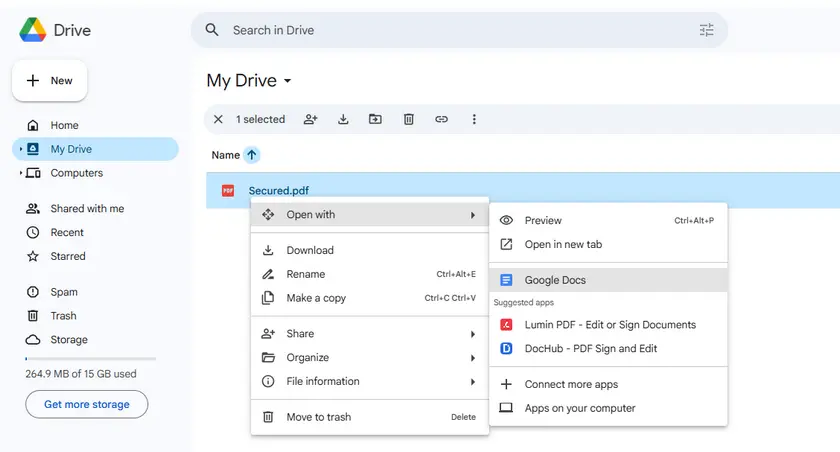
Una de las formas más sencillas de copiar texto de un PDF protegido es abrirlo con Google Docs. Cuando se carga un PDF en Google Drive y se abre en Google Docs, el servicio convierte automáticamente el archivo en un documento editable.
Durante este proceso de conversión, el contenido del PDF se reinterpreta como texto y párrafos, lo que a menudo evita las restricciones básicas de copia. Una vez completada la conversión, puedes seleccionar y copiar fácilmente el texto como en un documento normal.
Pasos
- Abre Google Drive.
- Sube el PDF protegido.
- Haz clic derecho en el archivo y selecciona Abrir con → Google Docs.
- Google Docs convertirá el PDF en un documento editable.
- Copia el texto extraído del documento.
Ventajas
- Gratis y fácil de usar.
- No requiere instalación de software.
- Funciona bien con documentos basados en texto.
Limitaciones
- Los PDF escaneados o basados en imágenes no se convertirán en texto (sin OCR).
- El formato puede desordenarse con diseños complejos.
- Requiere una cuenta de Google y conexión a internet.
Método 2 — Convertir un PDF Restringido a TXT en Línea
Otra solución rápida es convertir el PDF restringido en un archivo de texto sin formato utilizando un convertidor en línea. Una vez que el documento se convierte al formato TXT, el texto se vuelve totalmente editable y se puede copiar sin restricciones.
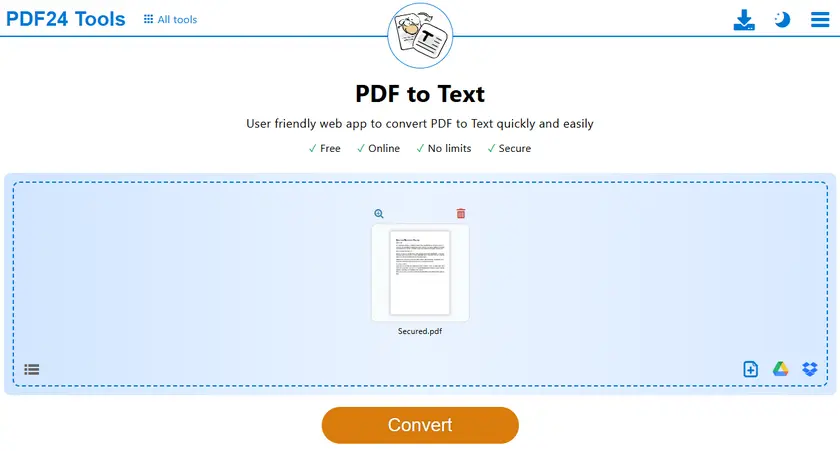
Una herramienta gratuita y conveniente para este propósito es PDF24 Tools, que proporciona un convertidor de PDF a TXT basado en el navegador. Este método funciona bien cuando necesitas extraer texto rápidamente sin instalar software adicional.
Pasos
- Abre la herramienta de PDF a TXT.
- Sube tu archivo PDF protegido.
- Inicia el proceso de conversión.
- Descarga el archivo TXT generado.
- Abre el archivo TXT y copia el texto libremente.
Ventajas
- Flujo de trabajo rápido y sencillo.
- No requiere instalación.
Limitaciones
- Riesgo de privacidad: los documentos confidenciales se suben a servidores de terceros.
- A menudo limitado a unas pocas conversiones gratuitas por día.
- Sin soporte de OCR en la mayoría de las herramientas gratuitas (los PDF basados en imágenes no funcionarán).
Método 3 — Captura de Pantalla + OCR para Extraer Texto
Si el PDF tiene fuertes restricciones de copia o contiene páginas escaneadas, el OCR (Reconocimiento Óptico de Caracteres) aún puede recuperar el texto visible. La tecnología OCR analiza la imagen del documento y convierte los caracteres detectados en texto editable.
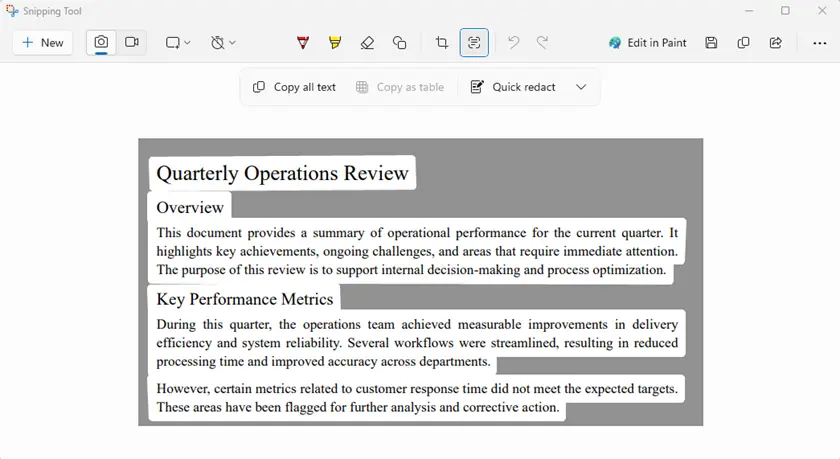
Windows 11 incluye una función de OCR integrada en la Herramienta de Recortes, que te permite capturar parte de la pantalla y extraer instantáneamente el texto de la imagen.
Pasos
- Abre el PDF protegido en tu pantalla.
- Inicia la Herramienta de Recortes.
- Captura el área que contiene el texto.
- Usa Acciones de Texto → Copiar todo el texto.
- Pega el texto extraído en un documento.
Ventajas
- Evita casi toda la protección contra copia ya que captura la pantalla.
- Funciona con PDF escaneados o basados en imágenes.
Limitaciones
- Consume mucho tiempo si hay muchas páginas.
- Errores de OCR: la precisión depende de la calidad de la imagen y la fuente.
- Proceso manual a menos que se automatice con scripts.
Método 4 — Imprimir un PDF Protegido contra Copia a un Nuevo PDF
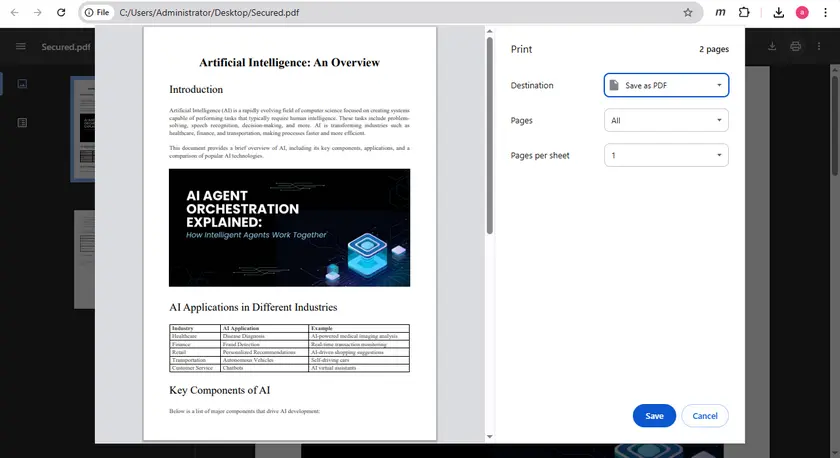
Algunos PDF protegidos bloquean la copia pero aún permiten la impresión. En tales casos, puedes imprimir el documento en un nuevo archivo PDF, lo que puede eliminar la restricción de copia.
Esto se puede hacer fácilmente usando la función de impresión integrada en Google Chrome. Después de guardar la versión impresa del archivo, el nuevo PDF puede permitir la selección y copia de texto normal.
Pasos
- Abre el PDF en Google Chrome.
- Presiona Ctrl + P para abrir el diálogo de impresión.
- Establece el destino en Guardar como PDF.
- Guarda el PDF recién generado.
- Abre el nuevo archivo e intenta copiar el texto.
Ventajas
- Solución simple.
- No se requieren herramientas adicionales.
Limitaciones
- Si la impresión está deshabilitada en los permisos del PDF, esto no funcionará.
- Pueden aparecer algunas diferencias de formato.
Método 5 — Extraer Texto de un PDF Asegurado Usando Python
Para los desarrolladores o usuarios que necesitan procesar múltiples documentos, extraer texto mediante programación puede ser la solución más eficiente. En lugar de copiar contenido manualmente, un script puede leer automáticamente la estructura del PDF y recuperar el texto de cada página.
Usando Free Spire.PDF for Python, puedes extraer fácilmente texto de documentos PDF con solo unas pocas líneas de código. Este enfoque es particularmente útil para la automatización, el procesamiento por lotes o la creación de flujos de trabajo de procesamiento de documentos.
Si estás trabajando con documentos pequeños (dentro de 10 páginas por documento) o probando flujos de trabajo de extracción, la versión gratuita funciona bien. Para archivos más grandes, puedes dividir el documento primero o usar la versión completa.
Instala la biblioteca
pip install spire.pdf.free
Ejemplo: Extraer Texto de Cada Página
from spire.pdf import *

# Create a PdfDocument object
doc = PdfDocument()

# Load a PDF document
doc.LoadFromFile("Secured.pdf")

# Iterate through the pages in the document
for i in range(doc.Pages.Count):

    # Get a specific page
    page = doc.Pages[i]

    # Create a PdfTextExtractor object
    textExtractor = PdfTextExtractor(page)

    # Create a PdfTextExtractOptions object
    extractOptions = PdfTextExtractOptions()

    # Set IsExtractAllText to True
    extractOptions.IsExtractAllText = True

    # Extract text from the page keeping white spaces
    text = textExtractor.ExtractText(extractOptions)

    # Write text to a txt file
    with open('output/TextOfPage-{}.txt'.format(i + 1), 'w', encoding='utf-8') as file:
        lines = text.split("\n")
        for line in lines:
            if line != '':
                file.write(line)
doc.Close()
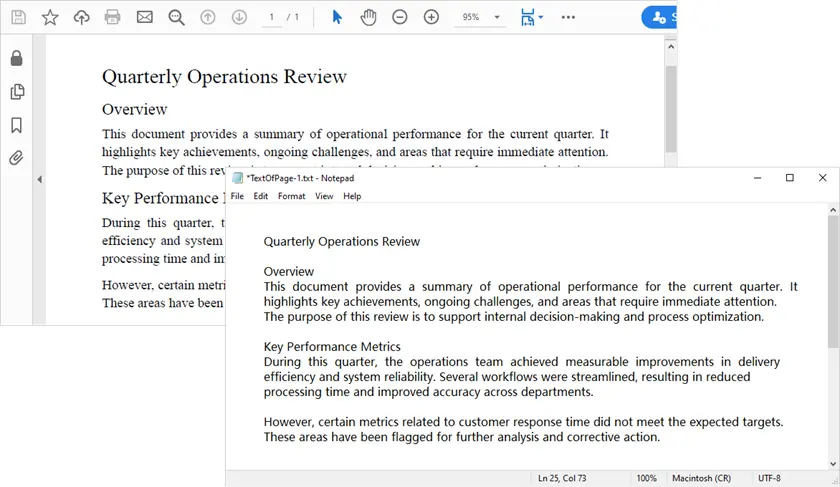
Qué Hace Este Script
- Carga el documento PDF.
- Itera a través de cada página.
- Extrae texto conservando los espacios en blanco.
- Guarda el texto extraído en archivos TXT.
Ventajas
- Control total sobre el proceso de extracción.
- Se puede automatizar para el procesamiento por lotes.
- Funciona bien con PDF basados en texto.
Limitaciones
- Requiere conocimientos de programación.
- No puede manejar PDF basados en imágenes a menos que se utilice una biblioteca de OCR adicional.
También te puede interesar: Realizar OCR en PDF con Python (Extraer Texto de PDF Escaneado)
Tabla Comparativa: ¿Qué Método Deberías Elegir?
| Método | Nivel de Habilidad | Facilidad de Uso | Ideal Para | Funciona con PDF Escaneados | Funciona Bajo Restricciones Fuertes | Procesamiento por Lotes |
|---|---|---|---|---|---|---|
| Google Docs | Principiante | Muy Fácil | Extracción rápida en el navegador | No | Sí | No |
| Convertidor en Línea | Principiante | Muy Fácil | Conversión rápida a TXT | No | Sí | No |
| Captura de Pantalla + OCR | Principiante | Fácil | PDF escaneados o basados en imágenes | Sí | Sí | No |
| Imprimir a PDF | Principiante | Fácil | Eliminar restricciones simples | No | Condicional (La impresión debe estar permitida) | No |
| Python (Spire.PDF) | Desarrollador | Moderado | Automatización y flujos de trabajo por lotes | Depende de bibliotecas de OCR adicionales | Sí | Sí |
Conclusión
Las restricciones de copia en los PDF pueden ser frustrantes, especialmente cuando solo necesitas reutilizar una porción de texto. Afortunadamente, varios métodos gratuitos pueden ayudar a extraer contenido de PDF protegidos.
Para tareas rápidas, herramientas como Google Docs o convertidores en línea pueden ser la solución más fácil. Si el documento contiene contenido escaneado o restricciones estrictas, los métodos basados en OCR aún pueden recuperar el texto. Para flujos de trabajo a gran escala o escenarios de automatización, el uso de bibliotecas de Python como Free Spire.PDF for Python proporciona un enfoque potente y flexible.
Al elegir el método que mejor se adapte a tus necesidades, puedes recuperar eficientemente el texto de los PDF restringidos mientras mantienes un flujo de trabajo eficiente.
Preguntas Frecuentes (FAQ)
P1: ¿Qué es un PDF asegurado o restringido?
Un PDF protegido o restringido es un documento que se puede abrir y ver normalmente pero que tiene configuraciones de seguridad que impiden copiar, imprimir o editar su contenido. Estos permisos son establecidos por el propietario del documento.
P2: ¿Puedo copiar texto de todos los PDF asegurados?
No siempre. Algunos PDF tienen un cifrado fuerte o DRM que impide la copia por completo. En tales casos, pueden ser necesarias herramientas de OCR o bibliotecas profesionales.
P3: ¿Qué método es mejor para los PDF escaneados?
Para los PDF escaneados, la extracción mediante captura de pantalla + OCR o la automatización con Python con bibliotecas de OCR suele ser la forma más confiable de recuperar el texto.
P4: ¿Puedo automatizar la extracción de texto para múltiples PDF?
Sí. Usando bibliotecas de Python como Spire.PDF, puedes extraer texto de múltiples archivos PDF automáticamente, lo que lo hace ideal para el procesamiento por lotes o la automatización de flujos de trabajo.
P5: ¿Necesito pagar por alguno de estos métodos?
Todos los métodos enumerados en el artículo son de uso gratuito. Sin embargo, algunas herramientas (como Spire.PDF) tienen versiones gratuitas con limitaciones, como una restricción en el número de páginas. Para archivos más grandes, es posible que necesites la versión completa.
También Leer
Text aus einer geschützten PDF-Datei kopieren: 5 kostenlose und einfache Wege
Inhaltsverzeichnis
- Warum kann man aus manchen PDFs keinen Text kopieren?
- Methode 1 – Text aus einem gesicherten PDF mit Google Docs kopieren
- Methode 2 – Ein eingeschränktes PDF online in TXT umwandeln
- Methode 3 – Screenshot + OCR zum Extrahieren von Text
- Methode 4 – Ein kopiergeschütztes PDF in ein neues PDF drucken
- Methode 5 – Text aus einem gesicherten PDF mit Python extrahieren
- Vergleichstabelle: Welche Methode sollten Sie wählen?
- Fazit
- FAQs (Häufig gestellte Fragen)
PDF-Dateien sind weit verbreitet zum Teilen von Dokumenten, da sie das Layout und die Formatierung auf allen Geräten beibehalten. Einige PDFs enthalten jedoch Sicherheitsberechtigungen, die Benutzer am Kopieren von Text hindern. Wenn Sie versuchen, Inhalte aus diesen Dateien auszuwählen oder zu kopieren, stellen Sie möglicherweise fest, dass das Kopieren deaktiviert ist.
Diese Art von Datei wird oft als gesichertes, geschütztes oder eingeschränktes PDF bezeichnet. Im Gegensatz zu passwortgeschützten PDFs, die das Öffnen der Datei blockieren, können diese Dokumente normal angezeigt werden – aber bestimmte Aktionen wie das Kopieren von Text sind eingeschränkt.
Glücklicherweise gibt es mehrere kostenlose und praktische Umgehungslösungen, mit denen Sie Text aus geschützten PDFs extrahieren oder kopieren können. In diesem Leitfaden werden wir fünf einfache Methoden untersuchen, darunter Online-Tools, integrierte Systemfunktionen und einen Python-Automatisierungsansatz.
Schnellnavigation
- Methode 1 – Text aus einem gesicherten PDF mit Google Docs kopieren
- Methode 2 – Ein eingeschränktes PDF online in TXT umwandeln
- Methode 3 – Screenshot + OCR zum Extrahieren von Text
- Methode 4 – Ein kopiergeschütztes PDF in ein neues PDF drucken
- Methode 5 – Text aus einem gesicherten PDF mit Python extrahieren
Warum kann man aus manchen PDFs keinen Text kopieren?
Viele PDF-Ersteller wenden Berechtigungseinschränkungen an, um zu steuern, wie das Dokument verwendet werden kann. Diese Berechtigungen werden in den Sicherheitseinstellungen des PDFs festgelegt und können Aktionen wie die folgenden deaktivieren:
- Text kopieren
- Das Dokument bearbeiten
- Die Datei drucken
- Anmerkungen hinzufügen
Dies wird oft als Kopierschutz oder Inhaltseinschränkung bezeichnet. Während das Dokument lesbar bleibt, verhindert der PDF-Viewer die Auswahl oder das Kopieren von Text.
Diese Einschränkungen werden in der Regel verwendet, um geistiges Eigentum zu schützen oder die unbefugte Wiederverwendung von Inhalten zu verhindern. Wenn Sie jedoch Text rechtmäßig wiederverwenden müssen – zum Beispiel für Forschung, Dokumentation oder Barrierefreiheitszwecke – benötigen Sie möglicherweise alternative Wege, um den Inhalt zu extrahieren.
Nachfolgend finden Sie fünf Methoden, die helfen können.
Methode 1 – Text aus einem gesicherten PDF mit Google Docs kopieren
Eine der einfachsten Möglichkeiten, Text aus einem geschützten PDF zu kopieren, besteht darin, es mit Google Docs zu öffnen. Wenn ein PDF in Google Drive hochgeladen und in Google Docs geöffnet wird, konvertiert der Dienst die Datei automatisch in ein bearbeitbares Dokument.
Während dieses Konvertierungsprozesses wird der Inhalt des PDFs als Text und Absätze neu interpretiert, was oft grundlegende Kopierbeschränkungen umgeht. Nach Abschluss der Konvertierung können Sie den Text einfach wie in einem normalen Dokument auswählen und kopieren.
Schritte
- Öffnen Sie Google Drive.
- Laden Sie das geschützte PDF hoch.
- Klicken Sie mit der rechten Maustaste auf die Datei und wählen Sie Öffnen mit → Google Docs.
- Google Docs konvertiert das PDF in ein bearbeitbares Dokument.
- Kopieren Sie den extrahierten Text aus dem Dokument.
Vorteile
- Kostenlos und einfach zu bedienen.
- Keine Softwareinstallation erforderlich.
- Funktioniert gut mit textbasierten Dokumenten.
Einschränkungen
- Gescannte/bildbasierte PDFs werden nicht in Text umgewandelt (kein OCR).
- Die Formatierung kann bei komplexen Layouts unübersichtlich werden.
- Erfordert ein Google-Konto und eine Internetverbindung.
Methode 2 – Ein eingeschränktes PDF online in TXT umwandeln
Eine weitere schnelle Lösung besteht darin, das eingeschränkte PDF mit einem Online-Konverter in eine reine Textdatei umzuwandeln. Sobald das Dokument in das TXT-Format konvertiert ist, wird der Text vollständig bearbeitbar und kann ohne Einschränkungen kopiert werden.
Ein praktisches kostenloses Werkzeug für diesen Zweck sind PDF24 Tools, die einen browserbasierten PDF-zu-TXT-Konverter bereitstellen. Diese Methode funktioniert gut, wenn Sie Text schnell extrahieren müssen, ohne zusätzliche Software zu installieren.
Schritte
- Öffnen Sie das PDF-zu-TXT-Tool.
- Laden Sie Ihre geschützte PDF-Datei hoch.
- Starten Sie den Konvertierungsprozess.
- Laden Sie die generierte TXT-Datei herunter.
- Öffnen Sie die TXT-Datei und kopieren Sie den Text frei.
Vorteile
- Schneller und einfacher Arbeitsablauf.
- Keine Installation erforderlich.
Einschränkungen
- Datenschutzrisiko – sensible Dokumente werden auf Server von Drittanbietern hochgeladen.
- Oft auf wenige kostenlose Konvertierungen pro Tag beschränkt.
- Keine OCR-Unterstützung in den meisten kostenlosen Tools (bildbasierte PDFs funktionieren nicht).
Methode 3 – Screenshot + OCR zum Extrahieren von Text
Wenn das PDF starke Kopierbeschränkungen aufweist oder gescannte Seiten enthält, kann OCR (Optical Character Recognition) den sichtbaren Text dennoch abrufen. Die OCR-Technologie analysiert das Bild des Dokuments und wandelt erkannte Zeichen in bearbeitbaren Text um.
Windows 11 enthält eine integrierte OCR-Funktion im Snipping Tool, mit der Sie einen Teil des Bildschirms erfassen und den Text sofort aus dem Bild extrahieren können.
Schritte
- Öffnen Sie das geschützte PDF auf Ihrem Bildschirm.
- Starten Sie Snipping Tool.
- Erfassen Sie den Bereich, der den Text enthält.
- Verwenden Sie Textaktionen → Gesamten Text kopieren.
- Fügen Sie den extrahierten Text in ein Dokument ein.
Vorteile
- Umschifft fast jeden Kopierschutz, da es den Bildschirm erfasst.
- Funktioniert mit gescannten/bildbasierten PDFs.
Einschränkungen
- Zeitaufwändig bei vielen Seiten.
- OCR-Fehler – die Genauigkeit hängt von der Bildqualität und der Schriftart ab.
- Manueller Prozess, es sei denn, er wird mit Skripten automatisiert.
Methode 4 – Ein kopiergeschütztes PDF in ein neues PDF drucken
Einige geschützte PDFs blockieren das Kopieren, erlauben aber dennoch das Drucken. In solchen Fällen können Sie das Dokument in eine neue PDF-Datei drucken, was die Kopierbeschränkung möglicherweise aufhebt.
Dies kann einfach mit der integrierten Druckfunktion in Google Chrome erfolgen. Nach dem Speichern der gedruckten Version der Datei kann das neue PDF möglicherweise die normale Textauswahl und das Kopieren zulassen.
Schritte
- Öffnen Sie das PDF in Google Chrome.
- Drücken Sie Strg + P, um den Druckdialog zu öffnen.
- Stellen Sie das Ziel auf Als PDF speichern ein.
- Speichern Sie das neu generierte PDF.
- Öffnen Sie die neue Datei und versuchen Sie, den Text zu kopieren.
Vorteile
- Einfache Umgehungslösung.
- Keine zusätzlichen Werkzeuge erforderlich.
Einschränkungen
- Wenn das Drucken in den PDF-Berechtigungen deaktiviert ist, funktioniert dies nicht.
- Es können einige Formatierungsunterschiede auftreten.
Methode 5 – Text aus einem gesicherten PDF mit Python extrahieren
Für Entwickler oder Benutzer, die mehrere Dokumente verarbeiten müssen, kann das programmgesteuerte Extrahieren von Text die effizienteste Lösung sein. Anstatt Inhalte manuell zu kopieren, kann ein Skript die PDF-Struktur automatisch lesen und den Text von jeder Seite abrufen.
Mit Free Spire.PDF for Python können Sie mit nur wenigen Codezeilen ganz einfach Text aus PDF-Dokumenten extrahieren. Dieser Ansatz ist besonders nützlich für Automatisierung, die Stapelverarbeitung oder die Erstellung von Dokumentenverarbeitungs-Workflows.
Wenn Sie mit kleinen Dokumenten (innerhalb von 10 Seiten pro Dokument) arbeiten oder Extraktions-Workflows testen, funktioniert die kostenlose Version gut. Bei größeren Dateien können Sie entweder das Dokument zuerst aufteilen oder die Vollversion verwenden.
Installieren Sie die Bibliothek
pip install spire.pdf.free
Beispiel: Text von jeder Seite extrahieren
from spire.pdf import *

# Create a PdfDocument object
doc = PdfDocument()

# Load a PDF document
doc.LoadFromFile("Secured.pdf")

# Iterate through the pages in the document
for i in range(doc.Pages.Count):

    # Get a specific page
    page = doc.Pages[i]

    # Create a PdfTextExtractor object
    textExtractor = PdfTextExtractor(page)

    # Create a PdfTextExtractOptions object
    extractOptions = PdfTextExtractOptions()

    # Set IsExtractAllText to True
    extractOptions.IsExtractAllText = True

    # Extract text from the page keeping white spaces
    text = textExtractor.ExtractText(extractOptions)

    # Write text to a txt file
    with open('output/TextOfPage-{}.txt'.format(i + 1), 'w', encoding='utf-8') as file:
        lines = text.split("\n")
        for line in lines:
            if line != '':
                file.write(line)
doc.Close()
Was dieses Skript tut
- Lädt das PDF-Dokument.
- Iteriert durch jede Seite.
- Extrahiert Text unter Beibehaltung von Leerzeichen.
- Speichert den extrahierten Text in TXT-Dateien.
Vorteile
- Volle Kontrolle über den Extraktionsprozess.
- Kann für die Stapelverarbeitung automatisiert werden.
- Funktioniert gut mit textbasierten PDFs.
Einschränkungen
- Erfordert Programmierkenntnisse.
- Kann bildbasierte PDFs nicht verarbeiten, es sei denn, es wird eine zusätzliche OCR-Bibliothek verwendet.
Das könnte Ihnen auch gefallen: PDF-OCR mit Python durchführen (Text aus gescanntem PDF extrahieren)
Vergleichstabelle: Welche Methode sollten Sie wählen?
| Methode | Fähigkeitslevel | Benutzerfreundlichkeit | Am besten für | Funktioniert mit gescannten PDFs | Funktioniert bei starken Einschränkungen | Stapelverarbeitung |
|---|---|---|---|---|---|---|
| Google Docs | Anfänger | Sehr einfach | Schnelle Extraktion im Browser | Nein | Ja | Nein |
| Online-Konverter | Anfänger | Sehr einfach | Schnelle TXT-Konvertierung | Nein | Ja | Nein |
| Screenshot + OCR | Anfänger | Einfach | Gescannte oder bildbasierte PDFs | Ja | Ja | Nein |
| In PDF drucken | Anfänger | Einfach | Entfernen einfacher Einschränkungen | Nein | Bedingt (Drucken muss erlaubt sein) | Nein |
| Python (Spire.PDF) | Entwickler | Mäßig | Automatisierung & Stapel-Workflows | Basiert auf zusätzlichen OCR-Bibliotheken | Ja | Ja |
Fazit
Kopierbeschränkungen in PDFs können frustrierend sein, besonders wenn Sie nur einen Teil des Textes wiederverwenden müssen. Glücklicherweise können mehrere kostenlose Methoden helfen, Inhalte aus geschützten PDFs zu extrahieren.
Für schnelle Aufgaben sind Tools wie Google Docs oder Online-Konverter möglicherweise die einfachste Lösung. Wenn das Dokument gescannten Inhalt oder strenge Einschränkungen enthält, können OCR-basierte Methoden den Text dennoch wiederherstellen. Für groß angelegte Workflows oder Automatisierungsszenarien bietet die Verwendung von Python-Bibliotheken wie Free Spire.PDF for Python einen leistungsstarken und flexiblen Ansatz.
Indem Sie die Methode wählen, die Ihren Anforderungen am besten entspricht, können Sie Text aus eingeschränkten PDFs effizient abrufen und gleichzeitig einen effizienten Arbeitsablauf beibehalten.
FAQs (Häufig gestellte Fragen)
F1: Was ist ein gesichertes oder eingeschränktes PDF?
Ein geschütztes oder eingeschränktes PDF ist ein Dokument, das normal geöffnet und angezeigt werden kann, aber Sicherheitseinstellungen hat, die das Kopieren, Drucken oder Bearbeiten seines Inhalts verhindern. Diese Berechtigungen werden vom Dokumentbesitzer festgelegt.
F2: Kann ich Text aus allen gesicherten PDFs kopieren?
Nicht immer. Einige PDFs haben eine starke Verschlüsselung oder DRM, die das Kopieren vollständig verhindert. In solchen Fällen können OCR-Tools oder professionelle Bibliotheken erforderlich sein.
F3: Welche Methode ist am besten für gescannte PDFs geeignet?
Für gescannte PDFs ist die Extraktion per Screenshot + OCR oder die Python-Automatisierung mit OCR-Bibliotheken in der Regel der zuverlässigste Weg, um Text abzurufen.
F4: Kann ich die Textextraktion für mehrere PDFs automatisieren?
Ja. Mit Python-Bibliotheken wie Spire.PDF können Sie Text aus mehreren PDF-Dateien automatisch extrahieren, was es ideal für die Stapelverarbeitung oder die Workflow-Automatisierung macht.
F5: Muss ich für eine dieser Methoden bezahlen?
Alle im Artikel aufgeführten Methoden sind kostenlos. Einige Tools (wie Spire.PDF) haben jedoch kostenlose Versionen mit Einschränkungen, wie z. B. einer Seitenzahnbeschränkung. Für größere Dateien benötigen Sie möglicherweise die Vollversion.
Lesen Sie auch
Как скопировать текст из защищенного PDF: 5 бесплатных и простых способов
Содержание
- Почему нельзя скопировать текст из некоторых PDF-файлов?
- Метод 1 — Копирование текста из защищенного PDF с помощью Google Docs
- Метод 2 — Преобразование ограниченного PDF в TXT онлайн
- Метод 3 — Скриншот + OCR для извлечения текста
- Метод 4 — Печать защищенного от копирования PDF в новый PDF
- Метод 5 — Извлечение текста из защищенного PDF с помощью Python
- Сравнительная таблица: какой метод выбрать?
- Заключение
- Часто задаваемые вопросы (FAQ)
Файлы PDF широко используются для обмена документами, поскольку они сохраняют макет и форматирование на разных устройствах. Однако некоторые PDF-файлы содержат разрешения безопасности, которые запрещают пользователям копировать текст. При попытке выделить или скопировать содержимое из этих файлов вы можете увидеть, что копирование отключено.
Этот тип файлов часто называют защищенным, охраняемым или ограниченным PDF. В отличие от PDF-файлов, защищенных паролем, которые блокируют открытие файла, эти документы можно просматривать в обычном режиме, но некоторые действия, такие как копирование текста, ограничены.
К счастью, существует несколько бесплатных и практичных обходных путей, которые позволяют извлекать или копировать текст из защищенных PDF-файлов. В этом руководстве мы рассмотрим пять простых методов, включая онлайн-инструменты, встроенные системные функции и подход с использованием автоматизации на Python.
Быстрая навигация
- Метод 1 — Копирование текста из защищенного PDF с помощью Google Docs
- Метод 2 — Преобразование ограниченного PDF в TXT онлайн
- Метод 3 — Скриншот + OCR для извлечения текста
- Метод 4 — Печать защищенного от копирования PDF в новый PDF
- Метод 5 — Извлечение текста из защищенного PDF с помощью Python
Почему нельзя скопировать текст из некоторых PDF-файлов?
Многие создатели PDF применяют ограничения разрешений, чтобы контролировать, как можно использовать документ. Эти разрешения устанавливаются в настройках безопасности PDF и могут отключать такие действия, как:
- Копирование текста
- Редактирование документа
- Печать файла
- Добавление аннотаций
Это часто называют защитой от копирования или ограничением содержимого. Хотя документ остается читаемым, программа для просмотра PDF предотвращает выделение или копирование текста.
Эти ограничения обычно используются для защиты интеллектуальной собственности или предотвращения несанкционированного повторного использования контента. Однако, когда вам законно необходимо повторно использовать текст — например, для исследований, документации или для целей доступности — вам могут понадобиться альтернативные способы извлечения содержимого.
Ниже приведены пять методов, которые могут помочь.
Метод 1 — Копирование текста из защищенного PDF с помощью Google Docs
Один из самых простых способов скопировать текст из защищенного PDF — открыть его с помощью Google Docs. Когда PDF-файл загружается на Google Диск и открывается в Google Docs, сервис автоматически преобразует файл в редактируемый документ.
В процессе этого преобразования содержимое PDF переинтерпретируется как текст и абзацы, что часто обходит основные ограничения на копирование. После завершения преобразования вы можете легко выделить и скопировать текст, как в обычном документе.
Шаги
- Откройте Google Диск.
- Загрузите защищенный PDF.
- Щелкните файл правой кнопкой мыши и выберите Открыть с помощью → Google Docs.
- Google Docs преобразует PDF в редактируемый документ.
- Скопируйте извлеченный текст из документа.
Плюсы
- Бесплатно и просто в использовании.
- Не требуется установка программного обеспечения.
- Хорошо работает с текстовыми документами.
Ограничения
- Отсканированные/основанные на изображениях PDF-файлы не будут преобразованы в текст (нет OCR).
- Форматирование может нарушиться при сложных макетах.
- Требуется учетная запись Google и подключение к Интернету.
Метод 2 — Преобразование ограниченного PDF в TXT онлайн
Еще одно быстрое решение — преобразовать ограниченный PDF в обычный текстовый файл с помощью онлайн-конвертера. После преобразования документа в формат TXT текст становится полностью редактируемым и его можно копировать без ограничений.
Удобным бесплатным инструментом для этой цели является PDF24 Tools, который предоставляет браузерный конвертер PDF в TXT. Этот метод хорошо работает, когда вам нужно быстро извлечь текст без установки дополнительного программного обеспечения.
Шаги
- Откройте инструмент PDF-в-TXT.
- Загрузите ваш защищенный PDF-файл.
- Начните процесс преобразования.
- Загрузите сгенерированный TXT-файл.
- Откройте TXT-файл и свободно копируйте текст.
Плюсы
- Быстрый и простой рабочий процесс.
- Не требуется установка.
Ограничения
- Риск конфиденциальности — конфиденциальные документы загружаются на сторонние серверы.
- Часто ограничено несколькими бесплатными преобразованиями в день.
- В большинстве бесплатных инструментов нет поддержки OCR (PDF-файлы на основе изображений не будут работать).
Метод 3 — Скриншот + OCR для извлечения текста
Если в PDF установлены строгие ограничения на копирование или он содержит отсканированные страницы, OCR (оптическое распознавание символов) все равно может извлечь видимый текст. Технология OCR анализирует изображение документа и преобразует обнаруженные символы в редактируемый текст.
Windows 11 включает встроенную функцию OCR в инструменте "Ножницы", что позволяет захватывать часть экрана и мгновенно извлекать текст из изображения.
Шаги
- Откройте защищенный PDF на вашем экране.
- Запустите инструмент "Ножницы".
- Захватите область, содержащую текст.
- Используйте Действия с текстом → Копировать весь текст.
- Вставьте извлеченный текст в документ.
Плюсы
- Обходит почти всю защиту от копирования, так как захватывает экран.
- Работает с отсканированными/основанными на изображениях PDF-файлами.
Ограничения
- Занимает много времени, если страниц много.
- Ошибки OCR — точность зависит от качества изображения и шрифта.
- Ручной процесс, если не автоматизирован с помощью скриптов.
Метод 4 — Печать защищенного от копирования PDF в новый PDF
Некоторые защищенные PDF-файлы блокируют копирование, но разрешают печать. В таких случаях вы можете распечатать документ в новый PDF-файл, что может снять ограничение на копирование.
Это можно легко сделать с помощью встроенной функции печати в Google Chrome. После сохранения распечатанной версии файла новый PDF может разрешить обычное выделение и копирование текста.
Шаги
- Откройте PDF в Google Chrome.
- Нажмите Ctrl + P, чтобы открыть диалоговое окно печати.
- Установите место назначения как Сохранить как PDF.
- Сохраните вновь созданный PDF.
- Откройте новый файл и попробуйте скопировать текст.
Плюсы
- Простой обходной путь.
- Не требуется дополнительных инструментов.
Ограничения
- Если печать отключена в разрешениях PDF, это не сработает.
- Могут появиться некоторые различия в форматировании.
Метод 5 — Извлечение текста из защищенного PDF с помощью Python
Для разработчиков или пользователей, которым необходимо обрабатывать несколько документов, программное извлечение текста может быть наиболее эффективным решением. Вместо ручного копирования содержимого скрипт может автоматически считывать структуру PDF и извлекать текст с каждой страницы.
Используя Free Spire.PDF for Python, вы можете легко извлекать текст из PDF-документов всего несколькими строками кода. Этот подход особенно полезен для автоматизации, пакетной обработки или создания рабочих процессов обработки документов.
Если вы работаете с небольшими документами (до 10 страниц на документ) или тестируете рабочие процессы извлечения, бесплатная версия работает хорошо. Для больших файлов вы можете либо разделить документ сначала, либо использовать полную версию.
Установите библиотеку
pip install spire.pdf.free
Пример: извлечение текста с каждой страницы
from spire.pdf import *

# Create a PdfDocument object
doc = PdfDocument()

# Load a PDF document
doc.LoadFromFile("Secured.pdf")

# Iterate through the pages in the document
for i in range(doc.Pages.Count):

    # Get a specific page
    page = doc.Pages[i]

    # Create a PdfTextExtractor object
    textExtractor = PdfTextExtractor(page)

    # Create a PdfTextExtractOptions object
    extractOptions = PdfTextExtractOptions()

    # Set IsExtractAllText to True
    extractOptions.IsExtractAllText = True

    # Extract text from the page keeping white spaces
    text = textExtractor.ExtractText(extractOptions)

    # Write text to a txt file
    with open('output/TextOfPage-{}.txt'.format(i + 1), 'w', encoding='utf-8') as file:
        lines = text.split("\n")
        for line in lines:
            if line != '':
                file.write(line)
doc.Close()
Что делает этот скрипт
- Загружает PDF-документ.
- Проходит по каждой странице.
- Извлекает текст, сохраняя пробелы.
- Сохраняет извлеченный текст в TXT-файлы.
Плюсы
- Полный контроль над процессом извлечения.
- Может быть автоматизирован для пакетной обработки.
- Хорошо работает с текстовыми PDF-файлами.
Ограничения
- Требуются знания в области программирования.
- Не может обрабатывать PDF-файлы на основе изображений, если не используется дополнительная библиотека OCR.
Вам также может понравиться: Выполнение OCR PDF с помощью Python (извлечение текста из отсканированного PDF)
Сравнительная таблица: какой метод выбрать?
| Метод | Уровень навыков | Простота использования | Лучше всего для | Работает с отсканированными PDF | Работает при строгих ограничениях | Пакетная обработка |
|---|---|---|---|---|---|---|
| Google Docs | Начинающий | Очень просто | Быстрое извлечение в браузере | Нет | Да | Нет |
| Онлайн-конвертер | Начинающий | Очень просто | Быстрое преобразование в TXT | Нет | Да | Нет |
| Скриншот + OCR | Начинающий | Просто | Отсканированные или основанные на изображениях PDF | Да | Да | Нет |
| Печать в PDF | Начинающий | Просто | Снятие простых ограничений | Нет | Условно (печать должна быть разрешена) | Нет |
| Python (Spire.PDF) | Разработчик | Умеренно | Автоматизация и пакетные рабочие процессы | Зависит от дополнительных библиотек OCR | Да | Да |
Заключение
Ограничения на копирование в PDF-файлах могут вызывать разочарование, особенно когда вам нужно повторно использовать только часть текста. К счастью, несколько бесплатных методов могут помочь извлечь содержимое из защищенных PDF-файлов.
Для быстрых задач инструменты, такие как Google Docs или онлайн-конвертеры, могут быть самым простым решением. Если документ содержит отсканированное содержимое или строгие ограничения, методы на основе OCR все равно могут восстановить текст. Для крупномасштабных рабочих процессов или сценариев автоматизации использование библиотек Python, таких как Free Spire.PDF for Python, предоставляет мощный и гибкий подход.
Выбрав метод, который наилучшим образом соответствует вашим потребностям, вы можете эффективно извлекать текст из ограниченных PDF-файлов, поддерживая при этом эффективный рабочий процесс.
Часто задаваемые вопросы (FAQ)
В1: Что такое защищенный или ограниченный PDF?
Защищенный или ограниченный PDF — это документ, который можно открывать и просматривать в обычном режиме, но в котором установлены параметры безопасности, запрещающие копирование, печать или редактирование его содержимого. Эти разрешения устанавливаются владельцем документа.
В2: Могу ли я копировать текст из всех защищенных PDF-файлов?
Не всегда. Некоторые PDF-файлы имеют сильное шифрование или DRM, которые полностью предотвращают копирование. В таких случаях могут потребоваться инструменты OCR или профессиональные библиотеки.
В3: Какой метод лучше всего подходит для отсканированных PDF-файлов?
Для отсканированных PDF-файлов извлечение с помощью скриншота + OCR или автоматизация на Python с библиотеками OCR обычно является самым надежным способом извлечения текста.
В4: Могу ли я автоматизировать извлечение текста для нескольких PDF-файлов?
Да. Используя библиотеки Python, такие как Spire.PDF, вы можете автоматически извлекать текст из нескольких PDF-файлов, что делает его идеальным для пакетной обработки или автоматизации рабочих процессов.
В5: Нужно ли мне платить за какой-либо из этих методов?
Все методы, перечисленные в статье, бесплатны для использования. Однако некоторые инструменты (например, Spire.PDF) имеют бесплатные версии с ограничениями, такими как ограничение на количество страниц. Для больших файлов вам может понадобиться полная версия.
Также читайте
Extrair imagens de um documento Word: 5 métodos rápidos e gratuitos
Índice
- Por que extrair imagens do Word?
- Método 1: Clique com o botão direito e Salvar como Imagem
- Método 2: Salvar como Página da Web
- Método 3: O truque do arquivo ZIP
- Método 4: Extratores de Imagens do Word Online e Gratuitos
- Método 5: Soluções de Programação Gratuitas
- Comparação Rápida de Todos os Métodos
- Perguntas Frequentes Sobre a Extração de Imagens do Word
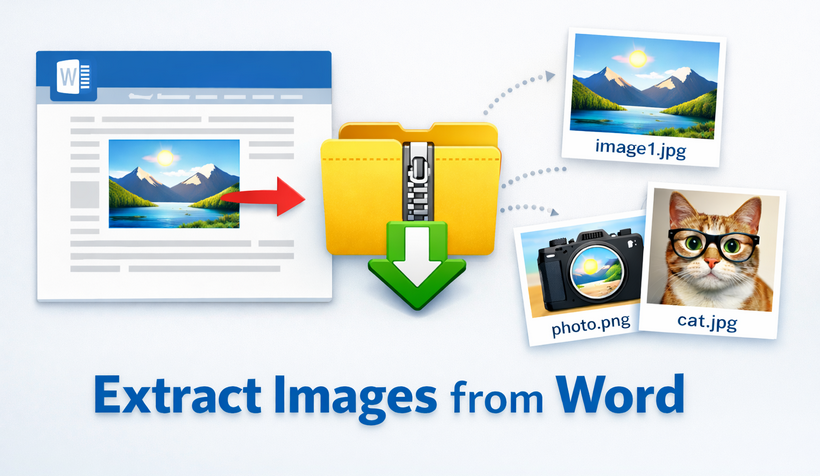
Extrair imagens de documentos Word DOC/DOCX é uma das tarefas diárias mais comuns para estudantes, profissionais de marketing, designers e funcionários de escritório. Se você deseja reutilizar imagens em uma apresentação, editá-las no Photoshop, compartilhar visuais nas redes sociais ou organizar uma biblioteca de mídia, saber como extrair imagens de um documento do Word de forma eficiente economiza horas de trabalho repetitivo.
Neste guia passo a passo, mostraremos 5 maneiras confiáveis, gratuitas e fáceis de extrair imagens do Word. Cobrimos extração de imagem única, processamento em lote, ferramentas online e software profissional.
- Por que extrair imagens do Word?
- Método 1: Clique com o botão direito e Salvar como Imagem
- Método 2: Salvar como Página da Web
- Método 3: O truque do arquivo ZIP
- Método 4: Extratores de Imagens do Word Online e Gratuitos
- Método 5: Soluções de Programação Gratuitas
- Comparação Rápida de Todos os Métodos
- Perguntas Frequentes Sobre a Extração de Imagens do Word
Por que extrair imagens do Word?
Entender os casos de uso ajuda você a escolher o método de extração correto:
- Reaproveitamento de Conteúdo: Transforme visuais de documentos internos em gráficos para blogs, postagens em redes sociais ou slides de apresentação
- Backup: Preserve a qualidade original da imagem separadamente das versões em evolução do documento
- Edição: Edite fotos em software especializado sem os artefatos de compressão de salvamentos repetidos no Word
- Redução do Tamanho do Arquivo: Reduza o tamanho do documento removendo gráficos grandes incorporados para envio por e-mail ou armazenamento em nuvem
Método 1: Clique com o botão direito e Salvar como Imagem
Ideal para: Usuários que já estão no Microsoft Word e precisam extrair rapidamente de 1 a 3 imagens.
"Salvar como Imagem" é o método mais intuitivo para extrair imagens do Word quando você precisa de apenas uma ou duas imagens. Não requer conhecimento técnico e funciona em segundos.
Instruções Passo a Passo:
- Abra seu documento do Word no Microsoft Word.
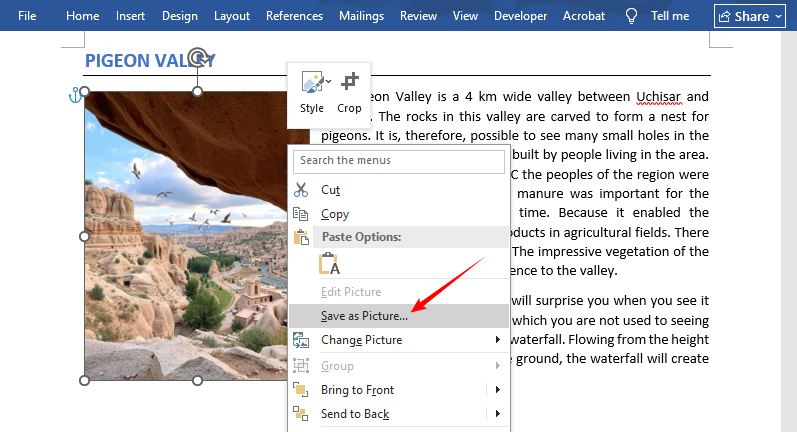
- Clique com o botão direito na imagem que deseja salvar.
- No menu de contexto, selecione Salvar como Imagem.
- Na caixa de diálogo:
- Escolha uma pasta de destino
- Renomeie o arquivo (opcional, mas recomendado)
- Selecione seu formato preferido (PNG para transparência, JPG para fotos, GIF para gráficos simples)
- Clique em Salvar.
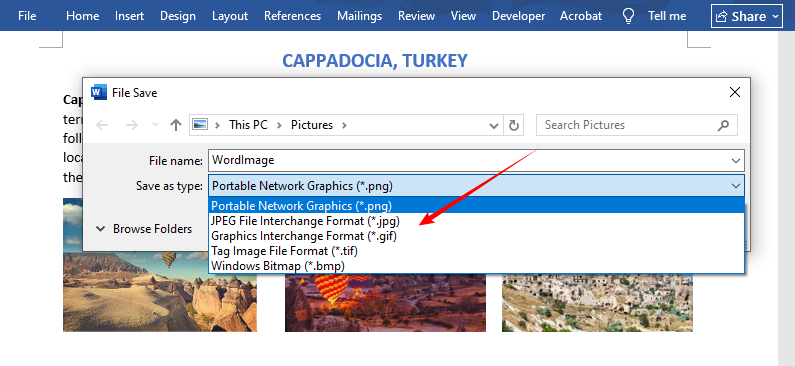
✔ Prós: Gratuito, integrado, operação de 1 clique, recurso nativo do Microsoft Word
✘ Contras: Extremamente lento para extração em lote (apenas uma imagem por vez)
Embora os documentos do Word sejam comuns, você também pode precisar extrair imagens de PDFs. Confira nosso guia completo para extrair imagens de PDF – incluindo ferramentas gratuitas e métodos avançados.
Método 2: Salvar como Página da Web
Ideal para: Usuários que preferem os recursos nativos do Word para salvar imagens em lote.
O Microsoft Word inclui um recurso oculto poderoso: salvar como página da web exporta automaticamente todas as imagens incorporadas para uma pasta dedicada. Este é um dos métodos mais antigos e confiáveis para extrair imagens de arquivos doc ou docx do Word.
Passo a Passo Completo:
- Abra o documento do Word.
- Clique em Arquivo → Salvar Como e escolha um local de salvamento no seu dispositivo.
- No menu suspenso "Salvar como tipo", selecione *Página da Web (.htm; *.html)**.
- Nota: NÃO selecione "Página da Web de Arquivo Único" – isso empacota tudo em um único arquivo
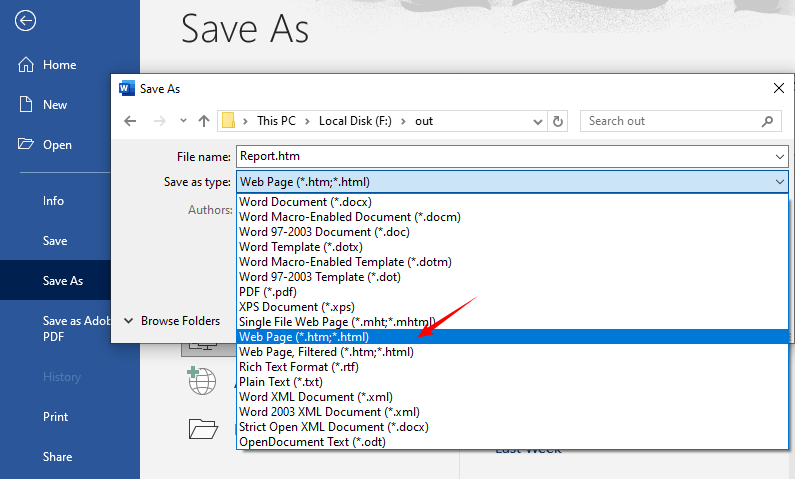
- Clique em Salvar—o Word gerará dois itens na pasta escolhida:
- O arquivo da página da web HTML.
- Uma pasta chamada [NomeDoSeuDocumento]_files (por exemplo, Relatorio_files).
- Abra essa pasta para acessar todas as imagens extraídas (em seus formatos originais como PNG/JPG).
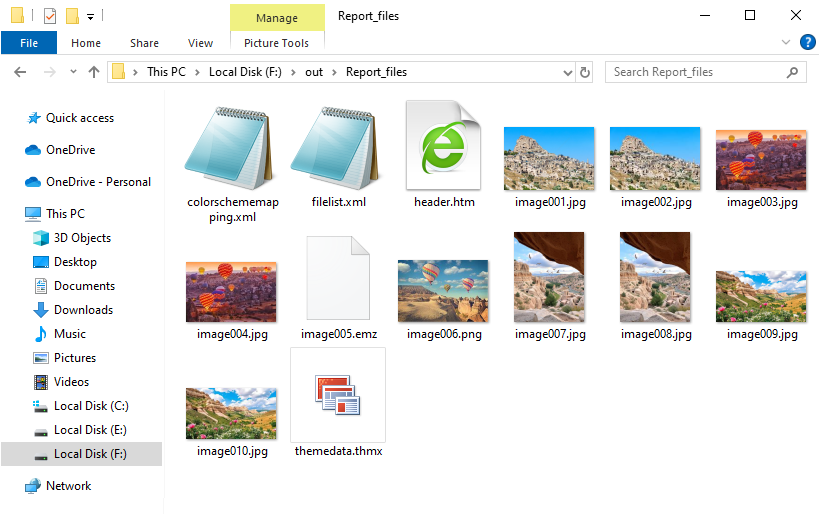
✔ Prós: Ferramenta nativa do Word, extrai todas as imagens em lote instantaneamente, mantém boa qualidade
✘ Contras: Cria arquivos HTML extras, gera imagens duplicadas se os visuais forem reutilizados no documento
Método 3: O truque do arquivo ZIP
Ideal para: Usuários que precisam extrair em massa todas as imagens de alta resolução de arquivos DOCX—sem necessidade de software.
Aqui está um fato pouco conhecido: os documentos modernos do Word (.docx) são, na verdade, arquivos ZIP compactados. Isso significa que você pode extrair imagens de arquivos docx sem nunca abrir o Microsoft Word.
Por que isso funciona:
Desde o Microsoft Office 2007, o Word usa o formato Open XML. Um arquivo .docx é essencialmente um contêiner com arquivos XML e uma pasta dedicada /word/media/ contendo todas as imagens incorporadas.
Passos Detalhados:
- Localize seu arquivo DOCX e faça uma cópia (para proteger o original).
- Clique com o botão direito no arquivo e selecione Renomear.
- Altere a extensão do arquivo de .docx para .zip (por exemplo, relatorio.docx → relatorio.zip).
- Pressione Enter para confirmar a alteração da extensão.
- Clique em Sim se um aviso aparecer.
- Dê um duplo clique para abrir como qualquer pasta (no Windows Explorer ou Mac Finder).
- Navegue até o caminho da pasta: word → media.
- Copie todas as imagens para a pasta desejada.
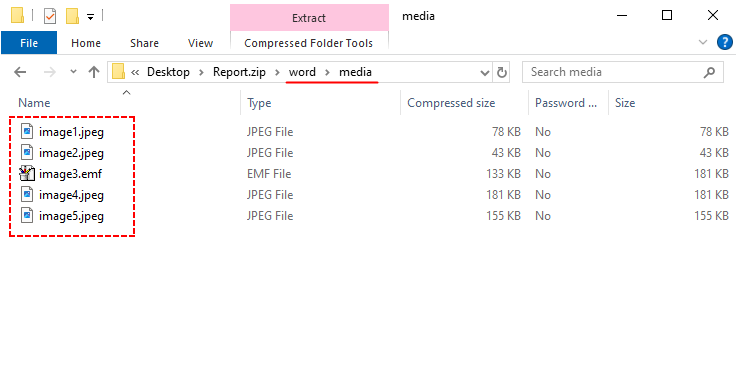
✔ Prós: 100% gratuito, extração em lote, preserva a alta resolução original
✘ Contras: Funciona apenas para arquivos DOCX.
Dica Rápida: Para extrair imagens em massa de arquivos .doc legados, use o Método 2 (Salvar como Página da Web) ou converta DOC para DOCX primeiro antes de aplicar este método.
Método 4: Extratores de Imagens do Word Online e Gratuitos
Ideal para: Usuários que não querem instalar software ou precisam de uma solução multiplataforma rápida (funciona no Windows, Mac, celular).
Ferramentas online dedicadas como ExtractAssets ou Groupdocs lidam com arquivos DOC e DOCX, extraindo todas as imagens e entregando-as como um arquivo ZIP para download—sem necessidade de etapas técnicas.
Passos para extrair imagens do Word online:
- Navegue até o site da ferramenta (por exemplo, Extrator de Imagens do Word da ExtractAssets)
- Faça o upload do seu documento do Word.
- Clique em Extrair Imagens.
- Baixe as imagens como um arquivo ZIP.
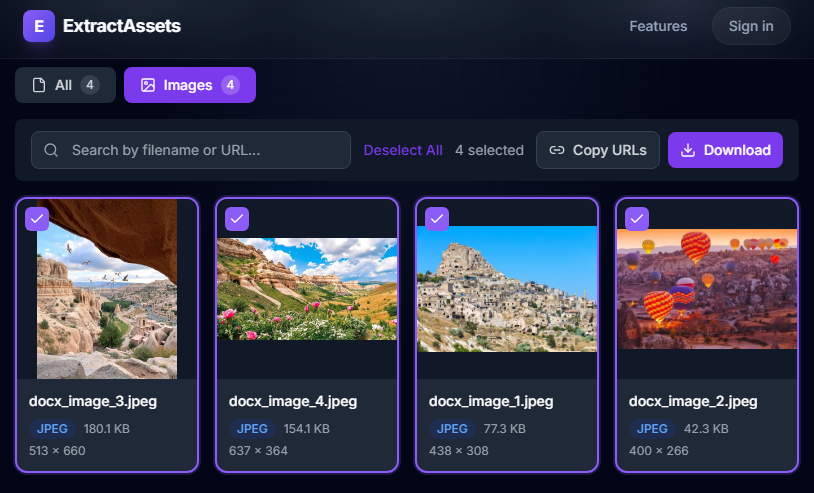
✔ Prós: Sem instalação, multiplataforma, funciona para arquivos DOC e DOCX
✘ Contras: Precisa de internet; limites de tamanho de arquivo para usuários gratuitos
Aviso: Tenha cuidado ao fazer upload de documentos sensíveis ou confidenciais para ferramentas online. Para arquivos privados, use os métodos offline.
Método 5: Soluções de Programação Gratuitas
Ideal para: Usuários frequentes que precisam extrair imagens em lote ou integrar em fluxos de trabalho automatizados.
Para empresas e desenvolvedores, o Free Spire.Doc for .NET é uma biblioteca poderosa que permite extrair imagens do Word programaticamente em C# com controle total sobre o formato de saída.
Código C# para Extrair Imagens do Word:
using Spire.Doc;
using Spire.Doc.Documents;
using Spire.Doc.Fields;

namespace ExtractImage
{
    class Program
    {
        static void Main(string[] args)
        {
            // Load a Word document
            Document document = new Document("input.docx");
            int index = 0;

            // Traverses each section in the document
            foreach (Section section in document.Sections)
            {
                // Traverses each paragraph in the current section
                foreach (Paragraph paragraph in section.Paragraphs)
                {
                    // Traverses each document object in the current paragraph
                    foreach (DocumentObject docObject in paragraph.ChildObjects)
                    {
                        // Checks if the current document object is an image
                        if (docObject.DocumentObjectType == DocumentObjectType.Picture)
                        {
                            DocPicture picture = docObject as DocPicture;
                            // Saves the extracted image as a PNG file
                            picture.Image.Save(string.Format("image_{0}.png", index), System.Drawing.Imaging.ImageFormat.Png);
                            index++;
                        }
                    }
                }
            }
        }
    }
}
O código carrega um documento do Word e o percorre de maneira hierárquica: Documento → Seção → Parágrafo → ObjetoDoDocumento, filtrando apenas objetos do tipo imagem e salvando-os como arquivos PNG separados.
Capacidades Técnicas Principais:
- Suporte a Formatos: DOC, DOCX, DOT, DOTX, DOCM, RTF e mais
- Formatos de Saída: Salve imagens extraídas como PNG, JPG, BMP, EMF, GIF, TIFF
- Processamento em Lote: Processe milhares de documentos com um único script
- Extração Seletiva: Extraia imagens de seções ou parágrafos específicos
✔ Prós: Automação completa em lote, amplo suporte a formatos de arquivo, confiabilidade de nível empresarial
✘ Contras: Conhecimento básico de programação necessário; a versão gratuita tem certas limitações
As imagens não são o único conteúdo valioso em seus documentos do Word. Descubra como extrair texto, tabelas e formatação para reaproveitamento em outros projetos.
Comparação Rápida de Todos os Métodos
Use esta tabela para escolher instantaneamente o método certo para o seu caso de uso:
| Método | Cenário | Extração em Lote | Software Necessário | Funciona para DOCX/DOC |
|---|---|---|---|---|
| Clique com o Botão Direito e Salvar | Imagens únicas | ✘ | Apenas Microsoft Word | Ambos |
| Salvar como Página da Web | Extração em lote integrada do Word | ✔ | Apenas Microsoft Word | Ambos |
| Truque do ZIP | DOCX em massa, qualidade original | ✔ | Nenhum (apenas SO) | Apenas DOCX |
| Ferramentas Online | Uso multiplataforma sem instalação | ✔ | Apenas navegador da web | Ambos |
| Free Spire.Doc | Automação em lote para desenvolvedores | ✔ | Ambiente .NET + biblioteca Free Spire.Doc | Ambos |
Perguntas Frequentes Sobre a Extração de Imagens do Word
P1: Posso extrair imagens de um documento do Word protegido por senha?
R: Você deve desbloquear o documento primeiro e, em seguida, usar qualquer um dos métodos acima.
P2: Como obtenho imagens de alta resolução do Word?
R: Use o truque do ZIP para arquivos .docx. Para arquivos .doc, o método Salvar como Página da Web geralmente preserva uma qualidade melhor do que salvar com o botão direito.
P3: Quais formatos de imagem posso extrair do Word?
R: O Word suporta imagens incorporadas em vários formatos, incluindo:
- JPEG/JPG (fotos)
- PNG (gráficos com transparência)
- GIF (animações, gráficos simples)
- BMP (imagens de bitmap)
- TIFF (imagens de alta resolução)
- EMF/WMF (gráficos vetoriais)
- SVG (gráficos vetoriais escaláveis – versões mais recentes do Word)
P4: Posso extrair imagens de vários documentos do Word de uma só vez?
R: Sim, use ferramentas profissionais como o Spire.Doc para processar pastas inteiras com um script. Algumas ferramentas online também oferecem processamento em lote de vários documentos do Word.
Palavras Finais
Agora você tem 5 maneiras gratuitas e eficazes de extrair imagens de um documento do Word, cada uma adequada a diferentes necessidades e níveis de habilidade técnica. Para imagens únicas rápidas, use o salvamento com o botão direito. Para extração em lote, o truque do ZIP é a melhor escolha gratuita. As ferramentas online funcionam em qualquer lugar, enquanto softwares profissionais como o Spire.Doc oferecem resultados automatizados de alta qualidade para uso intensivo.
Chega de perder tempo tirando capturas de tela ou recriando imagens. Em vez disso, use esses métodos para obter imagens limpas e de alta qualidade do Word em segundos.
Veja Também
Word 문서에서 이미지 추출하기: 빠르고 무료인 5가지 방법
Word DOC/DOCX에서 이미지를 추출하는 것은 학생, 마케터, 디자이너 및 사무직 종사자에게 가장 일반적인 일상 작업 중 하나입니다. 프레젠테이션에서 사진을 재사용하거나, Photoshop에서 편집하거나, 소셜 미디어에서 시각 자료를 공유하거나, 미디어 라이브러리를 구성하려는 경우 Word 문서에서 이미지를 추출하는 방법을 효율적으로 알면 반복적인 작업 시간을 절약할 수 있습니다.
이 단계별 가이드에서는 Word에서 사진을 추출하는 5가지 신뢰할 수 있고 무료이며 쉬운 방법을 보여줍니다. 단일 이미지 추출, 일괄 처리, 온라인 도구 및 전문 소프트웨어를 다룹니다.
- Word에서 이미지를 추출하는 이유는 무엇입니까?
- 방법 1: 마우스 오른쪽 버튼을 클릭하여 다른 이름으로 그림 저장
- 방법 2: 웹 페이지로 저장
- 방법 3: ZIP 파일 트릭
- 방법 4: 무료 온라인 Word 이미지 추출기
- 방법 5: 무료 프로그래밍 솔루션
- 모든 방법의 빠른 비교
- Word에서 이미지 추출에 대한 FAQ
Word에서 이미지를 추출하는 이유는 무엇입니까?
사용 사례를 이해하면 올바른 추출 방법을 선택하는 데 도움이 됩니다.
- 콘텐츠 용도 변경: 내부 문서 시각 자료를 블로그 그래픽, 소셜 미디어 게시물 또는 프레젠테이션 슬라이드로 변환
- 백업: 진화하는 문서 버전과 별도로 원본 이미지 품질 보존
- 편집: 반복적인 Word 저장으로 인한 압축 아티팩트 없이 특수 소프트웨어에서 사진 편집
- 파일 크기 축소: 이메일 또는 클라우드 저장을 위해 큰 포함 그래픽을 제거하여 문서 크기 축소
방법 1: 마우스 오른쪽 버튼을 클릭하여 다른 이름으로 그림 저장
적합 대상: 1-3개의 이미지를 빠르게 추출해야 하는 Microsoft Word 사용자.
"다른 이름으로 그림 저장"은 한두 개의 이미지만 필요할 때 Word에서 사진을 추출하는 가장 직관적인 방법입니다. 기술적인 지식이 필요 없으며 몇 초 만에 작동합니다.
단계별 지침:
- Microsoft Word에서 Word 문서를 엽니다.
- 저장하려는 이미지를 마우스 오른쪽 버튼으로 클릭합니다.
- 상황에 맞는 메뉴에서 다른 이름으로 그림 저장을 선택합니다.
- 대화 상자에서:
- 대상 폴더 선택
- 파일 이름 바꾸기(선택 사항이지만 권장됨)
- 선호하는 형식 선택(투명도는 PNG, 사진은 JPG, 간단한 그래픽은 GIF)
- 저장을 클릭합니다.
✔ 장점: 무료, 내장, 원클릭 작동, Microsoft Word의 기본 기능
✘ 단점: 일괄 추출 시 매우 느림(한 번에 하나의 이미지만)
Word 문서가 일반적이지만 PDF에서 이미지를 추출해야 할 수도 있습니다. 무료 도구 및 고급 방법을 포함한 PDF 이미지 추출에 대한 전체 가이드를 확인하십시오.
방법 2: 웹 페이지로 저장
적합 대상: 일괄 이미지 저장을 위해 Word의 기본 기능을 선호하는 사용자.
Microsoft Word에는 강력한 숨겨진 기능이 포함되어 있습니다. 웹 페이지로 저장하면 모든 포함된 이미지가 전용 폴더로 자동 내보내집니다. 이것은 Word doc 또는 docx 파일에서 이미지를 추출하는 가장 오래되고 신뢰할 수 있는 방법 중 하나입니다.
전체 연습:
- Word 문서를 엽니다.
- 파일 → 다른 이름으로 저장을 클릭하고 장치에 저장 위치를 선택합니다.
- "파일 형식" 드롭다운에서 *웹 페이지 (*.htm; *.html)*를 선택합니다.
- 참고: "단일 파일 웹 페이지"를 선택하지 마십시오. – 모든 것을 하나의 파일로 패키지합니다.
- 저장을 클릭하면 선택한 폴더에 두 개의 항목이 생성됩니다.
- HTML 웹 페이지 파일.
- [문서이름]_files라는 이름의 폴더(예: Report_files).
- 해당 폴더를 열어 추출된 모든 이미지(PNG/JPG와 같은 원본 형식)에 액세스합니다.
✔ 장점: 기본 Word 도구, 모든 이미지를 즉시 일괄 추출, 좋은 품질 유지
✘ 단점: 추가 HTML 파일 생성, 문서에서 시각 자료를 재사용할 경우 중복 이미지 생성
방법 3: ZIP 파일 트릭
적합 대상: DOCX 파일에서 모든 고해상도 이미지를 대량으로 추출해야 하는 사용자 - 소프트웨어 필요 없음.
여기 잘 알려지지 않은 사실이 있습니다. 최신 Word 문서(.docx)는 실제로 압축된 ZIP 아카이브입니다. 즉, Microsoft Word를 열지 않고도 docx 파일에서 이미지를 추출할 수 있습니다.
이것이 작동하는 이유:
Microsoft Office 2007부터 Word는 Open XML 형식을 사용했습니다. .docx 파일은 기본적으로 XML 파일과 모든 포함된 이미지를 포함하는 전용 /word/media/ 폴더가 있는 컨테이너입니다.
자세한 단계:
- DOCX 파일을 찾아 복사본을 만듭니다(원본 보호).
- 파일을 마우스 오른쪽 버튼으로 클릭하고 이름 바꾸기를 선택합니다.
- 파일 확장자를 .docx에서 .zip으로 변경합니다(예: report.docx → report.zip).
- Enter 키를 눌러 확장자 변경을 확인합니다.
- 경고가 나타나면 예를 클릭합니다.
- 폴더처럼 두 번 클릭하여 엽니다(Windows 탐색기 또는 Mac Finder).
- 폴더 경로로 이동: word → media.
- 원하는 폴더에 모든 이미지를 복사합니다.
✔ 장점: 100% 무료, 일괄 추출, 원본 고해상도 보존
✘ 단점: DOCX 파일에서만 작동합니다.
빠른 팁: 레거시 .doc 파일에서 이미지를 대량으로 추출하려면 방법 2(웹 페이지로 저장)를 사용하거나 이 방법을 적용하기 전에 먼저 DOC를 DOCX로 변환하십시오.
방법 4: 무료 온라인 Word 이미지 추출기
적합 대상: 소프트웨어를 설치하고 싶지 않거나 빠른 크로스 플랫폼 솔루션(Windows, Mac, 모바일에서 작동)이 필요한 사용자.
ExtractAssets 또는 Groupdocs와 같은 전용 온라인 도구는 DOC 및 DOCX 파일을 모두 처리하여 모든 이미지를 추출하고 다운로드 가능한 ZIP 파일로 제공합니다. 기술적인 단계가 필요 없습니다.
온라인에서 Word 이미지 추출 단계:
- 도구 웹사이트(예: ExtractAssets Word 이미지 추출기)로 이동합니다.
- Word 문서를 업로드합니다.
- 이미지 추출을 클릭합니다.
- 이미지를 ZIP 파일로 다운로드합니다.
✔ 장점: 설치 불필요, 크로스 플랫폼, DOC 및 DOCX 파일에서 작동
✘ 단점: 인터넷 필요, 무료 사용자를 위한 파일 크기 제한
경고: 민감하거나 기밀인 문서를 온라인 도구에 업로드할 때는 주의하십시오. 개인 파일의 경우 오프라인 방법을 사용하십시오.
방법 5: 무료 프로그래밍 솔루션
적합 대상: 이미지를 일괄 추출하거나 자동화된 워크플로에 통합해야 하는 빈번한 사용자.
기업 및 개발자를 위해 .NET용 Free Spire.Doc은 출력 형식을 완전히 제어하면서 C#에서 프로그래밍 방식으로 Word에서 이미지를 추출할 수 있는 강력한 라이브러리입니다.
Word 이미지 추출을 위한 C# 코드:
using Spire.Doc;
using Spire.Doc.Documents;
using Spire.Doc.Fields;

namespace ExtractImage
{
    class Program
    {
        static void Main(string[] args)
        {
            // Load a Word document
            Document document = new Document("input.docx");
            int index = 0;

            // Traverses each section in the document
            foreach (Section section in document.Sections)
            {
                // Traverses each paragraph in the current section
                foreach (Paragraph paragraph in section.Paragraphs)
                {
                    // Traverses each document object in the current paragraph
                    foreach (DocumentObject docObject in paragraph.ChildObjects)
                    {
                        // Checks if the current document object is an image
                        if (docObject.DocumentObjectType == DocumentObjectType.Picture)
                        {
                            DocPicture picture = docObject as DocPicture;
                            // Saves the extracted image as a PNG file
                            picture.Image.Save(string.Format("image_{0}.png", index), System.Drawing.Imaging.ImageFormat.Png);
                            index++;
                        }
                    }
                }
            }
        }
    }
}
이 코드는 Word 문서를 로드하고 계층적 방식(문서 → 섹션 → 단락 → DocumentObject)으로 탐색하여 이미지 유형 개체만 필터링한 다음 별도의 PNG 파일로 저장합니다.
주요 기술 기능:
- 형식 지원: DOC, DOCX, DOT, DOTX, DOCM, RTF 등
- 출력 형식: 추출된 이미지를 PNG, JPG, BMP, EMF, GIF, TIFF로 저장
- 일괄 처리: 단일 스크립트로 수천 개의 문서 처리
- 선택적 추출: 특정 섹션, 단락에서 이미지 추출
✔ 장점: 전체 일괄 자동화, 광범위한 파일 형식 지원, 엔터프라이즈급 안정성
✘ 단점: 기본 코딩 지식 필요, 무료 버전에는 특정 제한이 있음
이미지는 Word 문서의 유일한 귀중한 콘텐츠가 아닙니다. 다른 프로젝트에서 재사용하기 위해 텍스트, 표 및 서식을 추출하는 방법을 알아보십시오.
모든 방법의 빠른 비교
이 표를 사용하여 사용 사례에 맞는 올바른 방법을 즉시 선택하십시오.
| 방법 | 시나리오 | 일괄 추출 | 필요한 소프트웨어 | DOCX/DOC에서 작동 |
|---|---|---|---|---|
| 마우스 오른쪽 버튼으로 저장 | 단일 이미지 | ✘ | Microsoft Word만 | 둘 다 |
| 웹 페이지로 저장 | Word 내장 일괄 추출 | ✔ | Microsoft Word만 | 둘 다 |
| ZIP 트릭 | 대량 DOCX, 원본 품질 | ✔ | 없음(OS만) | DOCX만 |
| 온라인 도구 | 설치 없는 크로스 플랫폼 사용 | ✔ | 웹 브라우저만 | 둘 다 |
| Free Spire.Doc | 개발자 일괄 자동화 | ✔ | .NET 환경 + Free Spire.Doc 라이브러리 | 둘 다 |
Word에서 이미지 추출에 대한 FAQ
Q1: 암호로 보호된 Word 문서에서 이미지를 추출할 수 있습니까?
A: 먼저 문서의 잠금을 해제한 다음 위의 방법을 사용해야 합니다.
Q2: Word에서 고해상도 이미지를 얻으려면 어떻게 해야 합니까?
A: .docx의 경우 ZIP 트릭을 사용하십시오. .doc 파일의 경우 웹 페이지로 저장 방법이 일반적으로 마우스 오른쪽 버튼으로 저장하는 것보다 더 나은 품질을 유지합니다.
Q3: Word에서 어떤 이미지 형식을 추출할 수 있습니까?
A: Word는 다음을 포함한 다양한 형식의 포함된 이미지를 지원합니다.
- JPEG/JPG (사진)
- PNG (투명도가 있는 그래픽)
- GIF (애니메이션, 간단한 그래픽)
- BMP (비트맵 이미지)
- TIFF (고해상도 이미지)
- EMF/WMF (벡터 그래픽)
- SVG (확장 가능한 벡터 그래픽 – 최신 Word 버전)
Q4: 여러 Word 문서에서 한 번에 이미지를 추출할 수 있습니까?
A: 예, Spire.Doc과 같은 전문 도구를 사용하여 스크립트로 전체 폴더를 처리할 수 있습니다. 일부 온라인 도구는 여러 Word 문서의 일괄 처리도 제공합니다.
마지막 말
이제 Word 문서에서 이미지를 추출하는 5가지 무료이고 효과적인 방법이 있으며, 각 방법은 다양한 요구 사항과 기술 수준에 적합합니다. 빠른 단일 이미지의 경우 마우스 오른쪽 버튼으로 저장을 사용하십시오. 일괄 추출의 경우 ZIP 트릭이 가장 좋은 무료 선택입니다. 온라인 도구는 이동 중에 작동하며 Spire.Doc과 같은 전문 소프트웨어는 많이 사용하는 경우 고품질의 자동화된 결과를 제공합니다.
더 이상 스크린샷을 찍거나 이미지를 다시 만드는 데 시간을 낭비하지 마십시오. 대신 이러한 방법을 사용하여 몇 초 만에 Word에서 깨끗하고 고품질의 이미지를 얻으십시오.
참고 항목
Estrarre immagini da un documento Word: 5 metodi rapidi e gratuiti
Indice
- Perché estrarre immagini da Word?
- Metodo 1: Salva immagine con nome tramite clic destro
- Metodo 2: Salva come pagina Web
- Metodo 3: Il trucco del file ZIP
- Metodo 4: Estrattori di immagini da Word online gratuiti
- Metodo 5: Soluzioni di programmazione gratuite
- Confronto rapido di tutti i metodi
- Domande frequenti sull'estrazione di immagini da Word
L'estrazione di immagini da Word DOC/DOCX è una delle attività quotidiane più comuni per studenti, operatori di marketing, designer e impiegati. Che tu voglia riutilizzare le immagini in una presentazione, modificarle in Photoshop, condividere elementi visivi sui social media o organizzare una libreria multimediale, sapere come estrarre immagini da un documento Word in modo efficiente ti fa risparmiare ore di lavoro ripetitivo.
In questa guida passo-passo, ti mostreremo 5 modi affidabili, gratuiti e facili per estrarre immagini da Word. Tratteremo l'estrazione di singole immagini, l'elaborazione in batch, gli strumenti online e il software professionale.
- Perché estrarre immagini da Word?
- Metodo 1: Salva immagine con nome tramite clic destro
- Metodo 2: Salva come pagina Web
- Metodo 3: Il trucco del file ZIP
- Metodo 4: Estrattori di immagini da Word online gratuiti
- Metodo 5: Soluzioni di programmazione gratuite
- Confronto rapido di tutti i metodi
- Domande frequenti sull'estrazione di immagini da Word
Perché estrarre immagini da Word?
Comprendere i casi d'uso ti aiuta a scegliere il metodo di estrazione giusto:
- Riutilizzo dei contenuti: Trasforma gli elementi visivi dei documenti interni in grafica per blog, post sui social media o diapositive di presentazioni
- Backup: Conserva la qualità dell'immagine originale separatamente dalle versioni in evoluzione del documento
- Modifica: Modifica le foto in software specializzati senza gli artefatti di compressione derivanti da salvataggi ripetuti in Word
- Riduzione delle dimensioni del file: Riduci le dimensioni del documento rimuovendo le grafiche incorporate di grandi dimensioni per l'invio tramite e-mail o l'archiviazione nel cloud
Metodo 1: Salva immagine con nome tramite clic destro
Ideale per: Utenti che si trovano già in Microsoft Word e che devono estrarre rapidamente 1–3 immagini.
"Salva come immagine" è il metodo più intuitivo per estrarre immagini da Word quando hai bisogno solo di una o due immagini. Non richiede conoscenze tecniche e funziona in pochi secondi.
Istruzioni passo-passo:
- Apri il tuo documento Word in Microsoft Word.
- Fai clic con il pulsante destro del mouse sull'immagine che desideri salvare.
- Dal menu contestuale, seleziona Salva come immagine.
- Nella finestra di dialogo:
- Scegli una cartella di destinazione
- Rinomina il file (facoltativo ma consigliato)
- Seleziona il tuo formato preferito (PNG per la trasparenza, JPG for le foto, GIF per la grafica semplice)
- Fai clic su Salva.
✔ Pro: Gratuito, integrato, operazione con 1 clic, funzionalità nativa di Microsoft Word
✘ Contro: Estremamente lento per l'estrazione in batch (solo un'immagine alla volta)
Sebbene i documenti Word siano comuni, potresti anche dover estrarre immagini da PDF. Consulta la nostra guida completa per estrarre immagini da PDF – che include strumenti gratuiti e metodi avanzati.
Metodo 2: Salva come pagina Web
Ideale per: Utenti che preferiscono le funzionalità native di Word per il salvataggio di immagini in batch.
Microsoft Word include una potente funzionalità nascosta: il salvataggio come pagina Web esporta automaticamente ogni immagine incorporata in una cartella dedicata. Questo è uno dei metodi più antichi e affidabili per estrarre immagini da file Word doc o docx.
Procedura completa:
- Apri il documento Word.
- Fai clic su File → Salva con nome e scegli una posizione di salvataggio sul tuo dispositivo.
- Nel menu a discesa "Salva come", seleziona *Pagina Web (.htm; *.html)**.
- Nota: NON selezionare "Pagina Web, file unico" – questo impacchetta tutto in un unico file
- Fai clic su Salva—Word genererà due elementi nella cartella scelta:
- Il file della pagina Web HTML.
- Una cartella denominata [NomeDocumento]_files (ad es. Report_files).
- Apri quella cartella per accedere a tutte le immagini estratte (nei loro formati originali come PNG/JPG).
✔ Pro: Strumento nativo di Word, estrae istantaneamente tutte le immagini in batch, mantiene una buona qualità
✘ Contro: Crea file HTML aggiuntivi, genera immagini duplicate se gli elementi visivi vengono riutilizzati nel documento
Metodo 3: Il trucco del file ZIP
Ideale per: Utenti che necessitano di estrarre in blocco tutte le immagini ad alta risoluzione da file DOCX, senza bisogno di software.
Ecco un fatto poco noto: i moderni documenti di Word (.docx) sono in realtà archivi ZIP compressi. Ciò significa che puoi estrarre immagini da file docx senza mai aprire Microsoft Word.
Perché funziona:
Da Microsoft Office 2007, Word utilizza il formato Open XML. Un file .docx è essenzialmente un contenitore con file XML e una cartella dedicata /word/media/ che contiene tutte le immagini incorporate.
Passaggi dettagliati:
- Individua il tuo file DOCX e creane una copia (per proteggere l'originale).
- Fai clic con il pulsante destro del mouse sul file e seleziona Rinomina.
- Modifica l'estensione del file da .docx a .zip (ad es. report.docx → report.zip).
- Premi Invio per confermare la modifica dell'estensione.
- Fai clic su Sì se viene visualizzato un avviso.
- Fai doppio clic per aprirlo come una qualsiasi cartella (Esplora file di Windows o Finder di Mac).
- Vai al percorso della cartella: word → media.
- Copia tutte le immagini nella cartella desiderata.
✔ Pro: 100% gratuito, estrazione in batch, conserva l'alta risoluzione originale
✘ Contro: Funziona solo per i file DOCX.
Suggerimento rapido: per l'estrazione in blocco di immagini da file .doc legacy, utilizzare il Metodo 2 (Salva come pagina Web) o convertire prima DOC in DOCX prima di applicare questo metodo.
Metodo 4: Estrattori di immagini da Word online gratuiti
Ideale per: Utenti che non desiderano installare software o che necessitano di una soluzione multipiattaforma rapida (funziona su Windows, Mac, dispositivi mobili).
Strumenti online dedicati come ExtractAssets o Groupdocs gestiscono sia i file DOC che DOCX, estraendo tutte le immagini e fornendole come file ZIP scaricabile, senza richiedere passaggi tecnici.
Passaggi per estrarre immagini da Word online:
- Vai al sito web dello strumento (ad es. Estrattore di immagini da Word di ExtractAssets)
- Carica il tuo documento Word.
- Fai clic su Estrai immagini.
- Scarica le immagini come file ZIP.
✔ Pro: Nessuna installazione, multipiattaforma, funziona per file DOC e DOCX
✘ Contro: Necessita di Internet; limiti di dimensione dei file per gli utenti gratuiti
Attenzione: prestare attenzione quando si caricano documenti sensibili o riservati su strumenti online. Per i file privati, attenersi ai metodi offline.
Metodo 5: Soluzioni di programmazione gratuite
Ideale per: Utenti frequenti che necessitano di estrarre immagini in batch o di integrarle in flussi di lavoro automatizzati.
Per aziende e sviluppatori, Free Spire.Doc for .NET è una potente libreria che consente di estrarre programmaticamente immagini da Word in C# con il pieno controllo sul formato di output.
Codice C# per estrarre immagini da Word:
using Spire.Doc;
using Spire.Doc.Documents;
using Spire.Doc.Fields;

namespace ExtractImage
{
    class Program
    {
        static void Main(string[] args)
        {
            // Load a Word document
            Document document = new Document("input.docx");
            int index = 0;

            // Traverses each section in the document
            foreach (Section section in document.Sections)
            {
                // Traverses each paragraph in the current section
                foreach (Paragraph paragraph in section.Paragraphs)
                {
                    // Traverses each document object in the current paragraph
                    foreach (DocumentObject docObject in paragraph.ChildObjects)
                    {
                        // Checks if the current document object is an image
                        if (docObject.DocumentObjectType == DocumentObjectType.Picture)
                        {
                            DocPicture picture = docObject as DocPicture;
                            // Saves the extracted image as a PNG file
                            picture.Image.Save(string.Format("image_{0}.png", index), System.Drawing.Imaging.ImageFormat.Png);
                            index++;
                        }
                    }
                }
            }
        }
    }
}
Il codice carica un documento Word e lo attraversa in modo gerarchico: Documento → Sezione → Paragrafo → OggettoDocumento, filtrando solo gli oggetti di tipo immagine e salvandoli poi come file PNG separati.
Capacità tecniche principali:
- Supporto formati: DOC, DOCX, DOT, DOTX, DOCM, RTF e altri
- Formati di output: Salva le immagini estratte come PNG, JPG, BMP, EMF, GIF, TIFF
- Elaborazione in batch: Elabora migliaia di documenti con un unico script
- Estrazione selettiva: Estrai immagini da sezioni o paragrafi specifici
✔ Pro: Automazione completa in batch, ampio supporto di formati di file, affidabilità di livello aziendale
✘ Contro: Richiede conoscenze di base di programmazione; la versione gratuita ha alcune limitazioni
Le immagini non sono l'unico contenuto di valore nei tuoi documenti Word. Scopri come estrarre testo, tabelle e formattazione per riutilizzarli in altri progetti
Confronto rapido di tutti i metodi
Usa questa tabella per scegliere immediatamente il metodo giusto per il tuo caso d'uso:
| Metodo | Scenario | Estrazione in batch | Software necessario | Funziona per DOCX/DOC |
|---|---|---|---|---|
| Salva con clic destro | Immagini singole | ✘ | Solo Microsoft Word | Entrambi |
| Salva come pagina Web | Estrazione batch integrata in Word | ✔ | Solo Microsoft Word | Entrambi |
| Trucco ZIP | DOCX in blocco, qualità originale | ✔ | Nessuno (solo SO) | Solo DOCX |
| Strumenti online | Uso multipiattaforma senza installazione | ✔ | Solo browser web | Entrambi |
| Free Spire.Doc | Automazione batch per sviluppatori | ✔ | Ambiente .NET + libreria Free Spire.Doc | Entrambi |
Domande frequenti sull'estrazione di immagini da Word
D1: Posso estrarre immagini da un documento Word protetto da password?
R: Devi prima sbloccare il documento, quindi utilizzare uno dei metodi sopra indicati.
D2: Come posso ottenere immagini ad alta risoluzione da Word?
R: Usa il trucco ZIP per i file .docx. Per i file .doc, il metodo Salva come pagina Web di solito conserva una qualità migliore rispetto al salvataggio con il clic destro.
D3: Quali formati di immagine posso estrarre da Word?
R: Word supporta immagini incorporate in vari formati, tra cui:
- JPEG/JPG (foto)
- PNG (grafica con trasparenza)
- GIF (animazioni, grafica semplice)
- BMP (immagini bitmap)
- TIFF (immagini ad alta risoluzione)
- EMF/WMF (grafica vettoriale)
- SVG (grafica vettoriale scalabile – versioni più recenti di Word)
D4: Posso estrarre immagini da più documenti Word contemporaneamente?
R: Sì, utilizza strumenti professionali come Spire.Doc per elaborare intere cartelle con uno script. Alcuni strumenti online offrono anche l'elaborazione in batch di più documenti Word.
Considerazioni finali
Ora hai 5 modi gratuiti ed efficaci per estrarre immagini da un documento Word, ognuno adatto a esigenze e livelli di competenza tecnica diversi. Per immagini singole veloci, usa il salvataggio con il clic destro. Per l'estrazione in batch, il trucco ZIP è la scelta gratuita migliore. Gli strumenti online funzionano ovunque, mentre software professionali come Spire.Doc offrono risultati automatizzati di alta qualità per un uso intensivo.
Niente più perdite di tempo a fare screenshot o a ricreare immagini. Usa invece questi metodi per ottenere immagini pulite e di alta qualità da Word in pochi secondi.
Vedi anche
Extraire des images d'un document Word : 5 méthodes rapides et gratuites
Table des matières
- Pourquoi extraire des images de Word ?
- Méthode 1 : Clic droit Enregistrer en tant qu'image
- Méthode 2 : Enregistrer en tant que page Web
- Méthode 3 : L'astuce du fichier ZIP
- Méthode 4 : Extracteurs d'images Word en ligne gratuits
- Méthode 5 : Solutions de programmation gratuites
- Comparaison rapide de toutes les méthodes
- FAQ sur l'extraction d'images de Word
L'extraction d'images de documents Word DOC/DOCX est l'une des tâches quotidiennes les plus courantes pour les étudiants, les spécialistes du marketing, les concepteurs et les employés de bureau. Que vous souhaitiez réutiliser des images dans une présentation, les modifier dans Photoshop, partager des visuels sur les réseaux sociaux ou organiser une médiathèque, savoir comment extraire efficacement des images d'un document Word vous fait gagner des heures de travail répétitif.
Dans ce guide étape par étape, nous vous présenterons 5 façons fiables, gratuites et faciles d'extraire des images de Word. Nous couvrons l'extraction d'une seule image, le traitement par lots, les outils en ligne et les logiciels professionnels.
- Pourquoi extraire des images de Word ?
- Méthode 1 : Clic droit Enregistrer en tant qu'image
- Méthode 2 : Enregistrer en tant que page Web
- Méthode 3 : L'astuce du fichier ZIP
- Méthode 4 : Extracteurs d'images Word en ligne gratuits
- Méthode 5 : Solutions de programmation gratuites
- Comparaison rapide de toutes les méthodes
- FAQ sur l'extraction d'images de Word
Pourquoi extraire des images de Word ?
Comprendre les cas d'utilisation vous aide à choisir la bonne méthode d'extraction :
- Réutilisation du contenu : Transformez les visuels de documents internes en graphiques de blog, en publications sur les réseaux sociaux ou en diapositives de présentation
- Sauvegarde : Préservez la qualité d'image originale séparément des versions de documents en évolution
- Édition : Modifiez des photos dans un logiciel spécialisé sans les artefacts de compression dus aux enregistrements répétés dans Word
- Réduction de la taille du fichier : Réduisez la taille du document en supprimant les grands graphiques intégrés pour l'envoi par e-mail ou le stockage dans le cloud
Méthode 1 : Clic droit Enregistrer en tant qu'image
Idéal pour : Les utilisateurs déjà dans Microsoft Word qui ont besoin d'extraire rapidement 1 à 3 images.
"Enregistrer en tant qu'image" est la méthode la plus intuitive pour extraire des images de Word lorsque vous n'avez besoin que d'une ou deux images. Elle ne nécessite aucune connaissance technique et fonctionne en quelques secondes.
Instructions étape par étape :
- Ouvrez votre document Word dans Microsoft Word.
- Faites un clic droit sur l'image que vous souhaitez enregistrer.
- Dans le menu contextuel, sélectionnez Enregistrer en tant qu'image.
- Dans la boîte de dialogue :
- Choisissez un dossier de destination
- Renommez le fichier (facultatif mais recommandé)
- Sélectionnez votre format préféré (PNG pour la transparence, JPG pour les photos, GIF pour les graphiques simples)
- Cliquez sur Enregistrer.
✔ Avantages : Gratuit, intégré, opération en 1 clic, fonctionnalité native de Microsoft Word
✘ Inconvénients : Extrêmement lent pour l'extraction par lots (une seule image à la fois)
Bien que les documents Word soient courants, vous devrez peut-être également extraire des images de PDF. Consultez notre guide complet pour extraire les images PDF – y compris des outils gratuits et des méthodes avancées.
Méthode 2 : Enregistrer en tant que page Web
Idéal pour : Les utilisateurs qui préfèrent les fonctionnalités natives de Word pour l'enregistrement d'images par lots.
Microsoft Word inclut une fonctionnalité cachée puissante : l'enregistrement en tant que page Web exporte automatiquement chaque image intégrée dans un dossier dédié. C'est l'une des méthodes les plus anciennes et les plus fiables pour extraire des images de fichiers Word doc ou docx.
Procédure complète :
- Ouvrez le document Word.
- Cliquez sur Fichier → Enregistrer sous et choisissez un emplacement d'enregistrement sur votre appareil.
- Dans la liste déroulante "Type de fichier", sélectionnez *Page Web (.htm; *.html)**.
- Remarque : Ne sélectionnez PAS "Page Web, fichier unique" – cela regroupe tout dans un seul fichier
- Cliquez sur Enregistrer—Word générera deux éléments dans le dossier que vous avez choisi :
- Le fichier de la page Web HTML.
- Un dossier nommé [NomDeVotreDocument]_fichiers (par ex., Rapport_fichiers).
- Ouvrez ce dossier pour accéder à toutes les images extraites (dans leurs formats d'origine comme PNG/JPG).
✔ Avantages : Outil natif de Word, extrait instantanément toutes les images par lots, conserve une bonne qualité
✘ Inconvénients : Crée des fichiers HTML supplémentaires, génère des images en double si les visuels sont réutilisés dans le document
Méthode 3 : L'astuce du fichier ZIP
Idéal pour : Les utilisateurs qui ont besoin d'extraire en masse toutes les images haute résolution des fichiers DOCX — aucun logiciel requis.
Voici un fait peu connu : les documents Word modernes (.docx) sont en fait des archives ZIP compressées. Cela signifie que vous pouvez extraire des images de fichiers docx sans jamais ouvrir Microsoft Word.
Pourquoi ça marche :
Depuis Microsoft Office 2007, Word utilise le format Open XML. Un fichier .docx est essentiellement un conteneur avec des fichiers XML et un dossier dédié /word/media/ contenant toutes les images intégrées.
Étapes détaillées :
- Localisez votre fichier DOCX et faites-en une copie (pour protéger l'original).
- Faites un clic droit sur le fichier et sélectionnez Renommer.
- Changez l'extension du fichier de .docx à .zip (par ex., rapport.docx → rapport.zip).
- Appuyez sur Entrée pour confirmer le changement d'extension.
- Cliquez sur Oui si un avertissement apparaît.
- Double-cliquez pour l'ouvrir comme n'importe quel dossier (Explorateur Windows ou Finder Mac).
- Naviguez jusqu'au chemin du dossier : word → media.
- Copiez toutes les images dans le dossier de votre choix.
✔ Avantages : 100% gratuit, extraction par lots, préserve la haute résolution d'origine
✘ Inconvénients : Ne fonctionne que pour les fichiers DOCX.
Conseil rapide : Pour l'extraction en masse d'images à partir d'anciens fichiers .doc, utilisez la méthode 2 (Enregistrer en tant que page Web), ou convertissez d'abord DOC en DOCX avant d'appliquer cette méthode.
Méthode 4 : Extracteurs d'images Word en ligne gratuits
Idéal pour : Les utilisateurs qui ne veulent pas installer de logiciel ou qui ont besoin d'une solution multiplateforme rapide (fonctionne sur Windows, Mac, mobile).
Des outils en ligne dédiés comme ExtractAssets ou Groupdocs gèrent les fichiers DOC et DOCX, extrayant toutes les images et les livrant sous forme de fichier ZIP téléchargeable — aucune étape technique requise.
Étapes pour extraire des images de Word en ligne :
- Accédez au site Web de l'outil (par ex., ExtractAssets Word Image Extractor)
- Téléchargez votre document Word.
- Cliquez sur Extraire les images.
- Téléchargez les images sous forme de fichier ZIP.
✔ Avantages : Aucune installation, multiplateforme, fonctionne pour les fichiers DOC et DOCX
✘ Inconvénients : Nécessite Internet ; limites de taille de fichier pour les utilisateurs gratuits
Avertissement : Soyez prudent lorsque vous téléchargez des documents sensibles ou confidentiels sur des outils en ligne. Pour les fichiers privés, tenez-vous-en aux méthodes hors ligne.
Méthode 5 : Solutions de programmation gratuites
Idéal pour : Les utilisateurs fréquents qui ont besoin d'extraire des images par lots ou de les intégrer dans des flux de travail automatisés.
Pour les entreprises et les développeurs, Free Spire.Doc for .NET est une bibliothèque puissante qui vous permet d'extraire par programmation des images de Word en C# avec un contrôle total sur le format de sortie.
Code C# pour extraire les images Word :
using Spire.Doc;
using Spire.Doc.Documents;
using Spire.Doc.Fields;

namespace ExtractImage
{
    class Program
    {
        static void Main(string[] args)
        {
            // Load a Word document
            Document document = new Document("input.docx");
            int index = 0;

            // Traverses each section in the document
            foreach (Section section in document.Sections)
            {
                // Traverses each paragraph in the current section
                foreach (Paragraph paragraph in section.Paragraphs)
                {
                    // Traverses each document object in the current paragraph
                    foreach (DocumentObject docObject in paragraph.ChildObjects)
                    {
                        // Checks if the current document object is an image
                        if (docObject.DocumentObjectType == DocumentObjectType.Picture)
                        {
                            DocPicture picture = docObject as DocPicture;
                            // Saves the extracted image as a PNG file
                            picture.Image.Save(string.Format("image_{0}.png", index), System.Drawing.Imaging.ImageFormat.Png);
                            index++;
                        }
                    }
                }
            }
        }
    }
}
Le code charge un document Word et le parcourt de manière hiérarchique : Document → Section → Paragraphe → DocumentObject, en filtrant uniquement les objets de type image, puis en les enregistrant en tant que fichiers PNG distincts.
Capacités techniques clés :
- Prise en charge des formats : DOC, DOCX, DOT, DOTX, DOCM, RTF, et plus
- Formats de sortie : Enregistrez les images extraites en PNG, JPG, BMP, EMF, GIF, TIFF
- Traitement par lots : Traitez des milliers de documents avec un seul script
- Extraction sélective : Extrayez des images de sections, de paragraphes spécifiques
✔ Avantages : Automatisation complète par lots, large prise en charge des formats de fichiers, fiabilité de niveau entreprise
✘ Inconvénients : Connaissances de base en codage requises ; la version gratuite a certaines limitations
Les images ne sont pas le seul contenu de valeur dans vos documents Word. Découvrez comment extraire du texte, des tableaux, et une mise en forme pour les réutiliser dans d'autres projets
Comparaison rapide de toutes les méthodes
Utilisez ce tableau pour choisir instantanément la bonne méthode pour votre cas d'utilisation :
| Méthode | Scénario | Extraction par lots | Logiciel requis | Fonctionne pour DOCX/DOC |
|---|---|---|---|---|
| Clic droit Enregistrer | Images uniques | ✘ | Microsoft Word uniquement | Les deux |
| Enregistrer en tant que page Web | Extraction par lots intégrée à Word | ✔ | Microsoft Word uniquement | Les deux |
| Astuce ZIP | DOCX en masse, qualité originale | ✔ | Aucun (OS uniquement) | DOCX uniquement |
| Outils en ligne | Utilisation multiplateforme sans installation | ✔ | Navigateur Web uniquement | Les deux |
| Free Spire.Doc | Automatisation par lots pour développeurs | ✔ | Environnement .NET + bibliothèque Free Spire.Doc | Les deux |
FAQ sur l'extraction d'images de Word
Q1 : Puis-je extraire des images d'un document Word protégé par mot de passe ?
R : Vous devez d'abord déverrouiller le document, puis utiliser l'une des méthodes ci-dessus.
Q2 : Comment puis-je obtenir des images haute résolution à partir de Word ?
R : Utilisez l'astuce ZIP pour les .docx. Pour les fichiers .doc, la méthode Enregistrer en tant que page Web préserve généralement une meilleure qualité que l'enregistrement par clic droit.
Q3 : Quels formats d'image puis-je extraire de Word ?
R : Word prend en charge les images intégrées dans divers formats, notamment :
- JPEG/JPG (photos)
- PNG (graphiques avec transparence)
- GIF (animations, graphiques simples)
- BMP (images bitmap)
- TIFF (images haute résolution)
- EMF/WMF (graphiques vectoriels)
- SVG (graphiques vectoriels adaptables – versions plus récentes de Word)
Q4 : Puis-je extraire des images de plusieurs documents Word à la fois ?
R : Oui, utilisez des outils professionnels comme Spire.Doc pour traiter des dossiers entiers avec un script. Certains outils en ligne proposent également le traitement par lots de plusieurs documents Word.
Mots de la fin
Vous disposez maintenant de 5 moyens gratuits et efficaces pour extraire des images d'un document Word, chacun adapté à des besoins et à des niveaux de compétence technique différents. Pour des images uniques rapides, utilisez l'enregistrement par clic droit. Pour l'extraction par lots, l'astuce ZIP est le meilleur choix gratuit. Les outils en ligne fonctionnent en déplacement, tandis que les logiciels professionnels comme Spire.Doc offrent des résultats automatisés de haute qualité pour une utilisation intensive.
Ne perdez plus de temps à faire des captures d'écran ou à recréer des images. Utilisez plutôt ces méthodes pour obtenir des images nettes et de haute qualité à partir de Word en quelques secondes.
Voir aussi
- Comment fusionner des documents Word : préserver ou unifier la mise en forme
- Convertir facilement du texte en PDF : 4 méthodes rapides et professionnelles
- Convertir Word en PNG : 3 façons pratiques que vous pouvez réellement utiliser
- C#/VB.NET : Extraire du texte et des images de Word
- Java : Extraire du texte et des images de Word
Extraer imágenes de un documento de Word: 5 métodos rápidos y gratuitos
Tabla de Contenidos
- ¿Por Qué Extraer Imágenes de Word?
- Método 1: Guardar Imagen Como con Clic Derecho
- Método 2: Guardar como Página Web
- Método 3: El Truco del Archivo ZIP
- Método 4: Extractores de Imágenes de Word en Línea Gratuitos
- Método 5: Soluciones de Programación Gratuitas
- Comparación Rápida de Todos los Métodos
- Preguntas Frecuentes Sobre la Extracción de Imágenes de Word
Extraer imágenes de documentos Word DOC/DOCX es una de las tareas diarias más comunes para estudiantes, especialistas en marketing, diseñadores y trabajadores de oficina. Ya sea que desees reutilizar imágenes en una presentación, editarlas en Photoshop, compartir visuales en redes sociales u organizar una biblioteca de medios, saber cómo extraer imágenes de un documento de Word de manera eficiente te ahorra horas de trabajo repetitivo.
En esta guía paso a paso, te mostraremos 5 formas fiables, gratuitas y fáciles de extraer imágenes de Word. Cubrimos la extracción de una sola imagen, el procesamiento por lotes, las herramientas en línea y el software profesional.
- ¿Por Qué Extraer Imágenes de Word?
- Método 1: Guardar Imagen Como con Clic Derecho
- Método 2: Guardar como Página Web
- Método 3: El Truco del Archivo ZIP
- Método 4: Extractores de Imágenes de Word en Línea Gratuitos
- Método 5: Soluciones de Programación Gratuitas
- Comparación Rápida de Todos los Métodos
- Preguntas Frecuentes Sobre la Extracción de Imágenes de Word
¿Por Qué Extraer Imágenes de Word?
Comprender los casos de uso te ayuda a elegir el método de extracción correcto:
- Reutilización de Contenido: Transforma los elementos visuales de documentos internos en gráficos para blogs, publicaciones en redes sociales o diapositivas de presentación
- Copia de Seguridad: Conserva la calidad de imagen original por separado de las versiones en evolución del documento
- Edición: Edita fotos en software especializado sin los artefactos de compresión de los guardados repetidos en Word
- Reducción del Tamaño del Archivo: Reduce el tamaño del documento eliminando gráficos incrustados grandes para el correo electrónico o el almacenamiento en la nube
Método 1: Guardar Imagen Como con Clic Derecho
Ideal para: Usuarios que ya están en Microsoft Word y necesitan extraer rápidamente de 1 a 3 imágenes.
"Guardar como imagen" es el método más intuitivo para extraer imágenes de Word cuando solo necesitas una o dos imágenes. No requiere conocimientos técnicos y funciona en segundos.
Instrucciones Paso a Paso:
- Abre tu documento de Word en Microsoft Word.
- Haz clic derecho en la imagen que deseas guardar.
- En el menú contextual, selecciona Guardar como imagen.
- En el cuadro de diálogo:
- Elige una carpeta de destino
- Cambia el nombre del archivo (opcional pero recomendado)
- Selecciona tu formato preferido (PNG para transparencia, JPG para fotos, GIF para gráficos simples)
- Haz clic en Guardar.
✔ Ventajas: Gratuito, integrado, operación de 1 clic, función nativa de Microsoft Word
✘ Desventajas: Extremadamente lento para la extracción por lotes (solo una imagen a la vez)
Aunque los documentos de Word son comunes, también es posible que necesites extraer imágenes de archivos PDF. Consulta nuestra guía completa para extraer imágenes de PDF, que incluye herramientas gratuitas y métodos avanzados.
Método 2: Guardar como Página Web
Ideal para: Usuarios que prefieren las funciones nativas de Word para guardar imágenes por lotes.
Microsoft Word incluye una potente función oculta: guardar como página web exporta automáticamente cada imagen incrustada a una carpeta dedicada. Este es uno de los métodos más antiguos y fiables para extraer imágenes de archivos Word doc o docx.
Guía Completa:
- Abre el documento de Word.
- Haz clic en Archivo → Guardar como y elige una ubicación para guardar en tu dispositivo.
- En el menú desplegable "Guardar como tipo", selecciona *Página web (.htm; *.html)**.
- Nota: NO selecciones "Página web de un solo archivo", ya que esto empaqueta todo en un solo archivo.
- Haz clic en Guardar. Word generará dos elementos en la carpeta que elijas:
- El archivo de la página web HTML.
- Una carpeta llamada [NombreDeTuDocumento]_files (p. ej., Report_files).
- Abre esa carpeta para acceder a todas las imágenes extraídas (en sus formatos originales como PNG/JPG).
✔ Ventajas: Herramienta nativa de Word, extrae todas las imágenes por lotes al instante, conserva una buena calidad
✘ Desventajas: Crea archivos HTML adicionales, genera imágenes duplicadas si los elementos visuales se reutilizan en el documento
Método 3: El Truco del Archivo ZIP
Ideal para: Usuarios que necesitan extraer en masa todas las imágenes de alta resolución de archivos DOCX, sin necesidad de software.
Aquí hay un hecho poco conocido: los documentos de Word modernos (.docx) son en realidad archivos ZIP comprimidos. Esto significa que puedes extraer imágenes de archivos docx sin siquiera abrir Microsoft Word.
Por Qué Funciona Esto:
Desde Microsoft Office 2007, Word ha utilizado el formato Open XML. Un archivo .docx es esencialmente un contenedor con archivos XML y una carpeta dedicada /word/media/ que contiene todas las imágenes incrustadas.
Pasos Detallados:
- Localiza tu archivo DOCX y haz una copia (para proteger el original).
- Haz clic con el botón derecho en el archivo y selecciona Cambiar nombre.
- Cambia la extensión del archivo de .docx a .zip (p. ej., informe.docx → informe.zip).
- Presiona Enter para confirmar el cambio de extensión.
- Haz clic en Sí si aparece una advertencia.
- Haz doble clic para abrirlo como cualquier carpeta (Explorador de Windows o Finder de Mac).
- Navega a la ruta de la carpeta: word → media.
- Copia todas las imágenes a la carpeta que desees.
✔ Ventajas: 100% gratuito, extracción por lotes, conserva la alta resolución original
✘ Desventajas: Solo funciona para archivos DOCX.
Consejo Rápido: Para extraer imágenes en masa de archivos .doc antiguos, utiliza el Método 2 (Guardar como Página Web), o convierte DOC a DOCX primero antes de aplicar este método.
Método 4: Extractores de Imágenes de Word en Línea Gratuitos
Ideal para: Usuarios que no quieren instalar software o necesitan una solución rápida multiplataforma (funciona en Windows, Mac, móvil).
Herramientas en línea dedicadas como ExtractAssets o Groupdocs manejan archivos DOC y DOCX, extrayendo todas las imágenes y entregándolas como un archivo ZIP descargable, sin necesidad de pasos técnicos.
Pasos para extraer imágenes de Word en línea:
- Navega al sitio web de la herramienta (p. ej., Extractor de Imágenes de Word de ExtractAssets)
- Sube tu documento de Word.
- Haz clic en Extraer Imágenes.
- Descarga las imágenes como un archivo ZIP.
✔ Ventajas: Sin instalación, multiplataforma, funciona para archivos DOC y DOCX
✘ Desventajas: Necesita internet; límites de tamaño de archivo para usuarios gratuitos
Advertencia: Ten cuidado al subir documentos sensibles o confidenciales a herramientas en línea. Para archivos privados, utiliza los métodos sin conexión.
Método 5: Soluciones de Programación Gratuitas
Ideal para: Usuarios frecuentes que necesitan extraer imágenes por lotes o integrarlas en flujos de trabajo automatizados.
Para empresas y desarrolladores, Free Spire.Doc for .NET es una potente biblioteca que te permite extraer imágenes de Word mediante programación en C# con control total sobre el formato de salida.
Código C# para Extraer Imágenes de Word:
using Spire.Doc;
using Spire.Doc.Documents;
using Spire.Doc.Fields;

namespace ExtractImage
{
    class Program
    {
        static void Main(string[] args)
        {
            // Load a Word document
            Document document = new Document("input.docx");
            int index = 0;

            // Traverses each section in the document
            foreach (Section section in document.Sections)
            {
                // Traverses each paragraph in the current section
                foreach (Paragraph paragraph in section.Paragraphs)
                {
                    // Traverses each document object in the current paragraph
                    foreach (DocumentObject docObject in paragraph.ChildObjects)
                    {
                        // Checks if the current document object is an image
                        if (docObject.DocumentObjectType == DocumentObjectType.Picture)
                        {
                            DocPicture picture = docObject as DocPicture;
                            // Saves the extracted image as a PNG file
                            picture.Image.Save(string.Format("image_{0}.png", index), System.Drawing.Imaging.ImageFormat.Png);
                            index++;
                        }
                    }
                }
            }
        }
    }
}
El código carga un documento de Word y lo recorre de manera jerárquica: Documento → Sección → Párrafo → DocumentObject, filtrando solo los objetos de tipo imagen y luego guardándolos como archivos PNG separados.
Capacidades Técnicas Clave:
- Soporte de Formatos: DOC, DOCX, DOT, DOTX, DOCM, RTF y más
- Formatos de Salida: Guarda las imágenes extraídas como PNG, JPG, BMP, EMF, GIF, TIFF
- Procesamiento por Lotes: Procesa miles de documentos con un solo script
- Extracción Selectiva: Extrae imágenes de secciones o párrafos específicos
✔ Ventajas: Automatización completa por lotes, amplio soporte de formatos de archivo, fiabilidad de nivel empresarial
✘ Desventajas: Se requieren conocimientos básicos de codificación; la versión gratuita tiene ciertas limitaciones
Las imágenes no son el único contenido valioso en tus documentos de Word. Descubre cómo extraer texto, tablas y formato para reutilizarlos en otros proyectos
Comparación Rápida de Todos los Métodos
Usa esta tabla para elegir al instante el método adecuado para tu caso de uso:
| Método | Escenario | Extracción por Lotes | Software Necesario | Funciona para DOCX/DOC |
|---|---|---|---|---|
| Guardar con Clic Derecho | Imágenes individuales | ✘ | Solo Microsoft Word | Ambos |
| Guardar como Página Web | Extracción por lotes integrada en Word | ✔ | Solo Microsoft Word | Ambos |
| Truco del ZIP | DOCX en masa, calidad original | ✔ | Ninguno (solo SO) | Solo DOCX |
| Herramientas en Línea | Uso multiplataforma sin instalación | ✔ | Solo navegador web | Ambos |
| Free Spire.Doc | Automatización por lotes para desarrolladores | ✔ | Entorno .NET + biblioteca Free Spire.Doc | Ambos |
Preguntas Frecuentes Sobre la Extracción de Imágenes de Word
P1: ¿Puedo extraer imágenes de un documento de Word protegido con contraseña?
R: Primero debes desbloquear el documento y luego usar cualquiera de los métodos anteriores.
P2: ¿Cómo obtengo imágenes de alta resolución de Word?
R: Usa el truco del ZIP para .docx. Para archivos .doc, el método de Guardar como Página Web generalmente conserva una mejor calidad que guardar con clic derecho.
P3: ¿Qué formatos de imagen puedo extraer de Word?
R: Word admite imágenes incrustadas en varios formatos, que incluyen:
- JPEG/JPG (fotos)
- PNG (gráficos con transparencia)
- GIF (animaciones, gráficos simples)
- BMP (imágenes de mapa de bits)
- TIFF (imágenes de alta resolución)
- EMF/WMF (gráficos vectoriales)
- SVG (gráficos vectoriales escalables – versiones más recientes de Word)
P4: ¿Puedo extraer imágenes de varios documentos de Word a la vez?
R: Sí, usa herramientas profesionales como Spire.Doc para procesar carpetas enteras con un script. Algunas herramientas en línea también ofrecen procesamiento por lotes de múltiples documentos de Word.
Palabras Finales
Ahora tienes 5 formas gratuitas y efectivas de extraer imágenes de un documento de Word, cada una adaptada a diferentes necesidades y niveles de habilidad técnica. Para imágenes individuales rápidas, usa guardar con clic derecho. Para la extracción por lotes, el truco del ZIP es la mejor opción gratuita. Las herramientas en línea funcionan sobre la marcha, mientras que el software profesional como Spire.Doc ofrece resultados automatizados de alta calidad para un uso intensivo.
No más perder tiempo haciendo capturas de pantalla o recreando imágenes. En su lugar, utiliza estos métodos para obtener imágenes limpias y de alta calidad de Word en segundos.
Ver También
Bilder aus Word-Dokument extrahieren: 5 schnelle und kostenlose Methoden
Inhaltsverzeichnis
- Warum Bilder aus Word extrahieren?
- Methode 1: Rechtsklick „Als Bild speichern“
- Methode 2: Als Webseite speichern
- Methode 3: Der ZIP-Datei-Trick
- Methode 4: Kostenlose Online-Word-Bildextraktoren
- Methode 5: Kostenlose Programmierlösungen
- Schneller Vergleich aller Methoden
- FAQs zum Extrahieren von Bildern aus Word
Das Extrahieren von Bildern aus Word DOC/DOCX ist eine der häufigsten täglichen Aufgaben für Studenten, Vermarkter, Designer und Büroangestellte. Ob Sie Bilder in einer Präsentation wiederverwenden, sie in Photoshop bearbeiten, visuelle Inhalte in sozialen Medien teilen oder eine Medienbibliothek organisieren möchten – zu wissen, wie man Bilder effizient aus einem Word-Dokument extrahiert, spart Ihnen Stunden repetitiver Arbeit.
In dieser Schritt-für-Schritt-Anleitung zeigen wir Ihnen 5 zuverlässige, kostenlose und einfache Möglichkeiten, Bilder aus Word zu extrahieren. Wir behandeln die Extraktion einzelner Bilder, die Stapelverarbeitung, Online-Tools und professionelle Software.
- Warum Bilder aus Word extrahieren?
- Methode 1: Rechtsklick „Als Bild speichern“
- Methode 2: Als Webseite speichern
- Methode 3: Der ZIP-Datei-Trick
- Methode 4: Kostenlose Online-Word-Bildextraktoren
- Methode 5: Kostenlose Programmierlösungen
- Schneller Vergleich aller Methoden
- FAQs zum Extrahieren von Bildern aus Word
Warum Bilder aus Word extrahieren?
Das Verständnis der Anwendungsfälle hilft Ihnen, die richtige Extraktionsmethode zu wählen:
- Inhalte wiederverwenden: Wandeln Sie interne Dokumentenvisualisierungen in Blog-Grafiken, Social-Media-Beiträge oder Präsentationsfolien um
- Sicherung: Bewahren Sie die ursprüngliche Bildqualität getrennt von sich entwickelnden Dokumentversionen
- Bearbeitung: Bearbeiten Sie Fotos in spezialisierter Software ohne die Kompressionsartefakte wiederholter Word-Speicherungen
- Dateigrößenreduzierung: Reduzieren Sie die Dokumentgröße, indem Sie große eingebettete Grafiken für den E-Mail- oder Cloud-Speicher entfernen
Methode 1: Rechtsklick „Als Bild speichern“
Am besten für: Benutzer, die bereits in Microsoft Word arbeiten und schnell 1–3 Bilder extrahieren müssen.
„Als Bild speichern“ ist die intuitivste Methode, um Bilder aus Word zu extrahieren, wenn Sie nur ein oder zwei Bilder benötigen. Es erfordert keine technischen Kenntnisse und funktioniert in Sekunden.
Schritt-für-Schritt-Anleitung:
- Öffnen Sie Ihr Word-Dokument in Microsoft Word.
- Klicken Sie mit der rechten Maustaste auf das Bild, das Sie speichern möchten.
- Wählen Sie im Kontextmenü Als Bild speichern.
- Im Dialogfeld:
- Wählen Sie einen Zielordner
- Benennen Sie die Datei um (optional, aber empfohlen)
- Wählen Sie Ihr bevorzugtes Format (PNG für Transparenz, JPG für Fotos, GIF für einfache Grafiken)
- Klicken Sie auf Speichern.
✔ Vorteile: Kostenlos, integriert, 1-Klick-Bedienung, native Funktion von Microsoft Word
✘ Nachteile: Extrem langsam bei der Stapel-Extraktion (nur ein Bild auf einmal)
Obwohl Word-Dokumente üblich sind, müssen Sie möglicherweise auch Bilder aus PDFs extrahieren. Sehen Sie sich unsere vollständige Anleitung zum Extrahieren von PDF-Bildern an – einschließlich kostenloser Tools und fortgeschrittener Methoden.
Methode 2: Als Webseite speichern
Am besten für: Benutzer, die die nativen Funktionen von Word für das Speichern von Bildern im Stapel bevorzugen.
Microsoft Word enthält eine leistungsstarke versteckte Funktion: Das Speichern als Webseite exportiert automatisch jedes eingebettete Bild in einen eigenen Ordner. Dies ist eine der ältesten und zuverlässigsten Methoden, um Bilder aus Word-Doc- oder Docx-Dateien zu extrahieren.
Vollständige Anleitung:
- Öffnen Sie das Word-Dokument.
- Klicken Sie auf Datei → Speichern unter und wählen Sie einen Speicherort auf Ihrem Gerät.
- Im „Dateityp“-Dropdown-Menü wählen Sie *Webseite (*.htm; *.html)**.
- Hinweis: Wählen Sie NICHT „Einzelne Webseite“ – dies packt alles in eine einzige Datei
- Klicken Sie auf Speichern—Word generiert zwei Elemente in Ihrem gewählten Ordner:
- Die HTML-Webseitendatei.
- Ein Ordner mit dem Namen [IhrDokumentenname]_files (z. B. Report_files).
- Öffnen Sie diesen Ordner, um auf alle extrahierten Bilder zuzugreifen (in ihren Originalformaten wie PNG/JPG).
✔ Vorteile: Natives Word-Tool, extrahiert sofort alle Bilder im Stapel, behält gute Qualität bei
✘ Nachteile: Erstellt zusätzliche HTML-Dateien, erzeugt doppelte Bilder, wenn visuelle Elemente im Dokument wiederverwendet werden
Methode 3: Der ZIP-Datei-Trick
Am besten für: Benutzer, die alle hochauflösenden Bilder aus DOCX-Dateien in großen Mengen extrahieren müssen—keine Software erforderlich.
Hier ist eine wenig bekannte Tatsache: Moderne Word-Dokumente (.docx) sind tatsächlich komprimierte ZIP-Archive. Das bedeutet, Sie können Bilder aus Docx-Dateien extrahieren, ohne Microsoft Word jemals zu öffnen.
Warum das funktioniert:
Seit Microsoft Office 2007 verwendet Word das Open XML-Format. Eine .docx-Datei ist im Wesentlichen ein Container mit XML-Dateien und einem dedizierten /word/media/-Ordner, der alle eingebetteten Bilder enthält.
Detaillierte Schritte:
- Suchen Sie Ihre DOCX-Datei und erstellen Sie eine Kopie (um das Original zu schützen).
- Klicken Sie mit der rechten Maustaste auf die Datei und wählen Sie Umbenennen.
- Ändern Sie die Dateierweiterung von .docx in .zip (z. B. report.docx → report.zip).
- Drücken Sie die Eingabetaste, um die Änderung der Erweiterung zu bestätigen.
- Klicken Sie auf Ja, wenn eine Warnung erscheint.
- Doppelklicken Sie, um sie wie einen beliebigen Ordner zu öffnen (Windows Explorer oder Mac Finder).
- Navigieren Sie zum Ordnerpfad: word → media.
- Kopieren Sie alle Bilder in den gewünschten Ordner.
✔ Vorteile: 100 % kostenlos, Stapel-Extraktion, bewahrt die ursprüngliche hohe Auflösung
✘ Nachteile: Funktioniert nur für DOCX-Dateien.
Schneller Tipp: Um Bilder aus älteren .doc-Dateien in großen Mengen zu extrahieren, verwenden Sie Methode 2 (Als Webseite speichern), oder konvertieren Sie DOC zuerst in DOCX, bevor Sie diese Methode anwenden.
Methode 4: Kostenlose Online-Word-Bildextraktoren
Am besten für: Benutzer, die keine Software installieren möchten oder eine schnelle plattformübergreifende Lösung benötigen (funktioniert auf Windows, Mac, mobil).
Spezielle Online-Tools wie ExtractAssets oder Groupdocs verarbeiten sowohl DOC- als auch DOCX-Dateien, extrahieren alle Bilder und liefern sie als herunterladbare ZIP-Datei—keine technischen Schritte erforderlich.
Schritte zum Online-Extrahieren von Bildern aus Word:
- Navigieren Sie zur Website des Tools (z. B. ExtractAssets Word Image Extractor)
- Laden Sie Ihr Word-Dokument hoch.
- Klicken Sie auf Bilder extrahieren.
- Laden Sie die Bilder als ZIP-Datei herunter.
✔ Vorteile: Keine Installation, plattformübergreifend, funktioniert für DOC- und DOCX-Dateien
✘ Nachteile: Benötigt Internet; Dateigrößenbeschränkungen für kostenlose Benutzer
Warnung: Seien Sie vorsichtig beim Hochladen sensibler oder vertraulicher Dokumente auf Online-Tools. Für private Dateien halten Sie sich an die Offline-Methoden.
Methode 5: Kostenlose Programmierlösungen
Am besten für: Häufige Benutzer, die Bilder im Stapel extrahieren oder in automatisierte Arbeitsabläufe integrieren müssen.
Für Unternehmen und Entwickler ist Free Spire.Doc for .NET eine leistungsstarke Bibliothek, mit der Sie Bilder programmgesteuert aus Word in C# extrahieren können, mit voller Kontrolle über das Ausgabeformat.
C#-Code zum Extrahieren von Word-Bildern:
using Spire.Doc;
using Spire.Doc.Documents;
using Spire.Doc.Fields;

namespace ExtractImage
{
    class Program
    {
        static void Main(string[] args)
        {
            // Load a Word document
            Document document = new Document("input.docx");
            int index = 0;

            // Traverses each section in the document
            foreach (Section section in document.Sections)
            {
                // Traverses each paragraph in the current section
                foreach (Paragraph paragraph in section.Paragraphs)
                {
                    // Traverses each document object in the current paragraph
                    foreach (DocumentObject docObject in paragraph.ChildObjects)
                    {
                        // Checks if the current document object is an image
                        if (docObject.DocumentObjectType == DocumentObjectType.Picture)
                        {
                            DocPicture picture = docObject as DocPicture;
                            // Saves the extracted image as a PNG file
                            picture.Image.Save(string.Format("image_{0}.png", index), System.Drawing.Imaging.ImageFormat.Png);
                            index++;
                        }
                    }
                }
            }
        }
    }
}
Der Code lädt ein Word-Dokument und durchläuft es hierarchisch: Dokument → Abschnitt → Absatz → Dokumentobjekt, filtert nur Bildobjekte und speichert sie dann als separate PNG-Dateien.
Wichtige technische Fähigkeiten:
- Formatunterstützung: DOC, DOCX, DOT, DOTX, DOCM, RTF und mehr
- Ausgabeformate: Extrahierte Bilder als PNG, JPG, BMP, EMF, GIF, TIFF speichern
- Stapelverarbeitung: Verarbeiten Sie Tausende von Dokumenten mit einem einzigen Skript
- Selektive Extraktion: Extrahieren Sie Bilder aus bestimmten Abschnitten, Absätzen
✔ Vorteile: Vollständige Stapelautomatisierung, breite Unterstützung von Dateiformaten, Zuverlässigkeit auf Unternehmensebene
✘ Nachteile: Grundlegende Programmierkenntnisse erforderlich; kostenlose Version hat bestimmte Einschränkungen
Bilder sind nicht der einzige wertvolle Inhalt in Ihren Word-Dokumenten. Entdecken Sie, wie Sie Text, Tabellen und Formatierungen für die Wiederverwendung in anderen Projekten extrahieren können
Schneller Vergleich aller Methoden
Verwenden Sie diese Tabelle, um sofort die richtige Methode für Ihren Anwendungsfall auszuwählen:
| Methode | Szenario | Stapel-Extraktion | Benötigte Software | Funktioniert für DOCX/DOC |
|---|---|---|---|---|
| Rechtsklick Speichern | Einzelne Bilder | ✘ | Nur Microsoft Word | Beide |
| Als Webseite speichern | Integrierte Stapel-Extraktion in Word | ✔ | Nur Microsoft Word | Beide |
| ZIP-Trick | Massen-DOCX, Originalqualität | ✔ | Keine (nur Betriebssystem) | Nur DOCX |
| Online-Tools | Plattformübergreifende Nutzung ohne Installation | ✔ | Nur Webbrowser | Beide |
| Free Spire.Doc | Entwickler-Stapelautomatisierung | ✔ | .NET-Umgebung + Free Spire.Doc-Bibliothek | Beide |
FAQs zum Extrahieren von Bildern aus Word
F1: Kann ich Bilder aus einem passwortgeschützten Word-Dokument extrahieren?
A: Sie müssen das Dokument zuerst entsperren und können dann eine der oben genannten Methoden verwenden.
F2: Wie erhalte ich hochauflösende Bilder aus Word?
A: Verwenden Sie den ZIP-Trick für .docx. Bei .doc-Dateien bewahrt die Methode „Als Webseite speichern“ in der Regel eine bessere Qualität als das Speichern per Rechtsklick.
F3: Welche Bildformate kann ich aus Word extrahieren?
A: Word unterstützt eingebettete Bilder in verschiedenen Formaten, einschließlich:
- JPEG/JPG (Fotos)
- PNG (Grafiken mit Transparenz)
- GIF (Animationen, einfache Grafiken)
- BMP (Bitmap-Bilder)
- TIFF (hochauflösende Bilder)
- EMF/WMF (Vektorgrafiken)
- SVG (skalierbare Vektorgrafiken – neuere Word-Versionen)
F4: Kann ich Bilder aus mehreren Word-Dokumenten gleichzeitig extrahieren?
A: Ja, verwenden Sie professionelle Tools wie Spire.Doc, um ganze Ordner mit einem Skript zu verarbeiten. Einige Online-Tools bieten auch die Stapelverarbeitung mehrerer Word-Dokumente an.
Schlussworte
Sie haben jetzt 5 kostenlose und effektive Möglichkeiten, Bilder aus einem Word-Dokument zu extrahieren, die jeweils auf unterschiedliche Bedürfnisse und technische Fähigkeiten zugeschnitten sind. Für schnelle Einzelbilder verwenden Sie das Speichern per Rechtsklick. Für die Stapel-Extraktion ist der ZIP-Trick die beste kostenlose Wahl. Online-Tools funktionieren unterwegs, während professionelle Software wie Spire.Doc hochwertige, automatisierte Ergebnisse für den intensiven Gebrauch liefert.
Verschwenden Sie keine Zeit mehr mit Screenshots oder dem Neuerstellen von Bildern. Stattdessen verwenden Sie diese Methoden, um in Sekundenschnelle saubere, hochwertige Bilder aus Word zu erhalten.
Siehe auch
- Wie man Word-Dokumente zusammenführt: Formatierung beibehalten oder vereinheitlichen
- Text einfach in PDF konvertieren: 4 schnelle und professionelle Methoden
- Word in PNG konvertieren: 3 praktische Wege, die Sie tatsächlich nutzen können
- C#/VB.NET: Text und Bilder aus Word extrahieren
- Java: Text und Bilder aus Word extrahieren
Извлечение изображений из документа Word: 5 быстрых и бесплатных методов
Содержание
- Зачем извлекать изображения из Word?
- Способ 1: Сохранить как изображение через правую кнопку мыши
- Способ 2: Сохранить как веб-страницу
- Способ 3: Трюк с ZIP-файлом
- Способ 4: Бесплатные онлайн-извлекатели изображений из Word
- Способ 5: Бесплатные программные решения
- Краткое сравнение всех методов
- Часто задаваемые вопросы об извлечении изображений из Word
Извлечение изображений из Word DOC/DOCX — одна из самых распространенных повседневных задач для студентов, маркетологов, дизайнеров и офисных работников. Если вы хотите повторно использовать изображения в презентации, редактировать их в Photoshop, делиться визуальными материалами в социальных сетях или организовывать медиатеку, знание того, как эффективно извлекать изображения из документа Word, сэкономит вам часы повторяющейся работы.
В этом пошаговом руководстве мы покажем вам 5 надежных, бесплатных и простых способов извлечь изображения из Word. Мы рассмотрим извлечение одного изображения, пакетную обработку, онлайн-инструменты и профессиональное программное обеспечение.
- Зачем извлекать изображения из Word?
- Способ 1: Сохранить как изображение через правую кнопку мыши
- Способ 2: Сохранить как веб-страницу
- Способ 3: Трюк с ZIP-файлом
- Способ 4: Бесплатные онлайн-извлекатели изображений из Word
- Способ 5: Бесплатные программные решения
- Краткое сравнение всех методов
- Часто задаваемые вопросы об извлечении изображений из Word
Зачем извлекать изображения из Word?
Понимание вариантов использования поможет вам выбрать правильный метод извлечения:
- Повторное использование контента: Превратите внутренние визуальные элементы документа в графику для блога, посты в социальных сетях или слайды презентации.
- Резервное копирование: Сохраняйте исходное качество изображений отдельно от изменяющихся версий документа.
- Редактирование: Редактируйте фотографии в специализированном программном обеспечении без артефактов сжатия от повторных сохранений в Word.
- Уменьшение размера файла: Уменьшите размер документа, удалив большие встроенные графические элементы для отправки по электронной почте или хранения в облаке.
Способ 1: Сохранить как изображение через правую кнопку мыши
Лучше всего подходит для: Пользователей, которые уже работают в Microsoft Word и которым нужно быстро извлечь 1–3 изображения.
«Сохранить как изображение» — это самый интуитивно понятный метод извлечения изображений из Word, когда вам нужно всего одно или два изображения. Он не требует технических знаний и выполняется за секунды.
Пошаговая инструкция:
- Откройте ваш документ Word в Microsoft Word.
- Щелкните правой кнопкой мыши по изображению, которое хотите сохранить.
- В контекстном меню выберите Сохранить как изображение.
- В диалоговом окне:
- Выберите папку назначения
- Переименуйте файл (необязательно, но рекомендуется)
- Выберите предпочитаемый формат (PNG для прозрачности, JPG для фотографий, GIF для простой графики)
- Нажмите Сохранить.
✔ Плюсы: Бесплатно, встроенная функция, операция в 1 клик, нативная функция Microsoft Word
✘ Минусы: Чрезвычайно медленно для пакетного извлечения (только одно изображение за раз)
Хотя документы Word распространены, вам также может понадобиться извлекать изображения из PDF. Ознакомьтесь с нашим полным руководством по извлечению изображений из PDF — включая бесплатные инструменты и продвинутые методы.
Способ 2: Сохранить как веб-страницу
Лучше всего подходит для: Пользователей, которые предпочитают использовать встроенные функции Word для пакетного сохранения изображений.
Microsoft Word включает мощную скрытую функцию: сохранение в виде веб-страницы автоматически экспортирует каждое встроенное изображение в отдельную папку. Это один из старейших и самых надежных методов извлечения изображений из файлов Word doc или docx.
Полное руководство:
- Откройте документ Word.
- Нажмите Файл → Сохранить как и выберите место сохранения на вашем устройстве.
- В выпадающем списке «Тип файла» выберите *Веб-страница (.htm; *.html)**.
- Примечание: НЕ выбирайте «Веб-страница в одном файле» — это упакует все в один файл.
- Нажмите Сохранить — Word создаст два элемента в выбранной вами папке:
- HTML-файл веб-страницы.
- Папку с именем [ИмяВашегоДокумента]_files (например, Report_files).
- Откройте эту папку, чтобы получить доступ ко всем извлеченным изображениям (в их исходных форматах, таких как PNG/JPG).
✔ Плюсы: Встроенный инструмент Word, мгновенно извлекает все изображения пакетом, сохраняет хорошее качество
✘ Минусы: Создает лишние HTML-файлы, генерирует дубликаты изображений, если они повторно используются в документе
Способ 3: Трюк с ZIP-файлом
Лучше всего подходит для: Пользователей, которым необходимо массово извлечь все изображения высокого разрешения из файлов DOCX — программное обеспечение не требуется.
Вот малоизвестный факт: современные документы Word (.docx) на самом деле являются сжатыми ZIP-архивами. Это означает, что вы можете извлекать изображения из файлов docx, даже не открывая Microsoft Word.
Почему это работает:
Начиная с Microsoft Office 2007, Word использует формат Open XML. Файл .docx по сути является контейнером с XML-файлами и специальной папкой /word/media/, содержащей все встроенные изображения.
Подробные шаги:
- Найдите ваш DOCX-файл и сделайте копию (чтобы защитить оригинал).
- Щелкните правой кнопкой мыши по файлу и выберите Переименовать.
- Измените расширение файла с .docx на .zip (например, report.docx → report.zip).
- Нажмите Enter, чтобы подтвердить изменение расширения.
- Нажмите Да, если появится предупреждение.
- Дважды щелкните, чтобы открыть как обычную папку (в Проводнике Windows или Finder на Mac).
- Перейдите по пути: word → media.
- Скопируйте все изображения в нужную вам папку.
✔ Плюсы: 100% бесплатно, пакетное извлечение, сохраняет исходное высокое разрешение
✘ Минусы: Работает только для файлов DOCX.
Краткий совет: Для массового извлечения изображений из устаревших файлов .doc используйте Способ 2 (Сохранить как веб-страницу) или сначала преобразуйте DOC в DOCX, прежде чем применять этот метод.
Способ 4: Бесплатные онлайн-извлекатели изображений из Word
Лучше всего подходит для: Пользователей, которые не хотят устанавливать программное обеспечение или нуждаются в быстром кроссплатформенном решении (работает на Windows, Mac, мобильных устройствах).
Специализированные онлайн-инструменты, такие как ExtractAssets или Groupdocs, обрабатывают как DOC, так и DOCX файлы, извлекая все изображения и предоставляя их в виде загружаемого ZIP-файла — никаких технических шагов не требуется.
Шаги для извлечения изображений из Word онлайн:
- Перейдите на веб-сайт инструмента (например, ExtractAssets Word Image Extractor)
- Загрузите ваш документ Word.
- Нажмите Извлечь изображения.
- Загрузите изображения в виде ZIP-файла.
✔ Плюсы: Не требует установки, кроссплатформенность, работает с файлами DOC и DOCX
✘ Минусы: Требуется интернет; ограничения на размер файла для бесплатных пользователей
Предупреждение: Будьте осторожны при загрузке конфиденциальных документов в онлайн-инструменты. Для частных файлов придерживайтесь офлайн-методов.
Способ 5: Бесплатные программные решения
Лучше всего подходит для: Частых пользователей, которым необходимо пакетно извлекать изображения или интегрировать их в автоматизированные рабочие процессы.
Для бизнеса и разработчиков Free Spire.Doc for .NET — это мощная библиотека, которая позволяет программно извлекать изображения из Word на C# с полным контролем над форматом вывода.
C# код для извлечения изображений из Word:
using Spire.Doc;
using Spire.Doc.Documents;
using Spire.Doc.Fields;

namespace ExtractImage
{
    class Program
    {
        static void Main(string[] args)
        {
            // Загрузить документ Word
            Document document = new Document("input.docx");
            int index = 0;

            // Проход по каждой секции в документе
            foreach (Section section in document.Sections)
            {
                // Проход по каждому параграфу в текущей секции
                foreach (Paragraph paragraph in section.Paragraphs)
                {
                    // Проход по каждому объекту документа в текущем параграфе
                    foreach (DocumentObject docObject in paragraph.ChildObjects)
                    {
                        // Проверка, является ли текущий объект документа изображением
                        if (docObject.DocumentObjectType == DocumentObjectType.Picture)
                        {
                            DocPicture picture = docObject as DocPicture;
                            // Сохранение извлеченного изображения в виде файла PNG
                            picture.Image.Save(string.Format("image_{0}.png", index), System.Drawing.Imaging.ImageFormat.Png);
                            index++;
                        }
                    }
                }
            }
        }
    }
}
Код загружает документ Word и обходит его иерархически: Документ → Секция → Параграф → ОбъектДокумента, фильтруя только объекты типа изображения, а затем сохраняя их как отдельные PNG-файлы.
Ключевые технические возможности:
- Поддержка форматов: DOC, DOCX, DOT, DOTX, DOCM, RTF и другие
- Форматы вывода: Сохраняйте извлеченные изображения как PNG, JPG, BMP, EMF, GIF, TIFF
- Пакетная обработка: Обрабатывайте тысячи документов одним скриптом
- Выборочное извлечение: Извлекайте изображения из определенных секций, параграфов
✔ Плюсы: Полная автоматизация пакетной обработки, широкая поддержка форматов файлов, надежность корпоративного уровня
✘ Минусы: Требуются базовые знания программирования; бесплатная версия имеет определенные ограничения
Изображения — не единственный ценный контент в ваших документах Word. Узнайте, как извлекать текст, таблицы и форматирование для повторного использования в других проектах.
Краткое сравнение всех методов
Используйте эту таблицу, чтобы мгновенно выбрать подходящий метод для вашего случая:
| Метод | Сценарий | Пакетное извлечение | Необходимое ПО | Работает для DOCX/DOC |
|---|---|---|---|---|
| Сохранение через правую кнопку мыши | Одиночные изображения | ✘ | Только Microsoft Word | Оба |
| Сохранить как веб-страницу | Встроенное в Word пакетное извлечение | ✔ | Только Microsoft Word | Оба |
| Трюк с ZIP | Массово для DOCX, исходное качество | ✔ | Нет (только ОС) | Только DOCX |
| Онлайн-инструменты | Кроссплатформенное использование без установки | ✔ | Только веб-браузер | Оба |
| Free Spire.Doc | Автоматизация для разработчиков | ✔ | Среда .NET + библиотека Free Spire.Doc | Оба |
Часто задаваемые вопросы об извлечении изображений из Word
В1: Могу ли я извлечь изображения из защищенного паролем документа Word?
О: Сначала вы должны разблокировать документ, а затем использовать любой из вышеперечисленных методов.
В2: Как получить изображения высокого разрешения из Word?
О: Используйте трюк с ZIP для файлов .docx. Для файлов .doc метод «Сохранить как веб-страницу» обычно сохраняет лучшее качество, чем сохранение через правую кнопку мыши.
В3: Какие форматы изображений я могу извлечь из Word?
О: Word поддерживает встроенные изображения в различных форматах, включая:
- JPEG/JPG (фотографии)
- PNG (графика с прозрачностью)
- GIF (анимации, простая графика)
- BMP (растровые изображения)
- TIFF (изображения высокого разрешения)
- EMF/WMF (векторная графика)
- SVG (масштабируемая векторная графика — в новых версиях Word)
В4: Могу ли я извлечь изображения из нескольких документов Word одновременно?
О: Да, используйте профессиональные инструменты, такие как Spire.Doc, для обработки целых папок с помощью скрипта. Некоторые онлайн-инструменты также предлагают пакетную обработку нескольких документов Word.
Заключительные слова
Теперь у вас есть 5 бесплатных и эффективных способов извлечь изображения из документа Word, каждый из которых подходит для разных потребностей и уровней технических навыков. Для быстрых одиночных изображений используйте сохранение через правую кнопку мыши. Для пакетного извлечения трюк с ZIP — лучший бесплатный выбор. Онлайн-инструменты работают на ходу, а профессиональное программное обеспечение, такое как Spire.Doc, обеспечивает высококачественные, автоматизированные результаты для интенсивного использования.
Больше не нужно тратить время на создание скриншотов или пересоздание изображений. Вместо этого используйте эти методы, чтобы получить чистые, высококачественные изображения из Word за секунды.
Смотрите также
- Как объединить документы Word: сохранить или унифицировать форматирование
- Преобразование текста в PDF легко: 4 быстрых и профессиональных метода
- Преобразование Word в PNG: 3 практических способа, которые вы действительно можете использовать
- C#/VB.NET: Извлечение текста и изображений из Word
- Java: Извлечение текста и изображений из Word