파워포인트 슬라이드 크기 변경 방법 (레이아웃 깨짐 없이)
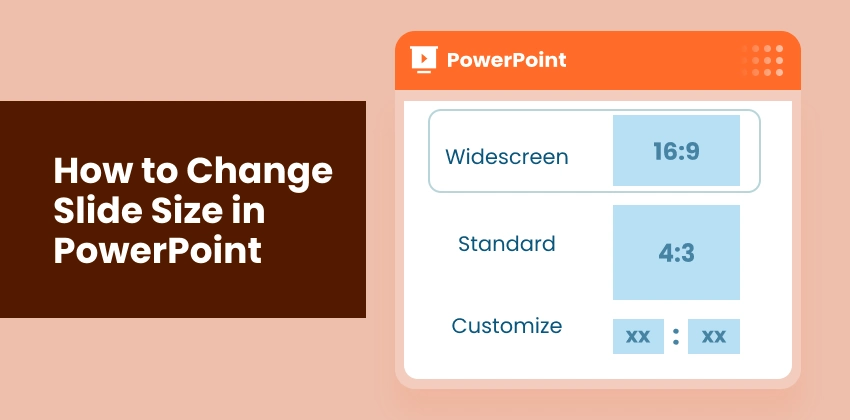
PowerPoint에서 슬라이드 크기를 변경하는 것은 다양한 화면, 형식 및 출력 요구 사항에 맞춰 프레젠테이션을 준비할 때 필요합니다. 잘못된 슬라이드 크기를 사용하면 콘텐츠가 잘리거나 늘어나거나 잘못 정렬될 수 있지만, 올바르게 조정하면 슬라이드가 세련되고 전문적이며 잘 정렬된 것처럼 보입니다.
이 가이드에서는 기존 레이아웃에 영향을 주지 않으면서 수동 조정부터 VBA 및 Python을 사용한 자동화에 이르기까지 PowerPoint에서 슬라이드 크기를 변경하는 세 가지 실용적인 방법을 배웁니다.
- PowerPoint에서 슬라이드 크기를 변경해야 하는 이유
- 일반적인 PowerPoint 슬라이드 크기 이해
- PowerPoint에서 수동으로 슬라이드 크기 변경
- VBA를 사용하여 PowerPoint에서 자동으로 슬라이드 크기 변경
- Python을 사용하여 PowerPoint 슬라이드 일괄 크기 조정
- PowerPoint에서 슬라이드 크기 변경 문제 해결 및 모범 사례
PowerPoint에서 슬라이드 크기를 변경해야 하는 이유는 무엇입니까?
PowerPoint는 기본 슬라이드 크기를 사용하지만 실제 프레젠테이션 요구 사항에 항상 맞지는 않습니다. 슬라이드 크기를 변경하면 다음과 같은 이점이 있습니다.
- 다양한 화면에 올바르게 표시 - 와이드스크린 모니터, 프로젝터 또는 노트북에서 슬라이드가 완벽하게 보이도록 합니다.
- 콘텐츠 문제 방지 - 텍스트, 이미지 또는 차트가 잘리거나 늘어나거나 잘못 정렬되는 것을 방지합니다.
- 인쇄 또는 PDF 내보내기 준비 - 유인물, 보고서 또는 디지털 공유를 위해 슬라이드를 최적화합니다.
- 디지털 플랫폼에 맞게 조정 - 비디오 프레젠테이션, 웹사이트 또는 소셜 미디어 게시물용 슬라이드를 디자인합니다.
- 장치 간 일관성 유지 - 동료 또는 고객과 프레젠테이션을 공유할 때 레이아웃을 그대로 유지합니다.
올바른 슬라이드 크기로 시작하면 서식 문제를 줄이고 모든 시나리오에서 콘텐츠가 전문적으로 보이도록 할 수 있습니다.
일반적인 PowerPoint 슬라이드 크기 이해
슬라이드 크기를 변경하기 전에 가장 일반적으로 사용되는 PowerPoint 슬라이드 크기와 일반적인 사용 사례를 이해하는 것이 중요합니다.
| 슬라이드 크기 | 종횡비 | 크기 | 일반적인 사용 사례 |
|---|---|---|---|
| 표준 | 4:3 | 10 × 7.5인치 | 구형 프로젝터, 인쇄된 유인물, 레거시 프레젠테이션 |
| 와이드스크린 | 16:9 | 13.333 × 7.5인치 | 최신 모니터, 노트북, TV, 온라인 프레젠테이션 |
| 사용자 지정 슬라이드 크기 | 사용자 지정 | 임의 너비 × 높이 | 포스터, 소셜 미디어 그래픽, 디지털 사이니지, 비디오 콘텐츠 |
팁: 대부분의 최신 화면 및 온라인 공유에는 16:9 와이드스크린 형식을 권장합니다.
PowerPoint에서 수동으로 슬라이드 크기 변경
프레젠테이션 레이아웃을 완벽하게 제어하고 싶다면 PowerPoint에서 화면, 인쇄 형식 또는 디지털 플랫폼에 맞게 슬라이드 크기를 수동으로 변경할 수 있습니다. 방법은 다음과 같습니다.
PowerPoint에서 수동으로 슬라이드 크기를 변경하는 단계:
-
PowerPoint에서 프레젠테이션을 열고 슬라이드를 선택합니다.
-
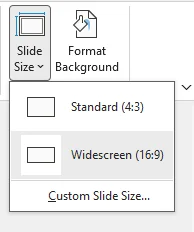
리본의 디자인 탭으로 이동하여 맨 오른쪽에 있는 슬라이드 크기를 클릭합니다.

-
크기 옵션 선택:
- 사전 설정 크기: 일반적인 형식에 대해 표준(4:3) 또는 와이드스크린(16:9)을 선택합니다.
- 사용자 지정 슬라이드 크기: 포스터, 소셜 미디어 슬라이드 또는 비디오 콘텐츠와 같은 특수 레이아웃에 대해 원하는 너비와 높이를 입력합니다.
-
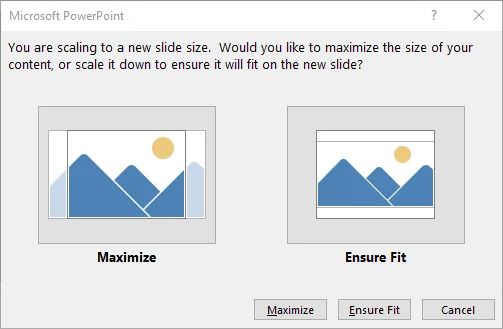
메시지가 표시되면 콘텐츠 크기를 조정하는 방법을 선택합니다.
- 최대화: 새 슬라이드 크기를 채우도록 콘텐츠를 확대합니다(일부 개체가 넘칠 수 있음).
- 맞춤 확인: 슬라이드에 안전하게 맞도록 콘텐츠 크기를 축소합니다(대부분의 레이아웃에 권장).
-
PowerPoint는 새 슬라이드 크기를 적용하고 즉시 콘텐츠 크기를 조정합니다. 각 슬라이드의 정렬, 텍스트 및 이미지를 검토합니다.
장점:
- 단일 프레젠테이션에 대해 빠르고 신속함
- 슬라이드 크기에 대한 완벽한 제어
- 추가 소프트웨어 필요 없음
단점:
- 여러 프레젠테이션의 크기를 조정해야 하는 경우 시간이 많이 걸릴 수 있음
팁: 맞춤 확인을 사용하면 레이아웃을 깨지 않고 최상의 결과를 얻을 수 있습니다.
공식 지침은 Microsoft의 PowerPoint 슬라이드 크기 변경을 참조하십시오.
VBA를 사용하여 PowerPoint에서 자동으로 슬라이드 크기 변경
VBA에 익숙하다면 PowerPoint 내에서 직접 스크립트를 실행하여 슬라이드 크기 조정을 자동화할 수 있습니다. 이 방법은 외부 라이브러리에 의존하지 않고 반복적인 크기 조정 작업을 처리하는 사용자에게 이상적입니다.
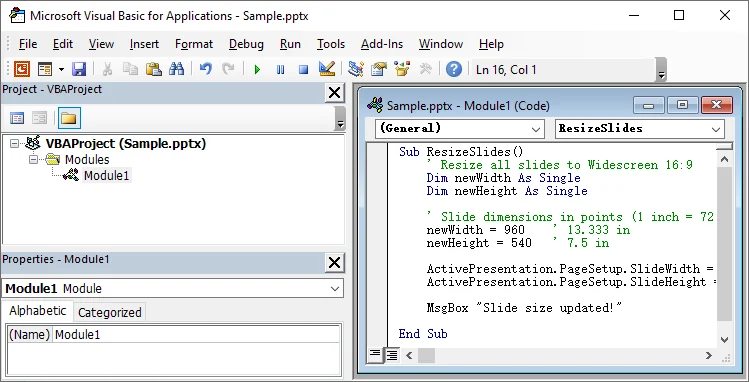
VBA를 사용하여 PowerPoint에서 자동으로 슬라이드 크기를 변경하는 단계:
-
PowerPoint 프레젠테이션을 엽니다.
-
Alt + F11을 눌러 VBA 편집기를 엽니다.
-
삽입 → 모듈을 클릭하여 새 모듈을 삽입합니다.
-
다음 코드를 붙여넣습니다.
Sub ResizeSlides() ' 모든 슬라이드를 와이드스크린 16:9로 크기 조정 Dim newWidth As Single Dim newHeight As Single ' 슬라이드 크기(포인트 단위, 1인치 = 72포인트) newWidth = 960 ' 13.333 in newHeight = 540 ' 7.5 in ActivePresentation.PageSetup.SlideWidth = newWidth ActivePresentation.PageSetup.SlideHeight = newHeight MsgBox "슬라이드 크기가 업데이트되었습니다!" End Sub -
F5 키를 눌러 매크로를 실행합니다.
-
모든 슬라이드를 검토하여 콘텐츠가 정렬되고 레이아웃이 손상되지 않았는지 확인합니다.
장점:
- PowerPoint에서 직접 모든 슬라이드의 크기 조정을 자동화합니다.
- 추가 소프트웨어나 외부 스크립트가 필요하지 않습니다.
단점:
- 기본적인 VBA 지식이 필요합니다.
- 크기 조정 후 슬라이드 콘텐츠에 약간의 조정이 필요할 수 있습니다.
팁: 변경 사항은 되돌릴 수 없으므로 매크로를 실행하기 전에 항상 프레젠테이션을 백업하십시오.
관심 있을 만한 내용: PPT 분할 방법 - 3가지 쉬운 방법(수동, 온라인 및 Python)
Python을 사용하여 PowerPoint 슬라이드 일괄 크기 조정
여러 프레젠테이션에 대한 일괄 작업의 경우 Python을 사용하면 PowerPoint에서 슬라이드 크기를 자동으로 변경하여 시간을 절약하고 모든 파일에서 일관된 서식을 보장할 수 있습니다. 이 방법은 수동 조정이 비실용적인 대규모 프로젝트에 특히 유용합니다.
Spire.Presentation for Python과 같은 라이브러리를 사용하면 한 번에 수십 또는 수백 개의 프레젠테이션에 있는 슬라이드의 크기를 빠르게 조정할 수 있습니다. 크기 조정 외에도 슬라이드를 추가, 삭제, 재정렬 또는 복사할 수 있어 슬라이드 콘텐츠 및 레이아웃 관리를 완벽하게 제어할 수 있습니다.
PowerPoint에서 일괄적으로 슬라이드 크기를 변경하는 단계:
-
PyPI에서 Spire.Presentation for Python 설치:
pip install spire.presentation -
크기를 조정할 모든 PowerPoint 파일을 폴더(예: presentations/)에 넣습니다.
-
폴더의 모든 PowerPoint 파일을 반복하고 각각에 대해 슬라이드 크기를 일괄 조정하는 Python 스크립트를 만듭니다.
from spire.presentation import * import os import glob # 입력 및 출력 폴더 경로 설정 input_folder = "presentations/" output_folder = "resized_presentations/" # 출력 폴더가 없으면 생성 os.makedirs(output_folder, exist_ok=True) # 입력 폴더의 모든 PPTX 파일 반복 for file_path in glob.glob(os.path.join(input_folder, "*.pptx")): # Presentation 인스턴스 생성 presentation = Presentation() # 프레젠테이션 로드 presentation.LoadFromFile(file_path) # 슬라이드 크기를 와이드스크린 16:9로 설정 presentation.SlideSize.Type = SlideSizeType.Screen16x9 # 크기가 조정된 프레젠테이션 저장 output_file = os.path.join(output_folder, "resized_" + os.path.basename(file_path)) presentation.SaveToFile(output_file, FileFormat.Pptx2016) # 리소스 해제 presentation.Dispose() print("일괄 크기 조정이 완료되었습니다.") -
스크립트를 실행하여 모든 프레젠테이션의 크기를 자동으로 조정합니다.
장점:
- 여러 프레젠테이션에 효율적
단점:
- 기본적인 Python 지식이 필요합니다.
- 추가 라이브러리 설치 필요
- 슬라이드 콘텐츠에 약간의 수동 조정이 필요할 수 있습니다.
팁:
- 스크립트를 수정하여 표준 와이드스크린(16:9) 대신 사용자 지정 슬라이드 크기를 사용할 수 있습니다. Spire.Presentation의 공식 지원 문서를 참조하십시오.
- 전체 일괄 처리를 실행하기 전에 먼저 하나 또는 두 개의 프레젠테이션에서 테스트하여 레이아웃이 올바르게 확장되는지 확인하십시오.
PowerPoint에서 슬라이드 크기 변경 문제 해결 및 모범 사례
PowerPoint에서 슬라이드 크기를 변경하는 방법을 선택하더라도 레이아웃 문제나 예기치 않은 콘텐츠 정렬 불량이 발생할 수 있습니다. 일반적인 문제를 해결하고 모범 사례를 따르는 방법을 알면 크기 조정이나 정렬 문제 없이 프레젠테이션이 장치 전체에 올바르게 표시되도록 할 수 있습니다.
일반적인 문제 및 해결 방법
- 텍스트 잘림: 콘텐츠가 새 슬라이드 여백을 초과함 → 글꼴 크기를 줄이거나 텍스트 상자를 조정합니다.
- 이미지 늘어남: 종횡비가 잠겨 있지 않음 → 크기를 조정하기 전에 종횡비를 잠급니다.
- 개체 정렬 불량: 자동 크기 조정으로 간격 변경 → 정렬 도구를 사용하거나 슬라이드 마스터에서 조정합니다.
- 일관성 없는 레이아웃: 슬라이드가 다른 마스터를 사용함 → 슬라이드 마스터에서 일관되게 변경 사항을 적용합니다.
PowerPoint에서 슬라이드 크기를 변경하는 모범 사례
- 슬라이드 크기를 일찍 결정: 대부분의 콘텐츠를 추가하기 전에 올바른 슬라이드 크기를 선택합니다.
- 최신 디스플레이에 16:9 사용: 와이드스크린, 노트북 및 온라인 프레젠테이션에 이상적입니다.
- 중요한 콘텐츠를 안전한 여백 내에 유지: 크기 조정 후 개체가 잘리는 것을 방지합니다.
- 대상 장치 또는 화면에서 테스트: 프레젠테이션이 올바르게 표시되는지 확인합니다.
팁: 기존 프레젠테이션의 크기를 조정하기 전에 항상 백업 복사본을 저장하십시오. 특히 VBA 매크로나 Python 스크립트를 사용하는 경우 더욱 그렇습니다.
결론
PowerPoint에서 슬라이드 크기를 변경하는 방법에는 여러 가지가 있으며, 가장 좋은 방법은 워크플로와 프레젠테이션 요구 사항에 따라 다릅니다.
- 수동 크기 조정 - 빠른 편집이나 단일 프레젠테이션에 가장 적합합니다.
- VBA 자동화 - PowerPoint 내에서 반복 가능한 크기 조정 작업에 이상적입니다.
- Python 일괄 크기 조정 - 대규모 프로젝트나 자동화된 워크플로에 적합합니다.
올바른 방법을 선택하면 레이아웃을 깨지 않고 PowerPoint 슬라이드 크기를 자신 있게 조정하고, 일관된 서식을 유지하며, 여러 파일로 작업할 때 시간을 절약할 수 있습니다.
더 많은 고품질 PowerPoint 튜토리얼을 찾고 계십니까? 무료 PPT 리소스를 확인하십시오.
자주 묻는 질문: PowerPoint에서 슬라이드 크기 변경
Q1: PowerPoint 프레젠테이션에 가장 적합한 슬라이드 크기는 무엇입니까?
A1: 대부분의 최신 프레젠테이션에는 와이드스크린(16:9)을 권장합니다. 노트북, 모니터, TV 및 온라인 회의 플랫폼에서 가장 잘 작동합니다. 표준(4:3)은 주로 구형 프로젝터나 인쇄된 유인물에 사용됩니다.
Q2: 슬라이드 크기를 변경하면 PowerPoint의 애니메이션이나 전환에 영향을 줍니까?
A2: 슬라이드 크기를 변경해도 애니메이션이나 전환이 제거되지는 않지만 시각적 위치나 타이밍에 영향을 줄 수 있습니다. 크기를 조정한 후 슬라이드를 검토하여 모든 것이 올바르게 재생되는지 확인하십시오.
Q3: 레이아웃을 깨지 않고 PowerPoint에서 슬라이드 크기를 변경하는 방법은 무엇입니까?
A3: 크기를 조정할 때 맞춤 확인 옵션을 사용하고, 중요한 콘텐츠를 안전한 여백 내에 유지하고, 크기 조정 후 슬라이드를 검토하십시오. 복잡한 레이아웃의 경우 여전히 약간의 수동 조정이 필요할 수 있습니다.
Q4: 여러 PowerPoint 프레젠테이션에서 한 번에 슬라이드 크기를 조정하는 방법은 무엇입니까?
A4: Spire.Presentation과 같은 라이브러리와 함께 Python을 사용하여 여러 PowerPoint 파일의 크기를 자동으로 일괄 조정합니다.
Q5: PowerPoint에서 한 슬라이드에 대해서만 슬라이드 크기를 변경할 수 있습니까?
A5: 아니요. PowerPoint는 개별 슬라이드가 아닌 전체 프레젠테이션에 슬라이드 크기를 적용합니다. 다른 슬라이드 크기가 필요한 경우 별도의 프레젠테이션을 만들거나 단일 슬라이드에서 시각적으로 콘텐츠를 조정하십시오.
참고 항목
Come cambiare le dimensioni della diapositiva in PowerPoint (senza rovinare il layout)
Indice
- Perché Cambiare le Dimensioni delle Diapositive in PowerPoint
- Comprendere le Dimensioni Comuni delle Diapositive di PowerPoint
- Cambiare le Dimensioni delle Diapositive in PowerPoint Manualmente
- Cambiare le Dimensioni delle Diapositive in PowerPoint Automaticamente con VBA
- Ridimensionare in Blocco le Diapositive di PowerPoint con Python
- Risoluzione dei Problemi e Migliori Pratiche per Cambiare le Dimensioni delle Diapositive in PowerPoint
Cambiare le dimensioni delle diapositive in PowerPoint è necessario quando si preparano presentazioni per schermi, formati e requisiti di output diversi. L'uso di dimensioni errate può causare il taglio, l'allungamento o il disallineamento dei contenuti, mentre una regolazione corretta assicura che le diapositive appaiano curate, professionali e ben allineate.
In questa guida, imparerai tre modi pratici per cambiare le dimensioni delle diapositive in PowerPoint — dalle regolazioni manuali all'automazione con VBA e Python — senza compromettere i layout esistenti.
- Perché Cambiare le Dimensioni delle Diapositive in PowerPoint
- Comprendere le Dimensioni Comuni delle Diapositive di PowerPoint
- Cambiare le Dimensioni delle Diapositive in PowerPoint Manualmente
- Cambiare le Dimensioni delle Diapositive in PowerPoint Automaticamente con VBA
- Ridimensionare in Blocco le Diapositive di PowerPoint con Python
- Risoluzione dei Problemi e Migliori Pratiche per Cambiare le Dimensioni delle Diapositive in PowerPoint
Perché Cambiare le Dimensioni delle Diapositive in PowerPoint?
PowerPoint utilizza dimensioni predefinite per le diapositive, che non sempre si adattano alle esigenze di presentazione del mondo reale. Cambiare le dimensioni delle diapositive ti aiuta a:
- Visualizzare correttamente su schermi diversi - assicurati che le diapositive appaiano perfette su monitor widescreen, proiettori o laptop.
- Prevenire problemi di contenuto - evita che testo, immagini o grafici vengano tagliati, allungati o disallineati.
- Preparare per la stampa o l'esportazione in PDF - ottimizza le diapositive per dispense, report o condivisione digitale.
- Adattare per piattaforme digitali - progetta diapositive per presentazioni video, siti web o post sui social media.
- Mantenere la coerenza tra i dispositivi - mantieni i layout intatti quando condividi presentazioni con colleghi o clienti.
Iniziando con le giuste dimensioni delle diapositive, puoi ridurre i problemi di formattazione e assicurarti che i tuoi contenuti appaiano professionali in ogni scenario.
Comprendere le Dimensioni Comuni delle Diapositive di PowerPoint
Prima di cambiare le dimensioni delle diapositive, è importante comprendere le dimensioni più comuni delle diapositive di PowerPoint e i loro casi d'uso tipici.
| Dimensioni Diapositiva | Rapporto d'Aspetto | Dimensioni | Casi d'Uso Tipici |
|---|---|---|---|
| Standard | 4:3 | 10 × 7,5 pollici | Proiettori più vecchi, dispense stampate, presentazioni legacy |
| Widescreen | 16:9 | 13,333 × 7,5 pollici | Monitor moderni, laptop, TV, presentazioni online |
| Dimensioni Diapositiva Personalizzate | Personalizzato | Qualsiasi larghezza × altezza | Poster, grafica per social media, segnaletica digitale, contenuti video |
Suggerimento: per la maggior parte degli schermi moderni e la condivisione online, si consiglia il formato widescreen 16:9.
Cambiare le Dimensioni delle Diapositive in PowerPoint Manualmente
Se desideri il pieno controllo sul layout della tua presentazione, PowerPoint ti consente di modificare manualmente le dimensioni delle diapositive per adattarle a schermi, formati di stampa o piattaforme digitali. Ecco come fare.
Passaggi per cambiare manualmente le dimensioni delle diapositive in PowerPoint:
-
Apri la tua presentazione in PowerPoint e seleziona una diapositiva qualsiasi.
-
Vai alla scheda Progettazione sulla barra multifunzione e fai clic su Dimensioni diapositiva all'estrema destra.
-
Scegli un'opzione di dimensione:
- Dimensioni preimpostate: seleziona Standard (4:3) o Widescreen (16:9) per i formati comuni.
- Dimensioni diapositiva personalizzate: inserisci la larghezza e l'altezza desiderate per layout specializzati, come poster, diapositive per social media o contenuti video.
-
Scegli come adattare il contenuto quando richiesto:
- Massimizza: ingrandisce il contenuto per riempire le nuove dimensioni della diapositiva (potrebbe causare il trabocco di alcuni oggetti).
- Adatta: ridimensiona il contenuto per adattarlo in modo sicuro alla diapositiva (consigliato per la maggior parte dei layout).
-
PowerPoint applica immediatamente le nuove dimensioni della diapositiva e adatta il contenuto. Rivedi ogni diapositiva per l'allineamento, il testo e le immagini.
Pro:
- Veloce e rapido per una singola presentazione
- Pieno controllo sulle dimensioni della diapositiva
- Nessun software aggiuntivo richiesto
Contro:
- Può richiedere molto tempo se è necessario ridimensionare più presentazioni
Suggerimento: l'uso di Adatta offre i migliori risultati senza compromettere il layout.
Per una guida ufficiale, consulta Cambiare le dimensioni delle diapositive di PowerPoint da Microsoft.
Cambiare le Dimensioni delle Diapositive in PowerPoint Automaticamente con VBA
Se hai familiarità con VBA, puoi eseguire uno script direttamente in PowerPoint per automatizzare il ridimensionamento delle diapositive. Questo metodo è ideale per gli utenti che gestiscono attività di ridimensionamento ripetute e preferiscono non fare affidamento su librerie esterne.
Passaggi per cambiare automaticamente le dimensioni delle diapositive in PowerPoint utilizzando VBA:
-
Apri la tua presentazione di PowerPoint.
-
Premi Alt + F11 per aprire l'Editor VBA.
-
Fai clic su Inserisci → Modulo per inserire un nuovo modulo.
-
Incolla il seguente codice:
Sub ResizeSlides() ' Ridimensiona tutte le diapositive in Widescreen 16:9 Dim newWidth As Single Dim newHeight As Single ' Dimensioni della diapositiva in punti (1 pollice = 72 punti) newWidth = 960 ' 13.333 in newHeight = 540 ' 7.5 in ActivePresentation.PageSetup.SlideWidth = newWidth ActivePresentation.PageSetup.SlideHeight = newHeight MsgBox "Dimensioni della diapositiva aggiornate!" End Sub -
Premi F5 per eseguire la macro.
-
Rivedi tutte le diapositive per assicurarti che il contenuto sia allineato e che i layout siano intatti.
Pro:
- Automatizza il ridimensionamento per tutte le diapositive direttamente in PowerPoint
- Nessuna necessità di software aggiuntivo o script esterni
Contro:
- Richiede una conoscenza di base di VBA
- Il contenuto della diapositiva potrebbe ancora necessitare di piccole modifiche dopo il ridimensionamento
Suggerimento: esegui sempre il backup della presentazione prima di eseguire le macro, poiché le modifiche non possono essere annullate.
Potrebbe interessarti anche: Come dividere PPT - 3 metodi semplici (manuale, online e Python)
Ridimensionare in Blocco le Diapositive di PowerPoint con Python
Per le operazioni in blocco su più presentazioni, Python ti consente di modificare automaticamente le dimensioni delle diapositive in PowerPoint, risparmiando tempo e garantendo una formattazione coerente su tutti i file. Questo metodo è particolarmente utile per progetti su larga scala in cui la regolazione manuale sarebbe impraticabile.
Utilizzando librerie come Spire.Presentation per Python, puoi ridimensionare rapidamente le diapositive in dozzine o centinaia di presentazioni in una sola volta. Oltre al ridimensionamento, ti consente anche di aggiungere, eliminare, riordinare o copiare diapositive, offrendoti il pieno controllo sulla gestione dei contenuti e del layout delle diapositive.
Passaggi per modificare in blocco le dimensioni delle diapositive in PowerPoint:
-
Installa Spire.Presentation per Python da PyPI:
pip install spire.presentation -
Posiziona tutti i file di PowerPoint da ridimensionare in una cartella, ad es. presentazioni/.
-
Crea uno script Python per scorrere tutti i file di PowerPoint nella cartella e ridimensionare in blocco le diapositive per ciascuno.
from spire.presentation import * import os import glob # Imposta i percorsi delle cartelle di input e output input_folder = "presentations/" output_folder = "resized_presentations/" # Crea la cartella di output se non esiste os.makedirs(output_folder, exist_ok=True) # Scorri tutti i file PPTX nella cartella di input for file_path in glob.glob(os.path.join(input_folder, "*.pptx")): # Crea un'istanza di Presentation presentation = Presentation() # Carica la presentazione presentation.LoadFromFile(file_path) # Imposta le dimensioni della diapositiva su Widescreen 16:9 presentation.SlideSize.Type = SlideSizeType.Screen16x9 # Salva la presentazione ridimensionata output_file = os.path.join(output_folder, "resized_" + os.path.basename(file_path)) presentation.SaveToFile(output_file, FileFormat.Pptx2016) # Rilascia le risorse presentation.Dispose() print("Ridimensionamento in blocco completato.") -
Esegui lo script per ridimensionare automaticamente tutte le presentazioni.
Pro:
- Efficiente per più presentazioni
Contro:
- Richiede una conoscenza di base di Python
- È necessaria l'installazione di una libreria aggiuntiva
- Il contenuto della diapositiva potrebbe richiedere piccole modifiche manuali
Suggerimenti:
- Lo script può essere modificato per utilizzare dimensioni di diapositiva personalizzate invece dello standard Widescreen (16:9), consulta il documento di supporto ufficiale di Spire.Presentation.
- Esegui prima il test su una o due presentazioni prima di eseguire un batch completo per assicurarti che i layout vengano ridimensionati correttamente.
Risoluzione dei Problemi e Migliori Pratiche per Cambiare le Dimensioni delle Diapositive in PowerPoint
Indipendentemente dal metodo scelto per modificare le dimensioni delle diapositive in PowerPoint, potresti comunque riscontrare problemi di layout o disallineamenti imprevisti dei contenuti. Sapere come risolvere i problemi comuni e seguire le migliori pratiche aiuta a garantire che la presentazione venga visualizzata correttamente su tutti i dispositivi senza problemi di ridimensionamento o allineamento.
Problemi Comuni e Come Risolverli
- Testo tagliato: il contenuto supera i nuovi margini della diapositiva → Riduci le dimensioni del carattere o regola le caselle di testo.
- Immagini allungate: rapporto d'aspetto non bloccato → Blocca il rapporto d'aspetto prima di ridimensionare.
- Oggetti disallineati: il ridimensionamento automatico modifica la spaziatura → Usa gli strumenti di allineamento o regola nello Schema diapositiva.
- Layout incoerenti: le diapositive utilizzano schemi diversi → Applica le modifiche in modo coerente nello Schema diapositiva.
Migliori Pratiche per Cambiare le Dimensioni delle Diapositive in PowerPoint
- Decidi le dimensioni della diapositiva in anticipo: scegli le dimensioni corrette della diapositiva prima di aggiungere la maggior parte dei tuoi contenuti.
- Usa il formato 16:9 per i display moderni: ideale per widescreen, laptop e presentazioni online.
- Mantieni i contenuti importanti entro margini di sicurezza: impedisce che gli oggetti vengano tagliati dopo il ridimensionamento.
- Esegui il test sul dispositivo o sullo schermo di destinazione: assicura che la presentazione venga visualizzata correttamente.
Suggerimento: prima di ridimensionare una presentazione esistente, salva sempre una copia di backup, specialmente quando si utilizzano macro VBA o script Python.
Conclusione
La modifica delle dimensioni delle diapositive in PowerPoint può essere eseguita in diversi modi e il metodo migliore dipende dal flusso di lavoro e dalle esigenze di presentazione:
- Ridimensionamento manuale - Ideale per modifiche rapide o singole presentazioni.
- Automazione VBA - Ideale per attività di ridimensionamento ripetibili all'interno di PowerPoint.
- Ridimensionamento in blocco con Python - Perfetto per progetti su larga scala o flussi di lavoro automatizzati.
Selezionando il metodo giusto, puoi ridimensionare con sicurezza le diapositive di PowerPoint senza rompere i layout, mantenere una formattazione coerente e risparmiare tempo quando lavori con più file.
Cerchi altri tutorial di alta qualità su PowerPoint? Dai un'occhiata alle nostre risorse PPT gratuite.
Domande frequenti: Cambiare le dimensioni delle diapositive in PowerPoint
D1: Qual è la dimensione migliore per le diapositive delle presentazioni di PowerPoint?
R1: Per la maggior parte delle presentazioni moderne, si consiglia il formato Widescreen (16:9). Funziona meglio su laptop, monitor, TV e piattaforme di riunioni online. Lo standard (4:3) viene utilizzato principalmente per proiettori più vecchi o dispense stampate.
D2: La modifica delle dimensioni della diapositiva influisce sulle animazioni o sulle transizioni in PowerPoint?
R2: La modifica delle dimensioni della diapositiva non rimuove animazioni o transizioni, ma può influire sul loro posizionamento visivo o sulla loro tempistica. Rivedi le diapositive dopo il ridimensionamento per assicurarti che tutto venga riprodotto correttamente.
D3: Come modificare le dimensioni della diapositiva in PowerPoint senza rompere i layout?
R3: Utilizza l'opzione Adatta durante il ridimensionamento, mantieni i contenuti importanti entro margini di sicurezza e rivedi le diapositive dopo il ridimensionamento. Potrebbero essere ancora necessarie piccole regolazioni manuali per layout complessi.
D4: Come ridimensionare le diapositive su più presentazioni di PowerPoint contemporaneamente?
R4: Utilizza Python insieme a librerie come Spire.Presentation per ridimensionare in blocco più file di PowerPoint automaticamente.
D5: Posso modificare le dimensioni della diapositiva in PowerPoint solo per una diapositiva?
R5: No. PowerPoint applica le dimensioni della diapositiva all'intera presentazione, non alle singole diapositive. Se hai bisogno di diapositive di dimensioni diverse, crea presentazioni separate o regola visivamente il contenuto su una singola diapositiva.
Vedi anche
Comment modifier la taille des diapositives dans PowerPoint (sans casser la mise en page)
Table des matières
- Pourquoi changer la taille des diapositives dans PowerPoint
- Comprendre les tailles de diapositives PowerPoint courantes
- Changer la taille des diapositives dans PowerPoint manuellement
- Changer la taille des diapositives dans PowerPoint automatiquement avec VBA
- Redimensionner par lots les diapositives PowerPoint avec Python
- Dépannage et meilleures pratiques pour changer la taille des diapositives dans PowerPoint
Changer la taille des diapositives dans PowerPoint est nécessaire lors de la préparation de présentations pour différents écrans, formats et exigences de sortie. L'utilisation d'une mauvaise taille de diapositive peut entraîner la coupure, l'étirement ou le mauvais alignement du contenu, tandis qu'un ajustement correct garantit que vos diapositives ont un aspect soigné, professionnel et bien aligné.
Dans ce guide, vous apprendrez trois façons pratiques de changer la taille des diapositives dans PowerPoint — des ajustements manuels à l'automatisation avec VBA et Python — sans affecter vos mises en page existantes.
- Pourquoi changer la taille des diapositives dans PowerPoint
- Comprendre les tailles de diapositives PowerPoint courantes
- Changer la taille des diapositives dans PowerPoint manuellement
- Changer la taille des diapositives dans PowerPoint automatiquement avec VBA
- Redimensionner par lots les diapositives PowerPoint avec Python
- Dépannage et meilleures pratiques pour changer la taille des diapositives dans PowerPoint
Pourquoi changer la taille des diapositives dans PowerPoint ?
PowerPoint utilise des dimensions de diapositives par défaut, qui ne correspondent pas toujours aux besoins réels des présentations. Changer la taille des diapositives vous aide à :
- Afficher correctement sur différents écrans - assurez-vous que les diapositives sont parfaites sur les moniteurs grand écran, les projecteurs ou les ordinateurs portables.
- Prévenir les problèmes de contenu - évitez que le texte, les images ou les graphiques ne soient coupés, étirés ou mal alignés.
- Préparer pour l'impression ou l'exportation PDF - optimisez les diapositives pour les documents à distribuer, les rapports ou le partage numérique.
- Adapter pour les plateformes numériques - concevez des diapositives pour les présentations vidéo, les sites web ou les publications sur les réseaux sociaux.
- Maintenir la cohérence entre les appareils - conservez les mises en page intactes lors du partage de présentations avec des collègues ou des clients.
En commençant avec la bonne taille de diapositive, vous pouvez réduire les problèmes de formatage et vous assurer que votre contenu a un aspect professionnel dans tous les scénarios.
Comprendre les tailles de diapositives PowerPoint courantes
Avant de changer la taille des diapositives, il est important de comprendre les tailles de diapositives PowerPoint les plus couramment utilisées et leurs cas d'utilisation typiques.
| Taille de la diapositive | Ratio d'aspect | Dimensions | Cas d'utilisation typiques |
|---|---|---|---|
| Standard | 4:3 | 10 × 7,5 po | Anciens projecteurs, documents imprimés, présentations héritées |
| Grand écran | 16:9 | 13,333 × 7,5 po | Moniteurs modernes, ordinateurs portables, téléviseurs, présentations en ligne |
| Taille de diapositive personnalisée | Personnalisé | N'importe quelle largeur × hauteur | Affiches, graphiques pour les réseaux sociaux, affichage numérique, contenu vidéo |
Conseil : Pour la plupart des écrans modernes et le partage en ligne, le format grand écran 16:9 est recommandé.
Changer la taille des diapositives dans PowerPoint manuellement
Si vous voulez un contrôle total sur la mise en page de votre présentation, PowerPoint vous permet de changer manuellement la taille des diapositives pour l'adapter aux écrans, aux formats d'impression ou aux plateformes numériques. Voici comment faire.
Étapes pour changer la taille des diapositives dans PowerPoint manuellement :
-
Ouvrez votre présentation dans PowerPoint et sélectionnez n'importe quelle diapositive.
-
Accédez à l'onglet Création sur le ruban et cliquez sur Taille des diapositives à l'extrême droite.
-
Choisissez une option de taille :
- Tailles prédéfinies : Sélectionnez Standard (4:3) ou Grand écran (16:9) pour les formats courants.
- Taille de diapositive personnalisée : Entrez la largeur et la hauteur souhaitées pour les mises en page spécialisées, telles que les affiches, les diapositives pour les réseaux sociaux ou le contenu vidéo.
-
Choisissez comment mettre à l'échelle votre contenu lorsque vous y êtes invité :
- Agrandir : Agrandit votre contenu pour remplir la nouvelle taille de diapositive (peut faire déborder certains objets).
- Garantir l'ajustement : Met le contenu à l'échelle pour l'adapter à la diapositive en toute sécurité (recommandé pour la plupart des mises en page).
-
PowerPoint applique immédiatement la nouvelle taille de diapositive et met le contenu à l'échelle. Passez en revue chaque diapositive pour vérifier l'alignement, le texte et les images.
Avantages :
- Rapide et facile pour une seule présentation
- Contrôle total sur les dimensions des diapositives
- Aucun logiciel supplémentaire requis
Inconvénients :
- Peut prendre beaucoup de temps si vous devez redimensionner plusieurs présentations
Conseil : L'utilisation de Garantir l'ajustement offre les meilleurs résultats sans casser votre mise en page.
Pour des conseils officiels, consultez Modifier la taille de vos diapositives PowerPoint de Microsoft.
Changer la taille des diapositives dans PowerPoint automatiquement avec VBA
Si vous êtes à l'aise avec VBA, vous pouvez exécuter un script directement dans PowerPoint pour automatiser le redimensionnement des diapositives. Cette méthode est idéale pour les utilisateurs qui effectuent des tâches de redimensionnement répétées et qui préfèrent ne pas dépendre de bibliothèques externes.
Étapes pour changer la taille des diapositives dans PowerPoint automatiquement avec VBA :
-
Ouvrez votre présentation PowerPoint.
-
Appuyez sur Alt + F11 pour ouvrir l'éditeur VBA.
-
Cliquez sur Insertion → Module pour insérer un nouveau module.
-
Collez le code suivant :
Sub ResizeSlides() ' Redimensionner toutes les diapositives en Grand écran 16:9 Dim newWidth As Single Dim newHeight As Single ' Dimensions des diapositives en points (1 pouce = 72 points) newWidth = 960 ' 13.333 po newHeight = 540 ' 7.5 po ActivePresentation.PageSetup.SlideWidth = newWidth ActivePresentation.PageSetup.SlideHeight = newHeight MsgBox "Taille des diapositives mise à jour !" End Sub -
Appuyez sur F5 pour exécuter la macro.
-
Passez en revue toutes les diapositives pour vous assurer que le contenu est aligné et que les mises en page sont intactes.
Avantages :
- Automatise le redimensionnement de toutes les diapositives directement dans PowerPoint
- Pas besoin de logiciel supplémentaire ou de scripts externes
Inconvénients :
- Nécessite des connaissances de base en VBA
- Le contenu des diapositives peut encore nécessiter des ajustements mineurs après le redimensionnement
Conseil : Sauvegardez toujours votre présentation avant d'exécuter des macros, car les modifications ne peuvent pas être annulées.
Vous pourriez également être intéressé par : Comment diviser un PPT - 3 méthodes faciles (manuelle, en ligne et Python)
Redimensionner par lots les diapositives PowerPoint avec Python
Pour les opérations par lots sur plusieurs présentations, Python vous permet de changer automatiquement la taille des diapositives dans PowerPoint, ce qui permet de gagner du temps et d'assurer un formatage cohérent sur tous les fichiers. Cette méthode est particulièrement utile pour les projets à grande échelle où l'ajustement manuel serait peu pratique.
En utilisant des bibliothèques comme Spire.Presentation for Python, vous pouvez rapidement redimensionner les diapositives de dizaines ou de centaines de présentations en une seule fois. Au-delà du redimensionnement, il vous permet également d'ajouter, de supprimer, de réorganiser ou de copier des diapositives, vous donnant un contrôle total sur la gestion du contenu et de la mise en page des diapositives.
Étapes pour changer par lots la taille des diapositives dans PowerPoint :
-
Installez Spire.Presentation for Python depuis PyPI :
pip install spire.presentation -
Placez tous les fichiers PowerPoint à redimensionner dans un dossier, par ex., presentations/.
-
Créez un script Python pour parcourir tous les fichiers PowerPoint dans le dossier et redimensionner par lots les diapositives pour chacun.
from spire.presentation import * import os import glob # Définir les chemins des dossiers d'entrée et de sortie input_folder = "presentations/" output_folder = "resized_presentations/" # Créer le dossier de sortie s'il n'existe pas os.makedirs(output_folder, exist_ok=True) # Parcourir tous les fichiers PPTX dans le dossier d'entrée for file_path in glob.glob(os.path.join(input_folder, "*.pptx")): # Créer une instance de Presentation presentation = Presentation() # Charger la présentation presentation.LoadFromFile(file_path) # Définir la taille de la diapositive sur Grand écran 16:9 presentation.SlideSize.Type = SlideSizeType.Screen16x9 # Enregistrer la présentation redimensionnée output_file = os.path.join(output_folder, "resized_" + os.path.basename(file_path)) presentation.SaveToFile(output_file, FileFormat.Pptx2016) # Libérer les ressources presentation.Dispose() print("Redimensionnement par lots terminé.") -
Exécutez le script pour redimensionner automatiquement toutes les présentations.
Avantages :
- Efficace pour plusieurs présentations
Inconvénients :
- Nécessite des connaissances de base en Python
- Installation d'une bibliothèque supplémentaire nécessaire
- Le contenu des diapositives peut nécessiter un ajustement manuel mineur
Conseils :
- Le script peut être modifié pour utiliser des dimensions de diapositives personnalisées au lieu du format standard Grand écran (16:9), consultez le document de support officiel de Spire.Presentation.
- Testez d'abord sur une ou deux présentations avant d'exécuter un lot complet pour vous assurer que les mises en page s'adaptent correctement.
Dépannage et meilleures pratiques pour changer la taille des diapositives dans PowerPoint
Quelle que soit la méthode que vous choisissez pour changer la taille des diapositives dans PowerPoint, vous pouvez toujours rencontrer des problèmes de mise en page ou un mauvais alignement inattendu du contenu. Savoir comment résoudre les problèmes courants et suivre les meilleures pratiques permet de s'assurer que votre présentation s'affiche correctement sur tous les appareils sans problèmes de mise à l'échelle ou d'alignement.
Problèmes courants et comment les résoudre
- Texte coupé : Le contenu dépasse les nouvelles marges de la diapositive → Réduisez la taille de la police ou ajustez les zones de texte.
- Images étirées : Le ratio d'aspect n'est pas verrouillé → Verrouillez le ratio d'aspect avant de redimensionner.
- Objets mal alignés : La mise à l'échelle automatique modifie l'espacement → Utilisez les outils d'alignement ou ajustez dans le Masque des diapositives.
- Mises en page incohérentes : Les diapositives utilisent des masques différents → Appliquez les modifications de manière cohérente dans le Masque des diapositives.
Meilleures pratiques pour changer la taille des diapositives dans PowerPoint
- Décidez des dimensions des diapositives tôt : Choisissez la bonne taille de diapositive avant d'ajouter la plupart de votre contenu.
- Utilisez le format 16:9 pour les affichages modernes : Idéal pour les écrans larges, les ordinateurs portables et les présentations en ligne.
- Gardez le contenu important dans les marges de sécurité : Empêche les objets d'être coupés après le redimensionnement.
- Testez sur l'appareil ou l'écran cible : Garantit que la présentation s'affiche correctement.
Conseil : Avant de redimensionner une présentation existante, enregistrez toujours une copie de sauvegarde, en particulier lors de l'utilisation de macros VBA ou de scripts Python.
Conclusion
Changer la taille des diapositives dans PowerPoint peut se faire de plusieurs manières, et la meilleure méthode dépend de votre flux de travail et de vos besoins de présentation :
- Redimensionnement manuel - Idéal pour les modifications rapides ou les présentations uniques.
- Automatisation VBA - Idéale pour les tâches de redimensionnement répétables dans PowerPoint.
- Redimensionnement par lots avec Python - Parfait pour les projets à grande échelle ou les flux de travail automatisés.
En choisissant la bonne méthode, vous pouvez redimensionner en toute confiance les diapositives PowerPoint sans casser les mises en page, maintenir un formatage cohérent et gagner du temps lorsque vous travaillez avec plusieurs fichiers.
Vous cherchez d'autres tutoriels PowerPoint de haute qualité ? Consultez nos ressources PPT gratuites.
FAQ : Changer la taille des diapositives dans PowerPoint
Q1 : Quelle est la meilleure taille de diapositive pour les présentations PowerPoint ?
R1 : Pour la plupart des présentations modernes, le format Grand écran (16:9) est recommandé. Il fonctionne mieux sur les ordinateurs portables, les moniteurs, les téléviseurs et les plateformes de réunion en ligne. Le format Standard (4:3) est principalement utilisé pour les anciens projecteurs ou les documents imprimés.
Q2 : Le changement de la taille des diapositives affecte-t-il les animations ou les transitions dans PowerPoint ?
R2 : Changer la taille des diapositives ne supprime pas les animations ou les transitions, mais cela peut affecter leur positionnement visuel ou leur minutage. Passez en revue les diapositives après le redimensionnement pour vous assurer que tout se joue correctement.
Q3 : Comment changer la taille des diapositives dans PowerPoint sans casser les mises en page ?
R3 : Utilisez l'option Garantir l'ajustement lors du redimensionnement, gardez le contenu important dans les marges de sécurité et passez en revue les diapositives après le redimensionnement. Des ajustements manuels mineurs peuvent encore être nécessaires pour les mises en page complexes.
Q4 : Comment redimensionner les diapositives de plusieurs présentations PowerPoint à la fois ?
R4 : Utilisez Python avec des bibliothèques comme Spire.Presentation pour redimensionner par lots plusieurs fichiers PowerPoint automatiquement.
Q5 : Puis-je changer la taille de la diapositive dans PowerPoint pour une seule diapositive ?
R5 : Non. PowerPoint applique la taille de la diapositive à l'ensemble de la présentation, et non aux diapositives individuelles. Si vous avez besoin de différentes tailles de diapositives, créez des présentations distinctes ou ajustez le contenu visuellement sur une seule diapositive.
Voir aussi
Cómo cambiar el tamaño de diapositiva en PowerPoint (sin romper el diseño)
Tabla de Contenidos
- Por qué cambiar el tamaño de la diapositiva en PowerPoint
- Comprender los tamaños comunes de las diapositivas de PowerPoint
- Cambiar el tamaño de la diapositiva en PowerPoint manualmente
- Cambiar el tamaño de la diapositiva en PowerPoint automáticamente usando VBA
- Redimensionar diapositivas de PowerPoint en lote usando Python
- Solución de problemas y mejores prácticas para cambiar el tamaño de la diapositiva en PowerPoint
Cambiar el tamaño de la diapositiva en PowerPoint es necesario al preparar presentaciones para diferentes pantallas, formatos y requisitos de salida. Usar el tamaño de diapositiva incorrecto puede hacer que el contenido se corte, se estire o se desalinee, mientras que ajustarlo correctamente asegura que sus diapositivas se vean pulidas, profesionales y bien alineadas.
En esta guía, aprenderá tres formas prácticas de cambiar el tamaño de la diapositiva en PowerPoint, desde ajustes manuales hasta la automatización con VBA y Python, sin afectar sus diseños existentes.
- Por qué cambiar el tamaño de la diapositiva en PowerPoint
- Comprender los tamaños comunes de las diapositivas de PowerPoint
- Cambiar el tamaño de la diapositiva en PowerPoint manualmente
- Cambiar el tamaño de la diapositiva en PowerPoint automáticamente usando VBA
- Redimensionar diapositivas de PowerPoint en lote usando Python
- Solución de problemas y mejores prácticas para cambiar el tamaño de la diapositiva en PowerPoint
¿Por qué cambiar el tamaño de la diapositiva en PowerPoint?
PowerPoint utiliza dimensiones de diapositiva predeterminadas, que no siempre se ajustan a las necesidades de presentación del mundo real. Cambiar el tamaño de la diapositiva le ayuda a:
- Mostrar correctamente en diferentes pantallas: asegúrese de que las diapositivas se vean perfectas en monitores de pantalla ancha, proyectores o computadoras portátiles.
- Prevenir problemas de contenido: evite que el texto, las imágenes o los gráficos se corten, se estiren o se desalineen.
- Preparar para la impresión o exportación a PDF: optimice las diapositivas para folletos, informes o uso compartido digital.
- Adaptar para plataformas digitales: diseñe diapositivas para presentaciones de video, sitios web o publicaciones en redes sociales.
- Mantener la coherencia entre dispositivos: mantenga los diseños intactos al compartir presentaciones con colegas o clientes.
Al comenzar con el tamaño de diapositiva correcto, puede reducir los problemas de formato y asegurarse de que su contenido se vea profesional en cada escenario.
Comprender los tamaños comunes de las diapositivas de PowerPoint
Antes de cambiar el tamaño de la diapositiva, es importante comprender los tamaños de diapositiva de PowerPoint más utilizados y sus casos de uso típicos.
| Tamaño de Diapositiva | Relación de Aspecto | Dimensiones | Casos de Uso Típicos |
|---|---|---|---|
| Estándar | 4:3 | 10 × 7.5 in | Proyectores antiguos, folletos impresos, presentaciones heredadas |
| Pantalla ancha | 16:9 | 13.333 × 7.5 in | Monitores modernos, computadoras portátiles, televisores, presentaciones en línea |
| Tamaño de Diapositiva Personalizado | Personalizado | Cualquier ancho × alto | Pósteres, gráficos para redes sociales, señalización digital, contenido de video |
Consejo: Para la mayoría de las pantallas modernas y el uso compartido en línea, se recomienda el formato de pantalla ancha 16:9.
Cambiar el tamaño de la diapositiva en PowerPoint manualmente
Si desea un control total sobre el diseño de su presentación, PowerPoint le permite cambiar manualmente el tamaño de la diapositiva para adaptarla a pantallas, formatos de impresión o plataformas digitales. A continuación, le indicamos cómo hacerlo.
Pasos para cambiar el tamaño de la diapositiva en PowerPoint manualmente:
-
Abra su presentación en PowerPoint y seleccione cualquier diapositiva.
-
Vaya a la pestaña Diseño en la cinta de opciones y haga clic en Tamaño de diapositiva en el extremo derecho.
-
Elija una opción de tamaño:
- Tamaños preestablecidos: Seleccione Estándar (4:3) o Pantalla ancha (16:9) para formatos comunes.
- Tamaño de diapositiva personalizado: Ingrese el ancho y alto deseados para diseños especializados, como carteles, diapositivas para redes sociales o contenido de video.
-
Elija cómo escalar su contenido cuando se le solicite:
- Maximizar: Amplía su contenido para llenar el nuevo tamaño de la diapositiva (puede hacer que algunos objetos se desborden).
- Asegurar el ajuste: Reduce el contenido para que quepa en la diapositiva de forma segura (recomendado para la mayoría de los diseños).
-
PowerPoint aplica el nuevo tamaño de diapositiva y escala el contenido inmediatamente. Revise cada diapositiva para ver la alineación, el texto y las imágenes.
Pros:
- Rápido y veloz para una sola presentación
- Control total sobre las dimensiones de la diapositiva
- No se requiere software adicional
Contras:
- Puede llevar mucho tiempo si necesita cambiar el tamaño de varias presentaciones
Consejo: Usar Asegurar el ajuste proporciona los mejores resultados sin romper su diseño.
Para obtener una guía oficial, consulte Cambiar el tamaño de las diapositivas de PowerPoint de Microsoft.
Cambiar el tamaño de la diapositiva en PowerPoint automáticamente usando VBA
Si se siente cómodo con VBA, puede ejecutar un script directamente en PowerPoint para automatizar el cambio de tamaño de las diapositivas. Este método es ideal para usuarios que realizan tareas repetitivas de cambio de tamaño y que prefieren no depender de bibliotecas externas.
Pasos para cambiar el tamaño de la diapositiva en PowerPoint automáticamente usando VBA:
-
Abra su presentación de PowerPoint.
-
Presione Alt + F11 para abrir el Editor de VBA.
-
Haga clic en Insertar → Módulo para insertar un nuevo módulo.
-
Pegue el siguiente código:
Sub ResizeSlides() ' Redimensionar todas las diapositivas a Pantalla ancha 16:9 Dim newWidth As Single Dim newHeight As Single ' Dimensiones de la diapositiva en puntos (1 pulgada = 72 puntos) newWidth = 960 ' 13.333 in newHeight = 540 ' 7.5 in ActivePresentation.PageSetup.SlideWidth = newWidth ActivePresentation.PageSetup.SlideHeight = newHeight MsgBox "¡Tamaño de diapositiva actualizado!" End Sub -
Presione F5 para ejecutar la macro.
-
Revise todas las diapositivas para asegurarse de que el contenido esté alineado y los diseños intactos.
Pros:
- Automatiza el cambio de tamaño para todas las diapositivas directamente en PowerPoint
- No se necesitan software adicional ni scripts externos
Contras:
- Requiere conocimientos básicos de VBA
- El contenido de la diapositiva aún puede necesitar ajustes menores después de cambiar el tamaño
Consejo: Siempre haga una copia de seguridad de su presentación antes de ejecutar macros, ya que los cambios no se pueden deshacer.
También podría interesarle: Cómo dividir PPT - 3 métodos sencillos (manual, en línea y Python)
Redimensionar diapositivas de PowerPoint en lote usando Python
Para operaciones por lotes en varias presentaciones, Python le permite cambiar automáticamente el tamaño de la diapositiva en PowerPoint, ahorrando tiempo y garantizando un formato coherente en todos los archivos. Este método es especialmente útil para proyectos a gran escala donde el ajuste manual no sería práctico.
Usando bibliotecas como Spire.Presentation for Python, puede cambiar rápidamente el tamaño de las diapositivas en docenas o cientos de presentaciones de una sola vez. Más allá del cambio de tamaño, también le permite agregar, eliminar, reordenar o copiar diapositivas, lo que le brinda un control total sobre el contenido de la diapositiva y la gestión del diseño.
Pasos para cambiar el tamaño de las diapositivas de PowerPoint en lote:
-
Instale Spire.Presentation for Python desde PyPI:
pip install spire.presentation -
Coloque todos los archivos de PowerPoint para cambiar el tamaño en una carpeta, por ejemplo, presentaciones/.
-
Cree un script de Python para recorrer todos los archivos de PowerPoint en la carpeta y cambiar el tamaño de las diapositivas por lotes para cada uno.
from spire.presentation import * import os import glob # Establecer rutas de las carpetas de entrada y salida input_folder = "presentations/" output_folder = "resized_presentations/" # Crear carpeta de salida si no existe os.makedirs(output_folder, exist_ok=True) # Recorrer todos los archivos PPTX en la carpeta de entrada for file_path in glob.glob(os.path.join(input_folder, "*.pptx")): # Crear una instancia de Presentación presentation = Presentation() # Cargar la presentación presentation.LoadFromFile(file_path) # Establecer el tamaño de la diapositiva en Pantalla ancha 16:9 presentation.SlideSize.Type = SlideSizeType.Screen16x9 # Guardar la presentación redimensionada output_file = os.path.join(output_folder, "resized_" + os.path.basename(file_path)) presentation.SaveToFile(output_file, FileFormat.Pptx2016) # Liberar recursos presentation.Dispose() print("El cambio de tamaño por lotes se ha completado.") -
Ejecute el script para cambiar el tamaño de todas las presentaciones automáticamente.
Pros:
- Eficiente para múltiples presentaciones
Contras:
- Requiere conocimientos básicos de Python
- Se necesita instalación de biblioteca adicional
- El contenido de la diapositiva puede requerir un ajuste manual menor
Consejos:
- El script se puede modificar para usar dimensiones de diapositiva personalizadas en lugar de la pantalla ancha estándar (16:9), consulte el documento de soporte oficial de Spire.Presentation.
- Pruebe primero en una o dos presentaciones antes de ejecutar un lote completo para asegurarse de que los diseños se escalen correctamente.
Solución de problemas y mejores prácticas para cambiar el tamaño de la diapositiva en PowerPoint
No importa qué método elija para cambiar el tamaño de la diapositiva en PowerPoint, aún puede encontrar problemas de diseño o desalineación inesperada del contenido. Saber cómo solucionar problemas comunes y seguir las mejores prácticas ayuda a garantizar que su presentación se muestre correctamente en todos los dispositivos sin problemas de escala o alineación.
Problemas comunes y cómo solucionarlos
- Texto cortado: El contenido excede los nuevos márgenes de la diapositiva → Reduzca el tamaño de la fuente o ajuste los cuadros de texto.
- Imágenes estiradas: La relación de aspecto no está bloqueada → Bloquee la relación de aspecto antes de cambiar el tamaño.
- Objetos desalineados: El escalado automático cambia el espaciado → Use las herramientas de Alinear o ajuste en el Patrón de diapositivas.
- Diseños inconsistentes: Las diapositivas usan diferentes patrones → Aplique los cambios de manera consistente en el Patrón de diapositivas.
Mejores prácticas para cambiar el tamaño de la diapositiva en PowerPoint
- Decida las dimensiones de la diapositiva con anticipación: Elija el tamaño de diapositiva correcto antes de agregar la mayor parte de su contenido.
- Use 16:9 para pantallas modernas: Ideal para pantallas panorámicas, computadoras portátiles y presentaciones en línea.
- Mantenga el contenido importante dentro de los márgenes seguros: Evita que los objetos se corten después de cambiar el tamaño.
- Pruebe en el dispositivo o pantalla de destino: Asegura que la presentación se muestre correctamente.
Consejo: Antes de cambiar el tamaño de una presentación existente, guarde siempre una copia de seguridad, especialmente cuando use macros de VBA o scripts de Python.
Conclusión
Cambiar el tamaño de la diapositiva en PowerPoint se puede hacer de varias maneras, y el mejor método depende de su flujo de trabajo y sus necesidades de presentación:
- Redimensionamiento manual - ideal para ediciones rápidas o presentaciones únicas.
- Automatización de VBA - ideal para tareas de cambio de tamaño repetibles dentro de PowerPoint.
- Redimensionamiento por lotes de Python - perfecto para proyectos a gran escala o flujos de trabajo automatizados.
Al seleccionar el método correcto, puede cambiar el tamaño de las diapositivas de PowerPoint con confianza sin romper los diseños, mantener un formato coherente y ahorrar tiempo al trabajar con varios archivos.
¿Busca más tutoriales de PowerPoint de alta calidad? Consulte nuestros recursos de PPT gratuitos.
Preguntas frecuentes: Cambiar el tamaño de la diapositiva en PowerPoint
P1: ¿Cuál es el mejor tamaño de diapositiva para las presentaciones de PowerPoint?
R1: Para la mayoría de las presentaciones modernas, se recomienda la pantalla ancha (16:9). Funciona mejor en computadoras portátiles, monitores, televisores y plataformas de reuniones en línea. El estándar (4:3) se utiliza principalmente para proyectores más antiguos o folletos impresos.
P2: ¿Cambiar el tamaño de la diapositiva afecta las animaciones o transiciones en PowerPoint?
R2: Cambiar el tamaño de la diapositiva no elimina las animaciones ni las transiciones, pero puede afectar su posicionamiento visual o su sincronización. Revise las diapositivas después de cambiar el tamaño para asegurarse de que todo se reproduzca correctamente.
P3: ¿Cómo cambiar el tamaño de la diapositiva en PowerPoint sin romper los diseños?
R3: Use la opción Asegurar el ajuste al cambiar el tamaño, mantenga el contenido importante dentro de los márgenes seguros y revise las diapositivas después de cambiar el tamaño. Es posible que aún se necesiten ajustes manuales menores para diseños complejos.
P4: ¿Cómo cambiar el tamaño de las diapositivas en varias presentaciones de PowerPoint a la vez?
R4: Use Python junto con bibliotecas como Spire.Presentation para cambiar el tamaño de varios archivos de PowerPoint por lotes automáticamente.
P5: ¿Puedo cambiar el tamaño de la diapositiva en PowerPoint para una sola diapositiva?
R5: No. PowerPoint aplica el tamaño de la diapositiva a toda la presentación, no a diapositivas individuales. Si necesita diferentes tamaños de diapositiva, cree presentaciones separadas o ajuste el contenido visualmente en una sola diapositiva.
Ver También
Foliengröße in PowerPoint ändern (ohne das Layout zu zerstören)
Inhaltsverzeichnis
- Warum die Foliengröße in PowerPoint ändern
- Gängige PowerPoint-Foliengrößen verstehen
- Foliengröße in PowerPoint manuell ändern
- Foliengröße in PowerPoint automatisch mit VBA ändern
- PowerPoint-Folien stapelweise mit Python anpassen
- Fehlerbehebung und bewährte Praktiken zum Ändern der Foliengröße in PowerPoint
Das Ändern der Foliengröße in PowerPoint ist notwendig, wenn Präsentationen für verschiedene Bildschirme, Formate und Ausgabeanforderungen vorbereitet werden. Die Verwendung der falschen Foliengröße kann dazu führen, dass Inhalte abgeschnitten, gestreckt oder falsch ausgerichtet werden, während eine korrekte Anpassung sicherstellt, dass Ihre Folien poliert, professionell und gut ausgerichtet aussehen.
In diesem Leitfaden lernen Sie drei praktische Möglichkeiten kennen, die Foliengröße in PowerPoint zu ändern – von manuellen Anpassungen bis zur Automatisierung mit VBA und Python – ohne Ihre bestehenden Layouts zu beeinträchtigen.
- Warum die Foliengröße in PowerPoint ändern
- Gängige PowerPoint-Foliengrößen verstehen
- Foliengröße in PowerPoint manuell ändern
- Foliengröße in PowerPoint automatisch mit VBA ändern
- PowerPoint-Folien stapelweise mit Python anpassen
- Fehlerbehebung und bewährte Praktiken zum Ändern der Foliengröße in PowerPoint
Warum die Foliengröße in PowerPoint ändern?
PowerPoint verwendet Standard-Folienabmessungen, die nicht immer den realen Präsentationsanforderungen entsprechen. Das Ändern der Foliengröße hilft Ihnen:
- Auf verschiedenen Bildschirmen korrekt anzeigen - stellen Sie sicher, dass Folien auf Breitbildmonitoren, Projektoren oder Laptops perfekt aussehen.
- Inhaltsprobleme vermeiden - vermeiden Sie, dass Text, Bilder oder Diagramme abgeschnitten, gestreckt oder falsch ausgerichtet werden.
- Für den Druck oder PDF-Export vorbereiten - optimieren Sie Folien für Handouts, Berichte oder die digitale Weitergabe.
- Für digitale Plattformen anpassen - gestalten Sie Folien für Videopräsentationen, Websites oder Social-Media-Beiträge.
- Konsistenz über Geräte hinweg wahren - erhalten Sie Layouts intakt, wenn Sie Präsentationen mit Kollegen oder Kunden teilen.
Indem Sie mit der richtigen Foliengröße beginnen, können Sie Formatierungsprobleme reduzieren und sicherstellen, dass Ihr Inhalt in jedem Szenario professionell aussieht.
Gängige PowerPoint-Foliengrößen verstehen
Bevor Sie die Foliengröße ändern, ist es wichtig, die am häufigsten verwendeten PowerPoint-Foliengrößen und ihre typischen Anwendungsfälle zu verstehen.
| Foliengröße | Seitenverhältnis | Abmessungen | Typische Anwendungsfälle |
|---|---|---|---|
| Standard | 4:3 | 10 × 7,5 Zoll | Ältere Projektoren, gedruckte Handouts, ältere Präsentationen |
| Breitbild | 16:9 | 13,333 × 7,5 Zoll | Moderne Monitore, Laptops, Fernseher, Online-Präsentationen |
| Benutzerdefinierte Foliengröße | Benutzerdefiniert | Beliebige Breite × Höhe | Poster, Social-Media-Grafiken, digitale Beschilderung, Videoinhalte |
Tipp: Für die meisten modernen Bildschirme und die Online-Freigabe wird das 16:9-Breitbildformat empfohlen.
Foliengröße in PowerPoint manuell ändern
Wenn Sie die volle Kontrolle über das Layout Ihrer Präsentation wünschen, können Sie in PowerPoint die Foliengröße manuell ändern, um sie an Bildschirme, Druckformate oder digitale Plattformen anzupassen. So geht's.
Schritte zum manuellen Ändern der Foliengröße in PowerPoint:
-
Öffnen Sie Ihre Präsentation in PowerPoint und wählen Sie eine beliebige Folie aus.
-
Navigieren Sie zur Registerkarte Entwurf im Menüband und klicken Sie ganz rechts auf Foliengröße.
-
Wählen Sie eine Größenoption:
- Voreingestellte Größen: Wählen Sie Standard (4:3) oder Breitbild (16:9) für gängige Formate.
- Benutzerdefinierte Foliengröße: Geben Sie Ihre gewünschte Breite und Höhe für spezielle Layouts wie Poster, Social-Media-Folien oder Videoinhalte ein.
-
Wählen Sie aus, wie Ihr Inhalt skaliert werden soll, wenn Sie dazu aufgefordert werden:
- Maximieren: Vergrößert Ihren Inhalt, um die neue Foliengröße auszufüllen (kann dazu führen, dass einige Objekte überlaufen).
- Passform sicherstellen: Skaliert den Inhalt nach unten, um sicher auf die Folie zu passen (empfohlen für die meisten Layouts).
-
PowerPoint wendet die neue Foliengröße an und skaliert den Inhalt sofort. Überprüfen Sie jede Folie auf Ausrichtung, Text und Bilder.
Vorteile:
- Schnell und einfach für eine einzelne Präsentation
- Volle Kontrolle über die Folienabmessungen
- Keine zusätzliche Software erforderlich
Nachteile:
- Kann zeitaufwändig sein, wenn Sie mehrere Präsentationen anpassen müssen
Tipp: Die Verwendung von Passform sicherstellen liefert die besten Ergebnisse, ohne Ihr Layout zu zerstören.
Für offizielle Anleitungen siehe Ändern der Größe Ihrer PowerPoint-Folien von Microsoft.
Foliengröße in PowerPoint automatisch mit VBA ändern
Wenn Sie mit VBA vertraut sind, können Sie ein Skript direkt in PowerPoint ausführen, um die Größenänderung von Folien zu automatisieren. Diese Methode ist ideal für Benutzer, die wiederholte Größenänderungsaufgaben durchführen und nicht auf externe Bibliotheken angewiesen sein möchten.
Schritte zum automatischen Ändern der Foliengröße in PowerPoint mit VBA:
-
Öffnen Sie Ihre PowerPoint-Präsentation.
-
Drücken Sie Alt + F11, um den VBA-Editor zu öffnen.
-
Klicken Sie auf Einfügen → Modul, um ein neues Modul einzufügen.
-
Fügen Sie den folgenden Code ein:
Sub ResizeSlides() ' Alle Folien auf Breitbild 16:9 anpassen Dim newWidth As Single Dim newHeight As Single ' Folienabmessungen in Punkten (1 Zoll = 72 Punkte) newWidth = 960 ' 13,333 Zoll newHeight = 540 ' 7,5 Zoll ActivePresentation.PageSetup.SlideWidth = newWidth ActivePresentation.PageSetup.SlideHeight = newHeight MsgBox "Foliengröße aktualisiert!" End Sub -
Drücken Sie F5, um das Makro auszuführen.
-
Überprüfen Sie alle Folien, um sicherzustellen, dass der Inhalt ausgerichtet ist und die Layouts intakt sind.
Vorteile:
- Automatisiert die Größenänderung für alle Folien direkt in PowerPoint
- Keine Notwendigkeit für zusätzliche Software oder externe Skripte
Nachteile:
- Erfordert Grundkenntnisse in VBA
- Der Folieninhalt muss nach der Größenänderung möglicherweise noch geringfügig angepasst werden
Tipp: Sichern Sie Ihre Präsentation immer, bevor Sie Makros ausführen, da Änderungen nicht rückgängig gemacht werden können.
Das könnte Sie auch interessieren: Wie man PPT teilt - 3 einfache Methoden (Manuell, Online & Python)
PowerPoint-Folien stapelweise mit Python anpassen
Für Stapeloperationen über mehrere Präsentationen hinweg können Sie mit Python die Foliengröße in PowerPoint automatisch ändern, was Zeit spart und eine konsistente Formatierung über alle Dateien hinweg gewährleistet. Diese Methode ist besonders nützlich für große Projekte, bei denen eine manuelle Anpassung unpraktisch wäre.
Mit Bibliotheken wie Spire.Presentation for Python können Sie die Größe von Folien in Dutzenden oder Hunderten von Präsentationen auf einmal schnell ändern. Neben der Größenänderung können Sie auch Folien hinzufügen, löschen, neu anordnen oder kopieren, was Ihnen die volle Kontrolle über die Verwaltung von Folieninhalten und -layouts gibt.
Schritte zum stapelweisen Ändern der Foliengröße in PowerPoint:
-
Installieren Sie Spire.Presentation for Python von PyPI:
pip install spire.presentation -
Legen Sie alle PowerPoint-Dateien, deren Größe geändert werden soll, in einem Ordner ab, z. B. presentations/.
-
Erstellen Sie ein Python-Skript, das alle PowerPoint-Dateien im Ordner durchläuft und die Foliengröße für jede stapelweise ändert.
from spire.presentation import * import os import glob # Eingabe- und Ausgabeordnerpfade festlegen input_folder = "presentations/" output_folder = "resized_presentations/" # Ausgabeordner erstellen, falls er nicht existiert os.makedirs(output_folder, exist_ok=True) # Alle PPTX-Dateien im Eingabeordner durchlaufen for file_path in glob.glob(os.path.join(input_folder, "*.pptx")): # Eine Presentation-Instanz erstellen presentation = Presentation() # Die Präsentation laden presentation.LoadFromFile(file_path) # Foliengröße auf Breitbild 16:9 einstellen presentation.SlideSize.Type = SlideSizeType.Screen16x9 # Die angepasste Präsentation speichern output_file = os.path.join(output_folder, "resized_" + os.path.basename(file_path)) presentation.SaveToFile(output_file, FileFormat.Pptx2016) # Ressourcen freigeben presentation.Dispose() print("Stapelgrößenänderung abgeschlossen.") -
Führen Sie das Skript aus, um die Größe aller Präsentationen automatisch zu ändern.
Vorteile:
- Effizient für mehrere Präsentationen
Nachteile:
- Erfordert grundlegende Python-Kenntnisse
- Zusätzliche Bibliotheksinstallation erforderlich
- Der Folieninhalt erfordert möglicherweise geringfügige manuelle Anpassungen
Tipps:
- Das Skript kann so geändert werden, dass anstelle des Standard-Breitbildformats (16:9) benutzerdefinierte Folienabmessungen verwendet werden, siehe das offizielle Support-Dokument von Spire.Presentation.
- Testen Sie zuerst an ein oder zwei Präsentationen, bevor Sie einen vollständigen Stapel ausführen, um sicherzustellen, dass die Layouts korrekt skaliert werden.
Fehlerbehebung und bewährte Praktiken zum Ändern der Foliengröße in PowerPoint
Unabhängig davon, welche Methode Sie zum Ändern der Foliengröße in PowerPoint wählen, können Sie immer noch auf Layoutprobleme oder unerwartete Fehlausrichtungen von Inhalten stoßen. Zu wissen, wie man häufige Probleme behebt und bewährte Praktiken befolgt, hilft sicherzustellen, dass Ihre Präsentation auf allen Geräten ohne Skalierungs- oder Ausrichtungsprobleme korrekt angezeigt wird.
Häufige Probleme und wie man sie behebt
- Text abgeschnitten: Inhalt überschreitet neue Folienränder → Schriftgröße reduzieren oder Textfelder anpassen.
- Bilder gestreckt: Seitenverhältnis nicht gesperrt → Seitenverhältnis vor der Größenänderung sperren.
- Falsch ausgerichtete Objekte: Automatische Skalierung ändert den Abstand → Ausrichtungswerkzeuge verwenden oder im Folienmaster anpassen.
- Inkonsistente Layouts: Folien verwenden unterschiedliche Master → Änderungen konsistent im Folienmaster anwenden.
Bewährte Praktiken zum Ändern der Foliengröße in PowerPoint
- Folienabmessungen frühzeitig festlegen: Wählen Sie die richtige Foliengröße, bevor Sie den größten Teil Ihres Inhalts hinzufügen.
- 16:9 für moderne Displays verwenden: Ideal für Breitbildschirme, Laptops und Online-Präsentationen.
- Wichtige Inhalte innerhalb sicherer Ränder halten: Verhindert, dass Objekte nach der Größenänderung abgeschnitten werden.
- Auf dem Zielgerät oder -bildschirm testen: Stellt sicher, dass die Präsentation korrekt angezeigt wird.
Tipp: Bevor Sie eine vorhandene Präsentation anpassen, speichern Sie immer eine Sicherungskopie – insbesondere bei Verwendung von VBA-Makros oder Python-Skripten.
Fazit
Das Ändern der Foliengröße in PowerPoint kann auf verschiedene Weisen erfolgen, und die beste Methode hängt von Ihrem Arbeitsablauf und Ihren Präsentationsanforderungen ab:
- Manuelle Größenänderung - Am besten für schnelle Bearbeitungen oder einzelne Präsentationen.
- VBA-Automatisierung - Ideal für wiederholbare Größenänderungsaufgaben innerhalb von PowerPoint.
- Python-Stapelgrößenänderung - Perfekt für große Projekte oder automatisierte Arbeitsabläufe.
Indem Sie die richtige Methode wählen, können Sie PowerPoint-Folien sicher anpassen, ohne Layouts zu zerstören, eine konsistente Formatierung beibehalten und Zeit sparen, wenn Sie mit mehreren Dateien arbeiten.
Suchen Sie nach weiteren hochwertigen PowerPoint-Tutorials? Schauen Sie sich unsere kostenlosen PPT-Ressourcen an.
FAQs: Foliengröße in PowerPoint ändern
F1: Was ist die beste Foliengröße für PowerPoint-Präsentationen?
A1: Für die meisten modernen Präsentationen wird Breitbild (16:9) empfohlen. Es funktioniert am besten auf Laptops, Monitoren, Fernsehern und Online-Meeting-Plattformen. Standard (4:3) wird hauptsächlich für ältere Projektoren oder gedruckte Handouts verwendet.
F2: Beeinflusst das Ändern der Foliengröße Animationen oder Übergänge in PowerPoint?
A2: Das Ändern der Foliengröße entfernt keine Animationen oder Übergänge, kann aber ihre visuelle Positionierung oder ihr Timing beeinflussen. Überprüfen Sie die Folien nach der Größenänderung, um sicherzustellen, dass alles korrekt abgespielt wird.
F3: Wie ändert man die Foliengröße in PowerPoint, ohne die Layouts zu zerstören?
A3: Verwenden Sie beim Ändern der Größe die Option „Passform sicherstellen“, halten Sie wichtige Inhalte innerhalb sicherer Ränder und überprüfen Sie die Folien nach der Größenänderung. Kleinere manuelle Anpassungen können bei komplexen Layouts dennoch erforderlich sein.
F4: Wie kann man die Foliengröße über mehrere PowerPoint-Präsentationen hinweg auf einmal ändern?
A4: Verwenden Sie Python zusammen mit Bibliotheken wie Spire.Presentation, um mehrere PowerPoint-Dateien automatisch stapelweise anzupassen.
F5: Kann ich die Foliengröße in PowerPoint nur für eine Folie ändern?
A5: Nein. PowerPoint wendet die Foliengröße auf die gesamte Präsentation an, nicht auf einzelne Folien. Wenn Sie unterschiedliche Foliengrößen benötigen, erstellen Sie separate Präsentationen oder passen Sie den Inhalt visuell auf einer einzelnen Folie an.
Siehe auch
Как изменить размер слайда в PowerPoint (не нарушая макет)
Содержание
- Зачем изменять размер слайда в PowerPoint
- Общие размеры слайдов PowerPoint
- Изменение размера слайда в PowerPoint вручную
- Автоматическое изменение размера слайда в PowerPoint с помощью VBA
- Пакетное изменение размера слайдов PowerPoint с помощью Python
- Устранение неполадок и рекомендации по изменению размера слайдов в PowerPoint
Изменение размера слайда в PowerPoint необходимо при подготовке презентаций для разных экранов, форматов и требований к выводу. Использование неправильного размера слайда может привести к обрезке, растягиванию или смещению содержимого, в то время как правильная настройка гарантирует, что ваши слайды будут выглядеть отточенными, профессиональными и хорошо выровненными.
В этом руководстве вы узнаете три практических способа изменить размер слайда в PowerPoint — от ручной настройки до автоматизации с помощью VBA и Python — не затрагивая существующие макеты.
- Зачем изменять размер слайда в PowerPoint
- Общие размеры слайдов PowerPoint
- Изменение размера слайда в PowerPoint вручную
- Автоматическое изменение размера слайда в PowerPoint с помощью VBA
- Пакетное изменение размера слайдов PowerPoint с помощью Python
- Устранение неполадок и рекомендации по изменению размера слайдов в PowerPoint
Зачем изменять размер слайда в PowerPoint?
PowerPoint использует стандартные размеры слайдов, которые не всегда соответствуют реальным потребностям презентации. Изменение размера слайда помогает вам:
- Правильно отображать на разных экранах - убедитесь, что слайды идеально выглядят на широкоэкранных мониторах, проекторах или ноутбуках.
- Предотвращать проблемы с контентом - избегайте обрезки, растягивания или смещения текста, изображений или диаграмм.
- Подготовить к печати или экспорту в PDF - оптимизируйте слайды для раздаточных материалов, отчетов или цифрового обмена.
- Адаптировать для цифровых платформ - создавайте слайды для видеопрезентаций, веб-сайтов или постов в социальных сетях.
- Поддерживать согласованность на разных устройствах - сохраняйте макеты неизменными при обмене презентациями с коллегами или клиентами.
Начав с правильного размера слайда, вы можете уменьшить проблемы с форматированием и обеспечить профессиональный вид вашего контента в любой ситуации.
Общие размеры слайдов PowerPoint
Прежде чем изменять размер слайда, важно разобраться в наиболее часто используемых размерах слайдов PowerPoint и их типичных случаях применения.
| Размер слайда | Соотношение сторон | Размеры | Типичные случаи использования |
|---|---|---|---|
| Стандартный | 4:3 | 10 × 7,5 дюйма | Старые проекторы, печатные раздаточные материалы, устаревшие презентации |
| Широкоэкранный | 16:9 | 13,333 × 7,5 дюйма | Современные мониторы, ноутбуки, телевизоры, онлайн-презентации |
| Пользовательский размер слайда | Пользовательский | Любая ширина × высота | Плакаты, графика для социальных сетей, цифровые вывески, видеоконтент |
Совет: для большинства современных экранов и онлайн-обмена рекомендуется широкоэкранный формат 16:9.
Изменение размера слайда в PowerPoint вручную
Если вы хотите иметь полный контроль над макетом вашей презентации, PowerPoint позволяет вручную изменять размер слайда для соответствия экранам, форматам печати или цифровым платформам. Вот как это сделать.
Шаги по ручному изменению размера слайда в PowerPoint:
-
Откройте свою презентацию в PowerPoint и выберите любой слайд.
-
Перейдите на вкладку "Дизайн" на ленте и нажмите "Размер слайда" справа.
-
Выберите вариант размера:
- Предустановленные размеры: выберите "Стандартный (4:3)" или "Широкоэкранный (16:9)" для распространенных форматов.
- Пользовательский размер слайда: введите желаемую ширину и высоту для специализированных макетов, таких как плакаты, слайды для социальных сетей или видеоконтент.
-
Выберите способ масштабирования содержимого при появлении запроса:
- Развернуть: увеличивает содержимое для заполнения нового размера слайда (может привести к выходу некоторых объектов за пределы).
- Подобрать: масштабирует содержимое для безопасного размещения на слайде (рекомендуется для большинства макетов).
-
PowerPoint немедленно применяет новый размер слайда и масштабирует содержимое. Просмотрите каждый слайд на предмет выравнивания, текста и изображений.
Плюсы:
- Быстро и просто для одной презентации
- Полный контроль над размерами слайда
- Не требуется дополнительное программное обеспечение
Минусы:
- Может занять много времени, если нужно изменить размер нескольких презентаций
Совет: использование опции "Подобрать" дает наилучшие результаты, не нарушая ваш макет.
Для получения официальных указаний см. Изменение размера слайдов PowerPoint от Microsoft.
Автоматическое изменение размера слайда в PowerPoint с помощью VBA
Если вы знакомы с VBA, вы можете запустить скрипт непосредственно в PowerPoint для автоматизации изменения размера слайдов. Этот метод идеален для пользователей, выполняющих повторяющиеся задачи по изменению размера, которые предпочитают не зависеть от внешних библиотек.
Шаги по автоматическому изменению размера слайда в PowerPoint с помощью VBA:
-
Откройте свою презентацию PowerPoint.
-
Нажмите Alt + F11, чтобы открыть редактор VBA.
-
Нажмите Вставка → Модуль, чтобы вставить новый модуль.
-
Вставьте следующий код:
Sub ResizeSlides() ' Изменить размер всех слайдов на Широкоэкранный 16:9 Dim newWidth As Single Dim newHeight As Single ' Размеры слайда в пунктах (1 дюйм = 72 пункта) newWidth = 960 ' 13,333 дюйма newHeight = 540 ' 7,5 дюйма ActivePresentation.PageSetup.SlideWidth = newWidth ActivePresentation.PageSetup.SlideHeight = newHeight MsgBox "Размер слайда обновлен!" End Sub -
Нажмите F5, чтобы выполнить макрос.
-
Просмотрите все слайды, чтобы убедиться, что содержимое выровнено, а макеты не нарушены.
Плюсы:
- Автоматизирует изменение размера для всех слайдов непосредственно в PowerPoint
- Не требуется дополнительное программное обеспечение или внешние скрипты
Минусы:
- Требуются базовые знания VBA
- Содержимое слайда может по-прежнему требовать незначительных корректировок после изменения размера
Совет: всегда создавайте резервную копию презентации перед запуском макросов, так как изменения нельзя отменить.
Вас также может заинтересовать: Как разделить PPT - 3 простых метода (вручную, онлайн и с помощью Python)
Пакетное изменение размера слайдов PowerPoint с помощью Python
Для пакетных операций с несколькими презентациями Python позволяет автоматически изменять размер слайдов в PowerPoint, экономя время и обеспечивая единообразное форматирование для всех файлов. Этот метод особенно полезен для крупномасштабных проектов, где ручная настройка была бы непрактичной.
Используя библиотеки, такие как Spire.Presentation для Python, вы можете быстро изменять размер слайдов в десятках или сотнях презентаций за один раз. Помимо изменения размера, он также позволяет добавлять, удалять, изменять порядок или копировать слайды, предоставляя вам полный контроль над содержимым слайдов и управлением макетом.
Шаги по пакетному изменению размера слайдов в PowerPoint:
-
Установите Spire.Presentation для Python из PyPI:
pip install spire.presentation -
Поместите все файлы PowerPoint для изменения размера в папку, например, presentations/.
-
Создайте скрипт Python для перебора всех файлов PowerPoint в папке и пакетного изменения размера слайдов для каждого.
from spire.presentation import * import os import glob # Установить пути к входной и выходной папкам input_folder = "presentations/" output_folder = "resized_presentations/" # Создать выходную папку, если она не существует os.makedirs(output_folder, exist_ok=True) # Перебрать все файлы PPTX во входной папке for file_path in glob.glob(os.path.join(input_folder, "*.pptx")): # Создать экземпляр Presentation presentation = Presentation() # Загрузить презентацию presentation.LoadFromFile(file_path) # Установить размер слайда на Широкоэкранный 16:9 presentation.SlideSize.Type = SlideSizeType.Screen16x9 # Сохранить измененную презентацию output_file = os.path.join(output_folder, "resized_" + os.path.basename(file_path)) presentation.SaveToFile(output_file, FileFormat.Pptx2016) # Освободить ресурсы presentation.Dispose() print("Пакетное изменение размера завершено.") -
Запустите скрипт для автоматического изменения размера всех презентаций.
Плюсы:
- Эффективно для нескольких презентаций
Минусы:
- Требуются базовые знания Python
- Требуется установка дополнительной библиотеки
- Содержимое слайда может потребовать незначительной ручной корректировки
Советы:
- Скрипт можно изменить для использования пользовательских размеров слайдов вместо стандартного Широкоэкранного (16:9), см. официальный документ поддержки Spire.Presentation.
- Сначала протестируйте на одной или двух презентациях, прежде чем запускать полную пакетную обработку, чтобы убедиться, что макеты масштабируются правильно.
Устранение неполадок и рекомендации по изменению размера слайдов в PowerPoint
Независимо от того, какой метод вы выберете для изменения размера слайда в PowerPoint, вы все равно можете столкнуться с проблемами макета или неожиданным смещением содержимого. Знание того, как устранять распространенные проблемы и следовать лучшим практикам, помогает гарантировать, что ваша презентация будет правильно отображаться на всех устройствах без проблем с масштабированием или выравниванием.
Распространенные проблемы и способы их устранения
- Текст обрезан: содержимое выходит за новые поля слайда → Уменьшите размер шрифта или настройте текстовые поля.
- Изображения растянуты: соотношение сторон не заблокировано → Заблокируйте соотношение сторон перед изменением размера.
- Смещенные объекты: автоматическое масштабирование изменяет интервалы → Используйте инструменты выравнивания или настройте в образце слайдов.
- Несогласованные макеты: слайды используют разные образцы → Применяйте изменения последовательно в образце слайдов.
Рекомендации по изменению размера слайдов в PowerPoint
- Определите размеры слайда заранее: выберите правильный размер слайда, прежде чем добавлять большую часть своего контента.
- Используйте 16:9 для современных дисплеев: идеально подходит для широкоэкранных мониторов, ноутбуков и онлайн-презентаций.
- Держите важный контент в безопасных полях: это предотвращает обрезку объектов после изменения размера.
- Протестируйте на целевом устройстве или экране: это гарантирует правильное отображение презентации.
Совет: перед изменением размера существующей презентации всегда сохраняйте резервную копию, особенно при использовании макросов VBA или скриптов Python.
Заключение
Изменение размера слайда в PowerPoint можно выполнить несколькими способами, и лучший метод зависит от вашего рабочего процесса и потребностей презентации:
- Ручное изменение размера - лучше всего подходит для быстрых правок или отдельных презентаций.
- Автоматизация с помощью VBA - идеально подходит для повторяющихся задач по изменению размера в PowerPoint.
- Пакетное изменение размера с помощью Python - идеально подходит для крупномасштабных проектов или автоматизированных рабочих процессов.
Выбрав правильный метод, вы сможете уверенно изменять размер слайдов PowerPoint, не нарушая макеты, поддерживать единообразное форматирование и экономить время при работе с несколькими файлами.
Ищете больше качественных руководств по PowerPoint? Ознакомьтесь с нашими бесплатными ресурсами по PPT.
Часто задаваемые вопросы: изменение размера слайда в PowerPoint
В1: Какой размер слайда лучше всего подходит для презентаций PowerPoint?
О1: Для большинства современных презентаций рекомендуется широкоэкранный формат (16:9). Он лучше всего работает на ноутбуках, мониторах, телевизорах и платформах для онлайн-встреч. Стандартный (4:3) в основном используется для старых проекторов или печатных раздаточных материалов.
В2: Влияет ли изменение размера слайда на анимацию или переходы в PowerPoint?
О2: Изменение размера слайда не удаляет анимацию или переходы, но может повлиять на их визуальное позиционирование или время. Просмотрите слайды после изменения размера, чтобы убедиться, что все воспроизводится правильно.
В3: Как изменить размер слайда в PowerPoint, не нарушая макеты?
О3: Используйте опцию "Подобрать" при изменении размера, держите важный контент в безопасных полях и просматривайте слайды после изменения размера. Для сложных макетов все еще могут потребоваться незначительные ручные корректировки.
В4: Как изменить размер слайдов сразу в нескольких презентациях PowerPoint?
О4: Используйте Python вместе с библиотеками, такими как Spire.Presentation, для автоматического пакетного изменения размера нескольких файлов PowerPoint.
В5: Могу ли я изменить размер слайда в PowerPoint только для одного слайда?
О5: Нет. PowerPoint применяет размер слайда ко всей презентации, а не к отдельным слайдам. Если вам нужны разные размеры слайдов, создайте отдельные презентации или визуально настройте содержимое на одном слайде.
Смотрите также
Como converter um arquivo TIFF para PDF: 4 métodos práticos
Índice
- Método 1: Converter TIFF para PDF usando o Adobe Acrobat
- Método 2: Converter TIFF para PDF usando Imprimir para PDF
- Método 3: Converter TIFF para PDF usando ferramentas online
- Método 4: Converter TIFF para PDF programaticamente usando Spire.PDF
- Como escolher o método certo
- Considerações Finais
- Perguntas Frequentes
O TIFF (Tagged Image File Format) é amplamente utilizado para documentos digitalizados, desenhos de engenharia, imagens médicas e arquivamento de longo prazo devido à sua alta qualidade de imagem e suporte para arquivos de várias páginas. No entanto, os arquivos TIFF nem sempre são fáceis de compartilhar, visualizar ou gerenciar. Muitos dispositivos e aplicativos não exibem arquivos TIFF corretamente, e TIFFs grandes de várias páginas podem ser inconvenientes para distribuir ou imprimir.
O PDF, por outro lado, é um formato universalmente suportado que preserva o layout, funciona de forma consistente em todas as plataformas e é ideal para compartilhar, imprimir e arquivar. Converter arquivos TIFF para PDF ajuda a melhorar a compatibilidade e simplifica os fluxos de trabalho de documentos.
Neste artigo, exploraremos quatro métodos práticos para converter um arquivo TIFF em PDF, desde ferramentas manuais simples até uma solução profissional e automatizada, para que você possa escolher a abordagem que melhor se adapta às suas necessidades.
Visão Geral dos Métodos:
- Método 1: Converter TIFF para PDF usando o Adobe Acrobat
- Método 2: Converter TIFF para PDF usando Imprimir para PDF
- Método 3: Converter TIFF para PDF usando ferramentas online
- Método 4: Converter TIFF para PDF programaticamente usando Spire.PDF
Método 1: Converter TIFF para PDF usando o Adobe Acrobat
Ideal para: Usuários que já possuem o Adobe Acrobat Pro e precisam de resultados de alta qualidade e confiáveis.
O Adobe Acrobat Pro oferece uma maneira direta de converter arquivos de imagem, incluindo TIFF, em documentos PDF. Ele suporta arquivos TIFF de página única e de várias páginas e preserva bem a qualidade da imagem.
Instruções Passo a Passo
-
Abra o Adobe Acrobat Pro.
-
No painel direito, clique na opção "Criar PDF".
-
Selecione o arquivo TIFF que deseja converter e clique em "Abrir".
-
Clique em “Criar” para converter o TIFF em um documento PDF.
-
Após a conclusão da conversão, vá para “Arquivo” no menu superior e selecione “Salvar como” para salvar o PDF gerado no local de sua preferência.
Vantagens
- Alta qualidade de saída
- Suporte confiável para arquivos TIFF de várias páginas
- Nenhum conhecimento técnico necessário
Limitações
- Requer uma assinatura paga
- Apenas processo manual
- Não é adequado para conversões em grande escala ou repetidas
O Adobe Acrobat é ideal para profissionais que já dependem das ferramentas da Adobe, mas pode ser excessivo para usuários que precisam apenas de conversões ocasionais.
Método 2: Converter TIFF para PDF usando Imprimir para PDF
Ideal para: Usuários do Windows que precisam de uma solução rápida e gratuita.
A maioria dos sistemas Windows modernos inclui o Microsoft Print to PDF, que permite converter um arquivo TIFF para PDF usando o fluxo de trabalho de impressão padrão.
Instruções Passo a Passo
-
Abra o arquivo TIFF no Windows Photos ou em outro visualizador de imagens.
-
Pressione Ctrl + P ou escolha Imprimir no menu.
-
Selecione Microsoft Print to PDF como a impressora.
-
Ajuste as configurações básicas de impressão, se necessário.
-
Clique em Imprimir e salve o arquivo PDF resultante.
Vantagens
- Integrado ao Windows
- Gratuito e fácil de usar
- Nenhum software adicional necessário
Limitações
- Controle limitado sobre o tamanho da página e a resolução
- A qualidade da saída depende das configurações de impressão
- Não projetado para processamento em lote
- O suporte a TIFF de várias páginas pode ser inconsistente
Este método funciona bem para tarefas simples e únicas, mas carece de precisão e flexibilidade.
Método 3: Converter TIFF para PDF usando ferramentas online
Ideal para: Usuários ocasionais que não desejam instalar software e estão trabalhando com arquivos não confidenciais.
Conversores online de TIFF para PDF permitem que você envie arquivos através de um navegador da web e baixe o PDF convertido.
Instruções Passo a Passo
-
Abra um navegador da web e visite um site de conversão online de TIFF para PDF (por exemplo, tiff2pdf).
-
Envie o arquivo TIFF. Na maioria dos casos, a conversão começa automaticamente; alguns sites podem exigir que você confirme a ação.
-
Baixe o arquivo PDF convertido assim que o processo for concluído.
Vantagens
- Nenhuma instalação necessária
- Funciona em qualquer sistema operacional
- Simples e rápido para arquivos pequenos
Limitações
- Restrições de tamanho e uso de arquivos
- Requer uma conexão com a internet
- Potenciais riscos de privacidade e segurança
- Controle limitado sobre a formatação de saída
Nota: Ferramentas online não são recomendadas para documentos confidenciais ou regulamentados, como contratos legais, registros financeiros ou arquivos médicos.
Método 4: Converter TIFF para PDF programaticamente usando Spire.PDF
Ideal para: Automação, processamento em lote e fluxos de trabalho de documentos profissionais.
Quando a conversão de TIFF para PDF precisa ser precisa, repetível e escalável, uma abordagem programática é a solução mais confiável. O Spire.PDF for Python é uma biblioteca PDF profissional que permite controle preciso sobre como as imagens TIFF são renderizadas em documentos PDF.
Este método é especialmente útil para:
- Arquivos TIFF digitalizados de várias páginas
- Sistemas de arquivamento
- Tarefas de conversão do lado do servidor ou agendadas
Exemplo: Converter um TIFF de várias páginas para PDF com Spire.PDF for Python
from spire.pdf.common import *
from spire.pdf import *
from PIL import Image

# Create a PdfDocument object
doc = PdfDocument()

# Remove page margins
doc.PageSettings.SetMargins(0.0)

# Load the TIFF image
tiff_image = Image.open("TIFF.tiff")

# Loop through all pages in the TIFF
for i in range(tiff_image.n_frames):
    tiff_image.seek(i)
    frame = tiff_image.copy()
    frame.save(f"temp_{i}.png")

    image = PdfImage.FromFile(f"temp_{i}.png")
    width = image.PhysicalDimension.Width
    height = image.PhysicalDimension.Height

    page = doc.Pages.Add(SizeF(width, height))
    page.Canvas.DrawImage(image, 0.0, 0.0, width, height)

# Save the PDF
doc.SaveToFile("TiffToPdf.pdf", FileFormat.PDF)
doc.Dispose()
Explicação Passo a Passo
- Carregue o arquivo TIFF no aplicativo.
- Detecte se o TIFF contém várias páginas.
- Processe cada página TIFF individualmente.
- Crie uma nova página PDF que corresponda às dimensões exatas da imagem.
- Desenhe a imagem TIFF na página PDF sem margens ou dimensionamento.
- Repita o processo para todas as páginas TIFF.
- Salve o documento PDF final.
Leia mais: Converter PDF para TIFF e TIFF para PDF usando Python
Vantagens
- Suporte preciso para arquivos TIFF de várias páginas
- Correspondência exata do tamanho da página e controle de layout
- Adequado para automação e processamento em lote
- Saída de PDF de nível profissional
Limitações
- Requer um ambiente Python
- Normalmente gerenciado por equipes de TI ou pessoal técnico
Mesmo para não desenvolvedores, essa abordagem é valiosa como uma solução escalável e de longo prazo que garante resultados consistentes.
Além da conversão de TIFF para PDF, o Spire.PDF suporta uma ampla gama de operações relacionadas a PDF, como criar PDFs de outros formatos de imagem, adicionar texto e marcas d'água, e mesclar ou dividir documentos. Essas capacidades facilitam a extensão do mesmo fluxo de trabalho para outros cenários de processamento de documentos usando a mesma biblioteca.
Como escolher o método certo
| Fator Chave | Adobe Acrobat | Imprimir para PDF | Ferramentas Online | Spire.PDF for Python |
|---|---|---|---|---|
| Facilidade de uso | ★★★ | ★★★ | ★★★ | ★★☆ |
| Suporte a TIFF de várias páginas | ★★★ | ★★★ | ★★★ | ★★★ |
| Qualidade de saída e controle de layout | ★★★ | ★★☆ | ★★☆ | ★★★ |
| Automação e processamento em lote | ☆☆☆ | ☆☆☆ | ☆☆☆ | ★★★ |
| Privacidade e segurança de dados | ★★★ | ★★★ | ★☆☆ | ★★★ |
Considerações Finais
Existem muitas maneiras de converter arquivos TIFF para PDF, e o melhor método depende da frequência com que você executa a tarefa e de quanto controle você precisa. Ferramentas manuais como o Adobe Acrobat e o Imprimir para PDF são convenientes para uso ocasional, enquanto as ferramentas online oferecem resultados rápidos sem instalação.
Para organizações e usuários que precisam de precisão, suporte a várias páginas e automação, o Spire.PDF for Python oferece uma solução confiável e profissional que se adapta ao seu fluxo de trabalho.
Perguntas Frequentes
Q1. Posso combinar vários arquivos TIFF em um único PDF?
Sim. Muitas ferramentas permitem mesclar vários arquivos TIFF em um único PDF. O Adobe Acrobat suporta a combinação de arquivos manualmente, enquanto o Spire.PDF for Python pode automatizar o processo adicionando páginas de vários arquivos TIFF em um único documento PDF.
Q2. O Imprimir para PDF é adequado para arquivos TIFF grandes?
Não é o ideal. Funciona melhor para arquivos pequenos ou simples e oferece controle limitado sobre a qualidade da saída e o layout.
Q3. Os conversores online de TIFF para PDF são seguros?
Eles podem ser convenientes, mas não são recomendados para documentos sensíveis ou confidenciais, uma vez que os arquivos são enviados para servidores de terceiros.
Q4. O Spire.PDF for Python é apenas para desenvolvedores?
Embora exija scripts básicos, é frequentemente usado como parte de sistemas automatizados gerenciados por equipes de TI, em vez de usuários finais.
Você também pode se interessar por
TIFF 파일을 PDF로 변환하는 방법: 4가지 실용적인 방법
TIFF(태그 이미지 파일 형식)는 높은 이미지 품질과 다중 페이지 파일 지원으로 인해 스캔된 문서, 엔지니어링 도면, 의료 이미지 및 장기 보관에 널리 사용됩니다. 그러나 TIFF 파일은 항상 공유, 미리보기 또는 관리가 쉽지는 않습니다. 많은 장치와 응용 프로그램이 TIFF 파일을 제대로 표시하지 않으며, 대용량 다중 페이지 TIFF는 배포하거나 인쇄하기에 불편할 수 있습니다.
반면 PDF는 레이아웃을 보존하고 플랫폼 전반에서 일관되게 작동하며 공유, 인쇄 및 보관에 이상적인 보편적으로 지원되는 형식입니다. TIFF 파일을 PDF로 변환하면 호환성이 향상되고 문서 워크플로가 단순화됩니다.
이 기사에서는 간단한 수동 도구부터 전문적인 자동화 솔루션에 이르기까지 TIFF 파일을 PDF로 변환하는 네 가지 실용적인 방법을 살펴보고 필요에 가장 적합한 접근 방식을 선택할 수 있도록 합니다.
방법 개요:
- 방법 1: Adobe Acrobat을 사용하여 TIFF를 PDF로 변환
- 방법 2: PDF로 인쇄를 사용하여 TIFF를 PDF로 변환
- 방법 3: 온라인 도구를 사용하여 TIFF를 PDF로 변환
- 방법 4: Spire.PDF를 사용하여 프로그래밍 방식으로 TIFF를 PDF로 변환
방법 1: Adobe Acrobat을 사용하여 TIFF를 PDF로 변환
적합 대상: 이미 Adobe Acrobat Pro를 보유하고 있으며 고품질의 안정적인 출력이 필요한 사용자.
Adobe Acrobat Pro는 TIFF를 포함한 이미지 파일을 PDF 문서로 변환하는 간단한 방법을 제공합니다. 단일 페이지 및 다중 페이지 TIFF 파일을 모두 지원하며 이미지 품질을 잘 보존합니다.
단계별 지침
-
Adobe Acrobat Pro를 엽니다.
-
오른쪽 패널에서 "PDF 만들기" 옵션을 클릭합니다.
-
변환하려는 TIFF 파일을 선택하고 "열기"를 클릭합니다.
-
"만들기"를 클릭하여 TIFF를 PDF 문서로 변환합니다.
-
변환이 완료되면 상단 메뉴에서 "파일"로 이동하여 "다른 이름으로 저장"을 선택하여 생성된 PDF를 원하는 위치에 저장합니다.
장점
- 높은 출력 품질
- 다중 페이지 TIFF 파일에 대한 안정적인 지원
- 기술 지식 필요 없음
제한 사항
- 유료 구독 필요
- 수동 프로세스만 가능
- 대규모 또는 반복 변환에 적합하지 않음
Adobe Acrobat은 이미 Adobe 도구에 의존하는 전문가에게 이상적이지만 가끔 변환만 필요한 사용자에게는 과도할 수 있습니다.
방법 2: PDF로 인쇄를 사용하여 TIFF를 PDF로 변환
적합 대상: 빠르고 무료 솔루션이 필요한 Windows 사용자.
대부분의 최신 Windows 시스템에는 표준 인쇄 워크플로를 사용하여 TIFF 파일을 PDF로 변환할 수 있는 Microsoft Print to PDF가 포함되어 있습니다.
단계별 지침
-
Windows 사진 또는 다른 이미지 뷰어에서 TIFF 파일을 엽니다.
-
Ctrl + P를 누르거나 메뉴에서 인쇄를 선택합니다.
-
프린터로 Microsoft Print to PDF를 선택합니다.
-
필요한 경우 기본 인쇄 설정을 조정합니다.
-
인쇄를 클릭하고 결과 PDF 파일을 저장합니다.
장점
- Windows에 내장
- 무료이며 사용하기 쉬움
- 추가 소프트웨어 필요 없음
제한 사항
- 페이지 크기 및 해상도에 대한 제한된 제어
- 출력 품질은 인쇄 설정에 따라 다름
- 일괄 처리를 위해 설계되지 않음
- 다중 페이지 TIFF 지원이 일관되지 않을 수 있음
이 방법은 간단한 일회성 작업에는 잘 작동하지만 정밀도와 유연성이 부족합니다.
방법 3: 온라인 도구를 사용하여 TIFF를 PDF로 변환
적합 대상: 소프트웨어를 설치하고 싶지 않고 민감하지 않은 파일로 작업하는 가끔 사용자.
온라인 TIFF-PDF 변환기를 사용하면 웹 브라우저를 통해 파일을 업로드하고 변환된 PDF를 다운로드할 수 있습니다.
단계별 지침
-
웹 브라우저를 열고 온라인 TIFF-PDF 변환 웹사이트(예: tiff2pdf)를 방문합니다.
-
TIFF 파일을 업로드합니다. 대부분의 경우 변환이 자동으로 시작됩니다. 일부 웹사이트에서는 작업을 확인해야 할 수도 있습니다.
-
프로세스가 완료되면 변환된 PDF 파일을 다운로드합니다.
장점
- 설치 필요 없음
- 모든 운영 체제에서 작동
- 작은 파일에 대해 간단하고 빠름
제한 사항
- 파일 크기 및 사용 제한
- 인터넷 연결 필요
- 잠재적인 개인 정보 보호 및 보안 위험
- 출력 서식에 대한 제한된 제어
참고: 온라인 도구는 법률 계약, 금융 기록 또는 의료 파일과 같은 기밀 또는 규제 문서에는 권장되지 않습니다.
방법 4: Spire.PDF를 사용하여 프로그래밍 방식으로 TIFF를 PDF로 변환
적합 대상: 자동화, 일괄 처리 및 전문적인 문서 워크플로.
TIFF-PDF 변환이 정확하고 반복 가능하며 확장 가능해야 하는 경우 프로그래밍 방식 접근 방식이 가장 신뢰할 수 있는 솔루션입니다. Spire.PDF for Python은 TIFF 이미지가 PDF 문서로 렌더링되는 방식을 정밀하게 제어할 수 있는 전문 PDF 라이브러리입니다.
이 방법은 특히 다음에 유용합니다.
- 다중 페이지 스캔 TIFF 파일
- 보관 시스템
- 서버 측 또는 예약된 변환 작업
예: Spire.PDF for Python을 사용하여 다중 페이지 TIFF를 PDF로 변환
from spire.pdf.common import *
from spire.pdf import *
from PIL import Image

# Create a PdfDocument object
doc = PdfDocument()

# Remove page margins
doc.PageSettings.SetMargins(0.0)

# Load the TIFF image
tiff_image = Image.open("TIFF.tiff")

# Loop through all pages in the TIFF
for i in range(tiff_image.n_frames):
    tiff_image.seek(i)
    frame = tiff_image.copy()
    frame.save(f"temp_{i}.png")

    image = PdfImage.FromFile(f"temp_{i}.png")
    width = image.PhysicalDimension.Width
    height = image.PhysicalDimension.Height

    page = doc.Pages.Add(SizeF(width, height))
    page.Canvas.DrawImage(image, 0.0, 0.0, width, height)

# Save the PDF
doc.SaveToFile("TiffToPdf.pdf", FileFormat.PDF)
doc.Dispose()
단계별 설명
- 응용 프로그램에 TIFF 파일을 로드합니다.
- TIFF에 여러 페이지가 포함되어 있는지 감지합니다.
- 각 TIFF 페이지를 개별적으로 처리합니다.
- 이미지의 정확한 크기와 일치하는 새 PDF 페이지를 만듭니다.
- 여백이나 크기 조정 없이 PDF 페이지에 TIFF 이미지를 그립니다.
- 모든 TIFF 페이지에 대해 프로세스를 반복합니다.
- 최종 PDF 문서를 저장합니다.
추가 정보: Python을 사용하여 PDF를 TIFF로, TIFF를 PDF로 변환
장점
- 다중 페이지 TIFF 파일에 대한 정확한 지원
- 정확한 페이지 크기 일치 및 레이아웃 제어
- 자동화 및 일괄 처리에 적합
- 전문가 수준의 PDF 출력
제한 사항
- Python 환경 필요
- 일반적으로 IT 팀 또는 기술 직원이 관리
개발자가 아니더라도 이 접근 방식은 일관된 결과를 보장하는 장기적이고 확장 가능한 솔루션으로 가치가 있습니다.
TIFF-PDF 변환 외에도 Spire.PDF는 다른 이미지 형식에서 PDF 만들기, 텍스트 및 워터마크 추가, 문서 병합 또는분할과 같은 광범위한 PDF 관련 작업을 지원합니다. 이러한 기능을 사용하면 동일한 라이브러리를 사용하여 동일한 워크플로를 다른 문서 처리 시나리오로 쉽게 확장할 수 있습니다.
올바른 방법 선택하기
| 주요 요인 | Adobe Acrobat | PDF로 인쇄 | 온라인 도구 | Spire.PDF for Python |
|---|---|---|---|---|
| 사용 용이성 | ★★★ | ★★★ | ★★★ | ★★☆ |
| 다중 페이지 TIFF 지원 | ★★★ | ★★★ | ★★★ | ★★★ |
| 출력 품질 및 레이아웃 제어 | ★★★ | ★★☆ | ★★☆ | ★★★ |
| 자동화 및 일괄 처리 | ☆☆☆ | ☆☆☆ | ☆☆☆ | ★★★ |
| 데이터 개인 정보 보호 및 보안 | ★★★ | ★★★ | ★☆☆ | ★★★ |
마지막 생각
TIFF 파일을 PDF로 변환하는 방법에는 여러 가지가 있으며, 가장 좋은 방법은 작업을 수행하는 빈도와 필요한 제어 수준에 따라 다릅니다. Adobe Acrobat 및 PDF로 인쇄와 같은 수동 도구는 가끔 사용하기에 편리하며, 온라인 도구는 설치 없이 빠른 결과를 제공합니다.
정확성, 다중 페이지 지원 및 자동화가 필요한 조직과 사용자에게 Spire.PDF for Python은 워크플로에 따라 확장되는 안정적이고 전문적인 솔루션을 제공합니다.
자주 묻는 질문
Q1. 여러 TIFF 파일을 단일 PDF로 결합할 수 있습니까?
예. 많은 도구를 사용하여 여러 TIFF 파일을 하나의 PDF로 병합할 수 있습니다. Adobe Acrobat은 수동으로 파일 결합을 지원하는 반면, Spire.PDF for Python은 여러 TIFF 파일의 페이지를 단일 PDF 문서에 추가하여 프로세스를 자동화할 수 있습니다.
Q2. PDF로 인쇄는 대용량 TIFF 파일에 적합합니까?
이상적이지 않습니다. 작거나 간단한 파일에 가장 적합하며 출력 품질 및 레이아웃에 대한 제어가 제한적입니다.
Q3. 온라인 TIFF-PDF 변환기는 안전합니까?
편리할 수 있지만 파일이 타사 서버에 업로드되므로 민감하거나 기밀인 문서에는 권장되지 않습니다.
Q4. Spire.PDF for Python은 개발자 전용입니까?
기본 스크립팅이 필요하지만 최종 사용자보다는 IT 팀에서 관리하는 자동화된 시스템의 일부로 자주 사용됩니다.
관심 있을 만한 다른 항목
Come convertire un file TIFF in PDF: 4 metodi pratici
Indice
- Metodo 1: Convertire TIFF in PDF usando Adobe Acrobat
- Metodo 2: Convertire TIFF in PDF usando Stampa in PDF
- Metodo 3: Convertire TIFF in PDF usando strumenti online
- Metodo 4: Convertire TIFF in PDF programmaticamente usando Spire.PDF
- Come scegliere il metodo giusto
- Considerazioni finali
- Domande frequenti
Il formato TIFF (Tagged Image File Format) è ampiamente utilizzato per documenti scansionati, disegni tecnici, immagini mediche e archiviazione a lungo termine grazie alla sua alta qualità dell'immagine e al supporto per file multi-pagina. Tuttavia, i file TIFF non sono sempre facili da condividere, visualizzare o gestire. Molti dispositivi e applicazioni non visualizzano correttamente i file TIFF e i TIFF multi-pagina di grandi dimensioni possono essere scomodi da distribuire o stampare.
Il PDF, al contrario, è un formato universalmente supportato che preserva il layout, funziona in modo coerente su tutte le piattaforme ed è ideale per la condivisione, la stampa e l'archiviazione. La conversione di file TIFF in PDF aiuta a migliorare la compatibilità e a semplificare i flussi di lavoro dei documenti.
In questo articolo, esploreremo quattro metodi pratici per convertire un file TIFF in PDF, che vanno da semplici strumenti manuali a una soluzione professionale e automatizzata, in modo che tu possa scegliere l'approccio che meglio si adatta alle tue esigenze.
Panoramica dei metodi:
- Metodo 1: Convertire TIFF in PDF usando Adobe Acrobat
- Metodo 2: Convertire TIFF in PDF usando Stampa in PDF
- Metodo 3: Convertire TIFF in PDF usando strumenti online
- Metodo 4: Convertire TIFF in PDF programmaticamente usando Spire.PDF
Metodo 1: Convertire TIFF in PDF usando Adobe Acrobat
Ideale per: Utenti che possiedono già Adobe Acrobat Pro e necessitano di un output affidabile e di alta qualità.
Adobe Acrobat Pro offre un modo semplice per convertire file di immagine, inclusi i TIFF, in documenti PDF. Supporta sia file TIFF a pagina singola che multi-pagina e preserva bene la qualità dell'immagine.
Istruzioni passo-passo
-
Apri Adobe Acrobat Pro.
-
Nel pannello di destra, fai clic sull'opzione "Crea PDF".
-
Seleziona il file TIFF che desideri convertire e fai clic su "Apri".
-
Fai clic su "Crea" per convertire il TIFF in un documento PDF.
-
Una volta completata la conversione, vai su "File" nel menu in alto e seleziona "Salva con nome" per salvare il PDF generato nella posizione desiderata.
Vantaggi
- Alta qualità di output
- Supporto affidabile per file TIFF multi-pagina
- Nessuna conoscenza tecnica richiesta
Limitazioni
- Richiede un abbonamento a pagamento
- Solo processo manuale
- Non adatto per conversioni su larga scala o ripetute
Adobe Acrobat è ideale per i professionisti che si affidano già agli strumenti Adobe, ma potrebbe essere eccessivo per gli utenti che necessitano solo di conversioni occasionali.
Metodo 2: Convertire TIFF in PDF usando Stampa in PDF
Ideale per: Utenti Windows che necessitano di una soluzione rapida e gratuita.
La maggior parte dei sistemi Windows moderni include Microsoft Print to PDF, che consente di convertire un file TIFF in PDF utilizzando il flusso di lavoro di stampa standard.
Istruzioni passo-passo
-
Apri il file TIFF in Foto di Windows o in un altro visualizzatore di immagini.
-
Premi Ctrl + P o scegli Stampa dal menu.
-
Seleziona Microsoft Print to PDF come stampante.
-
Regola le impostazioni di stampa di base se necessario.
-
Fai clic su Stampa e salva il file PDF risultante.
Vantaggi
- Integrato in Windows
- Gratuito e facile da usare
- Nessun software aggiuntivo richiesto
Limitazioni
- Controllo limitato su dimensioni della pagina e risoluzione
- La qualità dell'output dipende dalle impostazioni di stampa
- Non progettato per l'elaborazione batch
- Il supporto per TIFF multi-pagina potrebbe essere incoerente
Questo metodo funziona bene per attività semplici e occasionali, ma manca di precisione e flessibilità.
Metodo 3: Convertire TIFF in PDF usando strumenti online
Ideale per: Utenti occasionali che non vogliono installare software e lavorano con file non sensibili.
I convertitori online da TIFF a PDF ti consentono di caricare file tramite un browser web e scaricare il PDF convertito.
Istruzioni passo-passo
-
Apri un browser web e visita un sito di conversione da TIFF a PDF online (ad esempio, tiff2pdf).
-
Carica il file TIFF. Nella maggior parte dei casi, la conversione si avvia automaticamente; alcuni siti web potrebbero richiederti di confermare l'azione.
-
Scarica il file PDF convertito una volta completato il processo.
Vantaggi
- Nessuna installazione richiesta
- Funziona su qualsiasi sistema operativo
- Semplice e veloce per file di piccole dimensioni
Limitazioni
- Restrizioni sulle dimensioni e sull'utilizzo dei file
- Richiede una connessione a Internet
- Potenziali rischi per la privacy e la sicurezza
- Controllo limitato sulla formattazione dell'output
Nota: gli strumenti online non sono raccomandati per documenti riservati o regolamentati, come contratti legali, registri finanziari o file medici.
Metodo 4: Convertire TIFF in PDF programmaticamente usando Spire.PDF
Ideale per: Automazione, elaborazione batch e flussi di lavoro documentali professionali.
Quando la conversione da TIFF a PDF deve essere accurata, ripetibile e scalabile, un approccio programmatico è la soluzione più affidabile. Spire.PDF for Python è una libreria PDF professionale che consente un controllo preciso su come le immagini TIFF vengono renderizzate in documenti PDF.
Questo metodo è particolarmente utile per:
- File TIFF scansionati multi-pagina
- Sistemi di archiviazione
- Attività di conversione lato server o pianificate
Esempio: Convertire un TIFF multi-pagina in PDF con Spire.PDF for Python
from spire.pdf.common import *
from spire.pdf import *
from PIL import Image

# Create a PdfDocument object
doc = PdfDocument()

# Remove page margins
doc.PageSettings.SetMargins(0.0)

# Load the TIFF image
tiff_image = Image.open("TIFF.tiff")

# Loop through all pages in the TIFF
for i in range(tiff_image.n_frames):
    tiff_image.seek(i)
    frame = tiff_image.copy()
    frame.save(f"temp_{i}.png")

    image = PdfImage.FromFile(f"temp_{i}.png")
    width = image.PhysicalDimension.Width
    height = image.PhysicalDimension.Height

    page = doc.Pages.Add(SizeF(width, height))
    page.Canvas.DrawImage(image, 0.0, 0.0, width, height)

# Save the PDF
doc.SaveToFile("TiffToPdf.pdf", FileFormat.PDF)
doc.Dispose()
Spiegazione passo-passo
- Carica il file TIFF nell'applicazione.
- Rileva se il TIFF contiene più pagine.
- Elabora ogni pagina TIFF individualmente.
- Crea una nuova pagina PDF che corrisponda alle dimensioni esatte dell'immagine.
- Disegna l'immagine TIFF sulla pagina PDF senza margini o ridimensionamento.
- Ripeti il processo per tutte le pagine TIFF.
- Salva il documento PDF finale.
Leggi oltre: Convertire PDF in TIFF e TIFF in PDF usando Python
Vantaggi
- Supporto accurato per file TIFF multi-pagina
- Corrispondenza esatta delle dimensioni della pagina e controllo del layout
- Adatto per l'automazione e l'elaborazione batch
- Output PDF di livello professionale
Limitazioni
- Richiede un ambiente Python
- Generalmente gestito da team IT o personale tecnico
Anche per i non sviluppatori, questo approccio è prezioso come soluzione a lungo termine e scalabile che garantisce risultati coerenti.
Oltre alla conversione da TIFF a PDF, Spire.PDF supporta una vasta gamma di operazioni relative ai PDF, come la creazione di PDF da altri formati di immagine, l'aggiunta di testo e filigrane e l'unione o ladivisione di documenti. Queste funzionalità rendono facile estendere lo stesso flusso di lavoro ad altri scenari di elaborazione dei documenti utilizzando la stessa libreria.
Come scegliere il metodo giusto
| Fattore chiave | Adobe Acrobat | Stampa in PDF | Strumenti online | Spire.PDF for Python |
|---|---|---|---|---|
| Facilità d'uso | ★★★ | ★★★ | ★★★ | ★★☆ |
| Supporto TIFF multi-pagina | ★★★ | ★★★ | ★★★ | ★★★ |
| Qualità di output e controllo del layout | ★★★ | ★★☆ | ★★☆ | ★★★ |
| Automazione ed elaborazione batch | ☆☆☆ | ☆☆☆ | ☆☆☆ | ★★★ |
| Privacy e sicurezza dei dati | ★★★ | ★★★ | ★☆☆ | ★★★ |
Considerazioni finali
Esistono molti modi per convertire i file TIFF in PDF e il metodo migliore dipende dalla frequenza con cui si esegue l'attività e dal livello di controllo necessario. Strumenti manuali come Adobe Acrobat e Stampa in PDF sono convenienti per un uso occasionale, mentre gli strumenti online offrono risultati rapidi senza installazione.
Per le organizzazioni e gli utenti che necessitano di accuratezza, supporto multi-pagina e automazione, Spire.PDF for Python fornisce una soluzione affidabile e professionale che si adatta al tuo flusso di lavoro.
Domande frequenti
D1. Posso combinare più file TIFF in un unico PDF?
Sì. Molti strumenti consentono di unire più file TIFF in un unico PDF. Adobe Acrobat supporta la combinazione manuale di file, mentre Spire.PDF for Python può automatizzare il processo aggiungendo pagine da più file TIFF in un unico documento PDF.
D2. Stampa in PDF è adatto per file TIFF di grandi dimensioni?
Non è l'ideale. Funziona meglio per file piccoli o semplici e offre un controllo limitato sulla qualità dell'output e sul layout.
D3. I convertitori online da TIFF a PDF sono sicuri?
Possono essere convenienti, ma non sono raccomandati per documenti sensibili o riservati, poiché i file vengono caricati su server di terze parti.
D4. Spire.PDF for Python è solo per sviluppatori?
Sebbene richieda uno scripting di base, viene spesso utilizzato come parte di sistemi automatizzati gestiti da team IT piuttosto che dagli utenti finali.
Potrebbe interessarti anche
Comment convertir un fichier TIFF en PDF : 4 méthodes pratiques
Table des matières
- Méthode 1 : Convertir TIFF en PDF avec Adobe Acrobat
- Méthode 2 : Convertir TIFF en PDF en utilisant l'impression en PDF
- Méthode 3 : Convertir TIFF en PDF avec des outils en ligne
- Méthode 4 : Convertir TIFF en PDF par programmation avec Spire.PDF
- Comment choisir la bonne méthode
- Réflexions finales
- FAQ
Le format TIFF (Tagged Image File Format) est largement utilisé pour les documents numérisés, les dessins techniques, les images médicales et l'archivage à long terme en raison de sa haute qualité d'image et de sa prise en charge des fichiers multipages. Cependant, les fichiers TIFF ne sont pas toujours faciles à partager, à prévisualiser ou à gérer. De nombreux appareils et applications n'affichent pas correctement les fichiers TIFF, et les fichiers TIFF multipages volumineux peuvent être peu pratiques à distribuer ou à imprimer.
Le PDF, en revanche, est un format universellement pris en charge qui préserve la mise en page, fonctionne de manière cohérente sur toutes les plateformes et est idéal pour le partage, l'impression et l'archivage. La conversion des fichiers TIFF en PDF permet d'améliorer la compatibilité et de simplifier les flux de travail documentaires.
Dans cet article, nous explorerons quatre méthodes pratiques pour convertir un fichier TIFF en PDF, allant des outils manuels simples à une solution professionnelle et automatisée, afin que vous puissiez choisir l'approche qui correspond le mieux à vos besoins.
Aperçu des méthodes :
- Méthode 1 : Convertir TIFF en PDF avec Adobe Acrobat
- Méthode 2 : Convertir TIFF en PDF en utilisant l'impression en PDF
- Méthode 3 : Convertir TIFF en PDF avec des outils en ligne
- Méthode 4 : Convertir TIFF en PDF par programmation avec Spire.PDF
Méthode 1 : Convertir TIFF en PDF avec Adobe Acrobat
Idéal pour : Les utilisateurs qui possèdent déjà Adobe Acrobat Pro et ont besoin d'un résultat fiable et de haute qualité.
Adobe Acrobat Pro offre un moyen simple de convertir des fichiers image, y compris TIFF, en documents PDF. Il prend en charge les fichiers TIFF d'une seule page et de plusieurs pages et préserve bien la qualité de l'image.
Instructions étape par étape
-
Ouvrez Adobe Acrobat Pro.
-
Dans le panneau de droite, cliquez sur l'option "Créer un PDF".
-
Sélectionnez le fichier TIFF que vous souhaitez convertir et cliquez sur "Ouvrir".
-
Cliquez sur "Créer" pour convertir le TIFF en document PDF.
-
Une fois la conversion terminée, allez dans "Fichier" dans le menu supérieur et sélectionnez "Enregistrer sous" pour enregistrer le PDF généré à l'emplacement de votre choix.
Avantages
- Haute qualité de sortie
- Prise en charge fiable des fichiers TIFF multipages
- Aucune connaissance technique requise
Limites
- Nécessite un abonnement payant
- Processus manuel uniquement
- Ne convient pas aux conversions à grande échelle ou répétées
Adobe Acrobat est idéal pour les professionnels qui utilisent déjà les outils Adobe, mais il peut être excessif pour les utilisateurs qui n'ont besoin que de conversions occasionnelles.
Méthode 2 : Convertir TIFF en PDF en utilisant l'impression en PDF
Idéal pour : Les utilisateurs de Windows qui ont besoin d'une solution rapide et gratuite.
La plupart des systèmes Windows modernes incluent Microsoft Print to PDF, qui vous permet de convertir un fichier TIFF en PDF en utilisant le flux de travail d'impression standard.
Instructions étape par étape
-
Ouvrez le fichier TIFF dans Windows Photos ou un autre visualiseur d'images.
-
Appuyez sur Ctrl + P ou choisissez Imprimer dans le menu.
-
Sélectionnez Microsoft Print to PDF comme imprimante.
-
Ajustez les paramètres d'impression de base si nécessaire.
-
Cliquez sur Imprimer et enregistrez le fichier PDF résultant.
Avantages
- Intégré à Windows
- Gratuit et facile à utiliser
- Aucun logiciel supplémentaire requis
Limites
- Contrôle limité sur la taille de la page et la résolution
- La qualité de sortie dépend des paramètres d'impression
- Non conçu pour le traitement par lots
- La prise en charge des TIFF multipages peut être incohérente
Cette méthode fonctionne bien pour les tâches simples et ponctuelles, mais manque de précision et de flexibilité.
Méthode 3 : Convertir TIFF en PDF avec des outils en ligne
Idéal pour : Les utilisateurs occasionnels qui ne veulent pas installer de logiciel et qui travaillent avec des fichiers non sensibles.
Les convertisseurs TIFF en PDF en ligne vous permettent de télécharger des fichiers via un navigateur Web et de télécharger le PDF converti.
Instructions étape par étape
-
Ouvrez un navigateur Web et visitez un site Web de conversion TIFF en PDF en ligne (par exemple, tiff2pdf).
-
Téléchargez le fichier TIFF. Dans la plupart des cas, la conversion démarre automatiquement ; certains sites Web peuvent vous demander de confirmer l'action.
-
Téléchargez le fichier PDF converti une fois le processus terminé.
Avantages
- Aucune installation requise
- Fonctionne sur n'importe quel système d'exploitation
- Simple et rapide pour les petits fichiers
Limites
- Restrictions de taille de fichier et d'utilisation
- Nécessite une connexion Internet
- Risques potentiels pour la confidentialité et la sécurité
- Contrôle limité sur le formatage de sortie
Remarque : Les outils en ligne ne sont pas recommandés pour les documents confidentiels ou réglementés, tels que les contrats juridiques, les dossiers financiers ou les fichiers médicaux.
Méthode 4 : Convertir TIFF en PDF par programmation avec Spire.PDF
Idéal pour : L'automatisation, le traitement par lots et les flux de travail documentaires professionnels.
Lorsque la conversion de TIFF en PDF doit être précise, reproductible et évolutive, une approche programmatique est la solution la plus fiable. Spire.PDF for Python est une bibliothèque PDF professionnelle qui permet un contrôle précis sur la manière dont les images TIFF sont rendues dans les documents PDF.
Cette méthode est particulièrement utile pour :
- Fichiers TIFF numérisés de plusieurs pages
- Systèmes d'archivage
- Tâches de conversion côté serveur ou planifiées
Exemple : Convertir un TIFF multipage en PDF avec Spire.PDF for Python
from spire.pdf.common import *
from spire.pdf import *
from PIL import Image

# Create a PdfDocument object
doc = PdfDocument()

# Remove page margins
doc.PageSettings.SetMargins(0.0)

# Load the TIFF image
tiff_image = Image.open("TIFF.tiff")

# Loop through all pages in the TIFF
for i in range(tiff_image.n_frames):
    tiff_image.seek(i)
    frame = tiff_image.copy()
    frame.save(f"temp_{i}.png")

    image = PdfImage.FromFile(f"temp_{i}.png")
    width = image.PhysicalDimension.Width
    height = image.PhysicalDimension.Height

    page = doc.Pages.Add(SizeF(width, height))
    page.Canvas.DrawImage(image, 0.0, 0.0, width, height)

# Save the PDF
doc.SaveToFile("TiffToPdf.pdf", FileFormat.PDF)
doc.Dispose()
Explication étape par étape
- Chargez le fichier TIFF dans l'application.
- Détectez si le TIFF contient plusieurs pages.
- Traitez chaque page TIFF individuellement.
- Créez une nouvelle page PDF qui correspond aux dimensions exactes de l'image.
- Dessinez l'image TIFF sur la page PDF sans marges ni mise à l'échelle.
- Répétez le processus pour toutes les pages TIFF.
- Enregistrez le document PDF final.
Lire la suite : Convertir PDF en TIFF et TIFF en PDF en utilisant Python
Avantages
- Prise en charge précise des fichiers TIFF multipages
- Correspondance exacte de la taille de la page et contrôle de la mise en page
- Convient pour l'automatisation et le traitement par lots
- Sortie PDF de qualité professionnelle
Limites
- Nécessite un environnement Python
- Généralement géré par des équipes informatiques ou du personnel technique
Même pour les non-développeurs, cette approche est précieuse en tant que solution évolutive à long terme qui garantit des résultats cohérents.
En plus de la conversion TIFF en PDF, Spire.PDF prend en charge un large éventail d'opérations liées au PDF, telles que la création de PDF à partir d'autres formats d'image, l'ajout de texte et de filigranes, et la fusion ou ladivision de documents. Ces fonctionnalités facilitent l'extension du même flux de travail à d'autres scénarios de traitement de documents en utilisant la même bibliothèque.
Comment choisir la bonne méthode
| Facteur clé | Adobe Acrobat | Imprimer en PDF | Outils en ligne | Spire.PDF pour Python |
|---|---|---|---|---|
| Facilité d'utilisation | ★★★ | ★★★ | ★★★ | ★★☆ |
| Prise en charge TIFF multipage | ★★★ | ★★★ | ★★★ | ★★★ |
| Qualité de sortie et contrôle de la mise en page | ★★★ | ★★☆ | ★★☆ | ★★★ |
| Automatisation et traitement par lots | ☆☆☆ | ☆☆☆ | ☆☆☆ | ★★★ |
| Confidentialité et sécurité des données | ★★★ | ★★★ | ★☆☆ | ★★★ |
Réflexions finales
Il existe de nombreuses façons de convertir des fichiers TIFF en PDF, et la meilleure méthode dépend de la fréquence à laquelle vous effectuez la tâche et du niveau de contrôle dont vous avez besoin. Les outils manuels comme Adobe Acrobat et Imprimer en PDF sont pratiques pour une utilisation occasionnelle, tandis que les outils en ligne offrent des résultats rapides sans installation.
Pour les organisations et les utilisateurs qui ont besoin de précision, de prise en charge multipage et d'automatisation, Spire.PDF for Python fournit une solution fiable et professionnelle qui s'adapte à votre flux de travail.
FAQ
Q1. Puis-je combiner plusieurs fichiers TIFF en un seul PDF ?
Oui. De nombreux outils vous permettent de fusionner plusieurs fichiers TIFF en un seul PDF. Adobe Acrobat prend en charge la combinaison manuelle de fichiers, tandis que Spire.PDF for Python peut automatiser le processus en ajoutant des pages de plusieurs fichiers TIFF dans un seul document PDF.
Q2. L'impression en PDF est-elle adaptée aux fichiers TIFF volumineux ?
Pas idéal. Il fonctionne mieux pour les fichiers petits ou simples et offre un contrôle limité sur la qualité de sortie et la mise en page.
Q3. Les convertisseurs TIFF en PDF en ligne sont-ils sûrs ?
Ils peuvent être pratiques, mais ils ne sont pas recommandés pour les documents sensibles ou confidentiels, car les fichiers sont téléchargés sur des serveurs tiers.
Q4. Spire.PDF for Python est-il uniquement destiné aux développeurs ?
Bien qu'il nécessite des scripts de base, il est souvent utilisé dans le cadre de systèmes automatisés gérés par des équipes informatiques plutôt que par les utilisateurs finaux.