Полное руководство по конвертации текстового файла в Excel (5 простых способов)
Оглавление
- Преобразование TXT в Excel через вкладку «Данные»
- Прямое открытие TXT-файла в Excel и его сохранение
- Преобразование фрагментов текста с помощью функции «Текст по столбцам»
- Пакетное преобразование TXT в Excel с помощью скрипта Python
- Быстрое преобразование текстовых файлов в Excel с помощью онлайн-конвертера
- Сравнительная таблица 5 методов
- Устранение неполадок
- Часто задаваемые вопросы
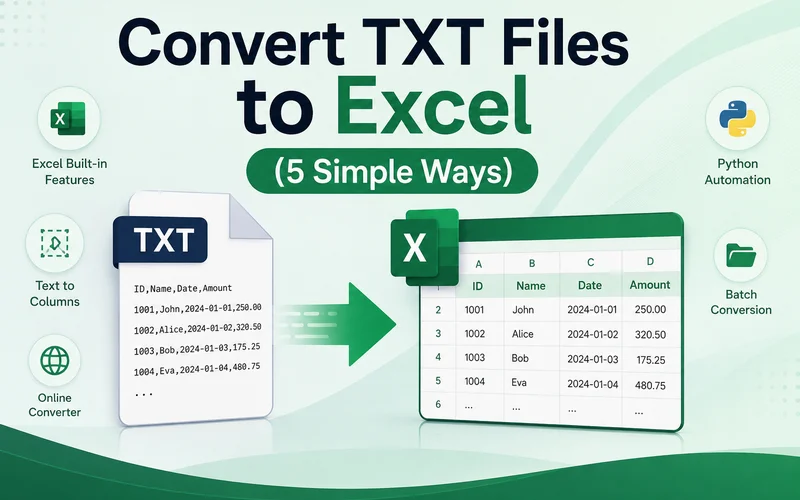
Многие системы экспортируют отчеты, журналы и записи транзакций в виде TXT-файлов. Хотя текстовые файлы легко хранить и передавать, анализировать большие объемы данных в формате обычного текста бывает неудобно. Сортировка, фильтрация и создание формул становятся затруднительными, поэтому многим пользователям необходимо преобразовать TXT-файлы в Excel для более удобного управления данными.
В этом руководстве рассматриваются пять практических способов преобразования текстовых файлов в Excel, включая встроенные инструменты импорта Microsoft Excel, решения для автоматизации на Python и онлайн-конвертеры.
- Преобразование TXT в Excel через вкладку «Данные»
- Прямое открытие TXT-файла в Excel и его сохранение
- Преобразование фрагментов текста с помощью функции «Текст по столбцам»
- Пакетное преобразование TXT в Excel с помощью скрипта Python
- Быстрое преобразование текстовых файлов в Excel с помощью онлайн-конвертера
- Сравнительная таблица 5 методов
- Устранение неполадок
- Часто задаваемые вопросы
Преобразование TXT в Excel через вкладку «Данные»
Начнем со встроенных функций Excel. Чтобы упростить перенос данных между различными форматами, Excel предлагает встроенные инструменты для импорта данных из различных внешних источников. Этот подход позволяет импортировать структурированные данные из TXT-файла, сохраняя при этом исходную разметку. Это очень надежный способ преобразования текстового файла в Excel.
Вот подробные шаги:
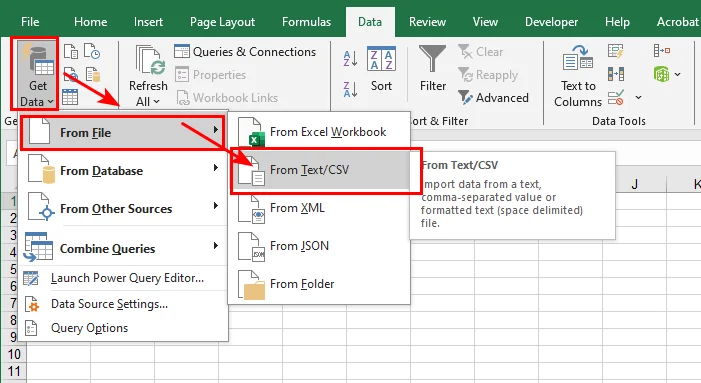
- Шаг 1: Откройте Microsoft Excel, перейдите на верхнюю панель меню, нажмите вкладку Данные, выберите Получить данные > Из файла, а затем нажмите Из текстового/CSV-файла.
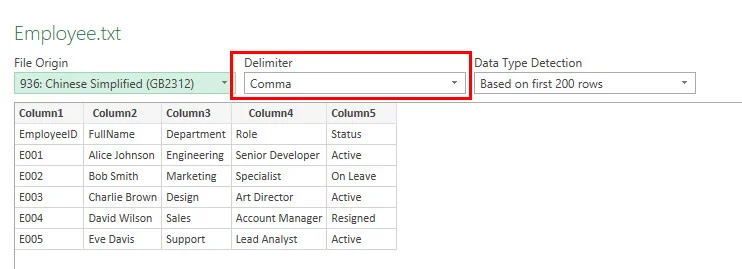
- Шаг 2: Нажмите на раскрывающееся меню Разделитель, чтобы проверить, правильно ли разделяются ваши данные с помощью запятой, табуляции, пробела или точки с запятой.
- Шаг 3: Проверьте столбцы в окне предварительного просмотра, нажмите кнопку Загрузить в правом нижнем углу и сохраните документ.
Примечание: Если ваш текст содержит неанглийские символы, которые выглядят искаженными в окне предварительного просмотра, нажмите на раскрывающееся меню Происхождение файла и измените кодировку на UTF-8 или GBK, чтобы исправить отображение перед загрузкой.
- Плюсы: Высокая точность, предотвращение появления «кракозябр» (нечитаемых символов) и отличная работа с огромными файлами.
- Минусы: Требуется немного больше кликов, чем в других методах.
Прямое открытие TXT-файла в Excel и его сохранение
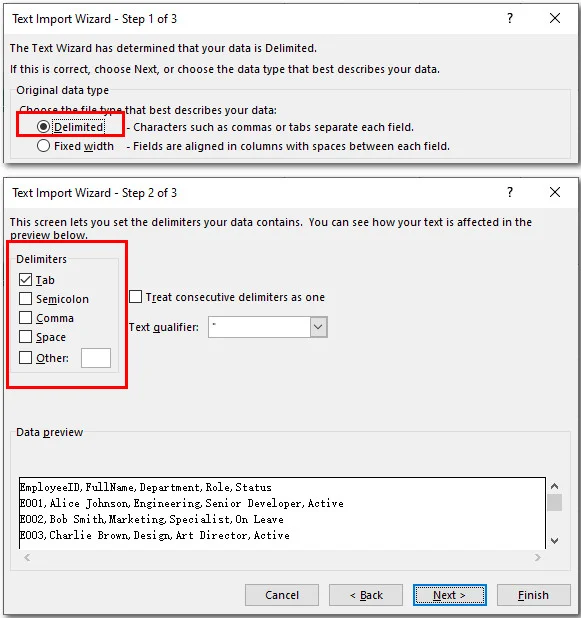
Если ваш набор данных прост и использует понятные разделители, вы можете открыть исходный документ прямо в приложении. Откройте текстовый файл непосредственно в Excel, и встроенный мастер импорта автоматически разделит данные по столбцам. Это самый быстрый метод для открытия и преобразования хорошо отформатированного текстового файла.
- Шаг 1: Запустите Excel, нажмите Файл > Открыть > Обзор и измените фильтр типов файлов с «Все файлы Excel» на Все файлы (*.*).
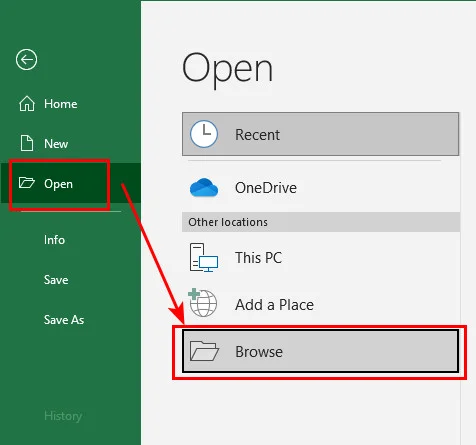
- Шаг 2: Дважды щелкните по вашему TXT-файлу, чтобы запустить встроенное окно синтаксического анализа данных Excel.
- Шаг 3: Выберите С разделителями, нажмите «Далее», отметьте правильный разделитель (например, табуляцию или пробел) и нажмите Готово.
-
Шаг 4: Перейдите в Файл > Сохранить как, выберите целевую папку и сохраните файл в формате Книга Excel (*.xlsx).
-
Плюсы: Быстро, не требует подготовки.
-
Минусы: Рискованно, если текст содержит специальное форматирование или сложные типы данных.
Преобразование фрагментов текста с помощью функции «Текст по столбцам»
Иногда вам не нужно преобразовывать весь отчет целиком. Возможно, вам нужен лишь небольшой фрагмент данных из электронного письма или системного журнала. В таких случаях простое копирование и вставка позволяют вставить нужные данные прямо в один столбец. Затем вы можете использовать функцию Текст по столбцам, чтобы быстро распределить этот текст по отдельным ячейкам, что позволит преобразовать часть TXT-файла в Excel без необходимости обработки всего документа.
- Шаг 1: Скопируйте нужные данные из текстового файла и вставьте их в ячейку пустого листа Excel.
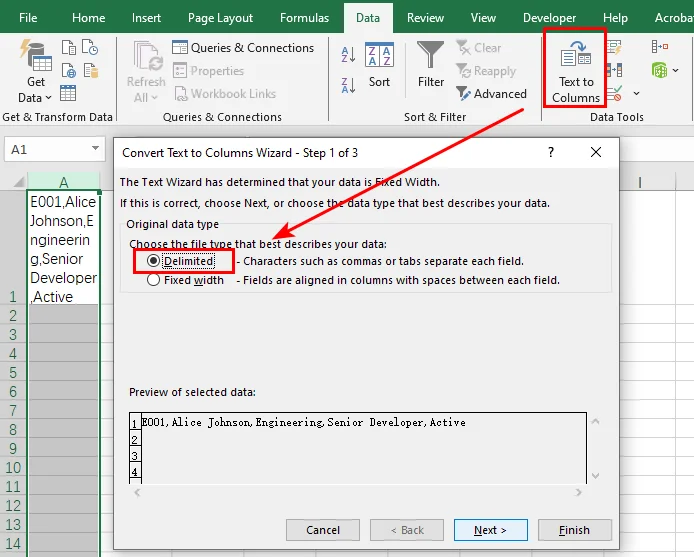
- Шаг 2: Выделите весь столбец, перейдите на вкладку Данные и нажмите Текст по столбцам.
-
Шаг 3: Выберите С разделителями на первом экране и нажмите Далее.
-
Шаг 4: Установите флажок рядом с вашим разделителем (например, запятой или пробелом), нажмите Готово, чтобы распределить текст по отдельным ячейкам, и сохраните документ.
-
Плюсы: Идеально подходит для быстрого редактирования и частичных фрагментов данных.
-
Минусы: Неэффективно для обработки больших файлов или нескольких документов.
Пакетное преобразование TXT в Excel с помощью скрипта Python
Если вы ежедневно работаете с десятками отчетов, ручная обработка каждого файла может отнимать много времени. Изучение того, как преобразовывать TXT-файлы в Excel с помощью Python, позволит вам создать автоматизированный конвейер. Для этой задачи мы будем использовать Free Spire.XLS for Python — автономную библиотеку, которая позволяет разработчикам создавать, управлять и преобразовывать электронные таблицы Excel программным путем без необходимости установки Microsoft Excel. Используя ее расширенные функции работы с книгами, вы можете легко анализировать текстовые файлы с пользовательскими разделителями и преобразовывать их пакетами.
Ниже представлен рабочий процесс пакетного преобразования текстовых документов в электронные таблицы Excel с использованием этой библиотеки:
- Шаг 1: Определите пути к файлам и установите целевой разделитель (например, запятую или табуляцию) для обработки различных текстовых структур.
- Шаг 2: Пройдите циклом по папке, чтобы найти все файлы
.txtи динамически сгенерировать соответствующие имена выходных файлов.xlsx. - Шаг 3: Инициализируйте объект
Workbookи используйте методLoadFromFileдля анализа текстовых данных по строкам и столбцам. - Шаг 4: Вызовите
AutoFitColumns()для выделенного диапазона, чтобы автоматически подогнать ширину столбцов под длину данных, а затем сохраните документы.
Вот как использовать Free Spire.XLS для чтения и преобразования нескольких текстовых файлов со смешанными разделителями в электронные таблицы Excel:
import os
from spire.xls import *

# Определите пути к входной и выходной папкам
input_folder = "/input/txt files/"
output_folder = "/output/excel files/"

# Цикл для обработки всех текстовых файлов во входной папке
for filename in os.listdir(input_folder):
    if filename.endswith(".txt"):
        txt_path = os.path.join(input_folder, filename)
        excel_name = filename.replace(".txt", ".xlsx")
        excel_path = os.path.join(output_folder, excel_name)

        # Чтение первой строки
        with open(txt_path, 'r', encoding='utf-8') as f:
            first_line = f.readline()

        # Динамический подбор разделителя: приоритет запятой, затем пробелу, иначе табуляция
        current_delimiter = "," if "," in first_line else (" " if " " in first_line else "\t")

        # Инициализация книги и загрузка текстового файла
        workbook = Workbook()
        workbook.LoadFromFile(txt_path, current_delimiter, 1, 1)

        # Автоматическая подгонка столбцов под длину данных
        sheet = workbook.Worksheets[0]
        sheet.AllocatedRange.AutoFitColumns()

        # Сохранение результата в формате Excel
        workbook.SaveToFile(excel_path, ExcelVersion.Version2016)
        workbook.Dispose()
        print(f"Успешно преобразовано ({'Запятая' if current_delimiter==',' else 'Пробел'}): {filename} -> {excel_name}")
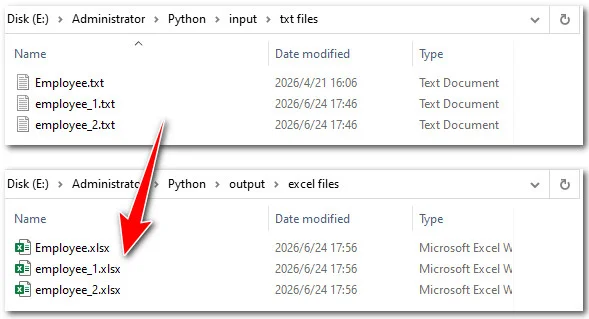
- Плюсы: 100% автоматизация, мгновенная обработка сотен файлов, работа с файлами, использующими разные разделители.
- Минусы: Требуется настройка среды Python на вашем устройстве.
Быстрое преобразование текстовых файлов в Excel с помощью онлайн-конвертера
Если вы работаете на компьютере или мобильном устройстве, на котором не установлен Microsoft Excel, онлайн-инструменты станут быстрым решением. Веб-конвертер TXT в Excel может сэкономить время и усилия, когда требуется быстрое выполнение задачи.
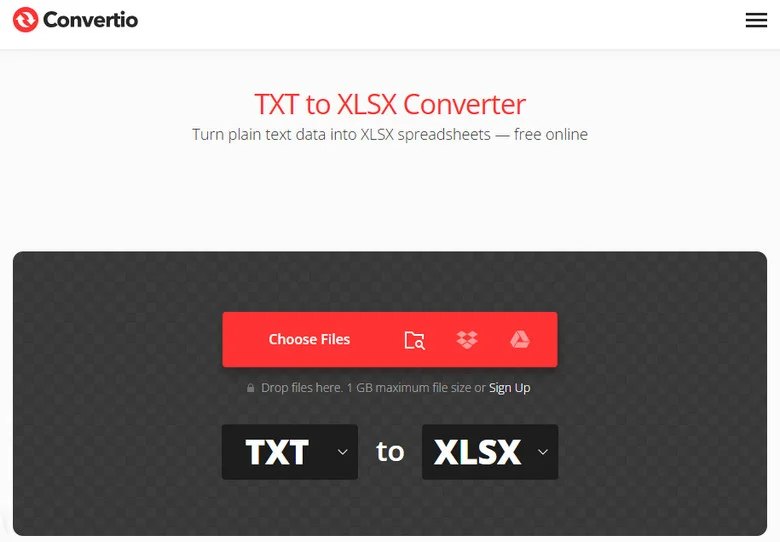
Вот как преобразовать текстовые файлы в Excel с помощью онлайн-конвертеров, используя Convertio в качестве примера:
- Шаг 1: Найдите инструмент TXT-в-XLSX на сайте Convertio.
- Шаг 2: Нажмите, чтобы загрузить целевой TXT-файл с вашего устройства.
- Шаг 3: Нажмите кнопку «Преобразовать», подождите несколько секунд, а затем скачайте полученный файл Excel.
- Плюсы: Не требуется установка программного обеспечения, работает как на настольных, так и на мобильных устройствах, быстрое преобразование файлов.
- Минусы: Ограниченный контроль над форматированием, могут применяться ограничения на размер файла, а загрузка конфиденциальных данных на сторонние серверы может создавать риски для конфиденциальности.
Сравнительная таблица 5 методов
Чтобы помочь вам найти лучший подход, вот краткая сравнительная таблица 5 вышеуказанных методов, основанная на объеме данных, сложности файлов и скорости:
| Метод | Лучше всего подходит для | Ограничение объема данных | Скорость |
|---|---|---|---|
| Импорт через вкладку «Данные» | Сложной разметки и иностранных языков | Очень высокое | Средняя |
| Прямое открытие | Чистых, простых текстовых файлов | Среднее | Быстро |
| Текст по столбцам | Копирования фрагментов текста | Низкое | Быстро |
| Код Python | Пакетного преобразования папок | Без ограничений | Мгновенно (автоматически) |
| Онлайн-конвертер | Экстренного использования без Excel | Низкое | Быстро |
Устранение неполадок
При изучении того, как преобразовать TXT-файл в Excel, вы можете столкнуться с небольшими ошибками форматирования. Вот как их быстро исправить:
Искаженный или нечитаемый текст
Если специальные символы или символы с диакритикой превращаются в странные знаки, значит, кодировка файла не совпадает. Повторно импортируйте файл, используя метод 1, и попробуйте изменить раскрывающийся список Происхождение файла на Windows-1252 (Западноевропейская) или UTF-8, пока текст не будет отображаться правильно в окне предварительного просмотра.
Числа превращаются в научный формат
Если длинные идентификационные номера отображаются как 4.5E+11, Excel автоматически форматирует их как числовые значения. Перед импортом установите тип столбца на Текстовый вместо Общий. Если вы уже загрузили данные, вы все равно можете преобразовать эти числа обратно в текстовый формат, чтобы сохранить полное значение.
Заключение
Преобразование TXT-файла в Excel проще, чем ожидает большинство людей. Если вам нужно работать только с одним файлом, встроенные инструменты импорта Excel обычно являются самым быстрым вариантом. Для больших наборов данных они также обеспечивают лучший контроль над разделителями и кодировкой. Если ваше бухгалтерское программное обеспечение, ERP-система или платформа отчетности экспортируют ежедневные TXT-отчеты, автоматизация на Python может значительно сэкономить время, обрабатывая файлы пакетами. Выберите метод, который лучше всего соответствует вашему рабочему процессу, и вы сможете превратить необработанные текстовые данные в организованные книги Excel всего за несколько минут.
Часто задаваемые вопросы о преобразовании TXT в Excel
Может ли Excel открывать TXT-файлы напрямую?
Да. Excel может открывать TXT-файлы напрямую через Файл > Открыть или используя функцию импорта Данные > Из текстового/CSV-файла. Метод импорта обычно рекомендуется, так как он обеспечивает больший контроль над разделителями, кодировкой и форматированием столбцов.
Почему мой TXT-файл выглядит искаженным в Excel?
Обычно это происходит, когда кодировка файла не соответствует настройкам импорта Excel. Попробуйте повторно импортировать файл и выбрать другую кодировку, например UTF-8 или Windows-1252, пока текст не будет отображаться правильно.
Как можно преобразовать несколько TXT-файлов в Excel одновременно?
Для пакетного преобразования наиболее эффективным вариантом часто являются инструменты автоматизации, такие как Free Spire.XLS for Python. Скрипт может автоматически обработать целую папку с TXT-файлами и сохранить каждый из них в виде книги Excel.
Можно ли преобразовать TXT в Excel без Microsoft Excel?
Да. Вы можете использовать онлайн-конвертеры TXT в Excel или программные решения, такие как библиотеки Python. Однако будьте осторожны при загрузке файлов, содержащих конфиденциальную или секретную информацию.
Читайте также
6 maneiras de copiar slides no PowerPoint (com formatação)
Sumário
- Encontre o melhor método para copiar slides no PowerPoint
- Duplicar um slide na mesma apresentação
- Copiar slides de uma apresentação para outra
- Importar slides de outra apresentação
- Copiar slides no PowerPoint Online
- Automatizar a cópia de slides com VBA
- Copiar slides entre várias apresentações com Python
- Solução de problemas: Por que os slides copiados parecem diferentes
- Perguntas frequentes (FAQs)
- Conclusão
- Encontre o melhor método para copiar slides no PowerPoint
- Duplicar um slide na mesma apresentação
- Copiar slides de uma apresentação para outra
- Importar slides de outra apresentação
- Copiar slides no PowerPoint Online
- Automatizar a cópia de slides com VBA
- Copiar slides entre várias apresentações com Python
- Solução de problemas: Por que os slides copiados parecem diferentes
- Perguntas frequentes (FAQs)
- Conclusão
Copiar slides no PowerPoint é uma das maneiras mais rápidas de reutilizar layouts, manter a consistência da marca e criar novas apresentações a partir de trabalhos existentes. Este guia explica 6 formas práticas de copiar slides — desde métodos manuais rápidos para usuários do dia a dia até soluções automatizadas para processamento em massa — juntamente com dicas essenciais para preservar sua formatação exata.
Encontre o melhor método para copiar slides no PowerPoint
Você pode copiar slides dentro da mesma apresentação ou transferi-los entre arquivos totalmente diferentes. Dependendo do seu objetivo exato, escolha o método abaixo que melhor funciona para você.
| O que você precisa fazer | Melhor método | Vantagens | Limitações |
|---|---|---|---|
| Duplicar um slide na mesma apresentação | Duplicar Slide | Rápido; mantém a formatação | Funciona apenas no arquivo ativo |
| Copiar slides de uma apresentação para outra | Copiar e colar | Opções de formatação flexíveis | O design pode mudar dependendo das opções de colagem |
| Importar slides de um arquivo fechado | Reutilizar Slides | Não é necessário abrir o arquivo de origem | A interface pode variar conforme a versão do PowerPoint |
| Copiar slides online | PowerPoint para a Web | Funciona em qualquer dispositivo; sem instalação | Acesso limitado à área de transferência; lentidão com arquivos grandes |
| Repetir cópia de slide no PowerPoint | Macro VBA | Processo automatizado; sem ferramentas externas | Requer PowerPoint para desktop; macros podem ser bloqueadas |
| Cópia em massa entre vários arquivos | Automação Python | Executa sem o PowerPoint; amigável para backend | Requer configuração de Python e uma biblioteca de terceiros |
1. Duplicar um slide na mesma apresentação
Quando você precisa copiar um slide dentro da mesma apresentação do PowerPoint, duplicar é o método mais eficiente. Este método ignora completamente a área de transferência, minimiza o risco de alterações na formatação e garante que fontes, temas e layouts permaneçam idênticos.
Como duplicar um slide no PowerPoint
- No painel de miniaturas de slides à esquerda, clique no slide que deseja copiar.
- Clique com o botão direito na miniatura selecionada e escolha Duplicar Slide.
- Atalho alternativo: Pressione Ctrl + D (Windows) ou Cmd + D (Mac) após selecionar o slide.
Resultado:
O PowerPoint cria uma cópia exata do slide selecionado e a coloca imediatamente após o original. Você pode então arrastar e soltar o novo slide na posição desejada.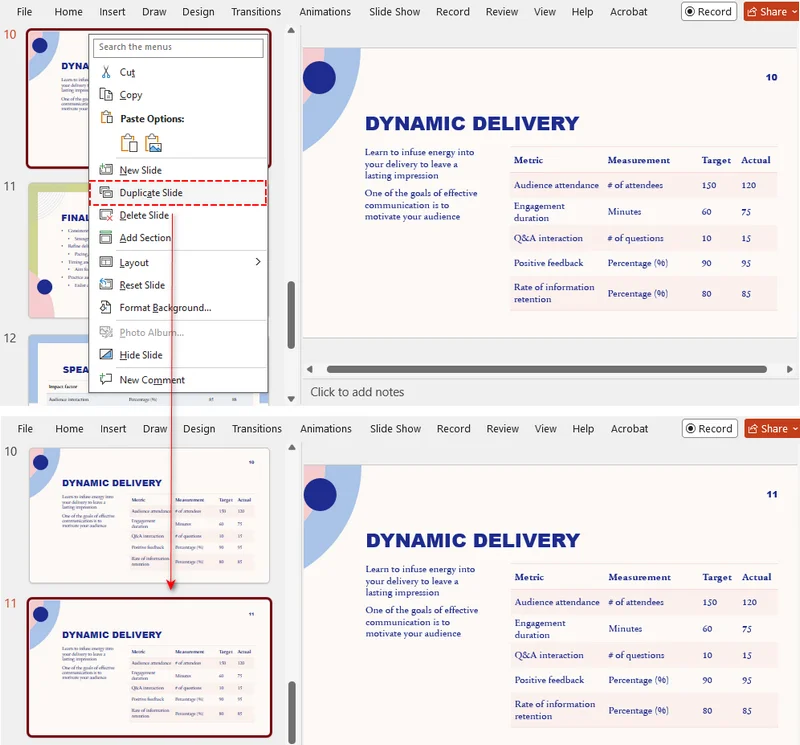
Duplicando vários slides simultaneamente
Para duplicar vários slides, selecione-os primeiro:
- Slides adjacentes: Clique na miniatura do primeiro slide, segure Shift e clique na miniatura do último slide.
- Slides não adjacentes: Segure Ctrl (ou Cmd no Mac), então selecione cada miniatura de slide que deseja copiar.
Uma vez selecionados, clique com o botão direito em qualquer uma das miniaturas de slide selecionadas e selecione Duplicar Slide.
2. Copiar slides de uma apresentação para outra
Ao transferir slides entre dois arquivos separados, o PowerPoint define por padrão a correspondência com o tema de destino. Para manter seu design original, você deve usar explicitamente as opções de colagem.
Copiar slides entre apresentações preservando a formatação
- No painel esquerdo do arquivo de origem, clique com o botão direito na miniatura do slide específico e escolha Copiar (ou pressione Ctrl + C / Cmd + C).
- Mude para a apresentação de destino, clique com o botão direito no painel de miniaturas onde deseja que o slide vá e selecione o ícone Manter Formatação de Origem em Opções de Colagem.
- Atalho alternativo: Pressione Ctrl + V (ou Cmd + V), clique no pequeno ícone de área de transferência de Opções de Colagem que aparece ao lado da miniatura do slide colado e selecione Manter Formatação de Origem.
Resultado:
O slide é inserido na nova apresentação enquanto mantém suas fontes, planos de fundo e layouts originais.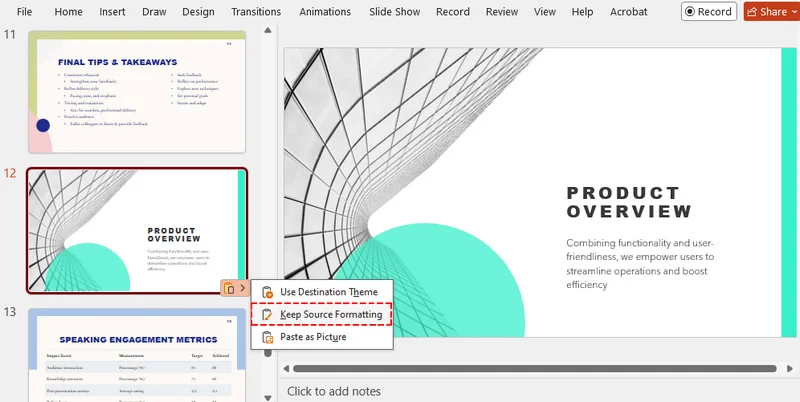
⚠️ Nota:
Se as apresentações de origem e destino usarem tamanhos de slide diferentes, como 16:9 e 4:3, o slide copiado pode sofrer distorção de layout. Sempre verifique e ajuste o alinhamento após colar.
3. Importar slides de outra apresentação (Reutilizar Slides)
Se você deseja extrair slides de um arquivo externo do PowerPoint sem sobrecarregar sua tela com várias janelas, use o recurso nativo Reutilizar Slides.
Importar slides individuais
-
Abra sua apresentação de destino.
-
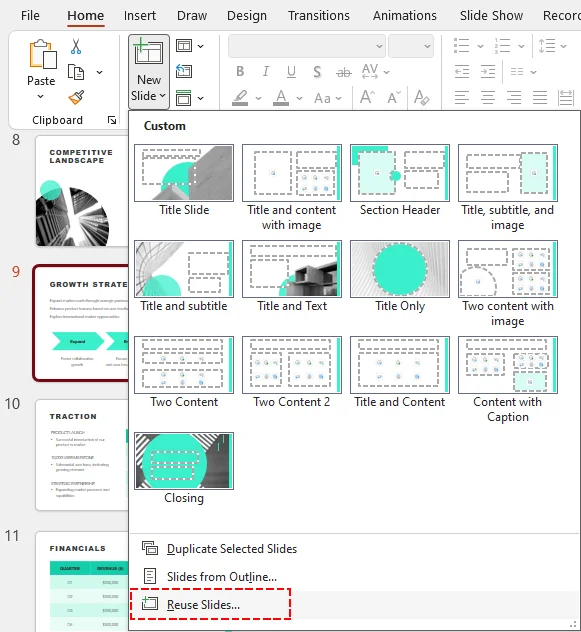
Na guia Página Inicial, clique na seta ao lado de Novo Slide e selecione Reutilizar Slides.
-
No painel à direita, clique em Procurar para abrir seu arquivo de origem.
-
Marque a caixa Manter formatação de origem na parte inferior.
-
Clique em qualquer miniatura de slide no painel para inseri-lo.
Resultado:
O slide selecionado é copiado para sua apresentação ativa instantaneamente sem alterar suas propriedades de tema ou estilo.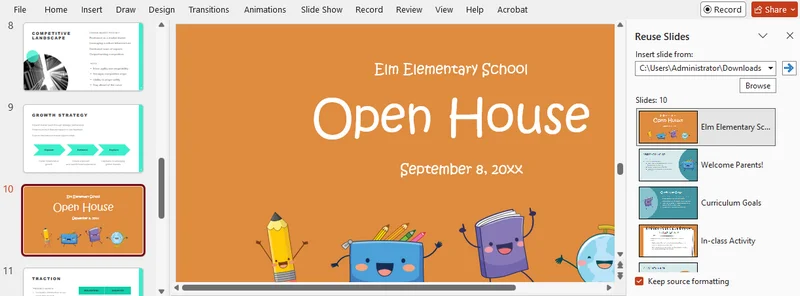
Inserir apresentação inteira
Para importar todos os slides do arquivo de origem de uma só vez, clique com o botão direito em qualquer miniatura de slide dentro do painel lateral Reutilizar Slides e selecione Inserir Todos os Slides.
⚠️ Nota:
Os slides copiados não estão vinculados ao arquivo original. Se o arquivo original for alterado posteriormente, os slides reutilizados em seu deck atual não serão atualizados automaticamente.
4. Copiar slides online (PowerPoint para a Web)
Se você estiver trabalhando em um navegador da web, o PowerPoint para a Web permite copiar slides rapidamente sem exigir o aplicativo de desktop, embora dependa muito das permissões da área de transferência do seu navegador.
Instruções passo a passo
- Abra as apresentações de origem e destino no seu navegador.
- No painel esquerdo do arquivo de origem, clique com o botão direito na miniatura do slide específico e selecione Copiar (ou pressione Ctrl + C / Cmd + C).
- Mude para a guia do navegador de destino, clique dentro do painel de miniaturas à esquerda onde deseja que o slide vá e pressione Ctrl + V (ou Cmd + V).
- Clique no selo flutuante Opções de Colagem ao lado do slide colado e ative Manter Formatação de Origem.
⚠️ Aviso:
O PowerPoint para a Web não suporta colagem com o botão direito para formatação de layout em alguns navegadores. Sempre use Ctrl + V / Cmd + V se o menu de botão direito estiver restrito e evite transferir slides grandes e pesados online, pois isso pode causar lentidão no navegador.
Precisa dividir uma apresentação grande em partes menores? Veja Como dividir PPT.
5. Automatizar a cópia de slides com uma Macro VBA
Para usuários de desktop que frequentemente precisam copiar slides de um modelo específico ou apresentação externa, uma macro VBA oferece uma solução de automação com um clique para ignorar a cópia manual repetitiva.
Como usar o script VBA
-
Abra sua apresentação de destino e pressione Alt + F11 para abrir o Editor VBA.
-
Clique em Inserir > Módulo, então cole o seguinte código (certifique-se de substituir a string sourcePath pelo local real do seu arquivo de origem):
Sub CopySlideWithSourceFormatting() Dim sourcePres As Presentation Dim targetPres As Presentation Dim sourcePath As String ' Caminho de destino da apresentação de origem sourcePath = "C:\SuaPasta\ApresentacaoOrigem.pptx" Set targetPres = ActivePresentation On Error GoTo ErrorHandler ' Abrir o arquivo de origem como somente leitura e copiar o primeiro slide Set sourcePres = Presentations.Open(FileName:=sourcePath, ReadOnly:=msoTrue, WithWindow:=msoFalse) sourcePres.Slides(1).Copy ' Colar na apresentação de destino com a formatação de origem targetPres.Slides.Paste targetPres.Slides(targetPres.Slides.Count).Design = sourcePres.Slides(1).Design CleanExit: If Not sourcePres Is Nothing Then sourcePres.Close Exit Sub ErrorHandler: MsgBox "Não foi possível copiar o slide. Por favor, verifique o caminho do arquivo de origem.", vbExclamation Resume CleanExit End Sub -
Feche a janela VBA, retorne ao PowerPoint e pressione Alt + F8 para executar a macro.
Dicas e considerações:
- Sempre faça backup da sua apresentação antes de executar scripts VBA, pois as ações de macro não podem ser desfeitas via Ctrl + Z.
- Salve seu projeto como um arquivo .pptm (apresentação habilitada para macro) se precisar manter e reutilizar a macro posteriormente.
- Políticas de TI corporativas frequentemente bloqueiam macros por segurança. Nesse caso, considere usar o script Python a seguir.
6. Copiar slides entre várias apresentações com Python
Quando você precisa copiar programaticamente slides entre apresentações do PowerPoint ou realizar operações de slide em ambientes onde o PowerPoint não está instalado, o Python oferece uma alternativa flexível.
Neste exemplo, usaremos a biblioteca Free Spire.Presentation for Python, que pode trabalhar diretamente com arquivos .pptx e .ppt e copiar slides preservando seu design original.
Nota: A edição gratuita é projetada para tarefas de pequena escala e permite processar até 10 slides por arquivo. Se o seu projeto envolver decks maiores, você pode mudar facilmente para a edição completa e solicitar uma licença de teste gratuita para um teste sem restrições.
Instruções passo a passo
-
Instale o pacote necessário via terminal:
pip install Spire.Presentation.Free -
Adicione o script Python:
O script a seguir copia um slide de um arquivo de origem para vários arquivos de destino enquanto preserva suas propriedades de layout e design usando o método AppendBySlide().
from spire.presentation import *
import os

# Apresentação de origem contendo o slide a ser copiado
source_ppt = Presentation()
source_ppt.LoadFromFile("origem.pptx")

# Selecionar o primeiro slide
source_slide = source_ppt.Slides[0]

# Copiar o slide para várias apresentações
target_files = [
    "relatorio1.pptx",
    "relatorio2.pptx",
    "relatorio3.pptx"
]

for target_file in target_files:
    target_ppt = Presentation()
    target_ppt.LoadFromFile(target_file)

    # Anexar o slide preservando o design com AppendBySlide
    target_ppt.Slides.AppendBySlide(source_slide)

    output_file = f"atualizado_{os.path.basename(target_file)}"
    target_ppt.SaveToFile(output_file, FileFormat.Pptx2013)

    target_ppt.Dispose()

source_ppt.Dispose()
print("Slide copiado para várias apresentações com sucesso!")
Dicas:
- Salve o resultado como um novo arquivo PowerPoint em vez de sobrescrever a apresentação original ao executar o script Python.
- Teste o script em um pequeno número de arquivos primeiro e, em seguida, revise as apresentações de saída antes de processar a pasta inteira.
Quer mesclar slides de várias apresentações em um único arquivo? Veja Python: Mesclar Apresentações do PowerPoint.
Solução de problemas: Por que os slides copiados parecem diferentes
Se seus slides copiados parecerem distorcidos ou quebrados, verifique estes quatro problemas comuns:
- Substituição de Tema (Cores alteradas): O PowerPoint aplica automaticamente o tema de destino por padrão. A solução: Cole novamente e selecione explicitamente o ícone Manter Formatação de Origem.
- Fontes ausentes (Tipografia alterada): Se o computador de destino não tiver a tipografia personalizada usada no slide de origem, o PowerPoint a substituirá. A solução: Use fontes padrão seguras para a web ou incorpore as fontes via Arquivo > Opções > Salvar > Incorporar fontes.
- Mídia quebrada (Vídeos/Áudio não reproduzem): A apresentação de origem provavelmente vinculou os arquivos de mídia em vez de incorporá-los. A solução: Insira a mídia novamente diretamente no novo deck ou envie os arquivos de ativos junto com a apresentação.
- Tamanhos de slide incompatíveis (Layout esticado): Copiar entre formatos 16:9 e 4:3 causa distorção de layout. A solução: Certifique-se de que ambas as apresentações usem tamanhos de slide idênticos no menu Design > Tamanho do Slide antes de copiar.
Perguntas frequentes (FAQs)
P1: Posso copiar slides de vários arquivos do PowerPoint de uma só vez?
R1: Não em uma única operação integrada. O PowerPoint normalmente permite copiar slides de um arquivo por vez. Se você precisar processar muitas apresentações simultaneamente, considere usar a automação Python.
P2: Existe um atalho direto para copiar slides no PowerPoint e manter a formatação?
R2: Não existe um atalho único, mas você pode usar esta combinação sequencial:
- Windows: Pressione Ctrl + C, depois Ctrl + V, então toque na tecla Ctrl e pressione K.
- Mac: Pressione Cmd + C, depois Cmd + V, então clique no selo flutuante de opções de colagem para selecionar Manter Formatação de Origem.
P3: Por que a opção Manter Formatação de Origem fica cinza ao copiar um slide?
R3: Isso geralmente acontece quando seu cursor está ativo dentro de uma caixa de texto ou forma. Clique no espaço vazio entre as miniaturas de slide à esquerda e cole novamente.
Conclusão
Escolher como copiar slides no PowerPoint resume-se a uma regra prática: combine seu método com sua carga de trabalho.
- Para edições diárias: Use Duplicar Slide dentro do mesmo deck ou conte com Copiar e Colar e Reutilizar Slides ao transferir slides entre alguns arquivos.
- Para usuários de navegador: Use o PowerPoint para a Web, mas mude para atalhos de teclado se o seu navegador bloquear o menu da área de transferência com o botão direito.
- Para trabalho em massa: Se você estiver lidando com mais de 10 arquivos ou gerando relatórios automáticos, ignore a interface manual completamente e deixe o Python ou VBA lidar com isso em segundo plano.
Não importa qual método você escolha, sempre verifique o arquivo final antes de compartilhar para garantir que não haja alterações de formatação ou layout.
PowerPoint에서 슬라이드를 복사하는 6가지 방법 (서식 포함)
- PowerPoint에서 슬라이드를 복사하는 가장 좋은 방법 찾기
- 같은 프레젠테이션 내에서 슬라이드 복제하기
- 한 프레젠테이션에서 다른 프레젠테이션으로 슬라이드 복사하기
- 다른 프레젠테이션에서 슬라이드 가져오기
- PowerPoint Online에서 슬라이드 복사하기
- VBA로 슬라이드 복사 자동화하기
- Python을 사용하여 여러 프레젠테이션 간에 슬라이드 복사하기
- 문제 해결: 복사된 슬라이드가 다르게 보이는 이유
- 자주 묻는 질문(FAQs)
- 마무리
PowerPoint에서 슬라이드 복사하기는 레이아웃을 재사용하고, 브랜드 일관성을 유지하며, 기존 작업을 바탕으로 새로운 프레젠테이션을 만드는 가장 빠른 방법 중 하나입니다. 이 가이드에서는 일반 사용자를 위한 빠른 수동 방법부터 대량 처리를 위한 자동화 솔루션까지, 슬라이드를 복사하는 6가지 실용적인 방법과 서식을 정확하게 유지하기 위한 필수 팁을 설명합니다.
PowerPoint에서 슬라이드를 복사하는 가장 좋은 방법 찾기
같은 프레젠테이션 내에서 슬라이드를 복사하거나 완전히 다른 파일 간에 슬라이드를 전송할 수 있습니다. 정확한 목표에 따라 가장 적합한 방법을 아래에서 선택하세요.
| 필요한 작업 | 최적의 방법 | 장점 | 제한 사항 |
|---|---|---|---|
| 같은 프레젠테이션 내 슬라이드 복제 | 슬라이드 복제 | 빠름; 서식 유지 | 활성 파일에서만 작동 |
| 한 프레젠테이션에서 다른 곳으로 복사 | 복사 및 붙여넣기 | 유연한 서식 선택 가능 | 붙여넣기 옵션에 따라 디자인이 변경될 수 있음 |
| 닫힌 파일에서 슬라이드 가져오기 | 슬라이드 재사용 | 원본 파일을 열 필요 없음 | PowerPoint 버전에 따라 인터페이스가 다를 수 있음 |
| 온라인에서 슬라이드 복사 | 웹용 PowerPoint | 모든 기기에서 작동; 설치 불필요 | 클립보드 접근 제한; 대용량 파일 시 지연 발생 |
| PowerPoint 내 슬라이드 복사 반복 | VBA 매크로 | 자동화된 프로세스; 외부 도구 불필요 | 데스크톱 PowerPoint 필요; 매크로 차단 가능성 |
| 여러 파일에 걸쳐 대량 복사 | Python 자동화 | PowerPoint 없이 실행; 백엔드 친화적 | Python 설정 및 타사 라이브러리 필요 |
1. 같은 프레젠테이션 내에서 슬라이드 복제하기
같은 PowerPoint 프레젠테이션 내에서 슬라이드를 복사해야 할 때, 복제는 가장 효율적인 방법입니다. 이 방법은 클립보드를 완전히 우회하므로 서식 변경 위험을 최소화하고 글꼴, 테마, 레이아웃이 동일하게 유지되도록 합니다.
PowerPoint에서 슬라이드를 복제하는 방법
- 왼쪽 슬라이드 썸네일 창에서 복사하려는 슬라이드를 클릭합니다.
- 선택한 썸네일을 마우스 오른쪽 버튼으로 클릭하고 슬라이드 복제를 선택합니다.
- 대체 단축키: 슬라이드를 선택한 후 Ctrl + D(Windows) 또는 Cmd + D(Mac)를 누릅니다.
결과:
PowerPoint가 선택한 슬라이드의 정확한 복사본을 만들어 원본 바로 뒤에 배치합니다. 그런 다음 새 슬라이드를 원하는 위치로 드래그 앤 드롭할 수 있습니다.
여러 슬라이드를 동시에 복제하기
여러 슬라이드를 복제하려면 먼저 슬라이드를 선택하세요:
- 연속된 슬라이드: 첫 번째 슬라이드 썸네일을 클릭하고 Shift 키를 누른 상태에서 마지막 슬라이드 썸네일을 클릭합니다.
- 연속되지 않은 슬라이드: Ctrl(Mac의 경우 Cmd) 키를 누른 상태에서 복사하려는 각 슬라이드 썸네일을 선택합니다.
선택한 후, 선택된 슬라이드 썸네일 중 하나를 마우스 오른쪽 버튼으로 클릭하고 '슬라이드 복제'를 선택합니다.
2. 한 프레젠테이션에서 다른 프레젠테이션으로 슬라이드 복사하기
두 개의 별도 파일 간에 슬라이드를 전송할 때, PowerPoint는 기본적으로 대상 테마에 맞추려고 합니다. 원래 디자인을 유지하려면 붙여넣기 옵션을 명시적으로 사용해야 합니다.
서식을 유지하면서 프레젠테이션 간에 슬라이드 복사하기
- 원본 파일의 왼쪽 창에서 특정 슬라이드 썸네일을 마우스 오른쪽 버튼으로 클릭하고 복사를 선택합니다(또는 Ctrl + C / Cmd + C를 누릅니다).
- 대상 프레젠테이션으로 전환하여 슬라이드를 넣을 썸네일 창의 위치를 마우스 오른쪽 버튼으로 클릭하고, 붙여넣기 옵션 아래의 원본 서식 유지 아이콘을 선택합니다.
- 대체 단축키: Ctrl + V(또는 Cmd + V)를 누른 다음, 붙여넣은 슬라이드 썸네일 옆에 나타나는 작은 붙여넣기 옵션 클립보드 아이콘을 클릭하고 '원본 서식 유지'를 선택합니다.
결과:
슬라이드가 원래의 글꼴, 배경, 레이아웃을 유지한 채 새 프레젠테이션에 삽입됩니다.
⚠️ 참고:
원본과 대상 프레젠테이션의 슬라이드 크기(예: 16:9 및 4:3)가 다르면 복사된 슬라이드의 레이아웃이 왜곡될 수 있습니다. 붙여넣기 후 항상 정렬 상태를 확인하고 조정하세요.
3. 다른 프레젠테이션에서 슬라이드 가져오기 (슬라이드 재사용)
여러 창으로 화면을 복잡하게 만들지 않고 외부 PowerPoint 파일에서 슬라이드를 가져오려면 기본 슬라이드 재사용 기능을 사용하세요.
개별 슬라이드 가져오기
-
대상 프레젠테이션을 엽니다.
-
홈 탭에서 새 슬라이드 옆의 화살표를 클릭하고 슬라이드 재사용을 선택합니다.
-
오른쪽 패널에서 찾아보기를 클릭하여 원본 파일을 엽니다.
-
하단의 원본 서식 유지 확인란을 선택합니다.
-
패널에서 슬라이드 썸네일을 클릭하여 삽입합니다.
결과:
선택한 슬라이드가 테마나 스타일 속성을 변경하지 않고 즉시 활성 프레젠테이션에 복사됩니다.
전체 프레젠테이션 삽입
원본 파일의 모든 슬라이드를 한 번에 가져오려면, 슬라이드 재사용 사이드바 패널 내의 아무 슬라이드 썸네일이나 마우스 오른쪽 버튼으로 클릭하고 모든 슬라이드 삽입을 선택합니다.
⚠️ 참고:
복사된 슬라이드는 원본 파일과 연결되지 않습니다. 나중에 원본 파일이 변경되어도 현재 프레젠테이션의 재사용된 슬라이드는 자동으로 업데이트되지 않습니다.
4. 온라인에서 슬라이드 복사하기 (웹용 PowerPoint)
웹 브라우저에서 작업 중인 경우, 웹용 PowerPoint를 사용하면 데스크톱 앱 없이도 빠르게 슬라이드를 복사할 수 있습니다. 단, 브라우저의 클립보드 권한에 크게 의존합니다.
단계별 지침
- 브라우저에서 원본 및 대상 프레젠테이션을 모두 엽니다.
- 원본 파일의 왼쪽 창에서 특정 슬라이드 썸네일을 마우스 오른쪽 버튼으로 클릭하고 복사를 선택합니다(또는 Ctrl + C / Cmd + C를 누릅니다).
- 대상 브라우저 탭으로 전환하여 슬라이드를 넣을 왼쪽 썸네일 창 내부를 클릭하고 Ctrl + V(또는 Cmd + V)를 누릅니다.
- 붙여넣은 슬라이드 옆에 떠 있는 붙여넣기 옵션 배지를 클릭하고 원본 서식 유지를 켭니다.
⚠️ 주의 사항:
웹용 PowerPoint는 일부 브라우저에서 레이아웃 서식을 위한 마우스 오른쪽 버튼 붙여넣기를 지원하지 않습니다. 마우스 오른쪽 버튼 메뉴가 제한된 경우 항상 Ctrl + V / Cmd + V를 사용하고, 브라우저 지연을 유발할 수 있으므로 에셋이 많은 대용량 슬라이드를 온라인으로 전송하는 것은 피하세요.
대용량 프레젠테이션을 더 작은 부분으로 나누어야 하나요? PPT 분할 방법을 확인하세요.
5. VBA 매크로로 슬라이드 복사 자동화하기
특정 템플릿이나 외부 프레젠테이션에서 슬라이드를 자주 복사해야 하는 데스크톱 사용자의 경우, VBA 매크로를 사용하면 반복적인 수동 복사를 건너뛰는 원클릭 자동화 솔루션을 제공합니다.
VBA 스크립트 사용 방법
-
대상 프레젠테이션을 열고 Alt + F11을 눌러 VBA 편집기를 엽니다.
-
삽입 > 모듈을 클릭한 다음 아래 코드를 붙여넣습니다(sourcePath 문자열을 실제 원본 파일 위치로 변경해야 합니다):
Sub CopySlideWithSourceFormatting() Dim sourcePres As Presentation Dim targetPres As Presentation Dim sourcePath As String ' 원본 프레젠테이션의 대상 경로 sourcePath = "C:\YourFolder\SourcePresentation.pptx" Set targetPres = ActivePresentation On Error GoTo ErrorHandler ' 원본 파일을 읽기 전용으로 열고 첫 번째 슬라이드 복사 Set sourcePres = Presentations.Open(FileName:=sourcePath, ReadOnly:=msoTrue, WithWindow:=msoFalse) sourcePres.Slides(1).Copy ' 원본 서식을 유지하여 대상 프레젠테이션에 붙여넣기 targetPres.Slides.Paste targetPres.Slides(targetPres.Slides.Count).Design = sourcePres.Slides(1).Design CleanExit: If Not sourcePres Is Nothing Then sourcePres.Close Exit Sub ErrorHandler: MsgBox "슬라이드를 복사할 수 없습니다. 원본 파일 경로를 확인하세요.", vbExclamation Resume CleanExit End Sub -
VBA 창을 닫고 PowerPoint로 돌아가서 Alt + F8을 눌러 매크로를 실행합니다.
팁 및 고려 사항:
- 매크로 작업은 Ctrl + Z로 실행 취소할 수 없으므로 VBA 스크립트를 실행하기 전에 항상 프레젠테이션을 백업하세요.
- 나중에 매크로를 유지하고 재사용해야 하는 경우 프로젝트를 .pptm 파일(매크로 사용 프레젠테이션)로 저장하세요.
- 기업 IT 정책은 보안을 위해 매크로를 차단하는 경우가 많습니다. 이 경우 대신 아래의 Python 스크립트를 사용하는 것을 고려하세요.
6. Python을 사용하여 여러 프레젠테이션 간에 슬라이드 복사하기
PowerPoint 프레젠테이션 간에 프로그래밍 방식으로 슬라이드를 복사해야 하거나 PowerPoint가 설치되지 않은 환경에서 슬라이드 작업을 수행해야 할 때, Python은 유연한 대안을 제공합니다.
이 예제에서는 .pptx 및 .ppt 파일을 직접 처리하고 원래 디자인을 유지하면서 슬라이드를 복사할 수 있는 Free Spire.Presentation for Python 라이브러리를 사용합니다.
참고: 무료 버전은 소규모 작업용으로 설계되었으며 파일당 최대 10개의 슬라이드 처리를 허용합니다. 프로젝트에 더 큰 데크가 포함된 경우 전체 버전으로 원활하게 전환하고 제한 없는 테스트를 위해 무료 평가판 라이선스를 신청할 수 있습니다.
단계별 지침
-
터미널을 통해 필요한 패키지를 설치합니다:
pip install Spire.Presentation.Free -
Python 스크립트 추가:
다음 스크립트는 AppendBySlide() 메서드를 사용하여 레이아웃 및 디자인 속성을 유지하면서 원본 파일의 슬라이드를 여러 대상 파일로 복사합니다.
from spire.presentation import *
import os

# 복사할 슬라이드가 포함된 원본 프레젠테이션
source_ppt = Presentation()
source_ppt.LoadFromFile("source.pptx")

# 첫 번째 슬라이드 선택
source_slide = source_ppt.Slides[0]

# 여러 프레젠테이션으로 슬라이드 복사
target_files = [
    "report1.pptx",
    "report2.pptx",
    "report3.pptx"
]

for target_file in target_files:
    target_ppt = Presentation()
    target_ppt.LoadFromFile(target_file)

    # AppendBySlide로 디자인을 유지하면서 슬라이드 추가
    target_ppt.Slides.AppendBySlide(source_slide)

    output_file = f"updated_{os.path.basename(target_file)}"
    target_ppt.SaveToFile(output_file, FileFormat.Pptx2013)

    target_ppt.Dispose()

source_ppt.Dispose()
print("슬라이드가 여러 프레젠테이션으로 성공적으로 복사되었습니다!")
팁:
- Python 스크립트를 실행할 때 원본 프레젠테이션을 덮어쓰지 말고 결과를 새 PowerPoint 파일로 저장하세요.
- 먼저 적은 수의 파일에서 스크립트를 테스트한 다음, 전체 폴더를 처리하기 전에 결과 프레젠테이션을 검토하세요.
여러 프레젠테이션의 슬라이드를 하나의 파일로 병합하고 싶으신가요? Python: PowerPoint 프레젠테이션 병합을 확인하세요.
문제 해결: 복사된 슬라이드가 다르게 보이는 이유
복사된 슬라이드가 왜곡되거나 깨져 보인다면 다음 네 가지 일반적인 문제를 확인하세요:
- 테마 재정의(색상 변경): PowerPoint는 기본적으로 대상 테마를 자동으로 적용합니다. 해결 방법: 다시 붙여넣고 '원본 서식 유지' 아이콘을 명시적으로 선택하세요.
- 글꼴 누락(타이포그래피 변경): 대상 컴퓨터에 원본 슬라이드에서 사용된 사용자 지정 타이포그래피가 없는 경우 PowerPoint가 이를 대체합니다. 해결 방법: 표준 웹 안전 글꼴을 사용하거나 파일 > 옵션 > 저장 > 글꼴 포함을 통해 글꼴을 포함하세요.
- 미디어 깨짐(비디오/오디오 재생 불가): 원본 프레젠테이션이 미디어 파일을 포함하는 대신 연결했을 가능성이 높습니다. 해결 방법: 미디어를 새 데크에 직접 다시 삽입하거나 프레젠테이션과 함께 에셋 파일을 보내세요.
- 슬라이드 크기 불일치(레이아웃 늘어남): 16:9와 4:3 형식 간에 복사하면 레이아웃이 왜곡됩니다. 해결 방법: 복사하기 전에 디자인 > 슬라이드 크기 메뉴에서 두 프레젠테이션이 동일한 슬라이드 크기를 사용하는지 확인하세요.
자주 묻는 질문(FAQs)
Q1: 여러 PowerPoint 파일에서 한 번에 슬라이드를 복사할 수 있나요?
A1: 단일 내장 작업으로는 불가능합니다. PowerPoint는 일반적으로 한 번에 하나의 파일에서 슬라이드를 복사할 수 있습니다. 여러 프레젠테이션을 동시에 처리해야 하는 경우 Python 자동화를 고려하세요.
Q2: PowerPoint에서 슬라이드를 복사하고 서식을 유지하는 직접적인 단축키가 있나요?
A2: 단일 단축키는 없지만 다음 순차 조합을 사용할 수 있습니다:
- Windows: Ctrl + C를 누른 다음 Ctrl + V를 누르고, Ctrl 키를 탭한 후 K를 누릅니다.
- Mac: Cmd + C를 누른 다음 Cmd + V를 누르고, 떠 있는 붙여넣기 옵션 배지를 클릭하여 원본 서식 유지를 선택합니다.
Q3: 슬라이드를 복사할 때 '원본 서식 유지' 옵션이 회색으로 표시되는 이유는 무엇인가요?
A3: 이는 일반적으로 텍스트 상자나 도형 내부에서 커서가 활성화되어 있을 때 발생합니다. 왼쪽 슬라이드 썸네일 사이의 빈 공간을 클릭하고 다시 붙여넣으세요.
마무리
PowerPoint에서 슬라이드를 복사하는 방법을 선택하는 것은 한 가지 실용적인 규칙으로 귀결됩니다. 작업량에 맞는 방법을 선택하세요.
- 일상적인 편집: 같은 데크 내에서는 '슬라이드 복제'를 사용하거나, 몇 개의 파일 간에 슬라이드를 전송할 때는 '복사 및 붙여넣기'와 '슬라이드 재사용'을 사용하세요.
- 브라우저 사용자: 웹용 PowerPoint를 사용하되, 브라우저가 마우스 오른쪽 버튼 클립보드 메뉴를 차단하는 경우 키보드 단축키로 전환하세요.
- 대량 작업: 10개 이상의 파일을 다루거나 자동 보고서를 생성하는 경우 수동 인터페이스를 완전히 건너뛰고 Python이나 VBA가 백그라운드에서 처리하도록 하세요.
어떤 방법을 선택하든, 공유하기 전에 최종 파일을 항상 다시 확인하여 서식이나 레이아웃이 변경되지 않았는지 확인하세요.
6 modi per copiare diapositive in PowerPoint (con formattazione)
Indice
- Trova il metodo migliore per copiare le diapositive in PowerPoint
- Duplicare una diapositiva nella stessa presentazione
- Copiare diapositive da una presentazione all'altra
- Importare diapositive da un'altra presentazione
- Copiare diapositive in PowerPoint Online
- Automatizzare la copia delle diapositive con VBA
- Copiare diapositive tra più presentazioni con Python
- Risoluzione dei problemi: perché le diapositive copiate appaiono diverse
- Domande frequenti (FAQ)
- Conclusione
- Trova il metodo migliore per copiare le diapositive in PowerPoint
- Duplicare una diapositiva nella stessa presentazione
- Copiare diapositive da una presentazione all'altra
- Importare diapositive da un'altra presentazione
- Copiare diapositive in PowerPoint Online
- Automatizzare la copia delle diapositive con VBA
- Copiare diapositive tra più presentazioni con Python
- Risoluzione dei problemi: perché le diapositive copiate appaiono diverse
- Domande frequenti (FAQ)
- Conclusione
Copiare le diapositive in PowerPoint è uno dei modi più rapidi per riutilizzare i layout, mantenere la coerenza del brand e creare nuove presentazioni partendo da lavori esistenti. Questa guida illustra 6 metodi pratici per copiare le diapositive — dai rapidi metodi manuali per gli utenti quotidiani alle soluzioni automatizzate per l'elaborazione in blocco — insieme a suggerimenti essenziali per preservare la formattazione originale.
Trova il metodo migliore per copiare le diapositive in PowerPoint
Puoi copiare le diapositive all'interno della stessa presentazione o trasferirle tra file completamente diversi. A seconda del tuo obiettivo specifico, scegli il metodo qui sotto più adatto alle tue esigenze.
| Cosa devi fare | Metodo migliore | Vantaggi | Limitazioni |
|---|---|---|---|
| Duplicare una diapositiva nella stessa presentazione | Duplica diapositiva | Rapido; mantiene la formattazione | Funziona solo nel file attivo |
| Copiare diapositive da una presentazione all'altra | Copia e incolla | Scelte di formattazione flessibili | Il design può variare a seconda delle opzioni di incolla |
| Importare diapositive da un file chiuso | Riutilizza diapositive | Non è necessario aprire il file sorgente | L'interfaccia può variare in base alla versione di PowerPoint |
| Copiare diapositive online | PowerPoint per il Web | Funziona su qualsiasi dispositivo; nessuna installazione | Accesso limitato agli appunti; rallentamenti con file grandi |
| Ripetere la copia di diapositive in PowerPoint | Macro VBA | Processo automatizzato; nessuno strumento esterno | Richiede PowerPoint desktop; le macro possono essere bloccate |
| Copiare in blocco tra più file | Automazione Python | Funziona senza PowerPoint; ideale per il backend | Richiede la configurazione di Python e una libreria di terze parti |
1. Duplicare una diapositiva nella stessa presentazione
Quando devi copiare una diapositiva all'interno della stessa presentazione di PowerPoint, la duplicazione è il metodo più efficiente. Questo metodo evita completamente gli appunti, riduce al minimo il rischio di alterazioni della formattazione e garantisce che caratteri, temi e layout rimangano identici.
Come duplicare una diapositiva in PowerPoint
- Nel riquadro delle miniature delle diapositive a sinistra, fai clic sulla diapositiva che desideri copiare.
- Fai clic con il tasto destro sulla miniatura selezionata e scegli Duplica diapositiva.
- Scorciatoia alternativa: Premi Ctrl + D (Windows) o Cmd + D (Mac) dopo aver selezionato la diapositiva.
Risultato:
PowerPoint crea una copia esatta della diapositiva selezionata e la posiziona immediatamente dopo quella originale. Puoi quindi trascinare la nuova diapositiva nella posizione desiderata.
Duplicare più diapositive contemporaneamente
Per duplicare più diapositive, selezionale prima:
- Diapositive adiacenti: Fai clic sulla miniatura della prima diapositiva, tieni premuto Shift e fai clic sulla miniatura dell'ultima.
- Diapositive non adiacenti: Tieni premuto Ctrl (o Cmd su Mac), quindi seleziona ogni miniatura che desideri copiare.
Una volta selezionate, fai clic con il tasto destro su una qualsiasi delle miniature selezionate e scegli Duplica diapositiva.
2. Copiare diapositive da una presentazione all'altra
Quando trasferisci diapositive tra due file separati, PowerPoint applica per impostazione predefinita il tema della presentazione di destinazione. Per mantenere il design originale, devi utilizzare esplicitamente le opzioni di incolla.
Copiare diapositive tra presentazioni preservando la formattazione
- Nel riquadro sinistro del file sorgente, fai clic con il tasto destro sulla miniatura della diapositiva e scegli Copia (o premi Ctrl + C / Cmd + C).
- Passa alla presentazione di destinazione, fai clic con il tasto destro nel riquadro delle miniature dove vuoi inserire la diapositiva e seleziona l'icona Mantieni formattazione originale sotto Opzioni incolla.
- Scorciatoia alternativa: Premi Ctrl + V (o Cmd + V), fai clic sulla piccola icona degli appunti "Opzioni incolla" che appare accanto alla miniatura della diapositiva incollata e seleziona Mantieni formattazione originale.
Risultato:
La diapositiva viene inserita nella nuova presentazione mantenendo i suoi caratteri, sfondi e layout originali.
⚠️ Nota:
Se le presentazioni sorgente e destinazione utilizzano dimensioni diverse (ad esempio 16:9 e 4:3), la diapositiva copiata potrebbe subire distorsioni del layout. Controlla e regola sempre l'allineamento dopo aver incollato.
3. Importare diapositive da un'altra presentazione (Riutilizza diapositive)
Se desideri estrarre diapositive da un file PowerPoint esterno senza ingombrare lo schermo con più finestre, utilizza la funzione nativa Riutilizza diapositive.
Importare singole diapositive
-
Apri la tua presentazione di destinazione.
-
Nella scheda Home, fai clic sulla freccia accanto a Nuova diapositiva e seleziona Riutilizza diapositive.
-
Nel pannello a destra, fai clic su Sfoglia per aprire il file sorgente.
-
Seleziona la casella Mantieni formattazione originale in basso.
-
Fai clic su una qualsiasi miniatura nel pannello per inserirla.
Risultato:
La diapositiva selezionata viene copiata immediatamente nella presentazione attiva senza alterarne le proprietà di tema o stile.
Inserire un'intera presentazione
Per importare tutte le diapositive dal file sorgente in una volta sola, fai clic con il tasto destro su una qualsiasi miniatura nel pannello laterale "Riutilizza diapositive" e seleziona Inserisci tutte le diapositive.
⚠️ Nota:
Le diapositive copiate non sono collegate al file originale. Se il file originale viene modificato in seguito, le diapositive riutilizzate nella presentazione corrente non si aggiorneranno automaticamente.
4. Copiare diapositive online (PowerPoint per il Web)
Se lavori in un browser web, PowerPoint per il Web ti consente di copiare rapidamente le diapositive senza bisogno dell'app desktop, sebbene si basi molto sulle autorizzazioni degli appunti del browser.
Istruzioni passo-passo
- Apri sia la presentazione sorgente che quella di destinazione nel browser.
- Nel riquadro sinistro del file sorgente, fai clic con il tasto destro sulla miniatura della diapositiva e seleziona Copia (o premi Ctrl + C / Cmd + C).
- Passa alla scheda del browser di destinazione, fai clic nel riquadro delle miniature a sinistra dove vuoi inserire la diapositiva e premi Ctrl + V (o Cmd + V).
- Fai clic sul badge mobile Opzioni incolla accanto alla diapositiva incollata e attiva Mantieni formattazione originale.
⚠️ Avvertenza:
PowerPoint per il Web non supporta l'incolla tramite tasto destro per la formattazione del layout in alcuni browser. Usa sempre Ctrl + V / Cmd + V se il menu contestuale è limitato ed evita di trasferire online diapositive pesanti, poiché potrebbe causare rallentamenti del browser.
Devi dividere una presentazione grande in parti più piccole? Vedi Come dividere un PPT.
5. Automatizzare la copia delle diapositive con una macro VBA
Per gli utenti desktop che hanno spesso bisogno di copiare diapositive da un modello specifico o da una presentazione esterna, una macro VBA offre una soluzione di automazione con un clic per evitare la ripetitiva copia manuale.
Come utilizzare lo script VBA
-
Apri la tua presentazione di destinazione e premi Alt + F11 per aprire l'editor VBA.
-
Fai clic su Inserisci > Modulo, quindi incolla il seguente codice (assicurati di sostituire la stringa sourcePath con il percorso reale del tuo file sorgente):
Sub CopySlideWithSourceFormatting() Dim sourcePres As Presentation Dim targetPres As Presentation Dim sourcePath As String ' Percorso della presentazione sorgente sourcePath = "C:\TuaCartella\PresentazioneSorgente.pptx" Set targetPres = ActivePresentation On Error GoTo ErrorHandler ' Apri il file sorgente come sola lettura e copia la prima diapositiva Set sourcePres = Presentations.Open(FileName:=sourcePath, ReadOnly:=msoTrue, WithWindow:=msoFalse) sourcePres.Slides(1).Copy ' Incolla nella presentazione di destinazione con formattazione originale targetPres.Slides.Paste targetPres.Slides(targetPres.Slides.Count).Design = sourcePres.Slides(1).Design CleanExit: If Not sourcePres Is Nothing Then sourcePres.Close Exit Sub ErrorHandler: MsgBox "Impossibile copiare la diapositiva. Verifica il percorso del file sorgente.", vbExclamation Resume CleanExit End Sub -
Chiudi la finestra VBA, torna a PowerPoint e premi Alt + F8 per eseguire la macro.
Suggerimenti e considerazioni:
- Esegui sempre un backup della presentazione prima di avviare script VBA, poiché le azioni delle macro non possono essere annullate con Ctrl + Z.
- Salva il tuo progetto come file .pptm (presentazione con attivazione macro) se devi conservare e riutilizzare la macro in futuro.
- Le policy IT aziendali spesso bloccano le macro per sicurezza. In tal caso, considera l'utilizzo dello script Python seguente.
6. Copiare diapositive tra più presentazioni con Python
Quando devi copiare programmaticamente diapositive tra presentazioni PowerPoint o eseguire operazioni su diapositive in ambienti in cui PowerPoint non è installato, Python offre un'alternativa flessibile.
In questo esempio, utilizzeremo la libreria Free Spire.Presentation for Python, che può lavorare direttamente con file .pptx e .ppt e copiare le diapositive preservandone il design originale.
Nota: L'edizione gratuita è pensata per attività su piccola scala e consente di elaborare fino a 10 diapositive per file. Se il tuo progetto coinvolge presentazioni più grandi, puoi passare facilmente all' edizione completa e richiedere una licenza di prova gratuita per un test senza restrizioni.
Istruzioni passo-passo
-
Installa il pacchetto richiesto tramite terminale:
pip install Spire.Presentation.Free -
Aggiungi lo script Python:
Il seguente script copia una diapositiva da un file sorgente a più file di destinazione preservandone il layout e le proprietà di design tramite il metodo AppendBySlide().
from spire.presentation import *
import os

# Presentazione sorgente contenente la diapositiva da copiare
source_ppt = Presentation()
source_ppt.LoadFromFile("source.pptx")

# Seleziona la prima diapositiva
source_slide = source_ppt.Slides[0]

# Copia la diapositiva in più presentazioni
target_files = [
    "report1.pptx",
    "report2.pptx",
    "report3.pptx"
]

for target_file in target_files:
    target_ppt = Presentation()
    target_ppt.LoadFromFile(target_file)

    # Aggiungi la diapositiva preservando il design con AppendBySlide
    target_ppt.Slides.AppendBySlide(source_slide)

    output_file = f"updated_{os.path.basename(target_file)}"
    target_ppt.SaveToFile(output_file, FileFormat.Pptx2013)

    target_ppt.Dispose()

source_ppt.Dispose()
print("Diapositiva copiata con successo in più presentazioni!")
Suggerimenti:
- Salva il risultato come un nuovo file PowerPoint invece di sovrascrivere la presentazione originale quando esegui lo script Python.
- Testa lo script su un piccolo numero di file prima, quindi controlla le presentazioni di output prima di elaborare l'intera cartella.
Vuoi unire diapositive da più presentazioni in un unico file? Vedi Python: Unire presentazioni PowerPoint.
Risoluzione dei problemi: perché le diapositive copiate appaiono diverse
Se le diapositive copiate appaiono distorte o danneggiate, verifica questi quattro problemi comuni:
- Sovrascrittura del tema (colori cambiati): PowerPoint applica automaticamente il tema di destinazione per impostazione predefinita. Soluzione: Incolla di nuovo e seleziona esplicitamente l'icona "Mantieni formattazione originale".
- Caratteri mancanti (spostamento tipografico): Se il computer di destinazione non dispone dei caratteri personalizzati usati nella diapositiva sorgente, PowerPoint li sostituirà. Soluzione: Usa caratteri standard web-safe o incorpora i caratteri tramite File > Opzioni > Salva > Incorpora caratteri.
- Media danneggiati (video/audio non riprodotti): La presentazione sorgente probabilmente collegava i file multimediali invece di incorporarli. Soluzione: Reinserisci i file multimediali direttamente nella nuova presentazione o invia i file degli asset insieme alla presentazione.
- Dimensioni diapositiva non corrispondenti (layout allungato): Copiare tra formati 16:9 e 4:3 causa distorsioni del layout. Soluzione: Assicurati che entrambe le presentazioni utilizzino dimensioni identiche nel menu Progettazione > Dimensioni diapositiva prima di copiare.
Domande frequenti (FAQ)
Q1: Posso copiare diapositive da più file PowerPoint contemporaneamente?
A1: Non con un'unica operazione integrata. PowerPoint solitamente consente di copiare diapositive da un file alla volta. Se devi elaborare molte presentazioni simultaneamente, considera l'automazione con Python.
Q2: Esiste una scorciatoia diretta per copiare diapositive in PowerPoint mantenendo la formattazione?
A2: Non esiste una scorciatoia singola, ma puoi usare questa combinazione sequenziale:
- Windows: Premi Ctrl + C, poi Ctrl + V, quindi premi il tasto Ctrl e poi K.
- Mac: Premi Cmd + C, poi Cmd + V, quindi fai clic sul badge mobile delle opzioni di incolla per selezionare Mantieni formattazione originale.
Q3: Perché l'opzione "Mantieni formattazione originale" è disattivata quando copio una diapositiva?
A3: Di solito succede quando il cursore è attivo all'interno di una casella di testo o di una forma. Fai clic nello spazio vuoto tra le miniature delle diapositive a sinistra e incolla di nuovo.
Conclusione
Scegliere come copiare le diapositive in PowerPoint si riduce a una regola pratica: abbina il metodo al tuo carico di lavoro.
- Per modifiche quotidiane: Usa "Duplica diapositiva" all'interno della stessa presentazione, oppure affidati a "Copia e Incolla" e "Riutilizza diapositive" quando trasferisci diapositive tra pochi file.
- Per utenti browser: Usa PowerPoint per il Web, ma passa alle scorciatoie da tastiera se il tuo browser blocca il menu contestuale degli appunti.
- Per lavoro in blocco: Se gestisci più di 10 file o generi report automatici, ignora l'interfaccia manuale e lascia che Python o VBA gestiscano il processo in background.
Indipendentemente dal metodo scelto, controlla sempre il file finale prima di condividerlo per assicurarti che non ci siano alterazioni nella formattazione o nel layout.
6 façons de copier des diapositives dans PowerPoint (avec mise en forme)
Table des matières
- Trouver la meilleure méthode pour copier des diapositives dans PowerPoint
- Dupliquer une diapositive dans la même présentation
- Copier des diapositives d'une présentation à une autre
- Importer des diapositives depuis une autre présentation
- Copier des diapositives dans PowerPoint Online
- Automatiser la copie de diapositives avec VBA
- Copier des diapositives entre plusieurs présentations avec Python
- Dépannage : Pourquoi les diapositives copiées semblent différentes
- FAQ
- Conclusion
- Trouver la meilleure méthode pour copier des diapositives dans PowerPoint
- Dupliquer une diapositive dans la même présentation
- Copier des diapositives d'une présentation à une autre
- Importer des diapositives depuis une autre présentation
- Copier des diapositives dans PowerPoint Online
- Automatiser la copie de diapositives avec VBA
- Copier des diapositives entre plusieurs présentations avec Python
- Dépannage : Pourquoi les diapositives copiées semblent différentes
- FAQ
- Conclusion
Copier des diapositives dans PowerPoint est l'un des moyens les plus rapides de réutiliser des mises en page, de maintenir la cohérence de la marque et de créer de nouvelles présentations à partir de travaux existants. Ce guide explique 6 méthodes pratiques pour copier des diapositives — des méthodes manuelles rapides pour les utilisateurs quotidiens aux solutions automatisées pour le traitement par lots — ainsi que des conseils essentiels pour préserver votre mise en forme exacte.
Trouver la meilleure méthode pour copier des diapositives dans PowerPoint
Vous pouvez copier des diapositives au sein de la même présentation ou les transférer entre des fichiers totalement différents. Selon votre objectif précis, choisissez la méthode ci-dessous qui vous convient le mieux.
| Ce que vous devez faire | Meilleure méthode | Avantages | Limites |
|---|---|---|---|
| Dupliquer une diapositive dans la même présentation | Dupliquer la diapositive | Rapide ; conserve la mise en forme | Ne fonctionne que dans le fichier actif |
| Copier des diapositives d'une présentation à une autre | Copier & coller | Choix de mise en forme flexibles | La conception peut changer selon les options de collage |
| Importer des diapositives d'un fichier fermé | Réutiliser les diapositives | Pas besoin d'ouvrir le fichier source | L'interface peut varier selon la version de PowerPoint |
| Copier des diapositives en ligne | PowerPoint pour le Web | Fonctionne sur tout appareil ; aucune installation | Accès limité au presse-papiers ; ralentissements avec les gros fichiers |
| Répéter la copie de diapositives dans PowerPoint | Macro VBA | Processus automatisé ; aucun outil externe | Nécessite PowerPoint de bureau ; les macros peuvent être bloquées |
| Copier en masse entre plusieurs fichiers | Automatisation Python | Fonctionne sans PowerPoint ; adapté au backend | Nécessite une configuration Python et une bibliothèque tierce |
1. Dupliquer une diapositive dans la même présentation
Lorsque vous devez copier une diapositive dans la même présentation PowerPoint, la duplication est la méthode la plus efficace. Cette méthode contourne complètement le presse-papiers, minimise le risque de décalage de mise en forme et garantit que les polices, les thèmes et les mises en page restent identiques.
Comment dupliquer une diapositive dans PowerPoint
- Dans le volet des miniatures des diapositives à gauche, cliquez sur la diapositive que vous souhaitez copier.
- Faites un clic droit sur la miniature sélectionnée et choisissez Dupliquer la diapositive.
- Raccourci alternatif : Appuyez sur Ctrl + D (Windows) ou Cmd + D (Mac) après avoir sélectionné la diapositive.
Résultat :
PowerPoint crée une copie exacte de la diapositive sélectionnée et la place immédiatement après l'originale. Vous pouvez ensuite faire glisser la nouvelle diapositive vers la position souhaitée.
Dupliquer plusieurs diapositives simultanément
Pour dupliquer plusieurs diapositives, sélectionnez-les d'abord :
- Diapositives adjacentes : Cliquez sur la première miniature, maintenez la touche Maj enfoncée, puis cliquez sur la dernière miniature.
- Diapositives non adjacentes : Maintenez la touche Ctrl (ou Cmd sur Mac) enfoncée, puis sélectionnez chaque miniature de diapositive que vous souhaitez copier.
Une fois sélectionnées, faites un clic droit sur l'une des miniatures sélectionnées et choisissez Dupliquer la diapositive.
2. Copier des diapositives d'une présentation à une autre
Lors du transfert de diapositives entre deux fichiers distincts, PowerPoint applique par défaut le thème de destination. Pour conserver votre conception originale, vous devez utiliser explicitement les options de collage.
Copier des diapositives entre des présentations tout en conservant la mise en forme
- Dans le volet gauche du fichier source, faites un clic droit sur la miniature de la diapositive et choisissez Copier (ou appuyez sur Ctrl + C / Cmd + C).
- Passez à la présentation de destination, faites un clic droit dans le volet des miniatures à l'endroit où vous souhaitez insérer la diapositive, et sélectionnez l'icône Conserver la mise en forme source sous Options de collage.
- Raccourci alternatif : Appuyez sur Ctrl + V (ou Cmd + V), cliquez sur la petite icône de presse-papiers "Options de collage" qui apparaît à côté de la miniature collée, et sélectionnez Conserver la mise en forme source.
Résultat :
La diapositive est insérée dans la nouvelle présentation tout en conservant ses polices, arrière-plans et mises en page d'origine.
⚠️ Remarque :
Si les présentations source et de destination utilisent des tailles de diapositive différentes, par exemple 16:9 et 4:3, la diapositive copiée peut subir une distorsion de mise en page. Vérifiez et ajustez toujours l'alignement après le collage.
3. Importer des diapositives depuis une autre présentation (Réutiliser les diapositives)
Si vous souhaitez extraire des diapositives d'un fichier PowerPoint externe sans encombrer votre écran avec plusieurs fenêtres, utilisez la fonctionnalité native Réutiliser les diapositives.
Importer des diapositives individuelles
-
Ouvrez votre présentation cible.
-
Sous l'onglet Accueil, cliquez sur la flèche à côté de Nouvelle diapositive et sélectionnez Réutiliser les diapositives.
-
Dans le panneau de droite, cliquez sur Parcourir pour ouvrir votre fichier source.
-
Cochez la case Conserver la mise en forme source en bas.
-
Cliquez sur n'importe quelle miniature de diapositive dans le panneau pour l'insérer.
Résultat :
La diapositive sélectionnée est copiée instantanément dans votre présentation active sans altérer ses propriétés de thème ou de style.
Insérer une présentation entière
Pour importer toutes les diapositives du fichier source en une seule fois, faites un clic droit sur n'importe quelle miniature de diapositive dans le panneau latéral Réutiliser les diapositives et sélectionnez Insérer toutes les diapositives.
⚠️ Remarque :
Les diapositives copiées ne sont pas liées au fichier d'origine. Si le fichier d'origine est modifié ultérieurement, les diapositives réutilisées dans votre présentation actuelle ne seront pas mises à jour automatiquement.
4. Copier des diapositives en ligne (PowerPoint pour le Web)
Si vous travaillez dans un navigateur web, PowerPoint pour le Web vous permet de copier rapidement des diapositives sans nécessiter l'application de bureau, bien que cela dépende fortement des autorisations du presse-papiers de votre navigateur.
Instructions étape par étape
- Ouvrez les présentations source et de destination dans votre navigateur.
- Dans le volet gauche du fichier source, faites un clic droit sur la miniature de la diapositive et sélectionnez Copier (ou appuyez sur Ctrl + C / Cmd + C).
- Passez à l'onglet du navigateur de destination, cliquez dans le volet des miniatures de gauche à l'endroit où vous souhaitez insérer la diapositive, et appuyez sur Ctrl + V (ou Cmd + V).
- Cliquez sur le badge flottant Options de collage à côté de la diapositive collée et activez Conserver la mise en forme source.
⚠️ Mise en garde :
PowerPoint pour le Web ne prend pas en charge le collage par clic droit pour la mise en forme dans certains navigateurs. Utilisez toujours Ctrl + V / Cmd + V si le menu contextuel est restreint, et évitez de transférer des diapositives lourdes en ligne, car cela pourrait ralentir le navigateur.
Besoin de diviser une grande présentation en plusieurs parties ? Voir Comment diviser un PPT.
5. Automatiser la copie de diapositives avec une macro VBA
Pour les utilisateurs de bureau qui ont souvent besoin de copier des diapositives à partir d'un modèle spécifique ou d'une présentation externe, une macro VBA offre une solution d'automatisation en un clic pour éviter les copies manuelles répétitives.
Comment utiliser le script VBA
-
Ouvrez votre présentation cible et appuyez sur Alt + F11 pour ouvrir l'éditeur VBA.
-
Cliquez sur Insertion > Module, puis collez le code suivant (assurez-vous de remplacer la chaîne sourcePath par l'emplacement réel de votre fichier source) :
Sub CopySlideWithSourceFormatting() Dim sourcePres As Presentation Dim targetPres As Presentation Dim sourcePath As String ' Chemin cible de la présentation source sourcePath = "C:\VotreDossier\PresentationSource.pptx" Set targetPres = ActivePresentation On Error GoTo ErrorHandler ' Ouvrir le fichier source en lecture seule et copier la première diapositive Set sourcePres = Presentations.Open(FileName:=sourcePath, ReadOnly:=msoTrue, WithWindow:=msoFalse) sourcePres.Slides(1).Copy ' Coller dans la présentation cible avec la mise en forme source targetPres.Slides.Paste targetPres.Slides(targetPres.Slides.Count).Design = sourcePres.Slides(1).Design CleanExit: If Not sourcePres Is Nothing Then sourcePres.Close Exit Sub ErrorHandler: MsgBox "Impossible de copier la diapositive. Veuillez vérifier le chemin du fichier source.", vbExclamation Resume CleanExit End Sub -
Fermez la fenêtre VBA, retournez dans PowerPoint et appuyez sur Alt + F8 pour exécuter la macro.
Conseils et considérations :
- Sauvegardez toujours votre présentation avant d'exécuter des scripts VBA, car les actions des macros ne peuvent pas être annulées via Ctrl + Z.
- Enregistrez votre projet en tant que fichier .pptm (présentation prenant en charge les macros) si vous devez conserver et réutiliser la macro ultérieurement.
- Les politiques informatiques d'entreprise bloquent souvent les macros pour des raisons de sécurité. Dans ce cas, envisagez d'utiliser le script Python suivant.
6. Copier des diapositives entre plusieurs présentations avec Python
Lorsque vous avez besoin de copier par programmation des diapositives entre des présentations PowerPoint ou d'effectuer des opérations sur les diapositives dans des environnements où PowerPoint n'est pas installé, Python offre une alternative flexible.
Dans cet exemple, nous utiliserons la bibliothèque Free Spire.Presentation for Python, qui peut travailler directement avec les fichiers .pptx et .ppt et copier des diapositives tout en préservant leur conception originale.
Remarque : L'édition gratuite est conçue pour des tâches à petite échelle et permet de traiter jusqu'à 10 diapositives par fichier. Si votre projet implique des présentations plus volumineuses, vous pouvez passer facilement à l'édition complète et demander une licence d'essai gratuite pour un test sans restriction.
Instructions étape par étape
-
Installez le package requis via le terminal :
pip install Spire.Presentation.Free -
Ajoutez le script Python :
Le script suivant copie une diapositive d'un fichier source vers plusieurs fichiers cibles tout en préservant ses propriétés de mise en page et de conception à l'aide de la méthode AppendBySlide().
from spire.presentation import *
import os

# Présentation source contenant la diapositive à copier
source_ppt = Presentation()
source_ppt.LoadFromFile("source.pptx")

# Sélectionner la première diapositive
source_slide = source_ppt.Slides[0]

# Copier la diapositive vers plusieurs présentations
target_files = [
    "rapport1.pptx",
    "rapport2.pptx",
    "rapport3.pptx"
]

for target_file in target_files:
    target_ppt = Presentation()
    target_ppt.LoadFromFile(target_file)

    # Ajouter la diapositive tout en préservant la conception avec AppendBySlide
    target_ppt.Slides.AppendBySlide(source_slide)

    output_file = f"mis_a_jour_{os.path.basename(target_file)}"
    target_ppt.SaveToFile(output_file, FileFormat.Pptx2013)

    target_ppt.Dispose()

source_ppt.Dispose()
print("Diapositive copiée avec succès dans plusieurs présentations !")
Conseils :
- Enregistrez le résultat sous forme de nouveau fichier PowerPoint au lieu d'écraser la présentation d'origine lors de l'exécution du script Python.
- Testez d'abord le script sur un petit nombre de fichiers, puis examinez les présentations de sortie avant de traiter l'intégralité du dossier.
Vous souhaitez fusionner des diapositives de plusieurs présentations en un seul fichier ? Voir Python : Fusionner des présentations PowerPoint.
Dépannage : Pourquoi les diapositives copiées semblent différentes
Si vos diapositives copiées semblent déformées ou cassées, vérifiez ces quatre problèmes courants :
- Remplacement du thème (les couleurs ont changé) : PowerPoint applique automatiquement le thème de destination par défaut. La solution : Collez à nouveau et sélectionnez explicitement l'icône Conserver la mise en forme source.
- Polices manquantes (décalage typographique) : Si l'ordinateur de destination ne possède pas la typographie personnalisée utilisée dans la diapositive source, PowerPoint la remplacera. La solution : Utilisez des polices standard compatibles avec le Web ou incorporez les polices via Fichier > Options > Enregistrer > Incorporer les polices.
- Média cassé (les vidéos/audio ne sont pas lus) : La présentation source a probablement lié les fichiers multimédias au lieu de les incorporer. La solution : Réinsérez le média directement dans la nouvelle présentation ou envoyez les fichiers multimédias avec la présentation.
- Tailles de diapositive incompatibles (mise en page étirée) : La copie entre les formats 16:9 et 4:3 provoque une distorsion de la mise en page. La solution : Assurez-vous que les deux présentations utilisent des tailles de diapositive identiques dans le menu Conception > Taille de la diapositive avant de copier.
FAQ
Q1 : Puis-je copier des diapositives de plusieurs fichiers PowerPoint à la fois ?
A1 : Pas en une seule opération intégrée. PowerPoint vous permet généralement de copier des diapositives d'un fichier à la fois. Si vous devez traiter plusieurs présentations simultanément, envisagez d'utiliser l'automatisation Python.
Q2 : Existe-t-il un raccourci direct pour copier des diapositives dans PowerPoint tout en conservant la mise en forme ?
A2 : Il n'existe pas de raccourci unique, mais vous pouvez utiliser cette combinaison séquentielle :
- Windows : Appuyez sur Ctrl + C, puis Ctrl + V, puis appuyez sur la touche Ctrl et enfin sur K.
- Mac : Appuyez sur Cmd + C, puis Cmd + V, puis cliquez sur le badge flottant des options de collage pour sélectionner Conserver la mise en forme source.
Q3 : Pourquoi l'option "Conserver la mise en forme source" est-elle grisée lors de la copie d'une diapositive ?
A3 : Cela se produit généralement lorsque votre curseur est actif à l'intérieur d'une zone de texte ou d'une forme. Cliquez dans l'espace vide entre les miniatures des diapositives à gauche et collez à nouveau.
Conclusion
Le choix de la méthode pour copier des diapositives dans PowerPoint repose sur une règle pratique : adaptez votre méthode à votre charge de travail.
- Pour les modifications quotidiennes : Utilisez "Dupliquer la diapositive" dans la même présentation, ou comptez sur "Copier & Coller" et "Réutiliser les diapositives" lors du transfert de diapositives entre quelques fichiers.
- Pour les utilisateurs de navigateur : Utilisez PowerPoint pour le Web, mais passez aux raccourcis clavier si votre navigateur bloque le menu contextuel du presse-papiers.
- Pour le travail en masse : Si vous traitez plus de 10 fichiers ou générez des rapports automatiques, ignorez complètement l'interface manuelle et laissez Python ou VBA gérer cela en arrière-plan.
Quelle que soit la méthode choisie, vérifiez toujours le fichier final avant de le partager pour vous assurer qu'aucun décalage de mise en forme ou de mise en page ne s'est produit.
6 formas de copiar diapositivas en PowerPoint (con formato)
Tabla de contenidos
- Encuentre el mejor método para copiar diapositivas en PowerPoint
- Duplicar una diapositiva en la misma presentación
- Copiar diapositivas de una presentación a otra
- Importar diapositivas desde otra presentación
- Copiar diapositivas en PowerPoint Online
- Automatizar la copia de diapositivas con VBA
- Copiar diapositivas entre múltiples presentaciones con Python
- Solución de problemas: Por qué las diapositivas copiadas se ven diferentes
- Preguntas frecuentes
- Conclusión
- Encuentre el mejor método para copiar diapositivas en PowerPoint
- Duplicar una diapositiva en la misma presentación
- Copiar diapositivas de una presentación a otra
- Importar diapositivas desde otra presentación
- Copiar diapositivas en PowerPoint Online
- Automatizar la copia de diapositivas con VBA
- Copiar diapositivas entre múltiples presentaciones con Python
- Solución de problemas: Por qué las diapositivas copiadas se ven diferentes
- Preguntas frecuentes
- Conclusión
Copiar diapositivas en PowerPoint es una de las formas más rápidas de reutilizar diseños, mantener la coherencia de la marca y crear nuevas presentaciones a partir de trabajos existentes. Esta guía explica 6 formas prácticas de copiar diapositivas —desde métodos manuales rápidos para usuarios cotidianos hasta soluciones automatizadas para procesamiento por lotes— junto con consejos esenciales para preservar su formato exacto.
Encuentre el mejor método para copiar diapositivas en PowerPoint
Puede copiar diapositivas dentro de la misma presentación o transferirlas entre archivos completamente diferentes. Dependiendo de su objetivo exacto, elija el método a continuación que mejor se adapte a sus necesidades.
| Lo que necesita hacer | Mejor método | Ventajas | Limitaciones |
|---|---|---|---|
| Duplicar una diapositiva en la misma presentación | Duplicar diapositiva | Rápido; mantiene el formato | Solo funciona en el archivo activo |
| Copiar diapositivas de una presentación a otra | Copiar y pegar | Opciones de formato flexibles | El diseño puede cambiar según las opciones de pegado |
| Importar diapositivas de un archivo cerrado | Reutilizar diapositivas | No es necesario abrir el archivo de origen | La interfaz puede variar según la versión de PowerPoint |
| Copiar diapositivas en línea | PowerPoint para la Web | Funciona en cualquier dispositivo; sin instalación | Acceso limitado al portapapeles; lento con archivos grandes |
| Repetir copia de diapositivas en PowerPoint | Macro VBA | Proceso automatizado; sin herramientas externas | Requiere PowerPoint de escritorio; las macros pueden bloquearse |
| Copia masiva entre múltiples archivos | Automatización con Python | Se ejecuta sin PowerPoint; ideal para procesos backend | Requiere configuración de Python y una biblioteca de terceros |
1. Duplicar una diapositiva en la misma presentación
Cuando necesite copiar una diapositiva dentro de la misma presentación de PowerPoint, duplicar es el método más eficiente. Este método evita completamente el portapapeles, minimiza el riesgo de cambios en el formato y garantiza que las fuentes, temas y diseños permanezcan idénticos.
Cómo duplicar una diapositiva en PowerPoint
- En el panel de miniaturas de diapositivas a la izquierda, haga clic en la diapositiva que desea copiar.
- Haga clic derecho en la miniatura seleccionada y elija Duplicar diapositiva.
- Atajo alternativo: Presione Ctrl + D (Windows) o Cmd + D (Mac) después de seleccionar la diapositiva.
Resultado:
PowerPoint crea una copia exacta de la diapositiva seleccionada y la coloca inmediatamente después de la original. Luego puede arrastrar y soltar la nueva diapositiva en la posición deseada.
Duplicar varias diapositivas simultáneamente
Para duplicar varias diapositivas, selecciónelas primero:
- Diapositivas adyacentes: Haga clic en la primera miniatura, mantenga presionada la tecla Shift y haga clic en la última miniatura.
- Diapositivas no adyacentes: Mantenga presionada la tecla Ctrl (o Cmd en Mac) y luego seleccione cada miniatura que desee copiar.
Una vez seleccionadas, haga clic derecho en cualquiera de las miniaturas seleccionadas y elija Duplicar diapositiva.
2. Copiar diapositivas de una presentación a otra
Al transferir diapositivas entre dos archivos separados, PowerPoint aplica por defecto el tema de destino. Para mantener su diseño original, debe usar explícitamente las opciones de pegado.
Copiar diapositivas entre presentaciones preservando el formato
- En el panel izquierdo del archivo de origen, haga clic derecho en la miniatura de la diapositiva específica y elija Copiar (o presione Ctrl + C / Cmd + C).
- Cambie a la presentación de destino, haga clic derecho en el panel de miniaturas donde desea colocar la diapositiva y seleccione el icono Mantener formato de origen bajo Opciones de pegado.
- Atajo alternativo: Presione Ctrl + V (o Cmd + V), haga clic en el pequeño icono de portapapeles de Opciones de pegado que aparece junto a la miniatura de la diapositiva pegada y seleccione Mantener formato de origen.
Resultado:
La diapositiva se inserta en la nueva presentación manteniendo sus fuentes, fondos y diseños originales.
⚠️ Nota:
Si las presentaciones de origen y destino usan tamaños de diapositiva diferentes, como 16:9 y 4:3, la diapositiva copiada puede sufrir distorsiones en el diseño. Siempre verifique y ajuste la alineación después de pegar.
3. Importar diapositivas desde otra presentación (Reutilizar diapositivas)
Si desea extraer diapositivas de un archivo de PowerPoint externo sin saturar su pantalla con múltiples ventanas, utilice la función nativa Reutilizar diapositivas.
Importar diapositivas individuales
-
Abra su presentación de destino.
-
En la pestaña Inicio, haga clic en la flecha junto a Nueva diapositiva y seleccione Reutilizar diapositivas.
-
En el panel derecho, haga clic en Examinar para abrir su archivo de origen.
-
Marque la casilla Mantener formato de origen en la parte inferior.
-
Haga clic en cualquier miniatura de diapositiva en el panel para insertarla.
Resultado:
La diapositiva seleccionada se copia instantáneamente en su presentación activa sin alterar sus propiedades de tema o estilo.
Insertar toda la presentación
Para importar todas las diapositivas del archivo de origen a la vez, haga clic derecho en cualquier miniatura de diapositiva dentro del panel lateral de Reutilizar diapositivas y seleccione Insertar todas las diapositivas.
⚠️ Nota:
Las diapositivas copiadas no están vinculadas al archivo original. Si el archivo original cambia más tarde, las diapositivas reutilizadas en su presentación actual no se actualizarán automáticamente.
4. Copiar diapositivas en línea (PowerPoint para la Web)
Si trabaja en un navegador web, PowerPoint para la Web le permite copiar diapositivas rápidamente sin necesidad de la aplicación de escritorio, aunque depende en gran medida de los permisos del portapapeles de su navegador.
Instrucciones paso a paso
- Abra tanto la presentación de origen como la de destino en su navegador.
- En el panel izquierdo del archivo de origen, haga clic derecho en la miniatura de la diapositiva específica y seleccione Copiar (o presione Ctrl + C / Cmd + C).
- Cambie a la pestaña del navegador de destino, haga clic dentro del panel de miniaturas izquierdo donde desea colocar la diapositiva y presione Ctrl + V (o Cmd + V).
- Haga clic en el distintivo flotante de Opciones de pegado junto a la diapositiva pegada y active Mantener formato de origen.
⚠️ Advertencia:
PowerPoint para la Web no admite el pegado con clic derecho para el formato de diseño en algunos navegadores. Utilice siempre Ctrl + V / Cmd + V si el menú contextual está restringido, y evite transferir diapositivas grandes y pesadas en línea, ya que puede causar lentitud en el navegador.
¿Necesita dividir una presentación grande en partes más pequeñas? Consulte Cómo dividir un PPT.
5. Automatizar la copia de diapositivas con una macro VBA
Para usuarios de escritorio que necesitan copiar diapositivas con frecuencia desde una plantilla específica o una presentación externa, una macro VBA ofrece una solución de automatización de un solo clic para evitar la copia manual repetitiva.
Cómo usar el script VBA
-
Abra su presentación de destino y presione Alt + F11 para abrir el Editor de VBA.
-
Haga clic en Insertar > Módulo, luego pegue el siguiente código (asegúrese de reemplazar la cadena sourcePath con la ubicación real de su archivo de origen):
Sub CopySlideWithSourceFormatting() Dim sourcePres As Presentation Dim targetPres As Presentation Dim sourcePath As String ' Ruta de destino de la presentación de origen sourcePath = "C:\TuCarpeta\PresentacionOrigen.pptx" Set targetPres = ActivePresentation On Error GoTo ErrorHandler ' Abrir el archivo de origen como solo lectura y copiar la primera diapositiva Set sourcePres = Presentations.Open(FileName:=sourcePath, ReadOnly:=msoTrue, WithWindow:=msoFalse) sourcePres.Slides(1).Copy ' Pegar en la presentación de destino con el formato de origen targetPres.Slides.Paste targetPres.Slides(targetPres.Slides.Count).Design = sourcePres.Slides(1).Design CleanExit: If Not sourcePres Is Nothing Then sourcePres.Close Exit Sub ErrorHandler: MsgBox "No se pudo copiar la diapositiva. Por favor, verifique la ruta del archivo de origen.", vbExclamation Resume CleanExit End Sub -
Cierre la ventana de VBA, regrese a PowerPoint y presione Alt + F8 para ejecutar la macro.
Consejos y consideraciones:
- Realice siempre una copia de seguridad de su presentación antes de ejecutar scripts VBA, ya que las acciones de las macros no se pueden deshacer con Ctrl + Z.
- Guarde su proyecto como un archivo .pptm (presentación habilitada para macros) si necesita conservar y reutilizar la macro más adelante.
- Las políticas de TI corporativas a menudo bloquean las macros por seguridad. En tal caso, considere usar el siguiente script de Python.
6. Copiar diapositivas entre múltiples presentaciones con Python
Cuando necesite copiar diapositivas programáticamente entre presentaciones de PowerPoint o realizar operaciones de diapositivas en entornos donde PowerPoint no está instalado, Python ofrece una alternativa flexible.
En este ejemplo, utilizaremos la biblioteca Free Spire.Presentation for Python, que puede trabajar directamente con archivos .pptx y .ppt y copiar diapositivas preservando su diseño original.
Nota: La edición gratuita está diseñada para tareas a pequeña escala y permite procesar hasta 10 diapositivas por archivo. Si su proyecto involucra presentaciones más grandes, puede cambiar fácilmente a la edición completa y solicitar una licencia de prueba gratuita para una evaluación sin restricciones.
Instrucciones paso a paso
-
Instale el paquete requerido a través de la terminal:
pip install Spire.Presentation.Free -
Añada el script de Python:
El siguiente script copia una diapositiva de un archivo de origen a múltiples archivos de destino mientras preserva sus propiedades de diseño y formato utilizando el método AppendBySlide().
from spire.presentation import *
import os

# Presentación de origen que contiene la diapositiva a copiar
source_ppt = Presentation()
source_ppt.LoadFromFile("origen.pptx")

# Seleccionar la primera diapositiva
source_slide = source_ppt.Slides[0]

# Copiar la diapositiva a múltiples presentaciones
target_files = [
    "reporte1.pptx",
    "reporte2.pptx",
    "reporte3.pptx"
]

for target_file in target_files:
    target_ppt = Presentation()
    target_ppt.LoadFromFile(target_file)

    # Adjuntar la diapositiva preservando el diseño con AppendBySlide
    target_ppt.Slides.AppendBySlide(source_slide)

    output_file = f"actualizado_{os.path.basename(target_file)}"
    target_ppt.SaveToFile(output_file, FileFormat.Pptx2013)

    target_ppt.Dispose()

source_ppt.Dispose()
print("¡Diapositiva copiada a múltiples presentaciones con éxito!")
Consejos:
- Guarde el resultado como un nuevo archivo de PowerPoint en lugar de sobrescribir la presentación original al ejecutar el script de Python.
- Pruebe el script primero con un número pequeño de archivos y luego revise las presentaciones resultantes antes de procesar toda la carpeta.
¿Desea combinar diapositivas de varias presentaciones en un solo archivo? Consulte Python: Combinar presentaciones de PowerPoint.
Solución de problemas: Por qué las diapositivas copiadas se ven diferentes
Si sus diapositivas copiadas se ven distorsionadas o dañadas, verifique estos cuatro problemas comunes:
- Anulación de tema (Colores cambiados): PowerPoint aplica automáticamente el tema de destino por defecto. La solución: Pegue de nuevo y seleccione explícitamente el icono Mantener formato de origen.
- Fuentes faltantes (Cambio de tipografía): Si la computadora de destino no tiene la tipografía personalizada utilizada en la diapositiva de origen, PowerPoint la sustituirá. La solución: Use fuentes estándar seguras para la web o incruste las fuentes mediante Archivo > Opciones > Guardar > Incrustar fuentes.
- Medios dañados (Videos/Audio no se reproducen): Es probable que la presentación de origen haya vinculado los archivos multimedia en lugar de incrustarlos. La solución: Vuelva a insertar los medios directamente en la nueva presentación o envíe los archivos de activos junto con la presentación.
- Tamaños de diapositiva no coincidentes (Diseño estirado): Copiar entre formatos 16:9 y 4:3 causa distorsión en el diseño. La solución: Asegúrese de que ambas presentaciones usen tamaños de diapositiva idénticos en el menú Diseño > Tamaño de diapositiva antes de copiar.
Preguntas frecuentes
P1: ¿Puedo copiar diapositivas de varios archivos de PowerPoint a la vez?
R1: No en una sola operación integrada. PowerPoint generalmente le permite copiar diapositivas de un archivo a la vez. Si necesita procesar muchas presentaciones simultáneamente, considere usar la automatización con Python.
P2: ¿Existe un atajo directo para copiar diapositivas en PowerPoint y mantener el formato?
R2: No hay un solo atajo, pero puede usar esta combinación secuencial:
- Windows: Presione Ctrl + C, luego Ctrl + V, luego toque la tecla Ctrl y presione K.
- Mac: Presione Cmd + C, luego Cmd + V, luego haga clic en el distintivo flotante de opciones de pegado para seleccionar Mantener formato de origen.
P3: ¿Por qué la opción Mantener formato de origen aparece atenuada al copiar una diapositiva?
R3: Esto suele suceder cuando su cursor está activo dentro de un cuadro de texto o forma. Haga clic en el espacio vacío entre las miniaturas de las diapositivas a la izquierda y pegue de nuevo.
Conclusión
Elegir cómo copiar diapositivas en PowerPoint se reduce a una regla práctica: adapte su método a su carga de trabajo.
- Para ediciones diarias: Use Duplicar diapositiva dentro de la misma presentación, o confíe en Copiar y Pegar y Reutilizar diapositivas al transferir entre unos pocos archivos.
- Para usuarios de navegador: Use PowerPoint para la Web, pero cambie a los atajos de teclado si su navegador bloquea el menú del portapapeles con clic derecho.
- Para trabajo masivo: Si maneja más de 10 archivos o genera informes automáticos, omita la interfaz manual por completo y deje que Python o VBA se encarguen en segundo plano.
Independientemente del método que elija, siempre revise el archivo final antes de compartirlo para asegurarse de que no haya cambios en el formato o el diseño.
6 Wege, um Folien in PowerPoint zu kopieren (mit Formatierung)
Inhaltsverzeichnis
- Die beste Methode zum Kopieren von Folien in PowerPoint finden
- Eine Folie innerhalb derselben Präsentation duplizieren
- Folien von einer Präsentation in eine andere kopieren
- Folien aus einer anderen Präsentation importieren
- Folien in PowerPoint Online kopieren
- Das Kopieren von Folien mit VBA automatisieren
- Folien über mehrere Präsentationen hinweg mit Python kopieren
- Fehlerbehebung: Warum sehen die kopierten Folien anders aus?
- Häufig gestellte Fragen (FAQs)
- Fazit
- Die beste Methode zum Kopieren von Folien in PowerPoint finden
- Eine Folie innerhalb derselben Präsentation duplizieren
- Folien von einer Präsentation in eine andere kopieren
- Folien aus einer anderen Präsentation importieren
- Folien in PowerPoint Online kopieren
- Das Kopieren von Folien mit VBA automatisieren
- Folien über mehrere Präsentationen hinweg mit Python kopieren
- Fehlerbehebung: Warum sehen die kopierten Folien anders aus?
- Häufig gestellte Fragen (FAQs)
- Fazit
Das Kopieren von Folien in PowerPoint ist eine der schnellsten Methoden, um Layouts wiederzuverwenden, die Markenkonstanz zu wahren und neue Präsentationen auf Basis bestehender Arbeit zu erstellen. Dieser Leitfaden erläutert 6 praktische Wege, Folien zu kopieren – von schnellen manuellen Methoden für den Alltag bis hin zu automatisierten Lösungen für die Massenverarbeitung – sowie wichtige Tipps zur Beibehaltung der exakten Formatierung.
Die beste Methode zum Kopieren von Folien in PowerPoint finden
Sie können Folien innerhalb derselben Präsentation kopieren oder zwischen völlig unterschiedlichen Dateien übertragen. Wählen Sie je nach Ziel die Methode aus, die für Sie am besten geeignet ist.
| Was Sie tun möchten | Beste Methode | Vorteile | Einschränkungen |
|---|---|---|---|
| Eine Folie innerhalb derselben Präsentation duplizieren | Folie duplizieren | Schnell; behält Formatierung bei | Funktioniert nur in der aktiven Datei |
| Folien von einer Präsentation in eine andere kopieren | Kopieren & Einfügen | Flexible Formatierungsoptionen | Design kann sich je nach Einfügeoption ändern |
| Folien aus einer geschlossenen Datei importieren | Folien wiederverwenden | Quelldatei muss nicht geöffnet werden | Oberfläche kann je nach PowerPoint-Version variieren |
| Folien online kopieren | PowerPoint für das Web | Funktioniert auf jedem Gerät; keine Installation | Eingeschränkter Zwischenablage-Zugriff; bei großen Dateien langsam |
| Folien-Kopieren in PowerPoint wiederholen | VBA-Makro | Automatisierter Prozess; kein externes Tool | Erfordert Desktop-PowerPoint; Makros können blockiert sein |
| Massenkopieren über mehrere Dateien hinweg | Python-Automatisierung | Läuft ohne PowerPoint; Backend-freundlich | Erfordert Python-Einrichtung und eine Drittanbieter-Bibliothek |
1. Eine Folie innerhalb derselben Präsentation duplizieren
Wenn Sie eine Folie innerhalb derselben PowerPoint-Präsentation kopieren müssen, ist das Duplizieren die effizienteste Methode. Diese Methode umgeht die Zwischenablage vollständig, minimiert das Risiko von Formatierungsverschiebungen und stellt sicher, dass Schriftarten, Designs und Layouts identisch bleiben.
So duplizieren Sie eine Folie in PowerPoint
- Klicken Sie im linken Miniaturansichtsbereich auf die Folie, die Sie kopieren möchten.
- Klicken Sie mit der rechten Maustaste auf die ausgewählte Miniaturansicht und wählen Sie Folie duplizieren.
- Alternative Tastenkombination: Drücken Sie Strg + D (Windows) oder Cmd + D (Mac), nachdem Sie die Folie ausgewählt haben.
Ergebnis:
PowerPoint erstellt eine exakte Kopie der ausgewählten Folie und platziert sie direkt nach dem Original. Sie können die neue Folie dann per Drag-and-Drop an die gewünschte Position verschieben.
Mehrere Folien gleichzeitig duplizieren
Um mehrere Folien zu duplizieren, wählen Sie diese zuerst aus:
- Benachbarte Folien: Klicken Sie auf die erste Miniaturansicht, halten Sie die Umschalttaste (Shift) gedrückt und klicken Sie auf die letzte Miniaturansicht.
- Nicht benachbarte Folien: Halten Sie die Strg-Taste (oder Cmd auf dem Mac) gedrückt und wählen Sie dann jede Miniaturansicht einzeln aus, die Sie kopieren möchten.
Sobald die Auswahl getroffen ist, klicken Sie mit der rechten Maustaste auf eine der ausgewählten Miniaturansichten und wählen Sie „Folie duplizieren“.
2. Folien von einer Präsentation in eine andere kopieren
Beim Übertragen von Folien zwischen zwei separaten Dateien passt PowerPoint diese standardmäßig an das Design der Zielpräsentation an. Um Ihr ursprüngliches Design beizubehalten, müssen Sie explizit die Einfügeoptionen verwenden.
Folien zwischen Präsentationen kopieren und Formatierung beibehalten
- Klicken Sie im linken Bereich der Quelldatei mit der rechten Maustaste auf die spezifische Miniaturansicht und wählen Sie Kopieren (oder drücken Sie Strg + C / Cmd + C).
- Wechseln Sie zur Zielpräsentation, klicken Sie im Miniaturansichtsbereich an die Stelle, an der die Folie eingefügt werden soll, und wählen Sie unter Einfügeoptionen das Symbol Ursprüngliche Formatierung beibehalten.
- Alternative Tastenkombination: Drücken Sie Strg + V (oder Cmd + V), klicken Sie auf das kleine Zwischenablage-Symbol für Einfügeoptionen, das neben der eingefügten Miniaturansicht erscheint, und wählen Sie „Ursprüngliche Formatierung beibehalten“.
Ergebnis:
Die Folie wird in die neue Präsentation eingefügt, wobei ihre ursprünglichen Schriftarten, Hintergründe und Layouts beibehalten werden.
⚠️ Hinweis:
Wenn Quell- und Zielpräsentation unterschiedliche Foliengrößen haben, z. B. 16:9 und 4:3, kann es zu Layoutverzerrungen kommen. Überprüfen und korrigieren Sie die Ausrichtung nach dem Einfügen.
3. Folien aus einer anderen Präsentation importieren (Folien wiederverwenden)
Wenn Sie Folien aus einer externen PowerPoint-Datei übernehmen möchten, ohne Ihren Bildschirm mit mehreren Fenstern zu überladen, verwenden Sie die integrierte Funktion Folien wiederverwenden.
Einzelne Folien importieren
-
Öffnen Sie Ihre Zielpräsentation.
-
Klicken Sie auf der Registerkarte Start auf den Pfeil neben Neue Folie und wählen Sie Folien wiederverwenden.
-
Klicken Sie im rechten Bereich auf Durchsuchen, um Ihre Quelldatei zu öffnen.
-
Aktivieren Sie unten das Kontrollkästchen Quellformatierung beibehalten.
-
Klicken Sie auf eine beliebige Miniaturansicht im Bereich, um sie einzufügen.
Ergebnis:
Die ausgewählte Folie wird sofort in Ihre aktive Präsentation kopiert, ohne deren Design- oder Stileigenschaften zu ändern.
Gesamte Präsentation einfügen
Um alle Folien aus der Quelldatei auf einmal zu importieren, klicken Sie mit der rechten Maustaste auf eine beliebige Miniaturansicht im Seitenbereich „Folien wiederverwenden“ und wählen Sie Alle Folien einfügen.
⚠️ Hinweis:
Die kopierten Folien sind nicht mit der Originaldatei verknüpft. Wenn sich die Originaldatei später ändert, werden die wiederverwendeten Folien in Ihrem aktuellen Deck nicht automatisch aktualisiert.
4. Folien online kopieren (PowerPoint für das Web)
Wenn Sie in einem Webbrowser arbeiten, ermöglicht Ihnen PowerPoint für das Web das schnelle Kopieren von Folien ohne Desktop-App, wobei dies stark von den Berechtigungen Ihres Browsers für die Zwischenablage abhängt.
Schritt-für-Schritt-Anleitung
- Öffnen Sie sowohl die Quell- als auch die Zielpräsentation in Ihrem Browser.
- Klicken Sie im linken Bereich der Quelldatei mit der rechten Maustaste auf die spezifische Miniaturansicht und wählen Sie Kopieren (oder drücken Sie Strg + C / Cmd + C).
- Wechseln Sie zum Browser-Tab der Zielpräsentation, klicken Sie in den linken Miniaturansichtsbereich an die gewünschte Stelle und drücken Sie Strg + V (oder Cmd + V).
- Klicken Sie auf das schwebende Symbol Einfügeoptionen neben der eingefügten Folie und aktivieren Sie Quellformatierung beibehalten.
⚠️ Hinweis:
PowerPoint für das Web unterstützt in einigen Browsern kein Einfügen per Rechtsklick für Layoutformatierungen. Verwenden Sie immer Strg + V / Cmd + V, falls das Rechtsklick-Menü eingeschränkt ist, und vermeiden Sie das Übertragen großer, medienlastiger Folien online, da dies zu Browserverzögerungen führen kann.
Müssen Sie eine große Präsentation in kleinere Teile aufteilen? Siehe Wie man PPT aufteilt.
5. Das Kopieren von Folien mit einem VBA-Makro automatisieren
Für Desktop-Benutzer, die häufig Folien aus einer bestimmten Vorlage oder einer externen Präsentation kopieren müssen, bietet ein VBA-Makro eine Ein-Klick-Automatisierungslösung, um wiederholtes manuelles Kopieren zu umgehen.
So verwenden Sie das VBA-Skript
-
Öffnen Sie Ihre Zielpräsentation und drücken Sie Alt + F11, um den VBA-Editor zu öffnen.
-
Klicken Sie auf Einfügen > Modul und fügen Sie den folgenden Code ein (ersetzen Sie den Pfad „sourcePath“ durch den tatsächlichen Speicherort Ihrer Quelldatei):
Sub CopySlideWithSourceFormatting() Dim sourcePres As Presentation Dim targetPres As Presentation Dim sourcePath As String ' Zielpfad der Quellpräsentation sourcePath = "C:\IhrOrdner\Quellpraesentation.pptx" Set targetPres = ActivePresentation On Error GoTo ErrorHandler ' Quelldatei schreibgeschützt öffnen und die erste Folie kopieren Set sourcePres = Presentations.Open(FileName:=sourcePath, ReadOnly:=msoTrue, WithWindow:=msoFalse) sourcePres.Slides(1).Copy ' In Zielpräsentation mit Quellformatierung einfügen targetPres.Slides.Paste targetPres.Slides(targetPres.Slides.Count).Design = sourcePres.Slides(1).Design CleanExit: If Not sourcePres Is Nothing Then sourcePres.Close Exit Sub ErrorHandler: MsgBox "Die Folie konnte nicht kopiert werden. Bitte überprüfen Sie den Dateipfad.", vbExclamation Resume CleanExit End Sub -
Schließen Sie das VBA-Fenster, kehren Sie zu PowerPoint zurück und drücken Sie Alt + F8, um das Makro auszuführen.
Tipps und Überlegungen:
- Erstellen Sie immer eine Sicherungskopie Ihrer Präsentation, bevor Sie VBA-Skripte ausführen, da Makro-Aktionen nicht per Strg + Z rückgängig gemacht werden können.
- Speichern Sie Ihr Projekt als .pptm-Datei (makrofähige Präsentation), wenn Sie das Makro später beibehalten und wiederverwenden möchten.
- Unternehmens-IT-Richtlinien blockieren aus Sicherheitsgründen häufig Makros. In diesem Fall sollten Sie stattdessen das folgende Python-Skript verwenden.
6. Folien über mehrere Präsentationen hinweg mit Python kopieren
Wenn Sie programmatisch Folien zwischen PowerPoint-Präsentationen kopieren oder Folienoperationen in Umgebungen durchführen müssen, in denen PowerPoint nicht installiert ist, bietet Python eine flexible Alternative.
In diesem Beispiel verwenden wir die Bibliothek Free Spire.Presentation for Python, die direkt mit .pptx- und .ppt-Dateien arbeiten und Folien unter Beibehaltung ihres ursprünglichen Designs kopieren kann.
Hinweis: Die kostenlose Edition ist für Aufgaben in kleinem Rahmen konzipiert und erlaubt die Verarbeitung von bis zu 10 Folien pro Datei. Wenn Ihr Projekt größere Decks umfasst, können Sie problemlos auf die Vollversion umsteigen und eine kostenlose Testlizenz für einen uneingeschränkten Test anfordern.
Schritt-für-Schritt-Anleitung
-
Installieren Sie das erforderliche Paket über das Terminal:
pip install Spire.Presentation.Free -
Fügen Sie das Python-Skript hinzu:
Das folgende Skript kopiert eine Folie aus einer Quelldatei in mehrere Zieldateien und behält dabei deren Layout- und Designeigenschaften mithilfe der Methode AppendBySlide() bei.
from spire.presentation import *
import os

# Quellpräsentation mit der zu kopierenden Folie
source_ppt = Presentation()
source_ppt.LoadFromFile("source.pptx")

# Die erste Folie auswählen
source_slide = source_ppt.Slides[0]

# Die Folie in mehrere Präsentationen kopieren
target_files = [
    "report1.pptx",
    "report2.pptx",
    "report3.pptx"
]

for target_file in target_files:
    target_ppt = Presentation()
    target_ppt.LoadFromFile(target_file)

    # Die Folie anhängen und das Design mit AppendBySlide beibehalten
    target_ppt.Slides.AppendBySlide(source_slide)

    output_file = f"updated_{os.path.basename(target_file)}"
    target_ppt.SaveToFile(output_file, FileFormat.Pptx2013)

    target_ppt.Dispose()

source_ppt.Dispose()
print("Folie erfolgreich in mehrere Präsentationen kopiert!")
Tipps:
- Speichern Sie das Ergebnis als neue PowerPoint-Datei, anstatt die Originalpräsentation beim Ausführen des Python-Skripts zu überschreiben.
- Testen Sie das Skript zuerst mit einer kleinen Anzahl von Dateien und überprüfen Sie die ausgegebenen Präsentationen, bevor Sie den gesamten Ordner verarbeiten.
Möchten Sie Folien aus mehreren Präsentationen in einer einzigen Datei zusammenführen? Siehe Python: PowerPoint-Präsentationen zusammenführen.
Fehlerbehebung: Warum sehen die kopierten Folien anders aus?
Wenn Ihre kopierten Folien verzerrt oder fehlerhaft aussehen, prüfen Sie diese vier häufigen Ursachen:
- Design-Überschreibung (Farben geändert): PowerPoint wendet standardmäßig das Design der Zielpräsentation an. Die Lösung: Fügen Sie erneut ein und wählen Sie explizit das Symbol „Ursprüngliche Formatierung beibehalten“.
- Fehlende Schriftarten (Typografie verschoben): Wenn auf dem Zielcomputer die benutzerdefinierte Typografie der Quellfolie fehlt, ersetzt PowerPoint diese. Die Lösung: Verwenden Sie websichere Standardschriftarten oder betten Sie die Schriftarten über „Datei > Optionen > Speichern > Schriftarten in der Datei einbetten“ ein.
- Defekte Medien (Videos/Audio spielen nicht ab): Die Quellpräsentation hat die Mediendateien wahrscheinlich verknüpft, anstatt sie einzubetten. Die Lösung: Fügen Sie die Medien direkt in das neue Deck ein oder senden Sie die Asset-Dateien zusammen mit der Präsentation.
- Nicht übereinstimmende Foliengrößen (Layout gestreckt): Das Kopieren zwischen 16:9- und 4:3-Formaten führt zu Layoutverzerrungen. Die Lösung: Stellen Sie sicher, dass beide Präsentationen unter „Entwurf > Foliengröße“ identische Größen verwenden, bevor Sie kopieren.
Häufig gestellte Fragen (FAQs)
F1: Kann ich Folien aus mehreren PowerPoint-Dateien gleichzeitig kopieren?
A1: Nicht in einem einzigen integrierten Vorgang. PowerPoint erlaubt normalerweise das Kopieren von Folien aus jeweils einer Datei. Wenn Sie viele Präsentationen gleichzeitig verarbeiten müssen, sollten Sie eine Python-Automatisierung in Betracht ziehen.
F2: Gibt es eine direkte Tastenkombination, um Folien in PowerPoint zu kopieren und die Formatierung beizubehalten?
A2: Es gibt keine einzelne Tastenkombination, aber Sie können diese Abfolge verwenden:
- Windows: Drücken Sie Strg + C, dann Strg + V, tippen Sie dann die Strg-Taste an und drücken Sie K.
- Mac: Drücken Sie Cmd + C, dann Cmd + V, klicken Sie dann auf das schwebende Einfügeoptionen-Symbol, um Ursprüngliche Formatierung beibehalten auszuwählen.
F3: Warum ist die Option „Ursprüngliche Formatierung beibehalten“ beim Kopieren einer Folie ausgegraut?
A3: Dies passiert normalerweise, wenn Ihr Cursor innerhalb eines Textfelds oder einer Form aktiv ist. Klicken Sie in den leeren Bereich zwischen den Miniaturansichten auf der linken Seite und fügen Sie erneut ein.
Fazit
Die Wahl der Methode zum Kopieren von Folien in PowerPoint hängt von einer praktischen Regel ab: Passen Sie Ihre Methode an Ihr Arbeitsaufkommen an.
- Für tägliche Bearbeitungen: Verwenden Sie „Folie duplizieren“ innerhalb desselben Decks oder nutzen Sie „Kopieren & Einfügen“ sowie „Folien wiederverwenden“, wenn Sie Folien zwischen wenigen Dateien übertragen.
- Für Browser-Benutzer: Verwenden Sie PowerPoint für das Web, wechseln Sie aber zu Tastenkombinationen, falls Ihr Browser das Rechtsklick-Menü der Zwischenablage blockiert.
- Für Massenarbeit: Wenn Sie mit mehr als 10 Dateien arbeiten oder automatische Berichte erstellen, überspringen Sie die manuelle Schnittstelle komplett und lassen Sie Python oder VBA die Arbeit im Hintergrund erledigen.
Egal für welche Methode Sie sich entscheiden, überprüfen Sie die finale Datei vor dem Teilen immer noch einmal, um sicherzustellen, dass keine Formatierungs- oder Layoutverschiebungen aufgetreten sind.
6 способов копирования слайдов в PowerPoint (с сохранением форматирования)
Оглавление
- Лучшие способы копирования слайдов в PowerPoint
- Дублирование слайда в рамках одной презентации
- Копирование слайдов из одной презентации в другую
- Импорт слайдов из другой презентации
- Копирование слайдов в PowerPoint Online
- Автоматизация копирования слайдов с помощью VBA
- Копирование слайдов между несколькими презентациями на Python
- Устранение неполадок: почему скопированные слайды выглядят иначе
- Часто задаваемые вопросы
- Заключение
- Лучшие способы копирования слайдов в PowerPoint
- Дублирование слайда в рамках одной презентации
- Копирование слайдов из одной презентации в другую
- Импорт слайдов из другой презентации
- Копирование слайдов в PowerPoint Online
- Автоматизация копирования слайдов с помощью VBA
- Копирование слайдов между несколькими презентациями на Python
- Устранение неполадок: почему скопированные слайды выглядят иначе
- Часто задаваемые вопросы
- Заключение
Копирование слайдов в PowerPoint — один из самых быстрых способов повторно использовать макеты, поддерживать единообразие оформления и создавать новые презентации на основе уже имеющихся. В этом руководстве описаны 6 практических способов копирования слайдов — от быстрых ручных методов для повседневных задач до автоматизированных решений для пакетной обработки, а также важные советы по сохранению исходного форматирования.
Лучшие способы копирования слайдов в PowerPoint
Вы можете копировать слайды как внутри одной презентации, так и переносить их между разными файлами. В зависимости от вашей цели, выберите наиболее подходящий метод из таблицы ниже.
| Задача | Лучший метод | Преимущества | Ограничения |
|---|---|---|---|
| Дублирование слайда в той же презентации | Дублировать слайд | Быстро; сохраняет форматирование | Работает только в активном файле |
| Копирование слайдов между презентациями | Копировать и вставить | Гибкие параметры вставки | Дизайн может измениться в зависимости от настроек вставки |
| Импорт слайдов из закрытого файла | Повторное использование слайдов | Не нужно открывать исходный файл | Интерфейс может отличаться в зависимости от версии PowerPoint |
| Копирование слайдов онлайн | PowerPoint для Web | Работает на любом устройстве; не требует установки | Ограниченный доступ к буферу обмена; задержки в больших файлах |
| Повторяющееся копирование в PowerPoint | Макрос VBA | Автоматизированный процесс; без внешних инструментов | Требует десктопную версию PowerPoint; макросы могут блокироваться |
| Пакетное копирование между файлами | Автоматизация на Python | Работает без PowerPoint; удобно для серверных задач | Требует настройки Python и сторонней библиотеки |
1. Дублирование слайда в рамках одной презентации
Если вам нужно скопировать слайд внутри одной презентации, дублирование — самый эффективный метод. Он позволяет обойти буфер обмена, минимизирует риск искажения форматирования и гарантирует, что шрифты, темы и макеты останутся идентичными.
Как дублировать слайд в PowerPoint
- На панели эскизов слайдов слева выберите слайд, который хотите скопировать.
- Нажмите правой кнопкой мыши на выбранный эскиз и выберите Дублировать слайд.
- Альтернативное сочетание клавиш: Нажмите Ctrl + D (Windows) или Cmd + D (Mac) после выбора слайда.
Результат:
PowerPoint создает точную копию выбранного слайда и помещает её сразу после оригинала. Затем вы можете перетащить новый слайд в нужное место.
Дублирование нескольких слайдов одновременно
Чтобы дублировать несколько слайдов, сначала выделите их:
- Последовательные слайды: Нажмите на эскиз первого слайда, удерживайте Shift и нажмите на эскиз последнего слайда.
- Непоследовательные слайды: Удерживайте Ctrl (или Cmd на Mac), затем выберите каждый нужный эскиз слайда.
После выделения нажмите правой кнопкой мыши на любой из выбранных эскизов и выберите «Дублировать слайд».
2. Копирование слайдов из одной презентации в другую
При переносе слайдов между двумя разными файлами PowerPoint по умолчанию пытается применить тему целевой презентации. Чтобы сохранить исходный дизайн, необходимо явно использовать параметры вставки.
Копирование слайдов с сохранением форматирования
- В исходном файле на панели эскизов нажмите правой кнопкой мыши на нужный слайд и выберите Копировать (или нажмите Ctrl + C / Cmd + C).
- Перейдите в целевую презентацию, нажмите правой кнопкой мыши на панели эскизов в месте, куда хотите вставить слайд, и выберите значок Сохранить исходное форматирование в разделе Параметры вставки.
- Альтернативное сочетание клавиш: Нажмите Ctrl + V (или Cmd + V), затем нажмите на появившийся рядом с эскизом значок параметров вставки и выберите «Сохранить исходное форматирование».
Результат:
Слайд будет вставлен в новую презентацию с сохранением исходных шрифтов, фона и макета.
⚠️ Примечание:
Если исходная и целевая презентации имеют разные размеры слайдов (например, 16:9 и 4:3), макет может исказиться. Всегда проверяйте и корректируйте выравнивание после вставки.
3. Импорт слайдов из другой презентации (Повторное использование)
Если вы хотите взять слайды из внешнего файла PowerPoint, не открывая его в отдельном окне, используйте встроенную функцию Повторное использование слайдов.
Импорт отдельных слайдов
-
Откройте целевую презентацию.
-
На вкладке Главная нажмите стрелку рядом с кнопкой Создать слайд и выберите Повторное использование слайдов.
-
На панели справа нажмите Обзор, чтобы открыть исходный файл.
-
Установите флажок Сохранить исходное форматирование в нижней части панели.
-
Нажмите на любой эскиз слайда на панели, чтобы вставить его.
Результат:
Выбранный слайд мгновенно копируется в активную презентацию без изменения его темы или стилей.
Вставка всей презентации
Чтобы импортировать все слайды из исходного файла сразу, нажмите правой кнопкой мыши на любой эскиз слайда на боковой панели «Повторное использование слайдов» и выберите Вставить все слайды.
⚠️ Примечание:
Скопированные слайды не связаны с исходным файлом. Если исходный файл изменится позже, повторно использованные слайды в вашей текущей презентации не обновятся автоматически.
4. Копирование слайдов онлайн (PowerPoint для Web)
Если вы работаете в браузере, PowerPoint для Web позволяет быстро копировать слайды без необходимости использования десктопного приложения, хотя этот метод сильно зависит от разрешений вашего браузера для работы с буфером обмена.
Пошаговая инструкция
- Откройте исходную и целевую презентации в браузере.
- В исходном файле на панели эскизов нажмите правой кнопкой мыши на слайд и выберите Копировать (или нажмите Ctrl + C / Cmd + C).
- Перейдите во вкладку браузера с целевой презентацией, нажмите на панели эскизов в нужном месте и нажмите Ctrl + V (или Cmd + V).
- Нажмите на появившийся значок Параметры вставки рядом со вставленным слайдом и включите Сохранить исходное форматирование.
⚠️ Важно:
PowerPoint для Web в некоторых браузерах не поддерживает вставку через правую кнопку мыши для сохранения форматирования. Всегда используйте Ctrl + V / Cmd + V, если меню правой кнопки ограничено, и избегайте переноса «тяжелых» слайдов с большим количеством объектов, так как это может вызвать зависание браузера.
Нужно разделить большую презентацию на части? См. Как разделить PPT.
5. Автоматизация копирования слайдов с помощью VBA
Для пользователей десктопной версии, которым часто приходится копировать слайды из определенного шаблона или внешней презентации, макрос VBA предлагает решение «в один клик», позволяющее избежать рутинной работы.
Как использовать VBA-скрипт
-
Откройте целевую презентацию и нажмите Alt + F11, чтобы открыть редактор VBA.
-
Нажмите Insert > Module, затем вставьте следующий код (не забудьте заменить путь в строке sourcePath на реальный путь к вашему файлу):
Sub CopySlideWithSourceFormatting() Dim sourcePres As Presentation Dim targetPres As Presentation Dim sourcePath As String ' Путь к исходной презентации sourcePath = "C:\YourFolder\SourcePresentation.pptx" Set targetPres = ActivePresentation On Error GoTo ErrorHandler ' Открыть исходный файл только для чтения и скопировать первый слайд Set sourcePres = Presentations.Open(FileName:=sourcePath, ReadOnly:=msoTrue, WithWindow:=msoFalse) sourcePres.Slides(1).Copy ' Вставить в целевую презентацию с исходным форматированием targetPres.Slides.Paste targetPres.Slides(targetPres.Slides.Count).Design = sourcePres.Slides(1).Design CleanExit: If Not sourcePres Is Nothing Then sourcePres.Close Exit Sub ErrorHandler: MsgBox "Не удалось скопировать слайд. Проверьте путь к файлу.", vbExclamation Resume CleanExit End Sub -
Закройте окно VBA, вернитесь в PowerPoint и нажмите Alt + F8, чтобы запустить макрос.
Советы и рекомендации:
- Всегда делайте резервную копию презентации перед запуском VBA-скриптов, так как действия макросов нельзя отменить через Ctrl + Z.
- Сохраняйте проект как файл .pptm (презентация с поддержкой макросов), если хотите сохранить макрос для дальнейшего использования.
- Корпоративные политики безопасности часто блокируют макросы. В таком случае рассмотрите возможность использования Python-скрипта ниже.
6. Копирование слайдов между несколькими презентациями на Python
Когда вам нужно программно копировать слайды между презентациями или выполнять операции со слайдами в средах, где PowerPoint не установлен, Python является отличной альтернативой.
В этом примере мы будем использовать библиотеку Free Spire.Presentation for Python, которая работает напрямую с файлами .pptx и .ppt и позволяет копировать слайды с сохранением их дизайна.
Примечание: Бесплатная версия предназначена для небольших задач и позволяет обрабатывать до 10 слайдов за раз. Если ваш проект включает большие презентации, вы можете легко перейти на полную версию и запросить бесплатную пробную лицензию для тестирования без ограничений.
Пошаговая инструкция
-
Установите необходимый пакет через терминал:
pip install Spire.Presentation.Free -
Добавьте Python-скрипт:
Следующий скрипт копирует слайд из исходного файла в несколько целевых файлов, сохраняя его макет и дизайн с помощью метода AppendBySlide().
from spire.presentation import *
import os

# Исходная презентация, содержащая слайд для копирования
source_ppt = Presentation()
source_ppt.LoadFromFile("source.pptx")

# Выбор первого слайда
source_slide = source_ppt.Slides[0]

# Копирование слайда в несколько презентаций
target_files = [
    "report1.pptx",
    "report2.pptx",
    "report3.pptx"
]

for target_file in target_files:
    target_ppt = Presentation()
    target_ppt.LoadFromFile(target_file)

    # Добавление слайда с сохранением дизайна через AppendBySlide
    target_ppt.Slides.AppendBySlide(source_slide)

    output_file = f"updated_{os.path.basename(target_file)}"
    target_ppt.SaveToFile(output_file, FileFormat.Pptx2013)

    target_ppt.Dispose()

source_ppt.Dispose()
print("Слайд успешно скопирован в несколько презентаций!")
Советы:
- При запуске Python-скрипта сохраняйте результат как новый файл, чтобы не перезаписывать оригинал.
- Сначала протестируйте скрипт на паре файлов, а затем проверяйте результат перед обработкой всей папки.
Хотите объединить слайды из нескольких презентаций в один файл? См. Python: Объединение презентаций PowerPoint.
Устранение неполадок: почему скопированные слайды выглядят иначе
Если скопированные слайды выглядят искаженными, проверьте следующие четыре причины:
- Переопределение темы (изменение цветов): PowerPoint по умолчанию применяет тему целевой презентации. Решение: вставьте слайд снова и явно выберите «Сохранить исходное форматирование».
- Отсутствующие шрифты (смещение текста): Если на целевом компьютере нет шрифтов, использованных в исходном слайде, PowerPoint заменит их. Решение: используйте стандартные веб-безопасные шрифты или внедрите шрифты в файл (Файл > Параметры > Сохранение > Внедрить шрифты).
- Битые медиафайлы (видео/аудио не воспроизводятся): Исходная презентация, вероятно, содержала ссылки на медиафайлы, а не внедряла их. Решение: вставьте медиафайл напрямую в новую презентацию или пересылайте медиафайлы вместе с презентацией.
- Несовпадение размеров слайдов (растянутый макет): Копирование между форматами 16:9 и 4:3 вызывает искажение макета. Решение: убедитесь, что обе презентации имеют одинаковый размер слайдов в меню «Дизайн» > «Размер слайда» перед копированием.
Часто задаваемые вопросы
В1: Можно ли копировать слайды из нескольких файлов PowerPoint одновременно?
О1: Встроенной функции для этого нет. Обычно PowerPoint позволяет копировать слайды из одного файла за раз. Если вам нужно обработать много презентаций, используйте автоматизацию на Python.
В2: Есть ли сочетание клавиш для копирования слайдов с сохранением форматирования?
О2: Единого сочетания нет, но можно использовать последовательность:
- Windows: Нажмите Ctrl + C, затем Ctrl + V, затем клавишу Ctrl и клавишу K.
- Mac: Нажмите Cmd + C, затем Cmd + V, затем нажмите на появившийся значок параметров вставки и выберите Сохранить исходное форматирование.
В3: Почему параметр «Сохранить исходное форматирование» неактивен?
О3: Обычно это происходит, если курсор активен внутри текстового поля или фигуры. Нажмите на пустое место между эскизами слайдов слева и попробуйте вставить снова.
Заключение
Выбор метода копирования слайдов в PowerPoint зависит от одного правила: подбирайте инструмент под объем работы.
- Для повседневных правок: Используйте «Дублировать слайд» внутри одной презентации или «Копировать и вставить» / «Повторное использование слайдов» при работе с небольшим количеством файлов.
- Для пользователей браузеров: Используйте PowerPoint для Web, но переключайтесь на сочетания клавиш, если браузер блокирует меню правой кнопки мыши.
- Для пакетной работы: Если нужно обработать более 10 файлов или создавать отчеты автоматически, используйте Python или VBA для работы в фоновом режиме.
Независимо от выбранного метода, всегда проверяйте итоговый файл перед отправкой, чтобы убедиться в отсутствии искажений форматирования или макета.
Como converter PDF para BMP de alta qualidade (3 métodos práticos)
Índice
- Entendendo a qualidade de saída BMP
- Método 1: Converter PDF para BMP online usando o CloudConvert
- Método 2: Converter PDF para BMP usando Ghostscript + ImageMagick
- Método 3: Converter PDF para BMP programaticamente com Python
- Tabela comparativa: Escolhendo o método certo
- Perguntas frequentes (FAQs)
- Conclusão
O BMP é um dos formatos de imagem mais antigos e simples ainda em uso hoje. Ao contrário do JPEG, ele não aplica compressão com perda, tornando-o uma escolha popular para sistemas de OCR, arquivamento de documentos, análise de imagem e softwares legados que exigem imagens bitmap brutas.
No entanto, converter um PDF para BMP nem sempre é tão simples quanto parece. Muitos usuários descobrem que as imagens resultantes parecem borradas, especialmente quando envolvem texto, diagramas ou páginas digitalizadas. Na maioria dos casos, o problema não é causado pelo formato BMP em si, mas pela resolução usada durante o processo de renderização do PDF.
Neste guia, exploraremos três métodos práticos para obter uma saída BMP nítida e de alta qualidade — incluindo um conversor online, uma solução local de linha de comando e uma abordagem de automação baseada em Python. O foco está em como controlar adequadamente a resolução de renderização (DPI) para obter os melhores resultados.
Nesta página:
- Entendendo a qualidade de saída BMP
- Método 1: Converter PDF para BMP online usando o CloudConvert
- Método 2: Converter PDF para BMP usando Ghostscript + ImageMagick
- Método 3: Converter PDF para BMP programaticamente com Python
- Tabela comparativa: Escolhendo o método certo
- Perguntas frequentes (FAQs)
- Conclusão
Entendendo a qualidade de saída BMP
O BMP armazena dados de imagem sem compressão, preservando cada pixel. Isso o torna uma escolha comum para OCR, digitalização de documentos e análise de imagem — cenários onde a fidelidade importa mais do que o tamanho do arquivo.
No entanto, salvar como BMP não garante automaticamente resultados nítidos. A qualidade da saída depende principalmente da resolução de renderização (DPI) usada ao converter a página do PDF em dados de bitmap. Uma configuração de DPI baixa produzirá imagens borradas, independentemente do formato.
| DPI | Uso típico |
|---|---|
| 72 DPI | Visualização na tela |
| 150 DPI | Visualização geral |
| 300 DPI | Impressão e OCR |
| 600 DPI | Arquivamento e documentos detalhados |
O motor de renderização também desempenha um papel — ferramentas diferentes podem lidar com fontes, gráficos vetoriais e imagens incorporadas de maneiras distintas, mesmo com o mesmo DPI. Mas, na maioria dos casos, definir a resolução correta é o fator mais importante para obter uma saída utilizável.
Método 1: Converter PDF para BMP online usando o CloudConvert
Os conversores online oferecem a maneira mais simples de converter arquivos PDF para BMP sem instalar nenhum software. Entre eles, o CloudConvert oferece um bom controle sobre a resolução de saída, tornando-o adequado para usuários que precisam de resultados de maior qualidade.
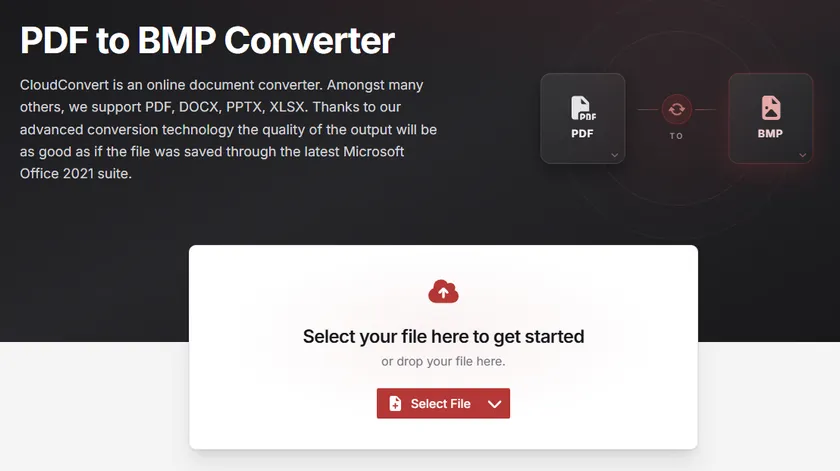
Passos para converter PDF para BMP online
- Acesse o conversor de PDF para BMP do CloudConvert no seu navegador.
- Clique em Select File (Selecionar arquivo) e envie seu documento PDF.
- Abra a seção Options (Opções).
- Defina a Pixel Density (Densidade de pixels) para 300.
- Clique em Convert (Converter).
- Baixe os arquivos BMP gerados após a conclusão da conversão.
Prós
- Não requer instalação de software
- Fácil de usar para iniciantes
- Funciona em todos os sistemas operacionais
Contras
- Requer o envio de arquivos para um servidor de terceiros
- Não é ideal para documentos sensíveis ou confidenciais
- Suporte limitado à automação
O CloudConvert é ideal para usuários que precisam apenas de conversões ocasionais e preferem uma solução rápida baseada em navegador.
Método 2: Converter PDF para BMP usando Ghostscript + ImageMagick
Para usuários que preferem processamento local e não desejam enviar documentos sensíveis para servidores de terceiros, uma combinação de Ghostscript e ImageMagick oferece uma solução offline confiável. Este método oferece controle total sobre a resolução de renderização, mantendo todos os arquivos em sua máquina.
O Ghostscript lida com a renderização do PDF, enquanto o ImageMagick gerencia a conversão final do formato de imagem para BMP.
Passo 1: Instalar o Ghostscript
Baixe e instale o Ghostscript no site oficial:
https://www.ghostscript.com/releases/gsdnld.html
Certifique-se de que ele foi adicionado corretamente ao PATH do seu sistema após a instalação.
Passo 2: Instalar o ImageMagick
Baixe o ImageMagick no site oficial:
https://imagemagick.org/script/download.php
Durante a instalação, certifique-se de que a opção "Install legacy utilities (convert, magick)" esteja habilitada.
Passo 3: Converter PDF para BMP
Use o seguinte comando:
magick -density 300 input.pdf output-%d.bmp
Para PDFs de várias páginas, cada página será salva como um arquivo separado (por exemplo, output-0.bmp, output-1.bmp).
Como funciona
- O parâmetro
-density 300define a resolução de renderização para 300 DPI. - O ImageMagick delega a renderização do PDF ao Ghostscript internamente.
- Os dados de bitmap renderizados são então salvos como um arquivo BMP.
- Valores de DPI mais altos resultam em imagens mais nítidas devido ao aumento da densidade de pixels.
Prós
- Controle total sobre a qualidade da imagem e DPI
- Suporta processamento em lote
- Não requer envio de arquivos
- Ideal para automação e fluxos de trabalho de script
Contras
- Requer instalação e configuração inicial
- O uso da linha de comando pode não ser familiar para iniciantes
Este método é recomendado para desenvolvedores ou usuários avançados que precisam de uma saída consistente e de alta qualidade sem depender de serviços em nuvem.
Método 3: Converter PDF para BMP programaticamente com Python
Para desenvolvedores, a conversão programática é frequentemente a abordagem mais eficiente. Ela permite um controle preciso sobre a qualidade da imagem, possibilitando o processamento automático de um grande número de arquivos PDF.
Neste exemplo, usaremos o Spire.PDF for Python para renderizar cada página do PDF a 300 DPI e salvá-la como uma imagem BMP separada.
Instalar o Spire.PDF for Python
pip install Spire.PDF
Converter PDF para BMP
from spire.pdf.common import *
from spire.pdf import *
from io import BytesIO
import os

# Criar pasta de saída se não existir
output_dir = "Output"
if not os.path.exists(output_dir):
    os.makedirs(output_dir)

# Criar um objeto PdfDocument
doc = PdfDocument()

# Carregar um documento PDF
doc.LoadFromFile(r"input.pdf")

# Iterar por todas as páginas do documento
for page_idx in range(doc.Pages.Count):
    # Converter página para fluxo de imagem, resolução 300 DPI
    with doc.SaveAsImage(page_idx, 300, 300) as imageData:

        # Salvar cada página como arquivo BMP separado
        save_path = os.path.join(output_dir, f"page_{page_idx + 1}.bmp")
        imageData.Save(save_path)
        print(f"Salvo: {save_path}")

# Descartar recursos
doc.Dispose()
Saída:
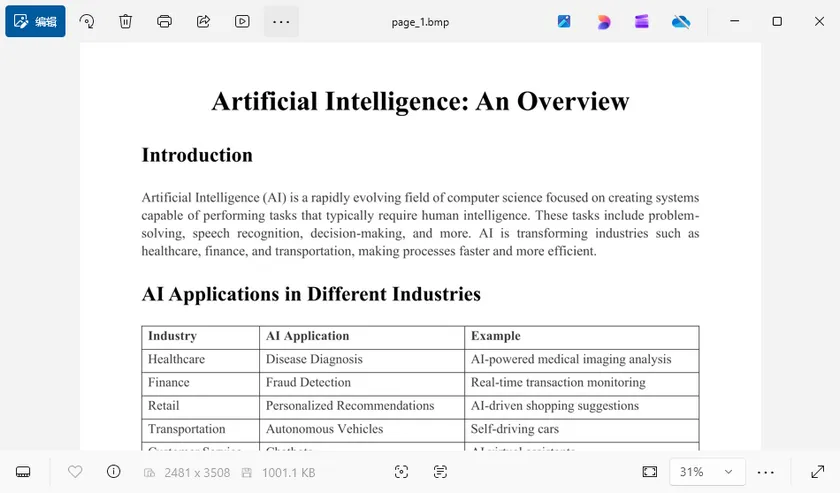
Como funciona
O script primeiro carrega o documento PDF e cria um diretório de saída para armazenar as imagens geradas.
Em seguida, ele itera por todas as páginas e renderiza cada uma na resolução especificada. O fluxo de imagem renderizado é então salvo como um arquivo BMP.
O fator principal que afeta a qualidade da saída é a seguinte linha:
doc.SaveAsImage(page_idx, 300, 300)
Os dois valores representam a resolução de renderização horizontal e vertical em DPI. Aumentar esses valores produz imagens maiores e mais nítidas, o que é especialmente útil para OCR, impressão e aplicações de processamento de imagem.
Além do BMP, o Spire.PDF também suporta exportar páginas de PDF para vários outros formatos de imagem, incluindo PNG, JPG, SVG e TIFF. Essa flexibilidade permite escolher o formato mais adequado para diferentes cenários. Além da conversão de imagem, você também pode usar o Spire.PDF para mesclar ou dividir arquivos PDF, adicionar marcas d'água e números de página, extrair texto e imagens, e automatizar uma ampla gama de tarefas de processamento de documentos em Python.
Tabela comparativa: Escolhendo o método certo
| CloudConvert | Ghostscript + ImageMagick | Spire.PDF for Python | |
|---|---|---|---|
| Dificuldade | Fácil | Moderada | Moderada |
| Requer instalação | Não | Sim | Sim (pip install) |
| Controle de DPI | Sim (opções limitadas) | Sim (totalmente personalizável) | Sim (totalmente personalizável) |
| Processamento em lote | Limitado | Sim | Sim |
| Suporte à automação | Não | Sim (scripts CLI) | Sim (scripts Python) |
| Processamento local | Não (baseado em nuvem) | Sim | Sim |
| Preço | Grátis (com limites diários) | Grátis e código aberto | Grátis / Pago |
| Melhor para | Conversões rápidas e únicas | Fluxos de trabalho DevOps e CLI | Aplicações baseadas em Python |
Conclusão
Obter uma saída BMP de alta qualidade a partir de um PDF é principalmente uma questão de escolher a resolução de renderização correta. Embora o formato BMP em si preserve os dados da imagem sem compressão, a renderização em baixa resolução ainda pode produzir resultados borrados.
O fator chave não é a ferramenta de conversão, mas a configuração de DPI usada durante a etapa de renderização. Um valor de 300 DPI ou superior é normalmente recomendado para garantir texto nítido e detalhes claros em todos os métodos.
Se você prefere um conversor online rápido, um fluxo de trabalho local de linha de comando ou um pipeline de automação baseado em Python, controlar a resolução de renderização é o passo mais importante para obter imagens BMP nítidas e utilizáveis.
Perguntas frequentes (FAQs)
Por que minha saída BMP parece borrada?
A causa mais comum é a baixa resolução de renderização. Muitas ferramentas usam 72 ou 96 DPI por padrão, o que é bom para visualização na tela, mas muito baixo para impressão ou OCR. Tente definir o DPI para 300 ou mais antes de exportar.
O BMP tem qualidade superior ao JPG?
O BMP não usa compressão com perda, enquanto o JPG usa. Como resultado, o BMP preserva mais detalhes da imagem e evita os artefatos de compressão comumente vistos em arquivos JPEG, especialmente nas bordas do texto.
Qual DPI devo usar?
Depende do seu caso de uso. Para visualização geral, 150 DPI geralmente é suficiente. Para impressão, OCR ou arquivamento de documentos, recomenda-se 300 DPI. Para desenhos técnicos altamente detalhados, 600 DPI pode valer o tamanho maior do arquivo.
Posso converter PDFs de várias páginas para BMP?
Sim. A maioria das ferramentas exporta cada página como um arquivo BMP separado. Tanto o comando Ghostscript + ImageMagick quanto o exemplo em Python acima lidam com documentos de várias páginas automaticamente.
O BMP é melhor que o PNG?
Ambos os formatos suportam qualidade de imagem sem perda. O BMP não é comprimido e produz arquivos maiores, enquanto o PNG usa compressão sem perda para reduzir significativamente o tamanho do arquivo sem sacrificar a qualidade. O PNG também suporta transparência. Para a maioria dos fluxos de trabalho modernos, o PNG é a escolha mais prática, a menos que sua aplicação exija especificamente BMP.
Veja também
PDF를 고품질 BMP로 변환하는 방법 (3가지 실용적인 방법)
BMP는 오늘날까지 사용되는 가장 오래되고 단순한 이미지 형식 중 하나입니다. JPEG와 달리 손실 압축을 적용하지 않기 때문에 OCR 시스템, 문서 보관, 이미지 분석 및 원시 비트맵 이미지가 필요한 레거시 소프트웨어에서 널리 선택됩니다.
그러나 PDF를 BMP로 변환하는 것이 항상 생각만큼 간단하지는 않습니다. 많은 사용자가 특히 텍스트, 다이어그램 또는 스캔된 페이지가 포함된 경우 결과 이미지가 흐릿하게 나타나는 문제를 겪습니다. 대부분의 경우 이 문제는 BMP 형식 자체가 아니라 PDF 렌더링 과정에서 사용된 해상도로 인해 발생합니다.
이 가이드에서는 선명하고 고품질의 BMP 출력을 얻기 위한 세 가지 실용적인 방법(온라인 변환기, 로컬 명령줄 솔루션, Python 기반 자동화 방식)을 살펴봅니다. 최상의 결과를 얻기 위해 렌더링 해상도(DPI)를 적절하게 제어하는 방법에 중점을 둡니다.
이 페이지의 내용:
- BMP 출력 품질 이해하기
- 방법 1: CloudConvert를 사용하여 온라인에서 PDF를 BMP로 변환하기
- 방법 2: Ghostscript + ImageMagick을 사용하여 PDF를 BMP로 변환하기
- 방법 3: Python을 사용하여 프로그래밍 방식으로 PDF를 BMP로 변환하기
- 비교 표: 적절한 방법 선택하기
- 자주 묻는 질문(FAQs)
- 결론
BMP 출력 품질 이해하기
BMP는 압축 없이 이미지 데이터를 저장하여 모든 픽셀을 보존합니다. 이 때문에 파일 크기보다 충실도가 중요한 OCR, 문서 디지털화 및 이미지 분석 시나리오에서 흔히 선택됩니다.
하지만 BMP로 저장한다고 해서 자동으로 선명한 결과가 보장되는 것은 아닙니다. 출력 품질은 주로 PDF 페이지를 비트맵 데이터로 변환할 때 사용되는 렌더링 해상도(DPI)에 따라 결정됩니다. DPI 설정이 낮으면 형식에 관계없이 흐릿한 이미지가 생성됩니다.
| DPI | 일반적인 용도 |
|---|---|
| 72 DPI | 화면 미리보기 |
| 150 DPI | 일반적인 보기 |
| 300 DPI | 인쇄 및 OCR |
| 600 DPI | 보관 및 상세 문서 |
렌더링 엔진도 중요한 역할을 합니다. 도구마다 동일한 DPI에서도 글꼴, 벡터 그래픽 및 포함된 이미지를 처리하는 방식이 다를 수 있습니다. 하지만 대부분의 경우 올바른 해상도를 설정하는 것이 사용 가능한 출력을 얻는 가장 큰 요인입니다.
방법 1: CloudConvert를 사용하여 온라인에서 PDF를 BMP로 변환하기
온라인 변환기는 소프트웨어를 설치하지 않고도 PDF 파일을 BMP로 변환하는 가장 간단한 방법을 제공합니다. 그중 CloudConvert는 출력 해상도를 잘 제어할 수 있어 더 높은 품질의 결과가 필요한 사용자에게 적합합니다.
온라인에서 PDF를 BMP로 변환하는 단계
- 웹 브라우저에서 CloudConvert PDF-to-BMP 변환기로 이동합니다.
- 파일 선택(Select File)을 클릭하고 PDF 문서를 업로드합니다.
- 옵션(Options) 섹션을 엽니다.
- 픽셀 밀도(Pixel Density)를 300으로 설정합니다.
- 변환(Convert)을 클릭합니다.
- 변환이 완료되면 생성된 BMP 파일을 다운로드합니다.
장점
- 소프트웨어 설치 불필요
- 초보자가 사용하기 쉬움
- 모든 운영 체제에서 작동
단점
- 타사 서버에 파일 업로드 필요
- 민감하거나 기밀인 문서에는 부적합
- 자동화 지원 제한적
CloudConvert는 가끔 변환이 필요하고 빠르고 브라우저 기반의 솔루션을 선호하는 사용자에게 이상적입니다.
방법 2: Ghostscript + ImageMagick을 사용하여 PDF를 BMP로 변환하기
로컬 처리를 선호하고 민감한 문서를 타사 서버에 업로드하고 싶지 않은 사용자를 위해 Ghostscript와 ImageMagick을 조합하면 안정적인 오프라인 솔루션을 제공합니다. 이 방법은 모든 파일을 컴퓨터에 유지하면서 렌더링 해상도를 완전히 제어할 수 있게 해줍니다.
Ghostscript는 PDF 렌더링을 처리하고, ImageMagick은 최종 이미지 형식을 BMP로 변환하는 작업을 관리합니다.
1단계: Ghostscript 설치
공식 웹사이트에서 Ghostscript를 다운로드하여 설치합니다:
https://www.ghostscript.com/releases/gsdnld.html
설치 후 시스템 PATH에 올바르게 추가되었는지 확인하십시오.
2단계: ImageMagick 설치
공식 웹사이트에서 ImageMagick을 다운로드합니다:
https://imagemagick.org/script/download.php
설치 중에 "Install legacy utilities (convert, magick)"가 활성화되어 있는지 확인하십시오.
3단계: PDF를 BMP로 변환
다음 명령어를 사용합니다:
magick -density 300 input.pdf output-%d.bmp
다중 페이지 PDF의 경우 각 페이지가 별도의 파일(예: output-0.bmp, output-1.bmp)로 저장됩니다.
작동 원리
-density 300매개변수는 렌더링 해상도를 300 DPI로 설정합니다.- ImageMagick은 내부적으로 PDF 렌더링을 Ghostscript에 위임합니다.
- 렌더링된 비트맵 데이터는 BMP 파일로 저장됩니다.
- DPI 값이 높을수록 픽셀 밀도가 증가하여 이미지가 더 선명해집니다.
장점
- 이미지 품질 및 DPI에 대한 완전한 제어
- 일괄 처리 지원
- 파일 업로드 불필요
- 자동화 및 스크립팅 워크플로우에 이상적
단점
- 설치 및 초기 설정 필요
- 명령줄 사용이 초보자에게는 생소할 수 있음
이 방법은 클라우드 서비스에 의존하지 않고 일관된 고품질 출력이 필요한 개발자나 고급 사용자에게 권장됩니다.
방법 3: Python을 사용하여 프로그래밍 방식으로 PDF를 BMP로 변환하기
개발자에게는 프로그래밍 방식의 변환이 가장 효율적인 경우가 많습니다. 이를 통해 이미지 품질을 정밀하게 제어할 수 있으며, 다수의 PDF 파일을 자동으로 처리할 수 있습니다.
이 예제에서는 Spire.PDF for Python을 사용하여 각 PDF 페이지를 300 DPI로 렌더링하고 별도의 BMP 이미지로 저장합니다.
Spire.PDF for Python 설치
pip install Spire.PDF
PDF를 BMP로 변환
from spire.pdf.common import *
from spire.pdf import *
from io import BytesIO
import os

# 출력 폴더가 없으면 생성
output_dir = "Output"
if not os.path.exists(output_dir):
    os.makedirs(output_dir)

# PdfDocument 객체 생성
doc = PdfDocument()

# PDF 문서 로드
doc.LoadFromFile(r"input.pdf")

# 문서의 모든 페이지 반복
for page_idx in range(doc.Pages.Count):
    # 페이지를 이미지 스트림으로 변환, 해상도 300 DPI
    with doc.SaveAsImage(page_idx, 300, 300) as imageData:

        # 각 페이지를 별도의 BMP 파일로 저장
        save_path = os.path.join(output_dir, f"page_{page_idx + 1}.bmp")
        imageData.Save(save_path)
        print(f"저장됨: {save_path}")

# 리소스 해제
doc.Dispose()
출력:
작동 원리
스크립트는 먼저 PDF 문서를 로드하고 생성된 이미지를 저장할 출력 디렉토리를 만듭니다.
다음으로 모든 페이지를 반복하며 각 페이지를 지정된 해상도로 렌더링합니다. 렌더링된 이미지 스트림은 BMP 파일로 저장됩니다.
출력 품질에 영향을 미치는 핵심 요소는 다음 줄입니다:
doc.SaveAsImage(page_idx, 300, 300)
두 값은 DPI 단위의 가로 및 세로 렌더링 해상도를 나타냅니다. 이 값을 높이면 더 크고 선명한 이미지가 생성되며, 이는 특히 OCR, 인쇄 및 이미지 처리 애플리케이션에 유용합니다.
Spire.PDF는 BMP 외에도 PDF 페이지를 PNG, JPG, SVG, TIFF 등 다양한 다른 이미지 형식으로 내보내는 기능도 지원합니다. 이러한 유연성을 통해 다양한 시나리오에 가장 적합한 형식을 선택할 수 있습니다. 이미지 변환 외에도 Spire.PDF를 사용하여 PDF 파일을 병합하거나 분할하고, 워터마크와 페이지 번호를 추가하며, 텍스트와 이미지를 추출하고, Python에서 광범위한 문서 처리 작업을 자동화할 수 있습니다.
비교 표: 적절한 방법 선택하기
| CloudConvert | Ghostscript + ImageMagick | Spire.PDF for Python | |
|---|---|---|---|
| 난이도 | 쉬움 | 보통 | 보통 |
| 설치 필요 여부 | 아니요 | 예 | 예 (pip install) |
| DPI 제어 | 예 (제한적 옵션) | 예 (완전 사용자 정의 가능) | 예 (완전 사용자 정의 가능) |
| 일괄 처리 | 제한적 | 예 | 예 |
| 자동화 지원 | 아니요 | 예 (CLI 스크립팅) | 예 (Python 스크립팅) |
| 로컬 처리 | 아니요 (클라우드 기반) | 예 | 예 |
| 가격 | 무료 (일일 제한 있음) | 무료 및 오픈 소스 | 무료 / 유료 |
| 최적 용도 | 빠른 일회성 변환 | DevOps 및 CLI 워크플로우 | Python 기반 애플리케이션 |
결론
PDF에서 고품질 BMP 출력을 얻는 것은 주로 올바른 렌더링 해상도를 선택하는 문제입니다. BMP 형식 자체는 압축 없이 이미지 데이터를 보존하지만, 저해상도 렌더링은 여전히 흐릿한 결과를 생성할 수 있습니다.
핵심 요소는 변환 도구가 아니라 렌더링 단계에서 사용되는 DPI 설정입니다. 모든 방법에서 선명한 텍스트와 명확한 세부 정보를 보장하기 위해 일반적으로 300 DPI 이상의 값을 권장합니다.
빠른 온라인 변환기, 로컬 명령줄 워크플로우, Python 기반 자동화 파이프라인 중 무엇을 선호하든, 렌더링 해상도를 제어하는 것이 선명하고 사용 가능한 BMP 이미지를 얻기 위한 가장 중요한 단계입니다.
자주 묻는 질문(FAQs)
BMP 출력이 흐릿하게 보이는 이유는 무엇인가요?
가장 일반적인 원인은 낮은 렌더링 해상도입니다. 많은 도구가 기본적으로 72 또는 96 DPI를 사용하는데, 이는 화면 미리보기에는 적합하지만 인쇄나 OCR에는 너무 낮습니다. 내보내기 전에 DPI를 300 이상으로 설정해 보십시오.
BMP가 JPG보다 품질이 더 높은가요?
BMP는 손실 압축을 사용하지 않지만 JPG는 사용합니다. 결과적으로 BMP는 더 많은 이미지 세부 정보를 보존하며, 특히 텍스트 가장자리 주변에서 JPEG 파일에서 흔히 볼 수 있는 압축 아티팩트를 방지합니다.
어떤 DPI를 사용해야 하나요?
사용 사례에 따라 다릅니다. 일반적인 보기의 경우 150 DPI면 충분합니다. 인쇄, OCR 또는 문서 보관의 경우 300 DPI를 권장합니다. 매우 상세한 기술 도면의 경우 더 큰 파일 크기를 감수하더라도 600 DPI가 가치가 있을 수 있습니다.
다중 페이지 PDF를 BMP로 변환할 수 있나요?
네. 대부분의 도구는 각 페이지를 별도의 BMP 파일로 내보냅니다. Ghostscript + ImageMagick 명령어와 위의 Python 예제 모두 다중 페이지 문서를 자동으로 처리합니다.
BMP가 PNG보다 나은가요?
두 형식 모두 무손실 이미지 품질을 지원합니다. BMP는 압축되지 않아 파일 크기가 더 크고, PNG는 무손실 압축을 사용하여 품질 저하 없이 파일 크기를 크게 줄입니다. PNG는 투명도도 지원합니다. 대부분의 현대적인 워크플로우에서는 애플리케이션이 특별히 BMP를 요구하지 않는 한 PNG가 더 실용적인 선택입니다.