Formattazione, riassunto e indicizzazione di testo basati su IA in C#
Indice
- Perché la standardizzazione dei documenti Word basata sull'IA è importante
- Cosa automatizzerà questo esempio
- Configurare Spire.Agent.Office per C#
- Standardizzare la formattazione di Word con l'IA
- Estrarre metadati e generare riepiloghi dei documenti
- Creare un indice documentale da più file Word
- Best practice per un'elaborazione documentale IA affidabile
- Conclusione
- Vedi anche
Le organizzazioni accumulano spesso centinaia o addirittura migliaia di documenti Word nel tempo. Questi file possono provenire da diversi dipartimenti, dipendenti, fornitori o sistemi legacy, risultando in font, strutture di intestazione, numerazioni, spaziatura, intestazioni e altre formattazioni incoerenti.
Preparare tali documenti per la pubblicazione, la migrazione o l'archiviazione è più di un semplice compito di formattazione. In molti casi, le organizzazioni devono anche identificare l'oggetto di ciascun documento, estrarre metadati chiave, creare riepiloghi concisi e organizzare i risultati in un indice documentale ricercabile.
L'automazione tradizionale di Word può gestire bene regole di formattazione fisse, ma diventa difficile quando le strutture dei documenti variano. Un approccio basato sull'IA può prima comprendere il ruolo logico del contenuto — come titoli, intestazioni, corpo del testo, date e tipi di documento — e quindi applicare le operazioni documentali appropriate.
In questo articolo, utilizzeremo Spire.Agent.Office per .NET per costruire un flusso di lavoro di elaborazione Word in tre fasi in C#:
Documenti Word → Standardizzazione della formattazione → Estrazione di metadati e riepiloghi → Indice documentale
Perché la standardizzazione dei documenti Word basata sull'IA è importante
Standardizzare una raccolta di documenti Word non è sempre semplice come impostare lo stesso font per ogni paragrafo.
Un'organizzazione tipica può avere documenti come:
Input/
├── Employee_Travel_Policy.docx
├── Vendor_Onboarding_Guide.docx
├── Security_Incident_Report.docx
└── Remote_Work_Policy.docx
Anche quando questi documenti coprono processi aziendali simili, la loro struttura interna può differire considerevolmente.
Ad esempio, un documento potrebbe utilizzare uno stile Titolo 1 di Word reale per i titoli delle sezioni, mentre un altro usa semplicemente testo in grassetto da 16 punti. Alcuni documenti potrebbero utilizzare sezioni numerate come:
1. Scopo
2. Ambito
3. Responsabilità
mentre altri potrebbero usare una numerazione incoerente come:
I. Scopo
Sezione 2 - Ambito
3) Responsabilità
L'automazione documentale tradizionale solitamente richiede agli sviluppatori di ispezionare le posizioni dei paragrafi, gli stili o i pattern di testo e scrivere regole per ogni variazione.
L'elaborazione documentale assistita dall'IA cambia l'approccio. Invece di specificare che "il paragrafo 3 deve essere un'intestazione", gli sviluppatori possono descrivere il risultato desiderato:
Identifica il titolo del documento e la gerarchia delle intestazioni, normalizza gli stili e la numerazione delle intestazioni e preserva il contenuto originale.
Il livello IA interpreta la struttura del documento, mentre il motore sottostante di documenti Word esegue l'elaborazione effettiva.
Questo rende l'approccio particolarmente utile per raccolte di documenti aziendali semi-strutturati in cui il contenuto è diverso ma lo standard di output desiderato è coerente.
Cosa automatizzerà questo esempio
Il nostro flusso di lavoro di esempio contiene tre fasi di elaborazione.
Fase 1: Standardizzare la formattazione di Word
Ogni documento sorgente viene analizzato e riformattato secondo uno stile aziendale condiviso. L'elaborazione include:
- Normalizzazione di font e dimensioni dei font
- Identificazione dei titoli dei documenti
- Applicazione di livelli di intestazione coerenti
- Normalizzazione della numerazione delle intestazioni
- Standardizzazione della spaziatura dei paragrafi
- Aggiunta di un'intestazione comune
- Aggiunta di numeri di pagina nel piè di pagina
- Preservazione del testo originale, tabelle, immagini e collegamenti ipertestuali
Il risultato è una versione standardizzata di ogni documento di input.
Fase 2: Estrarre metadati e riepiloghi
I documenti standardizzati vengono poi analizzati individualmente per estrarre informazioni come:
- Titolo del documento
- Dipartimento
- Tipo di documento
- Data di efficacia o di emissione
- Parole chiave
- Riepilogo
Ogni risultato viene salvato come un piccolo documento di metadati Word strutturato.
Fase 3: Creare un indice documentale
Infine, i file di metadati vengono combinati e convertiti in un unico indice documentale Word.
L'indice finito può contenere informazioni simili a:
| N. | Titolo | Dipartimento | Tipo | Data | Riepilogo |
|---|---|---|---|---|---|
| 1 | Policy viaggi dipendenti | Risorse Umane | Policy | 15 luglio 2026 | Definisce i requisiti di approvazione e rimborso delle trasferte. |
| 2 | Guida all'onboarding dei fornitori | Approvvigionamento | Procedura | 3 giugno 2026 | Descrive il processo di registrazione e approvazione dei nuovi fornitori. |
| 3 | Rapporto incidente di sicurezza | IT | Rapporto | 8 agosto 2026 | Riassume un incidente di sicurezza e le azioni intraprese in risposta. |
Questo produce non solo file Word più puliti, ma anche una panoramica utile dell'intera raccolta documentale.
Configurare Spire.Agent.Office per C#
Per prima cosa, crea un progetto .NET e installa Spire.Agent.Office tramite NuGet.
Puoi installare il pacchetto dal Gestore pacchetti NuGet di Visual Studio o utilizzare la CLI .NET:
dotnet add package Spire.Agent.Office
Quindi importa i namespace richiesti:
using System;
using System.IO;
using Spire.Agent.Office.AI;
using Spire.Agent.Office.Extensions;
using Spire.Doc;
L'elaborazione documentale IA segue un modello semplice.
Per prima cosa, configura un'istanza AIOptions con uno SpireToken:
AIOptions options = new AIOptions();
options.SpireToken = "il tuo SpireToken";
Puoi richiedere uno SpireToken temporaneo per i test dalla pagina della licenza temporanea Spire. Dopo aver ottenuto il token, assegnalo alla proprietà SpireToken prima di chiamare le API di elaborazione IA.
Successivamente, carica un documento Word e crea un AIDocumentProcessor:
using (Document doc = new Document())
{
    doc.LoadFromFile("input.docx");

    AIDocumentProcessor processor = doc.AI(options);

    processor.ExecuteInstruction(
        doc,
        "La tua istruzione in linguaggio naturale",
        "output.docx"
    );
}
La parte importante è l'istruzione. Invece di scrivere manualmente una lunga sequenza di chiamate API Word, descriviamo come dovrebbe apparire il documento e lasciamo che l'agente esegua le operazioni corrispondenti.
Nelle sezioni seguenti, applicheremo questo approccio a un'intera directory di file Word.
Standardizzare la formattazione di Word con l'IA
Supponiamo che i documenti raccolti da diversi dipartimenti utilizzino font, intestazioni, numerazioni e layout di pagina incoerenti.
Vogliamo che tutti seguano lo stesso stile documentale aziendale:
- Arial per tutto il testo
- Testo del corpo da 11 pt
- Titolo del documento in grassetto da 20 pt
- Titolo 1 in grassetto da 16 pt
- Titolo 2 in grassetto da 13 pt
- Numerazione multilivello coerente
- Interlinea 1.15
- Un'intestazione aziendale
- Numeri di pagina centrati
- Nessuna modifica alla formulazione originale
Il codice seguente elabora ogni file .docx in una directory di input e salva le versioni standardizzate in una nuova directory.
using System;
using System.IO;
using Spire.Agent.Office.AI;
using Spire.Agent.Office.Extensions;
using Spire.Doc;

string inputFolder = @"E:\Documents\Input";
string outputFolder = @"E:\Documents\Standardized";
string spireToken = "il tuo SpireToken";
Directory.CreateDirectory(outputFolder);

string aiRule = """
Analizza la struttura di questo documento Word e standardizza la sua formattazione secondo le seguenti regole aziendali:

1. Preserva tutta la formulazione originale. Non riscrivere, riassumere, accorciare o rimuovere alcun contenuto del documento.
2. Usa Arial come font predefinito e 11 pt per il normale testo del corpo.
3. Identifica il titolo principale del documento e formattalo in grassetto da 20 pt.
4. Identifica la gerarchia logica delle intestazioni e applica gli stili di intestazione Word appropriati. Usa 16 pt in grassetto per Titolo 1 e 13 pt in grassetto per Titolo 2.
5. Normalizza la numerazione delle sezioni in una gerarchia coerente come 1, 1.1 e 1.1.1 dove appropriato.
6. Usa un'interlinea di 1.15 per i paragrafi del corpo normale e mantieni la spaziatura dei paragrafi visivamente coerente.
7. Aggiungi 'Libreria Documenti Aziendali' nell'intestazione del documento.
8. Aggiungi numeri di pagina centrati nel piè di pagina.
9. Preserva tutte le tabelle, immagini, collegamenti ipertestuali e altri oggetti del documento esistenti.
10. Mantieni invariata la struttura complessiva del documento e il significato originale.
""";

var aiOpts = new AIOptions { SpireToken = spireToken };

foreach (var file in Directory.GetFiles(inputFolder, "*.docx"))
{
    var fileName = Path.GetFileName(file);
    var savePath = Path.Combine(outputFolder, fileName);

    using var doc = new Document();
    doc.LoadFromFile(file);

    var res = doc.AI(aiOpts).ExecuteInstruction(doc, aiRule, savePath);
    Console.WriteLine(res.Success ? $"Elaborato: {fileName}" : $"Fallito: {fileName} - {res.ErrorMessage}");
}
Un dettaglio importante nell'istruzione è il requisito di identificare la gerarchia logica delle intestazioni.
Questo è diverso dal semplice cambio di font di ogni paragrafo in grassetto. L'agente può analizzare cosa rappresenta un paragrafo e determinare se funge da titolo del documento, intestazione di sezione principale, sottosezione o normale testo del corpo.
Per i flussi di lavoro di gestione documentale, gli stili di intestazione corretti sono particolarmente utili perché possono migliorare la navigazione, la generazione automatica dell'indice, i segnalibri PDF, l'accessibilità e la successiva analisi del documento.
Un'altra regola importante è:
Preserva tutta la formulazione originale.
La formattazione e la riscrittura del contenuto dovrebbero normalmente essere trattate come compiti separati. Quando lo scopo di questa fase è la standardizzazione del documento, l'IA non dovrebbe riscrivere o riassumere simultaneamente il testo sorgente.
Dopo l'esecuzione, la directory di output contiene copie standardizzate:
Standardized/
├── Employee_Travel_Policy.docx
├── Vendor_Onboarding_Guide.docx
├── Security_Incident_Report.docx
└── Remote_Work_Policy.docx
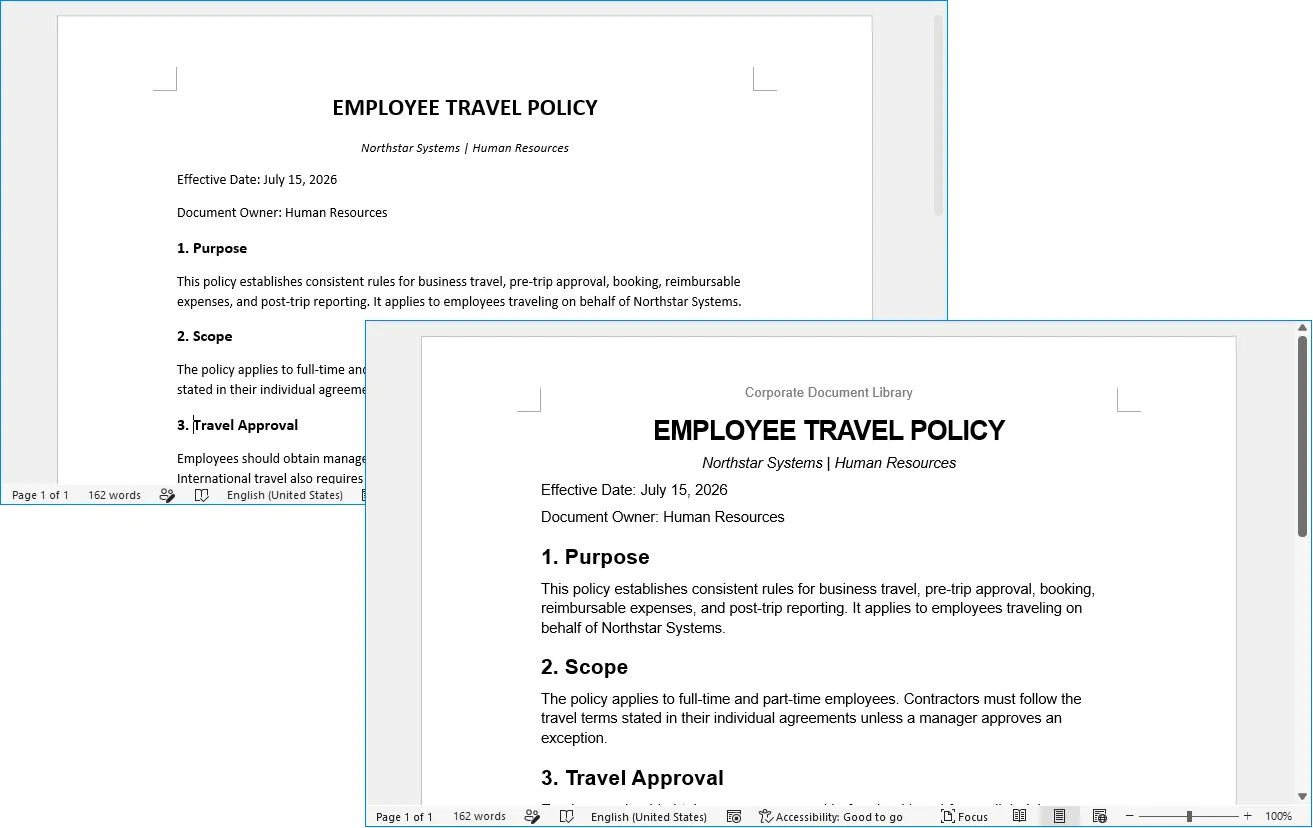
L'esempio seguente mostra come appare un documento Word formattato in modo incoerente prima e dopo la standardizzazione basata sull'IA.
Estrarre metadati e generare riepiloghi dei documenti
Una volta standardizzata la formattazione, il passo successivo è comprendere cosa contiene ogni documento.
Aprire manualmente centinaia di file e registrare titoli, dipartimenti, date, categorie e riepiloghi richiede molto tempo. Questo è un compito in cui la comprensione documentale dell'IA è particolarmente utile.
Per questo esempio, estrarremo sei campi da ogni documento:
- Titolo
- Dipartimento
- Tipo di documento
- Data
- Parole chiave
- Riepilogo
Invece di restituire prosa a forma libera, l'istruzione richiede una struttura prevedibile. Questo rende i risultati più facili da elaborare in seguito.
using System;
using System.IO;
using Spire.Agent.Office.AI;
using Spire.Agent.Office.Extensions;
using Spire.Doc;

string inputFolder = @"E:\Documents\Standardized";
string outputFolder = @"E:\Documents\Metadata";
string spireToken = "il tuo SpireToken";

Directory.CreateDirectory(outputFolder);

string aiRule = """
Analizza questo documento Word e crea un rapporto di metadati conciso.

Estrai le seguenti informazioni dal contenuto effettivo del documento:
- Titolo
- Dipartimento o funzione aziendale responsabile
- Tipo di documento, come Policy, Procedura, Rapporto, Guida o Memo
- Data di efficacia o Data di emissione
- Da 3 a 5 parole chiave
- Riepilogo di circa 80-120 parole

Crea un nuovo documento conciso contenente solo questi campi.
Usa esattamente le seguenti etichette:

Titolo:
Dipartimento:
Tipo di documento:
Data:
Parole chiave:
Riepilogo:

Non inventare informazioni che non possono essere ragionevolmente determinate dalla fonte. Se una data o un dipartimento specifico non sono disponibili, usa 'Non specificato'. Mantieni il riepilogo fattuale e basato solo sul documento sorgente.
""";

var aiOpts = new AIOptions { SpireToken = spireToken };

foreach (var file in Directory.GetFiles(inputFolder, "*.docx"))
{
    var fileName = Path.GetFileNameWithoutExtension(file);
    var savePath = Path.Combine(outputFolder, $"{fileName}_Metadata.docx");

    using var doc = new Document();
    doc.LoadFromFile(file);

    var res = doc.AI(aiOpts).ExecuteInstruction(doc, aiRule, savePath);
    Console.WriteLine(res.Success ? $"Metadati estratti: {fileName}" : $"Fallito: {fileName} - {res.ErrorMessage}");
}
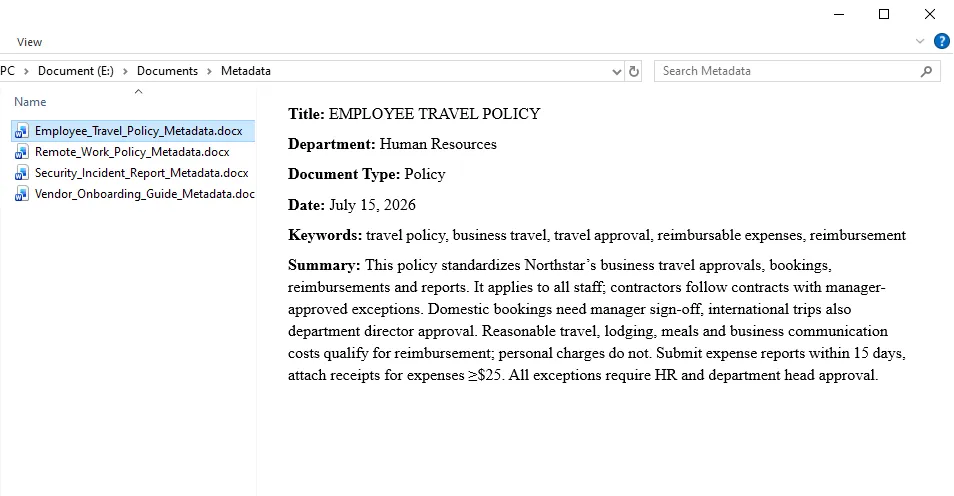
Un documento di metadati generato appare così:
Il requisito di utilizzare etichette fisse è importante.
Se il prompt dice semplicemente "riassumi il documento", documenti diversi possono produrre strutture di output sostanzialmente diverse. Richiedere campi coerenti rende i file intermedi molto più facili da combinare in un indice finale.
L'istruzione dice anche esplicitamente all'agente di non inventare metadati mancanti. Per i record aziendali, "Non specificato" è generalmente più utile che indovinare un dipartimento o una data che il documento non dichiara mai.
Creare un indice documentale da più file Word
A questo punto, abbiamo un file di metadati per ogni documento elaborato:
Metadata/
├── Employee_Travel_Policy_Metadata.docx
├── Vendor_Onboarding_Guide_Metadata.docx
├── Security_Incident_Report_Metadata.docx
└── Remote_Work_Policy_Metadata.docx
Il passo finale è consolidare questi singoli file di metadati in un unico indice documentale basato su Word.
Invece di aprire manualmente ogni documento di metadati, estrarne il testo e unire i risultati in C#, possiamo passare tutti i file di metadati direttamente a Spire.Agent.Office tramite il parametro attachments. L'agente IA legge i documenti allegati, estrae i campi etichettati da ciascuno e crea un nuovo documento Word contenente un indice consolidato.
Il parametro attachments è utile quando il compito IA dipende da più file di supporto piuttosto che da un singolo documento di input principale. In questo esempio, non esiste un documento Word esistente che debba essere modificato. Pertanto, creiamo un oggetto Document vuoto e utilizziamo i file di metadati come fonti di informazioni per generare l'indice finale.
using System;
using System.IO;
using Spire.Agent.Office.AI;
using Spire.Agent.Office.Extensions;
using Spire.Doc;

string metadataFolder = @"E:\Documents\Metadata";
string outputPath = @"E:\Documents\Document_Index.docx";
string spireToken = "il tuo SpireToken";
var attachments = Directory.GetFiles(metadataFolder, "*_Metadata.docx");

string aiRule = """
Leggi tutti i documenti di metadati forniti negli allegati e crea un indice documentale Word consolidato.

Crea il titolo 'Indice Documentale' nella parte superiore del documento.

Crea una tabella con le seguenti colonne:
N. | Titolo | Dipartimento | Tipo di documento | Data | Parole chiave | Riepilogo

Requisiti:
1. Crea una riga per ogni documento di metadati.
2. Numera i record in sequenza partendo da 1.
3. Estrai i valori dai campi etichettati in ogni allegato.
4. Preserva le informazioni estratte e non inventare dati mancanti.
5. Usa 'Non specificato' quando un campo non è disponibile.
6. Rendi l'intestazione della tabella in grassetto.
7. Dai alla colonna Riepilogo più larghezza rispetto alle altre colonne.
8. Usa uno stile professionale pulito adatto a un registro documentale interno.
9. Produci un documento Word autonomo contenente solo l'indice documentale finale.
""";

var aiOpts = new AIOptions { SpireToken = spireToken };

using var doc = new Document();
var res = doc.AI(aiOpts).ExecuteInstruction(doc, aiRule, outputPath, attachments);

Console.WriteLine(res.Success
    ? $"Indice documentale creato: {outputPath}"
    : $"Impossibile creare l'indice documentale: {res.ErrorMessage}");
L'output finale viene salvato come:
Document_Index.docx
Invece di aprire ogni documento originale individualmente, i dipendenti possono ora utilizzare un unico indice consolidato per comprendere rapidamente quali documenti sono disponibili e cosa contiene ogni file.
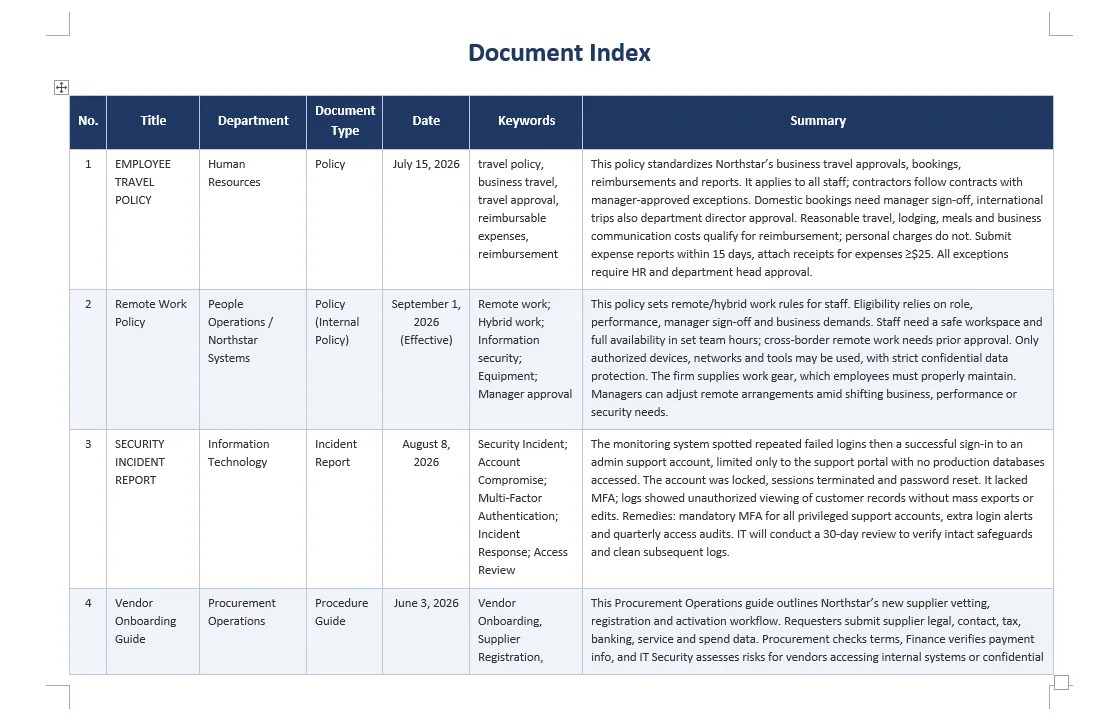
Questo tipo di indice può essere particolarmente utile prima di migrare file in un sistema di gestione documentale, preparare una base di conoscenza interna, rivedere raccolte di documenti legacy o organizzare record per la conservazione a lungo termine.
Best practice per un'elaborazione documentale IA affidabile
L'IA rende l'elaborazione di documenti semi-strutturati più flessibile, ma i risultati affidabili dipendono ancora fortemente da come viene progettato il compito.
Separare la formattazione dall'analisi del contenuto
Evita di chiedere all'agente di standardizzare la formattazione, riscrivere il testo, riassumere il documento ed estrarre metadati in un'unica grande istruzione.
Queste sono operazioni diverse con obiettivi diversi.
Un flusso di lavoro più sicuro è:
Documento originale
        ↓
Standardizzazione formattazione
        ↓
Documento standardizzato
        ↓
Estrazione metadati
        ↓
Metadati strutturati
        ↓
Indice documentale
Questo rende anche i problemi più facili da identificare e correggere.
Definire le regole di formattazione in modo esplicito
Istruzioni come:
Rendi il documento professionale.
lasciano troppo spazio all'interpretazione.
Ogni volta che la coerenza è importante, specifica le regole aziendali effettive:
Arial, testo del corpo da 11 pt
Titolo del documento da 20 pt
Titolo 1 da 16 pt
Titolo 2 da 13 pt
Interlinea 1.15
Numerazione 1 / 1.1 / 1.1.1
Lo stesso principio si applica a intestazioni, piè di pagina, formattazione delle tabelle e layout di pagina.
Proteggere il contenuto originale
Per i compiti di formattazione, includi esplicitamente requisiti come:
Preserva tutta la formulazione originale.
e:
Non riscrivere, riassumere, accorciare o eliminare il contenuto del documento.
I file sorgente dovrebbero anche essere conservati piuttosto che sovrascritti durante l'elaborazione batch automatizzata.
Una struttura di cartelle pratica è:
Documents/
├── Input/
├── Standardized/
├── Metadata/
└── Document_Index.docx
Richiedere metadati strutturati
Quando le informazioni estratte verranno riutilizzate programmaticamente, un output prevedibile è più prezioso di un output creativo.
Invece di:
Dimmi di cosa tratta questo documento.
usa uno schema fisso:
Titolo:
Dipartimento:
Tipo di documento:
Data:
Parole chiave:
Riepilogo:
Questo rende l'elaborazione a valle considerevolmente più facile.
Gestire le informazioni mancanti in modo esplicito
Non ogni documento contiene un nome di dipartimento, una data di efficacia, un numero di documento o un proprietario.
Dì all'IA cosa fare quando le informazioni mancano:
Usa "Non specificato" invece di indovinare.
Questo è particolarmente importante per la gestione documentale, legale, finanziaria, di conformità e altri flussi di lavoro sensibili ai record.
Rivedere gli output ad alta importanza
I metadati e i riepiloghi generati dall'IA non dovrebbero essere automaticamente trattati come record autorevoli in flussi di lavoro ad alto rischio.
Per l'organizzazione ordinaria dei documenti interni, i risultati automatizzati possono essere sufficienti. Per archivi regolamentati, record legali, documenti di conformità o sistemi di conservazione ufficiali, i campi estratti e le classificazioni dovrebbero comunque essere convalidati secondo i requisiti di revisione dell'organizzazione.
Conclusione
L'elaborazione batch di Word spesso comporta due problemi diversi.
Il primo è l'automazione documentale: cambiare font, applicare stili, creare intestazioni e piè di pagina, gestire la numerazione e generare file Word.
Il secondo è la comprensione documentale: determinare cosa rappresenta il contenuto, identificare i tipi di documento, trovare date e dipartimenti, estrarre parole chiave e produrre riepiloghi.
Le API Word tradizionali sono altamente efficaci quando gli sviluppatori sanno già esattamente quale contenuto modificare. L'elaborazione assistita dall'IA diventa particolarmente utile quando i documenti sono incoerenti e il software deve prima comprendere la loro struttura prima di decidere come elaborarli.
Utilizzando Spire.Agent.Office in C#, queste due capacità possono essere combinate in un unico flusso di lavoro:
Analizzare → Standardizzare → Estrarre → Organizzare
Nell'esempio sopra, una cartella contenente documenti Word incoerenti viene trasformata in una raccolta documentale standardizzata, una serie di record di metadati strutturati e infine un indice documentale Word centralizzato.
La stessa architettura può essere estesa ad altri flussi di lavoro aziendali, come librerie di policy, manuali di procedura, documentazione di conformità, archivi di progetto, record HR, documentazione dei fornitori e migrazione di documenti legacy.
Invece di rivedere e organizzare manualmente i file uno per uno, gli sviluppatori possono definire le regole documentali e la struttura delle informazioni richieste in linguaggio naturale e automatizzare le parti ripetitive del flusso di lavoro, producendo comunque documenti Word reali e modificabili.
Vedi anche
Formatage, résumé et indexation de texte assistés par IA en C#
Table des matières
- Pourquoi la normalisation des documents Word par l'IA est importante
- Ce que cet exemple va automatiser
- Configurer Spire.Agent.Office pour C#
- Normaliser le formatage Word avec l'IA
- Extraire les métadonnées et générer des résumés de documents
- Créer un index de documents à partir de plusieurs fichiers Word
- Meilleures pratiques pour un traitement documentaire fiable par l'IA
- Conclusion
- Voir aussi
Les organisations accumulent souvent des centaines, voire des milliers de documents Word au fil du temps. Ces fichiers peuvent provenir de différents départements, employés, fournisseurs ou systèmes hérités, entraînant des incohérences dans les polices, les structures de titres, la numérotation, l'espacement, les en-têtes et autres éléments de formatage.
Préparer de tels documents pour la publication, la migration ou l'archivage est bien plus qu'une simple tâche de formatage. Dans de nombreux cas, les organisations doivent également identifier le contenu de chaque document, extraire les métadonnées clés, créer des résumés concis et organiser les résultats dans un index de documents consultable.
L'automatisation traditionnelle de Word peut bien gérer des règles de formatage fixes, mais elle devient difficile lorsque les structures des documents varient. Une approche basée sur l'IA peut d'abord comprendre le rôle logique du contenu — comme les titres, les en-têtes, le corps du texte, les dates et les types de documents — puis appliquer les opérations documentaires appropriées.
Dans cet article, nous utiliserons Spire.Agent.Office pour .NET pour construire un flux de travail de traitement Word en trois étapes en C# :
Documents Word → Normalisation du formatage → Extraction des métadonnées et résumés → Index des documents
Pourquoi la normalisation des documents Word par l'IA est importante
La normalisation d'une collection de documents Word n'est pas toujours aussi simple que d'appliquer la même police à chaque paragraphe.
Une organisation type peut avoir des documents tels que :
Input/
├── Employee_Travel_Policy.docx
├── Vendor_Onboarding_Guide.docx
├── Security_Incident_Report.docx
└── Remote_Work_Policy.docx
Même lorsque ces documents couvrent des processus métier similaires, leur structure interne peut différer considérablement.
Par exemple, un document peut utiliser un style Word réel Titre 1 pour les titres de section, tandis qu'un autre utilise simplement du texte en gras de 16 points. Certains documents peuvent utiliser une numérotation de section telle que :
1. Objet
2. Portée
3. Responsabilités
tandis que d'autres peuvent utiliser une numérotation incohérente telle que :
I. Objet
Section 2 - Portée
3) Responsabilités
L'automatisation traditionnelle des documents oblige généralement les développeurs à inspecter les positions des paragraphes, les styles ou les modèles de texte et à écrire des règles pour chaque variante.
Le traitement documentaire assisté par l'IA change l'approche. Au lieu de spécifier que "le paragraphe 3 doit être un titre", les développeurs peuvent décrire le résultat souhaité :
Identifier le titre du document et la hiérarchie des titres, normaliser les styles et la numérotation des titres, et préserver le contenu original.
La couche IA interprète la structure du document, tandis que le moteur de document Word sous-jacent effectue le traitement réel.
Cela rend l'approche particulièrement utile pour les collections de documents professionnels semi-structurés où le contenu diffère mais où la norme de sortie souhaitée est cohérente.
Ce que cet exemple va automatiser
Notre flux de travail exemple contient trois étapes de traitement.
Étape 1 : Normaliser le formatage Word
Chaque document source est analysé et reformaté selon un style d'entreprise partagé. Le traitement comprend :
- La normalisation des polices et des tailles de police
- L'identification des titres de documents
- L'application de niveaux de titres cohérents
- La normalisation de la numérotation des titres
- La standardisation de l'espacement des paragraphes
- L'ajout d'un en-tête commun
- L'ajout de numéros de page dans le pied de page
- La préservation du texte original, des tableaux, des images et des hyperliens
Le résultat est une version normalisée de chaque document d'entrée.
Étape 2 : Extraire les métadonnées et les résumés
Les documents normalisés sont ensuite analysés individuellement pour extraire des informations telles que :
- Titre du document
- Département
- Type de document
- Date d'effet ou de publication
- Mots-clés
- Résumé
Chaque résultat est enregistré sous forme de petit document de métadonnées Word structuré.
Étape 3 : Créer un index de documents
Enfin, les fichiers de métadonnées sont combinés et convertis en un index de document Word unique.
L'index final peut contenir des informations similaires à :
| N° | Titre | Département | Type | Date | Résumé |
|---|---|---|---|---|---|
| 1 | Politique de voyage des employés | Ressources humaines | Politique | 15 juillet 2026 | Définit les exigences d'approbation et de remboursement des voyages. |
| 2 | Guide d'intégration des fournisseurs | Achats | Procédure | 3 juin 2026 | Décrit le processus d'enregistrement et d'approbation des nouveaux fournisseurs. |
| 3 | Rapport d'incident de sécurité | IT | Rapport | 8 août 2026 | Résume un incident de sécurité et les actions prises en réponse. |
Cela produit non seulement des fichiers Word plus propres, mais aussi une vue d'ensemble utile de toute la collection de documents.
Configurer Spire.Agent.Office pour C#
Tout d'abord, créez un projet .NET et installez Spire.Agent.Office via NuGet.
Vous pouvez installer le package depuis le gestionnaire de packages NuGet de Visual Studio, ou utiliser l'interface de ligne de commande .NET :
dotnet add package Spire.Agent.Office
Ensuite, importez les espaces de noms requis :
using System;
using System.IO;
using Spire.Agent.Office.AI;
using Spire.Agent.Office.Extensions;
using Spire.Doc;
Le traitement documentaire par IA suit un modèle simple.
Tout d'abord, configurez une instance AIOptions avec un SpireToken :
AIOptions options = new AIOptions();
options.SpireToken = "votre SpireToken";
Vous pouvez demander un SpireToken temporaire pour les tests sur la page de licence temporaire Spire. Après avoir obtenu le jeton, assignez-le à la propriété SpireToken avant d'appeler les API de traitement IA.
Ensuite, chargez un document Word et créez un AIDocumentProcessor :
using (Document doc = new Document())
{
    doc.LoadFromFile("input.docx");

    AIDocumentProcessor processor = doc.AI(options);

    processor.ExecuteInstruction(
        doc,
        "Votre instruction en langage naturel",
        "output.docx"
    );
}
La partie importante est l'instruction. Au lieu d'écrire manuellement une longue séquence d'appels d'API Word, nous décrivons à quoi le document doit ressembler et laissons l'agent effectuer les opérations correspondantes.
Dans les sections suivantes, nous appliquerons cette approche à un répertoire entier de fichiers Word.
Normaliser le formatage Word avec l'IA
Supposons que les documents collectés auprès de différents départements utilisent des polices, des titres, une numérotation et des mises en page incohérents.
Nous voulons qu'ils suivent tous le même style de document d'entreprise :
- Arial pour tout le texte
- Corps de texte en 11 pt
- Titre du document en gras 20 pt
- Titre 1 en gras 16 pt
- Titre 2 en gras 13 pt
- Numérotation multiniveau cohérente
- Interligne 1,15
- Un en-tête d'entreprise
- Numéros de page centrés
- Aucune modification du libellé original
Le code suivant traite chaque fichier .docx dans un répertoire d'entrée et enregistre les versions normalisées dans un nouveau répertoire.
using System;
using System.IO;
using Spire.Agent.Office.AI;
using Spire.Agent.Office.Extensions;
using Spire.Doc;

string inputFolder = @"E:\Documents\Input";
string outputFolder = @"E:\Documents\Standardized";
string spireToken = "votre SpireToken";
Directory.CreateDirectory(outputFolder);

string aiRule = """
Analysez la structure de ce document Word et normalisez son formatage selon les règles de document d'entreprise suivantes :

1. Préservez tout le libellé original. Ne réécrivez, ne résumez, ne raccourcissez et ne supprimez aucun contenu du document.
2. Utilisez Arial comme police par défaut et 11 pt pour le corps de texte normal.
3. Identifiez le titre principal du document et formatez-le en gras 20 pt.
4. Identifiez la hiérarchie logique des titres et appliquez les styles de titre Word appropriés. Utilisez du gras 16 pt pour le Titre 1 et du gras 13 pt pour le Titre 2.
5. Normalisez la numérotation des sections en une hiérarchie cohérente telle que 1, 1.1 et 1.1.1 le cas échéant.
6. Utilisez un interligne de 1,15 pour les paragraphes du corps de texte normal et maintenez un espacement de paragraphe visuellement cohérent.
7. Ajoutez 'Bibliothèque de documents d'entreprise' dans l'en-tête du document.
8. Ajoutez des numéros de page centrés dans le pied de page.
9. Préservez tous les tableaux, images, hyperliens et autres objets de document existants.
10. Gardez la structure globale du document et le sens original inchangés.
""";

var aiOpts = new AIOptions { SpireToken = spireToken };

foreach (var file in Directory.GetFiles(inputFolder, "*.docx"))
{
    var fileName = Path.GetFileName(file);
    var savePath = Path.Combine(outputFolder, fileName);

    using var doc = new Document();
    doc.LoadFromFile(file);

    var res = doc.AI(aiOpts).ExecuteInstruction(doc, aiRule, savePath);
    Console.WriteLine(res.Success ? $"Traité : {fileName}" : $"Échec : {fileName} - {res.ErrorMessage}");
}
Un détail important dans l'instruction est l'exigence d'identifier la hiérarchie logique des titres.
Ceci est différent de simplement changer la police de chaque paragraphe en gras. L'agent peut analyser ce que représente un paragraphe et déterminer s'il fonctionne comme un titre de document, un titre de section majeur, une sous-section ou un corps de texte normal.
Pour les flux de travail de gestion documentaire, des styles de titre appropriés sont particulièrement utiles car ils peuvent améliorer la navigation, la génération automatique de table des matières, les signets PDF, l'accessibilité et l'analyse ultérieure des documents.
Une autre règle importante est :
Préservez tout le libellé original.
Le formatage et la réécriture de contenu doivent normalement être traités comme des tâches distinctes. Lorsque l'objectif de cette étape est la normalisation des documents, l'IA ne doit pas simultanément réécrire ou résumer le texte source.
Après exécution, le répertoire de sortie contient des copies normalisées :
Standardized/
├── Employee_Travel_Policy.docx
├── Vendor_Onboarding_Guide.docx
├── Security_Incident_Report.docx
└── Remote_Work_Policy.docx
L'exemple suivant montre à quoi ressemble un document Word formaté de manière incohérente avant et après la normalisation assistée par IA.
Extraire les métadonnées et générer des résumés de documents
Une fois le formatage normalisé, l'étape suivante consiste à comprendre ce que contient chaque document.
Ouvrir manuellement des centaines de fichiers et enregistrer leurs titres, départements, dates, catégories et résumés prend du temps. C'est une tâche où la compréhension documentaire par l'IA est particulièrement utile.
Pour cet exemple, nous extrairons six champs de chaque document :
- Titre
- Département
- Type de document
- Date
- Mots-clés
- Résumé
Au lieu de renvoyer une prose libre, l'instruction exige une structure prévisible. Cela rend les résultats plus faciles à traiter ultérieurement.
using System;
using System.IO;
using Spire.Agent.Office.AI;
using Spire.Agent.Office.Extensions;
using Spire.Doc;

string inputFolder = @"E:\Documents\Standardized";
string outputFolder = @"E:\Documents\Metadata";
string spireToken = "votre SpireToken";

Directory.CreateDirectory(outputFolder);

string aiRule = """
Analysez ce document Word et créez un rapport de métadonnées concis.

Extrayez les informations suivantes du contenu réel du document :
- Titre
- Département ou fonction métier responsable
- Type de document, tel que Politique, Procédure, Rapport, Guide ou Mémo
- Date d'effet ou Date de publication
- 3 à 5 mots-clés
- Résumé d'environ 80 à 120 mots

Créez un nouveau document concis contenant uniquement ces champs.
Utilisez exactement les étiquettes suivantes :

Titre :
Département :
Type de document :
Date :
Mots-clés :
Résumé :

N'inventez pas d'informations qui ne peuvent pas être raisonnablement déterminées à partir de la source. Si une date ou un département spécifique n'est pas disponible, utilisez 'Non spécifié'. Gardez le résumé factuel et basé uniquement sur le document source.
""";

var aiOpts = new AIOptions { SpireToken = spireToken };

foreach (var file in Directory.GetFiles(inputFolder, "*.docx"))
{
    var fileName = Path.GetFileNameWithoutExtension(file);
    var savePath = Path.Combine(outputFolder, $"{fileName}_Metadata.docx");

    using var doc = new Document();
    doc.LoadFromFile(file);

    var res = doc.AI(aiOpts).ExecuteInstruction(doc, aiRule, savePath);
    Console.WriteLine(res.Success ? $"Métadonnées extraites : {fileName}" : $"Échec : {fileName} - {res.ErrorMessage}");
}
Un document de métadonnées généré ressemble à ceci :
L'exigence d'utiliser des étiquettes fixes est importante.
Si l'invite dit simplement "résumez le document", différents documents peuvent produire des structures de sortie sensiblement différentes. Exiger des champs cohérents rend les fichiers intermédiaires beaucoup plus faciles à combiner dans un index final.
L'instruction indique également explicitement à l'agent de ne pas inventer de métadonnées manquantes. Pour les dossiers professionnels, "Non spécifié" est généralement plus utile que de deviner un département ou une date que le document n'indique jamais.
Créer un index de documents à partir de plusieurs fichiers Word
À ce stade, nous avons un fichier de métadonnées pour chaque document traité :
Metadata/
├── Employee_Travel_Policy_Metadata.docx
├── Vendor_Onboarding_Guide_Metadata.docx
├── Security_Incident_Report_Metadata.docx
└── Remote_Work_Policy_Metadata.docx
La dernière étape consiste à consolider ces fichiers de métadonnées individuels en un index de documents basé sur Word.
Au lieu d'ouvrir manuellement chaque document de métadonnées, d'extraire son texte et de fusionner les résultats en C#, nous pouvons transmettre tous les fichiers de métadonnées directement à Spire.Agent.Office via le paramètre attachments. L'agent IA lit les documents joints, extrait les champs étiquetés de chacun et crée un nouveau document Word contenant un index consolidé.
Le paramètre attachments est utile lorsque la tâche IA dépend de plusieurs fichiers de support plutôt que d'un seul document d'entrée principal. Dans cet exemple, il n'existe aucun document Word à modifier. Nous créons donc un objet Document vide et utilisons les fichiers de métadonnées comme sources d'information pour générer l'index final.
using System;
using System.IO;
using Spire.Agent.Office.AI;
using Spire.Agent.Office.Extensions;
using Spire.Doc;

string metadataFolder = @"E:\Documents\Metadata";
string outputPath = @"E:\Documents\Document_Index.docx";
string spireToken = "votre SpireToken";
var attachments = Directory.GetFiles(metadataFolder, "*_Metadata.docx");

string aiRule = """
Lisez tous les documents de métadonnées fournis dans les pièces jointes et créez un index de documents Word consolidé.

Créez le titre 'Index des documents' en haut du document.

Créez un tableau avec les colonnes suivantes :
N° | Titre | Département | Type de document | Date | Mots-clés | Résumé

Exigences :
1. Créez une ligne pour chaque document de métadonnées.
2. Numérotez les enregistrements séquentiellement à partir de 1.
3. Extrayez les valeurs des champs étiquetés dans chaque pièce jointe.
4. Préservez les informations extraites et n'inventez pas de données manquantes.
5. Utilisez 'Non spécifié' lorsqu'un champ est indisponible.
6. Mettez l'en-tête du tableau en gras.
7. Donnez à la colonne Résumé plus de largeur que les autres colonnes.
8. Utilisez un style professionnel propre adapté à un registre de documents interne.
9. Produisez un document Word autonome contenant uniquement l'index final des documents.
""";

var aiOpts = new AIOptions { SpireToken = spireToken };

using var doc = new Document();
var res = doc.AI(aiOpts).ExecuteInstruction(doc, aiRule, outputPath, attachments);

Console.WriteLine(res.Success
    ? $"Index des documents créé : {outputPath}"
    : $"Échec de la création de l'index des documents : {res.ErrorMessage}");
La sortie finale est enregistrée sous :
Document_Index.docx
Au lieu d'ouvrir chaque document original individuellement, les employés peuvent désormais utiliser un index consolidé pour comprendre rapidement quels documents sont disponibles et ce que contient chaque fichier.
Ce type d'index peut être particulièrement utile avant de migrer des fichiers vers un système de gestion documentaire, de préparer une base de connaissances interne, de revoir des collections de documents hérités ou d'organiser des dossiers pour une conservation à long terme.
Meilleures pratiques pour un traitement documentaire fiable par l'IA
L'IA rend le traitement des documents semi-structurés plus flexible, mais des résultats fiables dépendent encore fortement de la conception de la tâche.
Séparer le formatage de l'analyse de contenu
Évitez de demander à l'agent de normaliser le formatage, de réécrire le texte, de résumer le document et d'extraire les métadonnées dans une seule grande instruction.
Ce sont des opérations différentes avec des objectifs différents.
Un flux de travail plus sûr est :
Document original
        ↓
Normalisation du formatage
        ↓
Document normalisé
        ↓
Extraction des métadonnées
        ↓
Métadonnées structurées
        ↓
Index des documents
Cela rend également les problèmes plus faciles à identifier et à déboguer.
Définir explicitement les règles de formatage
Des instructions telles que :
Rendez le document professionnel.
laissent trop de place à l'interprétation.
Chaque fois que la cohérence est importante, spécifiez les règles d'entreprise réelles :
Arial, corps de texte 11 pt
Titre du document 20 pt
Titre 1 16 pt
Titre 2 13 pt
Interligne 1,15
Numérotation 1 / 1.1 / 1.1.1
Le même principe s'applique aux en-têtes, pieds de page, formatage de tableau et mise en page.
Protéger le contenu original
Pour les tâches de formatage, incluez explicitement des exigences telles que :
Préservez tout le libellé original.
et :
Ne réécrivez, ne résumez, ne raccourcissez et ne supprimez pas le contenu du document.
Les fichiers sources doivent également être conservés plutôt que remplacés lors du traitement par lots automatisé.
Une structure de dossier pratique est :
Documents/
├── Input/
├── Standardized/
├── Metadata/
└── Document_Index.docx
Demander des métadonnées structurées
Lorsque les informations extraites seront réutilisées par programmation, une sortie prévisible est plus précieuse qu'une sortie créative.
Au lieu de :
Dites-moi de quoi parle ce document.
utilisez un schéma fixe :
Titre :
Département :
Type de document :
Date :
Mots-clés :
Résumé :
Cela rend le traitement en aval considérablement plus facile.
Gérer explicitement les informations manquantes
Tous les documents ne contiennent pas un nom de département, une date d'effet, un numéro de document ou un propriétaire.
Dites à l'IA quoi faire lorsque des informations manquent :
Utilisez "Non spécifié" au lieu de deviner.
Ceci est particulièrement important pour la gestion documentaire, les flux de travail juridiques, financiers, de conformité et autres flux de travail sensibles aux enregistrements.
Revoir les sorties de haute importance
Les métadonnées et résumés générés par l'IA ne doivent pas être automatiquement traités comme des enregistrements faisant autorité dans les flux de travail à enjeux élevés.
Pour l'organisation interne ordinaire des documents, les résultats automatisés peuvent suffire. Pour les archives réglementées, les dossiers juridiques, les documents de conformité ou les systèmes de conservation officiels, les champs extraits et les classifications doivent toujours être validés conformément aux exigences de révision de l'organisation.
Conclusion
Le traitement par lots de Word implique souvent deux problèmes différents.
Le premier est l'automatisation documentaire : changer les polices, appliquer des styles, créer des en-têtes et pieds de page, gérer la numérotation et générer des fichiers Word.
Le second est la compréhension documentaire : déterminer ce que représente le contenu, identifier les types de documents, trouver les dates et les départements, extraire les mots-clés et produire des résumés.
Les API Word traditionnelles sont très efficaces lorsque les développeurs savent déjà exactement quel contenu modifier. Le traitement assisté par IA devient particulièrement utile lorsque les documents sont incohérents et que le logiciel doit d'abord comprendre leur structure avant de décider comment les traiter.
En utilisant Spire.Agent.Office en C#, ces deux capacités peuvent être combinées en un seul flux de travail :
Analyser → Normaliser → Extraire → Organiser
Dans l'exemple ci-dessus, un dossier contenant des documents Word incohérents est transformé en une collection de documents normalisés, un ensemble d'enregistrements de métadonnées structurés et enfin un index de documents Word centralisé.
La même architecture peut être étendue à d'autres flux de travail d'entreprise, tels que les bibliothèques de politiques, les manuels de procédures, la documentation de conformité, les archives de projets, les dossiers RH, la documentation des fournisseurs et la migration de documents hérités.
Au lieu de réviser et d'organiser manuellement les fichiers un par un, les développeurs peuvent définir les règles documentaires et la structure d'information requises en langage naturel et automatiser les parties répétitives du flux de travail tout en produisant de vrais documents Word modifiables.
Voir aussi
Formateo, resumen e indexación de texto con IA en C#
Tabla de contenidos
- Por qué es importante la estandarización de documentos de Word con IA
- Qué automatizará este ejemplo
- Configurar Spire.Agent.Office para C#
- Estandarizar el formato de Word con IA
- Extraer metadatos y generar resúmenes de documentos
- Crear un índice de documentos a partir de múltiples archivos de Word
- Mejores prácticas para el procesamiento confiable de documentos con IA
- Conclusión
- Ver también
Las organizaciones a menudo acumulan cientos o incluso miles de documentos de Word con el paso del tiempo. Estos archivos pueden provenir de diferentes departamentos, empleados, proveedores o sistemas heredados, lo que resulta en fuentes, estructuras de títulos, numeración, espaciado, encabezados y otros formatos inconsistentes.
Preparar dichos documentos para su publicación, migración o archivo es más que una simple tarea de formato. En muchos casos, las organizaciones también necesitan identificar de qué trata cada documento, extraer metadatos clave, crear resúmenes concisos y organizar los resultados en un índice de documentos que se pueda buscar.
La automatización tradicional de Word puede manejar bien las reglas de formato fijas, pero se vuelve difícil cuando las estructuras de los documentos varían. Un enfoque basado en IA puede primero comprender el papel lógico del contenido (como títulos, encabezados, cuerpo del texto, fechas y tipos de documentos) y luego aplicar las operaciones de documento adecuadas.
En este artículo, utilizaremos Spire.Agent.Office para .NET para construir un flujo de trabajo de procesamiento de Word en tres etapas en C#:
Documentos de Word → Estandarización de formato → Extracción de metadatos y resúmenes → Índice de documentos
Por qué es importante la estandarización de documentos de Word con IA
Estandarizar una colección de documentos de Word no siempre es tan simple como configurar cada párrafo con la misma fuente.
Una organización típica puede tener documentos como:
Input/
├── Employee_Travel_Policy.docx
├── Vendor_Onboarding_Guide.docx
├── Security_Incident_Report.docx
└── Remote_Work_Policy.docx
Incluso cuando estos documentos cubren procesos de negocio similares, su estructura interna puede diferir considerablemente.
Por ejemplo, un documento puede usar un estilo real de Título 1 de Word para los títulos de sección, mientras que otro simplemente usa texto en negrita de 16 puntos. Algunos documentos pueden usar secciones numeradas como:
1. Propósito
2. Alcance
3. Responsabilidades
mientras que otros pueden usar una numeración inconsistente como:
I. Propósito
Sección 2 - Alcance
3) Responsabilidades
La automatización de documentos tradicional generalmente requiere que los desarrolladores inspeccionen las posiciones de los párrafos, los estilos o los patrones de texto y escriban reglas para cada variación.
El procesamiento de documentos asistido por IA cambia el enfoque. En lugar de especificar que "el párrafo 3 debe ser un título", los desarrolladores pueden describir el resultado deseado:
Identificar el título del documento y la jerarquía de encabezados, normalizar los estilos y la numeración de los encabezados, y preservar el contenido original.
La capa de IA interpreta la estructura del documento, mientras que el motor de documentos de Word subyacente realiza el procesamiento real del documento.
Esto hace que el enfoque sea particularmente útil para colecciones de documentos empresariales semiestructurados donde el contenido es diferente pero el estándar de salida deseado es consistente.
Qué automatizará este ejemplo
Nuestro flujo de trabajo de muestra contiene tres etapas de procesamiento.
Etapa 1: Estandarizar el formato de Word
Cada documento de origen se analiza y se vuelve a formatear de acuerdo con un estilo corporativo compartido. El procesamiento incluye:
- Normalización de fuentes y tamaños de fuente
- Identificación de títulos de documentos
- Aplicación de niveles de encabezado consistentes
- Normalización de la numeración de encabezados
- Estandarización del espaciado entre párrafos
- Adición de un encabezado común
- Adición de números de página al pie de página
- Preservación del texto original, tablas, imágenes e hipervínculos
El resultado es una versión estandarizada de cada documento de entrada.
Etapa 2: Extraer metadatos y resúmenes
Los documentos estandarizados se analizan individualmente para extraer información como:
- Título del documento
- Departamento
- Tipo de documento
- Fecha de vigencia o emisión
- Palabras clave
- Resumen
Cada resultado se guarda como un pequeño documento de metadatos de Word estructurado.
Etapa 3: Crear un índice de documentos
Finalmente, los archivos de metadatos se combinan y se convierten en un único índice de documentos de Word.
El índice final puede contener información similar a:
| N.º | Título | Departamento | Tipo | Fecha | Resumen |
|---|---|---|---|---|---|
| 1 | Política de viajes de empleados | Recursos Humanos | Política | 15 de julio de 2026 | Define los requisitos de aprobación y reembolso de viajes. |
| 2 | Guía de incorporación de proveedores | Adquisiciones | Procedimiento | 3 de junio de 2026 | Describe el proceso para registrar y aprobar nuevos proveedores. |
| 3 | Informe de incidentes de seguridad | TI | Informe | 8 de agosto de 2026 | Resume un incidente de seguridad y las acciones tomadas en respuesta. |
Esto produce no solo archivos de Word más limpios, sino también una descripción general útil de toda la colección de documentos.
Configurar Spire.Agent.Office para C#
Primero, cree un proyecto .NET e instale Spire.Agent.Office a través de NuGet.
Puede instalar el paquete desde el Administrador de paquetes NuGet de Visual Studio o usar la CLI de .NET:
dotnet add package Spire.Agent.Office
Luego, importe los espacios de nombres necesarios:
using System;
using System.IO;
using Spire.Agent.Office.AI;
using Spire.Agent.Office.Extensions;
using Spire.Doc;
El procesamiento de documentos con IA sigue un patrón simple.
Primero, configure una instancia de AIOptions con un SpireToken:
AIOptions options = new AIOptions();
options.SpireToken = "su SpireToken";
Puede solicitar un SpireToken temporal para pruebas desde la página de licencias temporales de Spire. Después de obtener el token, asígnelo a la propiedad SpireToken antes de llamar a las API de procesamiento de IA.
A continuación, cargue un documento de Word y cree un AIDocumentProcessor:
using (Document doc = new Document())
{
    doc.LoadFromFile("input.docx");

    AIDocumentProcessor processor = doc.AI(options);

    processor.ExecuteInstruction(
        doc,
        "Su instrucción en lenguaje natural",
        "output.docx"
    );
}
La parte importante es la instrucción. En lugar de escribir manualmente una larga secuencia de llamadas a la API de Word, describimos cómo debería verse el documento y dejamos que el agente realice las operaciones correspondientes.
En las siguientes secciones, aplicaremos este enfoque a un directorio completo de archivos de Word.
Estandarizar el formato de Word con IA
Supongamos que los documentos recopilados de diferentes departamentos utilizan fuentes, encabezados, numeración y diseños de página inconsistentes.
Queremos que todos sigan el mismo estilo de documento corporativo:
- Arial para todo el texto
- Texto del cuerpo de 11 pt
- Título del documento en negrita de 20 pt
- Título 1 en negrita de 16 pt
- Título 2 en negrita de 13 pt
- Numeración multinivel consistente
- Interlineado de 1.15
- Un encabezado corporativo
- Números de página centrados
- Sin cambios en la redacción original
El siguiente código procesa cada archivo .docx en un directorio de entrada y guarda versiones estandarizadas en un nuevo directorio.
using System;
using System.IO;
using Spire.Agent.Office.AI;
using Spire.Agent.Office.Extensions;
using Spire.Doc;

string inputFolder = @"E:\Documents\Input";
string outputFolder = @"E:\Documents\Standardized";
string spireToken = "su SpireToken";
Directory.CreateDirectory(outputFolder);

string aiRule = """
Analice la estructura de este documento de Word y estandarice su formato de acuerdo con las siguientes reglas corporativas:

1. Preserve toda la redacción original. No reescriba, resuma, acorte ni elimine ningún contenido del documento.
2. Utilice Arial como fuente predeterminada y 11 pt para el cuerpo del texto normal.
3. Identifique el título principal del documento y formatéelo como negrita de 20 pt.
4. Identifique la jerarquía lógica de encabezados y aplique los estilos de encabezado de Word adecuados. Utilice negrita de 16 pt para el Título 1 y negrita de 13 pt para el Título 2.
5. Normalice la numeración de secciones en una jerarquía consistente como 1, 1.1 y 1.1.1 cuando corresponda.
6. Utilice un interlineado de 1.15 para los párrafos del cuerpo normal y mantenga el espaciado entre párrafos visualmente consistente.
7. Agregue 'Biblioteca de documentos corporativos' al encabezado del documento.
8. Agregue números de página centrados al pie de página.
9. Preserve todas las tablas, imágenes, hipervínculos y otros objetos del documento existentes.
10. Mantenga la estructura general del documento y el significado original sin cambios.
""";

var aiOpts = new AIOptions { SpireToken = spireToken };

foreach (var file in Directory.GetFiles(inputFolder, "*.docx"))
{
    var fileName = Path.GetFileName(file);
    var savePath = Path.Combine(outputFolder, fileName);

    using var doc = new Document();
    doc.LoadFromFile(file);

    var res = doc.AI(aiOpts).ExecuteInstruction(doc, aiRule, savePath);
    Console.WriteLine(res.Success ? $"Procesado: {fileName}" : $"Fallido: {fileName} - {res.ErrorMessage}");
}
Un detalle importante en la instrucción es el requisito de identificar la jerarquía lógica de encabezados.
Esto es diferente de simplemente cambiar la fuente de cada párrafo en negrita. El agente puede analizar qué representa un párrafo y determinar si funciona como un título de documento, un encabezado de sección principal, una subsección o un cuerpo de texto normal.
Para los flujos de trabajo de gestión de documentos, los estilos de encabezado adecuados son especialmente útiles porque pueden mejorar la navegación, la generación automática de tablas de contenido, los marcadores PDF, la accesibilidad y el análisis posterior de documentos.
Otra regla importante es:
Preserve toda la redacción original.
El formato y la reescritura de contenido normalmente deben tratarse como tareas separadas. Cuando el propósito de esta etapa es la estandarización de documentos, la IA no debe reescribir ni resumir simultáneamente el texto de origen.
Después de la ejecución, el directorio de salida contiene copias estandarizadas:
Standardized/
├── Employee_Travel_Policy.docx
├── Vendor_Onboarding_Guide.docx
├── Security_Incident_Report.docx
└── Remote_Work_Policy.docx
El siguiente ejemplo muestra cómo se ve un documento de Word con formato inconsistente antes y después de la estandarización con IA.
Extraer metadatos y generar resúmenes de documentos
Una vez que se ha estandarizado el formato, el siguiente paso es comprender qué contiene cada documento.
Abrir manualmente cientos de archivos y registrar sus títulos, departamentos, fechas, categorías y resúmenes requiere mucho tiempo. Esta es una tarea en la que la comprensión de documentos por IA es particularmente útil.
Para este ejemplo, extraeremos seis campos de cada documento:
- Título
- Departamento
- Tipo de documento
- Fecha
- Palabras clave
- Resumen
En lugar de devolver prosa de forma libre, la instrucción requiere una estructura predecible. Esto hace que los resultados sean más fáciles de procesar más adelante.
using System;
using System.IO;
using Spire.Agent.Office.AI;
using Spire.Agent.Office.Extensions;
using Spire.Doc;

string inputFolder = @"E:\Documents\Standardized";
string outputFolder = @"E:\Documents\Metadata";
string spireToken = "su SpireToken";

Directory.CreateDirectory(outputFolder);

string aiRule = """
Analice este documento de Word y cree un informe de metadatos conciso.

Extraiga la siguiente información del contenido real del documento:
- Título
- Departamento o función comercial responsable
- Tipo de documento, como Política, Procedimiento, Informe, Guía o Memorando
- Fecha de vigencia o fecha de emisión
- 3 a 5 palabras clave
- Resumen de aproximadamente 80 a 120 palabras

Cree un nuevo documento conciso que contenga solo estos campos.
Utilice exactamente las siguientes etiquetas:

Título:
Departamento:
Tipo de documento:
Fecha:
Palabras clave:
Resumen:

No invente información que no pueda determinarse razonablemente a partir de la fuente. Si no hay una fecha o departamento específico, utilice 'No especificado'. Mantenga el resumen basado únicamente en hechos y en el documento de origen.
""";

var aiOpts = new AIOptions { SpireToken = spireToken };

foreach (var file in Directory.GetFiles(inputFolder, "*.docx"))
{
    var fileName = Path.GetFileNameWithoutExtension(file);
    var savePath = Path.Combine(outputFolder, $"{fileName}_Metadata.docx");

    using var doc = new Document();
    doc.LoadFromFile(file);

    var res = doc.AI(aiOpts).ExecuteInstruction(doc, aiRule, savePath);
    Console.WriteLine(res.Success ? $"Metadatos extraídos: {fileName}" : $"Fallido: {fileName} - {res.ErrorMessage}");
}
Un documento de metadatos generado se ve así:
El requisito de utilizar etiquetas fijas es importante.
Si el aviso simplemente dice "resuma el documento", diferentes documentos pueden producir estructuras de salida sustancialmente diferentes. Requerir campos consistentes hace que los archivos intermedios sean mucho más fáciles de combinar en un índice final.
La instrucción también le dice explícitamente al agente que no invente metadatos faltantes. Para los registros comerciales, "No especificado" es generalmente más útil que adivinar un departamento o una fecha que el documento nunca menciona.
Crear un índice de documentos a partir de múltiples archivos de Word
En este punto, tenemos un archivo de metadatos para cada documento procesado:
Metadata/
├── Employee_Travel_Policy_Metadata.docx
├── Vendor_Onboarding_Guide_Metadata.docx
├── Security_Incident_Report_Metadata.docx
└── Remote_Work_Policy_Metadata.docx
El paso final es consolidar estos archivos de metadatos individuales en un único índice de documentos basado en Word.
En lugar de abrir manualmente cada documento de metadatos, extraer su texto y fusionar los resultados en C#, podemos pasar todos los archivos de metadatos directamente a Spire.Agent.Office a través del parámetro attachments. El agente de IA lee los documentos adjuntos, extrae los campos etiquetados de cada uno y crea un nuevo documento de Word que contiene un índice consolidado.
El parámetro attachments es útil cuando la tarea de IA depende de múltiples archivos de soporte en lugar de un único documento de entrada principal. En este ejemplo, no existe un documento de Word que deba modificarse. Por lo tanto, creamos un objeto Document vacío y utilizamos los archivos de metadatos como fuentes de información para generar el índice final.
using System;
using System.IO;
using Spire.Agent.Office.AI;
using Spire.Agent.Office.Extensions;
using Spire.Doc;

string metadataFolder = @"E:\Documents\Metadata";
string outputPath = @"E:\Documents\Document_Index.docx";
string spireToken = "su SpireToken";
var attachments = Directory.GetFiles(metadataFolder, "*_Metadata.docx");

string aiRule = """
Lea todos los documentos de metadatos proporcionados en los archivos adjuntos y cree un índice de documentos de Word consolidado.

Cree el título 'Índice de documentos' en la parte superior del documento.

Cree una tabla con las siguientes columnas:
N.º | Título | Departamento | Tipo de documento | Fecha | Palabras clave | Resumen

Requisitos:
1. Cree una fila para cada documento de metadatos.
2. Numere los registros secuencialmente comenzando desde 1.
3. Extraiga los valores de los campos etiquetados en cada archivo adjunto.
4. Preserve la información extraída y no invente datos faltantes.
5. Utilice 'No especificado' cuando un campo no esté disponible.
6. Haga que el encabezado de la tabla esté en negrita.
7. Dé a la columna Resumen más ancho que a las otras columnas.
8. Utilice un estilo profesional limpio adecuado para un registro de documentos interno.
9. Produzca un documento de Word independiente que contenga solo el índice de documentos final.
""";

var aiOpts = new AIOptions { SpireToken = spireToken };

using var doc = new Document();
var res = doc.AI(aiOpts).ExecuteInstruction(doc, aiRule, outputPath, attachments);

Console.WriteLine(res.Success
    ? $"Índice de documentos creado: {outputPath}"
    : $"Error al crear el índice de documentos: {res.ErrorMessage}");
La salida final se guarda como:
Document_Index.docx
En lugar de abrir cada documento original individualmente, los empleados ahora pueden usar un índice consolidado para comprender rápidamente qué documentos están disponibles y qué contiene cada archivo.
Este tipo de índice puede ser particularmente útil antes de migrar archivos a un sistema de gestión de documentos, preparar una base de conocimientos interna, revisar colecciones de documentos heredados u organizar registros para su retención a largo plazo.
Mejores prácticas para el procesamiento confiable de documentos con IA
La IA hace que el procesamiento de documentos semiestructurados sea más flexible, pero los resultados confiables aún dependen en gran medida de cómo se diseñe la tarea.
Separar el formato del análisis de contenido
Evite pedirle al agente que estandarice el formato, reescriba el texto, resuma el documento y extraiga metadatos en una sola instrucción grande.
Estas son operaciones diferentes con objetivos diferentes.
Un flujo de trabajo más seguro es:
Documento original
        ↓
Estandarización de formato
        ↓
Documento estandarizado
        ↓
Extracción de metadatos
        ↓
Metadatos estructurados
        ↓
Índice de documentos
Esto también hace que los problemas sean más fáciles de identificar y depurar.
Definir las reglas de formato explícitamente
Instrucciones como:
Haga que el documento se vea profesional.
dejan demasiado margen para la interpretación.
Siempre que la consistencia sea importante, especifique las reglas corporativas reales:
Arial, cuerpo de texto de 11 pt
Título de documento de 20 pt
Título 1 de 16 pt
Título 2 de 13 pt
Interlineado de 1.15
Numeración 1 / 1.1 / 1.1.1
El mismo principio se aplica a los encabezados, pies de página, formato de tablas y diseño de página.
Proteger el contenido original
Para las tareas de formato, incluya explícitamente requisitos como:
Preserve toda la redacción original.
y:
No reescriba, resuma, acorte ni elimine el contenido del documento.
Los archivos de origen también deben conservarse en lugar de sobrescribirse durante el procesamiento por lotes automatizado.
Una estructura de carpetas práctica es:
Documents/
├── Input/
├── Standardized/
├── Metadata/
└── Document_Index.docx
Solicitar metadatos estructurados
Cuando la información extraída se reutilizará mediante programación, la salida predecible es más valiosa que la salida creativa.
En lugar de:
Dígame de qué trata este documento.
utilice un esquema fijo:
Título:
Departamento:
Tipo de documento:
Fecha:
Palabras clave:
Resumen:
Esto hace que el procesamiento posterior sea considerablemente más fácil.
Manejar la información faltante explícitamente
No todos los documentos contienen un nombre de departamento, fecha de vigencia, número de documento o propietario.
Dígale a la IA qué hacer cuando falta información:
Utilice "No especificado" en lugar de adivinar.
Esto es especialmente importante para la gestión de documentos, legal, financiera, cumplimiento y otros flujos de trabajo sensibles a los registros.
Revisar resultados de alta importancia
Los metadatos y resúmenes generados por IA no deben tratarse automáticamente como registros autorizados en flujos de trabajo de alto riesgo.
Para la organización interna ordinaria de documentos, los resultados automatizados pueden ser suficientes. Para archivos regulados, registros legales, documentos de cumplimiento o sistemas de retención oficiales, los campos extraídos y las clasificaciones aún deben validarse de acuerdo con los requisitos de revisión de la organización.
Conclusión
El procesamiento de Word por lotes a menudo implica dos problemas diferentes.
El primero es la automatización de documentos: cambiar fuentes, aplicar estilos, crear encabezados y pies de página, gestionar la numeración y generar archivos de Word.
El segundo es la comprensión de documentos: determinar qué representa el contenido, identificar tipos de documentos, encontrar fechas y departamentos, extraer palabras clave y producir resúmenes.
Las API tradicionales de Word son altamente efectivas cuando los desarrolladores ya saben exactamente qué contenido modificar. El procesamiento asistido por IA se vuelve particularmente útil cuando los documentos son inconsistentes y el software primero debe comprender su estructura antes de decidir cómo procesarlos.
Usando Spire.Agent.Office en C#, estas dos capacidades se pueden combinar en un solo flujo de trabajo:
Analizar → Estandarizar → Extraer → Organizar
En el ejemplo anterior, una carpeta que contiene documentos de Word inconsistentes se transforma en una colección de documentos estandarizada, un conjunto de registros de metadatos estructurados y, finalmente, un índice de documentos de Word centralizado.
La misma arquitectura se puede extender a otros flujos de trabajo empresariales, como bibliotecas de políticas, manuales de procedimientos, documentación de cumplimiento, archivos de proyectos, registros de RR. HH., documentación de proveedores y migración de documentos heredados.
En lugar de revisar y organizar archivos manualmente uno por uno, los desarrolladores pueden definir las reglas de documento y la estructura de información requeridas en lenguaje natural y automatizar las partes repetitivas del flujo de trabajo, mientras siguen produciendo documentos de Word reales y editables.
Ver también
KI-gestützte Textformatierung, Zusammenfassung und Indizierung in C#
Inhaltsverzeichnis
- Warum die KI-gestützte Standardisierung von Word-Dokumenten wichtig ist
- Was dieses Beispiel automatisieren wird
- Einrichtung von Spire.Agent.Office für C#
- Standardisierung der Word-Formatierung mit KI
- Metadaten extrahieren und Dokumentenzusammenfassungen erstellen
- Erstellen eines Dokumentenindex aus mehreren Word-Dateien
- Best Practices für eine zuverlässige KI-Dokumentenverarbeitung
- Fazit
- Siehe auch
Unternehmen sammeln im Laufe der Zeit oft Hunderte oder sogar Tausende von Word-Dokumenten an. Diese Dateien stammen möglicherweise aus verschiedenen Abteilungen, von Mitarbeitern, Anbietern oder aus Altsystemen, was zu inkonsistenten Schriftarten, Überschriftenstrukturen, Nummerierungen, Abständen, Kopfzeilen und anderen Formatierungen führt.
Die Vorbereitung solcher Dokumente für die Veröffentlichung, Migration oder Archivierung ist mehr als eine einfache Formatierungsaufgabe. In vielen Fällen müssen Unternehmen auch identifizieren, worum es in jedem Dokument geht, wichtige Metadaten extrahieren, prägnante Zusammenfassungen erstellen und die Ergebnisse in einem durchsuchbaren Dokumentenindex organisieren.
Traditionelle Word-Automatisierung kann feste Formatierungsregeln gut handhaben, stößt aber an ihre Grenzen, wenn die Dokumentstrukturen variieren. Ein KI-gestützter Ansatz kann zunächst die logische Rolle von Inhalten verstehen – wie Titel, Überschriften, Fließtext, Daten und Dokumenttypen – und dann die entsprechenden Dokumentoperationen anwenden.
In diesem Artikel verwenden wir Spire.Agent.Office für .NET, um einen dreistufigen Word-Verarbeitungs-Workflow in C# zu erstellen:
Word-Dokumente → Formatierungsstandardisierung → Metadaten- und Zusammenfassungsextraktion → Dokumentenindex
Warum die KI-gestützte Standardisierung von Word-Dokumenten wichtig ist
Die Standardisierung einer Sammlung von Word-Dokumenten ist nicht immer so einfach, wie jeden Absatz auf dieselbe Schriftart einzustellen.
Ein typisches Unternehmen kann Dokumente haben wie:
Input/
├── Employee_Travel_Policy.docx
├── Vendor_Onboarding_Guide.docx
├── Security_Incident_Report.docx
└── Remote_Work_Policy.docx
Selbst wenn diese Dokumente ähnliche Geschäftsprozesse abdecken, kann ihre interne Struktur erheblich voneinander abweichen.
Zum Beispiel kann ein Dokument eine echte Word-Formatvorlage Überschrift 1 für Abschnittstitel verwenden, während ein anderes einfach fettgedruckten 16-Punkt-Text verwendet. Einige Dokumente verwenden möglicherweise nummerierte Abschnitte wie:
1. Zweck
2. Geltungsbereich
3. Verantwortlichkeiten
während andere inkonsistente Nummerierungen verwenden, wie:
I. Zweck
Abschnitt 2 - Geltungsbereich
3) Verantwortlichkeiten
Bei der traditionellen Dokumentenautomatisierung müssen Entwickler normalerweise die Absatzpositionen, Formatvorlagen oder Textmuster untersuchen und Regeln für jede Variation schreiben.
KI-gestützte Dokumentenverarbeitung ändert diesen Ansatz. Anstatt festzulegen, dass "Absatz 3 eine Überschrift sein sollte", können Entwickler das gewünschte Ergebnis beschreiben:
Identifizieren Sie den Dokumenttitel und die Überschriftenhierarchie, normalisieren Sie die Überschriftenformate und die Nummerierung und bewahren Sie den ursprünglichen Inhalt.
Die KI-Ebene interpretiert die Dokumentstruktur, während die zugrunde liegende Word-Dokumenten-Engine die eigentliche Dokumentverarbeitung durchführt.
Dies macht den Ansatz besonders nützlich für Sammlungen von semistrukturierten Geschäftsdokumenten, bei denen der Inhalt unterschiedlich ist, aber der gewünschte Ausgabestandard konsistent sein soll.
Was dieses Beispiel automatisieren wird
Unser Beispiel-Workflow umfasst drei Verarbeitungsschritte.
Schritt 1: Standardisierung der Word-Formatierung
Jedes Quelldokument wird analysiert und gemäß einem gemeinsamen Unternehmensstil neu formatiert. Die Verarbeitung umfasst:
- Normalisierung von Schriftarten und Schriftgrößen
- Identifizierung von Dokumenttiteln
- Anwendung konsistenter Überschriftenebenen
- Normalisierung der Überschriftennummerierung
- Standardisierung von Absatzabständen
- Hinzufügen einer gemeinsamen Kopfzeile
- Hinzufügen von Seitenzahlen in der Fußzeile
- Beibehaltung des ursprünglichen Textes, der Tabellen, Bilder und Hyperlinks
Das Ergebnis ist eine standardisierte Version jedes Eingabedokuments.
Schritt 2: Metadaten und Zusammenfassungen extrahieren
Die standardisierten Dokumente werden dann einzeln analysiert, um Informationen zu extrahieren, wie zum Beispiel:
- Dokumenttitel
- Abteilung
- Dokumenttyp
- Gültigkeits- oder Ausgabedatum
- Schlüsselwörter
- Zusammenfassung
Jedes Ergebnis wird als kleines strukturiertes Word-Metadatendokument gespeichert.
Schritt 3: Erstellen eines Dokumentenindex
Schließlich werden die Metadatendateien kombiniert und in einen einzigen Word-Dokumentenindex konvertiert.
Der fertige Index kann Informationen enthalten, die wie folgt aussehen:
| Nr. | Titel | Abteilung | Typ | Datum | Zusammenfassung |
|---|---|---|---|---|---|
| 1 | Reiserichtlinie für Mitarbeiter | Personalwesen | Richtlinie | 15. Juli 2026 | Definiert Anforderungen für Reisefreigaben und Kostenerstattungen. |
| 2 | Leitfaden für das Onboarding von Anbietern | Beschaffung | Verfahren | 3. Juni 2026 | Beschreibt den Prozess zur Registrierung und Genehmigung neuer Anbieter. |
| 3 | Sicherheitsvorfallbericht | IT | Bericht | 8. August 2026 | Fasst einen Sicherheitsvorfall und die als Reaktion ergriffenen Maßnahmen zusammen. |
Dies führt nicht nur zu saubereren Word-Dateien, sondern auch zu einem nützlichen Überblick über die gesamte Dokumentsammlung.
Einrichtung von Spire.Agent.Office für C#
Erstellen Sie zunächst ein .NET-Projekt und installieren Sie Spire.Agent.Office über NuGet.
Sie können das Paket über den NuGet-Paket-Manager von Visual Studio installieren oder die .NET CLI verwenden:
dotnet add package Spire.Agent.Office
Importieren Sie dann die erforderlichen Namespaces:
using System;
using System.IO;
using Spire.Agent.Office.AI;
using Spire.Agent.Office.Extensions;
using Spire.Doc;
Die KI-Dokumentenverarbeitung folgt einem einfachen Muster.
Konfigurieren Sie zunächst eine AIOptions-Instanz mit einem SpireToken:
AIOptions options = new AIOptions();
options.SpireToken = "Ihr SpireToken";
Sie können ein temporäres SpireToken zum Testen auf der Spire-Seite für temporäre Lizenzen anfordern. Nachdem Sie das Token erhalten haben, weisen Sie es der Eigenschaft SpireToken zu, bevor Sie die KI-Verarbeitungs-APIs aufrufen.
Laden Sie als Nächstes ein Word-Dokument und erstellen Sie einen AIDocumentProcessor:
using (Document doc = new Document())
{
    doc.LoadFromFile("input.docx");

    AIDocumentProcessor processor = doc.AI(options);

    processor.ExecuteInstruction(
        doc,
        "Ihre Anweisung in natürlicher Sprache",
        "output.docx"
    );
}
Der wichtige Teil ist die Anweisung. Anstatt manuell eine lange Sequenz von Word-API-Aufrufen zu schreiben, beschreiben wir, wie das Dokument aussehen soll, und lassen den Agenten die entsprechenden Operationen ausführen.
In den folgenden Abschnitten werden wir diesen Ansatz auf ein ganzes Verzeichnis von Word-Dateien anwenden.
Standardisierung der Word-Formatierung mit KI
Angenommen, Dokumente, die aus verschiedenen Abteilungen gesammelt wurden, verwenden inkonsistente Schriftarten, Überschriften, Nummerierungen und Seitenlayouts.
Wir möchten, dass alle dem gleichen Unternehmensdokumentstil folgen:
- Arial für den gesamten Text
- 11 pt Fließtext
- 20 pt fetter Dokumenttitel
- 16 pt fette Überschrift 1
- 13 pt fette Überschrift 2
- Konsistente mehrstufige Nummerierung
- 1,15 Zeilenabstand
- Eine Unternehmenskopfzeile
- Zentrierte Seitenzahlen
- Keine Änderungen am ursprünglichen Wortlaut
Der folgende Code verarbeitet jede .docx-Datei in einem Eingabeverzeichnis und speichert standardisierte Versionen in einem neuen Verzeichnis.
using System;
using System.IO;
using Spire.Agent.Office.AI;
using Spire.Agent.Office.Extensions;
using Spire.Doc;

string inputFolder = @"E:\Documents\Input";
string outputFolder = @"E:\Documents\Standardized";
string spireToken = "Ihr SpireToken";
Directory.CreateDirectory(outputFolder);

string aiRule = """
Analysieren Sie die Struktur dieses Word-Dokuments und standardisieren Sie dessen Formatierung gemäß den folgenden Unternehmensregeln:

1. Bewahren Sie den gesamten ursprünglichen Wortlaut. Schreiben Sie keine Inhalte um, fassen Sie sie nicht zusammen, kürzen Sie sie nicht und entfernen Sie keine Dokumentinhalte.
2. Verwenden Sie Arial als Standardschriftart und 11 pt für normalen Fließtext.
3. Identifizieren Sie den Haupttitel des Dokuments und formatieren Sie ihn mit 20 pt fett.
4. Identifizieren Sie die logische Überschriftenhierarchie und wenden Sie die richtigen Word-Überschriftenformate an. Verwenden Sie 16 pt fett für Überschrift 1 und 13 pt fett für Überschrift 2.
5. Normalisieren Sie die Abschnittsnummerierung in eine konsistente Hierarchie wie 1, 1.1 und 1.1.1, wo dies angebracht ist.
6. Verwenden Sie 1,15 Zeilenabstand für normale Fließtextabsätze und halten Sie die Absatzabstände visuell konsistent.
7. Fügen Sie 'Unternehmensdokumentenbibliothek' zur Dokumentenkopfzeile hinzu.
8. Fügen Sie zentrierte Seitenzahlen in der Fußzeile hinzu.
9. Bewahren Sie alle vorhandenen Tabellen, Bilder, Hyperlinks und andere Dokumentobjekte.
10. Halten Sie die allgemeine Dokumentstruktur und die ursprüngliche Bedeutung unverändert.
""";

var aiOpts = new AIOptions { SpireToken = spireToken };

foreach (var file in Directory.GetFiles(inputFolder, "*.docx"))
{
    var fileName = Path.GetFileName(file);
    var savePath = Path.Combine(outputFolder, fileName);

    using var doc = new Document();
    doc.LoadFromFile(file);

    var res = doc.AI(aiOpts).ExecuteInstruction(doc, aiRule, savePath);
    Console.WriteLine(res.Success ? $"Verarbeitet: {fileName}" : $"Fehlgeschlagen: {fileName} - {res.ErrorMessage}");
}
Ein wichtiges Detail in der Anweisung ist die Anforderung, die logische Überschriftenhierarchie zu identifizieren.
Dies unterscheidet sich davon, einfach die Schriftart jedes fettgedruckten Absatzes zu ändern. Der Agent kann analysieren, was ein Absatz darstellt, und bestimmen, ob er als Dokumenttitel, Hauptabschnittsüberschrift, Unterabschnitt oder normaler Fließtext fungiert.
Für Dokumentenmanagement-Workflows sind korrekte Überschriftenformate besonders nützlich, da sie die Navigation, die automatische Erstellung von Inhaltsverzeichnissen, PDF-Lesezeichen, Barrierefreiheit und die spätere Dokumentenanalyse verbessern können.
Eine weitere wichtige Regel ist:
Bewahren Sie den gesamten ursprünglichen Wortlaut.
Formatierung und inhaltliche Überarbeitung sollten normalerweise als separate Aufgaben behandelt werden. Wenn der Zweck dieses Schrittes die Dokumentenstandardisierung ist, sollte die KI den Quelltext nicht gleichzeitig umschreiben oder zusammenfassen.
Nach der Ausführung enthält das Ausgabeverzeichnis standardisierte Kopien:
Standardized/
├── Employee_Travel_Policy.docx
├── Vendor_Onboarding_Guide.docx
├── Security_Incident_Report.docx
└── Remote_Work_Policy.docx
Das folgende Beispiel zeigt, wie ein inkonsistent formatiertes Word-Dokument vor und nach der KI-gestützten Standardisierung aussieht.
Metadaten extrahieren und Dokumentenzusammenfassungen erstellen
Sobald die Formatierung standardisiert wurde, besteht der nächste Schritt darin zu verstehen, was jedes Dokument enthält.
Das manuelle Öffnen von Hunderten von Dateien und das Aufzeichnen ihrer Titel, Abteilungen, Daten, Kategorien und Zusammenfassungen ist zeitaufwendig. Dies ist eine Aufgabe, bei der KI-Dokumentenverständnis besonders nützlich ist.
Für dieses Beispiel extrahieren wir sechs Felder aus jedem Dokument:
- Titel
- Abteilung
- Dokumenttyp
- Datum
- Schlüsselwörter
- Zusammenfassung
Anstatt frei formulierten Text zurückzugeben, erfordert die Anweisung eine vorhersehbare Struktur. Dies macht die Ergebnisse später einfacher zu verarbeiten.
using System;
using System.IO;
using Spire.Agent.Office.AI;
using Spire.Agent.Office.Extensions;
using Spire.Doc;

string inputFolder = @"E:\Documents\Standardized";
string outputFolder = @"E:\Documents\Metadata";
string spireToken = "Ihr SpireToken";

Directory.CreateDirectory(outputFolder);

string aiRule = """
Analysieren Sie dieses Word-Dokument und erstellen Sie einen prägnanten Metadatenbericht.

Extrahieren Sie die folgenden Informationen aus dem tatsächlichen Dokumentinhalt:
- Titel
- Abteilung oder verantwortliche Geschäftsfunktion
- Dokumenttyp, wie Richtlinie, Verfahren, Bericht, Leitfaden oder Memo
- Gültigkeitsdatum oder Ausgabedatum
- 3 bis 5 Schlüsselwörter
- Zusammenfassung von etwa 80 bis 120 Wörtern

Erstellen Sie ein neues, prägnantes Dokument, das nur diese Felder enthält.
Verwenden Sie genau die folgenden Bezeichnungen:

Titel:
Abteilung:
Dokumenttyp:
Datum:
Schlüsselwörter:
Zusammenfassung:

Erfinden Sie keine Informationen, die nicht vernünftigerweise aus der Quelle bestimmt werden können. Wenn ein bestimmtes Datum oder eine Abteilung nicht verfügbar ist, verwenden Sie 'Nicht angegeben'. Halten Sie die Zusammenfassung sachlich und basieren Sie sie nur auf dem Quelldokument.
""";

var aiOpts = new AIOptions { SpireToken = spireToken };

foreach (var file in Directory.GetFiles(inputFolder, "*.docx"))
{
    var fileName = Path.GetFileNameWithoutExtension(file);
    var savePath = Path.Combine(outputFolder, $"{fileName}_Metadata.docx");

    using var doc = new Document();
    doc.LoadFromFile(file);

    var res = doc.AI(aiOpts).ExecuteInstruction(doc, aiRule, savePath);
    Console.WriteLine(res.Success ? $"Metadaten extrahiert: {fileName}" : $"Fehlgeschlagen: {fileName} - {res.ErrorMessage}");
}
Ein generiertes Metadatendokument sieht wie folgt aus:
Die Anforderung, feste Bezeichnungen zu verwenden, ist wichtig.
Wenn die Aufforderung einfach lautet "fassen Sie das Dokument zusammen", können verschiedene Dokumente wesentlich unterschiedliche Ausgabestrukturen erzeugen. Die Anforderung konsistenter Felder macht es viel einfacher, die Zwischendateien zu einem endgültigen Index zu kombinieren.
Die Anweisung weist den Agenten auch ausdrücklich an, keine fehlenden Metadaten zu erfinden. Für Geschäftsunterlagen ist "Nicht angegeben" im Allgemeinen nützlicher, als eine Abteilung oder ein Datum zu raten, das im Dokument nie angegeben wird.
Erstellen eines Dokumentenindex aus mehreren Word-Dateien
An diesem Punkt haben wir eine Metadatendatei für jedes verarbeitete Dokument:
Metadata/
├── Employee_Travel_Policy_Metadata.docx
├── Vendor_Onboarding_Guide_Metadata.docx
├── Security_Incident_Report_Metadata.docx
└── Remote_Work_Policy_Metadata.docx
Der letzte Schritt besteht darin, diese einzelnen Metadatendateien in einem einzigen Word-basierten Dokumentenindex zusammenzuführen.
Anstatt jedes Metadatendokument manuell zu öffnen, seinen Text zu extrahieren und die Ergebnisse in C# zusammenzuführen, können wir alle Metadatendateien direkt über den Parameter attachments an Spire.Agent.Office übergeben. Der KI-Agent liest die angehängten Dokumente, extrahiert die beschrifteten Felder aus jedem einzelnen und erstellt ein neues Word-Dokument, das einen konsolidierten Index enthält.
Der Parameter attachments ist nützlich, wenn die KI-Aufgabe von mehreren unterstützenden Dateien abhängt und nicht von einem einzelnen primären Eingabedokument. In diesem Beispiel gibt es kein vorhandenes Word-Dokument, das geändert werden muss. Wir erstellen daher ein leeres Document-Objekt und verwenden die Metadatendateien als Informationsquellen für die Generierung des endgültigen Index.
using System;
using System.IO;
using Spire.Agent.Office.AI;
using Spire.Agent.Office.Extensions;
using Spire.Doc;

string metadataFolder = @"E:\Documents\Metadata";
string outputPath = @"E:\Documents\Document_Index.docx";
string spireToken = "Ihr SpireToken";
var attachments = Directory.GetFiles(metadataFolder, "*_Metadata.docx");

string aiRule = """
Lesen Sie alle in den Anhängen bereitgestellten Metadatendokumente und erstellen Sie einen konsolidierten Word-Dokumentenindex.

Erstellen Sie den Titel 'Dokumentenindex' oben im Dokument.

Erstellen Sie eine Tabelle mit den folgenden Spalten:
Nr. | Titel | Abteilung | Dokumenttyp | Datum | Schlüsselwörter | Zusammenfassung

Anforderungen:
1. Erstellen Sie eine Zeile für jedes Metadatendokument.
2. Nummerieren Sie die Datensätze fortlaufend ab 1.
3. Extrahieren Sie die Werte aus den beschrifteten Feldern in jedem Anhang.
4. Bewahren Sie die extrahierten Informationen und erfinden Sie keine fehlenden Daten.
5. Verwenden Sie 'Nicht angegeben', wenn ein Feld nicht verfügbar ist.
6. Machen Sie die Tabellenüberschrift fett.
7. Geben Sie der Spalte 'Zusammenfassung' mehr Breite als den anderen Spalten.
8. Verwenden Sie einen sauberen, professionellen Stil, der für ein internes Dokumentenregister geeignet ist.
9. Erstellen Sie ein eigenständiges Word-Dokument, das nur den endgültigen Dokumentenindex enthält.
""";

var aiOpts = new AIOptions { SpireToken = spireToken };

using var doc = new Document();
var res = doc.AI(aiOpts).ExecuteInstruction(doc, aiRule, outputPath, attachments);

Console.WriteLine(res.Success
    ? $"Dokumentenindex erstellt: {outputPath}"
    : $"Fehler beim Erstellen des Dokumentenindex: {res.ErrorMessage}");
Die endgültige Ausgabe wird gespeichert als:
Document_Index.docx
Anstatt jedes Originaldokument einzeln zu öffnen, können Mitarbeiter nun einen konsolidierten Index verwenden, um schnell zu verstehen, welche Dokumente verfügbar sind und was jede Datei enthält.
Diese Art von Index kann besonders nützlich sein, bevor Dateien in ein Dokumentenmanagementsystem migriert, eine interne Wissensdatenbank vorbereitet, Altdokumentensammlungen überprüft oder Unterlagen für die langfristige Aufbewahrung organisiert werden.
Best Practices für eine zuverlässige KI-Dokumentenverarbeitung
KI macht die Verarbeitung semistrukturierter Dokumente flexibler, aber zuverlässige Ergebnisse hängen immer noch stark davon ab, wie die Aufgabe konzipiert ist.
Trennung von Formatierung und Inhaltsanalyse
Vermeiden Sie es, den Agenten zu bitten, die Formatierung zu standardisieren, Text umzuschreiben, das Dokument zusammenzufassen und Metadaten in einer einzigen großen Anweisung zu extrahieren.
Dies sind unterschiedliche Operationen mit unterschiedlichen Zielen.
Ein sichererer Workflow ist:
Originaldokument
        ↓
Formatierungsstandardisierung
        ↓
Standardisiertes Dokument
        ↓
Metadatenextraktion
        ↓
Strukturierte Metadaten
        ↓
Dokumentenindex
Dies macht Probleme auch leichter zu identifizieren und zu beheben.
Formatierungsregeln explizit definieren
Anweisungen wie:
Lassen Sie das Dokument professionell aussehen.
lassen zu viel Spielraum für Interpretationen.
Wann immer Konsistenz wichtig ist, geben Sie die tatsächlichen Unternehmensregeln an:
Arial, 11 pt Fließtext
20 pt Dokumenttitel
16 pt Überschrift 1
13 pt Überschrift 2
1,15 Zeilenabstand
1 / 1.1 / 1.1.1 Nummerierung
Dasselbe Prinzip gilt für Kopfzeilen, Fußzeilen, Tabellenformatierung und Seitenlayout.
Schutz des ursprünglichen Inhalts
Fügen Sie für Formatierungsaufgaben explizit Anforderungen hinzu wie:
Bewahren Sie den gesamten ursprünglichen Wortlaut.
und:
Schreiben Sie den Dokumentinhalt nicht um, fassen Sie ihn nicht zusammen, kürzen Sie ihn nicht und löschen Sie ihn nicht.
Die Quelldateien sollten ebenfalls beibehalten und nicht während der automatisierten Stapelverarbeitung überschrieben werden.
Eine praktische Ordnerstruktur ist:
Documents/
├── Input/
├── Standardized/
├── Metadata/
└── Document_Index.docx
Anforderung strukturierter Metadaten
Wenn extrahierte Informationen programmatisch wiederverwendet werden sollen, ist eine vorhersehbare Ausgabe wertvoller als eine kreative Ausgabe.
Anstatt:
Sagen Sie mir, worum es in diesem Dokument geht.
verwenden Sie ein festes Schema:
Titel:
Abteilung:
Dokumenttyp:
Datum:
Schlüsselwörter:
Zusammenfassung:
Dies macht die nachgelagerte Verarbeitung erheblich einfacher.
Umgang mit fehlenden Informationen explizit festlegen
Nicht jedes Dokument enthält einen Abteilungsnamen, ein Gültigkeitsdatum, eine Dokumentnummer oder einen Eigentümer.
Sagen Sie der KI, was sie tun soll, wenn Informationen fehlen:
Verwenden Sie "Nicht angegeben", anstatt zu raten.
Dies ist besonders wichtig für Dokumentenmanagement, rechtliche, finanzielle, Compliance- und andere aufzeichnungensempfindliche Workflows.
Überprüfung von Ergebnissen mit hoher Bedeutung
KI-generierte Metadaten und Zusammenfassungen sollten in Workflows mit hohem Einsatz nicht automatisch als maßgebliche Aufzeichnungen behandelt werden.
Für die gewöhnliche interne Dokumentenorganisation können automatisierte Ergebnisse ausreichen. Für regulierte Archive, rechtliche Aufzeichnungen, Compliance-Dokumente oder offizielle Aufbewahrungssysteme sollten extrahierte Felder und Klassifizierungen dennoch gemäß den Überprüfungsanforderungen des Unternehmens validiert werden.
Fazit
Die Stapelverarbeitung von Word-Dokumenten beinhaltet oft zwei verschiedene Probleme.
Das erste ist Dokumentenautomatisierung: Schriftarten ändern, Formatvorlagen anwenden, Kopf- und Fußzeilen erstellen, Nummerierungen verwalten und Word-Dateien generieren.
Das zweite ist Dokumentenverständnis: bestimmen, was Inhalte darstellen, Dokumenttypen identifizieren, Daten und Abteilungen finden, Schlüsselwörter extrahieren und Zusammenfassungen erstellen.
Traditionelle Word-APIs sind äußerst effektiv, wenn Entwickler bereits genau wissen, welche Inhalte sie ändern müssen. KI-gestützte Verarbeitung wird besonders nützlich, wenn Dokumente inkonsistent sind und die Software zuerst ihre Struktur verstehen muss, bevor sie entscheidet, wie sie diese verarbeiten soll.
Mit Spire.Agent.Office in C# können diese beiden Fähigkeiten in einem Workflow kombiniert werden:
Analysieren → Standardisieren → Extrahieren → Organisieren
Im obigen Beispiel wird ein Ordner mit inkonsistenten Word-Dokumenten in eine standardisierte Dokumentsammlung, eine Reihe strukturierter Metadatensätze und schließlich einen zentralisierten Word-Dokumentenindex umgewandelt.
Die gleiche Architektur kann auf andere Unternehmens-Workflows ausgeweitet werden, wie z. B. Richtlinienbibliotheken, Verfahrenshandbücher, Compliance-Dokumentation, Projektarchive, Personalakten, Anbieterdokumentation und die Migration von Altdokumenten.
Anstatt Dateien einzeln manuell zu überprüfen und zu organisieren, können Entwickler die erforderlichen Dokumentregeln und Informationsstrukturen in natürlicher Sprache definieren und die repetitiven Teile des Workflows automatisieren, während sie gleichzeitig echte, bearbeitbare Word-Dokumente erstellen.
Siehe auch
Форматирование, суммаризация и индексация текста с использованием ИИ на C#
Оглавление
- Почему важна стандартизация документов Word с помощью ИИ
- Что будет автоматизировано в этом примере
- Настройка Spire.Agent.Office для C#
- Стандартизация форматирования Word с помощью ИИ
- Извлечение метаданных и создание резюме документов
- Создание индекса документов из нескольких файлов Word
- Рекомендации по надежной обработке документов с помощью ИИ
- Заключение
- См. также
Организации часто накапливают сотни или даже тысячи документов Word с течением времени. Эти файлы могут поступать из разных отделов, от сотрудников, поставщиков или из устаревших систем, что приводит к несоответствиям в шрифтах, структуре заголовков, нумерации, интервалах, колонтитулах и другом форматировании.
Подготовка таких документов к публикации, миграции или архивированию — это не просто задача по форматированию. Во многих случаях организациям также необходимо определить содержание каждого документа, извлечь ключевые метаданные, создать краткие резюме и организовать результаты в виде индекса документов с возможностью поиска.
Традиционная автоматизация Word хорошо справляется с фиксированными правилами форматирования, но становится сложной, когда структура документов различается. Подход на базе ИИ позволяет сначала понять логическую роль контента — например, заголовки, подзаголовки, основной текст, даты и типы документов, — а затем применить соответствующие операции.
В этой статье мы будем использовать Spire.Agent.Office для .NET для создания трехэтапного рабочего процесса обработки документов Word на C#:
Документы Word → Стандартизация форматирования → Извлечение метаданных и резюме → Индекс документов
Почему важна стандартизация документов Word с помощью ИИ
Стандартизация коллекции документов Word не всегда так проста, как применение одного и того же шрифта ко всем абзацам.
Типичная организация может иметь такие документы, как:
Input/
├── Employee_Travel_Policy.docx
├── Vendor_Onboarding_Guide.docx
├── Security_Incident_Report.docx
└── Remote_Work_Policy.docx
Даже если эти документы охватывают схожие бизнес-процессы, их внутренняя структура может значительно различаться.
Например, в одном документе может использоваться настоящий стиль Word Заголовок 1 для названий разделов, в то время как в другом — просто жирный текст 16-го кегля. В некоторых документах может использоваться нумерация разделов, например:
1. Цель
2. Область применения
3. Обязанности
в то время как в других может использоваться непоследовательная нумерация, например:
I. Цель
Раздел 2 - Область применения
3) Обязанности
Традиционная автоматизация документов обычно требует от разработчиков проверки позиций абзацев, стилей или текстовых шаблонов и написания правил для каждого варианта.
Обработка документов с помощью ИИ меняет подход. Вместо того чтобы указывать, что «абзац 3 должен быть заголовком», разработчики могут описать желаемый результат:
Определить название документа и иерархию заголовков, нормализовать стили заголовков и нумерацию, сохранив при этом исходное содержимое.
Уровень ИИ интерпретирует структуру документа, в то время как базовый движок документов Word выполняет фактическую обработку.
Это делает данный подход особенно полезным для коллекций полуструктурированных бизнес-документов, где содержимое различается, но желаемый стандарт оформления един.
Что будет автоматизировано в этом примере
Наш пример рабочего процесса содержит три этапа обработки.
Этап 1: Стандартизация форматирования Word
Каждый исходный документ анализируется и переформатируется в соответствии с общим корпоративным стилем. Обработка включает:
- Нормализацию шрифтов и их размеров
- Определение названий документов
- Применение единообразных уровней заголовков
- Нормализацию нумерации заголовков
- Стандартизацию межстрочных интервалов
- Добавление общего колонтитула
- Добавление номеров страниц в нижний колонтитул
- Сохранение исходного текста, таблиц, изображений и гиперссылок
Результатом является стандартизированная версия каждого входного документа.
Этап 2: Извлечение метаданных и резюме
Затем стандартизированные документы анализируются индивидуально для извлечения такой информации, как:
- Название документа
- Отдел
- Тип документа
- Дата вступления в силу или дата выпуска
- Ключевые слова
- Резюме
Каждый результат сохраняется в виде небольшого структурированного документа Word с метаданными.
Этап 3: Создание индекса документов
Наконец, файлы метаданных объединяются и преобразуются в единый индекс документов Word.
Готовый индекс может содержать информацию следующего вида:
| № | Название | Отдел | Тип | Дата | Резюме |
|---|---|---|---|---|---|
| 1 | Политика командировок | HR | Политика | 15 июля 2026 г. | Определяет требования к утверждению и возмещению командировочных расходов. |
| 2 | Руководство по онбордингу поставщиков | Закупки | Процедура | 3 июня 2026 г. | Описывает процесс регистрации и утверждения новых поставщиков. |
| 3 | Отчет об инциденте безопасности | ИТ | Отчет | 8 августа 2026 г. | Обобщает инцидент безопасности и принятые меры реагирования. |
Это позволяет получить не только более аккуратные файлы Word, но и полезный обзор всей коллекции документов.
Настройка Spire.Agent.Office для C#
Сначала создайте проект .NET и установите Spire.Agent.Office через NuGet.
Вы можете установить пакет через диспетчер пакетов NuGet в Visual Studio или использовать .NET CLI:
dotnet add package Spire.Agent.Office
Затем импортируйте необходимые пространства имен:
using System;
using System.IO;
using Spire.Agent.Office.AI;
using Spire.Agent.Office.Extensions;
using Spire.Doc;
Обработка документов с помощью ИИ следует простой схеме.
Сначала настройте экземпляр AIOptions с помощью SpireToken:
AIOptions options = new AIOptions();
options.SpireToken = "ваш SpireToken";
Вы можете запросить временный SpireToken для тестирования на странице временных лицензий Spire. После получения токена присвойте его свойству SpireToken перед вызовом API обработки ИИ.
Затем загрузите документ Word и создайте AIDocumentProcessor:
using (Document doc = new Document())
{
    doc.LoadFromFile("input.docx");

    AIDocumentProcessor processor = doc.AI(options);

    processor.ExecuteInstruction(
        doc,
        "Ваша инструкция на естественном языке",
        "output.docx"
    );
}
Важной частью является инструкция. Вместо ручного написания длинной последовательности вызовов API Word, мы описываем, как должен выглядеть документ, и позволяем агенту выполнить соответствующие операции.
В следующих разделах мы применим этот подход ко всему каталогу файлов Word.
Стандартизация форматирования Word с помощью ИИ
Предположим, документы, собранные из разных отделов, используют несогласованные шрифты, заголовки, нумерацию и макеты страниц.
Мы хотим, чтобы все они соответствовали одному корпоративному стилю:
- Arial для всего текста
- 11 пт для основного текста
- 20 пт жирный для названия документа
- 16 пт жирный для Заголовка 1
- 13 пт жирный для Заголовка 2
- Единообразная многоуровневая нумерация
- Межстрочный интервал 1.15
- Корпоративный колонтитул
- Номера страниц по центру
- Без изменений исходной формулировки
Следующий код обрабатывает каждый файл .docx во входном каталоге и сохраняет стандартизированные версии в новый каталог.
using System;
using System.IO;
using Spire.Agent.Office.AI;
using Spire.Agent.Office.Extensions;
using Spire.Doc;

string inputFolder = @"E:\Documents\Input";
string outputFolder = @"E:\Documents\Standardized";
string spireToken = "ваш SpireToken";
Directory.CreateDirectory(outputFolder);

string aiRule = """
Проанализируйте структуру этого документа Word и стандартизируйте его форматирование в соответствии со следующими корпоративными правилами:

1. Сохраните все исходные формулировки. Не переписывайте, не обобщайте, не сокращайте и не удаляйте содержимое документа.
2. Используйте Arial в качестве шрифта по умолчанию и 11 пт для обычного основного текста.
3. Определите основное название документа и отформатируйте его как 20 пт жирный.
4. Определите логическую иерархию заголовков и примените соответствующие стили заголовков Word. Используйте 16 пт жирный для Заголовка 1 и 13 пт жирный для Заголовка 2.
5. Нормализуйте нумерацию разделов в последовательную иерархию, такую как 1, 1.1 и 1.1.1, где это уместно.
6. Используйте межстрочный интервал 1.15 для обычных абзацев основного текста и сохраняйте визуальную последовательность интервалов между абзацами.
7. Добавьте 'Библиотека корпоративных документов' в колонтитул документа.
8. Добавьте номера страниц по центру в нижний колонтитул.
9. Сохраните все существующие таблицы, изображения, гиперссылки и другие объекты документа.
10. Сохраните общую структуру документа и исходный смысл без изменений.
""";

var aiOpts = new AIOptions { SpireToken = spireToken };

foreach (var file in Directory.GetFiles(inputFolder, "*.docx"))
{
    var fileName = Path.GetFileName(file);
    var savePath = Path.Combine(outputFolder, fileName);

    using var doc = new Document();
    doc.LoadFromFile(file);

    var res = doc.AI(aiOpts).ExecuteInstruction(doc, aiRule, savePath);
    Console.WriteLine(res.Success ? $"Обработано: {fileName}" : $"Ошибка: {fileName} - {res.ErrorMessage}");
}
Важной деталью инструкции является требование определить логическую иерархию заголовков.
Это отличается от простого изменения шрифта каждого жирного абзаца. Агент может проанализировать, что представляет собой абзац, и определить, является ли он названием документа, заголовком основного раздела, подраздела или обычным текстом.
Для рабочих процессов управления документами правильные стили заголовков особенно полезны, так как они улучшают навигацию, автоматическое создание оглавления, закладки PDF, доступность и последующий парсинг документов.
Еще одно важное правило:
Сохраните все исходные формулировки.
Форматирование и переписывание контента обычно следует рассматривать как отдельные задачи. Когда целью этого этапа является стандартизация документа, ИИ не должен одновременно переписывать или обобщать исходный текст.
После выполнения выходной каталог содержит стандартизированные копии:
Standardized/
├── Employee_Travel_Policy.docx
├── Vendor_Onboarding_Guide.docx
├── Security_Incident_Report.docx
└── Remote_Work_Policy.docx
Следующий пример показывает, как выглядит несогласованно отформатированный документ Word до и после стандартизации с помощью ИИ.
Извлечение метаданных и создание резюме документов
После того как форматирование стандартизировано, следующим шагом будет понимание того, что содержит каждый документ.
Вручную открывать сотни файлов и записывать их названия, отделы, даты, категории и резюме — трудоемкий процесс. Это задача, в которой понимание документов с помощью ИИ особенно полезно.
Для этого примера мы извлечем шесть полей из каждого документа:
- Название
- Отдел
- Тип документа
- Дата
- Ключевые слова
- Резюме
Вместо возврата произвольного текста инструкция требует предсказуемой структуры. Это облегчает последующую обработку результатов.
using System;
using System.IO;
using Spire.Agent.Office.AI;
using Spire.Agent.Office.Extensions;
using Spire.Doc;

string inputFolder = @"E:\Documents\Standardized";
string outputFolder = @"E:\Documents\Metadata";
string spireToken = "ваш SpireToken";

Directory.CreateDirectory(outputFolder);

string aiRule = """
Проанализируйте этот документ Word и создайте краткий отчет с метаданными.

Извлеките следующую информацию из фактического содержимого документа:
- Название
- Отдел или ответственная бизнес-функция
- Тип документа, например: Политика, Процедура, Отчет, Руководство или Записка
- Дата вступления в силу или дата выпуска
- От 3 до 5 ключевых слов
- Резюме объемом примерно от 80 до 120 слов

Создайте новый краткий документ, содержащий только эти поля.
Используйте строго следующие метки:

Название:
Отдел:
Тип документа:
Дата:
Ключевые слова:
Резюме:

Не придумывайте информацию, которую невозможно обоснованно определить из источника. Если конкретная дата или отдел не указаны, используйте 'Не указано'. Резюме должно быть фактическим и основываться только на исходном документе.
""";

var aiOpts = new AIOptions { SpireToken = spireToken };

foreach (var file in Directory.GetFiles(inputFolder, "*.docx"))
{
    var fileName = Path.GetFileNameWithoutExtension(file);
    var savePath = Path.Combine(outputFolder, $"{fileName}_Metadata.docx");

    using var doc = new Document();
    doc.LoadFromFile(file);

    var res = doc.AI(aiOpts).ExecuteInstruction(doc, aiRule, savePath);
    Console.WriteLine(res.Success ? $"Метаданные извлечены: {fileName}" : $"Ошибка: {fileName} - {res.ErrorMessage}");
}
Сгенерированный документ с метаданными выглядит так:
Требование использовать фиксированные метки важно.
Если в запросе просто сказать «обобщить документ», разные документы могут дать существенно разные структуры вывода. Требование единообразных полей делает промежуточные файлы гораздо более удобными для объединения в финальный индекс.
Инструкция также прямо предписывает агенту не выдумывать отсутствующие метаданные. Для деловых записей "Не указано" обычно полезнее, чем угадывание отдела или даты, которые не указаны в документе.
Создание индекса документов из нескольких файлов Word
На данный момент у нас есть один файл метаданных для каждого обработанного документа:
Metadata/
├── Employee_Travel_Policy_Metadata.docx
├── Vendor_Onboarding_Guide_Metadata.docx
├── Security_Incident_Report_Metadata.docx
└── Remote_Work_Policy_Metadata.docx
Последний шаг — консолидация этих отдельных файлов метаданных в единый индекс документов на базе Word.
Вместо того чтобы вручную открывать каждый документ метаданных, извлекать из него текст и объединять результаты в C#, мы можем передать все файлы метаданных напрямую в Spire.Agent.Office через параметр attachments. Агент ИИ считывает прикрепленные документы, извлекает из каждого помеченные поля и создает новый документ Word, содержащий консолидированный индекс.
Параметр attachments полезен, когда задача ИИ зависит от нескольких вспомогательных файлов, а не от одного основного входного документа. В этом примере нет существующего документа Word, который нужно изменять. Поэтому мы создаем пустой объект Document и используем файлы метаданных в качестве источников информации для создания финального индекса.
using System;
using System.IO;
using Spire.Agent.Office.AI;
using Spire.Agent.Office.Extensions;
using Spire.Doc;

string metadataFolder = @"E:\Documents\Metadata";
string outputPath = @"E:\Documents\Document_Index.docx";
string spireToken = "ваш SpireToken";
var attachments = Directory.GetFiles(metadataFolder, "*_Metadata.docx");

string aiRule = """
Прочитайте все документы метаданных, предоставленные во вложениях, и создайте консолидированный индекс документов Word.

Создайте заголовок 'Индекс документов' в верхней части документа.

Создайте таблицу со следующими столбцами:
№ | Название | Отдел | Тип документа | Дата | Ключевые слова | Резюме

Требования:
1. Создайте одну строку для каждого документа метаданных.
2. Пронумеруйте записи последовательно, начиная с 1.
3. Извлеките значения из помеченных полей в каждом вложении.
4. Сохраните извлеченную информацию и не выдумывайте отсутствующие данные.
5. Используйте 'Не указано', если поле недоступно.
6. Сделайте заголовок таблицы жирным.
7. Сделайте столбец 'Резюме' шире, чем другие столбцы.
8. Используйте чистый профессиональный стиль, подходящий для внутреннего реестра документов.
9. Создайте автономный документ Word, содержащий только финальный индекс документов.
""";

var aiOpts = new AIOptions { SpireToken = spireToken };

using var doc = new Document();
var res = doc.AI(aiOpts).ExecuteInstruction(doc, aiRule, outputPath, attachments);

Console.WriteLine(res.Success
    ? $"Индекс документов создан: {outputPath}"
    : $"Не удалось создать индекс документов: {res.ErrorMessage}");
Финальный результат сохраняется как:
Document_Index.docx
Вместо того чтобы открывать каждый исходный документ индивидуально, сотрудники теперь могут использовать один консолидированный индекс, чтобы быстро понять, какие документы доступны и что содержит каждый файл.
Этот тип индекса может быть особенно полезен перед миграцией файлов в систему управления документами, подготовкой внутренней базы знаний, проверкой коллекций устаревших документов или организацией записей для долгосрочного хранения.
Рекомендации по надежной обработке документов с помощью ИИ
ИИ делает обработку полуструктурированных документов более гибкой, но надежные результаты по-прежнему сильно зависят от того, как спроектирована задача.
Отделяйте форматирование от анализа контента
Избегайте просьб к агенту стандартизировать форматирование, переписывать текст, обобщать документ и извлекать метаданные в одной большой инструкции.
Это разные операции с разными целями.
Более безопасный рабочий процесс выглядит так:
Исходный документ
        ↓
Стандартизация форматирования
        ↓
Стандартизированный документ
        ↓
Извлечение метаданных
        ↓
Структурированные метаданные
        ↓
Индекс документов
Это также облегчает выявление и отладку проблем.
Четко определяйте правила форматирования
Инструкции типа:
Сделайте документ профессиональным.
оставляют слишком много места для интерпретации.
Везде, где важна последовательность, указывайте фактические корпоративные правила:
Arial, 11 пт для основного текста
20 пт для названия документа
16 пт для Заголовка 1
13 пт для Заголовка 2
Межстрочный интервал 1.15
Нумерация 1 / 1.1 / 1.1.1
Тот же принцип применяется к колонтитулам, форматированию таблиц и макету страницы.
Защищайте исходный контент
Для задач форматирования явно включайте требования, такие как:
Сохраните все исходные формулировки.
и:
Не переписывайте, не обобщайте, не сокращайте и не удаляйте содержимое документа.
Исходные файлы также следует сохранять, а не перезаписывать во время автоматизированной пакетной обработки.
Практичная структура папок:
Documents/
├── Input/
├── Standardized/
├── Metadata/
└── Document_Index.docx
Запрашивайте структурированные метаданные
Когда извлеченная информация будет повторно использоваться программно, предсказуемый вывод ценнее, чем творческий.
Вместо:
Расскажите, о чем этот документ.
используйте фиксированную схему:
Название:
Отдел:
Тип документа:
Дата:
Ключевые слова:
Резюме:
Это значительно упрощает дальнейшую обработку.
Явно обрабатывайте отсутствующую информацию
Не каждый документ содержит название отдела, дату вступления в силу, номер документа или владельца.
Скажите ИИ, что делать, когда информация отсутствует:
Используйте "Не указано" вместо угадывания.
Это особенно важно для управления документами, юридических, финансовых, комплаенс-процессов и других рабочих процессов, чувствительных к записям.
Проверяйте результаты особой важности
Метаданные и резюме, созданные ИИ, не должны автоматически рассматриваться как авторитетные записи в критически важных рабочих процессах.
Для обычной внутренней организации документов автоматизированных результатов может быть достаточно. Для регулируемых архивов, юридических записей, комплаенс-документов или официальных систем хранения извлеченные поля и классификации все равно должны проверяться в соответствии с требованиями организации к проверке.
Заключение
Пакетная обработка Word часто включает две разные проблемы.
Первая — это автоматизация документов: изменение шрифтов, применение стилей, создание колонтитулов, управление нумерацией и создание файлов Word.
Вторая — это понимание документов: определение того, что представляет собой контент, идентификация типов документов, поиск дат и отделов, извлечение ключевых слов и создание резюме.
Традиционные API Word высокоэффективны, когда разработчики уже точно знают, какой контент нужно изменить. Обработка с помощью ИИ становится особенно полезной, когда документы несогласованы и программному обеспечению сначала нужно понять их структуру, прежде чем решать, как их обрабатывать.
Используя Spire.Agent.Office в C#, эти две возможности можно объединить в один рабочий процесс:
Анализ → Стандартизация → Извлечение → Организация
В приведенном выше примере папка, содержащая несогласованные документы Word, преобразуется в стандартизированную коллекцию документов, набор структурированных записей метаданных и, наконец, в централизованный индекс документов Word.
Та же архитектура может быть расширена на другие корпоративные рабочие процессы, такие как библиотеки политик, руководства по процедурам, комплаенс-документация, архивы проектов, записи HR, документация поставщиков и миграция устаревших документов.
Вместо того чтобы вручную просматривать и организовывать файлы по одному, разработчики могут определить необходимые правила документа и структуру информации на естественном языке и автоматизировать повторяющиеся части рабочего процесса, при этом создавая реальные, редактируемые документы Word.
См. также
Automatize o processamento de faturas com um agente de IA em .NET
Índice
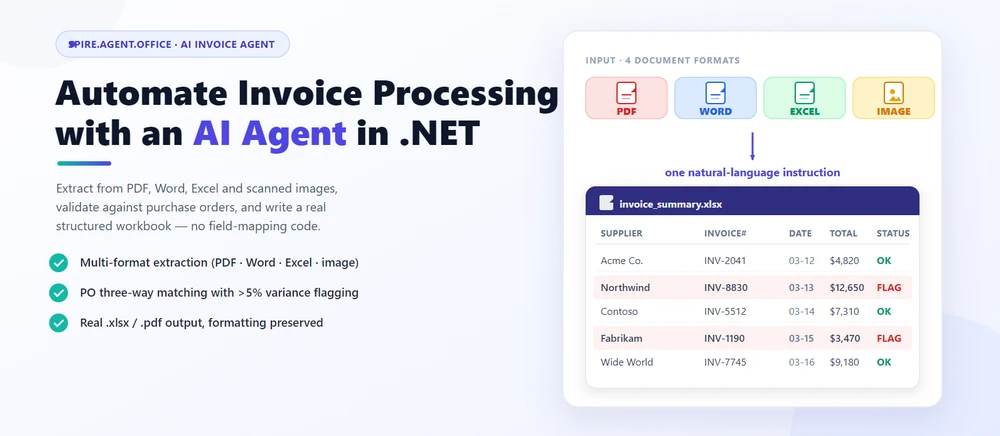
O processamento automatizado de faturas significa ler faturas de fornecedores recebidas, extrair itens de linha, validá-los em relação a pedidos de compra e gravar os resultados em uma pasta de trabalho estruturada que seu sistema financeiro possa consumir. Na prática, trata-se de automação de documentos no .NET, onde uma instrução em linguagem natural substitui o código de mapeamento de campos e layout. O Spire.Agent.Office é um SDK de agente de IA para documentos que lida com a linguagem; uma camada de documento determinística garante arquivos Excel e PDF reais e bem formados.
Navegação Rápida
- Por que o processamento de faturas é ideal para IA
- O que um agente de IA para faturas pode e não pode fazer
- Cenários comuns de processamento de faturas
- Três maneiras de automatizar o processamento de faturas no .NET
- Um exemplo prático: Extrair, Validar e Relatar em C#
- Por que usar o Spire.Agent.Office para processamento de faturas com IA
- Perguntas Frequentes
1. Por que o processamento de faturas é ideal para IA
O trabalho com faturas no mundo do desenvolvedor consiste em três tarefas repetitivas: leitura (extrair fornecedor, data, itens de linha e totais de documentos que chegam como PDFs, arquivos Word, planilhas Excel ou imagens digitalizadas), verificação (comparar faturas com pedidos de compra e sinalizar discrepâncias) e produção (gravar os resultados em uma pasta de trabalho estruturada que seu sistema contábil possa consumir).
Para desenvolvedores .NET, o desafio não é apenas entender o conteúdo da fatura; é transformar documentos não estruturados e de múltiplos formatos em fluxos de trabalho estruturados e repetíveis que sua aplicação possa controlar.
Três propriedades tornam essas tarefas ideais para um modelo de linguagem em vez de regras escritas manualmente:
- A entrada é multiformato. As faturas recebidas chegam como anexos PDF, imagens digitalizadas, documentos Word ou arquivos Excel — cada um com um layout diferente. Regras que lidam com um formato falham no próximo; um LLM lê o texto diretamente, independentemente do tipo de arquivo.
- A saída tem formato de documento. O resultado é um
.xlsxou.pdfreal com a formatação correta, não um bloco de texto. É aqui que uma camada de documento mostra seu valor. - O volume muda constantemente. Integrar 50 novos fornecedores ou revisar 200 faturas de fornecedores em um mês exige uma solução baseada em configuração, não em recodificação por fornecedor.
Na prática, a extração e a validação andam juntas: as equipes querem faturas resumidas e discrepâncias sinalizadas, além de novas faturas geradas a partir de um modelo e dados estruturados. Para uma visão mais profunda sobre como um agente de IA para documentos é montado e onde ele se encaixa em um pipeline de conteúdo, veja Agente de IA para Processamento de Documentos: O que é e como funciona.
2. O que um agente de IA para faturas pode e não pode fazer
| Pode fazer | Não pode fazer |
|---|---|
| Extrair fornecedor, data, itens de linha e totais de PDF, Word, Excel e imagens digitalizadas | Substituir a revisão profissional de contas a pagar para transações de alto valor ou regulamentadas |
| Comparar faturas com pedidos de compra e sinalizar discrepâncias | Garantir a precisão da correspondência em faturas intencionalmente ambíguas ou fraudulentas |
| Gerar pastas de trabalho estruturadas ou relatórios PDF em lote | Negociar ou aceitar termos em seu nome |
| Manter a formatação, estilos de tabela e fontes intactos | Interpretar termos de fornecedores novos ou ambíguos; encaminhar para compras |
| Executar dentro da sua própria aplicação (sem upload na nuvem) | Garantir que a saída esteja livre de erros sem revisão |
A divisão de trabalho: o agente automatiza a leitura, extração e validação (as horas que um funcionário de contas a pagar gastaria), enquanto um revisor humano é responsável pela aprovação final. Esse limite é o que mantém a ferramenta útil e o processo defensável.
3. Cenários comuns de processamento de faturas
O processamento de faturas abrange mais do que apenas extração pontual. O mesmo padrão (uma instrução, arquivos de fatura e dados de referência opcionais) cobre os cenários que as equipes mais procuram:
| Cenário | Exemplo de instrução |
|---|---|
| Extração de faturas multiformato | "Extraia fornecedor, data, itens de linha e totais destas faturas e mescle em uma única planilha." |
| Correspondência tripla de pedidos de compra | "Compare cada fatura com os pedidos de compra e sinalize discrepâncias acima de 5%." |
| Relatórios de faturas em lote | "Gere uma pasta de trabalho de resumo com o valor total por fornecedor, discrepâncias sinalizadas e um relatório imprimível." |
| Detecção de duplicatas | "Identifique possíveis faturas duplicadas comparando fornecedor, data e valor em toda a caixa de entrada." |
| Roteamento de fluxo de aprovação | "Encaminhe faturas acima de $10.000 para a fila de aprovação e as abaixo disso para aprovação automática." |
Cada cenário segue a mesma arquitetura: uma instrução entra, um documento real sai.
4. Três maneiras de automatizar o processamento de faturas no .NET
| Abordagem | Volume de código | Fidelidade de formato | Manutenção | Melhor para |
|---|---|---|---|---|
| Agente de IA para documentos (LLM + camada de documento) | Uma instrução + ~10 linhas | Alta (arquivos Excel/PDF reais) | Baixa (altere o comportamento editando instruções) | Equipes que automatizam faturas sem construir um pipeline de LLM |
| API de LLM bruta (OpenAI/Claude + seu próprio código) | Alta (prompts, parsing, I/O de arquivos) | Baixa (LLMs não leem/escrevem arquivos Office nativamente) | Alta (você é responsável por RAG, roteamento, erros) | Equipes que já operam uma pilha de LLM |
| SDK tradicional (Spire.Office ou similar) | Dezenas de linhas por tipo de documento | Alta (determinística) | Alta (cada mapeamento é código) | Faturas fixas e bem especificadas que raramente mudam |
O ponto principal: um LLM não consegue ler uma fatura em PDF sem uma camada de processamento de documentos, e um SDK tradicional não consegue entender uma solicitação em linguagem natural. Um agente de IA para documentos combina ambos.
Isso não quer dizer que a rota tradicional esteja errada. Para faturas fixas e bem especificadas que raramente mudam, um SDK determinístico é frequentemente a escolha certa, e o Spire.Office ainda atende a essa necessidade. Se essa é a sua situação, Gerar Documentos Word a partir de Dados Excel em C# demonstra o fluxo de trabalho clássico de geração de documentos orientada a dados. O agente ganha seu lugar quando os layouts dos fornecedores, formatos de entrada e regras de validação mudam com frequência suficiente para que a recodificação se torne o gargalo.
Por que uma API de LLM bruta não é suficiente para processamento de faturas
Chamar o gpt-4 ou claude diretamente para "extrair dados desta fatura" falha de três maneiras que importam na produção:
- Não consegue ler ou escrever arquivos Office de forma confiável. LLMs veem texto, não a estrutura de
.xlsxe.pdf. Ler uma fatura em PDF, manter uma tabela de itens de linha intacta ou produzir uma pasta de trabalho Excel válida geralmente requer um pipeline separado de extração e reconstrução que você precisa construir sozinho. - A formatação não é garantida. Relatórios de faturas carregam cabeçalhos de coluna, formatos numéricos e preenchimentos condicionais que são importantes para a equipe contábil. Um LLM bruto retorna texto, e a formatação que você perde é exatamente o que os departamentos de contas a pagar valorizam.
- Você reimplementa toda a orquestração. Design de prompts, mapeamento de campos, tratamento de erros, I/O de arquivos e validação de saída tornam-se códigos que você precisa possuir e manter.
Um agente de IA para documentos combina a compreensão de linguagem do modelo com APIs de documentos determinísticas: o modelo decide o que extrair ou comparar, e a camada de documento garante que o arquivo seja real e bem formado. Essa é a diferença entre uma demonstração e um fluxo de trabalho que uma equipe pode colocar em produção.
5. Um exemplo prático: Extrair, Validar e Relatar em C#
Abaixo está uma tarefa que a equipe de contas a pagar repete todos os meses: processar faturas de fornecedores recebidas, extrair dados de formatos incompatíveis, validar em relação a pedidos de compra e produzir uma pasta de trabalho estruturada. A implementação usa o Spire.Agent.Office para .NET, um agente de IA que processa documentos Word, Excel, PowerPoint e PDF por meio de instruções em linguagem natural. O exemplo foi projetado em torno desse fluxo de trabalho, em vez de ser copiado de um tutorial; os tutoriais oficiais de Introdução e Revisão de Contratos com IA em C# documentam a configuração da API passo a passo, enquanto esta seção foca nos padrões de integração em C#.
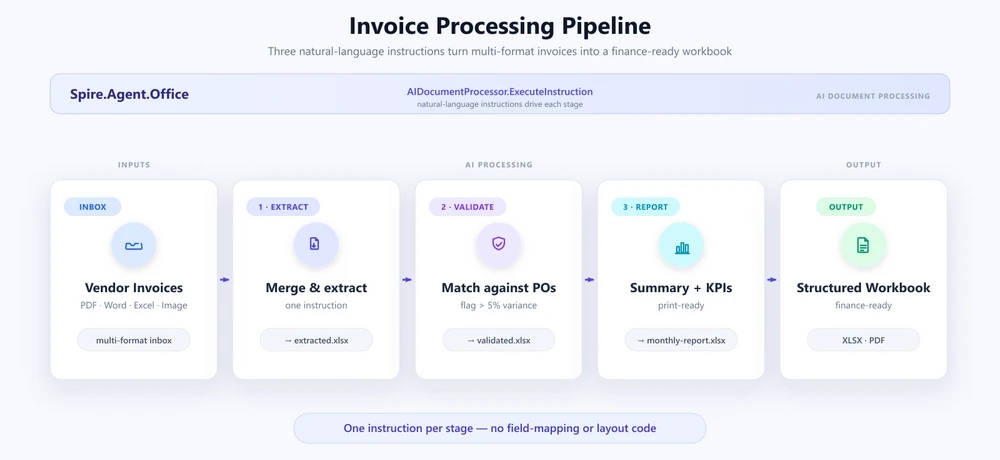
1. Extrair dados de cada fatura na caixa de entrada. Configure o agente uma vez, depois leia a pasta da caixa de entrada e faça com que cada fatura seja analisada em uma única tabela mesclada:
using System.IO;
using Spire.Agent.Office.AI;
using Spire.Agent.Office.Extensions;
using Spire.Doc;
using Spire.Pdf;
using Spire.Xls;

AIOptions agentOptions = new AIOptions();
agentOptions.WorkDir = @"C:\ap-invoices\output";
agentOptions.SpireToken = spireToken;

string extractPrompt =
    "Leia cada arquivo de fatura de fornecedor na caixa de entrada (PDF, Word, Excel ou imagens) e extraia " +
    "as informações de cada fornecedor: nome da empresa, número da fatura, data de emissão, data de vencimento, itens de linha " +
    "(descrição, quantidade, preço unitário, valor), subtotal, imposto e total. Mescle os " +
    "resultados em uma planilha com as colunas: Fornecedor, NúmeroFatura, DataEmissão, DataVencimento, " +
    "Descrição, Quantidade, PreçoUnitário, ValorLinha, Subtotal, Imposto, Total. Ignore linhas de cabeçalho " +
    "duplicadas e salve como uma pasta de trabalho.";

Directory.CreateDirectory(@"C:\ap-invoices\output");

string[] invoiceFiles = Directory.GetFiles(@"C:\ap-invoices\inbox", "*.*");
O agente lida com o desafio multiformato — PDFs, imagens digitalizadas, documentos Word e arquivos Excel fluem pela mesma instrução sem código específico de formato:
using (Workbook extracted = new Workbook())
{
    AIResult result = extracted.AI(agentOptions).ExecuteInstruction(
        extracted,
        extractPrompt,
        @"C:\ap-invoices\output\extracted.xlsx",
        invoiceFiles);

    if (result == null || !result.Success)
        throw new InvalidOperationException(
            $"A extração falhou: {result?.ErrorMessage}");
}
Principais Chamadas de API
Workbook.AI(agentOptions)— anexa o processador de documentos de IA a um objeto de pasta de trabalhoExecuteInstruction(doc, instruction, savePath, attachments)— executa a extração e grava a pasta de trabalho mescladaAIResult.Success/AIResult.ErrorMessage— verifica o resultado e exibe erros
Saída
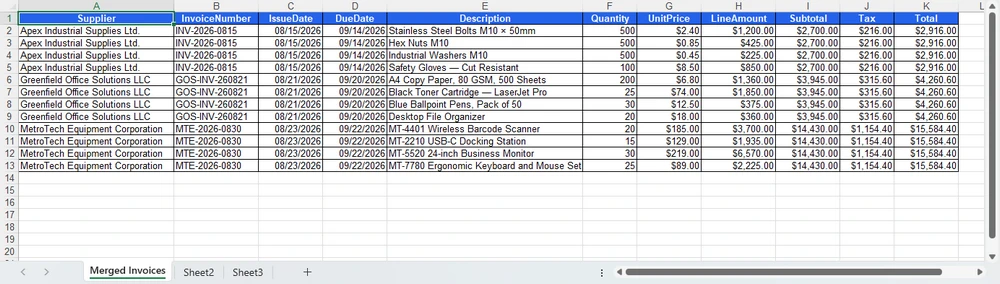
2. Validar em relação aos pedidos de compra. Carregue o arquivo extraído e declare a regra de correspondência em inglês simples. O agente adiciona uma planilha de Validação e deixa os dados de origem intocados:
using (Workbook validation = new Workbook())
{
    validation.LoadFromFile(@"C:\ap-invoices\output\extracted.xlsx");

    string[] poFiles = { @"C:\ap-invoices\data\purchase-orders.xlsx" };

    AIResult result = validation.AI(agentOptions).ExecuteInstruction(
        validation,
        "Adicione uma planilha de 'Validação'. Compare cada item de linha da fatura com os pedidos de compra " +
        "nos anexos, sinalize faturas onde o total difere do pedido de compra em mais de 5%, " +
        "sinalize itens de linha cuja descrição não corresponde ao pedido de compra. Destaque as discrepâncias em vermelho " +
        "e adicione uma coluna 'Motivo' explicando cada discrepância. Deixe as planilhas de dados originais inalteradas.",
        @"C:\ap-invoices\output\validated.xlsx",
        poFiles);

    if (result == null || !result.Success)
        throw new InvalidOperationException(
            $"A validação falhou: {result?.ErrorMessage}");
}
A planilha de Validação aparece ao lado dos dados de origem, com as linhas sinalizadas, preenchimentos vermelhos e a coluna Motivo aplicada pela instrução:
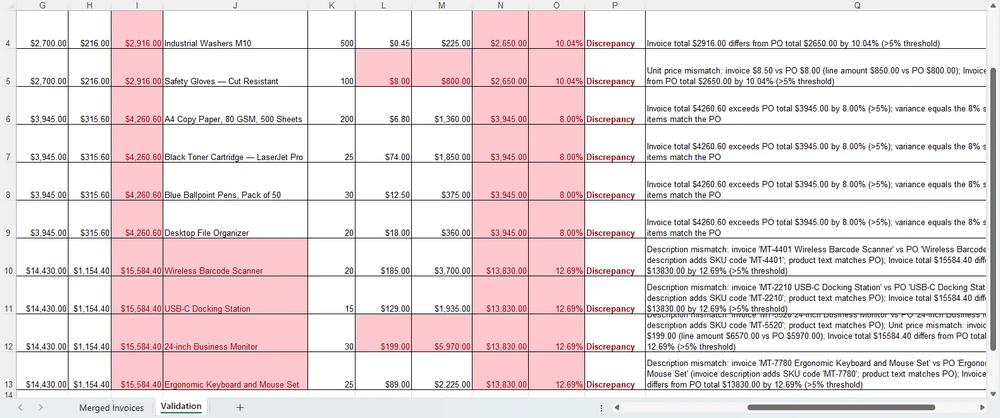
3. Relatar. Componha o resumo da seção 5 e exporte-o. O savePath sozinho escolhe o formato — .xlsx aqui, .pdf para distribuição:
using (Workbook report = new Workbook())
{
    report.LoadFromFile(@"C:\ap-invoices\output\validated.xlsx");

    AIResult result = report.AI(agentOptions).ExecuteInstruction(
        report,
        "Produza um relatório de processamento. Adicione uma planilha de 'Resumo' no início com um bloco de KPI " +
        "(total de faturas processadas, valor total, contagem de discrepâncias sinalizadas, principal fornecedor por " +
        "volume), uma tabela de detalhes agrupada por fornecedor e um resumo de discrepâncias. Formate para impressão " +
        "e salve a pasta de trabalho finalizada.",
        @"C:\ap-invoices\output\monthly-report.xlsx");

    if (result == null || !result.Success)
        throw new InvalidOperationException(
            $"A geração do relatório falhou: {result?.ErrorMessage}");
}
A planilha de Resumo aparece no início da pasta de trabalho, pronta para impressão ou exportação em PDF:
Por que isso é diferente: SDK Tradicional vs. Agente de IA
O valor do agente é mais claro lado a lado. Com o SDK tradicional, você localiza cada campo por string de cabeçalho, codifica rigidamente cada limite de validação e escreve cada célula — e reajusta tudo isso quando um fornecedor altera seu layout ou a regra muda. O esboço abaixo (simplificado para ilustração) mostra a forma desse trabalho:
// SDK Tradicional (ilustrativo): cada campo é localizado e extraído
// por string de cabeçalho, limites são codificados rigidamente e a saída é escrita célula por célula
foreach (string file in invoiceFiles)
{
    Workbook wb = new Workbook();
    wb.LoadFromFile(file);
    Worksheet sheet = wb.Worksheets[0];

    // Falha no momento em que um fornecedor altera "Total Due" para "Amount Payable".
    int totalCol = FindColumnByHeader(sheet, "Total Due");
    int vendorCol = FindColumnByHeader(sheet, "Vendor Name");

    for (int r = sheet.LastRow; r >= 2; r--)
    {
        double invoiceTotal = double.Parse(sheet.Range[r, totalCol].Text);
        double poTotal = GetPoTotal(sheet.Range[r, 1].Text);
        double diff = Math.Abs(invoiceTotal - poTotal) / poTotal;

        // Um limite codificado rigidamente; um fornecedor de construção dispara alarmes falsos.
        if (diff > 0.05) sheet.Range[r, totalCol].Style.Color = Color.Red;
    }
    // ... então mesclar, então validar, então resumir -- centenas de linhas por fornecedor e por mês.
}
O agente de IA substitui essa orquestração por uma instrução:
validation.AI(agentOptions).ExecuteInstruction(
    validation,
    "Adicione uma planilha de 'Validação'. Compare cada item de linha da fatura com os pedidos de compra " +
    "nos anexos, sinalize faturas onde o total difere do pedido de compra em mais de 5%, " +
    "sinalize itens de linha cuja descrição não corresponde ao pedido de compra. Destaque as discrepâncias em vermelho " +
    "e adicione uma coluna 'Motivo' explicando cada discrepância. Deixe as planilhas de dados originais inalteradas.",
    @"C:\ap-invoices\output\validated.xlsx",
    poFiles);
Ambos produzem a mesma pasta de trabalho de validação. Onde o SDK aumenta uma chamada FindColumnByHeader para cada campo, uma comparação de limite para cada regra e uma escrita de célula para cada preenchimento, o agente absorve o mesmo trabalho em uma instrução. Quando um fornecedor altera seu layout ou a equipe financeira altera o limite de variação, você edita a instrução, não o código.
6. Por que usar o Spire.Agent.Office para processamento de faturas com IA
A comparação tripla acima é deliberadamente neutra em relação ao produto; o mesmo padrão funciona com qualquer LLM capaz. Onde o Spire.Agent.Office ganha seu lugar para equipes .NET é em três áreas específicas:
- Processamento nativo de faturas multiformato. PDFs, documentos Word, arquivos Excel e imagens digitalizadas são cidadãos de primeira classe, não formatos que você adiciona. O agente lê e extrai de todos os quatro formatos em uma única instrução.
- A formatação é preservada. Relatórios de faturas carregam cabeçalhos de coluna, formatos numéricos e preenchimentos condicionais que devem sobreviver ao processamento. A camada de documento do agente os mantém intactos. Inclua "preserve o layout e estilo original do documento" em sua instrução e a saída permanecerá fiel ao modelo.
- Integração nativa com .NET. É um SDK C# que se integra a uma aplicação .NET existente. Nenhum serviço de processamento de documentos separado para construir ou manter, nenhuma conexão entre serviços. O exemplo acima é toda a superfície de integração.
Se você já usa o Spire.Office para processamento de documentos, o agente é a próxima camada natural: o mesmo objeto Workbook ganha um processador AI() que transforma instruções em fluxos de trabalho executados.
7. Perguntas Frequentes
O processamento de faturas por IA pode funcionar com imagens digitalizadas?
Sim. O exemplo de extração acima carrega arquivos de imagem digitalizados junto com PDFs e documentos Word, e o agente lê e analisa cada arquivo em seu formato nativo. Para imagens digitalizadas sem uma camada de texto extraível, o agente trabalha diretamente com o conteúdo da imagem. Se a qualidade da digitalização for baixa, considere executar o OCR primeiro para obter melhores resultados.
Os dados da fatura podem permanecer dentro do meu ambiente?
Sim, com uma nuance importante. O Spire.Agent.Office é executado a partir da sua própria aplicação, portanto, o SDK, os modelos e o processamento de documentos permanecem dentro do seu ambiente. Os arquivos de fatura não são enviados para um serviço de documentos de terceiros para armazenamento ou conversão. Para analisar o conteúdo da fatura, a IA precisa do texto relevante, e ele é enviado ao modelo para processamento; esse é um passo inerente de qualquer fluxo de trabalho de IA. Se você implantar seu próprio modelo em sua rede local, o conteúdo permanece inteiramente dentro da sua infraestrutura. Se você se conectar por meio de uma API de modelo hospedada, como OpenAI ou Azure OpenAI, o conteúdo relevante é transmitido a esse provedor pela rede conforme sua configuração.
Posso usar meu próprio modelo de IA com o Spire.Agent.Office?
Sim. O Spire.Agent.Office oferece suporte a uma integração flexível de modelos de IA e é compatível com a infraestrutura de IA convencional, incluindo APIs de modelos hospedados e modelos implantados de forma privada. Você pode apontar o agente para seu próprio endpoint. Consulte o tutorial de integração para detalhes de configuração; para perguntas sobre quais provedores são suportados em sua implantação, entre em contato com sua equipe de conta em sales@e-iceblue.com.
Qual modelo o Spire.Agent.Office usa para processamento de faturas?
O Spire.Agent.Office conecta-se a um modelo de linguagem grande por trás de uma chave SpireToken. Você descreve a tarefa de extração ou validação em linguagem natural, e o agente orquestra as ferramentas de processamento de documentos subjacentes. O modelo lida com a compreensão; a camada de documento garante a formatação e a fidelidade do arquivo.
Pode processar faturas em lote?
Sim. Uma instrução aplicada a uma pasta de arquivos de fatura, e o agente produz uma pasta de trabalho consolidada com todos os dados extraídos. Tanto a extração de campos quanto a correspondência entre documentos são suportadas. Para que o agente capture todas as faturas, mantenha a pasta da caixa de entrada organizada e evite arquivos em branco; se o número de faturas processadas não corresponder à contagem da caixa de entrada, verifique a fonte de dados primeiro.
A IA alterará a formatação da minha pasta de trabalho?
Não, se você não quiser. Inclua uma frase como "preserve o layout, estilo e fontes originais do documento" em sua instrução; o tutorial oficial documenta exatamente essa correção.
Como isso é diferente de usar uma API de LLM bruta?
Um LLM bruto não consegue ler, editar ou escrever arquivos Word e Excel de forma confiável por conta própria; ele precisa de uma camada de processamento de documentos. Um agente de IA para documentos combina a compreensão de linguagem do LLM com APIs de documentos determinísticas, para que a saída seja um arquivo real e bem formado.
Pronto para automatizar o processamento de suas faturas?
Extração, validação e composição de relatórios são os lugares mais rápidos para obter valor: aponte o agente para a caixa de entrada, descreva as regras de processamento e obtenha uma pasta de trabalho estruturada ou PDF. Siga o tutorial de Introdução para executar seu primeiro fluxo de trabalho de fatura no .NET.
Leitura Adicional
- Visão geral do produto Spire.Agent.Office -- SDKs de agente de IA para todos os formatos de documento Office
- Agente de IA para Processamento de Documentos: O que é e como funciona -- o conceito de agente de IA para documentos explicado
- Gerar Documentos Word a partir de Dados Excel em C# -- geração de documentos orientada a dados com o SDK determinístico
- Revisão de Contratos com IA em C# -- o mesmo fluxo de trabalho de agente aplicado a documentos Word e PDF
.NET에서 AI 에이전트로 송장 처리 자동화하기
자동화된 송장 처리란 수신된 공급업체 송장을 읽고, 품목을 추출하며, 구매 주문서와 대조하여 검증하고, 그 결과를 재무 시스템에서 사용할 수 있는 구조화된 통합 문서로 작성하는 것을 의미합니다. 실무적으로 이는 필드 매핑이나 레이아웃 코드를 자연어 지침으로 대체하는 .NET 문서 자동화입니다. Spire.Agent.Office는 언어 처리를 담당하는 문서 AI 에이전트 SDK이며, 결정론적 문서 레이어를 통해 실제 규격에 맞는 Excel 및 PDF 파일을 보장합니다.
빠른 탐색
- 송장 처리에 AI가 적합한 이유
- AI 송장 에이전트가 할 수 있는 것과 없는 것
- 일반적인 송장 처리 시나리오
- .NET에서 송장 처리를 자동화하는 세 가지 방법
- C# 실무 예제: 추출, 검증 및 보고
- AI 송장 처리에 Spire.Agent.Office를 사용해야 하는 이유
- 자주 묻는 질문(FAQ)
1. 송장 처리에 AI가 적합한 이유
개발자 관점에서 송장 작업은 세 가지 반복적인 업무로 구성됩니다. 읽기(PDF, Word, Excel 또는 스캔된 이미지로 도착하는 문서에서 공급업체, 날짜, 품목 및 합계 추출), 확인(송장과 구매 주문서를 대조하고 불일치 항목 표시), 생성(결과를 회계 시스템에서 사용할 수 있는 구조화된 통합 문서로 작성)입니다.
.NET 개발자에게 있어 과제는 단순히 송장 내용을 이해하는 것뿐만 아니라, 비정형의 다중 형식 문서를 애플리케이션이 관리할 수 있는 구조화되고 반복 가능한 워크플로우로 변환하는 것입니다.
다음 세 가지 특성 때문에 이러한 작업은 수동 규칙보다는 언어 모델에 더 적합합니다:
- 입력이 다중 형식입니다. 수신되는 송장은 PDF 첨부 파일, 스캔 이미지, Word 문서 또는 Excel 파일 등 다양한 레이아웃으로 도착합니다. 한 가지 형식을 처리하는 규칙은 다른 형식에서 깨지기 쉽지만, LLM은 파일 유형에 관계없이 텍스트를 직접 읽습니다.
- 출력이 문서 형태입니다. 결과물은 단순한 텍스트 덩어리가 아니라 올바른 서식이 적용된 실제
.xlsx또는.pdf파일이어야 합니다. 여기서 문서 레이어의 역할이 중요합니다. - 물량이 지속적으로 변합니다. 50개의 신규 공급업체를 온보딩하거나 한 달에 200개의 송장을 검토할 때, 공급업체마다 코드를 다시 작성하는 대신 설정 기반의 솔루션이 필요합니다.
실무에서 추출과 검증은 함께 이루어집니다. 팀은 송장이 요약되고 불일치 항목이 표시되기를 원하며, 템플릿과 구조화된 데이터를 기반으로 새로운 송장이 생성되기를 원합니다. 문서 AI 에이전트가 어떻게 구성되고 콘텐츠 파이프라인에서 어떤 위치를 차지하는지에 대한 자세한 내용은 문서 처리를 위한 AI 에이전트: 정의 및 작동 원리를 참조하십시오.
2. AI 송장 에이전트가 할 수 있는 것과 없는 것
| 할 수 있는 것 | 할 수 없는 것 |
|---|---|
| PDF, Word, Excel 및 스캔 이미지에서 공급업체, 날짜, 품목, 합계 추출 | 고액 또는 규제 대상 거래에 대한 전문적인 AP 검토 대체 |
| 송장과 구매 주문서 대조 및 불일치 항목 표시 | 의도적으로 모호하거나 사기성인 송장에 대한 정확한 대조 보장 |
| 구조화된 통합 문서 또는 PDF 보고서 일괄 생성 | 사용자를 대신하여 조건 협상 또는 수락 |
| 서식, 표 스타일 및 글꼴 유지 | 새롭거나 모호한 공급업체 약관 해석; 조달 부서로 라우팅 |
| 자체 애플리케이션 내에서 실행 (클라우드 업로드 없음) | 검토 없이 오류 없는 출력 보장 |
업무 분담: 에이전트는 읽기, 추출, 검증(AP 담당자가 시간을 소비하는 업무)을 자동화하고, 최종 승인은 사람이 담당합니다. 이러한 경계가 도구를 유용하게 만들고 프로세스를 정당화합니다.
3. 일반적인 송장 처리 시나리오
송장 처리는 단순한 일회성 추출을 넘어섭니다. 동일한 패턴(지침, 송장 파일, 선택적 참조 데이터)으로 팀이 가장 많이 찾는 시나리오를 처리할 수 있습니다:
| 시나리오 | 예시 지침 |
|---|---|
| 다중 형식 송장 추출 | "이 송장들에서 공급업체, 날짜, 품목, 합계를 추출하여 하나의 워크시트로 병합해." |
| 구매 주문서(PO) 3자 대조 | "각 송장을 구매 주문서와 비교하고 5% 이상 차이가 나는 항목을 표시해." |
| 일괄 송장 보고 | "공급업체별 총액, 표시된 불일치 항목, 인쇄 가능한 보고서가 포함된 요약 통합 문서를 생성해." |
| 중복 감지 | "받은 편지함 전체에서 공급업체, 날짜, 금액을 비교하여 잠재적인 중복 송장을 식별해." |
| 승인 워크플로우 라우팅 | "10,000달러 이상의 송장은 승인 대기열로, 그 이하는 자동 승인으로 라우팅해." |
각 시나리오는 동일한 아키텍처를 가집니다: 지침 입력, 실제 문서 출력.
4. .NET에서 송장 처리를 자동화하는 세 가지 방법
| 접근 방식 | 코드 분량 | 형식 충실도 | 유지보수 | 적합한 대상 |
|---|---|---|---|---|
| 문서 AI 에이전트 (LLM + 문서 레이어) | 지침 1개 + 약 10줄 | 높음 (실제 Excel/PDF 파일) | 낮음 (지침 수정으로 동작 변경) | LLM 파이프라인 구축 없이 송장 자동화가 필요한 팀 |
| 원시 LLM API (OpenAI/Claude + 자체 코드) | 많음 (프롬프트, 파싱, 파일 I/O) | 낮음 (LLM은 Office 파일을 직접 읽/쓰지 못함) | 높음 (RAG, 라우팅, 오류 처리 직접 관리) | 이미 LLM 스택을 운영 중인 팀 |
| 전통적 SDK (Spire.Office 등) | 문서 유형당 수십 줄 | 높음 (결정론적) | 높음 (모든 매핑이 코드) | 변화가 거의 없는 고정된 송장 |
핵심 포인트: LLM은 문서 처리 레이어 없이는 PDF 송장을 읽을 수 없으며, 전통적인 SDK는 자연어 요청을 이해할 수 없습니다. 문서 AI 에이전트는 이 두 가지를 결합합니다.
전통적인 방식이 틀렸다는 것은 아닙니다. 변화가 거의 없는 고정된 송장의 경우 결정론적 SDK가 종종 올바른 선택이며, Spire.Office는 여전히 그 요구를 충족합니다. 그런 상황이라면 C#에서 Excel 데이터로 Word 문서 생성하기가 고전적인 데이터 기반 문서 생성 워크플로우를 보여줍니다. 에이전트는 공급업체 레이아웃, 입력 형식, 검증 규칙이 자주 변경되어 코드 재작성이 병목 현상이 될 때 그 가치를 발휘합니다.
원시 LLM API가 송장 처리에 충분하지 않은 이유
gpt-4나 claude를 직접 호출하여 "이 송장에서 데이터를 추출해"라고 하는 것은 운영 환경에서 다음과 같은 세 가지 이유로 실패합니다:
- Office 파일을 안정적으로 읽거나 쓸 수 없습니다. LLM은 텍스트를 보지
.xlsx나.pdf구조를 보지 못합니다. PDF 송장을 읽고, 품목 표를 유지하거나, 유효한 Excel 통합 문서를 생성하려면 직접 구축해야 하는 별도의 추출 및 재구성 파이프라인이 필요합니다. - 서식이 보장되지 않습니다. 송장 보고서에는 회계 팀에 중요한 열 머리글, 숫자 서식, 조건부 채우기가 포함됩니다. 원시 LLM은 텍스트만 반환하며, 손실되는 서식은 바로 AP 부서가 신경 쓰는 부분입니다.
- 전체 오케스트레이션을 다시 구현해야 합니다. 프롬프트 설계, 필드 매핑, 오류 처리, 파일 I/O, 출력 검증을 모두 직접 코딩하고 유지보수해야 합니다.
문서 AI 에이전트는 모델의 언어 이해력과 결정론적 문서 API를 결합합니다. 모델은 무엇을 추출하거나 대조할지 결정하고, 문서 레이어는 파일이 실제적이고 올바른 형식을 갖추도록 보장합니다. 이것이 데모와 팀이 실제로 배포할 수 있는 워크플로우의 차이입니다.
5. C# 실무 예제: 추출, 검증 및 보고
다음은 AP 팀이 매달 반복하는 작업입니다: 수신된 공급업체 송장 처리, 일치하지 않는 형식에서 데이터 추출, 구매 주문서와 대조하여 검증, 구조화된 통합 문서 생성. 이 구현은 자연어 지침을 통해 Word, Excel, PowerPoint 및 PDF 문서를 처리하는 AI 에이전트인 Spire.Agent.Office for .NET을 사용합니다. 이 예제는 튜토리얼에서 복사한 것이 아니라 해당 워크플로우를 중심으로 설계되었습니다. 공식 시작하기 및 C#에서의 AI 계약 검토 튜토리얼은 API 설정을 단계별로 문서화하고 있으며, 이 섹션은 C# 통합 패턴에 중점을 둡니다.
1. 받은 편지함의 모든 송장에서 데이터 추출. 에이전트를 한 번 구성한 다음, 받은 편지함 폴더를 읽어 각 송장을 하나의 병합된 표로 파싱합니다:
using System.IO;
using Spire.Agent.Office.AI;
using Spire.Agent.Office.Extensions;
using Spire.Doc;
using Spire.Pdf;
using Spire.Xls;

AIOptions agentOptions = new AIOptions();
agentOptions.WorkDir = @"C:\ap-invoices\output";
agentOptions.SpireToken = spireToken;

string extractPrompt =
    "Read every vendor invoice file in the inbox (PDF, Word, Excel, or images) and extract " +
    "each supplier's information: company name, invoice number, issue date, due date, line " +
    "items (description, quantity, unit price, amount), subtotal, tax, and total. Merge the " +
    "results into one worksheet with columns: Supplier, InvoiceNumber, IssueDate, DueDate, " +
    "Description, Quantity, UnitPrice, LineAmount, Subtotal, Tax, Total. Skip duplicate header " +
    "rows and save as a workbook.";

Directory.CreateDirectory(@"C:\ap-invoices\output");

string[] invoiceFiles = Directory.GetFiles(@"C:\ap-invoices\inbox", "*.*");
에이전트는 다중 형식 문제를 처리합니다. PDF, 스캔 이미지, Word 문서, Excel 파일 모두 형식별 코드 없이 동일한 지침을 통해 처리됩니다:
using (Workbook extracted = new Workbook())
{
    AIResult result = extracted.AI(agentOptions).ExecuteInstruction(
        extracted,
        extractPrompt,
        @"C:\ap-invoices\output\extracted.xlsx",
        invoiceFiles);

    if (result == null || !result.Success)
        throw new InvalidOperationException(
            $"Extraction failed: {result?.ErrorMessage}");
}
주요 API 호출
Workbook.AI(agentOptions)— AI 문서 프로세서를 통합 문서 객체에 연결ExecuteInstruction(doc, instruction, savePath, attachments)— 추출을 실행하고 병합된 통합 문서를 저장AIResult.Success/AIResult.ErrorMessage— 결과 확인 및 오류 노출
출력
2. 구매 주문서와 대조하여 검증. 추출된 파일을 로드하고 평문으로 대조 규칙을 기술합니다. 에이전트는 Validation 시트를 추가하고 원본 데이터는 건드리지 않습니다:
using (Workbook validation = new Workbook())
{
    validation.LoadFromFile(@"C:\ap-invoices\output\extracted.xlsx");

    string[] poFiles = { @"C:\ap-invoices\data\purchase-orders.xlsx" };

    AIResult result = validation.AI(agentOptions).ExecuteInstruction(
        validation,
        "Add a 'Validation' sheet. Compare each invoice line item against the purchase orders " +
        "in the attachments, flag invoices where the total differs from the PO by more than 5%, " +
        "flag line items whose description does not match the PO. Highlight discrepancies in red " +
        "and add a 'Reason' column explaining each discrepancy. Leave the original data sheets unchanged.",
        @"C:\ap-invoices\output\validated.xlsx",
        poFiles);

    if (result == null || !result.Success)
        throw new InvalidOperationException(
            $"Validation failed: {result?.ErrorMessage}");
}
Validation 시트는 원본 데이터와 함께 추가되며, 지침에 따라 표시된 행, 빨간색 채우기, Reason 열이 적용됩니다:
3. 보고. 5절의 요약을 작성하고 내보냅니다. savePath만으로 형식을 선택할 수 있습니다. 여기서는 .xlsx를 사용하지만 배포용으로 .pdf도 가능합니다:
using (Workbook report = new Workbook())
{
    report.LoadFromFile(@"C:\ap-invoices\output\validated.xlsx");

    AIResult result = report.AI(agentOptions).ExecuteInstruction(
        report,
        "Produce a processing report. Add a 'Summary' sheet at the front with a KPI block " +
        "(total invoices processed, total amount, count of flagged discrepancies, top supplier by " +
        "volume), a detail table grouped by supplier, and a discrepancy summary. Format it for print " +
        "and save the finished workbook.",
        @"C:\ap-invoices\output\monthly-report.xlsx");

    if (result == null || !result.Success)
        throw new InvalidOperationException(
            $"Report generation failed: {result?.ErrorMessage}");
}
Summary 시트는 통합 문서의 맨 앞에 위치하여 인쇄나 PDF 내보내기 준비가 완료됩니다:
차이점: 전통적 SDK vs. AI 에이전트
에이전트의 가치는 비교해보면 가장 명확합니다. 전통적인 SDK를 사용하면 머리글 문자열로 각 필드를 찾고, 모든 검증 임계값을 하드코딩하며, 셀 단위로 작성해야 합니다. 공급업체가 레이아웃을 변경하거나 규칙이 바뀌면 이 모든 것을 다시 조정해야 합니다. 아래 스케치(설명을 위해 단순화됨)는 그 작업의 형태를 보여줍니다:
// 전통적 SDK (예시): 모든 필드를 머리글 문자열로 찾고 추출함
// 임계값은 하드코딩되고, 출력은 셀 단위로 작성됨
foreach (string file in invoiceFiles)
{
    Workbook wb = new Workbook();
    wb.LoadFromFile(file);
    Worksheet sheet = wb.Worksheets[0];

    // 공급업체가 "Total Due"를 "Amount Payable"로 바꾸는 순간 실패함.
    int totalCol = FindColumnByHeader(sheet, "Total Due");
    int vendorCol = FindColumnByHeader(sheet, "Vendor Name");

    for (int r = sheet.LastRow; r >= 2; r--)
    {
        double invoiceTotal = double.Parse(sheet.Range[r, totalCol].Text);
        double poTotal = GetPoTotal(sheet.Range[r, 1].Text);
        double diff = Math.Abs(invoiceTotal - poTotal) / poTotal;

        // 하나의 하드코딩된 임계값; 건설 공급업체는 오탐지를 유발함.
        if (diff > 0.05) sheet.Range[r, totalCol].Style.Color = Color.Red;
    }
    // ... 그 다음 병합, 검증, 요약 -- 공급업체 및 월별로 수백 줄의 코드 필요.
}
AI 에이전트는 그 오케스트레이션을 하나의 지침으로 대체합니다:
validation.AI(agentOptions).ExecuteInstruction(
    validation,
    "Add a 'Validation' sheet. Compare each invoice line item against the purchase orders " +
    "in the attachments, flag invoices where the total differs from the PO by more than 5%, " +
    "flag line items whose description does not match the PO. Highlight discrepancies in red " +
    "and add a 'Reason' column explaining each discrepancy. Leave the original data sheets unchanged.",
    @"C:\ap-invoices\output\validated.xlsx",
    poFiles);
둘 다 동일한 검증 통합 문서를 생성합니다. SDK는 필드마다 FindColumnByHeader 호출이 늘어나고, 규칙마다 임계값 비교가 늘어나며, 채우기마다 셀 쓰기가 늘어나는 반면, 에이전트는 동일한 작업을 하나의 지침으로 흡수합니다. 공급업체가 레이아웃을 변경하거나 재무 팀이 분산 임계값을 변경하면 코드가 아닌 지침을 수정하면 됩니다.
6. AI 송장 처리에 Spire.Agent.Office를 사용해야 하는 이유
위의 3자 비교는 의도적으로 제품 중립적입니다. 동일한 패턴이 모든 유능한 LLM에서 작동합니다. .NET 팀을 위해 Spire.Agent.Office가 그 가치를 인정받는 세 가지 영역은 다음과 같습니다:
- 네이티브 다중 형식 송장 처리. PDF, Word 문서, Excel 파일 및 스캔 이미지는 부가적인 형식이 아니라 일등 시민입니다. 에이전트는 단일 지침으로 이 네 가지 형식 모두에서 읽고 추출합니다.
- 서식 보존. 송장 보고서에는 처리를 거쳐도 살아남아야 하는 열 머리글, 숫자 서식, 조건부 채우기가 포함됩니다. 에이전트의 문서 레이어는 이를 그대로 유지합니다. 지침에 "원본 문서 레이아웃과 스타일을 보존해"라고 포함하면 출력물은 템플릿을 충실히 따릅니다.
- 네이티브 .NET 통합. 기존 .NET 애플리케이션에 바로 추가할 수 있는 C# SDK입니다. 구축하거나 유지보수해야 할 별도의 문서 처리 서비스가 없으며, 서비스 간 복잡한 연결도 없습니다. 위의 예제가 전체 통합 영역입니다.
이미 문서 처리를 위해 Spire.Office를 사용 중이라면, 에이전트는 자연스러운 다음 단계입니다. 동일한 Workbook 객체가 지침을 실행 가능한 워크플로우로 변환하는 AI() 프로세서를 얻게 됩니다.
7. 자주 묻는 질문(FAQ)
AI 송장 처리가 스캔된 이미지에서도 작동하나요?
네. 위의 추출 예제는 스캔된 이미지 파일을 PDF 및 Word 문서와 함께 로드하며, 에이전트는 각 파일을 고유 형식으로 읽고 분석합니다. 추출 가능한 텍스트 레이어가 없는 스캔 이미지의 경우, 에이전트는 이미지 콘텐츠를 직접 작업합니다. 스캔 품질이 낮으면 최상의 결과를 위해 먼저 OCR을 실행하는 것을 고려하십시오.
송장 데이터를 내 환경 내에 유지할 수 있나요?
네, 한 가지 중요한 뉘앙스가 있습니다. Spire.Agent.Office는 자체 애플리케이션에서 실행되므로 SDK, 템플릿 및 문서 처리는 환경 내부에 유지됩니다. 송장 파일은 저장이나 변환을 위해 타사 문서 서비스로 업로드되지 않습니다. 송장 내용을 분석하려면 AI가 관련 텍스트가 필요하며, 이는 모델로 전송되어 처리됩니다. 이는 모든 AI 워크플로우의 고유한 단계입니다. 로컬 네트워크에 자체 모델을 배포하면 콘텐츠는 완전히 인프라 내에 유지됩니다. OpenAI나 Azure OpenAI와 같은 호스팅된 모델 API를 통해 연결하면 구성에 따라 관련 콘텐츠가 네트워크를 통해 해당 제공업체로 전송됩니다.
Spire.Agent.Office와 함께 자체 AI 모델을 사용할 수 있나요?
네. Spire.Agent.Office는 유연한 AI 모델 통합을 지원하며 호스팅된 모델 API 및 비공개 배포 모델을 포함한 주류 AI 인프라와 호환됩니다. 에이전트를 자체 엔드포인트로 지정할 수 있습니다. 설정 세부 정보는 통합 튜토리얼을 참조하십시오. 배포 환경에서 지원되는 제공업체에 대한 질문은 계정 팀(sales@e-iceblue.com)에 문의하십시오.
Spire.Agent.Office는 송장 처리에 어떤 모델을 사용하나요?
Spire.Agent.Office는 SpireToken 키 뒤에 있는 대규모 언어 모델에 연결됩니다. 자연어로 추출 또는 검증 작업을 설명하면 에이전트가 기본 문서 처리 도구를 오케스트레이션합니다. 모델은 이해를 담당하고, 문서 레이어는 서식과 파일 충실도를 보장합니다.
송장을 일괄 처리할 수 있나요?
네. 송장 파일 폴더에 하나의 지침을 적용하면 에이전트가 추출된 모든 데이터가 포함된 하나의 통합 문서를 생성합니다. 필드 추출과 문서 간 대조 모두 지원됩니다. 에이전트가 모든 송장을 가져오려면 받은 편지함 폴더를 정리하고 빈 파일을 피하십시오. 처리된 송장 수가 받은 편지함 수와 일치하지 않으면 데이터 소스를 먼저 확인하십시오.
AI가 통합 문서의 서식을 변경하나요?
그렇게 하지 말라고 하면 변경하지 않습니다. 지침에 "원본 문서 레이아웃, 스타일 및 글꼴을 보존해"와 같은 문구를 포함하십시오. 공식 튜토리얼에서 이 정확한 해결 방법을 문서화하고 있습니다.
원시 LLM API를 사용하는 것과 어떻게 다른가요?
원시 LLM은 단독으로 Word 및 Excel 파일을 안정적으로 읽거나 편집하거나 쓸 수 없습니다. 문서 처리 레이어가 필요합니다. 문서 AI 에이전트는 LLM의 언어 이해력과 결정론적 문서 API를 결합하므로 출력물은 실제 규격에 맞는 파일이 됩니다.
송장 처리 자동화를 시작할 준비가 되셨나요?
추출, 검증 및 보고서 작성은 가치를 얻는 가장 빠른 방법입니다. 에이전트를 받은 편지함으로 지정하고 처리 규칙을 설명한 다음 구조화된 통합 문서나 PDF를 받으십시오. 시작하기 튜토리얼을 따라 .NET에서 첫 번째 송장 워크플로우를 실행해보십시오.
추가 읽기
- Spire.Agent.Office 제품 개요 -- 모든 Office 문서 형식을 위한 AI 에이전트 SDK
- 문서 처리를 위한 AI 에이전트: 정의 및 작동 원리 -- 문서 AI 에이전트 개념 설명
- C#에서 Excel 데이터로 Word 문서 생성하기 -- 결정론적 SDK를 사용한 데이터 기반 문서 생성
- C#에서의 AI 계약 검토 -- Word 및 PDF 문서에 적용된 동일한 에이전트 워크플로우
Automatizza l'elaborazione delle fatture con un agente AI in .NET
Indice
L'elaborazione automatizzata delle fatture consiste nel leggere le fatture in arrivo dai fornitori, estrarre le voci, convalidarle rispetto agli ordini di acquisto e scrivere i risultati in una cartella di lavoro strutturata che il tuo sistema finanziario può utilizzare. In pratica, si tratta di automazione documentale in .NET dove un'istruzione in linguaggio naturale sostituisce il codice di mappatura dei campi e del layout. Spire.Agent.Office è un SDK di agente IA per documenti che gestisce il linguaggio; un livello documentale deterministico garantisce file Excel e PDF reali e ben formati.
Navigazione rapida
- Perché l'elaborazione delle fatture è adatta all'IA
- Cosa può e non può fare un agente IA per le fatture
- Scenari comuni di elaborazione fatture
- Tre modi per automatizzare l'elaborazione delle fatture in .NET
- Un esempio pratico: estrazione, convalida e report in C#
- Perché usare Spire.Agent.Office per l'elaborazione IA delle fatture
- Domande frequenti (FAQ)
1. Perché l'elaborazione delle fatture è adatta all'IA
Il lavoro sulle fatture nel mondo degli sviluppatori consiste in tre attività ripetitive: lettura (estrazione di fornitore, data, voci e totali da documenti che arrivano come PDF, file Word, fogli Excel o immagini scansionate), controllo (confronto delle fatture con gli ordini di acquisto e segnalazione di discrepanze) e produzione (scrittura dei risultati in una cartella di lavoro strutturata che il tuo sistema contabile può utilizzare).
Per gli sviluppatori .NET, la sfida non è solo comprendere il contenuto della fattura; è trasformare documenti non strutturati e multiformato in flussi di lavoro strutturati e ripetibili che la tua applicazione può gestire.
Tre proprietà rendono queste attività ideali per un modello linguistico piuttosto che per regole scritte a mano:
- L'input è multiformato. Le fatture in arrivo arrivano come allegati PDF, immagini scansionate, documenti Word o file Excel, ognuno con un layout diverso. Le regole che gestiscono un formato si rompono con il successivo; un LLM legge il testo direttamente indipendentemente dal tipo di file.
- L'output ha la forma di un documento. Il risultato è un vero
.xlsxo.pdfcon la formattazione corretta, non un blocco di testo. È qui che un livello documentale dimostra il suo valore. - Il volume cambia costantemente. L'inserimento di 50 nuovi fornitori o la revisione di 200 fatture in un mese richiede una soluzione basata sulla configurazione, non sulla ricodifica per ogni fornitore.
In pratica, estrazione e convalida vanno di pari passo: i team vogliono che le fatture vengano riepilogate, le discrepanze segnalate e nuove fatture generate da un modello più dati strutturati. Per uno sguardo più approfondito su come viene costruito un agente IA per documenti e dove si inserisce in una pipeline di contenuti, vedi Agente IA per l'elaborazione documentale: cos'è e come funziona.
2. Cosa può e non può fare un agente IA per le fatture
| Cosa può fare | Cosa non può fare |
|---|---|
| Estrarre fornitore, data, voci, totali da PDF, Word, Excel e immagini scansionate | Sostituire la revisione professionale AP per transazioni ad alto valore o regolamentate |
| Confrontare fatture con ordini di acquisto e segnalare discrepanze | Garantire l'accuratezza della corrispondenza su fatture intenzionalmente ambigue o fraudolente |
| Generare cartelle di lavoro strutturate o report PDF in batch | Negoziare o accettare termini per tuo conto |
| Mantenere intatti formattazione, stili di tabella e font | Interpretare termini del fornitore nuovi o ambigui; inoltrare all'ufficio acquisti |
| Eseguire all'interno della tua applicazione (nessun caricamento cloud) | Garantire che l'output sia privo di errori senza revisione |
La divisione del lavoro: l'agente automatizza la lettura, l'estrazione e la convalida (le ore che un impiegato AP spenderebbe), mentre un revisore umano si occupa della firma finale. Quel confine è ciò che rende lo strumento utile e il processo difendibile.
3. Scenari comuni di elaborazione fatture
L'elaborazione delle fatture va oltre l'estrazione una tantum. Lo stesso schema (un'istruzione, file di fattura e dati di riferimento opzionali) copre gli scenari più ricercati dai team:
| Scenario | Esempio di istruzione |
|---|---|
| Estrazione fatture multiformato | "Estrai fornitore, data, voci e totali da queste fatture e uniscili in un unico foglio di lavoro." |
| Confronto a tre vie PO | "Confronta ogni fattura con gli ordini di acquisto e segnala discrepanze superiori al 5%." |
| Report fatture in batch | "Genera una cartella di lavoro di riepilogo con l'importo totale per fornitore, le discrepanze segnalate e un report stampabile." |
| Rilevamento duplicati | "Identifica potenziali fatture duplicate confrontando fornitore, data e importo nella posta in arrivo." |
| Instradamento del flusso di approvazione | "Inoltra le fatture superiori a 10.000 $ alla coda di approvazione e quelle inferiori all'approvazione automatica." |
Ogni scenario segue la stessa architettura: un'istruzione in entrata, un documento reale in uscita.
4. Tre modi per automatizzare l'elaborazione delle fatture in .NET
| Approccio | Volume di codice | Fedeltà del formato | Manutenzione | Ideale per |
|---|---|---|---|---|
| Agente IA documentale (LLM + livello documentale) | Un'istruzione + ~10 righe | Alta (file Excel/PDF reali) | Bassa (cambia comportamento modificando le istruzioni) | Team che automatizzano fatture senza costruire una pipeline LLM |
| API LLM grezza (OpenAI/Claude + codice proprio) | Alta (prompt, parsing, I/O file) | Bassa (gli LLM non leggono/scrivono nativamente file Office) | Alta (gestisci RAG, routing, errori) | Team che gestiscono già uno stack LLM |
| SDK tradizionale (Spire.Office o simili) | Decine di righe per tipo di documento | Alta (deterministico) | Alta (ogni mappatura è codice) | Fatture fisse e ben specificate che cambiano raramente |
Il punto chiave: un LLM non può leggere una fattura PDF senza un livello di elaborazione documentale, e un SDK tradizionale non può comprendere una richiesta in linguaggio naturale. Un agente IA documentale combina entrambi.
Ciò non significa che la strada tradizionale sia sbagliata. Per fatture fisse e ben specificate che cambiano raramente, un SDK deterministico è spesso la scelta giusta, e Spire.Office serve ancora a tale scopo. Se questa è la tua situazione, Generare documenti Word da dati Excel in C# dimostra il classico flusso di lavoro di generazione documentale basato sui dati. L'agente guadagna il suo posto quando i layout dei fornitori, i formati di input e le regole di convalida cambiano abbastanza spesso da rendere la ricodifica un collo di bottiglia.
Perché un'API LLM grezza non è sufficiente per l'elaborazione delle fatture
Chiamare gpt-4 o claude direttamente per "estrarre dati da questa fattura" fallisce in tre modi rilevanti in produzione:
- Non può leggere o scrivere in modo affidabile file Office. Gli LLM vedono il testo, non la struttura
.xlsxe.pdf. Leggere una fattura PDF, mantenere intatta una tabella di voci o produrre una cartella di lavoro Excel valida richiede solitamente una pipeline di estrazione e ricostruzione separata che devi costruire tu stesso. - La formattazione non è garantita. I report delle fatture contengono intestazioni di colonna, formati numerici e riempimenti condizionali che sono importanti per il team contabile. Un LLM grezzo restituisce testo, e la formattazione che perdi è esattamente ciò a cui tengono i dipartimenti AP.
- Reimplementi l'intera orchestrazione. La progettazione dei prompt, la mappatura dei campi, la gestione degli errori, l'I/O dei file e la convalida dell'output diventano codice di tua proprietà e manutenzione.
Un agente IA documentale abbina la comprensione del linguaggio del modello con API documentali deterministiche: il modello decide cosa estrarre o confrontare, e il livello documentale garantisce che il file sia reale e ben formato. Questa è la differenza tra una demo e un flusso di lavoro che un team può distribuire.
5. Un esempio pratico: estrazione, convalida e report in C#
Di seguito è riportata un'attività che il team AP ripete ogni mese: elaborare le fatture in arrivo, estrarre dati da formati non corrispondenti, convalidare rispetto agli ordini di acquisto e produrre una cartella di lavoro strutturata. L'implementazione utilizza Spire.Agent.Office per .NET, un agente IA che elabora documenti Word, Excel, PowerPoint e PDF tramite istruzioni in linguaggio naturale. L'esempio è progettato attorno a quel flusso di lavoro piuttosto che copiato da un tutorial; i tutorial ufficiali Getting Started e Revisione contratti IA in C# documentano la configurazione dell'API passo dopo passo, mentre questa sezione si concentra sui pattern di integrazione C#.
1. Estrai i dati da ogni fattura nella posta in arrivo. Configura l'agente una volta, quindi leggi la cartella della posta in arrivo e fai in modo che ogni fattura venga analizzata in un'unica tabella unita:
using System.IO;
using Spire.Agent.Office.AI;
using Spire.Agent.Office.Extensions;
using Spire.Doc;
using Spire.Pdf;
using Spire.Xls;

AIOptions agentOptions = new AIOptions();
agentOptions.WorkDir = @"C:\ap-invoices\output";
agentOptions.SpireToken = spireToken;

string extractPrompt =
    "Leggi ogni file di fattura del fornitore nella posta in arrivo (PDF, Word, Excel o immagini) ed estrai " +
    "le informazioni di ogni fornitore: nome azienda, numero fattura, data emissione, data scadenza, voci " +
    "(descrizione, quantità, prezzo unitario, importo), subtotale, tasse e totale. Unisci i " +
    "risultati in un unico foglio di lavoro con colonne: Fornitore, NumeroFattura, DataEmissione, DataScadenza, " +
    "Descrizione, Quantità, PrezzoUnitario, ImportoVoce, Subtotale, Tasse, Totale. Salta le righe di intestazione " +
    "duplicate e salva come cartella di lavoro.";

Directory.CreateDirectory(@"C:\ap-invoices\output");

string[] invoiceFiles = Directory.GetFiles(@"C:\ap-invoices\inbox", "*.*");
L'agente gestisce la sfida multiformato: PDF, immagini scansionate, documenti Word e file Excel fluiscono tutti attraverso la stessa istruzione senza codice specifico per il formato:
using (Workbook extracted = new Workbook())
{
    AIResult result = extracted.AI(agentOptions).ExecuteInstruction(
        extracted,
        extractPrompt,
        @"C:\ap-invoices\output\extracted.xlsx",
        invoiceFiles);

    if (result == null || !result.Success)
        throw new InvalidOperationException(
            $"Estrazione fallita: {result?.ErrorMessage}");
}
Chiamate API chiave
Workbook.AI(agentOptions)— collega il processore documentale IA a un oggetto cartella di lavoroExecuteInstruction(doc, instruction, savePath, attachments)— esegue l'estrazione e scrive la cartella di lavoro unitaAIResult.Success/AIResult.ErrorMessage— verifica il risultato e riporta gli errori
Output
2. Convalida rispetto agli ordini di acquisto. Carica il file estratto e dichiara la regola di corrispondenza in inglese semplice. L'agente aggiunge un foglio Validation e lascia intatti i dati di origine:
using (Workbook validation = new Workbook())
{
    validation.LoadFromFile(@"C:\ap-invoices\output\extracted.xlsx");

    string[] poFiles = { @"C:\ap-invoices\data\purchase-orders.xlsx" };

    AIResult result = validation.AI(agentOptions).ExecuteInstruction(
        validation,
        "Aggiungi un foglio 'Validation'. Confronta ogni voce della fattura con gli ordini di acquisto " +
        "negli allegati, segnala le fatture in cui il totale differisce dall'ordine di acquisto di oltre il 5%, " +
        "segnala le voci la cui descrizione non corrisponde all'ordine di acquisto. Evidenzia le discrepanze in rosso " +
        "e aggiungi una colonna 'Reason' che spiega ogni discrepanza. Lascia invariati i fogli dati originali.",
        @"C:\ap-invoices\output\validated.xlsx",
        poFiles);

    if (result == null || !result.Success)
        throw new InvalidOperationException(
            $"Convalida fallita: {result?.ErrorMessage}");
}
Il foglio Validation si posiziona accanto ai dati di origine, con le righe segnalate, i riempimenti rossi e la colonna Reason applicati dall'istruzione:
3. Report. Componi il riepilogo dalla sezione 5 ed esportalo. Il solo savePath sceglie il formato: .xlsx qui, .pdf per la distribuzione:
using (Workbook report = new Workbook())
{
    report.LoadFromFile(@"C:\ap-invoices\output\validated.xlsx");

    AIResult result = report.AI(agentOptions).ExecuteInstruction(
        report,
        "Produci un report di elaborazione. Aggiungi un foglio 'Summary' all'inizio con un blocco KPI " +
        "(totale fatture elaborate, importo totale, conteggio discrepanze segnalate, fornitore principale per " +
        "volume), una tabella di dettaglio raggruppata per fornitore e un riepilogo delle discrepanze. Formattalo per la stampa " +
        "e salva la cartella di lavoro finita.",
        @"C:\ap-invoices\output\monthly-report.xlsx");

    if (result == null || !result.Success)
        throw new InvalidOperationException(
            $"Generazione report fallita: {result?.ErrorMessage}");
}
Il foglio Summary si posiziona all'inizio della cartella di lavoro, pronto per la stampa o l'esportazione in PDF:
Perché questo è diverso: SDK tradizionale vs. Agente IA
Il valore dell'agente è più chiaro se confrontato. Con l'SDK tradizionale, individui ogni campo tramite stringa di intestazione, codifichi ogni soglia di convalida e scrivi ogni cella per cella, e ricalibri tutto quando un fornitore cambia il proprio layout o la regola cambia. Lo schema sottostante (semplificato per illustrazione) mostra la forma di quel lavoro:
// SDK tradizionale (illustrativo): ogni campo viene individuato ed estratto
// tramite stringa di intestazione, le soglie sono codificate e l'output viene scritto cella per cella
foreach (string file in invoiceFiles)
{
    Workbook wb = new Workbook();
    wb.LoadFromFile(file);
    Worksheet sheet = wb.Worksheets[0];

    // Fallisce nel momento in cui un fornitore cambia "Total Due" in "Amount Payable".
    int totalCol = FindColumnByHeader(sheet, "Total Due");
    int vendorCol = FindColumnByHeader(sheet, "Vendor Name");

    for (int r = sheet.LastRow; r >= 2; r--)
    {
        double invoiceTotal = double.Parse(sheet.Range[r, totalCol].Text);
        double poTotal = GetPoTotal(sheet.Range[r, 1].Text);
        double diff = Math.Abs(invoiceTotal - poTotal) / poTotal;

        // Una soglia codificata; un fornitore edile attiva falsi allarmi.
        if (diff > 0.05) sheet.Range[r, totalCol].Style.Color = Color.Red;
    }
    // ... poi unisci, poi convalida, poi riepiloga -- centinaia di righe per fornitore e per mese.
}
L'agente IA sostituisce quell'orchestrazione con un'istruzione:
validation.AI(agentOptions).ExecuteInstruction(
    validation,
    "Aggiungi un foglio 'Validation'. Confronta ogni voce della fattura con gli ordini di acquisto " +
    "negli allegati, segnala le fatture in cui il totale differisce dall'ordine di acquisto di oltre il 5%, " +
    "segnala le voci la cui descrizione non corrisponde all'ordine di acquisto. Evidenzia le discrepanze in rosso " +
    "e aggiungi una colonna 'Reason' che spiega ogni discrepanza. Lascia invariati i fogli dati originali.",
    @"C:\ap-invoices\output\validated.xlsx",
    poFiles);
Entrambi producono la stessa cartella di lavoro di convalida. Dove l'SDK fa crescere una chiamata FindColumnByHeader per ogni campo, un confronto di soglia per ogni regola e una scrittura di cella per ogni riempimento, l'agente assorbe lo stesso lavoro in un'unica istruzione. Quando un fornitore cambia il proprio layout o il team finanziario cambia la soglia di varianza, modifichi l'istruzione, non il codice.
6. Perché usare Spire.Agent.Office per l'elaborazione IA delle fatture
Il confronto a tre vie sopra è deliberatamente neutrale rispetto al prodotto; lo stesso schema funziona con qualsiasi LLM capace. Dove Spire.Agent.Office guadagna il suo posto per i team .NET è in tre aree specifiche:
- Elaborazione fatture multiformato nativa. PDF, documenti Word, file Excel e immagini scansionate sono cittadini di prima classe, non formati che aggiungi. L'agente legge ed estrae da tutti e quattro i formati in un'unica istruzione.
- La formattazione è preservata. I report delle fatture contengono intestazioni di colonna, formati numerici e riempimenti condizionali che devono sopravvivere all'elaborazione. Il livello documentale dell'agente li mantiene intatti. Includi "preserva il layout e lo stile del documento originale" nella tua istruzione e l'output rimarrà fedele al modello.
- Integrazione .NET nativa. È un SDK C# che si inserisce in un'applicazione .NET esistente. Nessun servizio di elaborazione documentale separato da costruire o mantenere, nessun collegamento tra servizi. L'esempio sopra è l'intera superficie di integrazione.
Se utilizzi già Spire.Office per l'elaborazione documentale, l'agente è il livello successivo naturale: lo stesso oggetto Workbook ottiene un processore AI() che trasforma le istruzioni in flussi di lavoro eseguiti.
7. Domande frequenti (FAQ)
L'elaborazione IA delle fatture può funzionare con immagini scansionate?
Sì. L'esempio di estrazione sopra carica file di immagini scansionate insieme a PDF e documenti Word, e l'agente legge e analizza ogni file nel suo formato nativo. Per le immagini scansionate senza un livello di testo estraibile, l'agente lavora direttamente con il contenuto dell'immagine. Se la qualità della scansione è scarsa, considera di eseguire prima l'OCR per ottenere i migliori risultati.
I dati delle fatture possono rimanere all'interno del mio ambiente?
Sì, con una sfumatura importante. Spire.Agent.Office viene eseguito dalla tua applicazione, quindi l'SDK, i modelli e l'elaborazione dei documenti rimangono all'interno del tuo ambiente. I file delle fatture non vengono caricati su un servizio documentale di terze parti per l'archiviazione o la conversione. Per analizzare il contenuto della fattura, l'IA ha bisogno del testo pertinente, che viene inviato al modello per l'elaborazione; questo è un passaggio intrinseco di qualsiasi flusso di lavoro IA. Se distribuisci il tuo modello sulla tua rete locale, il contenuto rimane interamente all'interno della tua infrastruttura. Se ti connetti tramite un'API di modello ospitata come OpenAI o Azure OpenAI, il contenuto pertinente viene trasmesso a quel provider sulla rete secondo la tua configurazione.
Posso usare il mio modello IA con Spire.Agent.Office?
Sì. Spire.Agent.Office supporta un'integrazione flessibile del modello IA ed è compatibile con le principali infrastrutture IA, inclusi API di modelli ospitati e modelli distribuiti privatamente. Puoi puntare l'agente al tuo endpoint. Vedi il tutorial di integrazione per i dettagli di configurazione; per domande su quali provider sono supportati nella tua distribuzione, contatta il tuo team account all'indirizzo sales@e-iceblue.com.
Quale modello utilizza Spire.Agent.Office per l'elaborazione delle fatture?
Spire.Agent.Office si connette a un modello linguistico di grandi dimensioni dietro una chiave SpireToken. Descrivi l'attività di estrazione o convalida in linguaggio naturale e l'agente orchestra gli strumenti di elaborazione documentale sottostanti. Il modello gestisce la comprensione; il livello documentale garantisce la formattazione e la fedeltà del file.
Può elaborare le fatture in batch?
Sì. Un'istruzione applicata a una cartella di file di fattura, e l'agente produce una cartella di lavoro consolidata con tutti i dati estratti. Sono supportati sia l'estrazione dei campi che il confronto tra documenti. Affinché l'agente raccolga ogni fattura, mantieni la cartella della posta in arrivo organizzata ed evita file vuoti; se il numero di fatture elaborate non corrisponde al conteggio della posta in arrivo, controlla prima l'origine dati.
L'IA cambierà la formattazione della mia cartella di lavoro?
Non se dici di non farlo. Includi una frase come "preserva il layout, lo stile e i font del documento originale" nella tua istruzione; il tutorial ufficiale documenta questa correzione esatta.
In che modo è diverso dall'uso di un'API LLM grezza?
Un LLM grezzo non può leggere, modificare o scrivere in modo affidabile file Word ed Excel da solo; ha bisogno di un livello di elaborazione documentale. Un agente IA documentale abbina la comprensione del linguaggio dell'LLM con API documentali deterministiche, quindi l'output è un file reale e ben formato.
Pronto ad automatizzare l'elaborazione delle tue fatture?
Estrazione, convalida e composizione dei report sono i punti più rapidi per ottenere valore: punta l'agente alla posta in arrivo, descrivi le regole di elaborazione e ottieni una cartella di lavoro o un PDF strutturato. Segui il tutorial Getting Started per eseguire il tuo primo flusso di lavoro di fatturazione in .NET.
Ulteriori letture
- Panoramica del prodotto Spire.Agent.Office -- SDK di agenti IA per ogni formato di documento Office
- Agente IA per l'elaborazione documentale: cos'è e come funziona -- il concetto di agente IA documentale spiegato
- Generare documenti Word da dati Excel in C# -- generazione documentale basata sui dati con l'SDK deterministico
- Revisione contratti IA in C# -- lo stesso flusso di lavoro dell'agente applicato a documenti Word e PDF
Automatisez le traitement des factures avec un agent IA dans .NET
Table des matières
Le traitement automatisé des factures consiste à lire les factures fournisseurs entrantes, à extraire les lignes de commande, à les valider par rapport aux bons de commande et à inscrire les résultats dans un classeur structuré exploitable par votre système financier. En pratique, il s'agit d'automatisation documentaire dans .NET où une instruction en langage naturel remplace le code de mappage de champs et de mise en page. Spire.Agent.Office est un SDK d'agent IA documentaire qui gère le langage ; une couche documentaire déterministe garantit des fichiers Excel et PDF réels et bien formés.
Navigation rapide
- Pourquoi le traitement des factures est adapté à l'IA
- Ce qu'un agent IA de facturation peut et ne peut pas faire
- Scénarios courants de traitement des factures
- Trois façons d'automatiser le traitement des factures dans .NET
- Un exemple pratique : Extraire, valider et rapporter en C#
- Pourquoi utiliser Spire.Agent.Office pour le traitement des factures par IA
- FAQ
1. Pourquoi le traitement des factures est adapté à l'IA
Le travail sur les factures pour un développeur se résume à trois tâches répétitives : la lecture (extraction du fournisseur, de la date, des lignes de commande et des totaux à partir de documents arrivant sous forme de PDF, fichiers Word, feuilles Excel ou images numérisées), la vérification (rapprochement des factures avec les bons de commande et signalement des écarts) et la production (écriture des résultats dans un classeur structuré que votre système comptable peut consommer).
Pour les développeurs .NET, le défi n'est pas seulement de comprendre le contenu de la facture ; c'est de transformer des documents non structurés et multi-formats en flux de travail structurés et reproductibles que votre application peut gérer.
Trois propriétés rendent ces tâches idéales pour un modèle de langage plutôt que pour des règles écrites à la main :
- L'entrée est multi-format. Les factures entrantes arrivent sous forme de pièces jointes PDF, d'images numérisées, de documents Word ou de fichiers Excel, chacun avec une mise en page différente. Les règles gérant un format échouent sur le suivant ; un LLM lit le texte directement, quel que soit le type de fichier.
- La sortie est sous forme de document. Le livrable est un vrai
.xlsxou.pdfavec un formatage correct, pas un bloc de texte. C'est là qu'une couche documentaire prend tout son sens. - Le volume change constamment. Intégrer 50 nouveaux fournisseurs ou examiner 200 factures par mois nécessite une solution basée sur la configuration, et non un recodage par fournisseur.
En pratique, l'extraction et la validation vont de pair : les équipes souhaitent que les factures soient résumées, les écarts signalés, et que de nouvelles factures soient générées à partir d'un modèle et de données structurées. Pour un aperçu approfondi de la conception d'un agent IA documentaire et de sa place dans un pipeline de contenu, consultez Agent IA pour le traitement documentaire : Qu'est-ce que c'est et comment ça fonctionne.
2. Ce qu'un agent IA de facturation peut et ne peut pas faire
| Peut faire | Ne peut pas faire |
|---|---|
| Extraire le fournisseur, la date, les lignes de commande, les totaux de PDF, Word, Excel et images numérisées | Remplacer l'examen professionnel des comptes fournisseurs pour les transactions à haute valeur ou réglementées |
| Rapprocher les factures des bons de commande et signaler les écarts | Garantir la précision du rapprochement sur des factures intentionnellement ambiguës ou frauduleuses |
| Générer des classeurs structurés ou des rapports PDF en lot | Négocier ou accepter des conditions en votre nom |
| Conserver le formatage, les styles de tableau et les polices intacts | Interpréter des conditions fournisseurs nouvelles ou ambiguës ; acheminer vers les achats |
| S'exécuter au sein de votre propre application (pas de téléchargement cloud) | Garantir que la sortie est sans erreur sans révision |
La répartition des tâches : l'agent automatise la lecture, l'extraction et la validation (les heures qu'un employé comptable passerait), tandis qu'un réviseur humain assure la validation finale. Cette limite est ce qui rend l'outil utile et le processus défendable.
3. Scénarios courants de traitement des factures
Le traitement des factures couvre bien plus qu'une simple extraction ponctuelle. Le même modèle (une instruction, des fichiers de facture et des données de référence optionnelles) couvre les scénarios les plus recherchés par les équipes :
| Scénario | Exemple d'instruction |
|---|---|
| Extraction de factures multi-formats | "Extrais le fournisseur, la date, les lignes de commande et les totaux de ces factures et fusionne-les dans une seule feuille de calcul." |
| Rapprochement tripartite des bons de commande | "Compare chaque facture avec les bons de commande et signale les écarts supérieurs à 5 %." |
| Rapports de factures en lot | "Génère un classeur récapitulatif avec le montant total par fournisseur, les écarts signalés et un rapport imprimable." |
| Détection des doublons | "Identifie les factures potentiellement en double en comparant le fournisseur, la date et le montant dans la boîte de réception." |
| Acheminement du flux d'approbation | "Achemine les factures supérieures à 10 000 $ vers la file d'attente d'approbation et approuve automatiquement celles en dessous." |
Chaque scénario repose sur la même architecture : une instruction en entrée, un vrai document en sortie.
4. Trois façons d'automatiser le traitement des factures dans .NET
| Approche | Volume de code | Fidélité au format | Maintenance | Idéal pour |
|---|---|---|---|---|
| Agent IA documentaire (LLM + couche documentaire) | Une instruction + ~10 lignes | Élevée (vrais fichiers Excel/PDF) | Faible (modifier le comportement en éditant les instructions) | Équipes automatisant les factures sans construire de pipeline LLM |
| API LLM brute (OpenAI/Claude + votre propre code) | Élevé (prompts, parsing, E/S de fichiers) | Faible (les LLM ne lisent/écrivent pas nativement les fichiers Office) | Élevée (vous gérez le RAG, le routage, les erreurs) | Équipes possédant déjà une pile LLM |
| SDK traditionnel (Spire.Office ou similaire) | Des dizaines de lignes par type de document | Élevée (déterministe) | Élevée (chaque mappage est du code) | Factures fixes et bien spécifiées qui changent rarement |
Le point clé : un LLM ne peut pas lire une facture PDF sans une couche de traitement documentaire, et un SDK traditionnel ne peut pas comprendre une requête en langage naturel. Un agent IA documentaire combine les deux.
Cela ne veut pas dire que la voie traditionnelle est mauvaise. Pour des factures fixes et bien spécifiées qui changent rarement, un SDK déterministe est souvent le bon choix, et Spire.Office répond toujours à ce besoin. Si c'est votre situation, Générer des documents Word à partir de données Excel en C# démontre le flux de travail classique de génération de documents piloté par les données. L'agent gagne sa place lorsque les mises en page des fournisseurs, les formats d'entrée et les règles de validation changent assez souvent pour que le recodage devienne le goulot d'étranglement.
Pourquoi une API LLM brute ne suffit pas pour le traitement des factures
Appeler gpt-4 ou claude directement pour "extraire des données de cette facture" échoue de trois manières importantes en production :
- Il ne peut pas lire ou écrire de manière fiable les fichiers Office. Les LLM voient du texte, pas la structure
.xlsxet.pdf. Lire une facture PDF, garder un tableau de lignes intact, ou produire un classeur Excel valide nécessite généralement un pipeline d'extraction et de reconstruction séparé que vous devez construire vous-même. - Le formatage n'est pas garanti. Les rapports de factures comportent des en-têtes de colonne, des formats numériques et des remplissages conditionnels qui importent à l'équipe comptable. Un LLM brut renvoie du texte, et le formatage que vous perdez est exactement ce dont les services comptables se soucient.
- Vous réimplémentez toute l'orchestration. La conception des prompts, le mappage des champs, la gestion des erreurs, les E/S de fichiers et la validation de la sortie deviennent votre code à posséder et à maintenir.
Un agent IA documentaire associe la compréhension du langage du modèle aux API documentaires déterministes : le modèle décide quoi extraire ou rapprocher, et la couche documentaire garantit que le fichier est réel et bien formé. C'est la différence entre une démo et un flux de travail qu'une équipe peut déployer.
5. Un exemple pratique : Extraire, valider et rapporter en C#
Voici une tâche que l'équipe comptable répète chaque mois : traiter les factures fournisseurs entrantes, extraire des données de formats disparates, valider par rapport aux bons de commande et produire un classeur structuré. L'implémentation utilise Spire.Agent.Office pour .NET, un agent IA qui traite les documents Word, Excel, PowerPoint et PDF via des instructions en langage naturel. L'exemple est conçu autour de ce flux de travail plutôt que copié d'un tutoriel ; les tutoriels officiels Démarrage et Révision de contrat IA en C# documentent la configuration de l'API étape par étape, tandis que cette section se concentre sur les modèles d'intégration C#.
1. Extraire les données de chaque facture dans la boîte de réception. Configurez l'agent une fois, puis lisez le dossier de réception et faites analyser chaque facture dans un tableau fusionné unique :
using System.IO;
using Spire.Agent.Office.AI;
using Spire.Agent.Office.Extensions;
using Spire.Doc;
using Spire.Pdf;
using Spire.Xls;

AIOptions agentOptions = new AIOptions();
agentOptions.WorkDir = @"C:\ap-invoices\output";
agentOptions.SpireToken = spireToken;

string extractPrompt =
    "Lis chaque fichier de facture fournisseur dans la boîte de réception (PDF, Word, Excel ou images) et extrais " +
    "les informations de chaque fournisseur : nom de l'entreprise, numéro de facture, date d'émission, date d'échéance, lignes " +
    "de commande (description, quantité, prix unitaire, montant), sous-total, taxe et total. Fusionne les " +
    "résultats dans une seule feuille de calcul avec les colonnes : Fournisseur, NuméroFacture, DateÉmission, DateÉchéance, " +
    "Description, Quantité, PrixUnitaire, MontantLigne, SousTotal, Taxe, Total. Ignore les lignes d'en-tête " +
    "en double et enregistre en tant que classeur.";

Directory.CreateDirectory(@"C:\ap-invoices\output");

string[] invoiceFiles = Directory.GetFiles(@"C:\ap-invoices\inbox", "*.*");
L'agent gère le défi multi-format — les PDF, images numérisées, documents Word et fichiers Excel transitent tous par la même instruction sans code spécifique au format :
using (Workbook extracted = new Workbook())
{
    AIResult result = extracted.AI(agentOptions).ExecuteInstruction(
        extracted,
        extractPrompt,
        @"C:\ap-invoices\output\extracted.xlsx",
        invoiceFiles);

    if (result == null || !result.Success)
        throw new InvalidOperationException(
            $"L'extraction a échoué : {result?.ErrorMessage}");
}
Appels API clés
Workbook.AI(agentOptions)— attache le processeur documentaire IA à un objet classeurExecuteInstruction(doc, instruction, savePath, attachments)— exécute l'extraction et écrit le classeur fusionnéAIResult.Success/AIResult.ErrorMessage— vérifie le résultat et affiche les erreurs
Sortie
2. Valider par rapport aux bons de commande. Chargez le fichier extrait et énoncez la règle de rapprochement en anglais simple. L'agent ajoute une feuille Validation et laisse les données sources intactes :
using (Workbook validation = new Workbook())
{
    validation.LoadFromFile(@"C:\ap-invoices\output\extracted.xlsx");

    string[] poFiles = { @"C:\ap-invoices\data\purchase-orders.xlsx" };

    AIResult result = validation.AI(agentOptions).ExecuteInstruction(
        validation,
        "Ajoute une feuille 'Validation'. Compare chaque ligne de facture avec les bons de commande " +
        "dans les pièces jointes, signale les factures où le total diffère du bon de commande de plus de 5 %, " +
        "signale les lignes dont la description ne correspond pas au bon de commande. Surligne les écarts en rouge " +
        "et ajoute une colonne 'Raison' expliquant chaque écart. Laisse les feuilles de données originales inchangées.",
        @"C:\ap-invoices\output\validated.xlsx",
        poFiles);

    if (result == null || !result.Success)
        throw new InvalidOperationException(
            $"La validation a échoué : {result?.ErrorMessage}");
}
La feuille Validation se place aux côtés des données sources, avec les lignes signalées, les remplissages rouges et la colonne Raison appliqués par l'instruction :
3. Rapporter. Composez le résumé de la section 5 et exportez-le. Le savePath choisit seul le format — .xlsx ici, .pdf pour la distribution :
using (Workbook report = new Workbook())
{
    report.LoadFromFile(@"C:\ap-invoices\output\validated.xlsx");

    AIResult result = report.AI(agentOptions).ExecuteInstruction(
        report,
        "Produis un rapport de traitement. Ajoute une feuille 'Résumé' au début avec un bloc KPI " +
        "(total des factures traitées, montant total, nombre d'écarts signalés, top fournisseur par " +
        "volume), un tableau de détails groupé par fournisseur, et un résumé des écarts. Formate-le pour l'impression " +
        "et enregistre le classeur terminé.",
        @"C:\ap-invoices\output\monthly-report.xlsx");

    if (result == null || !result.Success)
        throw new InvalidOperationException(
            $"La génération du rapport a échoué : {result?.ErrorMessage}");
}
La feuille Résumé se place au début du classeur, prête pour l'impression ou l'exportation PDF :
Pourquoi c'est différent : SDK traditionnel vs Agent IA
La valeur de l'agent est plus claire côte à côte. Avec le SDK traditionnel, vous localisez chaque champ par chaîne d'en-tête, codez en dur chaque seuil de validation et écrivez chaque cellule une par une — et vous devez tout reconfigurer lorsqu'un fournisseur change sa mise en page ou que la règle change. Le croquis ci-dessous (simplifié pour l'illustration) montre la forme de ce travail :
// SDK traditionnel (illustratif) : chaque champ est localisé et extrait
// par chaîne d'en-tête, les seuils sont codés en dur, et la sortie est écrite cellule par cellule
foreach (string file in invoiceFiles)
{
    Workbook wb = new Workbook();
    wb.LoadFromFile(file);
    Worksheet sheet = wb.Worksheets[0];

    // Échoue dès qu'un fournisseur change "Total Due" en "Amount Payable".
    int totalCol = FindColumnByHeader(sheet, "Total Due");
    int vendorCol = FindColumnByHeader(sheet, "Vendor Name");

    for (int r = sheet.LastRow; r >= 2; r--)
    {
        double invoiceTotal = double.Parse(sheet.Range[r, totalCol].Text);
        double poTotal = GetPoTotal(sheet.Range[r, 1].Text);
        double diff = Math.Abs(invoiceTotal - poTotal) / poTotal;

        // Un seuil codé en dur ; un fournisseur de construction déclenche de fausses alertes.
        if (diff > 0.05) sheet.Range[r, totalCol].Style.Color = Color.Red;
    }
    // ... puis fusionner, puis valider, puis résumer -- des centaines de lignes par fournisseur et par mois.
}
L'agent IA remplace cette orchestration par une instruction :
validation.AI(agentOptions).ExecuteInstruction(
    validation,
    "Ajoute une feuille 'Validation'. Compare chaque ligne de facture avec les bons de commande " +
    "dans les pièces jointes, signale les factures où le total diffère du bon de commande de plus de 5 %, " +
    "signale les lignes dont la description ne correspond pas au bon de commande. Surligne les écarts en rouge " +
    "et ajoute une colonne 'Raison' expliquant chaque écart. Laisse les feuilles de données originales inchangées.",
    @"C:\ap-invoices\output\validated.xlsx",
    poFiles);
Les deux produisent le même classeur de validation. Là où le SDK développe un appel FindColumnByHeader pour chaque champ, une comparaison de seuil pour chaque règle et une écriture de cellule pour chaque remplissage, l'agent absorbe le même travail dans une seule instruction. Lorsqu'un fournisseur change sa mise en page ou que l'équipe financière change le seuil de variance, vous modifiez l'instruction, pas le code.
6. Pourquoi utiliser Spire.Agent.Office pour le traitement des factures par IA
La comparaison tripartite ci-dessus est délibérément neutre vis-à-vis du produit ; le même modèle fonctionne avec n'importe quel LLM capable. Là où Spire.Agent.Office gagne sa place pour les équipes .NET, c'est dans trois domaines spécifiques :
- Traitement natif des factures multi-formats. Les PDF, documents Word, fichiers Excel et images numérisées sont des citoyens de première classe, pas des formats que vous ajoutez par-dessus. L'agent lit et extrait des quatre formats dans une seule instruction.
- Le formatage est préservé. Les rapports de factures comportent des en-têtes de colonne, des formats numériques et des remplissages conditionnels qui doivent survivre au traitement. La couche documentaire de l'agent les garde intacts. Incluez "préserver la mise en page et le style du document original" dans votre instruction et la sortie reste fidèle au modèle.
- Intégration .NET native. C'est un SDK C# qui s'intègre dans une application .NET existante. Aucun service de traitement documentaire séparé à construire ou à maintenir, aucune plomberie inter-services. L'exemple ci-dessus est toute la surface d'intégration.
Si vous utilisez déjà Spire.Office pour le traitement documentaire, l'agent est la couche suivante naturelle : le même objet Workbook gagne un processeur AI() qui transforme les instructions en flux de travail exécutés.
7. FAQ
Le traitement des factures par IA peut-il fonctionner avec des images numérisées ?
Oui. L'exemple d'extraction ci-dessus charge des fichiers d'images numérisées aux côtés de PDF et de documents Word, et l'agent lit et analyse chaque fichier dans son format natif. Pour les images numérisées sans couche de texte extractible, l'agent travaille directement avec le contenu de l'image. Si la qualité de numérisation est médiocre, envisagez d'exécuter l'OCR d'abord pour de meilleurs résultats.
Les données de facture peuvent-elles rester dans mon environnement ?
Oui, avec une nuance importante. Spire.Agent.Office s'exécute depuis votre propre application, donc le SDK, les modèles et le traitement documentaire restent dans votre environnement. Les fichiers de facture ne sont pas téléchargés vers un service documentaire tiers pour stockage ou conversion. Pour analyser le contenu de la facture, l'IA a besoin du texte pertinent, et il est envoyé au modèle pour traitement ; c'est une étape inhérente à tout flux de travail IA. Si vous déployez votre propre modèle sur votre réseau local, le contenu reste entièrement au sein de votre infrastructure. Si vous vous connectez via une API de modèle hébergée telle qu'OpenAI ou Azure OpenAI, le contenu pertinent est transmis à ce fournisseur sur le réseau selon votre configuration.
Puis-je utiliser mon propre modèle IA avec Spire.Agent.Office ?
Oui. Spire.Agent.Office prend en charge une intégration flexible des modèles IA et est compatible avec les infrastructures IA grand public, y compris les API de modèles hébergées et les modèles déployés en privé. Vous pouvez pointer l'agent vers votre propre point de terminaison. Consultez le tutoriel d'intégration pour les détails de configuration ; pour des questions sur les fournisseurs pris en charge dans votre déploiement, contactez votre équipe de compte à sales@e-iceblue.com.
Quel modèle Spire.Agent.Office utilise-t-il pour le traitement des factures ?
Spire.Agent.Office se connecte à un grand modèle de langage derrière une clé SpireToken. Vous décrivez la tâche d'extraction ou de validation en langage naturel, et l'agent orchestre les outils de traitement documentaire sous-jacents. Le modèle gère la compréhension ; la couche documentaire garantit le formatage et la fidélité du fichier.
Peut-il traiter les factures en lot ?
Oui. Une instruction appliquée à un dossier de fichiers de facture, et l'agent produit un classeur consolidé avec toutes les données extraites. L'extraction de champs et le rapprochement inter-documents sont pris en charge. Pour que l'agent récupère chaque facture, gardez le dossier de réception organisé et évitez les fichiers vides ; si le nombre de factures traitées ne correspond pas au nombre dans la boîte de réception, vérifiez d'abord la source des données.
L'IA modifiera-t-elle le formatage de mon classeur ?
Pas si vous le demandez. Incluez une phrase comme "préserver la mise en page, le style et les polices du document original" dans votre instruction ; le tutoriel officiel documente exactement ce correctif.
En quoi est-ce différent de l'utilisation d'une API LLM brute ?
Un LLM brut ne peut pas lire, modifier ou écrire de manière fiable des fichiers Word et Excel par lui-même ; il a besoin d'une couche de traitement documentaire. Un agent IA documentaire associe la compréhension du langage du LLM aux API documentaires déterministes, de sorte que la sortie est un fichier réel et bien formé.
Prêt à automatiser votre traitement des factures ?
L'extraction, la validation et la composition de rapports sont les moyens les plus rapides d'obtenir de la valeur : pointez l'agent vers la boîte de réception, décrivez les règles de traitement et obtenez un classeur structuré ou un PDF. Suivez le tutoriel Démarrage pour exécuter votre premier flux de travail de facture dans .NET.
Lectures complémentaires
- Présentation du produit Spire.Agent.Office -- SDK d'agent IA pour chaque format de document Office
- Agent IA pour le traitement documentaire : Qu'est-ce que c'est et comment ça fonctionne -- le concept d'agent IA documentaire expliqué
- Générer des documents Word à partir de données Excel en C# -- génération de documents pilotée par les données avec le SDK déterministe
- Révision de contrat IA en C# -- le même flux de travail d'agent appliqué aux documents Word et PDF
Automatice el procesamiento de facturas con un agente de IA en .NET
Tabla de contenidos
El procesamiento automatizado de facturas consiste en leer las facturas entrantes de los proveedores, extraer las partidas, validarlas con las órdenes de compra y escribir los resultados en un libro de trabajo estructurado que su sistema financiero pueda consumir. En la práctica, esto es automatización de documentos en .NET, donde una instrucción en lenguaje natural reemplaza el código de mapeo de campos y diseño. Spire.Agent.Office es un SDK de agente de IA para documentos que maneja el lenguaje; una capa documental determinista garantiza archivos Excel y PDF reales y bien formados.
Navegación rápida
- Por qué el procesamiento de facturas es ideal para la IA
- Qué puede y qué no puede hacer un agente de IA para facturas
- Escenarios comunes de procesamiento de facturas
- Tres formas de automatizar el procesamiento de facturas en .NET
- Un ejemplo práctico: extraer, validar y generar informes en C#
- Por qué usar Spire.Agent.Office para el procesamiento de facturas con IA
- Preguntas frecuentes
1. Por qué el procesamiento de facturas es ideal para la IA
El trabajo con facturas en el mundo del desarrollo se resume en tres tareas repetitivas: lectura (extraer proveedor, fecha, partidas y totales de documentos que llegan como PDF, archivos Word, hojas de Excel o imágenes escaneadas), verificación (comparar facturas con órdenes de compra y marcar discrepancias) y producción (escribir los resultados en un libro de trabajo estructurado que su sistema contable pueda consumir).
Para los desarrolladores de .NET, el desafío no es solo entender el contenido de la factura, sino convertir documentos no estructurados y multiformato en flujos de trabajo estructurados y repetibles que su aplicación pueda gestionar.
Tres propiedades hacen que estas tareas sean ideales para un modelo de lenguaje en lugar de reglas escritas a mano:
- La entrada es multiformato. Las facturas entrantes llegan como archivos adjuntos PDF, imágenes escaneadas, documentos de Word o archivos de Excel, cada uno con un diseño diferente. Las reglas que manejan un formato fallan con el siguiente; un LLM lee el texto directamente independientemente del tipo de archivo.
- La salida tiene forma de documento. El entregable es un archivo
.xlsxo.pdfreal con el formato correcto, no un bloque de texto. Aquí es donde una capa documental demuestra su valor. - El volumen cambia constantemente. Incorporar 50 nuevos proveedores o revisar 200 facturas al mes requiere una solución basada en configuración, no en reprogramar por cada proveedor.
En la práctica, la extracción y la validación van de la mano: los equipos quieren que las facturas se resuman, que se marquen las discrepancias y que se generen nuevas facturas a partir de una plantilla y datos estructurados. Para obtener una visión más profunda de cómo se construye un agente de IA para documentos y dónde encaja en un flujo de trabajo de contenido, consulte Agente de IA para el procesamiento de documentos: qué es y cómo funciona.
2. Qué puede y qué no puede hacer un agente de IA para facturas
| Puede hacer | No puede hacer |
|---|---|
| Extraer proveedor, fecha, partidas y totales de PDF, Word, Excel e imágenes escaneadas | Reemplazar la revisión profesional de cuentas por pagar para transacciones de alto valor o reguladas |
| Comparar facturas con órdenes de compra y marcar discrepancias | Garantizar la precisión de la coincidencia en facturas intencionalmente ambiguas o fraudulentas |
| Generar libros de trabajo estructurados o informes PDF por lotes | Negociar o aceptar términos en su nombre |
| Mantener intactos el formato, los estilos de tabla y las fuentes | Interpretar términos de proveedores nuevos o ambiguos; derivar a compras |
| Ejecutarse dentro de su propia aplicación (sin carga en la nube) | Garantizar que el resultado esté libre de errores sin revisión |
La división del trabajo: el agente automatiza la lectura, la extracción y la validación (las horas que un empleado de cuentas por pagar dedicaría), mientras que un revisor humano se encarga de la aprobación final. Ese límite es lo que mantiene la herramienta útil y el proceso defendible.
3. Escenarios comunes de procesamiento de facturas
El procesamiento de facturas abarca más que la extracción puntual. El mismo patrón (una instrucción, archivos de factura y datos de referencia opcionales) cubre los escenarios que los equipos buscan con más frecuencia:
| Escenario | Ejemplo de instrucción |
|---|---|
| Extracción de facturas multiformato | "Extrae el proveedor, la fecha, las partidas y los totales de estas facturas y combínalos en una hoja de cálculo." |
| Coincidencia tripartita de órdenes de compra | "Compara cada factura con las órdenes de compra y marca las discrepancias superiores al 5%." |
| Informes de facturas por lotes | "Genera un libro de trabajo de resumen con el importe total por proveedor, discrepancias marcadas y un informe imprimible." |
| Detección de duplicados | "Identifica posibles facturas duplicadas comparando proveedor, fecha e importe en la bandeja de entrada." |
| Enrutamiento de flujo de trabajo de aprobación | "Deriva las facturas superiores a 10.000 $ a la cola de aprobación y las inferiores a autoaprobación." |
Cada escenario sigue la misma arquitectura: una instrucción de entrada, un documento real de salida.
4. Tres formas de automatizar el procesamiento de facturas en .NET
| Enfoque | Volumen de código | Fidelidad de formato | Mantenimiento | Ideal para |
|---|---|---|---|---|
| Agente de IA para documentos (LLM + capa documental) | Una instrucción + ~10 líneas | Alta (archivos Excel/PDF reales) | Bajo (cambie el comportamiento editando instrucciones) | Equipos que automatizan facturas sin construir un pipeline de LLM |
| API de LLM sin procesar (OpenAI/Claude + código propio) | Alto (prompts, análisis, E/S de archivos) | Bajo (los LLM no leen/escriben archivos Office de forma nativa) | Alto (usted gestiona RAG, enrutamiento, errores) | Equipos que ya ejecutan un stack de LLM |
| SDK tradicional (Spire.Office o similar) | Docenas de líneas por tipo de documento | Alta (determinista) | Alto (cada mapeo es código) | Facturas fijas y bien especificadas que rara vez cambian |
El punto clave: un LLM no puede leer una factura PDF sin una capa de procesamiento de documentos, y un SDK tradicional no puede entender una solicitud en lenguaje natural. Un agente de IA para documentos combina ambos.
Esto no quiere decir que la ruta tradicional sea incorrecta. Para facturas fijas y bien especificadas que rara vez cambian, un SDK determinista suele ser la opción correcta, y Spire.Office sigue cubriendo esa necesidad. Si esa es su situación, Generar documentos de Word a partir de datos de Excel en C# demuestra el flujo de trabajo clásico de generación de documentos basado en datos. El agente se gana su lugar cuando los diseños de los proveedores, los formatos de entrada y las reglas de validación cambian con la frecuencia suficiente como para que la reprogramación se convierta en el cuello de botella.
Por qué una API de LLM sin procesar no es suficiente para el procesamiento de facturas
Llamar a gpt-4 o claude directamente para "extraer datos de esta factura" falla de tres maneras que importan en producción:
- No puede leer ni escribir archivos de Office de forma fiable. Los LLM ven texto, no la estructura de
.xlsxy.pdf. Leer una factura PDF, mantener intacta una tabla de partidas o producir un libro de trabajo de Excel válido suele requerir un pipeline de extracción y reconstrucción independiente que usted debe construir. - El formato no está garantizado. Los informes de facturas llevan encabezados de columna, formatos numéricos y rellenos condicionales que son importantes para el equipo de contabilidad. Un LLM sin procesar devuelve texto, y el formato que se pierde es exactamente lo que le importa a los departamentos de cuentas por pagar.
- Usted reimplementa toda la orquestación. El diseño de prompts, el mapeo de campos, el manejo de errores, la E/S de archivos y la validación de salida se convierten en código que usted debe poseer y mantener.
Un agente de IA para documentos combina la comprensión del lenguaje del modelo con APIs documentales deterministas: el modelo decide qué extraer o comparar, y la capa documental garantiza que el archivo sea real y esté bien formado. Esa es la diferencia entre una demostración y un flujo de trabajo que un equipo puede implementar.
5. Un ejemplo práctico: extraer, validar y generar informes en C#
A continuación, una tarea que el equipo de cuentas por pagar repite cada mes: procesar facturas de proveedores entrantes, extraer datos de formatos dispares, validar con órdenes de compra y producir un libro de trabajo estructurado. La implementación utiliza Spire.Agent.Office para .NET, un agente de IA que procesa documentos de Word, Excel, PowerPoint y PDF mediante instrucciones en lenguaje natural. El ejemplo está diseñado en torno a ese flujo de trabajo; los tutoriales oficiales de Introducción y Revisión de contratos con IA en C# documentan la configuración de la API paso a paso, mientras que esta sección se centra en los patrones de integración en C#.
1. Extraer datos de cada factura en la bandeja de entrada. Configure el agente una vez, luego lea la carpeta de entrada y haga que cada factura se analice en una única tabla combinada:
using System.IO;
using Spire.Agent.Office.AI;
using Spire.Agent.Office.Extensions;
using Spire.Doc;
using Spire.Pdf;
using Spire.Xls;

AIOptions agentOptions = new AIOptions();
agentOptions.WorkDir = @"C:\ap-invoices\output";
agentOptions.SpireToken = spireToken;

string extractPrompt =
    "Lee cada archivo de factura de proveedor en la bandeja de entrada (PDF, Word, Excel o imágenes) y extrae " +
    "la información de cada proveedor: nombre de la empresa, número de factura, fecha de emisión, fecha de vencimiento, partidas " +
    "(descripción, cantidad, precio unitario, importe), subtotal, impuestos y total. Combina los " +
    "resultados en una hoja de cálculo con columnas: Proveedor, NumeroFactura, FechaEmision, FechaVencimiento, " +
    "Descripcion, Cantidad, PrecioUnitario, ImporteLinea, Subtotal, Impuestos, Total. Omite las filas de encabezado " +
    "duplicadas y guarda como un libro de trabajo.";

Directory.CreateDirectory(@"C:\ap-invoices\output");

string[] invoiceFiles = Directory.GetFiles(@"C:\ap-invoices\inbox", "*.*");
El agente maneja el desafío multiformato: PDFs, imágenes escaneadas, documentos de Word y archivos de Excel fluyen a través de la misma instrucción sin código específico para cada formato:
using (Workbook extracted = new Workbook())
{
    AIResult result = extracted.AI(agentOptions).ExecuteInstruction(
        extracted,
        extractPrompt,
        @"C:\ap-invoices\output\extracted.xlsx",
        invoiceFiles);

    if (result == null || !result.Success)
        throw new InvalidOperationException(
            $"La extracción falló: {result?.ErrorMessage}");
}
Llamadas clave a la API
Workbook.AI(agentOptions): adjunta el procesador de documentos de IA a un objeto de libro de trabajo.ExecuteInstruction(doc, instruction, savePath, attachments): ejecuta la extracción y escribe el libro de trabajo combinado.AIResult.Success/AIResult.ErrorMessage: verifica el resultado y muestra errores.
Salida
2. Validar con órdenes de compra. Cargue el archivo extraído y establezca la regla de coincidencia en lenguaje sencillo. El agente añade una hoja de Validación y deja los datos de origen intactos:
using (Workbook validation = new Workbook())
{
    validation.LoadFromFile(@"C:\ap-invoices\output\extracted.xlsx");

    string[] poFiles = { @"C:\ap-invoices\data\purchase-orders.xlsx" };

    AIResult result = validation.AI(agentOptions).ExecuteInstruction(
        validation,
        "Añade una hoja de 'Validación'. Compara cada partida de factura con las órdenes de compra " +
        "en los archivos adjuntos, marca las facturas donde el total difiera de la orden de compra en más de un 5%, " +
        "marca las partidas cuya descripción no coincida con la orden de compra. Resalta las discrepancias en rojo " +
        "y añade una columna 'Motivo' explicando cada discrepancia. Deja las hojas de datos originales sin cambios.",
        @"C:\ap-invoices\output\validated.xlsx",
        poFiles);

    if (result == null || !result.Success)
        throw new InvalidOperationException(
            $"La validación falló: {result?.ErrorMessage}");
}
La hoja de Validación aparece junto a los datos de origen, con las filas marcadas, rellenos rojos y la columna Motivo aplicada por la instrucción:
3. Informe. Componga el resumen de la sección 5 y expórtelo. El savePath por sí solo elige el formato: .xlsx aquí, .pdf para distribución:
using (Workbook report = new Workbook())
{
    report.LoadFromFile(@"C:\ap-invoices\output\validated.xlsx");

    AIResult result = report.AI(agentOptions).ExecuteInstruction(
        report,
        "Produce un informe de procesamiento. Añade una hoja de 'Resumen' al principio con un bloque de KPI " +
        "(total de facturas procesadas, importe total, recuento de discrepancias marcadas, proveedor principal por " +
        "volumen), una tabla de detalles agrupada por proveedor y un resumen de discrepancias. Dale formato para imprimir " +
        "y guarda el libro de trabajo finalizado.",
        @"C:\ap-invoices\output\monthly-report.xlsx");

    if (result == null || !result.Success)
        throw new InvalidOperationException(
            $"La generación del informe falló: {result?.ErrorMessage}");
}
La hoja de Resumen se coloca al principio del libro de trabajo, lista para imprimir o exportar a PDF:
Por qué esto es diferente: SDK tradicional vs. Agente de IA
El valor del agente es más claro al compararlos. Con el SDK tradicional, usted localiza cada campo por cadena de encabezado, codifica cada umbral de validación y escribe cada celda una por una, y vuelve a ajustar todo cuando un proveedor cambia su diseño o la regla cambia. El esquema a continuación (simplificado para ilustración) muestra la forma de ese trabajo:
// SDK tradicional (ilustrativo): cada campo se localiza y extrae
// por cadena de encabezado, los umbrales están codificados y la salida se escribe celda por celda
foreach (string file in invoiceFiles)
{
    Workbook wb = new Workbook();
    wb.LoadFromFile(file);
    Worksheet sheet = wb.Worksheets[0];

    // Falla en el momento en que un proveedor cambia "Total Due" por "Amount Payable".
    int totalCol = FindColumnByHeader(sheet, "Total Due");
    int vendorCol = FindColumnByHeader(sheet, "Vendor Name");

    for (int r = sheet.LastRow; r >= 2; r--)
    {
        double invoiceTotal = double.Parse(sheet.Range[r, totalCol].Text);
        double poTotal = GetPoTotal(sheet.Range[r, 1].Text);
        double diff = Math.Abs(invoiceTotal - poTotal) / poTotal;

        // Un umbral codificado; un proveedor de construcción dispara falsas alarmas.
        if (diff > 0.05) sheet.Range[r, totalCol].Style.Color = Color.Red;
    }
    // ... luego combinar, luego validar, luego resumen -- cientos de líneas por proveedor y por mes.
}
El agente de IA reemplaza esa orquestación con una instrucción:
validation.AI(agentOptions).ExecuteInstruction(
    validation,
    "Añade una hoja de 'Validación'. Compara cada partida de factura con las órdenes de compra " +
    "en los archivos adjuntos, marca las facturas donde el total difiera de la orden de compra en más de un 5%, " +
    "marca las partidas cuya descripción no coincida con la orden de compra. Resalta las discrepancias en rojo " +
    "y añade una columna 'Motivo' explicando cada discrepancia. Deja las hojas de datos originales sin cambios.",
    @"C:\ap-invoices\output\validated.xlsx",
    poFiles);
Ambos producen el mismo libro de trabajo de validación. Donde el SDK hace crecer una llamada FindColumnByHeader para cada campo, una comparación de umbral para cada regla y una escritura de celda para cada relleno, el agente absorbe el mismo trabajo en una instrucción. Cuando un proveedor cambia su diseño o el equipo financiero cambia el umbral de varianza, usted edita la instrucción, no el código.
6. Por qué usar Spire.Agent.Office para el procesamiento de facturas con IA
La comparación tripartita anterior es deliberadamente neutral respecto al producto; el mismo patrón funciona con cualquier LLM capaz. Donde Spire.Agent.Office se gana su lugar para los equipos de .NET es en tres áreas específicas:
- Procesamiento nativo de facturas multiformato. Los archivos PDF, documentos de Word, archivos de Excel e imágenes escaneadas son ciudadanos de primera clase, no formatos que se añaden. El agente lee y extrae de los cuatro formatos en una sola instrucción.
- Se conserva el formato. Los informes de facturas llevan encabezados de columna, formatos numéricos y rellenos condicionales que deben sobrevivir al procesamiento. La capa documental del agente los mantiene intactos. Incluya "conservar el diseño y estilo original del documento" en su instrucción y la salida se mantendrá fiel a la plantilla.
- Integración nativa en .NET. Es un SDK de C# que se integra en una aplicación .NET existente. No hay que construir ni mantener un servicio de procesamiento de documentos separado, ni fontanería entre servicios. El ejemplo anterior es toda la superficie de integración.
Si ya utiliza Spire.Office para el procesamiento de documentos, el agente es la siguiente capa natural: el mismo objeto Workbook obtiene un procesador AI() que convierte las instrucciones en flujos de trabajo ejecutados.
7. Preguntas frecuentes
¿Puede el procesamiento de facturas por IA trabajar con imágenes escaneadas?
Sí. El ejemplo de extracción anterior carga archivos de imagen escaneados junto con archivos PDF y documentos de Word, y el agente lee y analiza cada archivo en su formato nativo. Para imágenes escaneadas sin una capa de texto extraíble, el agente trabaja directamente con el contenido de la imagen. Si la calidad del escaneo es baja, considere ejecutar OCR primero para obtener mejores resultados.
¿Pueden los datos de las facturas permanecer dentro de mi entorno?
Sí, con un matiz importante. Spire.Agent.Office se ejecuta desde su propia aplicación, por lo que el SDK, las plantillas y el procesamiento de documentos permanecen dentro de su entorno. Los archivos de factura no se cargan en un servicio de documentos de terceros para su almacenamiento o conversión. Para analizar el contenido de la factura, la IA necesita el texto relevante, y este se envía al modelo para su procesamiento; ese es un paso inherente de cualquier flujo de trabajo de IA. Si usted despliega su propio modelo en su red local, el contenido permanece totalmente dentro de su infraestructura. Si se conecta a través de una API de modelo alojada como OpenAI o Azure OpenAI, el contenido relevante se transmite a ese proveedor a través de la red según su configuración.
¿Puedo usar mi propio modelo de IA con Spire.Agent.Office?
Sí. Spire.Agent.Office admite una integración flexible de modelos de IA y es compatible con la infraestructura de IA convencional, incluidos los modelos alojados por API y los modelos desplegados de forma privada. Puede apuntar el agente a su propio endpoint. Consulte el tutorial de integración para obtener detalles de configuración; para preguntas sobre qué proveedores son compatibles en su despliegue, contacte a su equipo de cuenta en sales@e-iceblue.com.
¿Qué modelo utiliza Spire.Agent.Office para el procesamiento de facturas?
Spire.Agent.Office se conecta a un modelo de lenguaje grande detrás de una clave SpireToken. Usted describe la tarea de extracción o validación en lenguaje natural, y el agente orquesta las herramientas de procesamiento de documentos subyacentes. El modelo se encarga de la comprensión; la capa documental garantiza el formato y la fidelidad del archivo.
¿Puede procesar facturas por lotes?
Sí. Una instrucción aplicada a una carpeta de archivos de factura, y el agente produce un libro de trabajo consolidado con todos los datos extraídos. Se admite tanto la extracción de campos como la comparación entre documentos. Para que el agente recoja cada factura, mantenga la carpeta de entrada organizada y evite archivos vacíos; si el número de facturas procesadas no coincide con el recuento de la bandeja de entrada, verifique primero la fuente de datos.
¿Cambiará la IA el formato de mi libro de trabajo?
No si usted lo especifica. Incluya una frase como "conservar el diseño, estilo y fuentes originales del documento" en su instrucción; el tutorial oficial documenta esta solución exacta.
¿En qué se diferencia esto de usar una API de LLM sin procesar?
Un LLM sin procesar no puede leer, editar ni escribir archivos de Word y Excel de forma fiable por sí solo; necesita una capa de procesamiento de documentos. Un agente de IA para documentos combina la comprensión del lenguaje del LLM con APIs documentales deterministas, por lo que la salida es un archivo real y bien formado.
¿Listo para automatizar el procesamiento de sus facturas?
La extracción, la validación y la composición de informes son los lugares más rápidos para obtener valor: apunte el agente a la bandeja de entrada, describa las reglas de procesamiento y obtenga un libro de trabajo estructurado o un PDF. Siga el tutorial de Introducción para ejecutar su primer flujo de trabajo de facturas en .NET.
Lecturas adicionales
- Descripción general del producto Spire.Agent.Office: SDKs de agente de IA para cada formato de documento de Office
- Agente de IA para el procesamiento de documentos: qué es y cómo funciona: se explica el concepto de agente de IA para documentos
- Generar documentos de Word a partir de datos de Excel en C#: generación de documentos basada en datos con el SDK determinista
- Revisión de contratos con IA en C#: el mismo flujo de trabajo de agente aplicado a documentos de Word y PDF